
Free Material
Find hereMore than 150 Articles about Microsoft Technologies on Modern Workplace
Official Site
Microsoft Most Valuable Professional M365 Apps & Services
Microsoft Most Valuable Professional Business Applications
Consultant & Sr Cloud Solution Architect Modern Wokrplace
Find hereMore than 150 Articles about Microsoft Technologies on Modern Workplace
17 September 2024
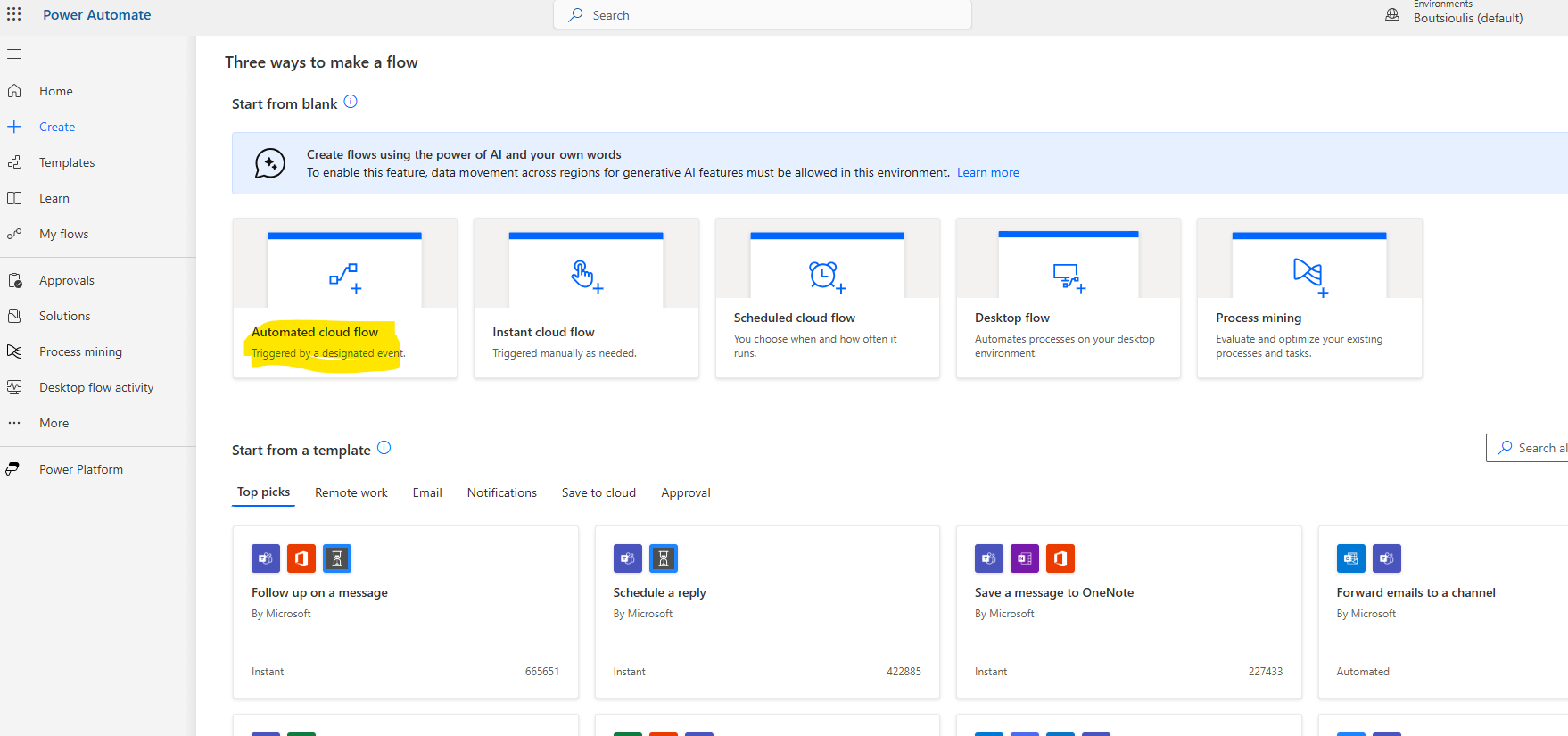
In today's article, we will see how when a file is uploaded in OneDrive, create a share link and send an email using Power Automate. First, we need an active M365 subscription. We need to log in to the service and then select Power Automate from the available apps. On the Power Automate homepage, we select automated cloud flow.
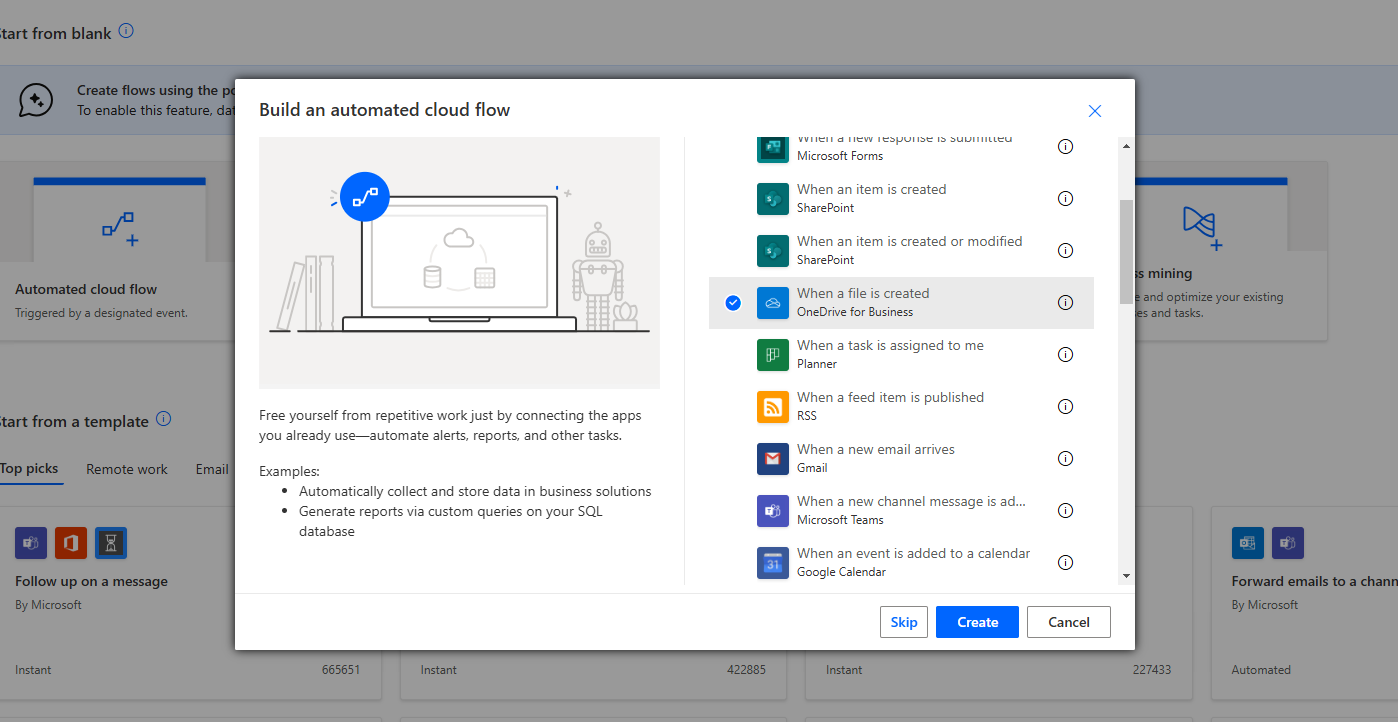
In the next step, we need to choose the trigger action which is When a file is created in OneDrive, name the automate and press create.
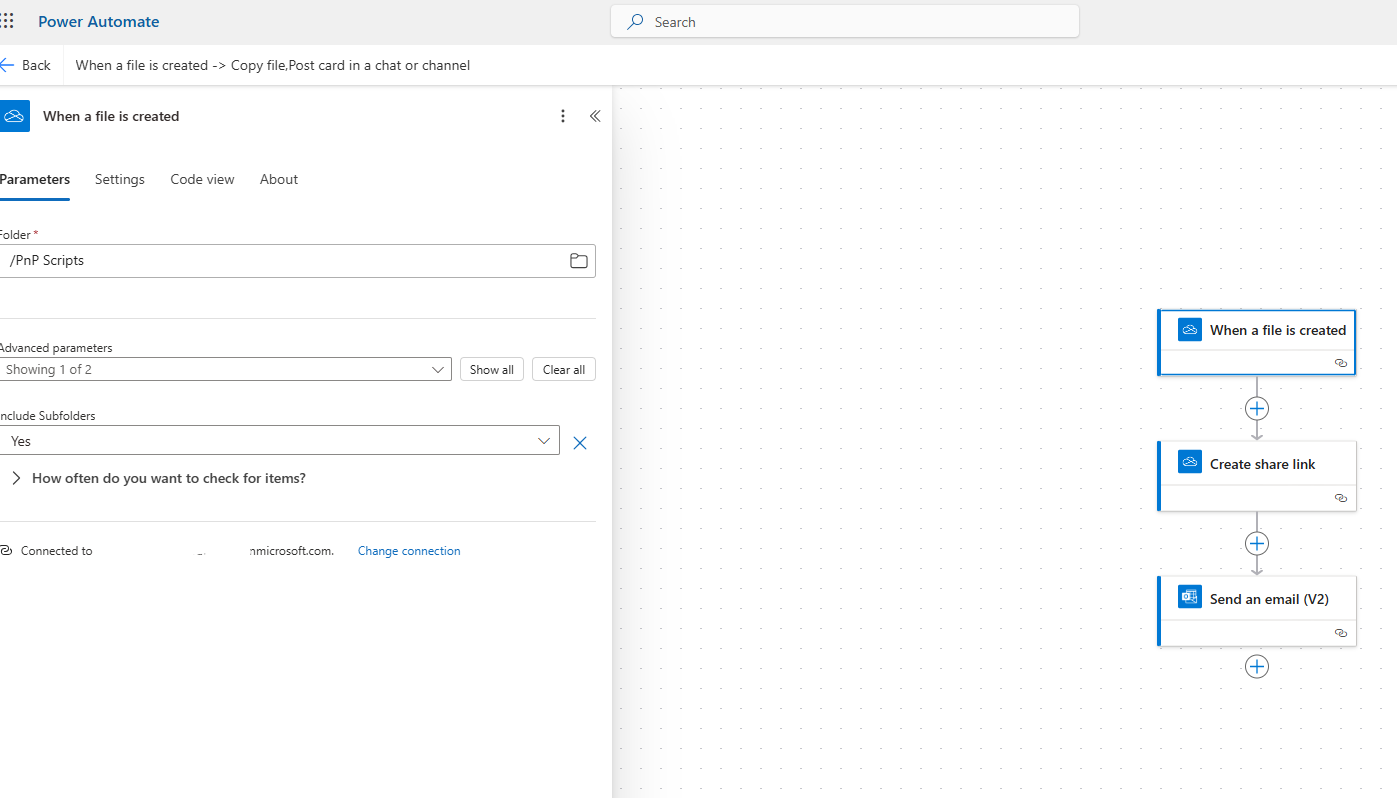
We have an automate with three actions. In the first trigger action, we need to specify the folder where, if a file is uploaded, it will trigger the automate.
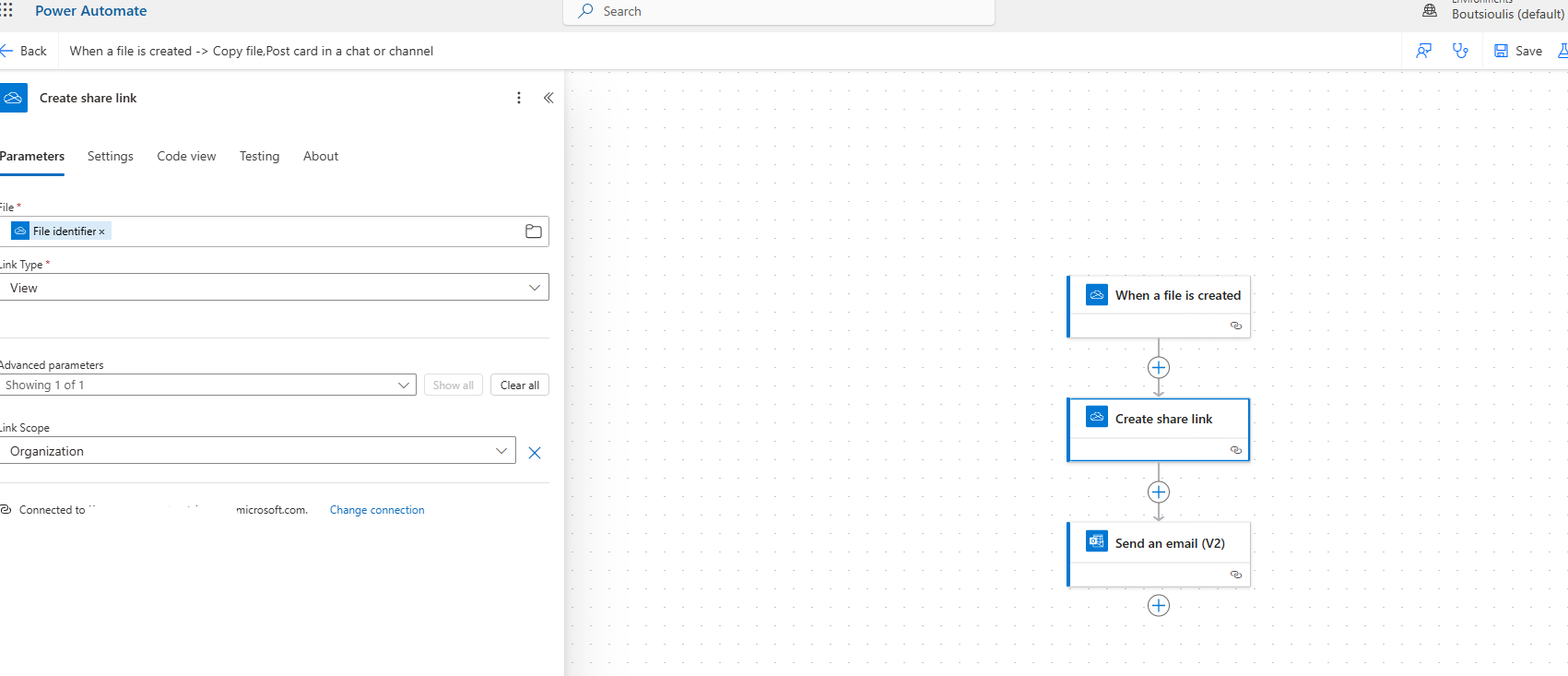
The next action is of the type "create share link," where we need to specify the file by its unique identifier and set the link type to view, as well as the scope to organization so that it is available internally in the organization in view mode.
Finally, we need an action of the type "send an email v2," where we will specify the users who will receive the notification email with the new link to the uploaded file.
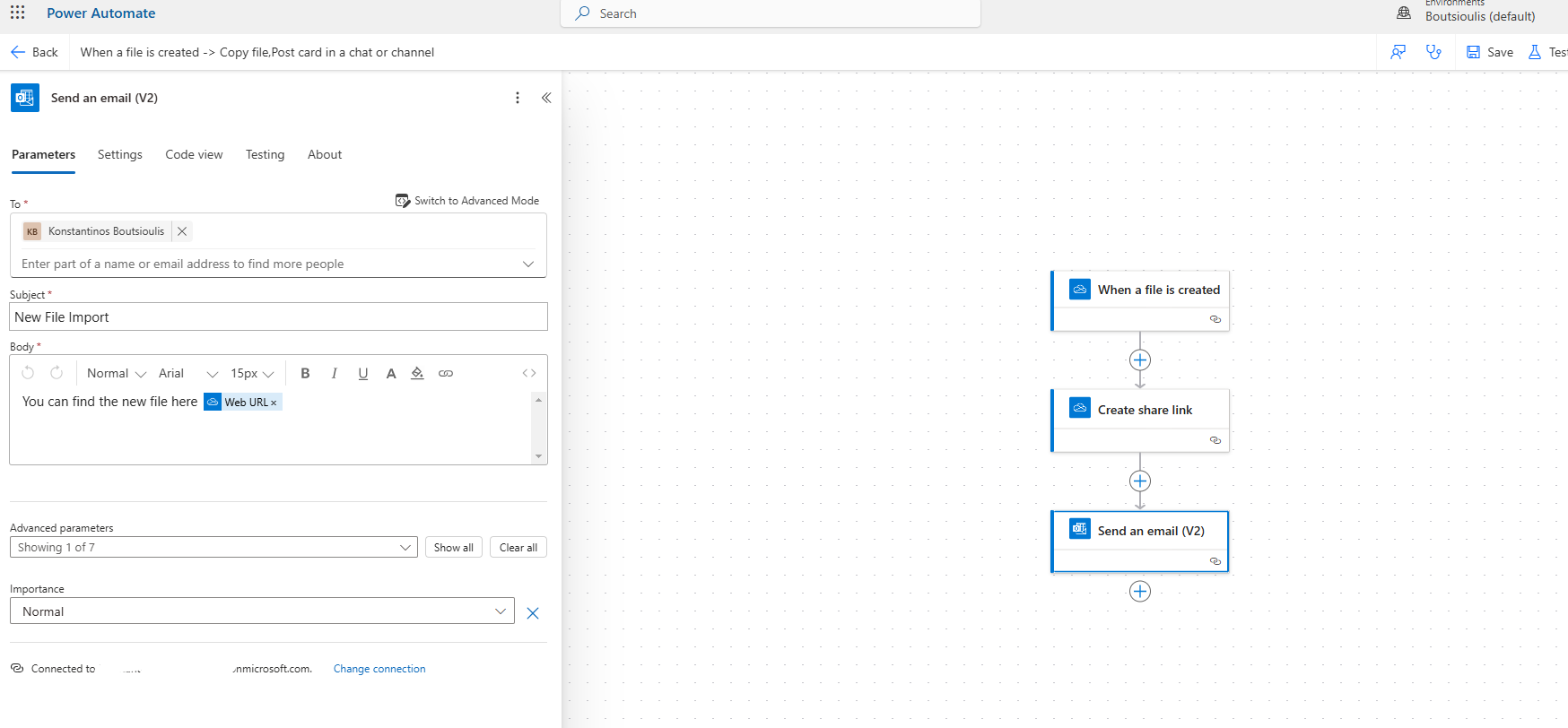
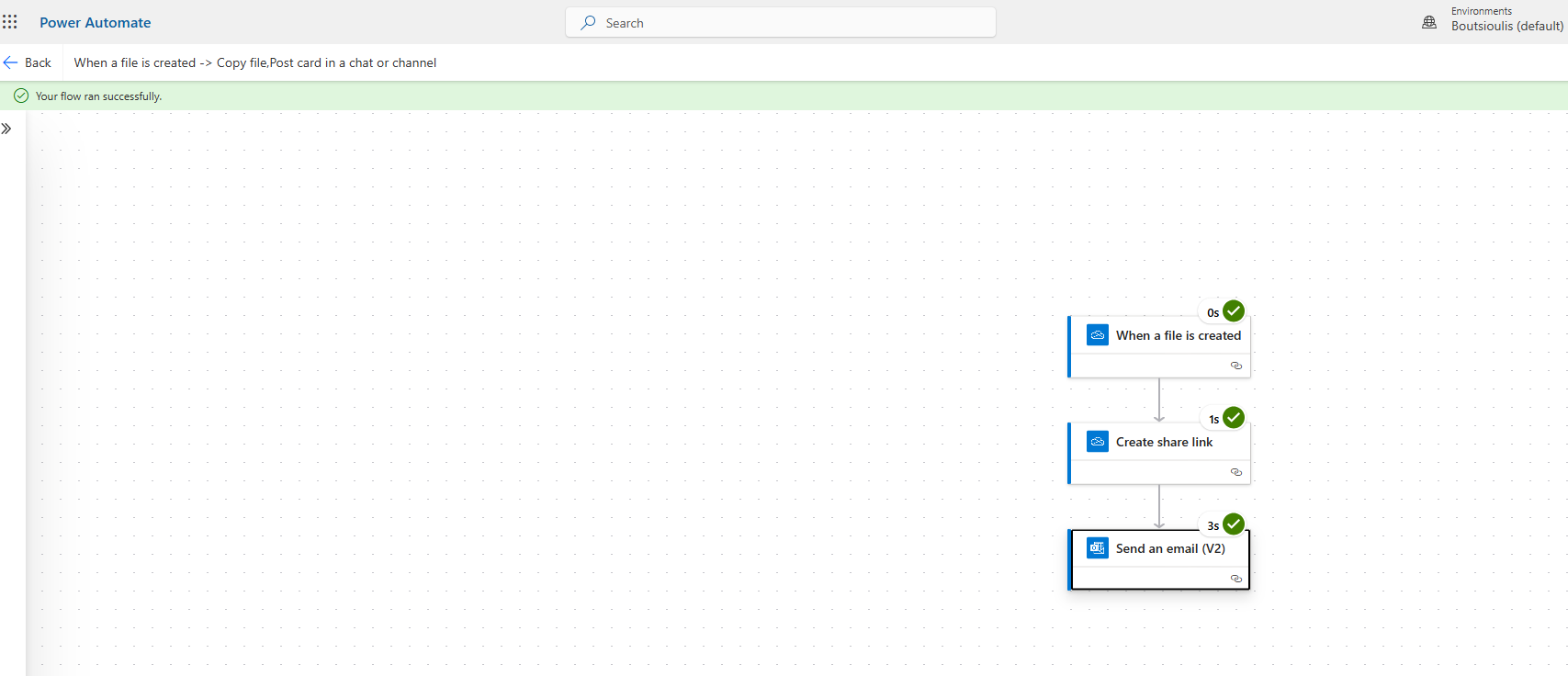
We need to save our automate and perform a manual test flow. Then, we need to upload a file to the initial folder we specified to trigger the automate. As you can see, the automate executed successfully.
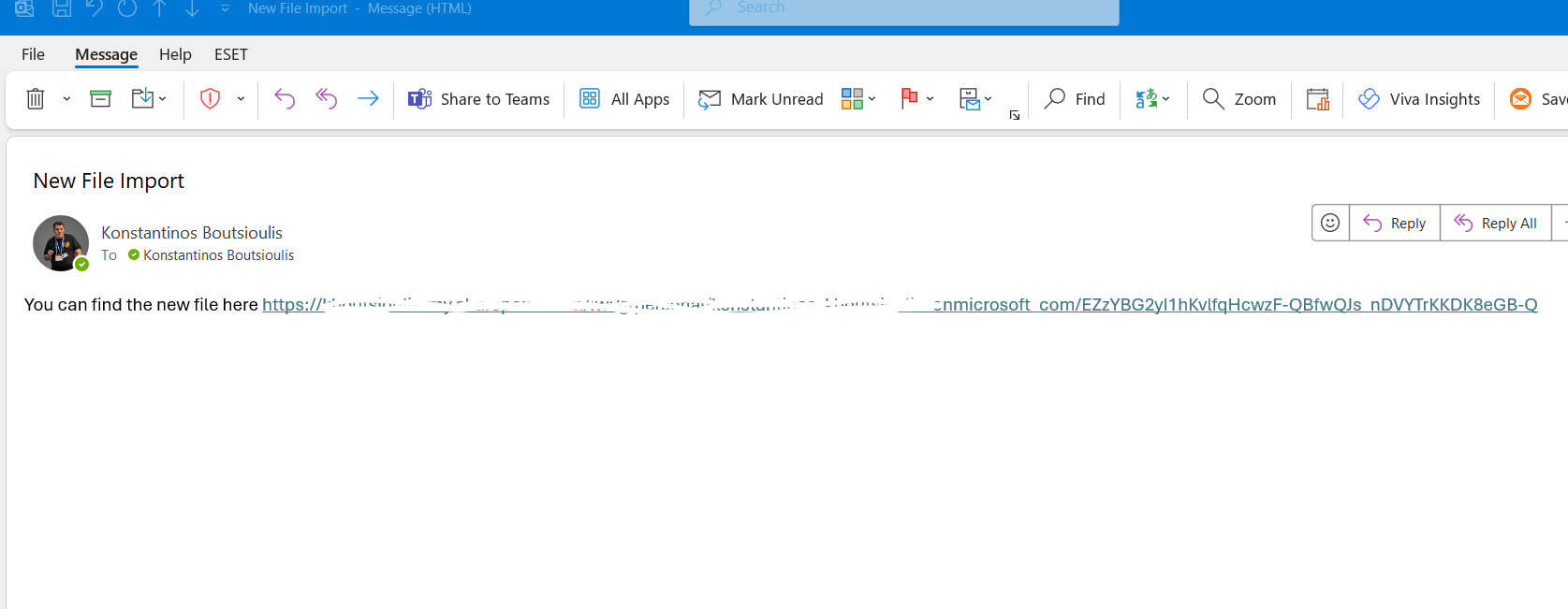
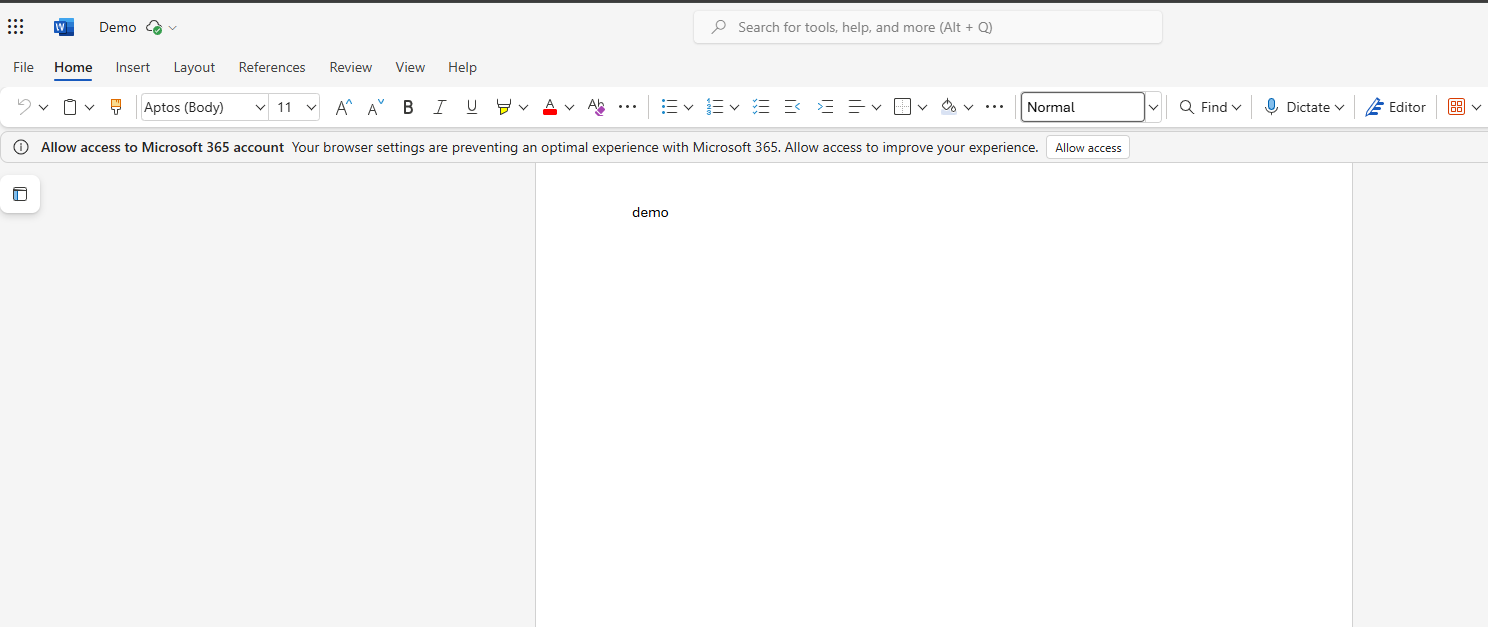
And of course, it has sent an email to all recipients with the new share link.
 #ModerWork
#M365_Apps_Services
#BusinessApps
#SharePoint
#PowerAutomate
#technology
#microsoft
#digitaltransformation
#cloud
#mvpbuzz
#m365
#ModerWork
#M365_Apps_Services
#BusinessApps
#SharePoint
#PowerAutomate
#technology
#microsoft
#digitaltransformation
#cloud
#mvpbuzz
#m365
Visit Archives below to find more articles about Microsoft technologies on Modern Workplace