
Free Material
Find hereMore than 150 Articles about Microsoft Technologies on Modern Workplace
Official Site
Microsoft Most Valuable Professional M365 Apps & Services
Microsoft Most Valuable Professional Business Applications
Consultant & Sr Cloud Solution Architect Modern Wokrplace
Find hereMore than 150 Articles about Microsoft Technologies on Modern Workplace
14 September 2024
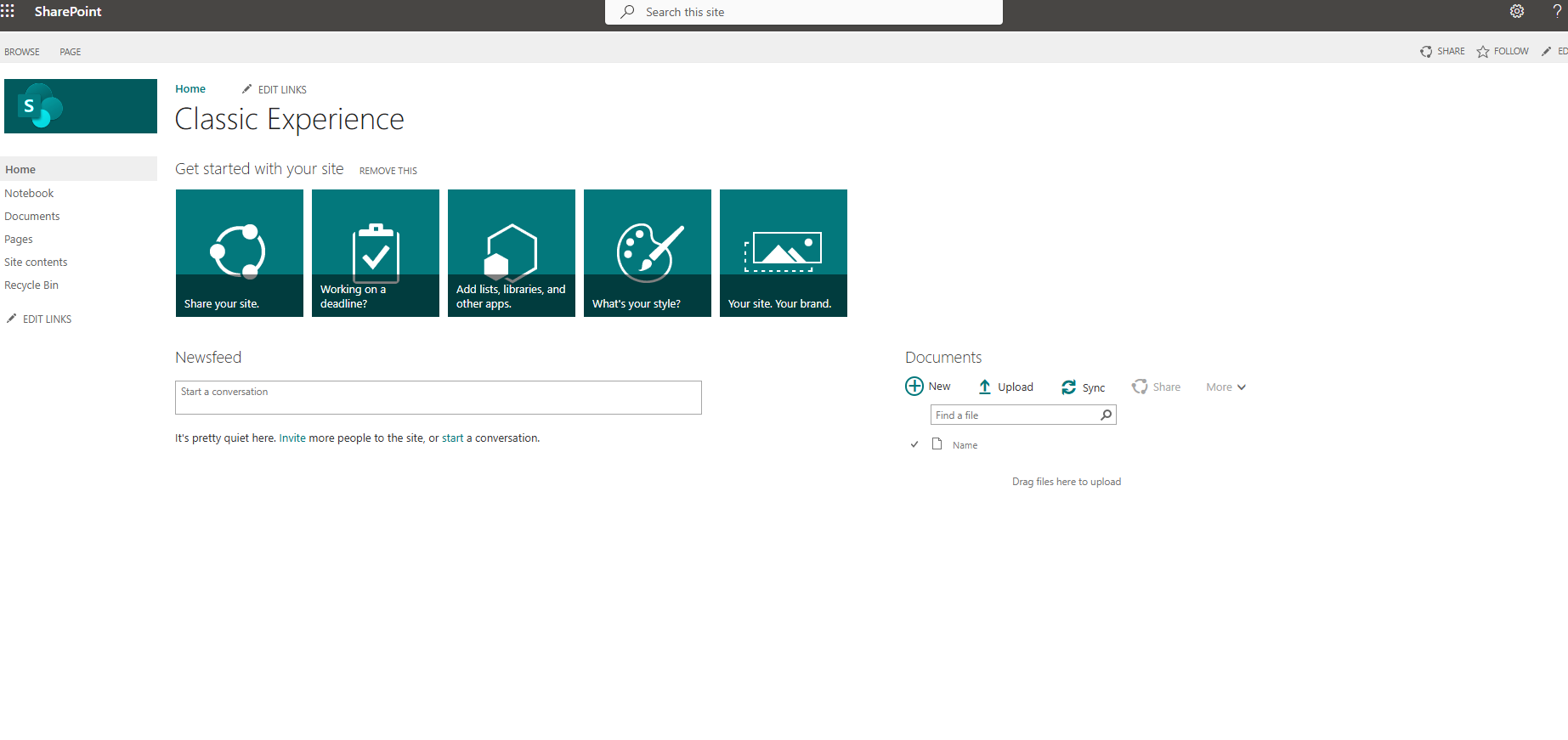
In today's article, we will see how we can create a new survey in a classic experience site in SharePoint. Initially, as we said, the site must be of the classic experience type; otherwise, we will not be able to find the template of the specific web part. Once we have our site, we select the gear icon at the top right and then site contents.
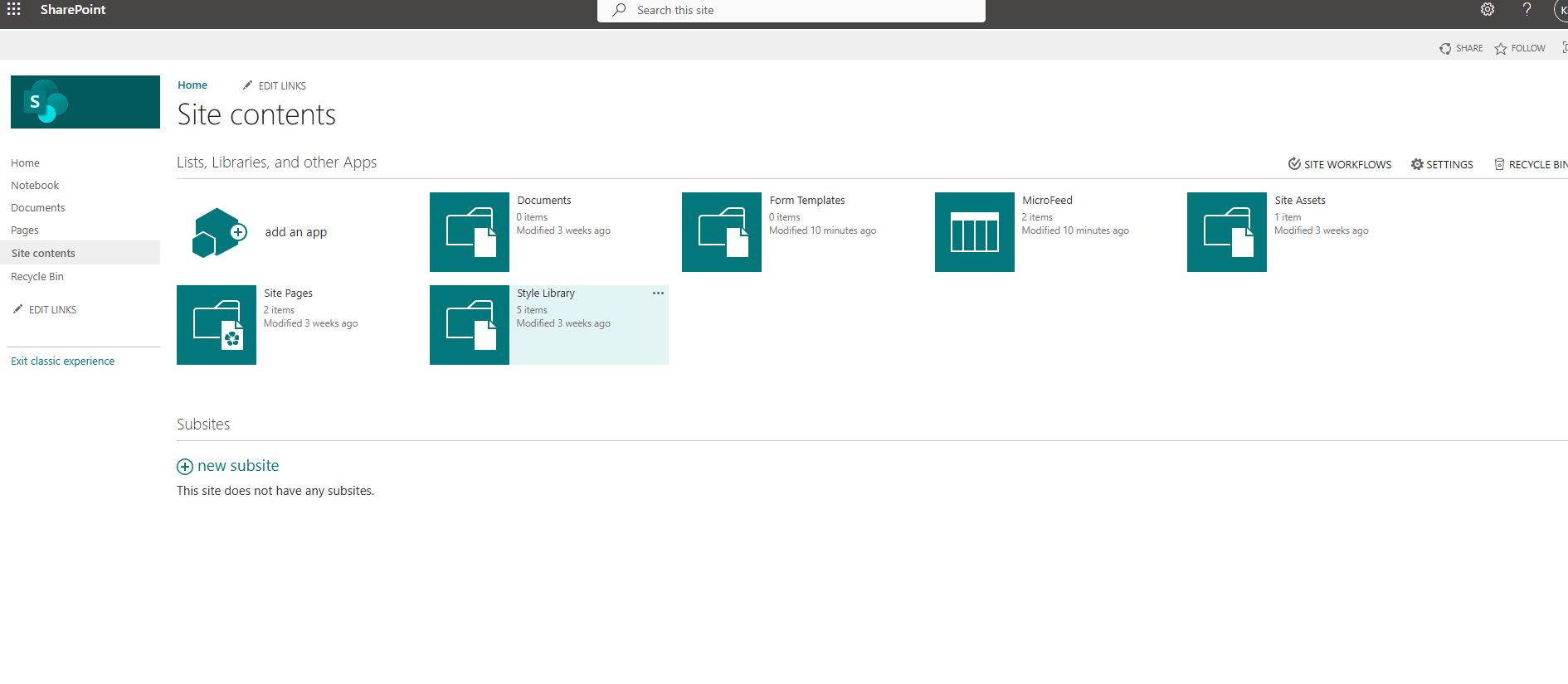
In the next step, we select add an app.
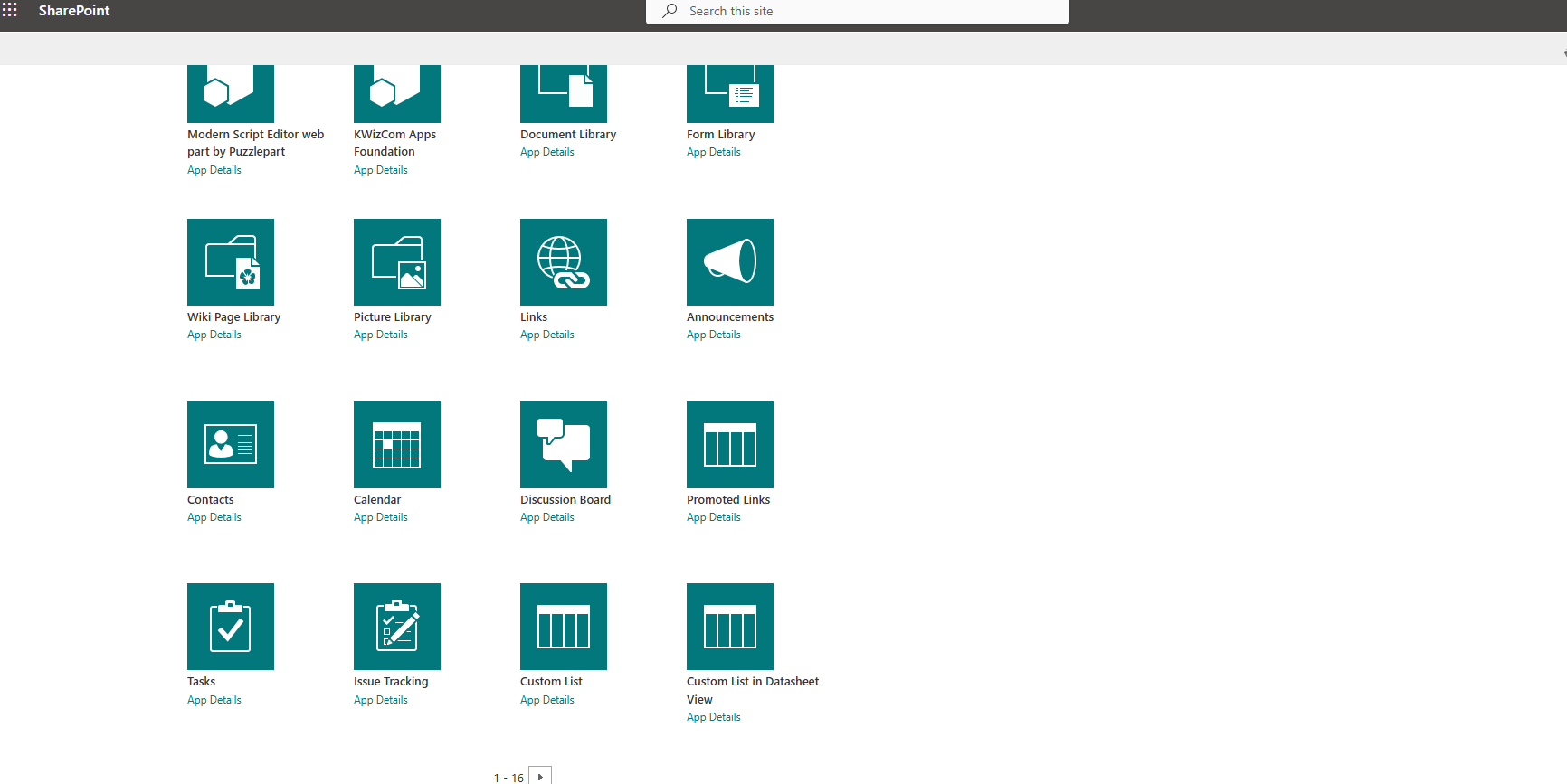
Then we need to navigate through the available templates.
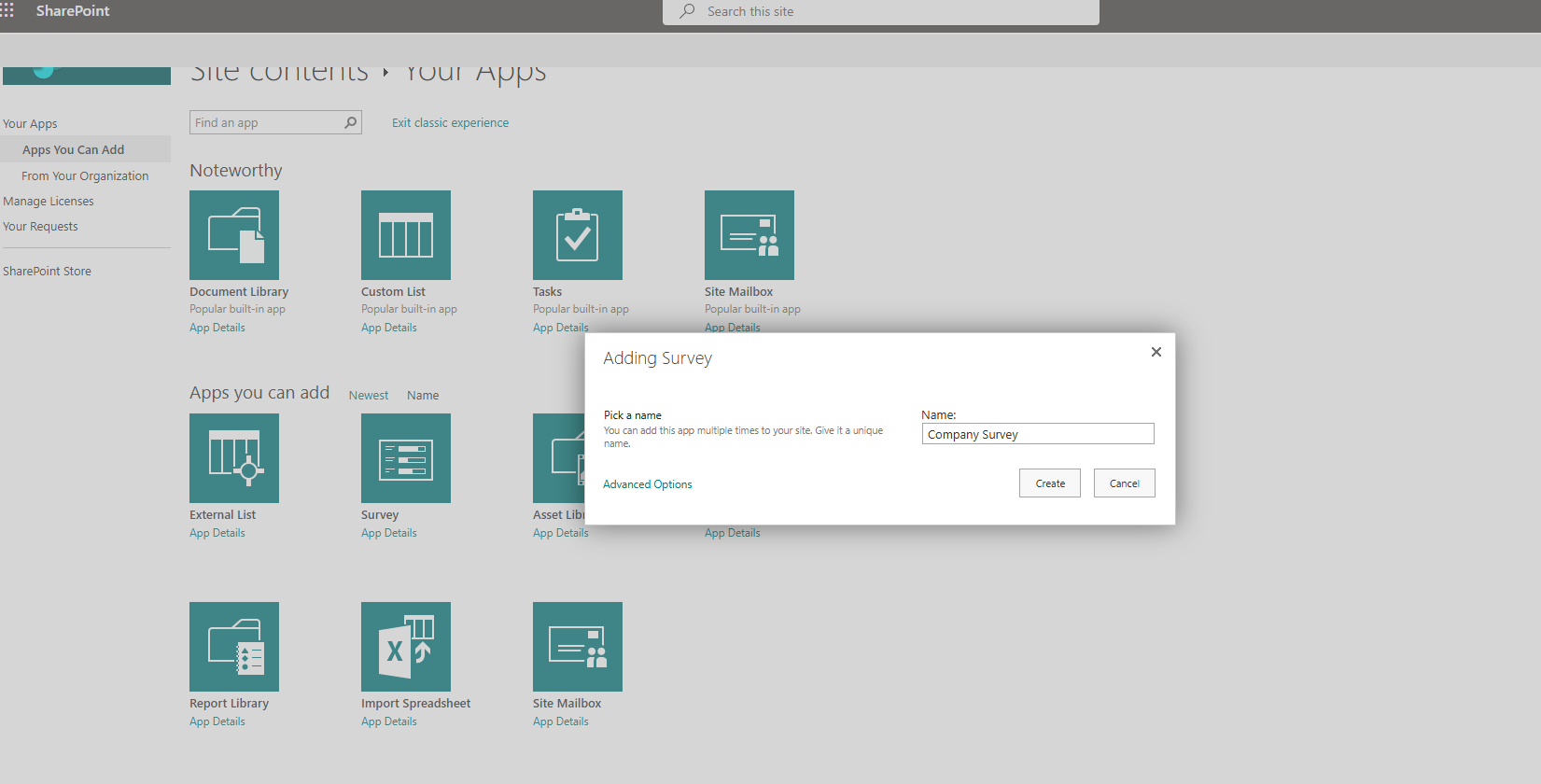
Once we find the survey template, we select it.

In the next step, we need to give a name to our survey. We do not select advanced options yet; these are some settings that we will change after creating our survey.
From the available web parts we have created, we select the Company Survey we just made.
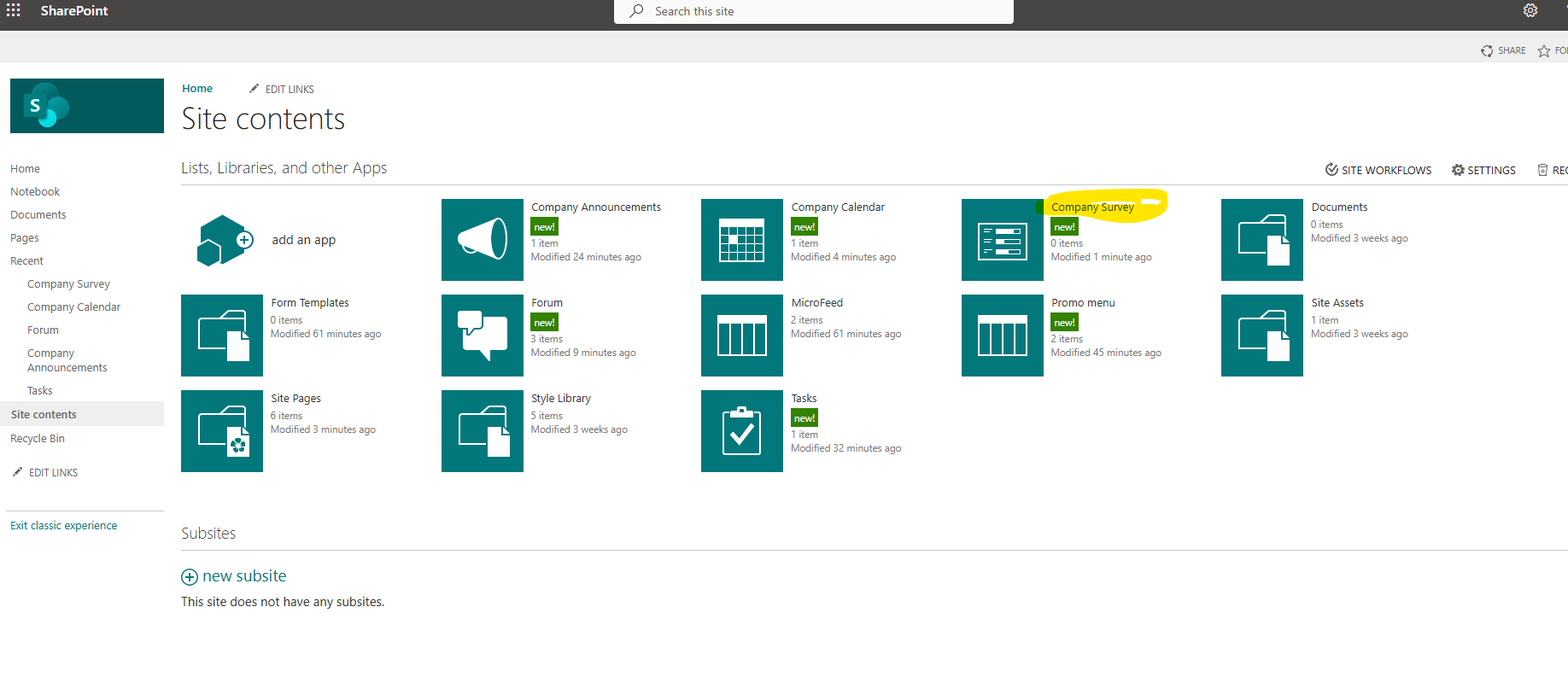
This way, we navigate to the survey page.
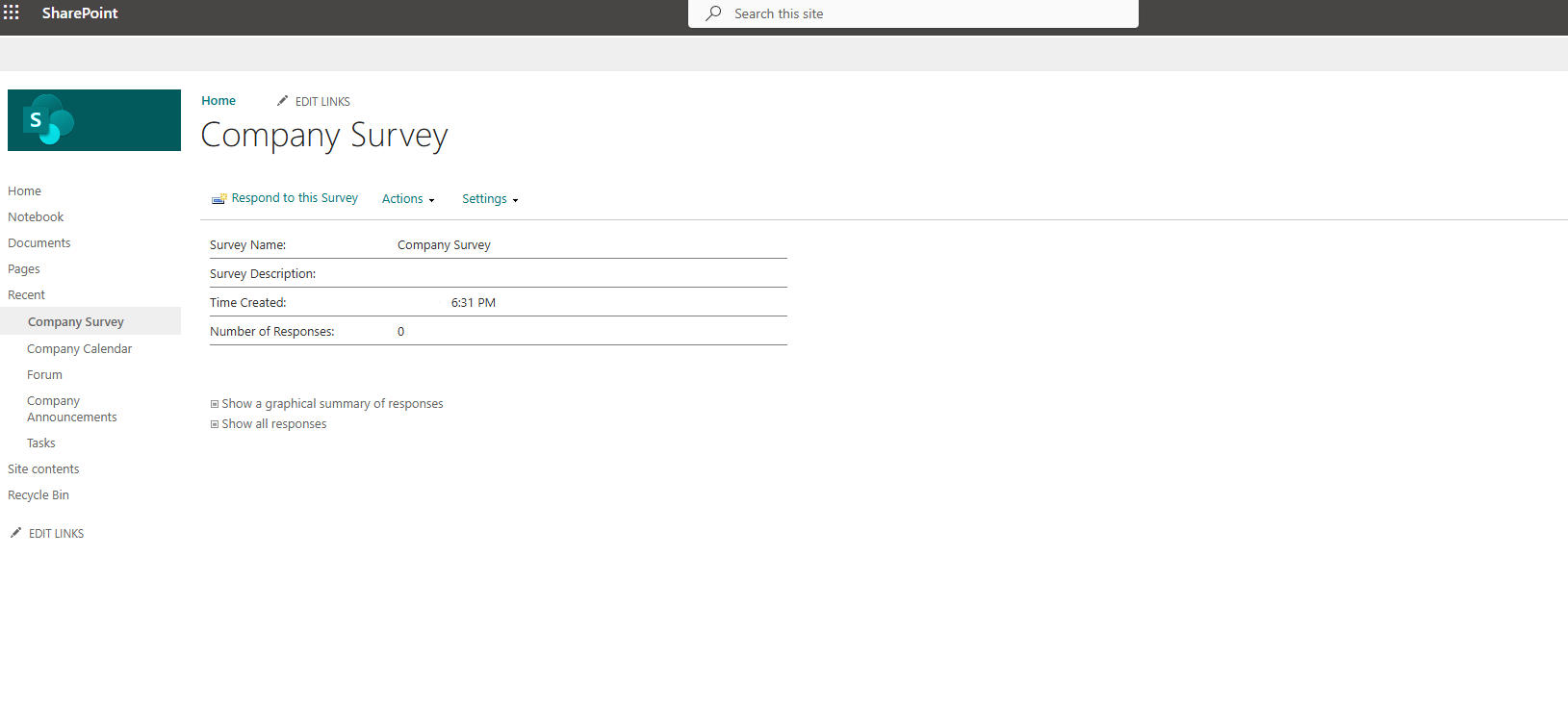
We select settings and in the dropdown menu, we select add questions.
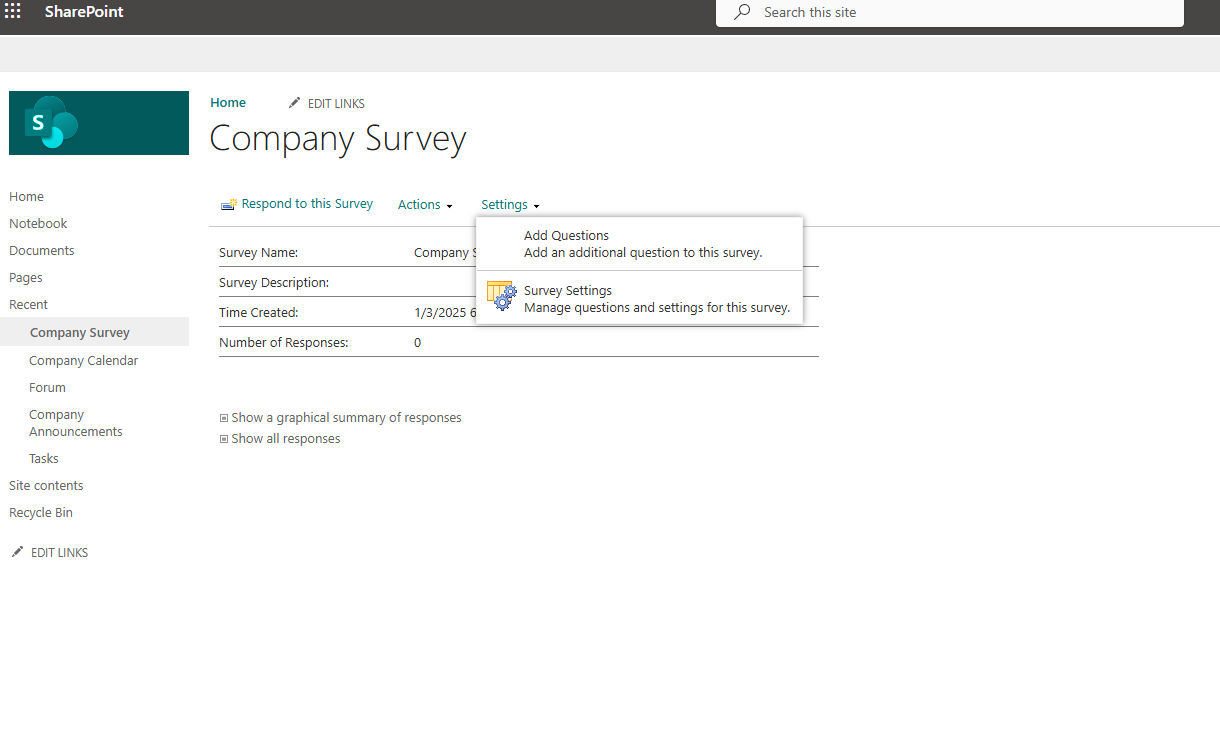
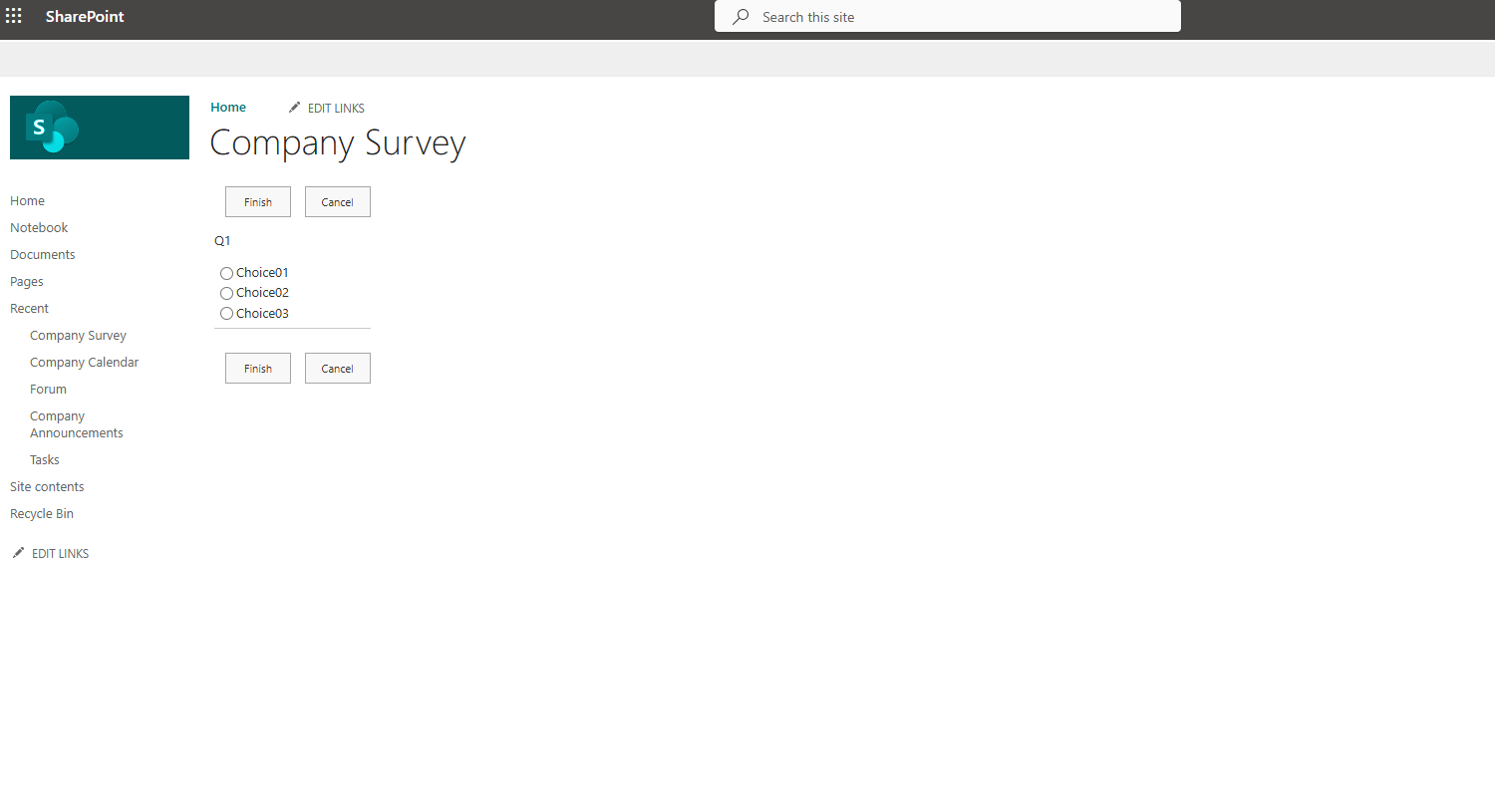
We set our first question and select the data type of the answer. It is exactly like when we create a new column in a custom list in SharePoint. After all, the survey is a custom list that exists as a template.
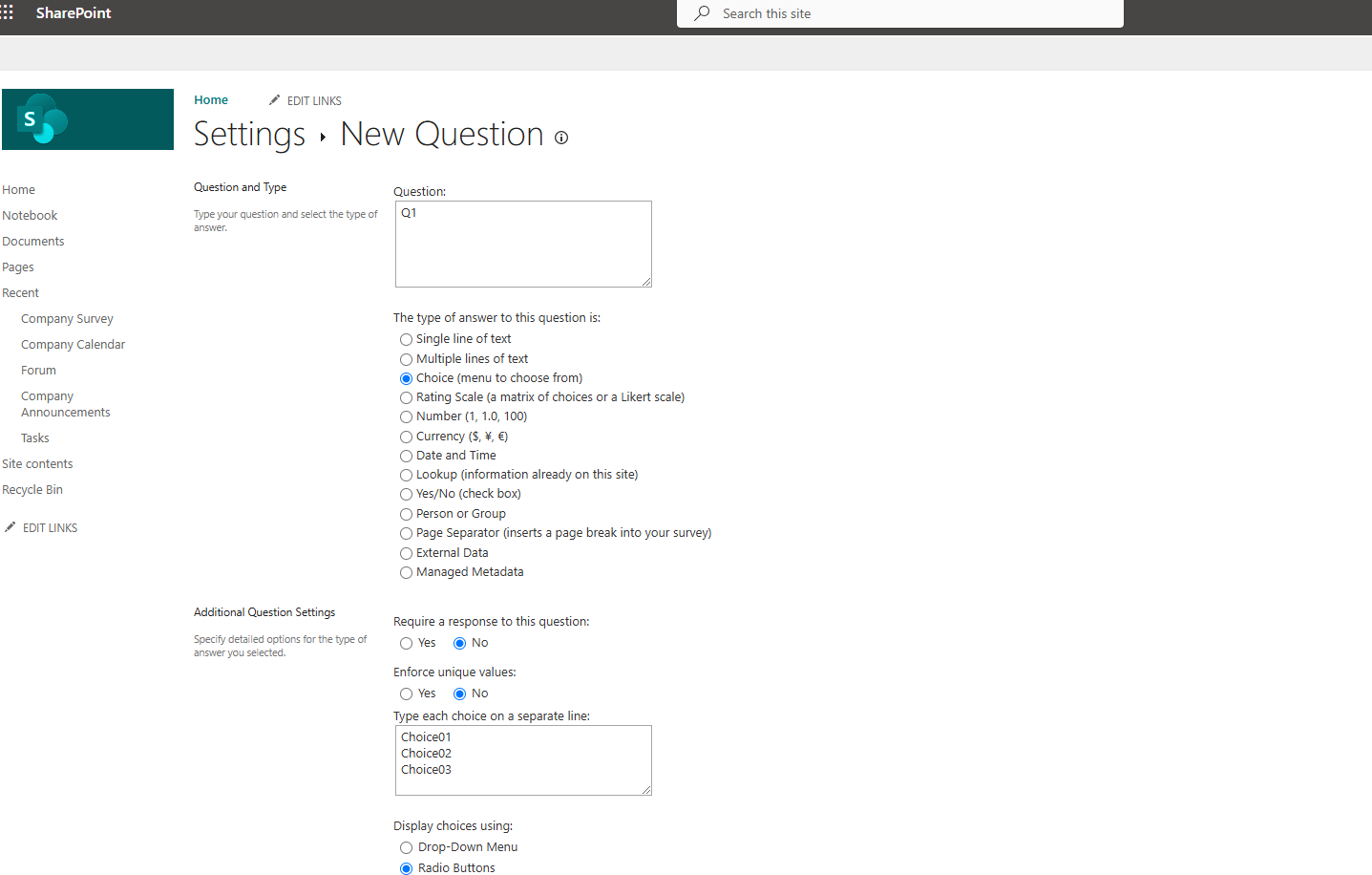
And this will be the form of our survey.
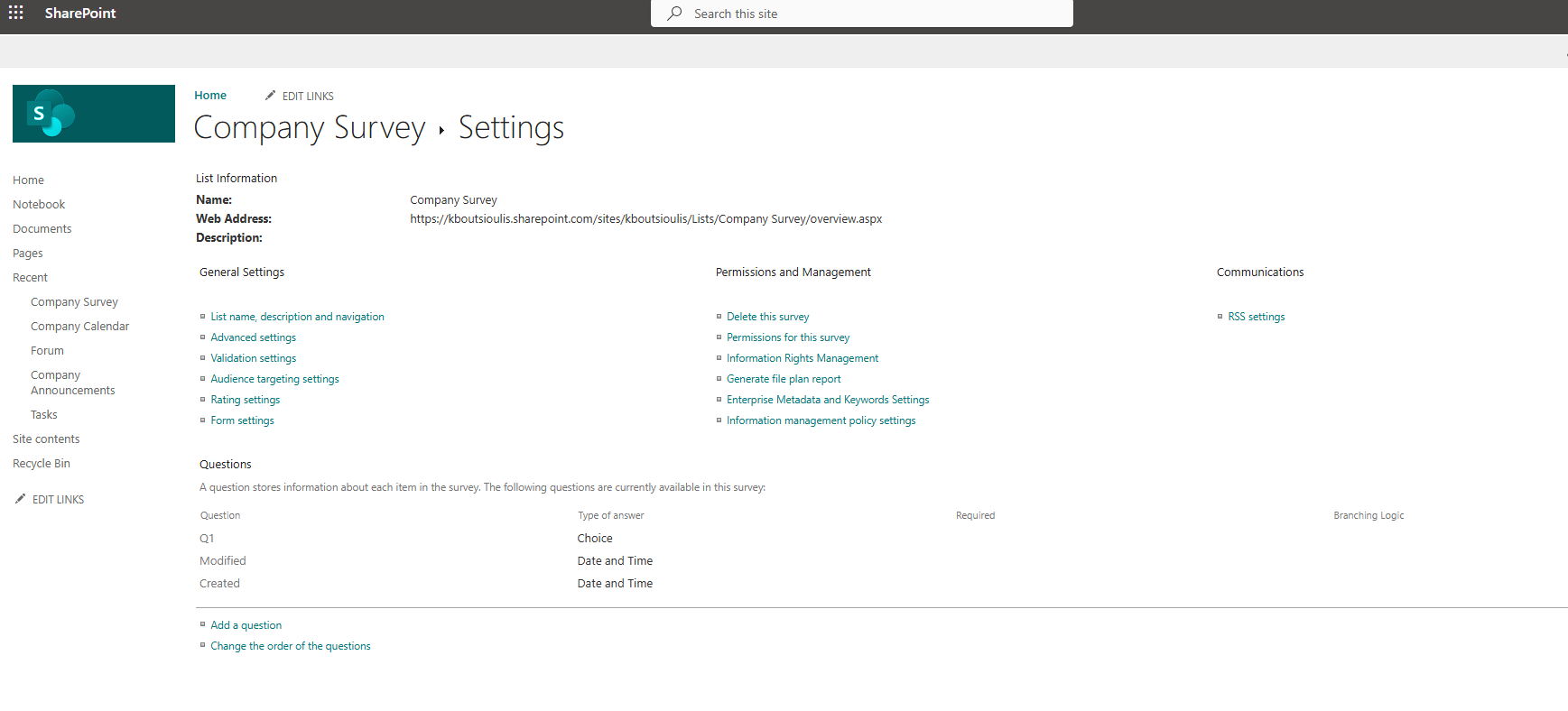
We return to the survey and from the settings in the dropdown menu, we select survey settings to make some basic settings for our survey.
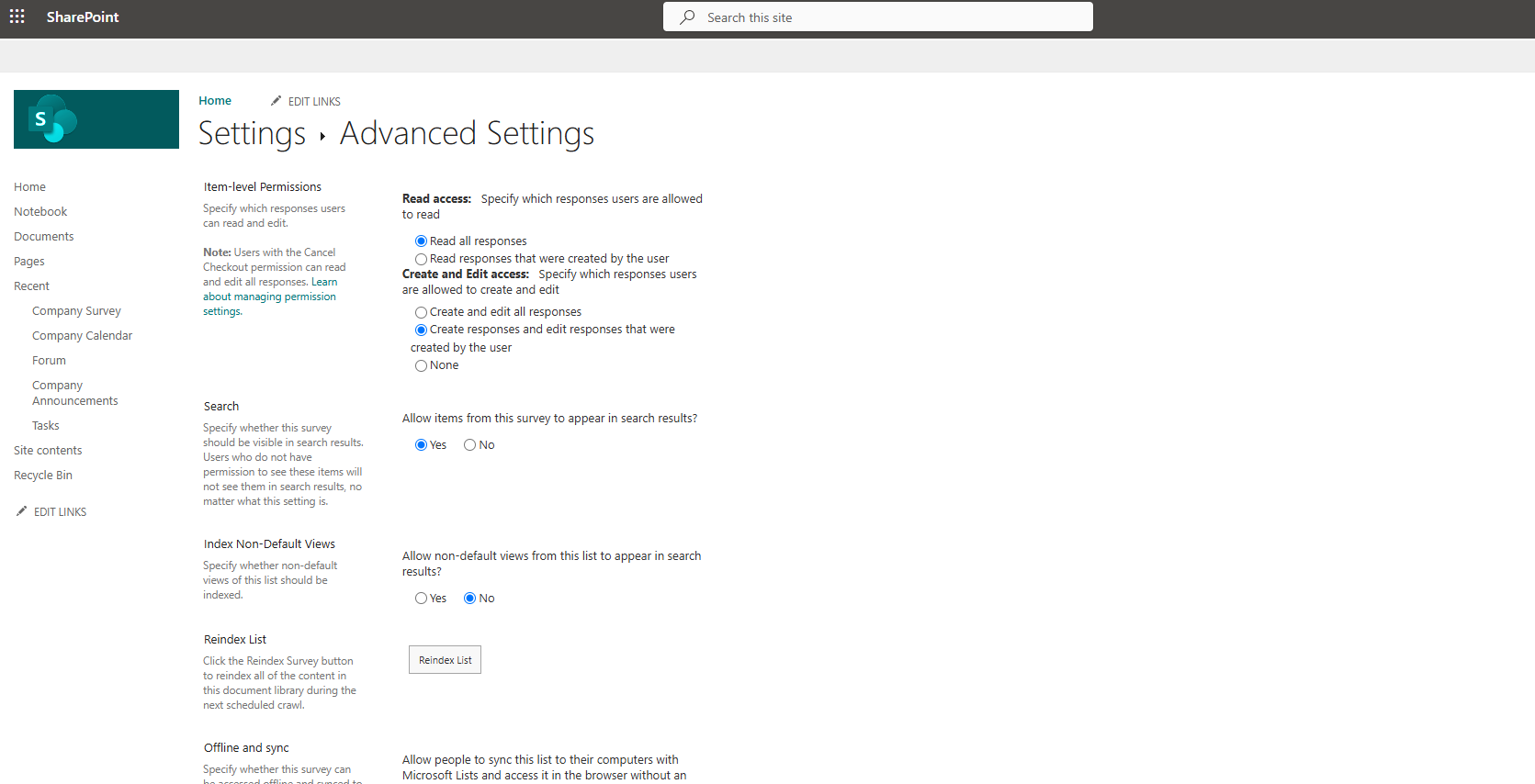
We select advanced settings and on the transition page, we select who will have access and what kind of access we want for our users.
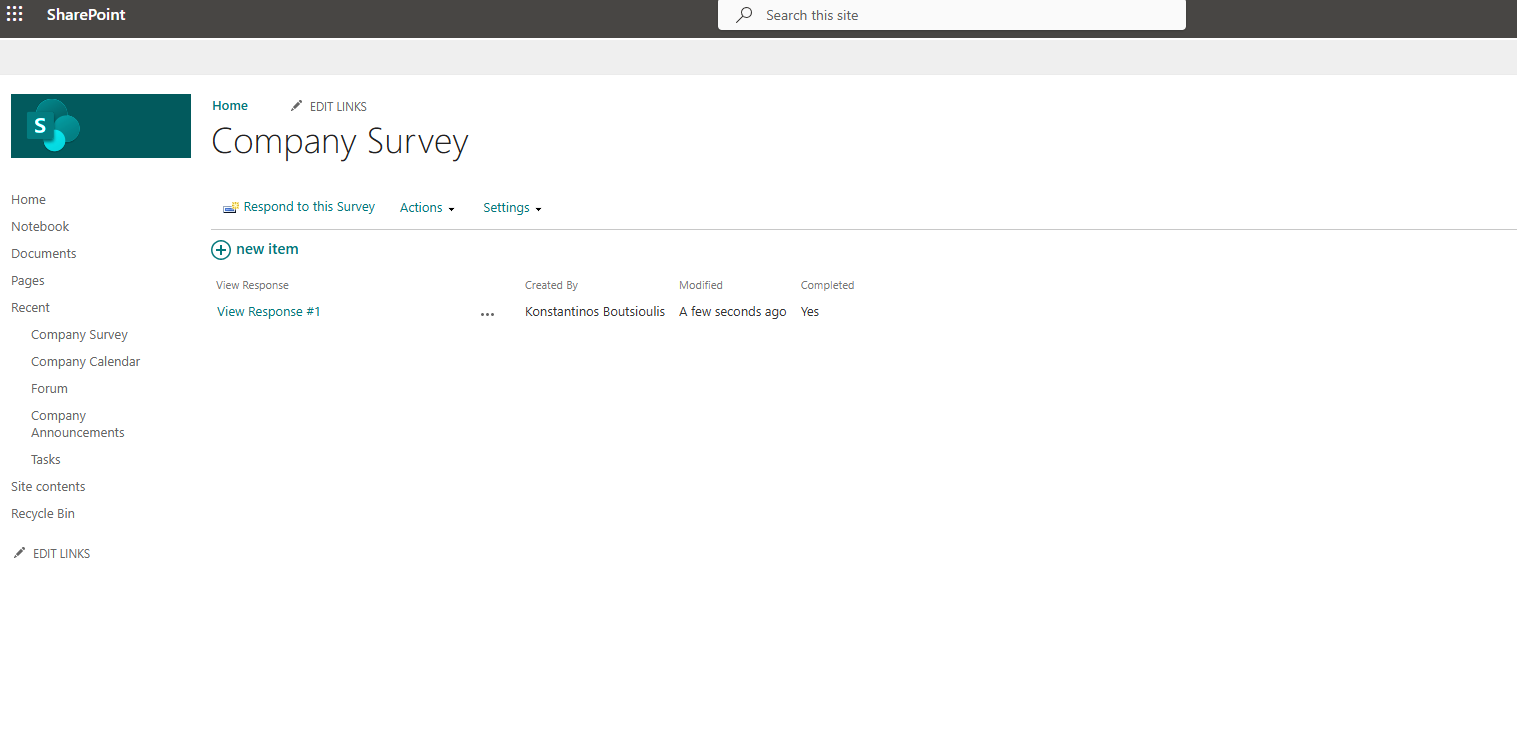
As you can see, this way we can respond to the survey. In our list, there are 2 links, the first show all responses which leads us to a view of the list that presents all the survey responses as shown below, and also provides us with the ability to export the survey responses to Excel.
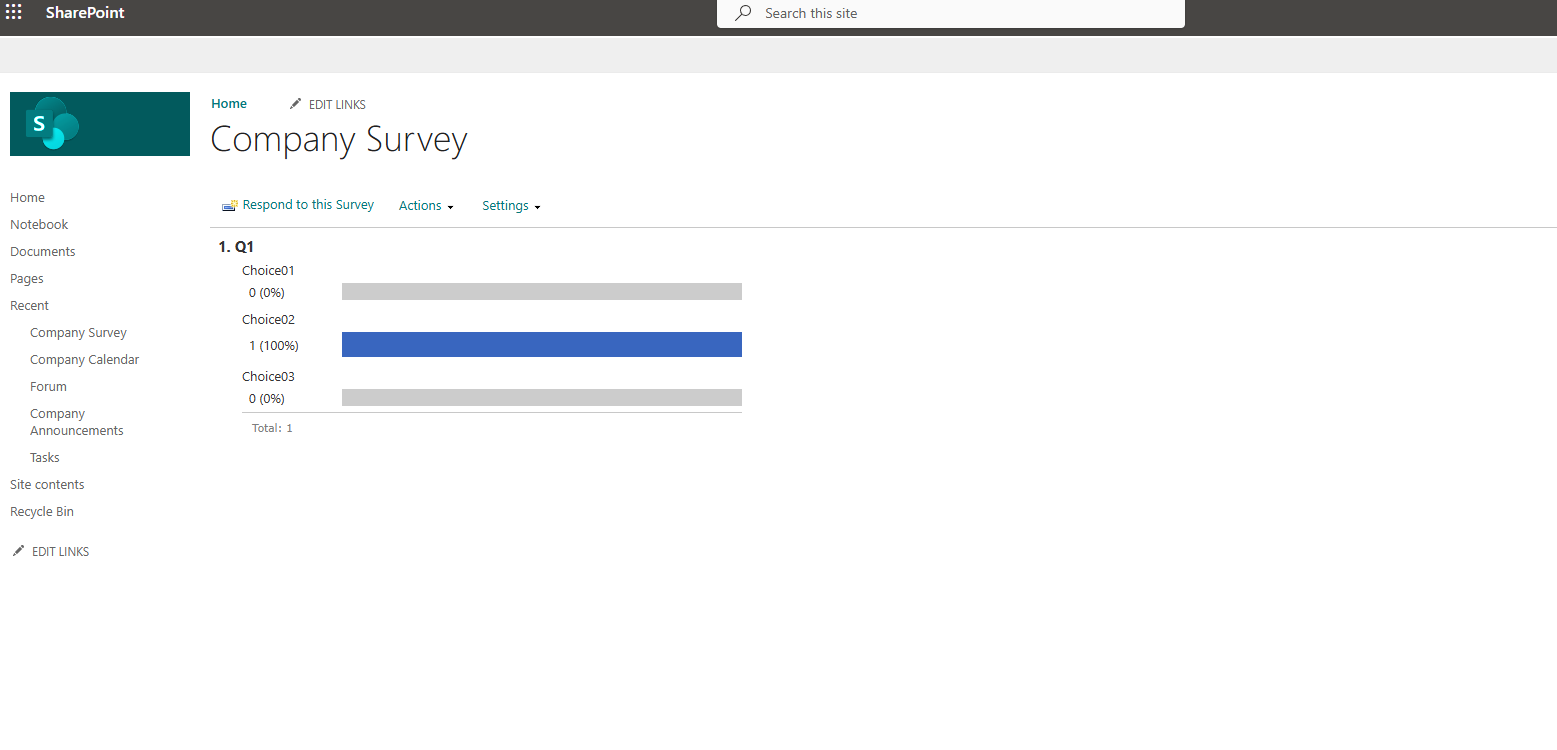
If we select show a graphical summary of responses, then we will go to another view of the list where we will see the graphical representation of the responses as shown below.
 #ModerWork
#M365_Apps_Services
#BusinessApps
#SharePoint
#PowerAutomate
#technology
#microsoft
#digitaltransformation
#cloud
#mvpbuzz
#m365
#ModerWork
#M365_Apps_Services
#BusinessApps
#SharePoint
#PowerAutomate
#technology
#microsoft
#digitaltransformation
#cloud
#mvpbuzz
#m365
Visit Archives below to find more articles about Microsoft technologies on Modern Workplace