
Free Material
Find hereMore than 150 Articles about Microsoft Technologies on Modern Workplace
Official Site
Microsoft Most Valuable Professional M365 Apps & Services
Microsoft Most Valuable Professional Business Applications
Consultant & Sr Cloud Solution Architect Modern Wokrplace
Find hereMore than 150 Articles about Microsoft Technologies on Modern Workplace
05 September 2023
In today's article we will see the share options we have for a folder in OneDrive I will divide this article into two parts, the first one where I will present the Sharing options only from the Sharing option and in the second one we will analyze all the Sharing options from the same conceptual group Initially from our active subscription we need to go to the home page of M365 and from there from the left pop-up column select OneDrive
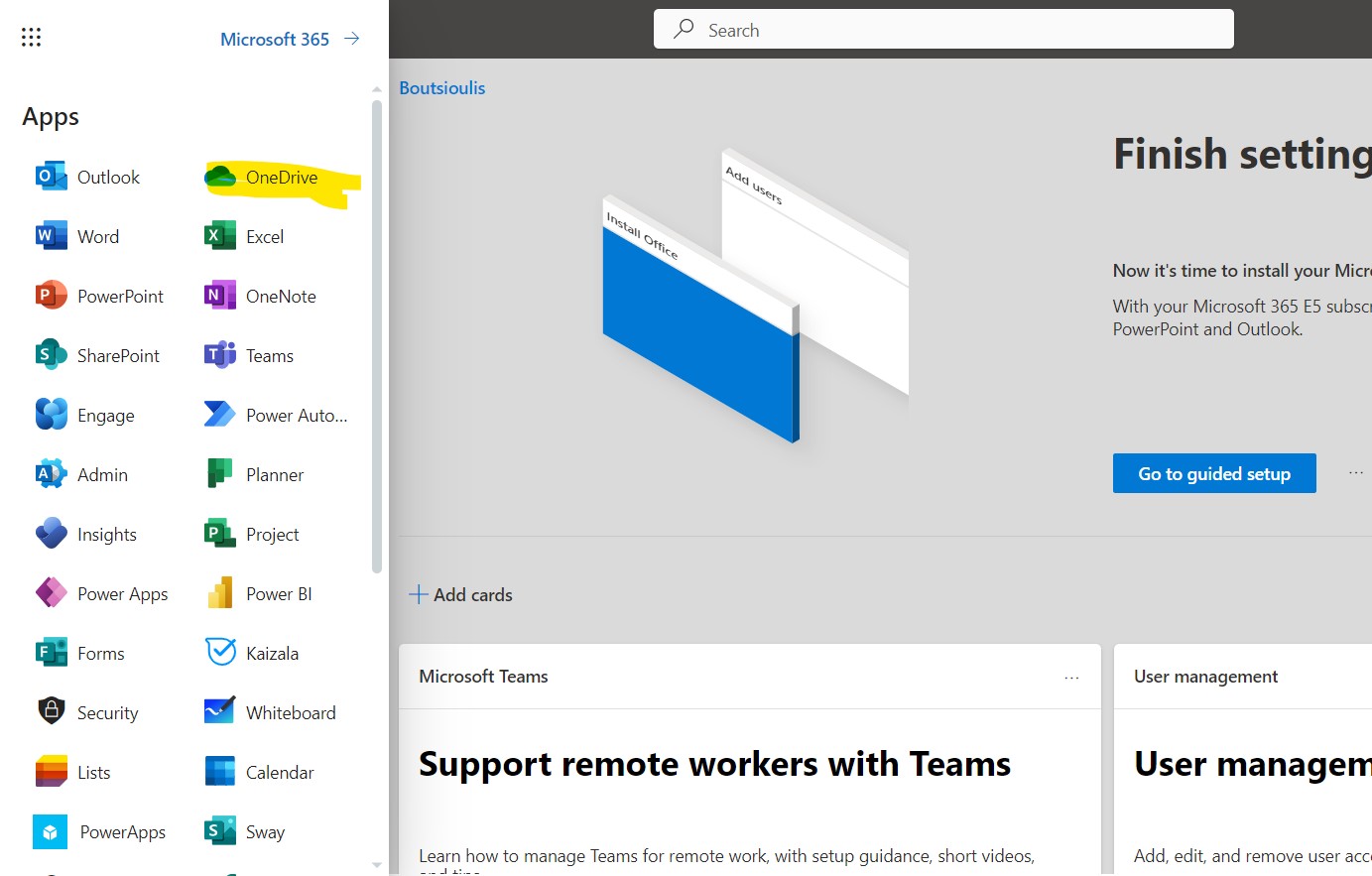
As you can see we have gone to the main page of our OneDrive and from there again select from the left hand column My files
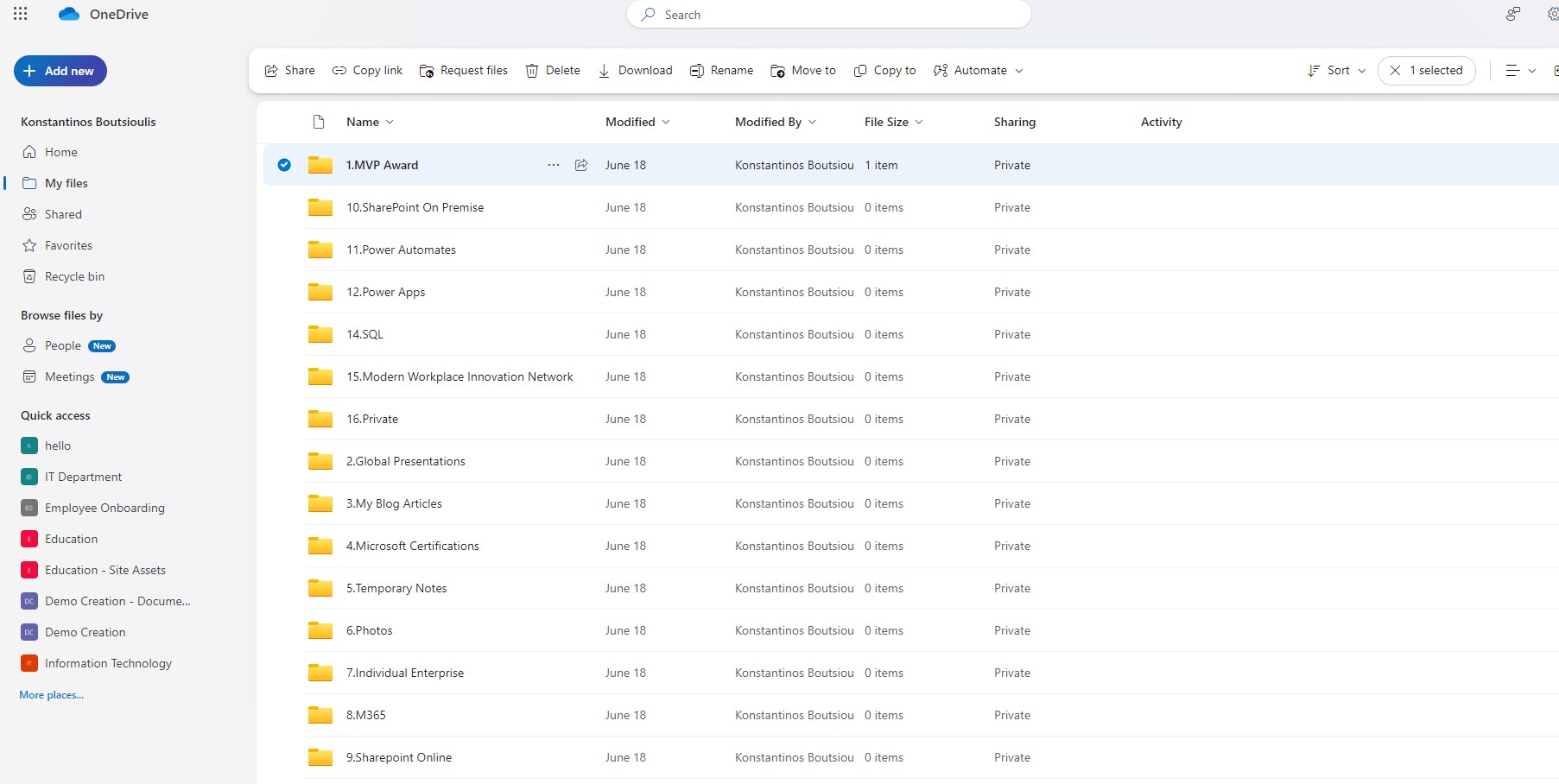
As you can see there is a whole structure of folders which each one individually has different access rights to groups of users But how can I share access rights? You just have to select the 3 dots to the right of the title as in the image below
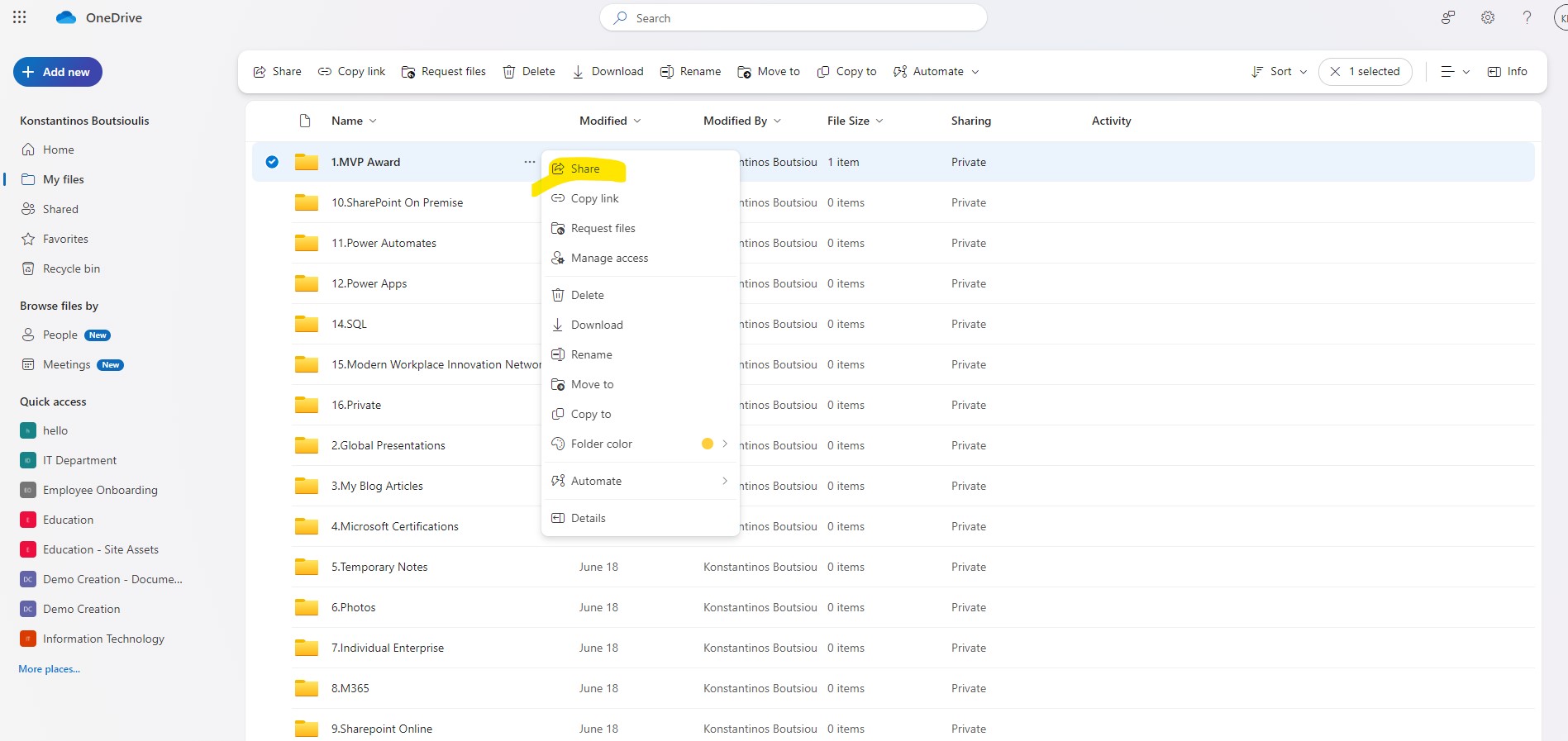
if I press on share it opens a window that gives me some basic options. I can start typing the name of the user or the name of the user group I want to add and finally when it appears in the drop down menu I can select it and add it . At that moment a mail will go out to the user informing him that he has been added to a common folder
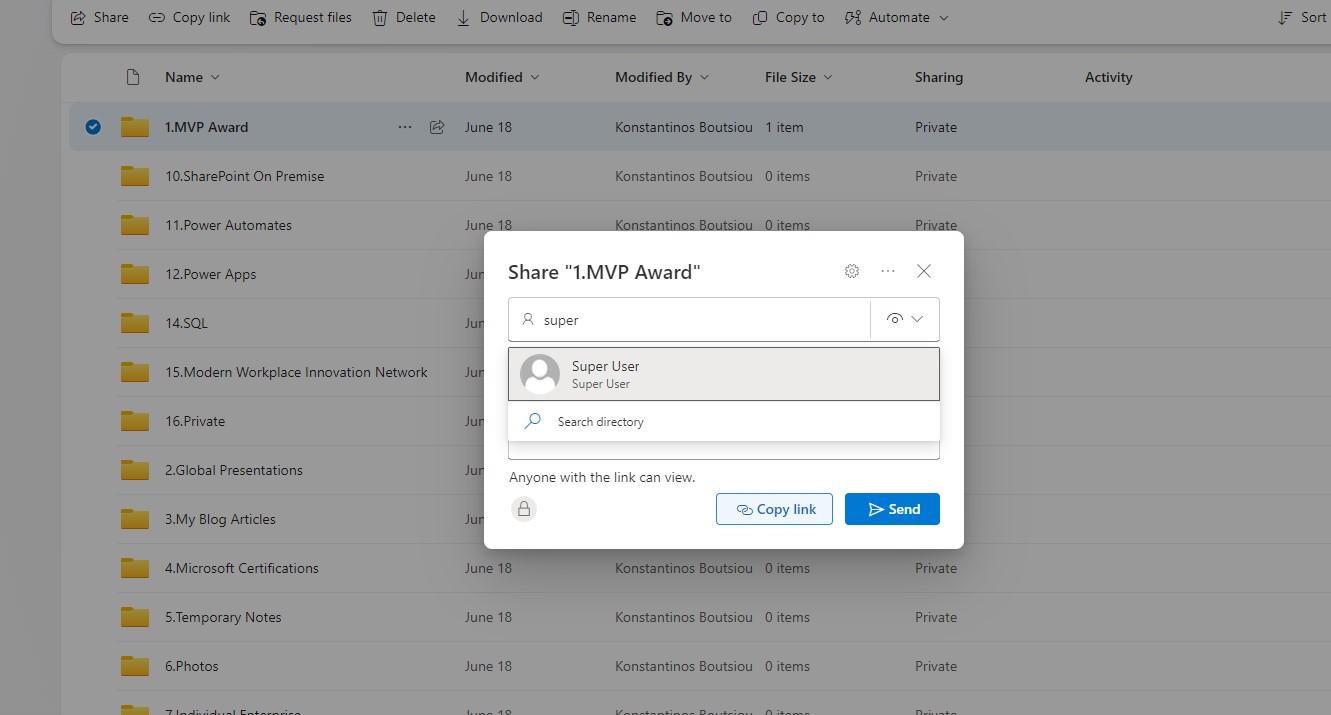
But I also have the possibility to copy the link of the folder and send it . To access the folder in this way there must be the corresponding permissions otherwise it will not allow him to enter the folder .
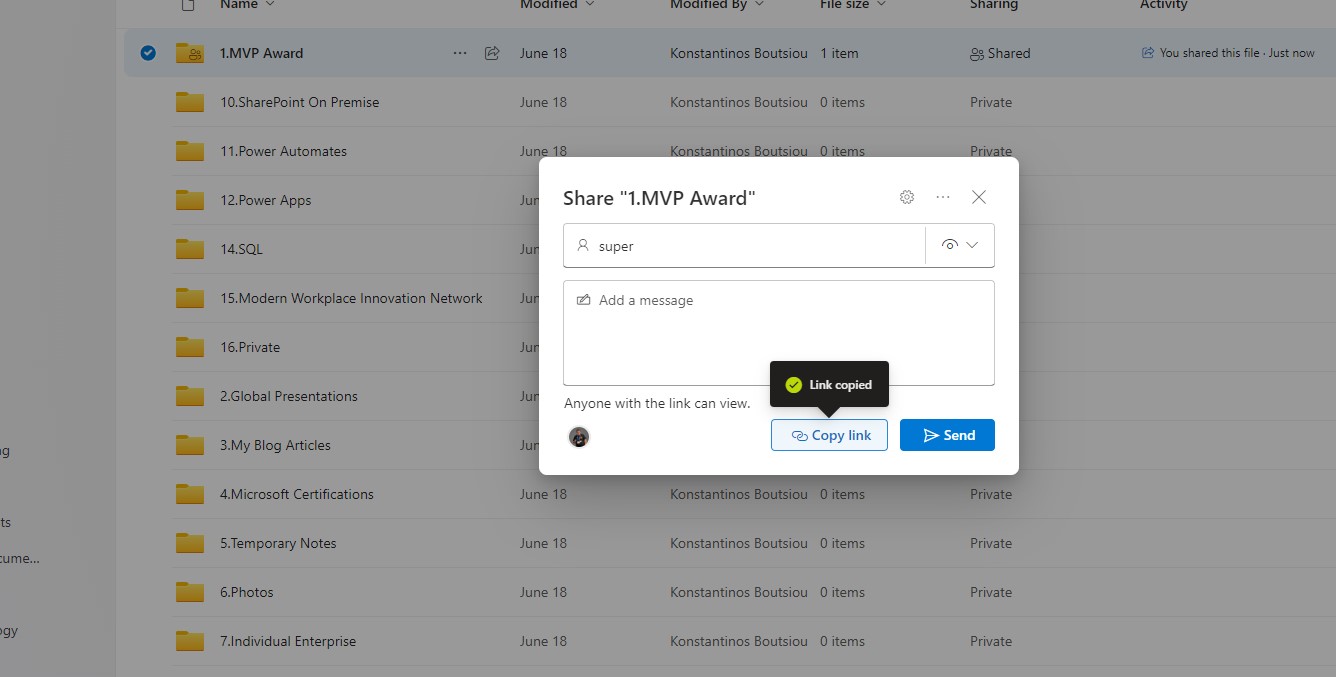
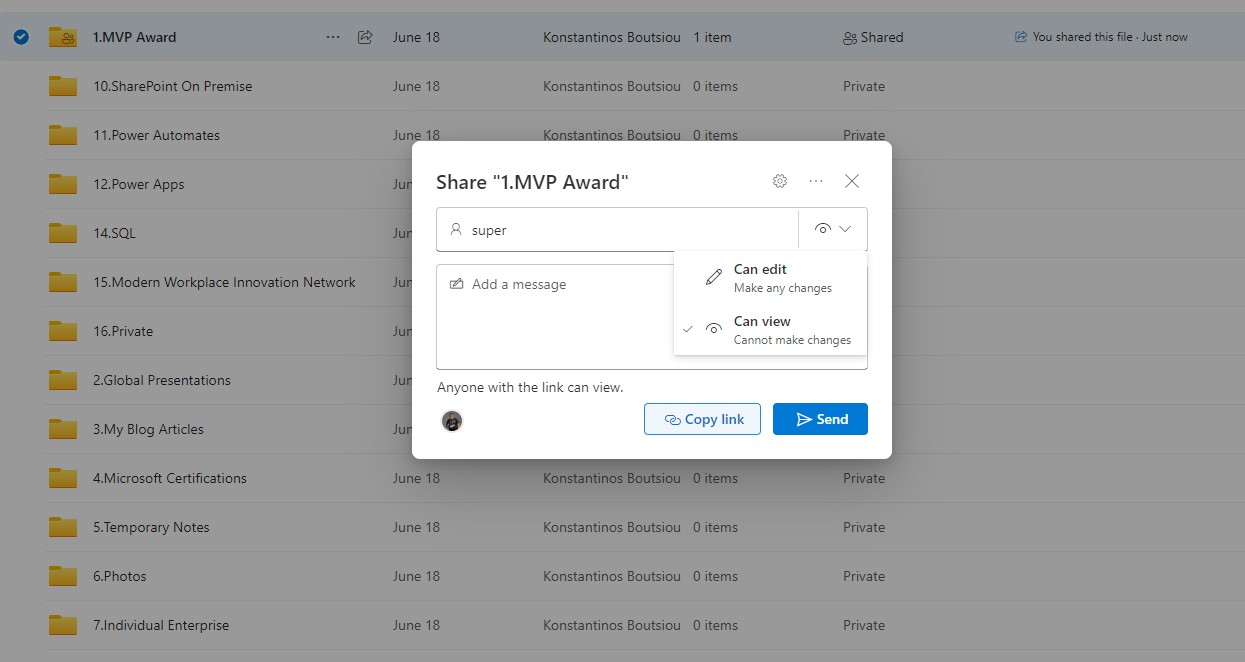
But as you notice next to the user's search there is an eye. So there I can determine what kind of right I wish to grant to each user individually. That is, if I want to allow him to have view or edit permissions
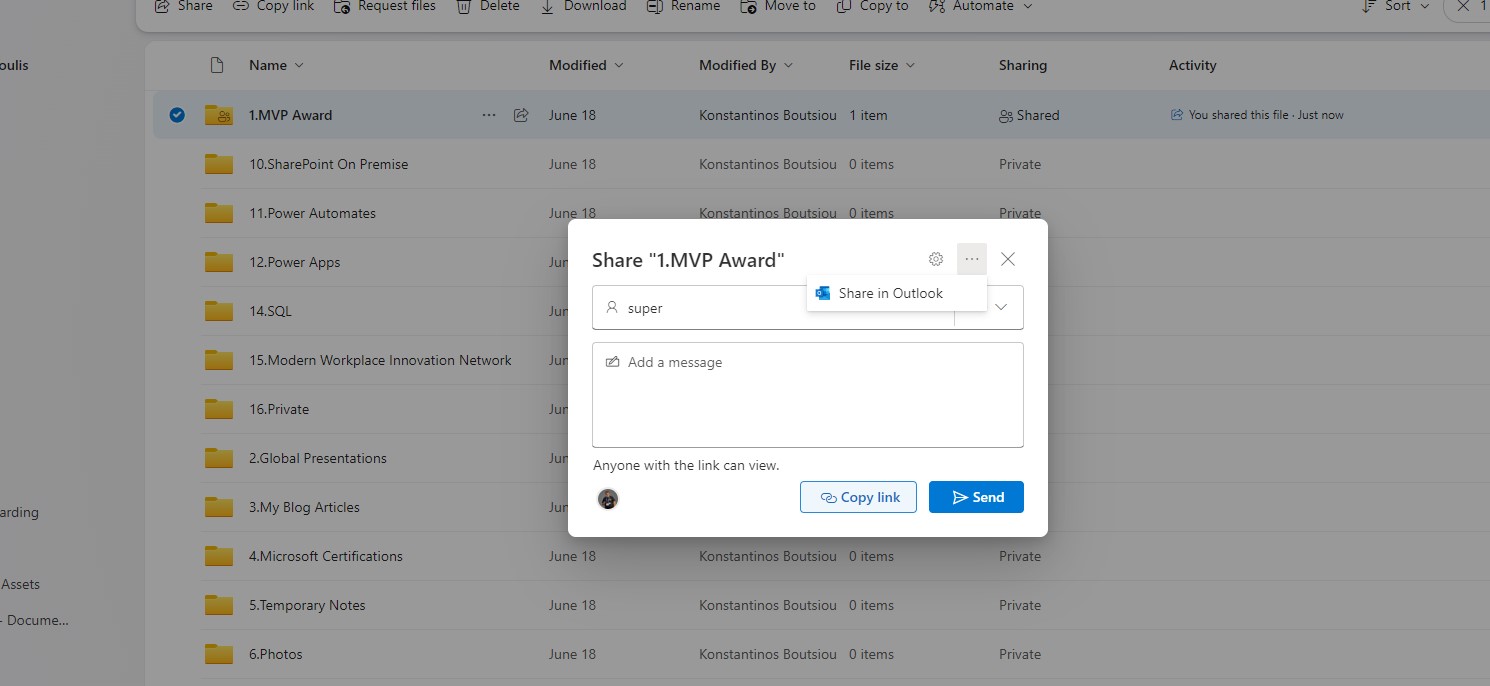
All over the eye we see 3 dots where there is one more option which is Share in Outlook which practically means that I can share the link of the folder with a message through Outlook
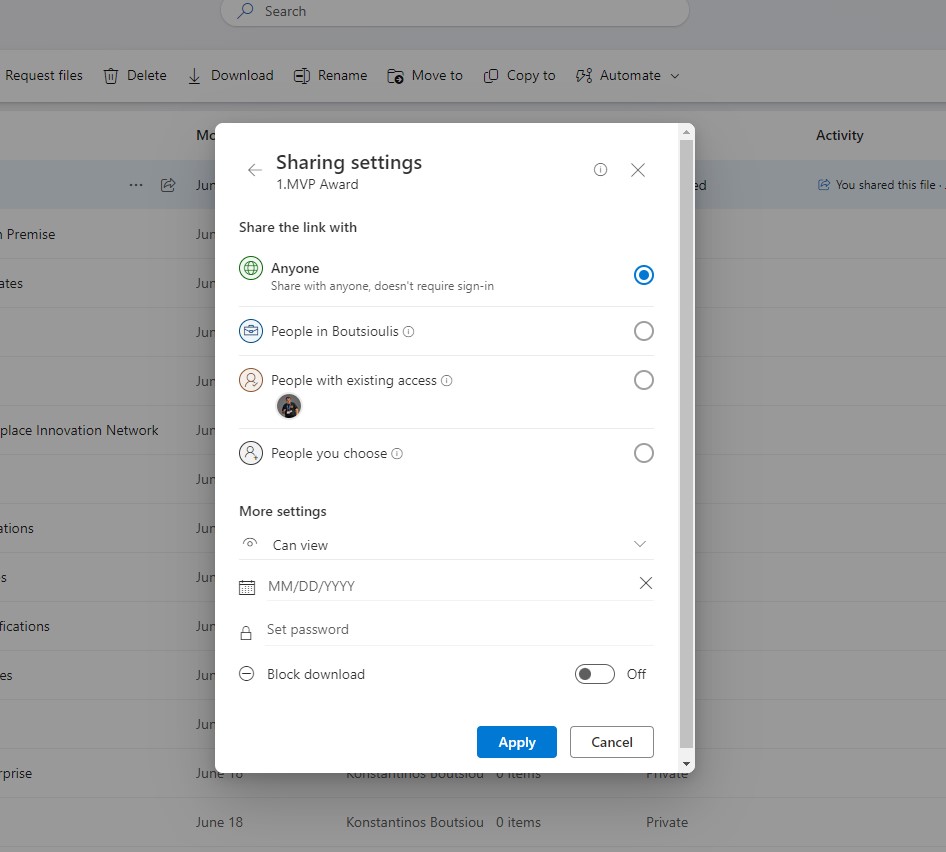
Double I can locate the known gear that is the settings . So there I have the ability to choose which category will belong to this or those who will have access to the archives of this particular folder . I can choose between 4 categories a) all users inside and outside the organisation b) users from the organisation c) existing members d) specific users
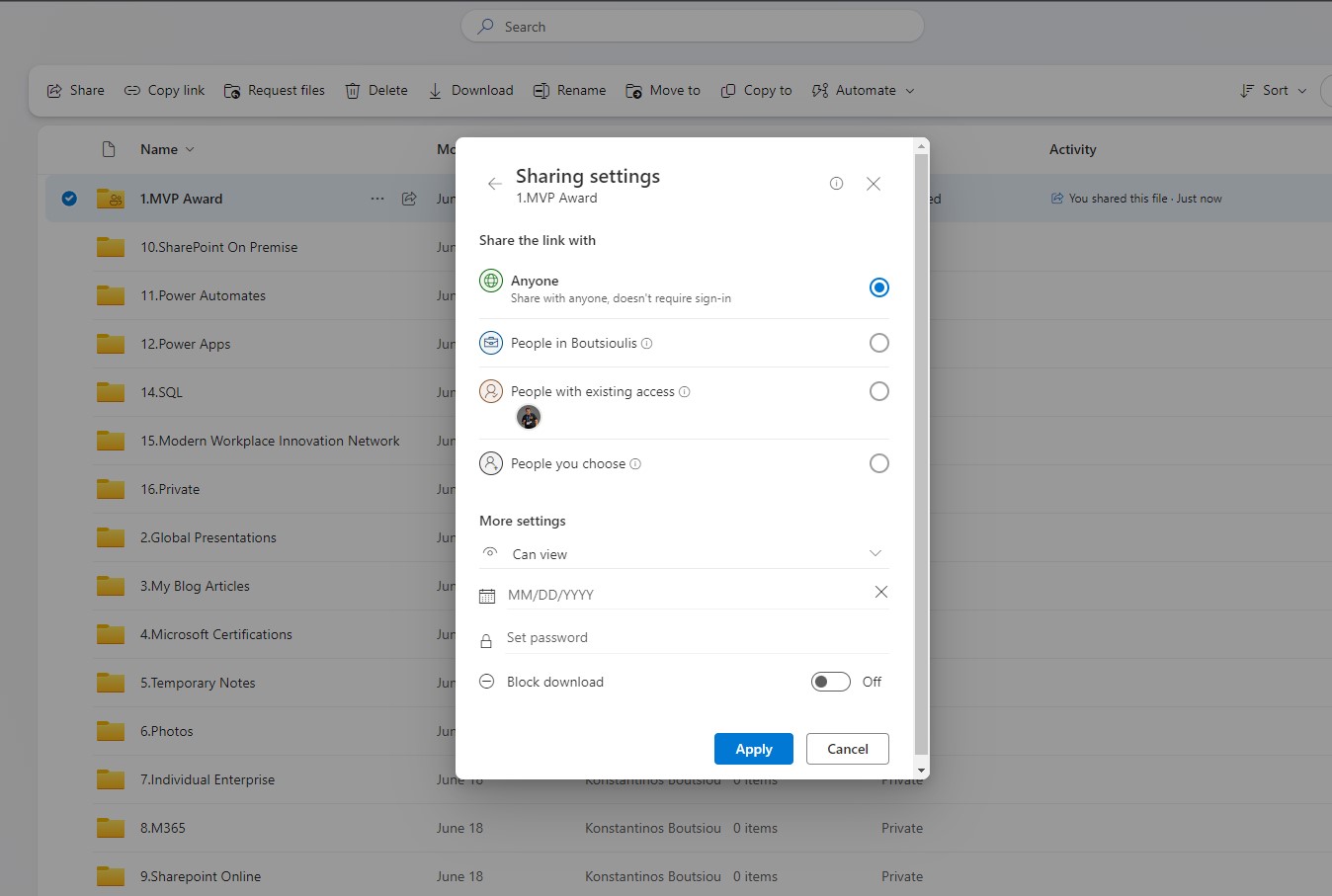
In the next category more settings I have the possibility to choose the type of permissions of the above users a) edit permission or b) view permission . The next option is that I can choose expirational date for the possibility of access to this folder as well as if I wish to have a password to allow access to it . Finally there is the possibility to make block download for the upper users
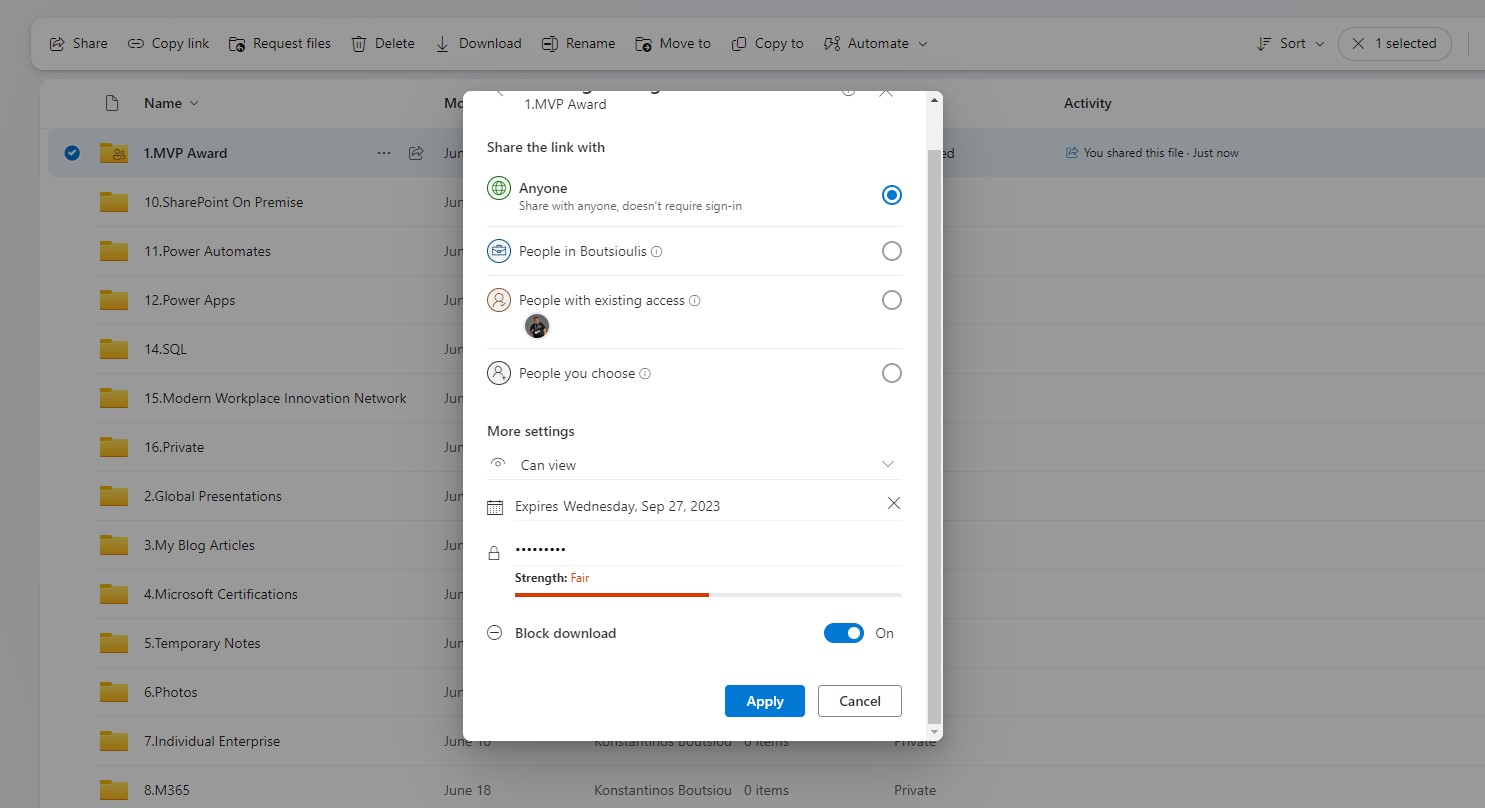
I select the link and again as you can see in the pop-up window I am given the opportunity to choose what kind of rights the users will have when accessing it
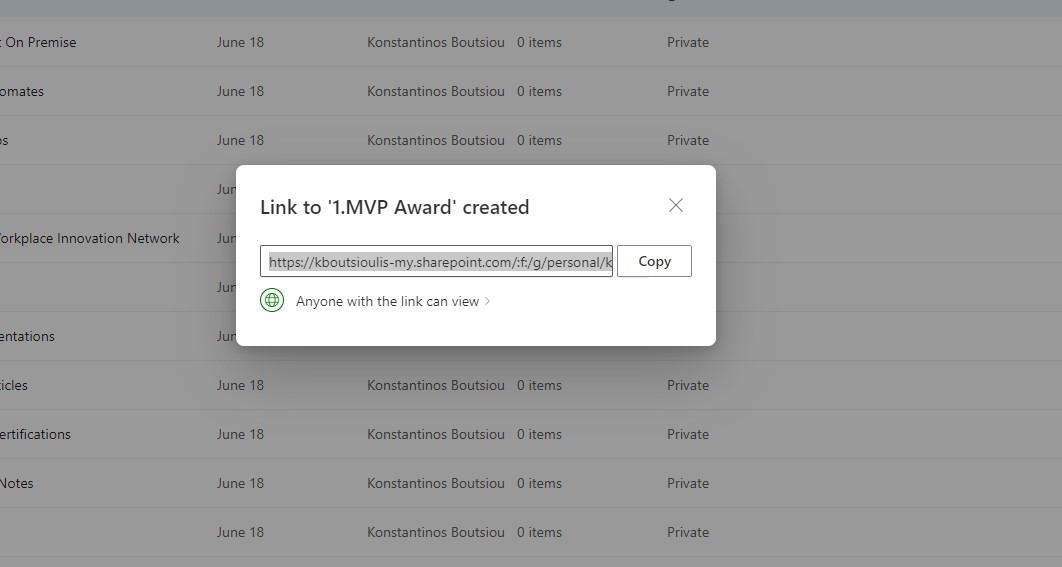
and again the familiar tab appears with the options I have just selected
In the next article we will see again all the options from the category copy link , manage access , request files although they are the same procedures from a different path
 #SharePoint
#technology
#microsoft
#Onedrive
#digitaltransformation
#cloud
#mvpbuzz
#m365
#SharePoint
#technology
#microsoft
#Onedrive
#digitaltransformation
#cloud
#mvpbuzz
#m365
Visit Archives below to find more articles about Microsoft technologies on Modern Workplace