
Free Material
Find hereMore than 150 Articles about Microsoft Technologies on Modern Workplace
Official Site
Microsoft Most Valuable Professional M365 Apps & Services
Microsoft Most Valuable Professional Business Applications
Consultant & Sr Cloud Solution Architect Modern Wokrplace
Find hereMore than 150 Articles about Microsoft Technologies on Modern Workplace
09 October 2024
In today's article, we will see how to create a Wiki Page Library web part in a classic experience site in SharePoint.
First, from our active subscription, we log into M365 and navigate to SharePoint on a page that is of the classic experience type.
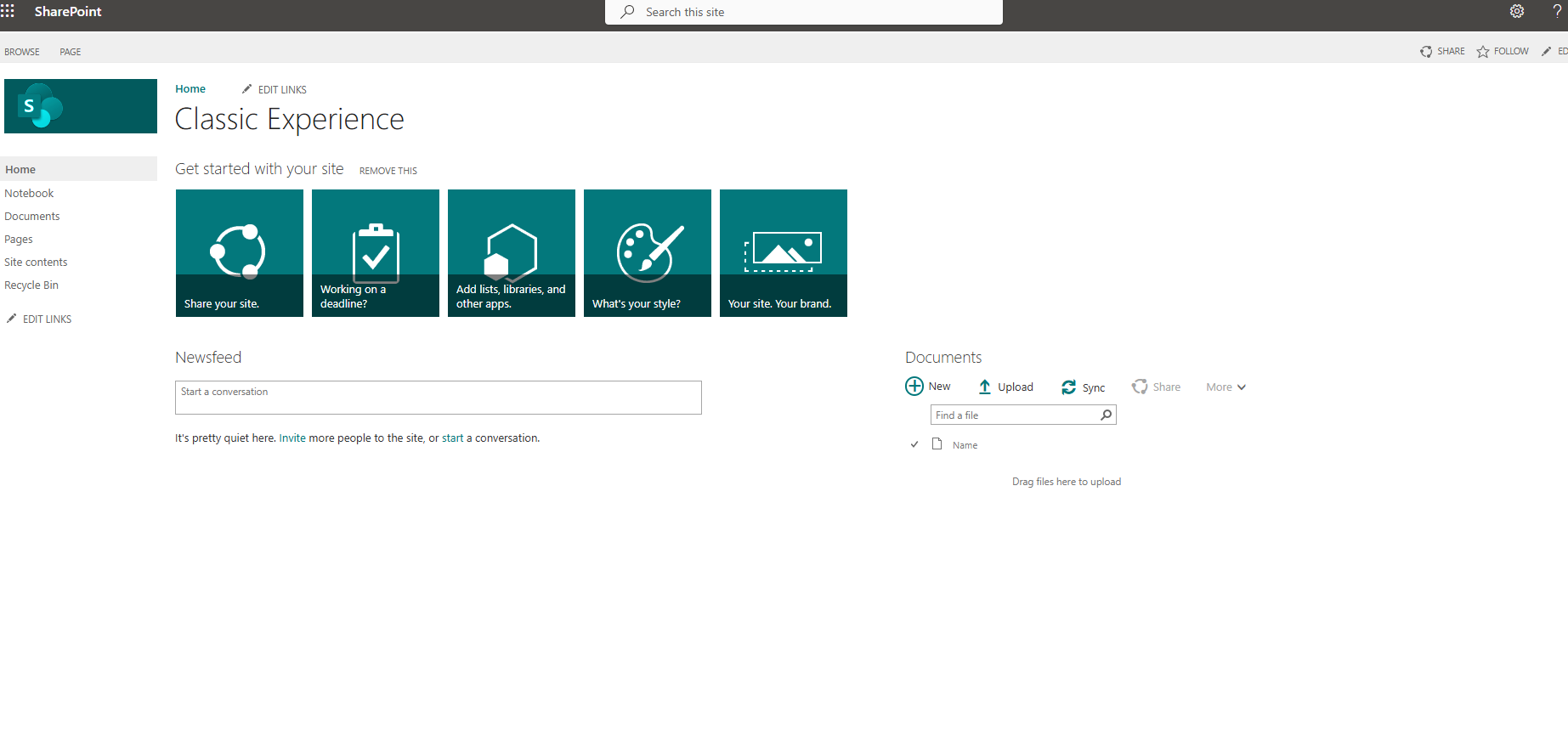
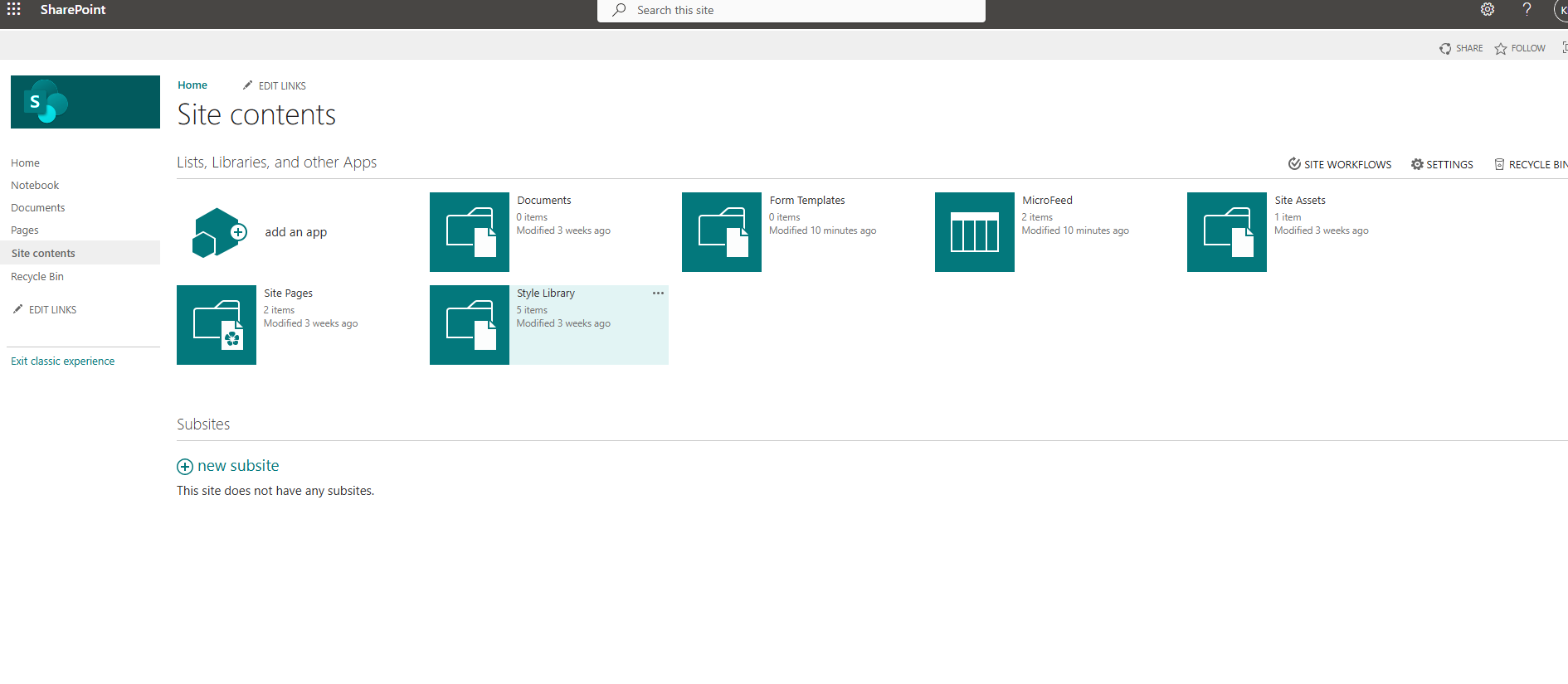
From the gear icon at the top right, select "site contents" and then on the transition page, select "add an app."
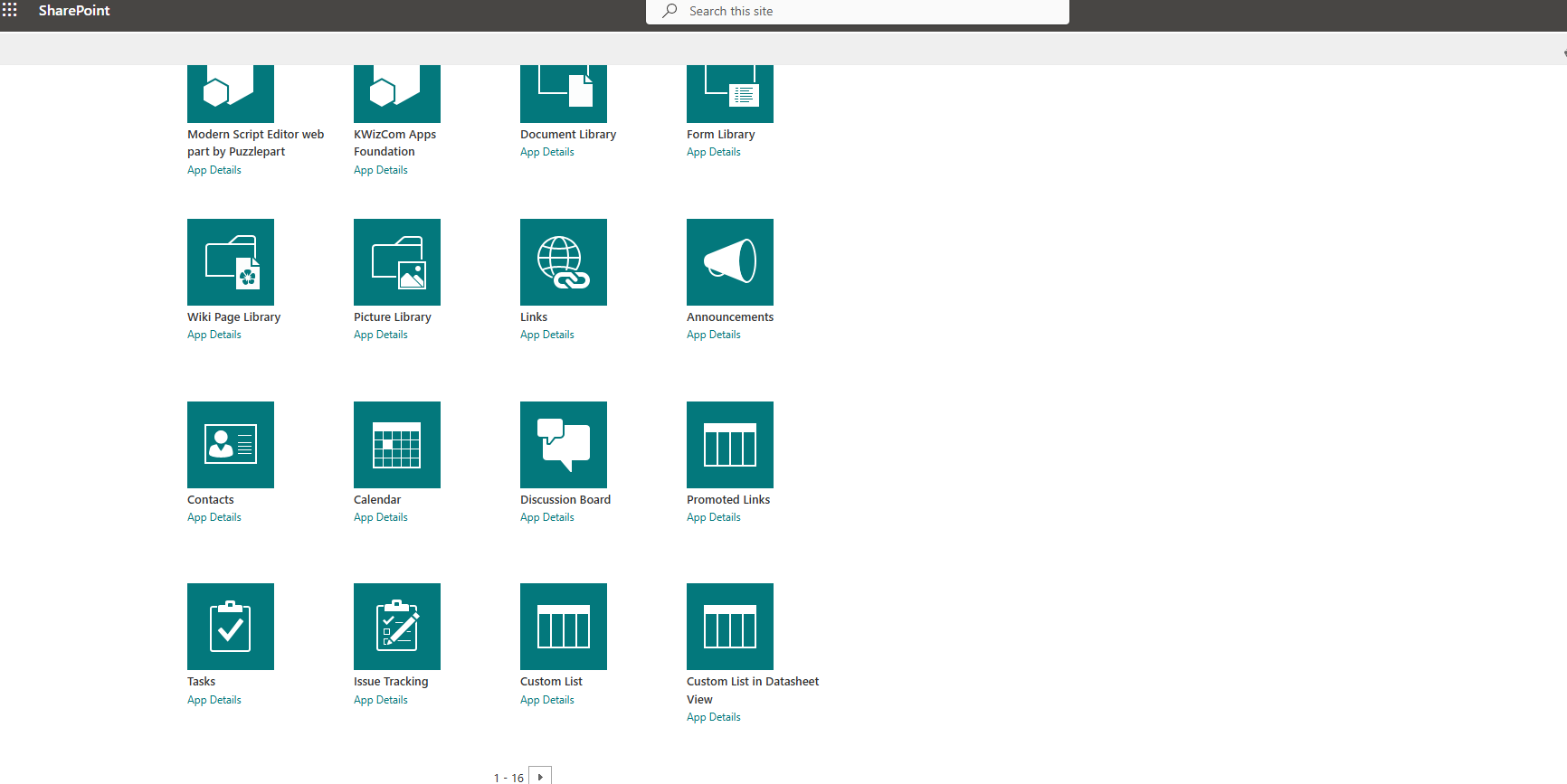
On the next page, navigate to the available web parts.
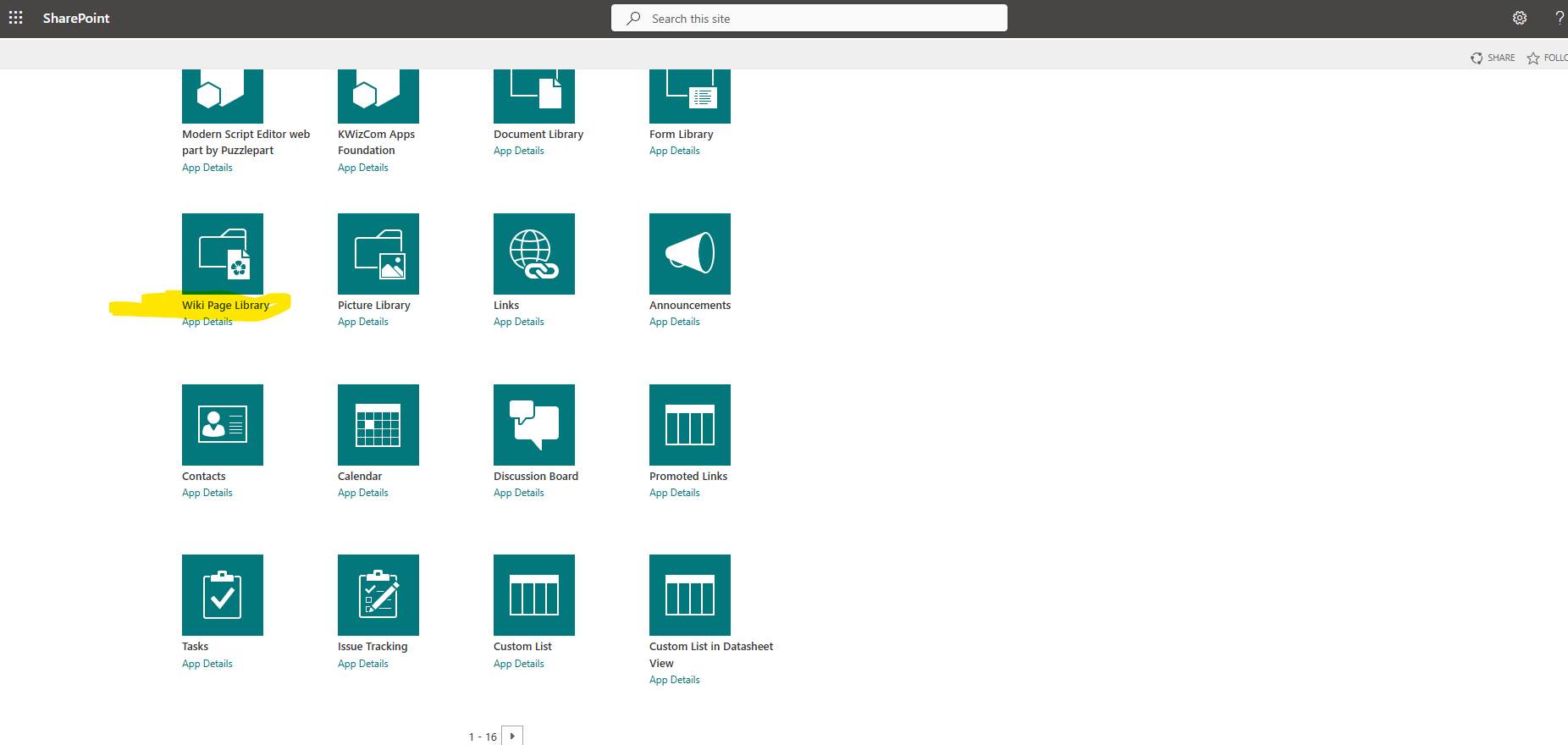
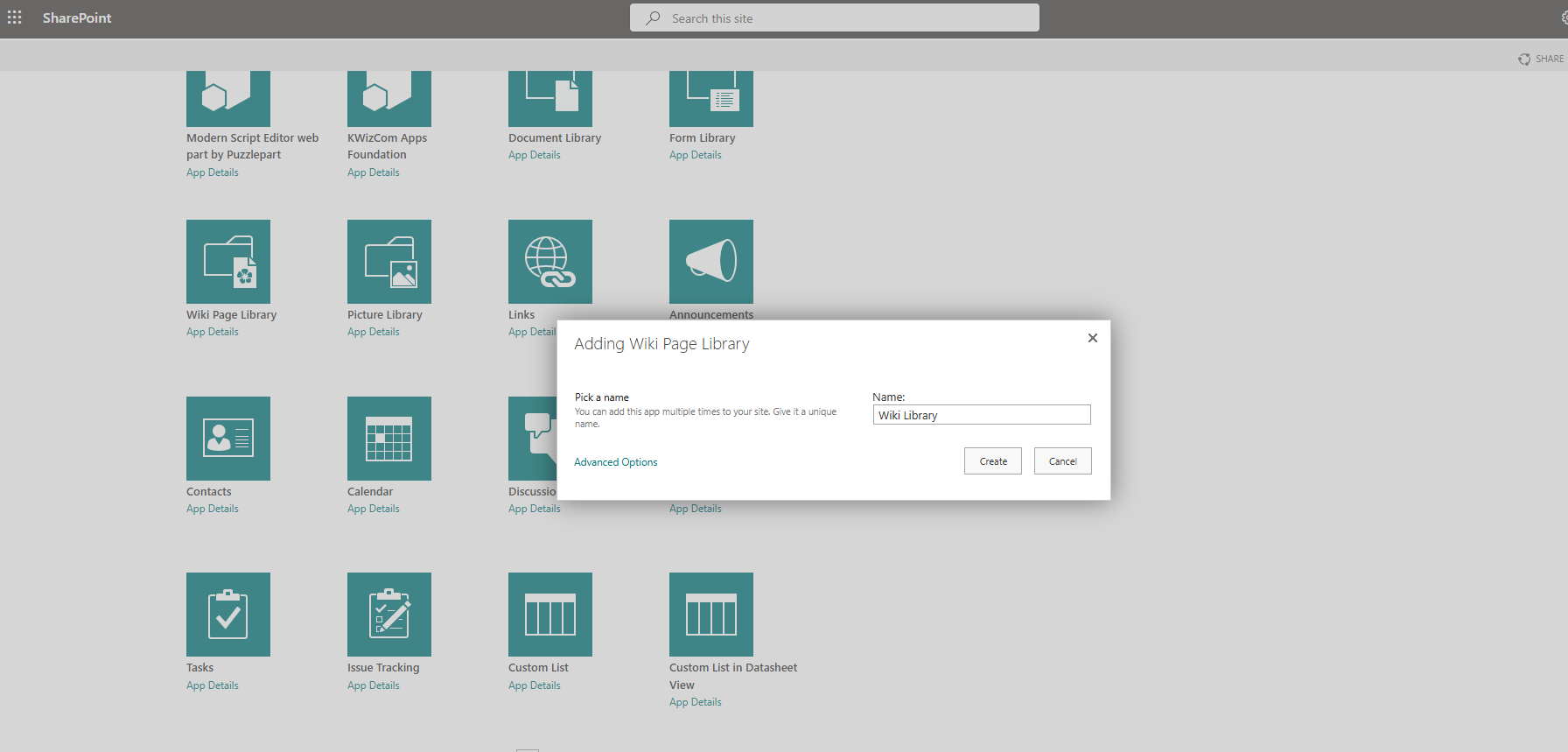
Select the "Wiki Page Library" web part.
Next, we need to give a name to our new Wiki Page Library and select "create."
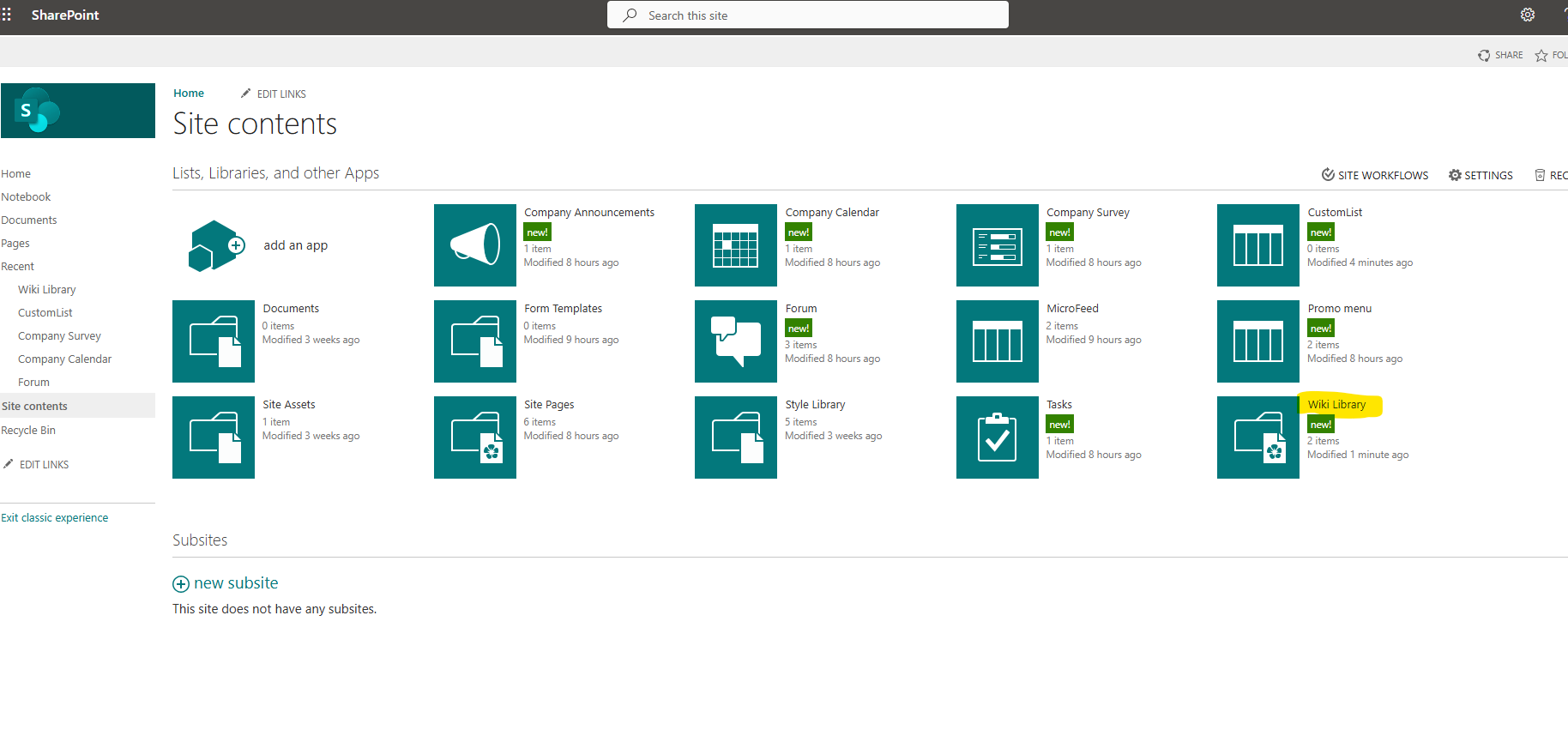
And now we can see our new web part in the available options.
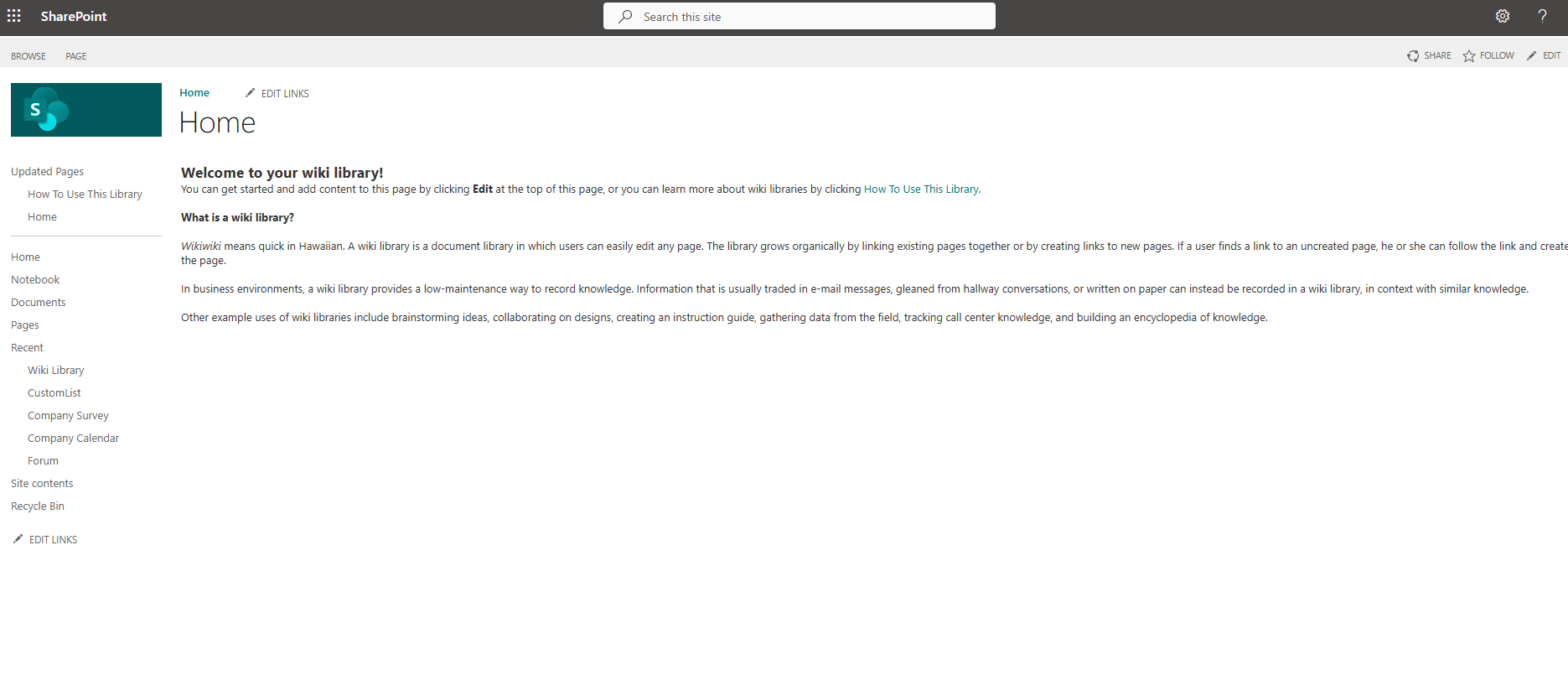
If we select our new wiki, we navigate to our new wiki-type page.
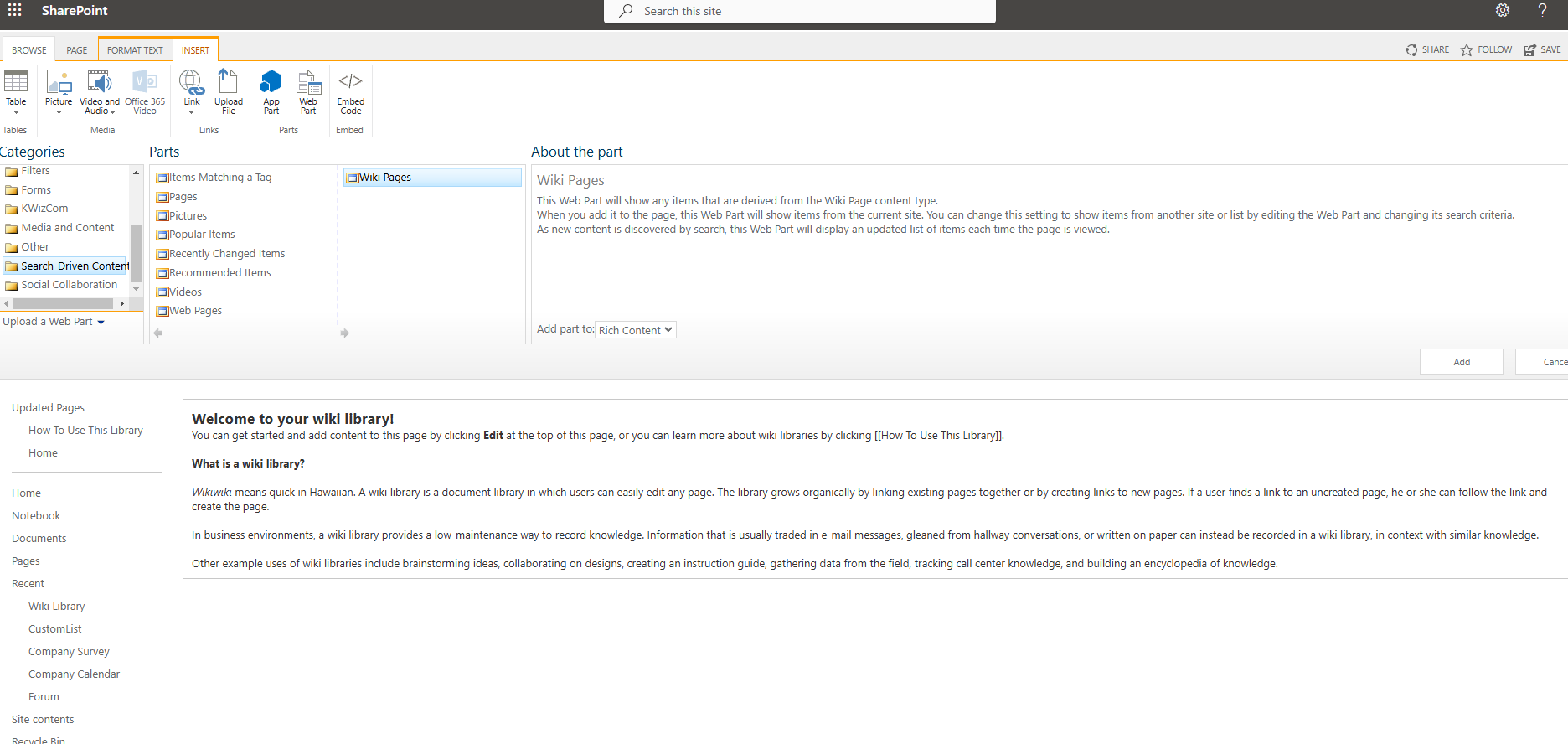
From the Ribbon, we have the ability to add new web parts to this page and customize it to our liking.
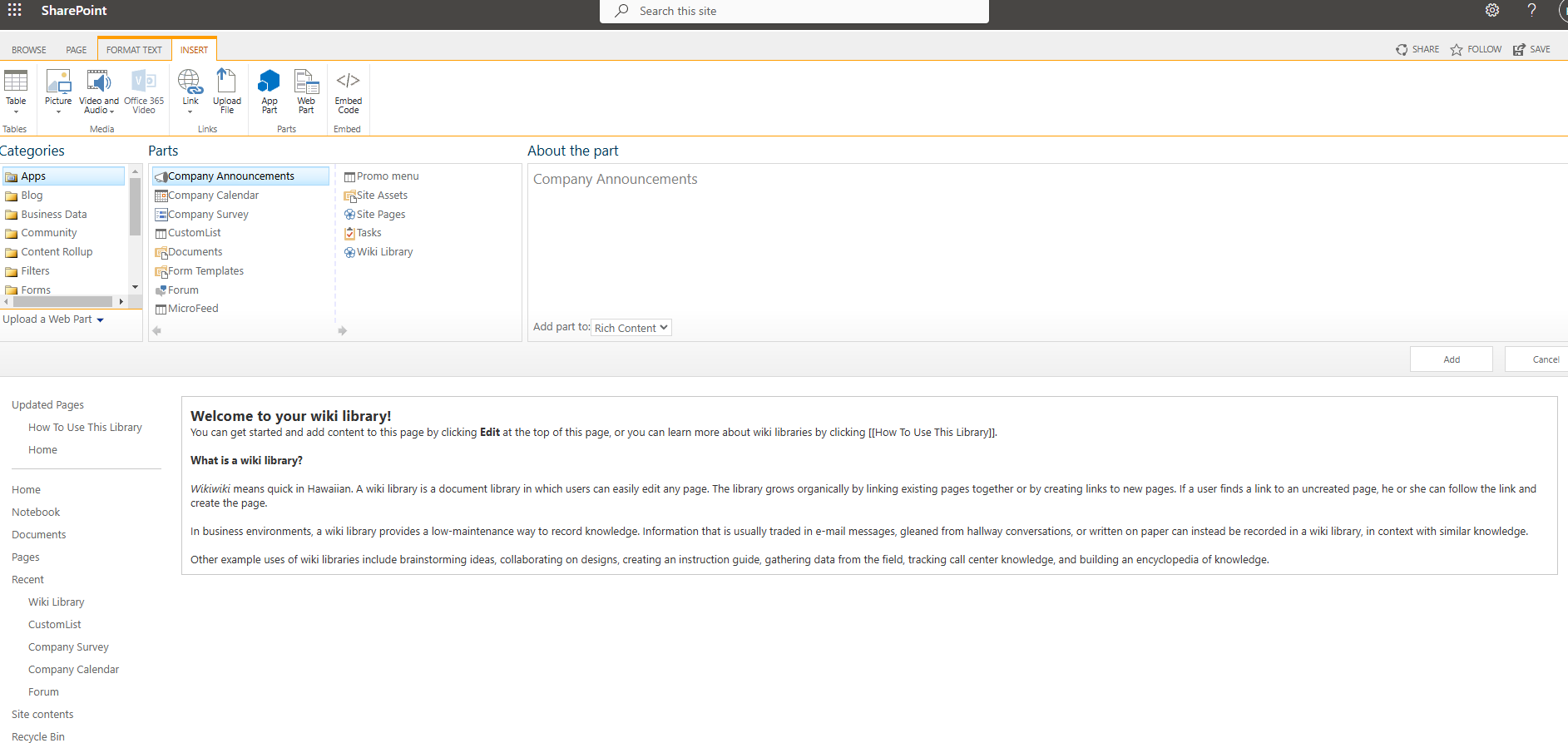
It is important to note that there is already a wiki pages web part that displays all the wiki pages, and of course, it could not be missing from such a type of page.
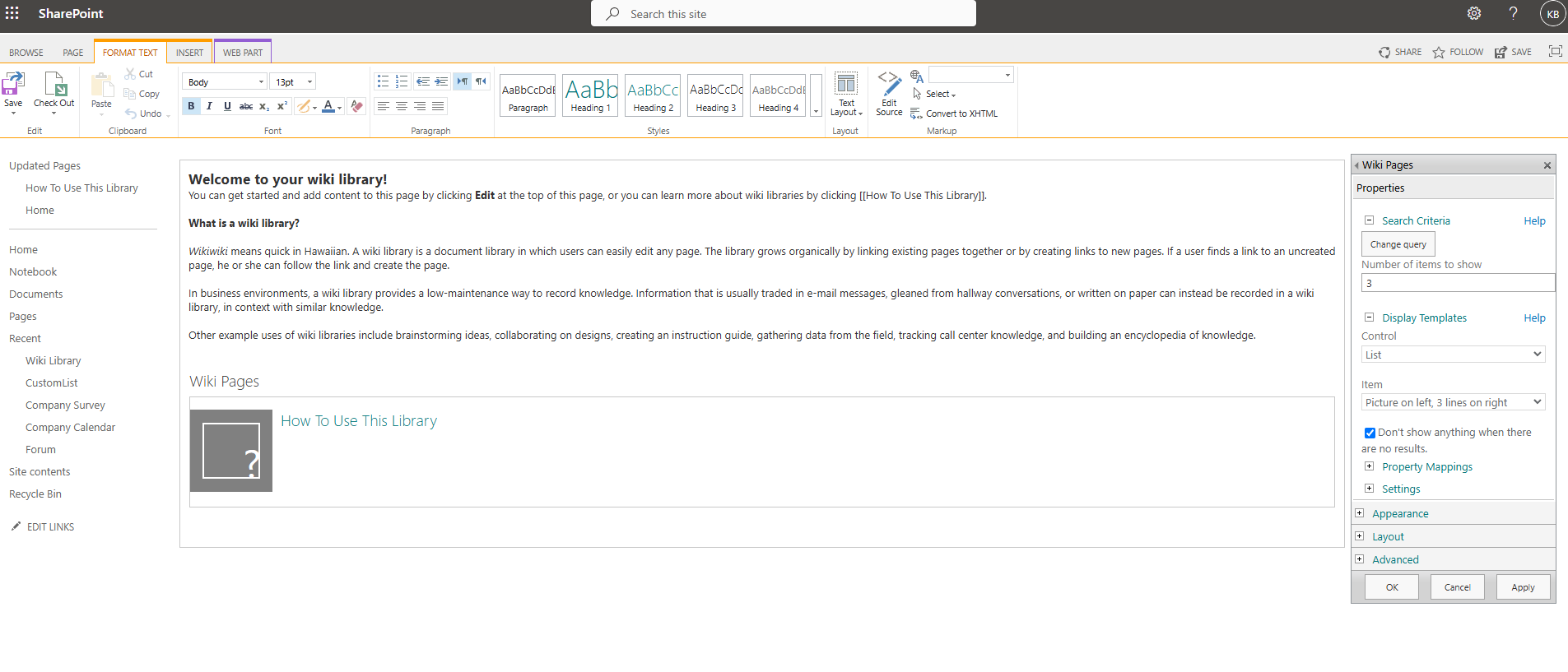
If we select "edit web part," we can see the properties of the corresponding web part on the right side.
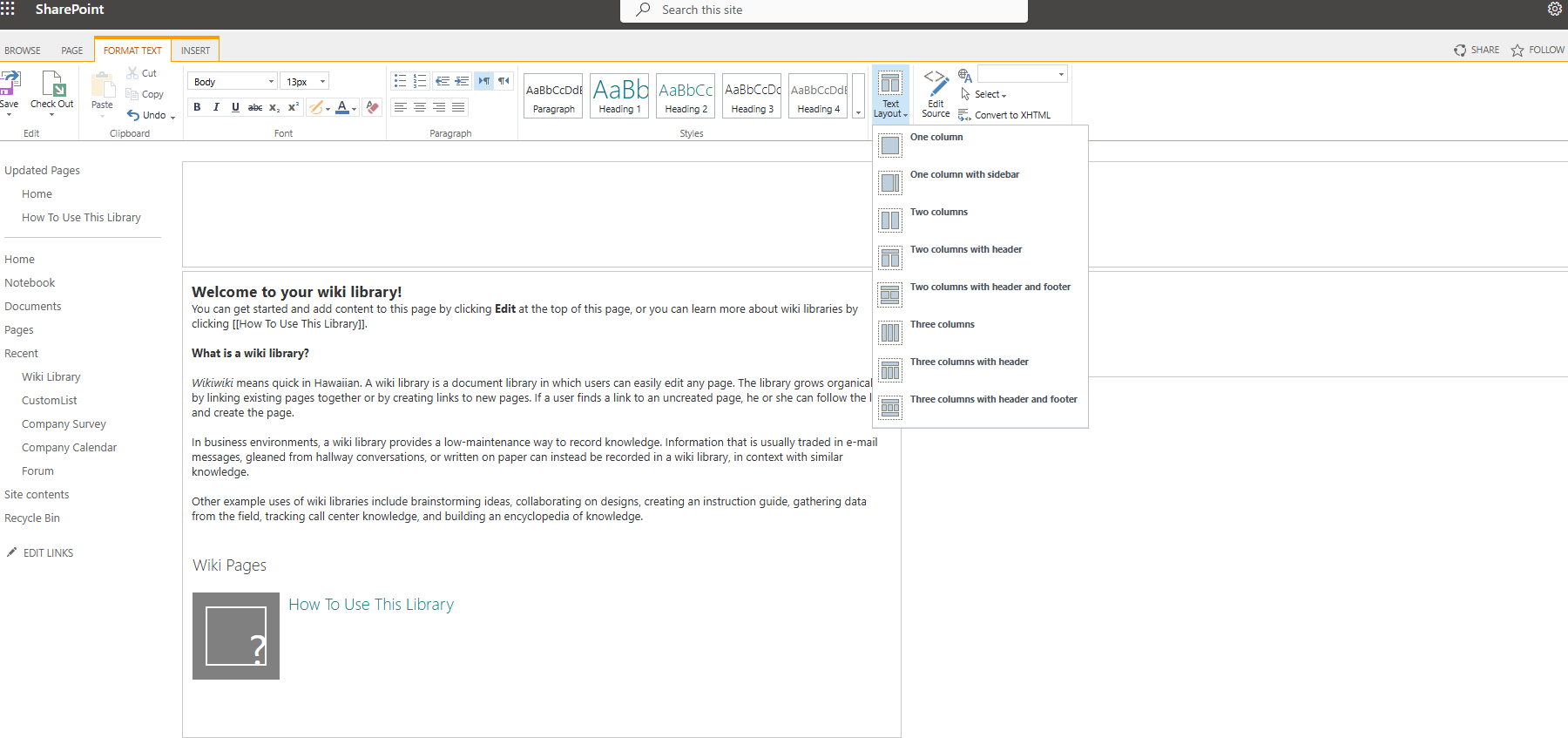
It should also be noted that I have the ability to customize the layout of my page to my liking and choose from the available options.
Finally, to save any changes, I need to select "save" at the top left of the page.
#ModerWork #M365_Apps_Services #BusinessApps #SharePoint #PowerAutomate #technology #microsoft #digitaltransformation #cloud #mvpbuzz #m365Visit Archives below to find more articles about Microsoft technologies on Modern Workplace