
Free Material
Find hereMore than 150 Articles about Microsoft Technologies on Modern Workplace
Official Site
Microsoft Most Valuable Professional M365 Apps & Services
Microsoft Most Valuable Professional Business Applications
Consultant & Sr Cloud Solution Architect Modern Wokrplace
Find hereMore than 150 Articles about Microsoft Technologies on Modern Workplace
19 October 2024
In today's article, I will show you how we can Schedule a meeting from a message using Power Automate.
First, we need to have an active M365 subscription and from the home page, we select Power Automate from the apps. On the Power Automate home page, we select Templates from the left menu.
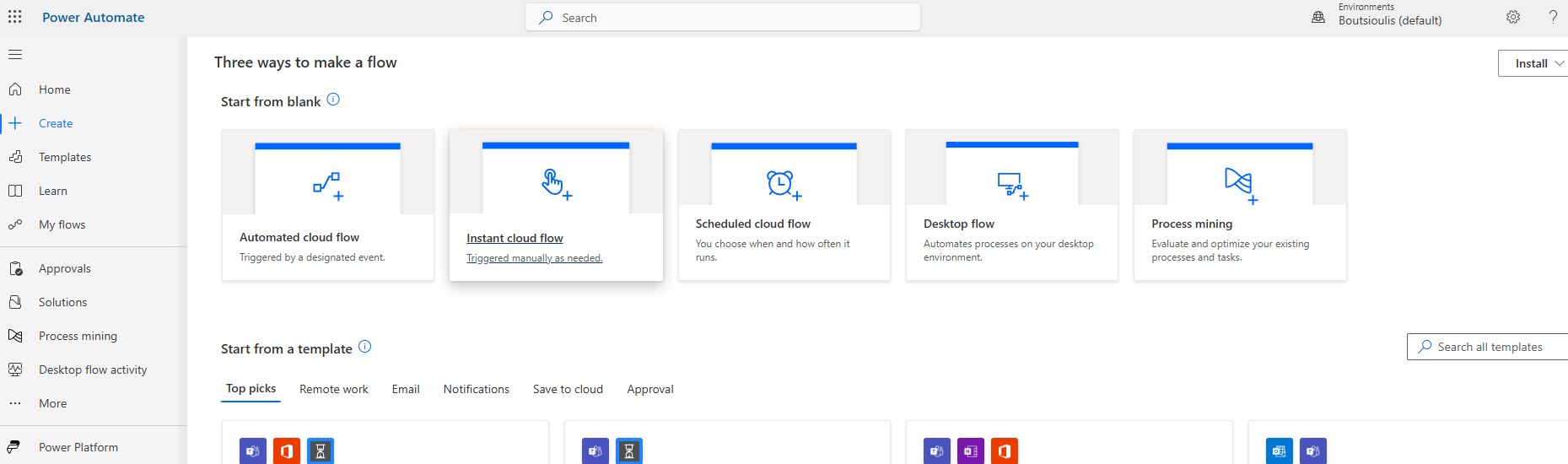
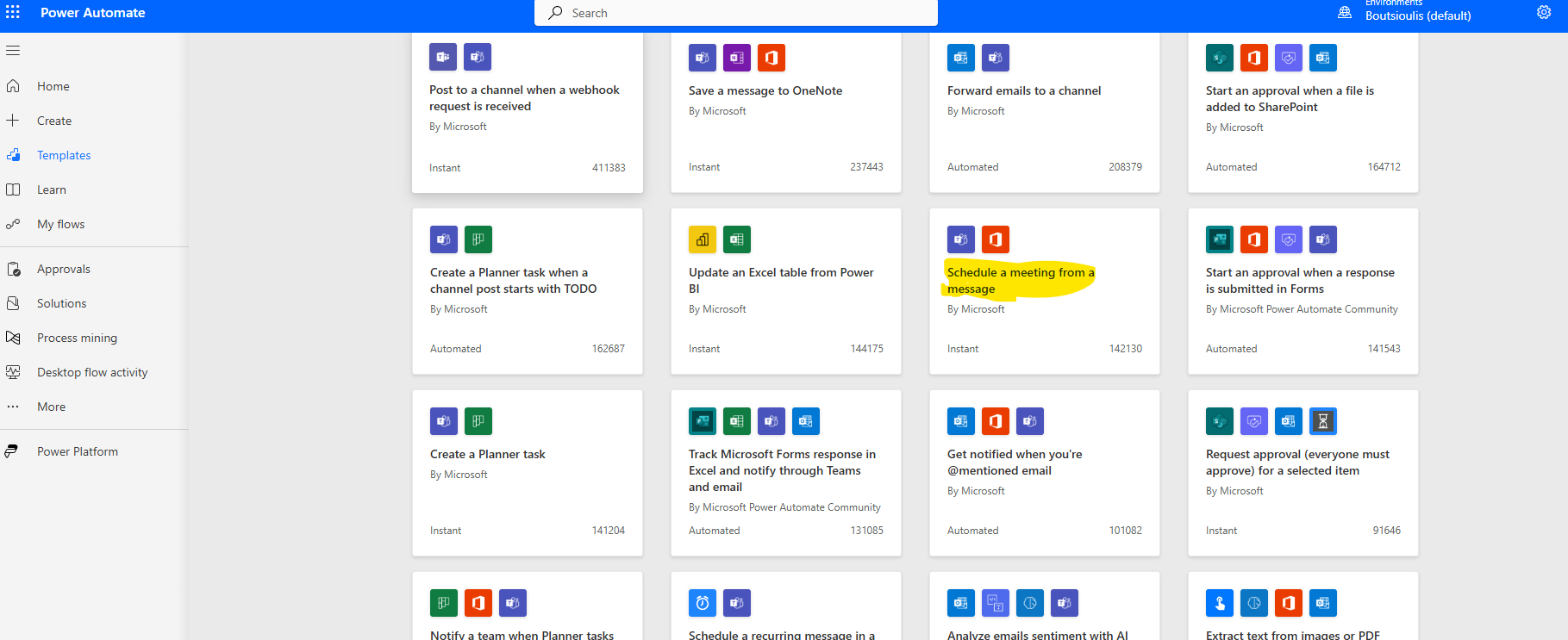
We locate the available template named "Schedule a meeting from a message."
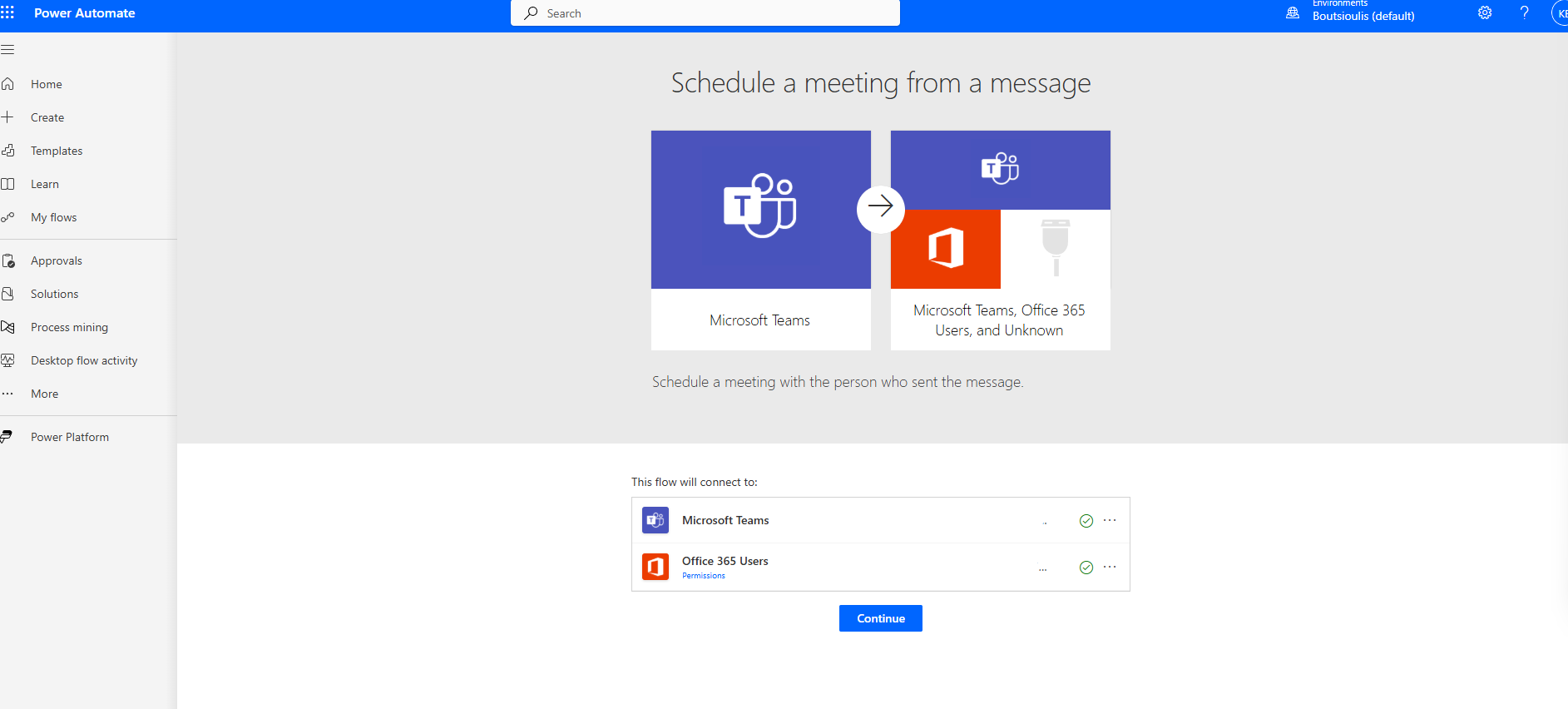
In the next step, we need to allow all necessary connections and select continue.
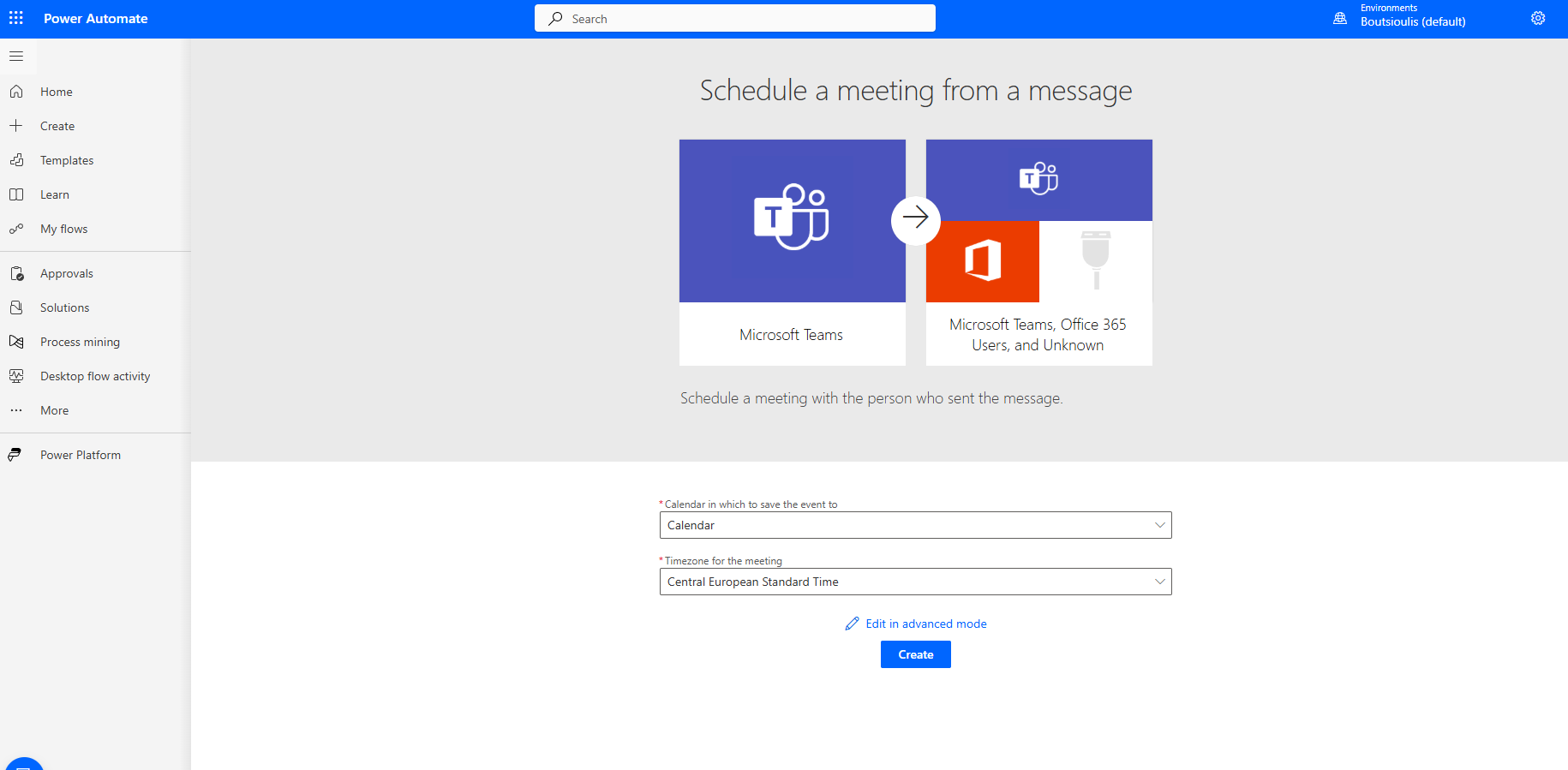
On the next screen, we need to select the calendar where the event will be saved and the timezone that will be applied.
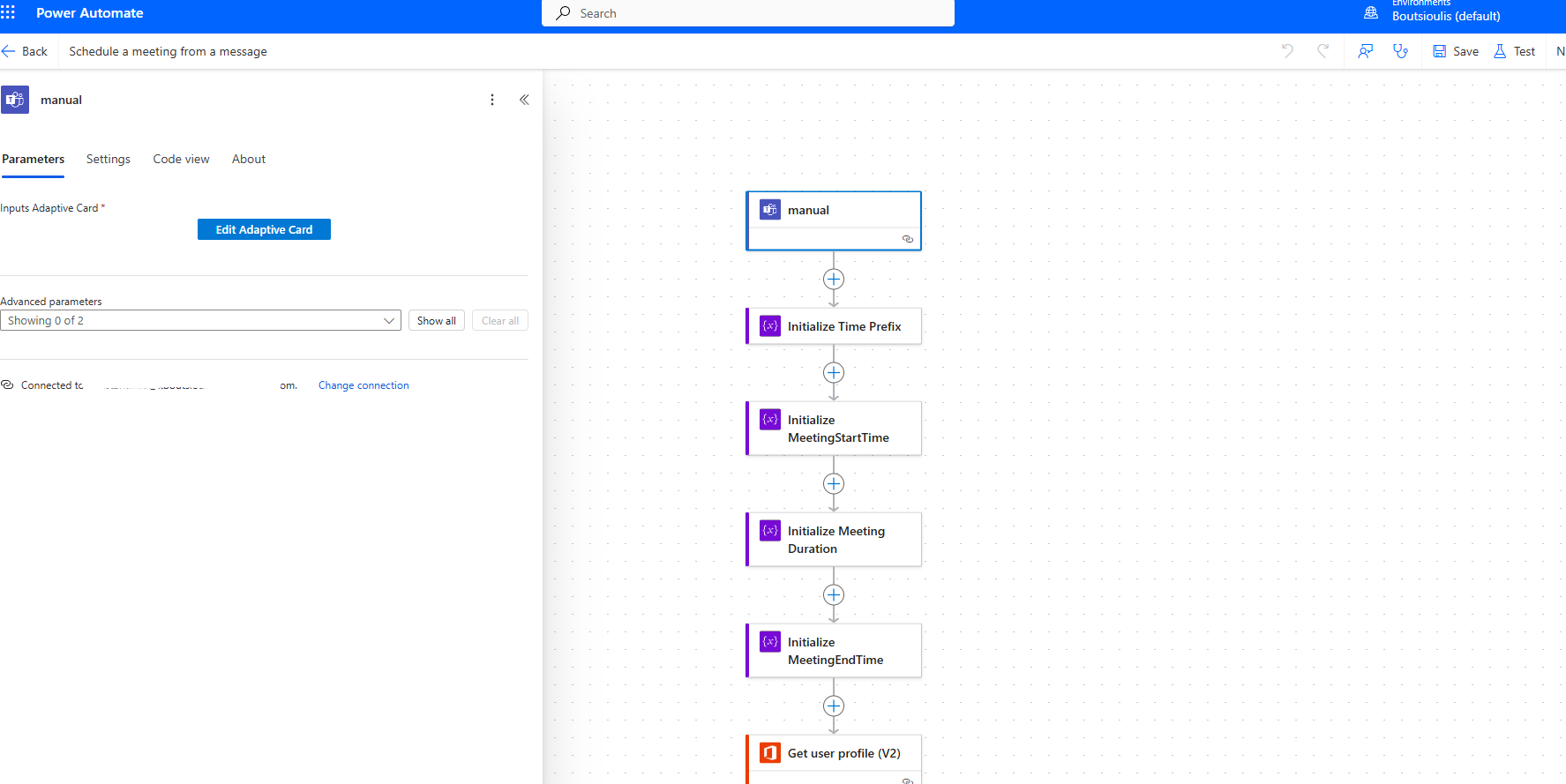
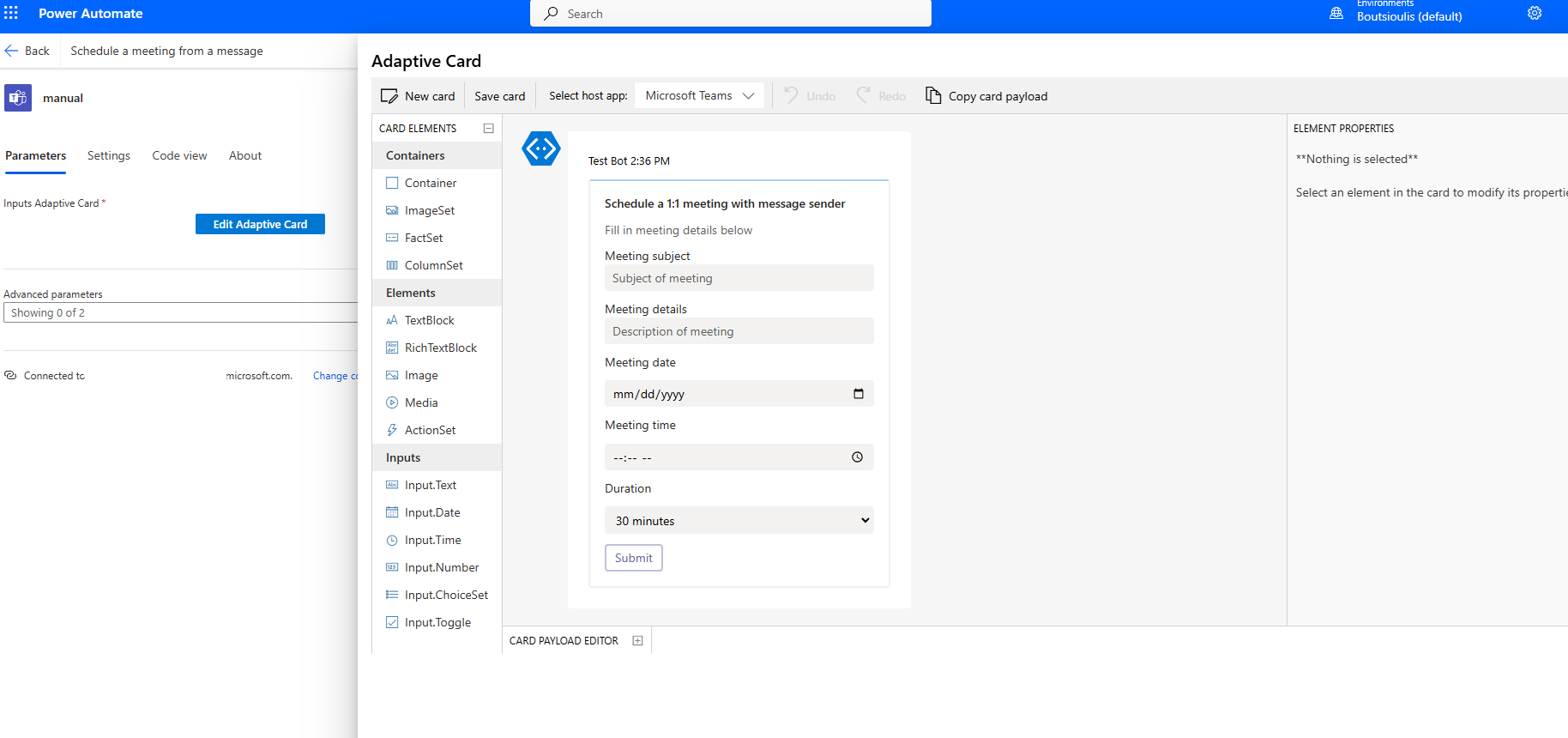
In the first step, we have an action type "manual trigger" in Teams, and there we need to create the adaptive card that someone will fill out to trigger the automate.
In the next step, we will save our card.
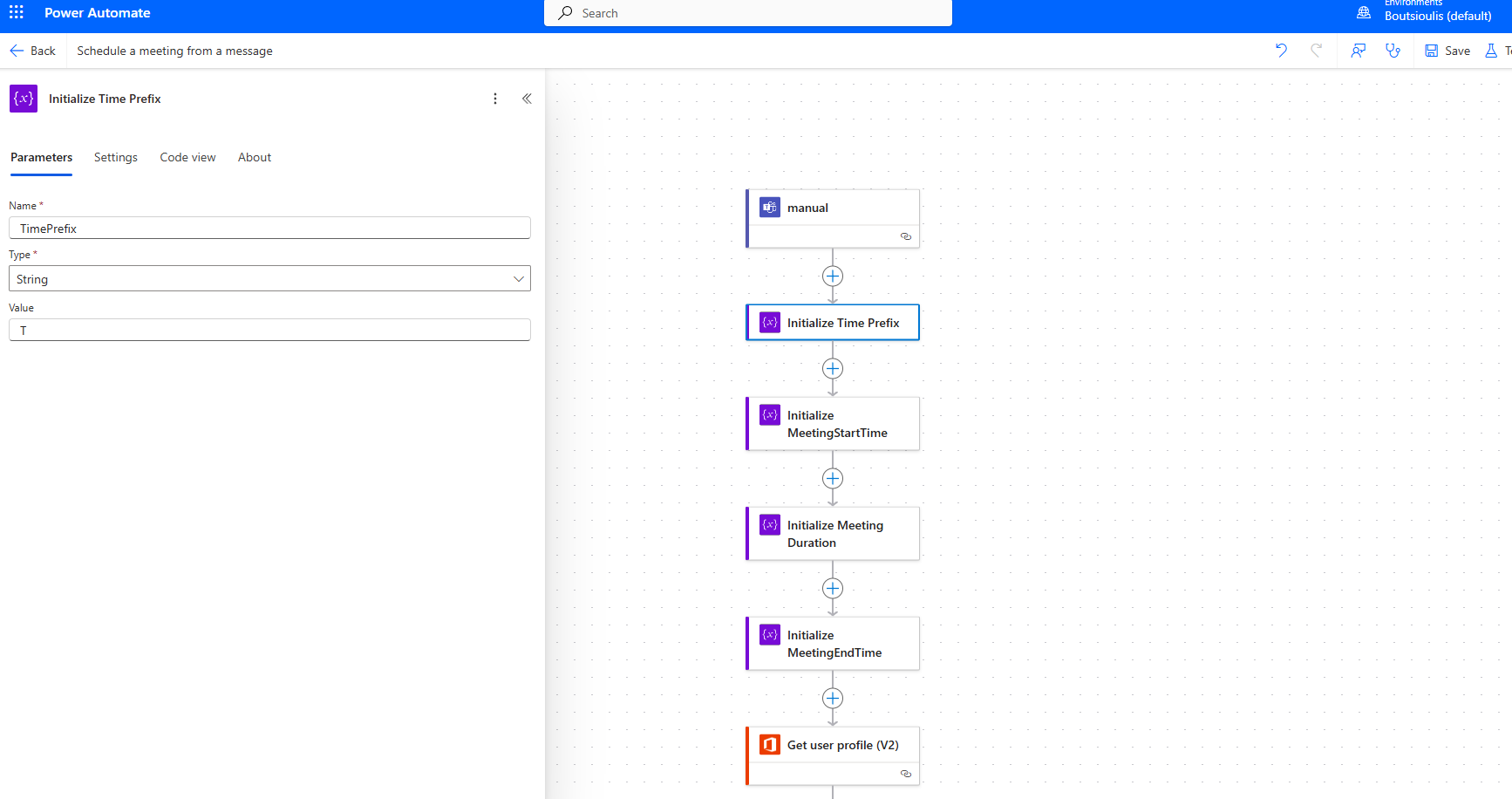
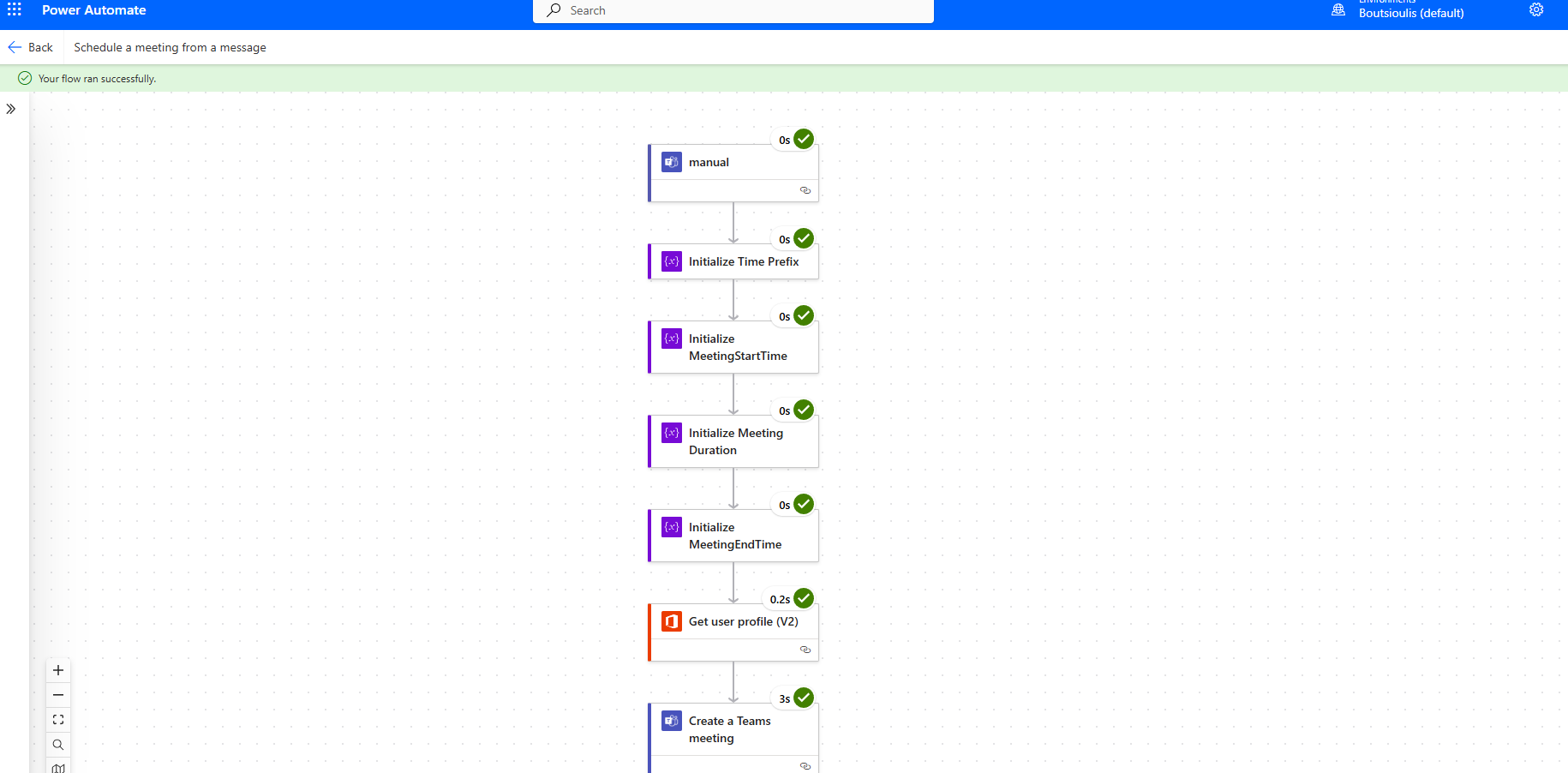
In the next step, we will create a string variable and set it to T.
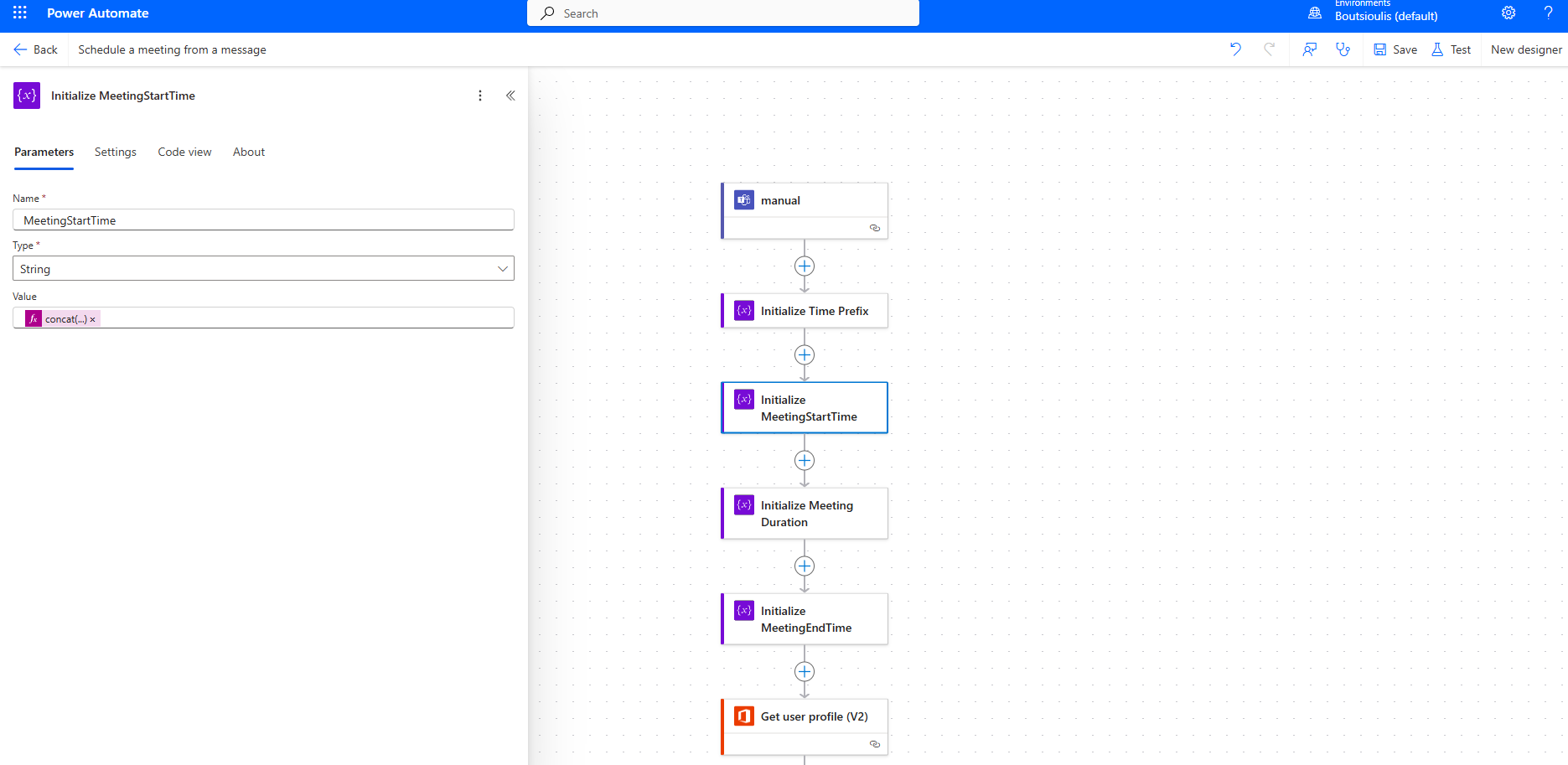
The next step is to create a string variable "Meeting Start Time" and initialize it with the expression concat.
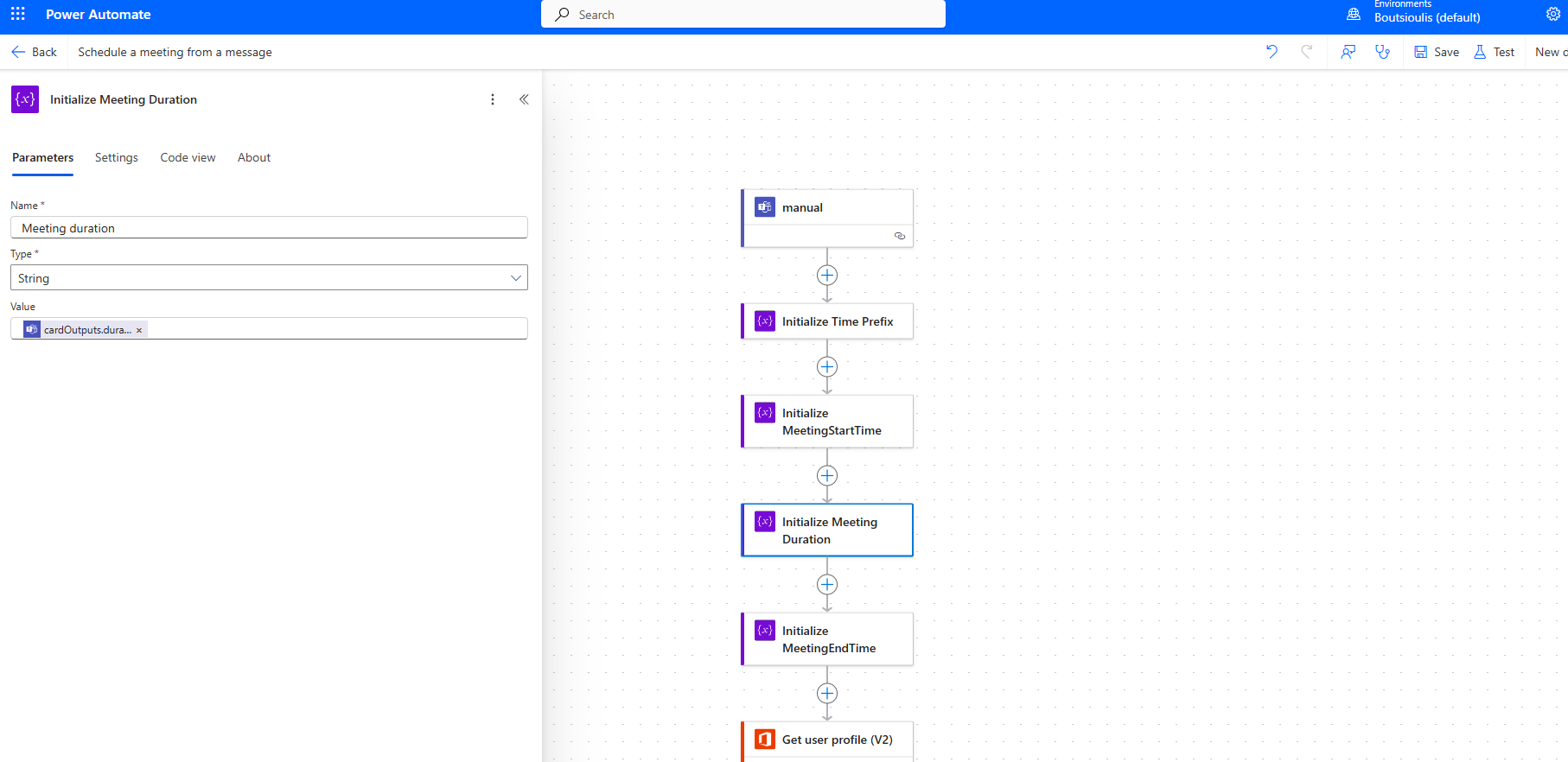
In the next step, we create another string variable "Meeting duration" and initialize it with the card output variable that contains the duration.
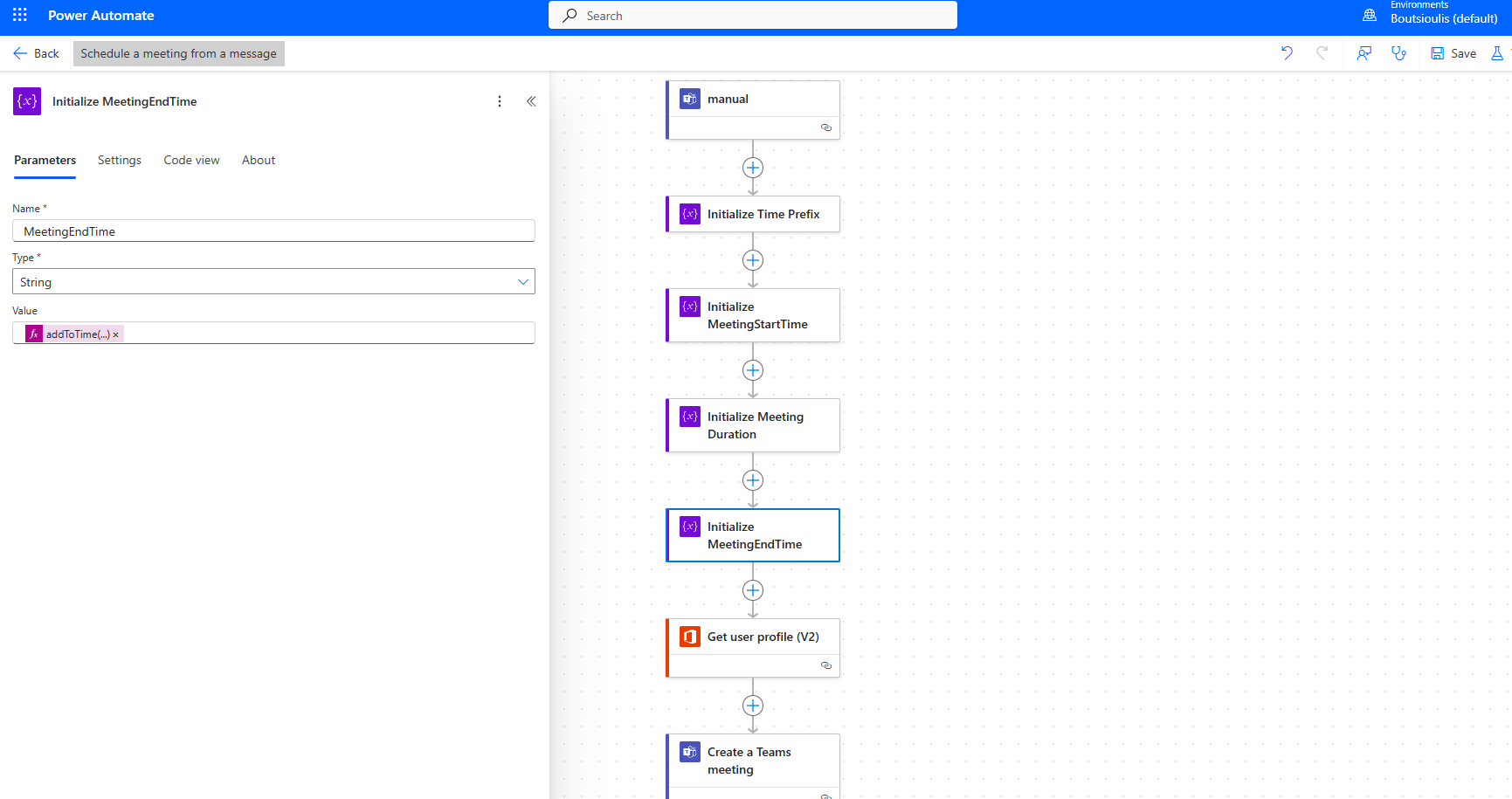
In the next step, we create another string variable and add the expression addToTime, which calculates the end time of the meeting.
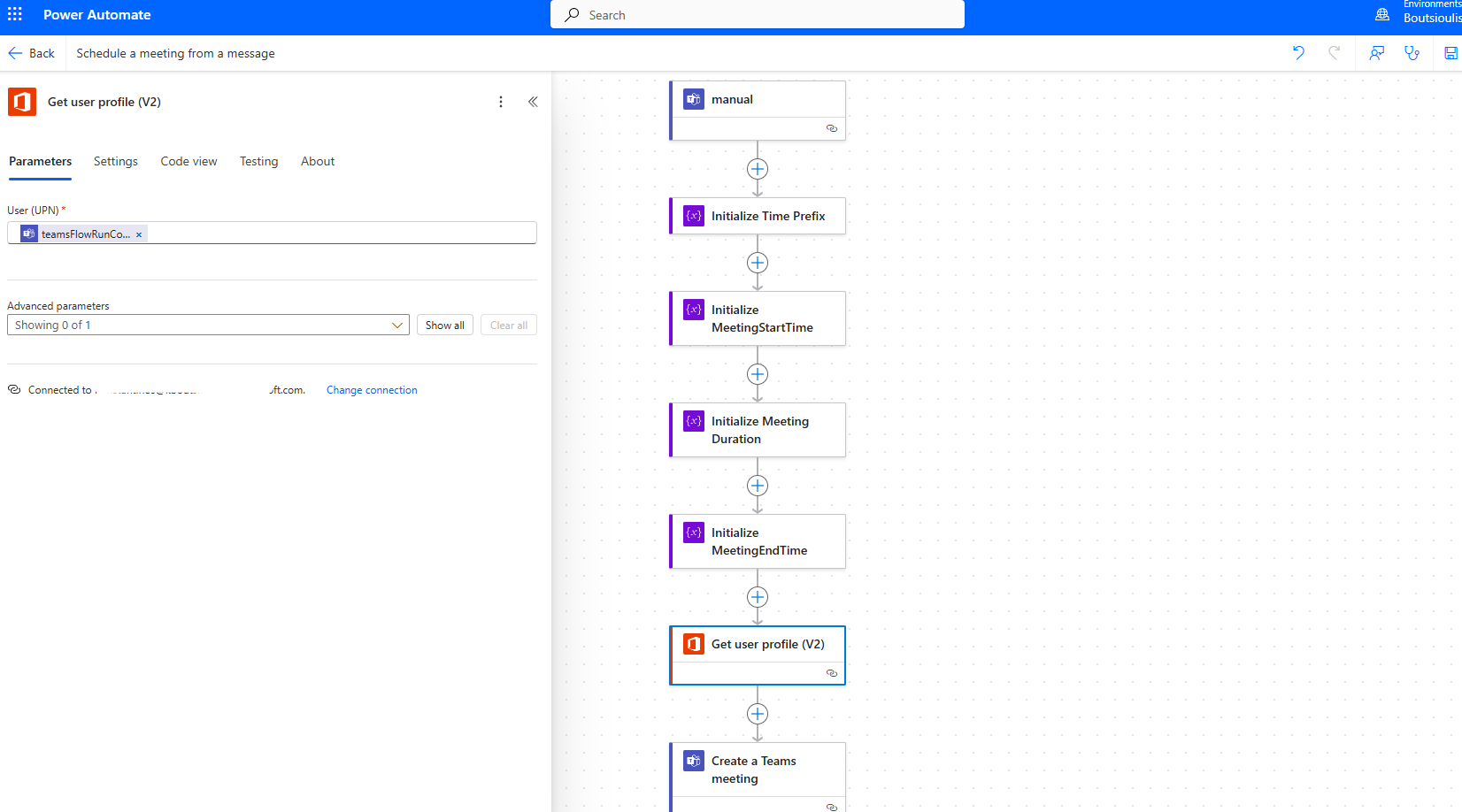
The next step is an action type "get profile," and there from the property teams, we set the User UPN.
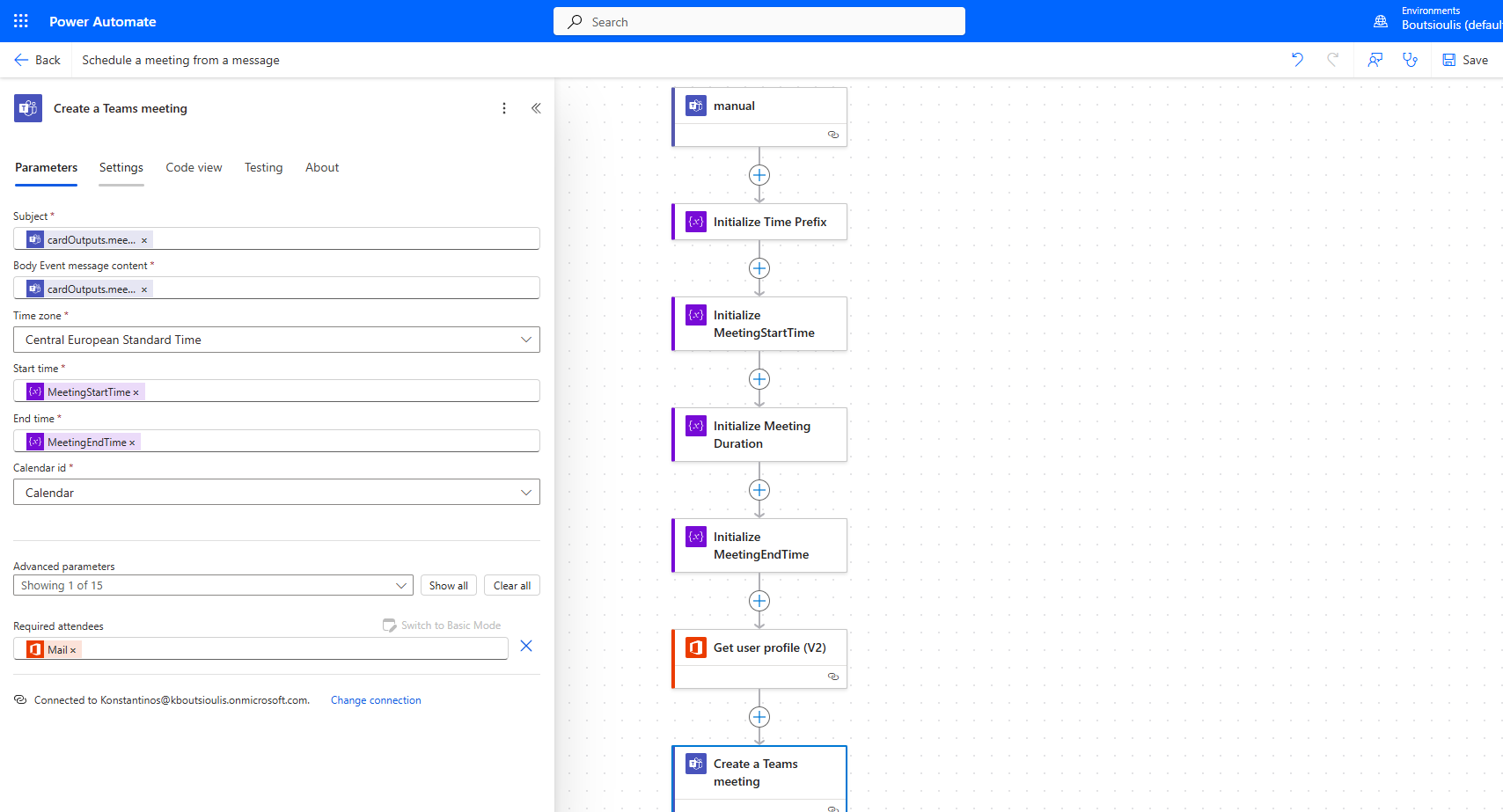
The next action is of type "create a teams meeting," and there we enter the subject, message, timezone, start time, and end time, as well as the attendees.
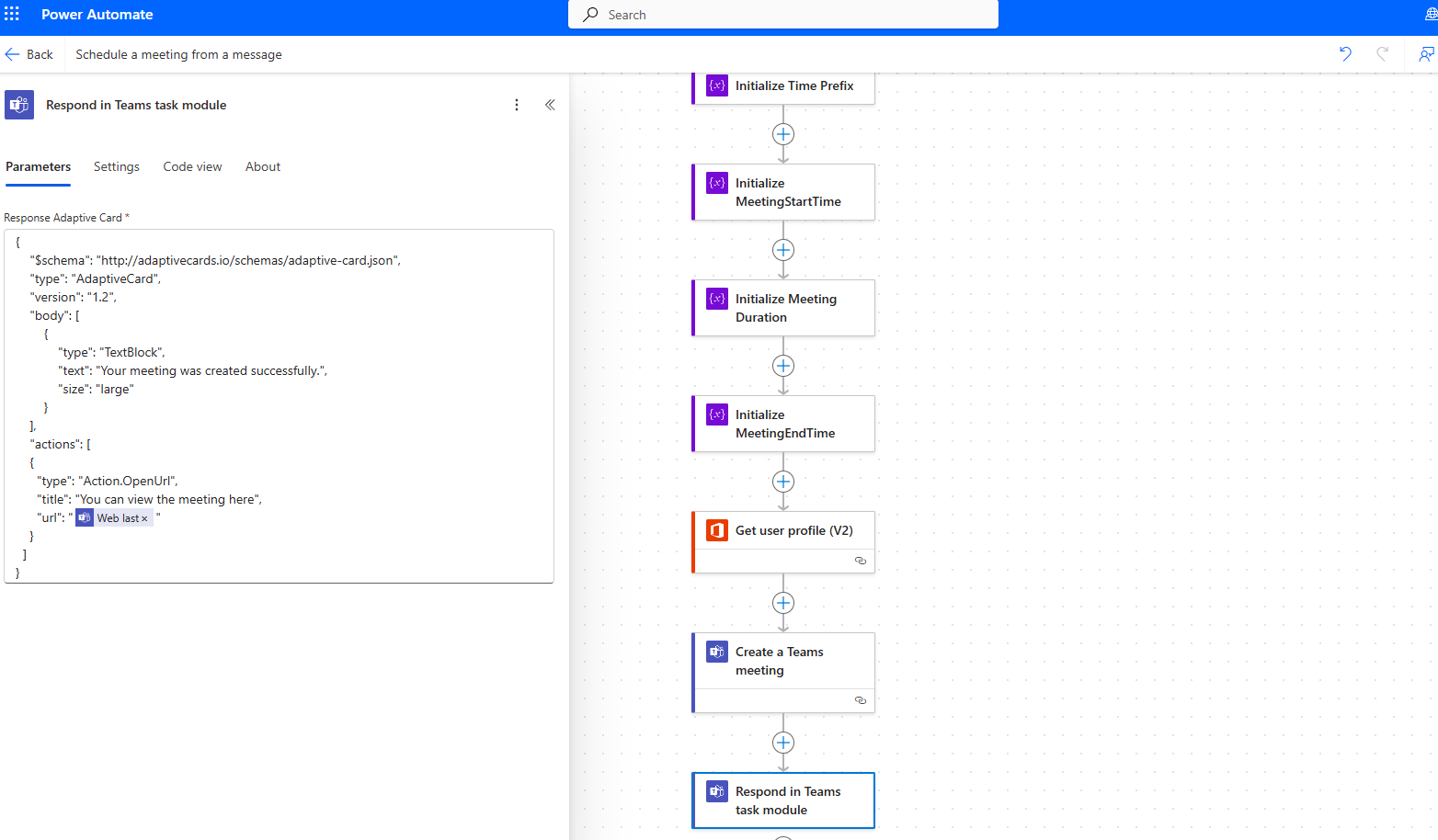
The next action is of type "respond in teams task module," and there we enter the JSON of the card in the body of the request.
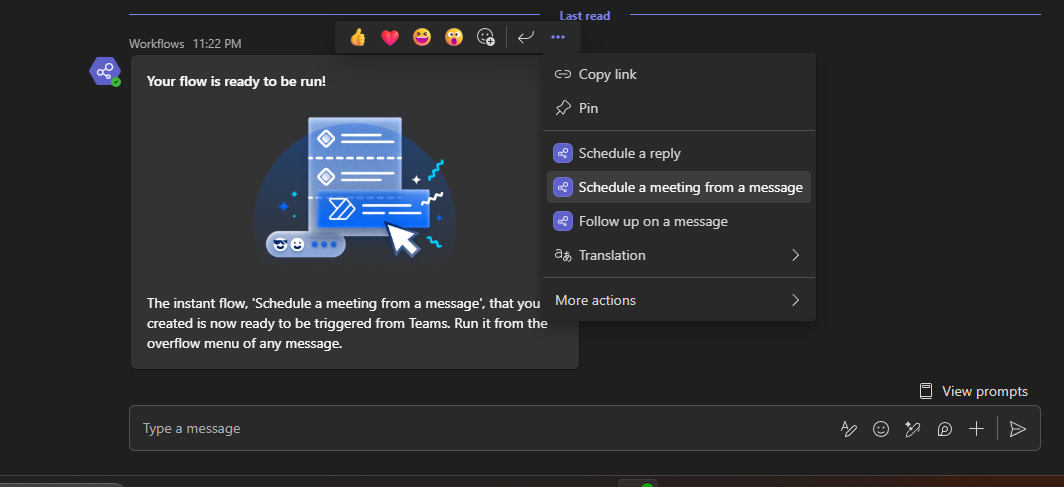
We go to Teams and select the card.
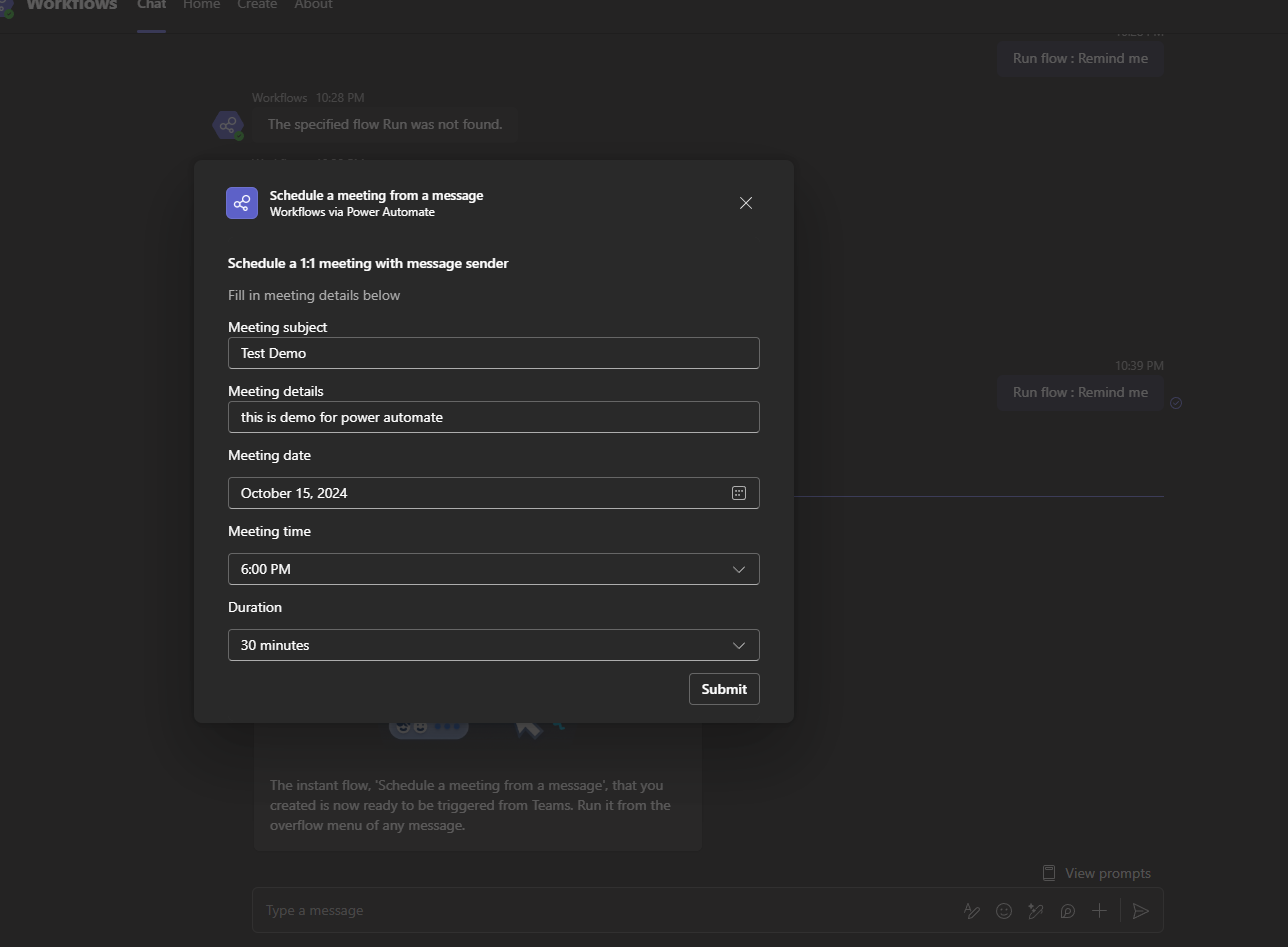
We fill in the details, and we have
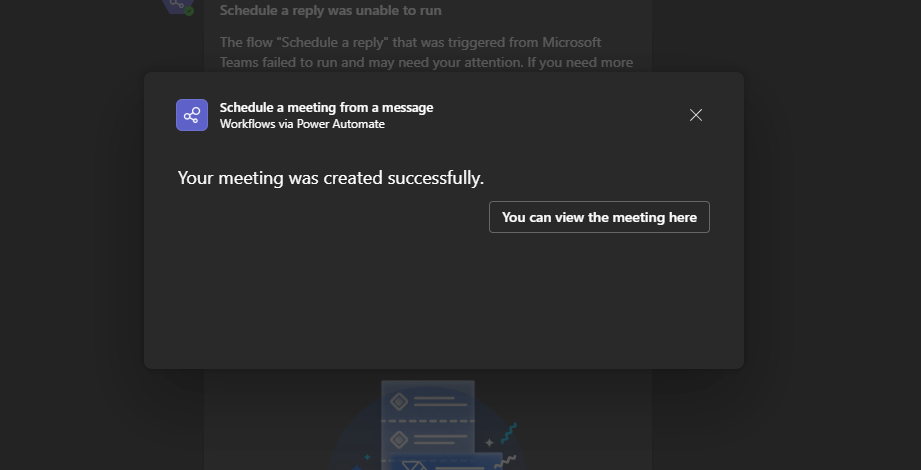
The meeting has been created successfully.
As you can see, our automate has executed successfully.
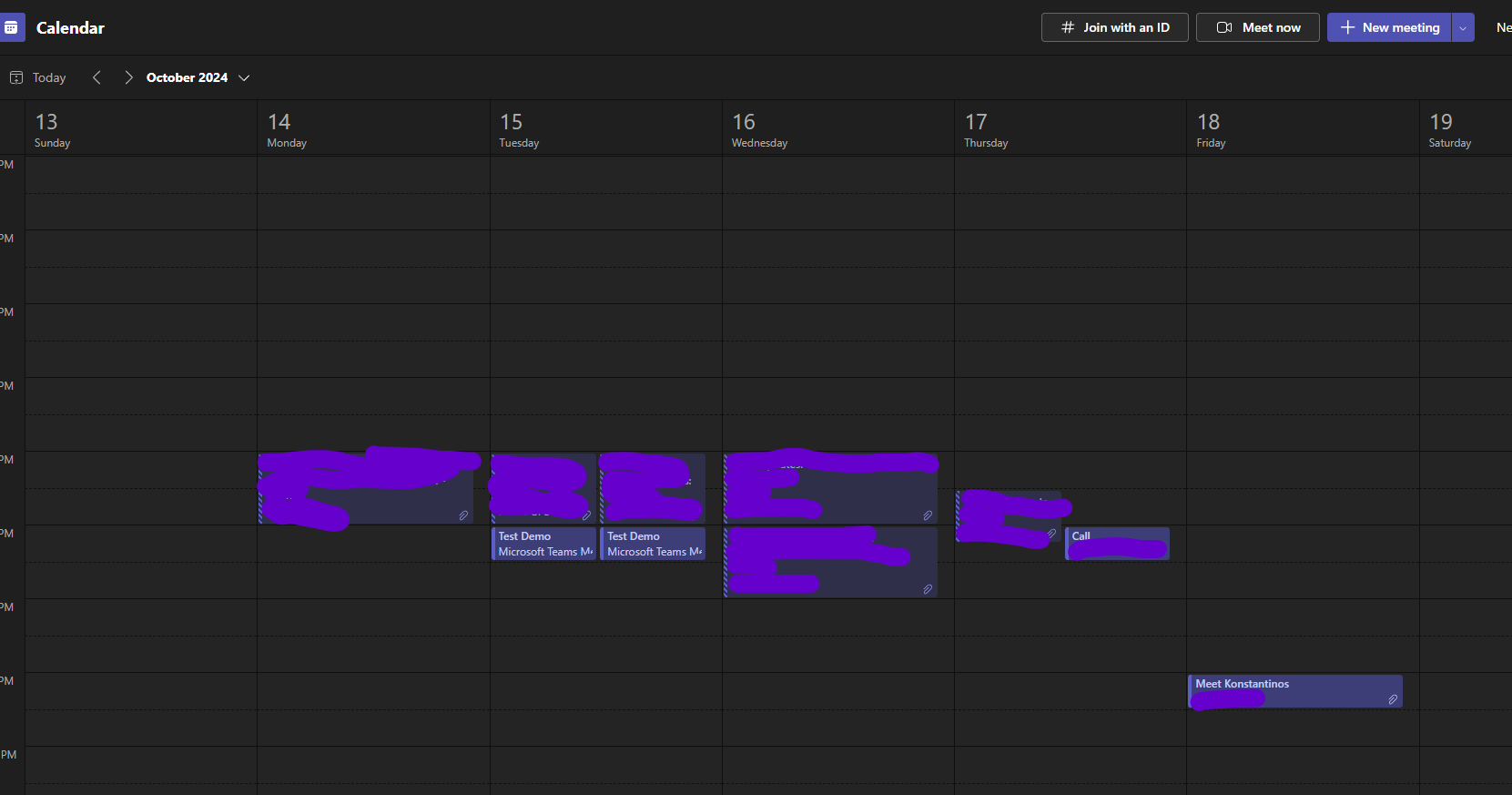
And as you can see, the meeting has been created.
 #ModerWork
#M365_Apps_Services
#BusinessApps
#SharePoint
#PowerAutomate
#technology
#microsoft
#digitaltransformation
#cloud
#mvpbuzz
#m365
#ModerWork
#M365_Apps_Services
#BusinessApps
#SharePoint
#PowerAutomate
#technology
#microsoft
#digitaltransformation
#cloud
#mvpbuzz
#m365
Visit Archives below to find more articles about Microsoft technologies on Modern Workplace