
Free Material
Find hereMore than 150 Articles about Microsoft Technologies on Modern Workplace
Official Site
Microsoft Most Valuable Professional M365 Apps & Services
Microsoft Most Valuable Professional Business Applications
Consultant & Sr Cloud Solution Architect Modern Wokrplace
Find hereMore than 150 Articles about Microsoft Technologies on Modern Workplace
29 October 2024
In today's article, I will show you how Click a button to upload file to OneDrive (not business or school account) using Power Automate.
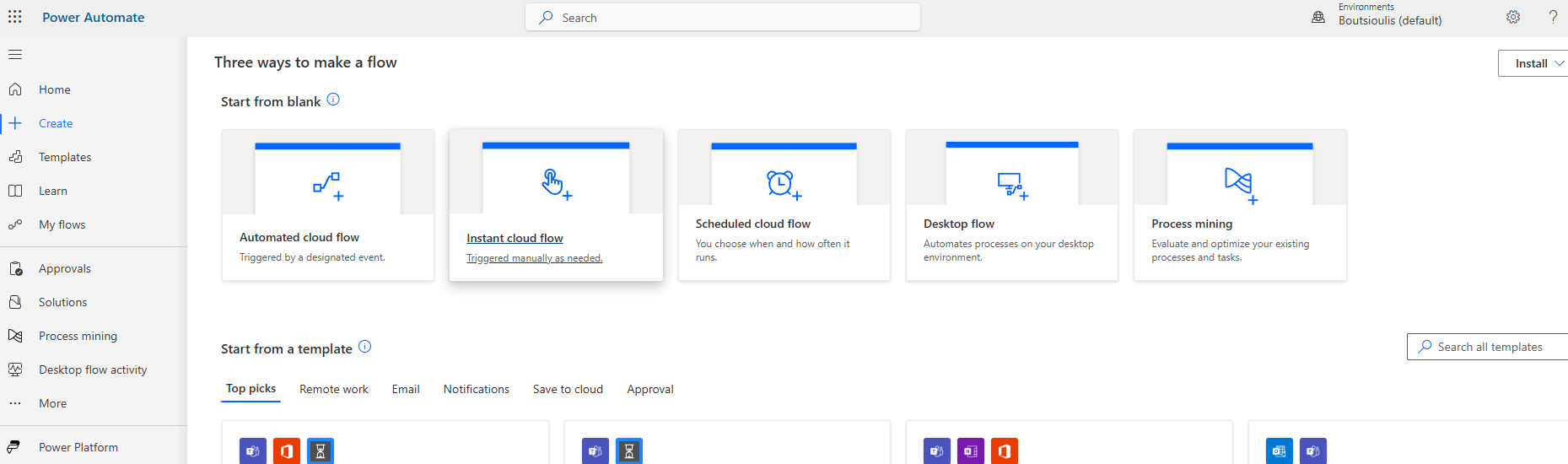
First, we need to have an active M365 subscription and from the home page, we select Power Automate from the apps. On the Power Automate home page, we select Templates from the left menu.
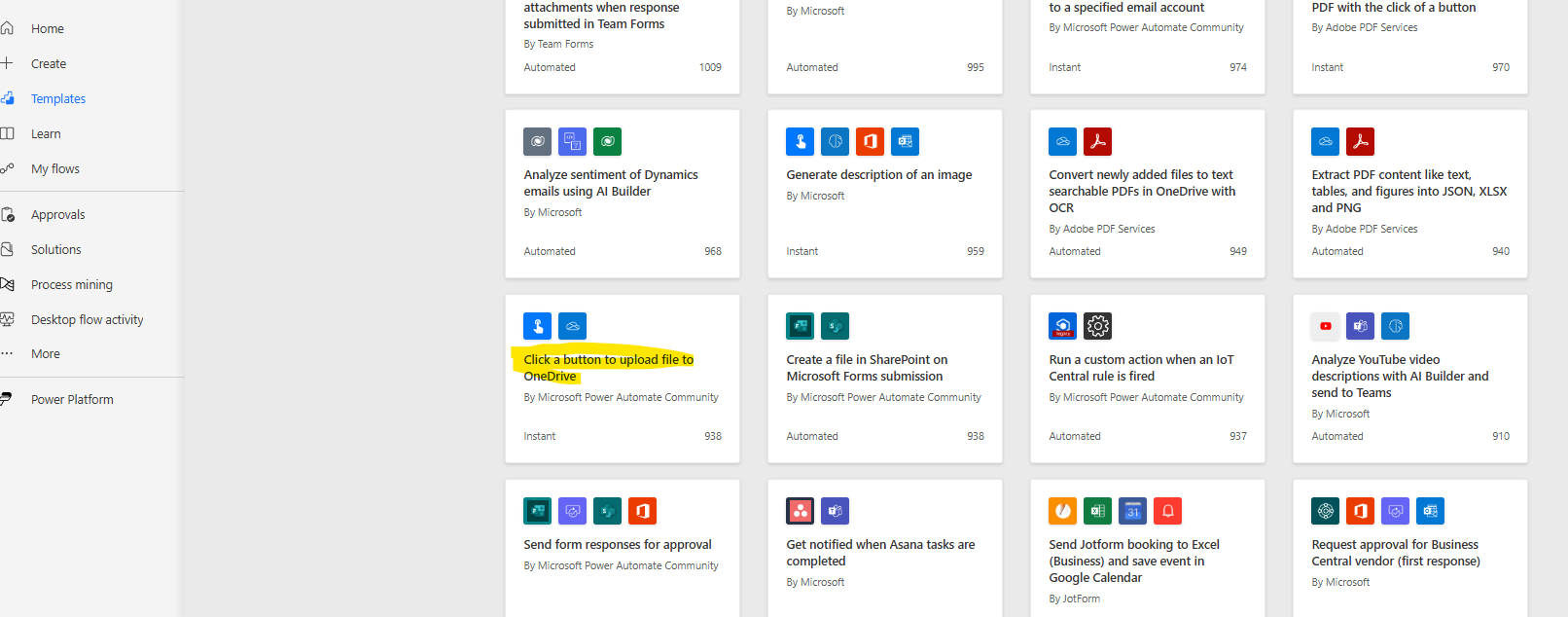
We locate the available template named "Click a button to upload file to OneDrive."
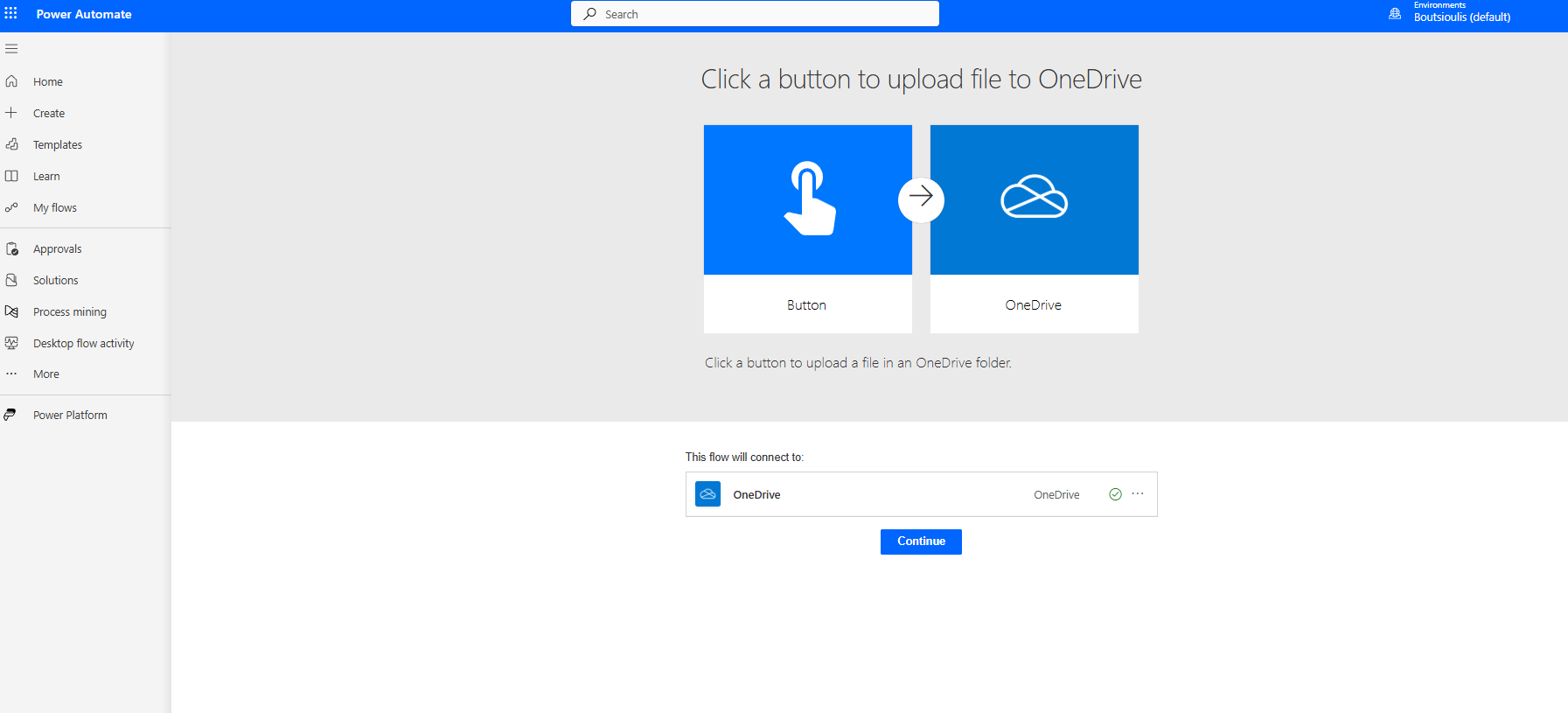
In the next step, we allow all necessary connections and select continue.
On the transition page, the first trigger action has the condition to activate the automate.
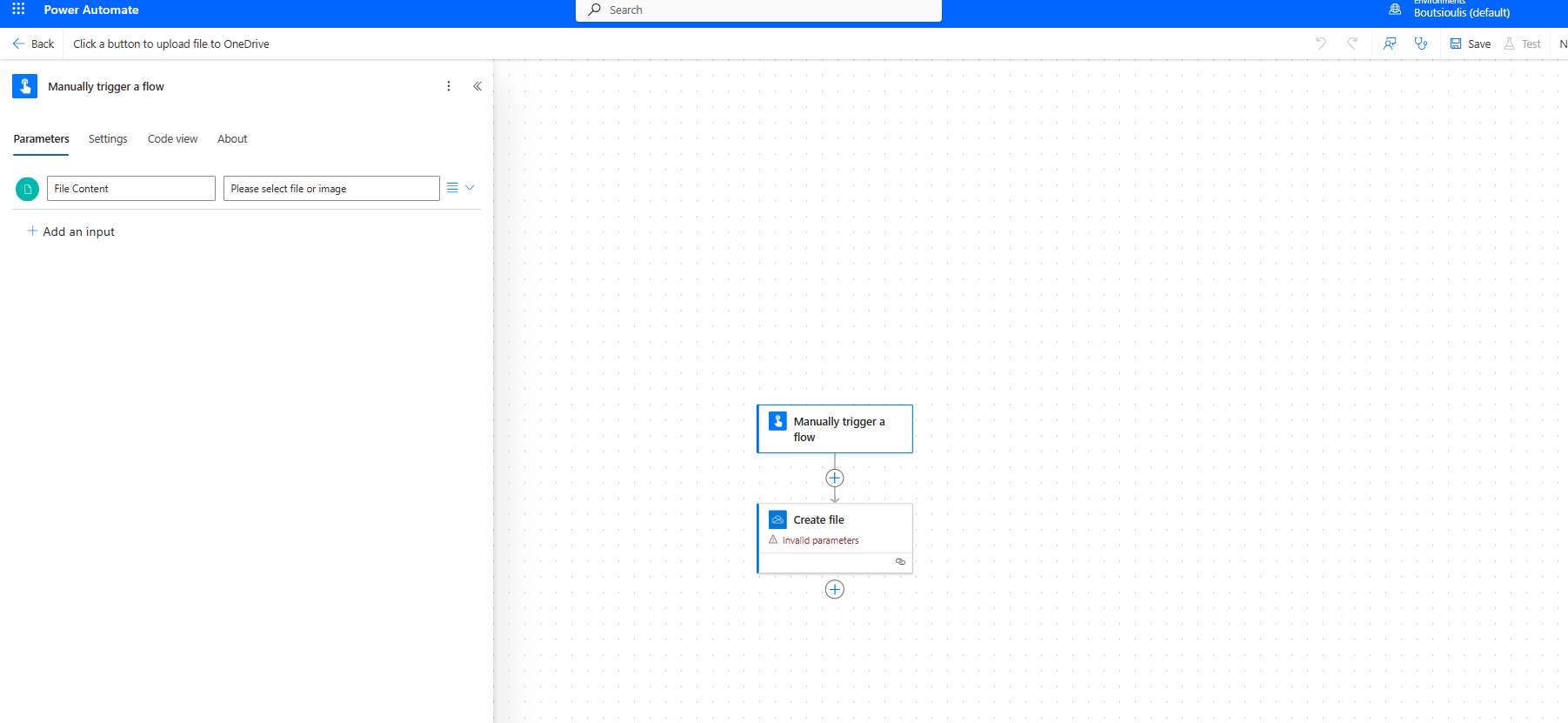
In the next action, of type create file, we need to specify the path of the folder, the filename, and the file content.
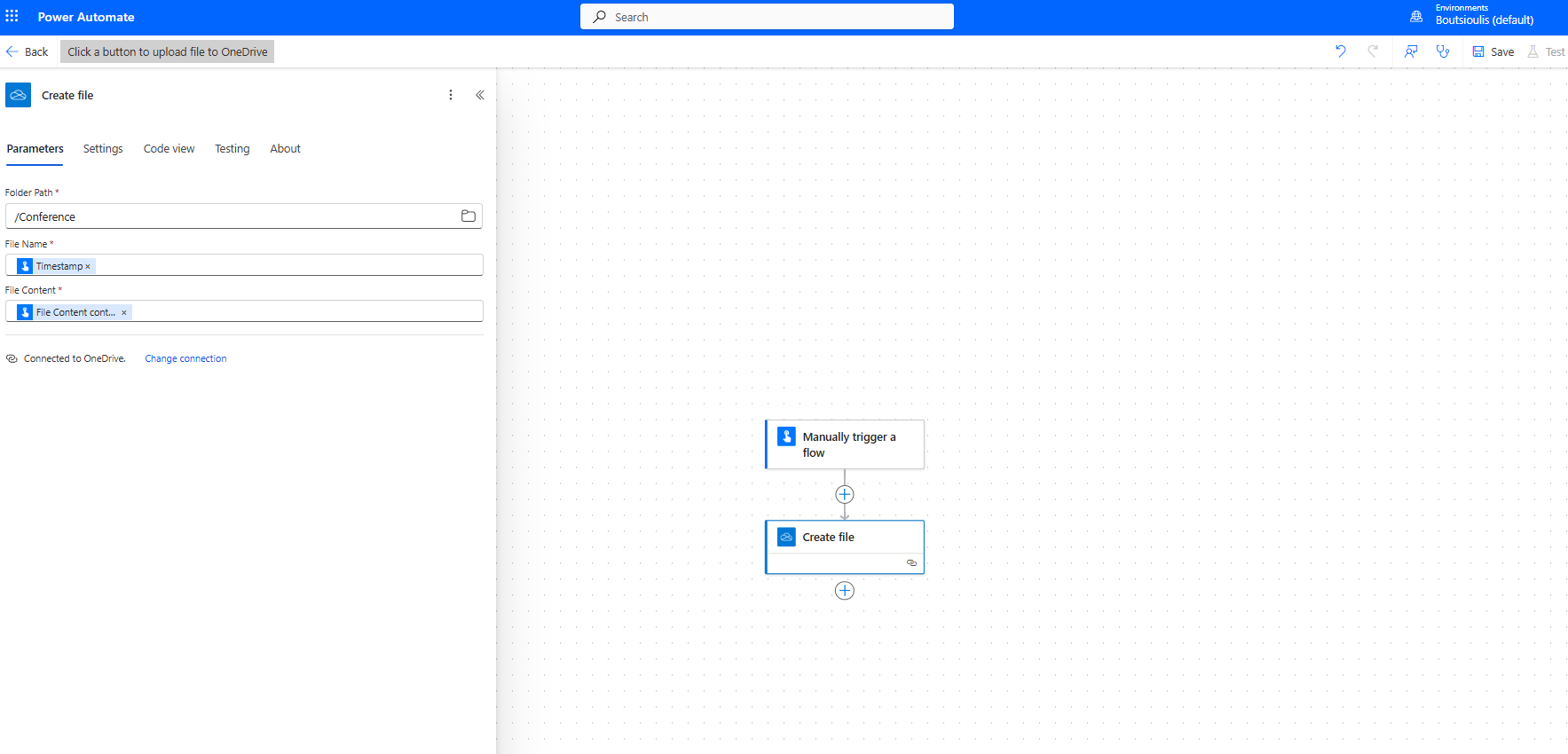
In the next step, we save our automate.
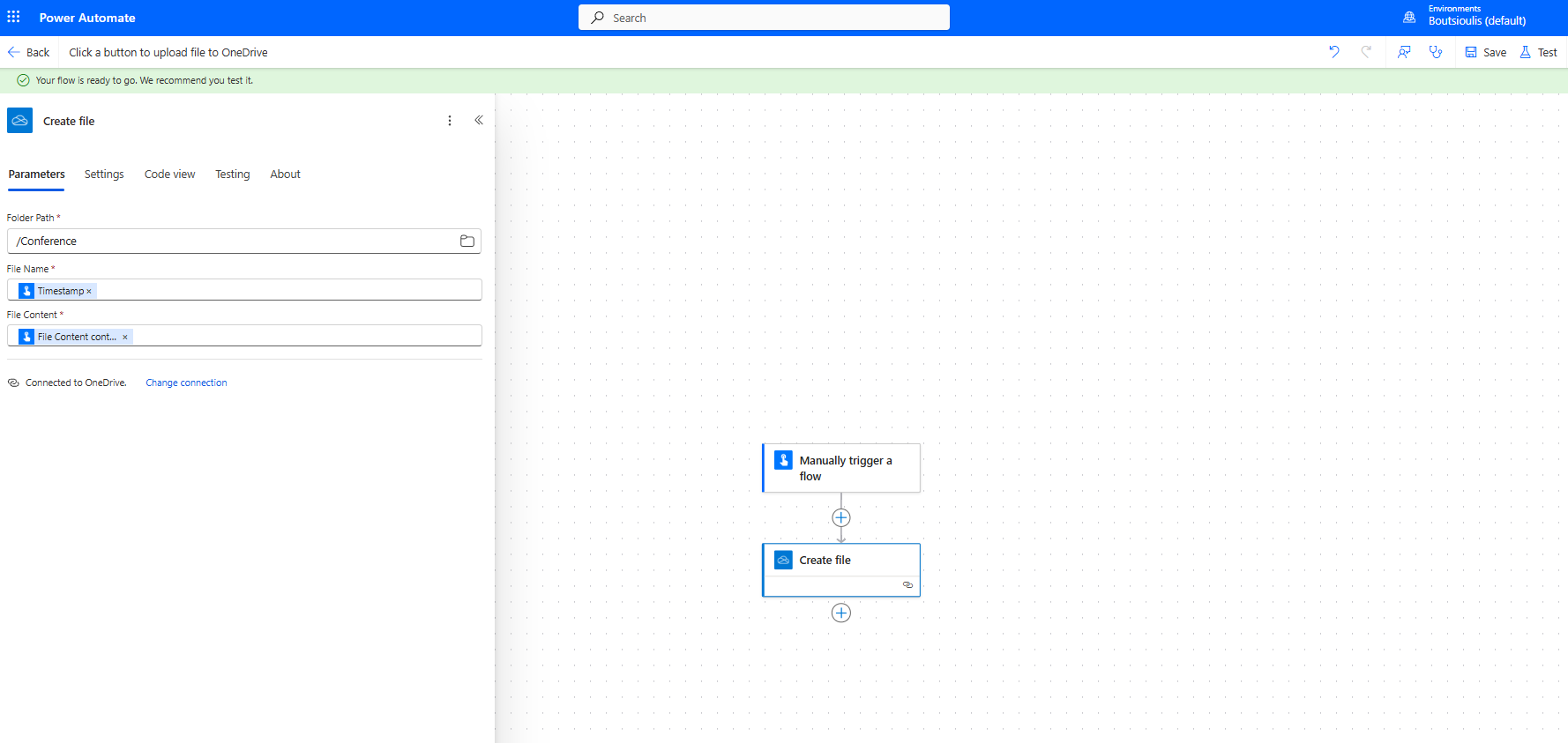
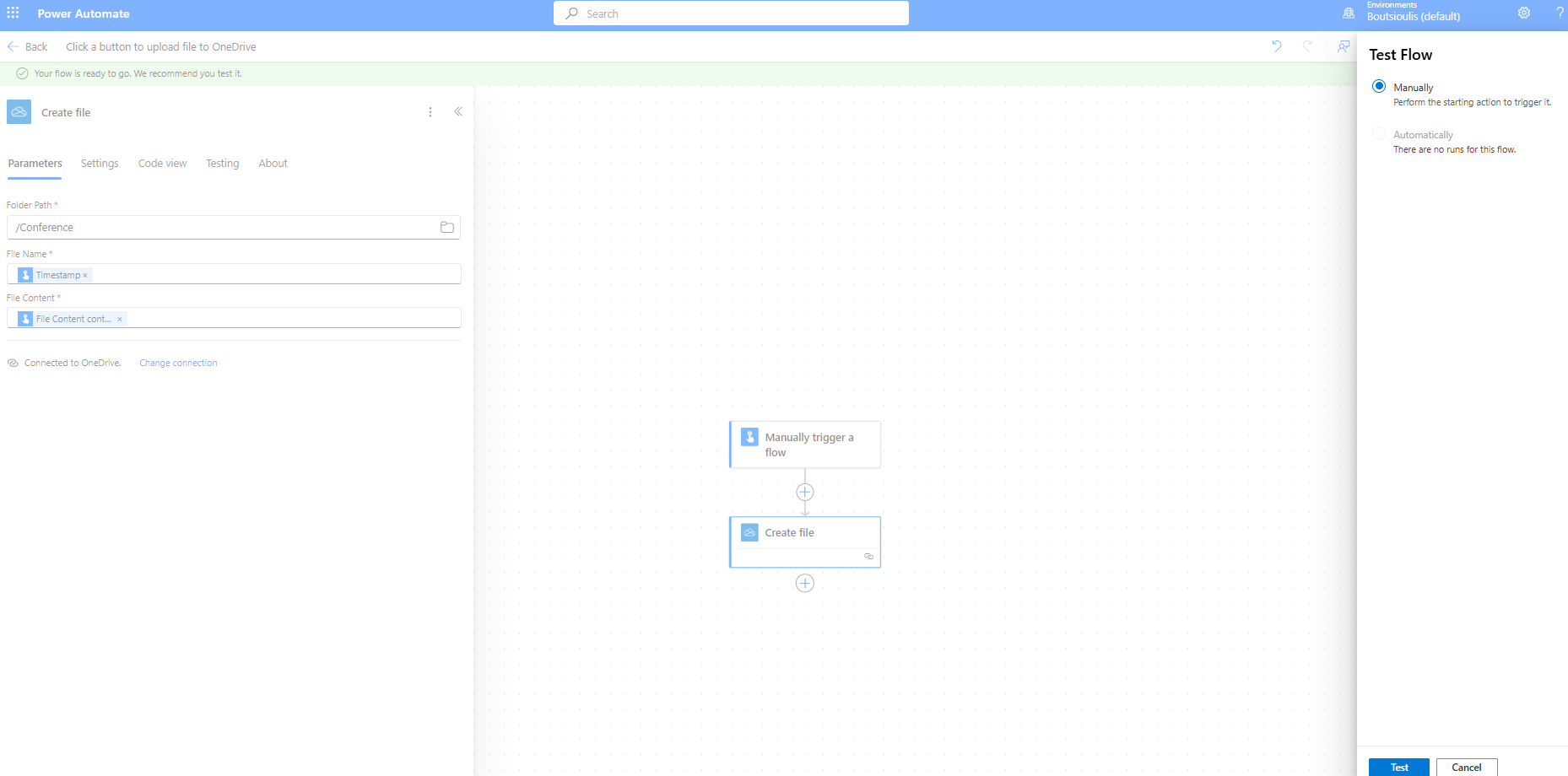
We then need to perform a manually test flow.
In the right sidebar pop-up menu, we select continue to allow the necessary connections.
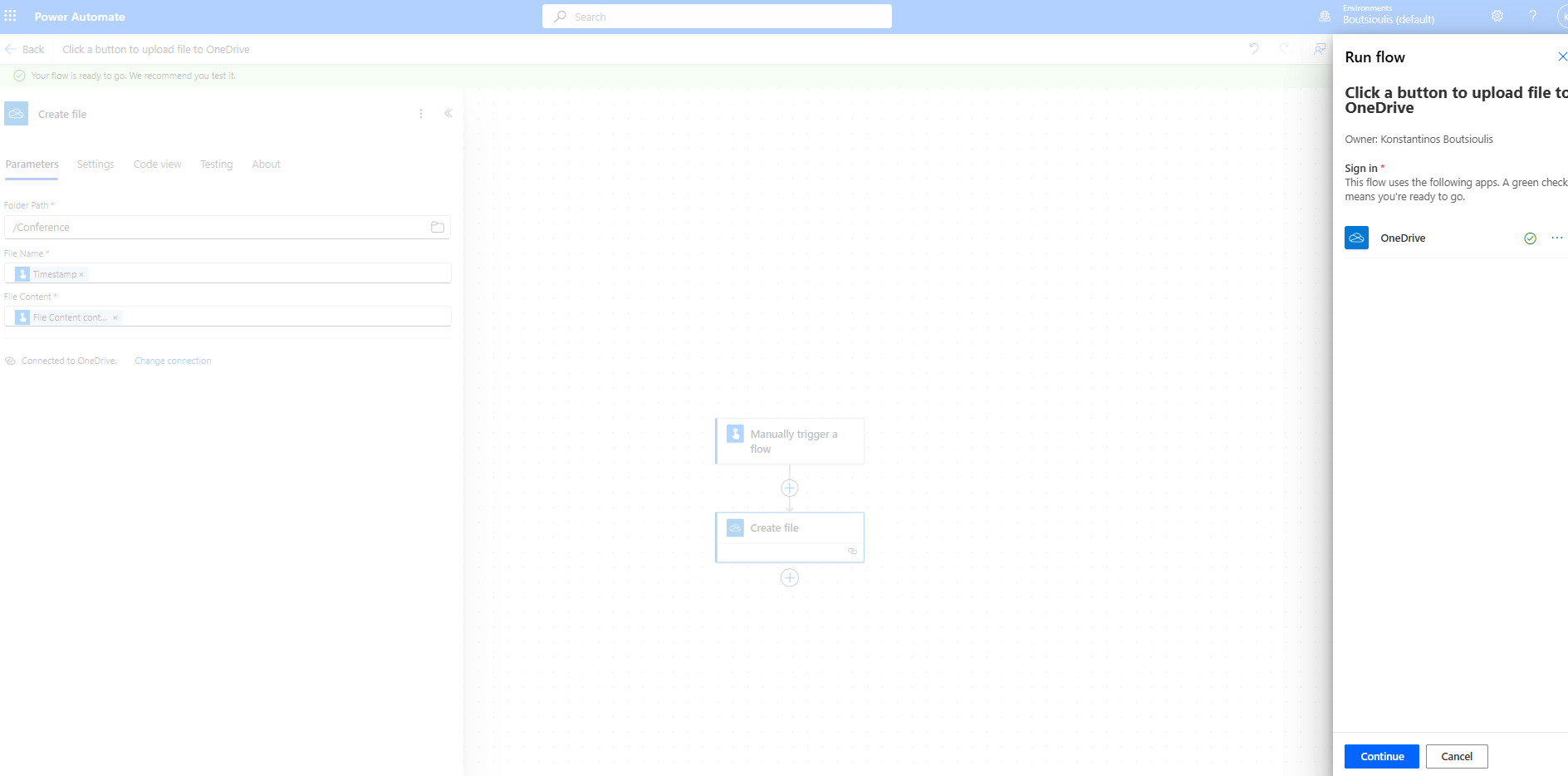
In the next menu, we select Import and upload the file.
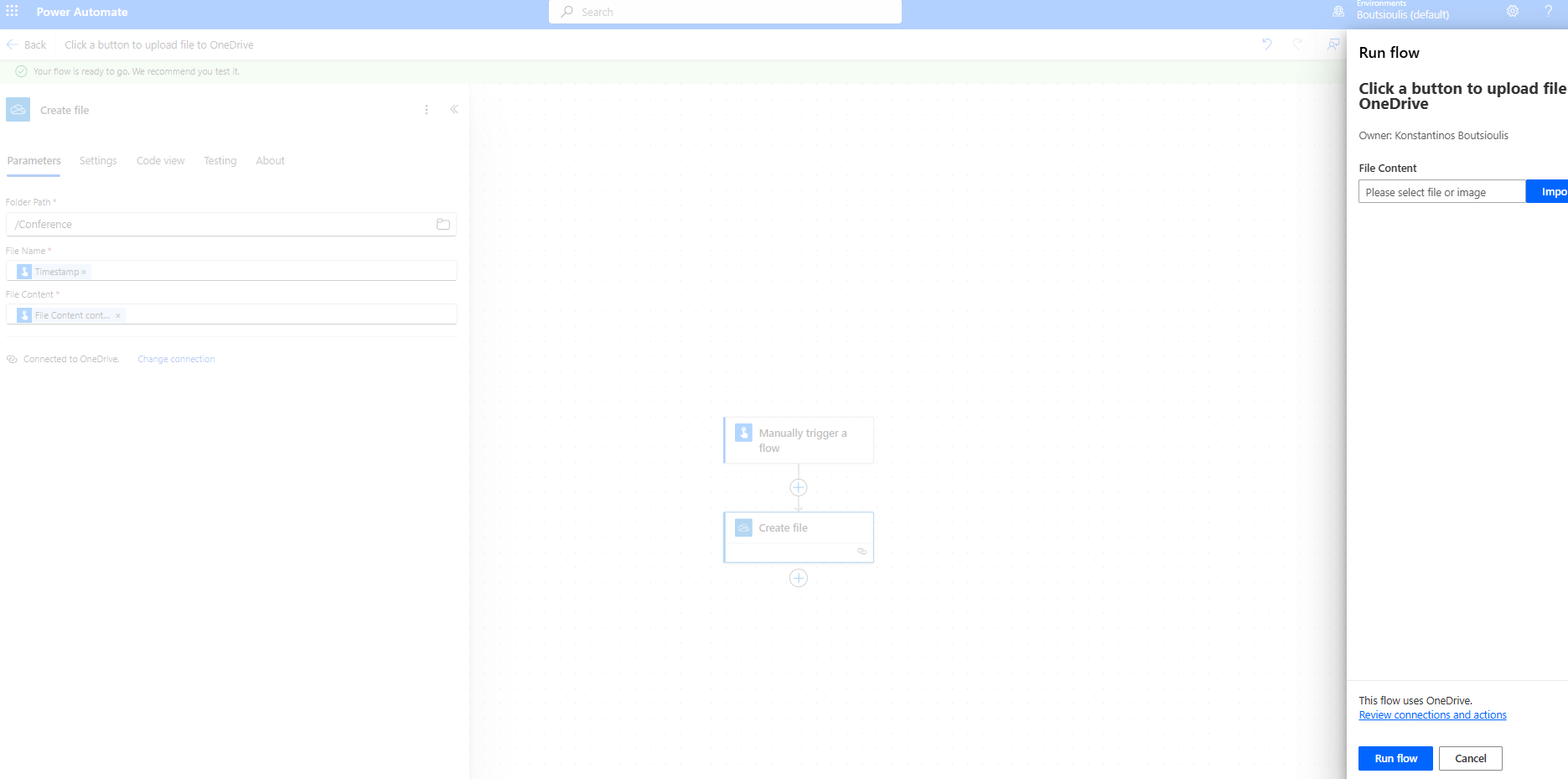
Then we select run flow.
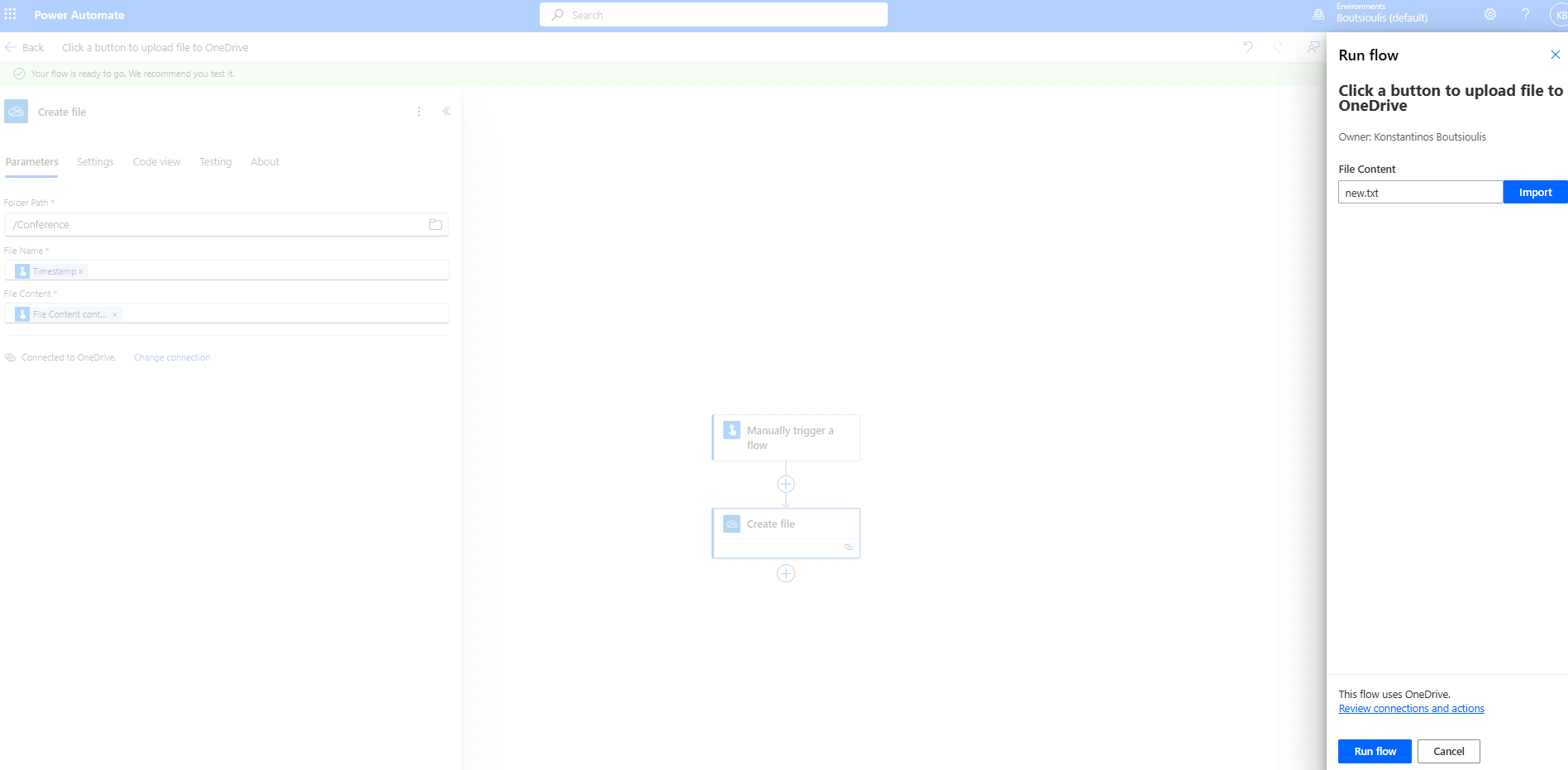
The flow starts to execute.
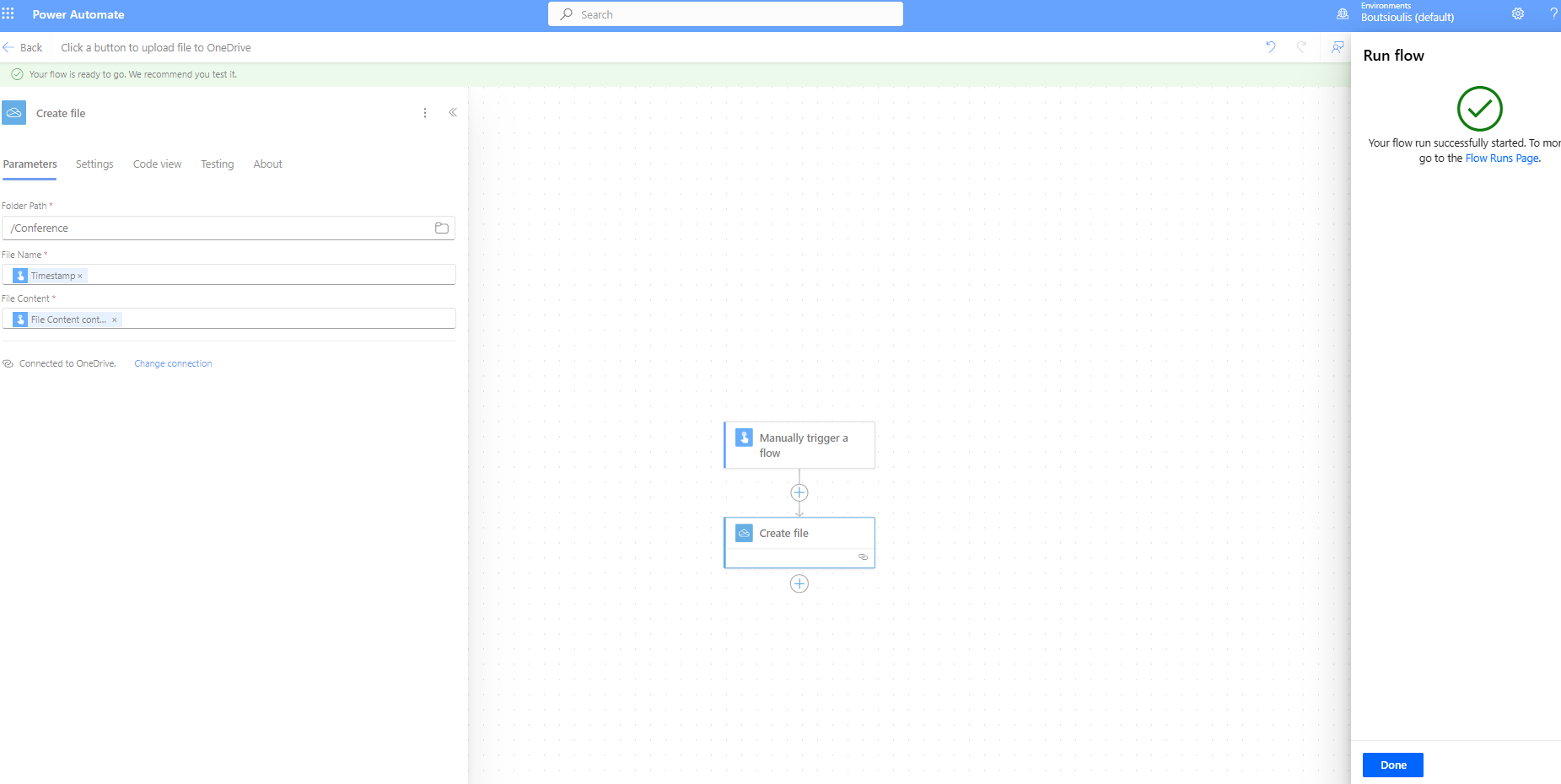
As you can see, the automate has executed successfully.
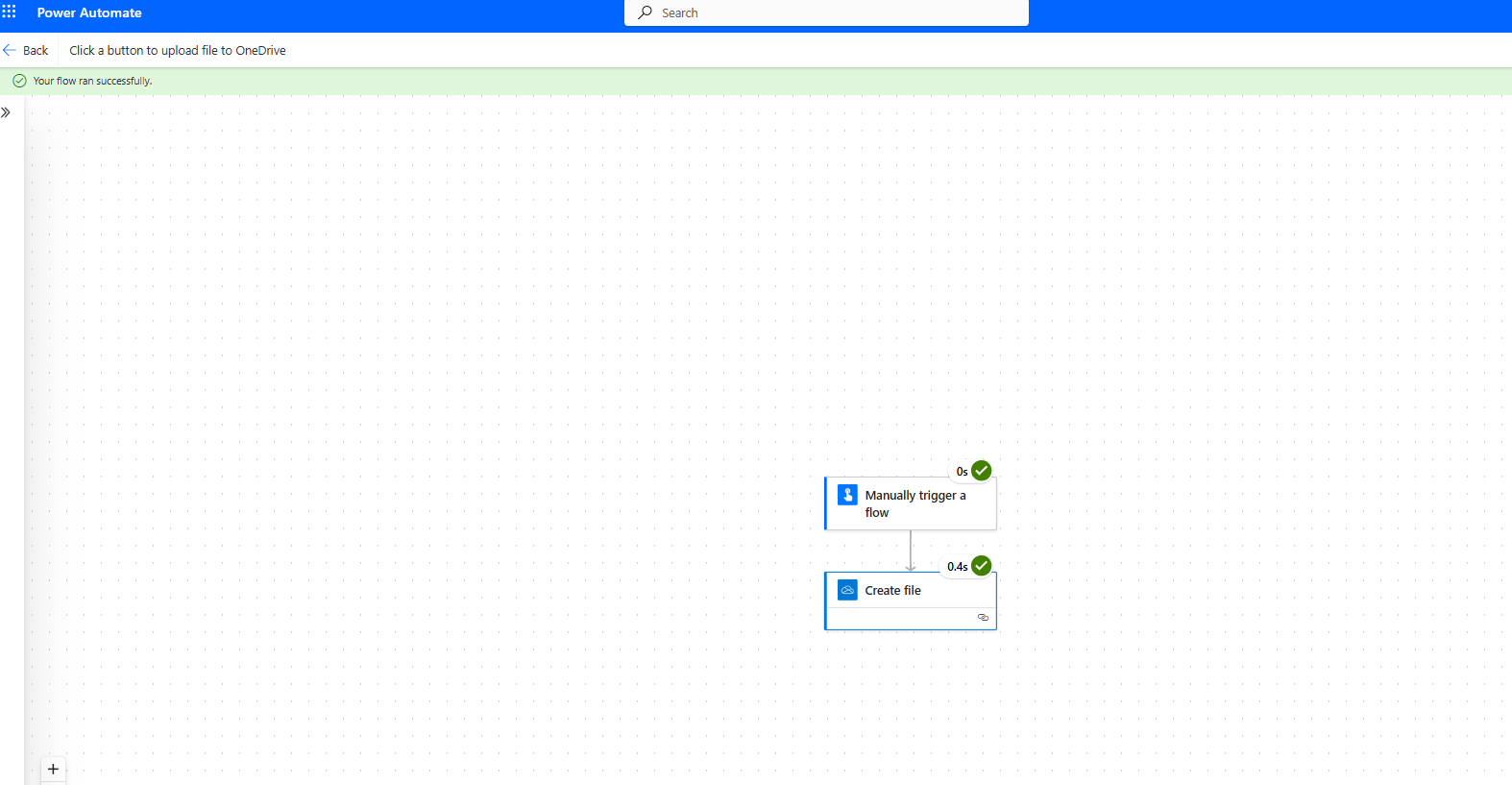
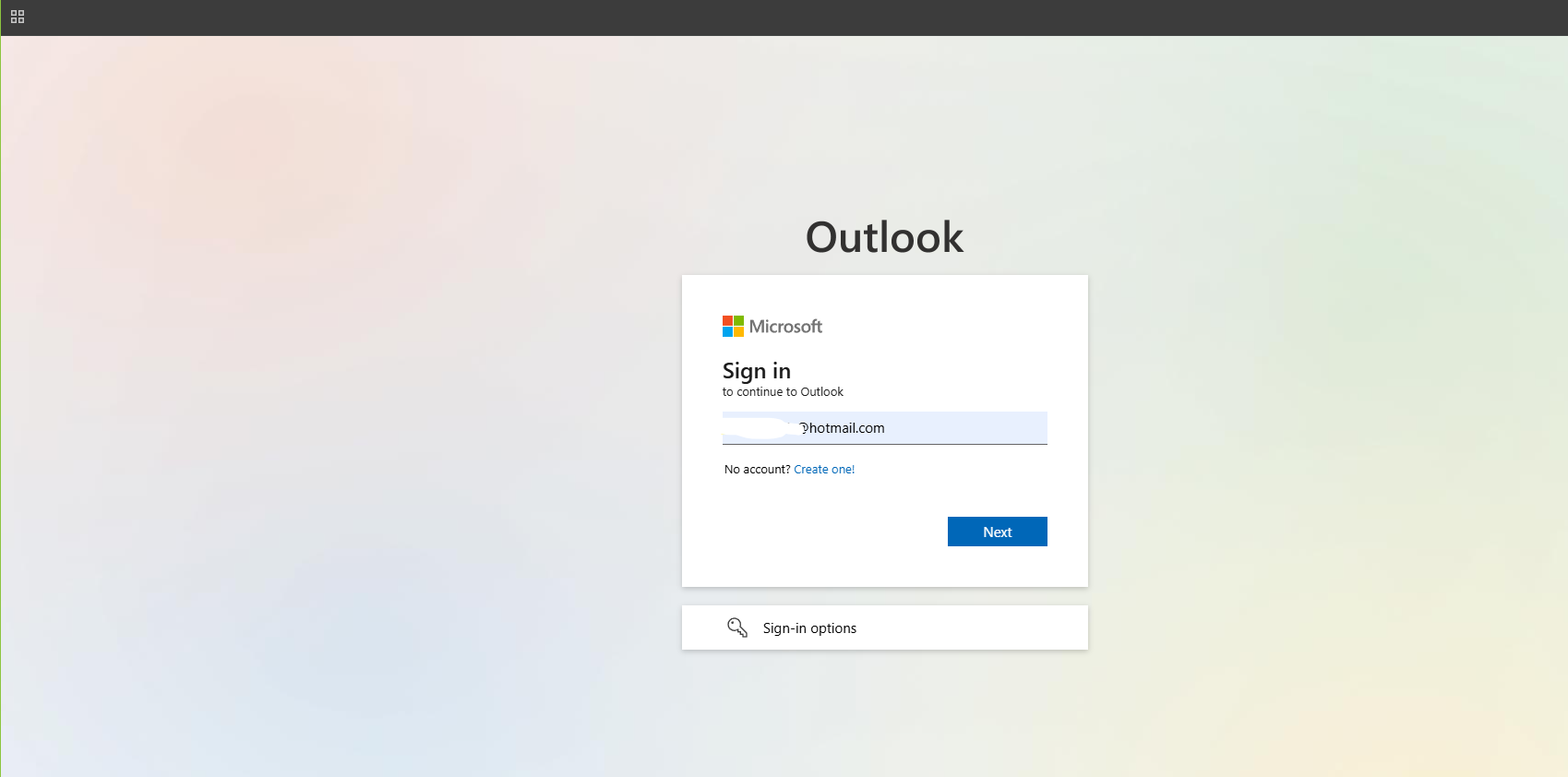
We go to our free account.
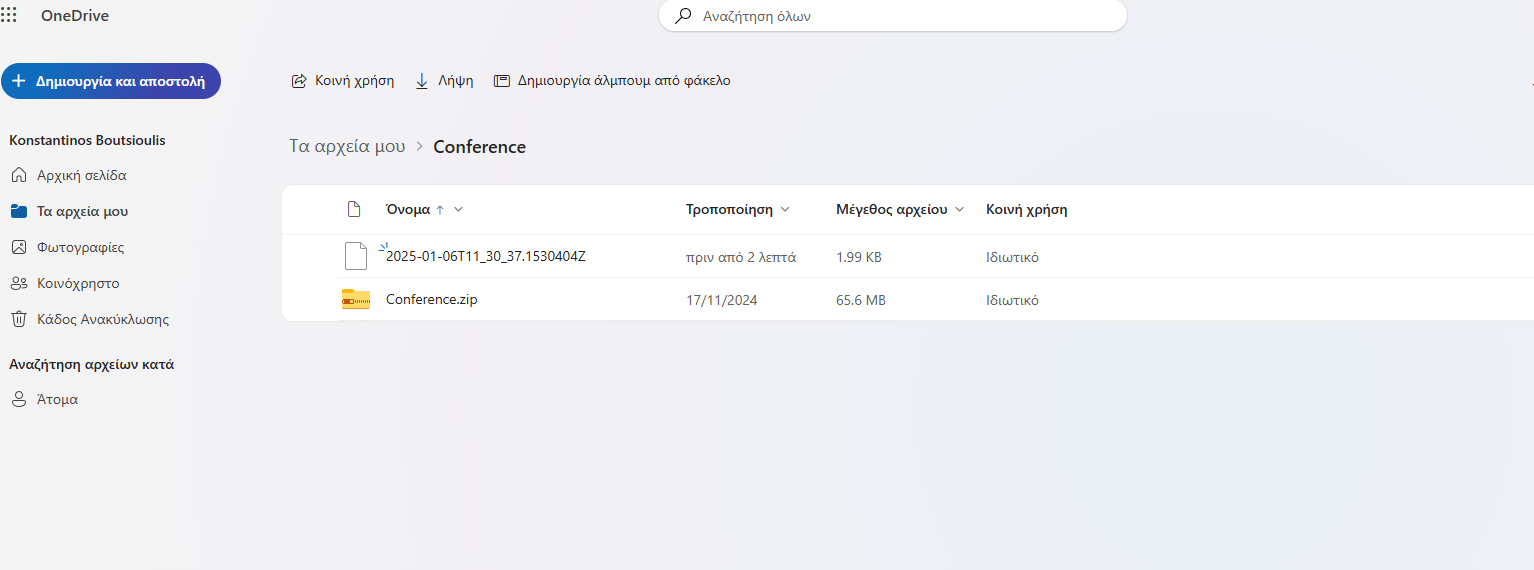
And as you can see, the file has been created in the folder we specified.
 #ModerWork
#M365_Apps_Services
#BusinessApps
#SharePoint
#PowerAutomate
#technology
#microsoft
#digitaltransformation
#cloud
#mvpbuzz
#m365
#ModerWork
#M365_Apps_Services
#BusinessApps
#SharePoint
#PowerAutomate
#technology
#microsoft
#digitaltransformation
#cloud
#mvpbuzz
#m365
Visit Archives below to find more articles about Microsoft technologies on Modern Workplace