
Free Material
Find hereMore than 150 Articles about Microsoft Technologies on Modern Workplace
Official Site
Microsoft Most Valuable Professional M365 Apps & Services
Microsoft Most Valuable Professional Business Applications
Consultant & Sr Cloud Solution Architect Modern Wokrplace
Find hereMore than 150 Articles about Microsoft Technologies on Modern Workplace
02 October 2023
In today's article I will show you how we can make a basic connection of SharePoint to Viva Learning so that SharePoint can be one of the providers that will provide educational material to our users. First of all I should point out that it is a complex process with different stages. To activate this process you must of course have an active M365 subscription .I go to the M365 home page and select admin
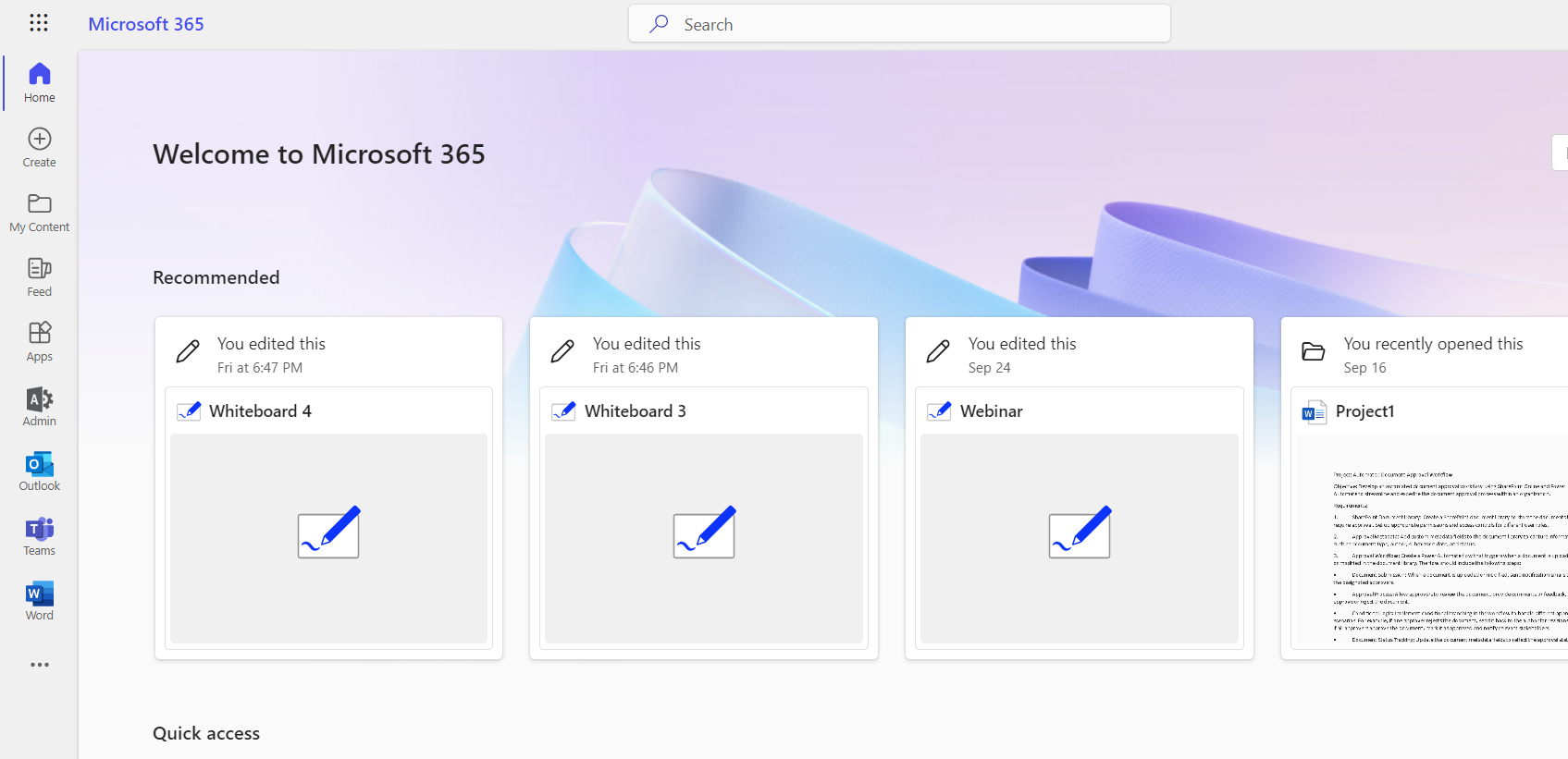
Then from the sidebar I have to select the settings category
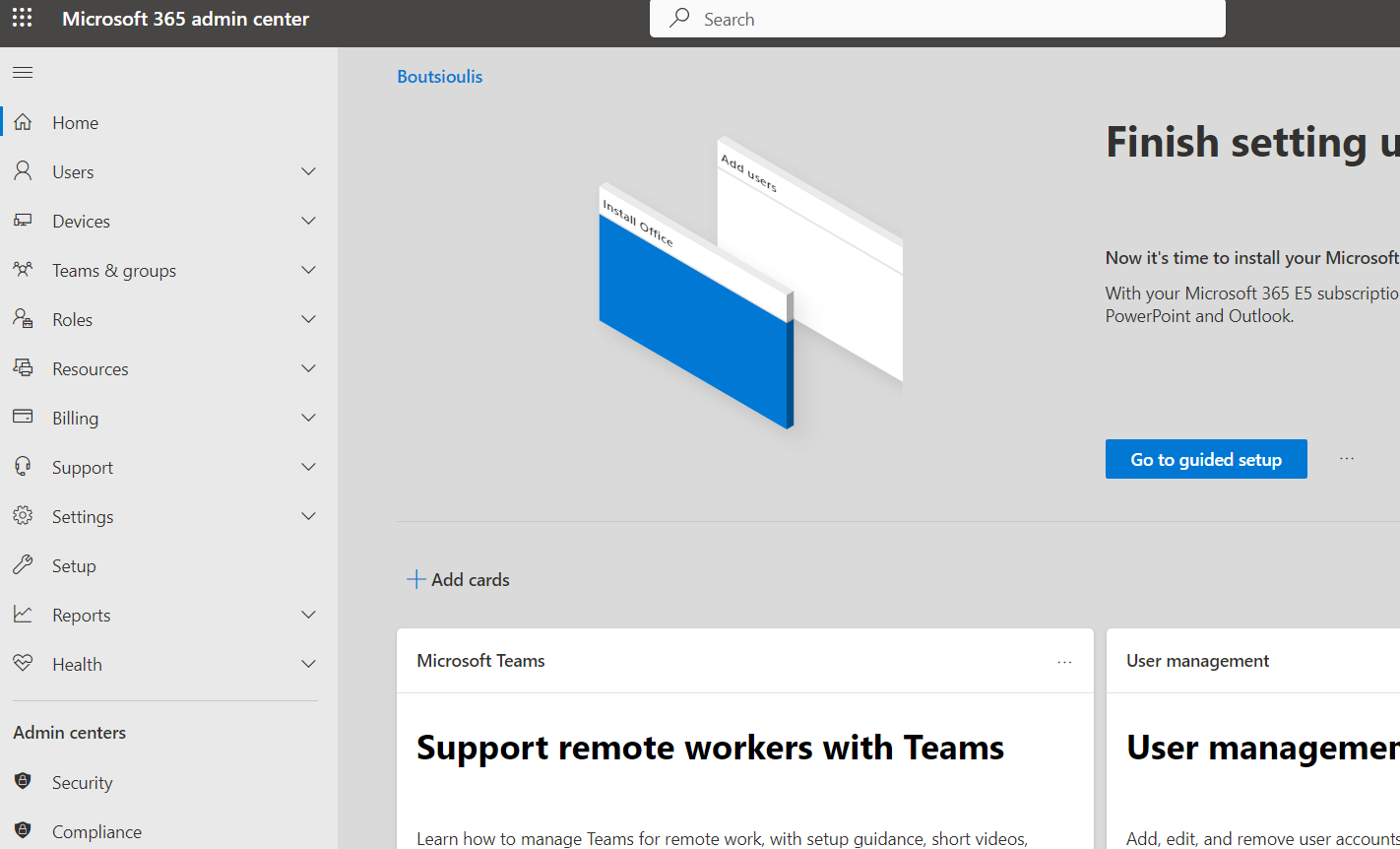
And under this subcategory Org Settings.
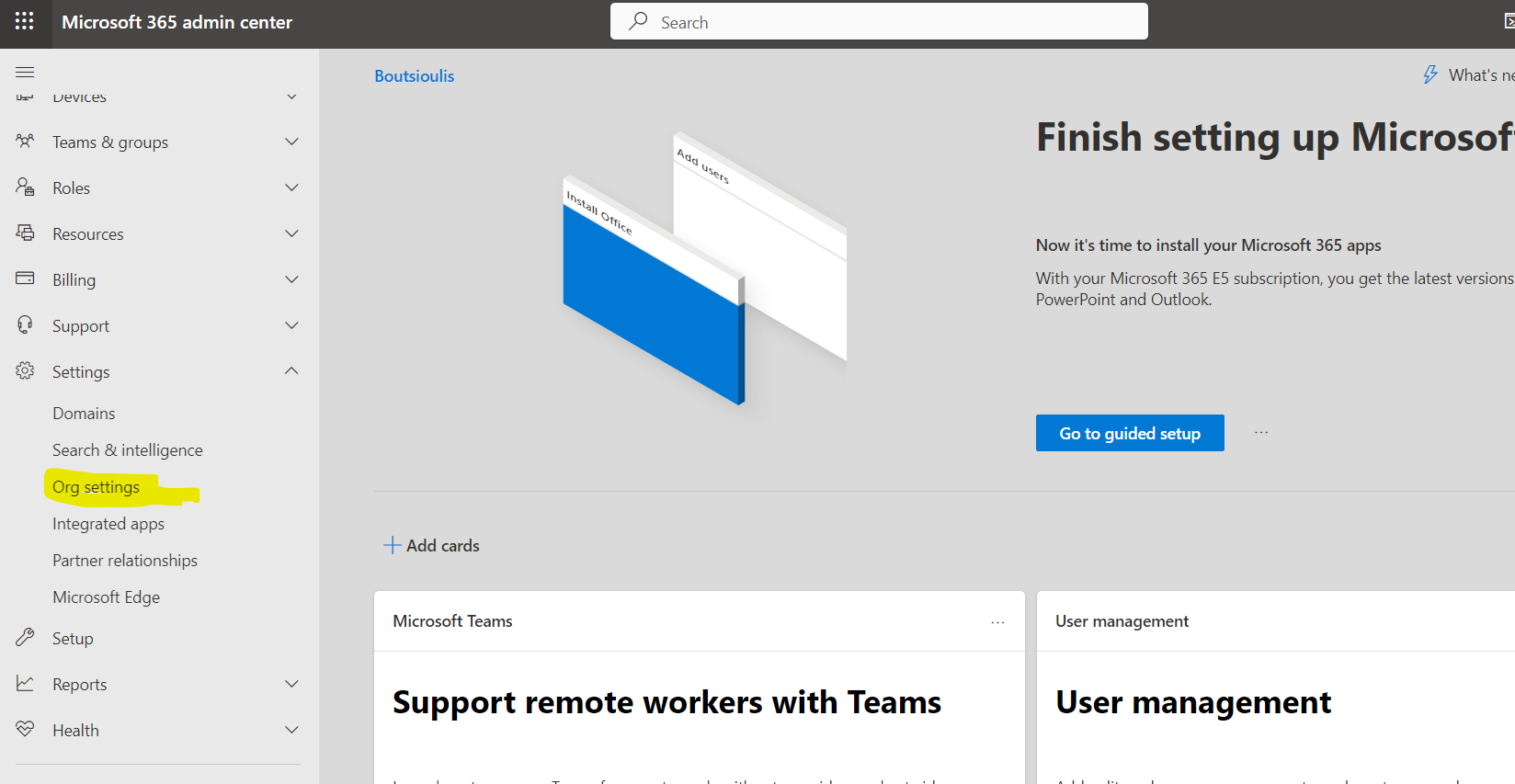
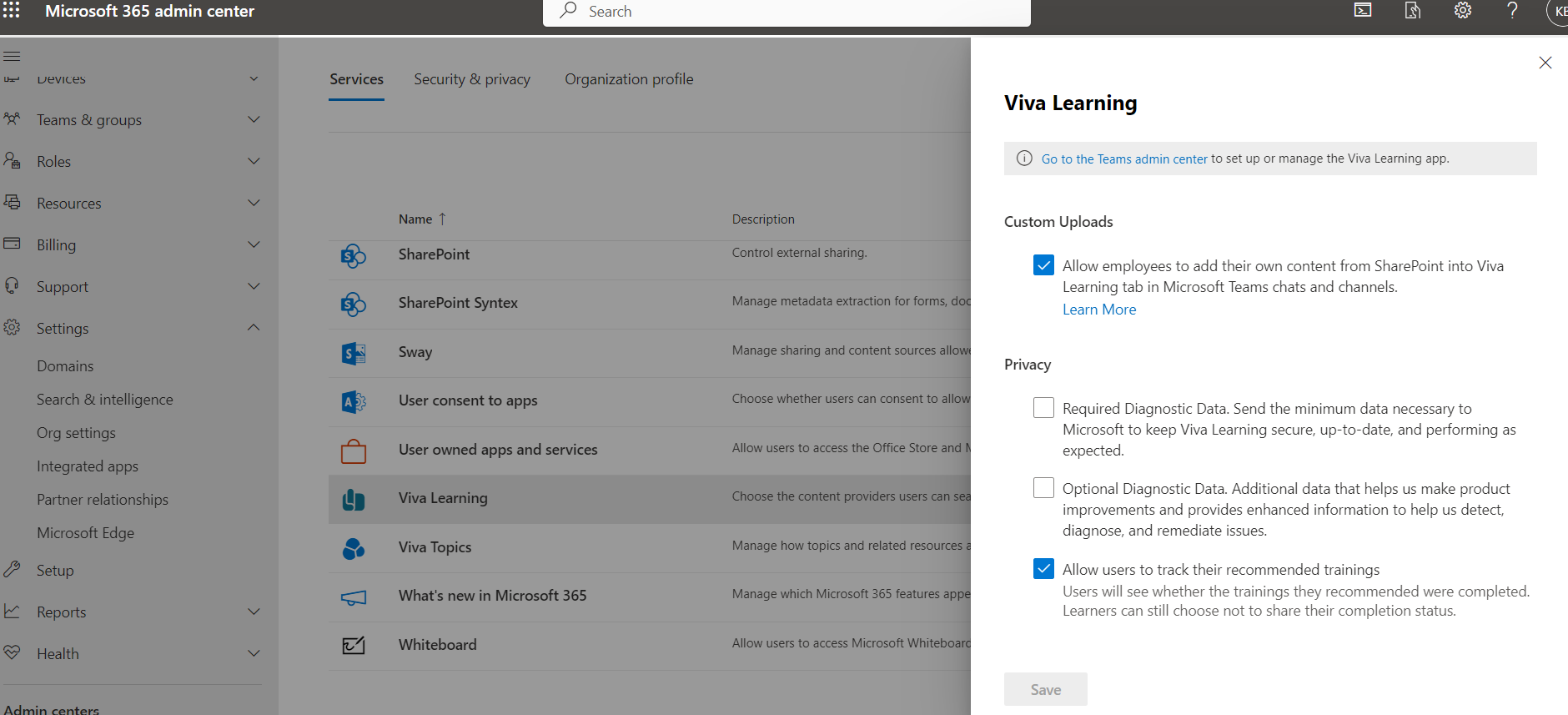
In the next step I have to select Viva Learning from the available services
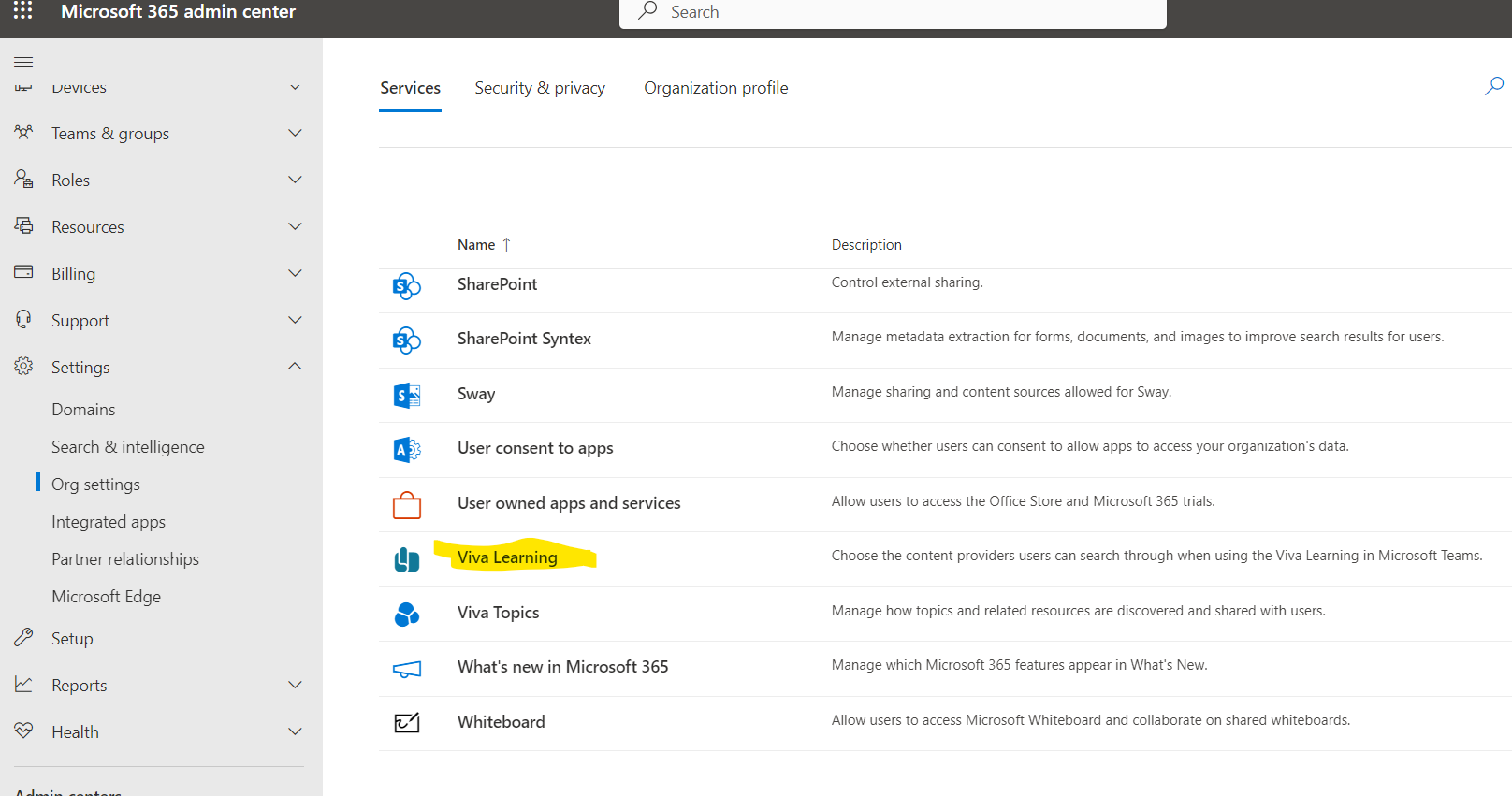
And in the side pop up window I will have to make the choices of my liking .
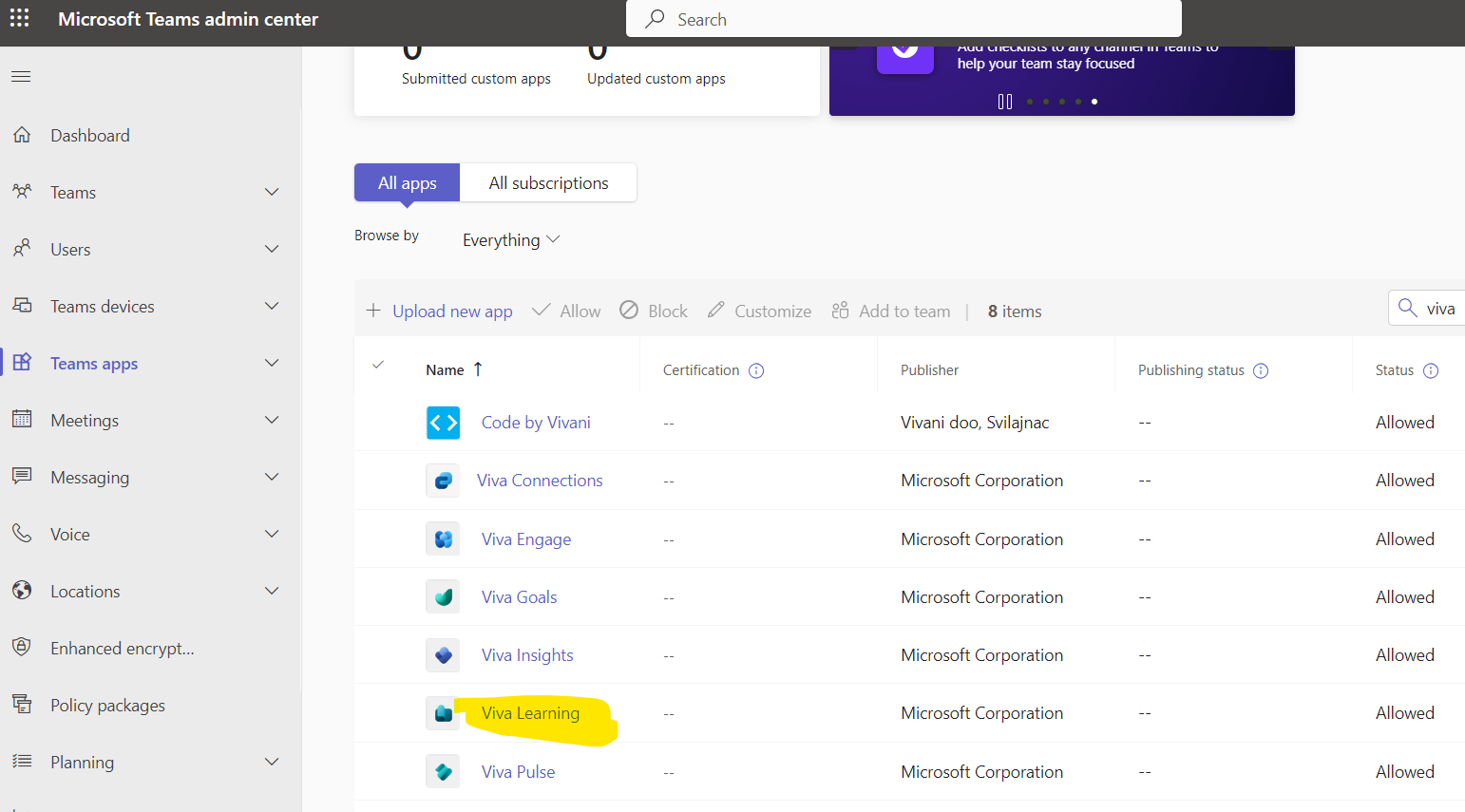
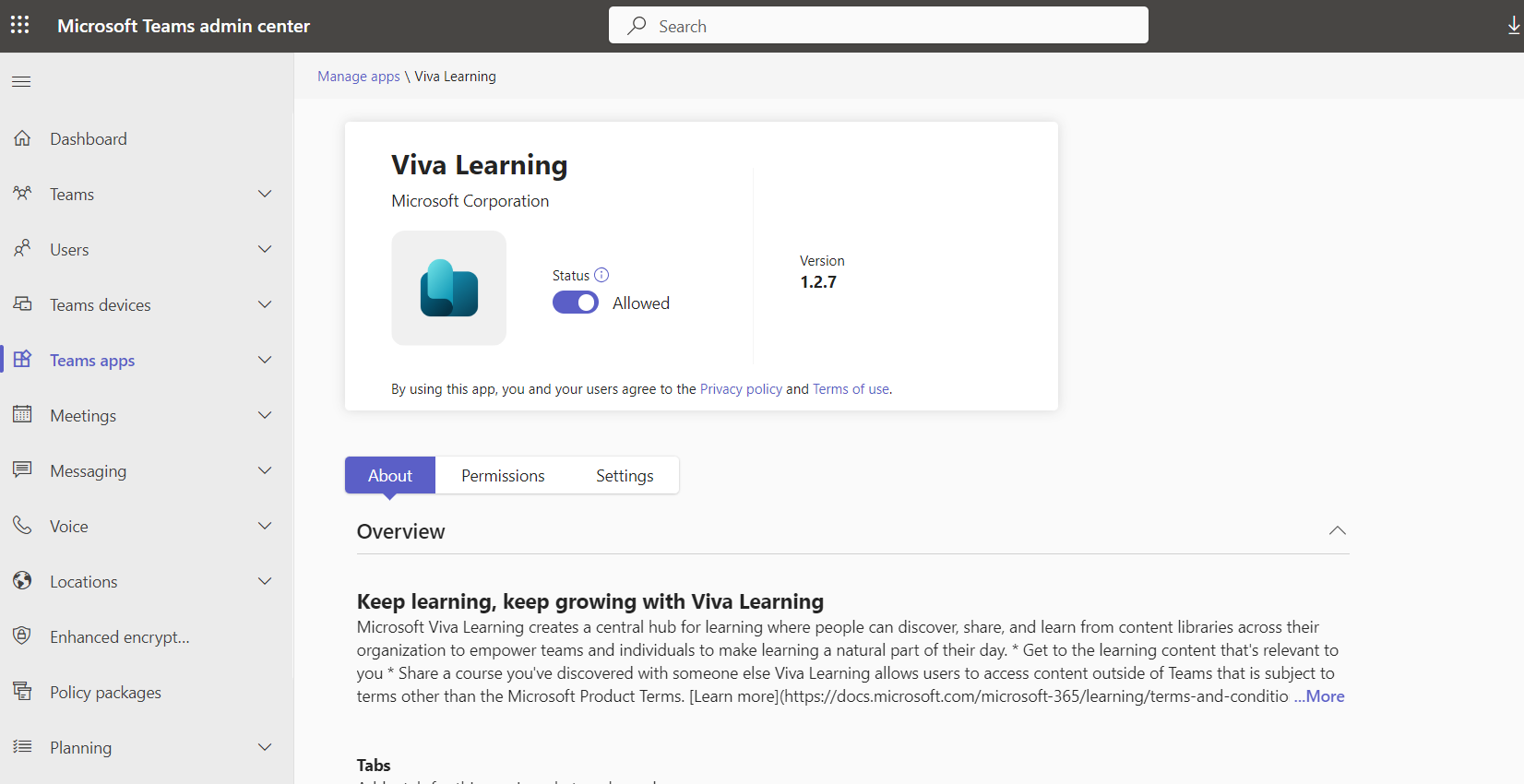
In order for my organization members to have access to Viva Learning, I will have to go to the Teams admin center under Teams apps to import and enable the use of Viva Learning in Teams
As well as I could with policy to pin Viva Learning to every user who logs in to Teams in the old sidebar.
Once I have successfully completed the process I should see the icon of Viva Learning in my sidebar in Microsoft Teams and from there by selecting it and then selecting Admin I am in the admin interface of Viva Learning . Alternatively it could be done from the web admin of Viva Learning .
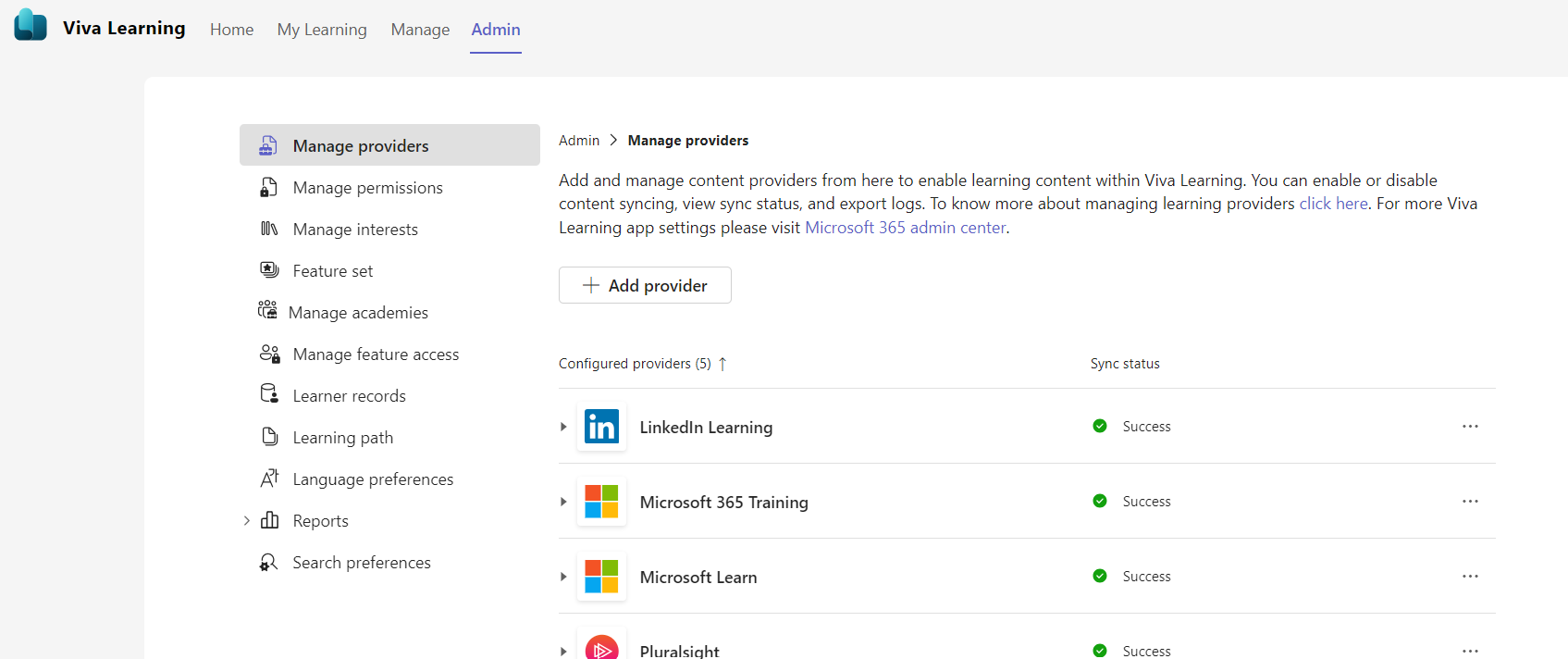
I select Add provider and there I have a series of options in the pop up window from different providers of educational material . In our case we will choose SharePoint which for us will be one of the providers of our educational material
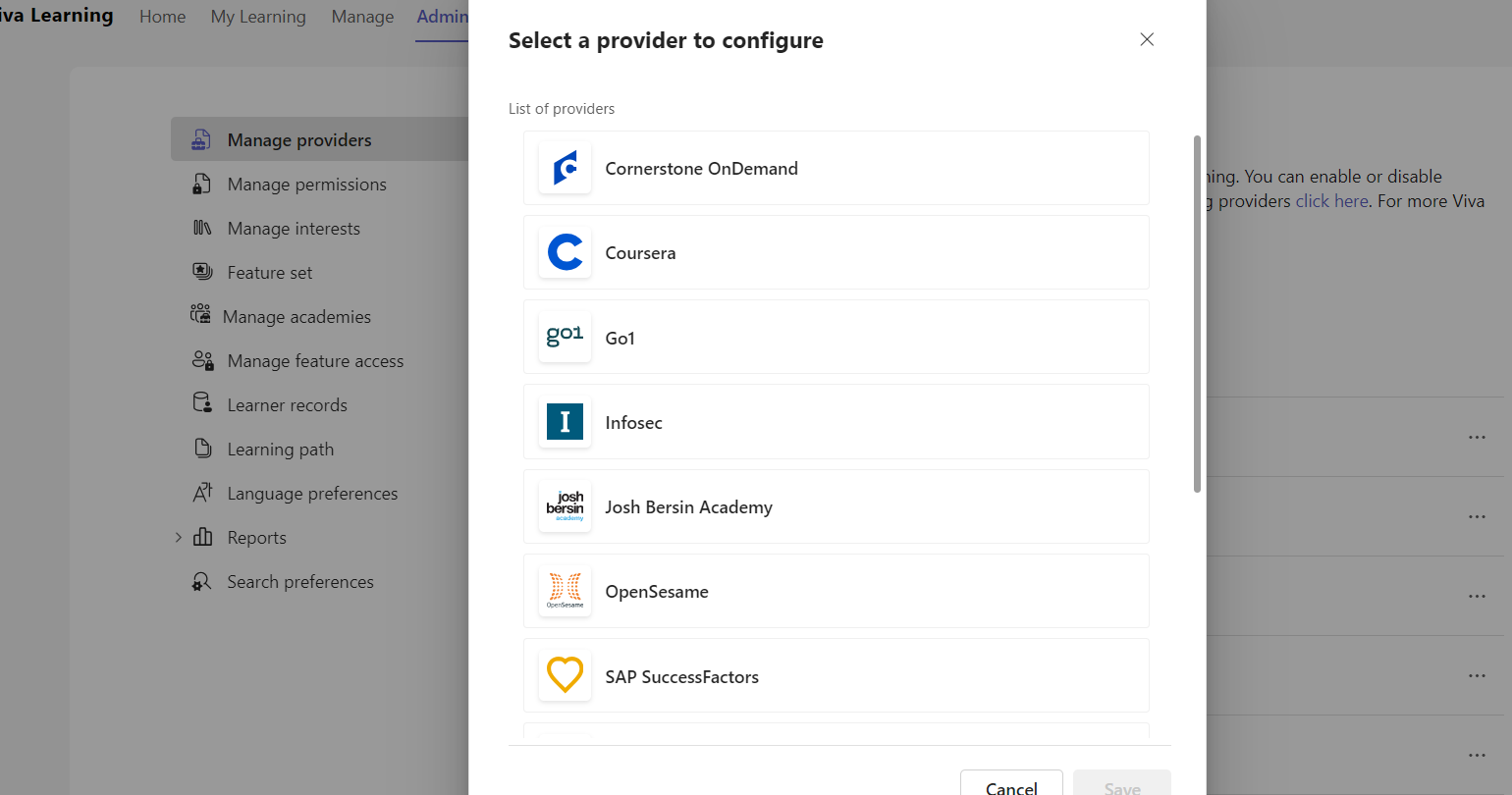
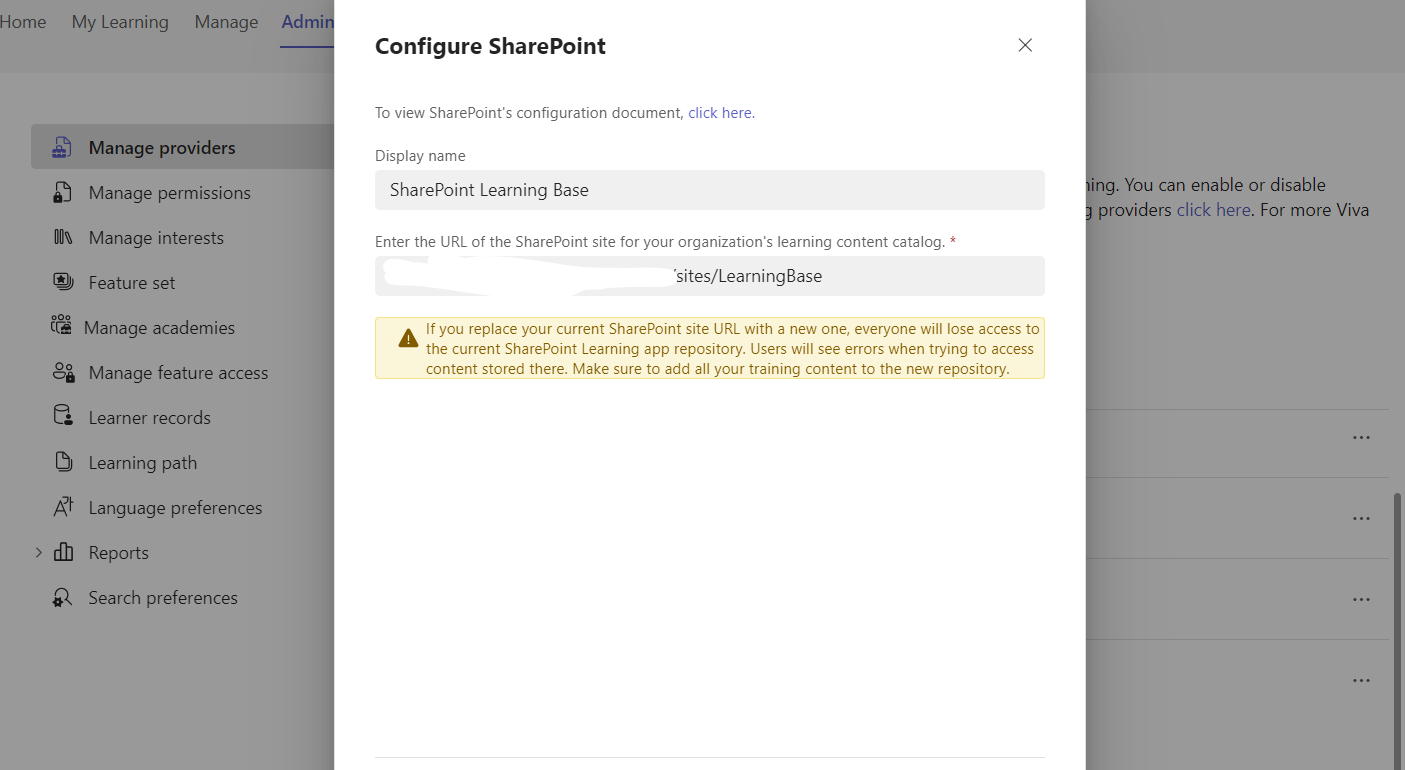
I will need to enter a name for this link and then the site which I have created as the base for storing the educational material
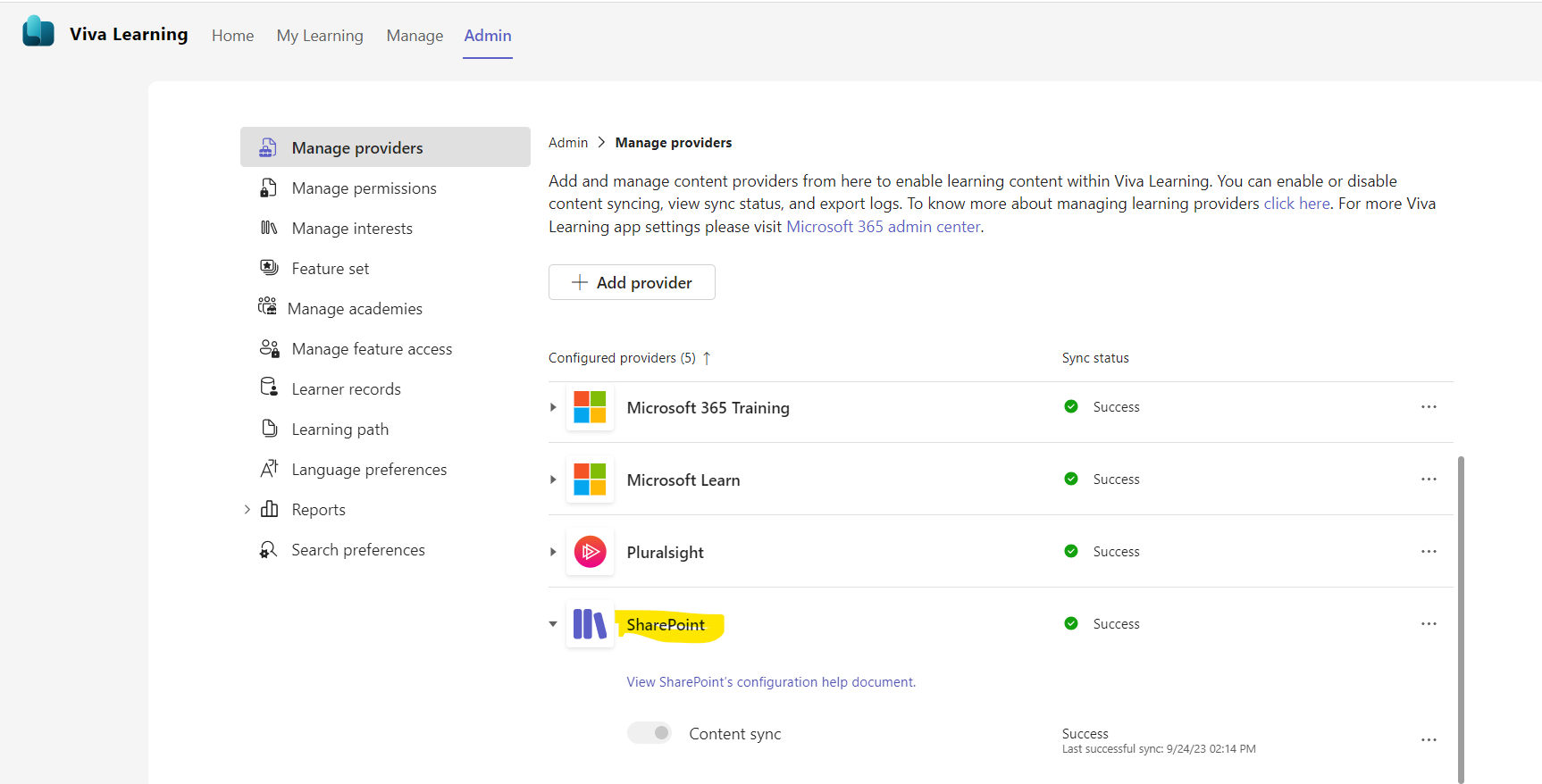
As you can see SharePoint has finally been added and it takes a few seconds to modernize with the corresponding libraries that will provide educational material
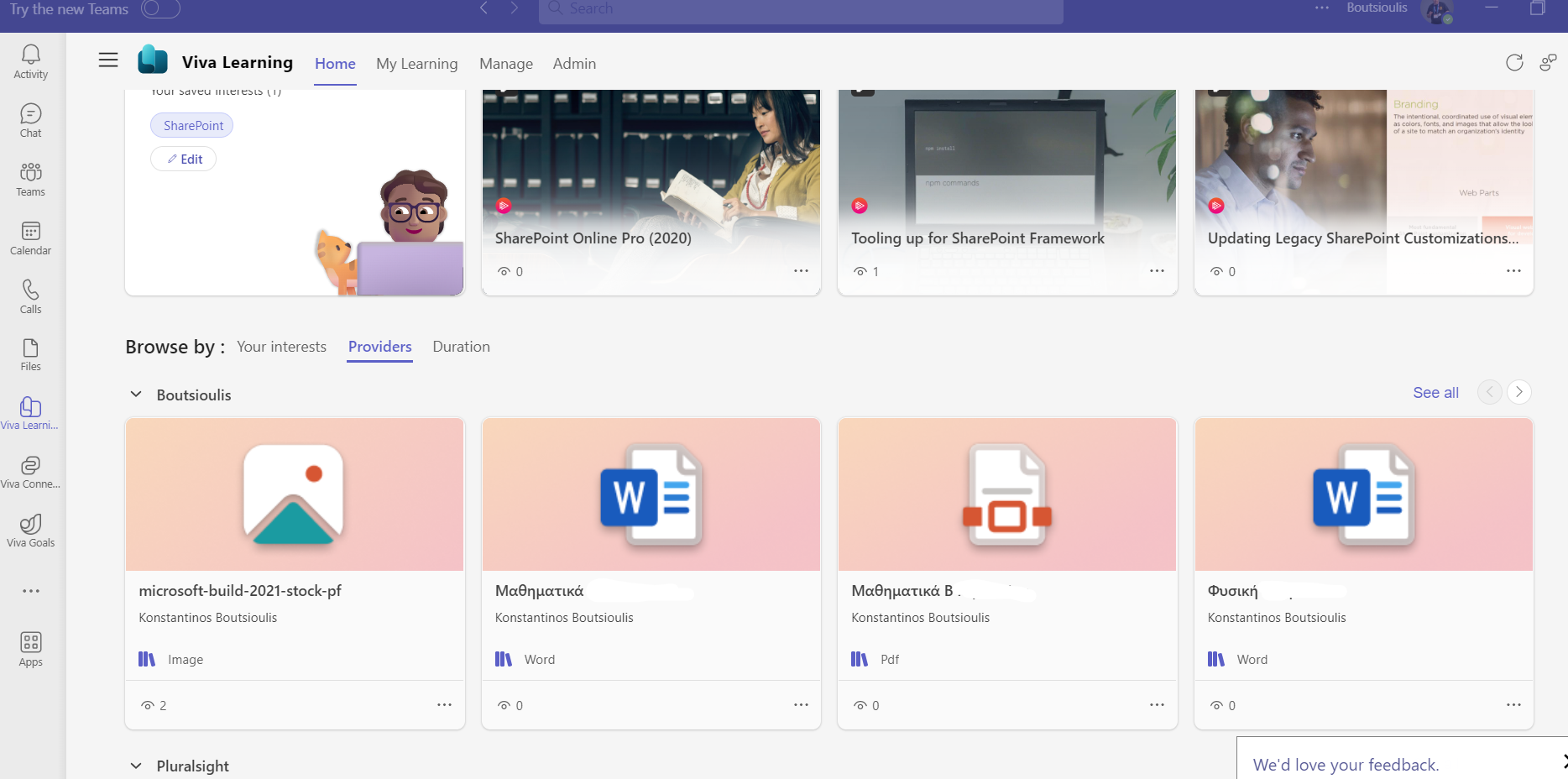
If I finally return to the Home tab of Viva Learning I will find that I now have the ability to view my SharePoint as a provider and of course all the files that I have been given access to by the administrator
Here I should note that before starting the process a series of actions are required which will be explained in other articles such as creating a user who will be the Knowledge Administrator
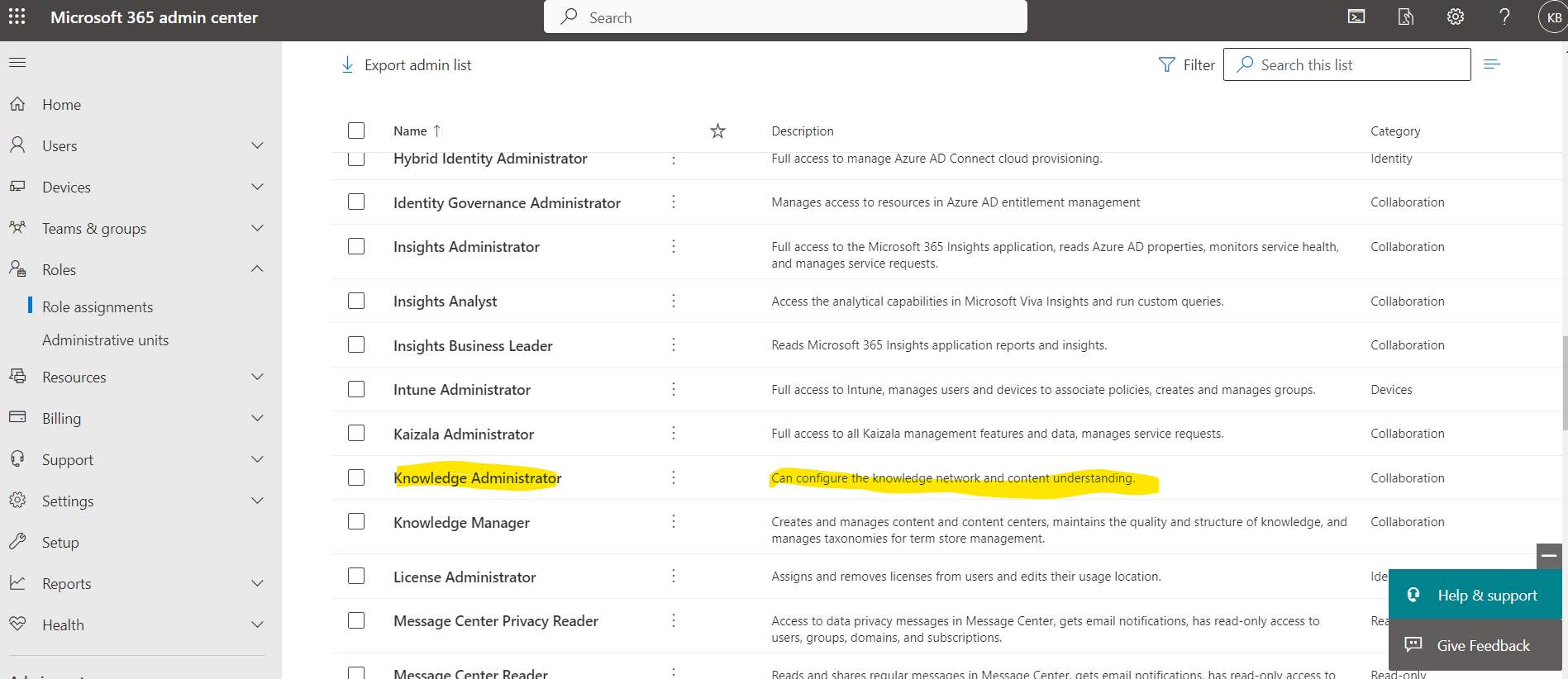
and assigning him the specific role from the M365 Role Assignment
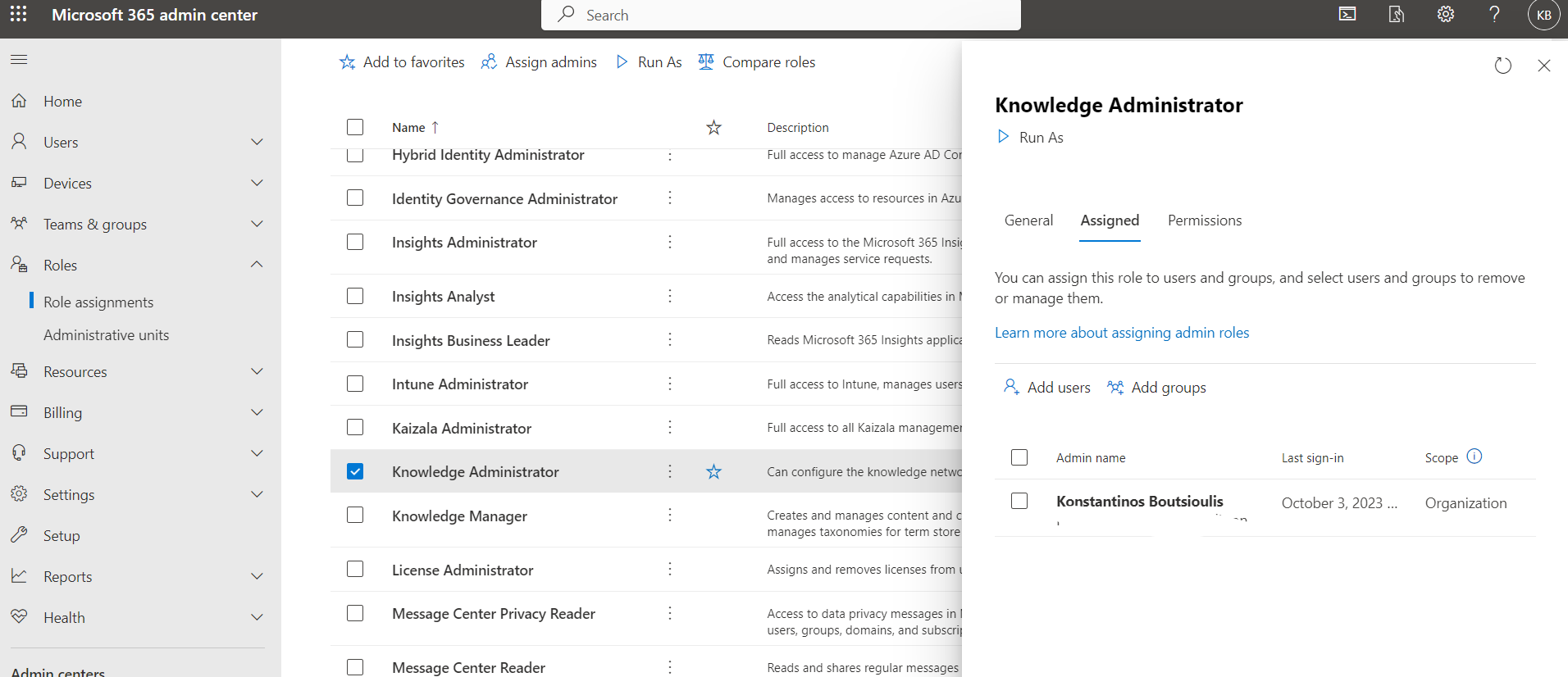
We also need to have a page created in SharePoint Which will play the role of knowledge base which will contain the relevant material which we will provide to our users and the appropriate permissions will be given to the users and administrators firstly to access it but also to manage it by the relevant users
#Viva #VivaLearning #SharePoint #technology #microsoft #Onedrive #digitaltransformation #cloud #mvpbuzz #m365Visit Archives below to find more articles about Microsoft technologies on Modern Workplace