
Free Material
Find hereMore than 150 Articles about Microsoft Technologies on Modern Workplace
Official Site
Microsoft Most Valuable Professional M365 Apps & Services
Microsoft Most Valuable Professional Business Applications
Consultant & Sr Cloud Solution Architect Modern Wokrplace
Find hereMore than 150 Articles about Microsoft Technologies on Modern Workplace
07 October 2023
In today's article we will see how we can make the basic settings for Viva Goals As I have mentioned in the past Viva Goals is a complete solution provided by Microsoft to enable one to easily set goals in a modern work environment while being able to manage, update or change the goals to align with the organization's strategy. At the same time it provides the possibility for someone to monitor the evolution of the objectives set and to change the conditions so as to be able to safely lead the organization to achieve that objective. it is clear that it creates a culture of collaboration in each organization and promotes the active participation of employees in teams to achieve social goals. It is a product that one can find in Viva Suite and of course it is integrated with Microsoft Teams which in turn promotes collaboration and communication within an organization. But first of all, to use it you need to have an active M365 subscription and at the same time you need to have a license for Viva Suite Once we have these licenses, we move on to the basic setup of some parameters for an organization to be able to use Viva Goals First from the active M365 subscription we go to the main page.
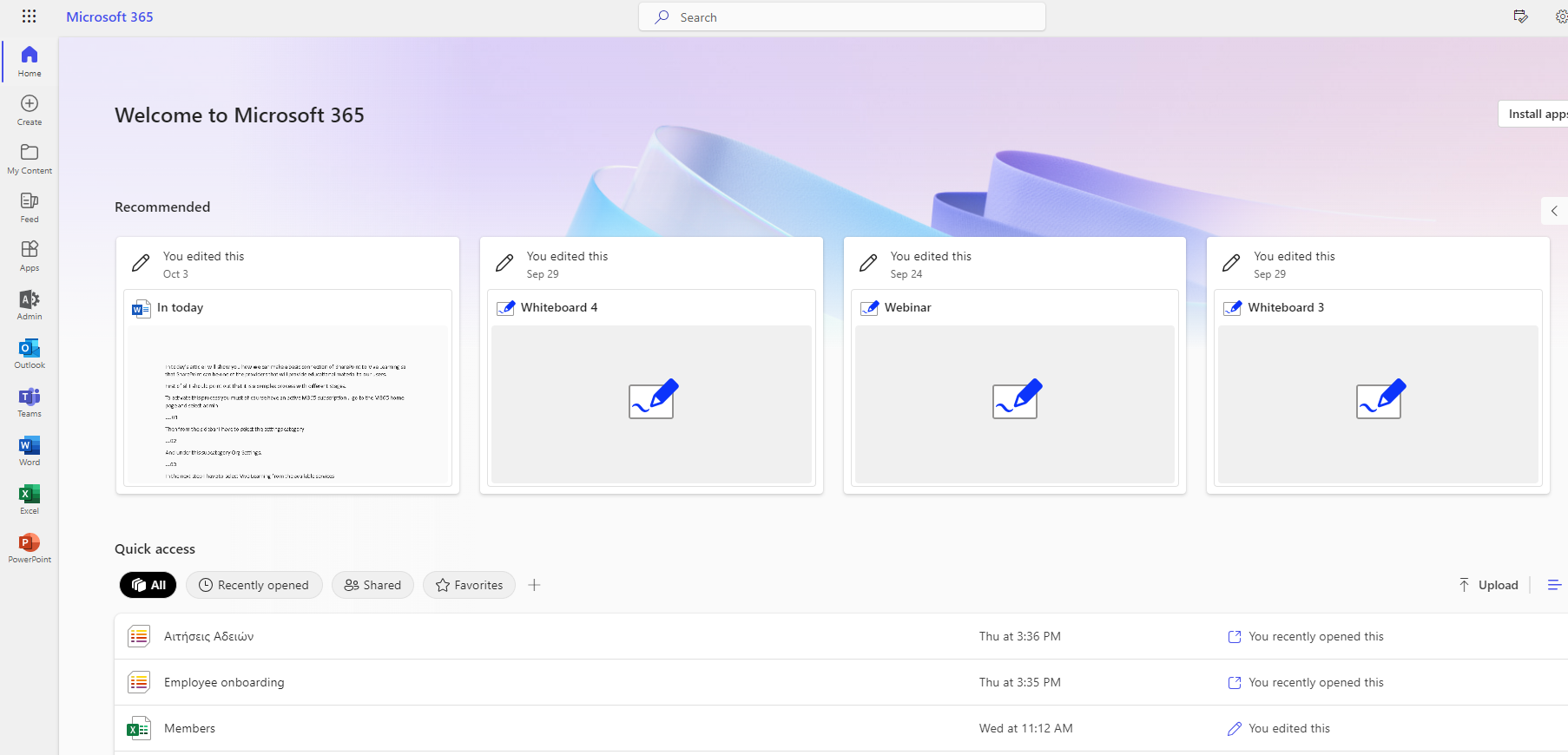
And select set up where we find Microsoft Viva
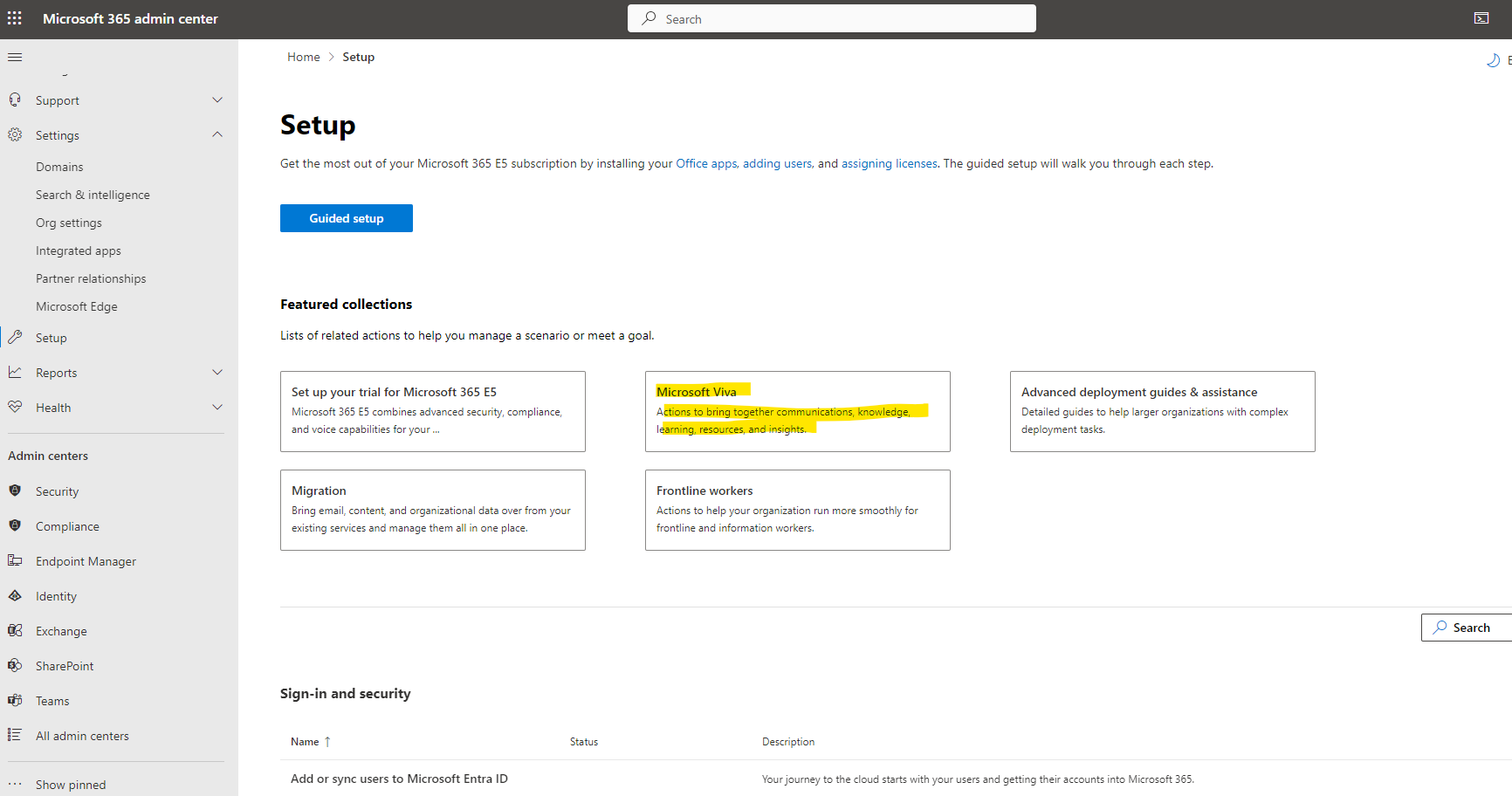
From Viva Suite we choose Viva Goals
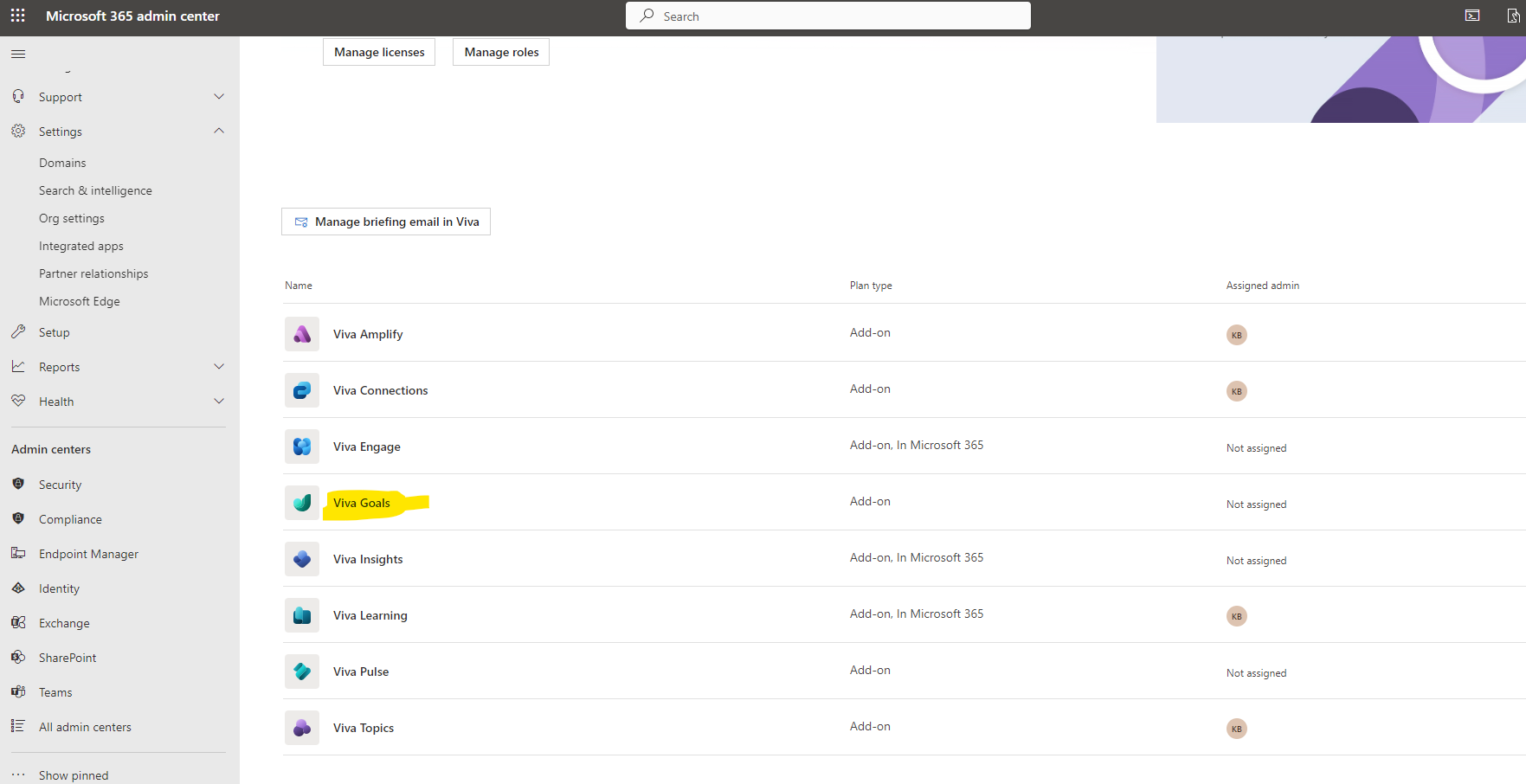
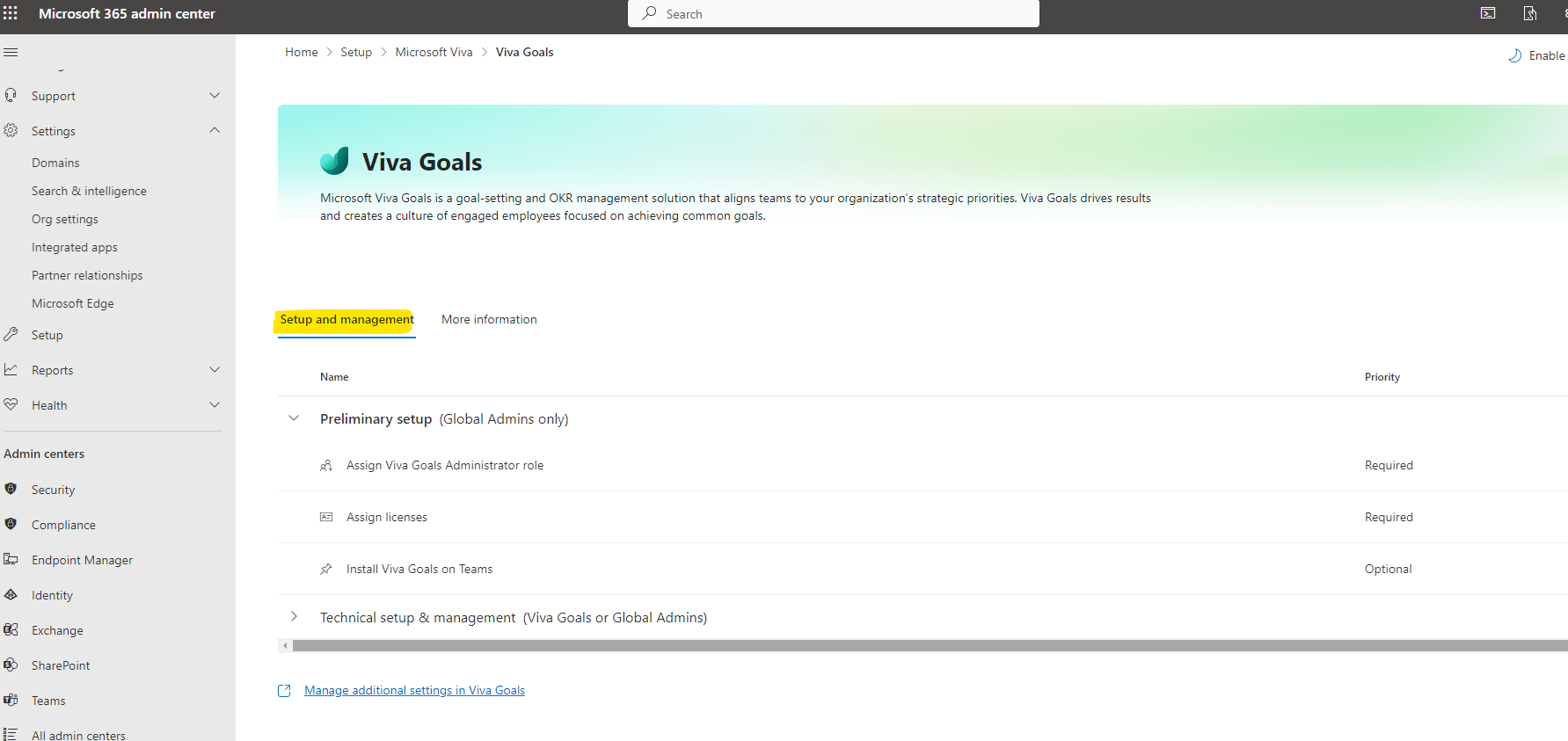
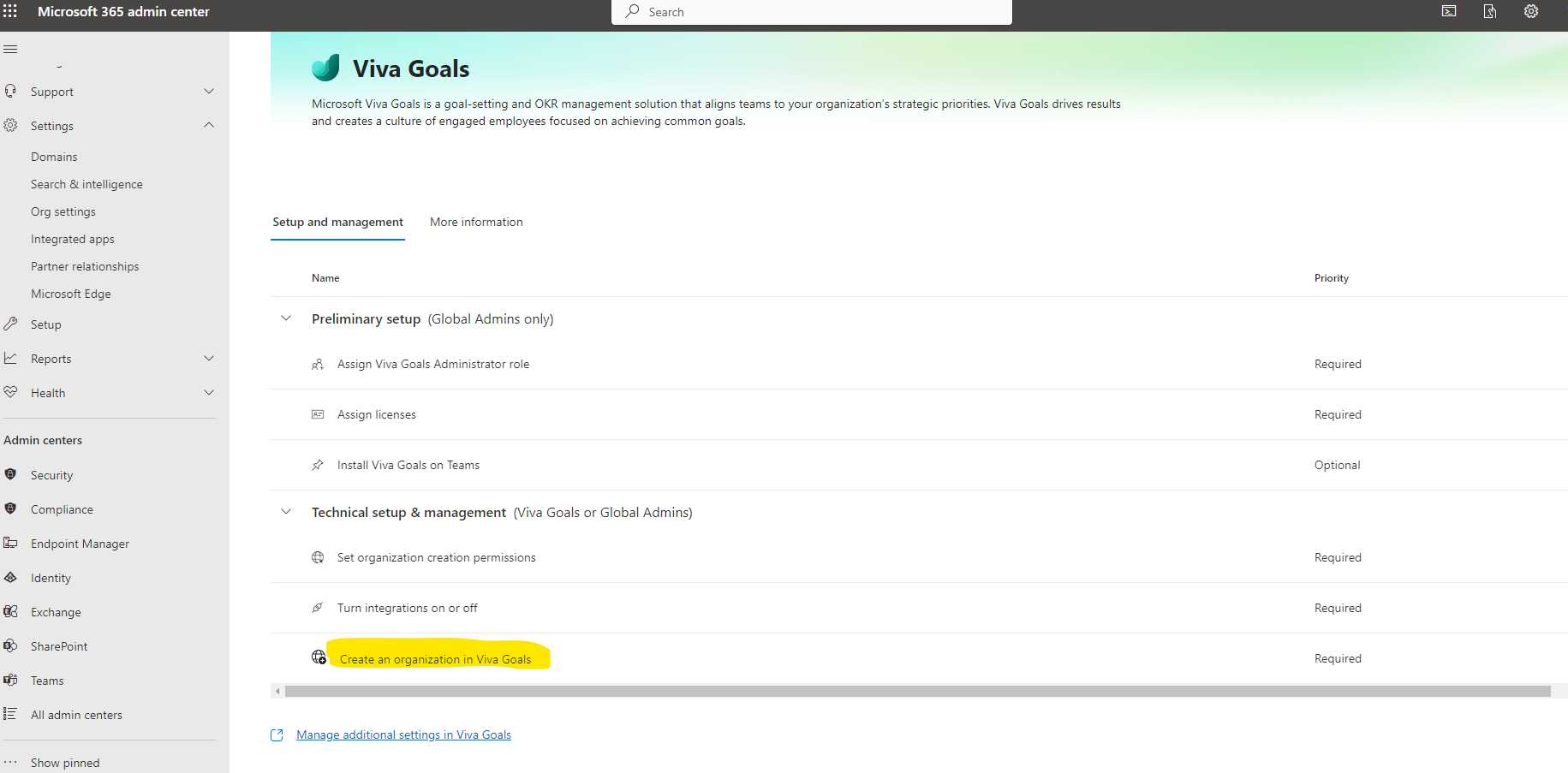
As you can see there are a number of options to choose from We have 2 tabs the setup and management tab which contains 2 thematic sections of settings.
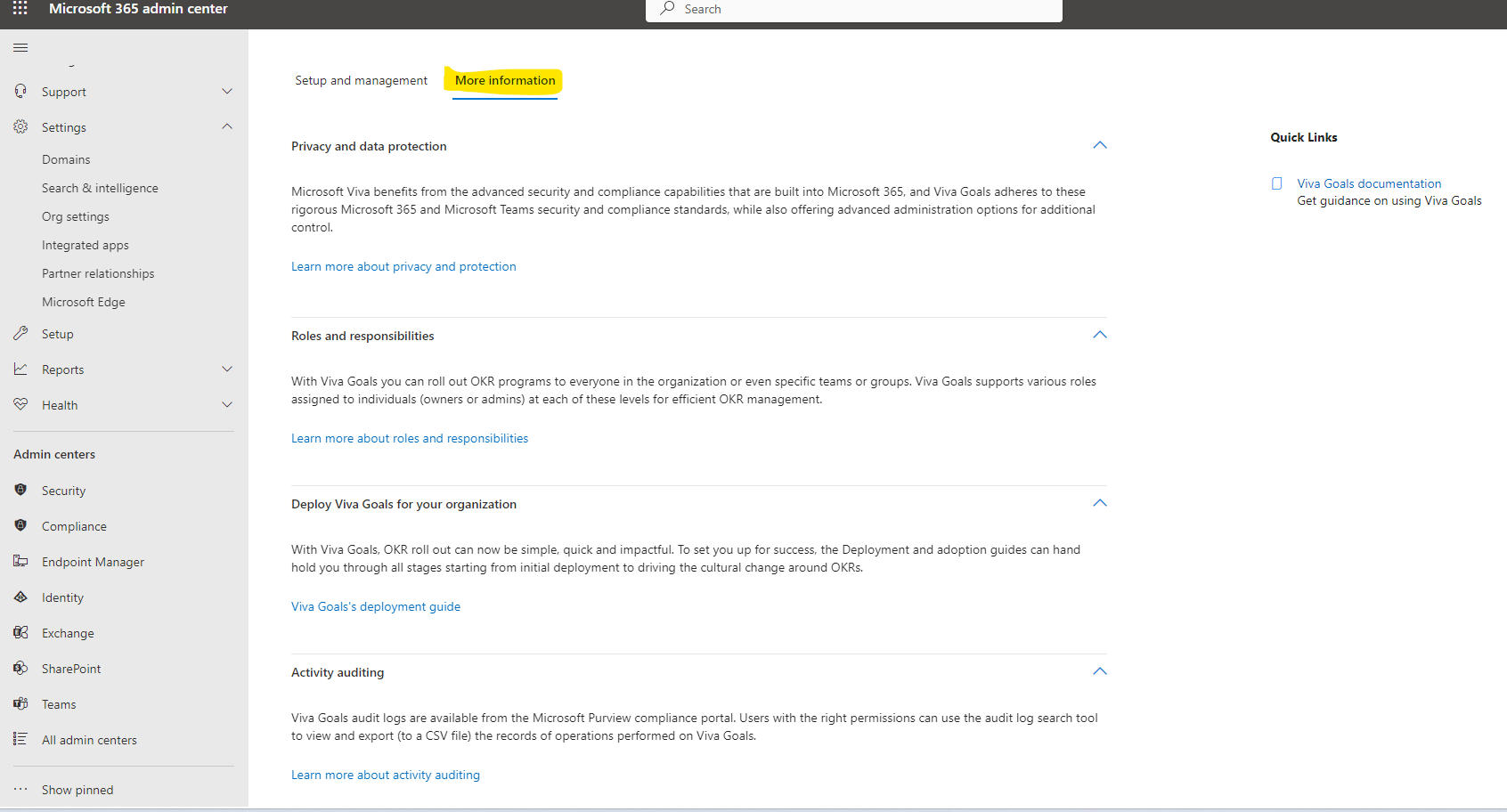
And the more information section where you can find a series of descriptions with hyperlinks leading to the official documentation of Viva Goals from Microsoft
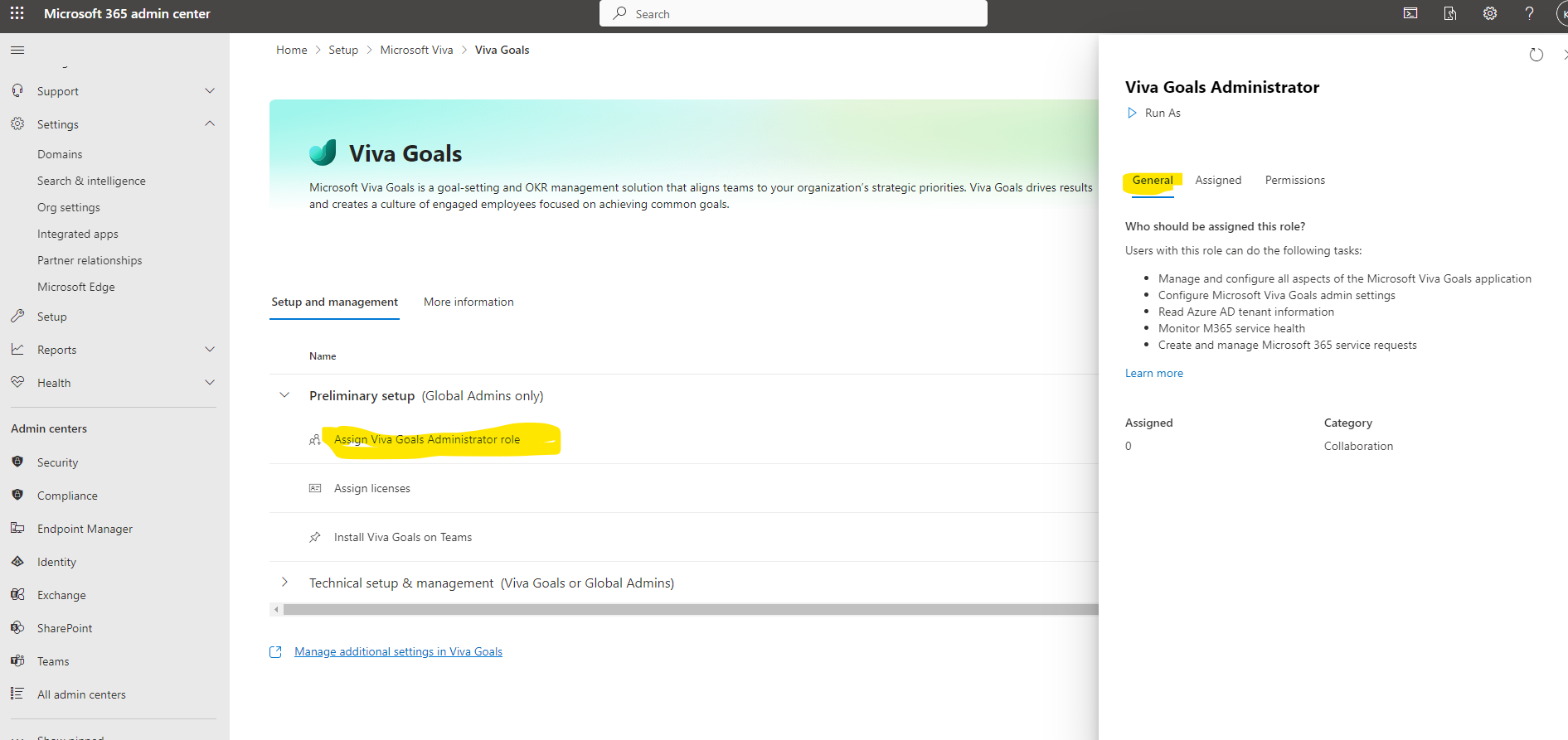
Let's start with the first tab setup and management and the first option which is assign Viva Goals Administrator Role where here we are asked to set someone as administrator of the program. In the right drop down menu there are 3 options the general tab which contains a description of who should be assigned this role and refers to the official Microsoft Documentation
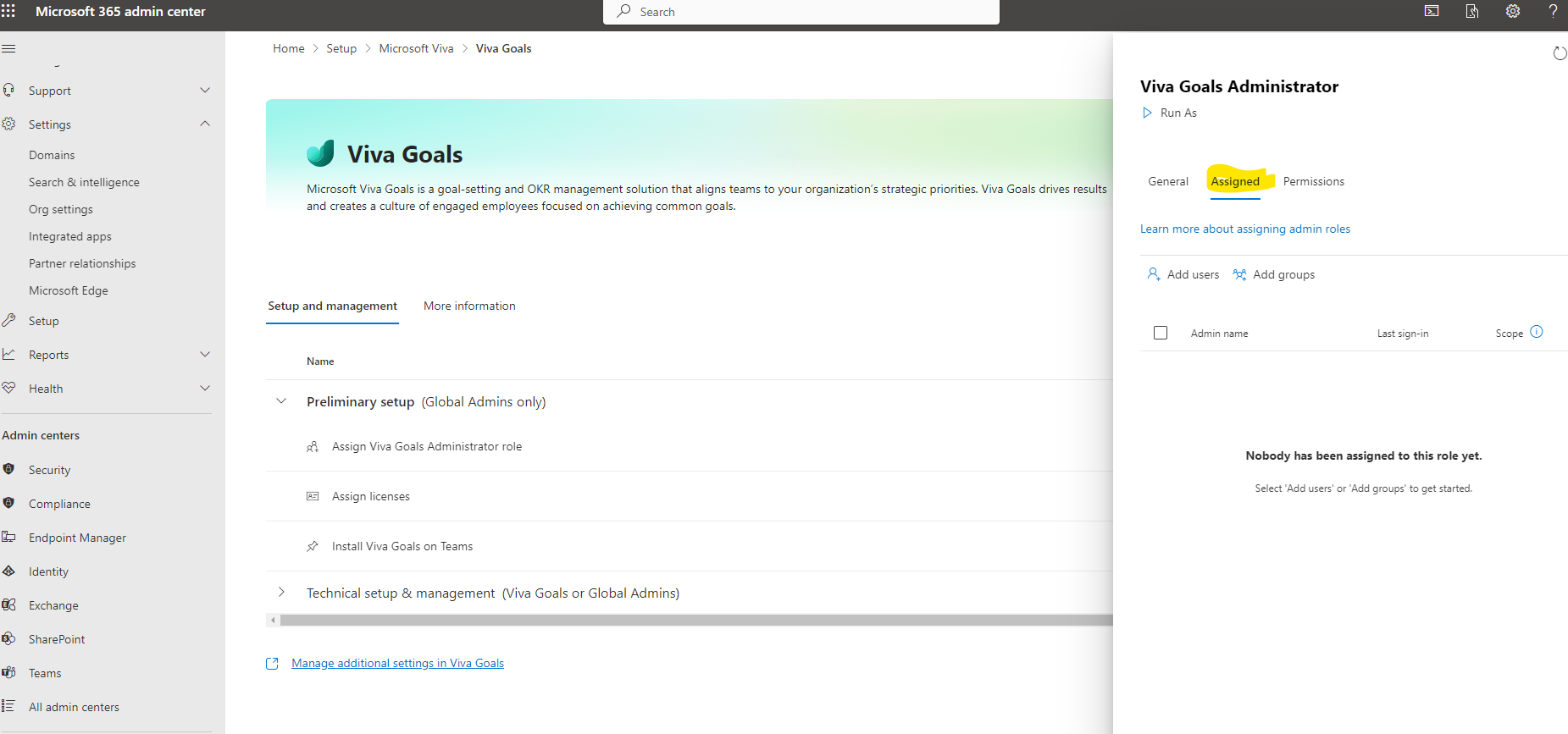
In the assigned tab we are given the possibility to add the administrator as a user or group of users who will be administrators for Viva Goals
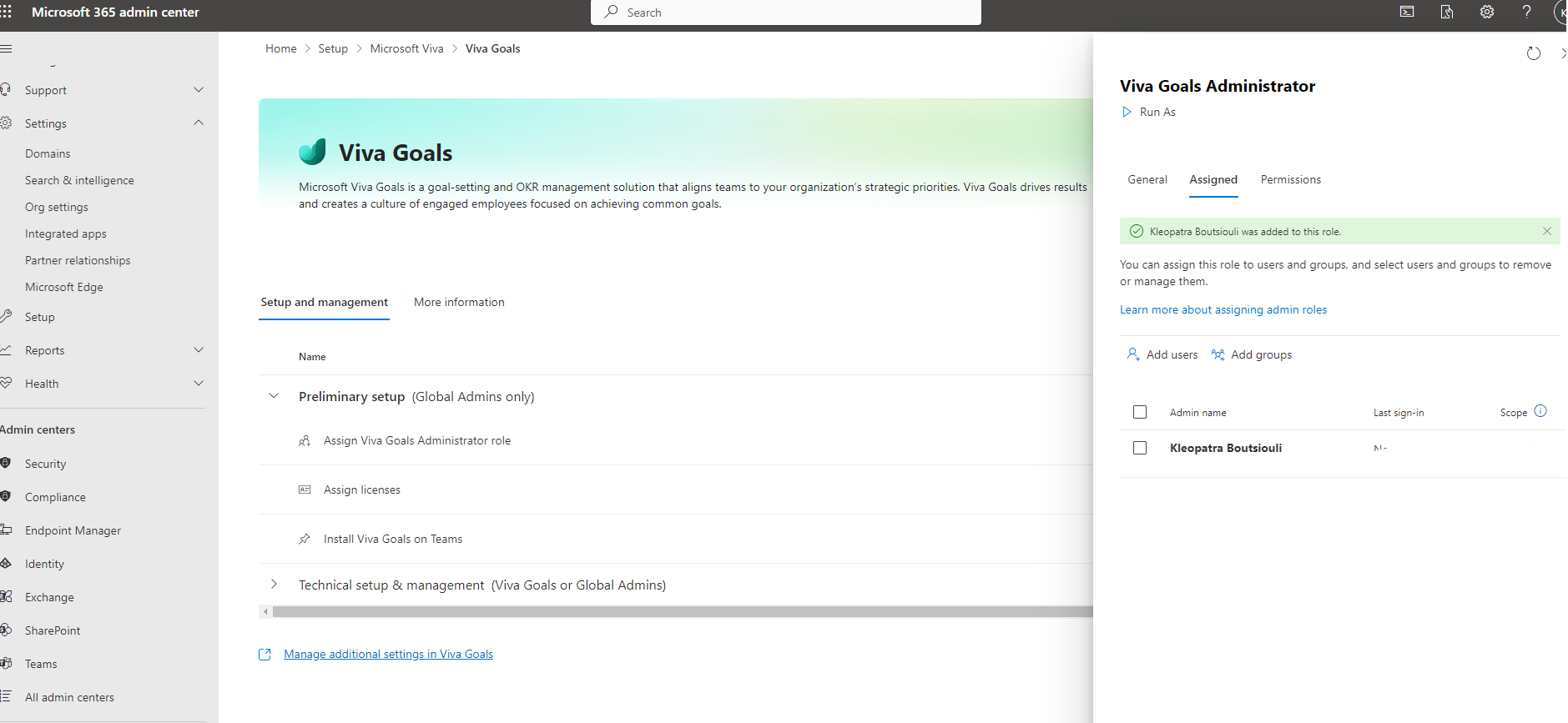
We can easily select from the available users the one of our choices to be the admin and assign him the role
In the next tab we see that once again Microsoft with a series of descriptions informs us about the permissions that this role will have
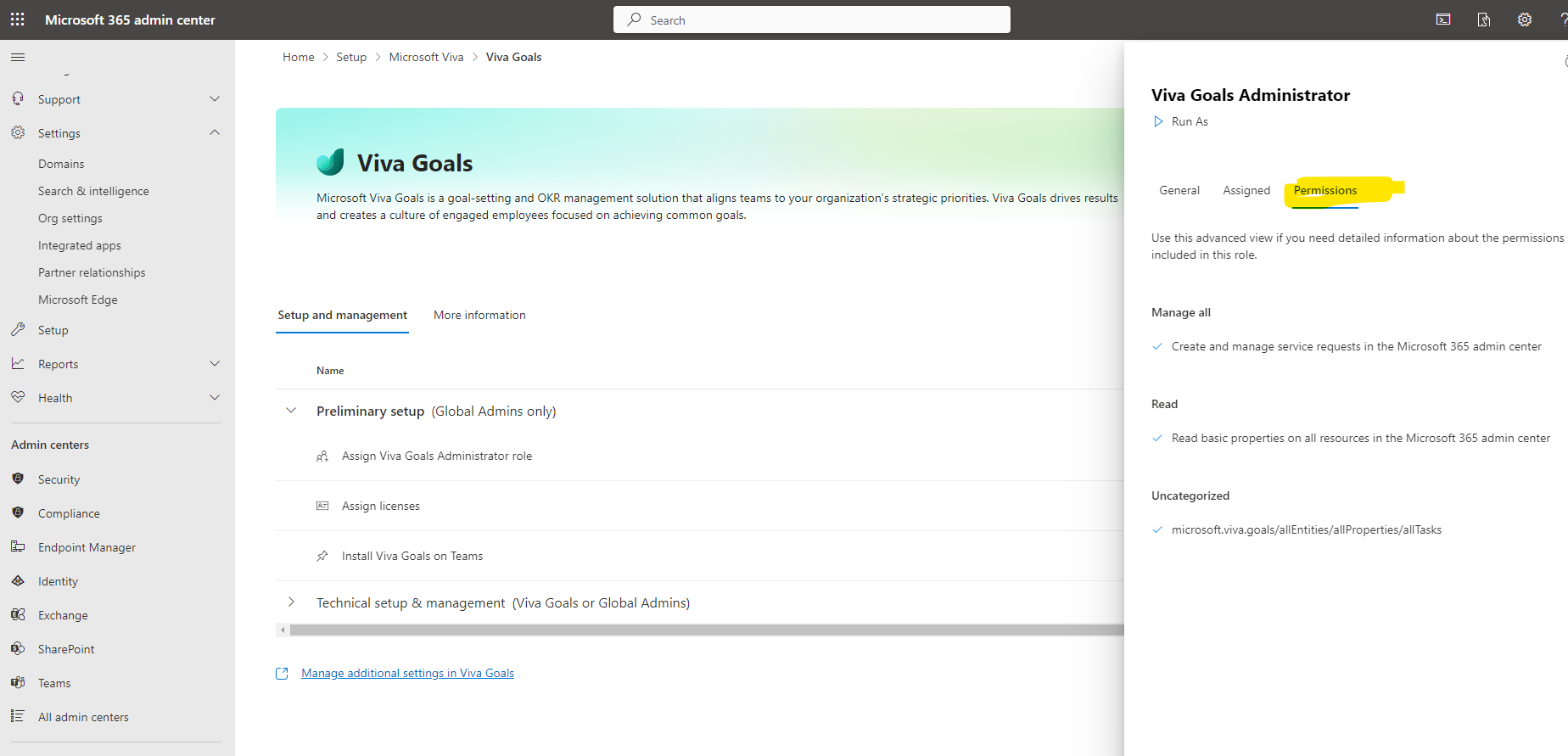
We move on to the second option which is the assign license where we have to grant licenses to the users who will work in this application.
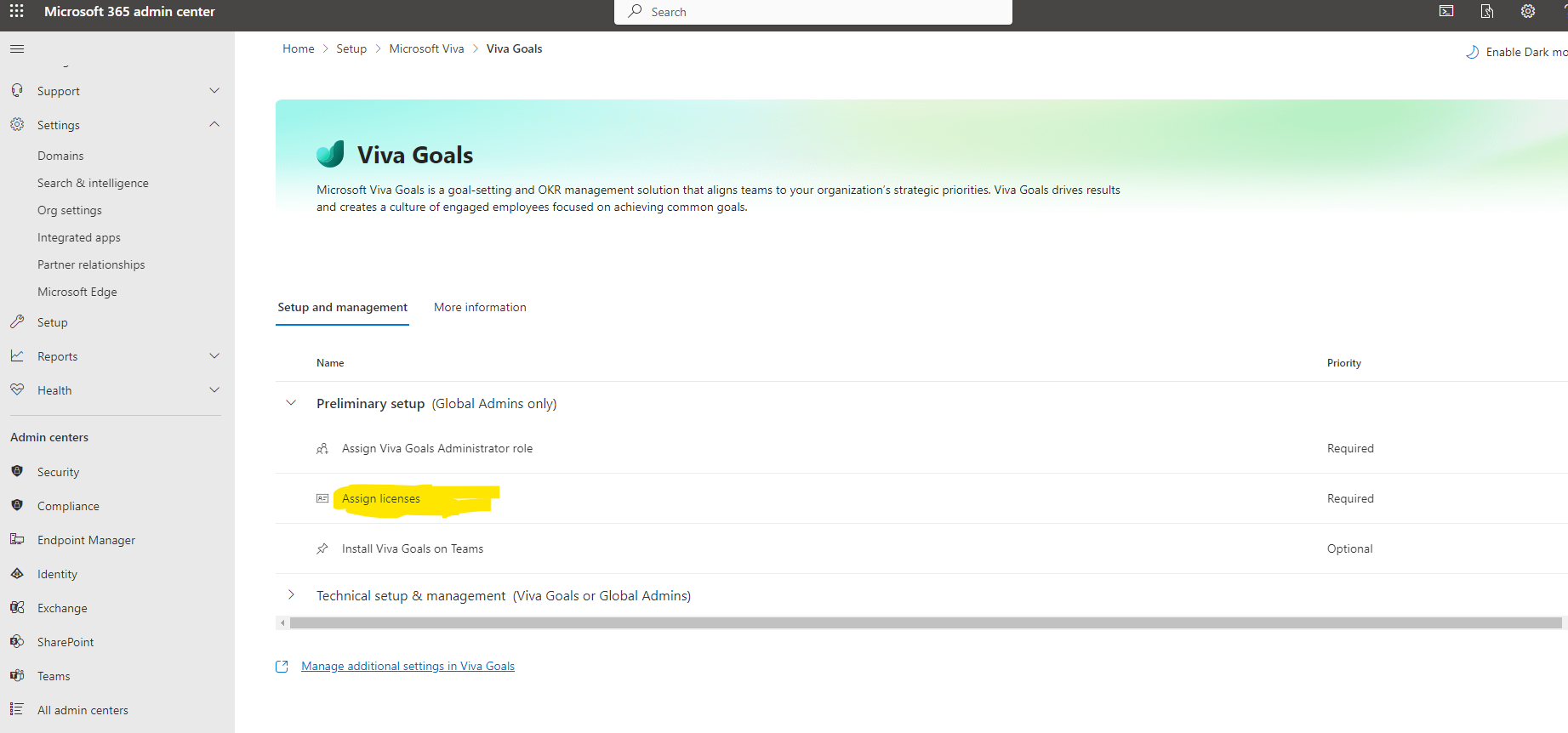
As you can see we have gone down to the Licenses section of M365 and there, as soon as we find the active license of Viva Suite
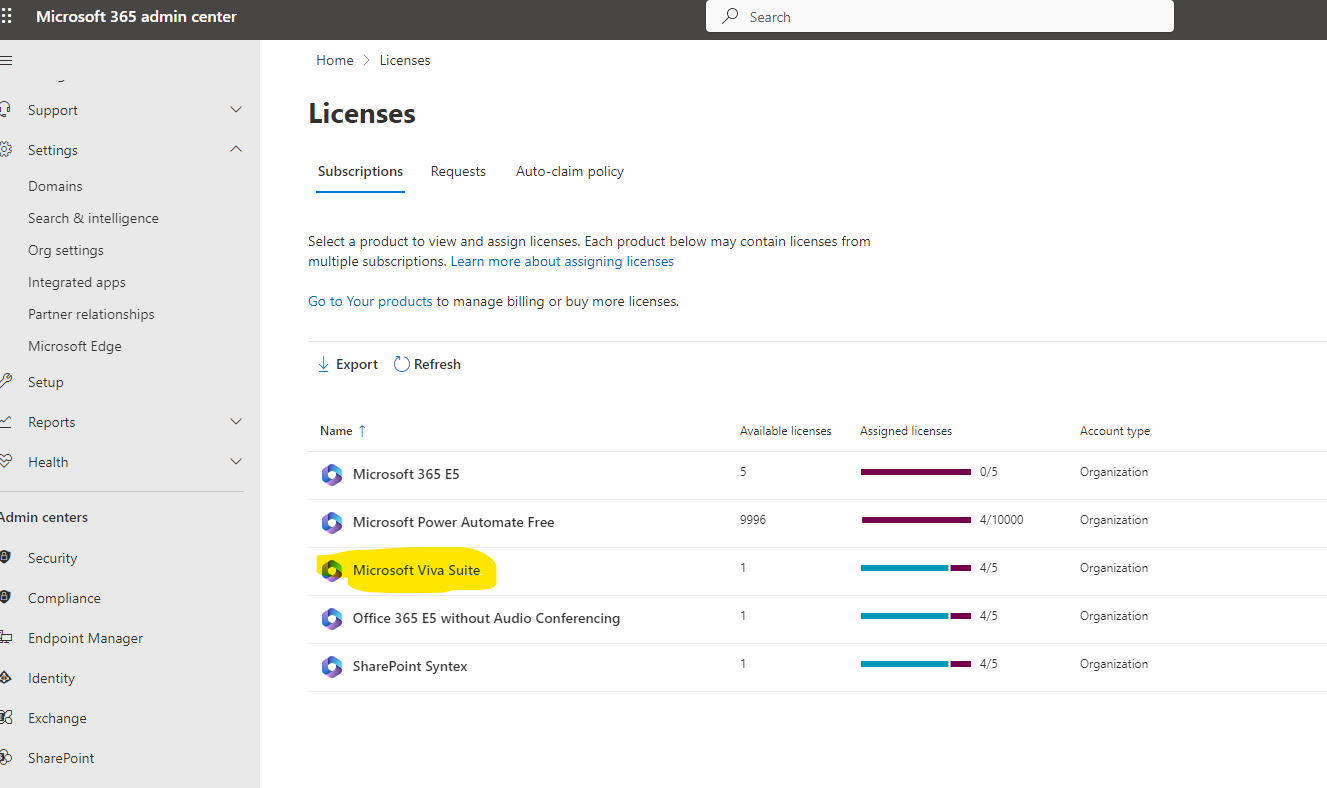
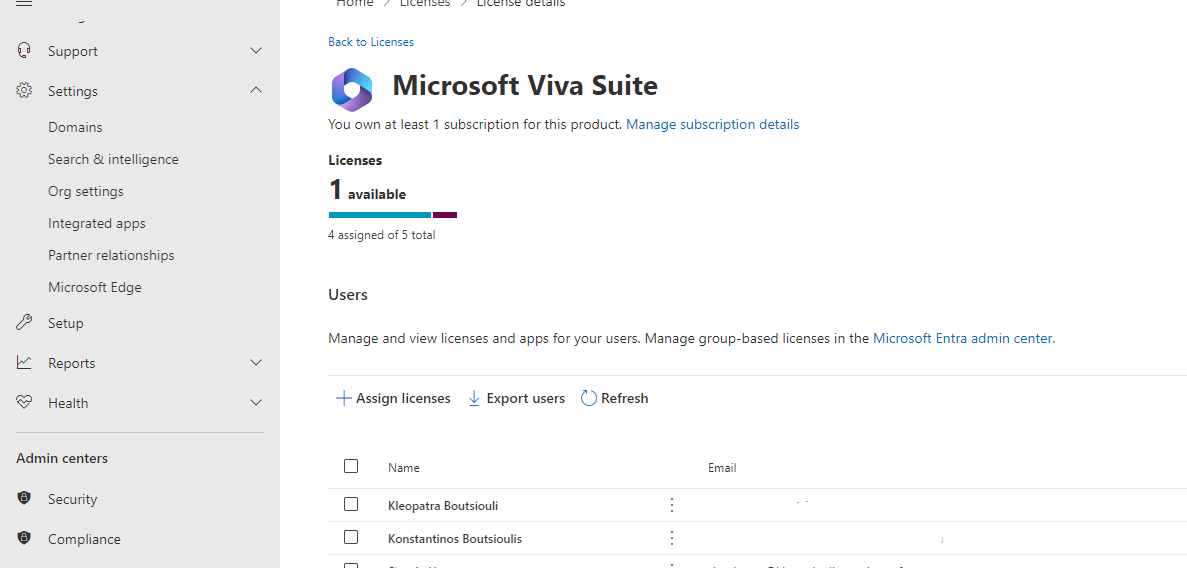
We select the users we will assign the available licenses to
Finally, in order to have Viva Goals integrated with Teams and to be able to use it through Teams we have to make some settings in the Teams Admin Center from the third option install viva goals on teams.
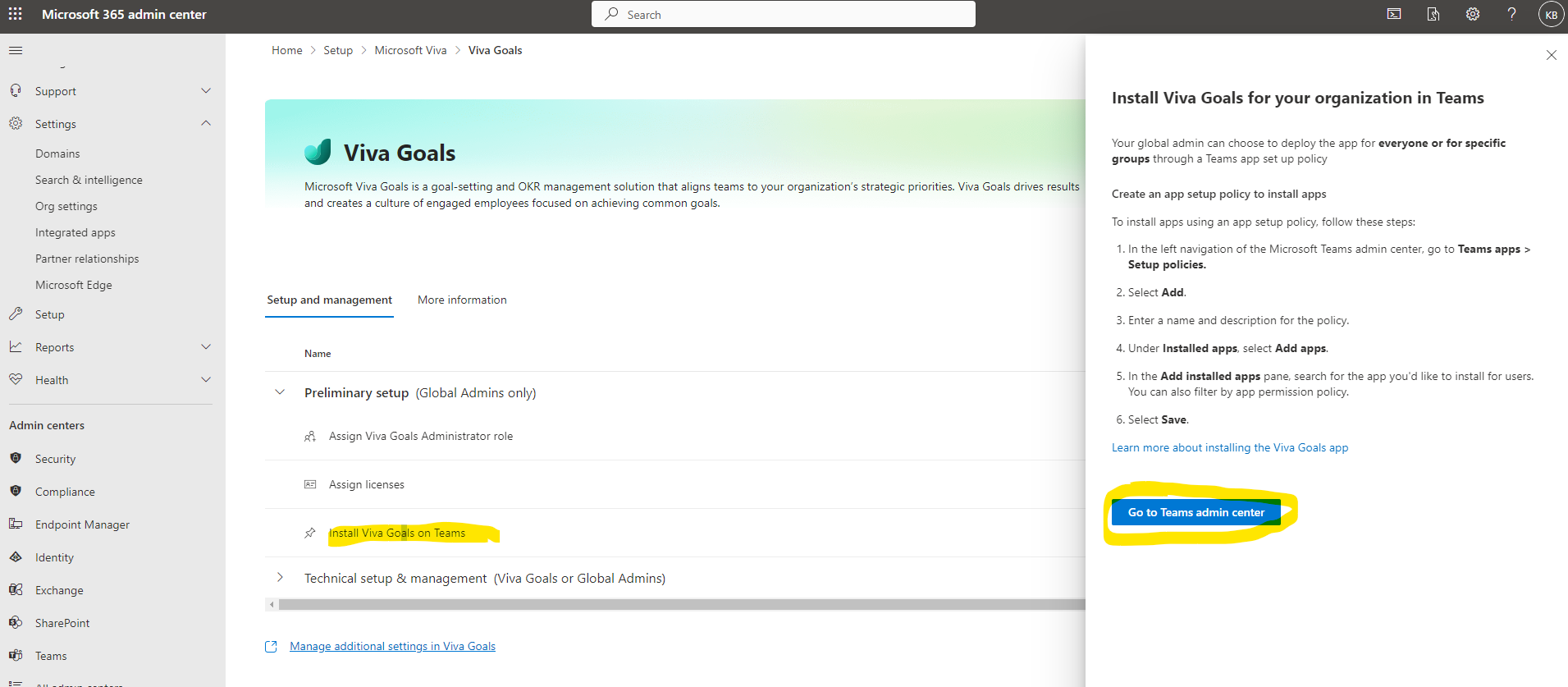
In Teams Admin Center select manage apps and locate and add Viva Goals
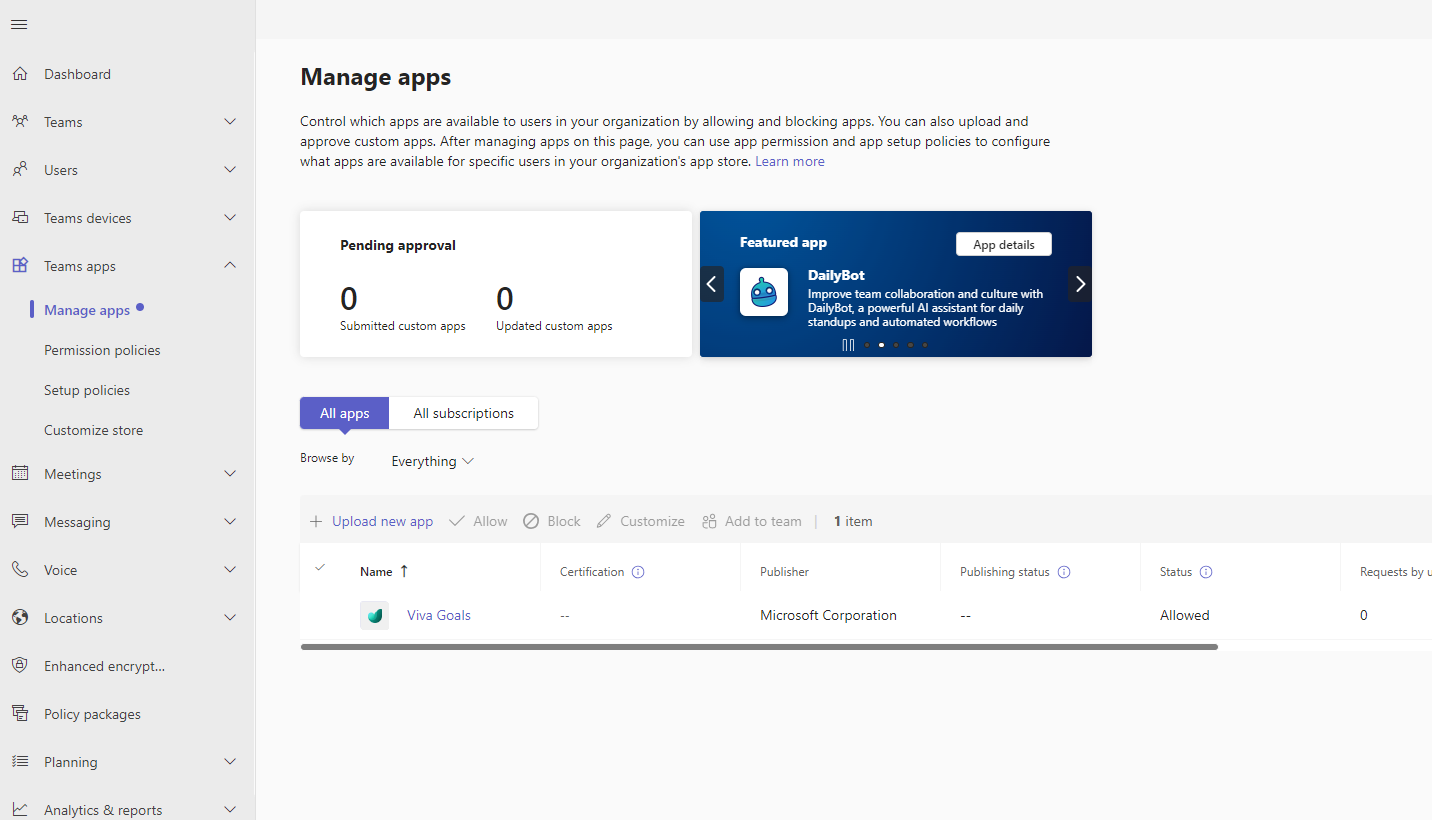
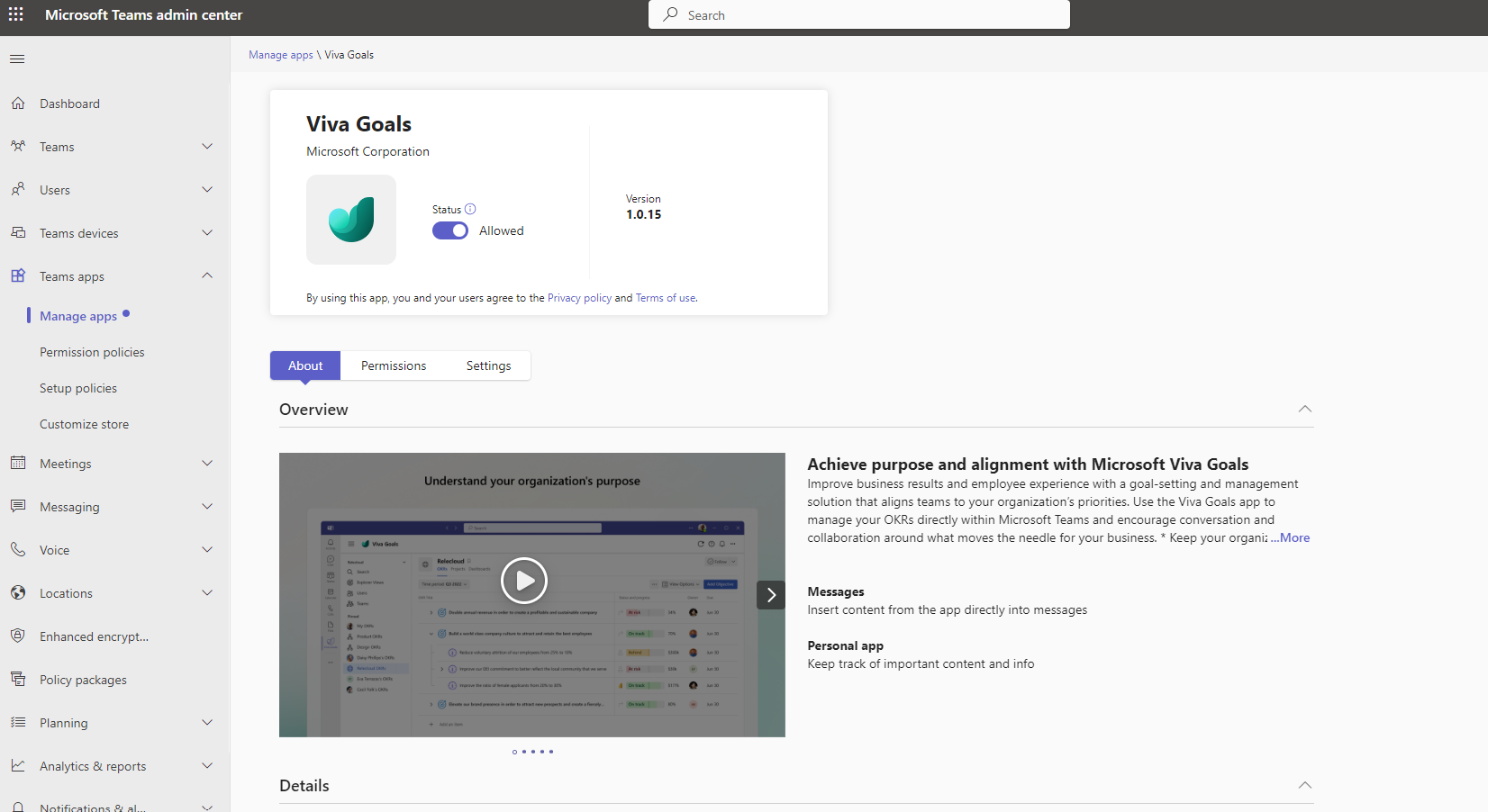
If we click on it we find that all users with licenses are allowed to have it as an available application within Teams and there is a series of videos and instructions about Viva Goals. Here we have to emphasize that there could be several scenarios with policies and more for each user but this will be judged by the architect of the organization on a case by case basis
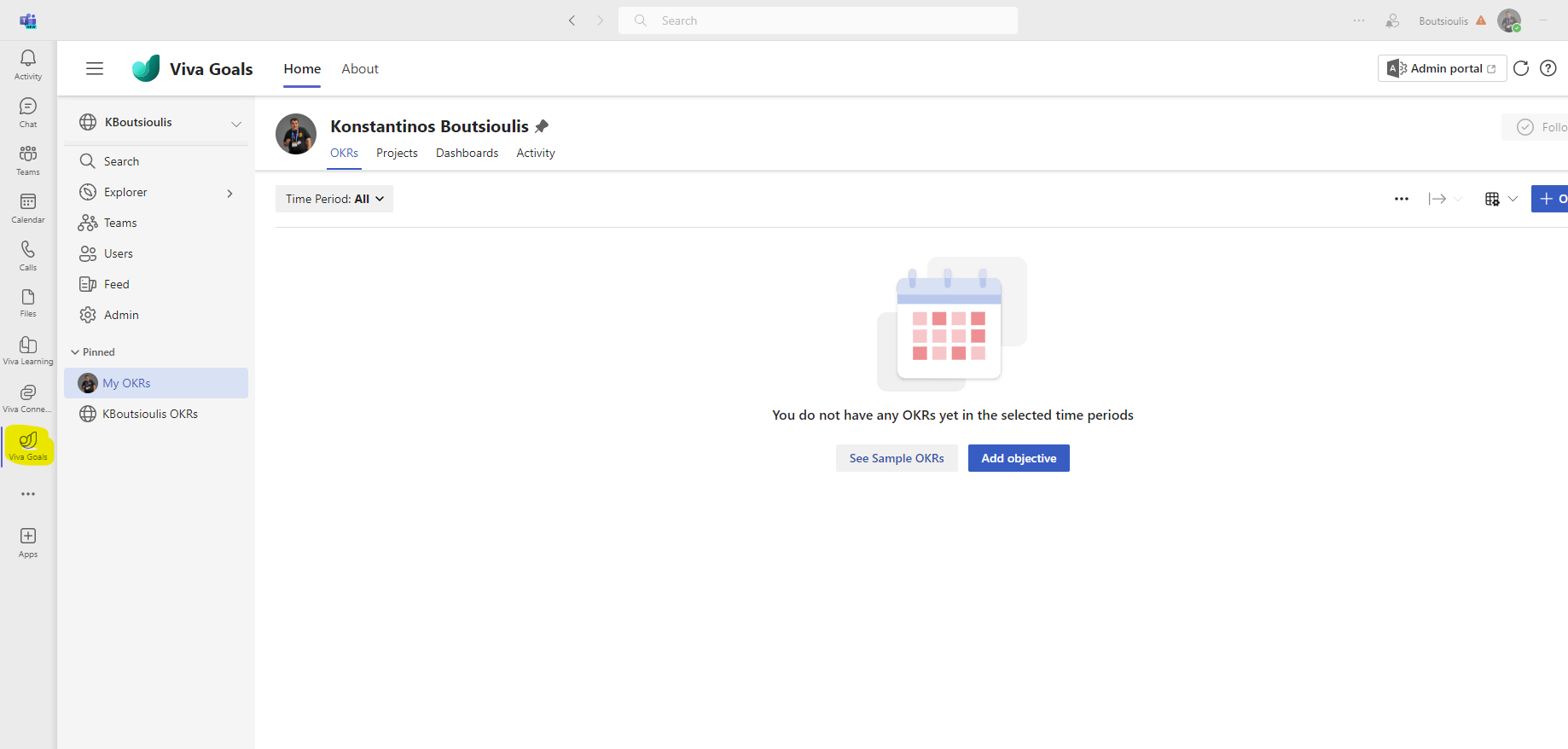
As you can see finally if I go to the Teams app, Viva Goals is now available as an app as long as I choose to pin it to the active apps and if I click on it I go to the Viva Goals home page.
We return back to the setup from the M365 Admin Center, and we now go to the second category with options for the initial setup of Viva Goals Here I find as first option the option set organization creation permissions.
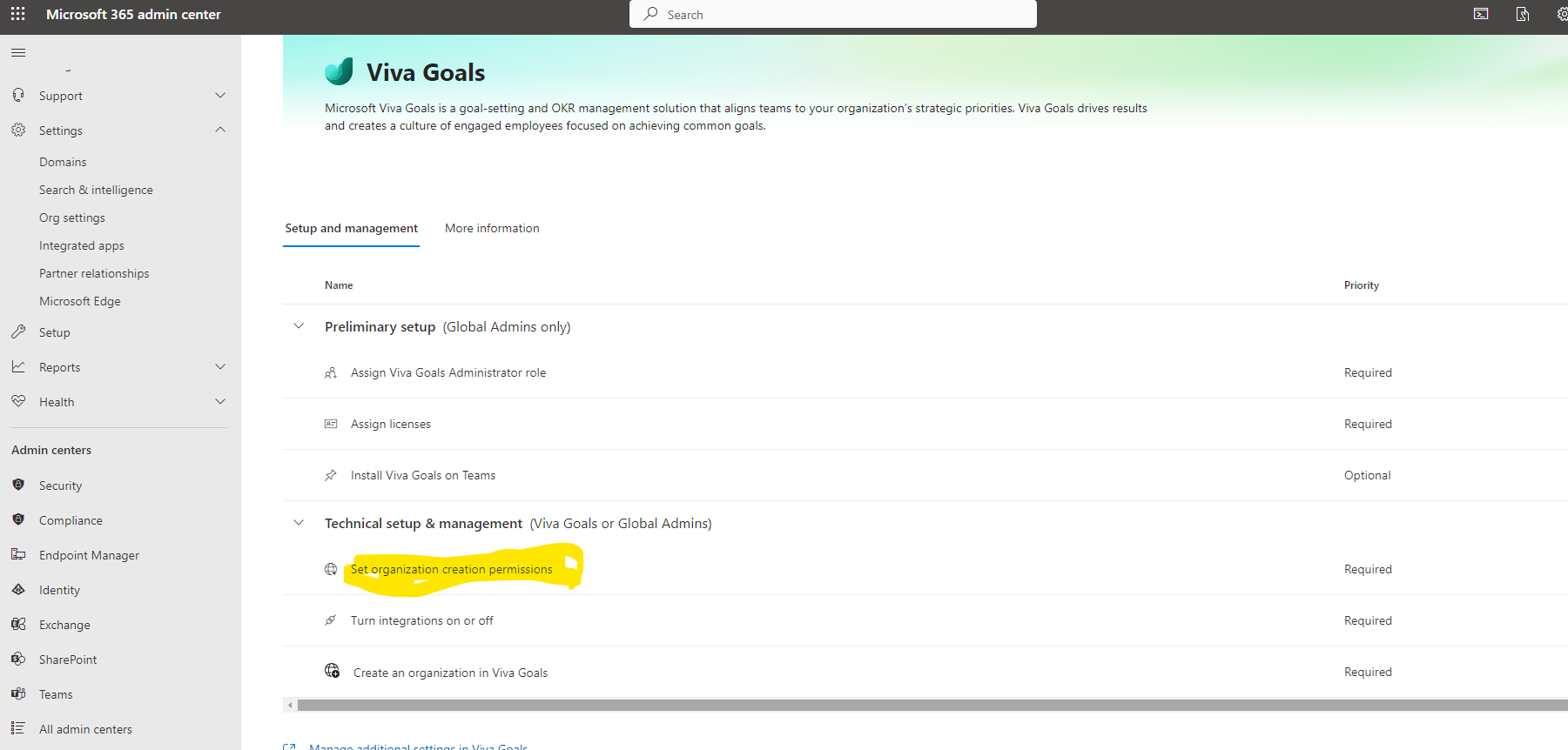
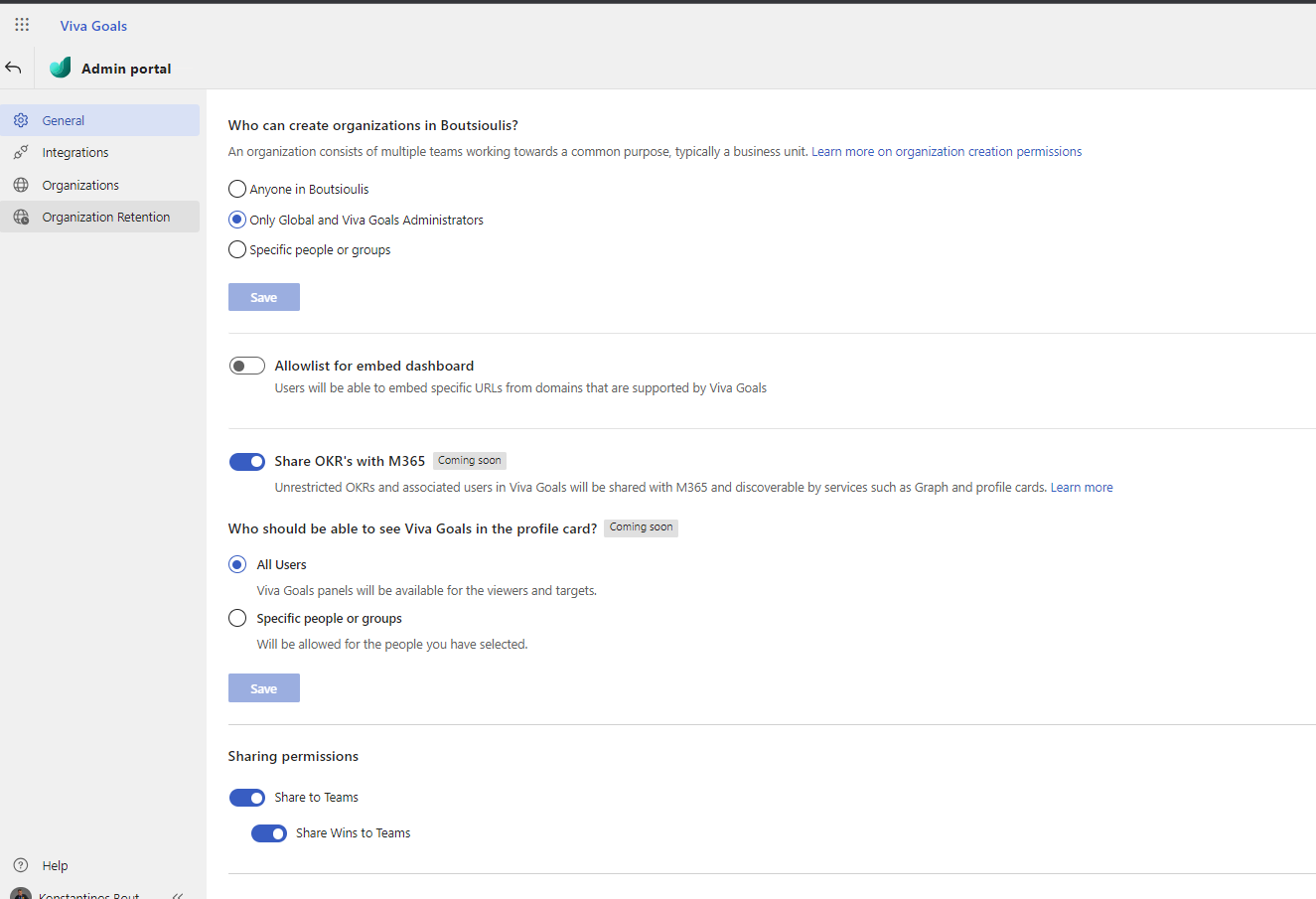
In which if we press we are taken to the page where we have to make a series of options related to user permissions for our organization for example who can create organizations, whether we can share via M365 OKRs and who can see Viva Goals on the profile card and whether I can share via Microsoft Teams etc.
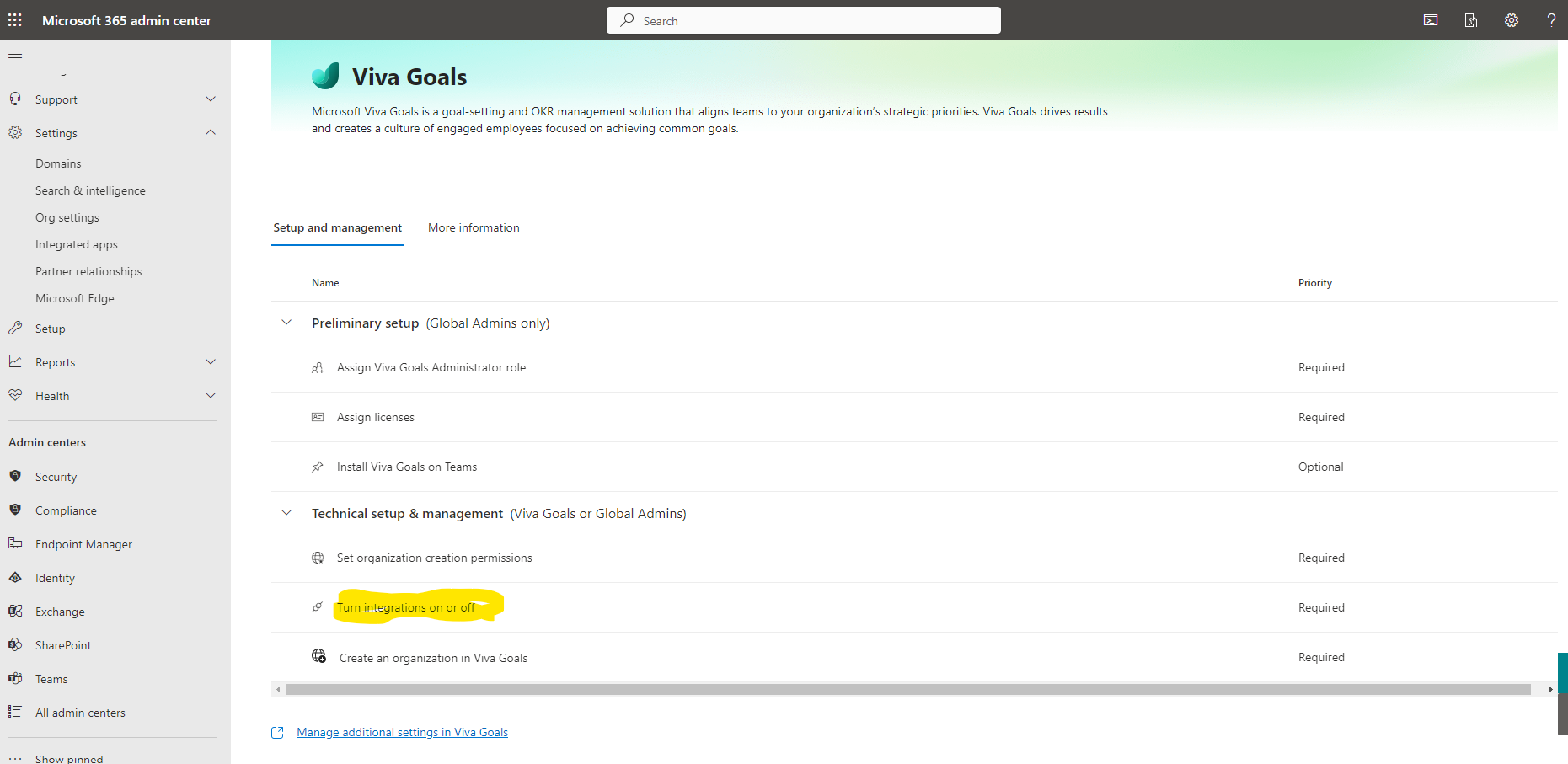
Another important piece is to enable or disable Viva Goals integrations with a number of apps that are available and is the second main articulation option for my organization
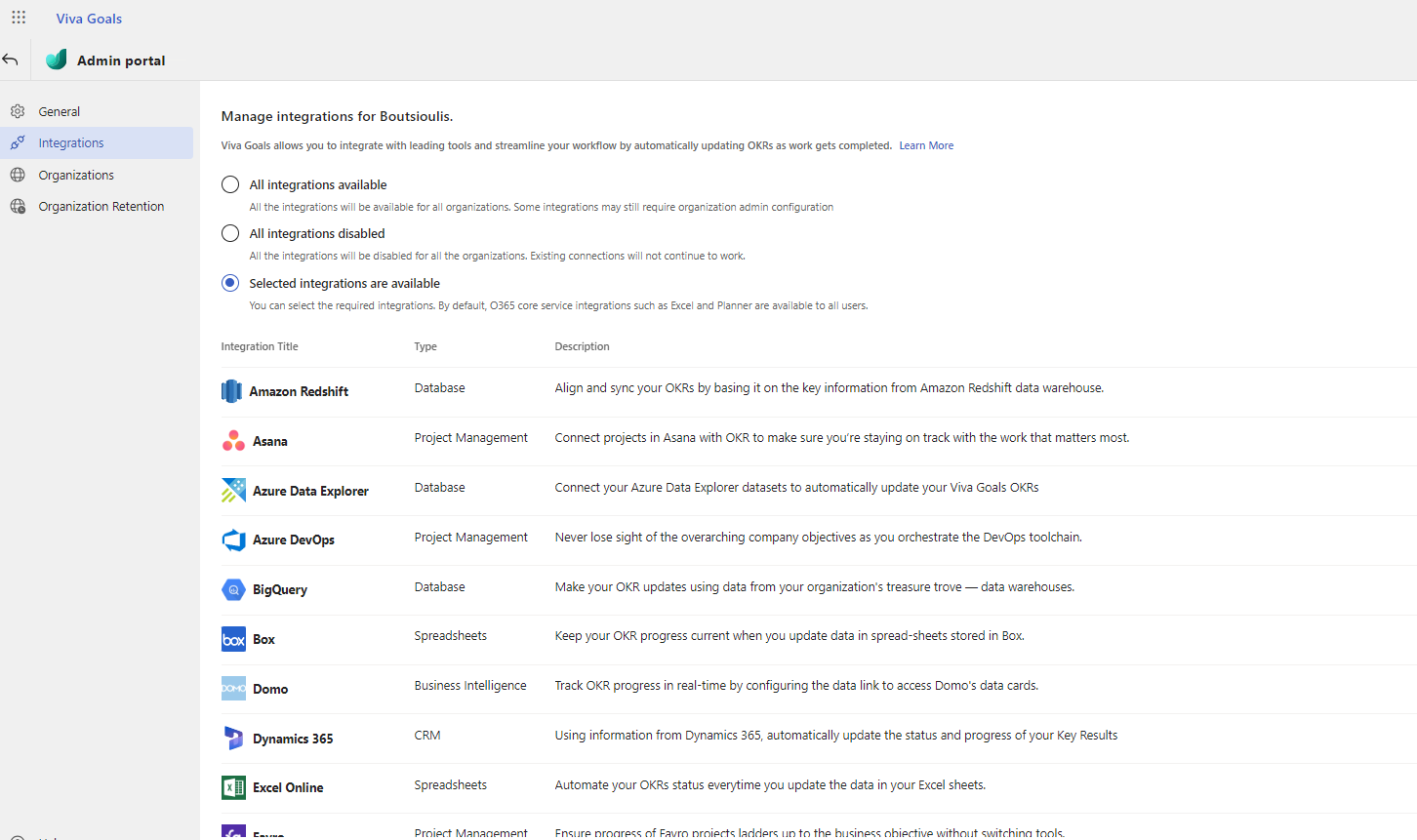
By clicking I go to the relevant options page and select which of the available ones I want to be enabled and which ones I don't
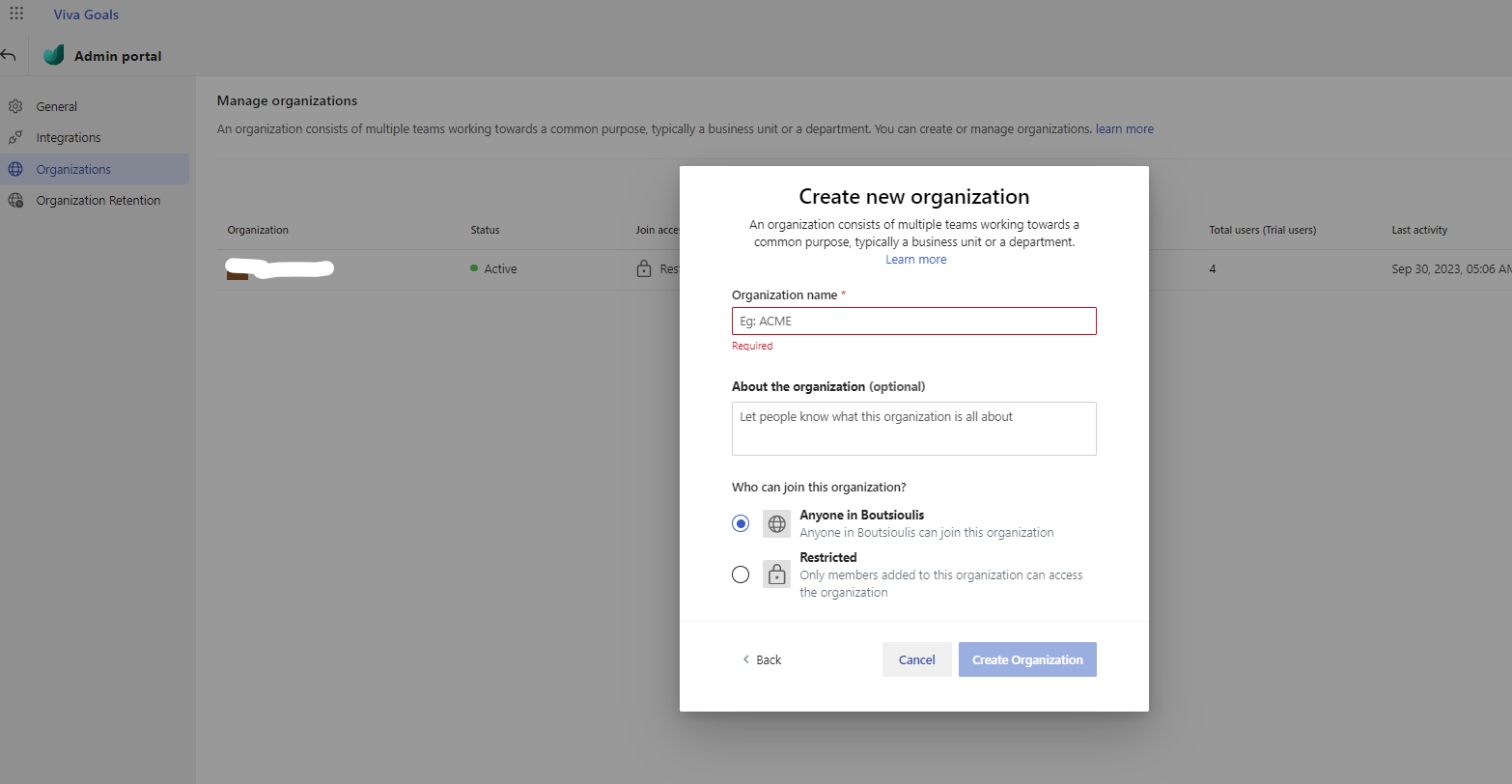
In the last option we are almost ready, we just need to create our first organization so that we can create and act through Viva Goals.
As you can see, we give the name a description and rights to who can access this organization. I will not continue with the creation because I have already created this organization as you can see on the back of your page.
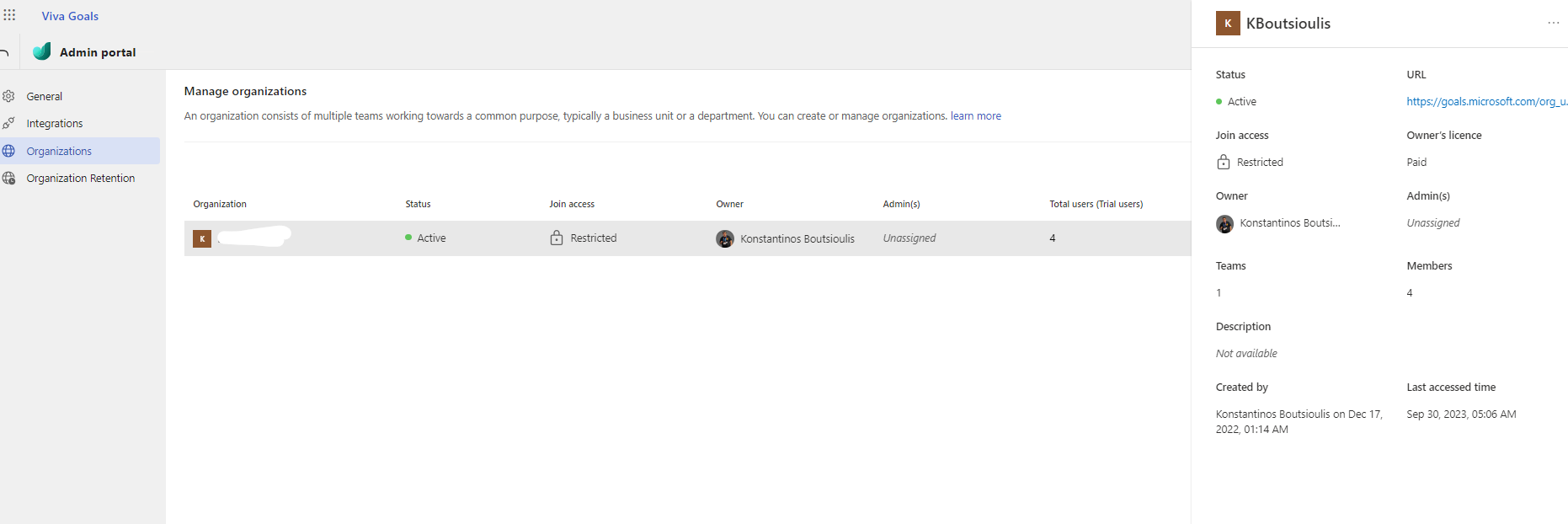
As you can see, I finally created my first organization in Viva Goals and now in manage additional settings I can make the settings of my choice for my new organization.
In the next articles I will show you in detail how to create OKRs and how to act in general within Viva Goals
#Viva #VivaGoals #SharePoint #technology #microsoft #Onedrive #digitaltransformation #cloud #mvpbuzz #m365Visit Archives below to find more articles about Microsoft technologies on Modern Workplace