
Free Material
Find hereMore than 150 Articles about Microsoft Technologies on Modern Workplace
Official Site
Microsoft Most Valuable Professional M365 Apps & Services
Microsoft Most Valuable Professional Business Applications
Consultant & Sr Cloud Solution Architect Modern Wokrplace
Find hereMore than 150 Articles about Microsoft Technologies on Modern Workplace
12 October 2023
In today's article we will see how we can get a message on an adaptive card within a channel in a group in Teams every time the status changes in a task planner And it will be completed It is clear that automation in the Modern workplace is essential. In a large number of planner tasks it is not always possible to keep track of their progress. For this reason I propose the solution of power automate where with its help we will receive an adaptive card in the channel in some group within the teams so that we know that the specific task has been completed. Initially there must be an active M365 subscription and with the credentials we login to the home page
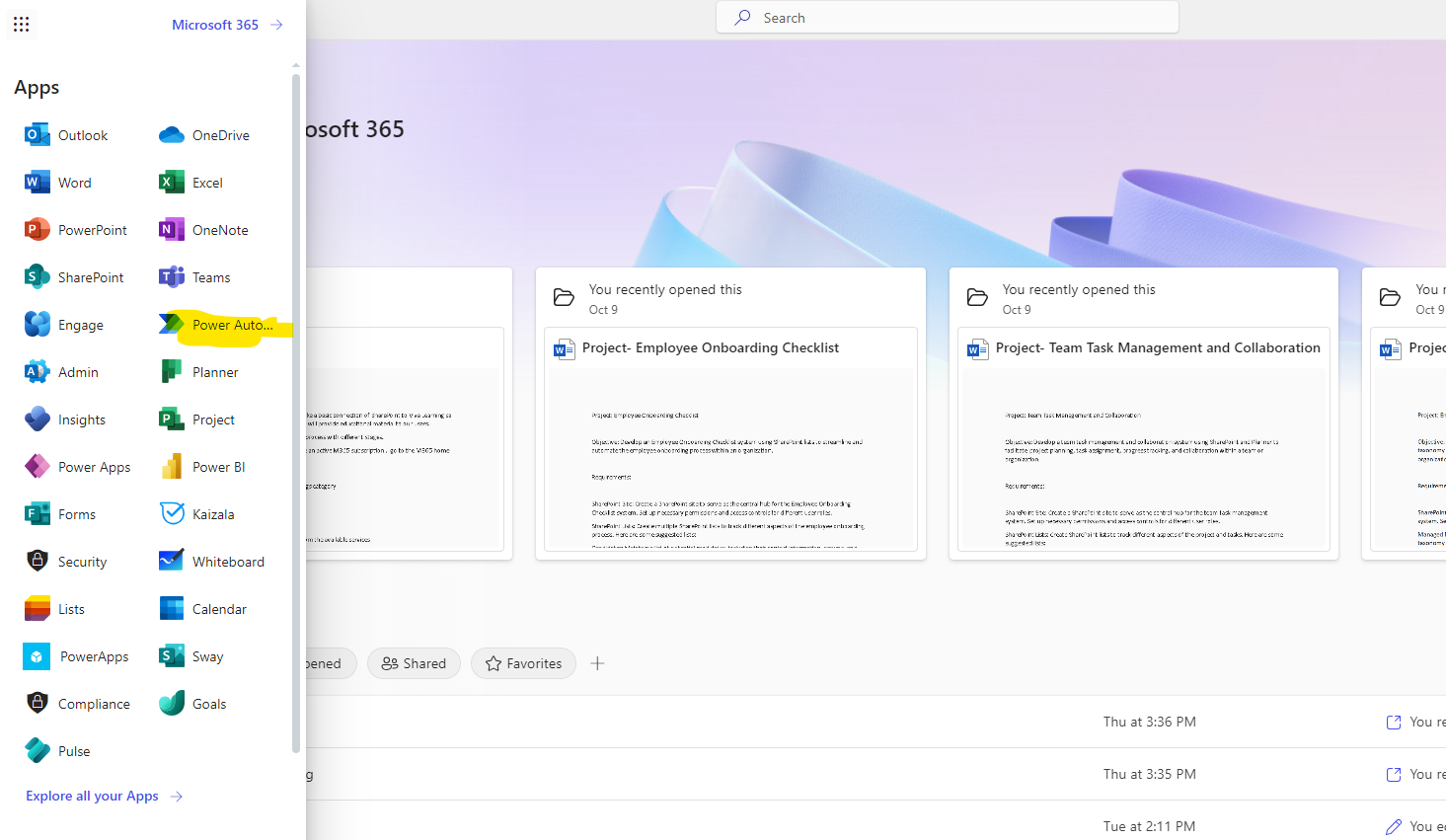
From there I select from the left side pop-up menu Power automate And in the next step I have to search from the available templates the one called Notify a team when planner tasks change status
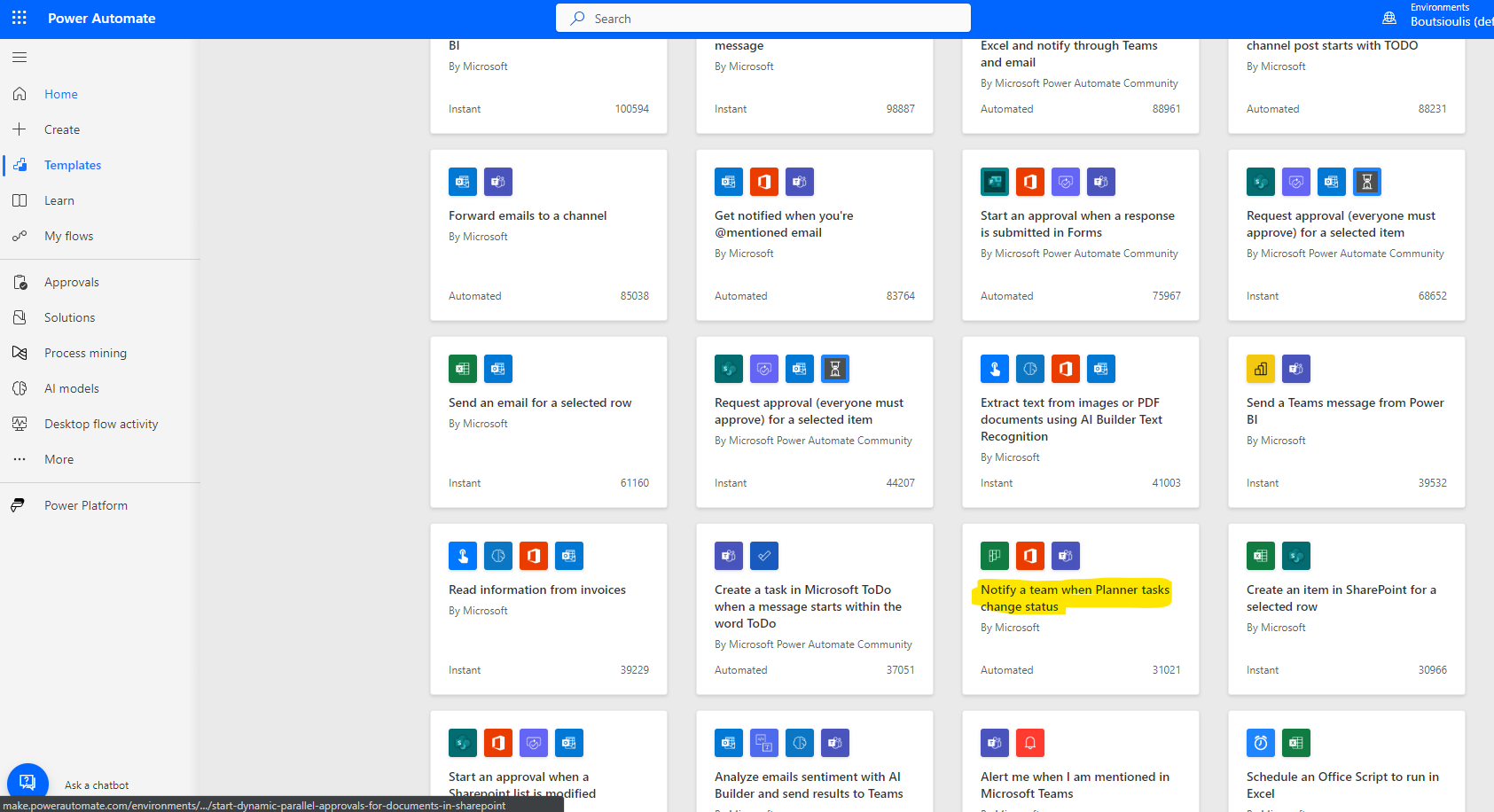
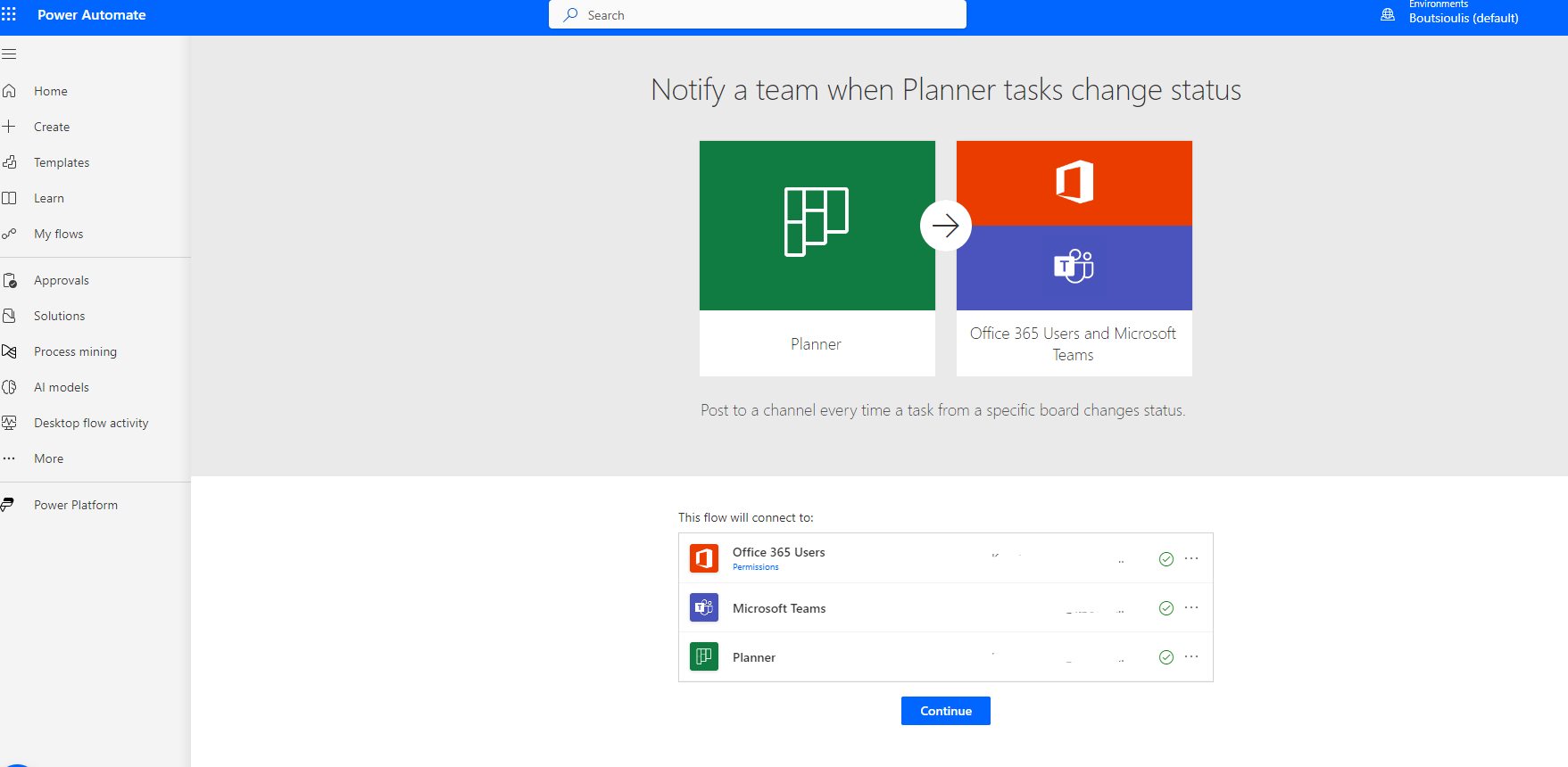
As you can see in any change I can apply this automate And not only in the completed . But the most common is when a Task is completed to inform a group of users or the manager of a department In the next step you should allow all the necessary connections.
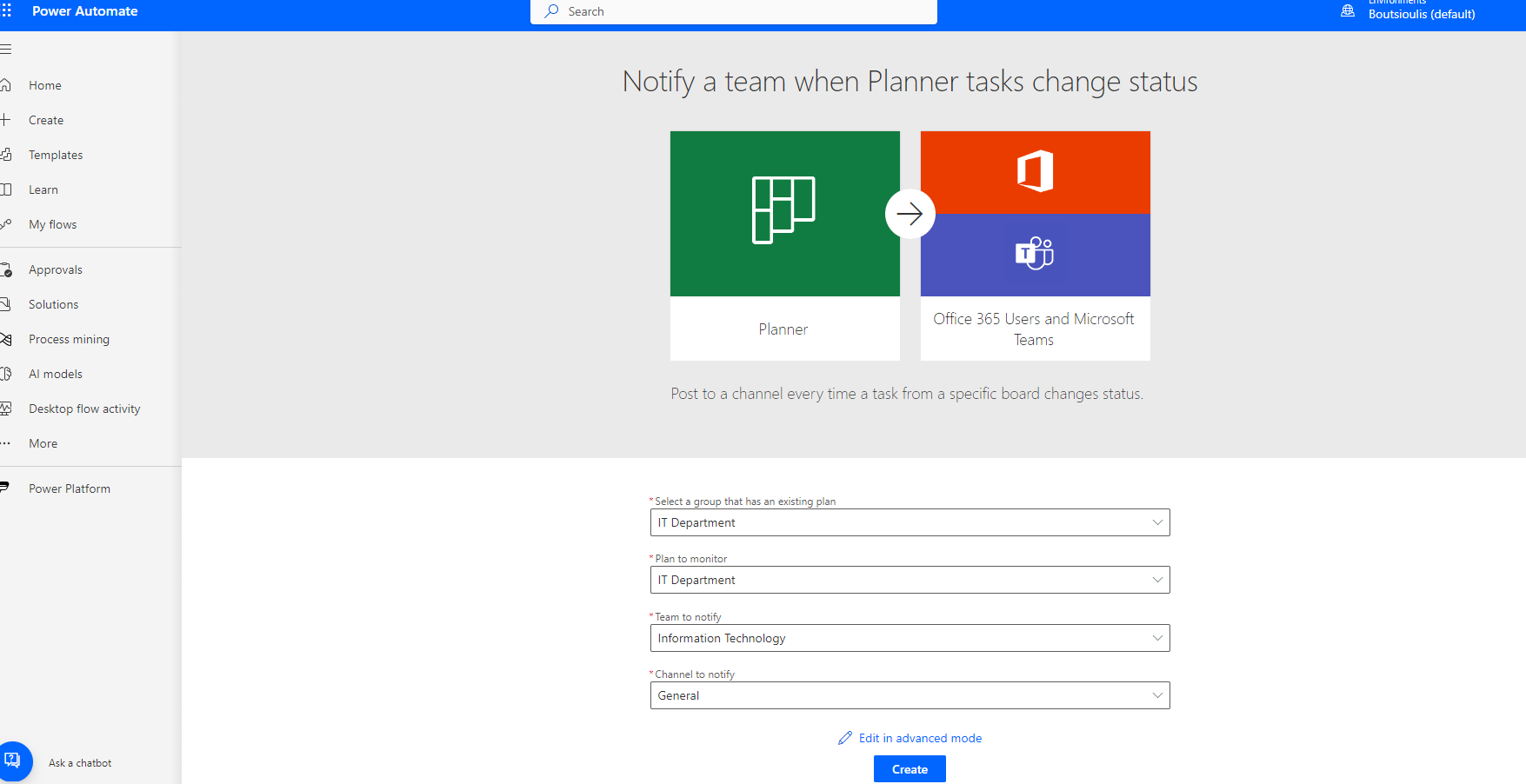
And once all the connections have been made you will have to select the Group and Plan from the Planner in the next scene and in the next two fields you will have to fill in the name of the group and the channel you want the post to be made
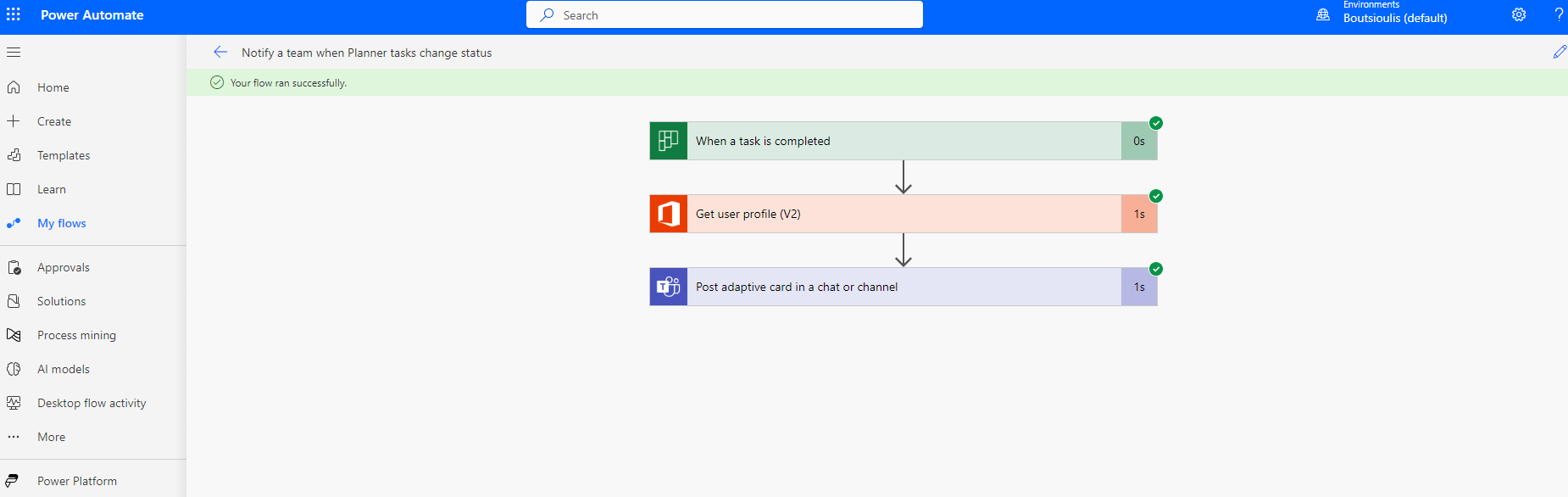
If I choose to edit the automate as you can see it is of the 3 action box format where in the first one I have to specify the group id and Plan id from my Planner and then in the second action box I pass as a variable the upn of the user who created the specific task In the third action box as you can see from the title I just select team in teams , then I select the channel I want the post of the adaptive card to be and then in the body of the adaptive card I add the code to create the card
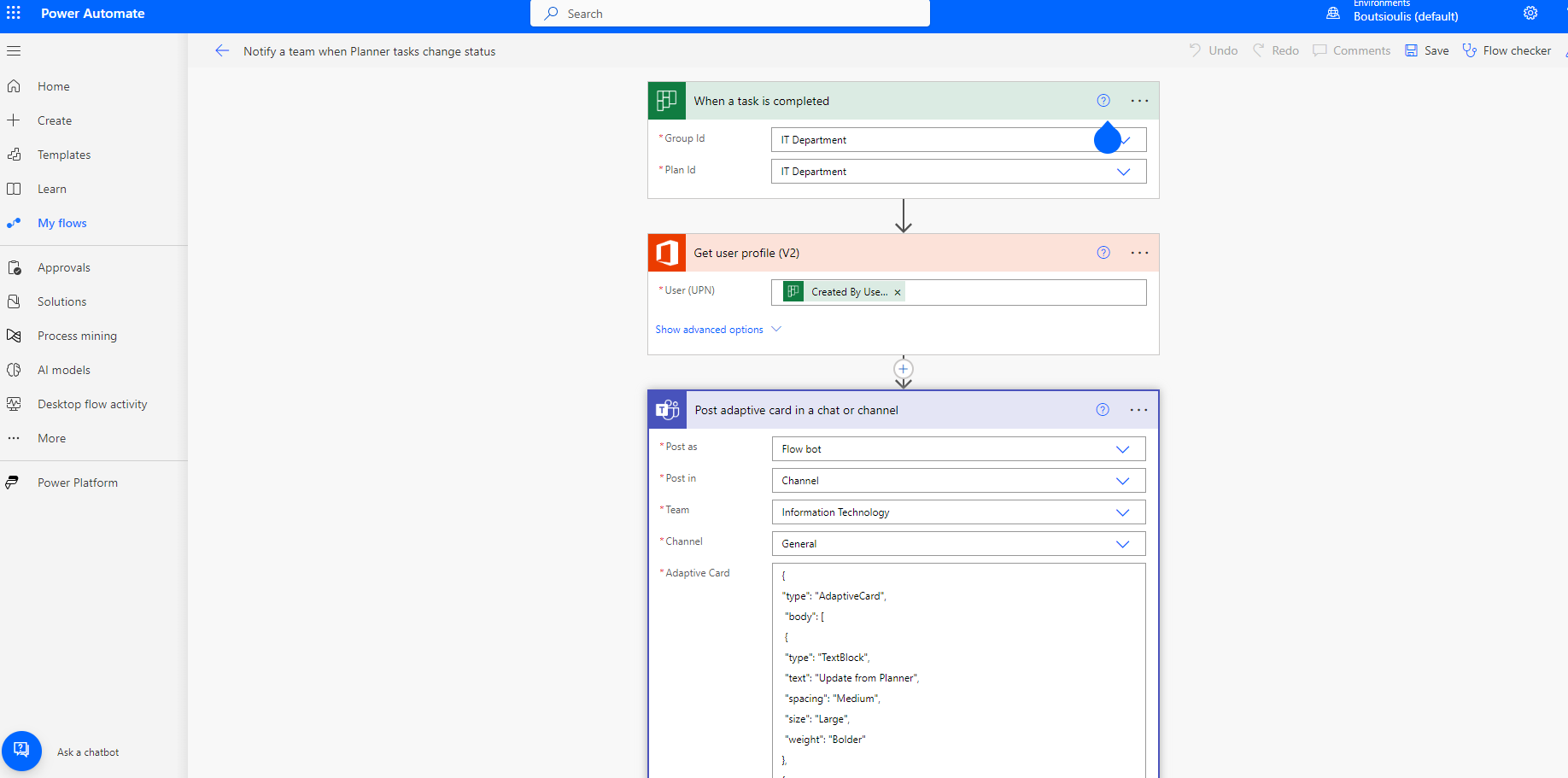
As you can see I can jump into the body and make changes to add different values that my automate now has as information , and in our case I have chosen to change the status to completed as you can see in the picture below
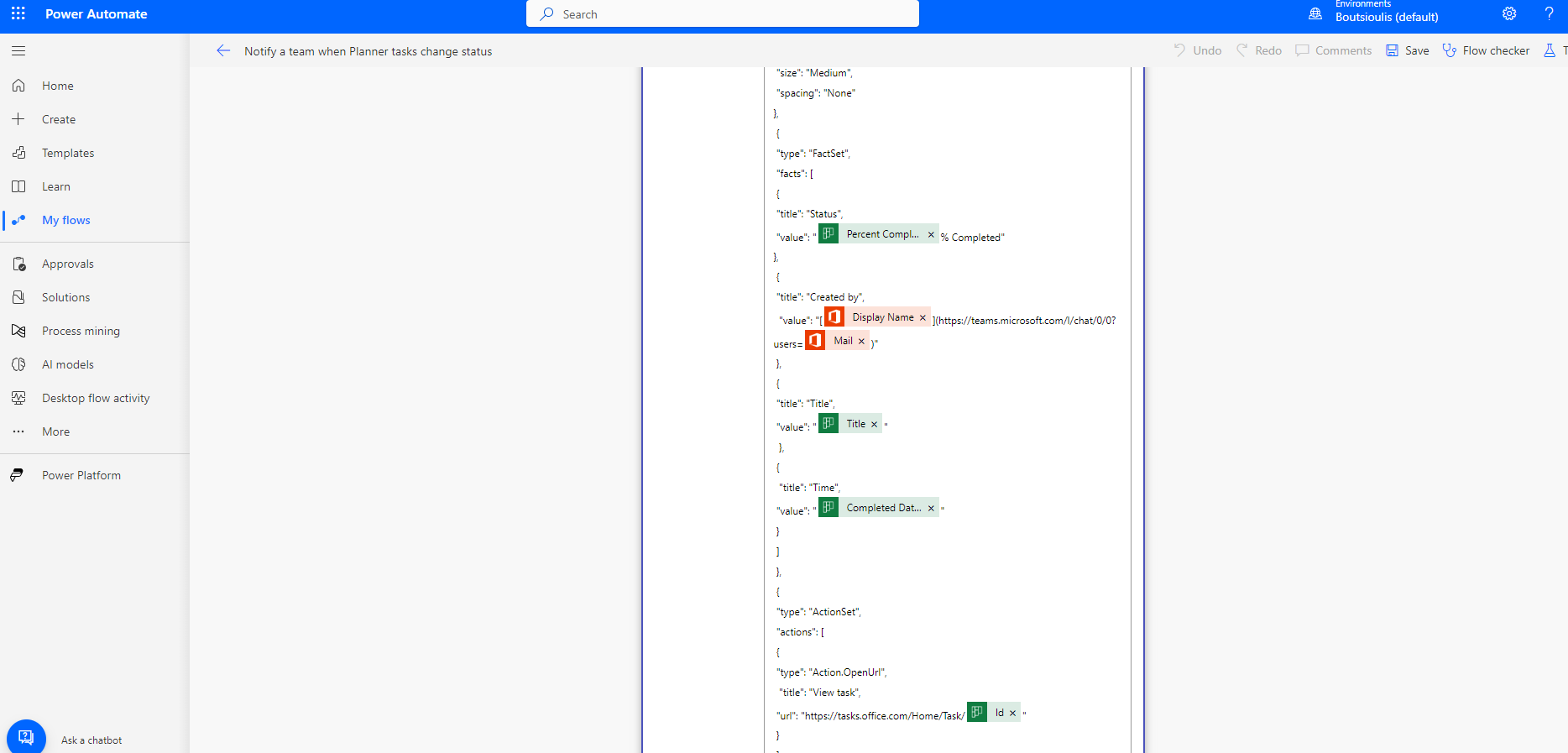
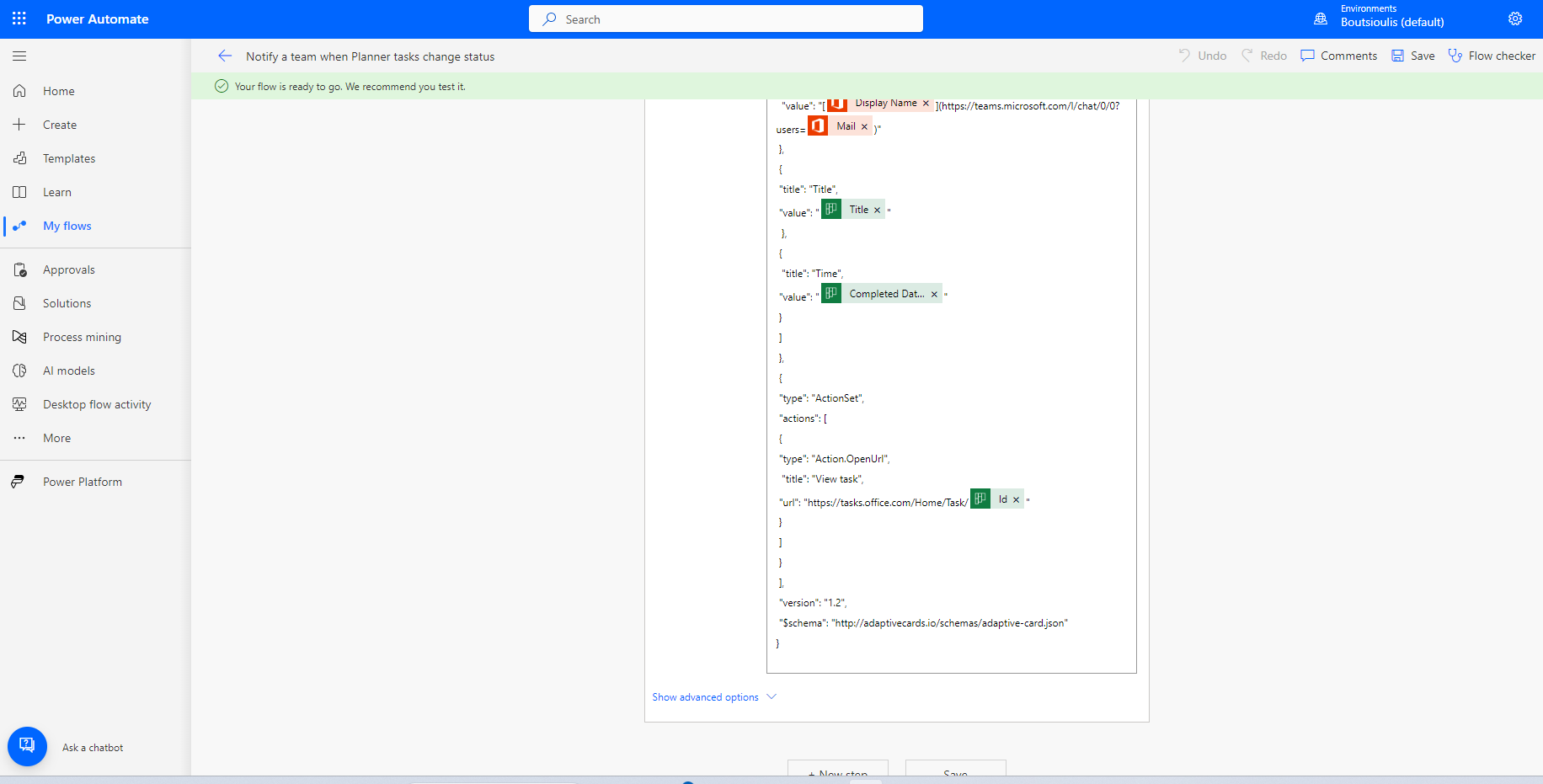
Once I have completed the changes I save my automate and continue
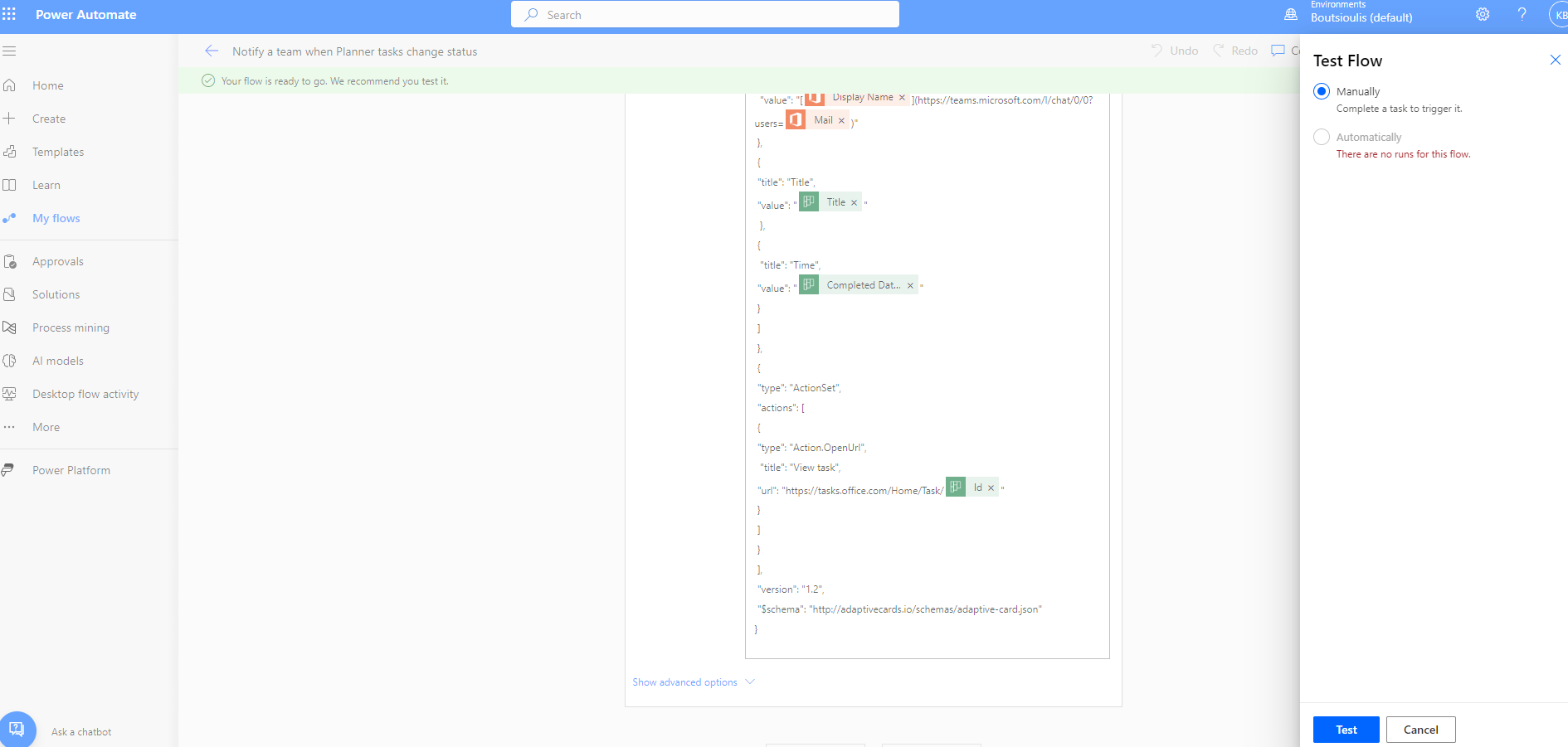
I select test and then manually so that I can later change a status se completed to an active task to do the correctness check
The automate started running and is waiting for me to make a change so that it can be executed
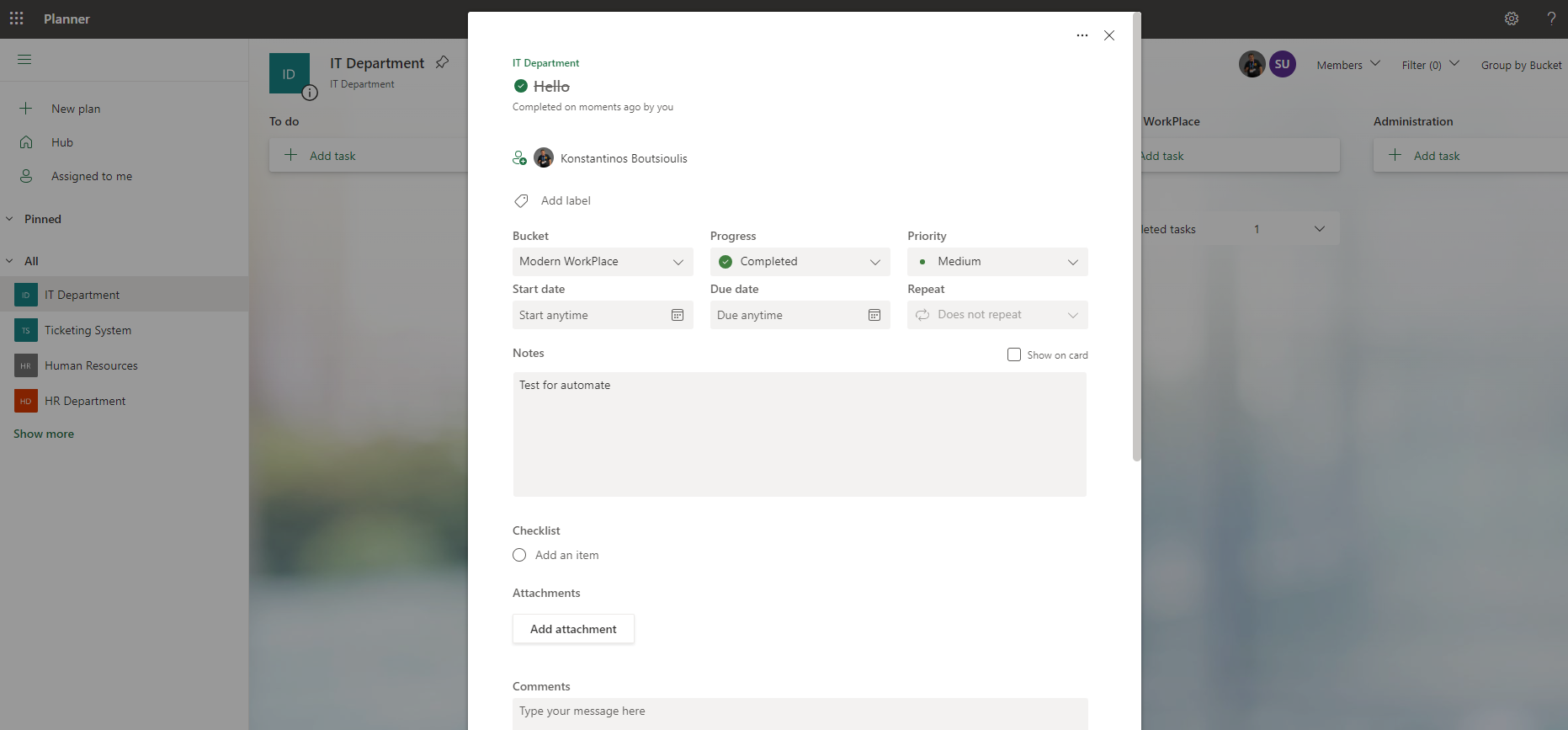
I actually go to Planner and change the task hello to completed from not started as shown in the picture below
I return to power automate and finally find that it ran normally without any problems
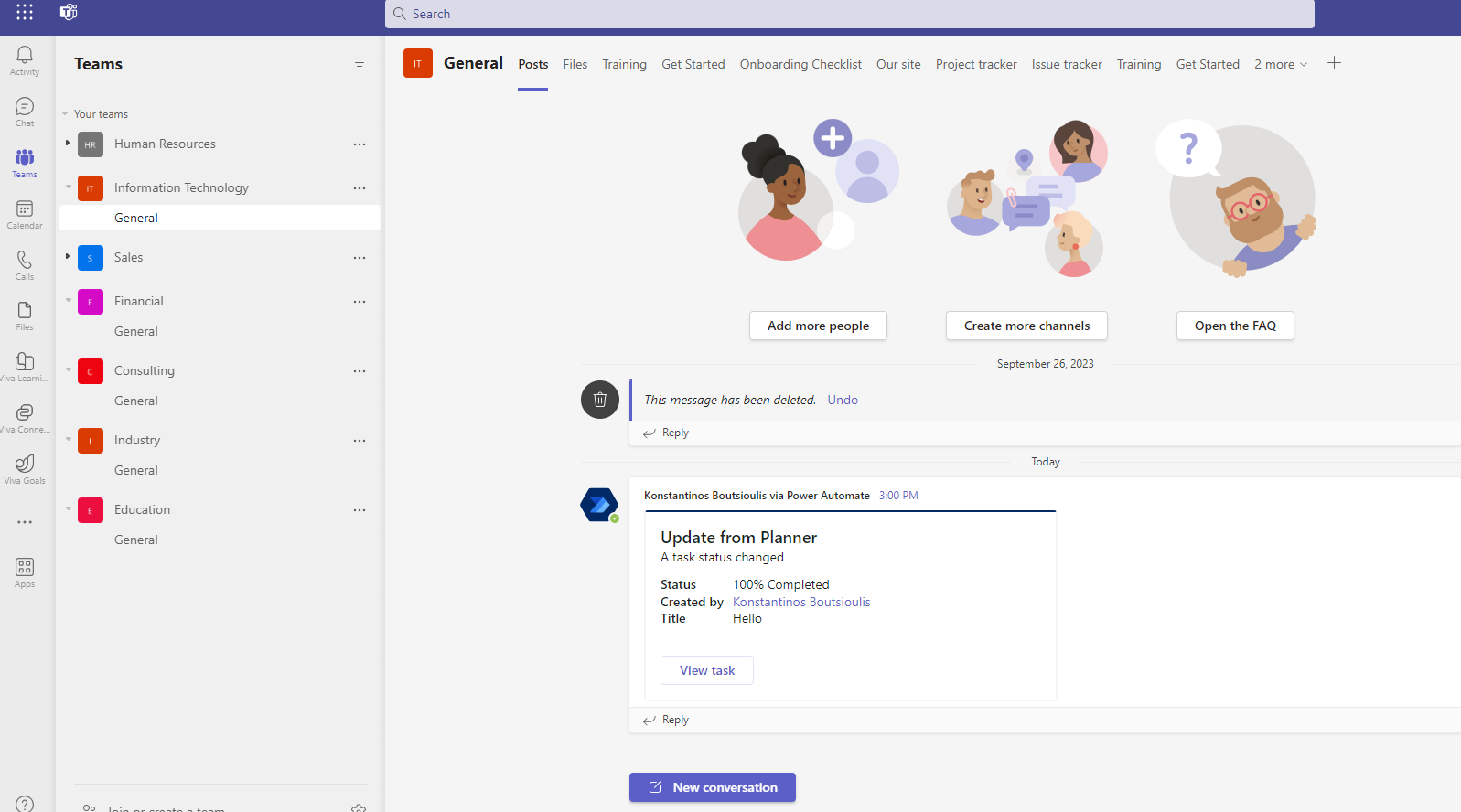
And to see that it has indeed done the post with adaptive card I go to the group I selected and then to the general channel which was my choice again and as you can see it has sent the adaptive card with the information that the hello task has been 100% completed
 #Planner
#PowerAutomate
#SharePoint
#technology
#microsoft
#PowerApps
#digitaltransformation
#cloud
#mvpbuzz
#m365
#Planner
#PowerAutomate
#SharePoint
#technology
#microsoft
#PowerApps
#digitaltransformation
#cloud
#mvpbuzz
#m365
Visit Archives below to find more articles about Microsoft technologies on Modern Workplace