
Free Material
Find hereMore than 150 Articles about Microsoft Technologies on Modern Workplace
Official Site
Microsoft Most Valuable Professional M365 Apps & Services
Microsoft Most Valuable Professional Business Applications
Consultant & Sr Cloud Solution Architect Modern Wokrplace
Find hereMore than 150 Articles about Microsoft Technologies on Modern Workplace
20 October 2023
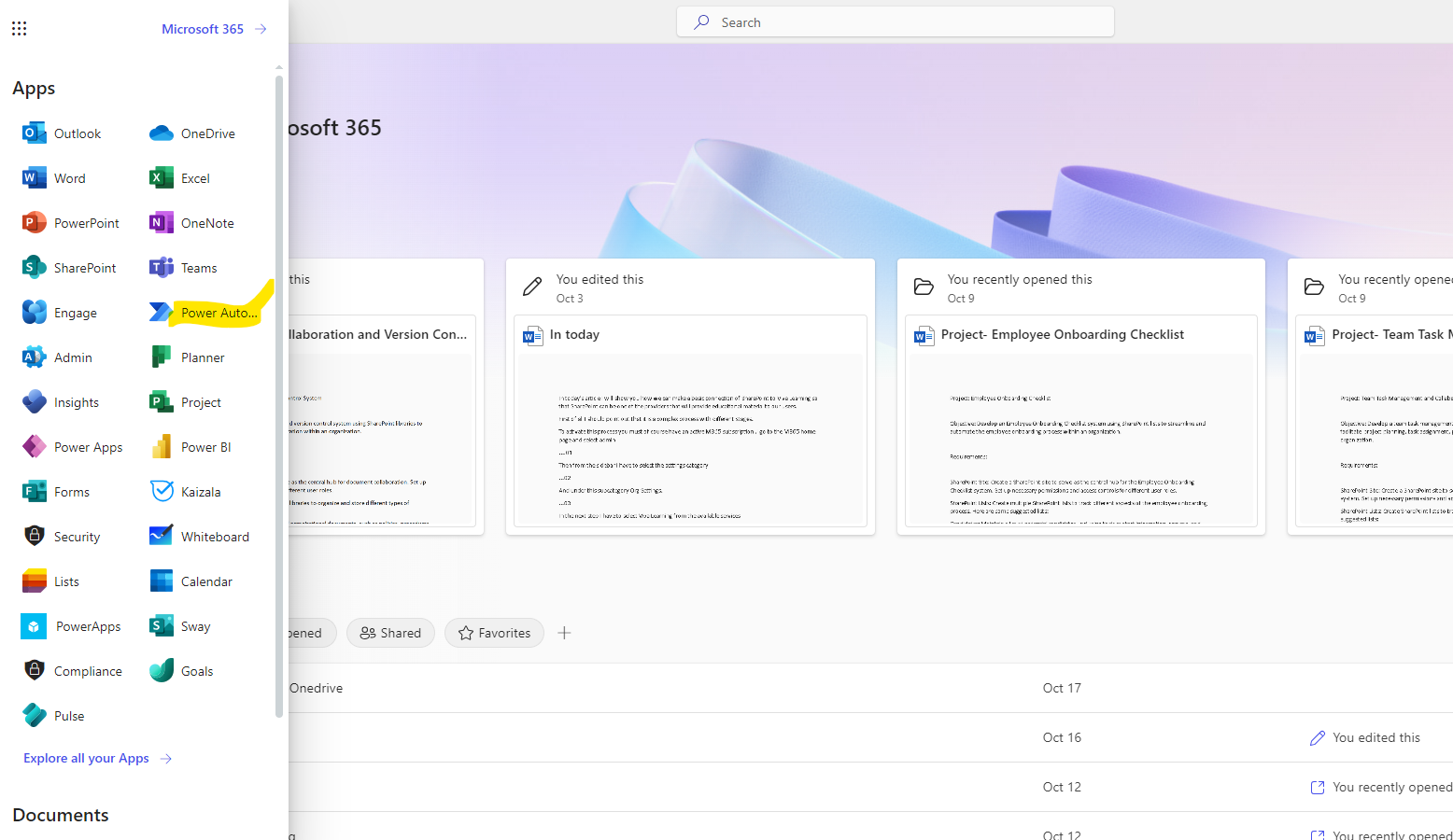
In today's article we will see how using Power automate we can automatically create a task every time our Inbox receives a mail with High Priority First you need to have an active M365 subscription and from the M365 home page select Power Automates in the left pop-up column
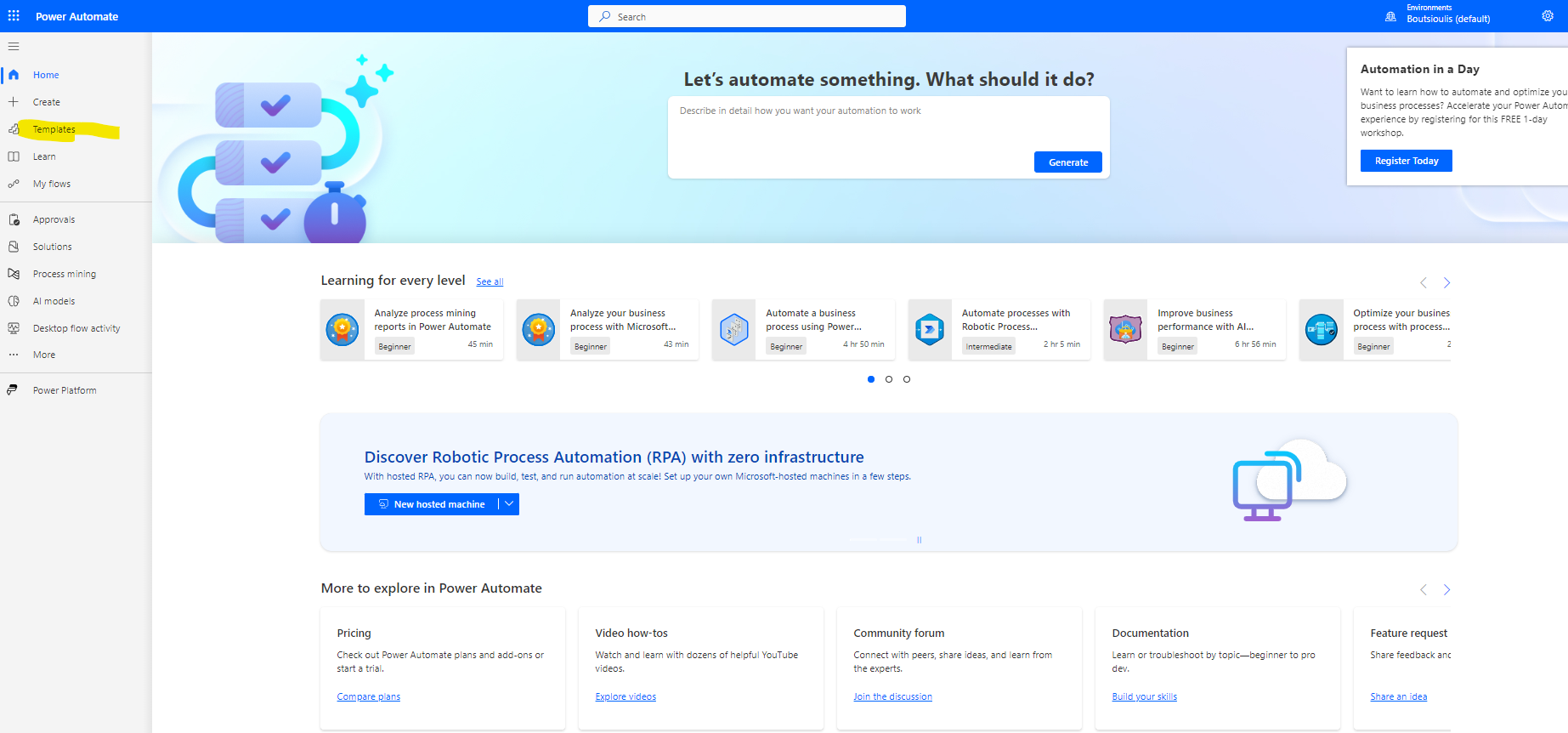
Then again from the left column we have to select templates
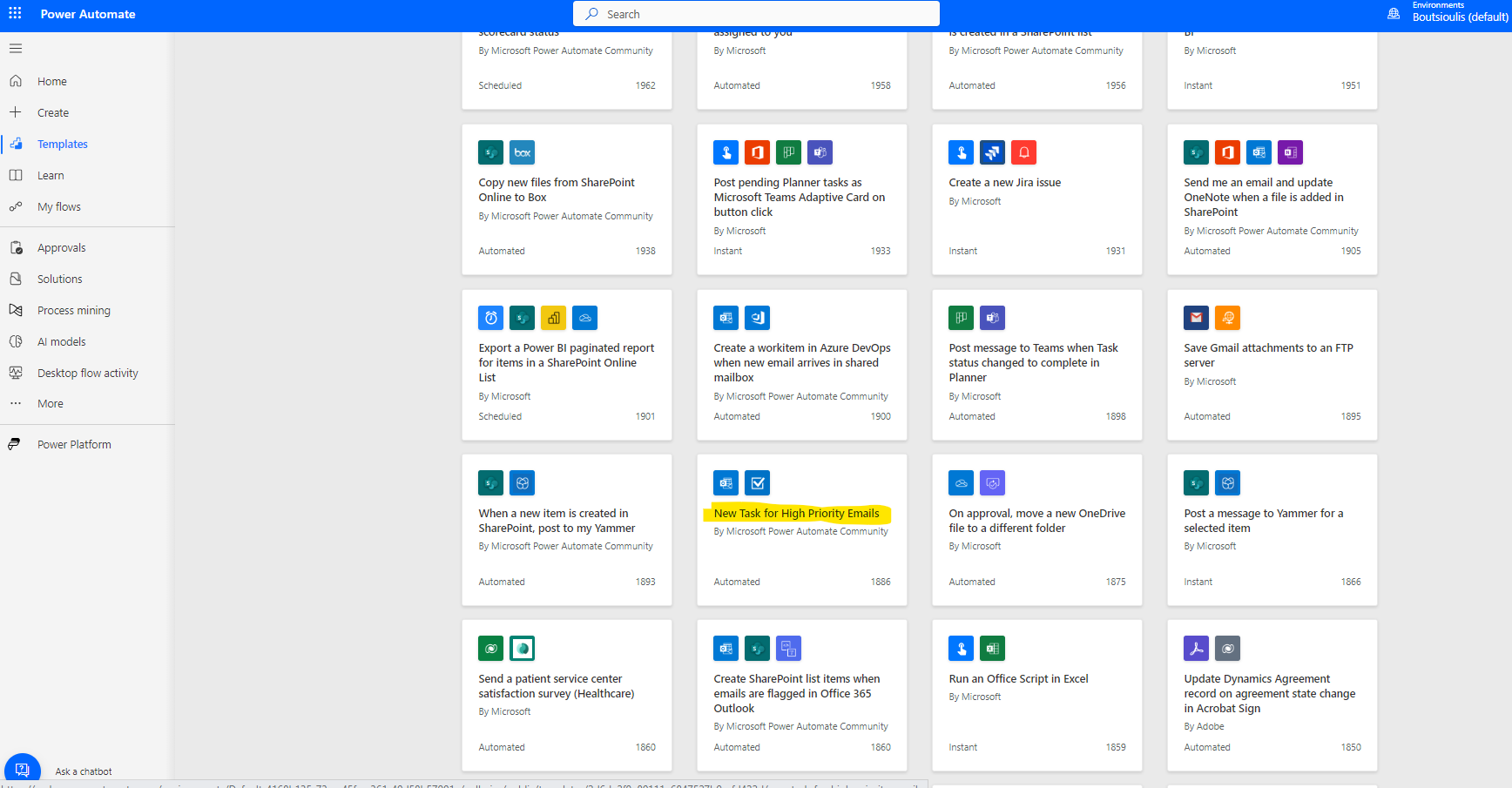
And from all available templates we have to identify the one named New Task for High Priority Emails
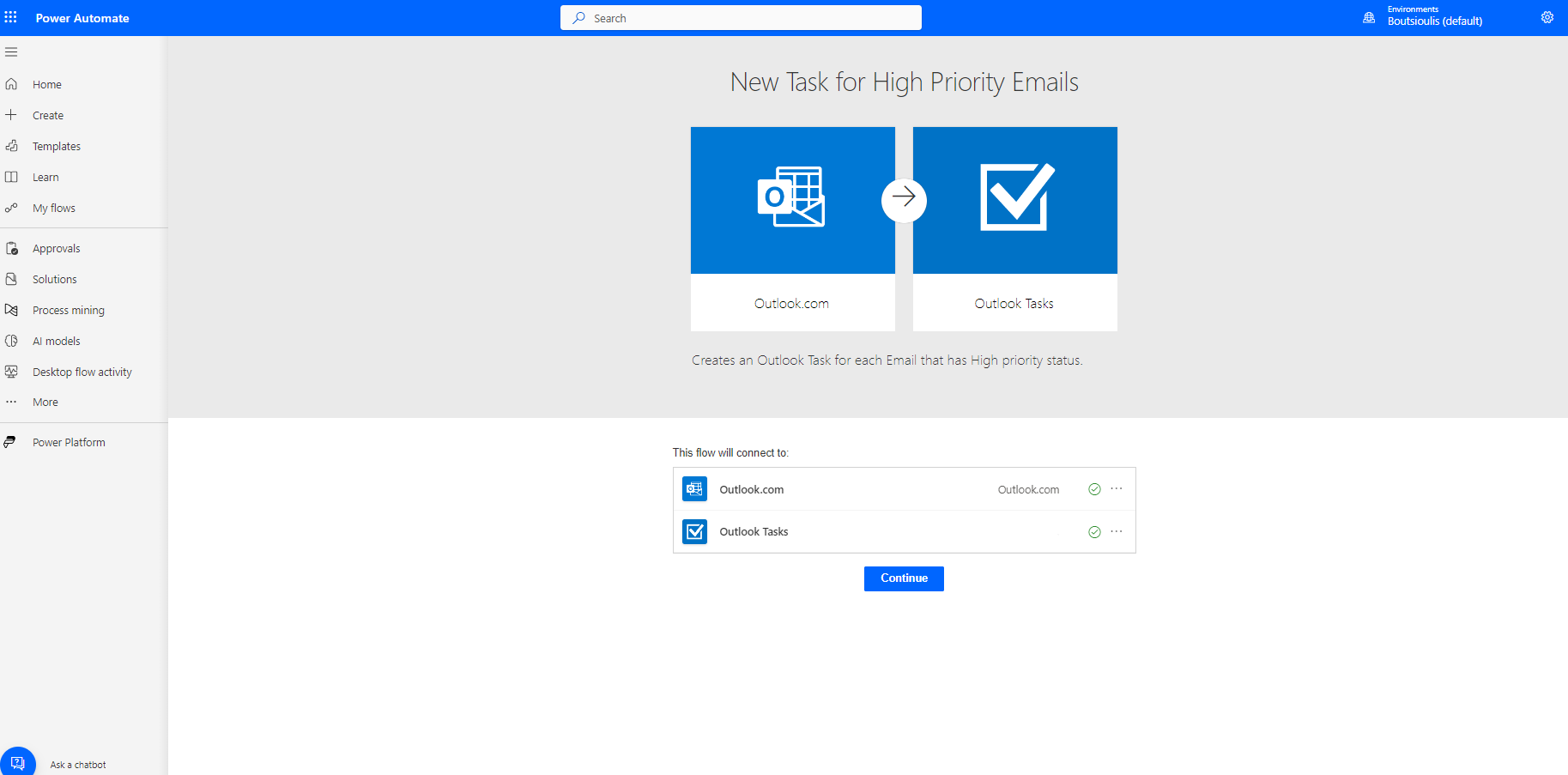
In the next step we will have to allow all the necessary connections. In our example as you can see there is a combination of outlook.com mail and business account M365 which is obviously for the same user but every time he will get a high priority mail in his personal mail He can create a task in the corporate account
In the next step you will have to add the user whose Inbox when receiving high priority mail will activate the flow The second action box will create the task in the corresponding account we used in the beginning to allow the connection
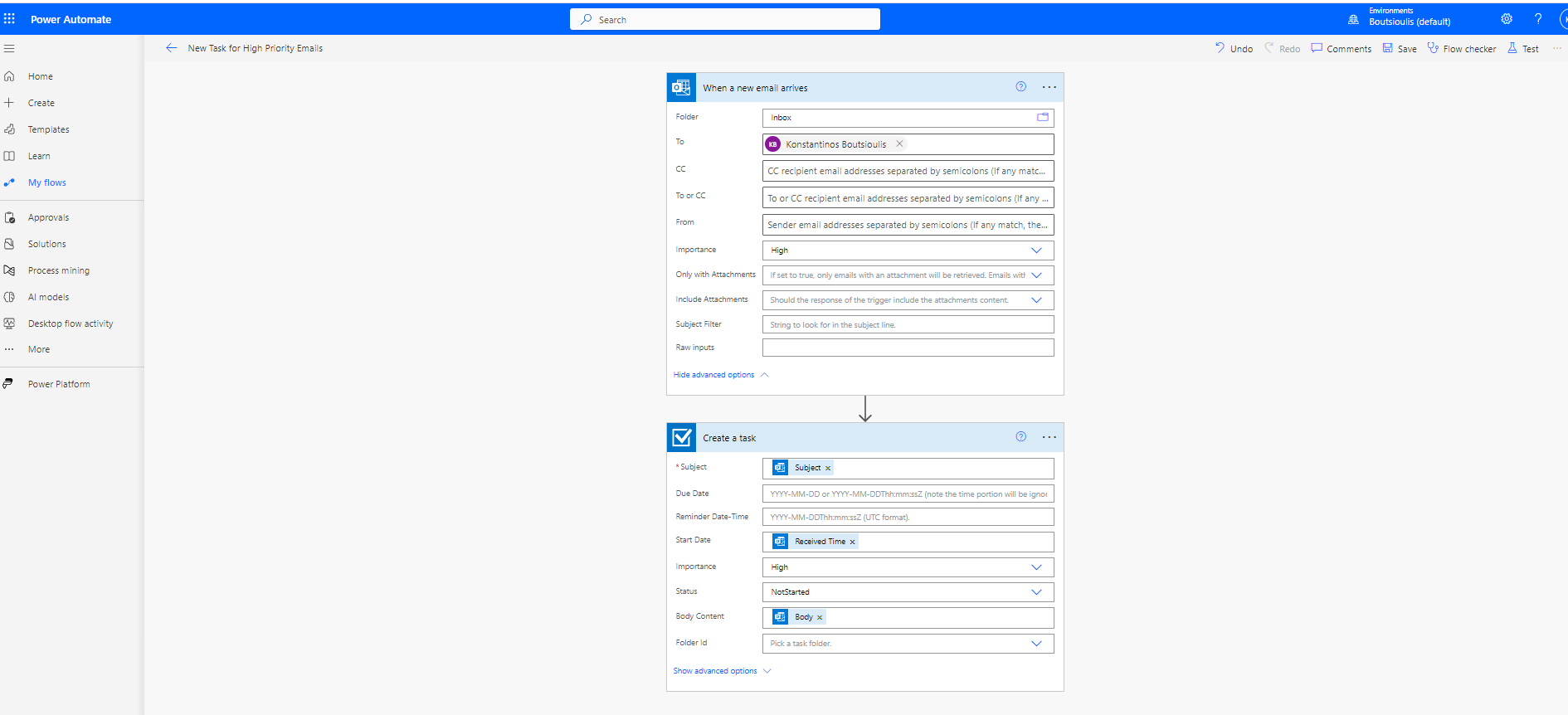
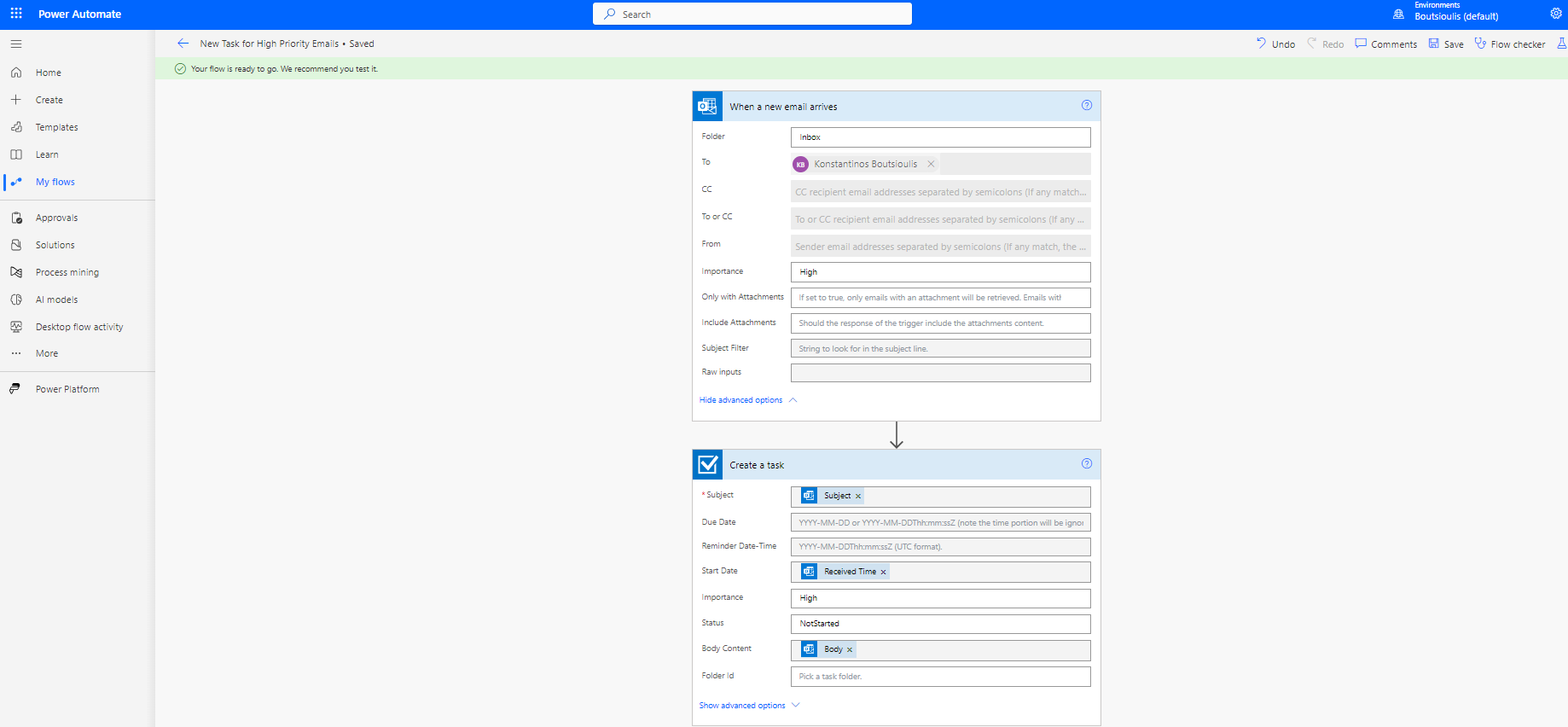
Next step is to save all the changes to our automate.
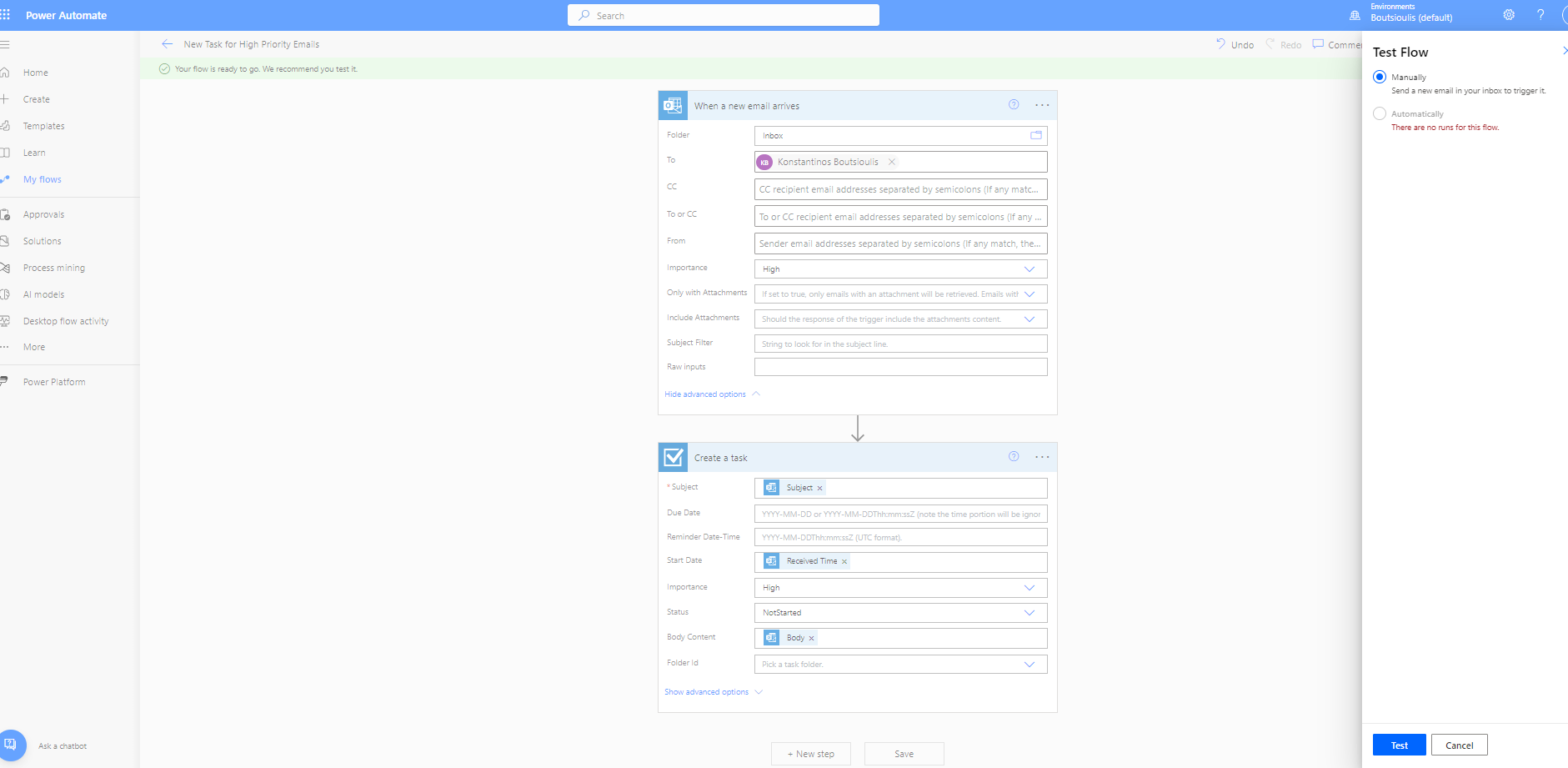
And then we need to select test manually to check the proper functioning of the automate
Automate waits until triggered by a high priority mail
We create a high priority mail from another account And send it to this mail we have created
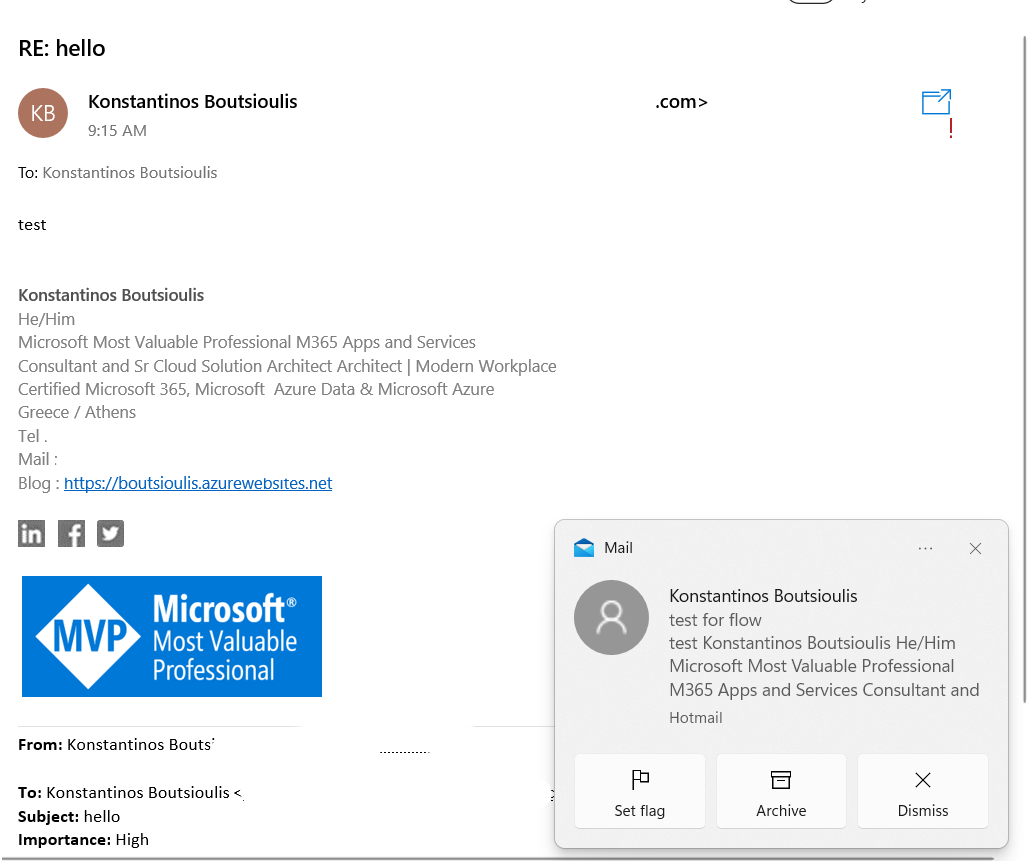
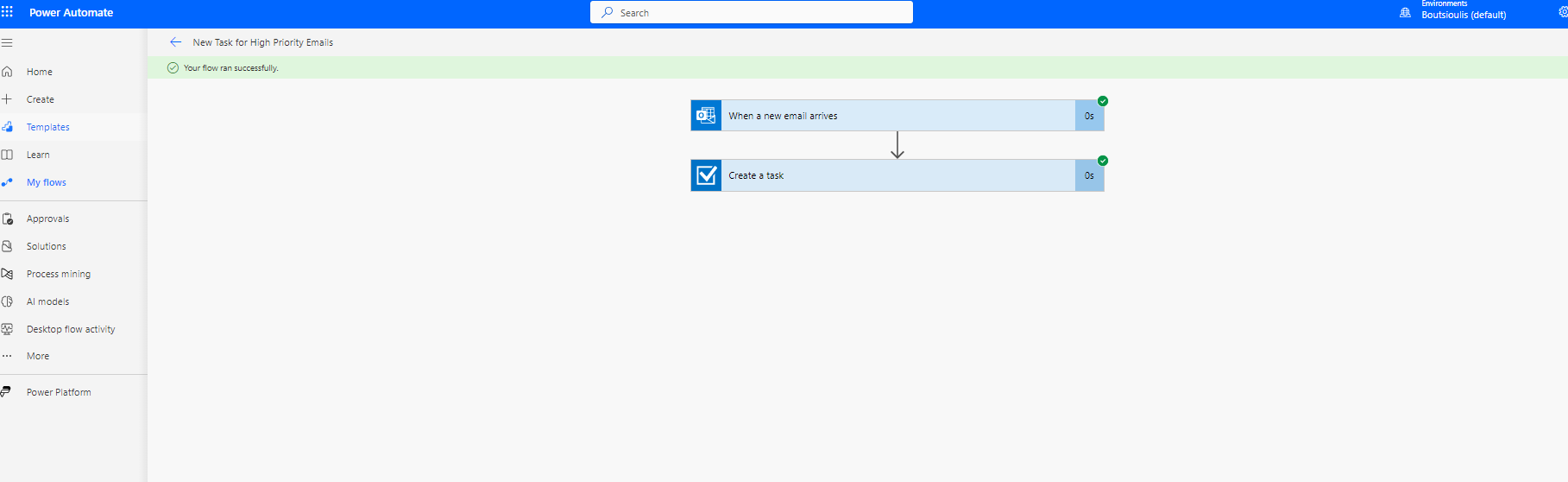
As you can see the automate ran without any problems
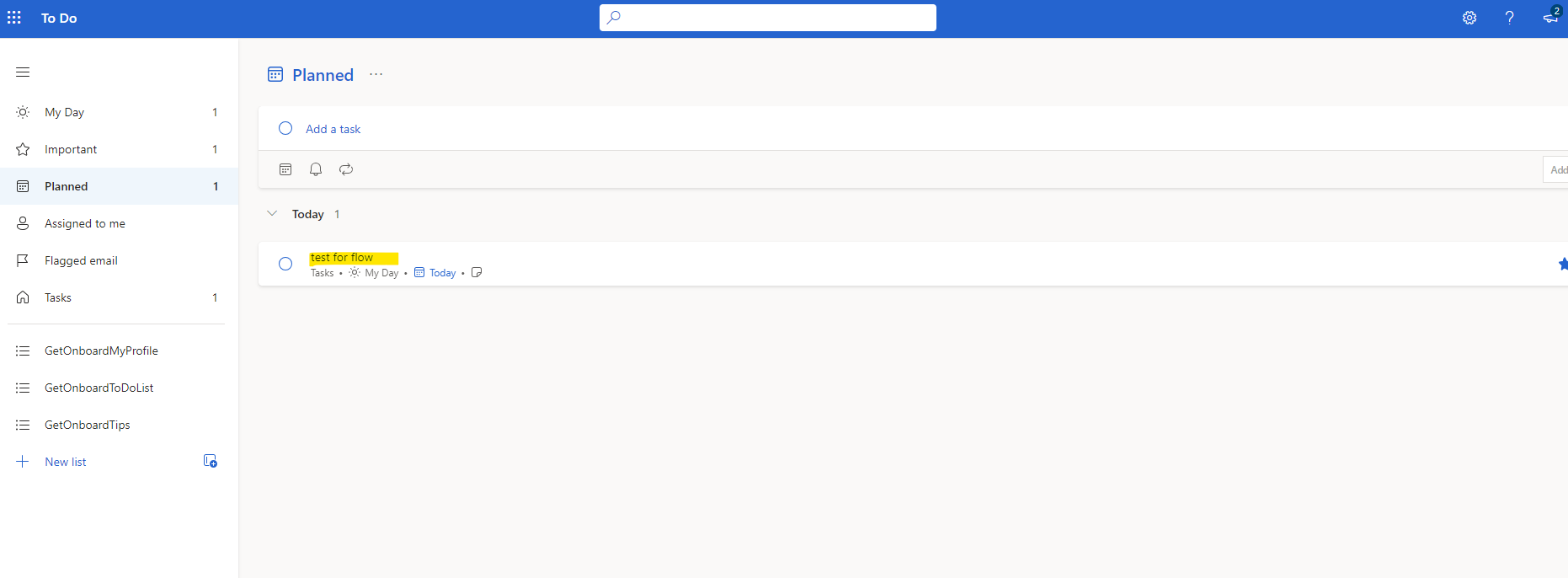
And if we now go to ToDo we find that a new item has been created with the title of the mail
 #PowerPlatform
#PowerAutomate
#SharePoint
#technology
#microsoft
#PowerApps
#digitaltransformation
#cloud
#mvpbuzz
#m365
#PowerPlatform
#PowerAutomate
#SharePoint
#technology
#microsoft
#PowerApps
#digitaltransformation
#cloud
#mvpbuzz
#m365
Visit Archives below to find more articles about Microsoft technologies on Modern Workplace