
Free Material
Find hereMore than 150 Articles about Microsoft Technologies on Modern Workplace
Official Site
Microsoft Most Valuable Professional M365 Apps & Services
Microsoft Most Valuable Professional Business Applications
Consultant & Sr Cloud Solution Architect Modern Wokrplace
Find hereMore than 150 Articles about Microsoft Technologies on Modern Workplace
14 October 2023
In today's article we will see how to create a notification with adaptive card in a channel of a team in Microsoft Teams every time you create a new folder in a folder in OneDrive A very important feature because in folders that are shared by many users in an organization and are a common point of collaboration of records, this feature is considered essential to inform mainly the administrator and then those who wish to be informed about possible additions of new folders Please note here that in order to create this automate you must first have an active M365 subscription and go to the Home page of M365 From there in the side left drop down column select Power Automate
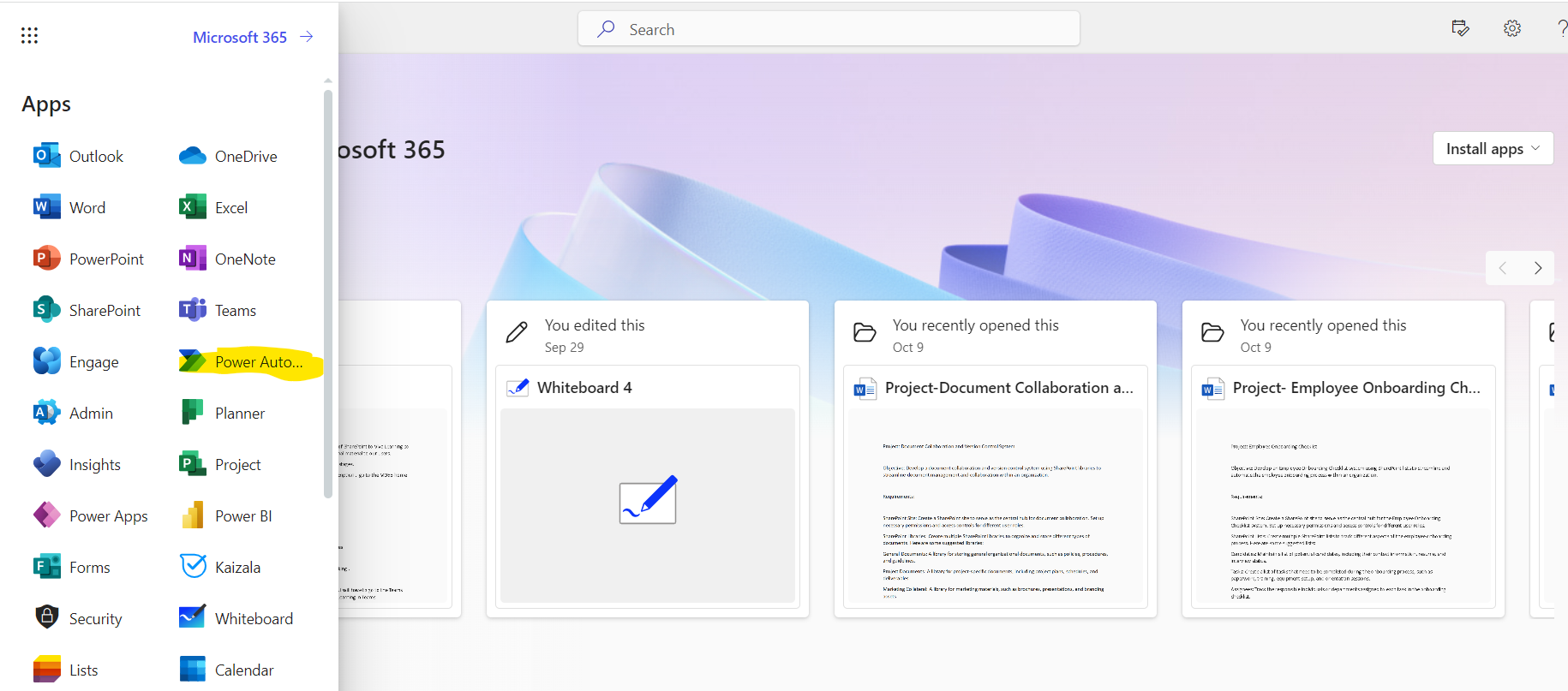
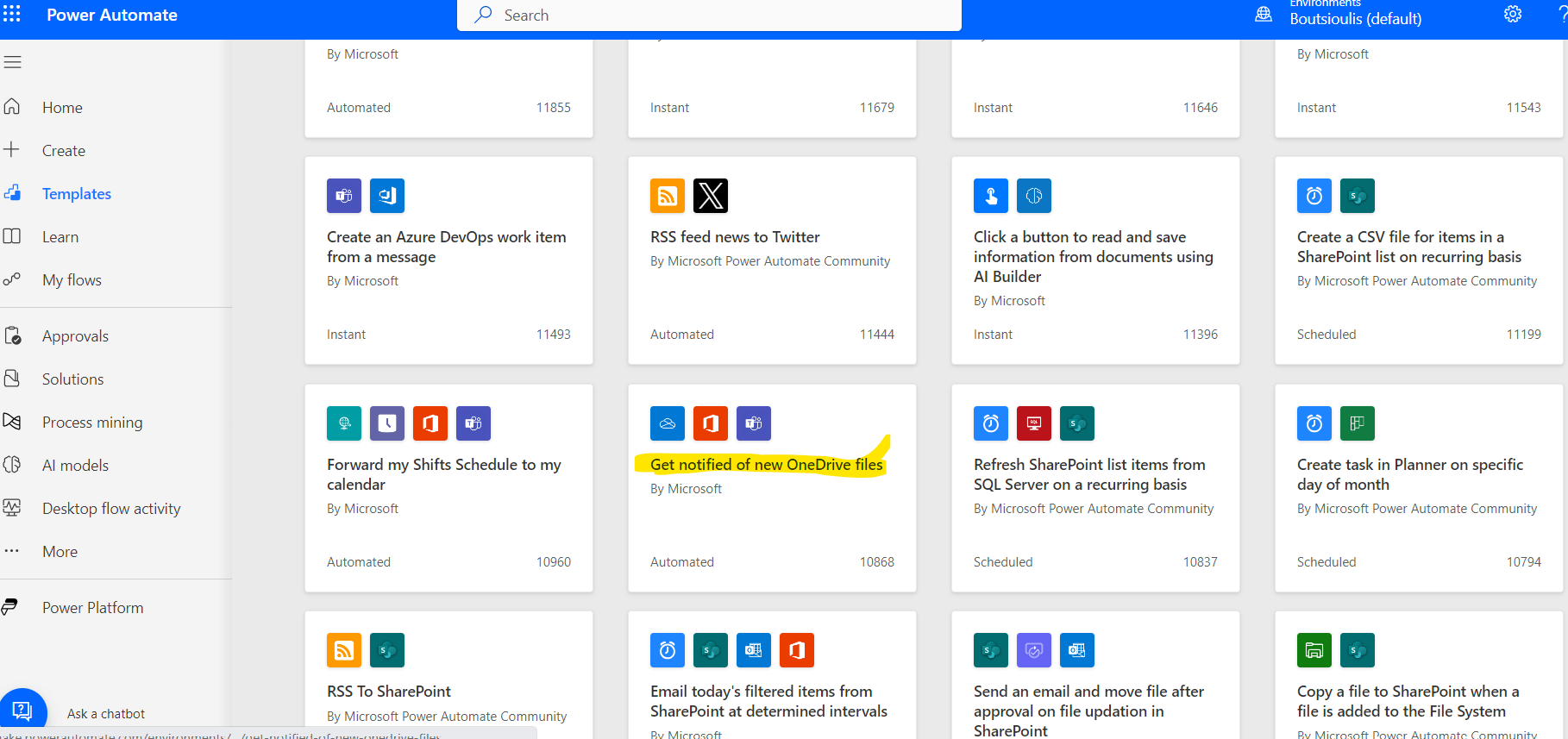
Then in the templates category look for the automate titled Get notified of new OneDrive Files
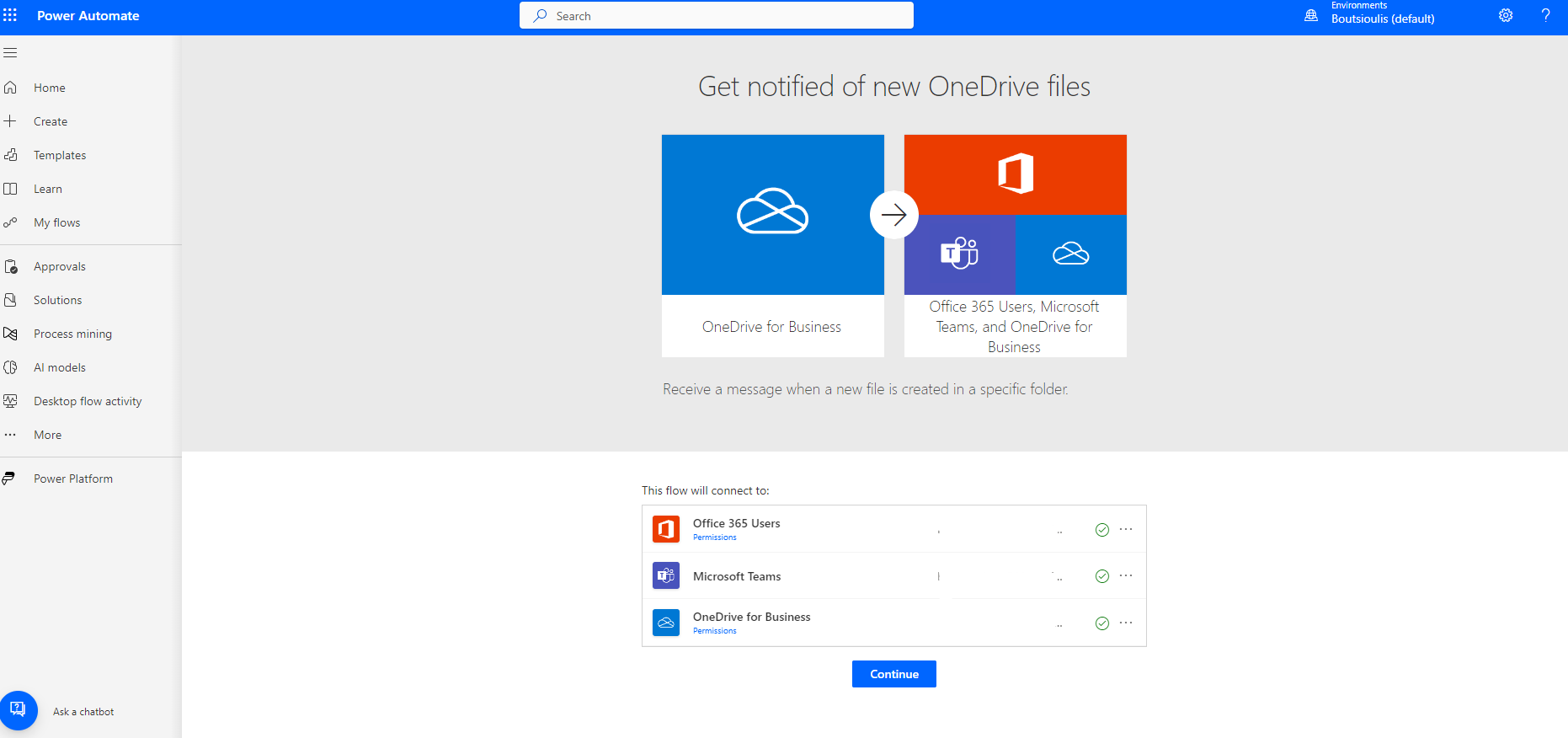
In the next step we need to allow all the necessary connections
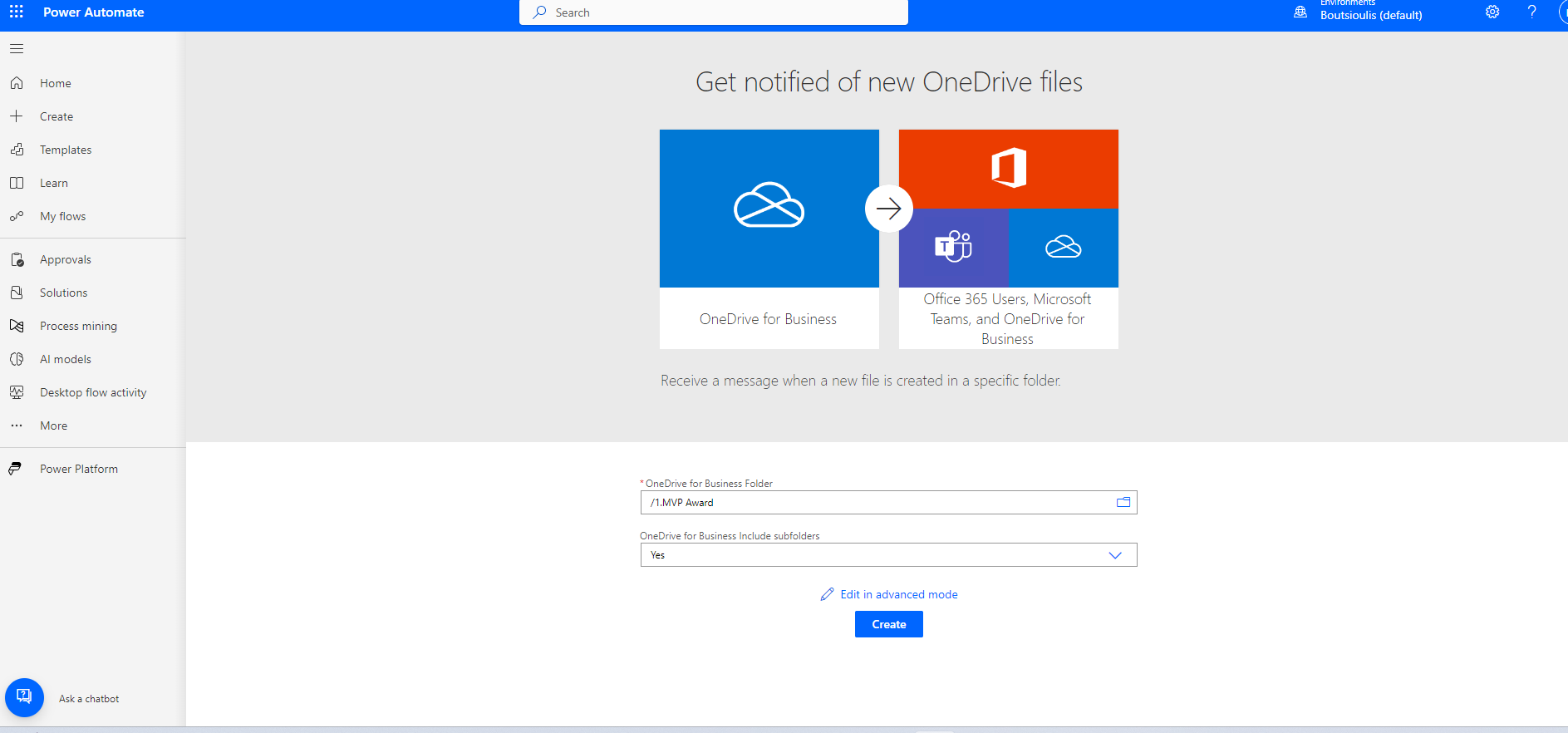
And now we must first determine the folder to which we want to apply this action,. I for example have chosen the MVP Award folder that I keep in my OneDrive
If I select edit of this automate I find that there are 4 action boxes where in the first one as you can see the assignment of the folder to which I want to execute the action In the second action box you create a string variable that will contain the link to the archive in OneDrive And in the next box it essentially creates a link for each new archive identified by its id
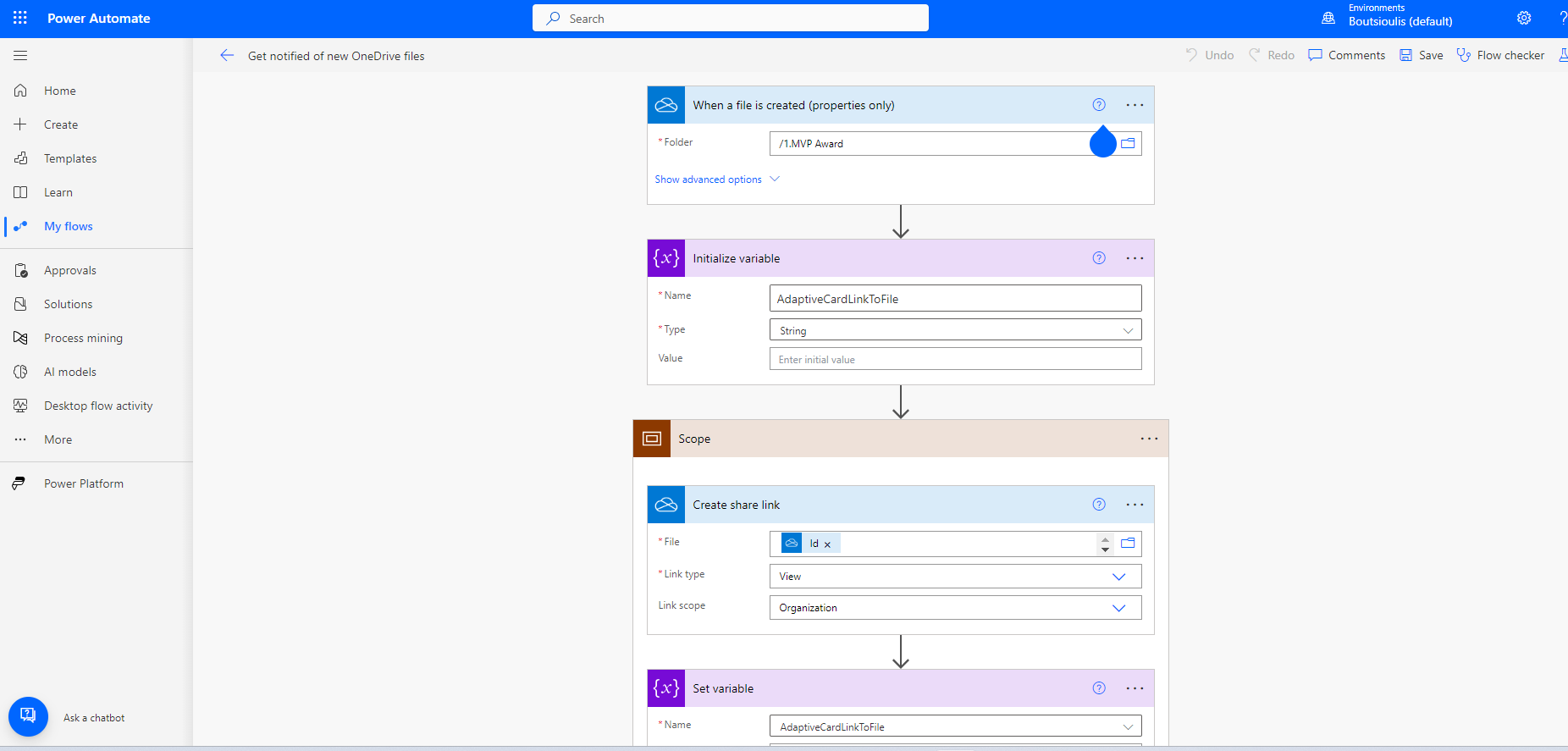
In the next action box it revises this link to the variable we have created above while reading the profile of the current user
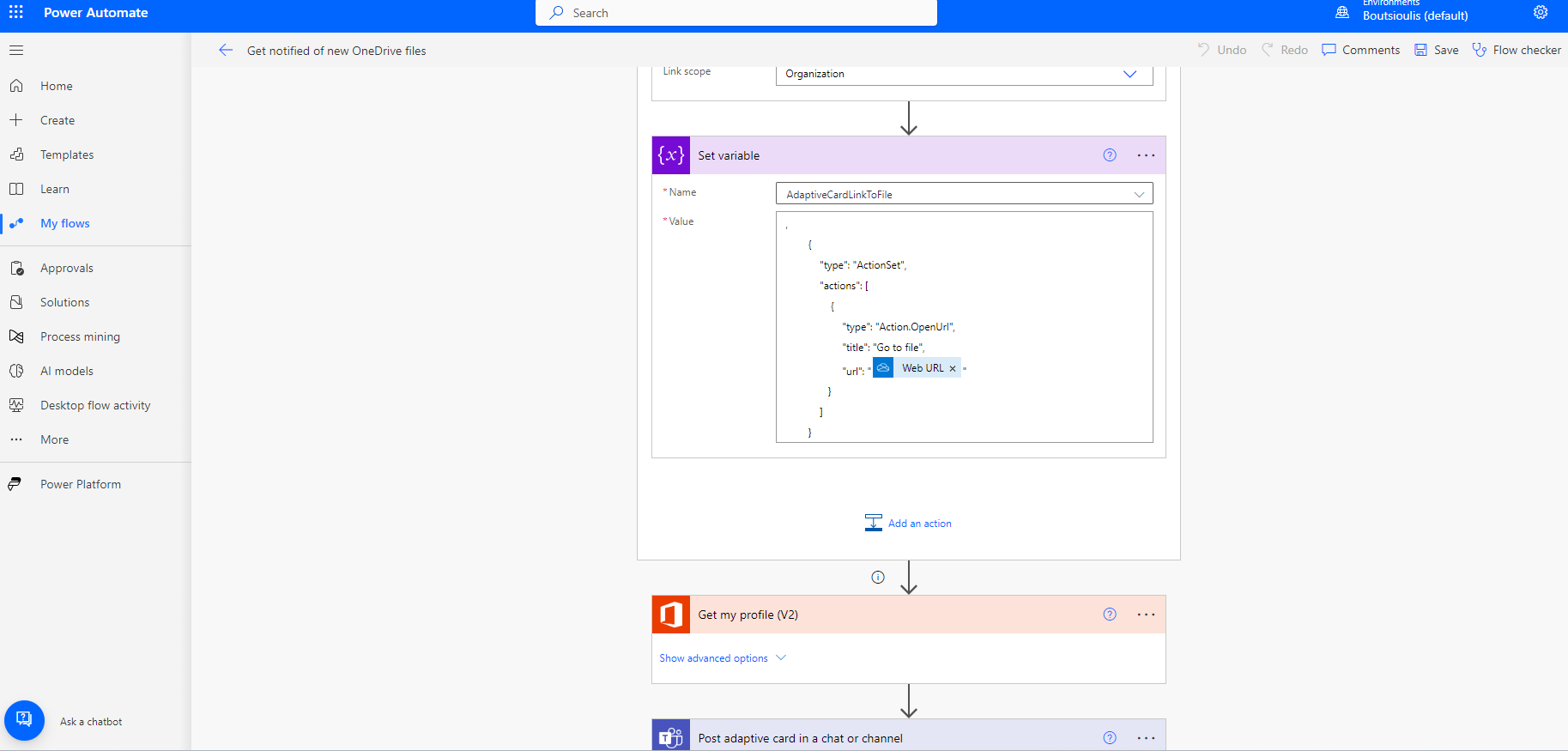
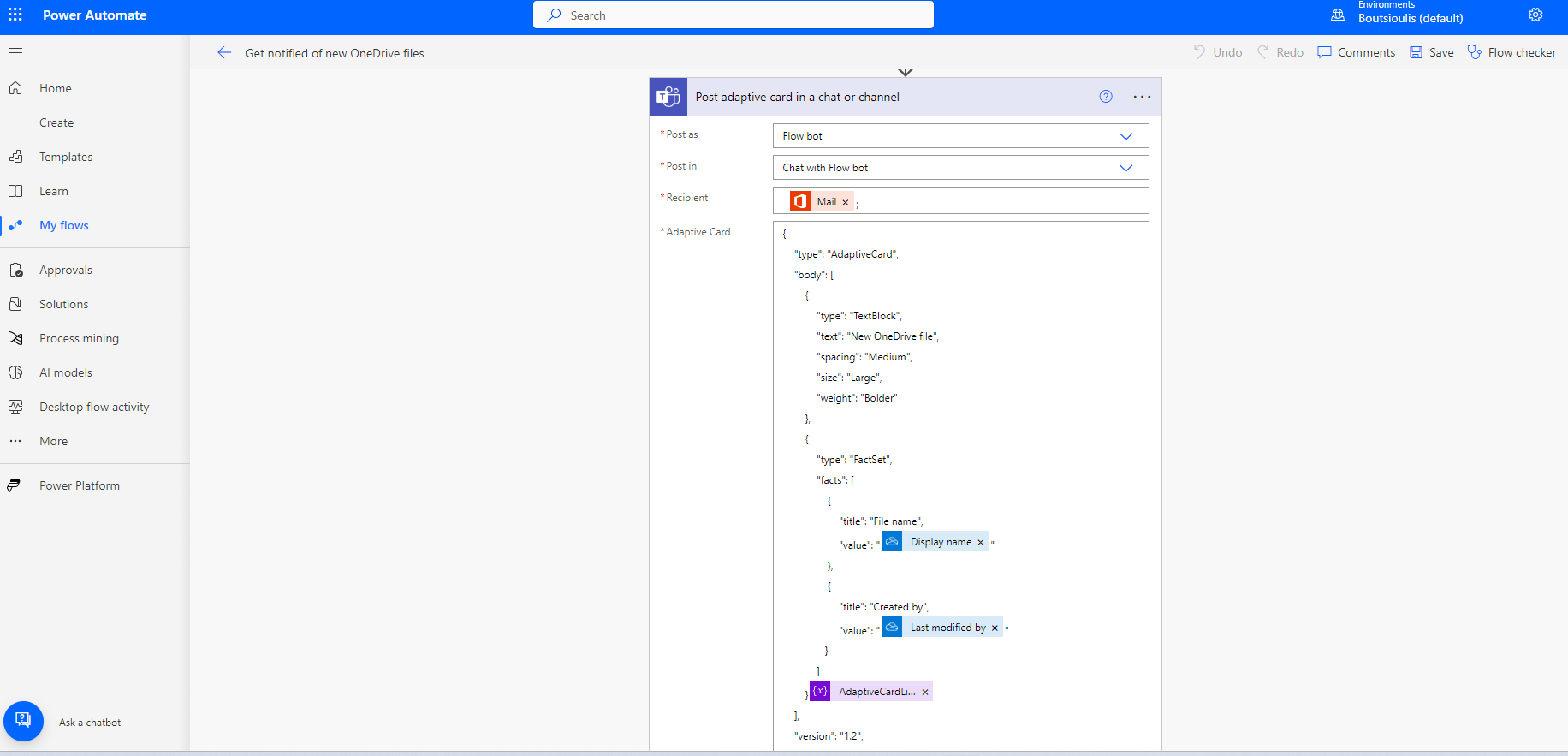
In the next action box, the adaptive card is created and posted to the user
The next step is to save the changes in automate
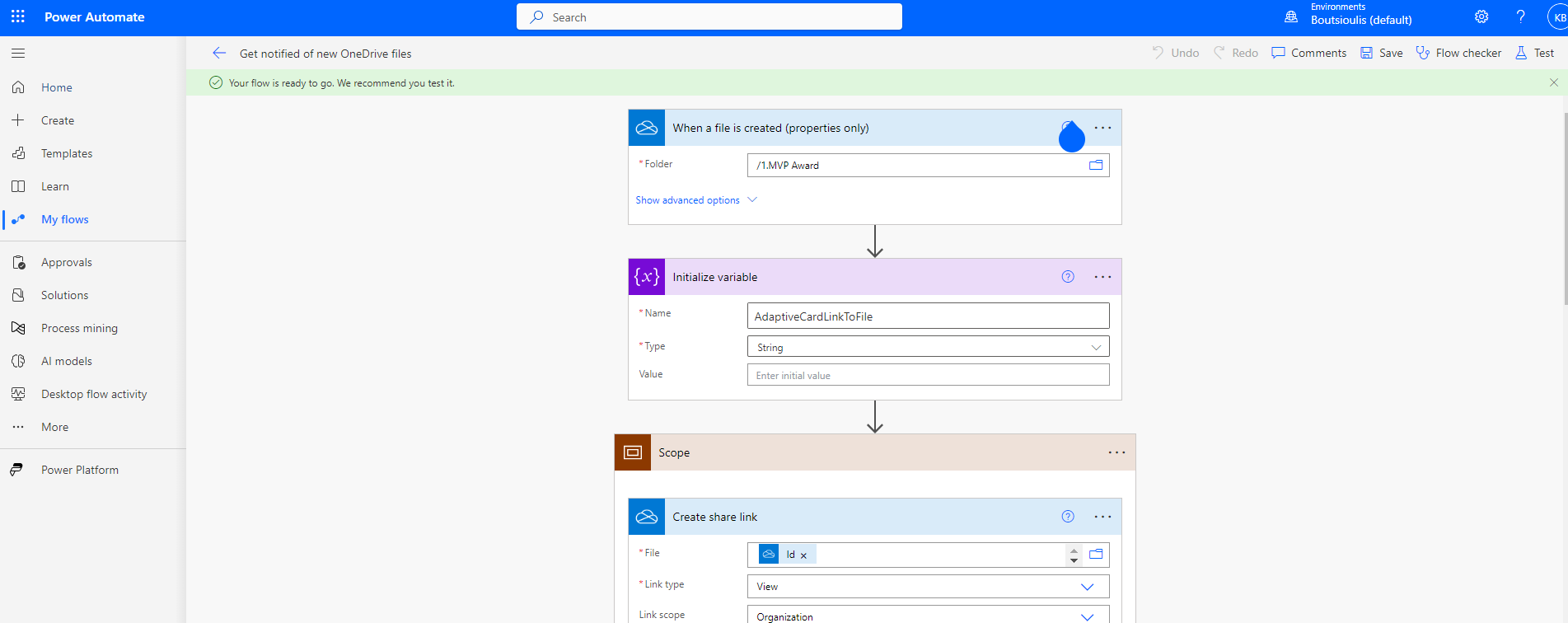
And if the changes have been successfully saved to make a test for the proper functioning of automate and this has to be done manually
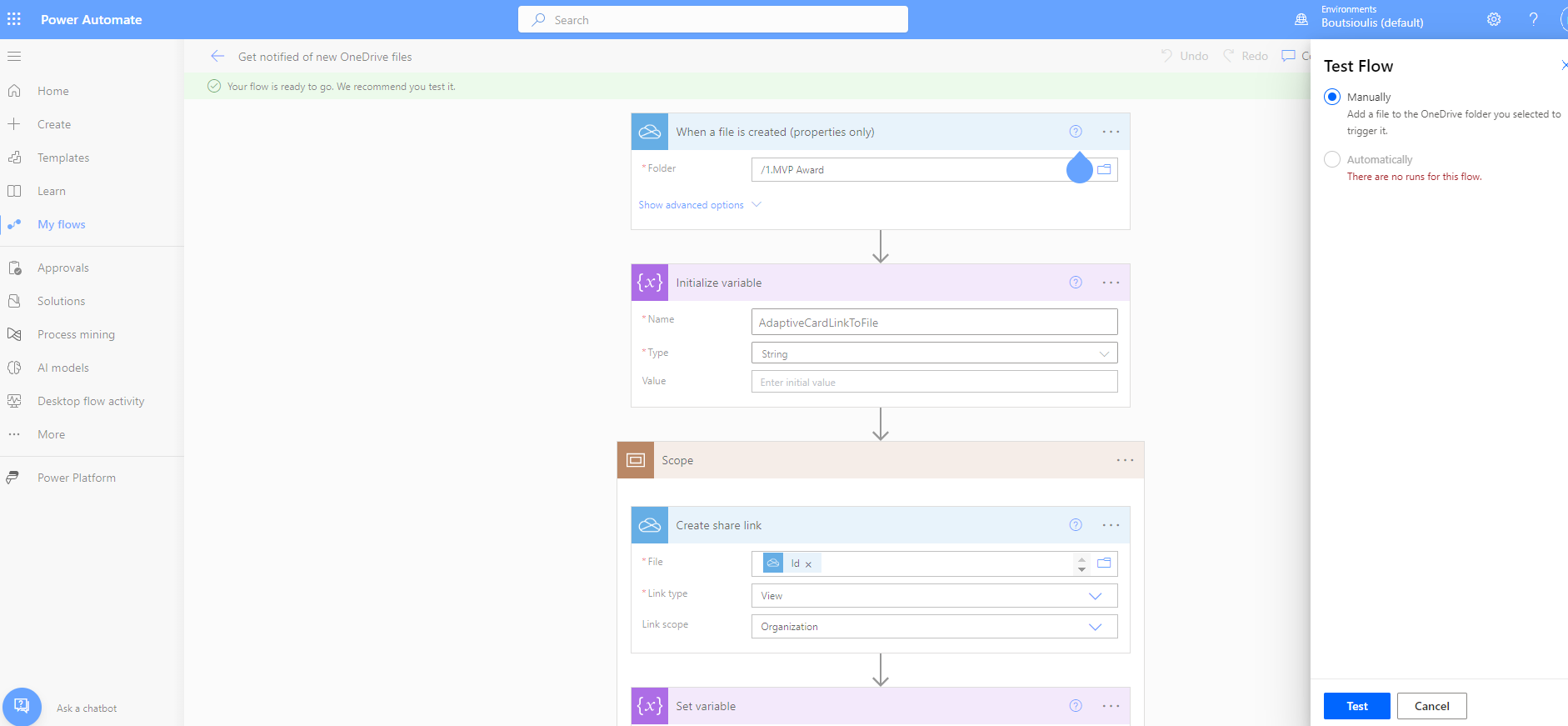
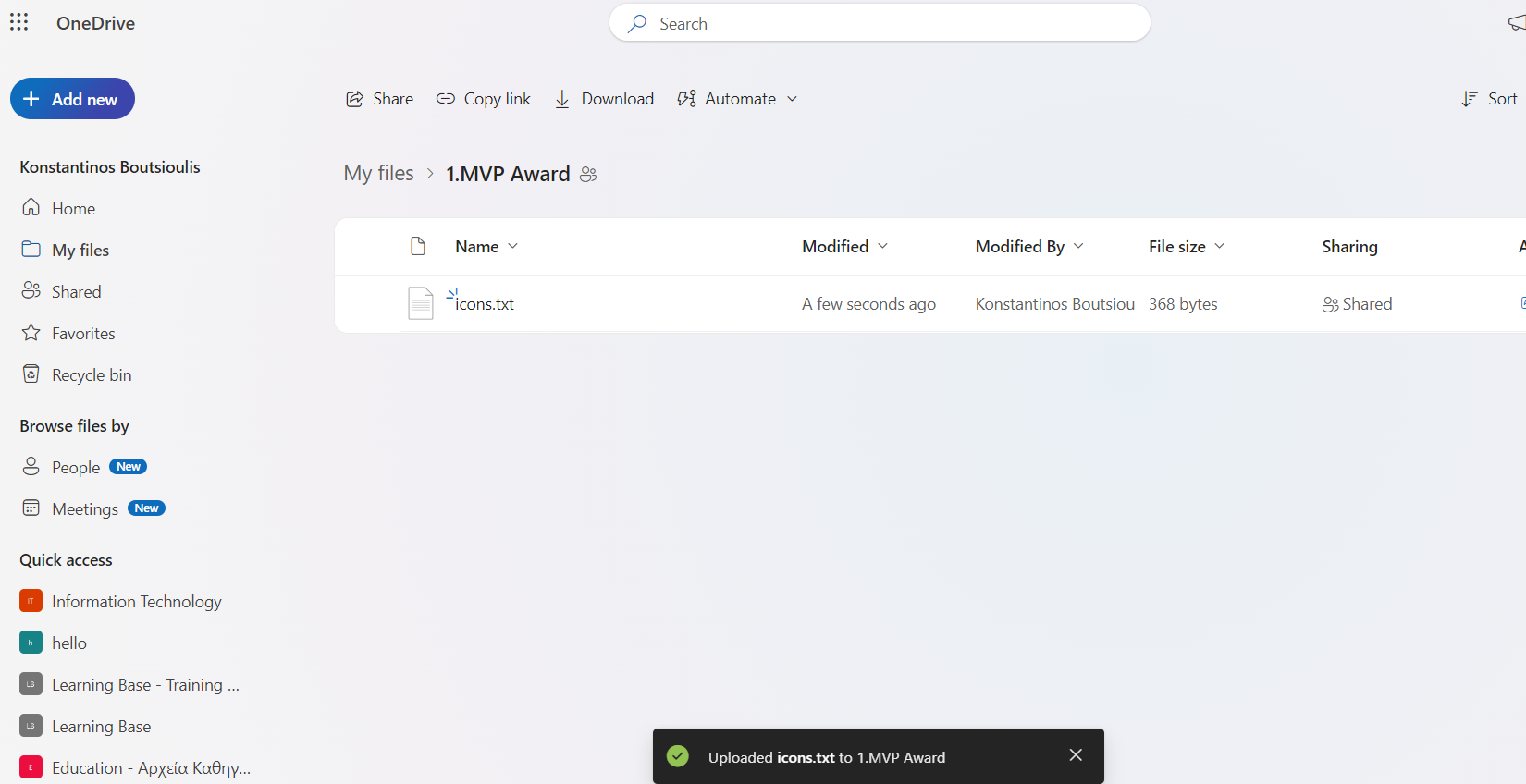
Go to the MVP Award folder in your OneDrive and upload an icons.txt file
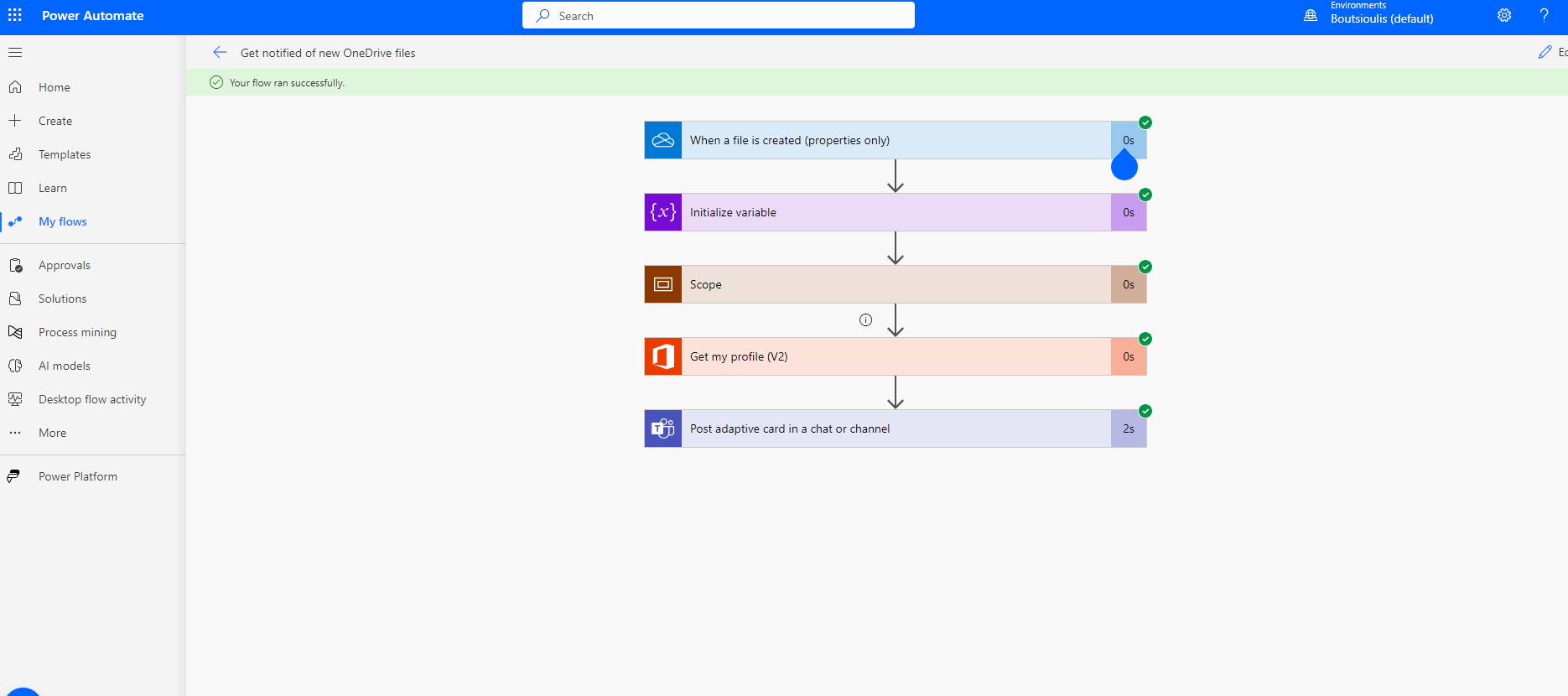
As you can see, the automate runs normally without any problems
And in the Teams messages the power automate as you can see sends an adaptive card in which it has the title New OneDrive File and some information like the name of the file and the creator of the file
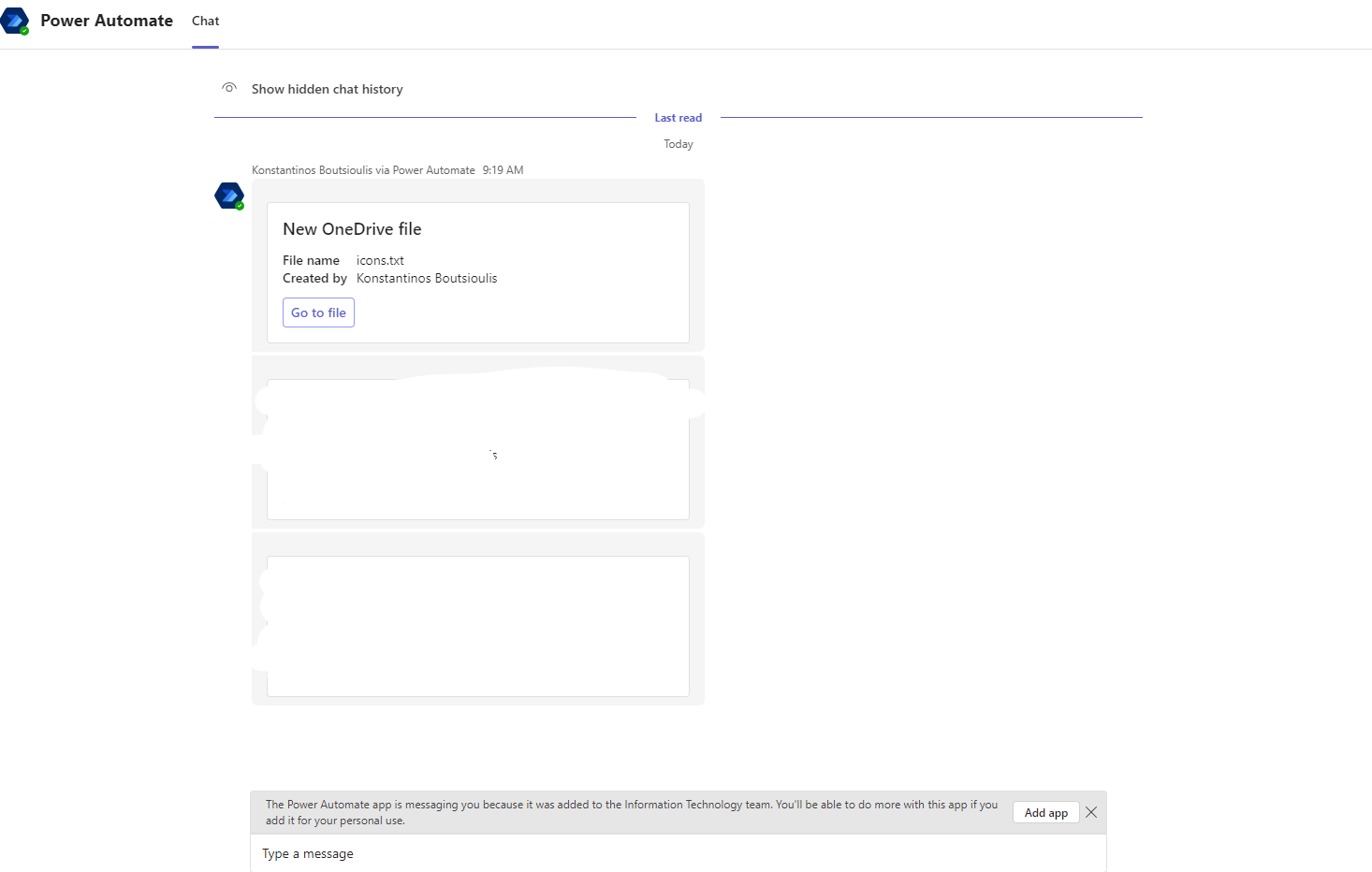
By clicking on the link you can go to the associated file So it's a very easy process, or as I said, it can be quite important for some individuals in our organization.
#OneDrive #PowerPlatform #PowerAutomate #SharePoint #technology #microsoft #PowerApps #digitaltransformation #cloud #mvpbuzz #m365Visit Archives below to find more articles about Microsoft technologies on Modern Workplace