
Free Material
Find hereMore than 150 Articles about Microsoft Technologies on Modern Workplace
Official Site
Microsoft Most Valuable Professional M365 Apps & Services
Microsoft Most Valuable Professional Business Applications
Consultant & Sr Cloud Solution Architect Modern Wokrplace
Find hereMore than 150 Articles about Microsoft Technologies on Modern Workplace
04 October 2023
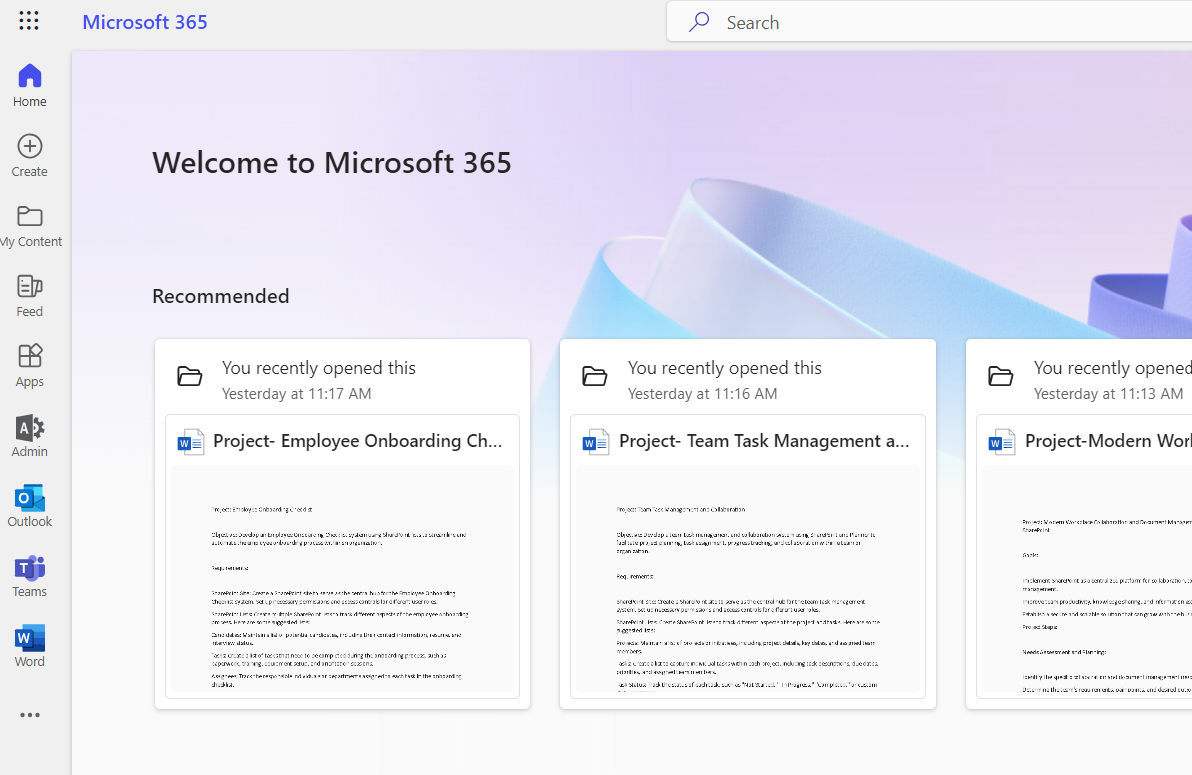
In today's article we will see how to add or remove a series of webparts within a page in sharepoint First we need to have an active subscription and of course we need to have access and the appropriate permissions to manage the page
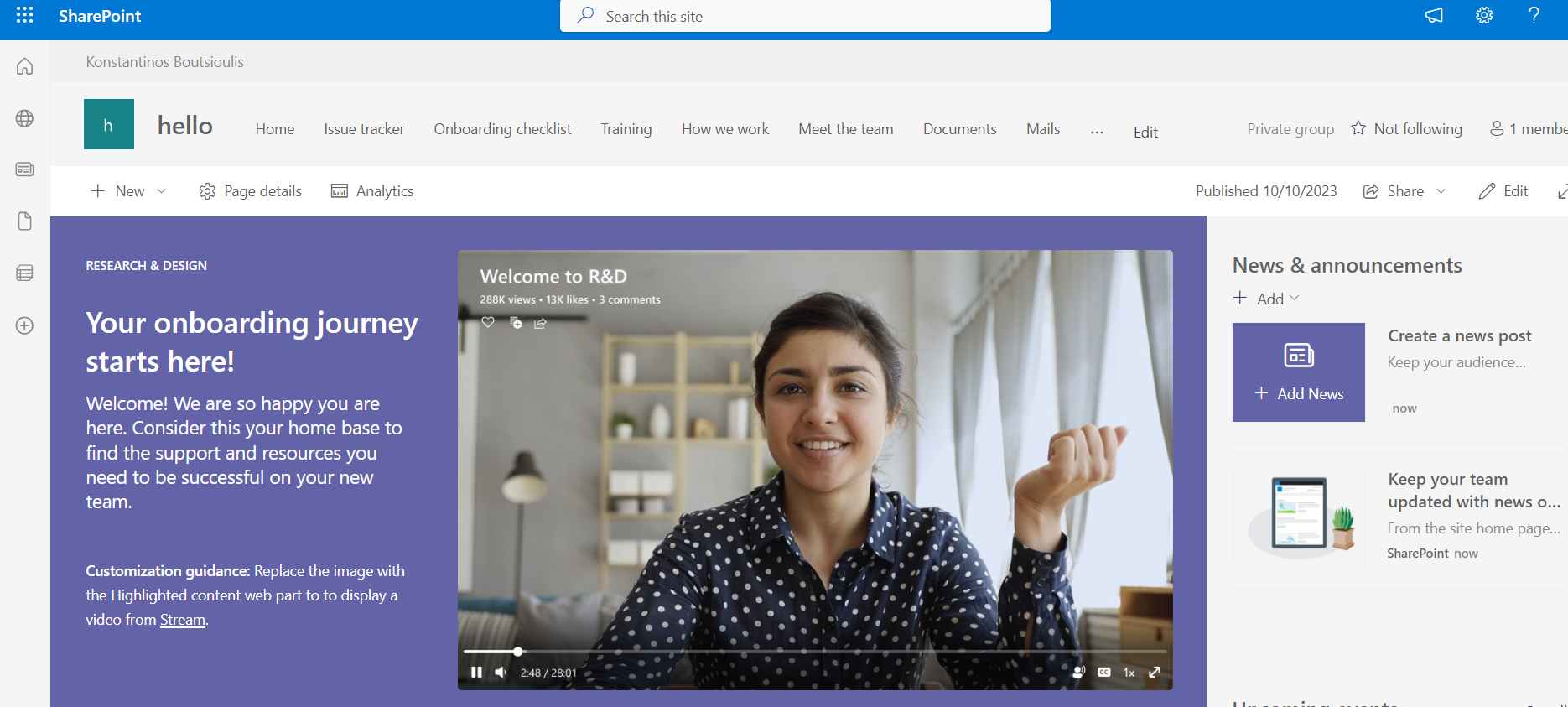
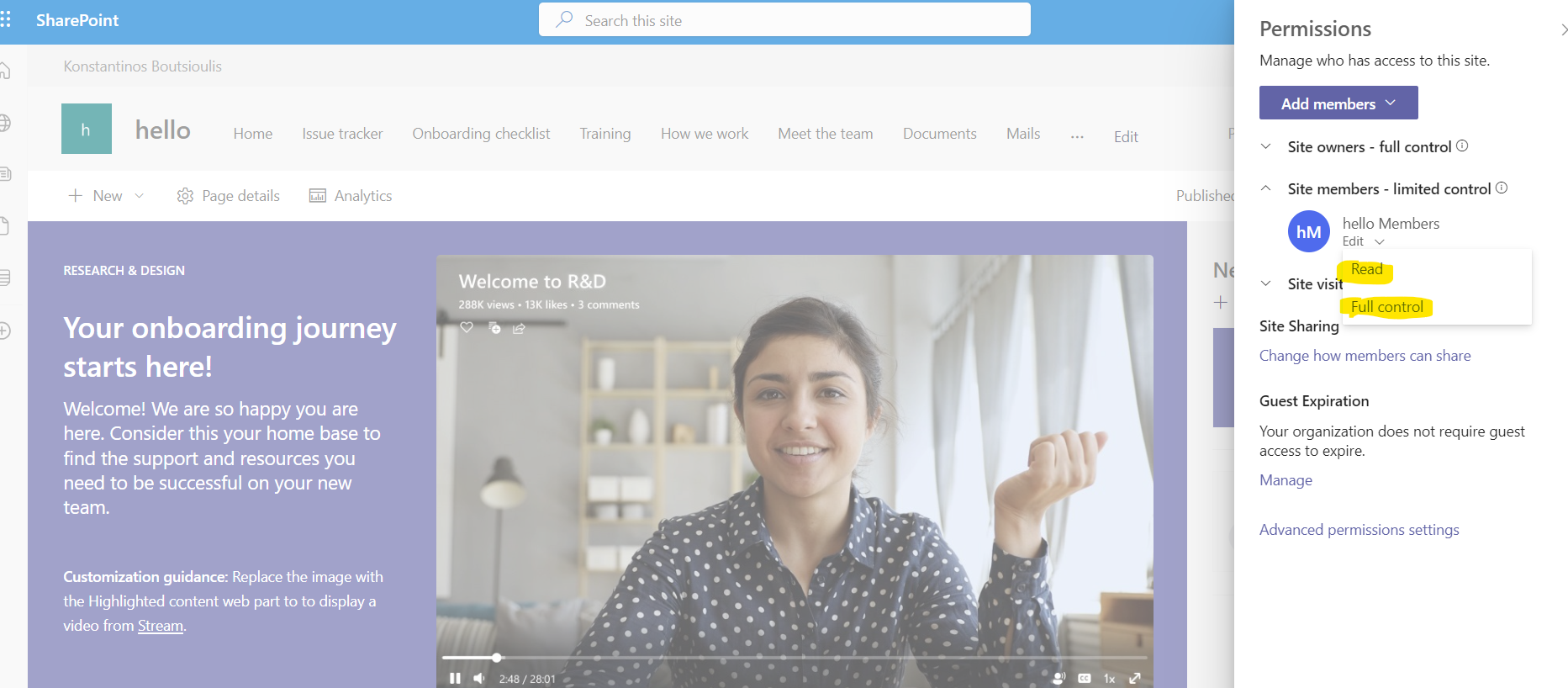
In addition we will have to check the permissions to see if we have the ability to edit this page
We can have the permissions either through the group (if the site has been created by creating a team) or on the site itself as a user or SharePoint Group
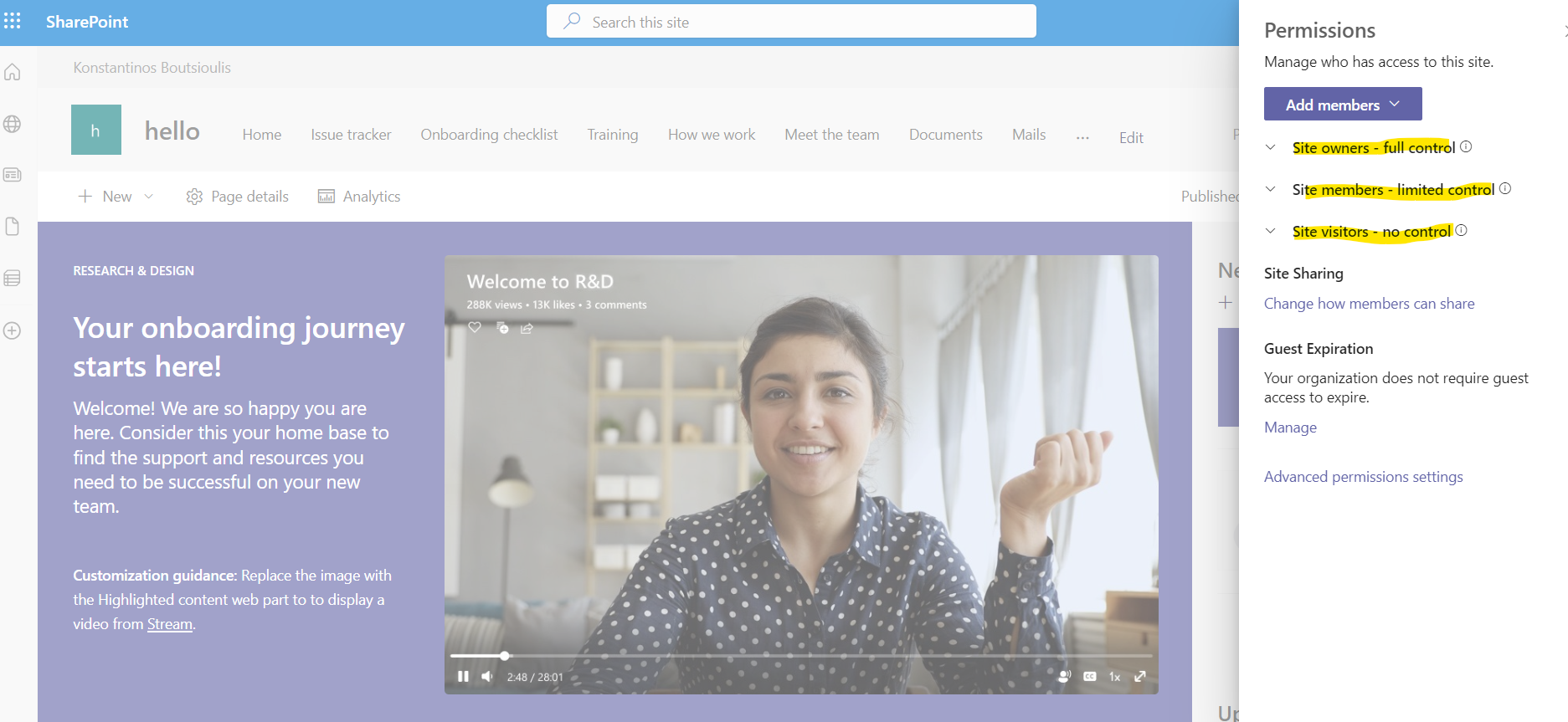
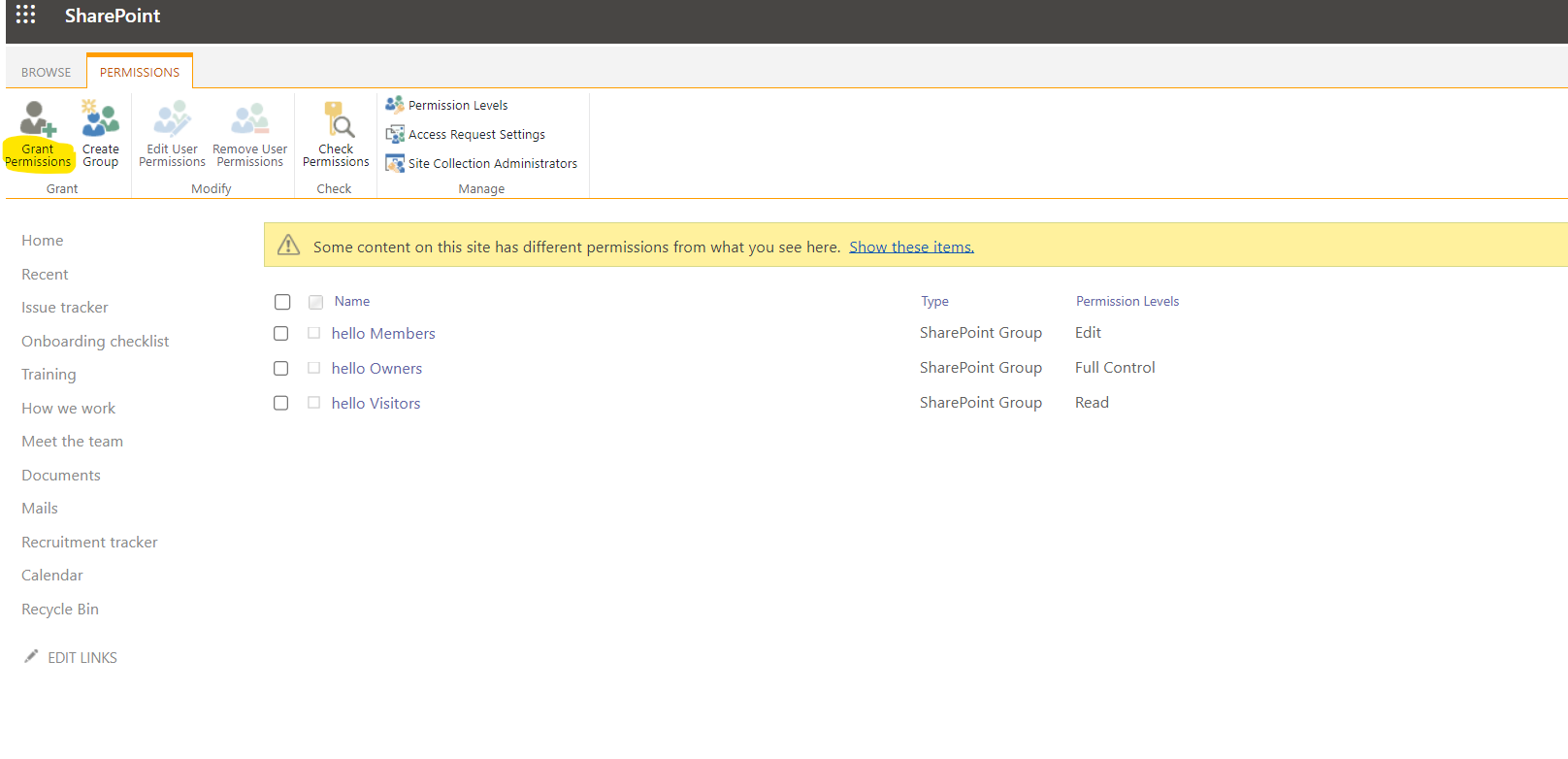
As you can see from the Teams group I can change the permissions to view from edit for team members which will have an effect on the management of the site And from SharePoint Permission I can also change the permissions for the management of the page
Since we now have the appropriate permissions I will have to select edit in the top right of the page
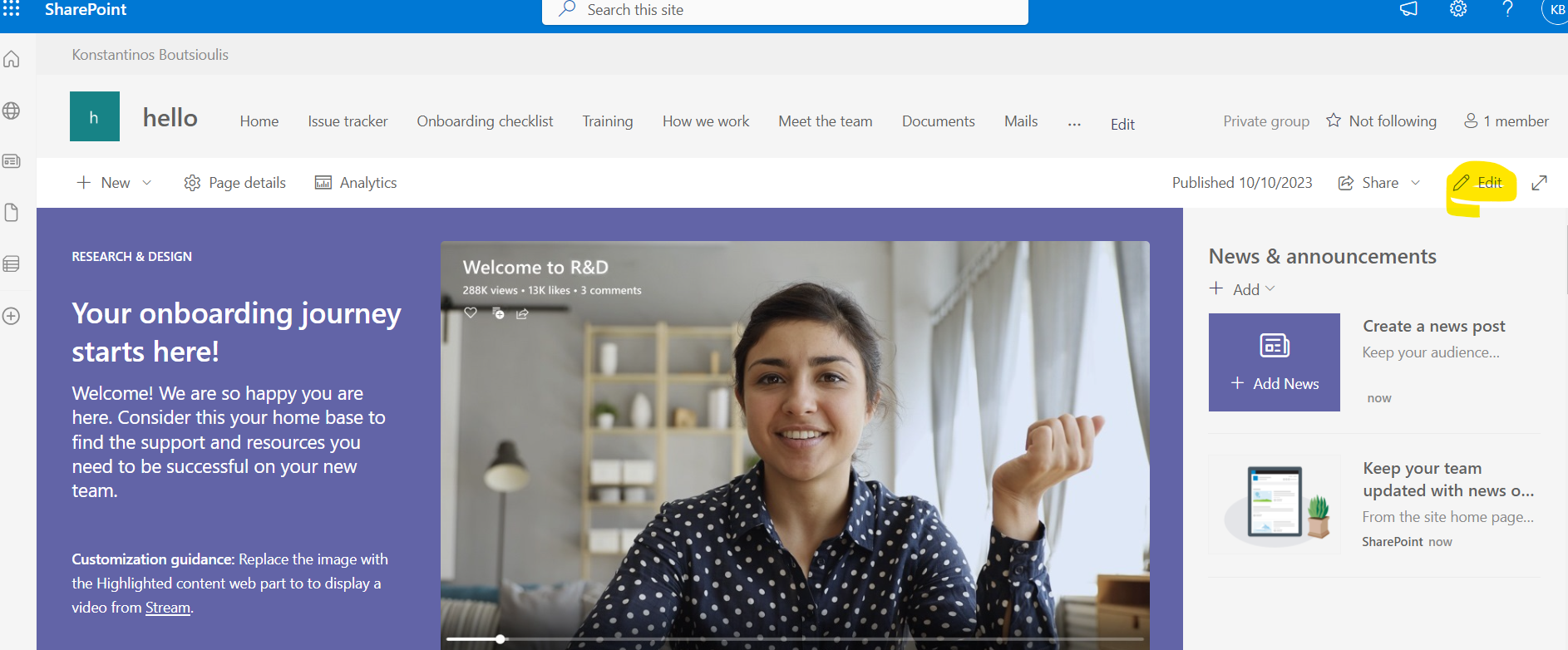
And as you can see, the ability to intervene in the layout of the page either at section level or at webpart level is finally activated
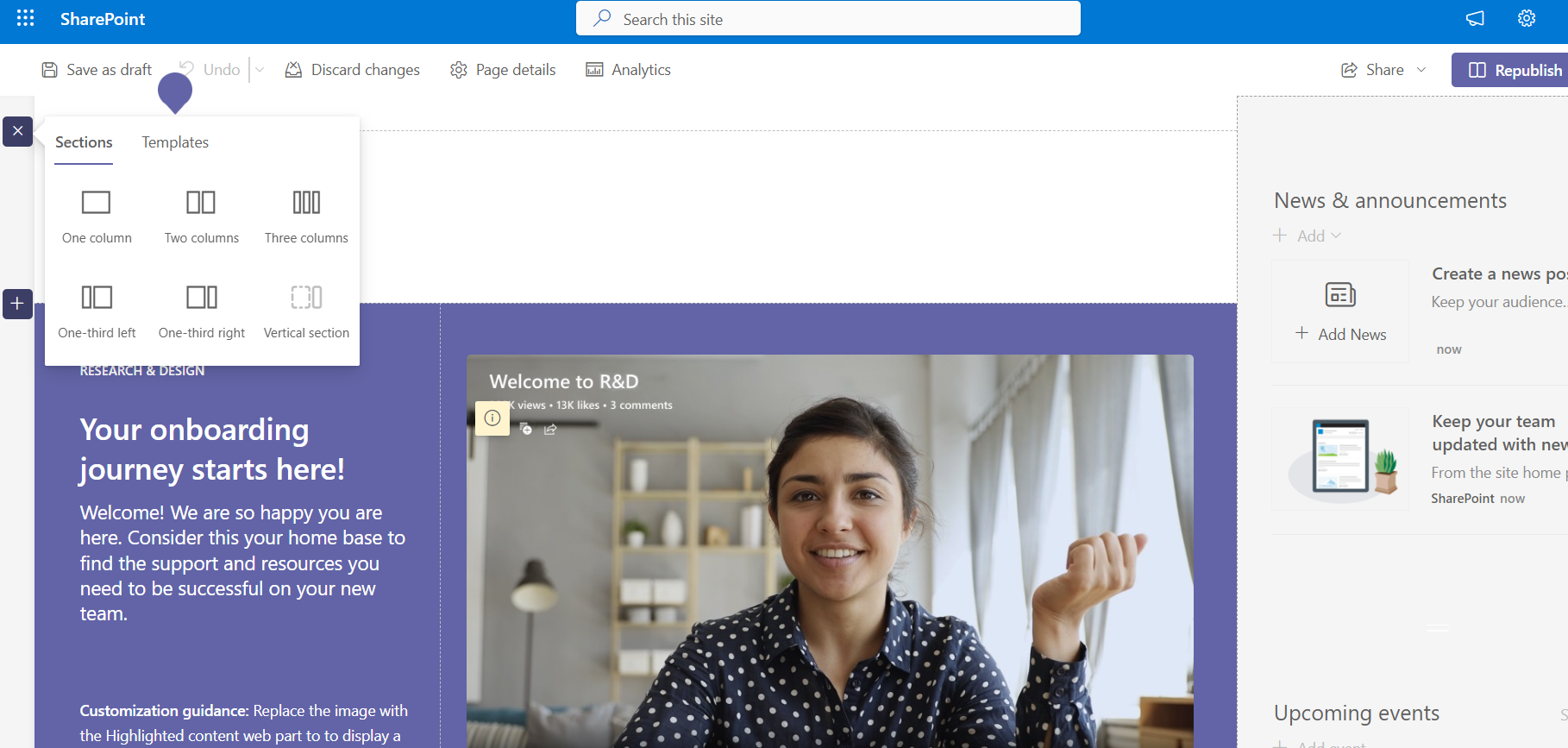
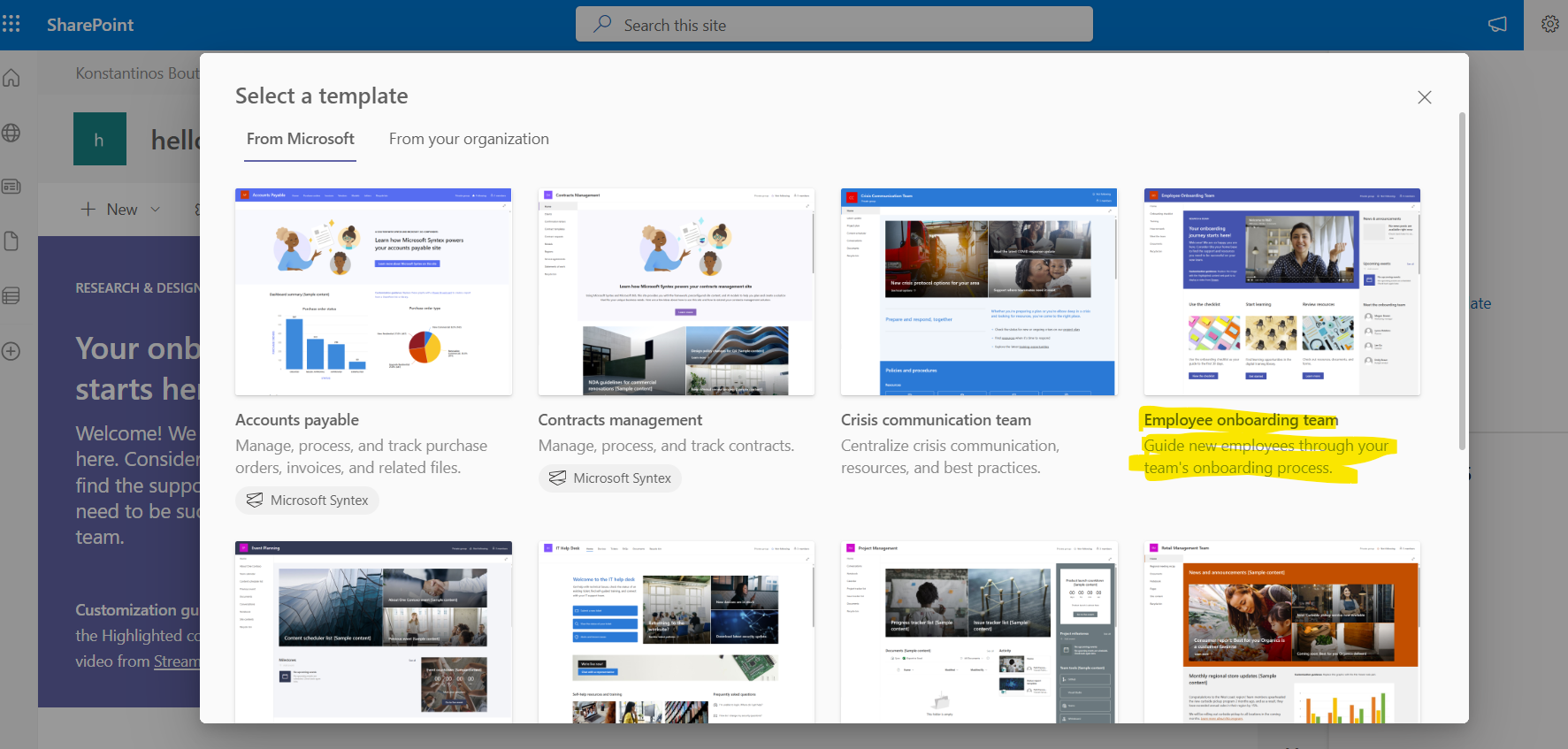
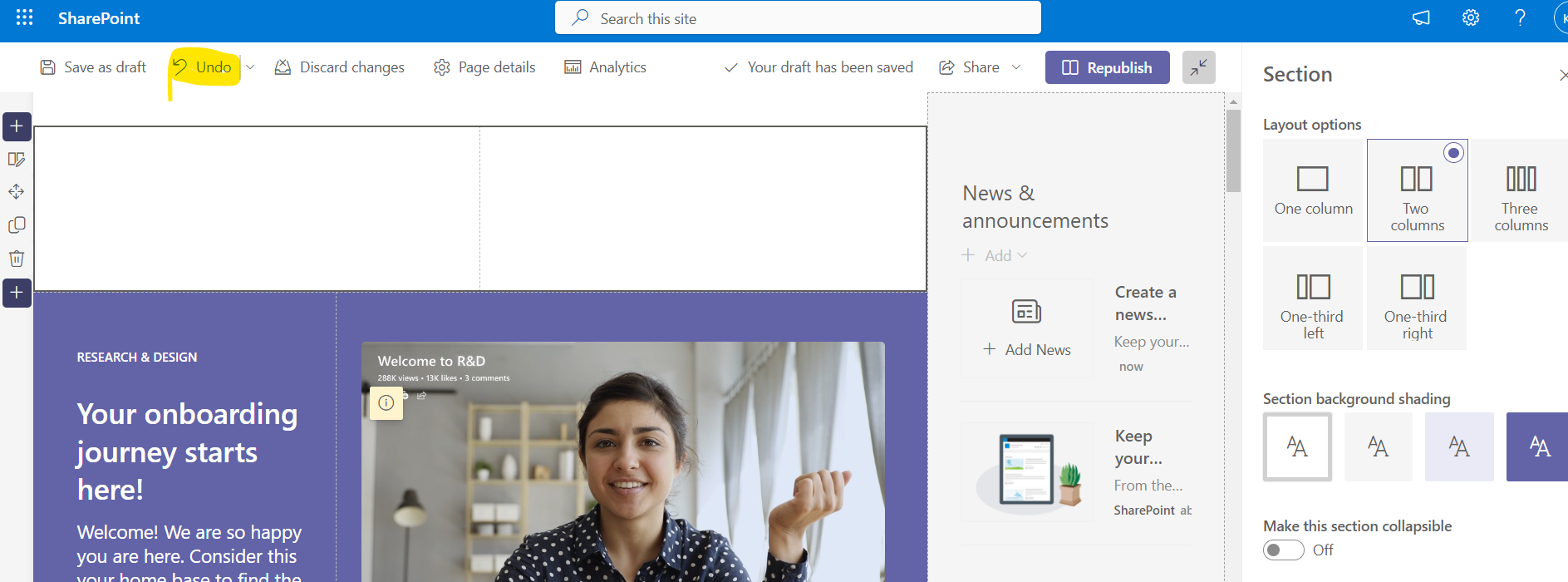
Let's start with the sections as you can see I now have the possibility to choose from a set of available sections or to choose one of the available layouts so that I can configure a layout as I wish each time
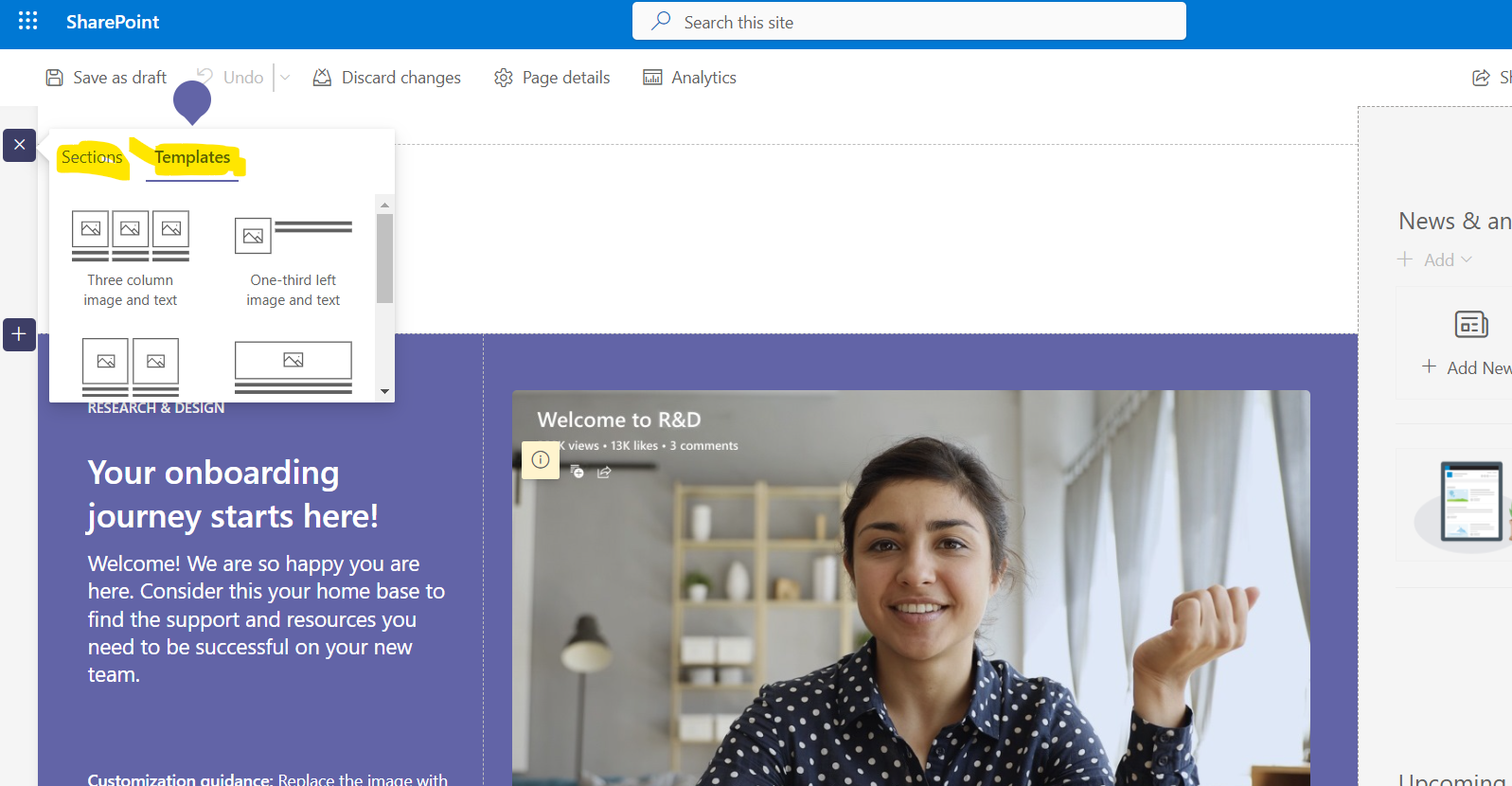
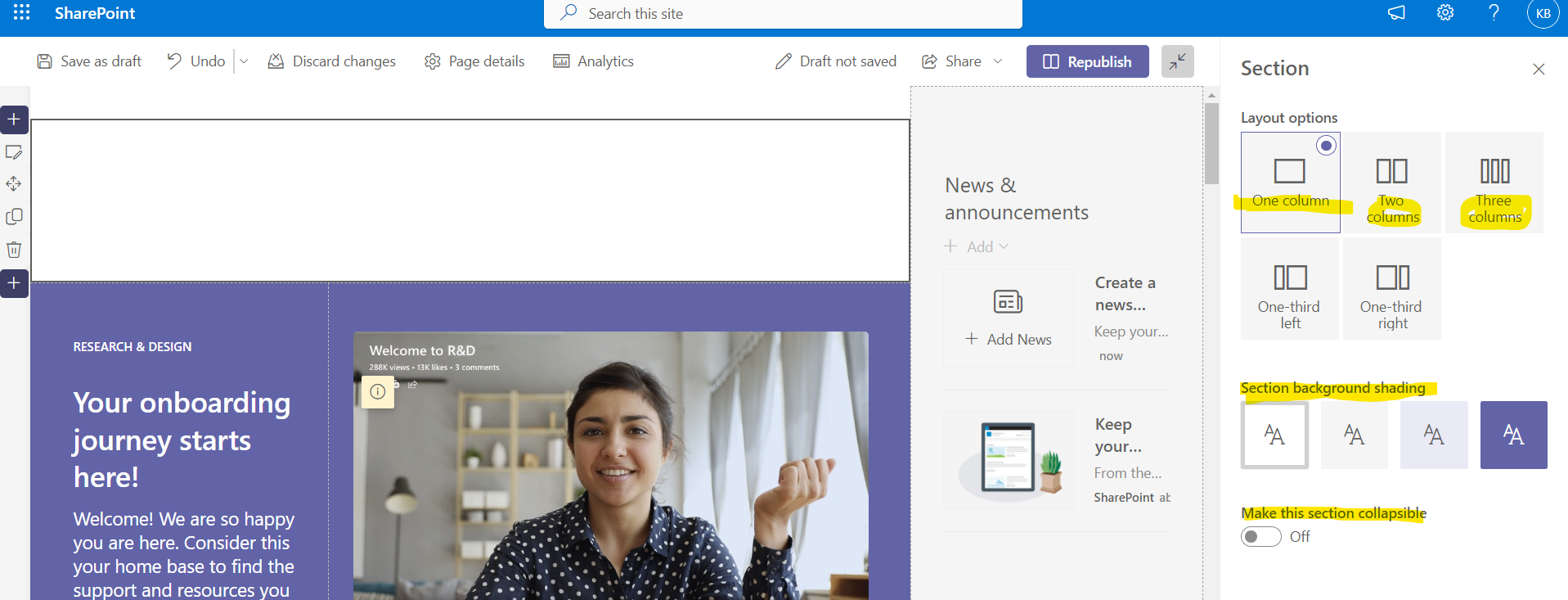
Once a layout is selected by clicking on the + button, a pop-up menu appears in which I can select a webpart from the available ones, which are arranged in groups
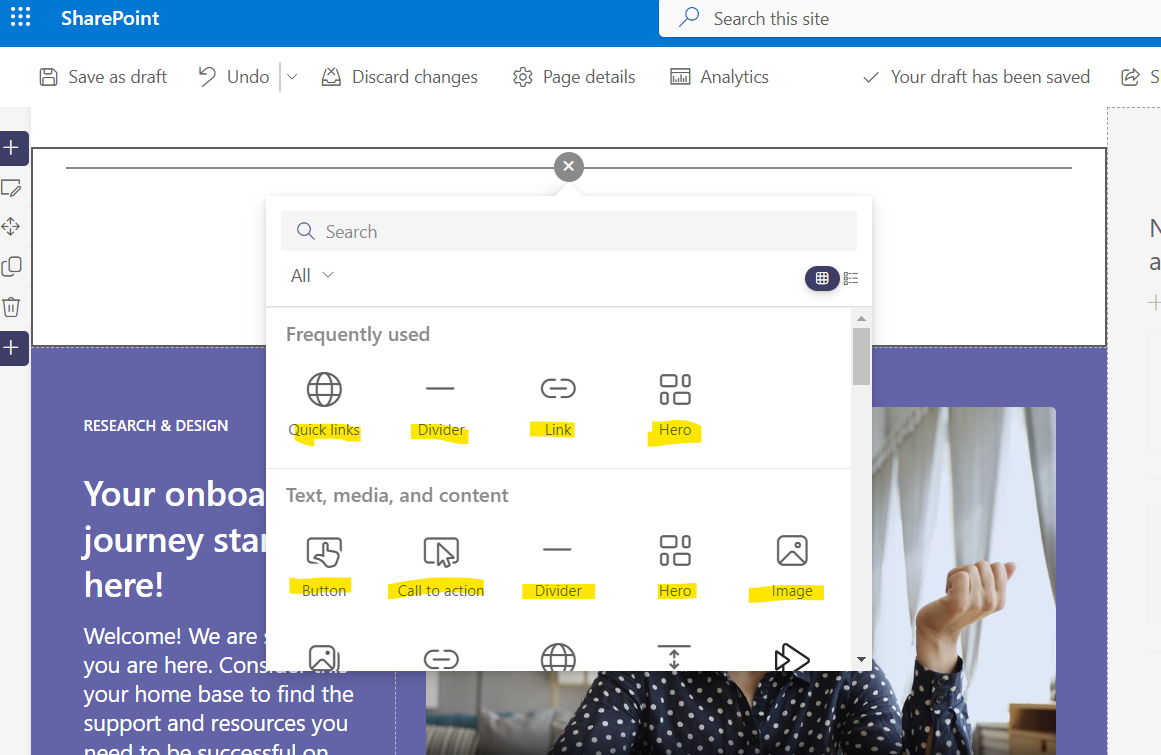
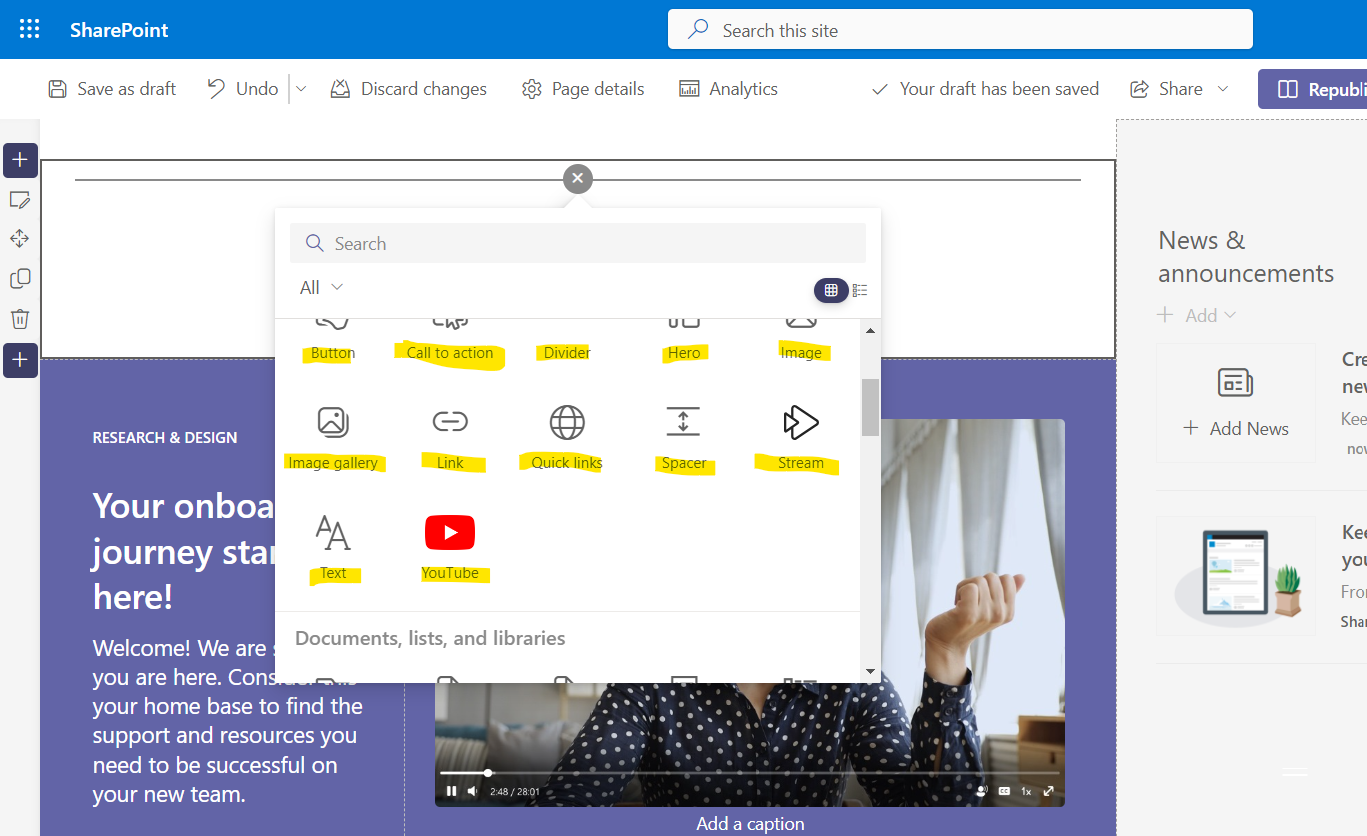
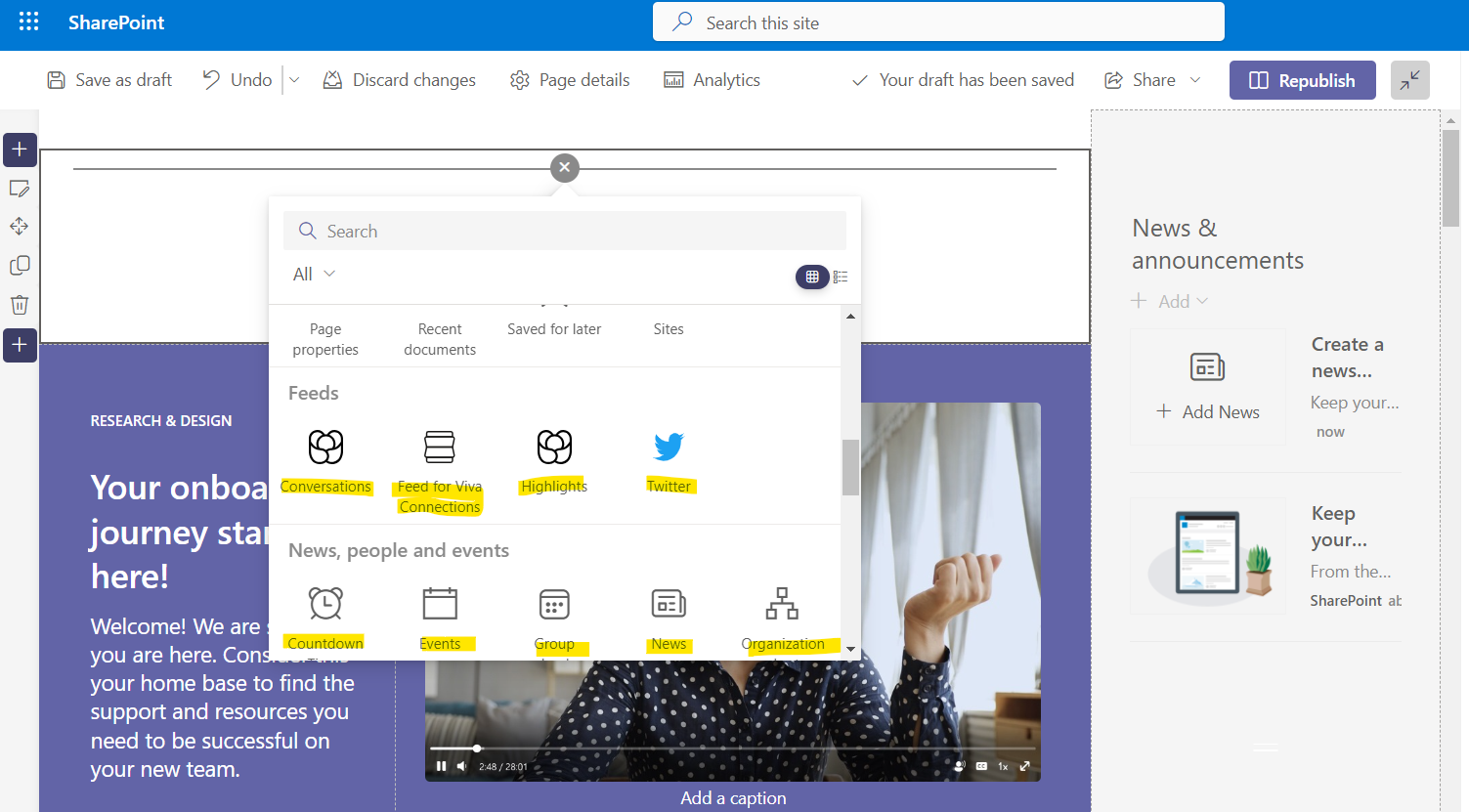
Each of these will be discussed in detail in future articles Once I have chosen which of the available webparts I want I can finally configure the page as I originally imagined Note here that one can apply theme and then with the process I mentioned above can edit the theme both at the layout level and at the webparts level
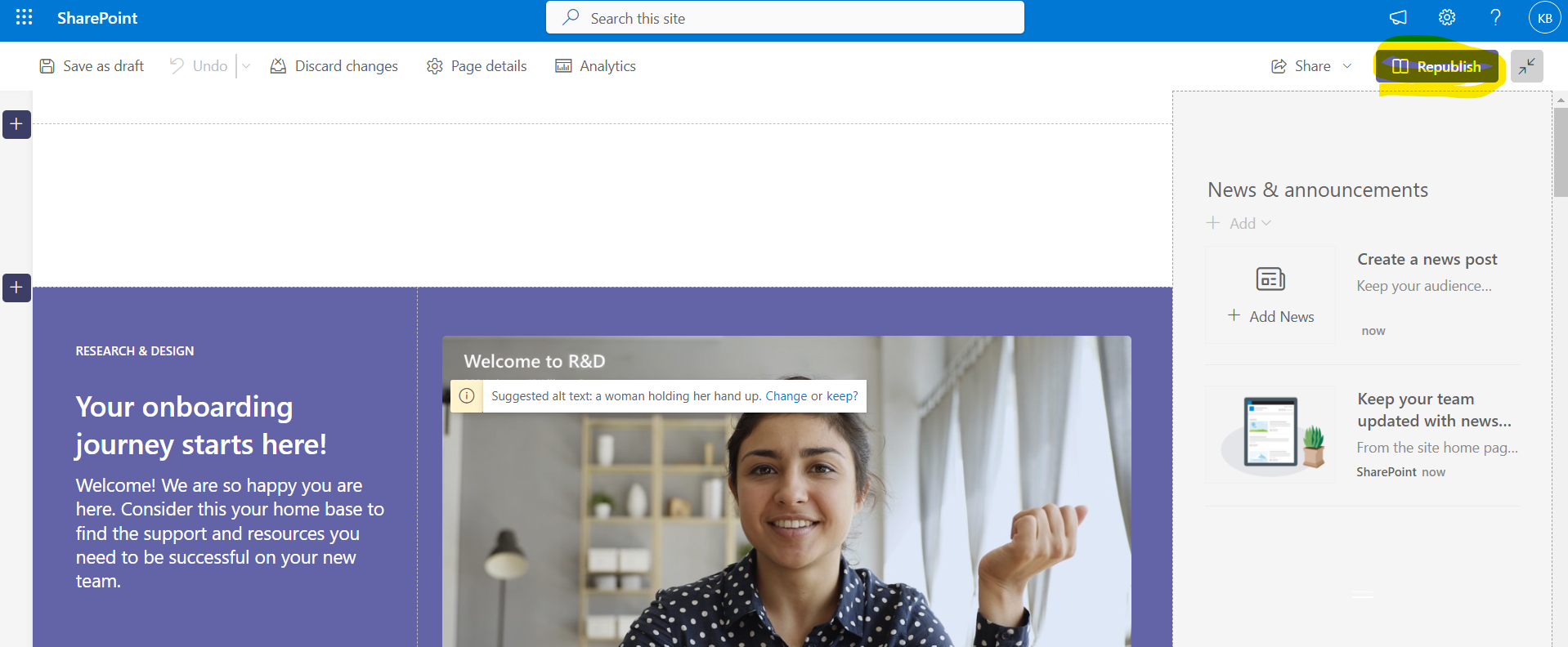
It would be good to republish at regular intervals during the editing of the page
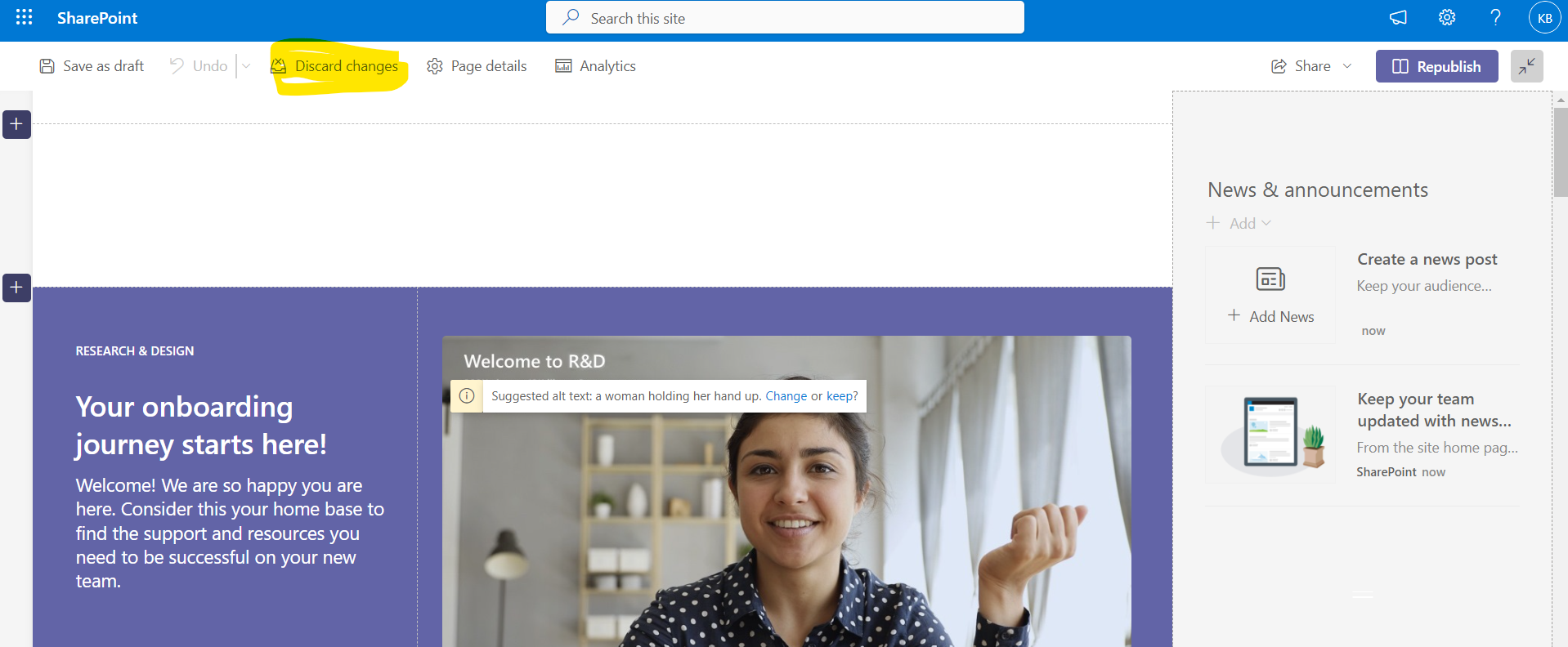
It is also possible to discard changes that I may have edited
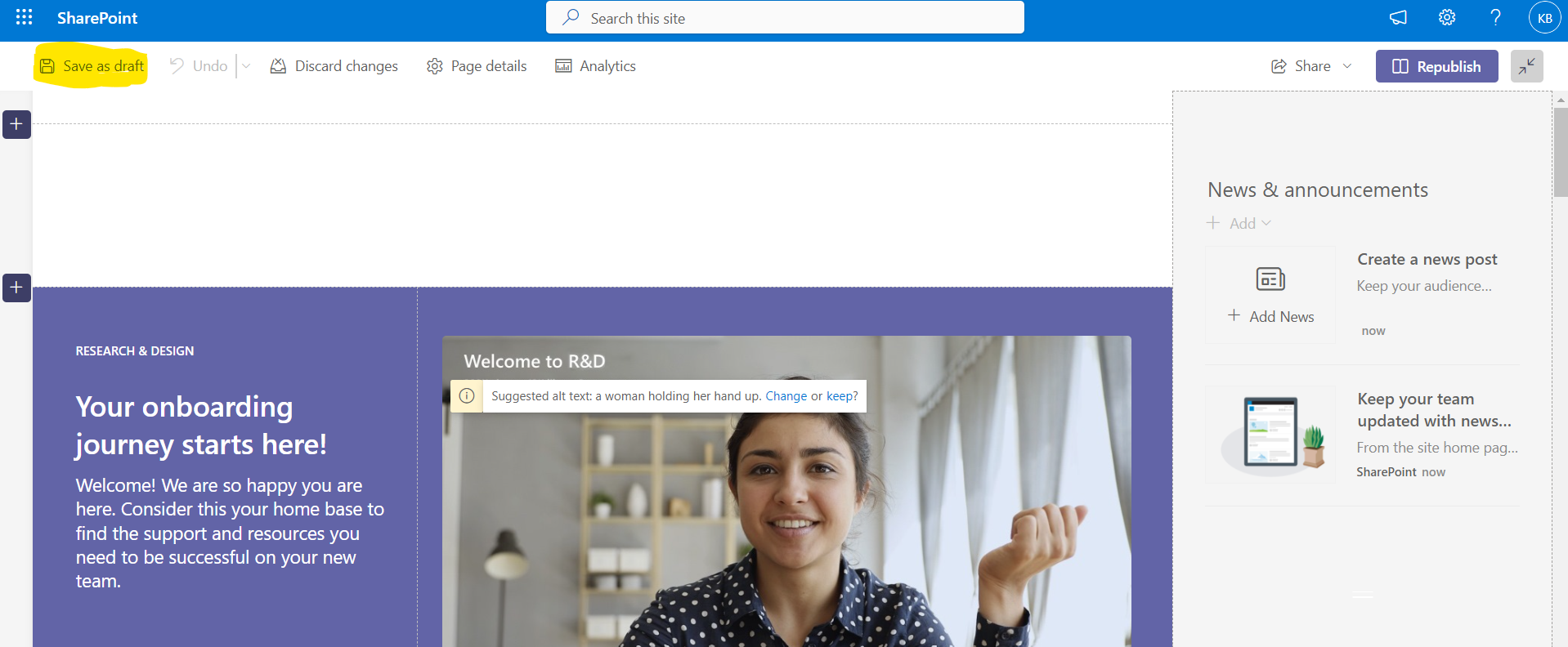
I also have the possibility to save as draft the page during editing and publish it at a later time
Finally there is still a possibility to undo some of the changes I have made with undo
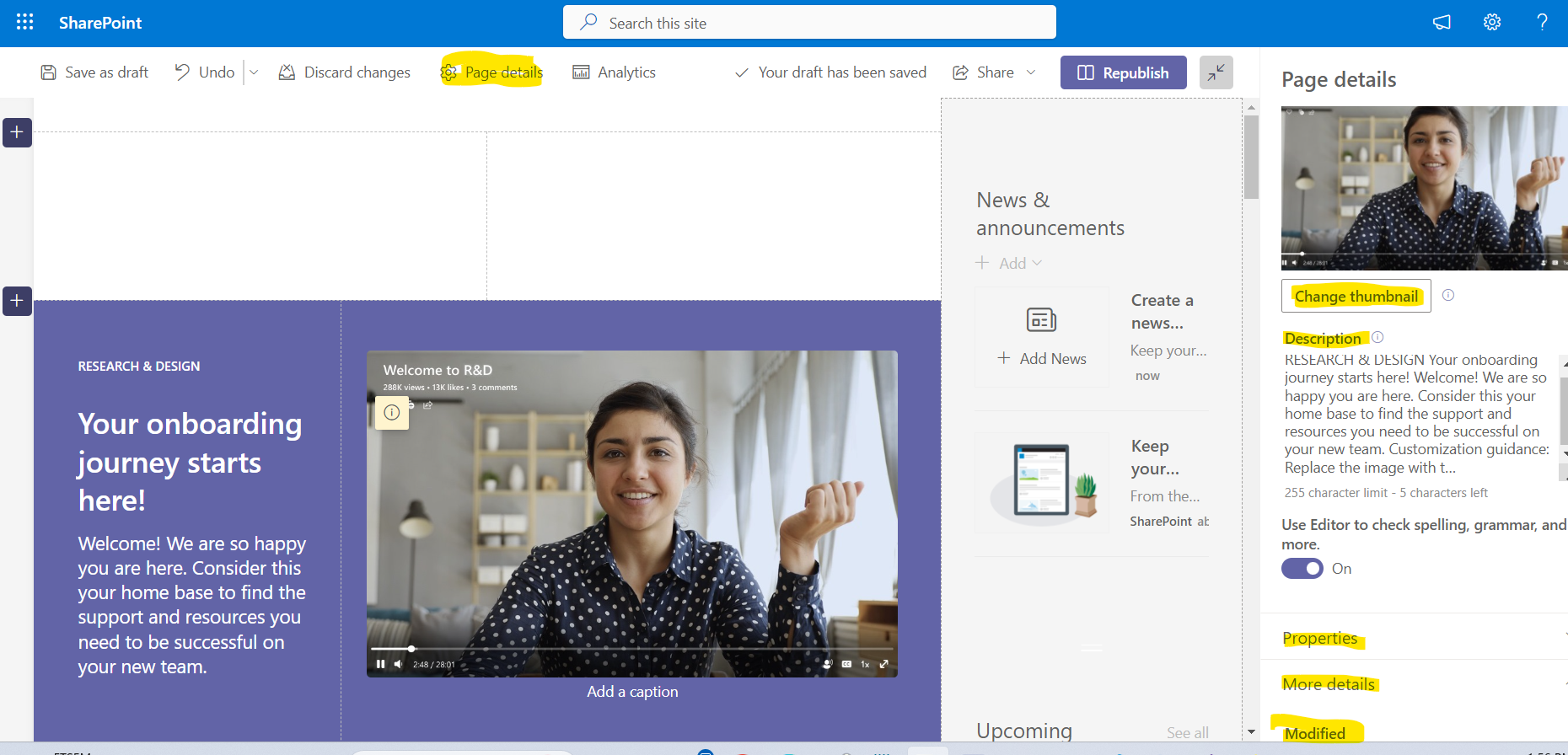
As you can see above in the center of the page there is also the page details through which I can get information about the page such as the description of the page or change the page icon . At the end of the side right column there is also the possibility to see when the page was last edited
 #Viva
#VivaLearning
#SharePoint
#technology
#microsoft
#Onedrive
#digitaltransformation
#cloud
#mvpbuzz
#m365
#Viva
#VivaLearning
#SharePoint
#technology
#microsoft
#Onedrive
#digitaltransformation
#cloud
#mvpbuzz
#m365
Visit Archives below to find more articles about Microsoft technologies on Modern Workplace