
Free Material
Find hereMore than 150 Articles about Microsoft Technologies on Modern Workplace
Official Site
Microsoft Most Valuable Professional M365 Apps & Services
Microsoft Most Valuable Professional Business Applications
Consultant & Sr Cloud Solution Architect Modern Wokrplace
Find hereMore than 150 Articles about Microsoft Technologies on Modern Workplace
18 November 2023
In today's article we will see the right column and all the properties of an edit form in our application. Before I show you in a future article how to retrieve items and all the data inside the Items in my application it would be good to see one by one all the properties in the right column of the edit form We play with our active subscription data and back to the main page of M365
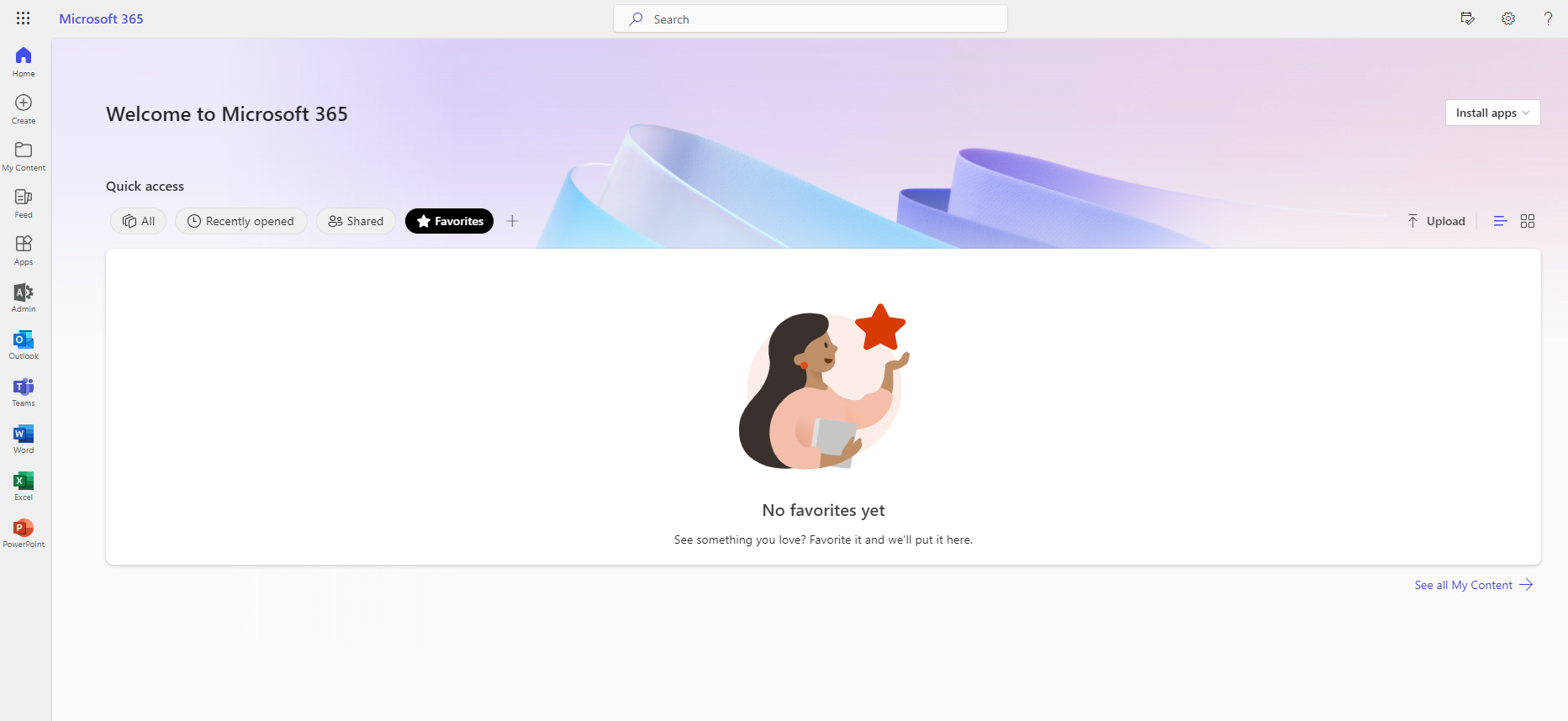
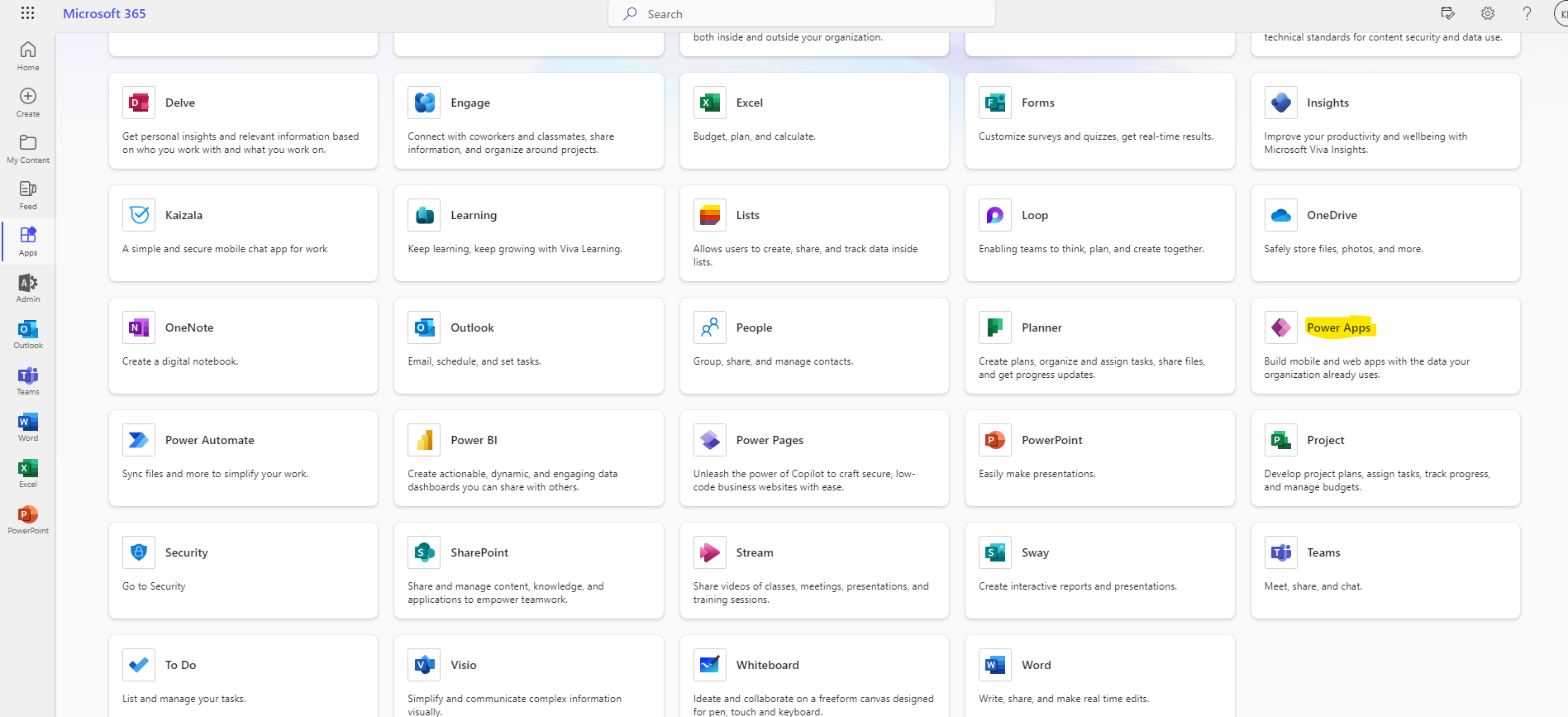
In the next step I select all apps and there I select Power Apps
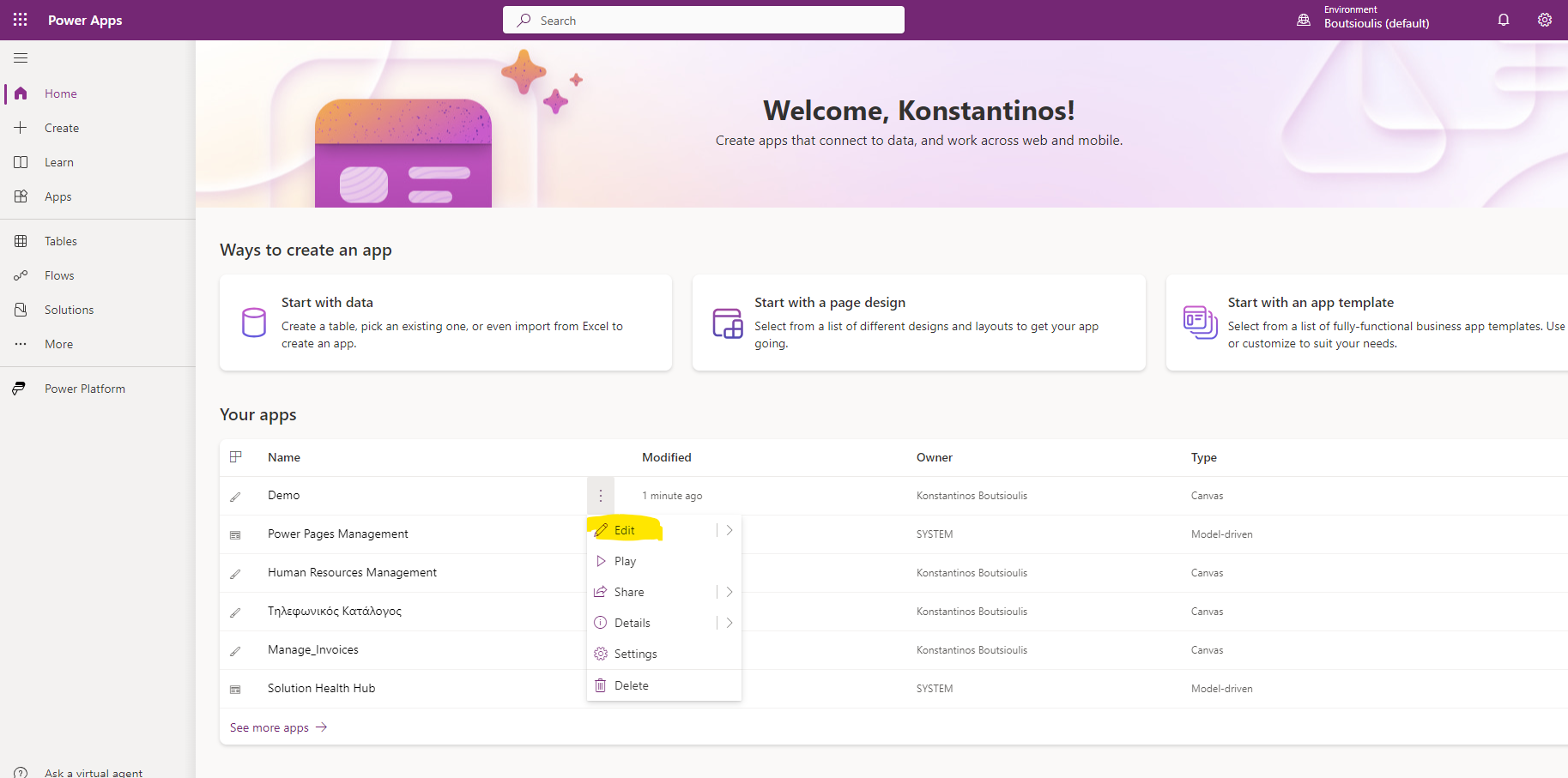
Once I have gone to the main page of power apps there I select my app and then by clicking on the 3 dots to the right of the app name in the pop up menu I select edit
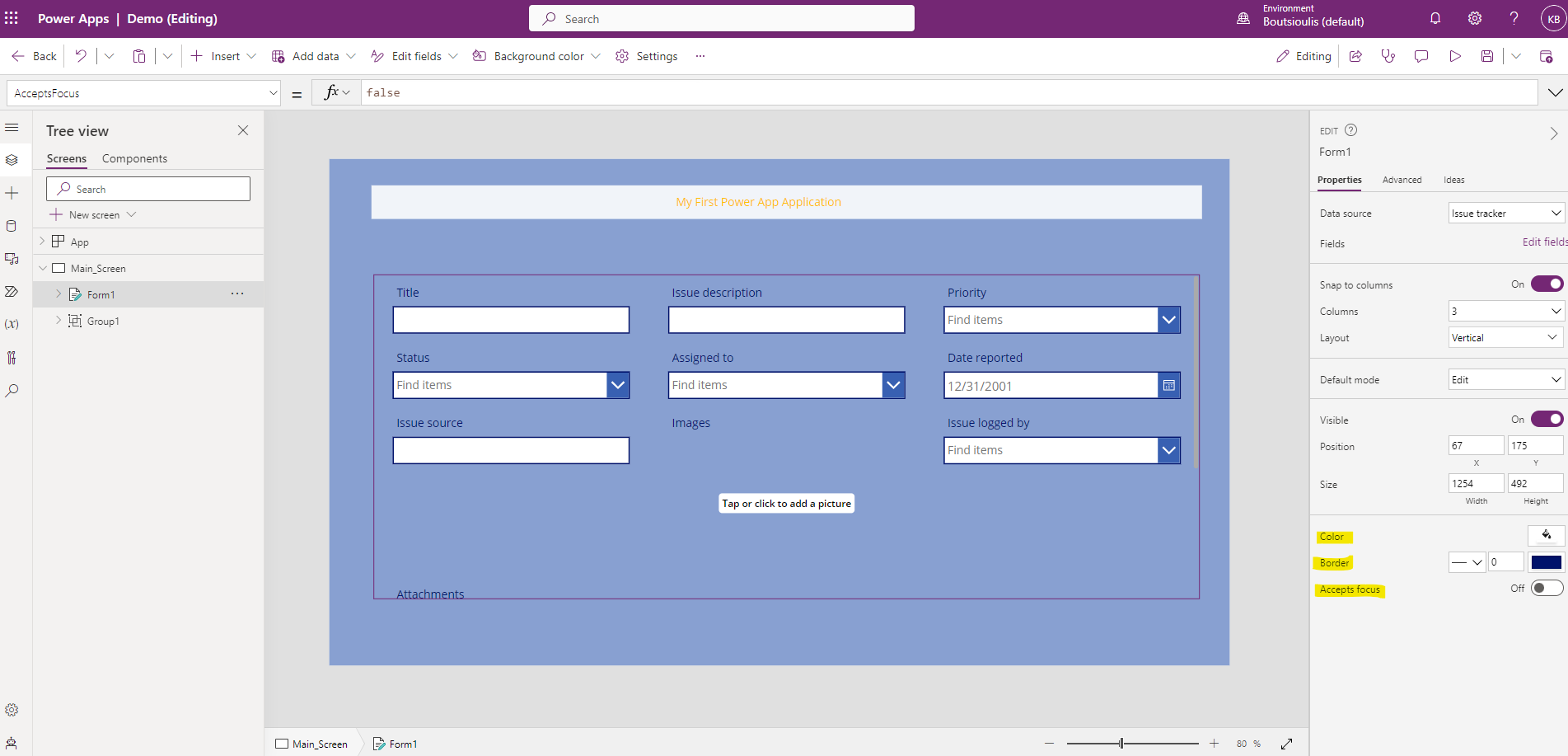
And I am back in my application where as I said earlier if I select the edit form frame the right side column with the properties opens
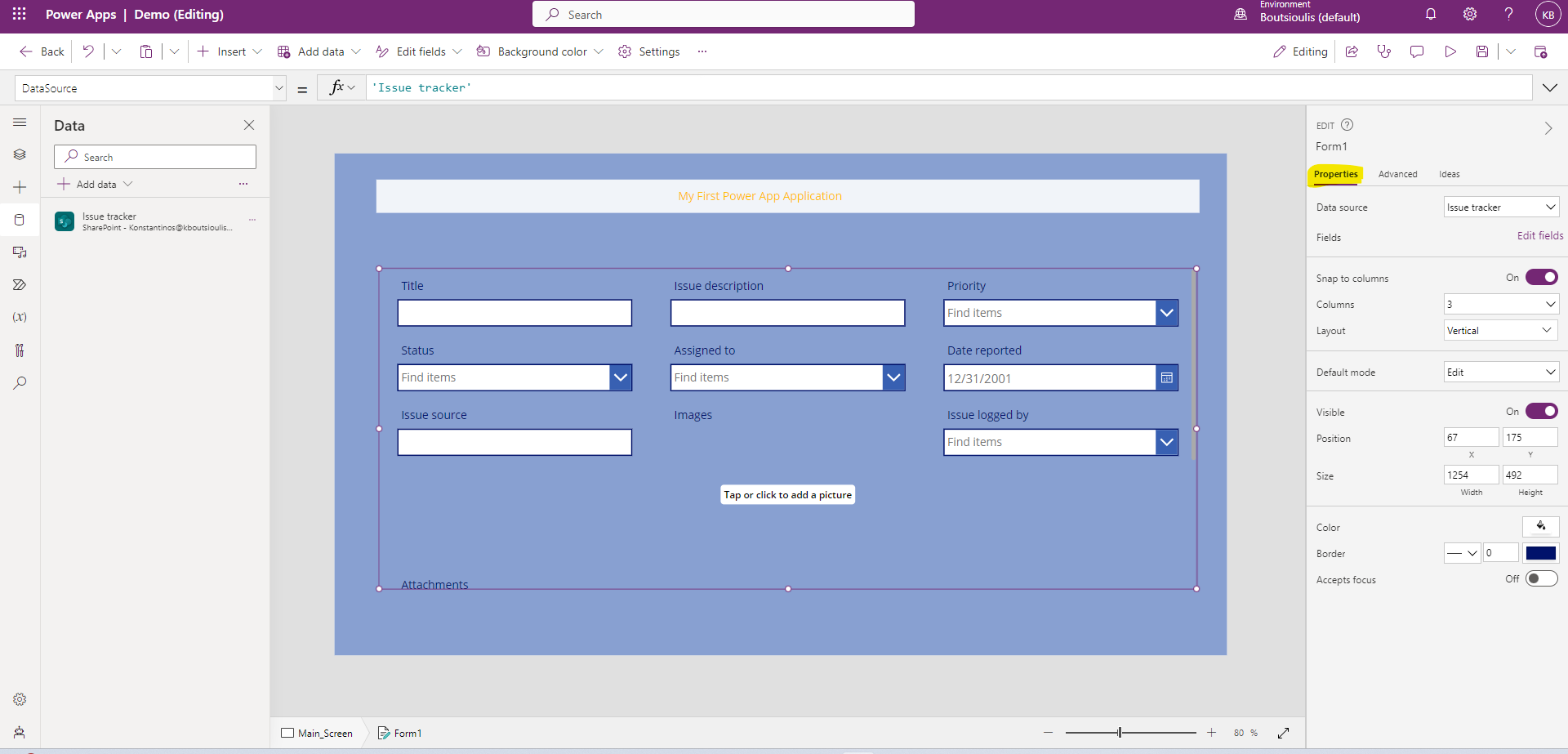
As I have mentioned before in another article the first option is the data source where I can select the source e.g. a list from SharePoint as long as I have made the connection with SharePoint first
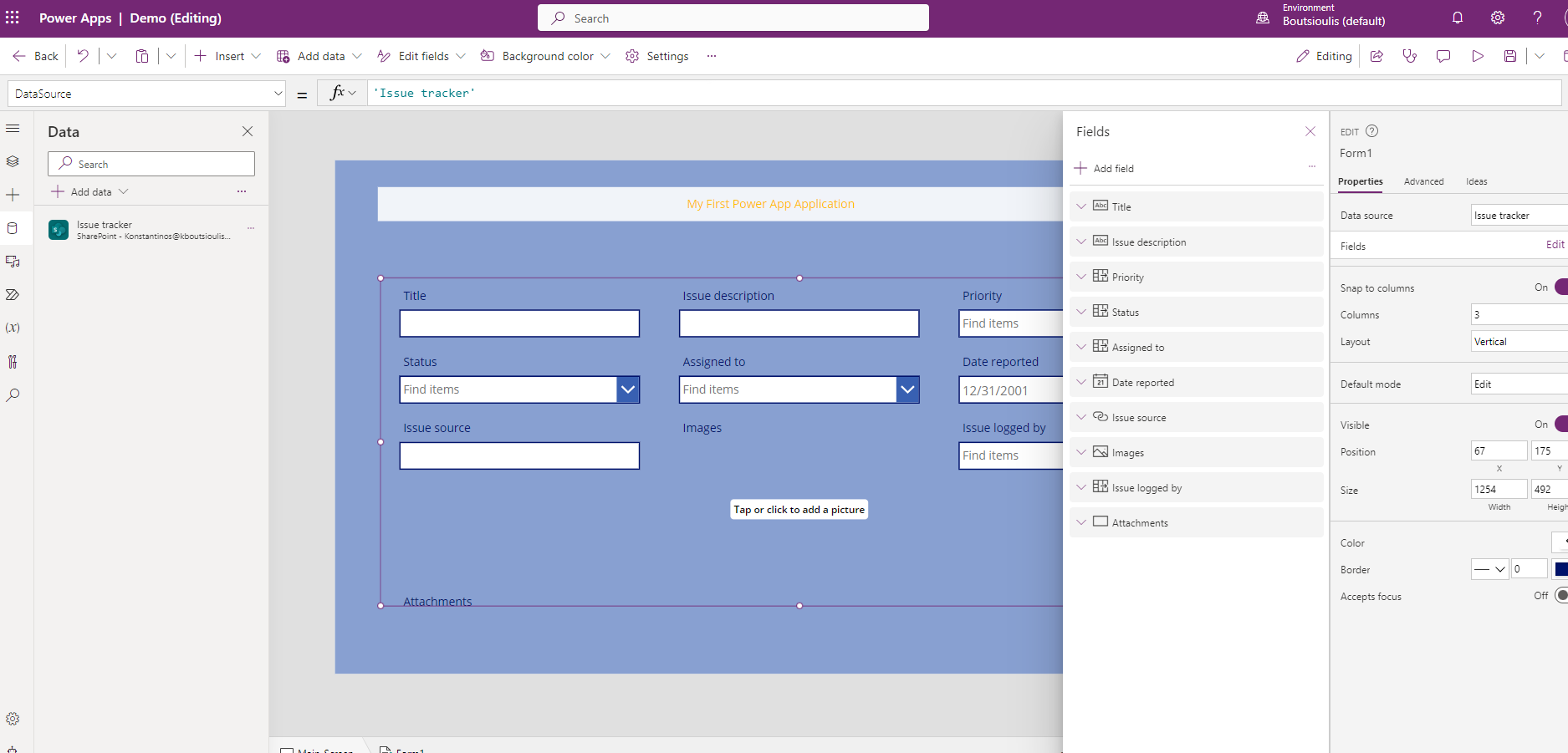
and of course the second field Fields which includes in edit fields the possibility to add or remove columns from my SharePoint list
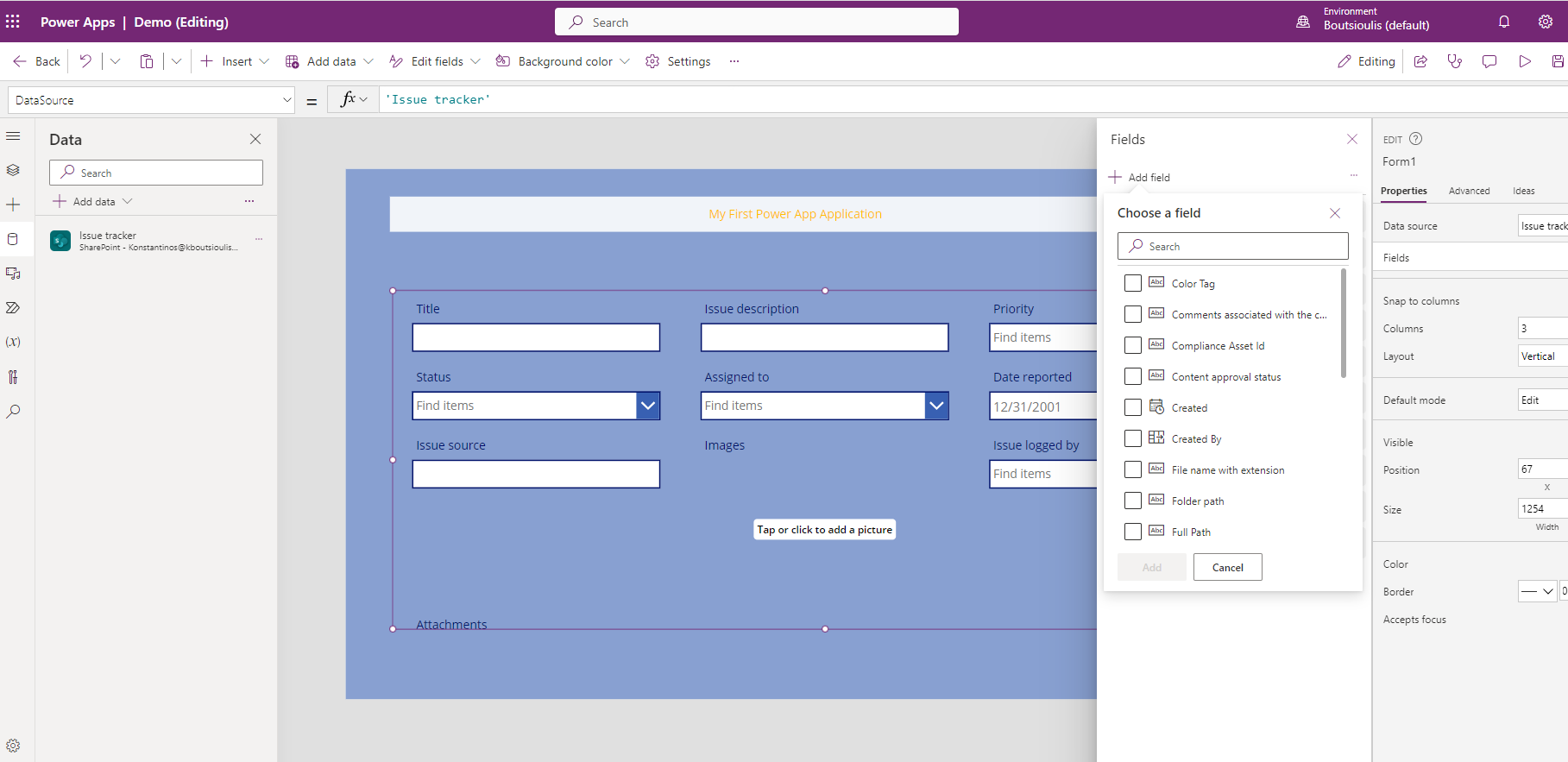
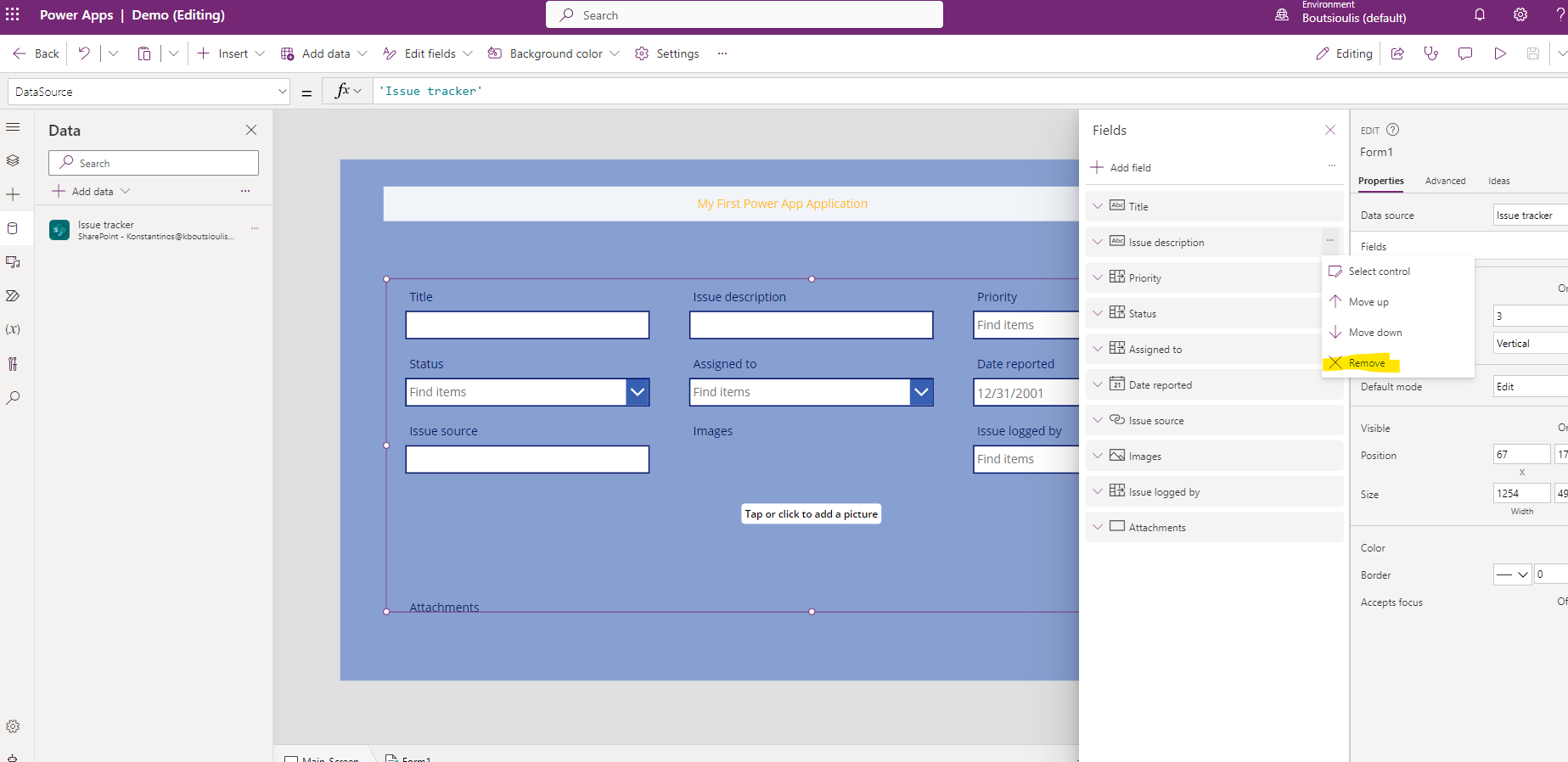
I can also rearrange the display order of the columns as well as add a new data card.
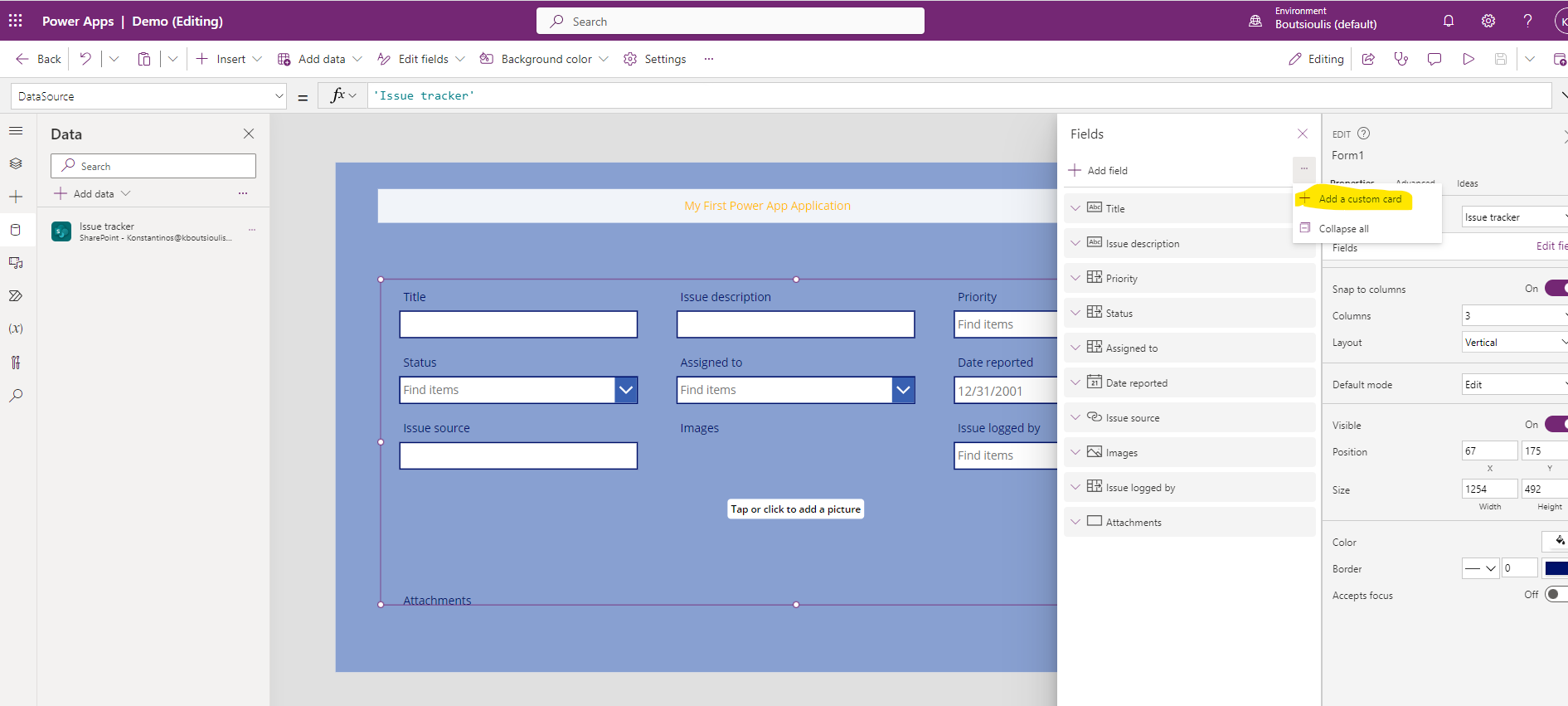
And now of course you're wondering what a data card is. Well, in each introduction of a field of a column there is a frame containing a label and a textbox or a dropdown (depending on the type of sharepoint column) which is called a data card.
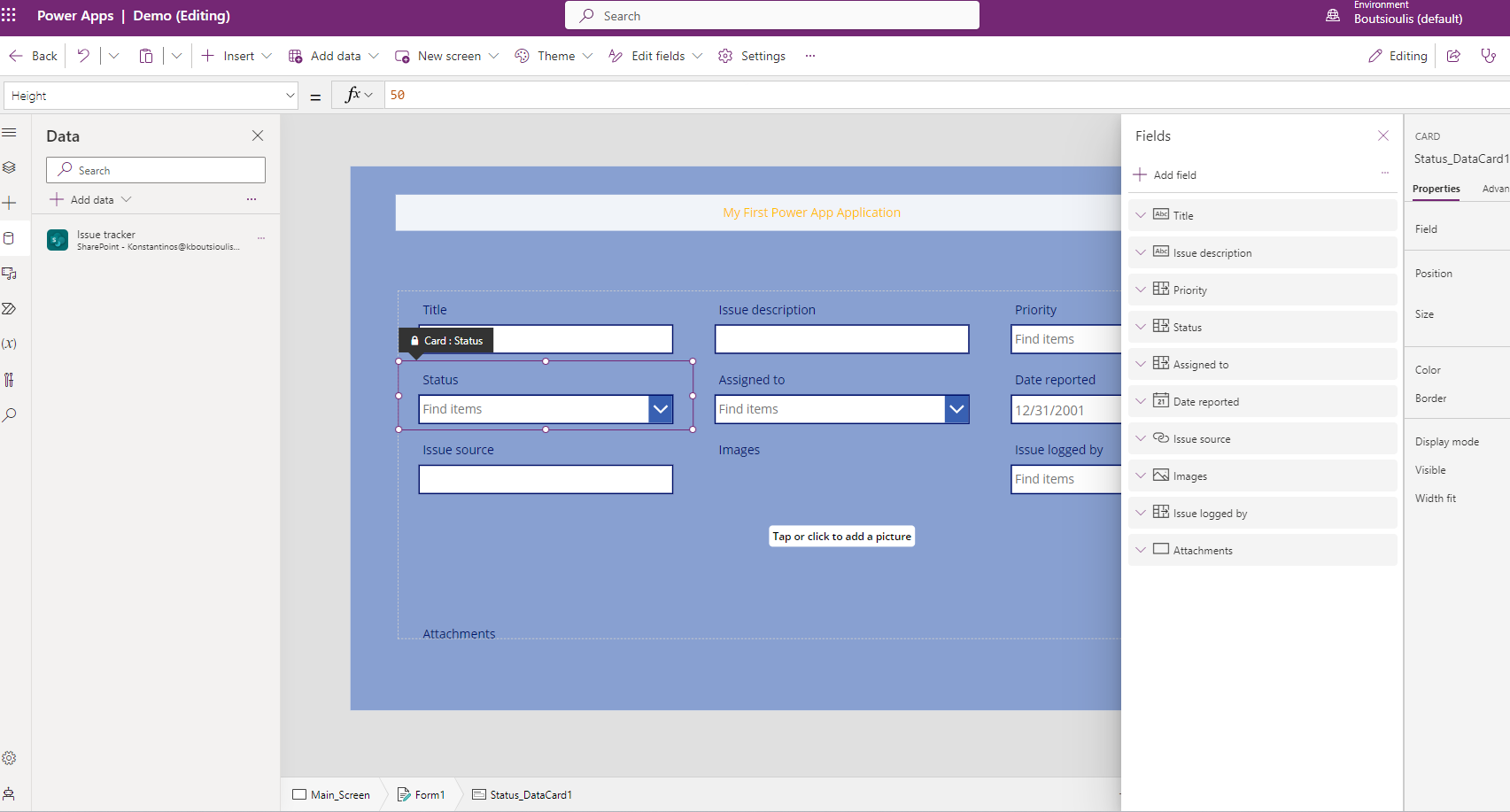
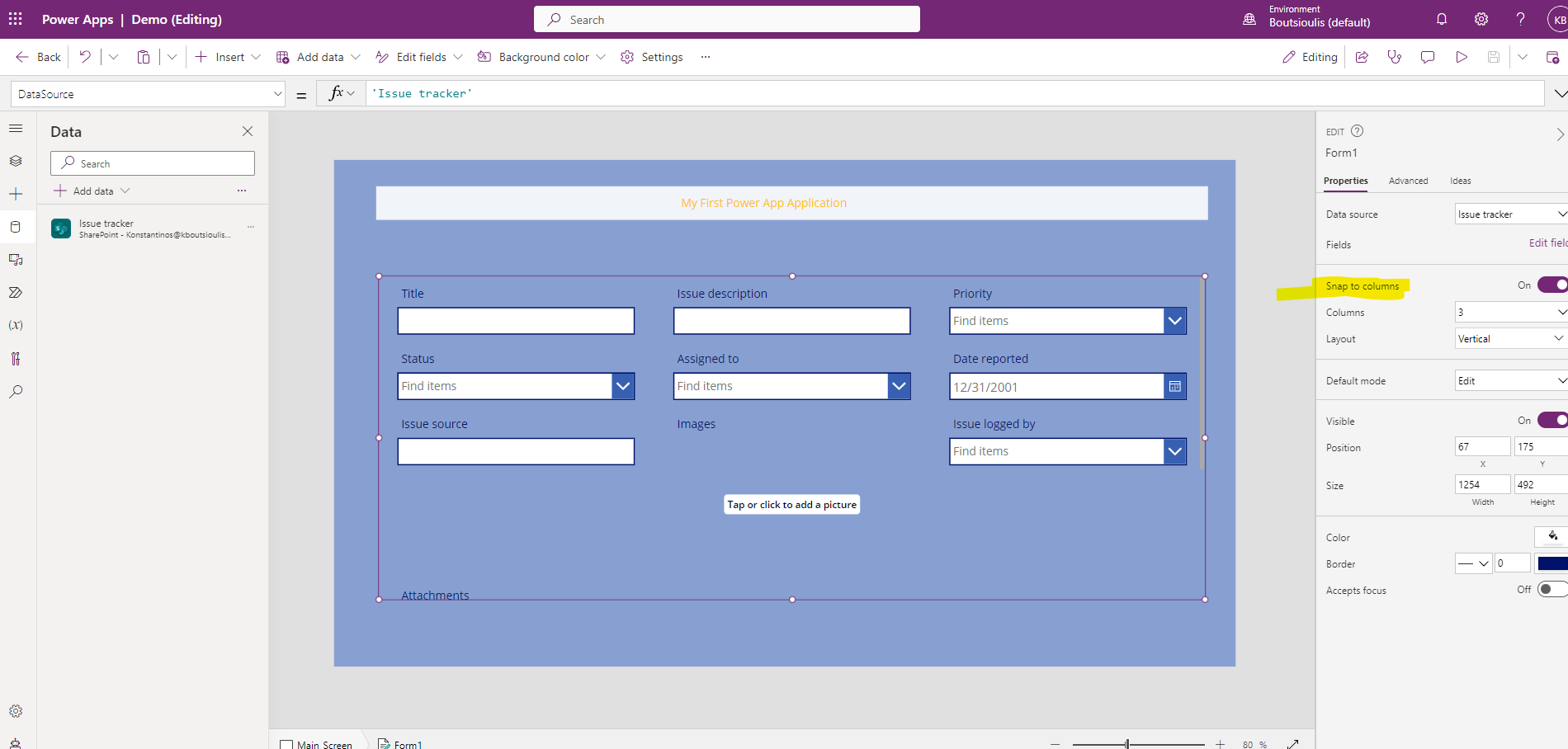
In the next option we have the snap columns where every time it is on cards are equally divided into the number of columns you set and every time is off card widths can be custom sized using the Alt key
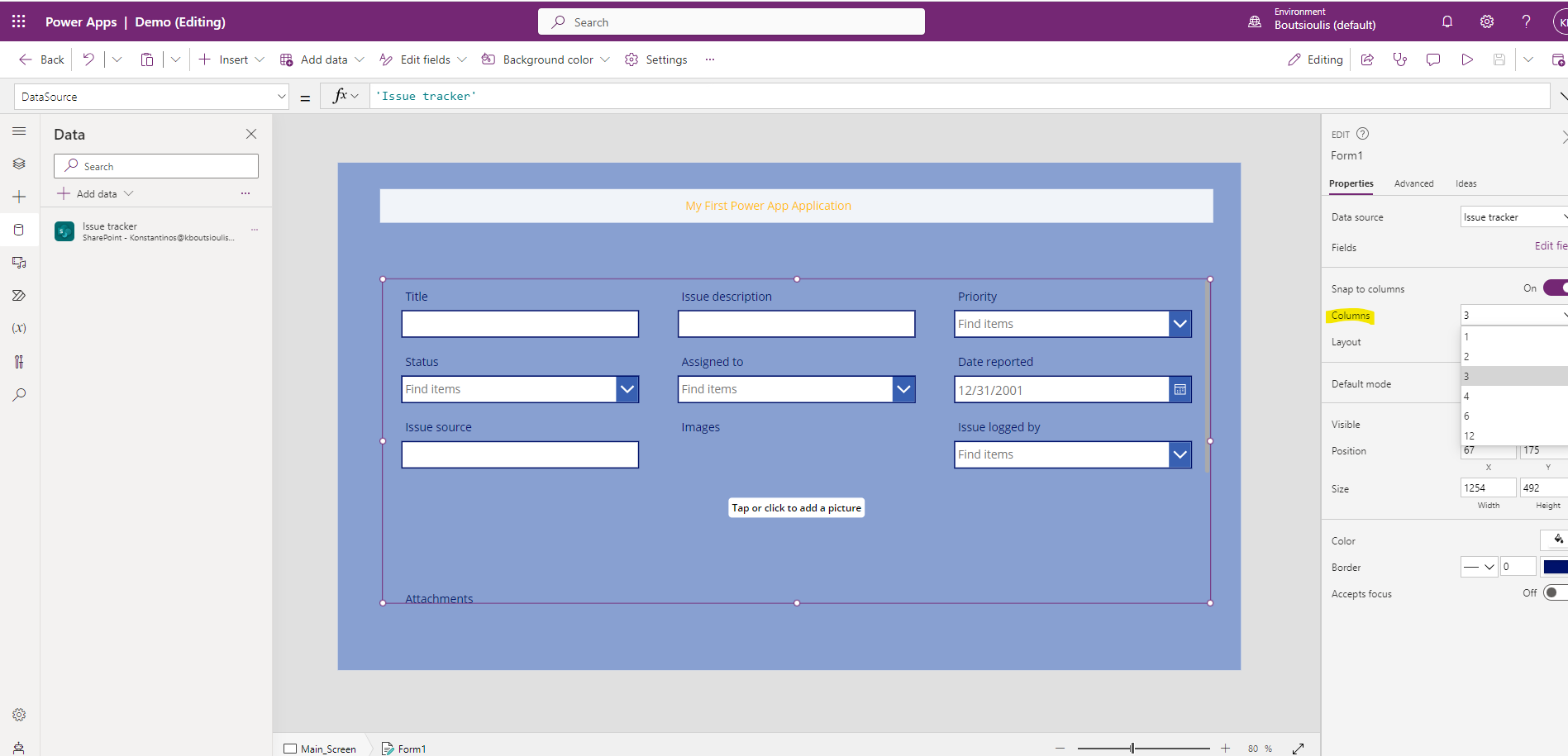
In the next columns field, we specify how many columns we want our form to have
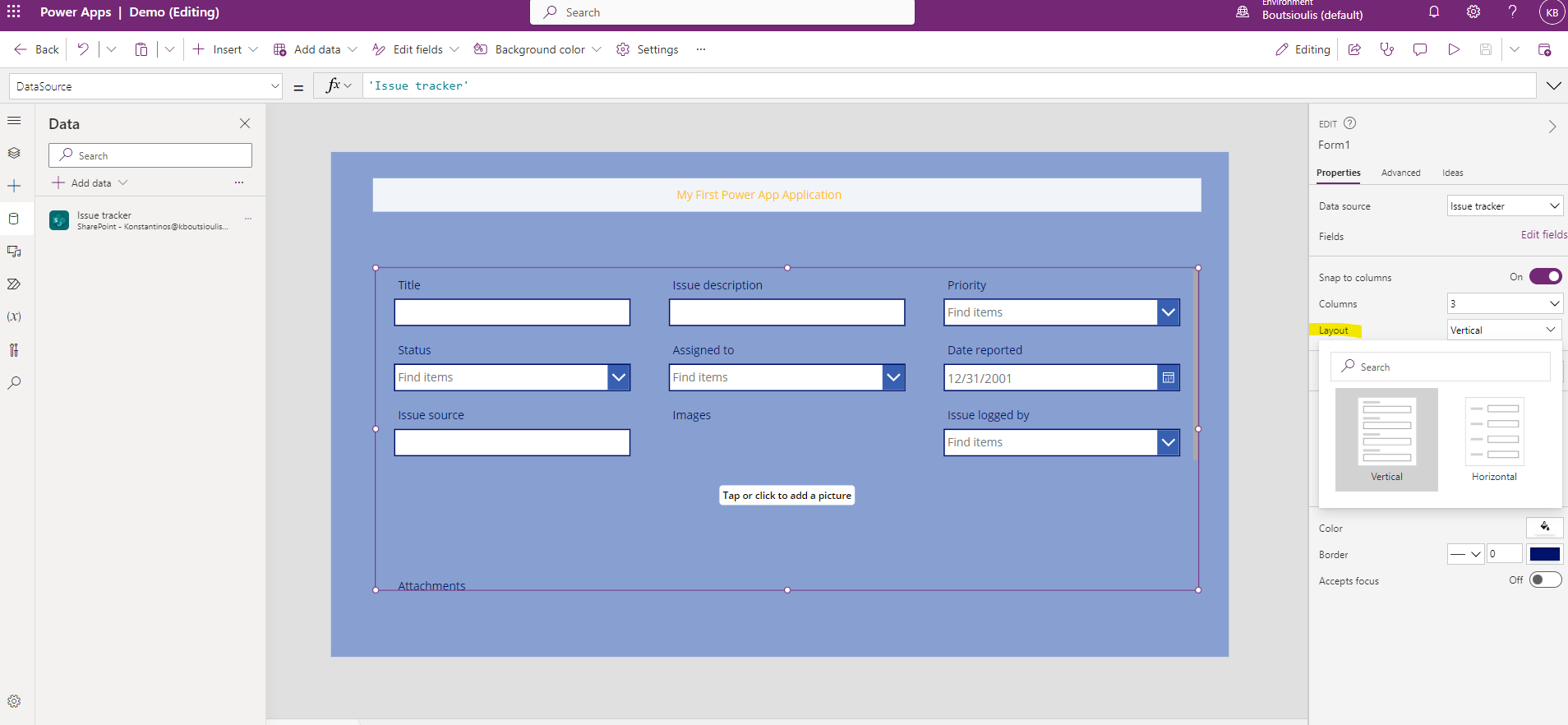
And from the layout field we select the type of layout of our form from the available ones
The default mode is field that defines the form if it is edit the user can enter data in the fields,
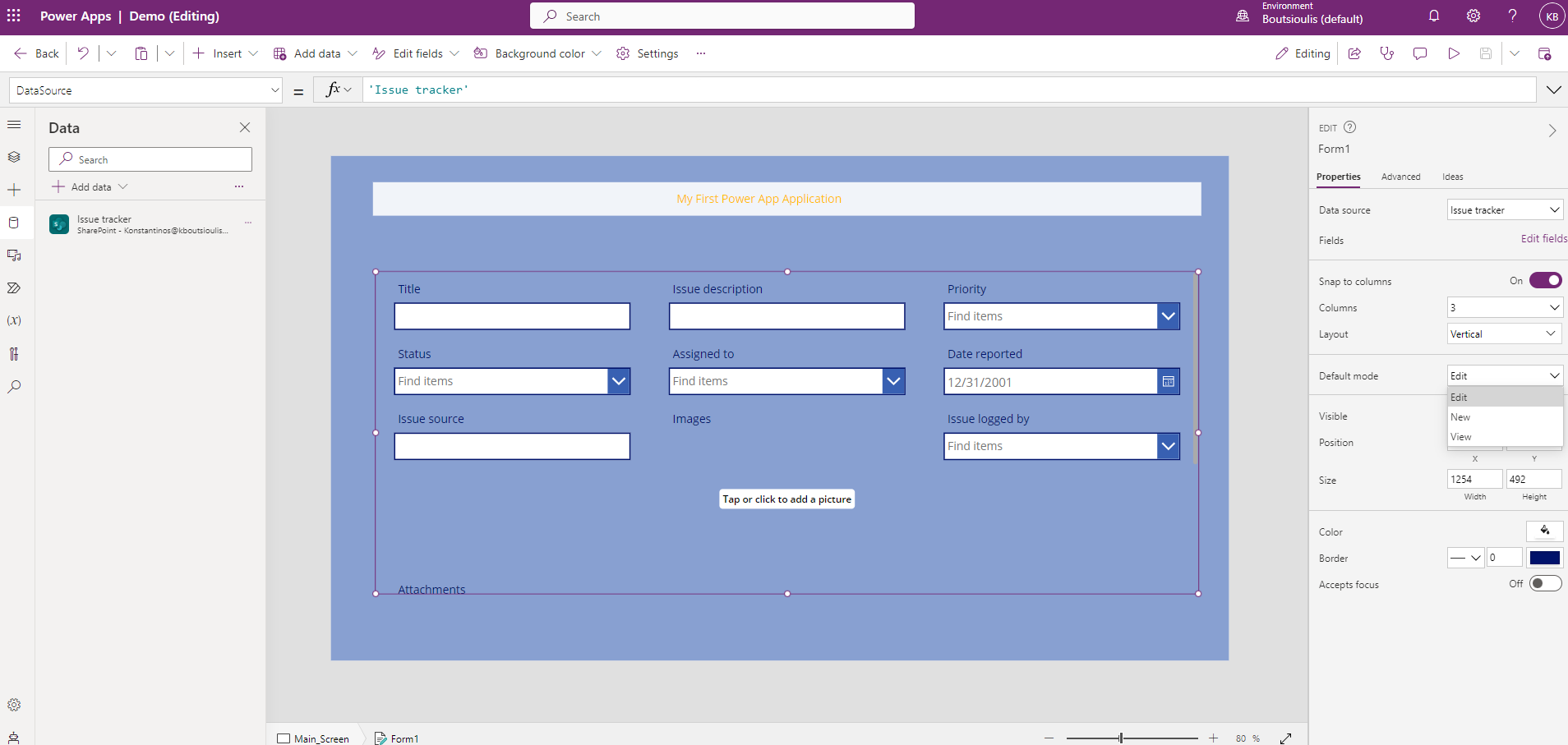
if it is view he can only see data from the form and new is used for new import of data into the form and by extension into the SharePoint list
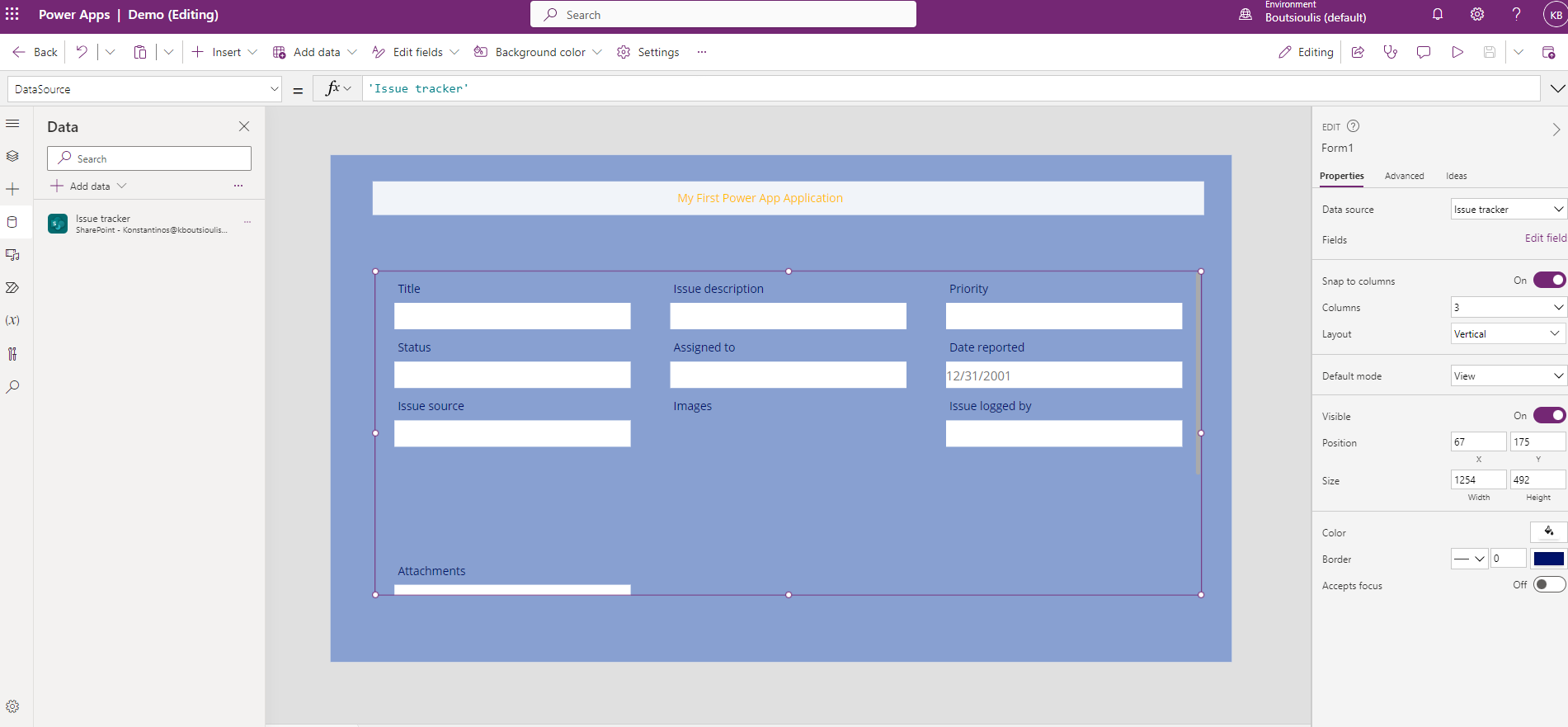
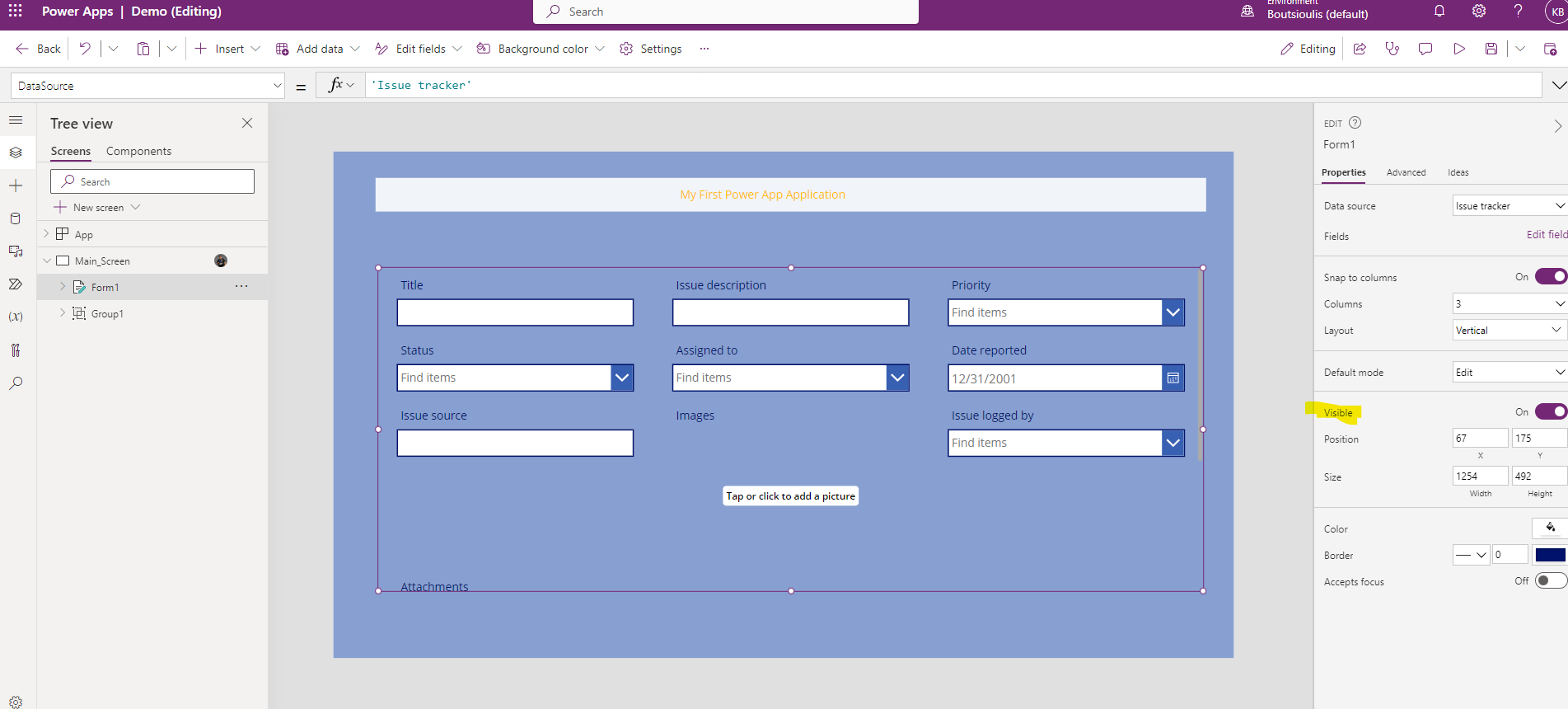
The next field visible gives us the possibility to hide or show our form and if it sounds kind of strange it makes a lot of sense . Imagine a scenario where the application checks the user and if the user ends up being a user of a group [who must have access to the list and thus displays the list to him .But if he must not have access to the list he can keep it invisible
In the following fields you can change the position within the frame of each item by changing the Position and size
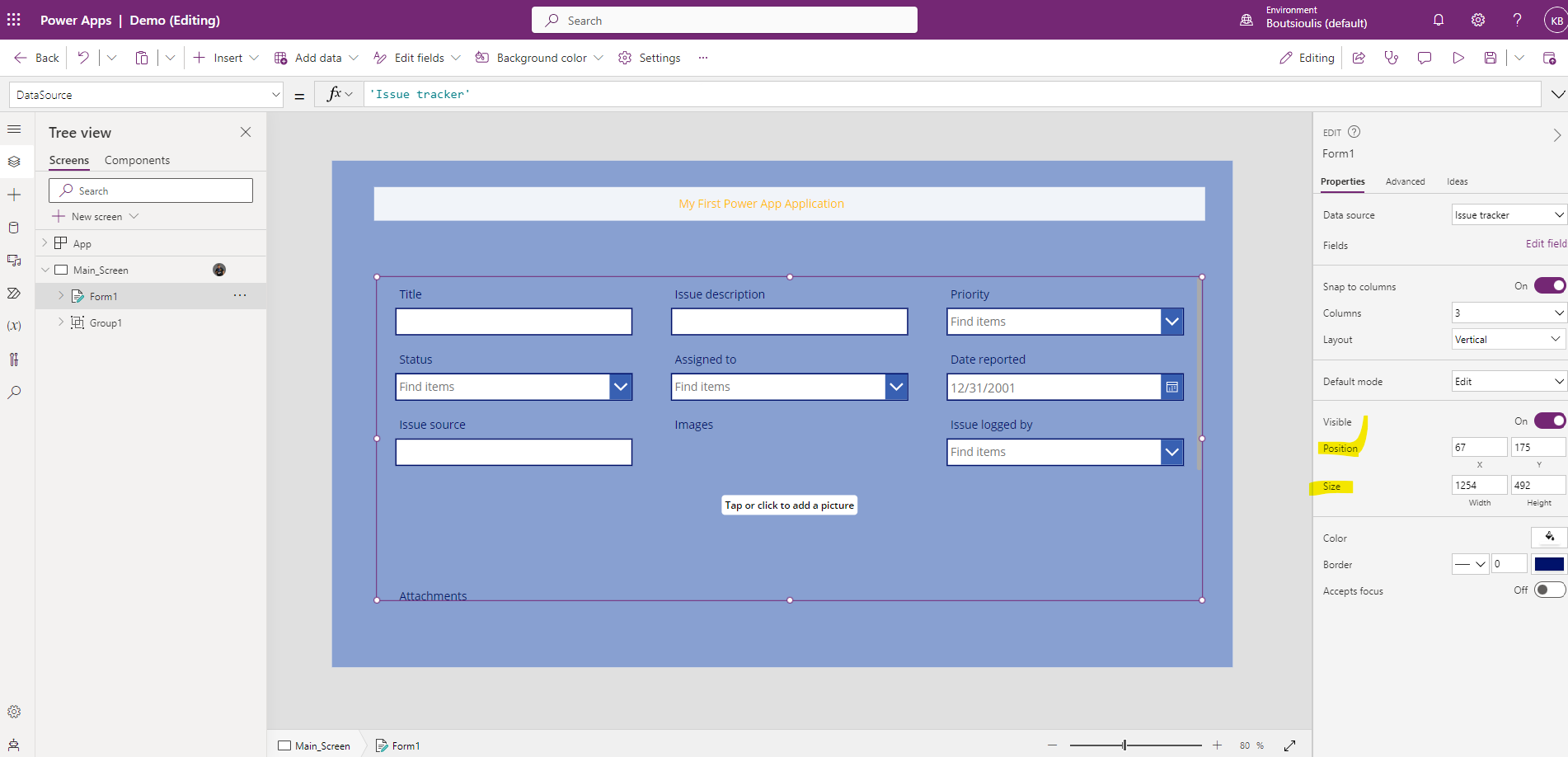
In the last group of properties we have the option to choose the color and the color of the boarder of the item .As a last option is the possibility to allow focus from keyboard
But still even if we have done a series of operations we still don't see any item and its items .
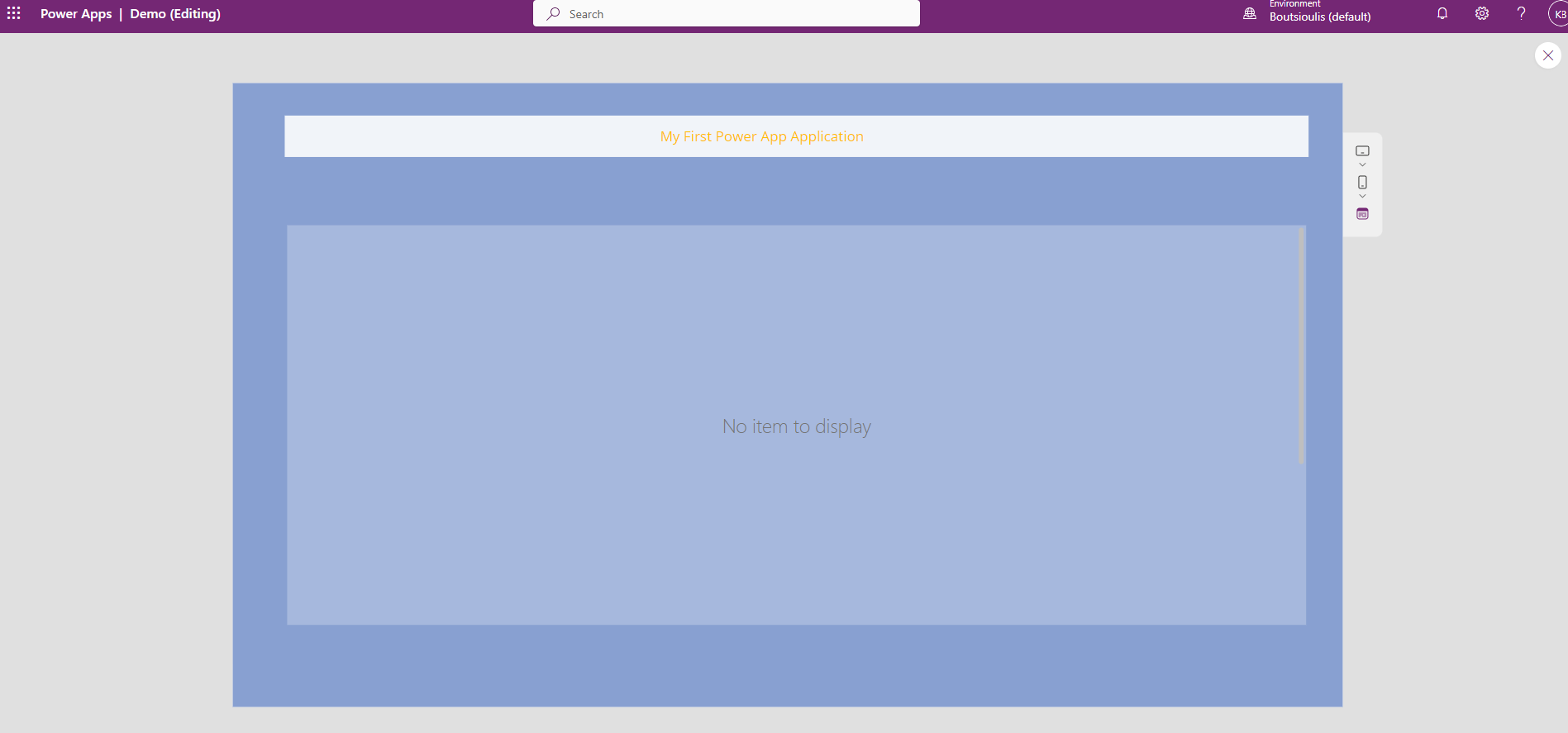
The reason this is happening is because we have not selected an item from the list to be able to view the items but also we cannot select an item . This can be done in combination with importing another element of the gallery which I will show you in the next article
#PowerApps #technology #microsoft #digitaltransformation #cloud #mvpbuzz #m365Visit Archives below to find more articles about Microsoft technologies on Modern Workplace