
Free Material
Find hereMore than 150 Articles about Microsoft Technologies on Modern Workplace
Official Site
Microsoft Most Valuable Professional M365 Apps & Services
Microsoft Most Valuable Professional Business Applications
Consultant & Sr Cloud Solution Architect Modern Wokrplace
Find hereMore than 150 Articles about Microsoft Technologies on Modern Workplace
30 November 2023
It is very common to want to invite a guest to our organization's SharePoint. In order to be able to invite someone to the SharePoint of the organization first we need to import the user from Azure Active Directory First we log in with our credentials to our active M365 subscription
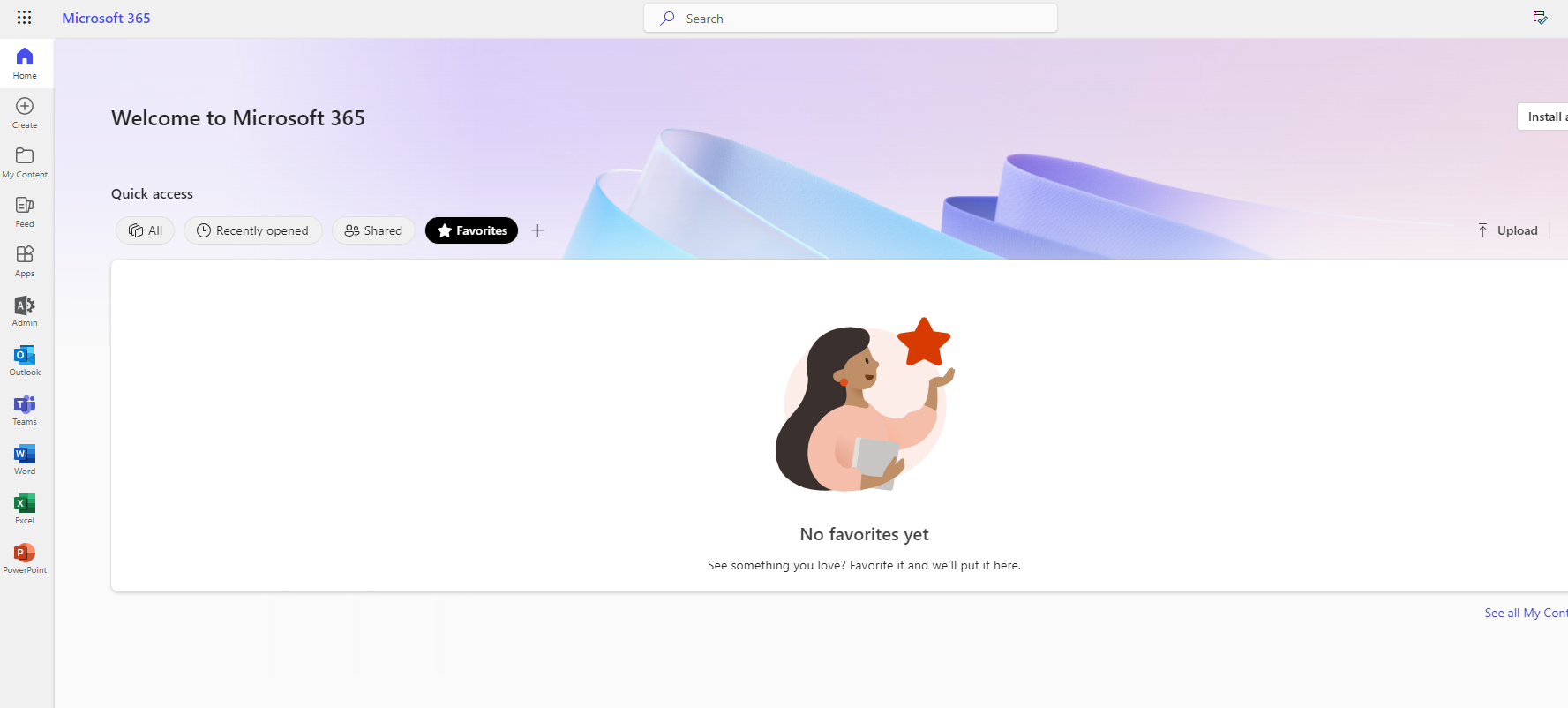
In the left pane select admin then in the left pane select identity
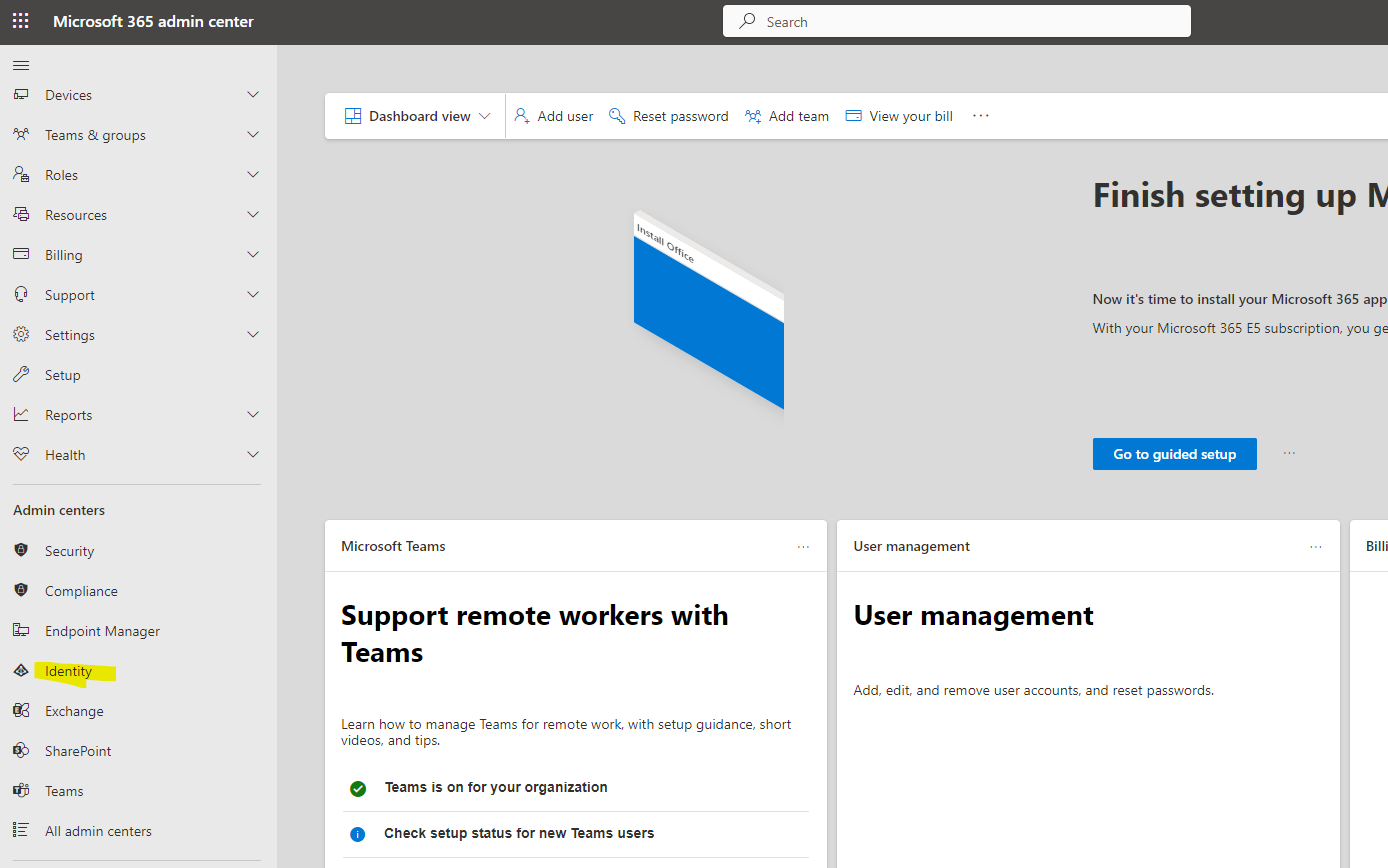
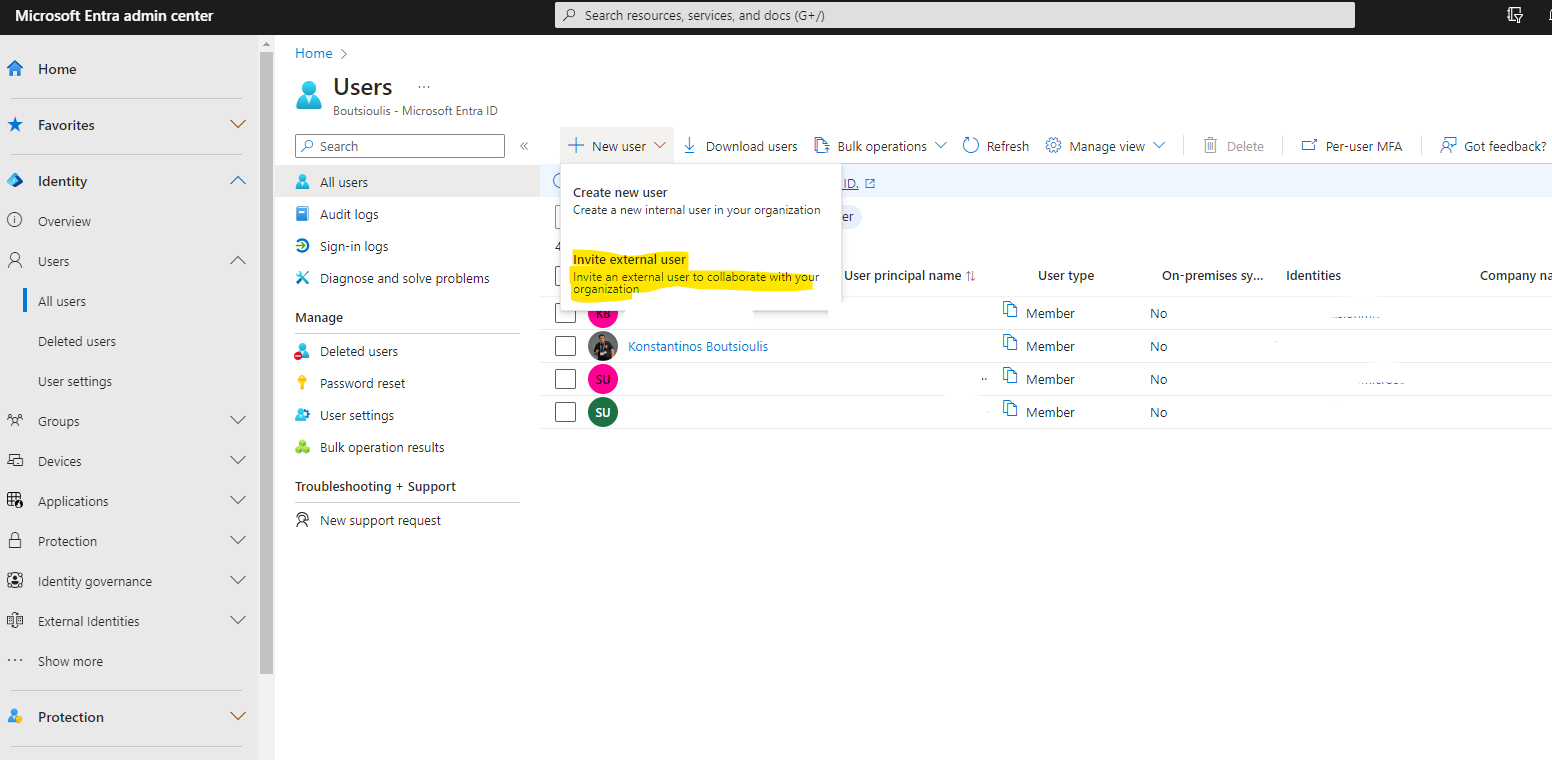
go to the Azure AD page and in the left column under users select allusers.
We select New guest user
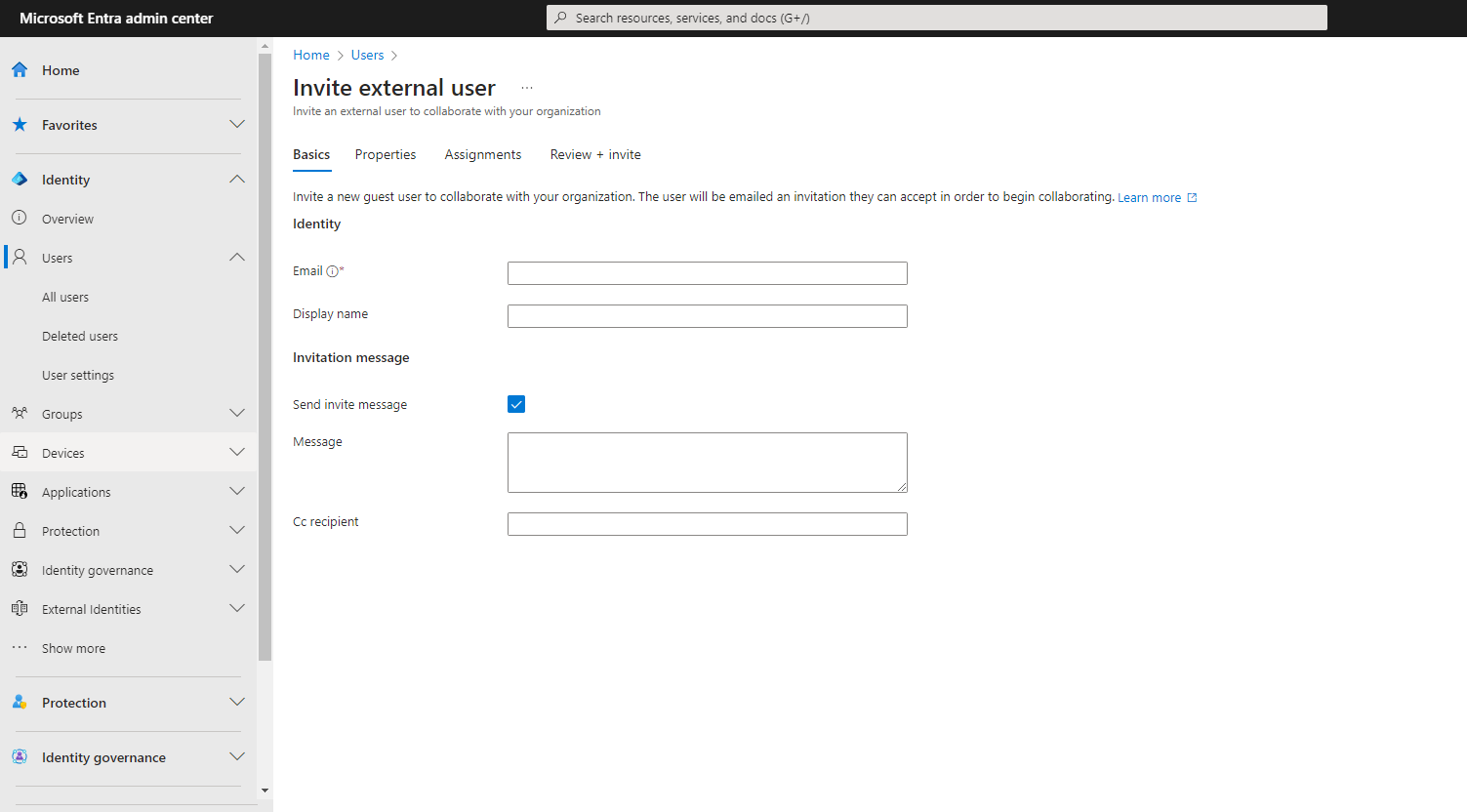
and enter the data in the form
The recipient receives an email and must accept the invitation However, in order for the guest user to gain rights in the organization, some changes need to be made at admin center level in the sharing tab
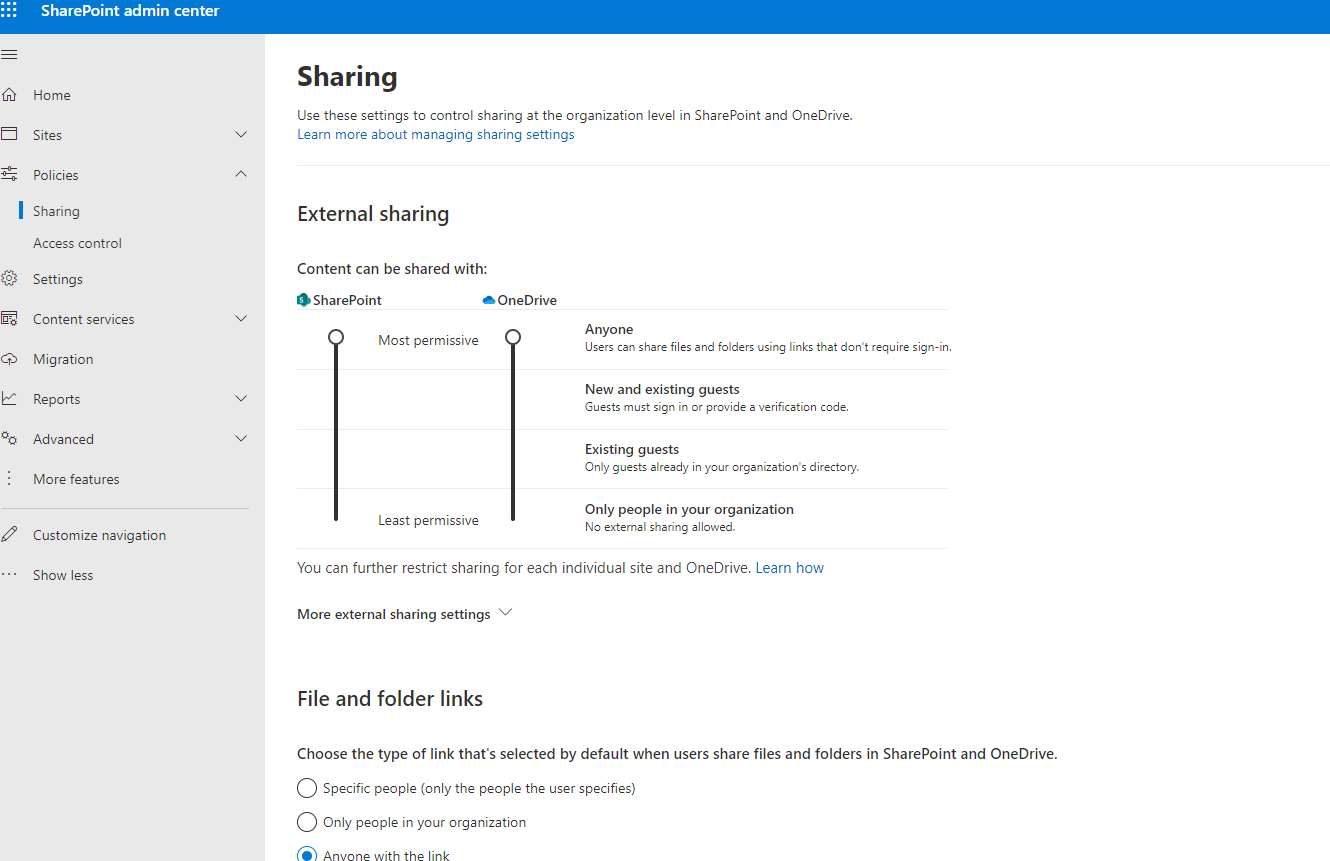
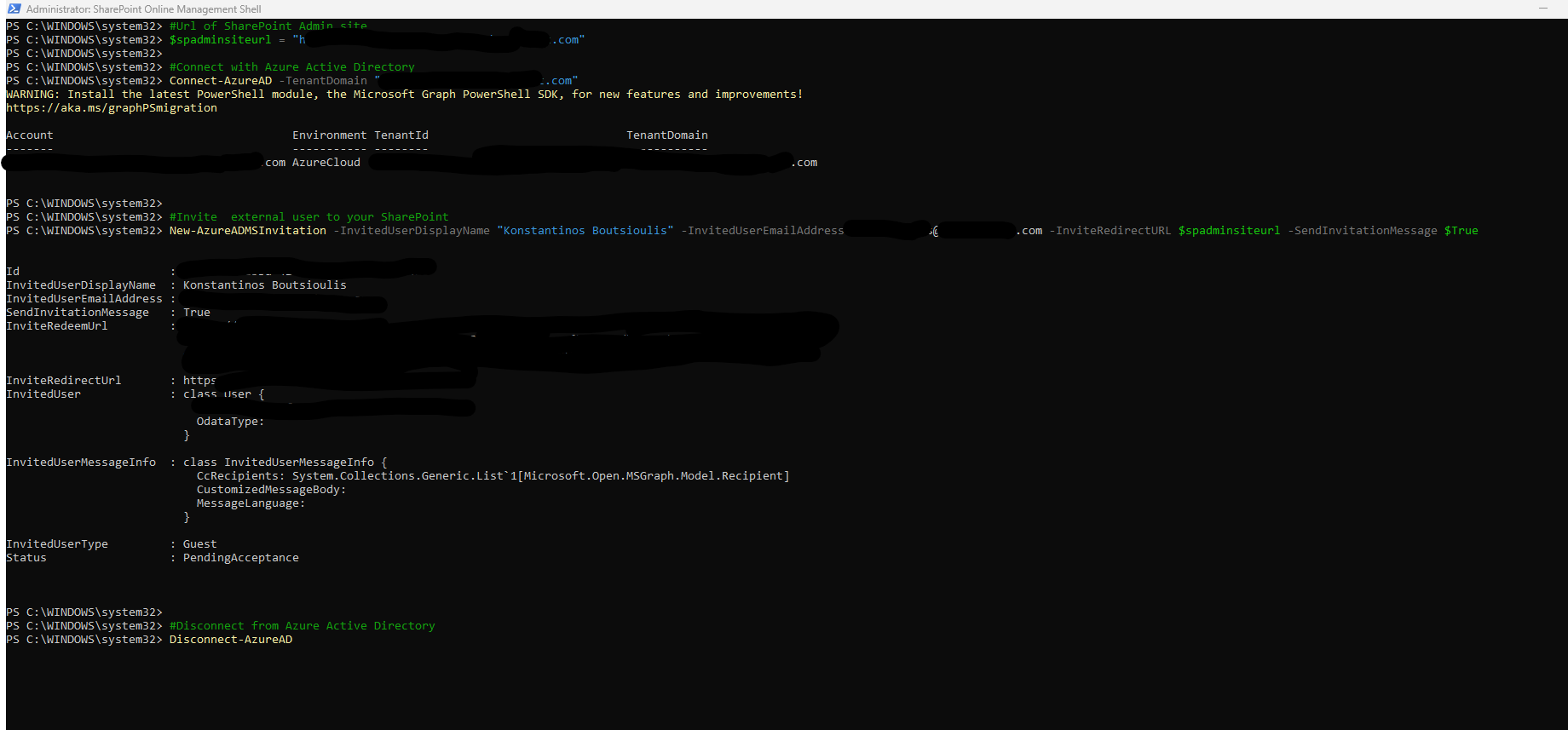
Make the options of your choice and the invited user now has permissions in your organization. The above action can also be done programmatically using PowerShell Online Management First we install the Module to manage Active Directory via PnP The code we run is as follows
#Url of SharePoint Admin site
$spadminsiteurl = "https://mytenant-admin.sharepoint.com"
#Connect with Azure Active Directory
Connect-AzureAD -TenantDomain "mytenant.com"
#Invite external user to your SharePoint
New-AzureADMSInvitation -InvitedUserDisplayName "Konstantinos Boutsioulis" -InvitedUserEmailAddress username@domain.com -InviteRedirectURL $spadminsiteurl -SendInvitationMessage $True
#Disconnect from Azure Active Directory
Disconnect-AzureAD
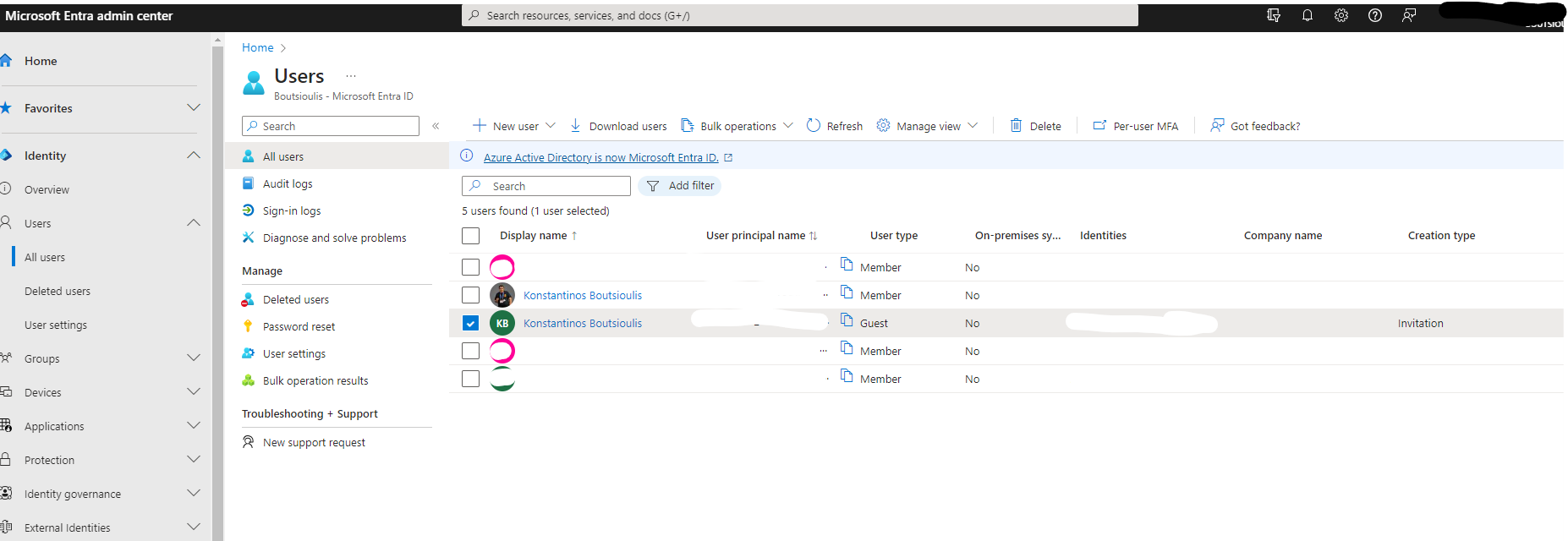
As you can see now we have one more user in our users in Azure AD which is the guest user
 #SharePoint
#technology
#microsoft
#PowerShell
#PnP
#digitaltransformation
#cloud
#mvpbuzz
#m365
#SharePoint
#technology
#microsoft
#PowerShell
#PnP
#digitaltransformation
#cloud
#mvpbuzz
#m365
Visit Archives below to find more articles about Microsoft technologies on Modern Workplace