
Free Material
Find hereMore than 150 Articles about Microsoft Technologies on Modern Workplace
Official Site
Microsoft Most Valuable Professional M365 Apps & Services
Microsoft Most Valuable Professional Business Applications
Consultant & Sr Cloud Solution Architect Modern Wokrplace
Find hereMore than 150 Articles about Microsoft Technologies on Modern Workplace
05 November 2023
In today's article we will see how we can create and run an automated process with power automate with a few clicks from a SharePoint library As I have mentioned in the past SharePoint is integrated with a number of Microsoft products and today I will show you one of these integrations with power automate First with our active m365 subscription we go to the main page
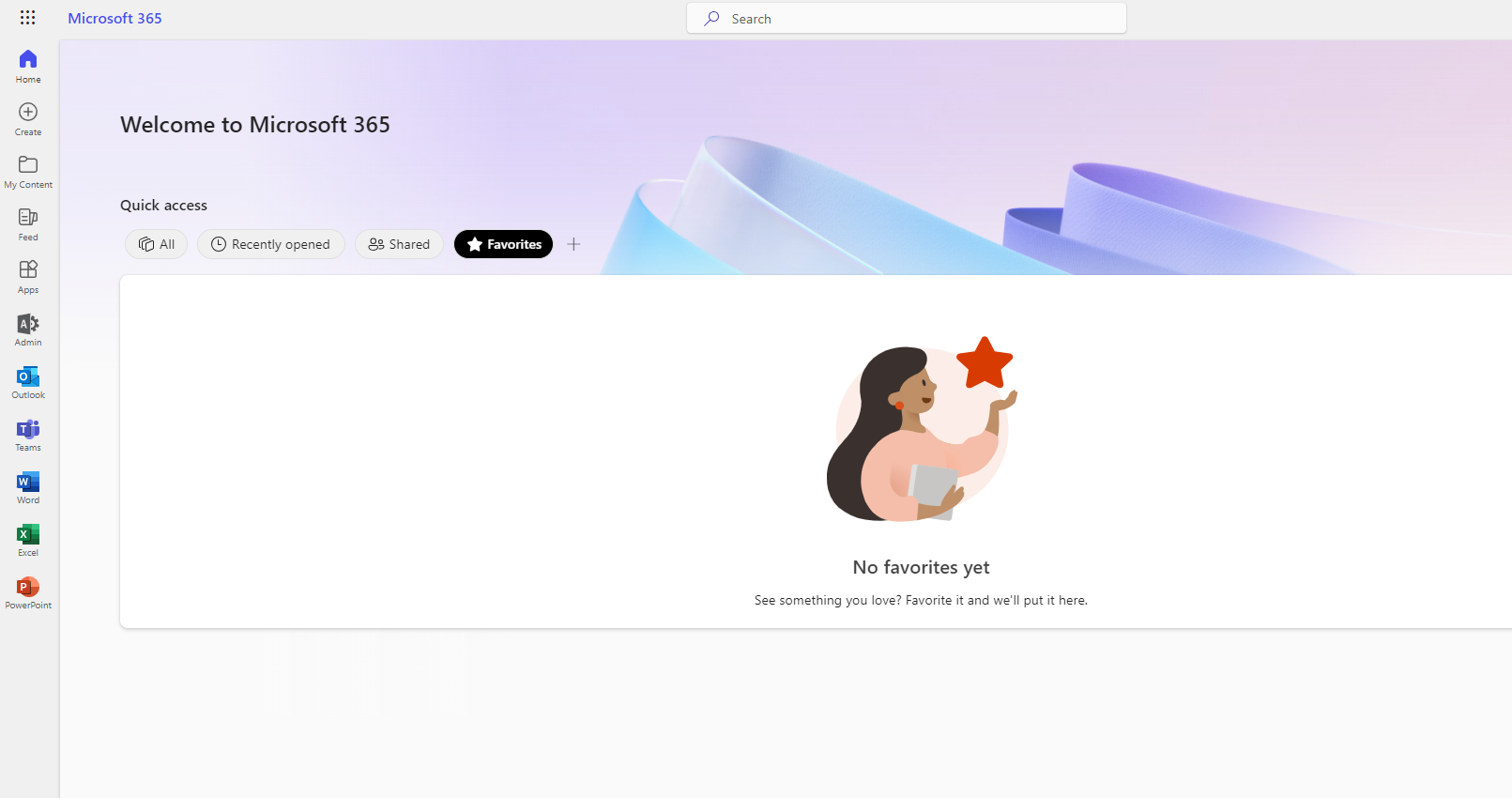
We choose SharePoint or admin if we want to go to the admin center of SharePoint or correspondingly to the main page of SharePoint . I as global administrator choose admin for what from there in the active sites I have the overall view of all SharePoint sites
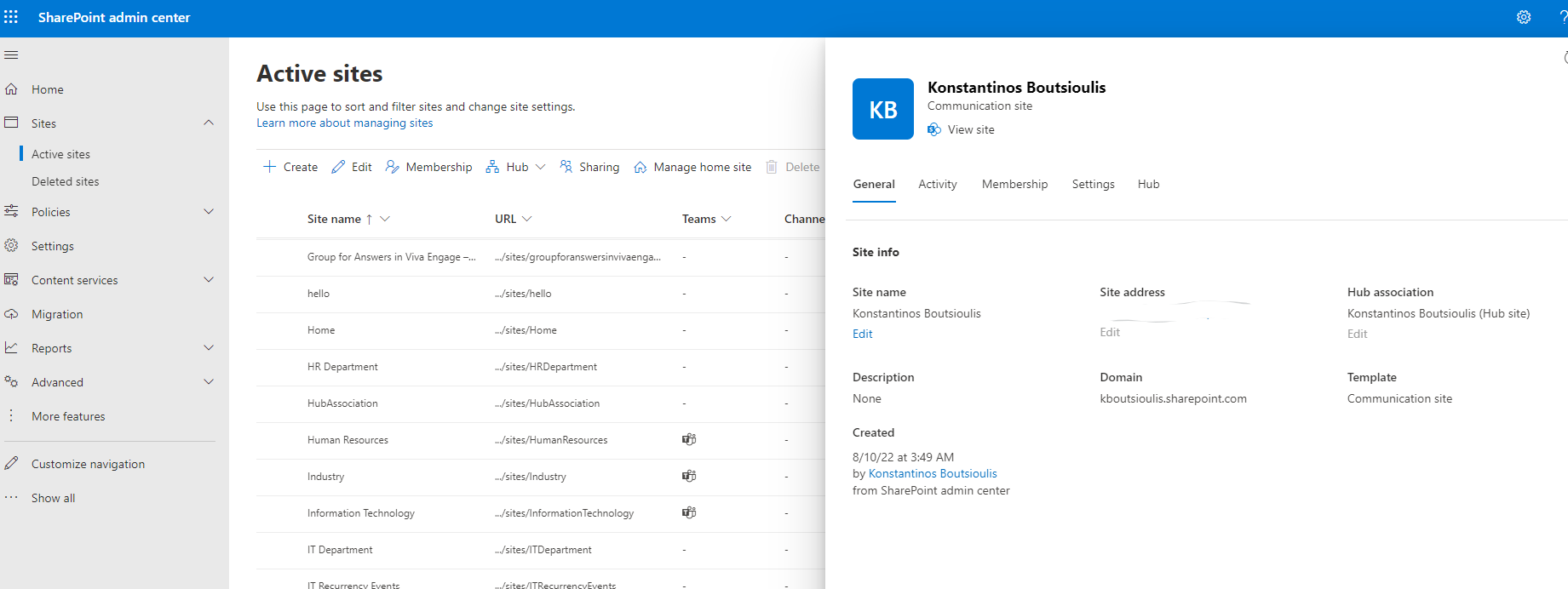
And from there from the active sites I select the site that contains the list on which I will apply Power automate
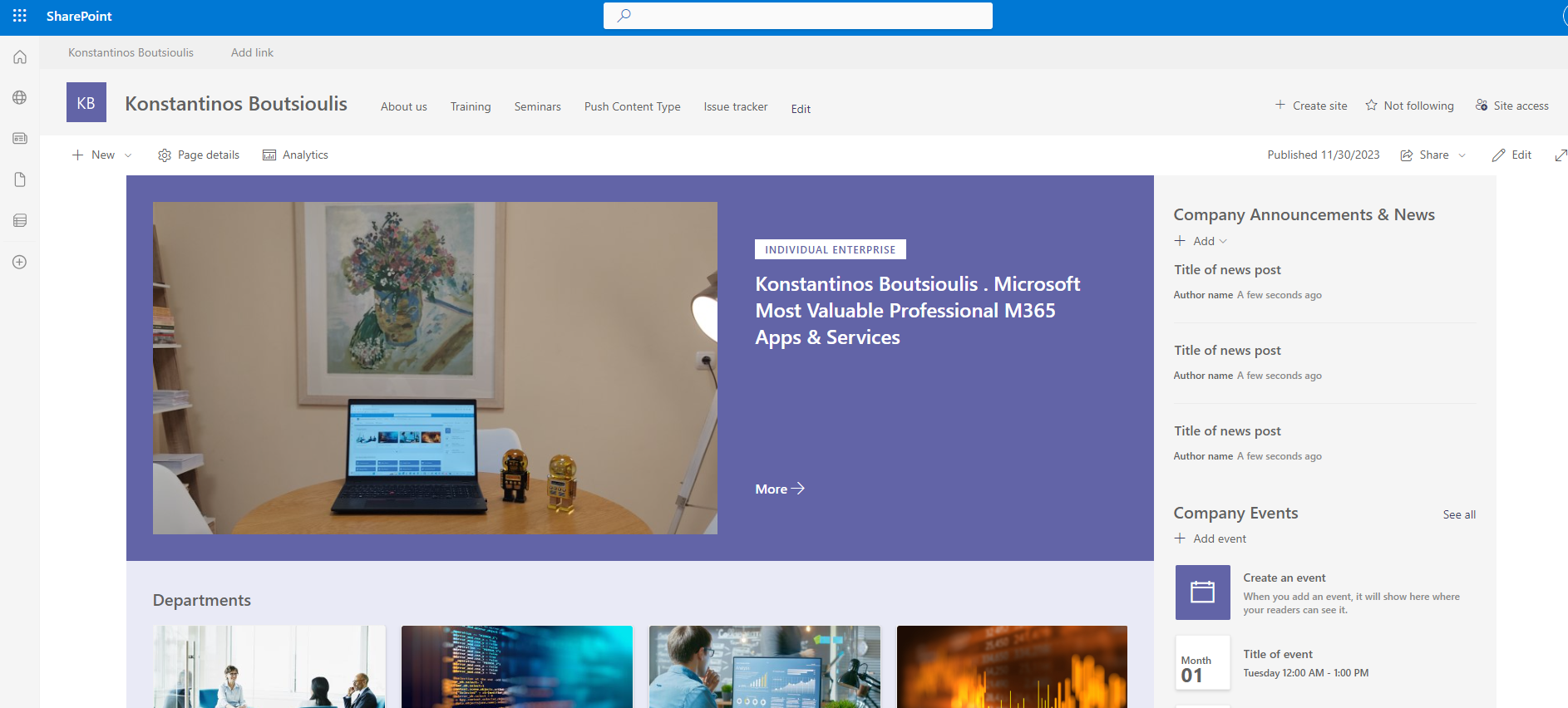
In my selection page on the top right of the gear I select site contents and then the list I wish to apply the automate action to
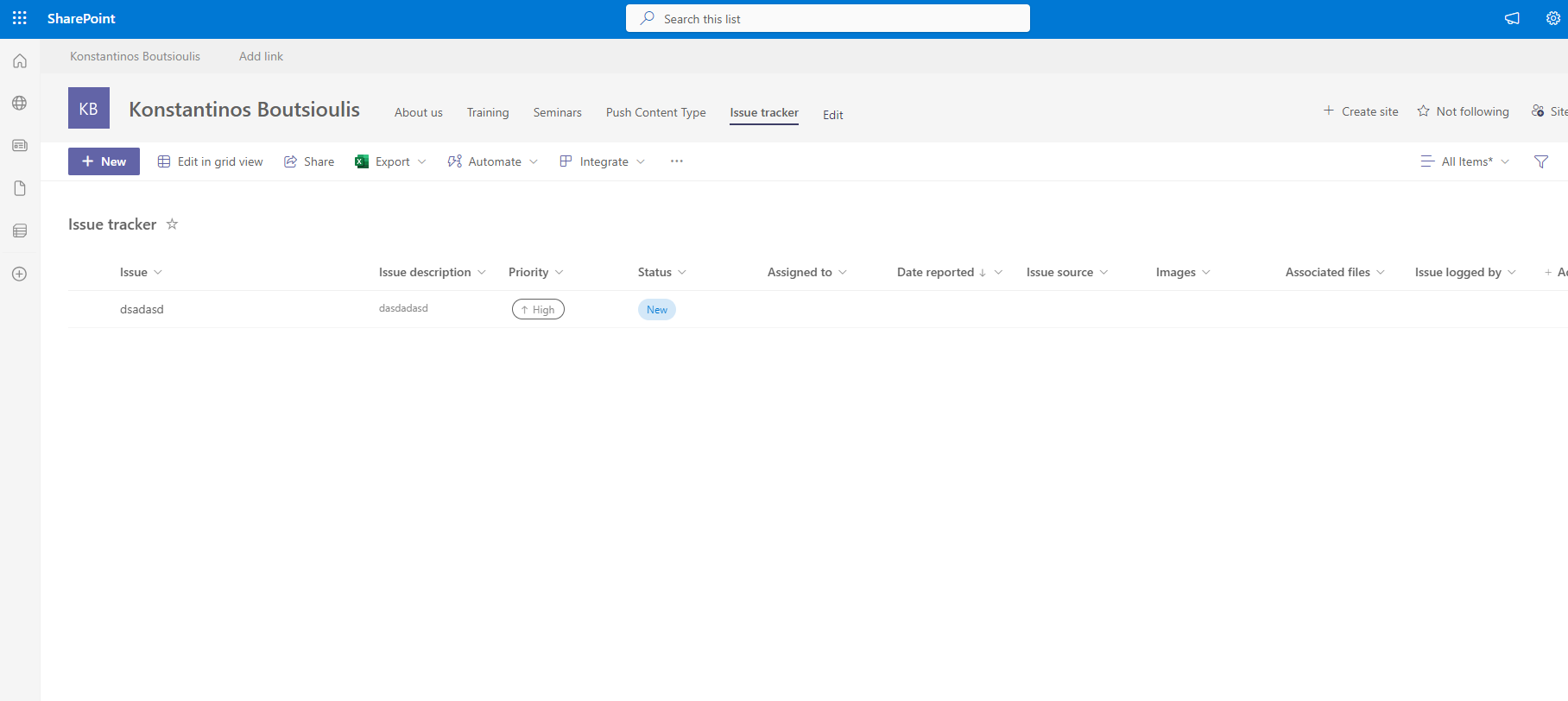
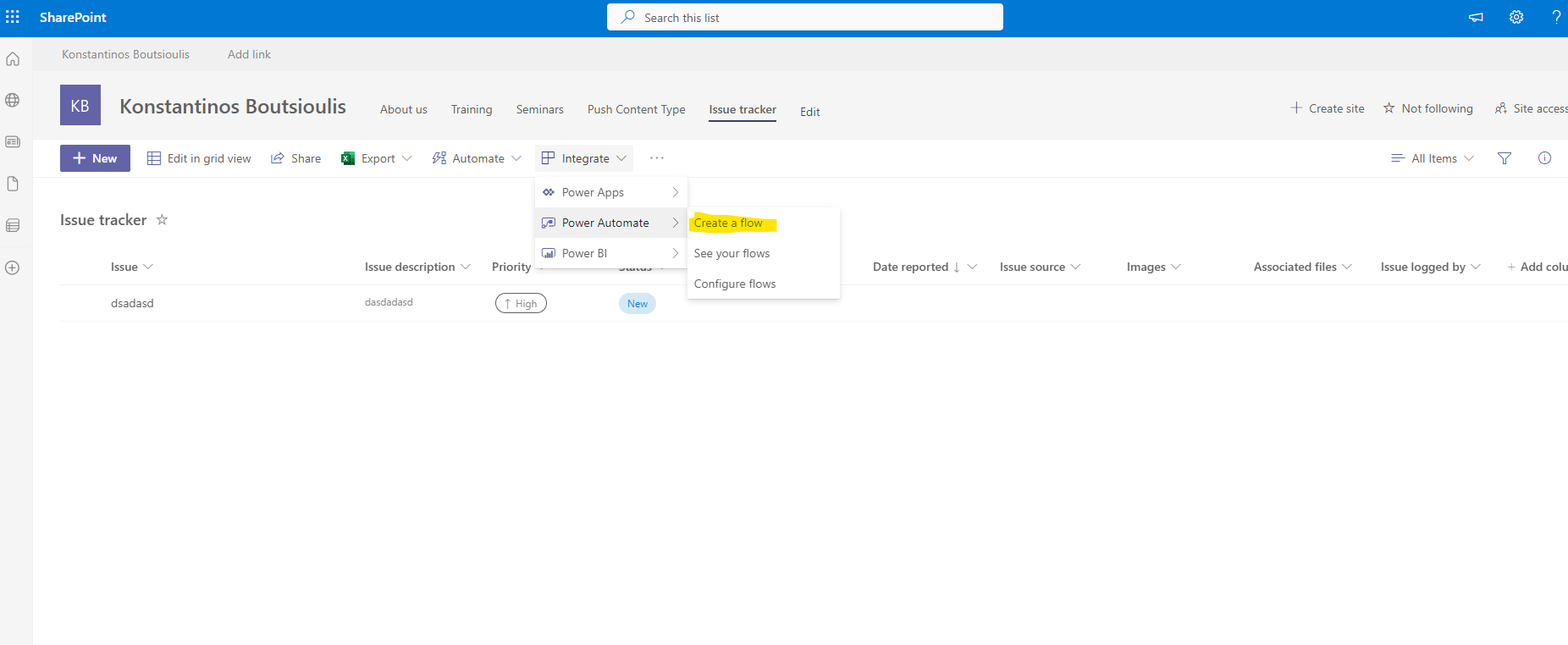
In the next step I select integrate and then power automate and in the pop up menu I select create a flow
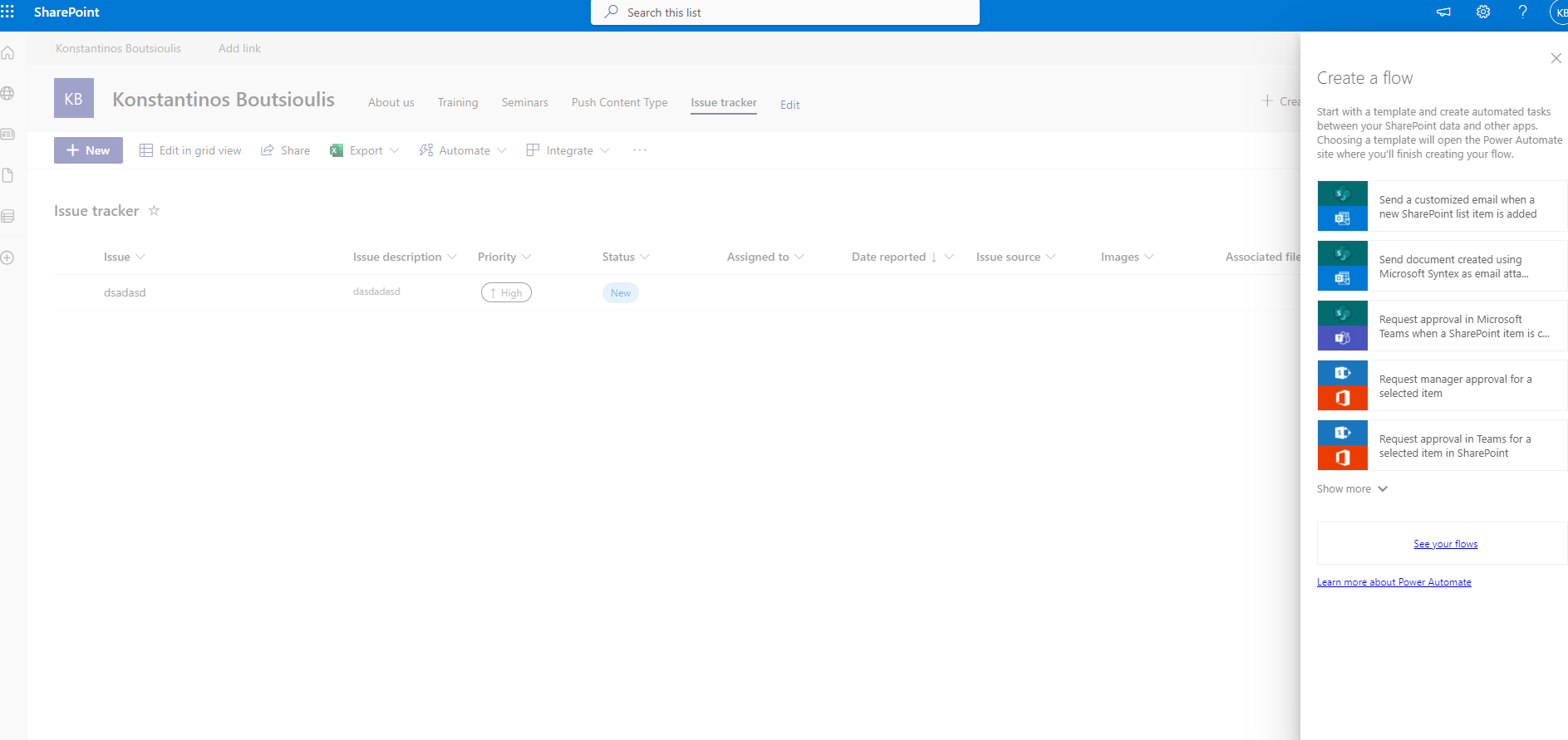
Now in the right hand side menu that pops up I have a series of options of different flows
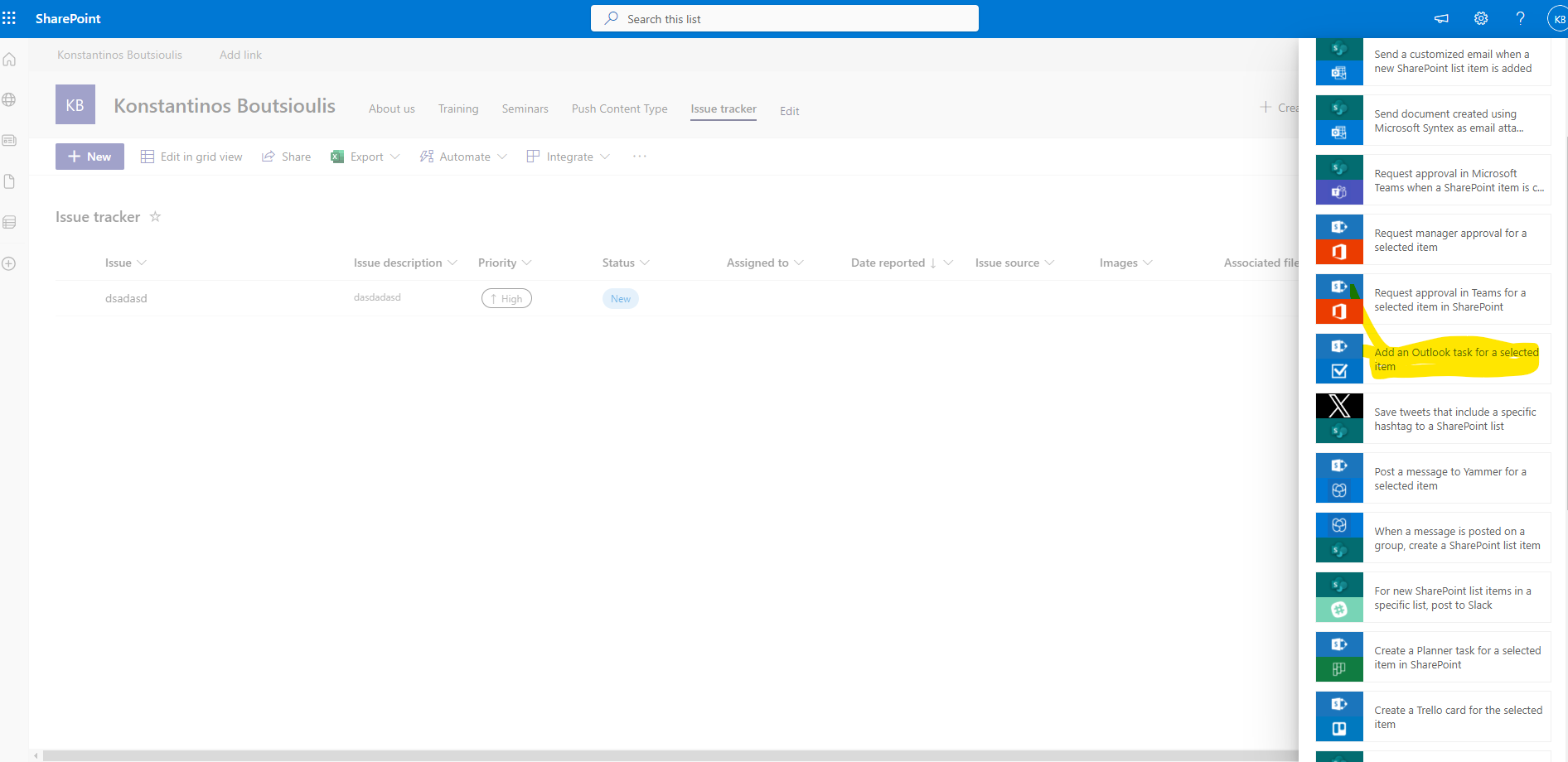
select see your flows and choose one at random add an outlook task for a selected item
in the next step i go to the power automate page and there i have to allow all the necessary connections for the integration and click create
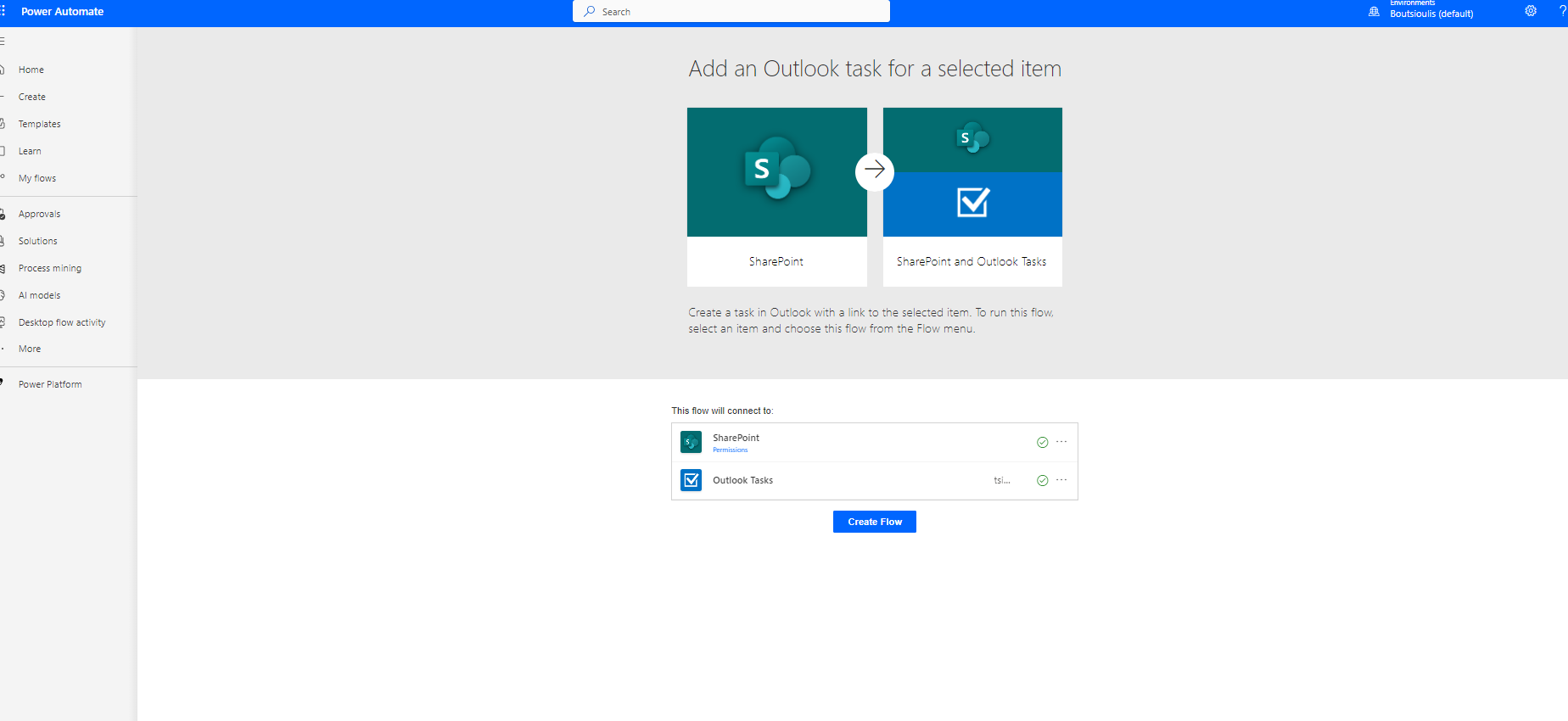
As you can see with a few clicks I just created my flow and in there it will essentially enable me in each selection of an item the ability to run an automate that will create a task in outlook for that selection
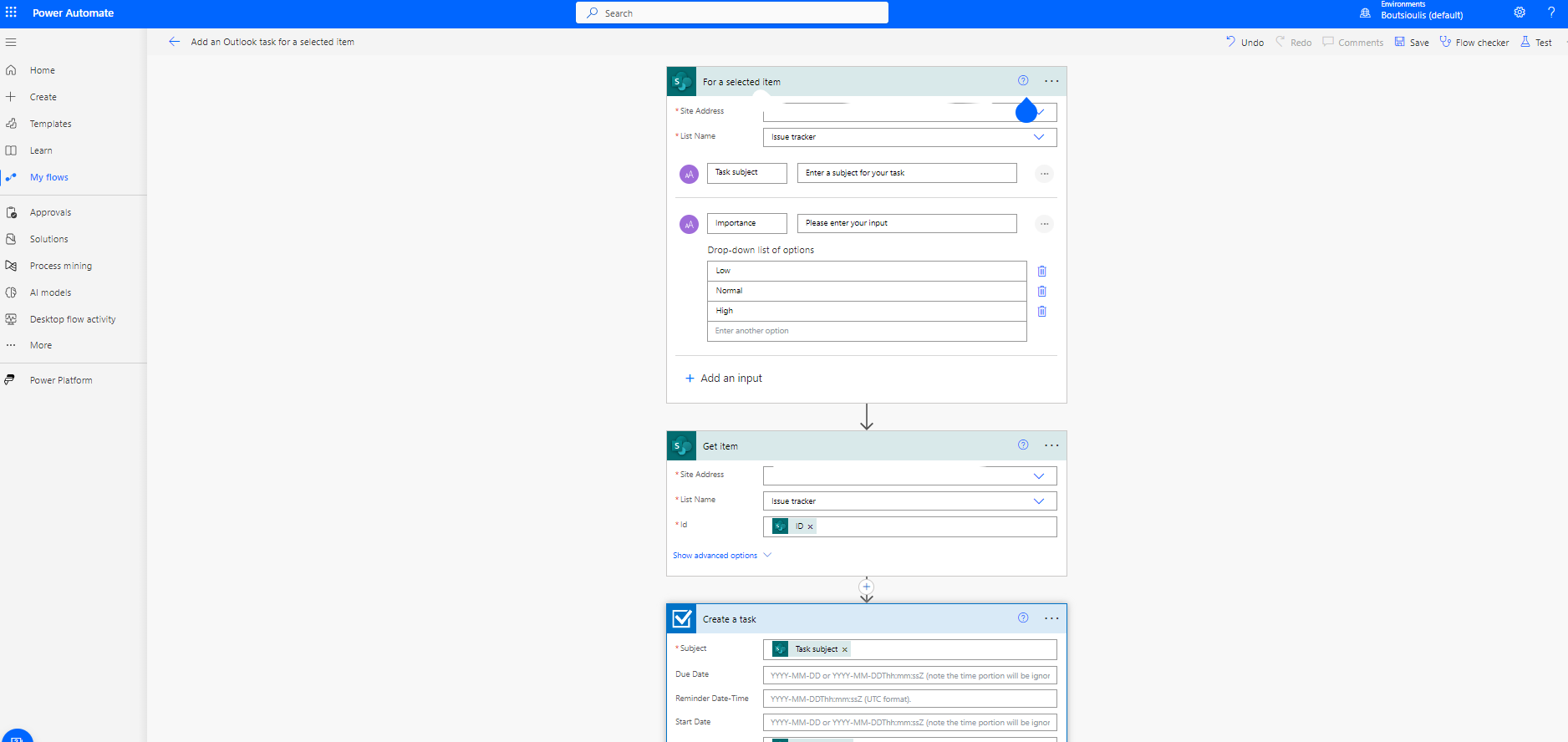
I can change the automation during my selection i.e. add different things like importance , due date , reminders and more
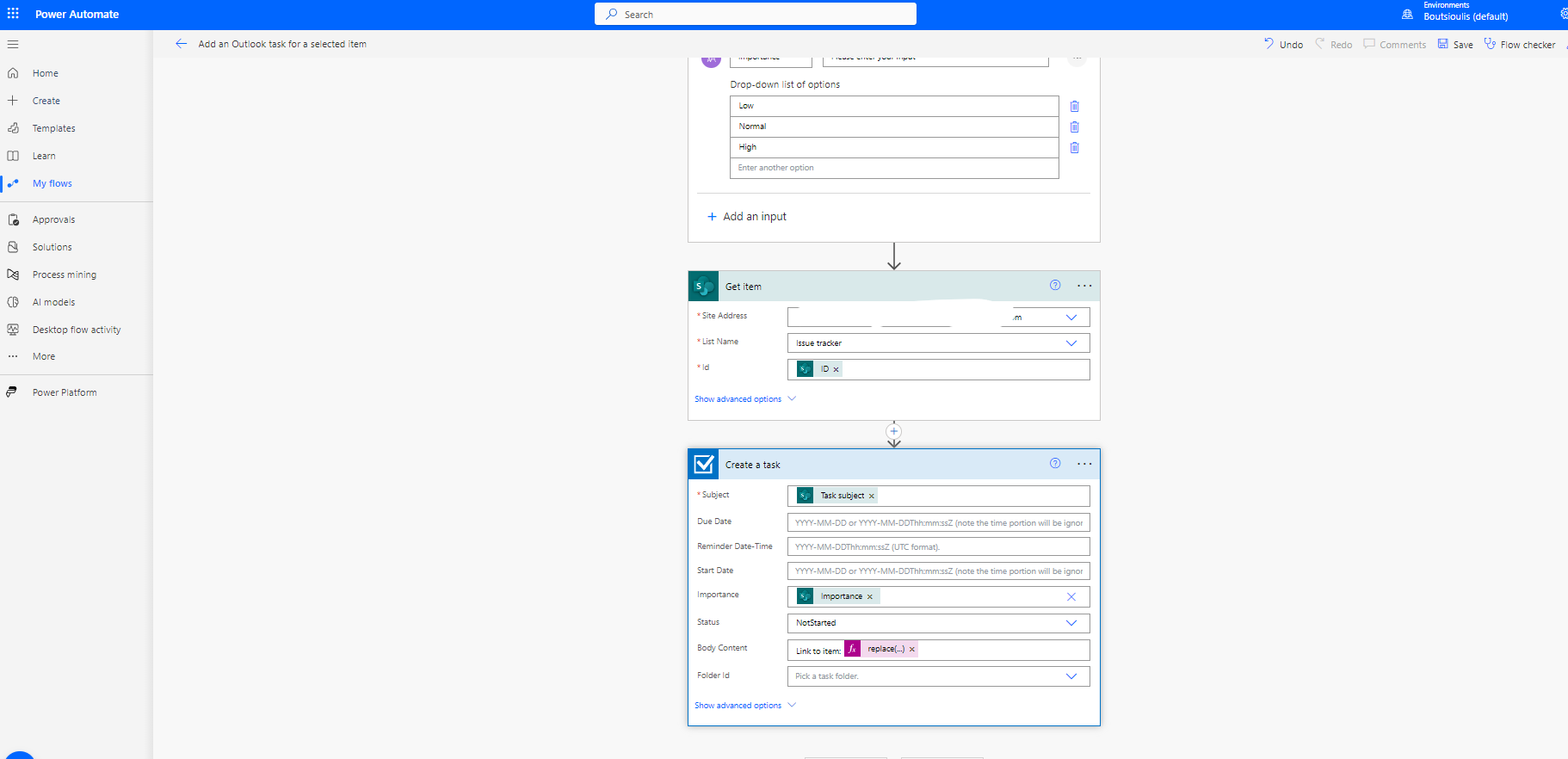
Then as every time I have to save the changes in my new automate
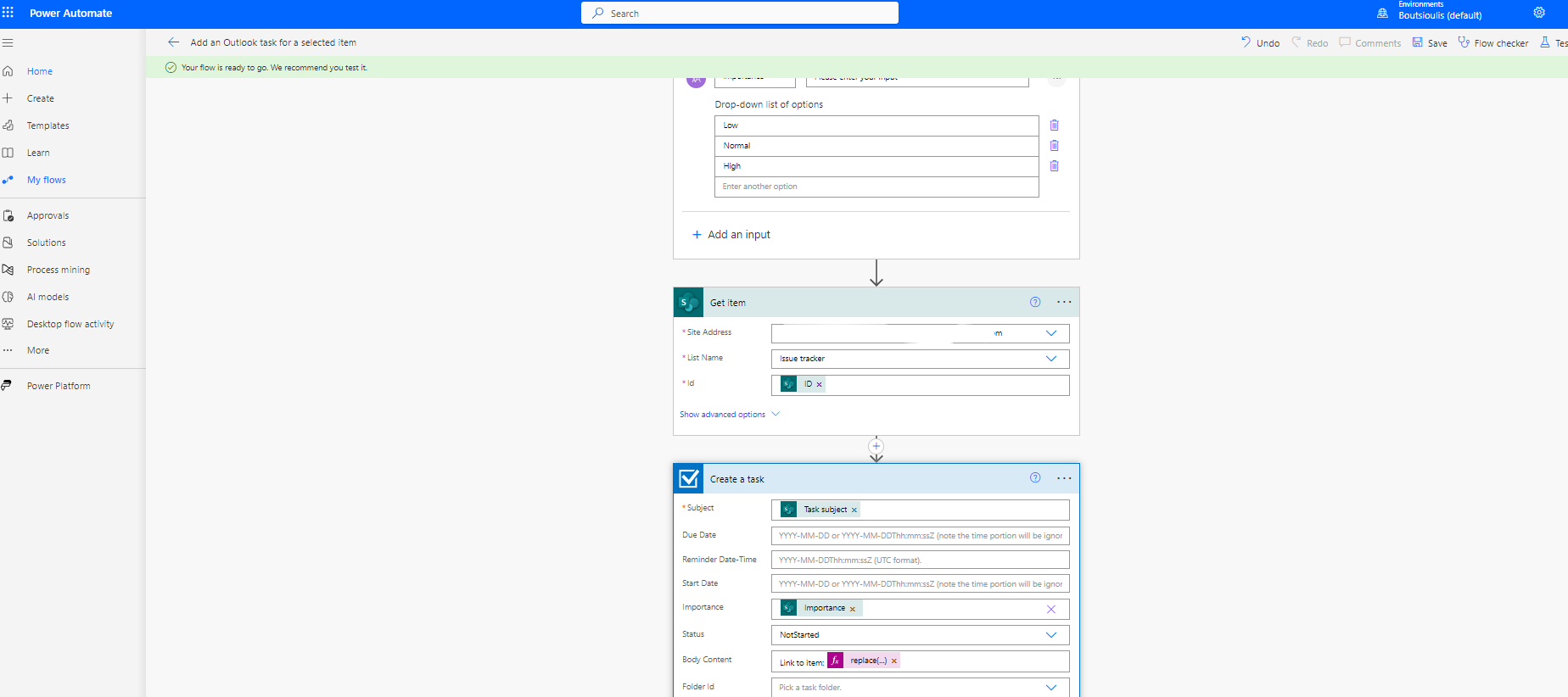
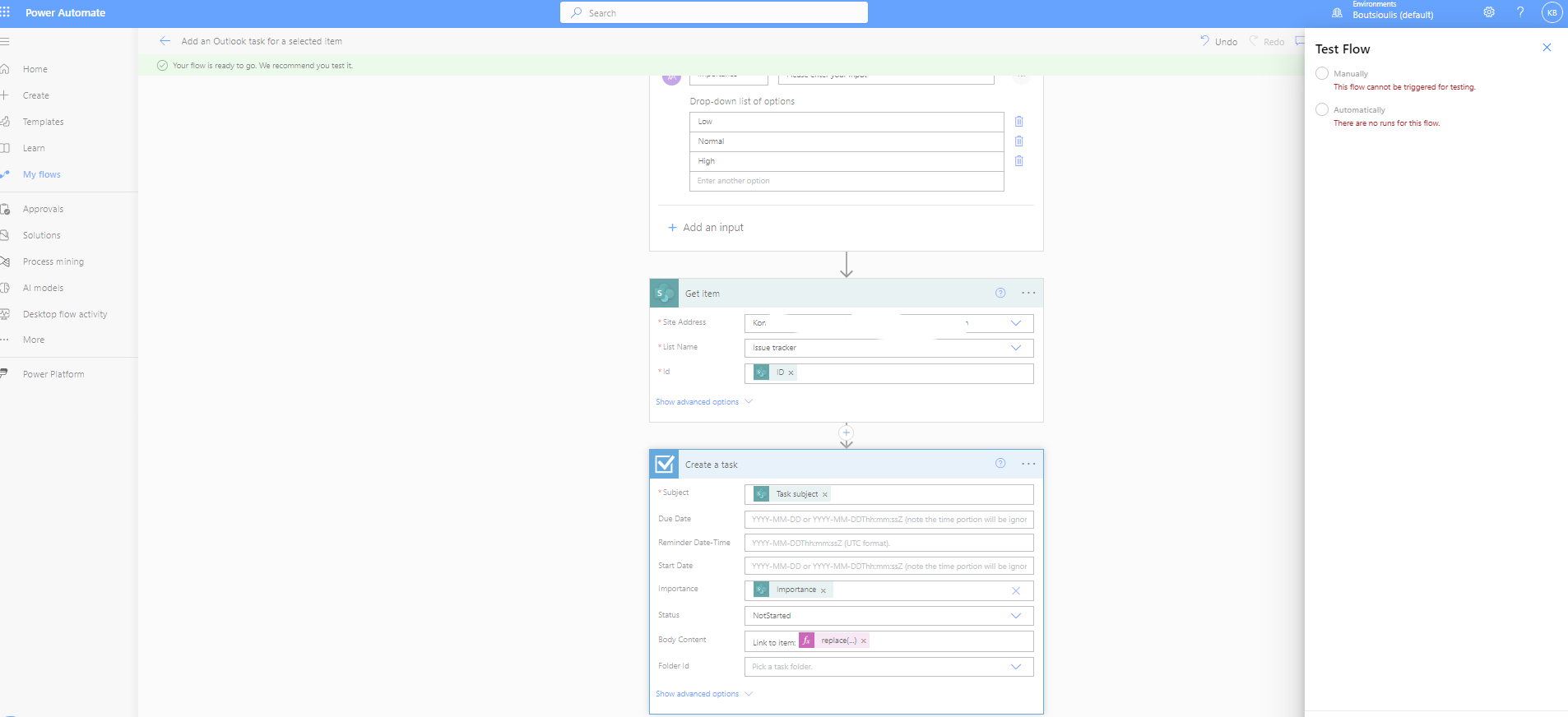
But here as you can see I don't have a test .So I will create an Item and from there you will see how I can activate automate
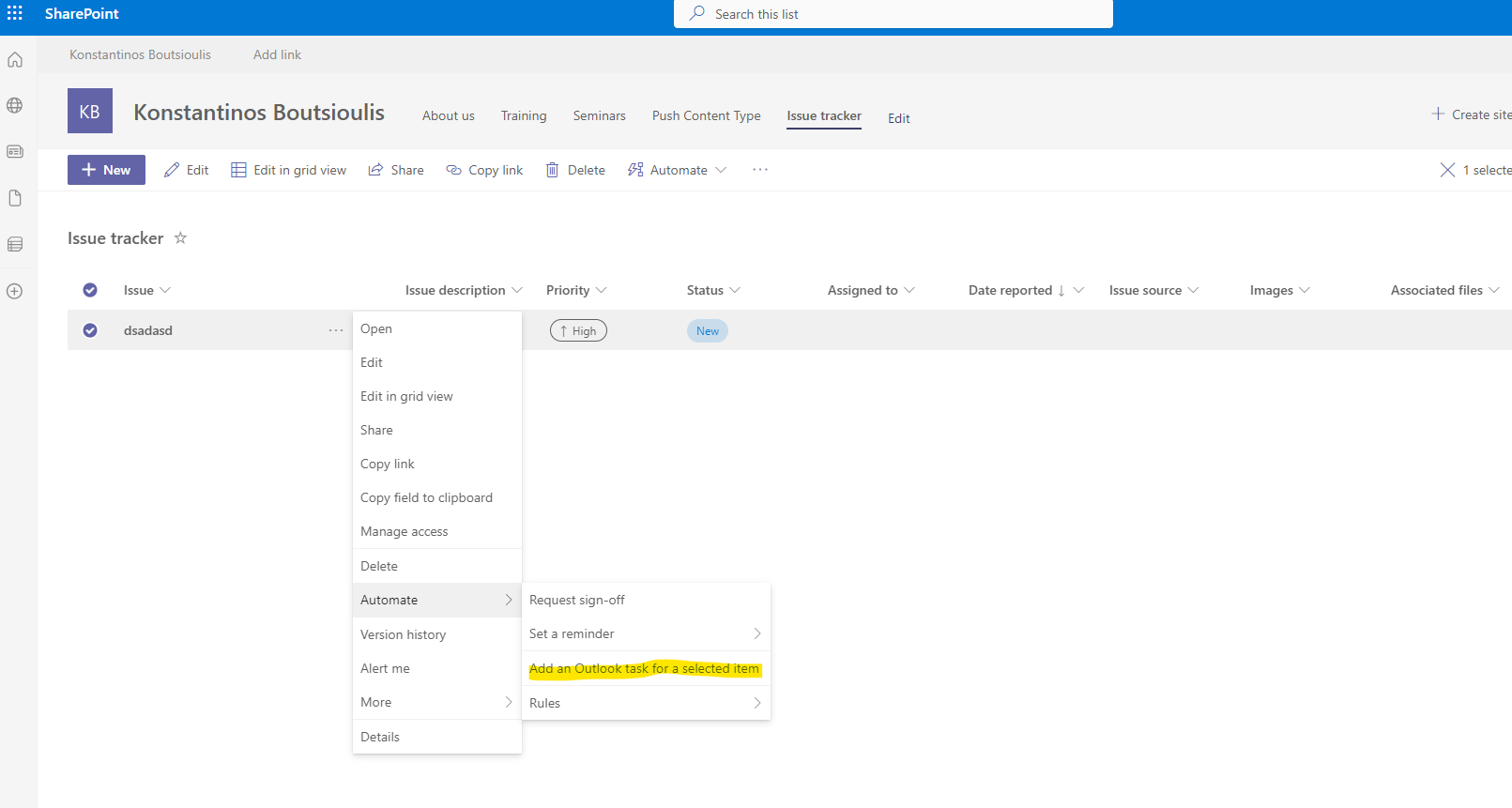
In the item I created if I click on the 3 dots on the right below automate I now have the option add an outlook task for a selected item
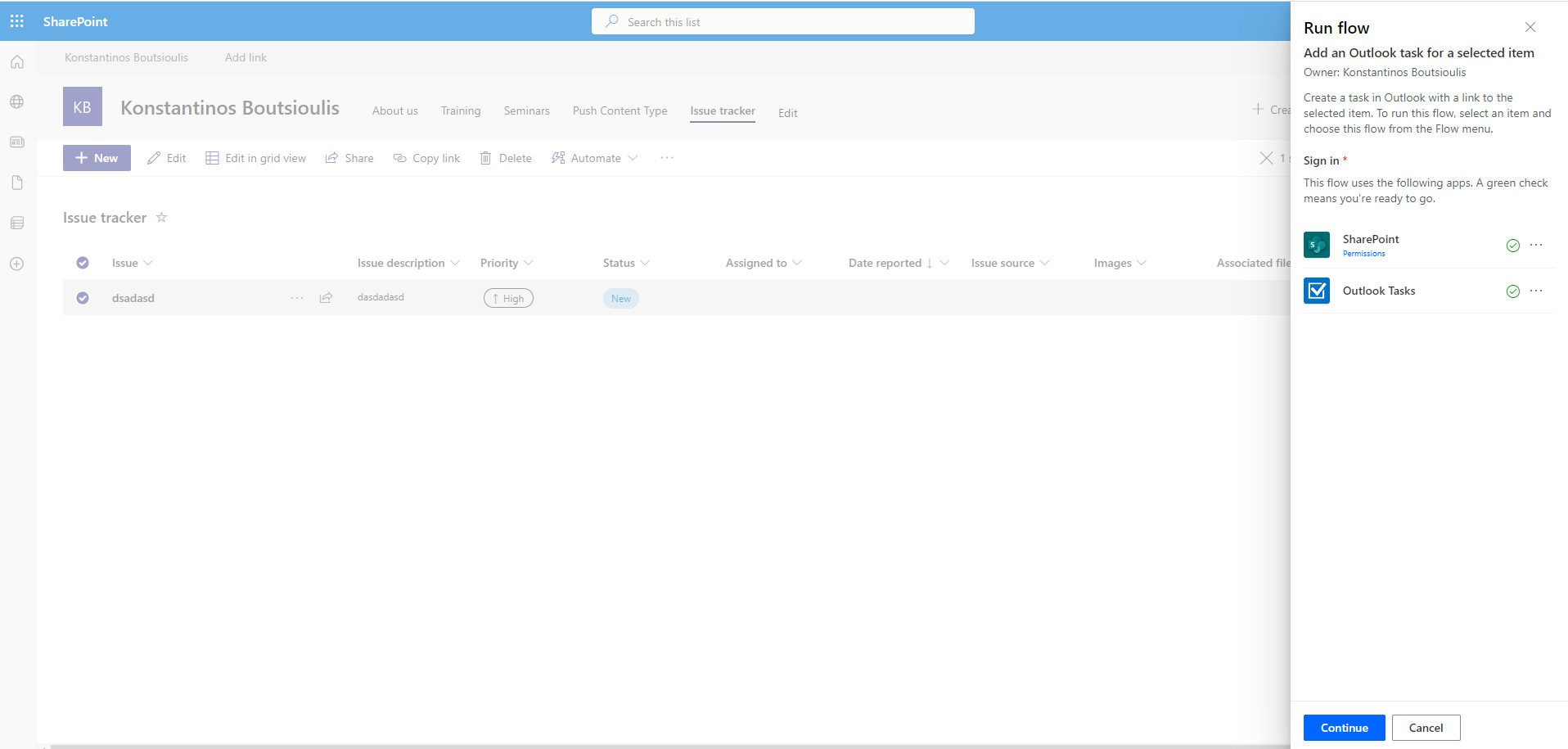
And when I select it it opens a sidebar on the right that activates the necessary links and with continue I will continue to execute the action
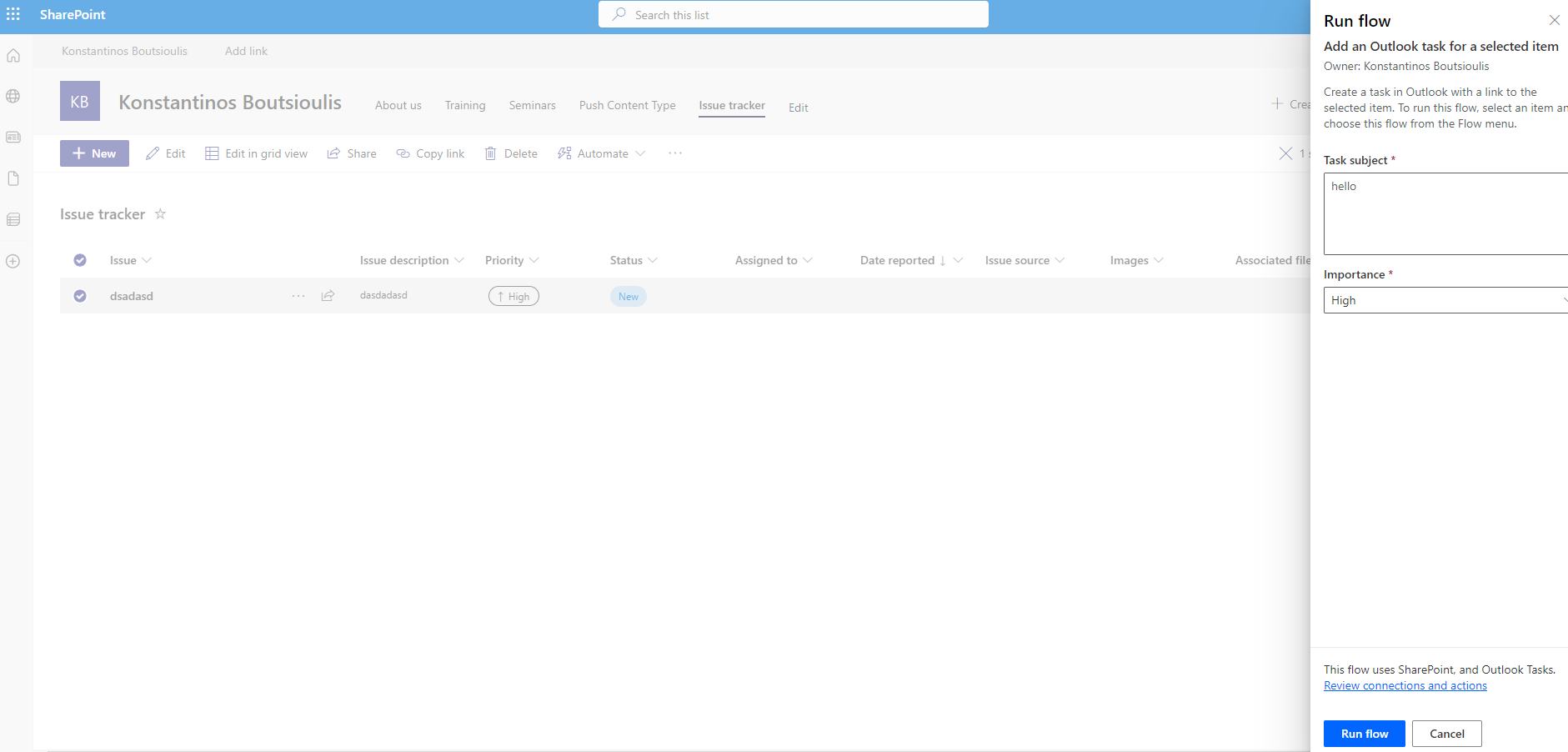
I have to enter a subject for the task and of course I have to give a rating to the importance .Then I select run flow
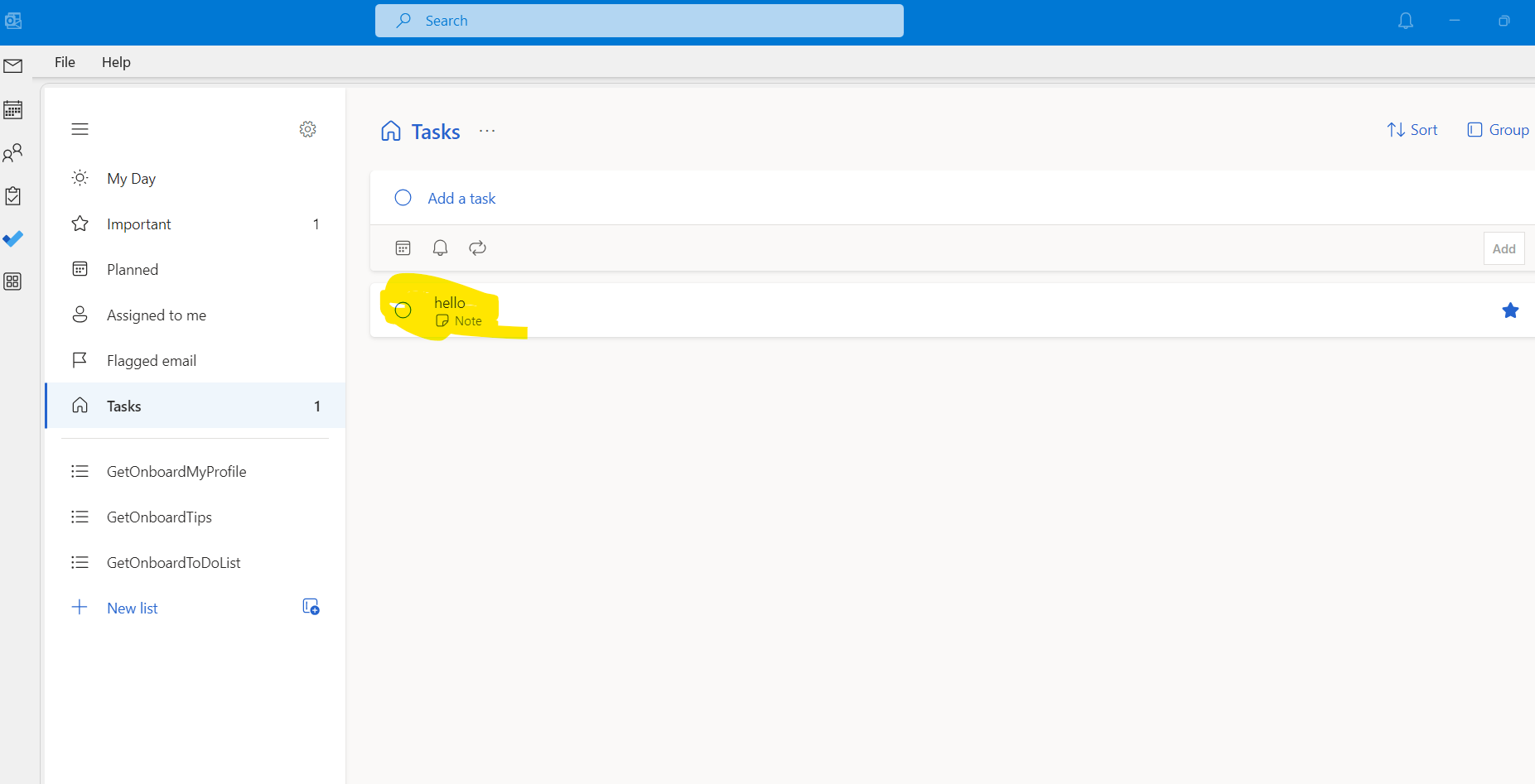
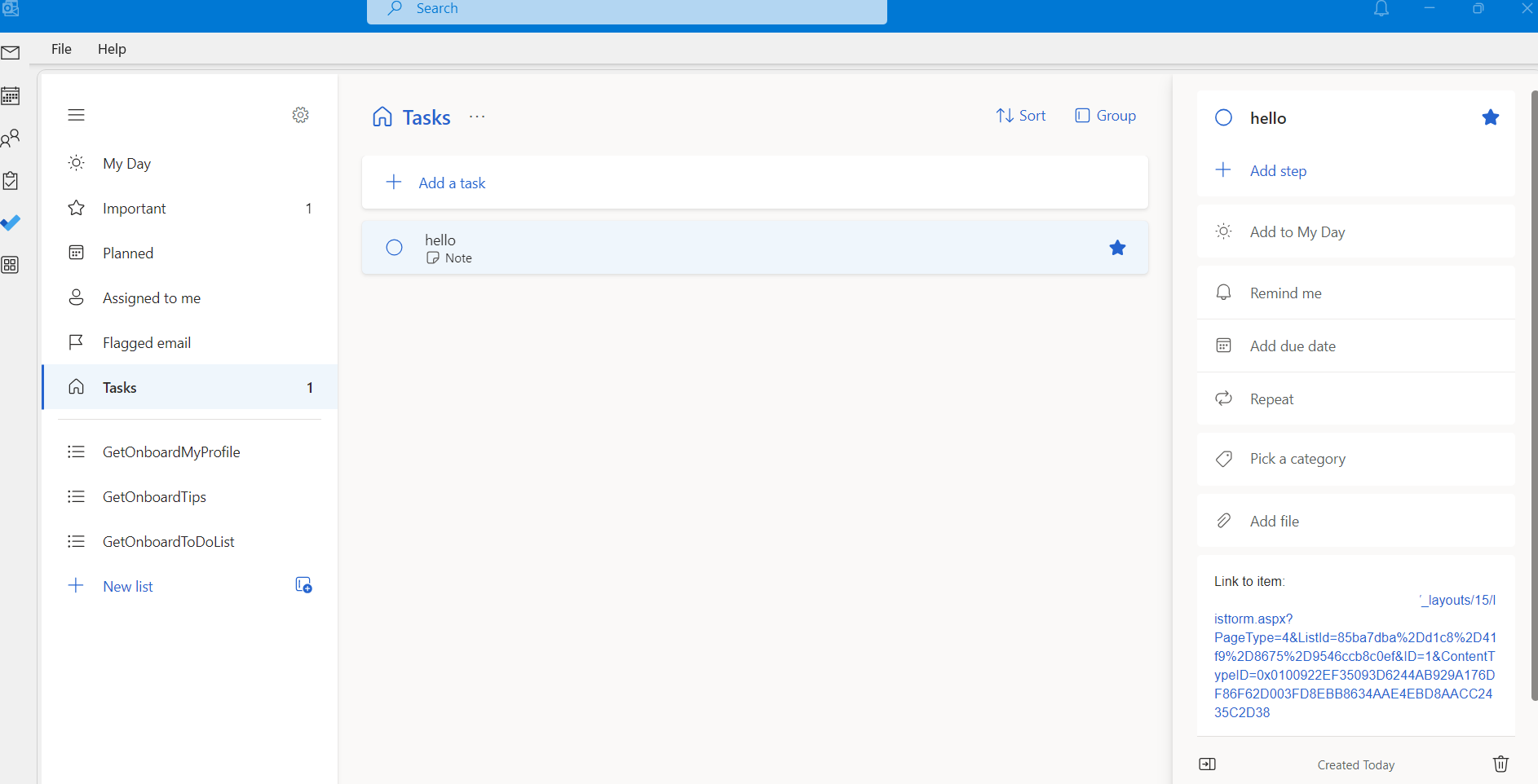
As you can finally see if you go to Outlook and then to tasks you will see that a new task has been created which is based on a SharePoint list item
And of course if you open the item you will see that at the bottom of the right sidebar there is a Link to item field indicating from which item the task was created
As you can finally see creating automate from a list is now a very simple process and no longer requires anyone to try too hard to do complicated integration between applications since Microsoft has provided and created all these necessary actions that would previously take a long time to create.
#PowerAutomate #PowerApps #SharePoint #technology #microsoft #Onedrive #digitaltransformation #cloud #mvpbuzz #m365Visit Archives below to find more articles about Microsoft technologies on Modern Workplace