
Free Material
Find hereMore than 150 Articles about Microsoft Technologies on Modern Workplace
Official Site
Microsoft Most Valuable Professional M365 Apps & Services
Microsoft Most Valuable Professional Business Applications
Consultant & Sr Cloud Solution Architect Modern Wokrplace
Find hereMore than 150 Articles about Microsoft Technologies on Modern Workplace
03 November 2023
In today's article we will see how we can create a Power app from a SharePoint list with a few clicks. I have mentioned in the past about the many possibilities we have now using cloud technologies from Microsoft because Microsoft now gives us the possibility for different products to be integrated and this way we avoid complex processes and energy for integration between these products So we'll see how easy it is to create a Power apps application from just SharePoint First we need to login to the active M365 subscription
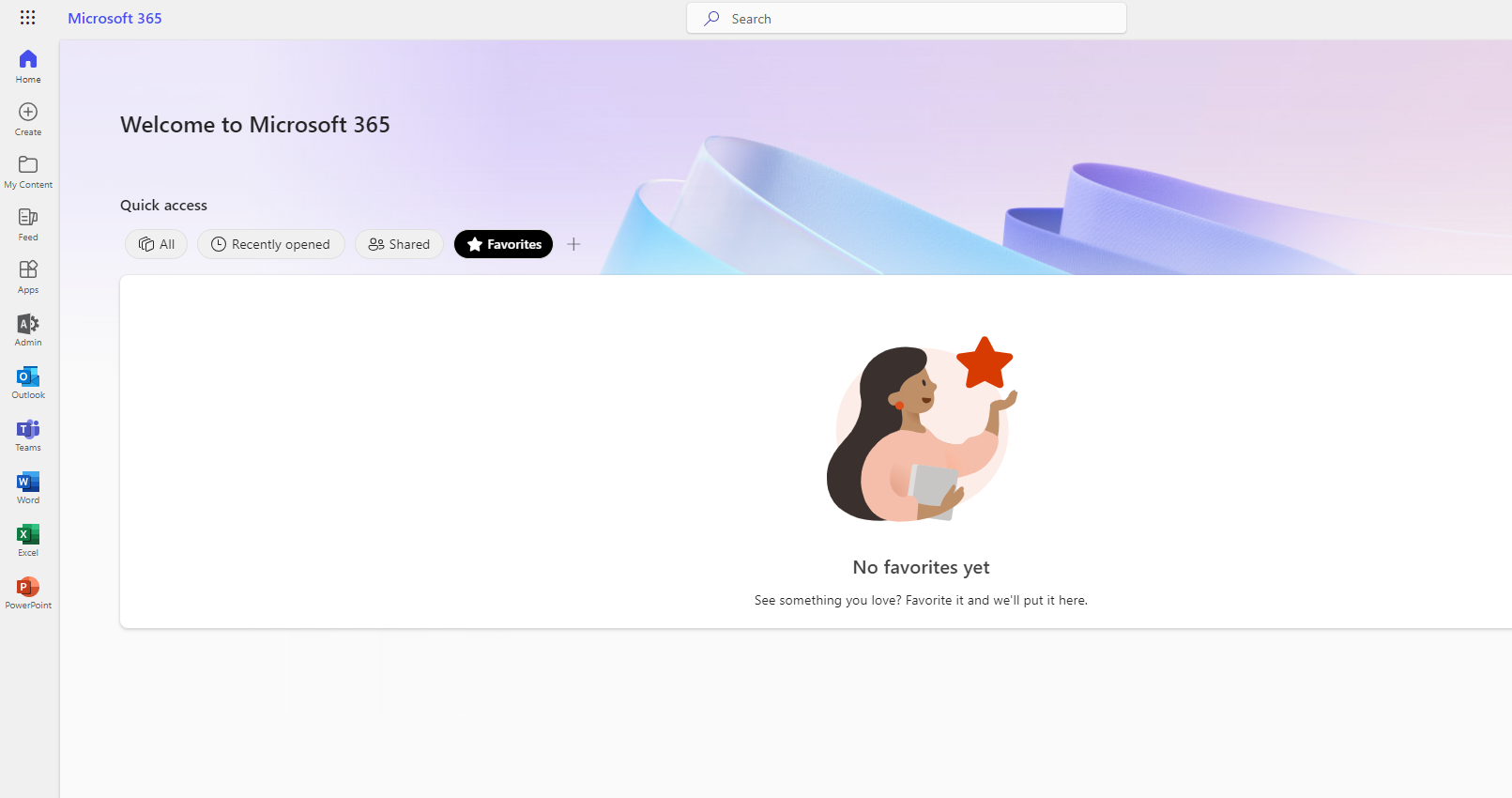
Then we select SharePoint admin center to select the site of our choice that contains the specific list we will use
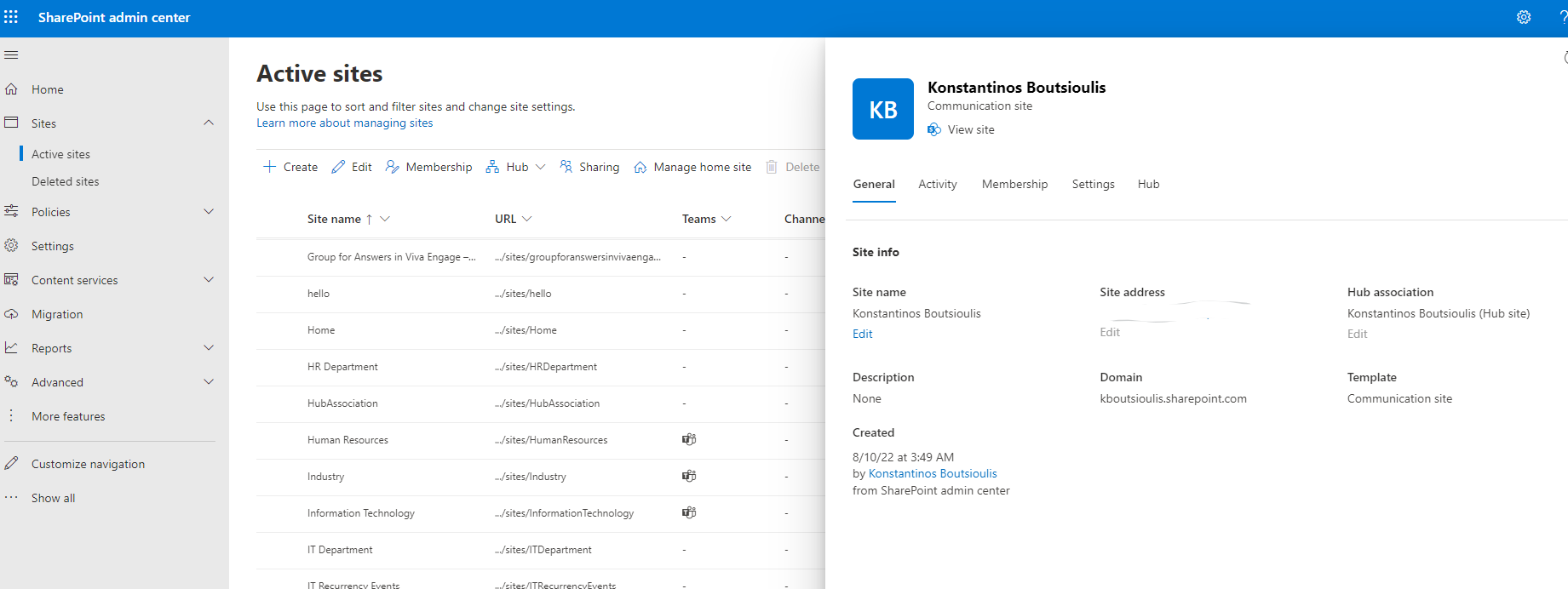
We can also direct the site's web address from a browser
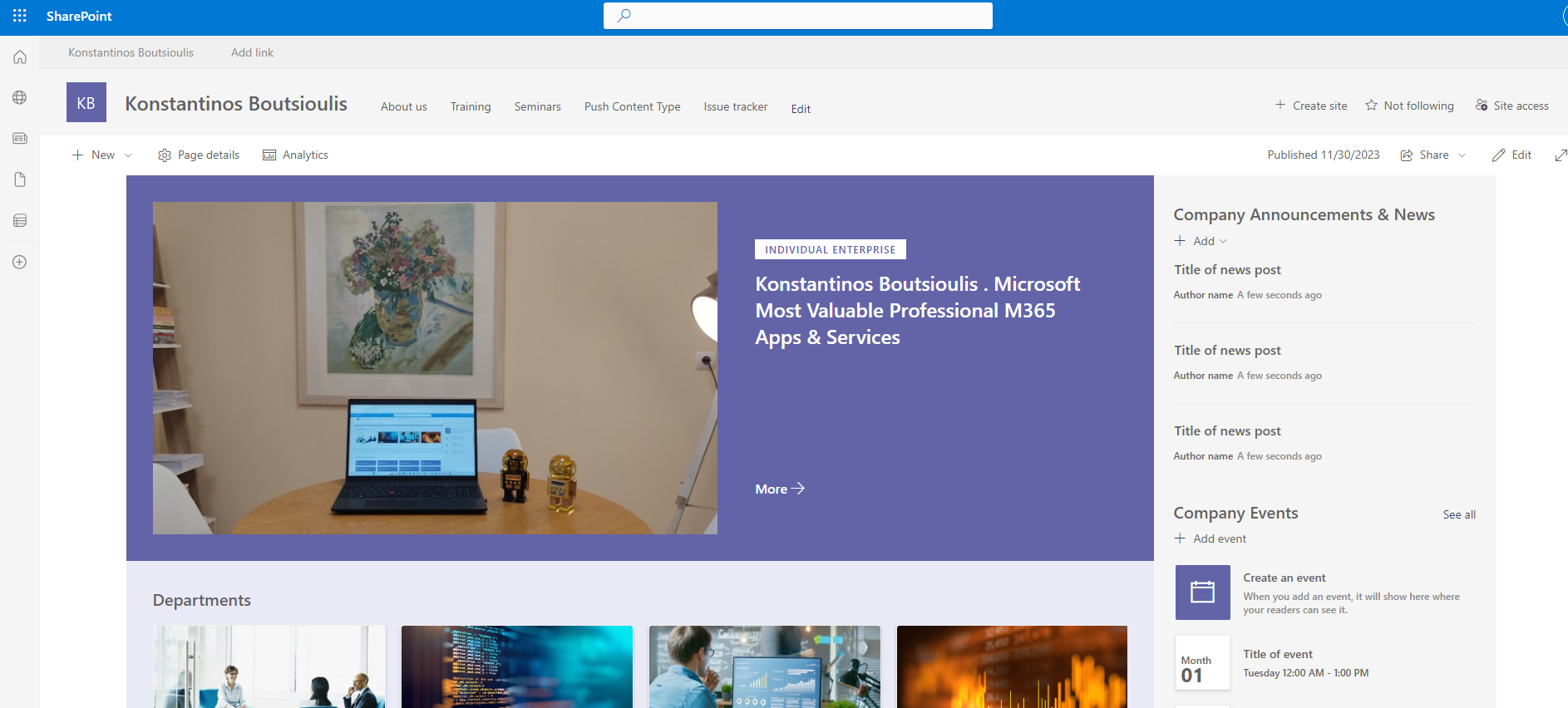
At the top right of the page we select gear and site contents and then the list we want to become an app
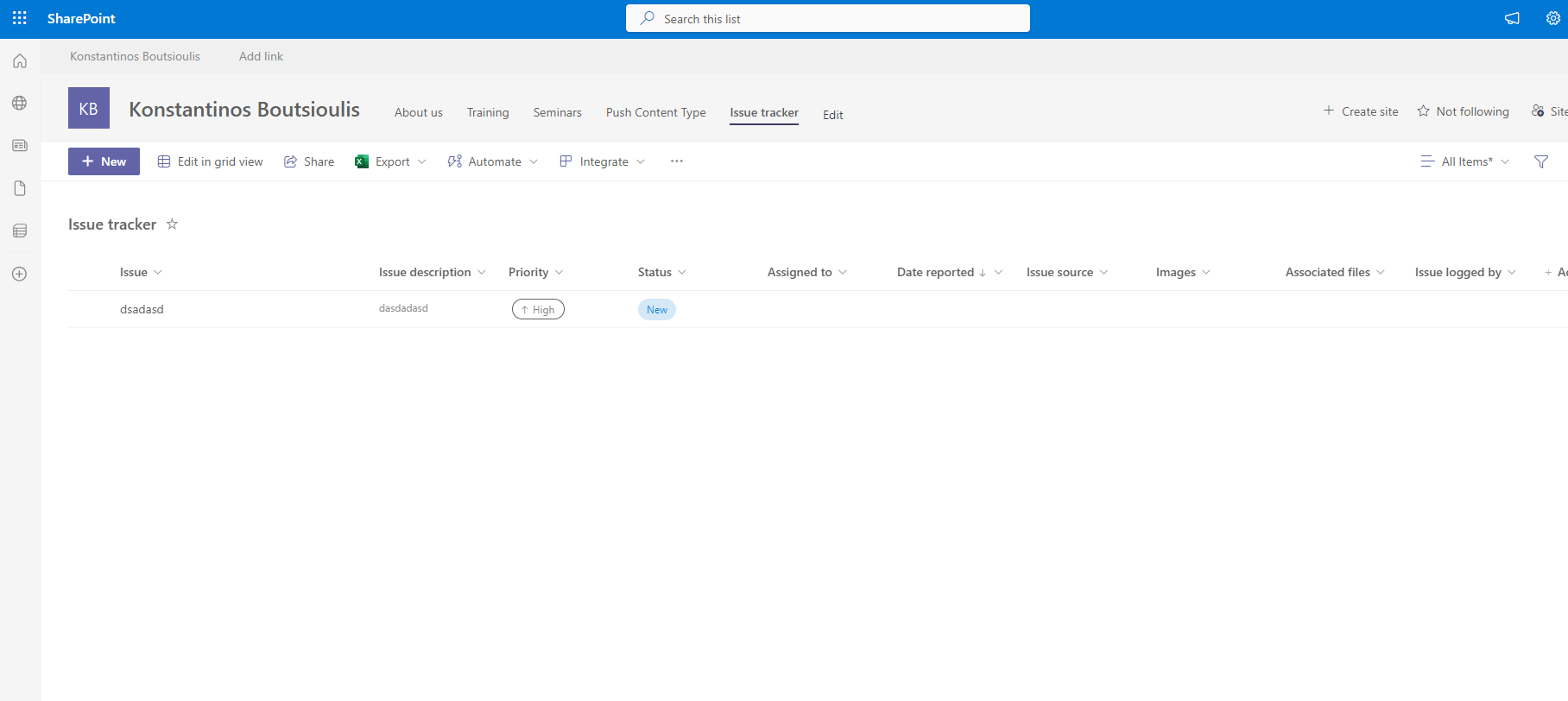
Select Integrate in the menu and then power apps and create an app
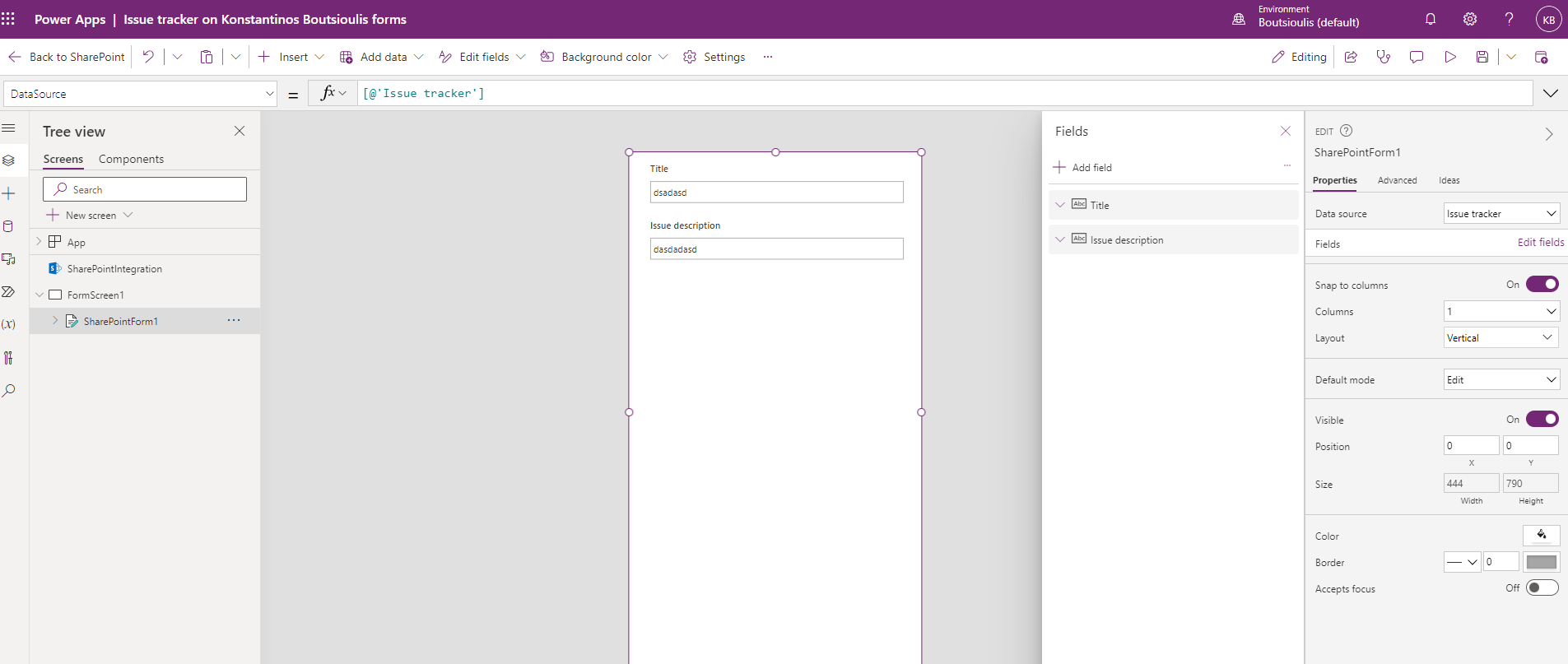
And as you can see we have gone directly to the power apps page where the new app has opened
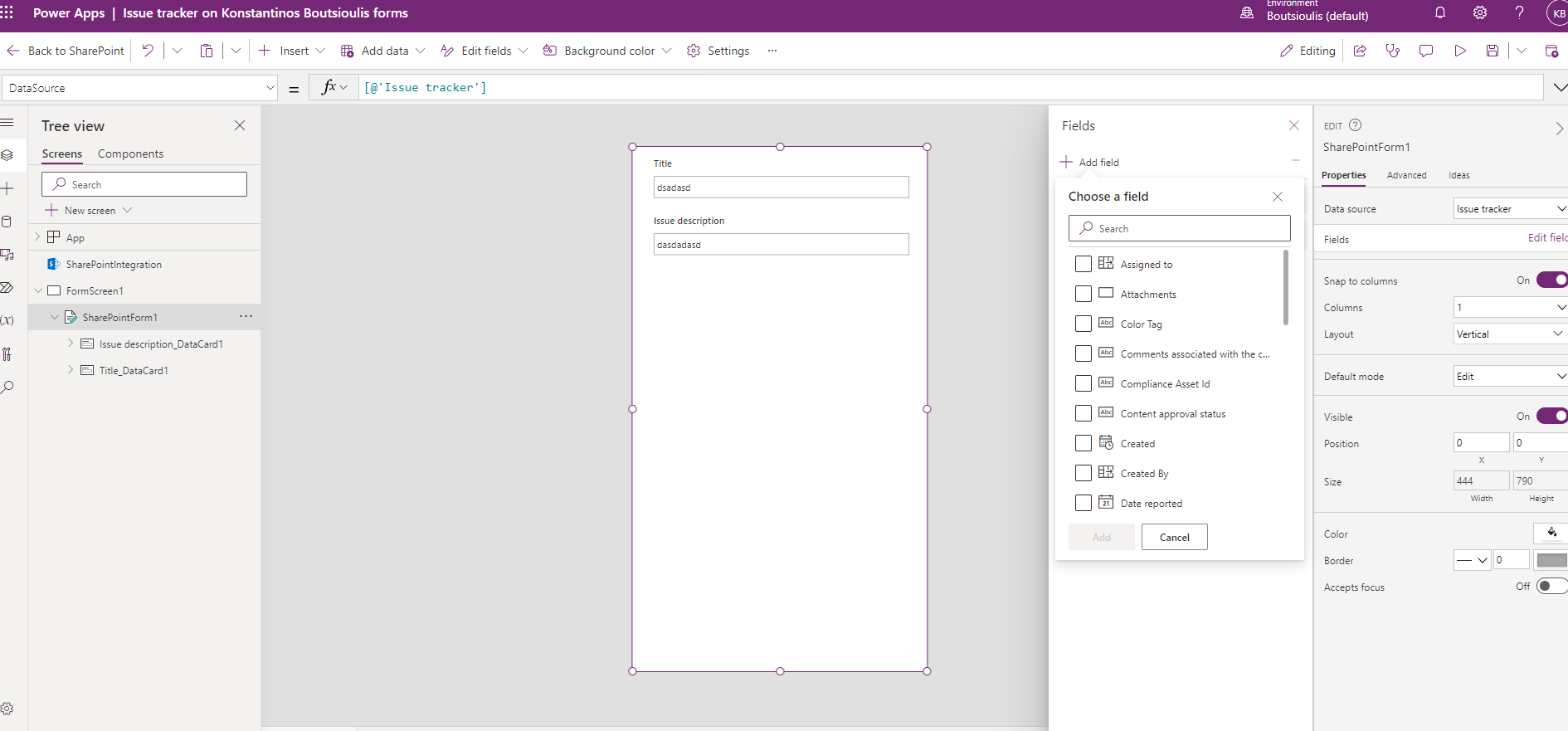
Here I must stress some things that we will need in the future First of all we see the associated application has created a connector with SharePoint as well as we see only one screen for our application .Inside the screen there is only one item which is a form which can be edited If you look more closely at our new app you will see in the properties the datasource which is the SharePoint library and from below in the fields if you click edit you can add the other fields that are not shown in our form.
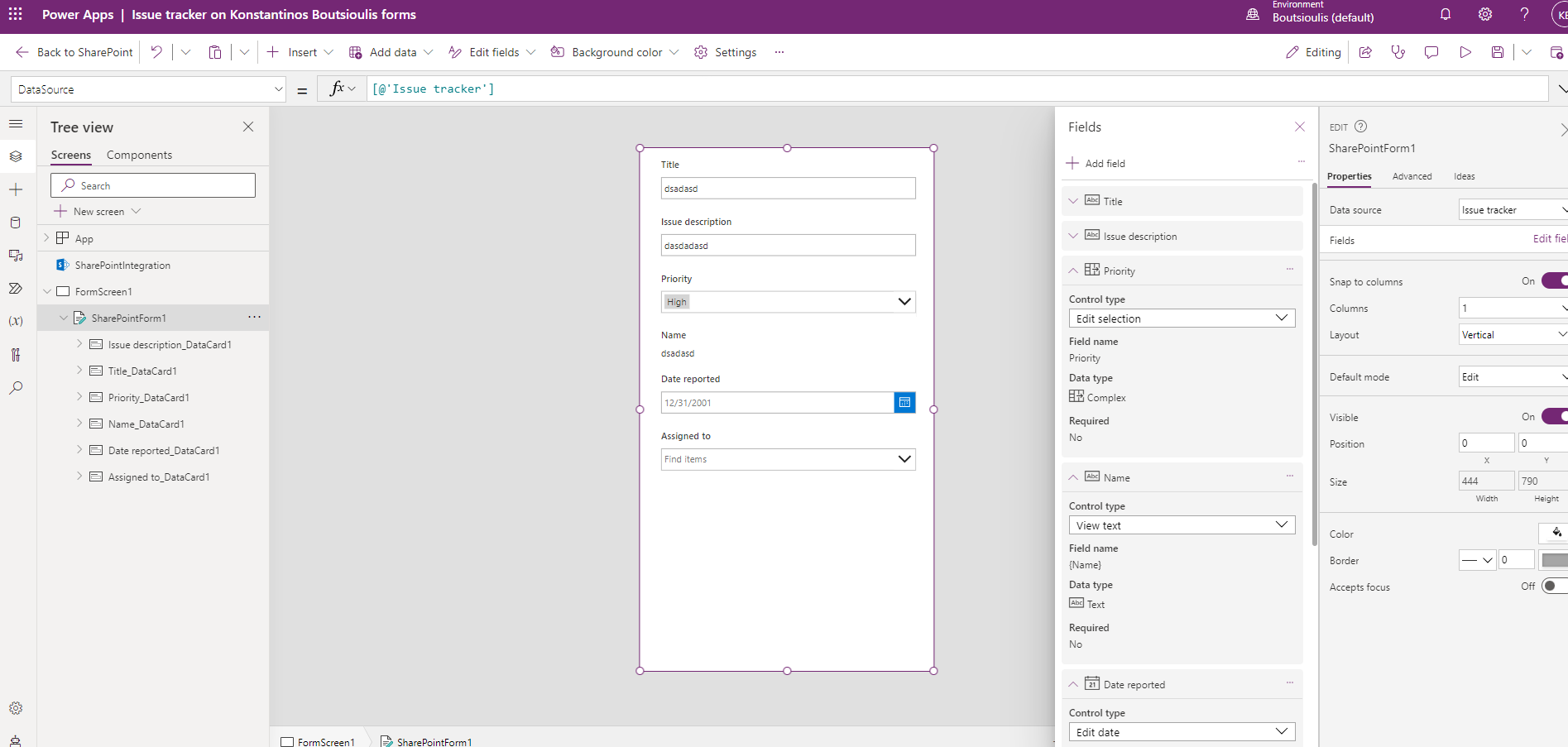
Within these fields you can see all the columns of SharePoint whether they are default or custom so you have the possibility to add any you want
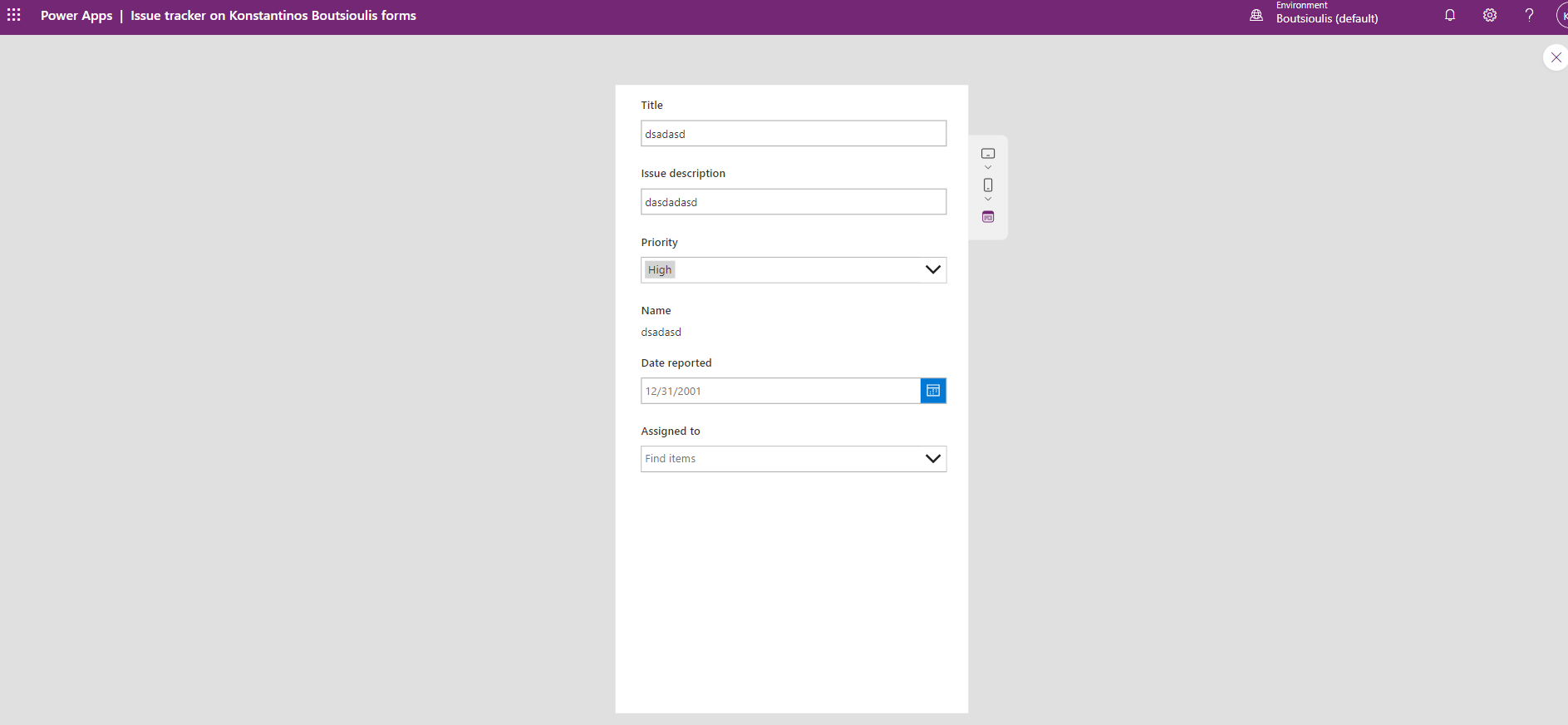
Finally for today's article I would like to add that through the Power app we have the ability to see how this app will appear on different types of devices as you can see below
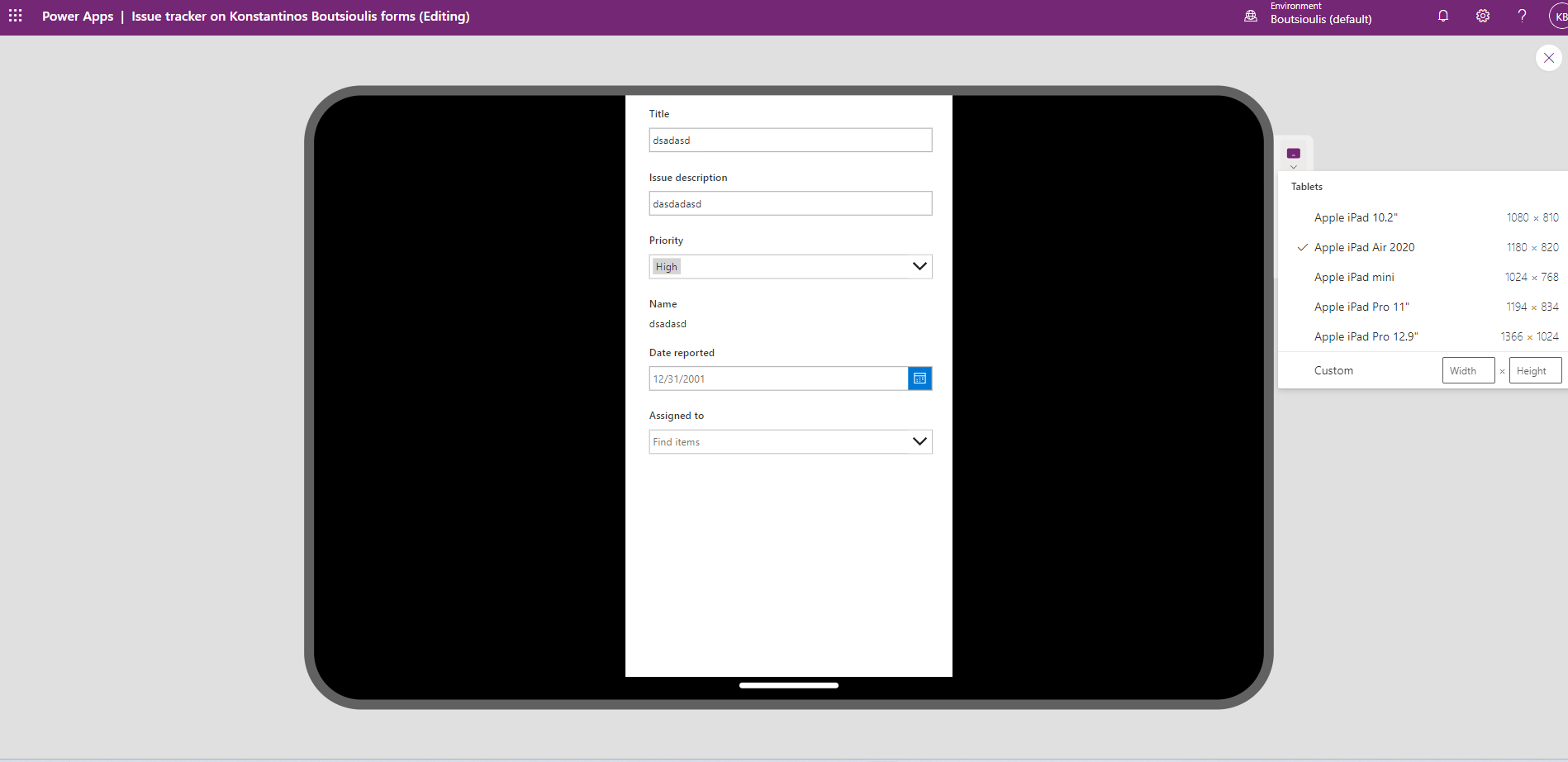
Finally for today's article I would liThe Power app by default creates the app that is for Mobile . Besides in future articles we will see how to handle apps for Tablte , pc etc.ke to add that through the Power app we have the ability to see how this app will appear on different types of devices as you can see below
#PowerAutomate #PowerApps #SharePoint #technology #microsoft #Onedrive #digitaltransformation #cloud #mvpbuzz #m365Visit Archives below to find more articles about Microsoft technologies on Modern Workplace