
Free Material
Find hereMore than 150 Articles about Microsoft Technologies on Modern Workplace
Official Site
Microsoft Most Valuable Professional M365 Apps & Services
Microsoft Most Valuable Professional Business Applications
Consultant & Sr Cloud Solution Architect Modern Wokrplace
Find hereMore than 150 Articles about Microsoft Technologies on Modern Workplace
14 November 2023
In today's article we will continue again with Power apps and we will show how in this original application that we made with the one screen we can create a link to a SharePoint list and see all the fields of this list in our application. First we need to go to the main page of M365
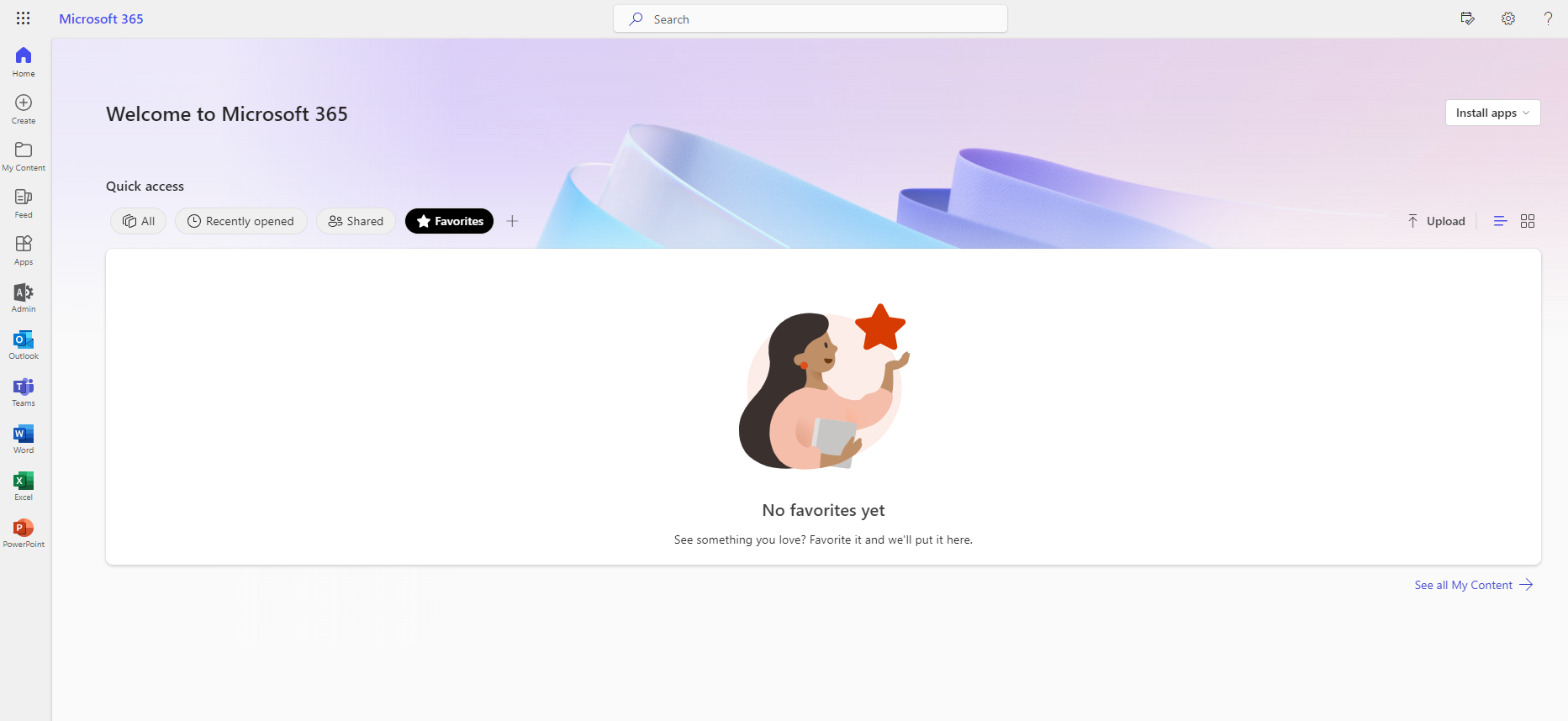
And select from all apps the power automate
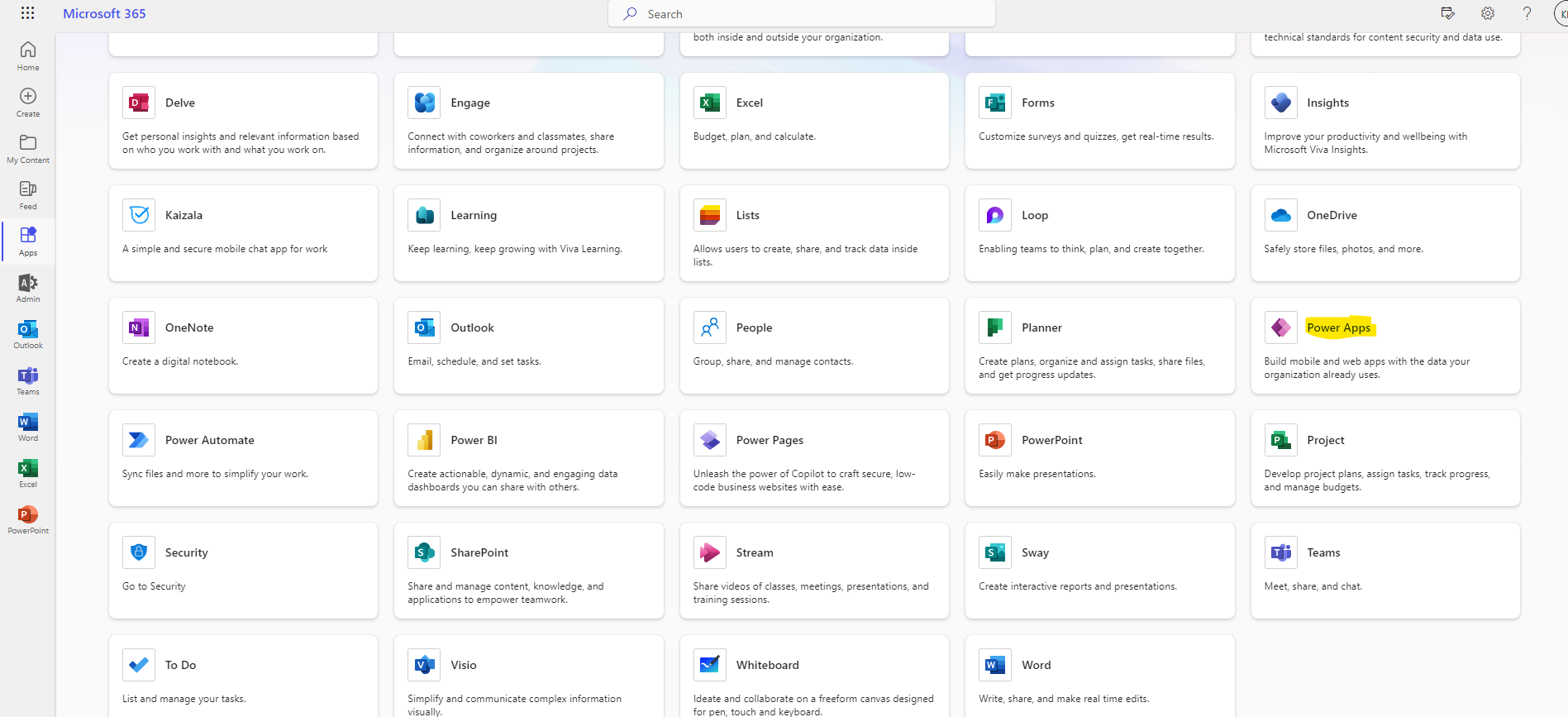
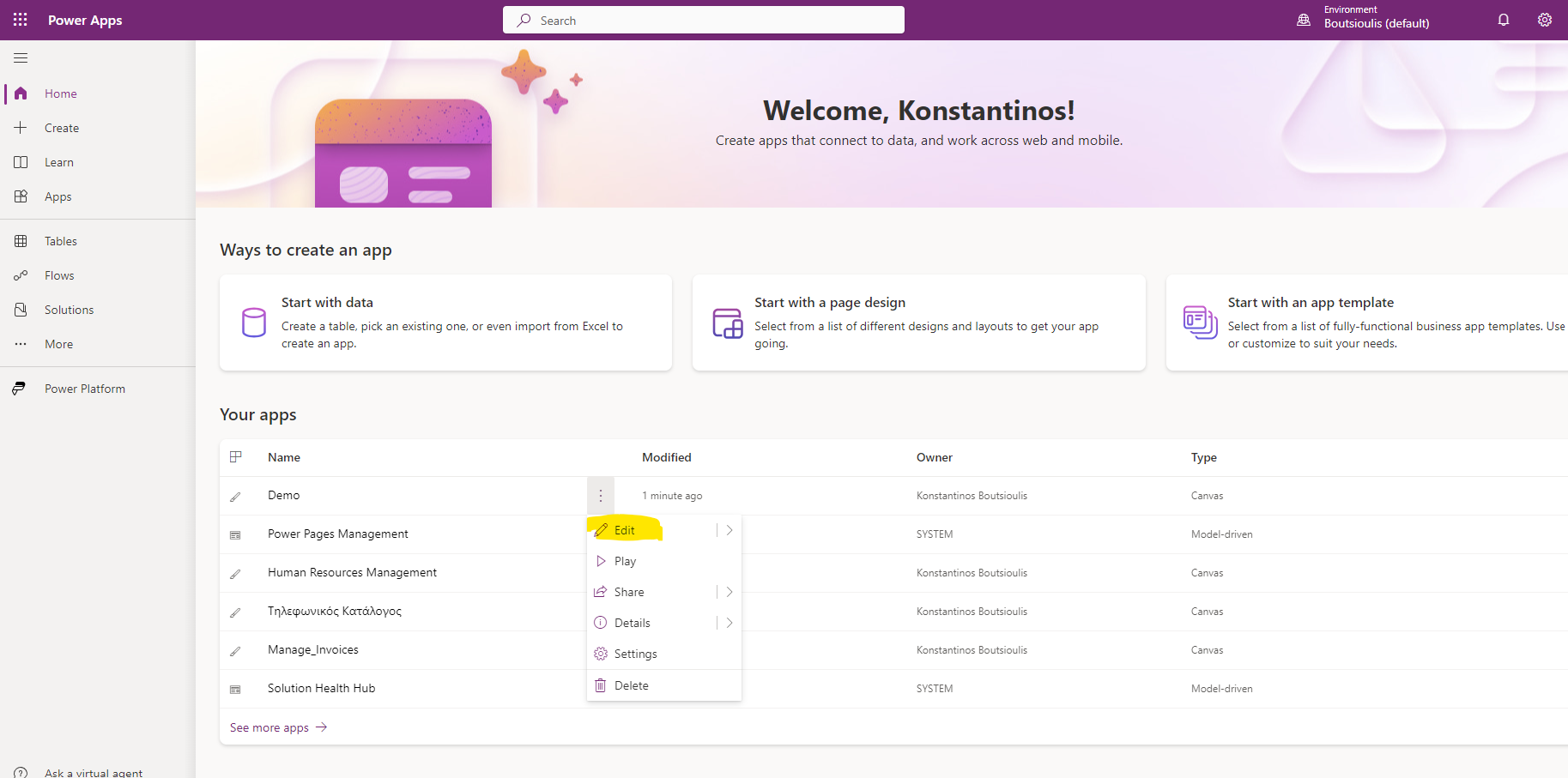
This way we will go to the main page of Power apps and from there we have to select the power app I created as a demo to click on the 3 dots on the right and select edit from the popup menu
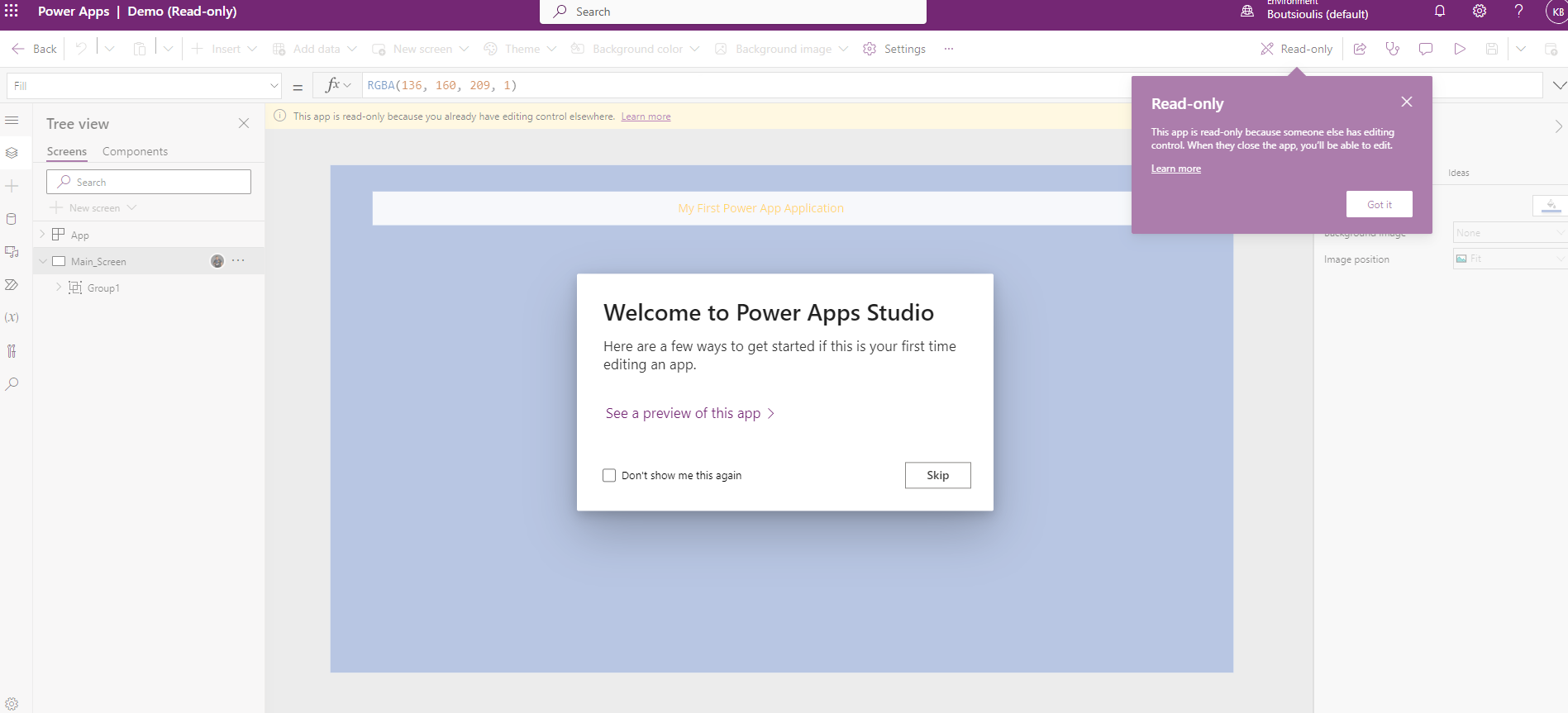
As you can see we have entered inside the app and now we can edit our app .
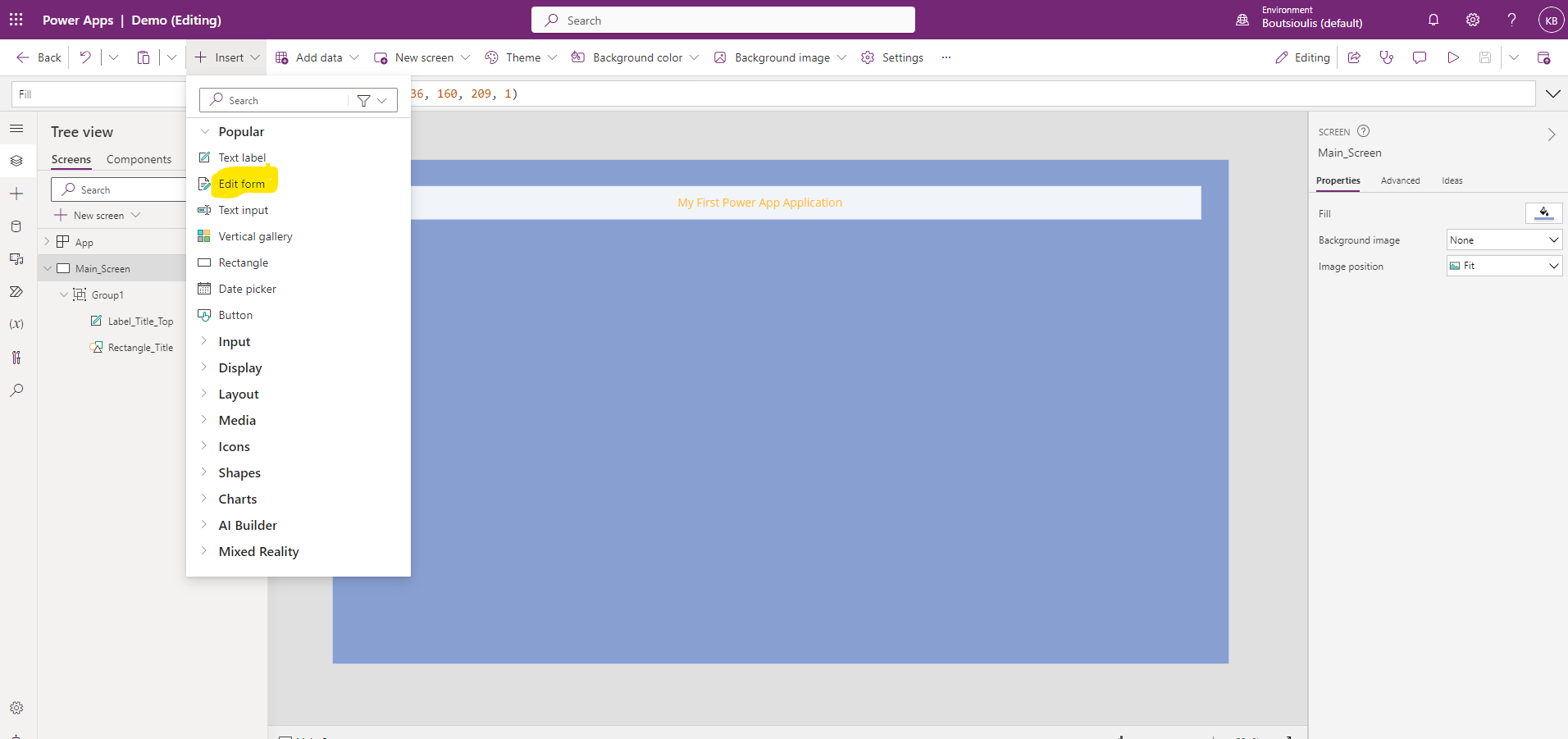
As I mentioned at the beginning of the article we will import a form which will show all the fields of a SharePoint list we have created . If you remember in a previous article I showed you how we can make a power app from a SharePoint list. Now we will see the reverse process of how I create a power app and connect it to a SharePoint list . In reality I am doing exactly the same thing with a different approach So to show the fields of a list I have to click on Insert and then in the popup menu I select edit form
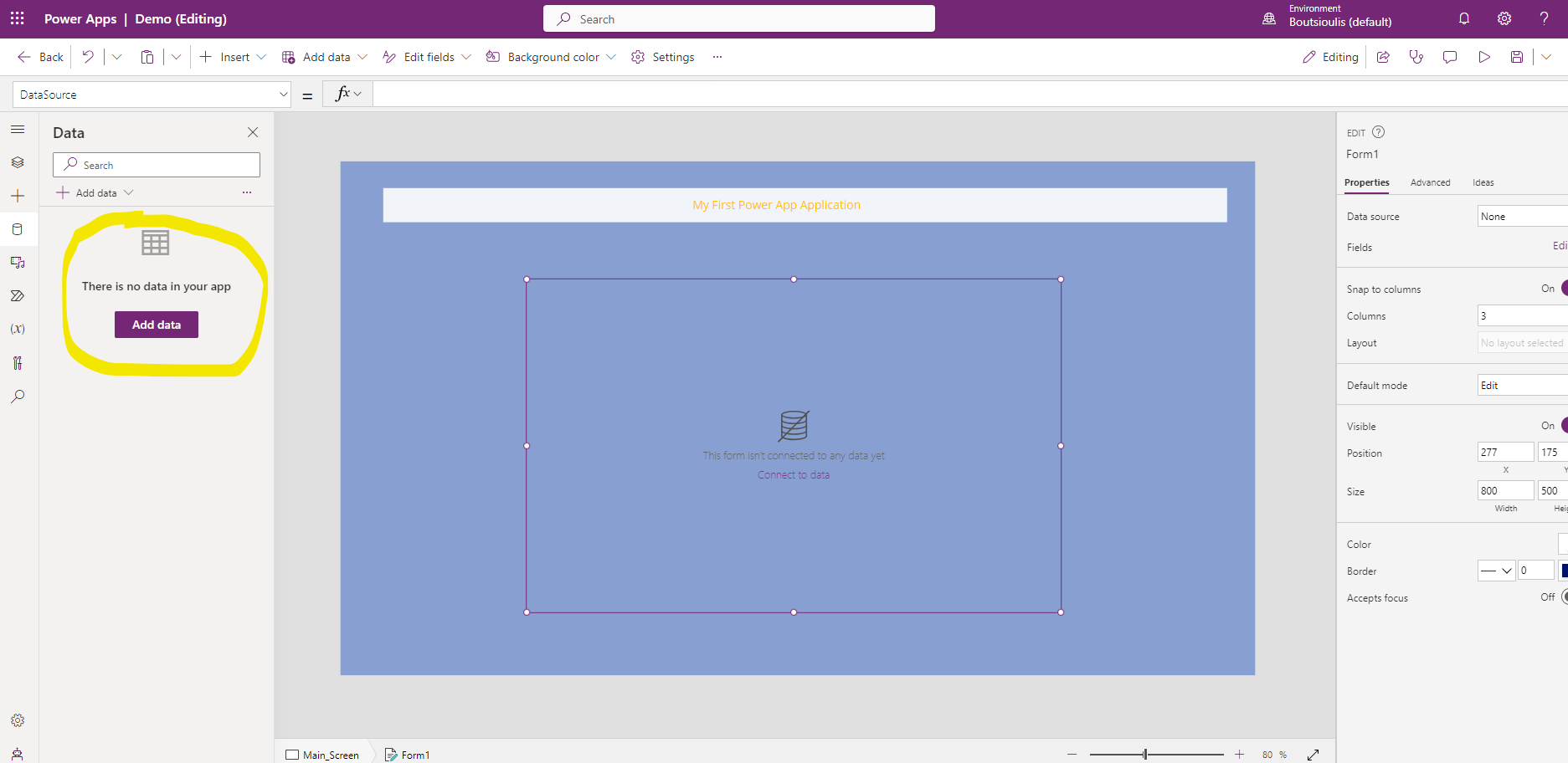
As you can see a square frame has been put inside my app but it has no connection .I need to open a connection to SharePoint and the list I want where in the left side column I select the third icon that is for my databases and I select from the left column add data
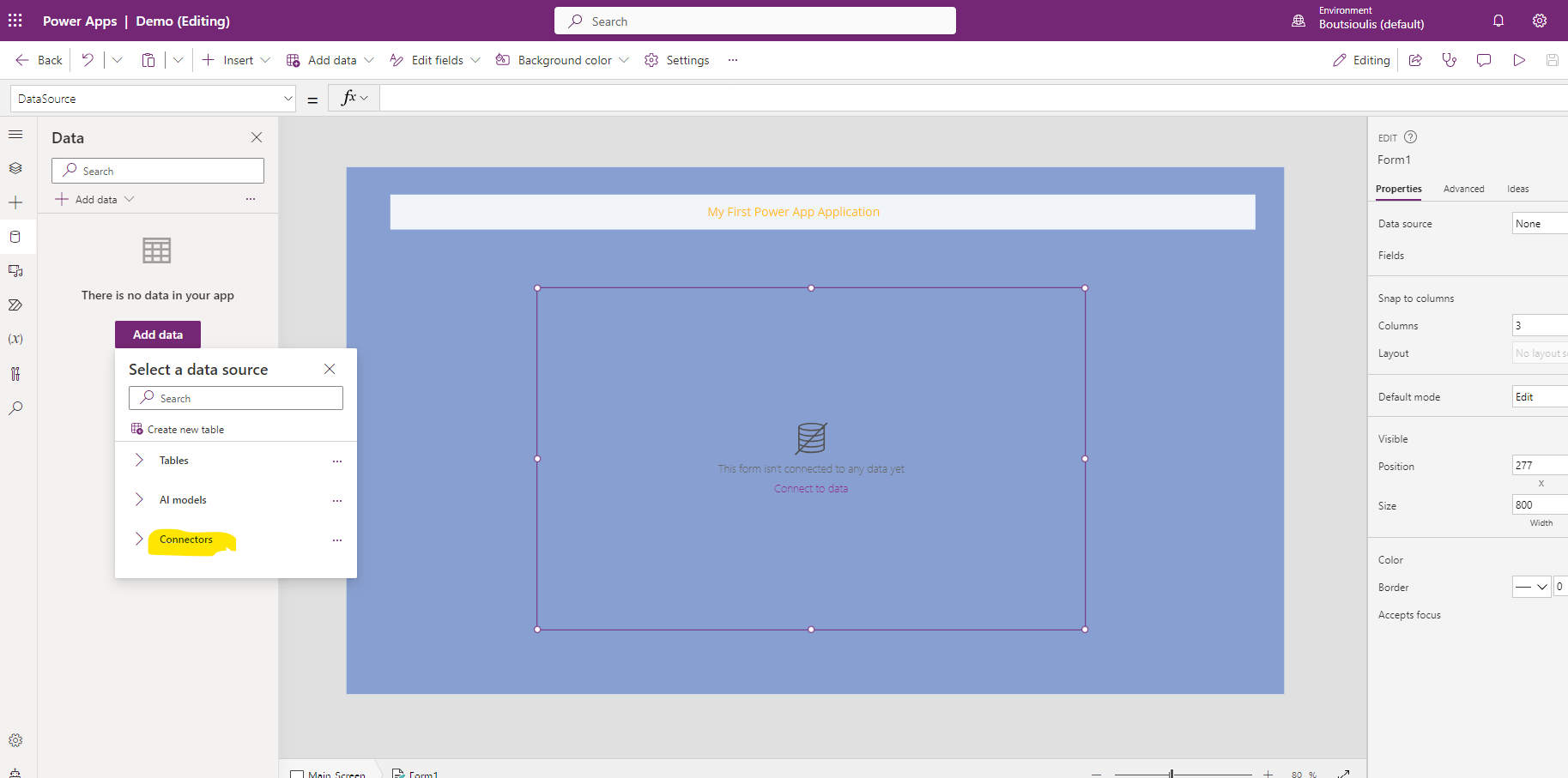
In the next step we have to select connector from the available ones
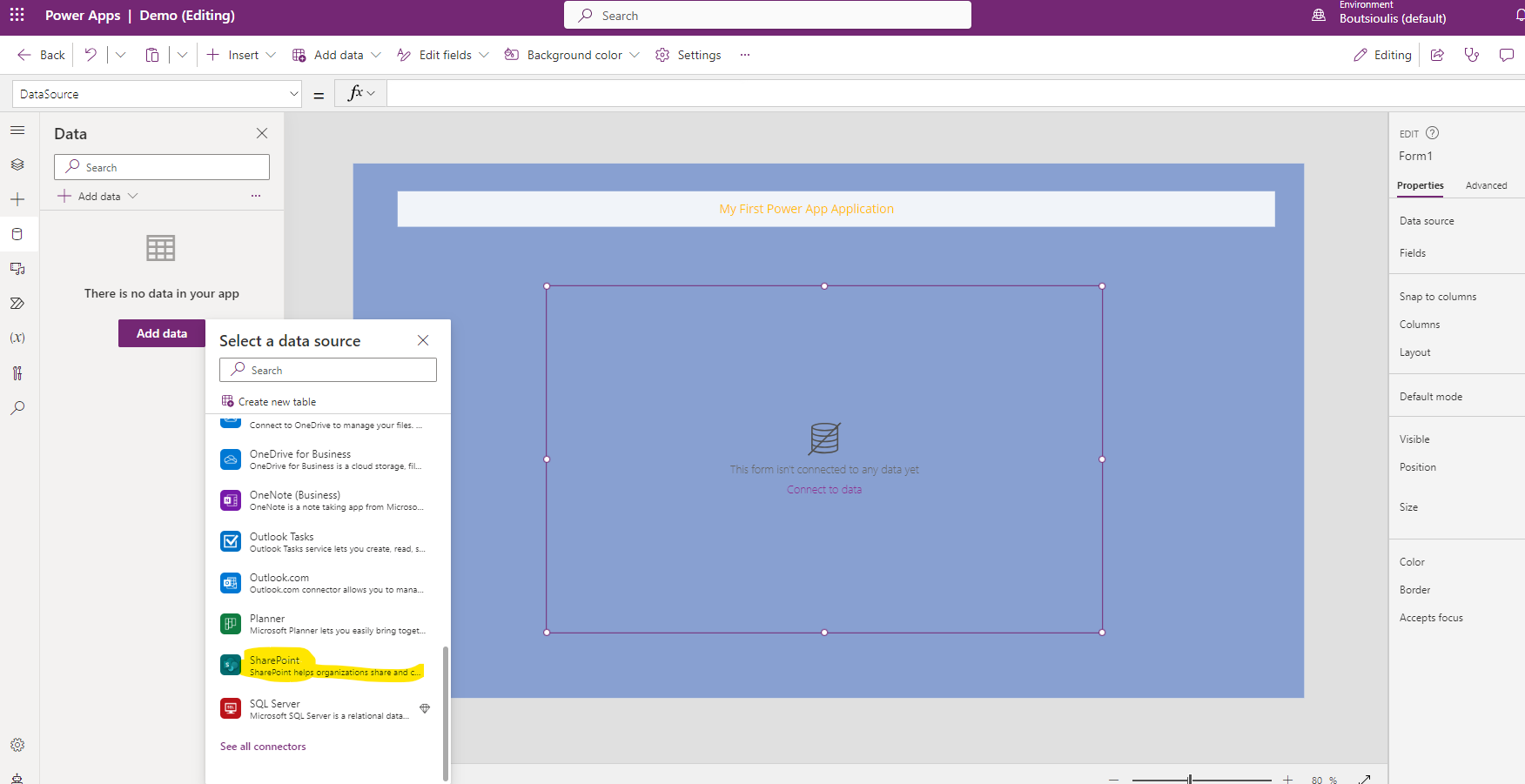
And since we have said that we will connect our application to a SharePoint list I select SharePoint
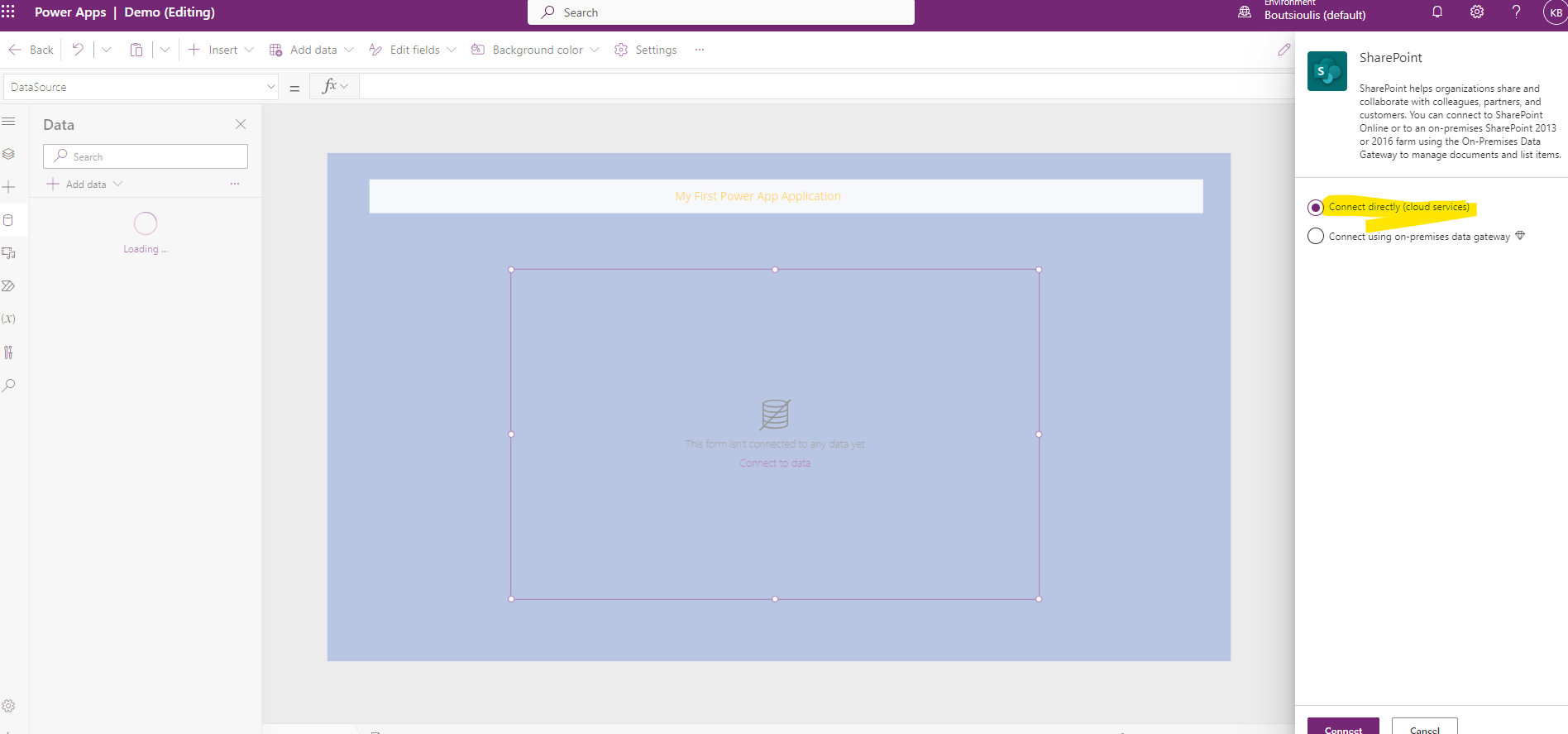
In the next step I select connect directly and connect .As you can see I have a data gateway for the Onpremise implementations
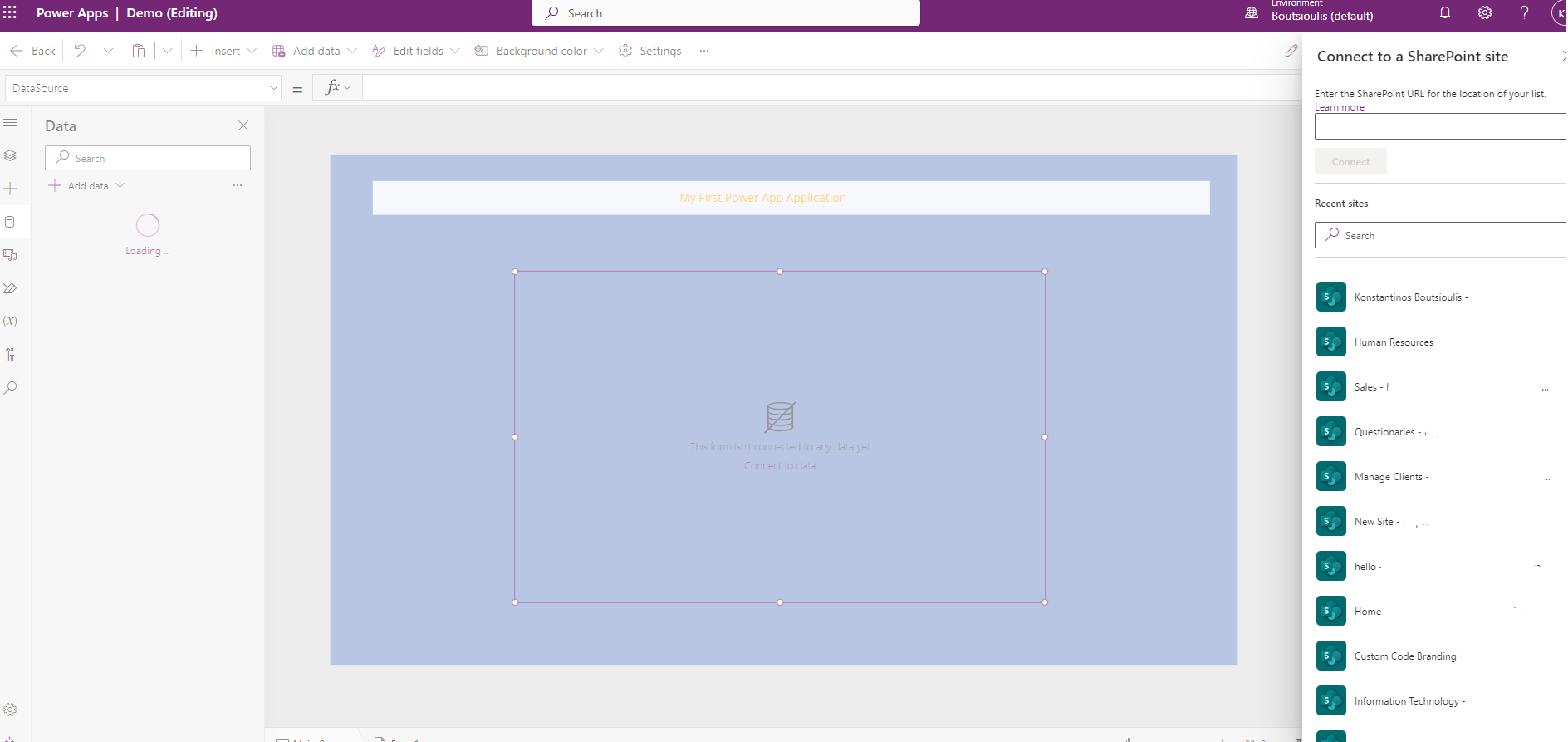
In the next step I select the site in SharePoint that hosts the list I wish to connect to
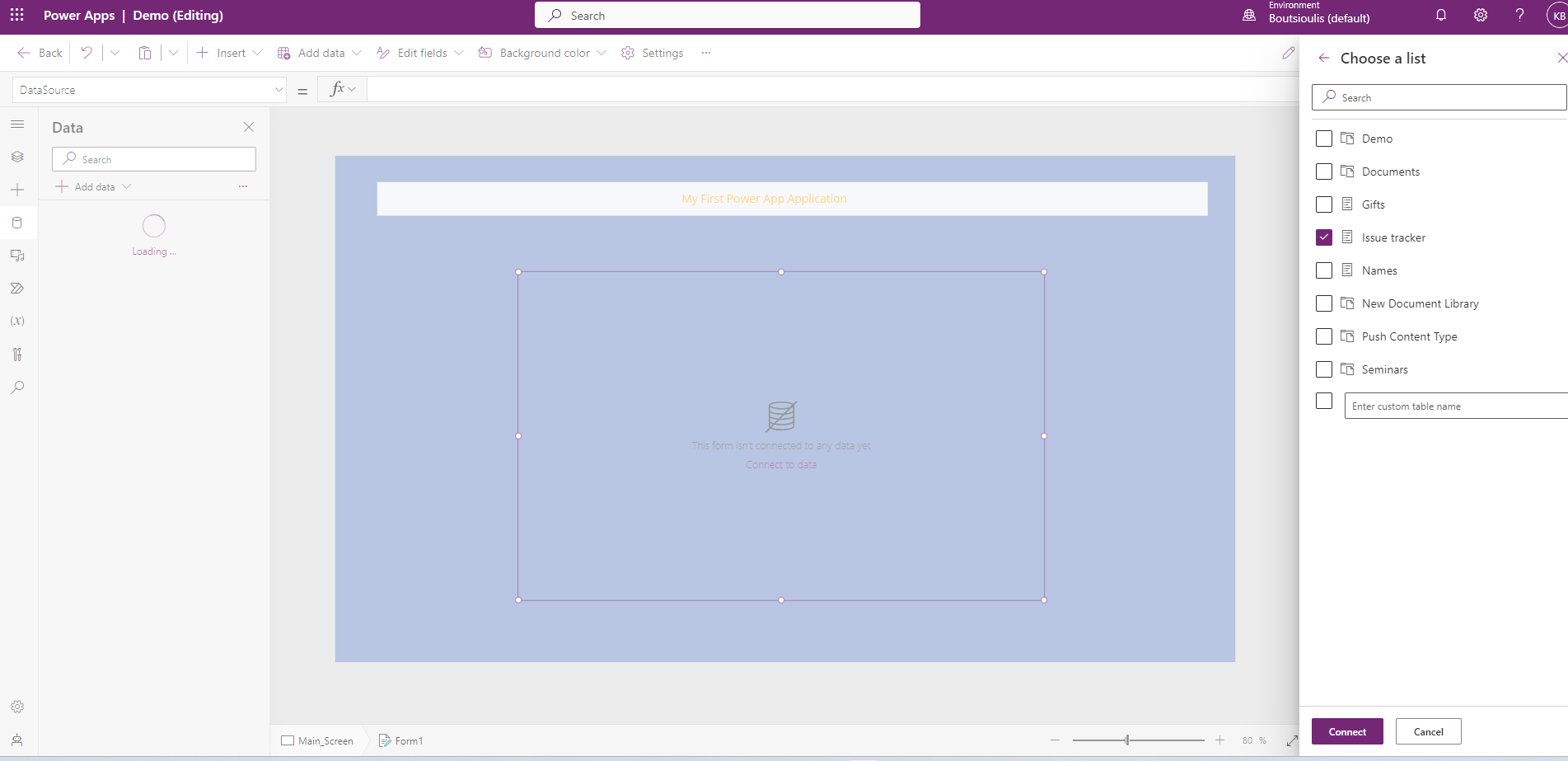
And now that all the libraries and lists of the site have appeared I choose the list I want
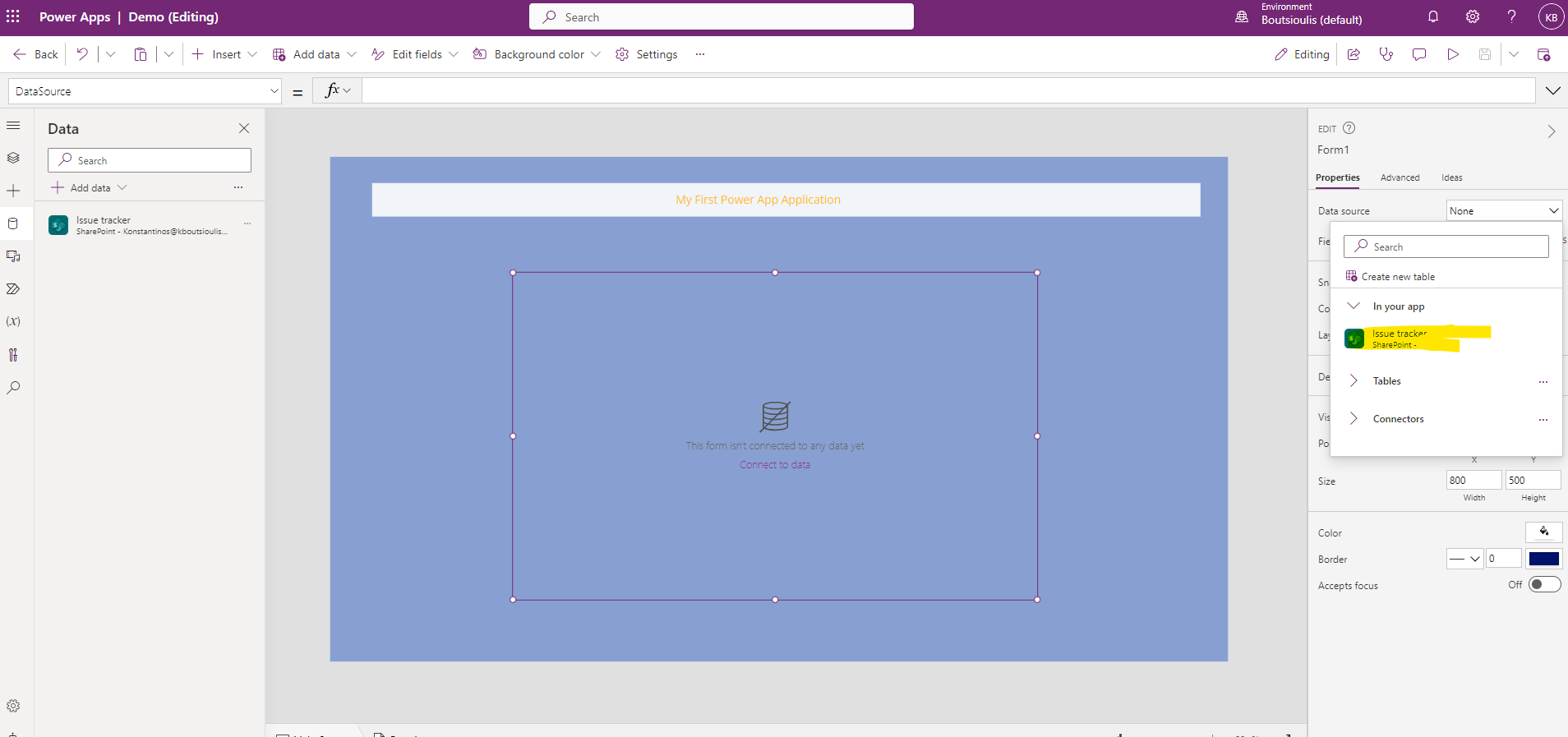
But I have not completed it yet .I have to in the context we said before in the right side column in the properties below the data source to select the list I added a little while ago
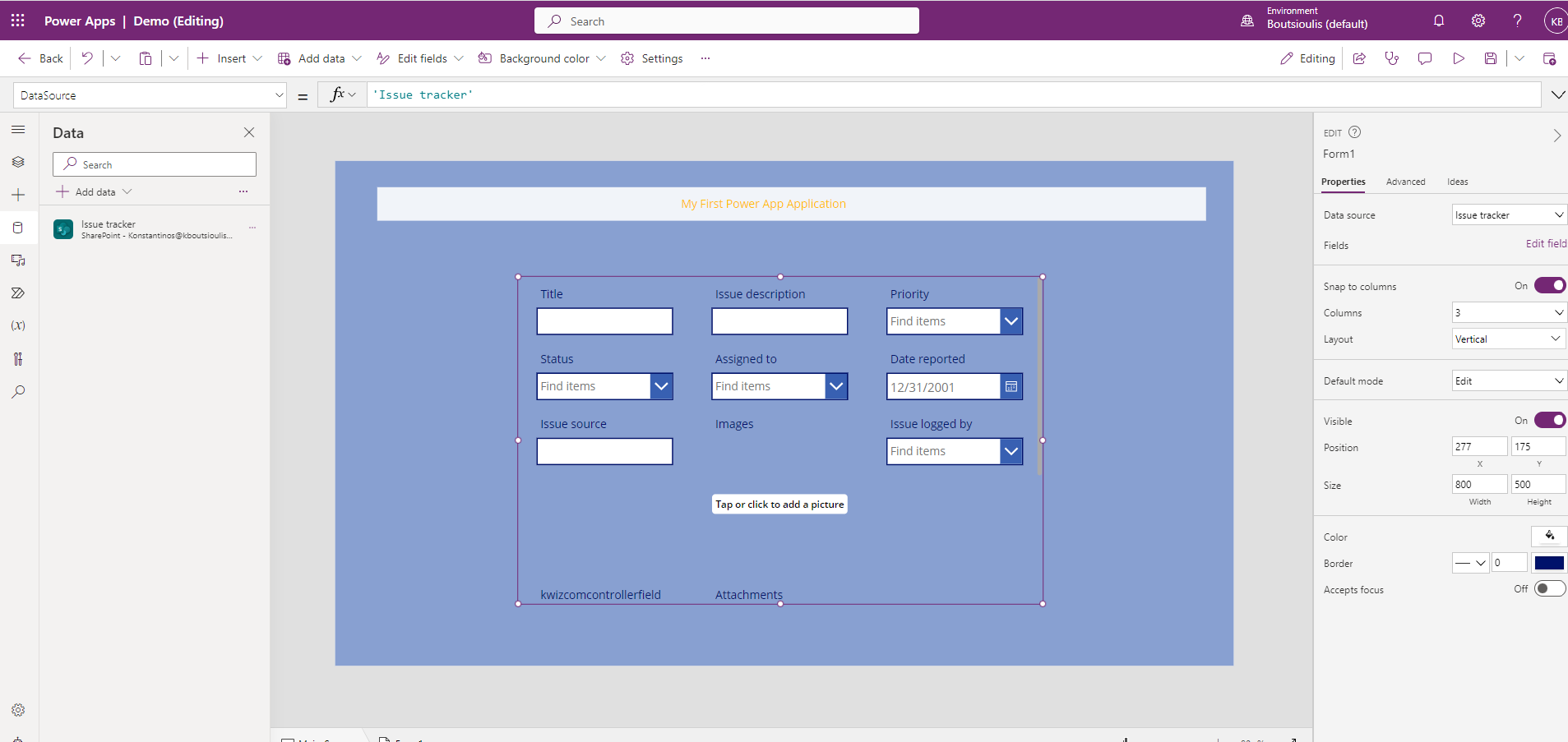
And finally i can now see all the fields of the list in the frame in form format and i even have edit rights on the fields .
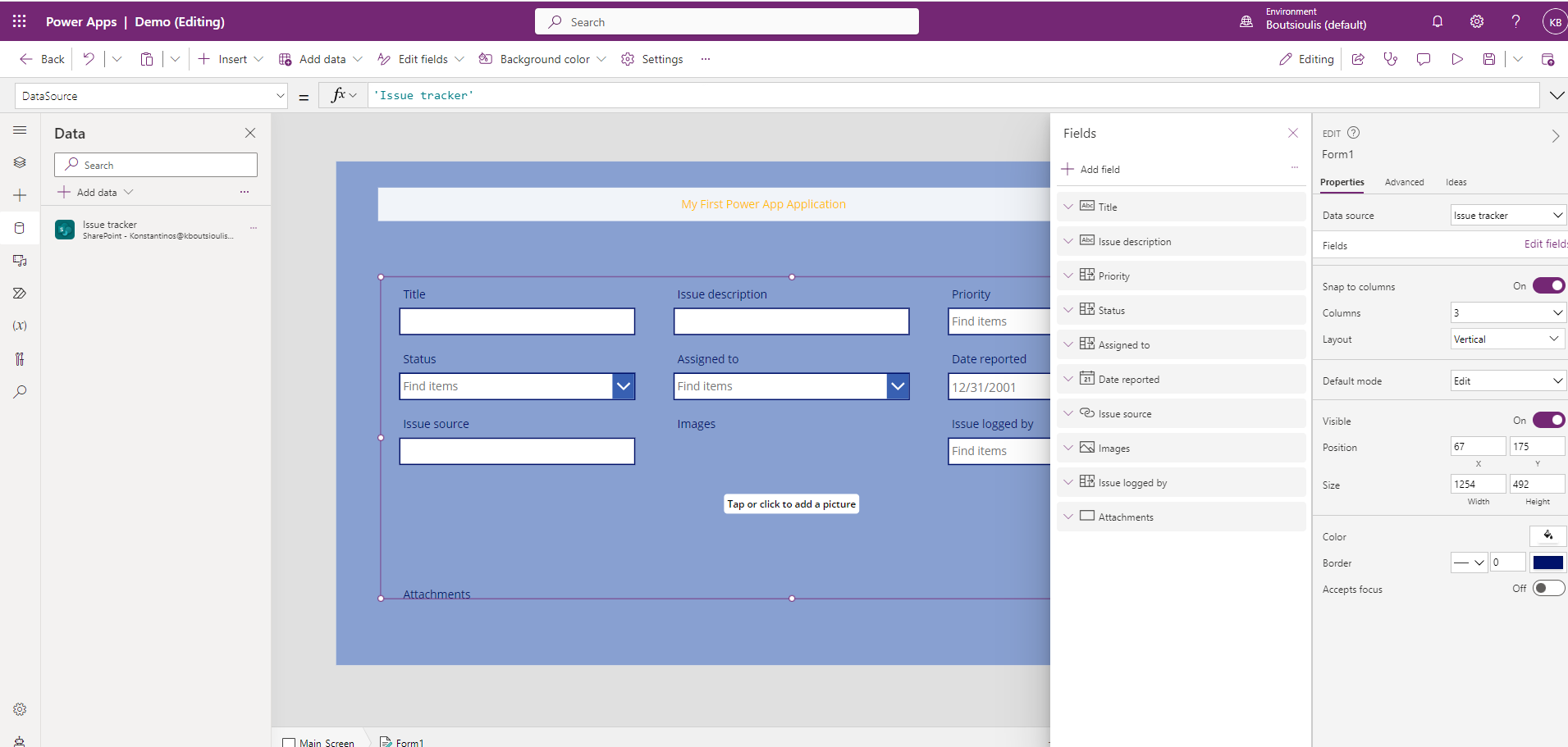
If in the right sidebar I select edit fields under Fields you will see that in the popup menu the fields of my list are displayed in which I can add other fields like columns that are not in the view like create by column .But I can also delete fields from the already existing ones that I don't want to appear in my application
In a next article we will see in which way we can retrieve the items of a list inside our app and even in which way I can have all the items of the item inside my app .
#PowerApps
#technology
#microsoft
#digitaltransformation
#cloud
#mvpbuzz
#m365
Visit Archives below to find more articles about Microsoft technologies on Modern Workplace