
Free Material
Find hereMore than 150 Articles about Microsoft Technologies on Modern Workplace
Official Site
Microsoft Most Valuable Professional M365 Apps & Services
Microsoft Most Valuable Professional Business Applications
Consultant & Sr Cloud Solution Architect Modern Wokrplace
Find hereMore than 150 Articles about Microsoft Technologies on Modern Workplace
02 May 2024
In today's article we will see how we can change the name in a SharePoint list as well as the description and whether it will appear in the right-hand side of the Quick Launch menu This option is the title description and navigation in the settings of the specific list Select the site hosting the list
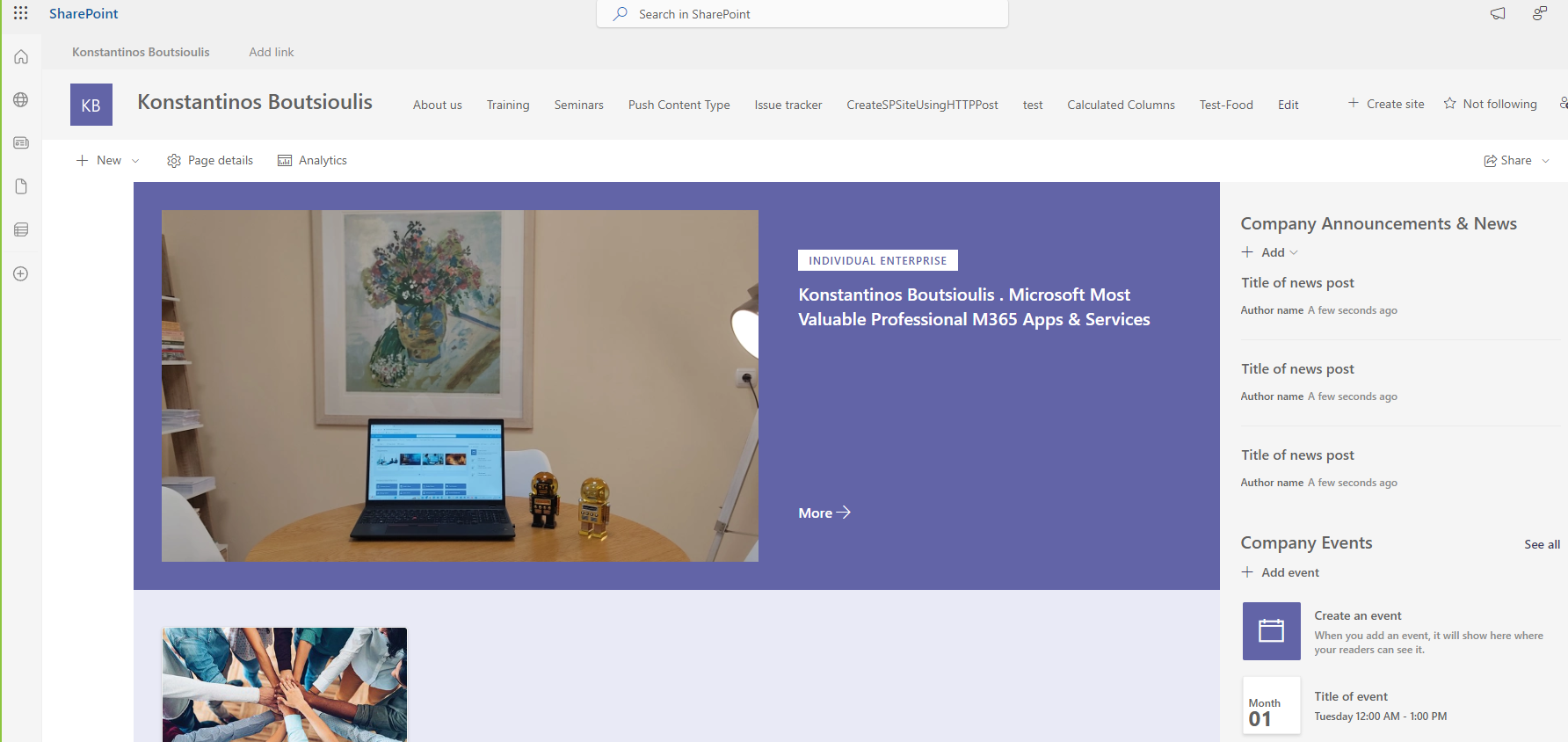
Then from the top right gear select from the Site Contents drop down menu
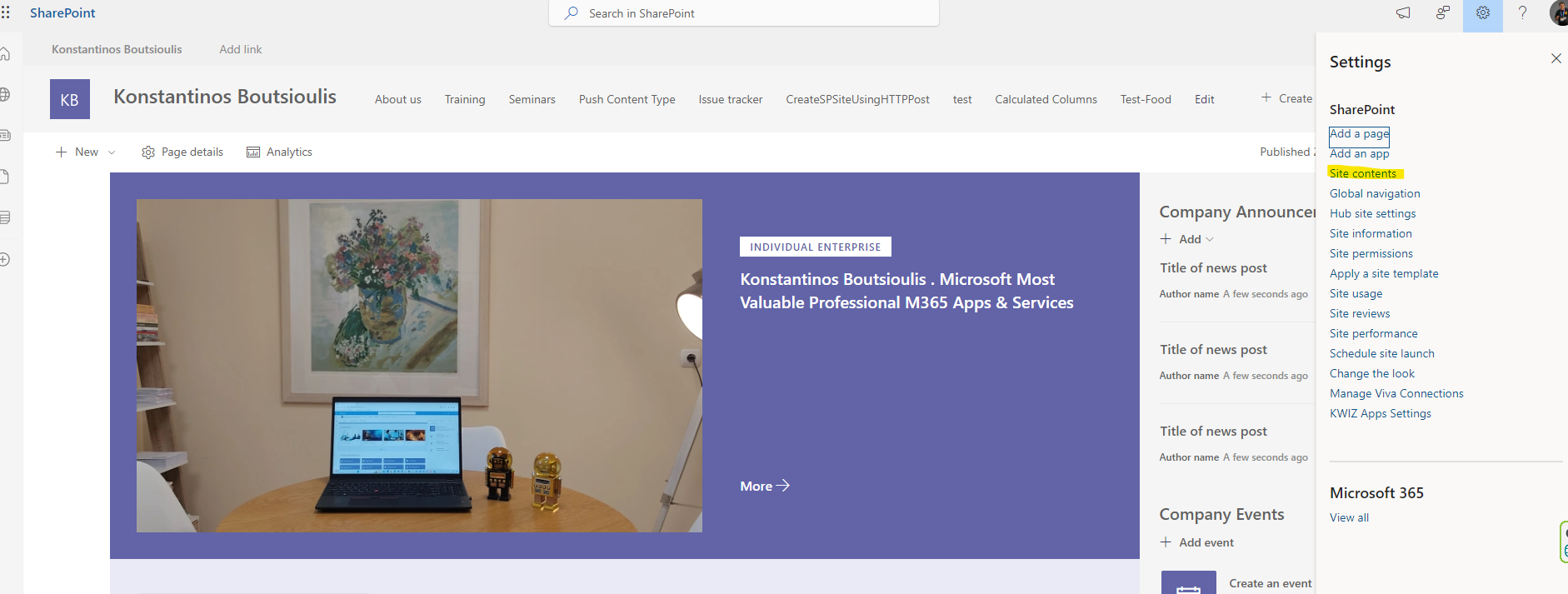
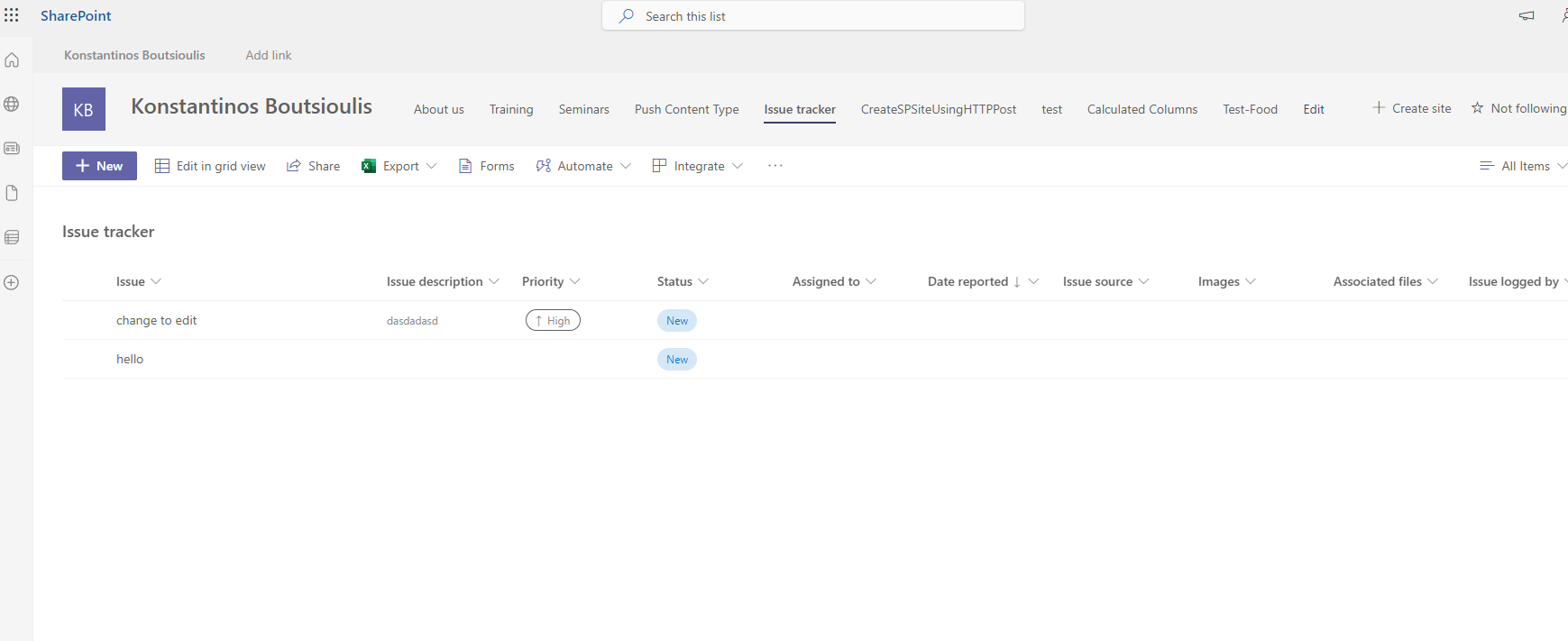
Then select the list and click on it to enter the list
And again we have to select in the gear up and right and then from the pop-up menu and again we select List Settings
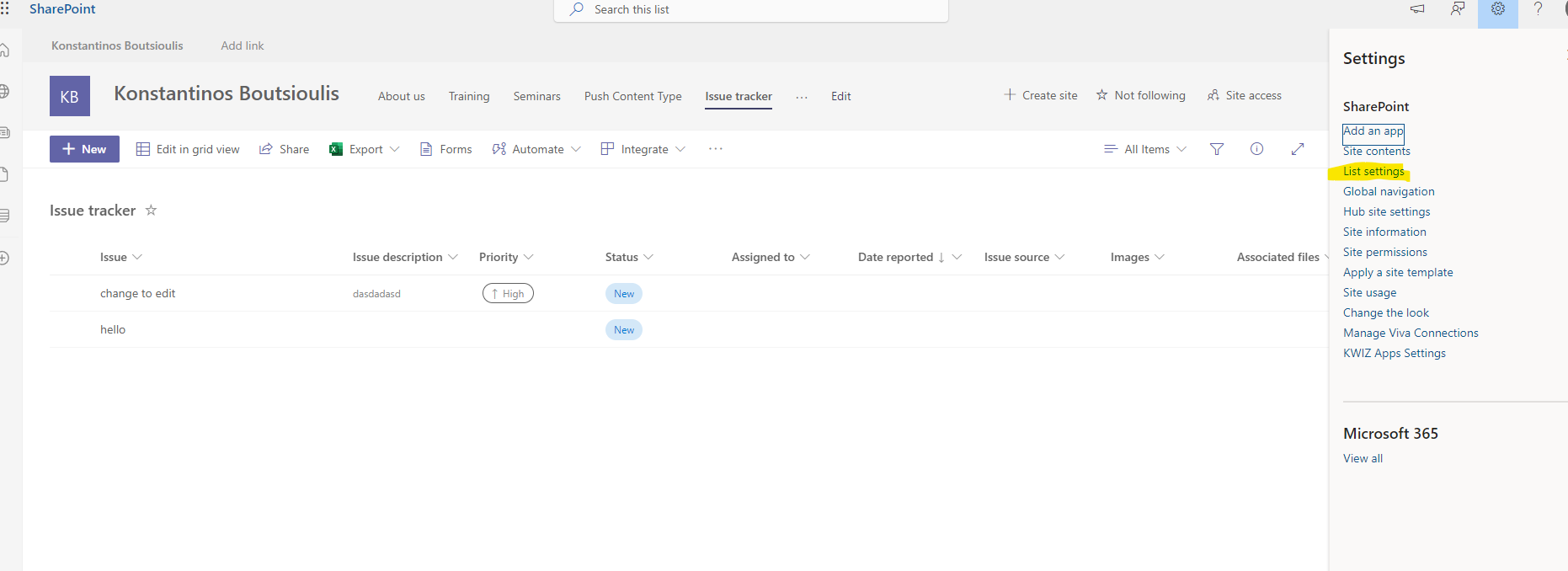
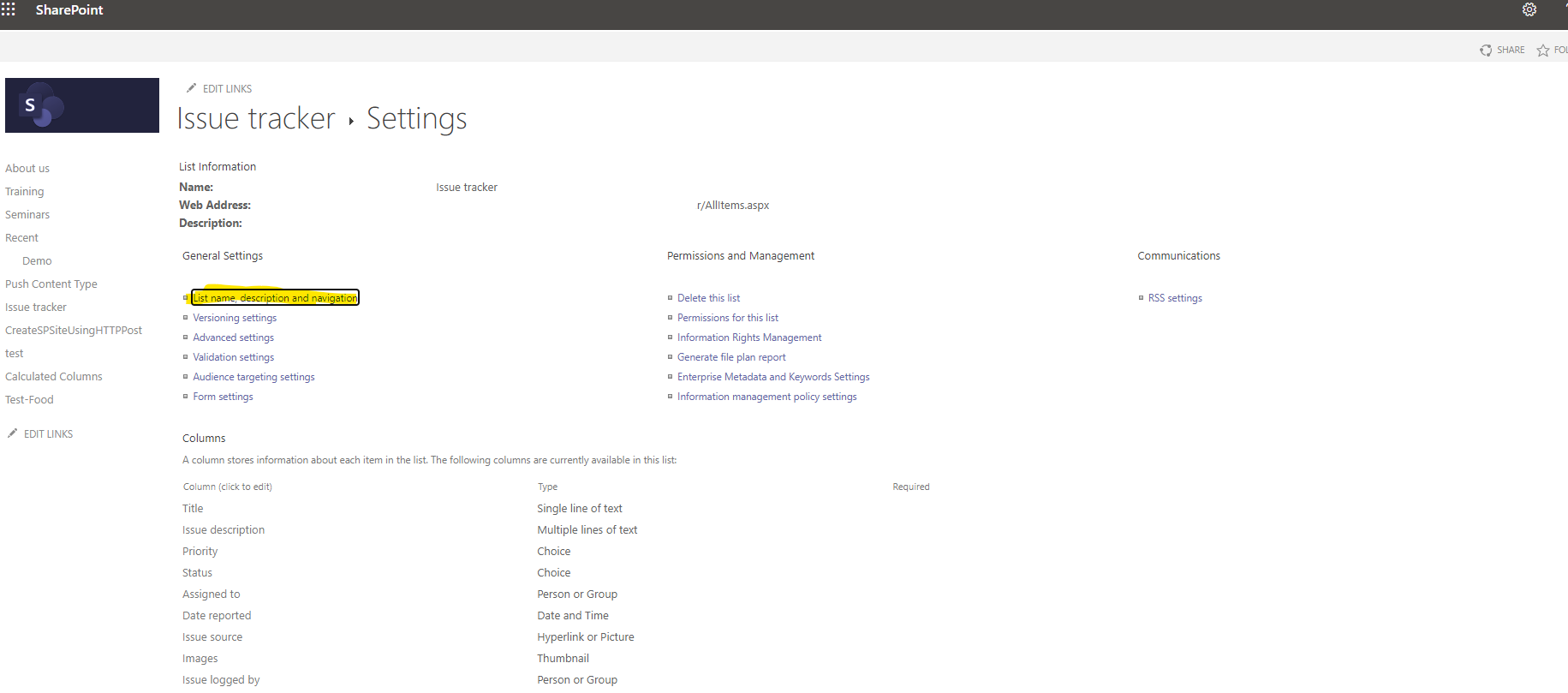
This will take us to the list settings management page . There in the first column we select the first option List name description and navigation
In the next screen we have the possibility to change the list name as well as the description in the second field . In the third option we can display our list in the Quick launch on the right.
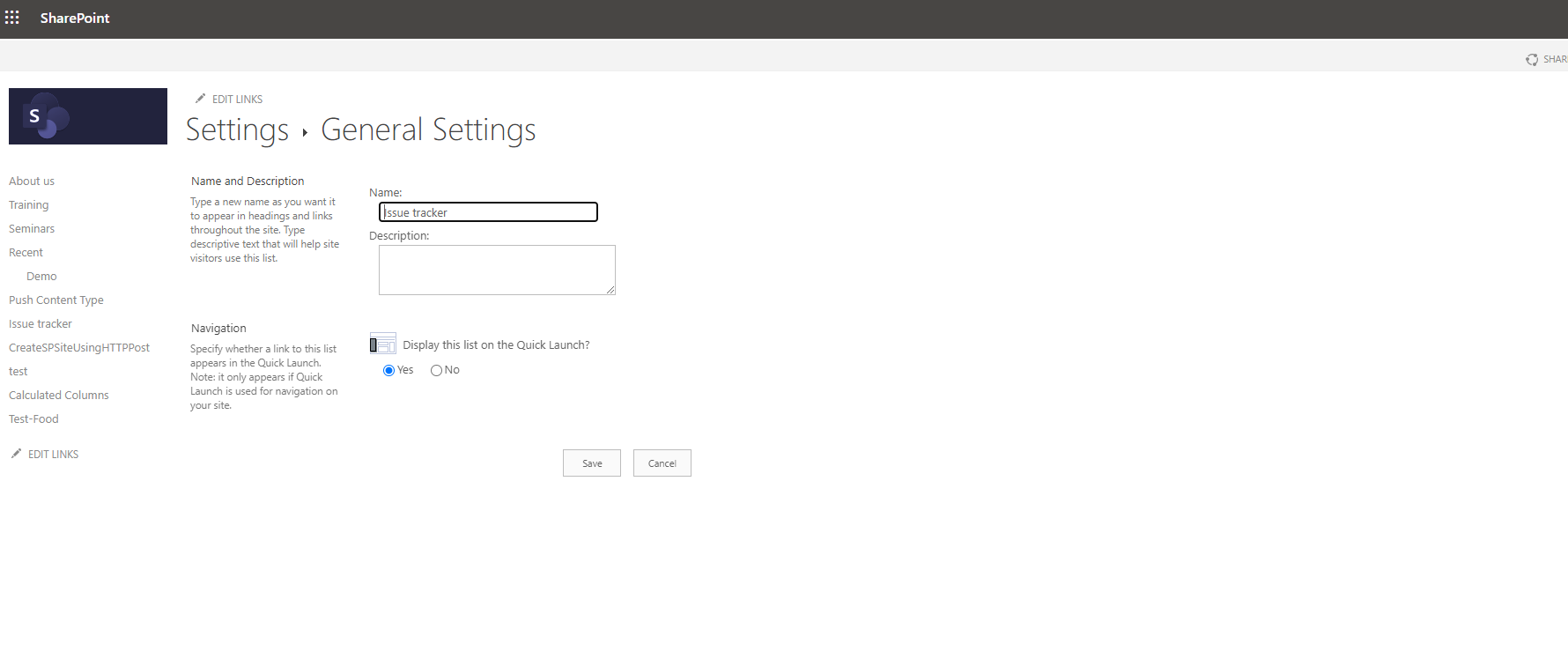
Note that when we change the name of the list will automatically change the list in all automates that are Integrate the list as well as in the interconnected sites . However, we must be careful and make a check because there is the possibility that in some interconnection to lose the connection after renaming the list
#ModerWork #M365_Apps_Services #BusinessApps #SharePoint #technology #microsoft #digitaltransformation #cloud #mvpbuzz #m365Visit Archives below to find more articles about Microsoft technologies on Modern Workplace