
Free Material
Find hereMore than 150 Articles about Microsoft Technologies on Modern Workplace
Official Site
Microsoft Most Valuable Professional M365 Apps & Services
Microsoft Most Valuable Professional Business Applications
Consultant & Sr Cloud Solution Architect Modern Wokrplace
Find hereMore than 150 Articles about Microsoft Technologies on Modern Workplace
07 May 2024
In today's article we will see how we can manage the settings in a SharePoint List and we will analyze what each option is individually. First we select the site that hosts our list .
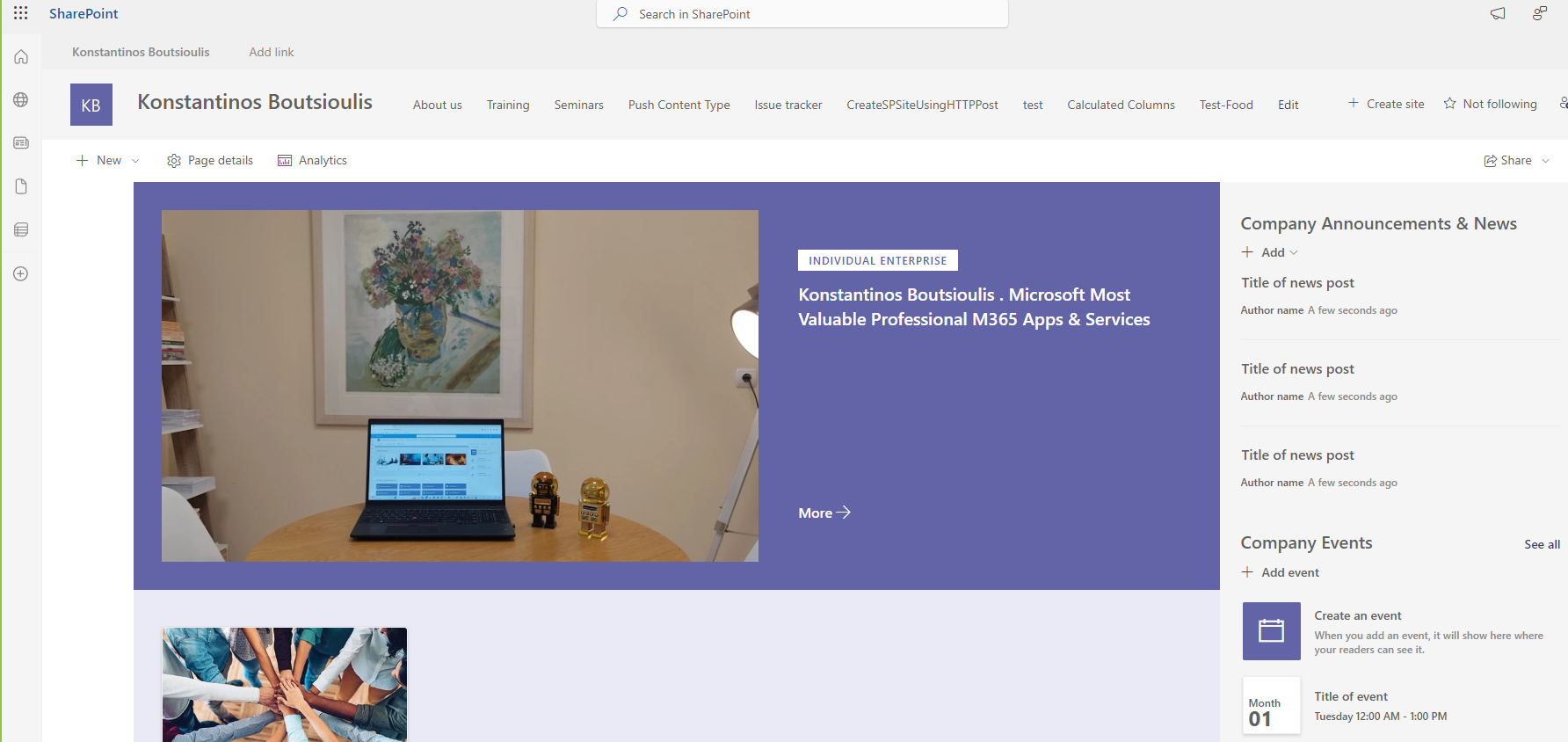
From the top right gear we select in the drop down menu box Site Contents
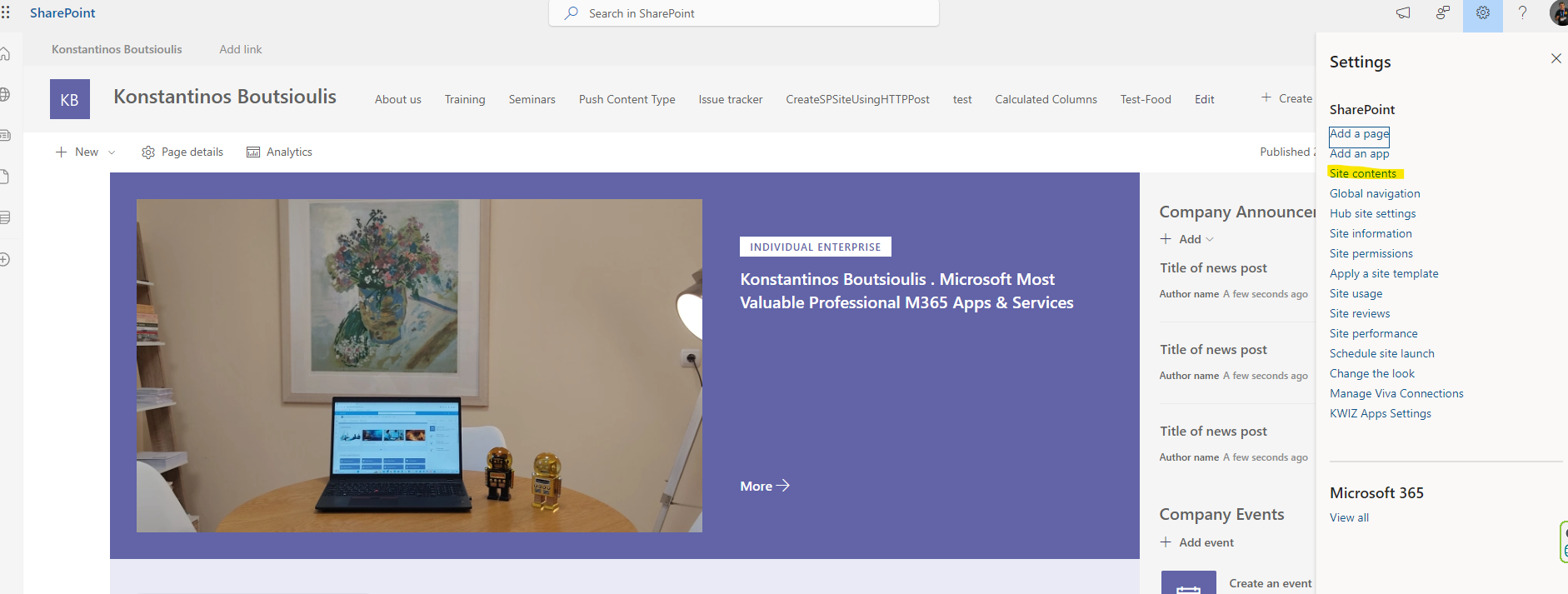
Then we select our list and click on its name to enter
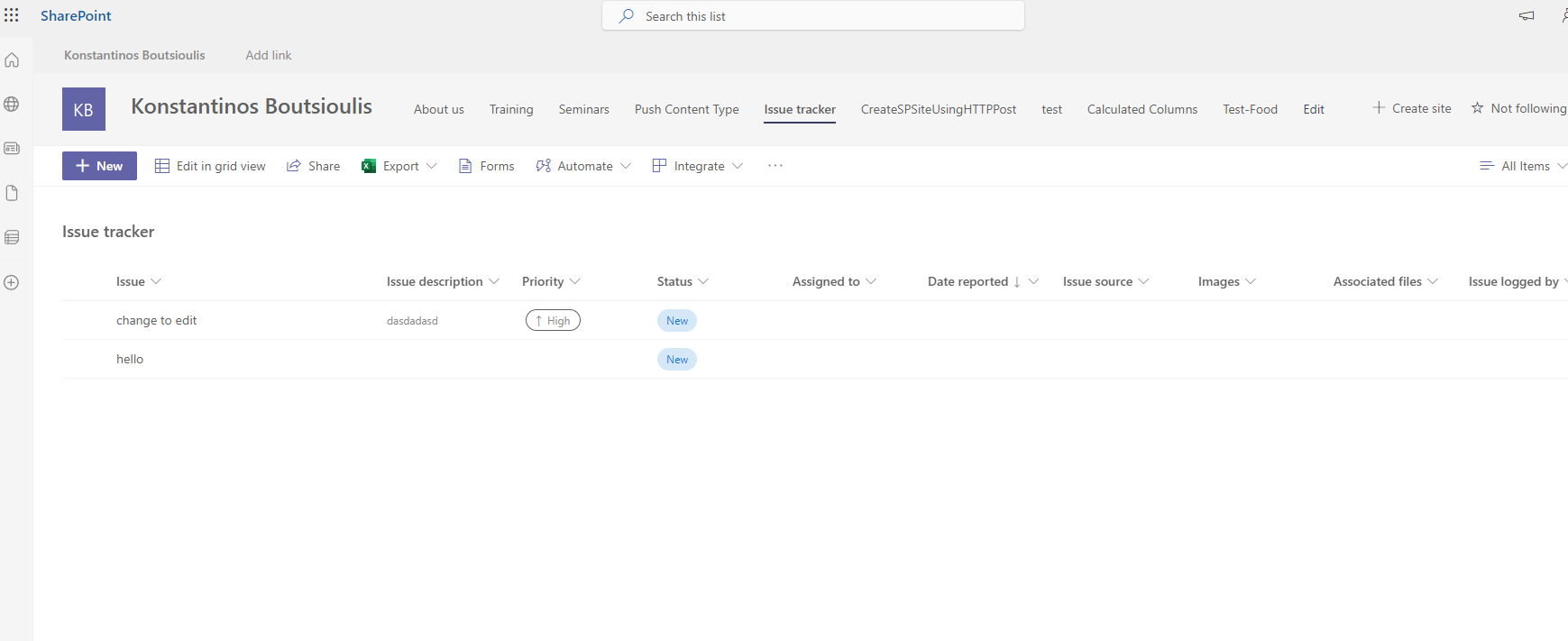
Select again in the top right gear and then in the pop-up menu select List Settings
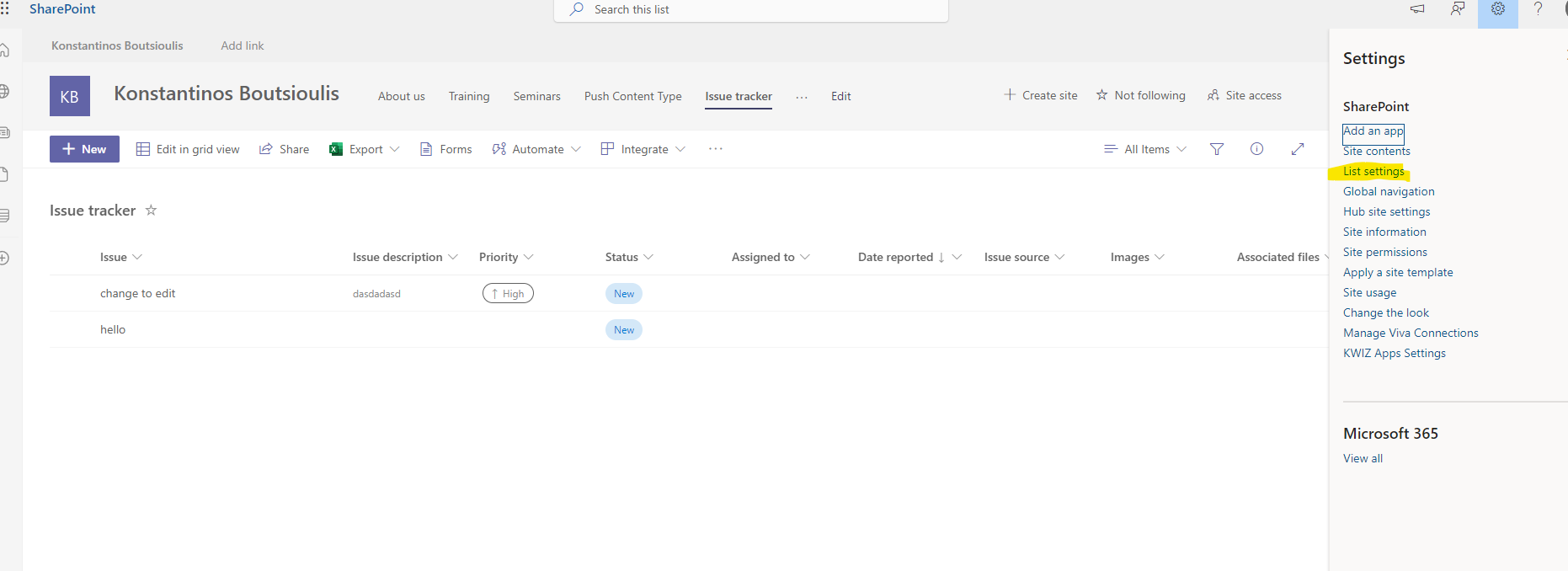
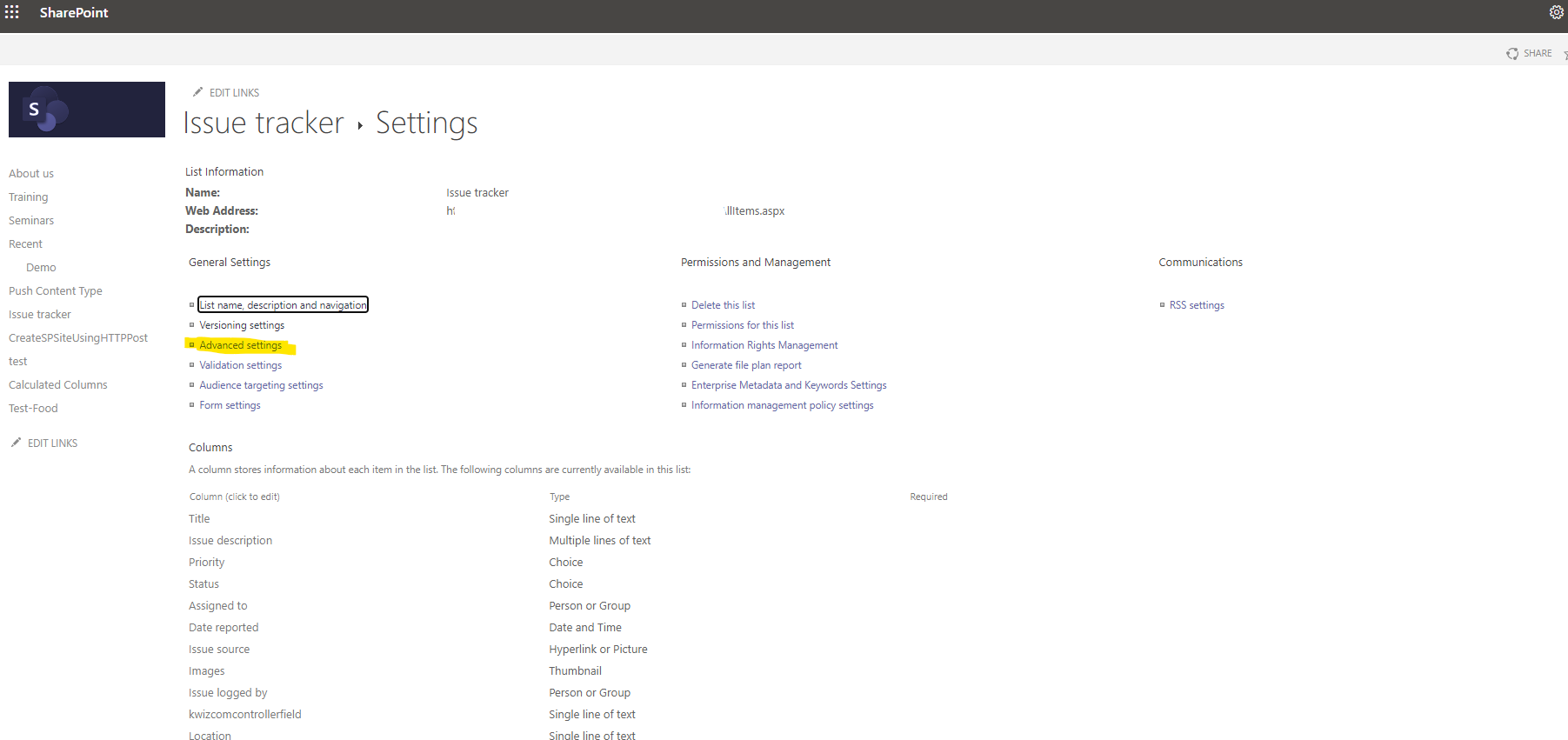
Then we go to the list settings management page . There from the first column of options we select Advanced Settings
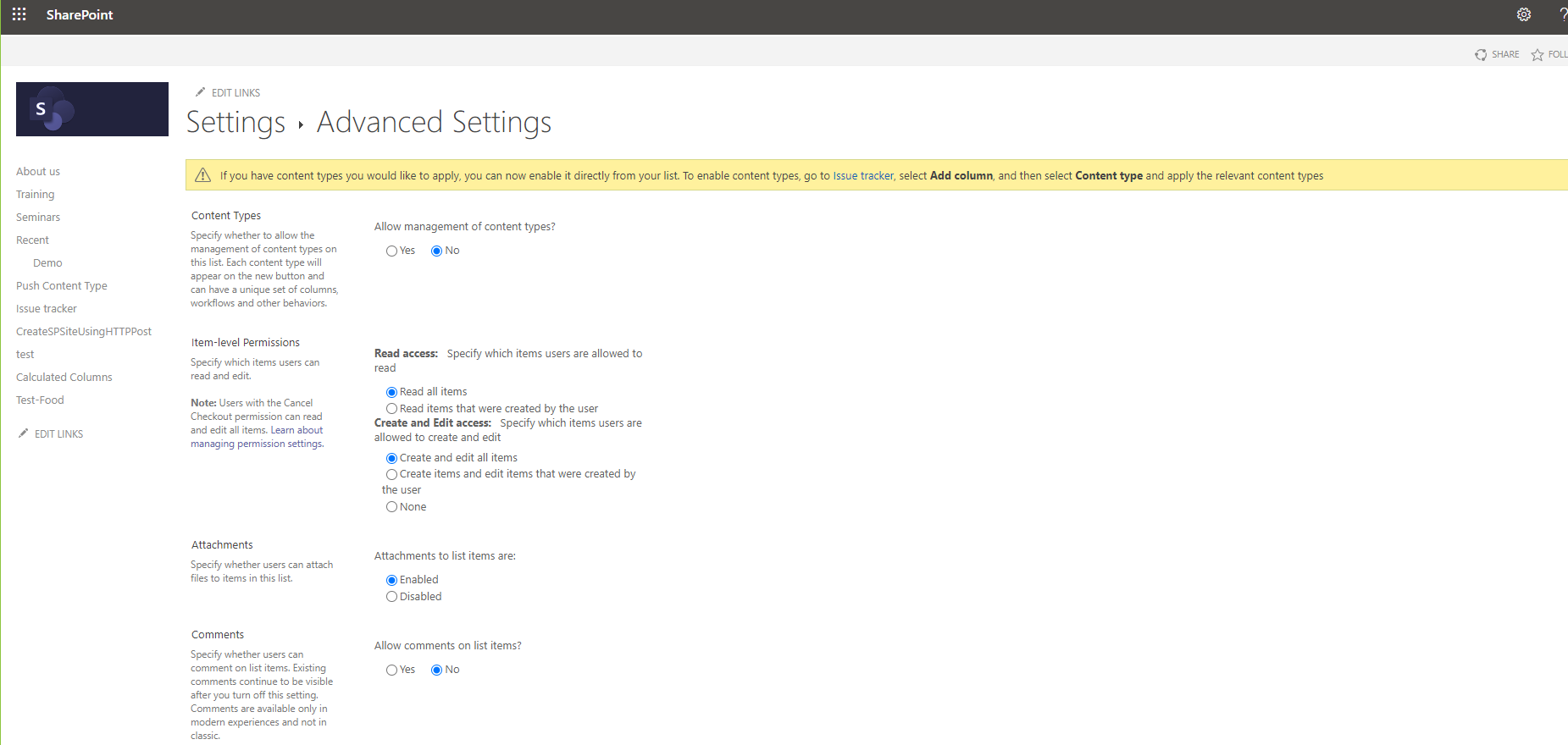
Now together we will see and unlock all the list options . The first option is whether we are allowed to have content types and it is an option that must be enabled when we use content types and templates . In an earlier article I have described the process exactly . by default Microsoft has it set to No In the second group of settings is Item Level Permissions In the first option we need to specify who has the ability to view Items that have been created and in the second option we need to specify if users can create Items , if they can edit the Items they have created and if it is possible to edit and read Items created by other users . In the next group of options we have the possibility to choose whether to allow assign attachments to a list item during creation
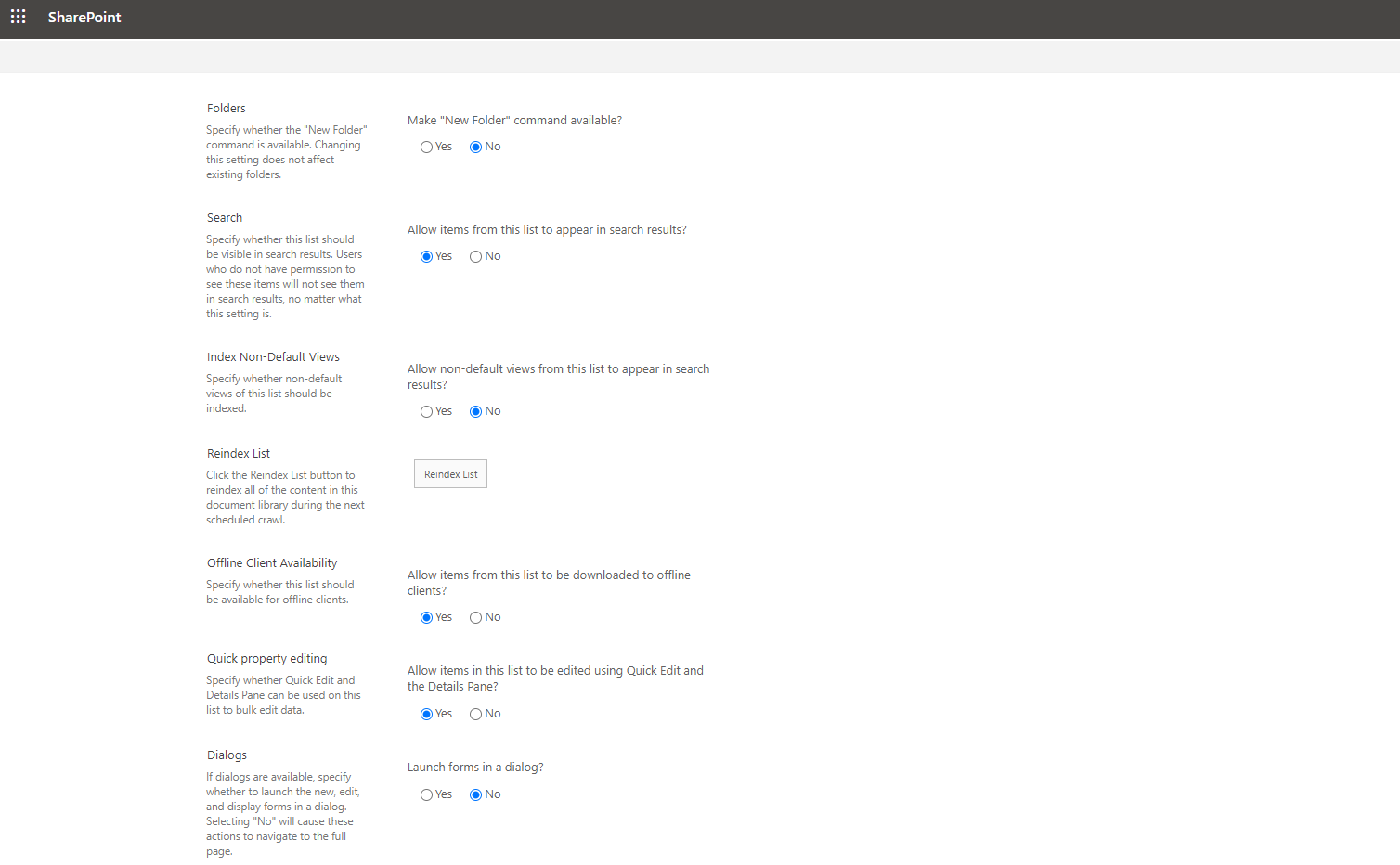
In the next group of options is the possibility to allow the mouse to have the possibility to create an envelope In the next group of options we have the ability to allow search to search and display Items in the results of a search query In the next group of options we are given the option to choose whether we want to display the non default views in the search results again In the button below we have the option to reindex the specific list. In the next option we are given the possibility to allow someone to download the items of the list to an offline client In Quick property editing we are given the option to allow quick edit and the details pane Finally in the Dialogs panel we have the option to choose to edit the item via the form nes or the old option which is full screen page for the form
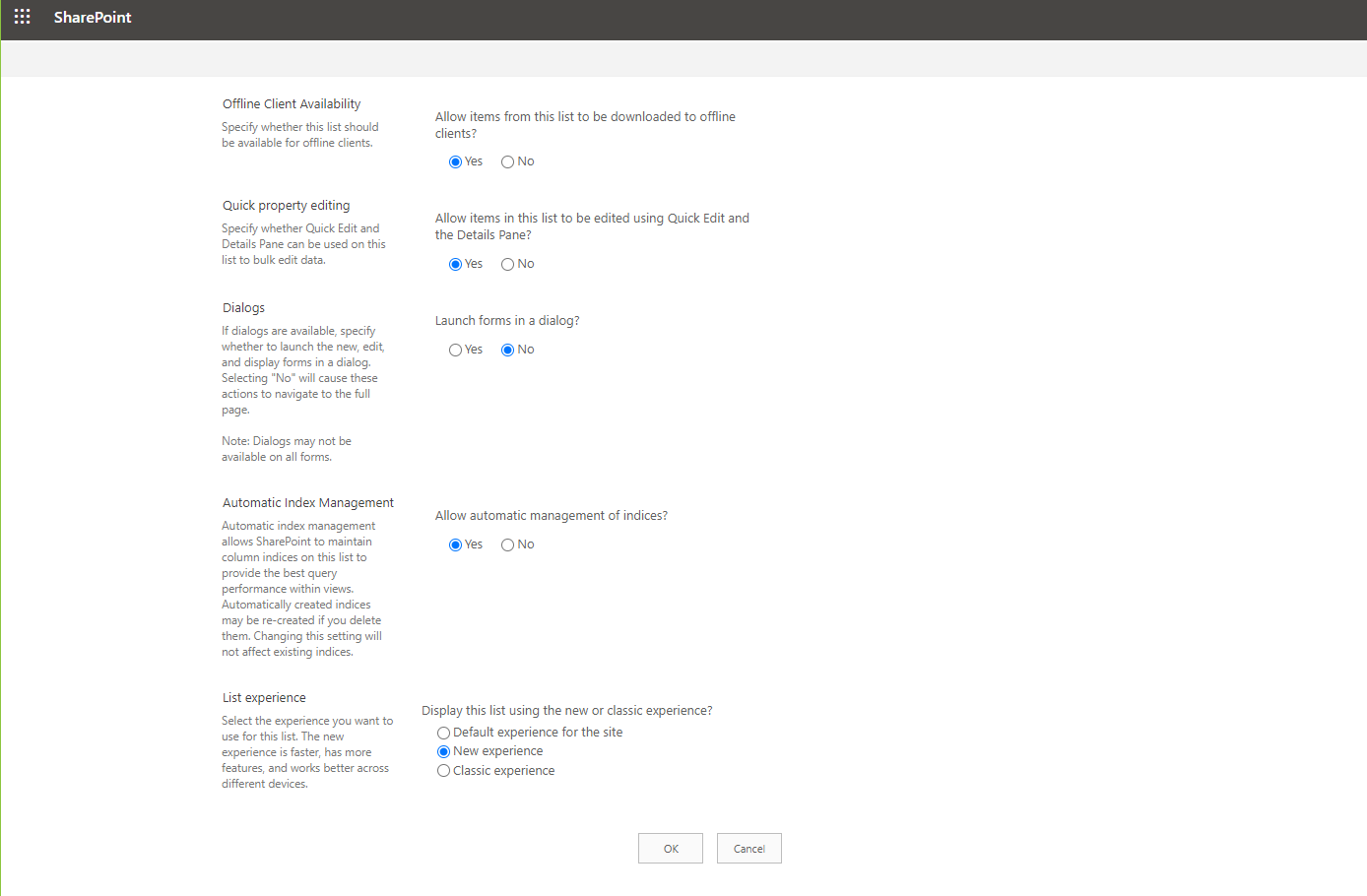
In the preferred option we have the possibility to choose automatic indexing to have better performance in the query whether it is a view or search results Last option we have is to select which type of list we want the new experience or the classic experience . We can also have the default option which is customized according to the experience of the site hosting our list and gives it the same display characteristics
 #ModerWork
#M365_Apps_Services
#BusinessApps
#SharePoint
#technology
#microsoft
#digitaltransformation
#cloud
#mvpbuzz
#m365
#ModerWork
#M365_Apps_Services
#BusinessApps
#SharePoint
#technology
#microsoft
#digitaltransformation
#cloud
#mvpbuzz
#m365
Visit Archives below to find more articles about Microsoft technologies on Modern Workplace