
Free Material
Find hereMore than 150 Articles about Microsoft Technologies on Modern Workplace
Official Site
Microsoft Most Valuable Professional M365 Apps & Services
Microsoft Most Valuable Professional Business Applications
Consultant & Sr Cloud Solution Architect Modern Wokrplace
Find hereMore than 150 Articles about Microsoft Technologies on Modern Workplace
23 May 2023
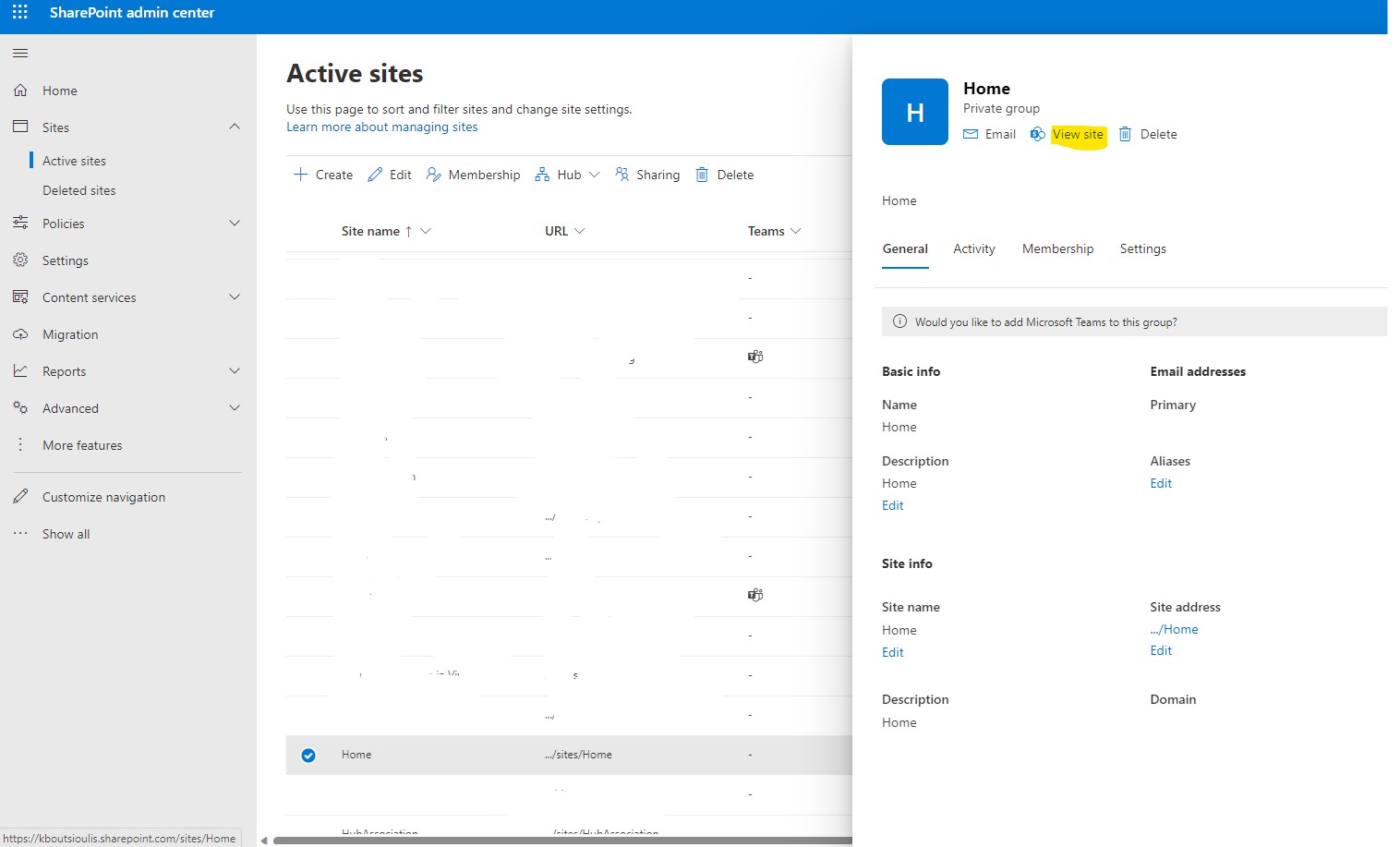
In today’s article we will see how we can create a new site Document Library and then a series of folders and subfolders using PowerShell in SharePoint Online All these actions could be done from the front end in the following simple way First either from the admin center or from the SharePoint home page select the site you want to create the library
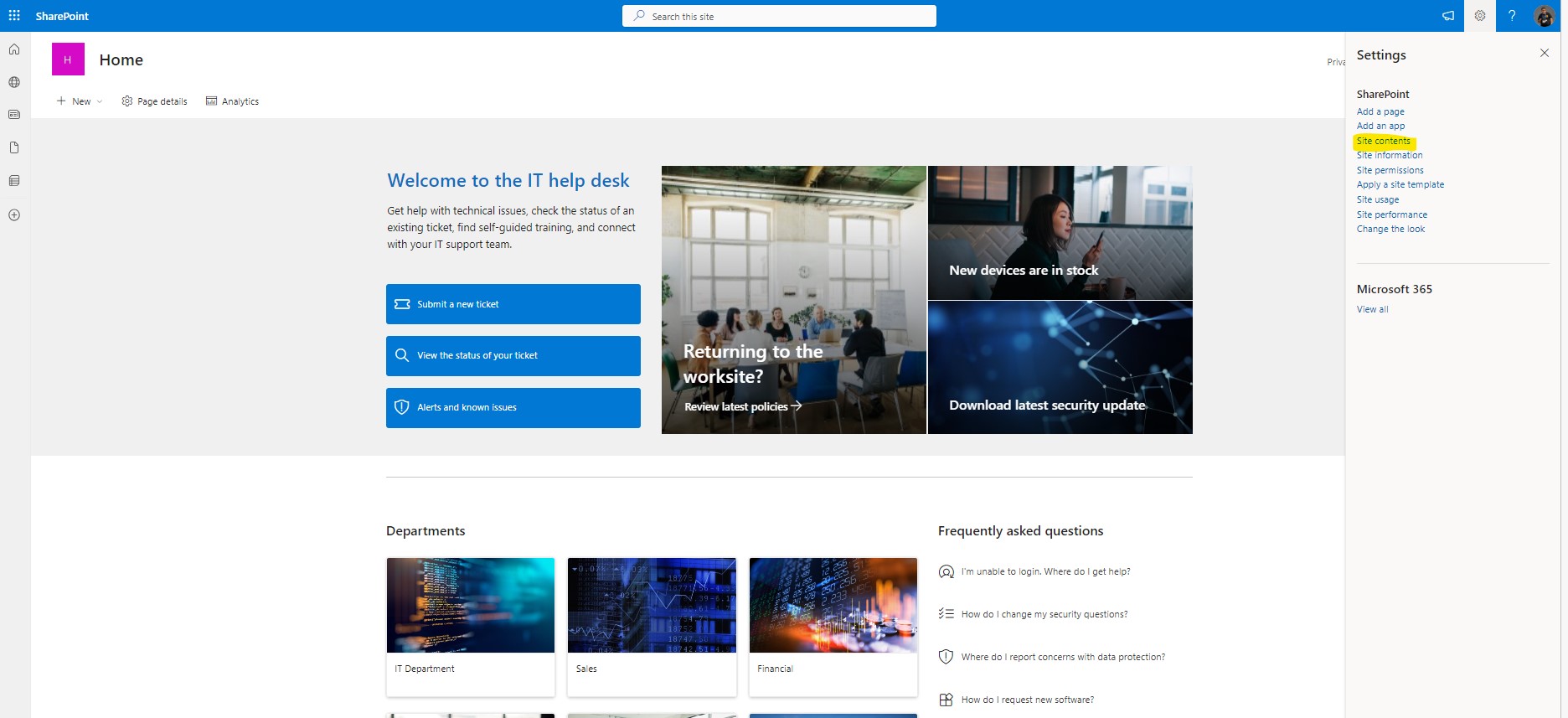
Navigate in site contents of this site and the press on Site Contents
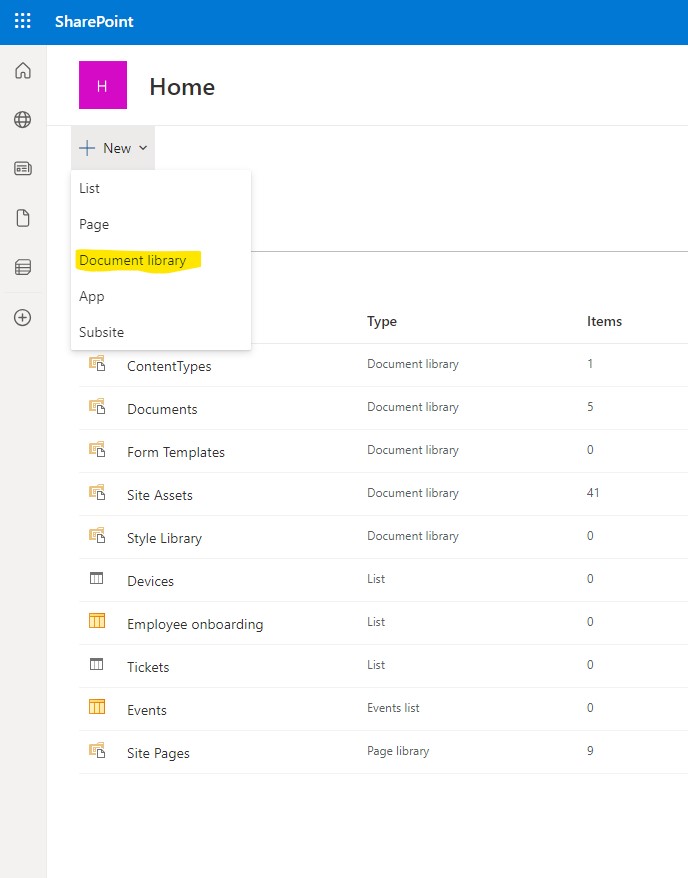
Then you need to press New and then choose the type of new app which is Document Library
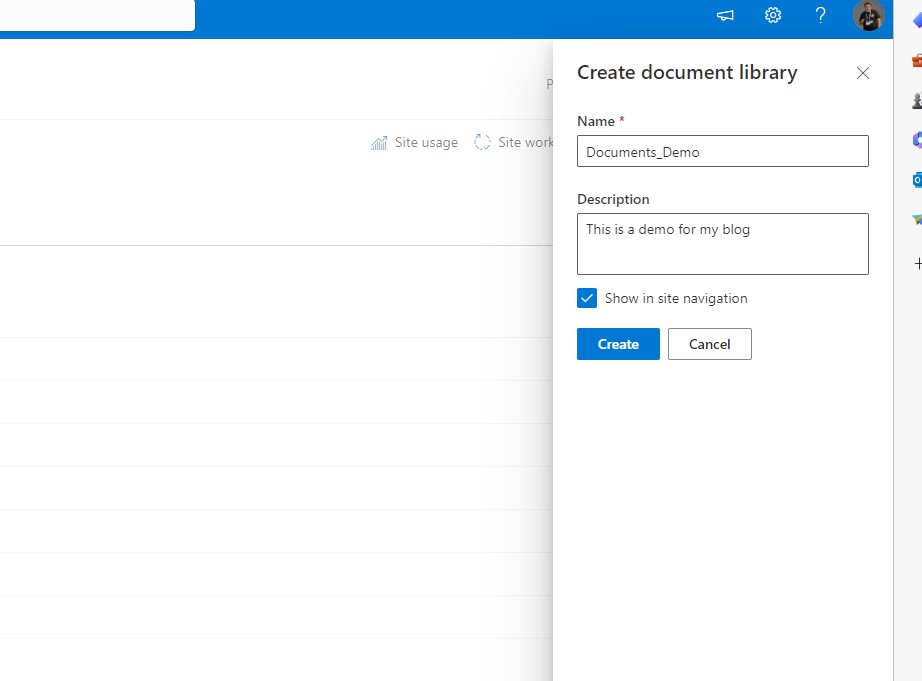
You have to name the New Document Library and then press create
In the next step you need to Prees New and then choose folder
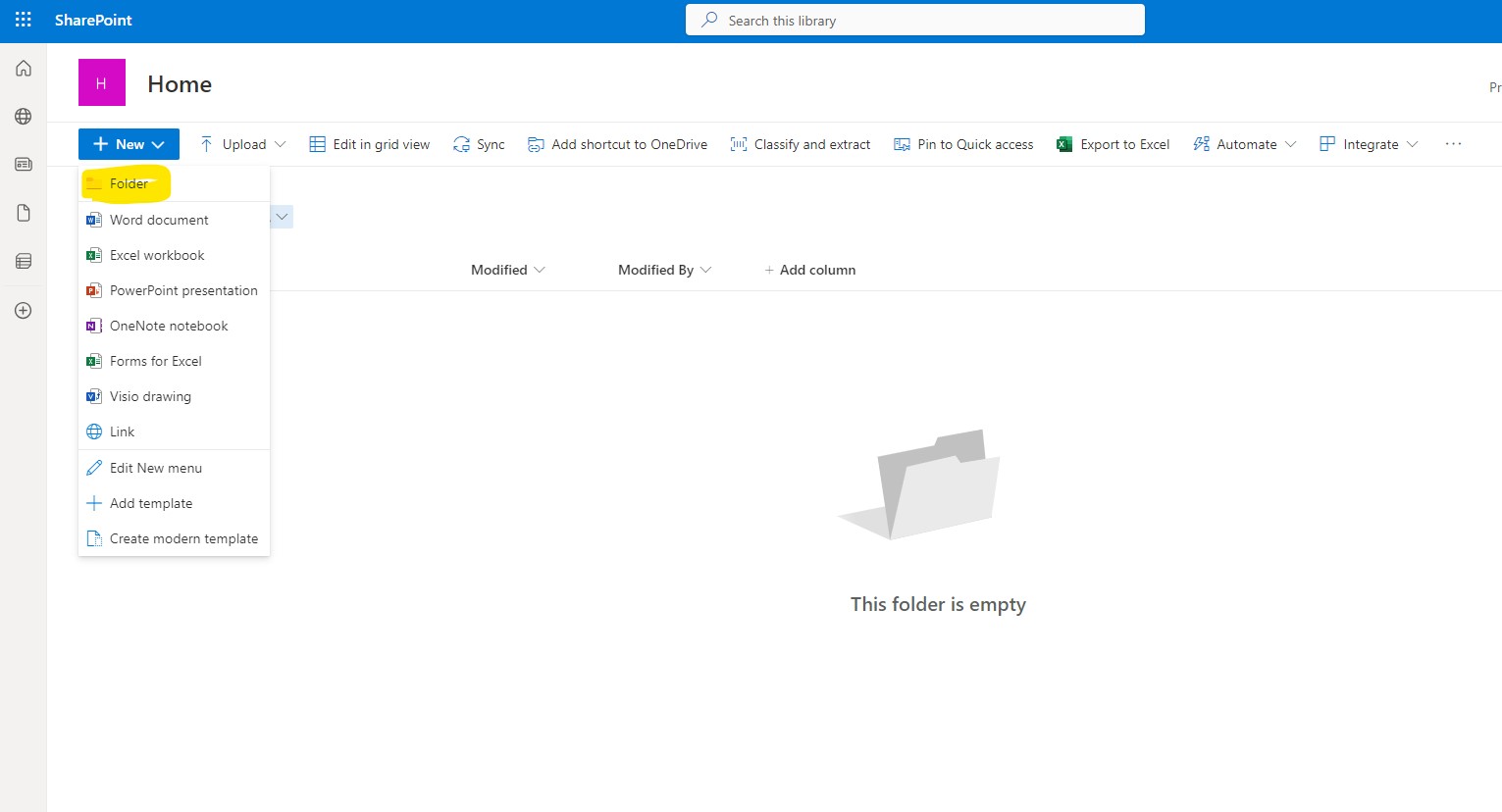
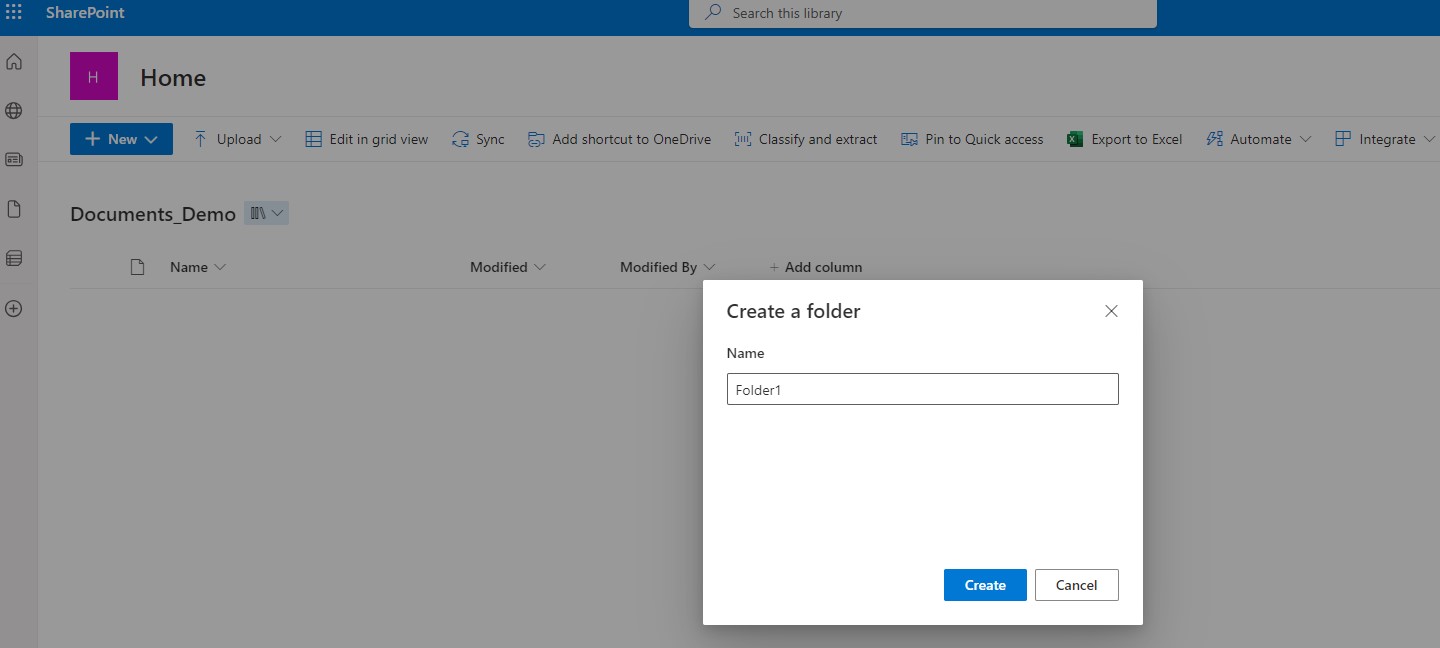
And now you have to name the New Folder and press ok
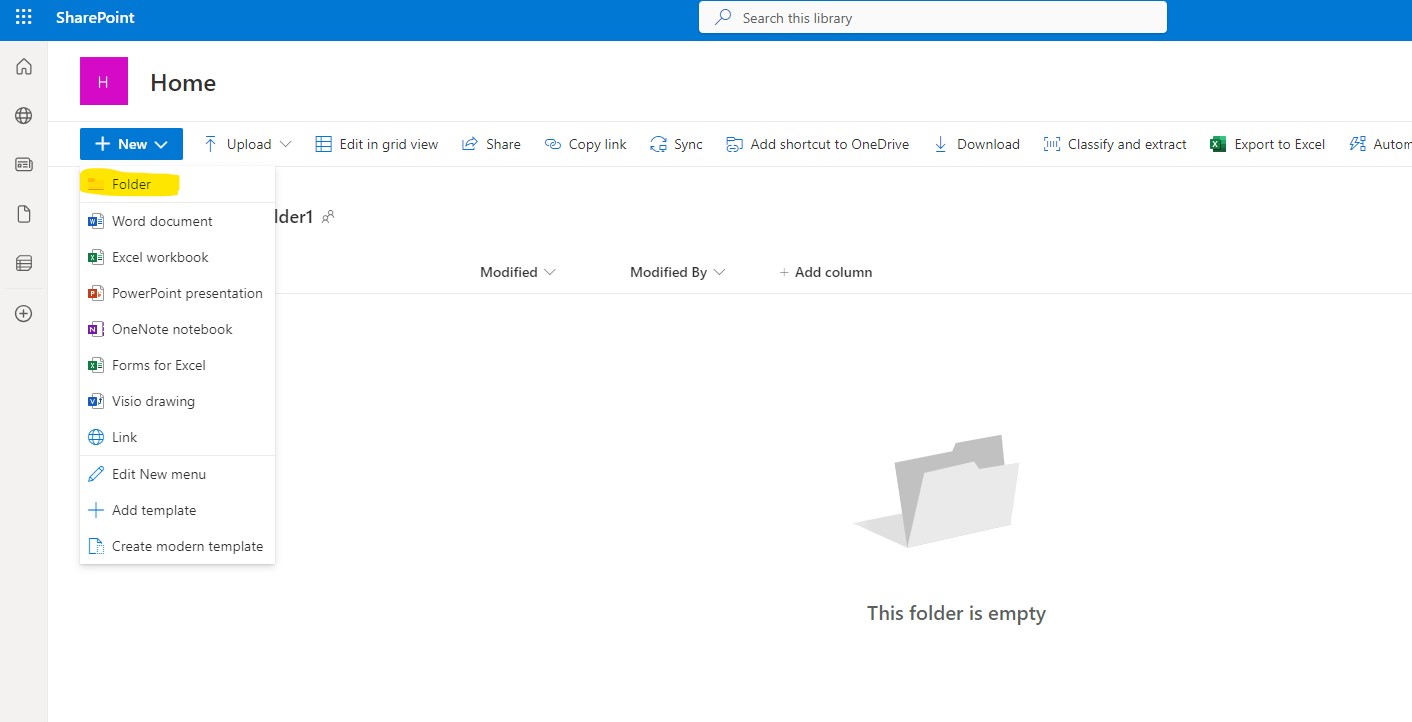
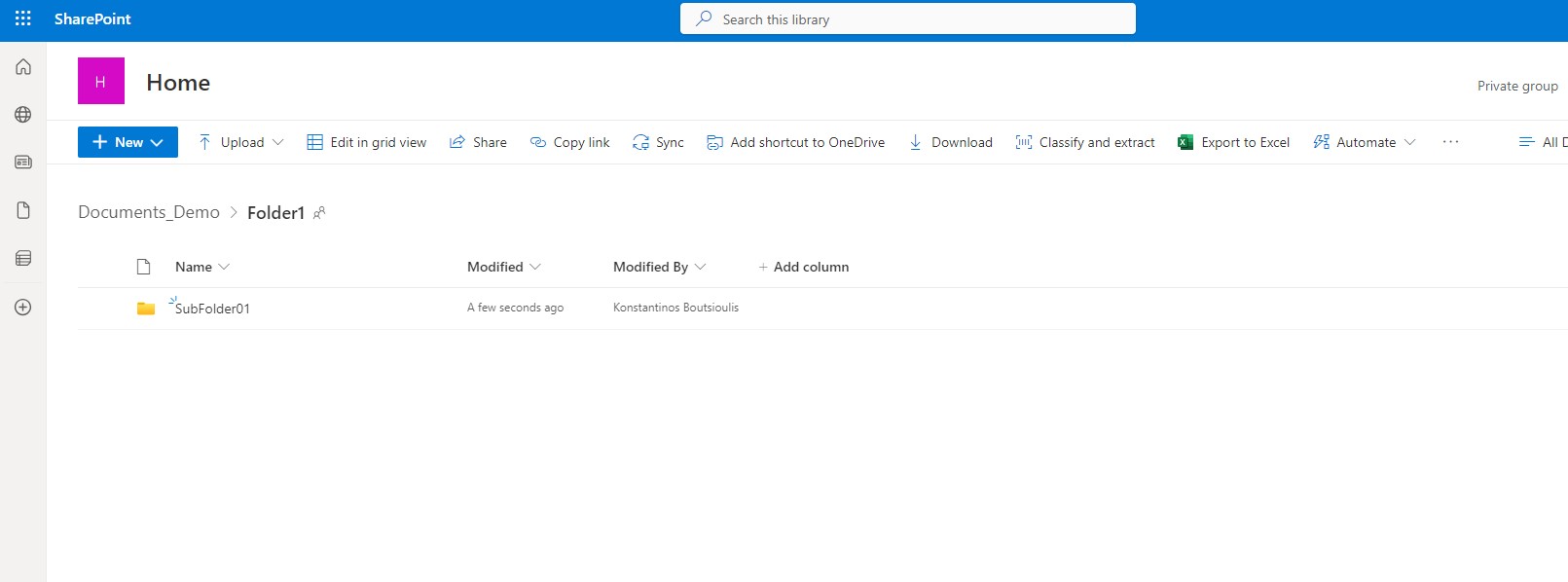
We now just want to create anew subfolder so press on new folder to get in and then press again New at the top to create a subfolder

You have to choose folder once again
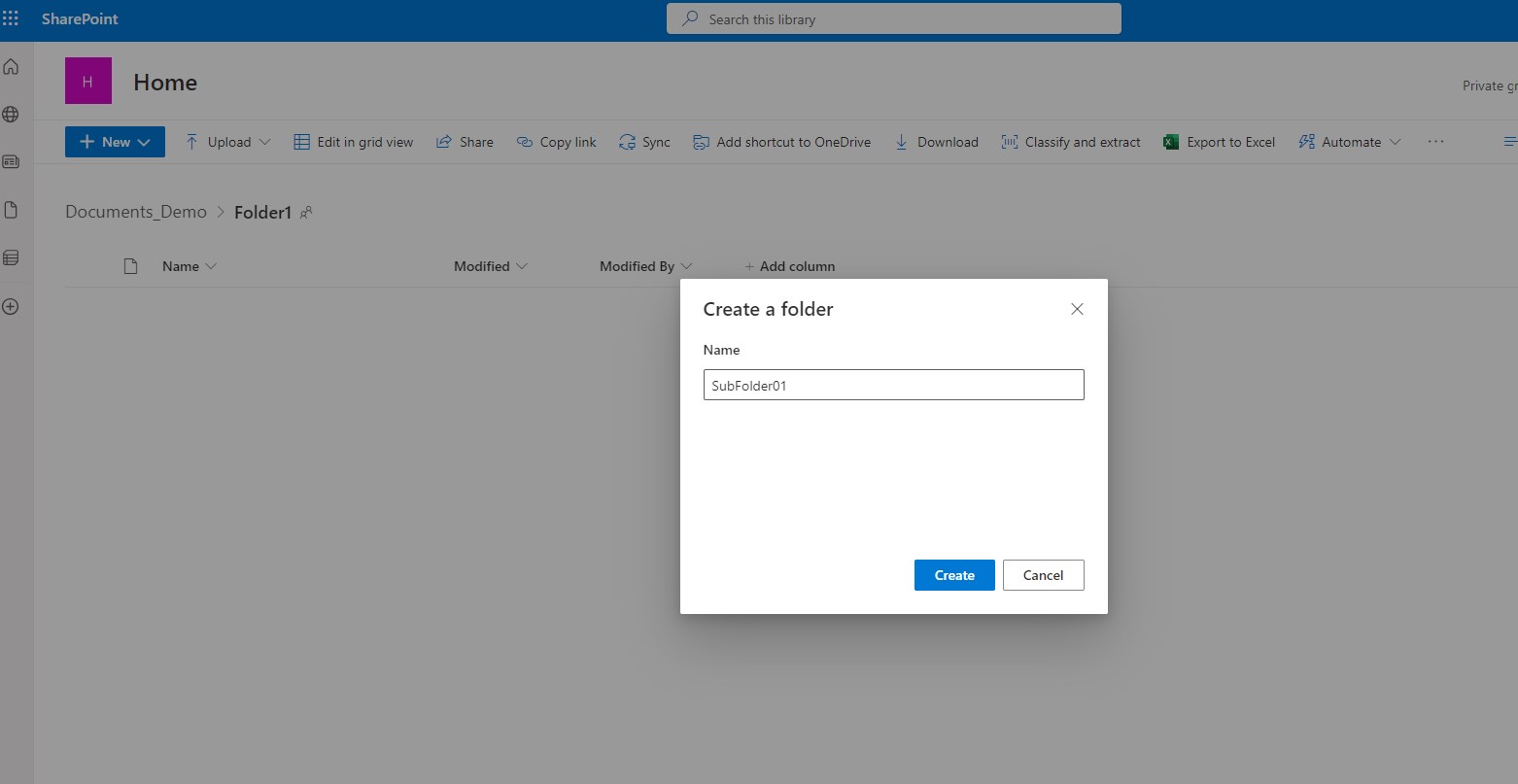
And of course you have to name your new subfolder
As you can see this is an easy process but relatively very time consuming.Therefore we are looking for a new way to be able to automate such processes and yes we can do it by writing a small script from powershell that performs all these actions serially and in the end within a few seconds we will have the same result the following code in PowerShell should be executable in SharePoint Online Management shell with administrator privileges
# Declare Variables
$Library_Name = "Documents_Demo"
# Connect to SharePoint Online
Connect-PnPOnline -Url https://yourtenant.sharepoint.com/sites/Home -UseWebLogin
#Create New Document Library
New-PnPList -Title $Library_Name -Url "lists/Documents_Demo" -Template DocumentLibrary -OnQuickLaunch
# Disconnect SharePoint Online
Disconnect-PnPOnline
# Connect to SharePoint Online We need to delay until libray haw been created
Connect-PnPOnline -Url https://yourtenant.sharepoint.com/sites/Home -UseWebLogin
# Create Folders
Add-PnPFolder -Name Folder1 -Folder "Lists/Documents_Demo"
Add-PnPFolder -Name Folder3 -Folder "Lists/Documents_Demo"
Add-PnPFolder -Name Folder4 -Folder "Lists/Documents_Demo"
Add-PnPFolder -Name Folder5 -Folder "Lists/Documents_Demo"
# Create SubFolders
Add-PnPFolder -Name SubFolder1 -Folder "Lists/Documents_Demo/Folder5"
Add-PnPFolder -Name SubFolder2 -Folder "Lists/Documents_Demo/Folder5"
Add-PnPFolder -Name SubFolder3 -Folder "Lists/Documents_Demo/Folder5"
# Disconnect SharePoint Online
Disconnect-PnPOnline
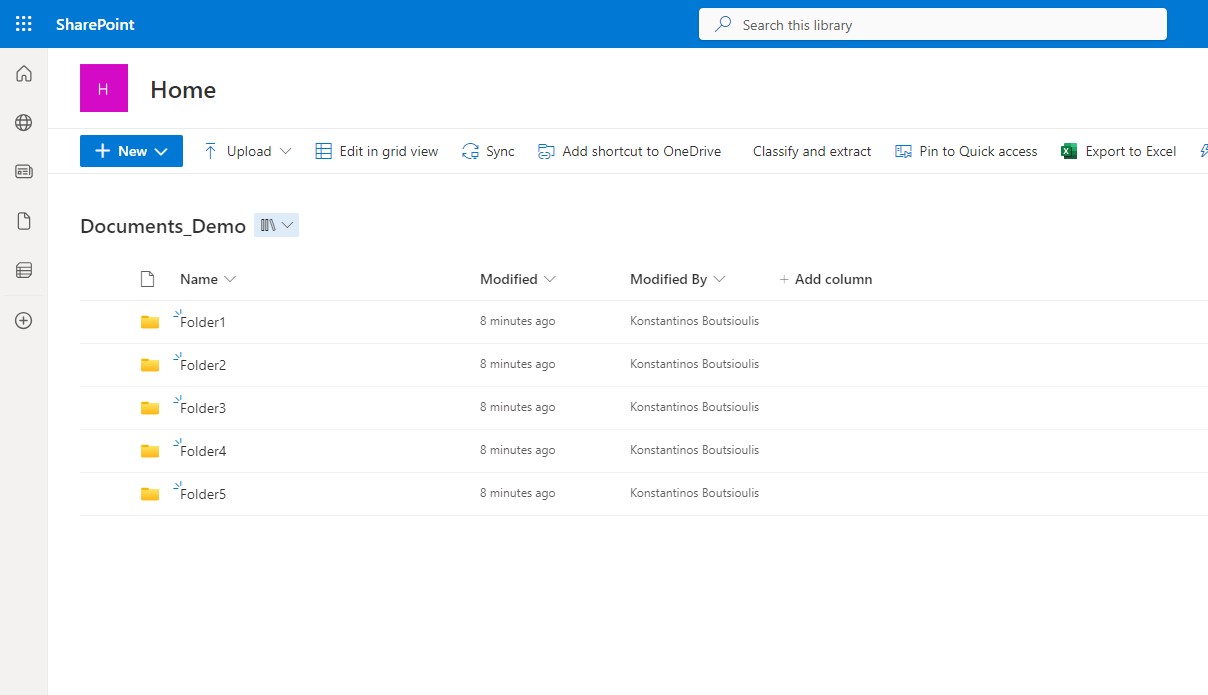
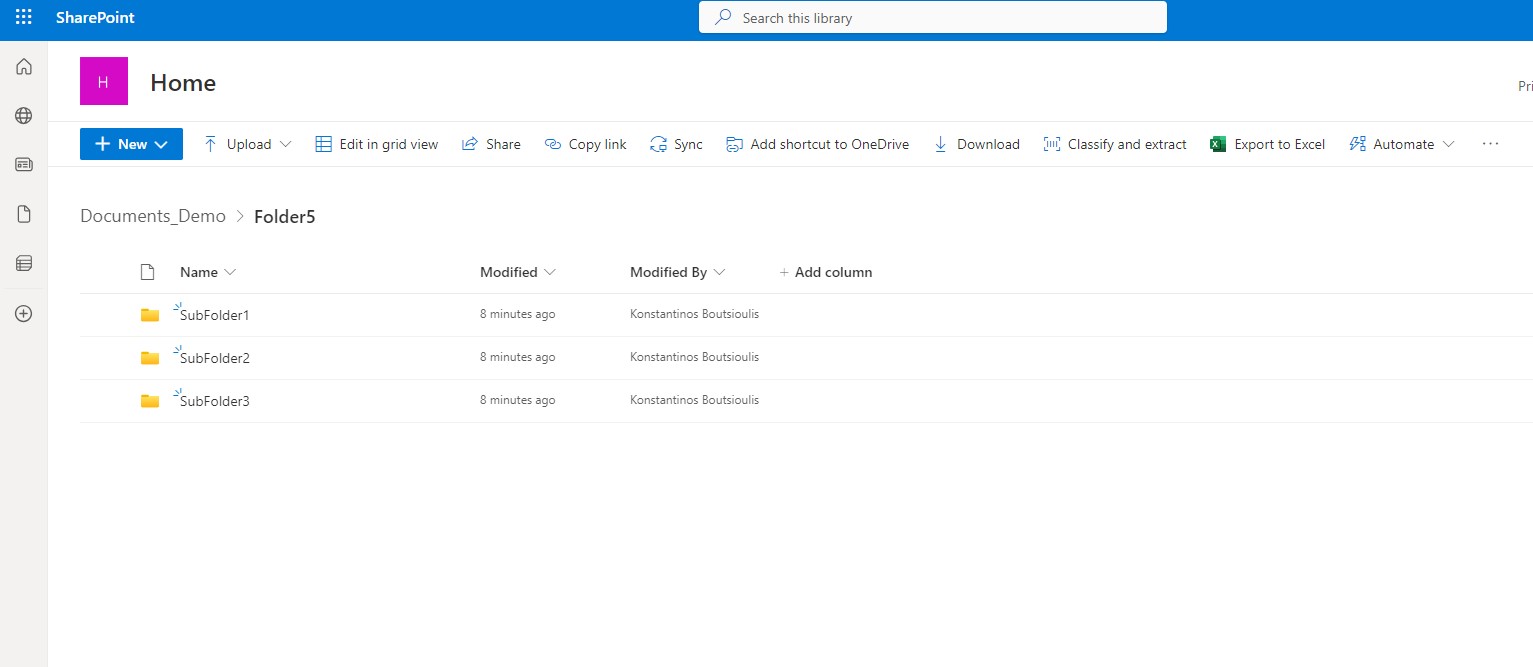
Finally, as you can see, the result is exactly the same as the original description only that it was executed in a few seconds
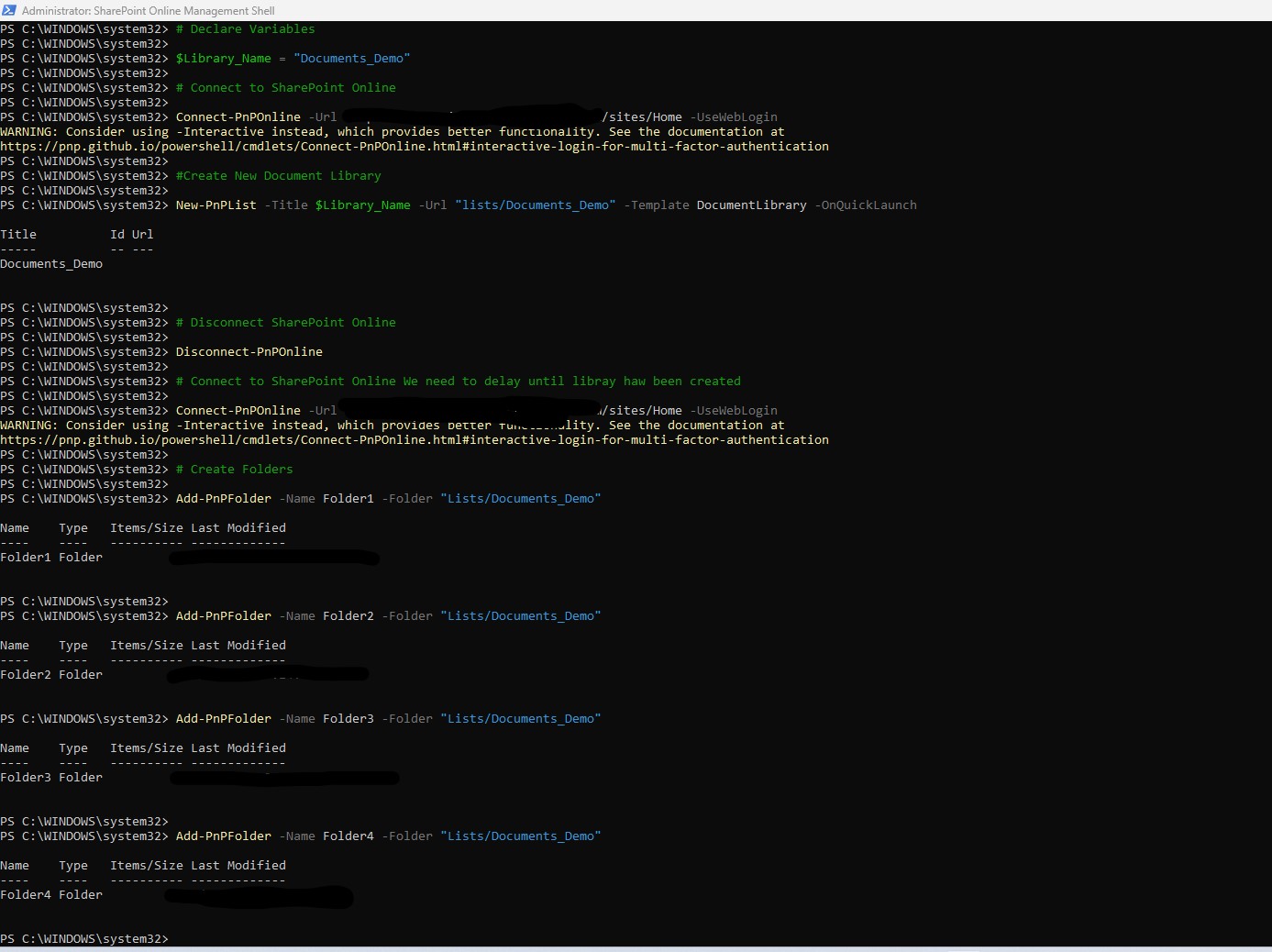
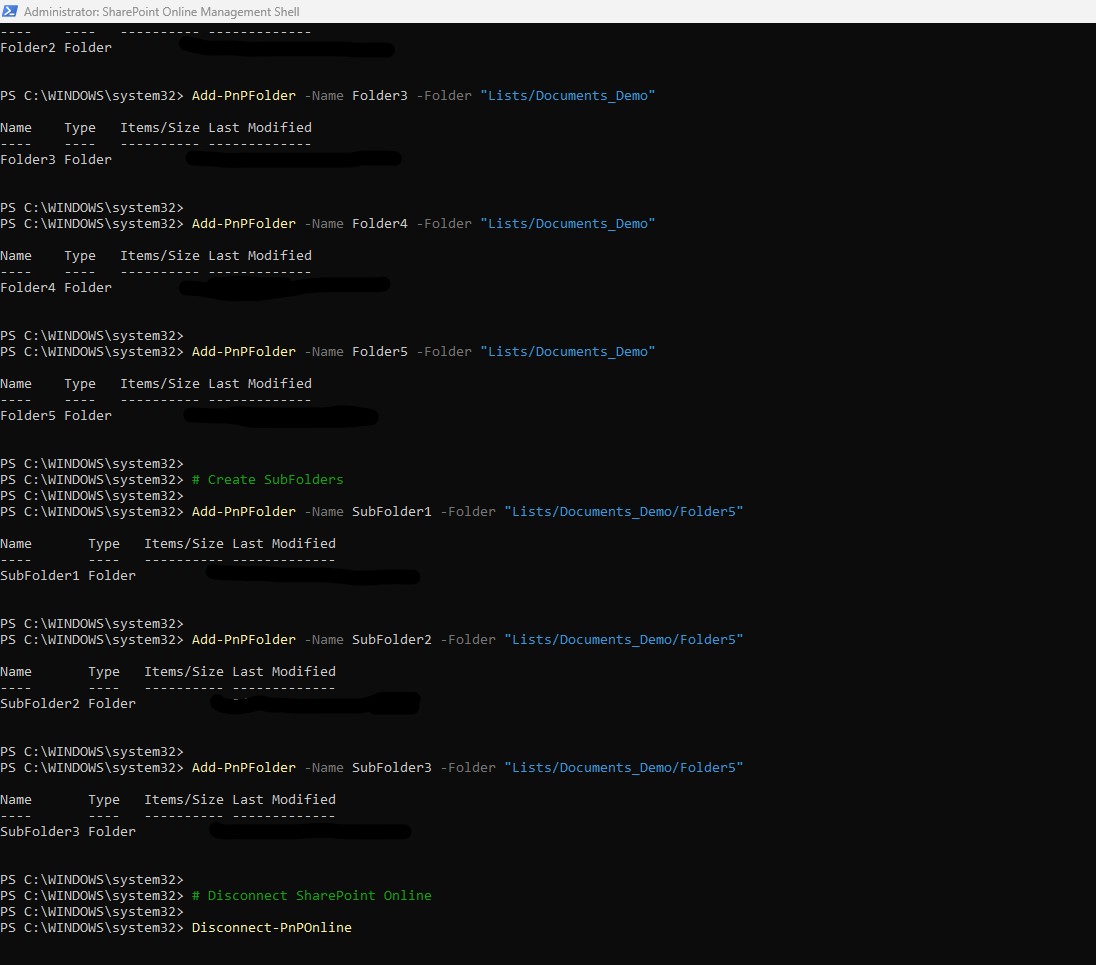
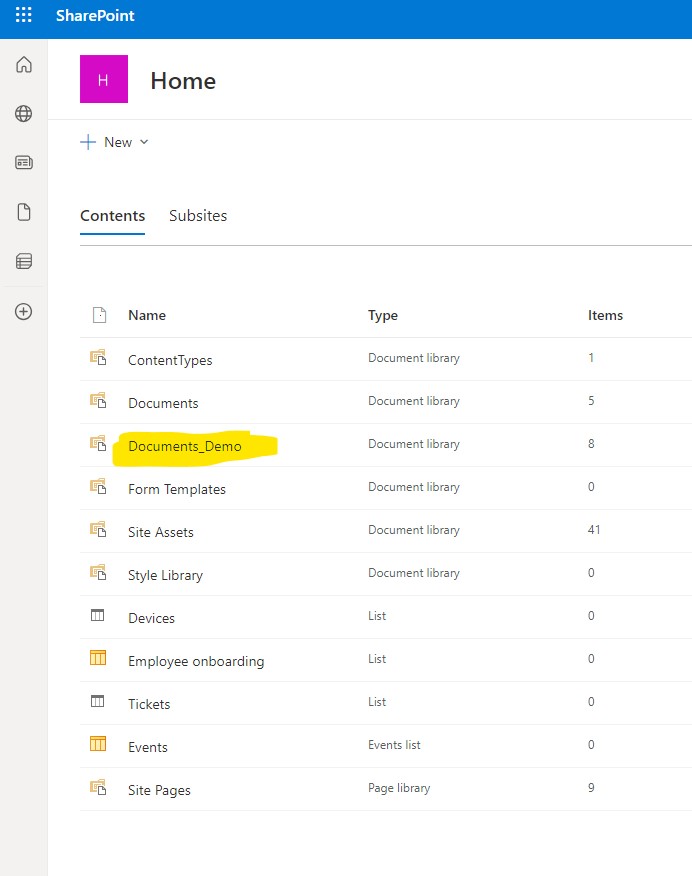
After the execution now you can see under site contents the Library which was created by this execution
And if you navigate in the folders you can see that after the execution we have 5 folders and under the folder5 we have 3 subfolders
 #SharePoint
#technology
#microsoft
#PowerShell
#PnP
#digitaltransformation
#cloud
#mvpbuzz
#m365
#SharePoint
#technology
#microsoft
#PowerShell
#PnP
#digitaltransformation
#cloud
#mvpbuzz
#m365
Visit Archives below to find more articles about Microsoft technologies on Modern Workplace