
Free Material
Find hereMore than 150 Articles about Microsoft Technologies on Modern Workplace
Official Site
Microsoft Most Valuable Professional M365 Apps & Services
Microsoft Most Valuable Professional Business Applications
Consultant & Sr Cloud Solution Architect Modern Wokrplace
Find hereMore than 150 Articles about Microsoft Technologies on Modern Workplace
12 March 2024
In today's article we will see how we can manage user access rights to a library in one of our SharePoint Sites. First we select the site containing the library whose library we want to manage users' permissions
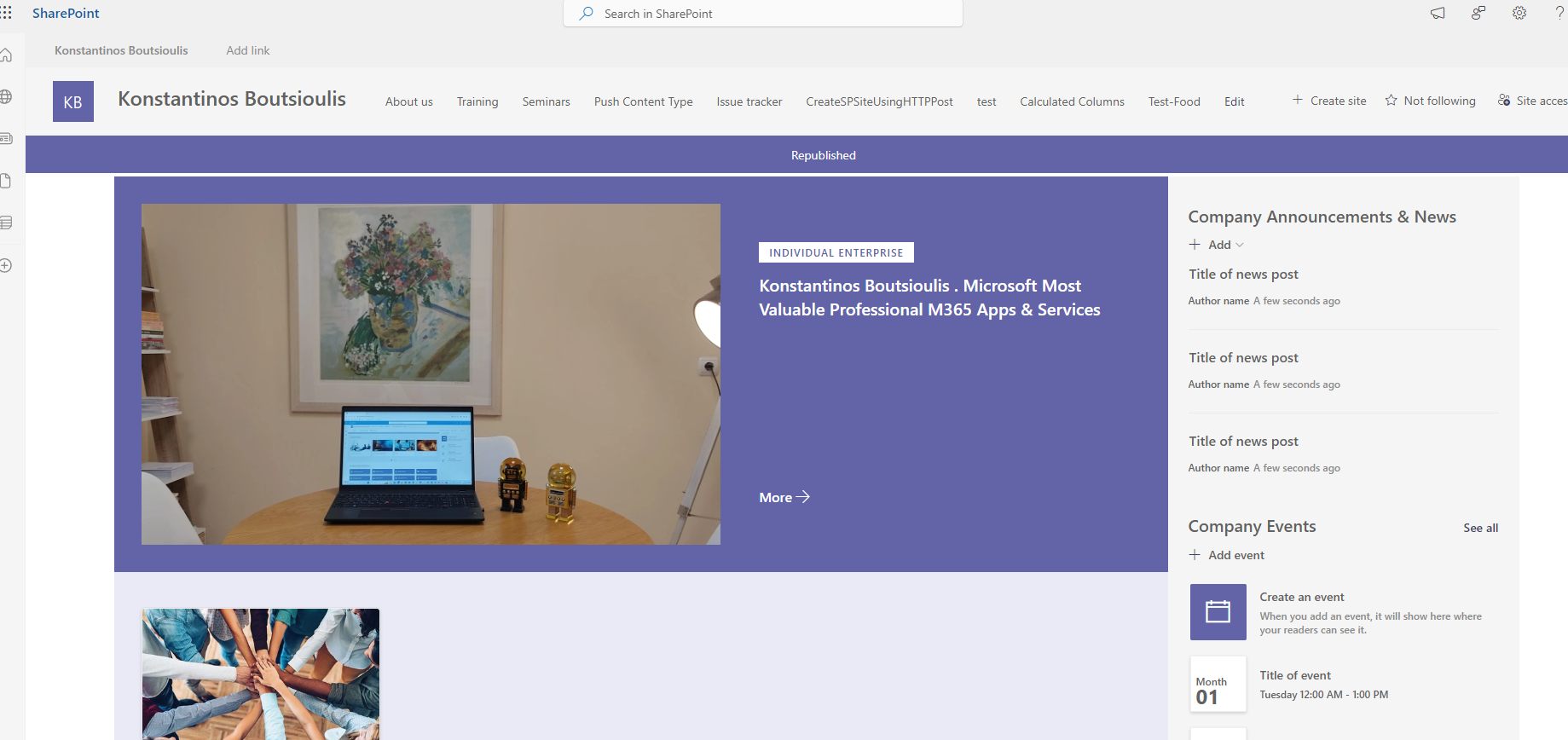
From the gears on the top right we select the Site Contents option from the pop-up menu
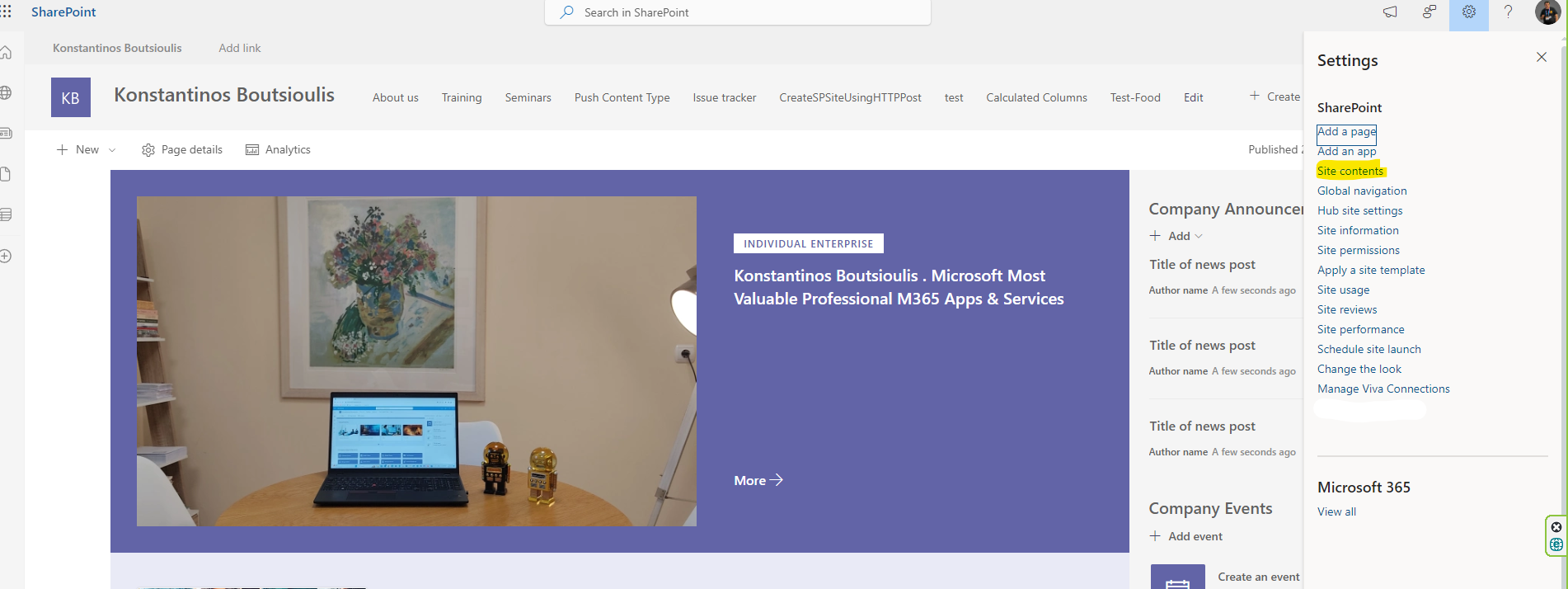
This takes us to the library of our choice
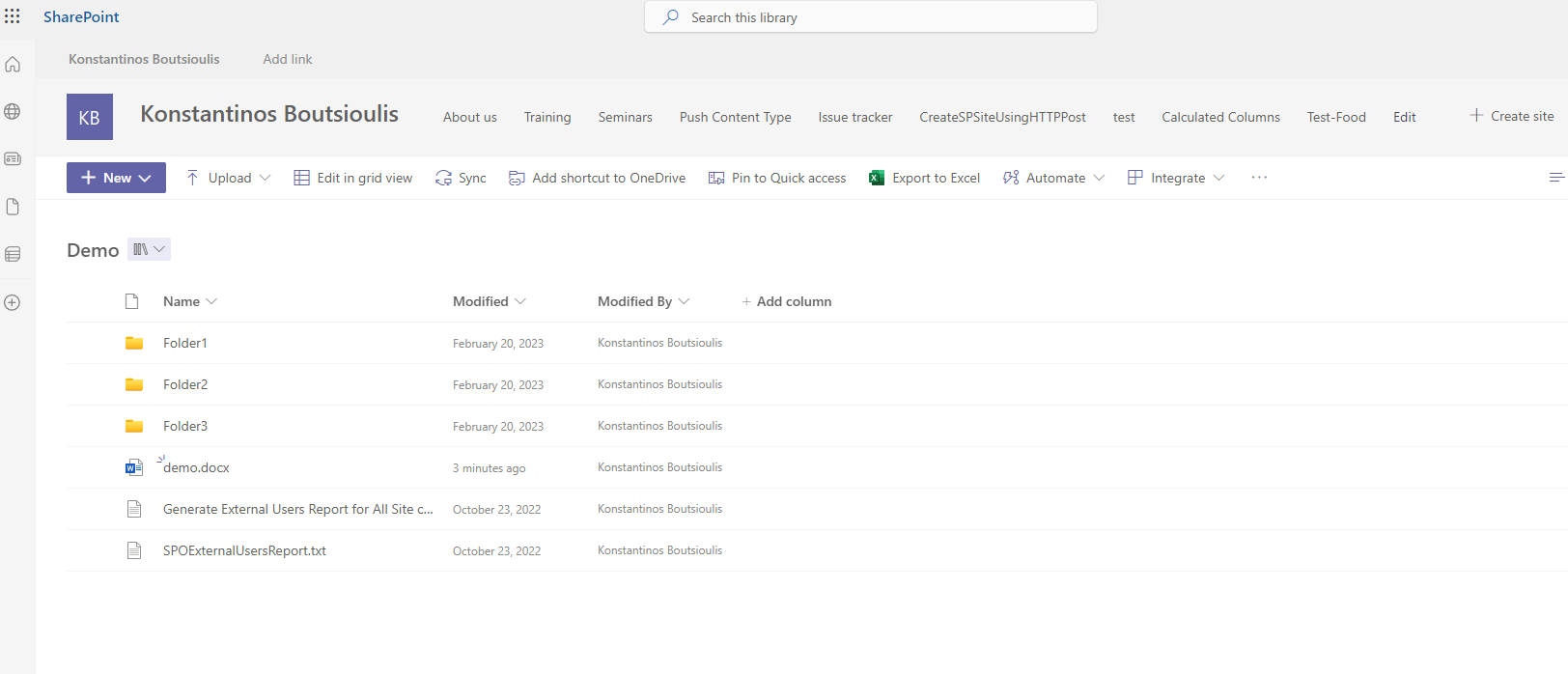
If we click again on the top right gear and then from the side pop-up menu select Library Settings
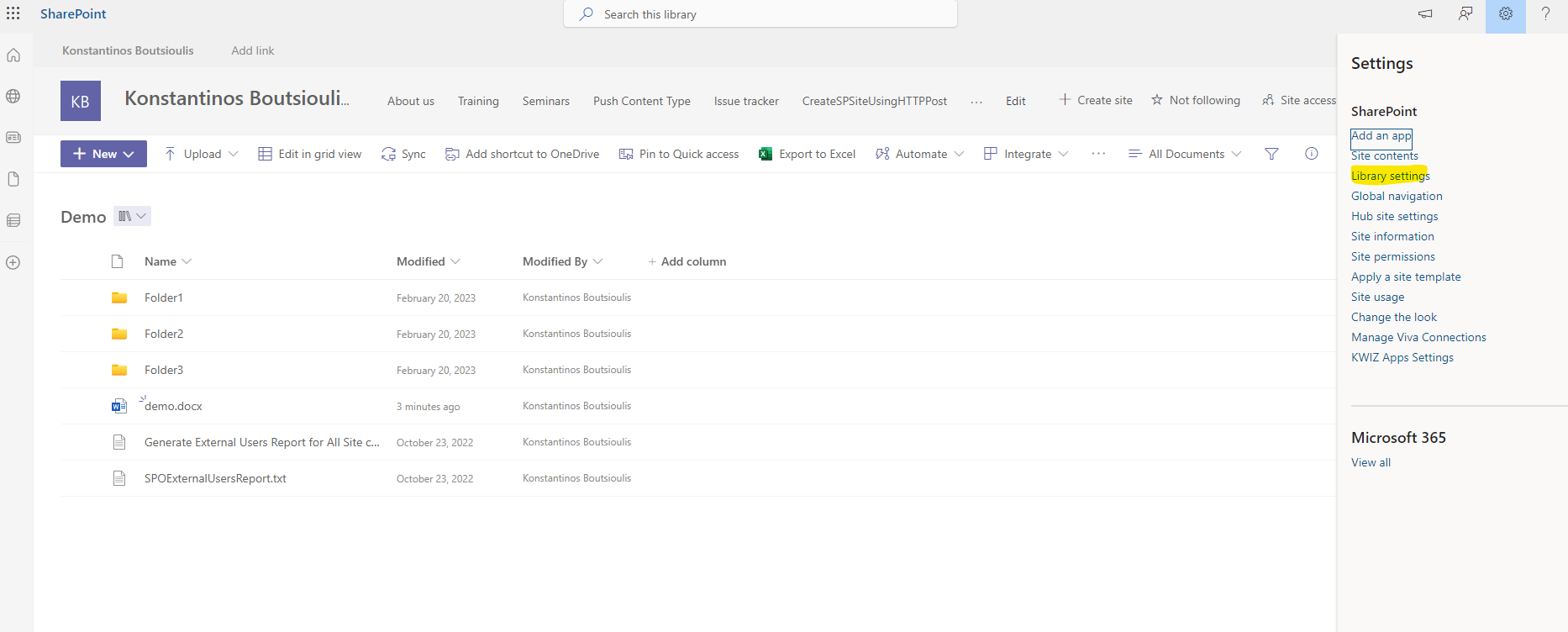
In the next side pop-up menu we select More Library settings
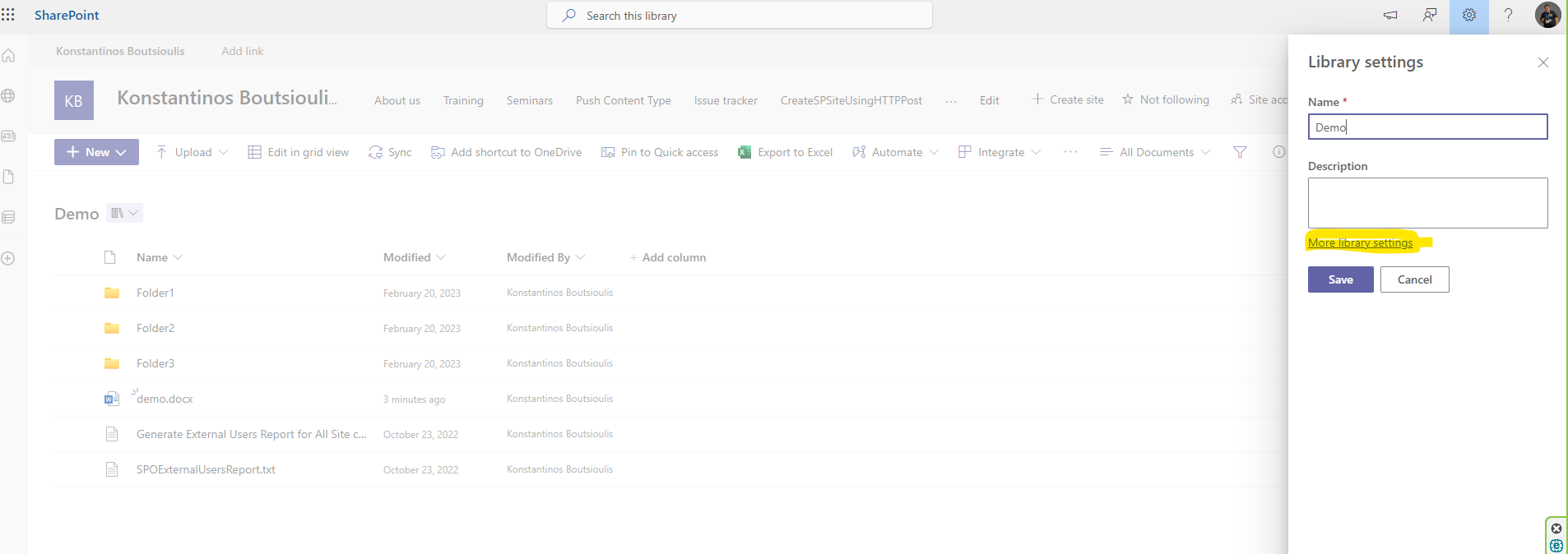
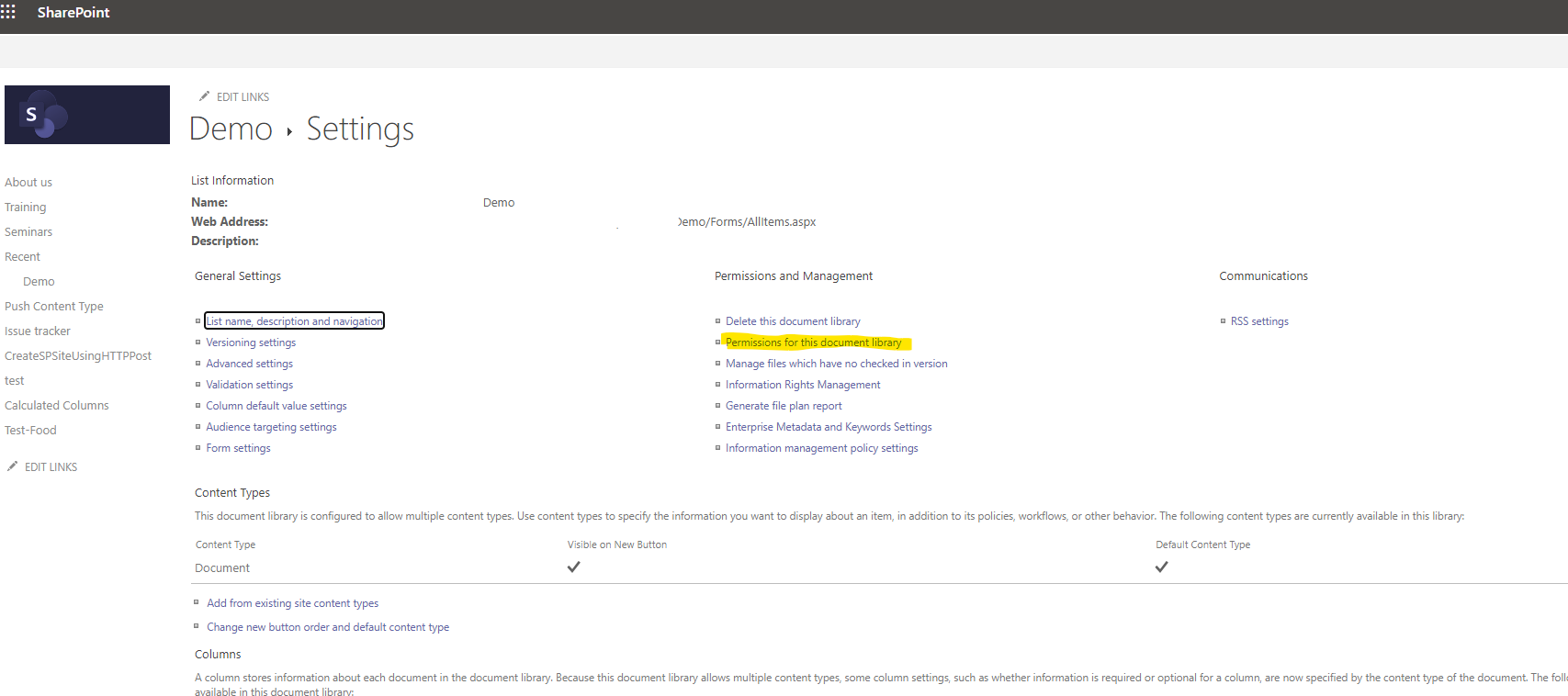
The page through which we manage the library settings is displayed. Here in the second column we select Permissions for this document Library
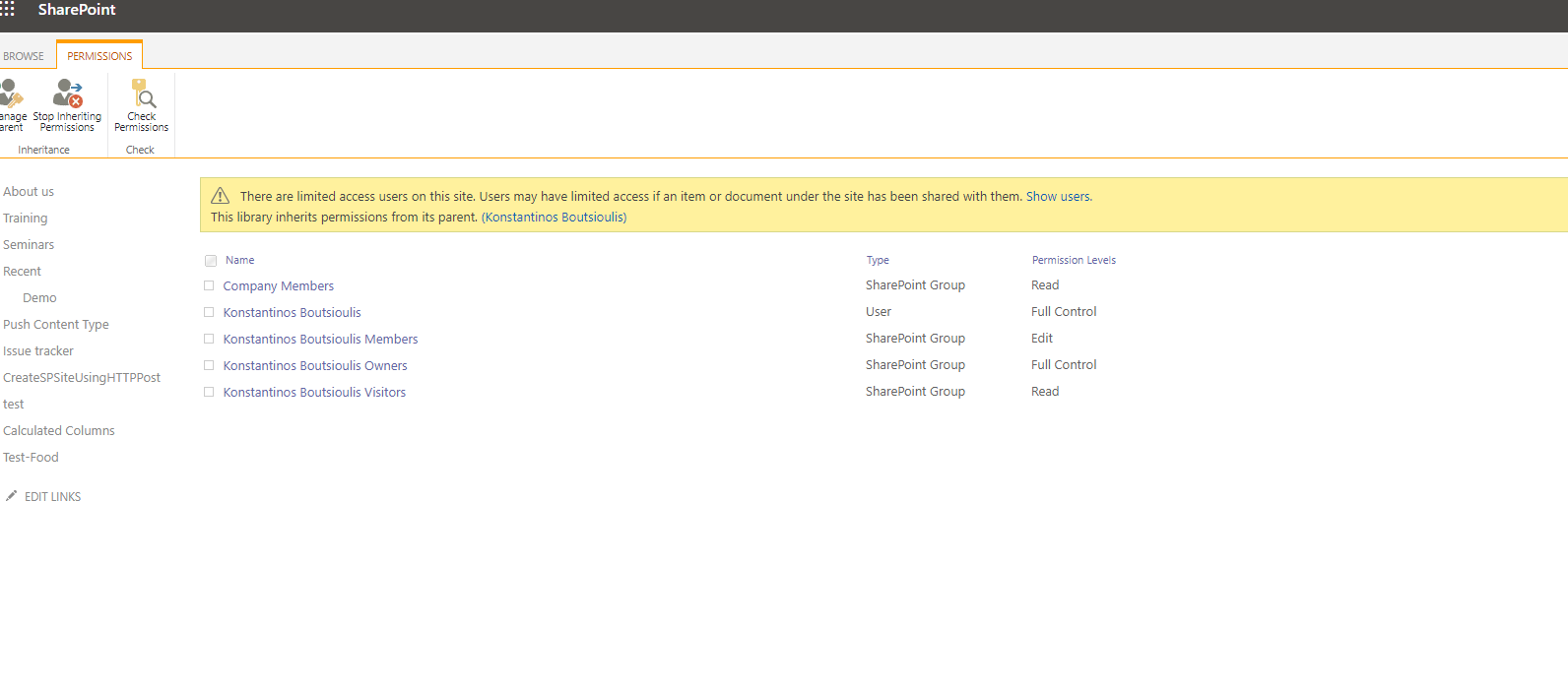
This takes us to the permissions page and finally we can see who has access to our library.
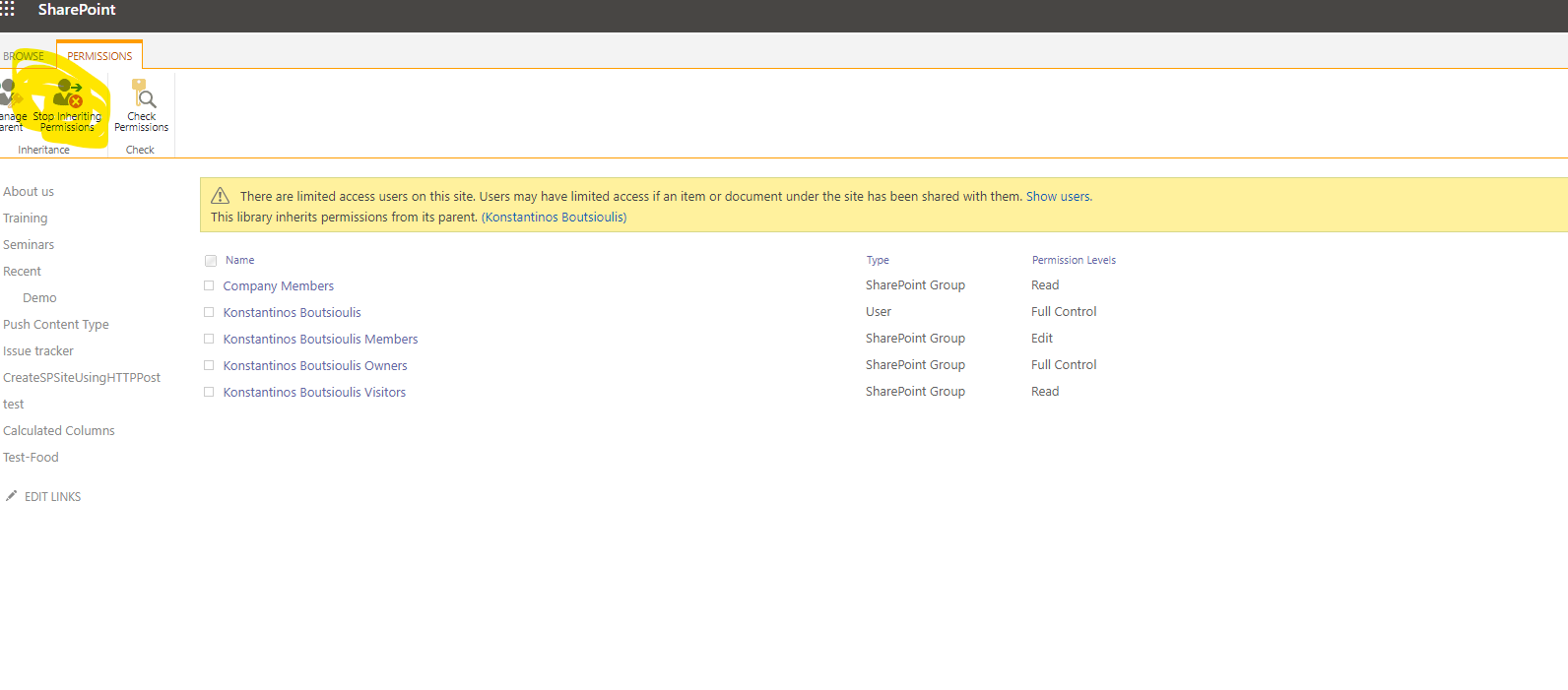
By Default SharePoint inherits the library's permissions of the host page. If we want to change the access rights only to the library we have to select Stop Inheriting Permissions on the top right
And with this way we can still delete any of the users and also change the type of permissions that this user or group has in the library But if we want to add a separate user or group we select Grant Permissions on the top left
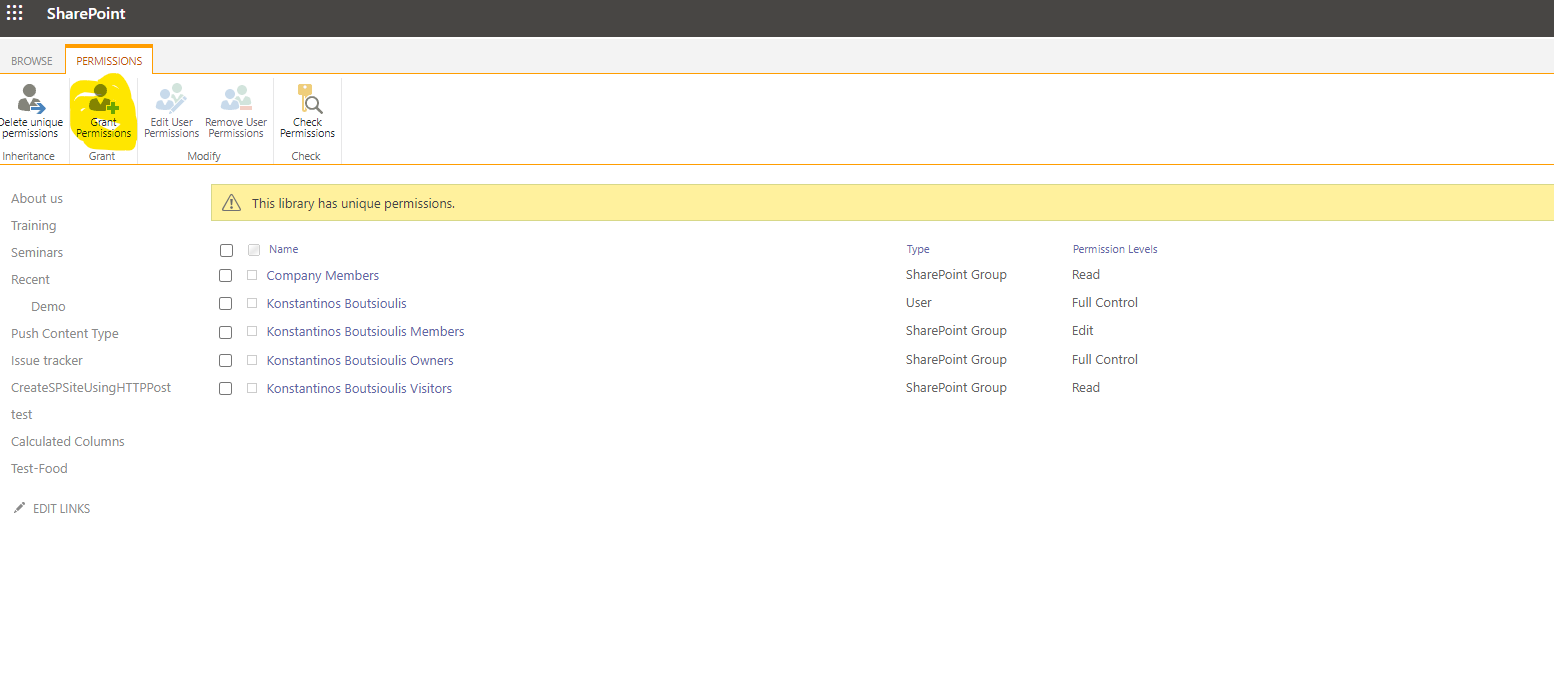
Search for the user or group
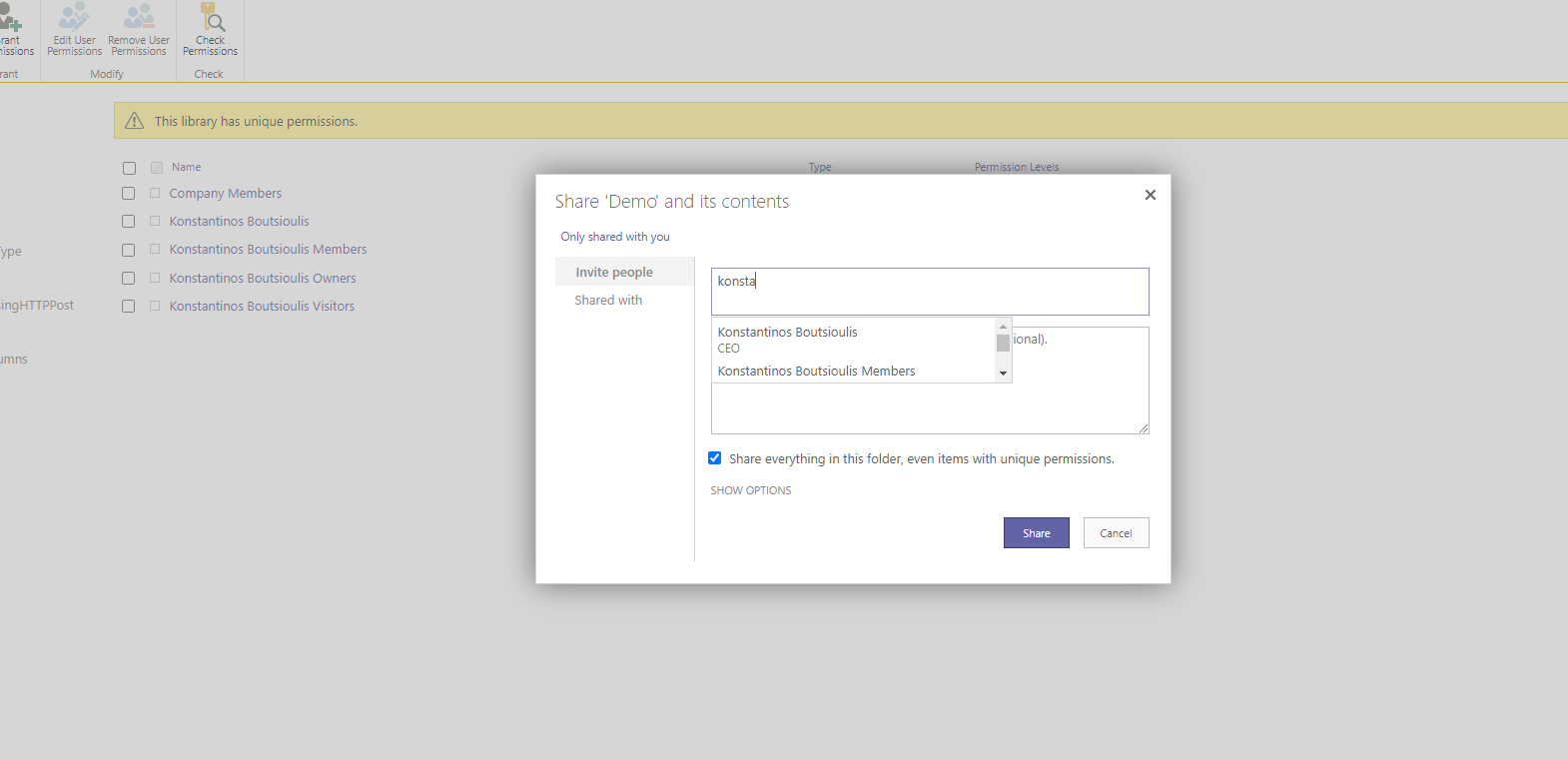
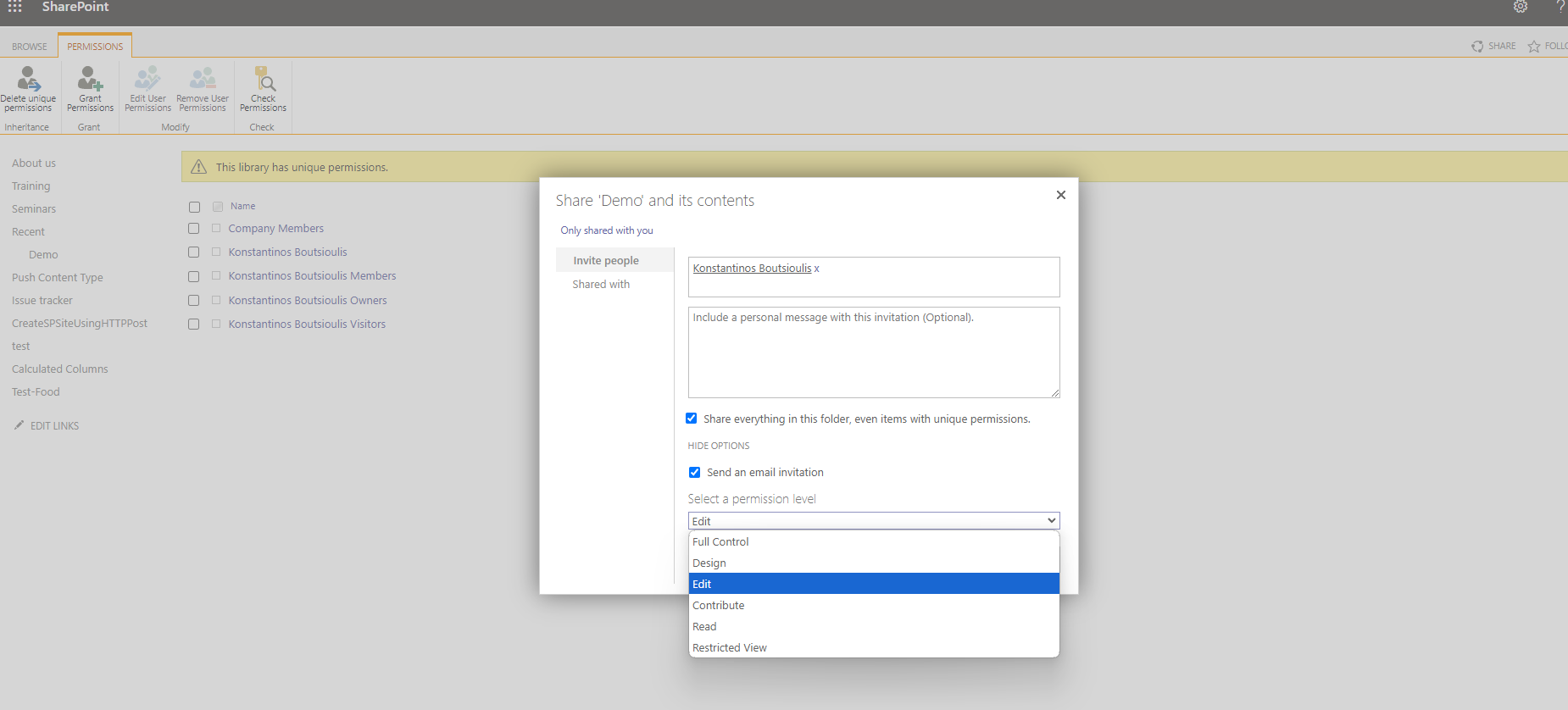
And we select the type of permissions he or she will receive and whether or not he or she will be notified by mail For this action
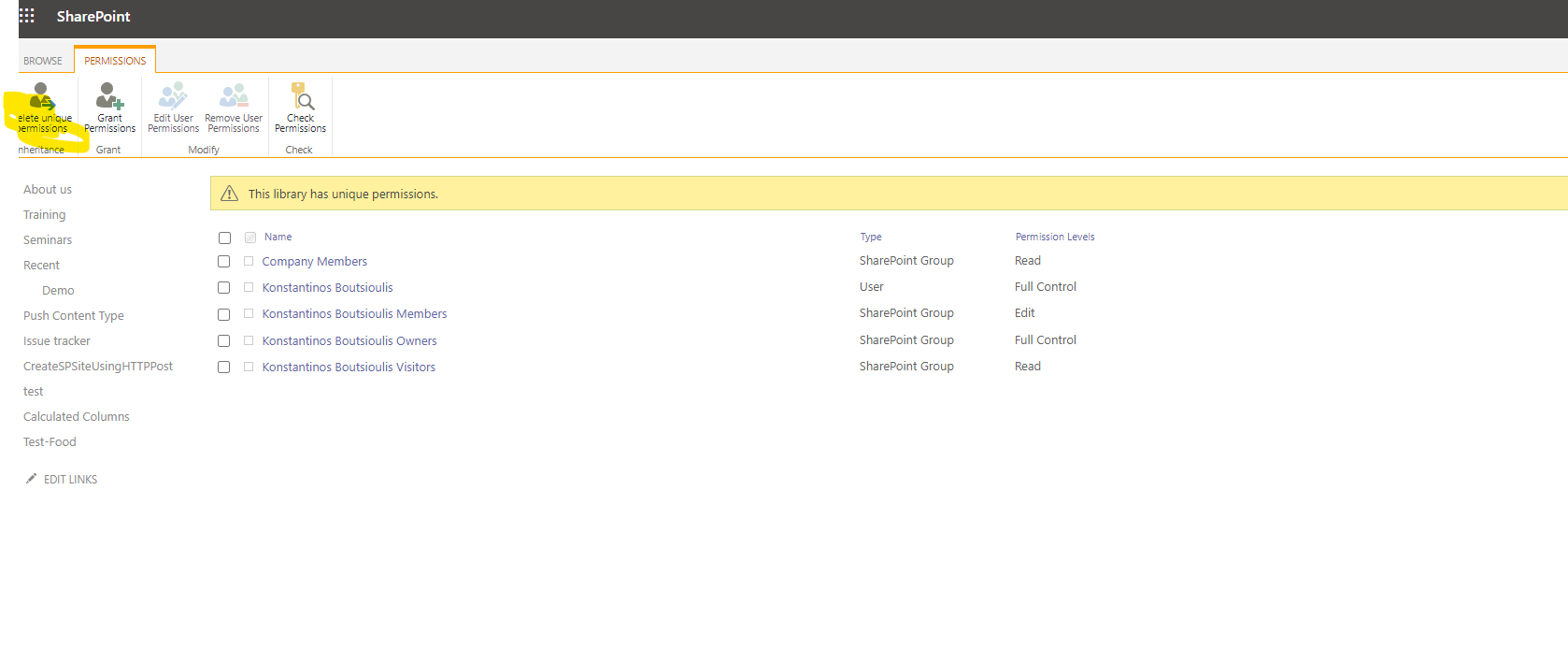
If we wish to restore the library to the original permissions state to inherit the permissions from the mother page we select top left Delete Unique Permissions
 #ModerWork
#M365_Apps_Services
#BusinessApps
#SharePoint
#technology
#microsoft
#digitaltransformation
#cloud
#mvpbuzz
#m365
#ModerWork
#M365_Apps_Services
#BusinessApps
#SharePoint
#technology
#microsoft
#digitaltransformation
#cloud
#mvpbuzz
#m365
Visit Archives below to find more articles about Microsoft technologies on Modern Workplace