
Free Material
Find hereMore than 150 Articles about Microsoft Technologies on Modern Workplace
Official Site
Microsoft Most Valuable Professional M365 Apps & Services
Microsoft Most Valuable Professional Business Applications
Consultant & Sr Cloud Solution Architect Modern Wokrplace
Find hereMore than 150 Articles about Microsoft Technologies on Modern Workplace
19 March 2024
In today's article, we will see how we can extract data from a SharePoint list, sort it by employee first name, and then send an email with this data.
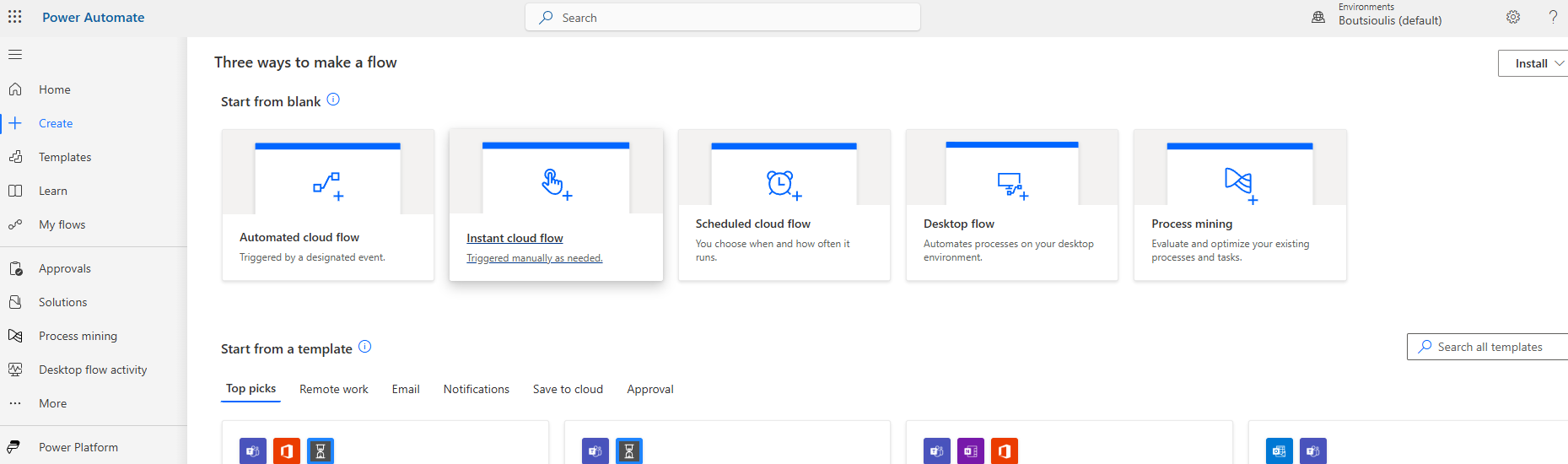
First, we need to have an active subscription and permission for Power Automate. From the Power Automate page, we select "Create" and then "Instant cloud flow" .
Next, we select "Manually trigger flow" and give a name to the automate.
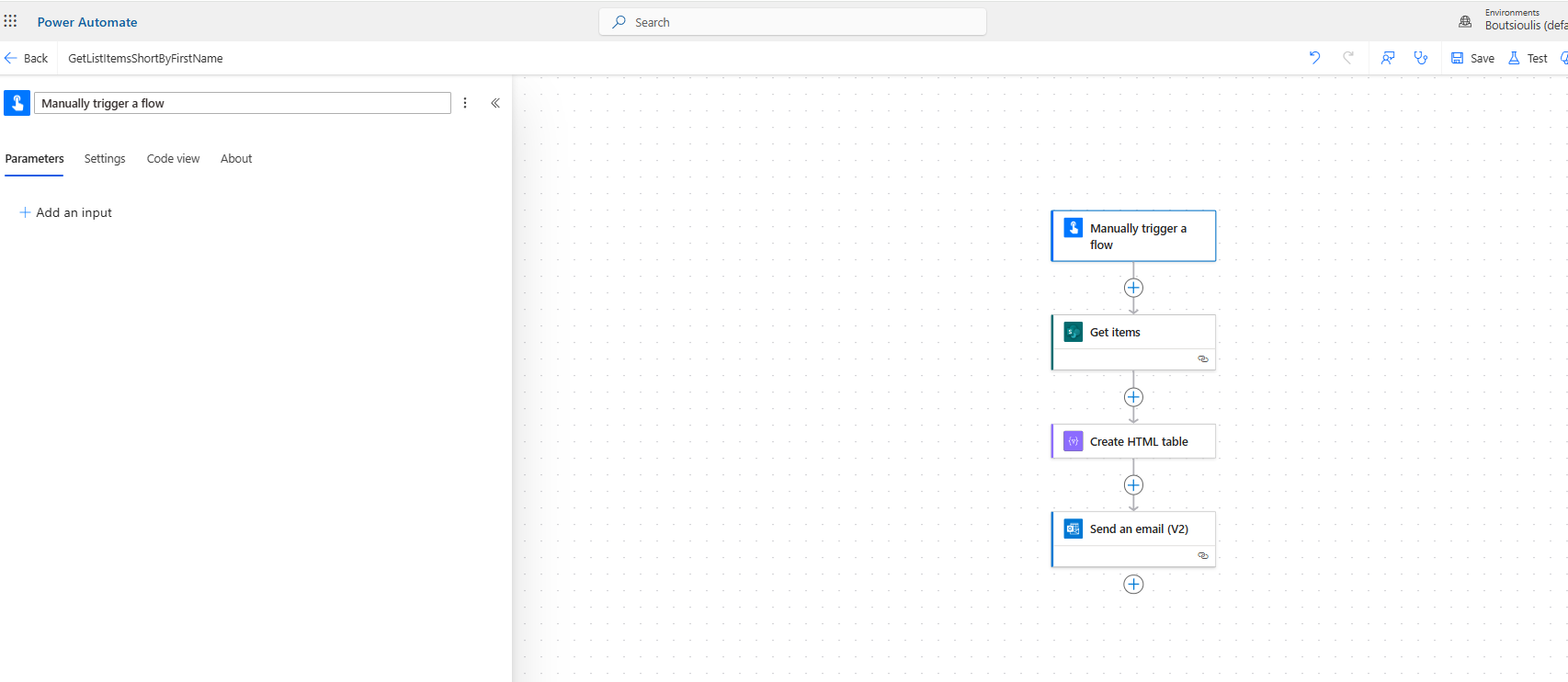
In the first action, we select a specific parameter that we desire.
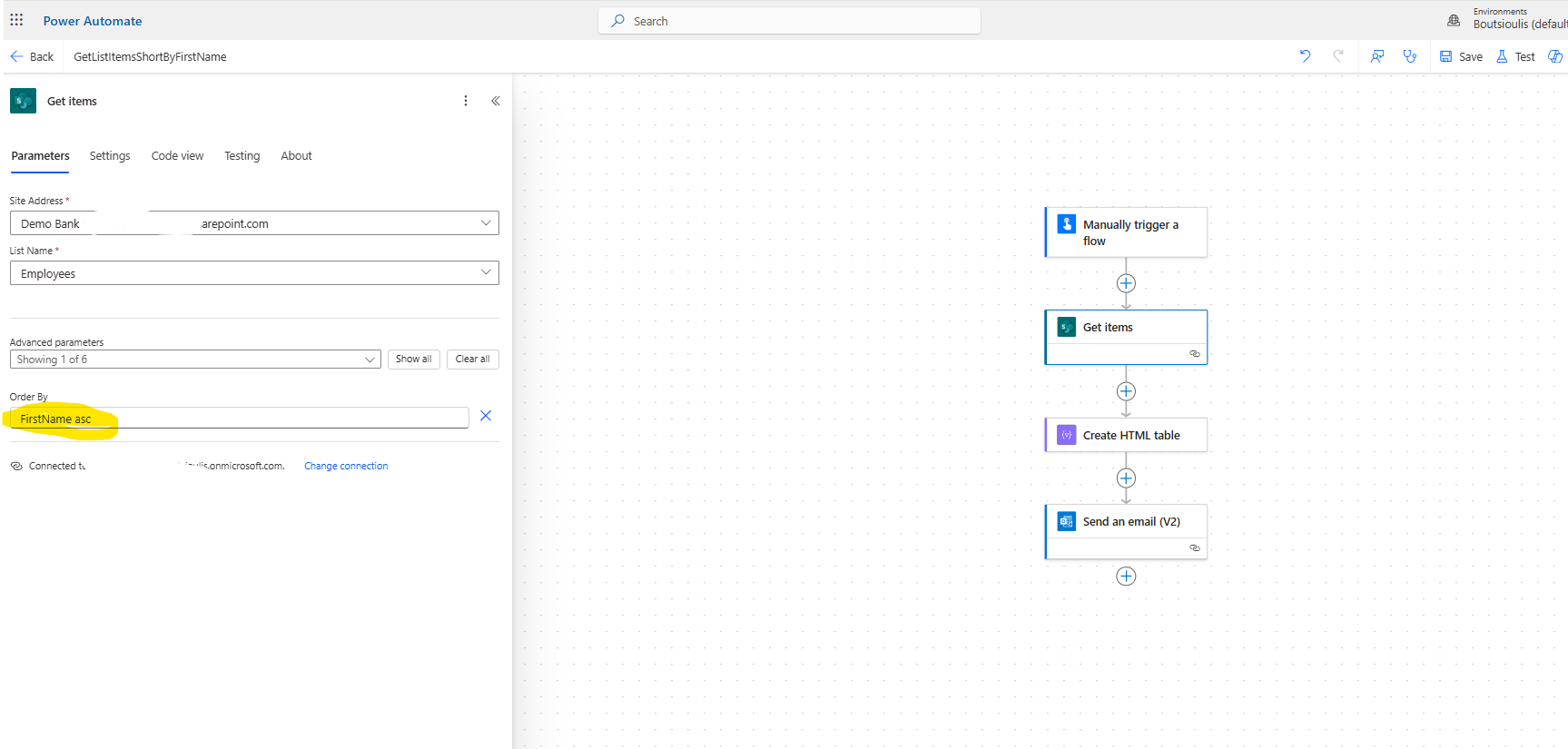
The next action is "Get item" from SharePoint, where we need to specify the site hosting the list and the list from which we want to retrieve data. In the "Order by" field, we select the list column FirstName and "asc" for ascending order.
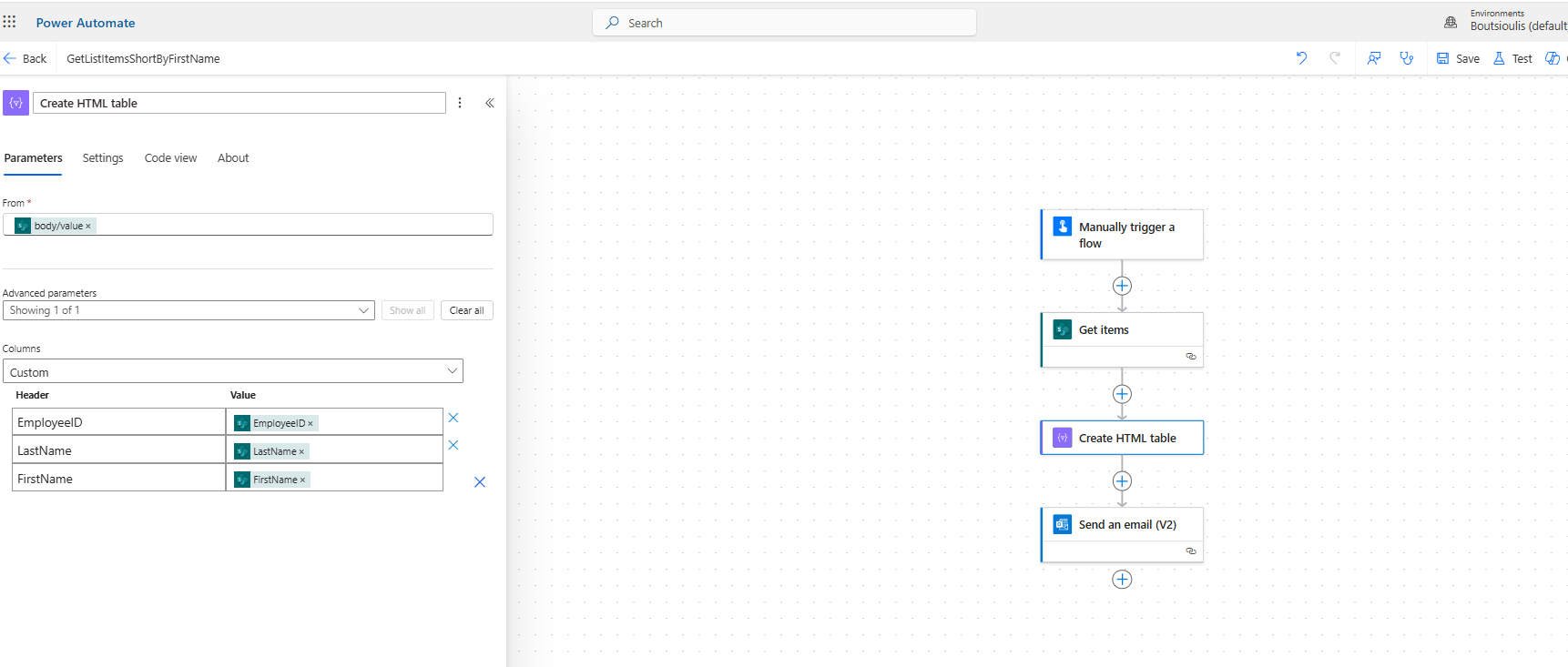
In the next step, we need to select "Create HTML table" and as input, we choose the body/value of the "Get items". In the columns, we select "Custom" and in the Headers, we create three columns: Employee ID, Last Name, and First Name, and for each, we select the corresponding value from the "Get items".
In the final action, we select "Send email (v2)" and enter the recipient who will receive the email as well as the subject of the email. In the body, we will insert the output of the "Create HTML table".
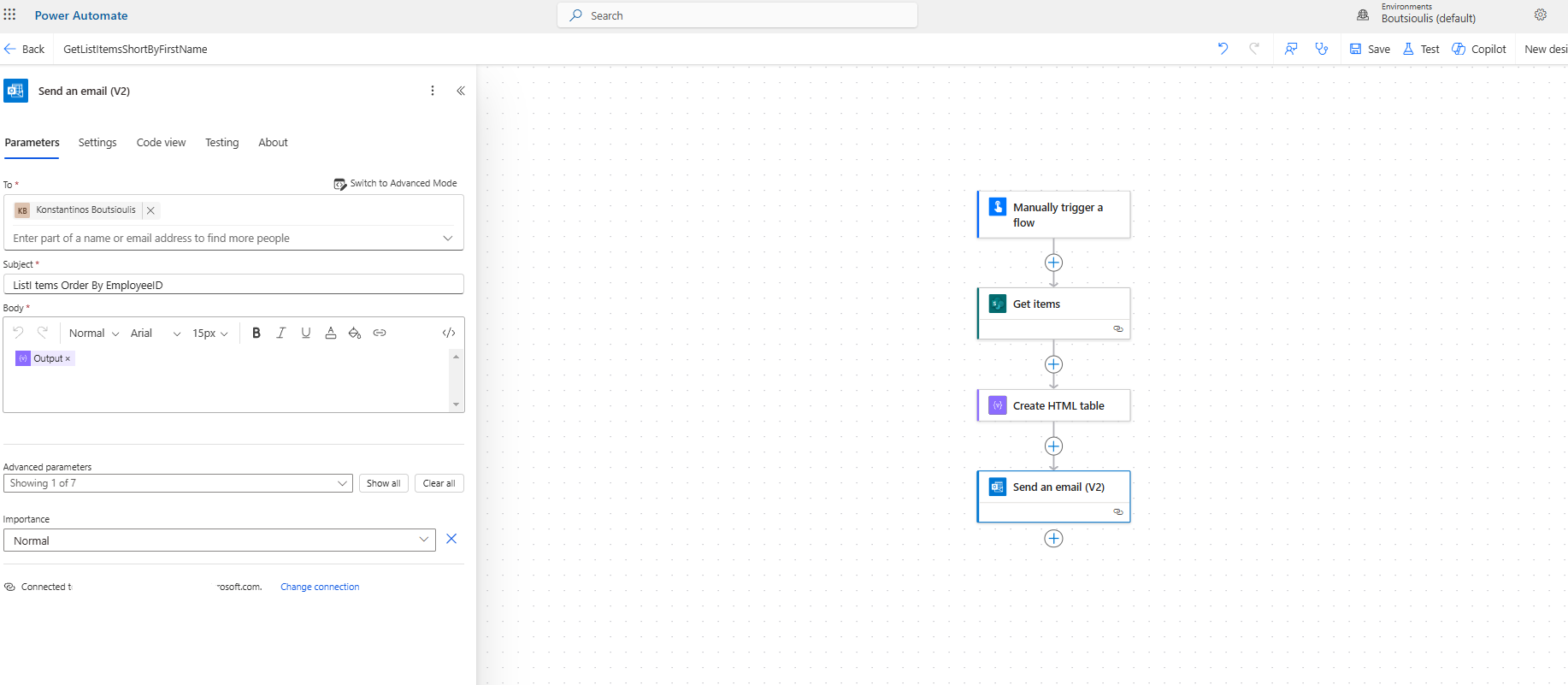
We need to save the automate (Img06) and then select "Manual test" and run the automate.
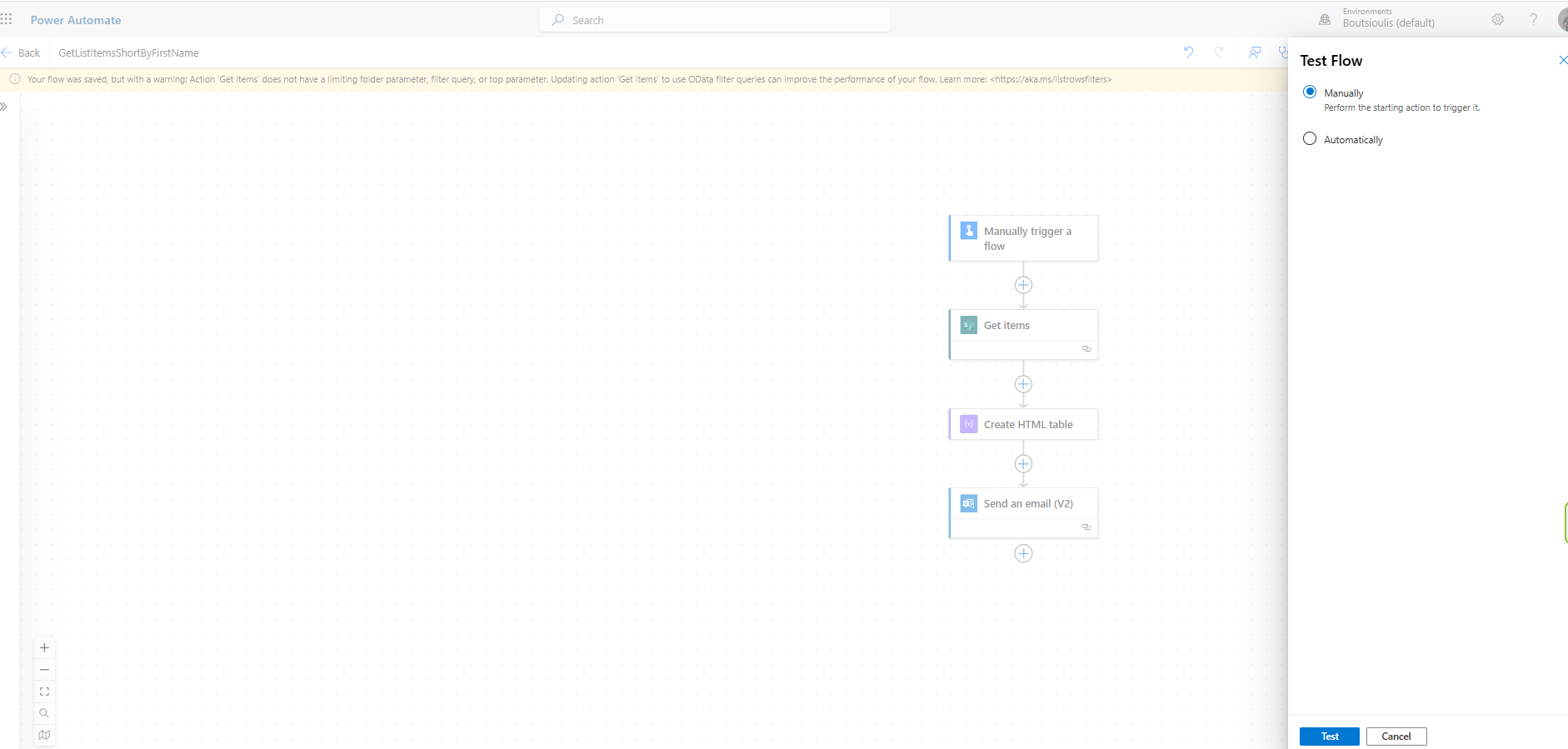
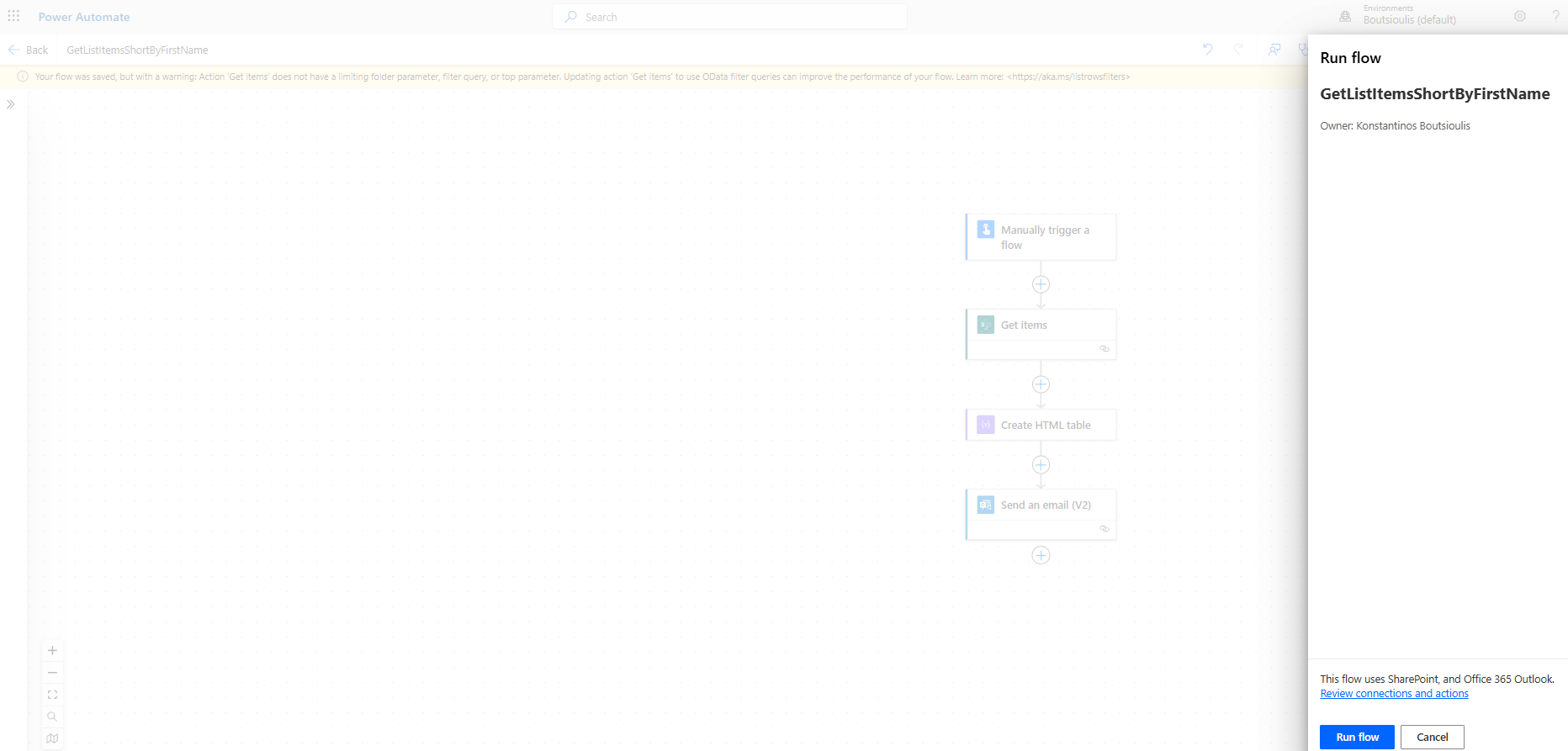
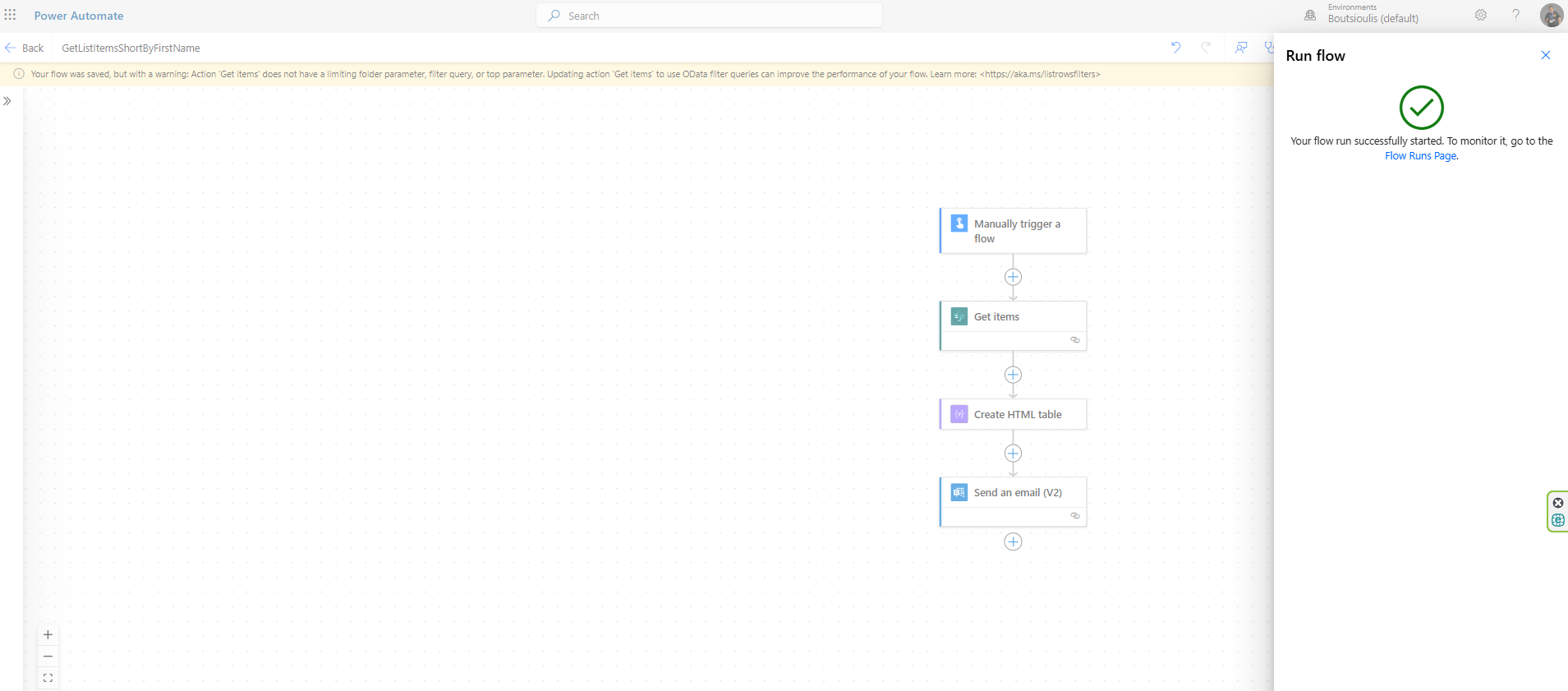
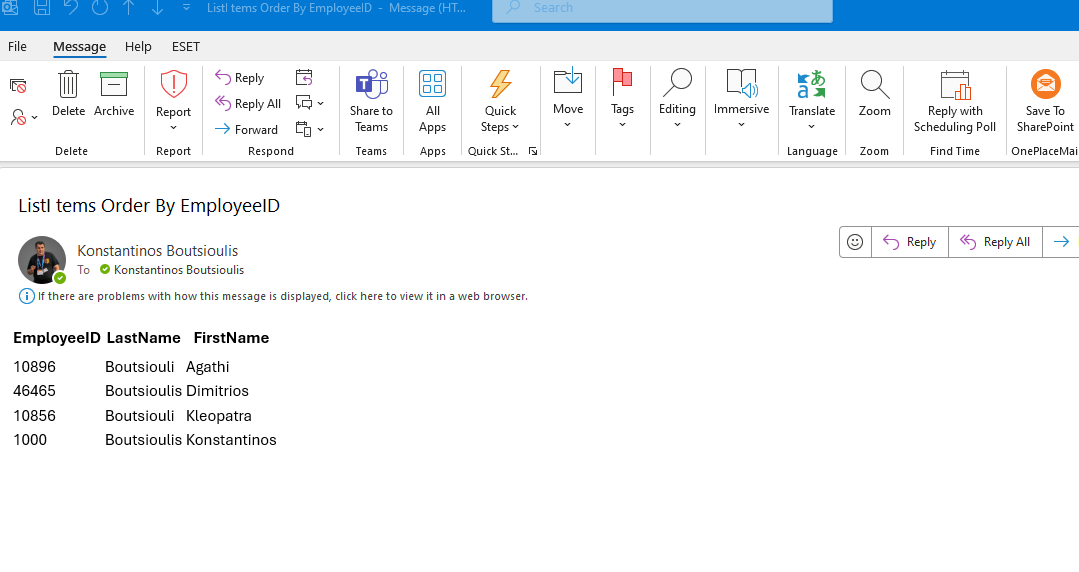
Finally, as it appears, an email is sent with the data ordered by employee First Name.
 #ModerWork
#M365_Apps_Services
#BusinessApps
#SharePoint
#PowerAutomate
#technology
#microsoft
#digitaltransformation
#cloud
#mvpbuzz
#m365
#ModerWork
#M365_Apps_Services
#BusinessApps
#SharePoint
#PowerAutomate
#technology
#microsoft
#digitaltransformation
#cloud
#mvpbuzz
#m365
Visit Archives below to find more articles about Microsoft technologies on Modern Workplace