
Free Material
Find hereMore than 150 Articles about Microsoft Technologies on Modern Workplace
Official Site
Microsoft Most Valuable Professional M365 Apps & Services
Microsoft Most Valuable Professional Business Applications
Consultant & Sr Cloud Solution Architect Modern Wokrplace
Find hereMore than 150 Articles about Microsoft Technologies on Modern Workplace
28 March 2024
In today's article, we will see how to create a communication site on SharePoint using Power Automate, HTTP requests, and a SharePoint list.
First, you need to have an active M365 subscription. Select a site on SharePoint that will host the list where we will create a new item, and from there, we will find the details such as the address, name, and description for the new site.
From the site contents, select "New List" and give a name and description for your list.
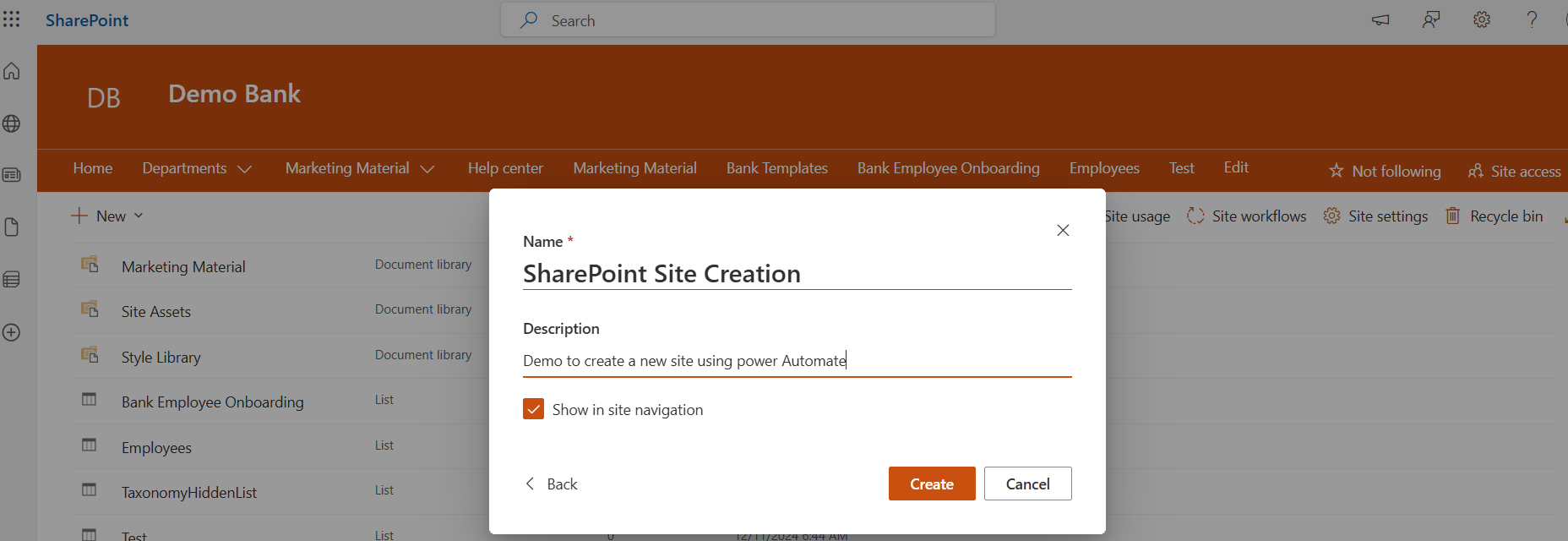
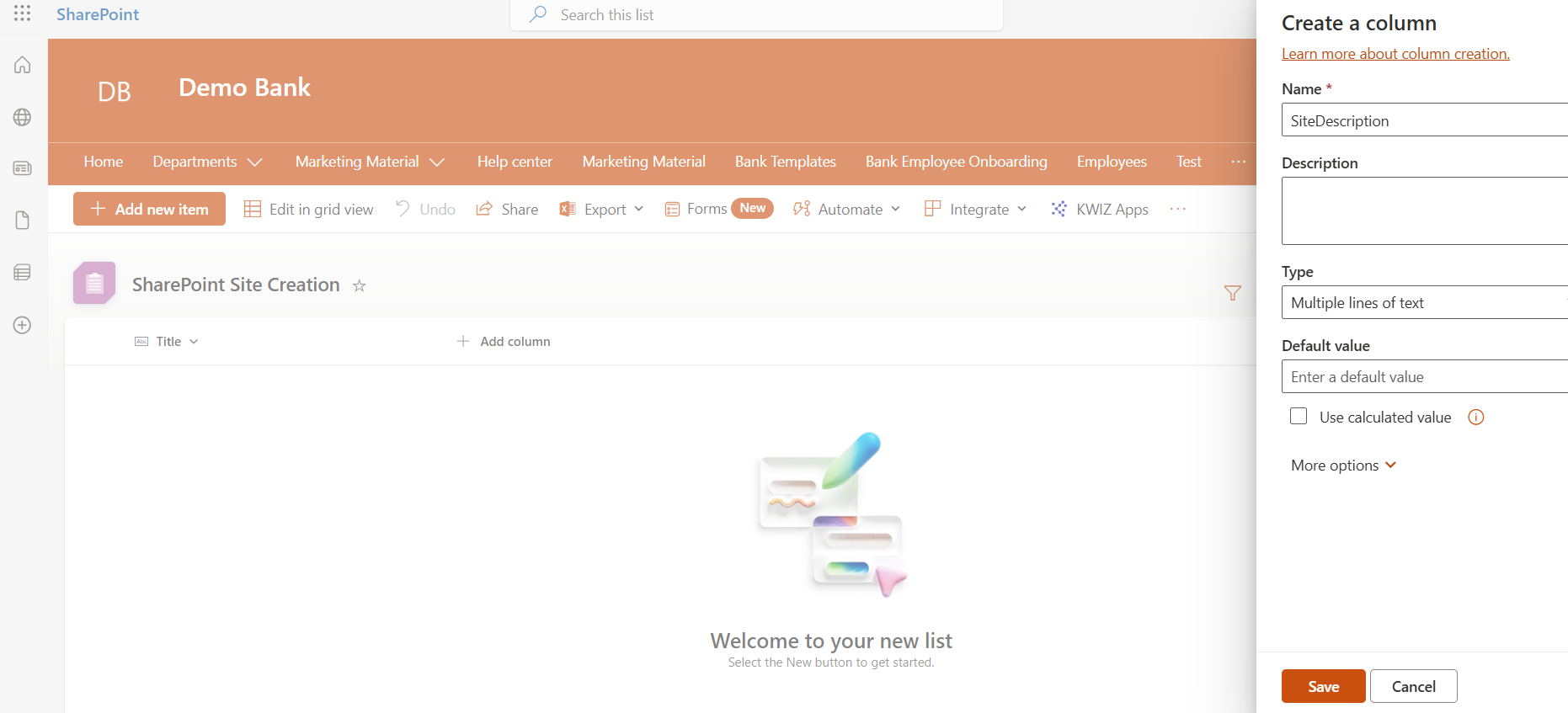
In the next step, after creating your list, you need to create custom columns. Select "Add column," and give a name and description for the new column, which is the site description.
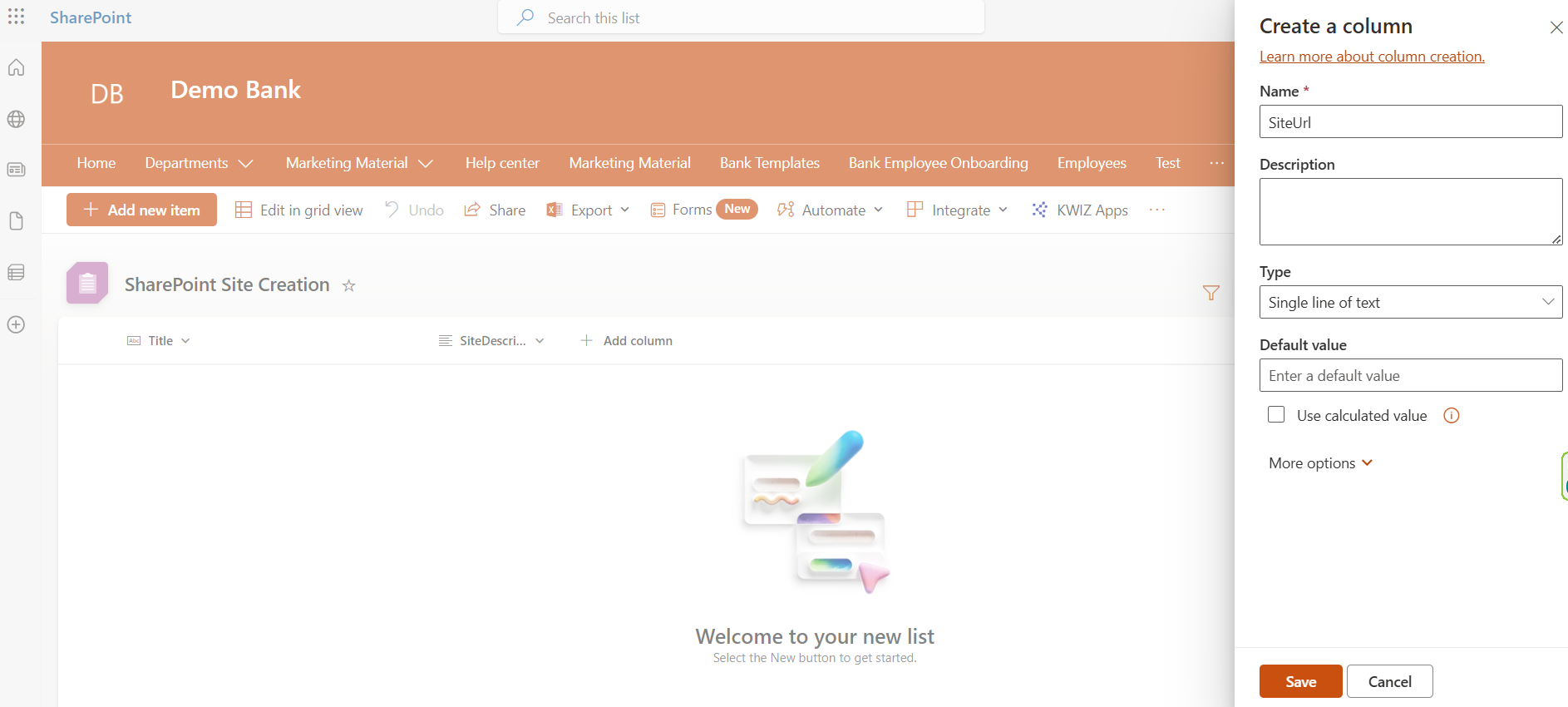
In the next step, create another custom column in the same way, but this time it will be of type string and will contain the site URL.
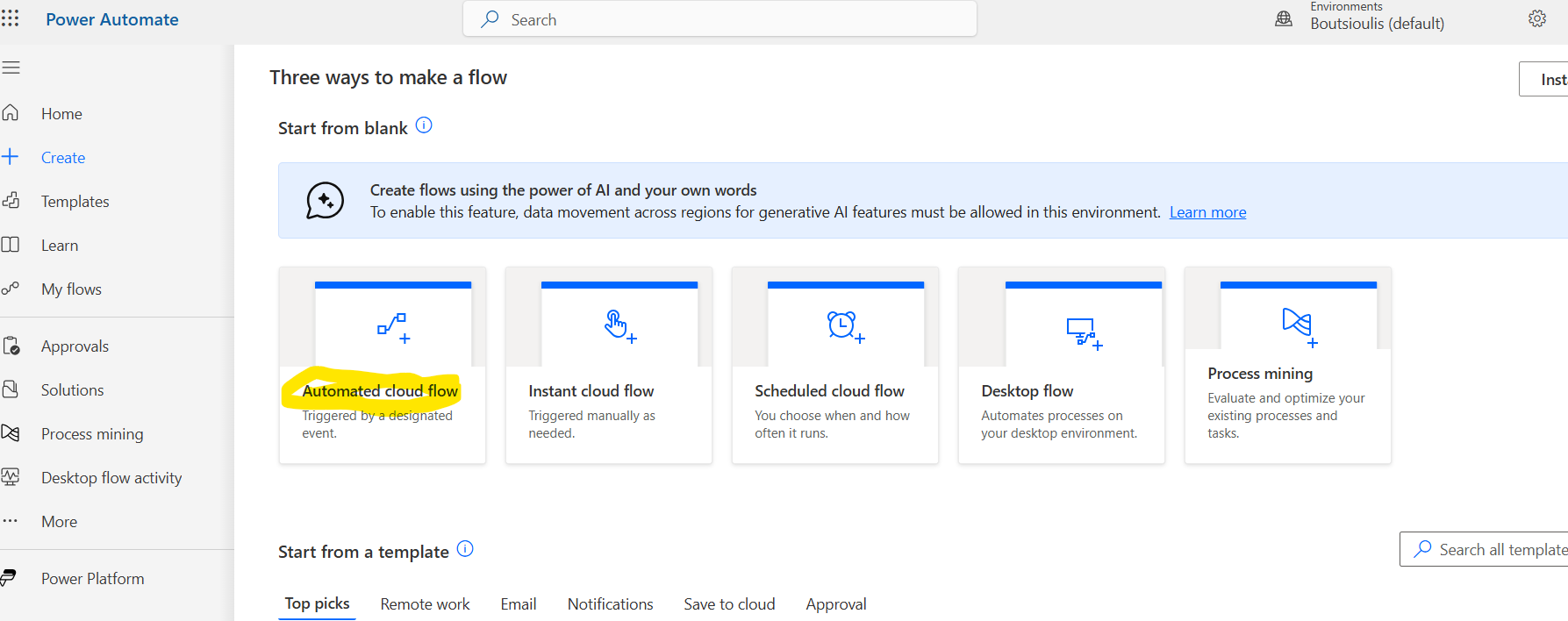
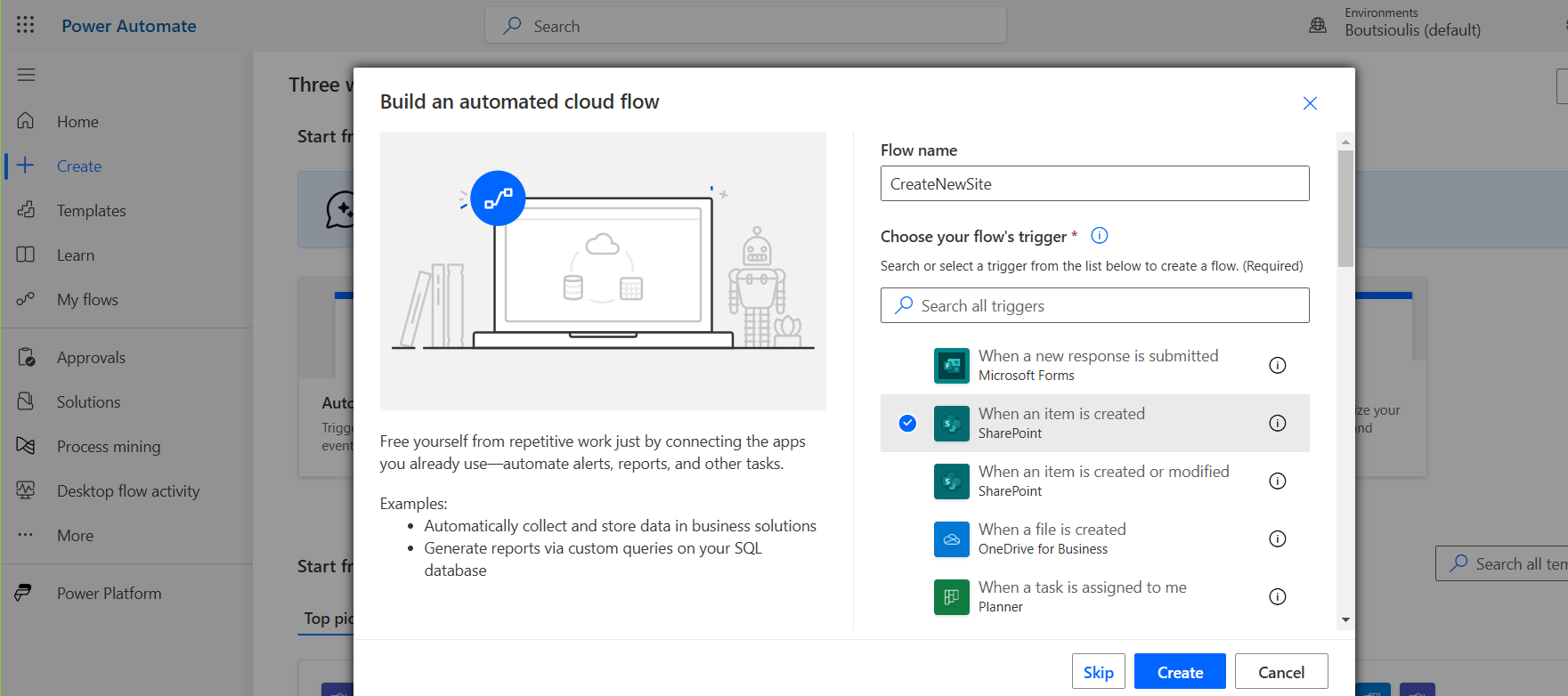
Next, go to the Power Automate homepage and select "Automated cloud flow." .
From the available options, select "When an item is created" and give a name for your new flow.
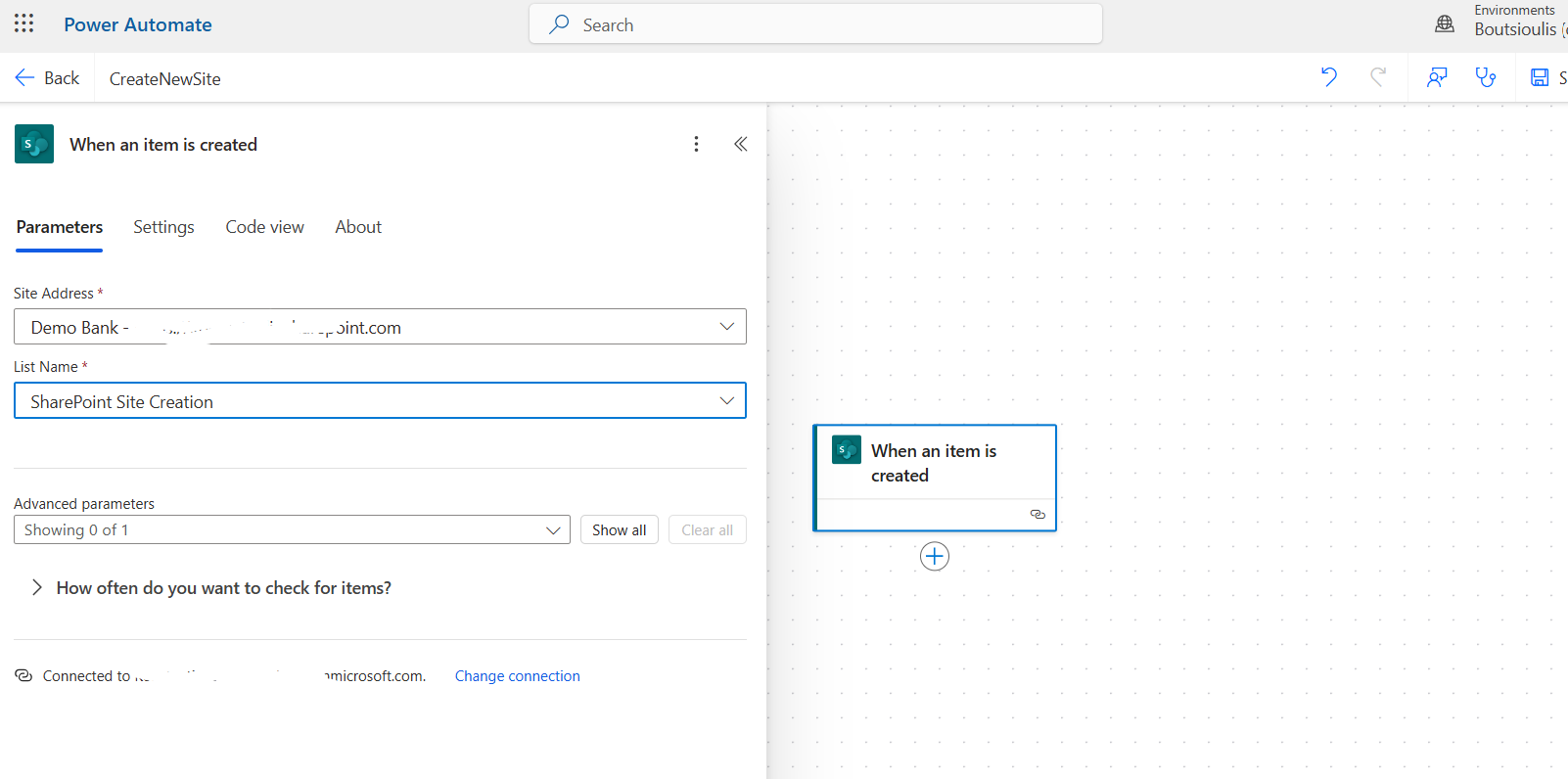
In the first action, enter the site address and the name of the list you created earlier.
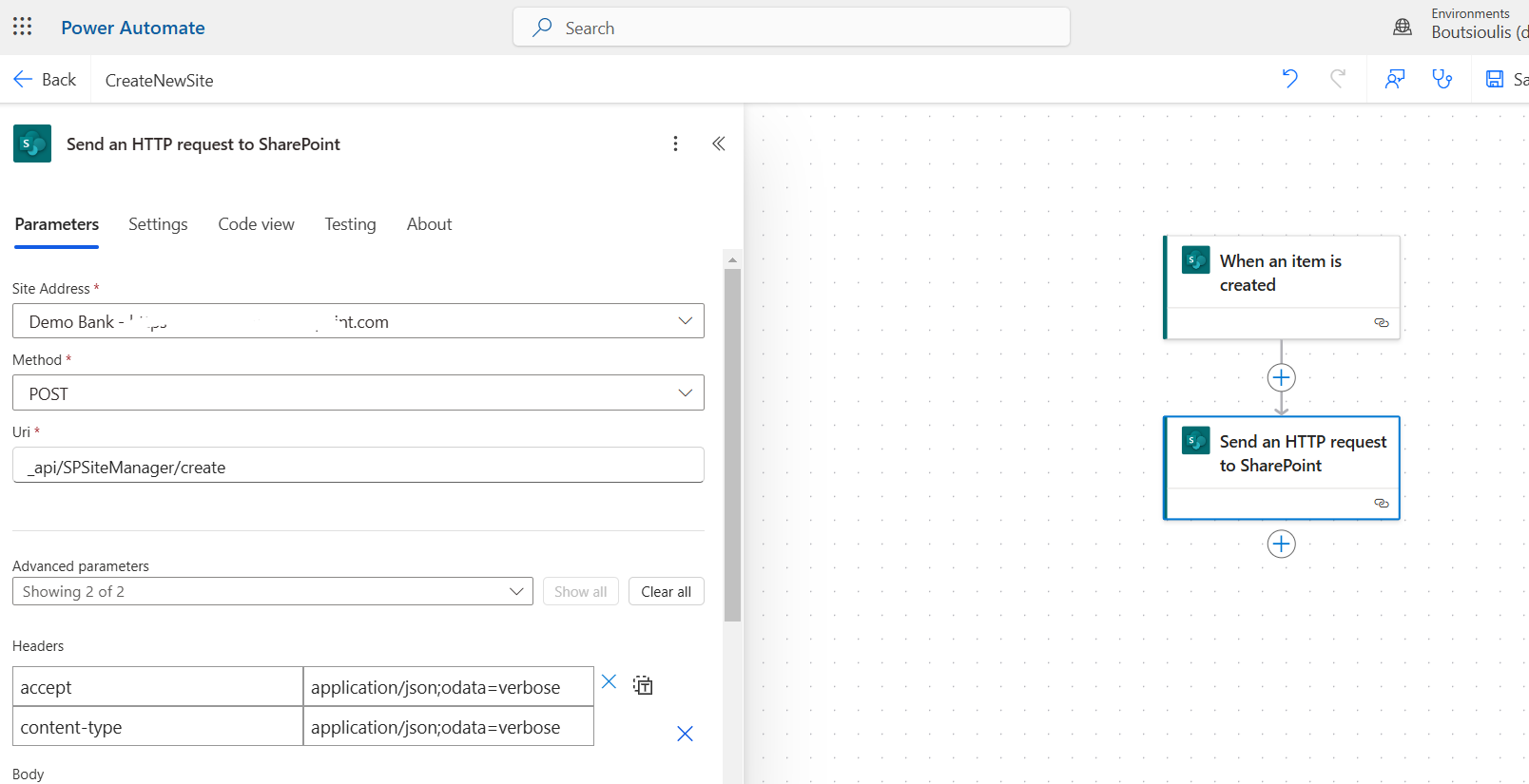
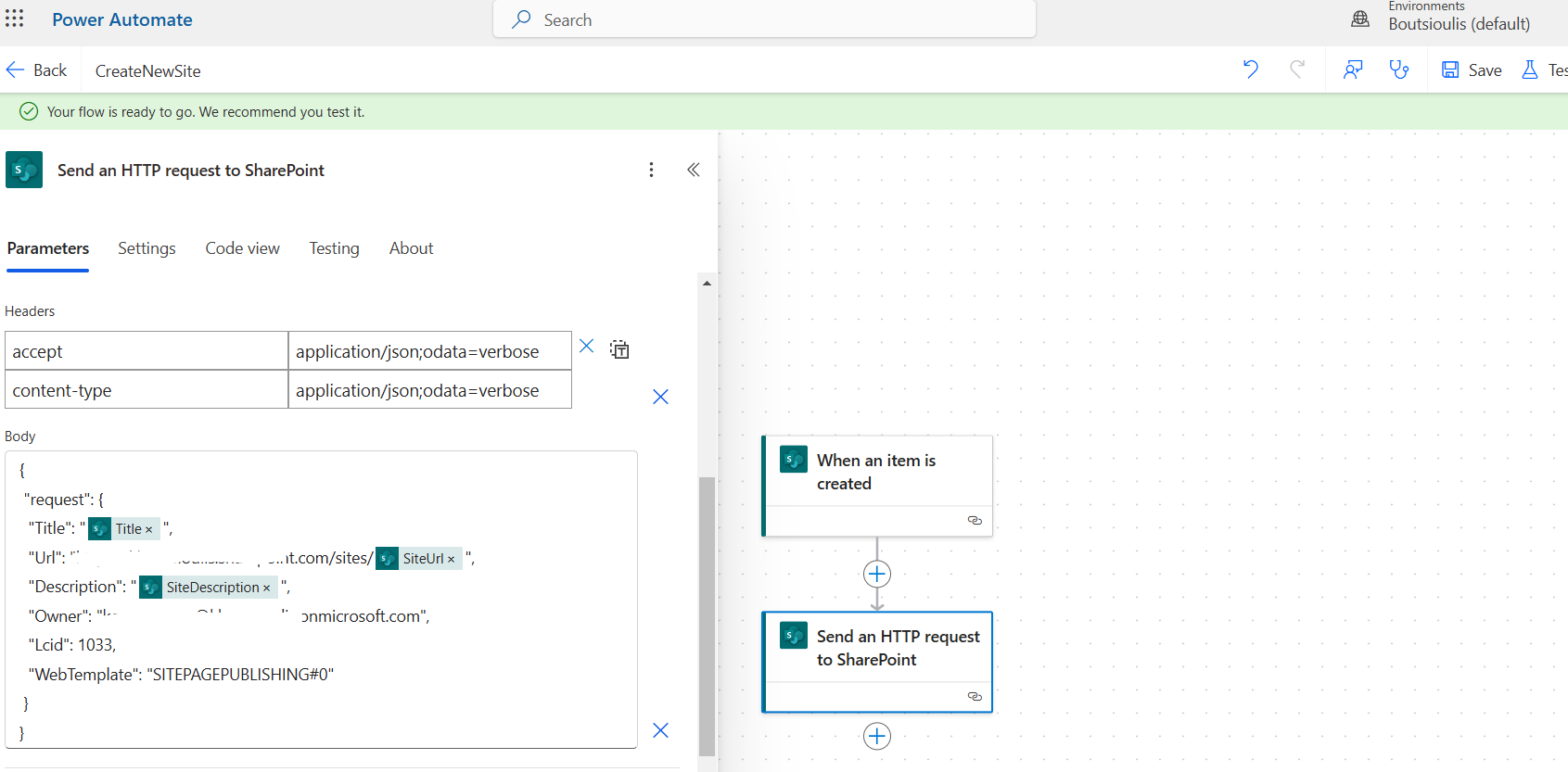
You need to add a new action, which will be of type "Send an HTTP request to SharePoint." Enter the site address again, set the method to POST, and in the URI field, enter _api/SPSiteManager/create. In the headers, enter Accept: application/json;odata=verbose and Content-Type: application/json;odata=verbose.
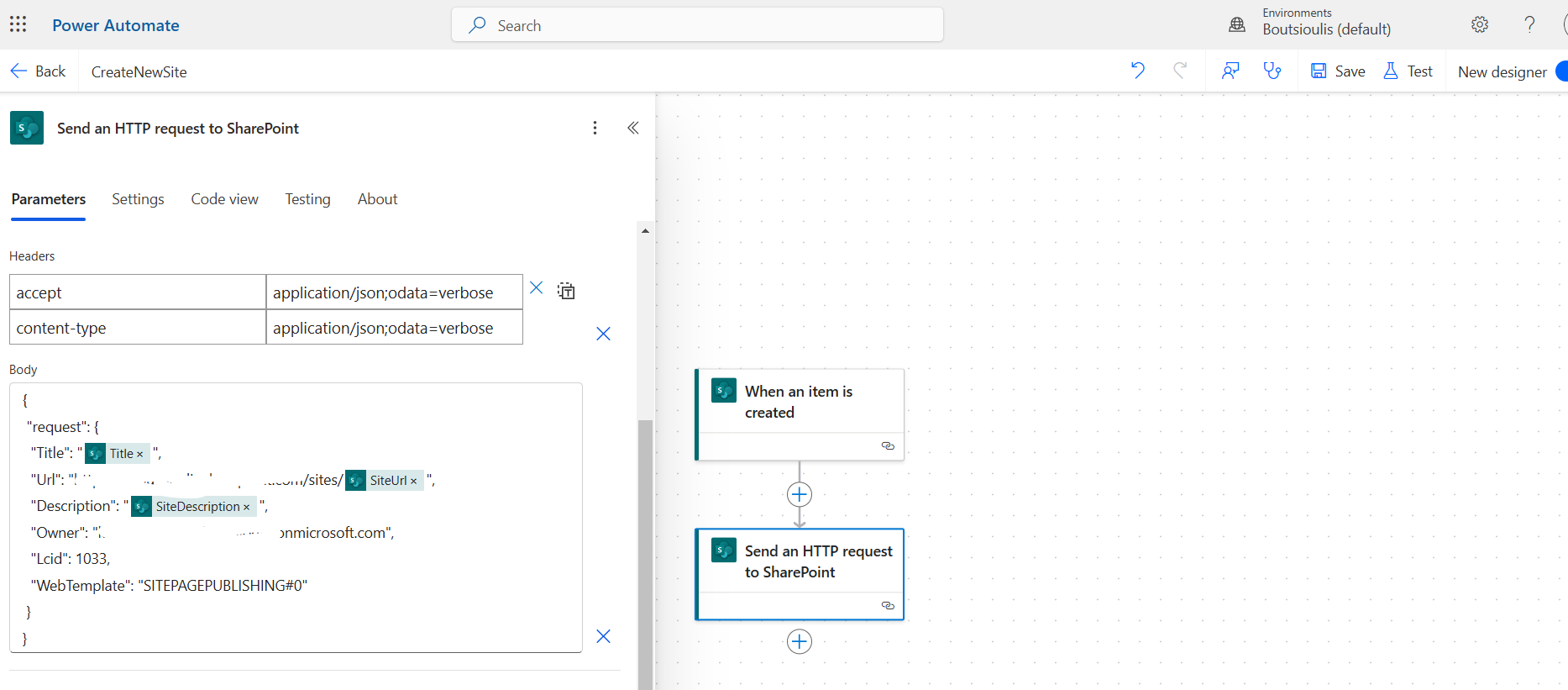
In the body, enter:
    {
    "Request": {
    "Title": "Title from list",
    "Url": "site url from list",
    "Description": "Description from list",
    "Owner": "owner of site",
    "Lcid": "1033",
    "WebTemplate": "SITEPAGEPUBLISHING#0"
    }
    }
Then, save your automate.
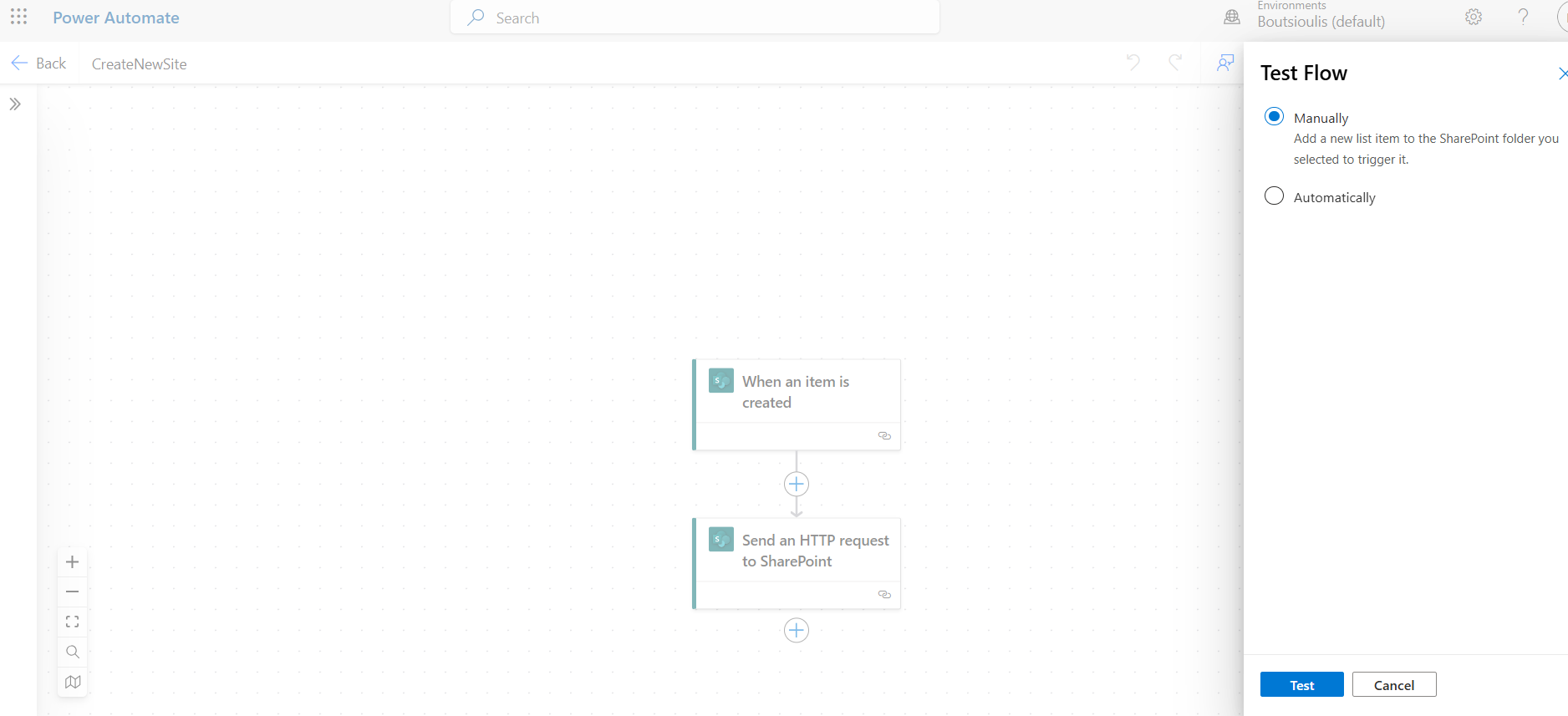
You need to select to run it manually.
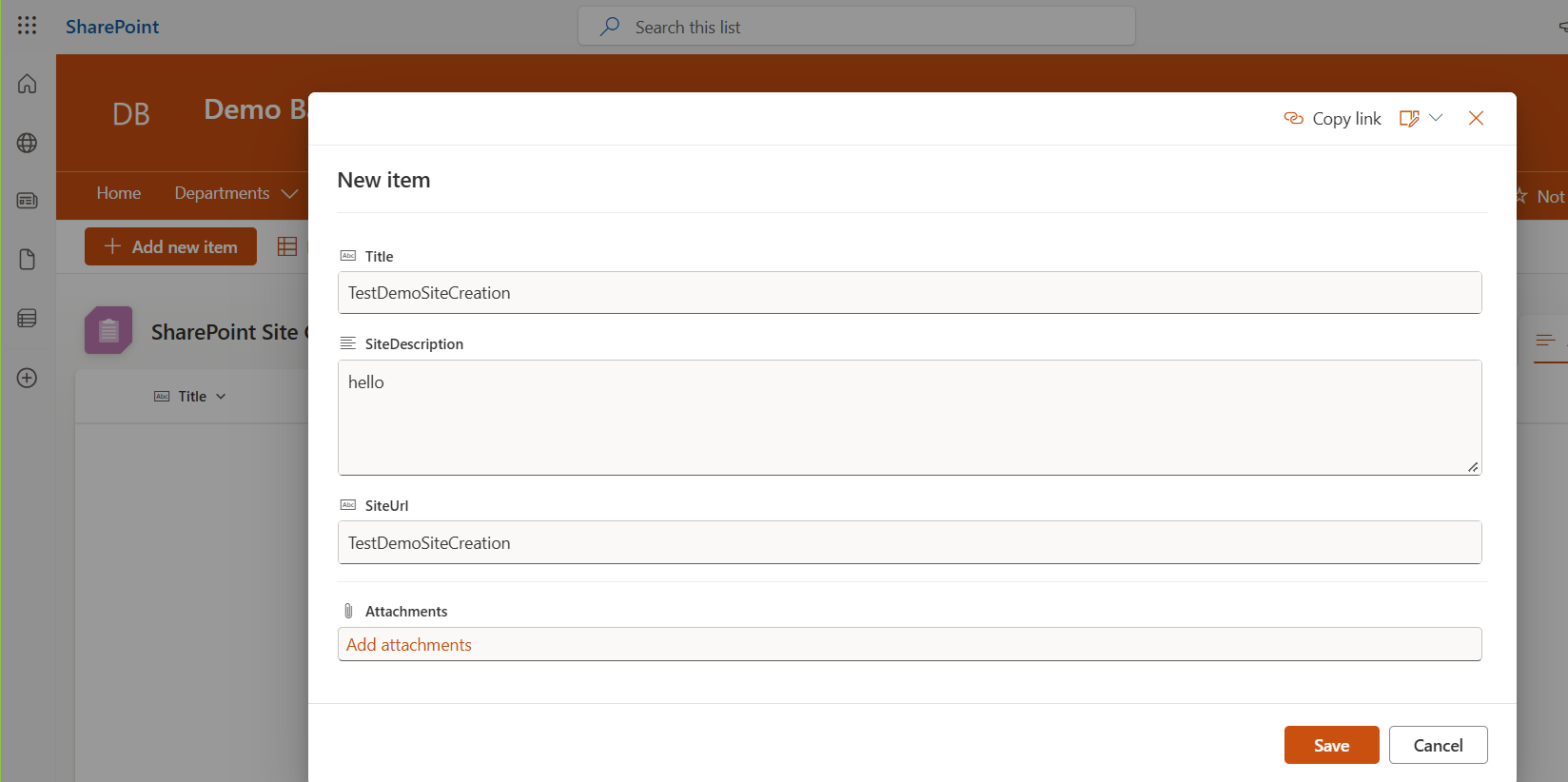
Return to the list and create a new item.
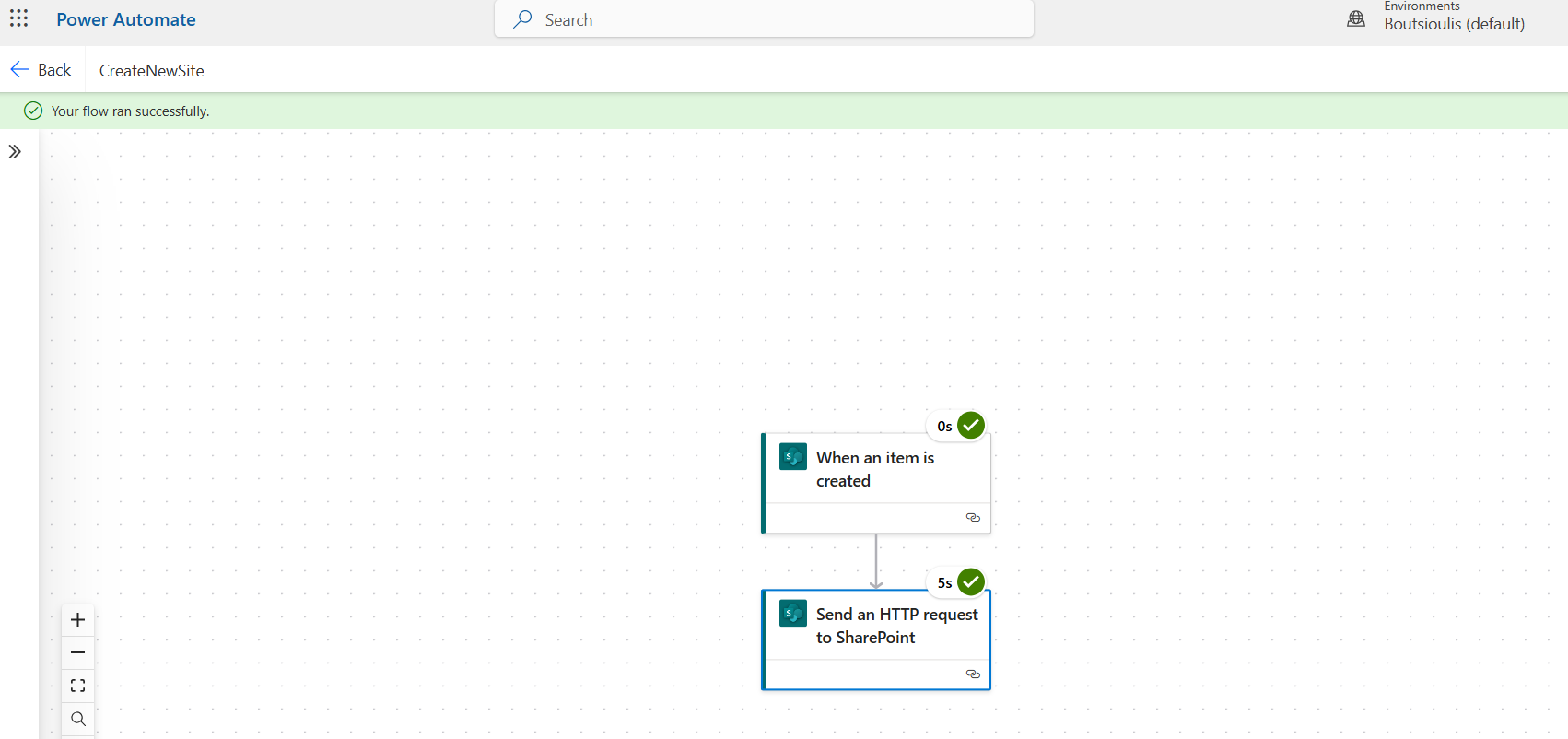
Your automate runs correctly without any problems.
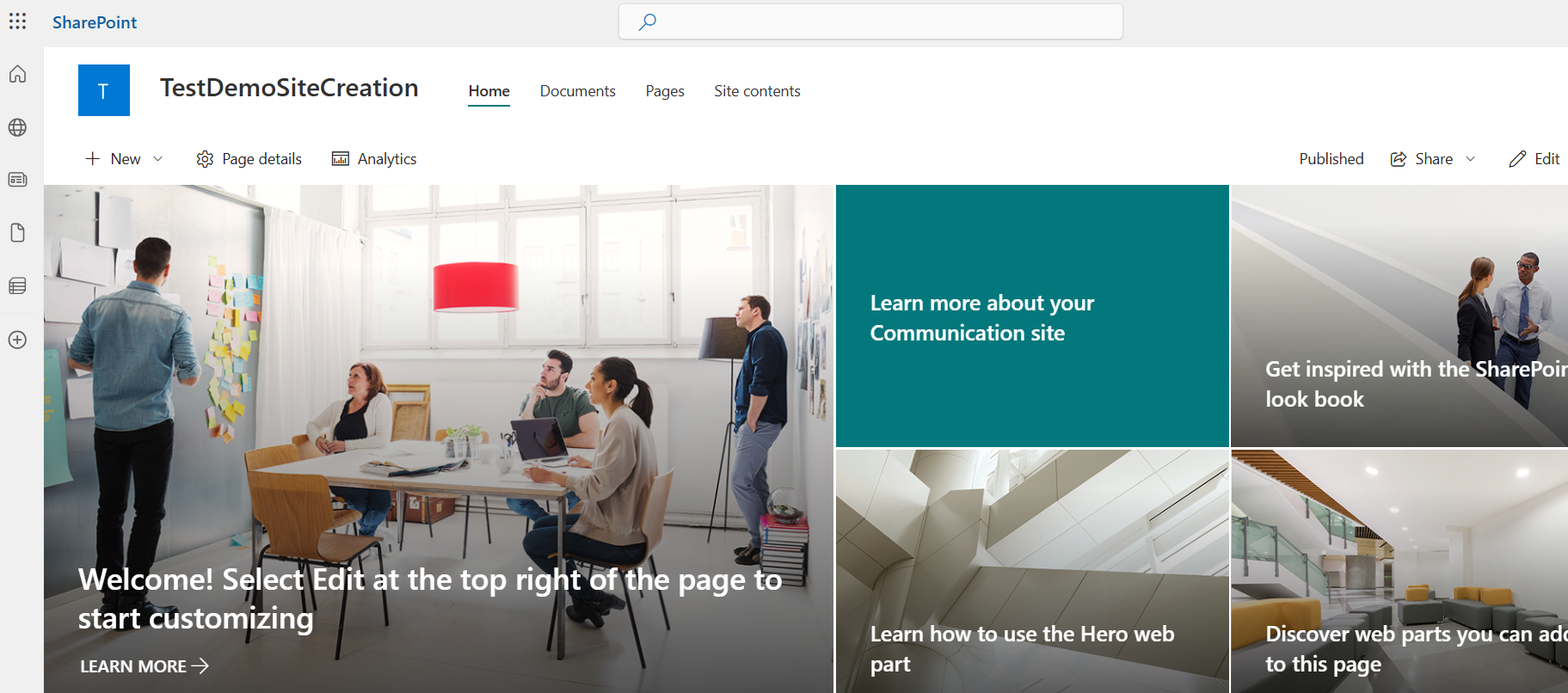
The site has been created and is a new communication site.
 #ModerWork
#M365_Apps_Services
#BusinessApps
#SharePoint
#PowerAutomate
#technology
#microsoft
#digitaltransformation
#cloud
#mvpbuzz
#m365
#ModerWork
#M365_Apps_Services
#BusinessApps
#SharePoint
#PowerAutomate
#technology
#microsoft
#digitaltransformation
#cloud
#mvpbuzz
#m365
Visit Archives below to find more articles about Microsoft technologies on Modern Workplace