
Free Material
Find hereMore than 150 Articles about Microsoft Technologies on Modern Workplace
Official Site
Microsoft Most Valuable Professional M365 Apps & Services
Microsoft Most Valuable Professional Business Applications
Consultant & Sr Cloud Solution Architect Modern Wokrplace
Find hereMore than 150 Articles about Microsoft Technologies on Modern Workplace
08 June 2023
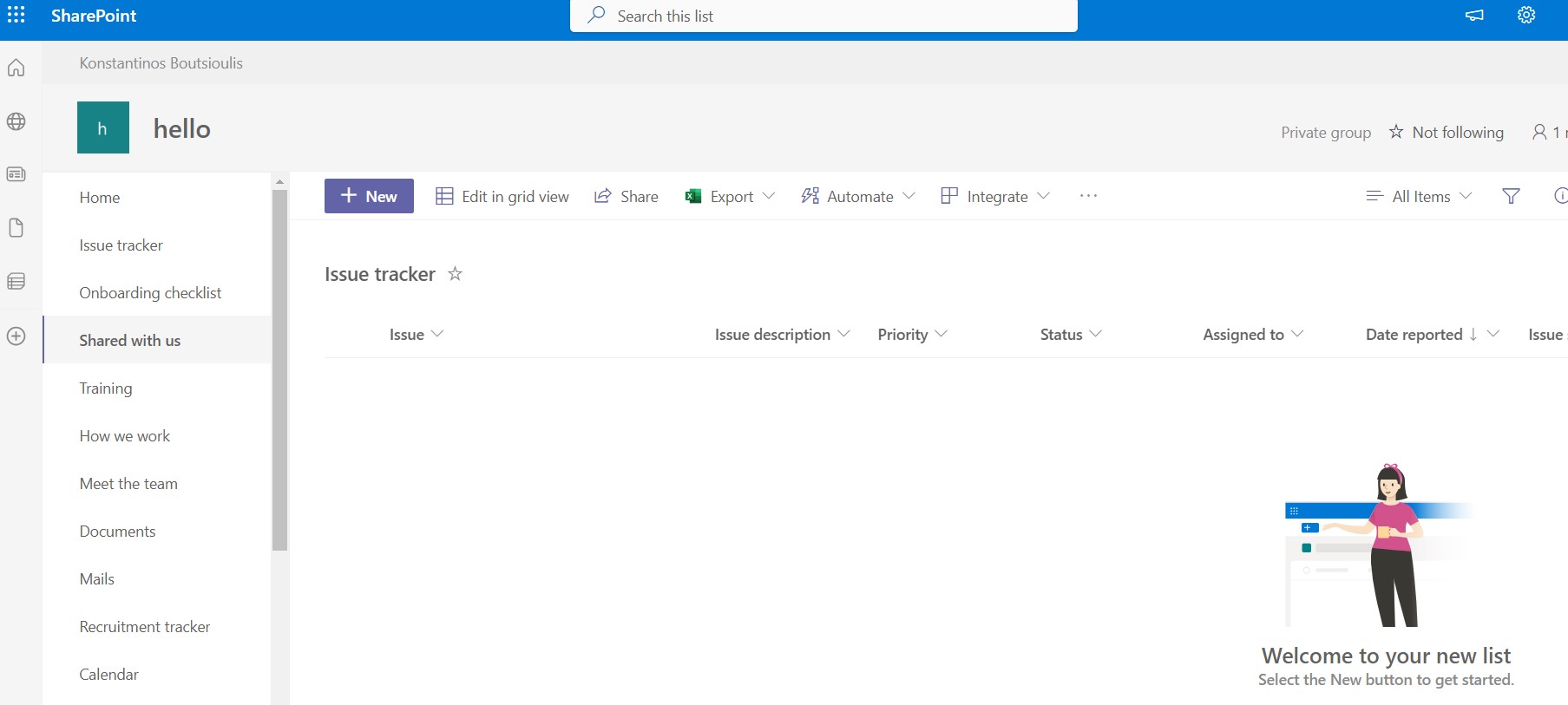
In today's article we will see how we can change the way a list is displayed in one of our Sharepoint Online sites. First we locate the url of the list we are interested in changing the appearance of so we have the following List where the initial appearance is the default
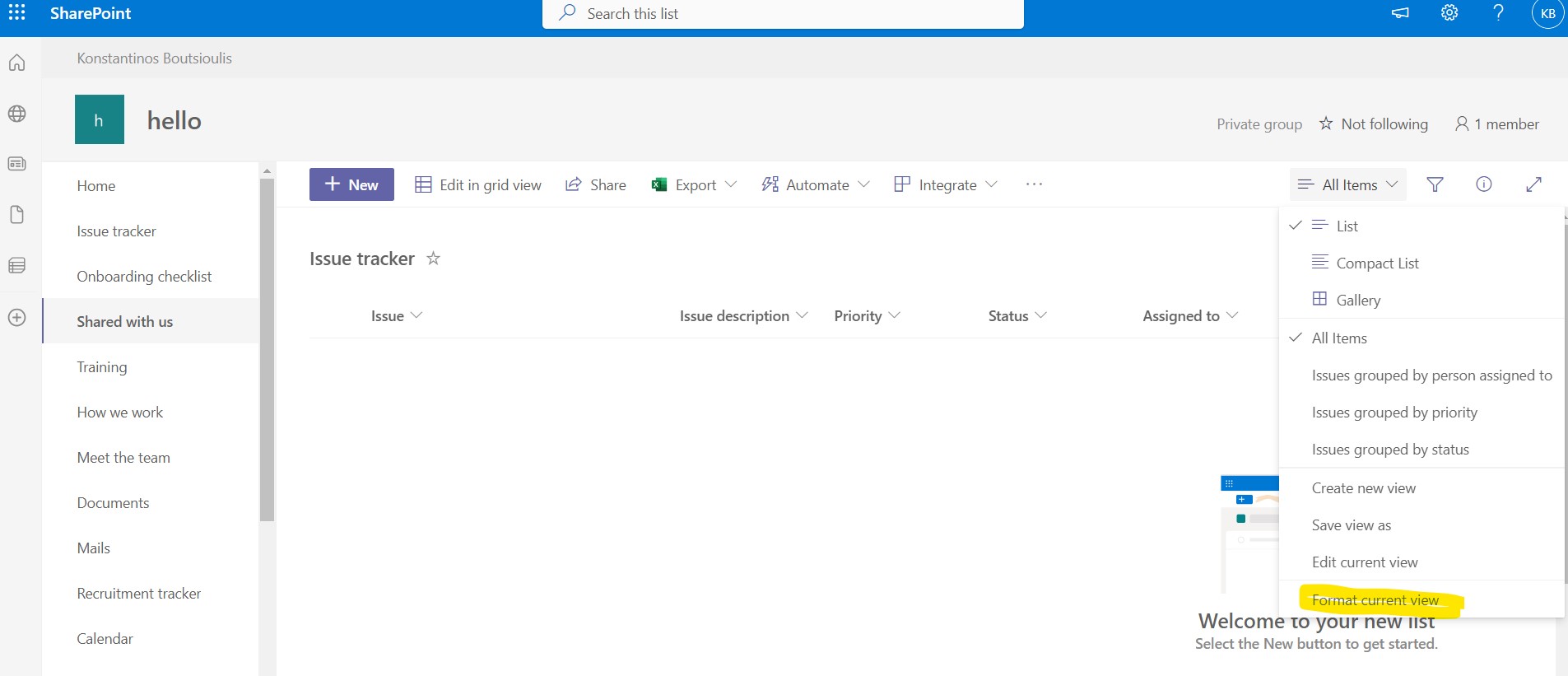
First we select all items and then Format Current View
As you can see there are already available some templates that we can apply
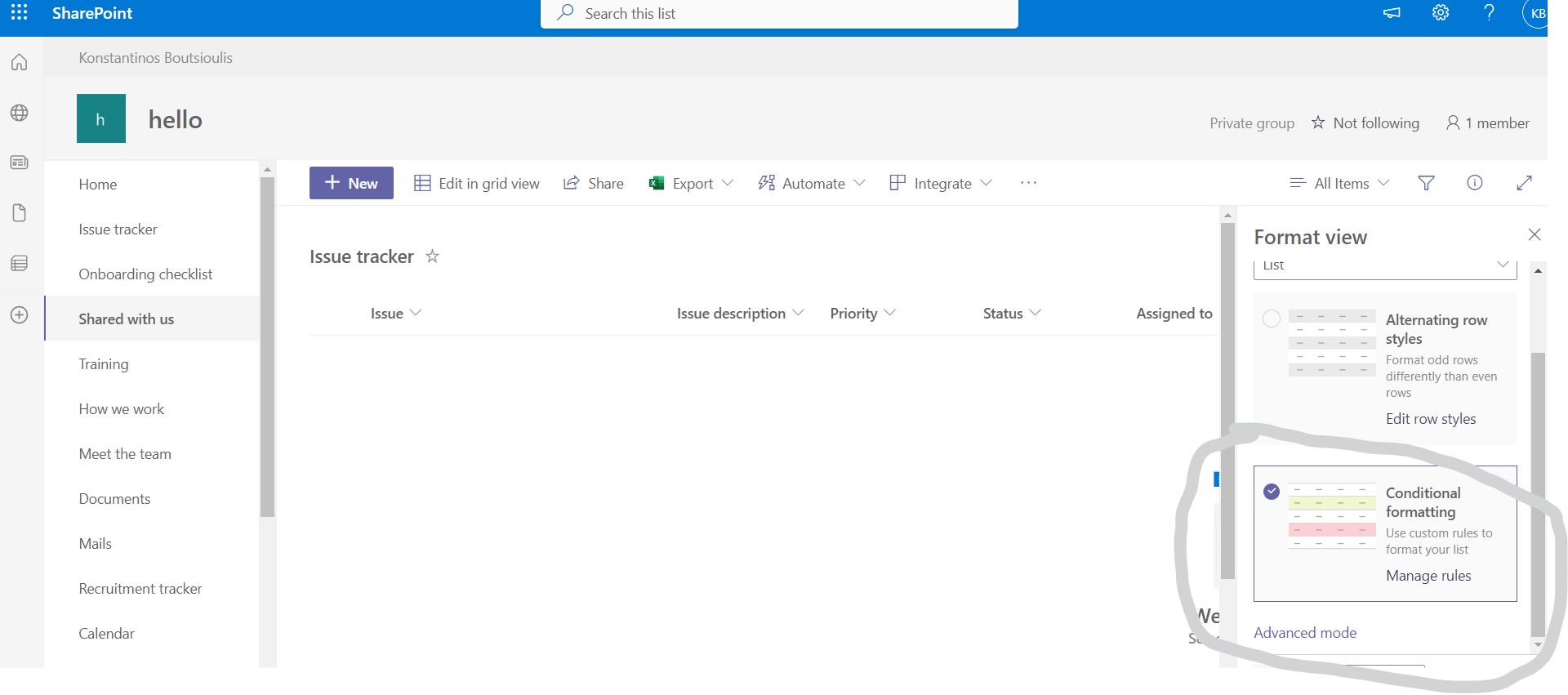
But if none of them are to our liking we can alternatively continue in advanced mode and change the JSON so that we formulate a look of our liking
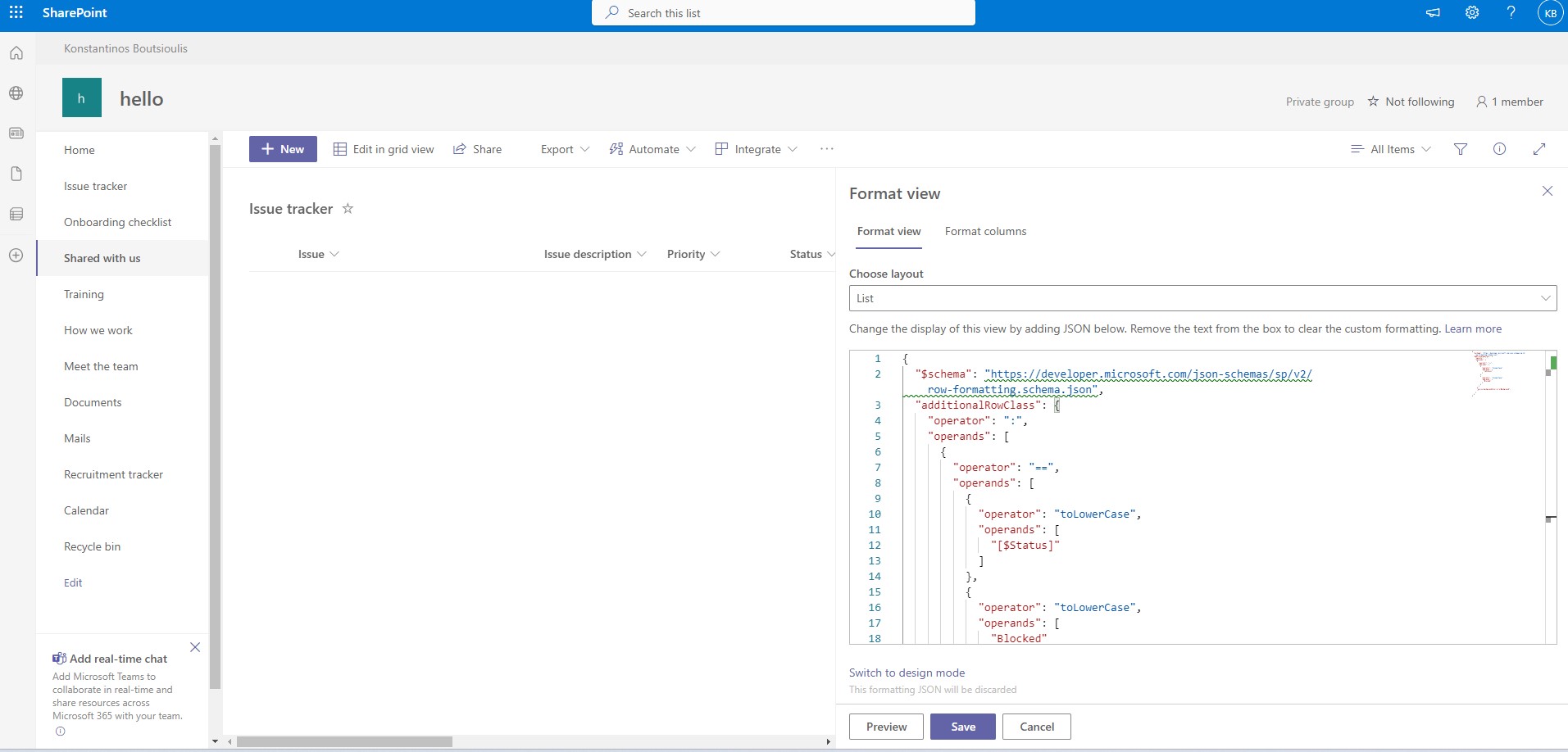
Suppose we would like in our list whenever the due date column has a date less than the current date in a list item then I would like my list to color that item with a warning Indeed I apply the following code to the box and I get
{ "$schema": "https://developer.microsoft.com/json-schemas/sp/view-formatting.schema.json", "additionalRowClass": "=if([$DueDate] <= now, 'sp-field-severity--severeWarning', '')" }
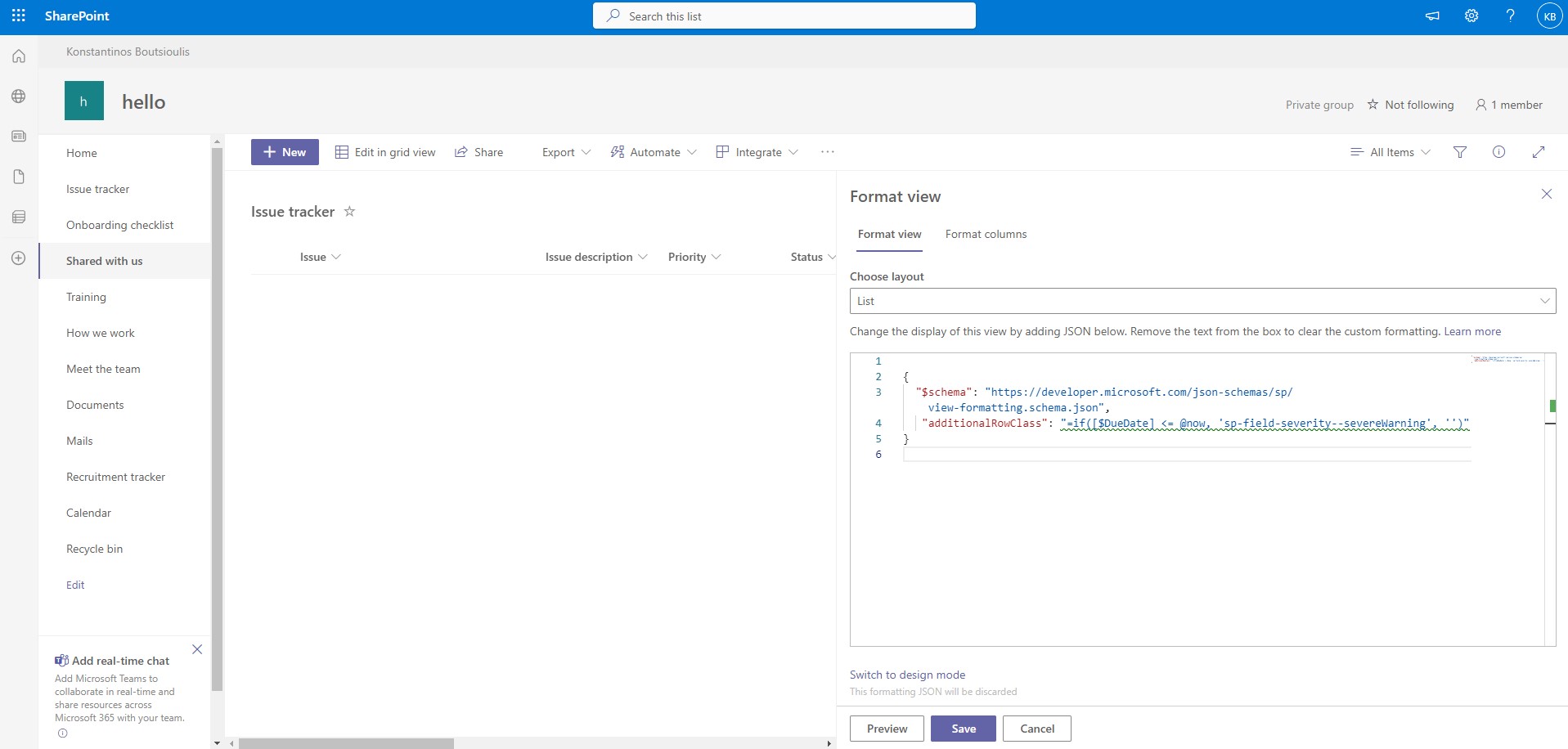
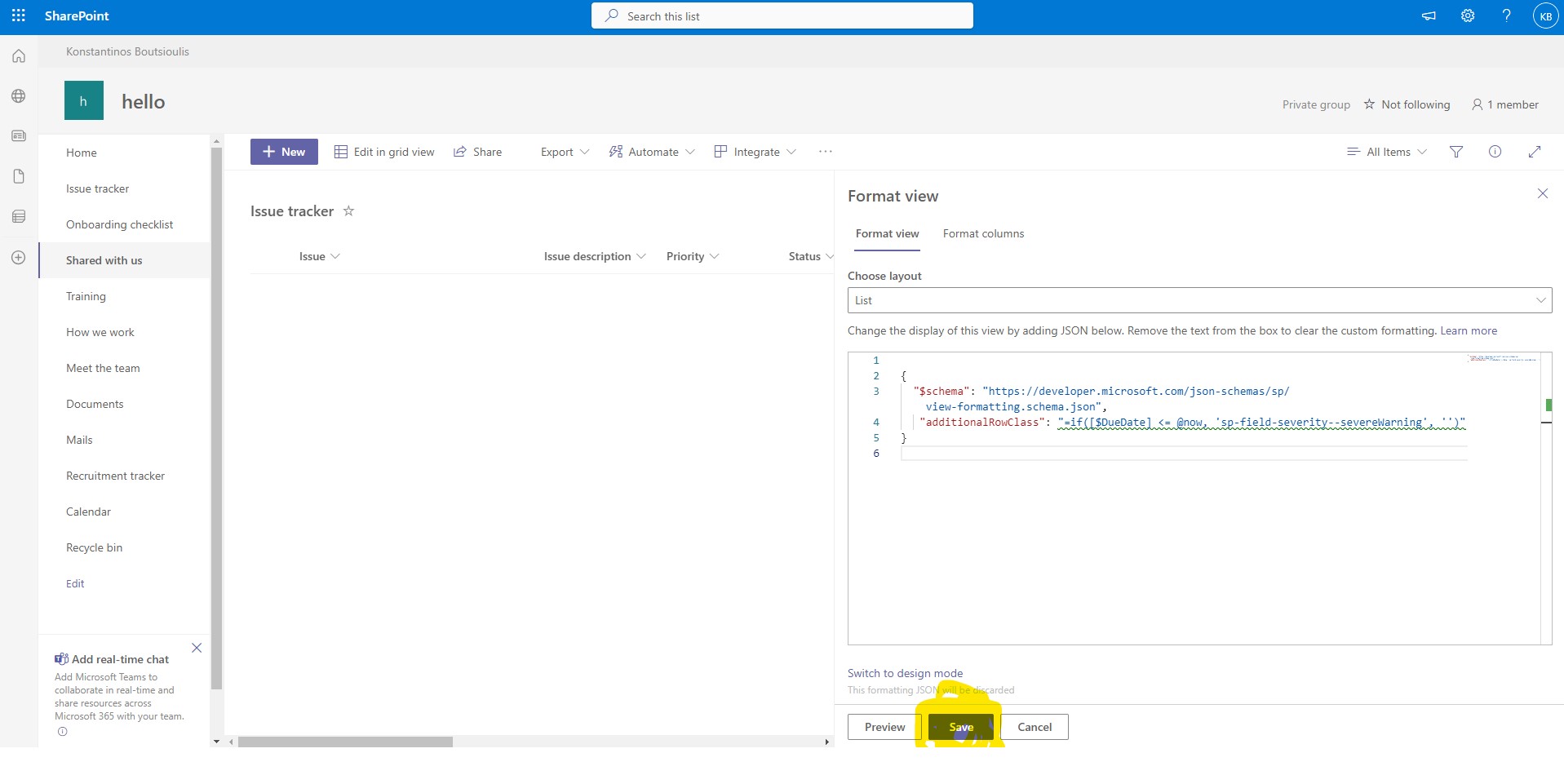
And with the preview I can see the result before I apply it. If I finally want to apply I just press save
About this article you can also see Microsoft Docs
Microsoft Learn - Documentation - Use view formatting to customize SharePoint Microsoft Learn - Documentation - List layout customizations #SharePoint #technology #microsoft #digitaltransformation #cloud #mvpbuzz #m365Visit Archives below to find more articles about Microsoft technologies on Modern Workplace