
Free Material
Find hereMore than 150 Articles about Microsoft Technologies on Modern Workplace
Official Site
Microsoft Most Valuable Professional M365 Apps & Services
Microsoft Most Valuable Professional Business Applications
Consultant & Sr Cloud Solution Architect Modern Wokrplace
Find hereMore than 150 Articles about Microsoft Technologies on Modern Workplace
17 June 2023
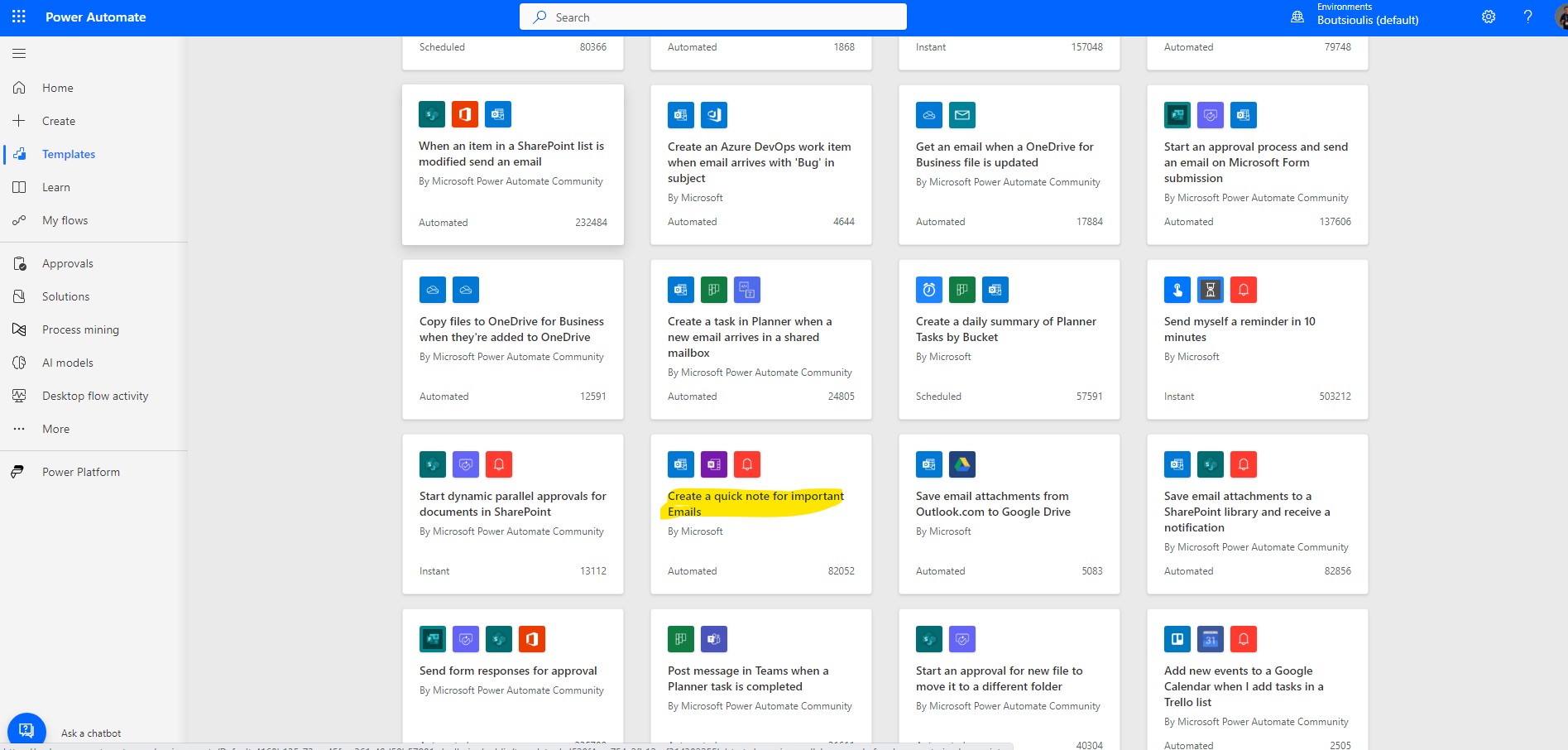
In today's article we will see how using power automate we can create a quick note in Onenote for the important emails we receive First we will have to use our subscription to login to the M365 site and then select power automate From the available templates we select the one called Create a quick note for important Emails
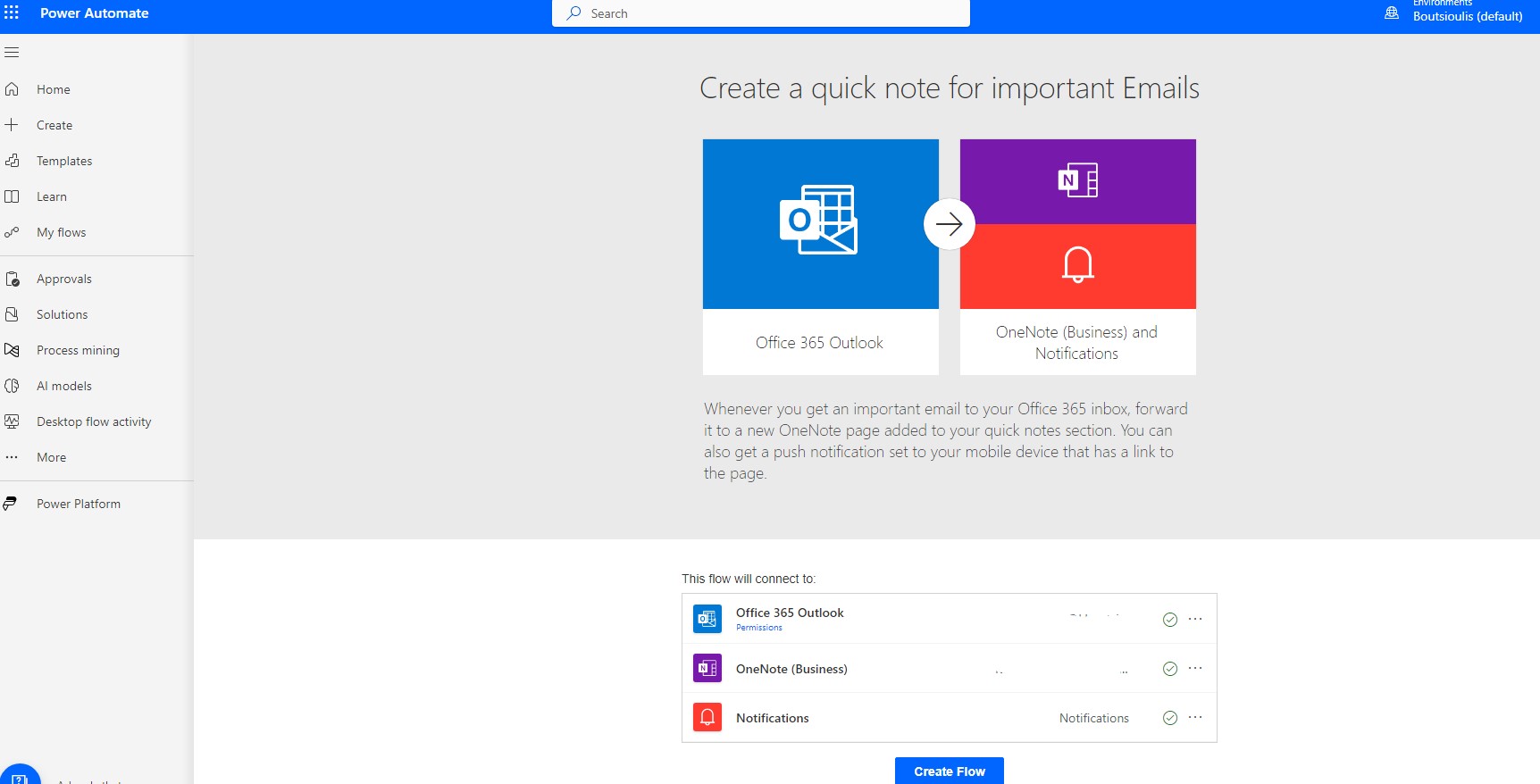
Then we have to allow all the necessary connections
After confirmation you will see that a flow will open in which the first step will be to enter the folder in which each time an important mail will come in, a process will be started The second field is where we have to enter the body of the email and optionally the title, the recipient and other details of our choice available from the drop down menu
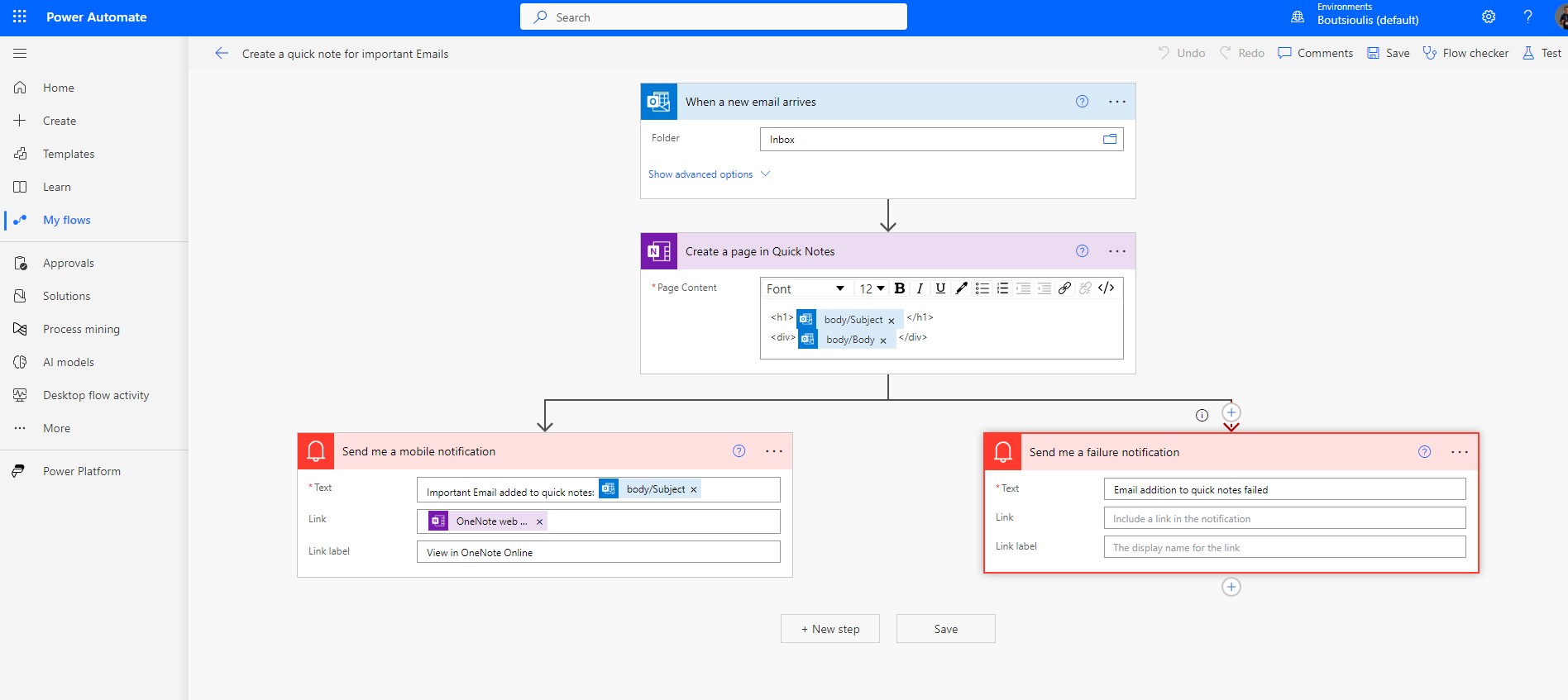
In case of successful completion a Notification will come up which will be marked as important mail added to quick note and will include the OneNote link
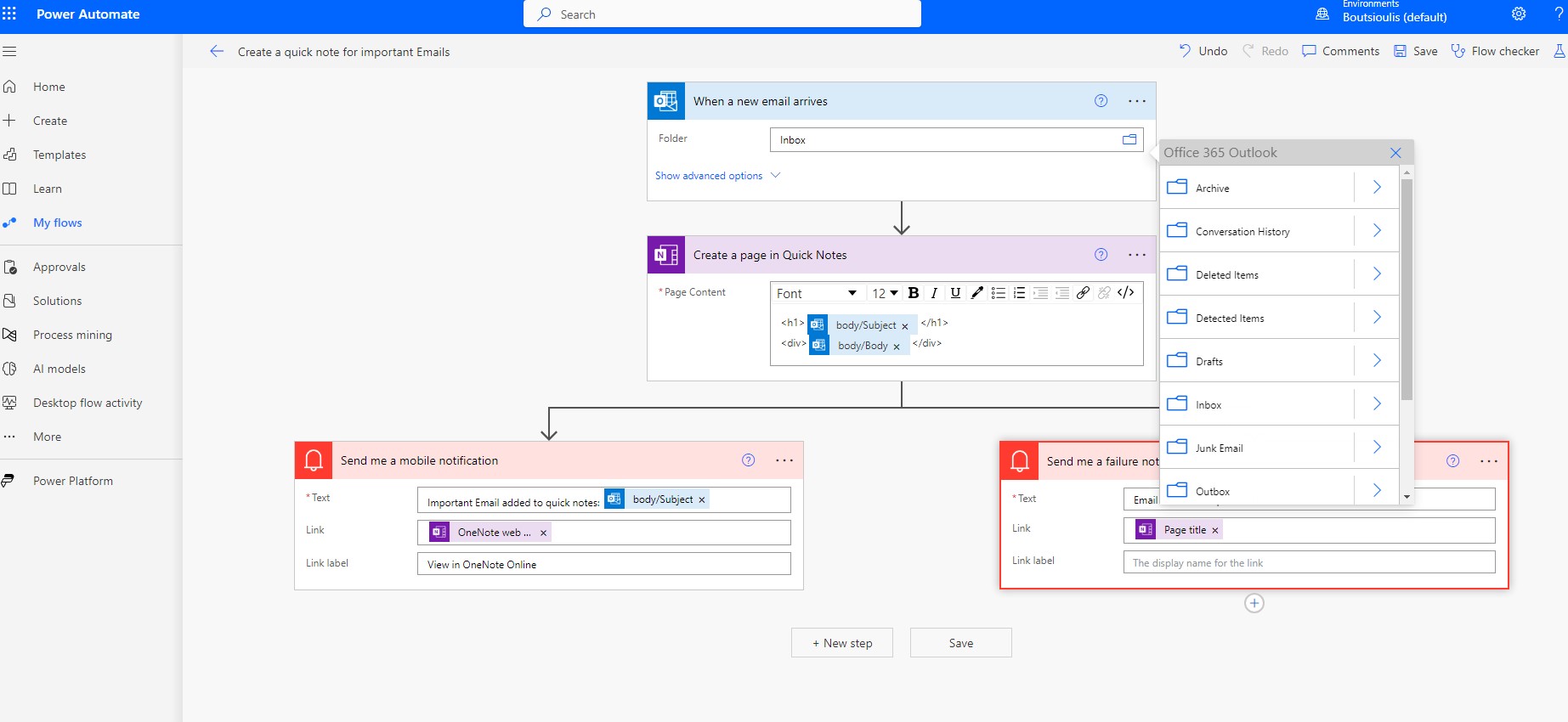
Next step is to save the power automate and then choose to test the automate manually
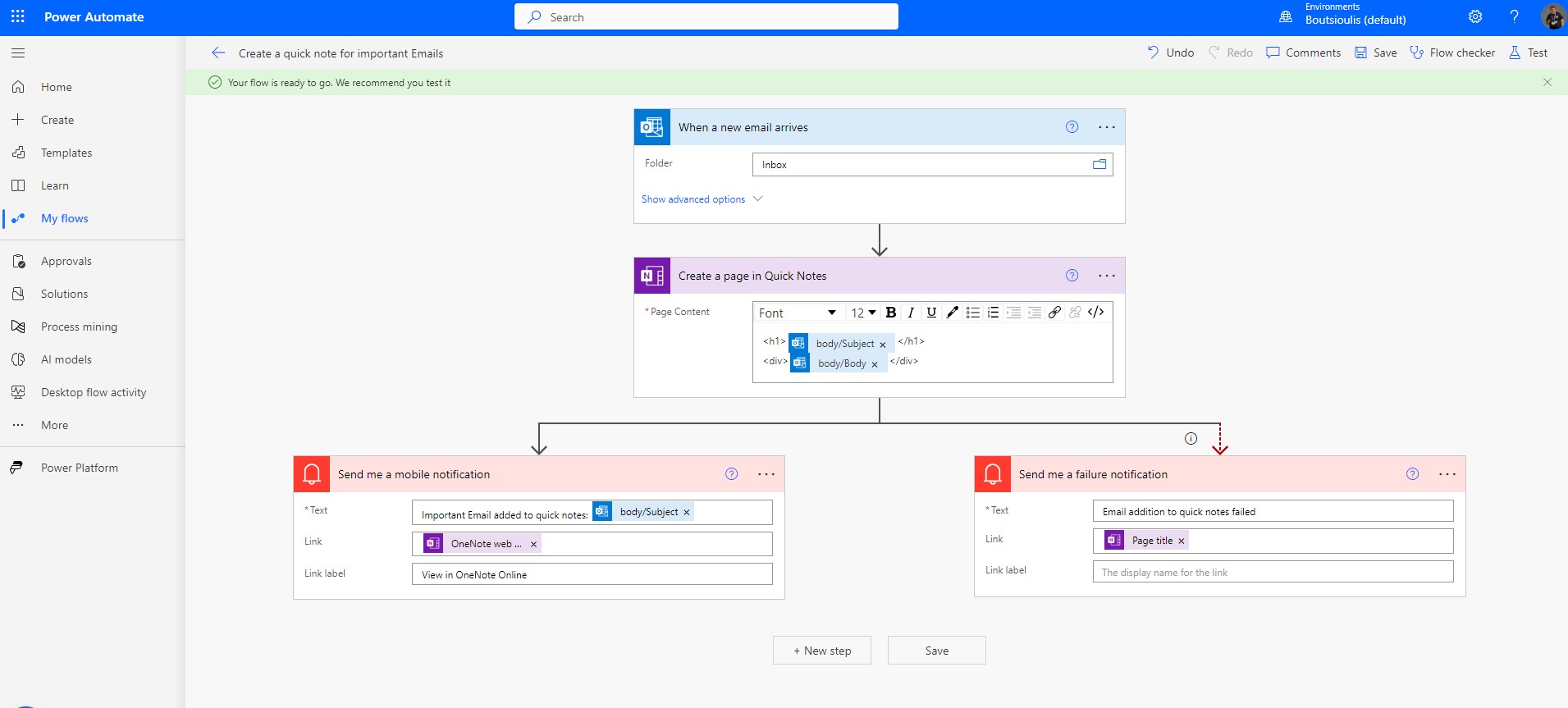
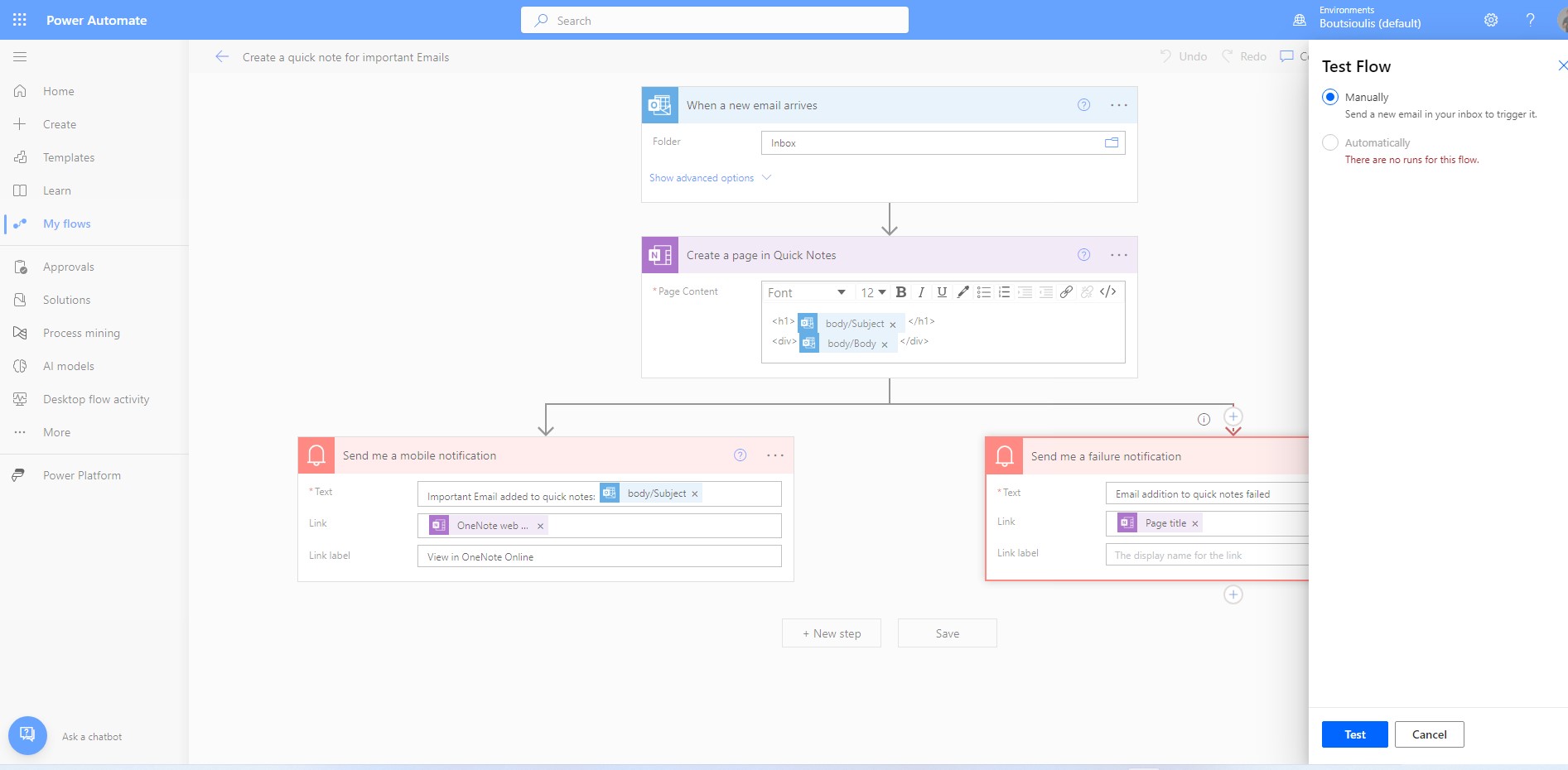
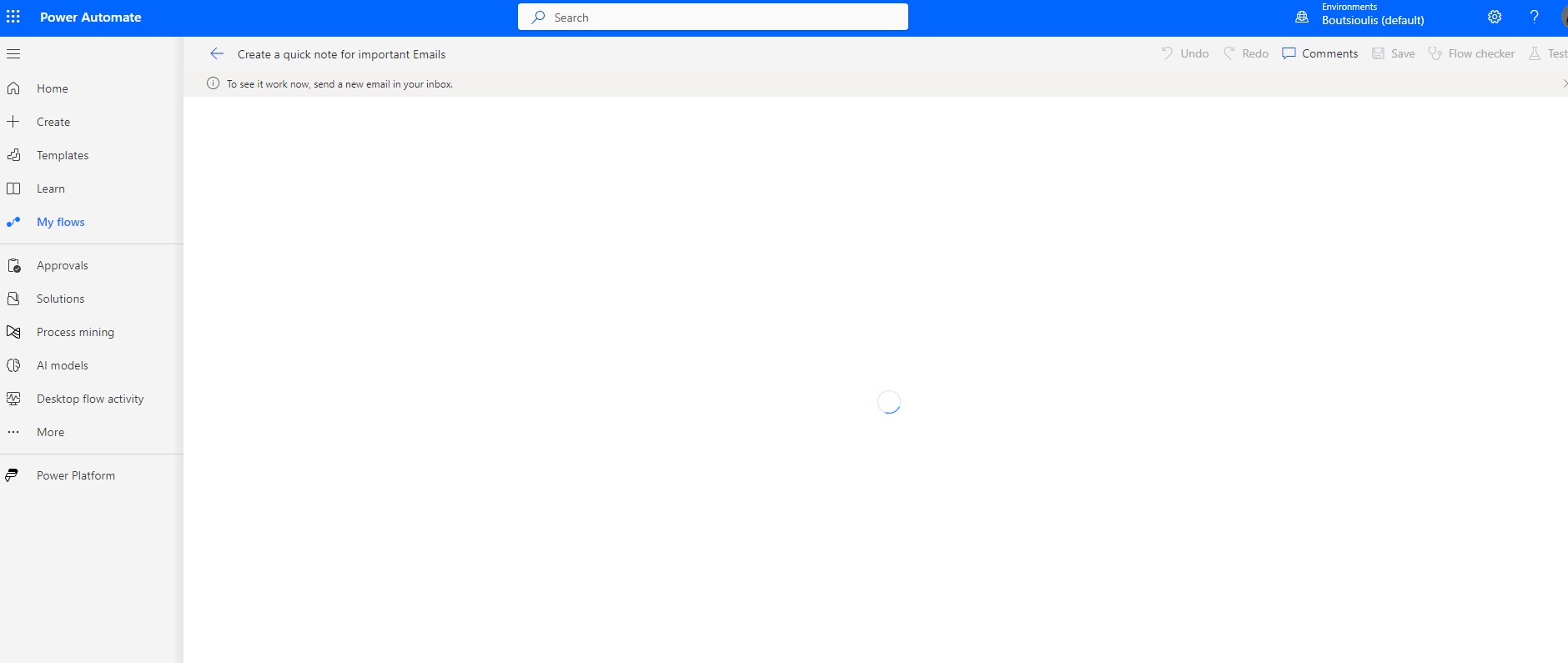
As you can see, the automate is waiting for a mail marked Important to arrive in the inbox.
We create an important mail and send it to our account from another account to check for proper operation

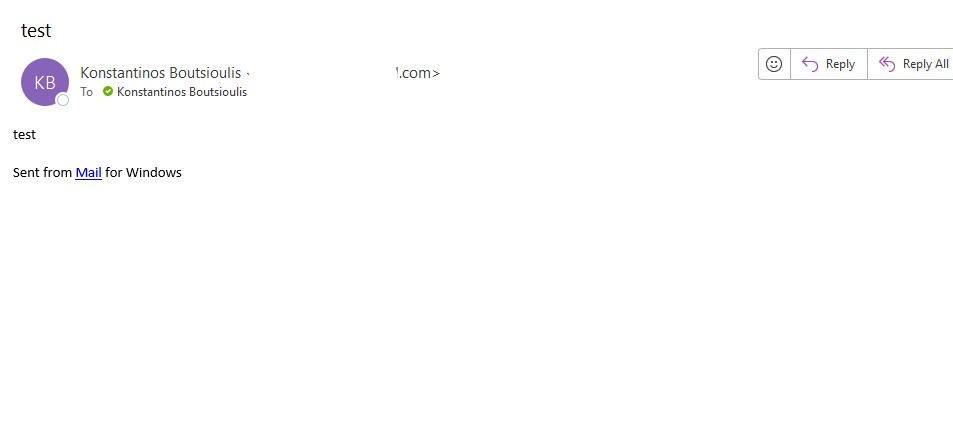
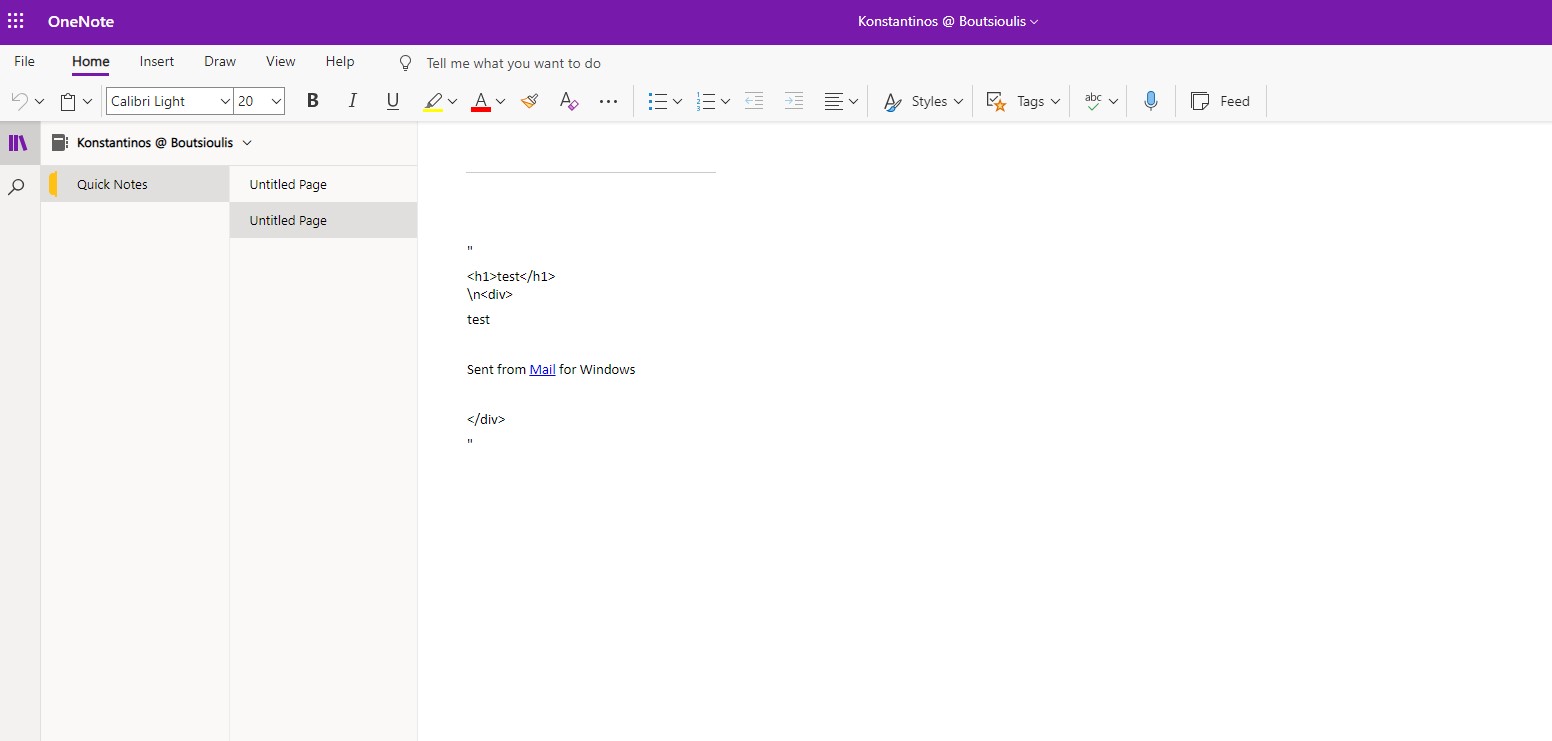
As you can see, the automate has run properly and sent the notifiaction containing the link as well as created the quick note in Onenote

 #technology
#microsoft
#PowerApps
#PowerAutomates
#digitaltransformation
#cloud
#mvpbuzz
#m365
#technology
#microsoft
#PowerApps
#PowerAutomates
#digitaltransformation
#cloud
#mvpbuzz
#m365
Visit Archives below to find more articles about Microsoft technologies on Modern Workplace