
Free Material
Find hereMore than 150 Articles about Microsoft Technologies on Modern Workplace
Official Site
Microsoft Most Valuable Professional M365 Apps & Services
Microsoft Most Valuable Professional Business Applications
Consultant & Sr Cloud Solution Architect Modern Wokrplace
Find hereMore than 150 Articles about Microsoft Technologies on Modern Workplace
05 January 2024
In today's article we will see how we can create 2 lists in SharePoint and connect them as if they were two tables in a relative schema of a database. It is very important to understand that lists can represent the tables in a relational database and by using lookup columns they essentially create a foreign key relationship in another list, just as they would in a relational database to join two tables Initially you must have an active M365 subscription and you will need to login to the main M365 page. From there select from the left side column SharePoint
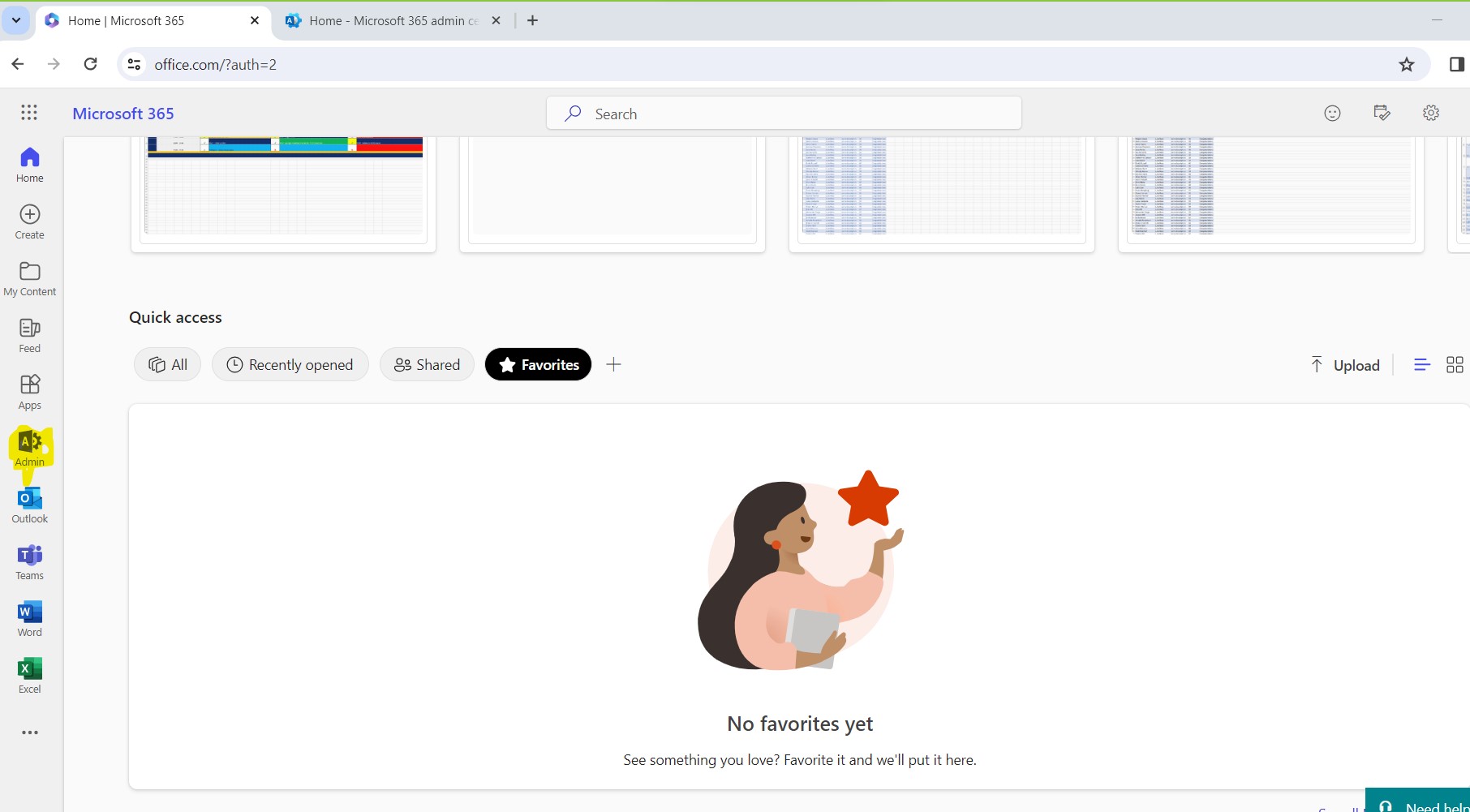
Select the site that will contain these two lists.
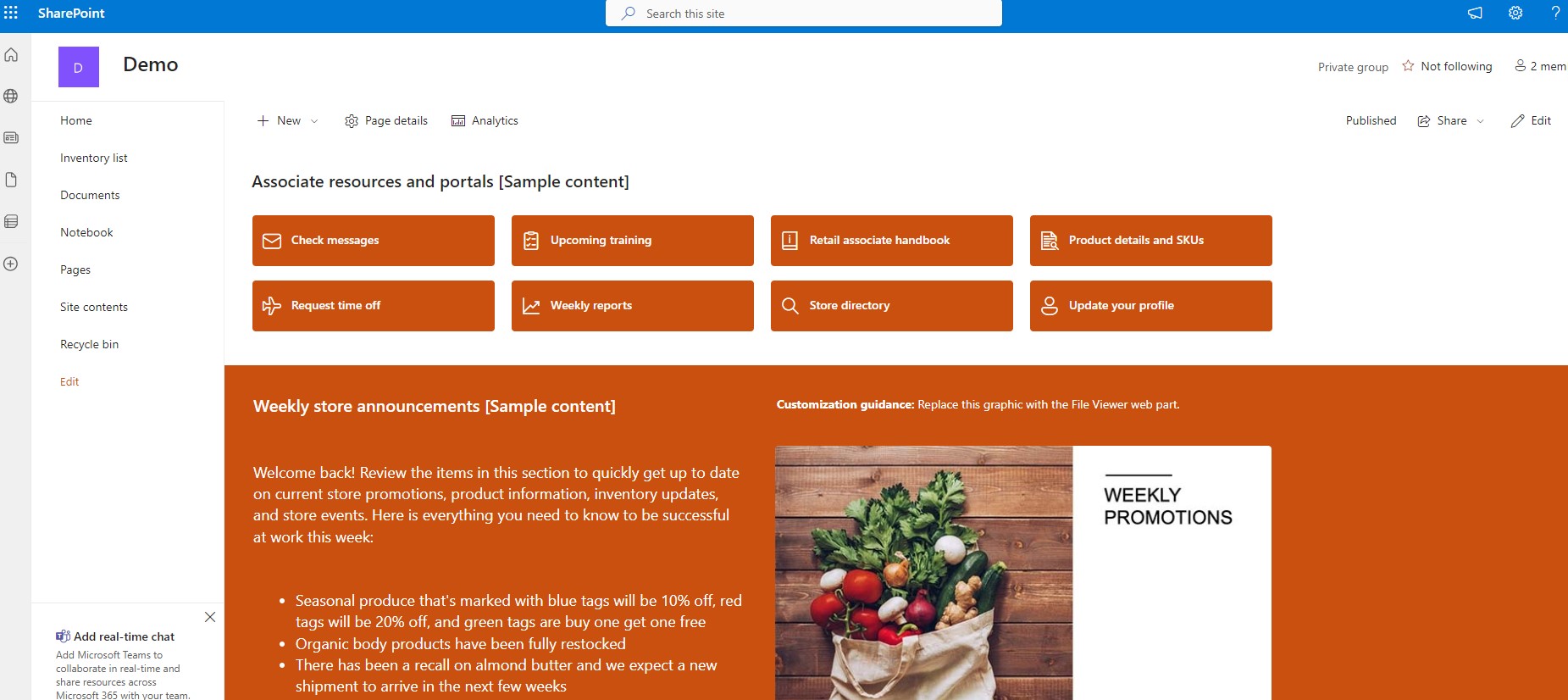
From the site content in the left column go to the list creation page.
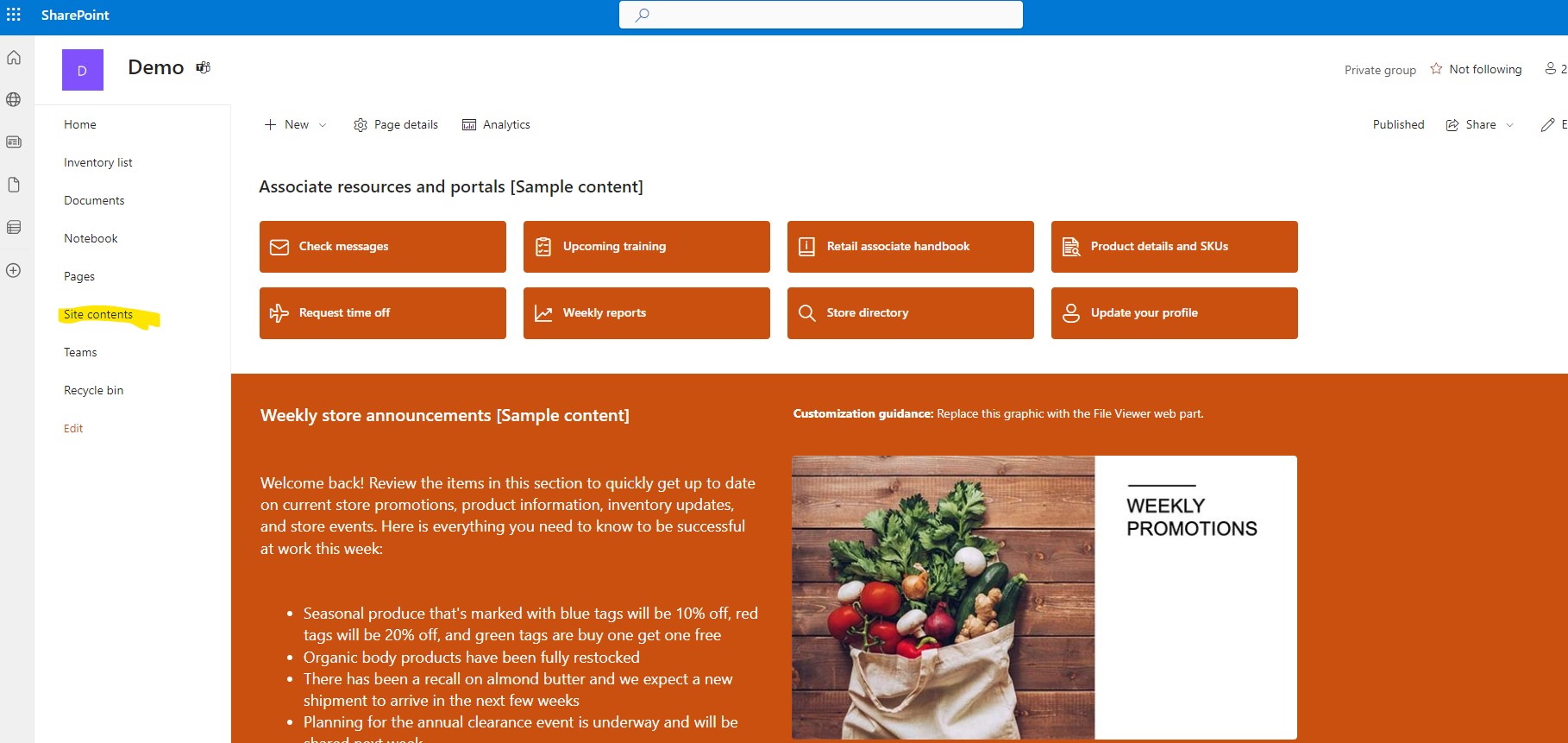
Select new list
And choose a random list from the available templates provided by Microsoft .I will choose the issue tracker list
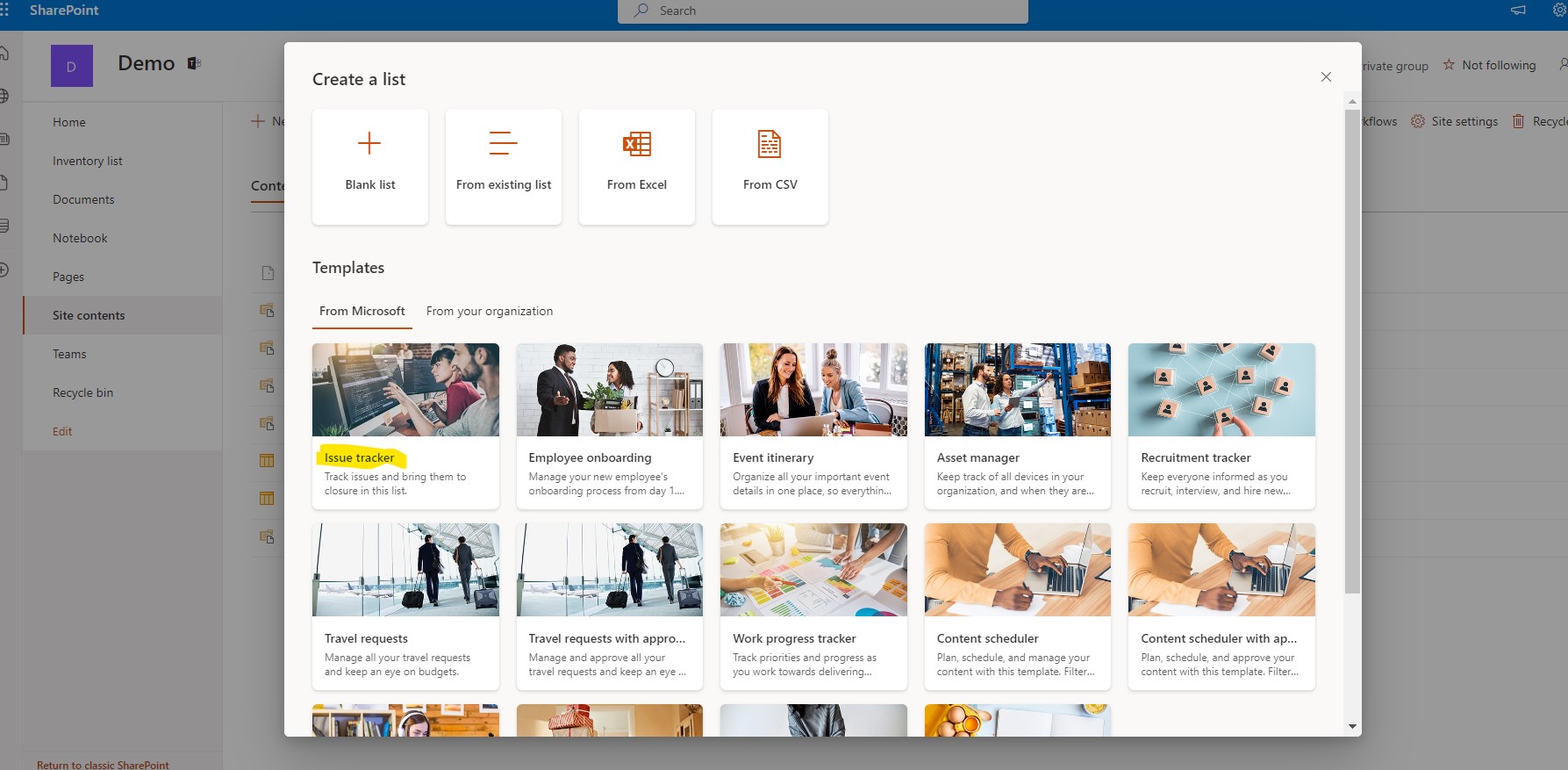
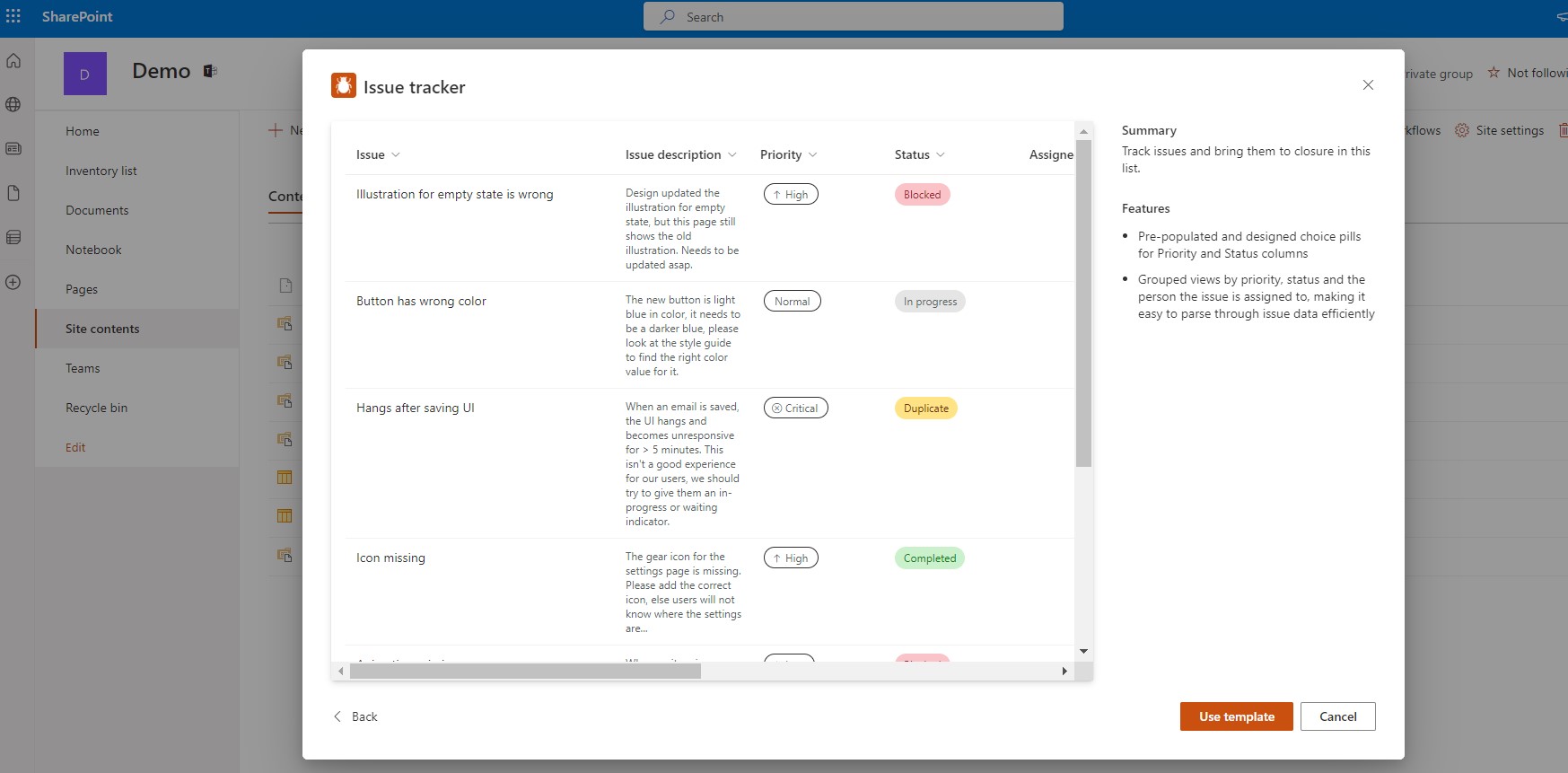
In the next step you will be able to see what the template list contains in its fields. Select use template
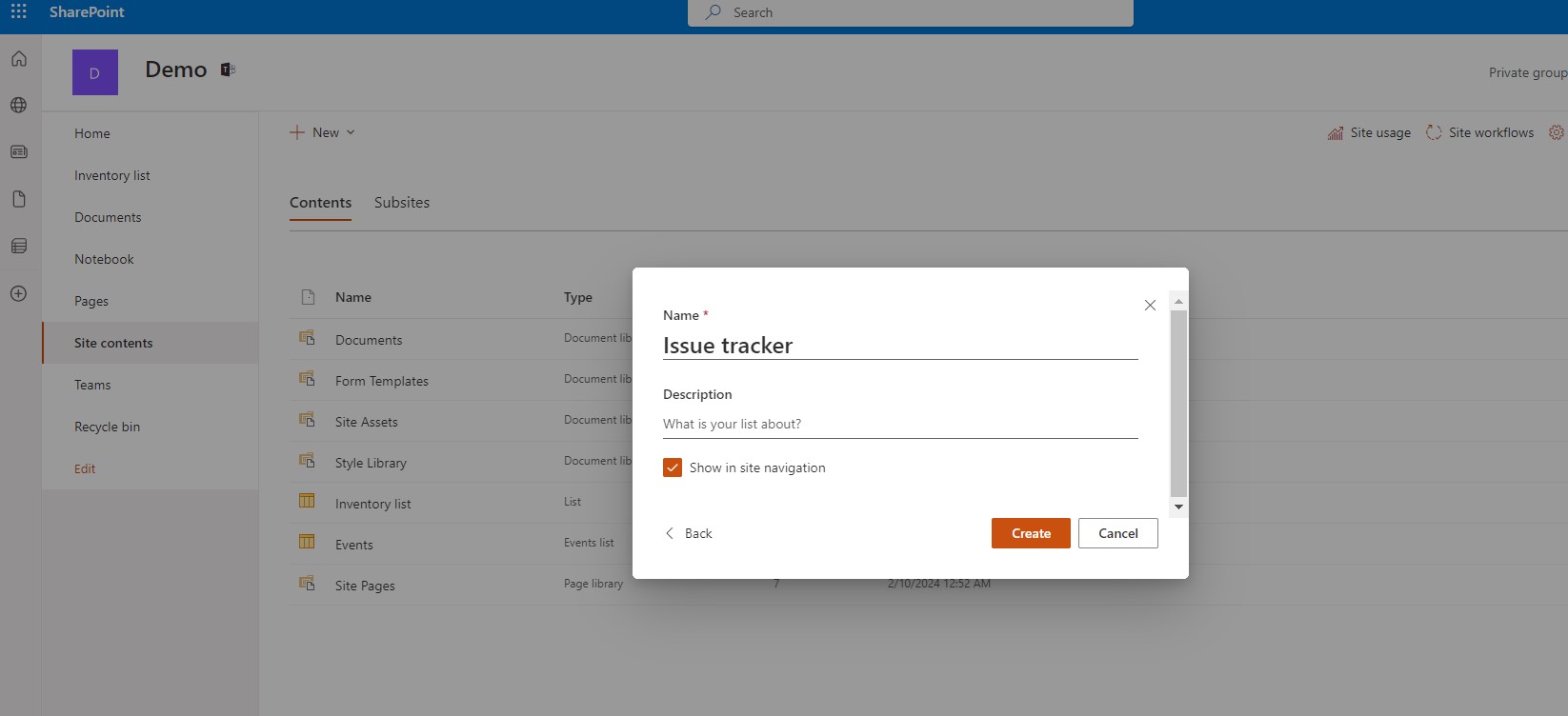
Next step is to give a name to our new list
And as you can see our new list has been created. We follow the same procedure to create the second list . We now go back to our original list and choose to create a new column from the add column . Our new list should be of the Lookup type
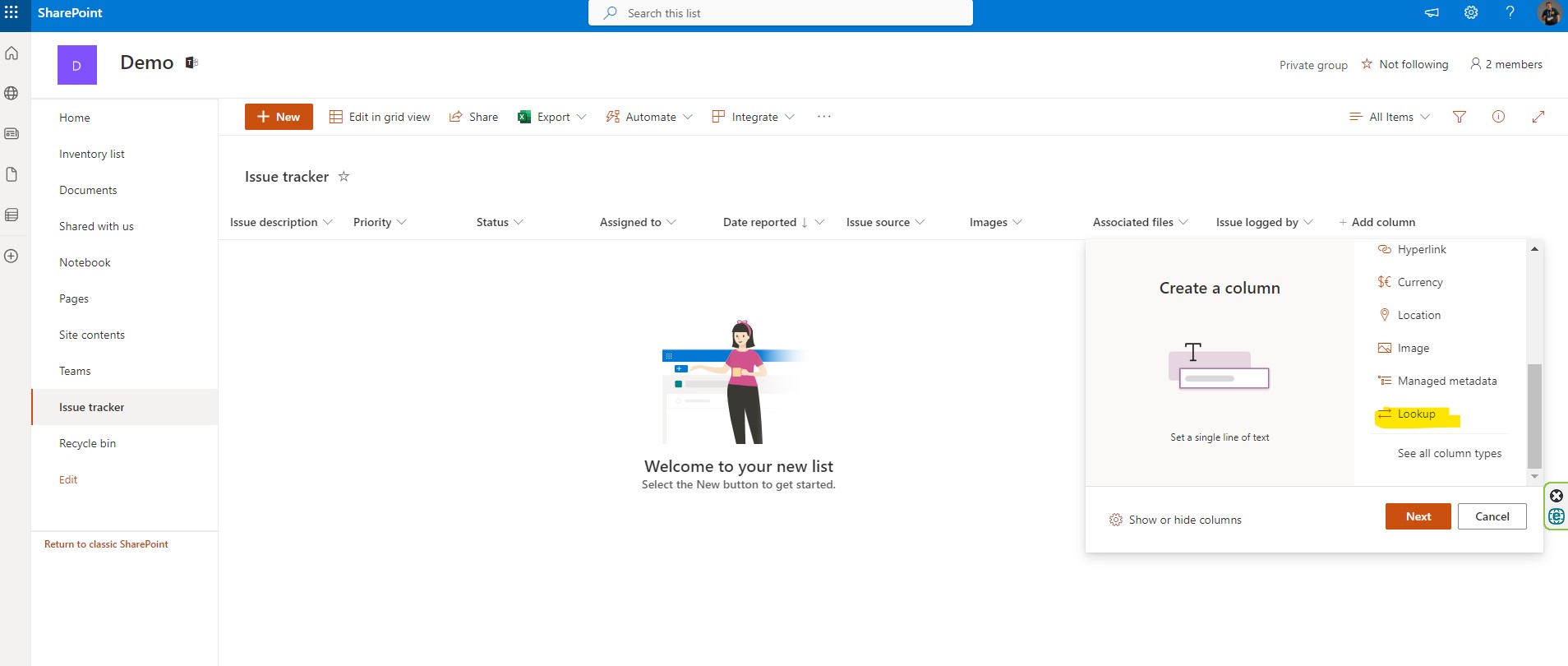
In the right side column we enter the name of the column as well as the columns which will be the foreign key from the other list, i.e. the columns from which we will draw data from another list
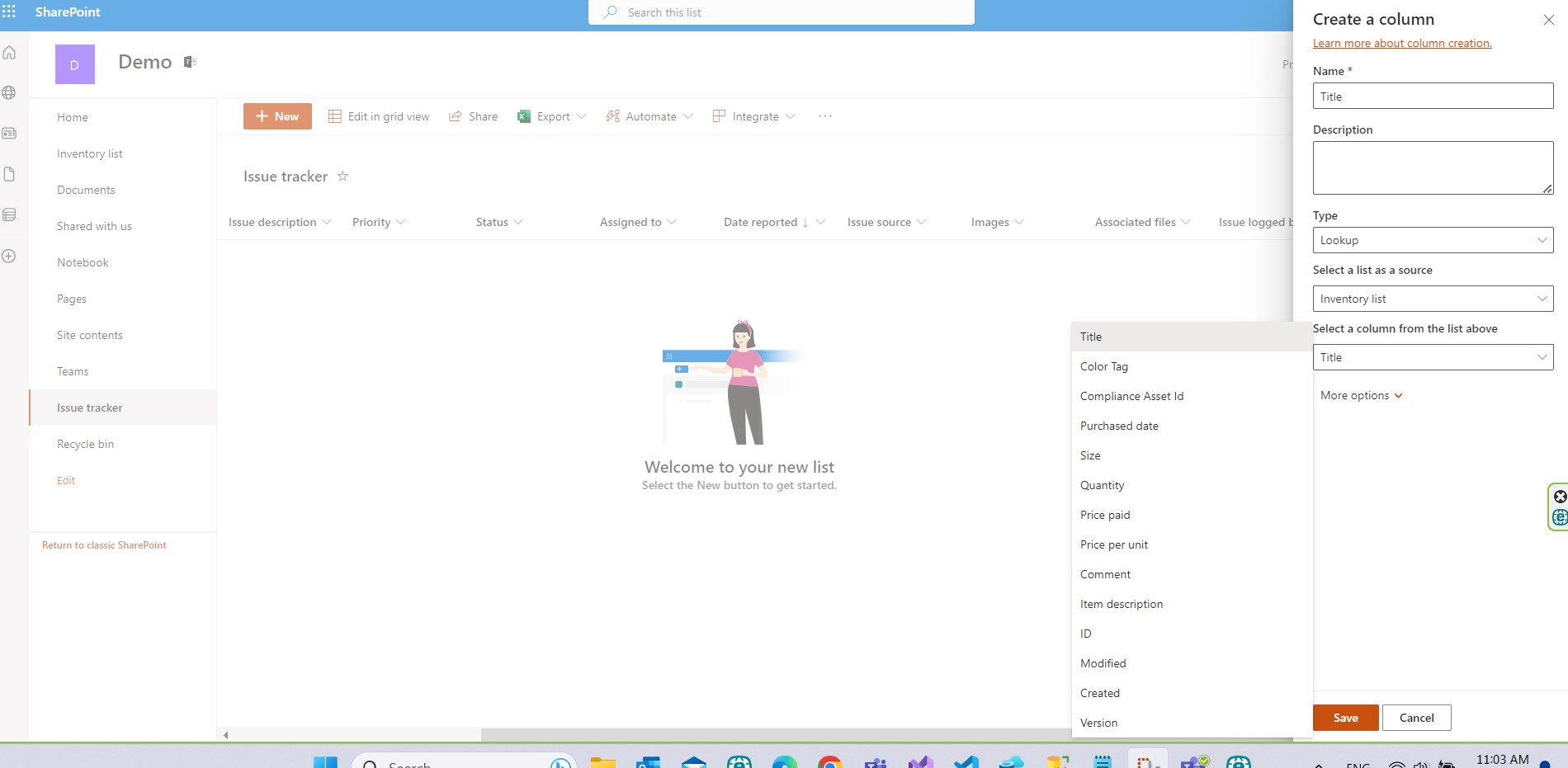
And we check the columns from which we'll draw data from our second list
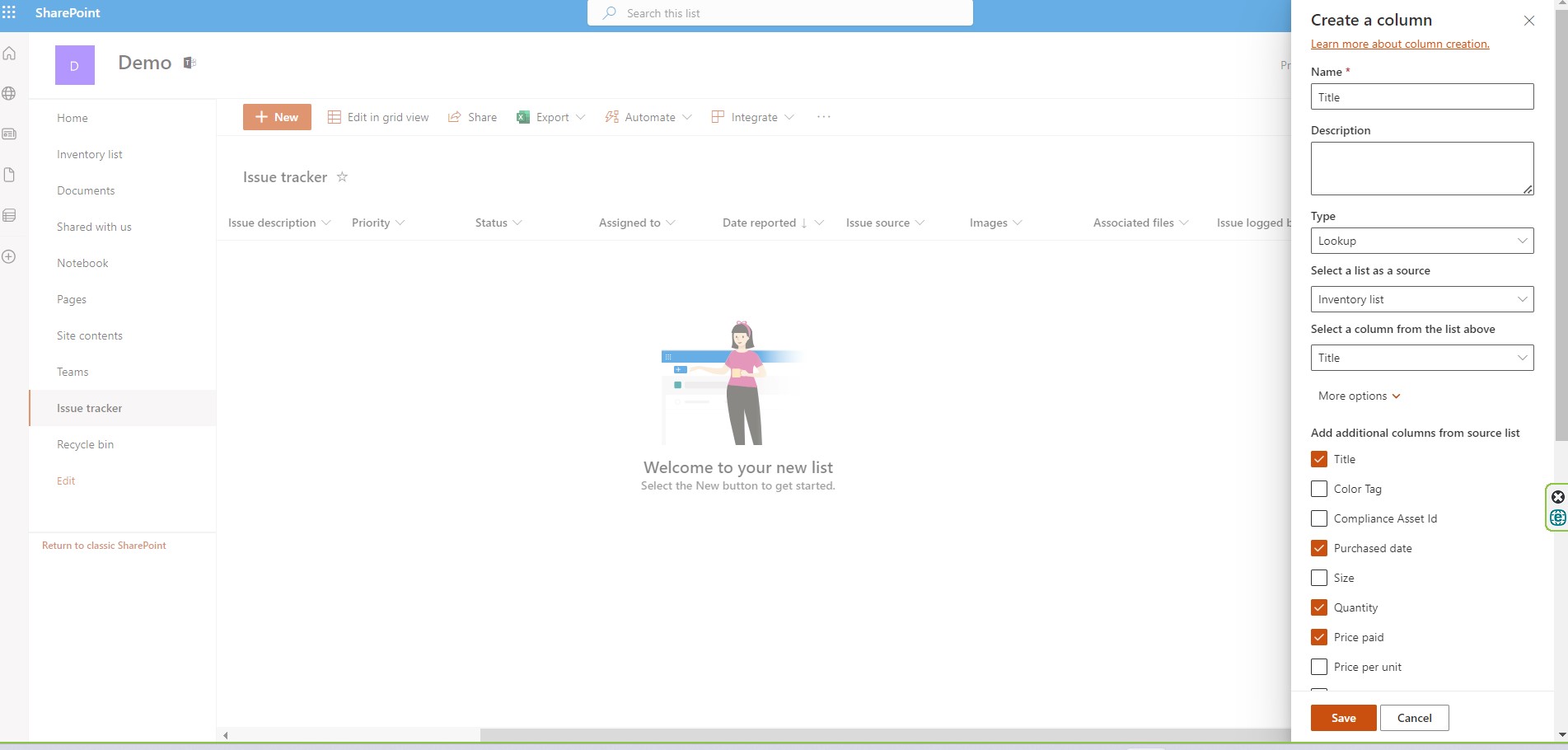
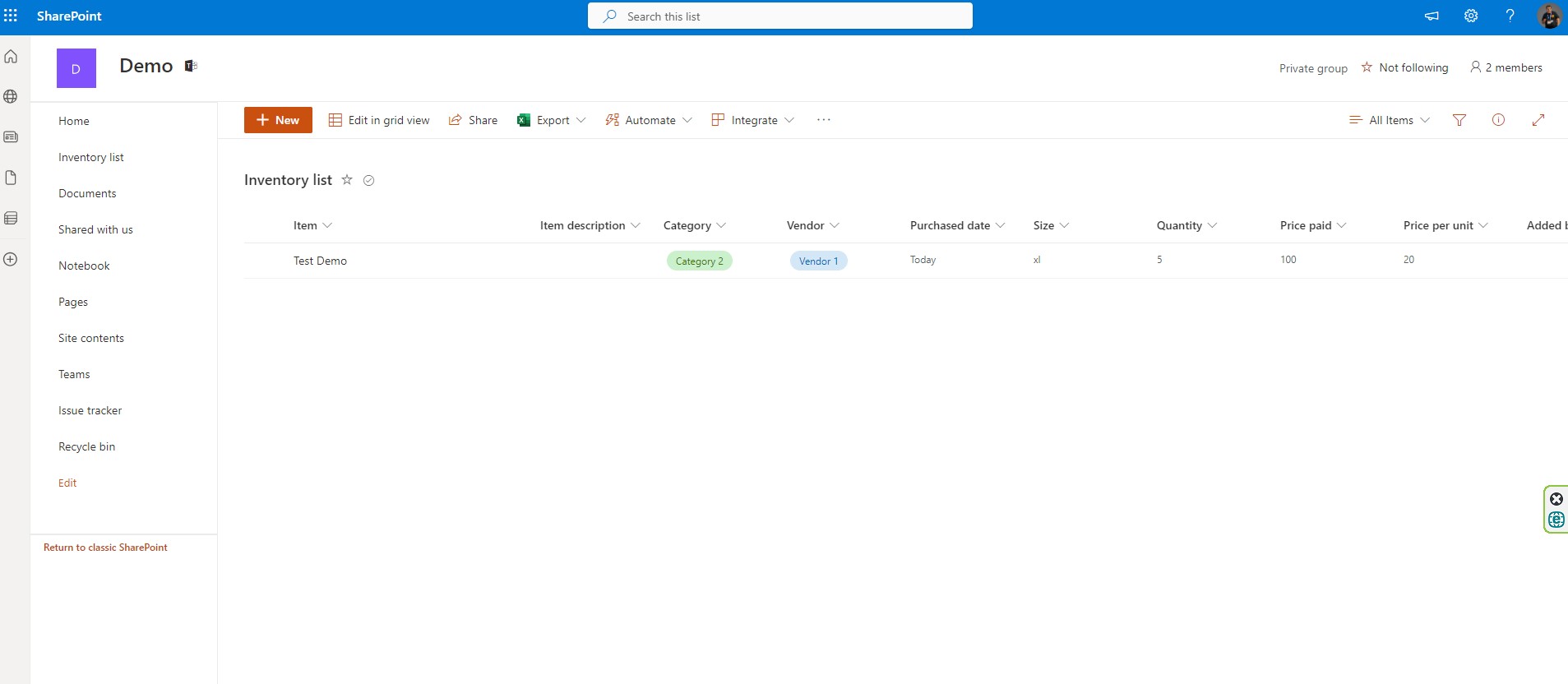
As you can see if I have created an item in my second list and then I go to my first list and create a new item
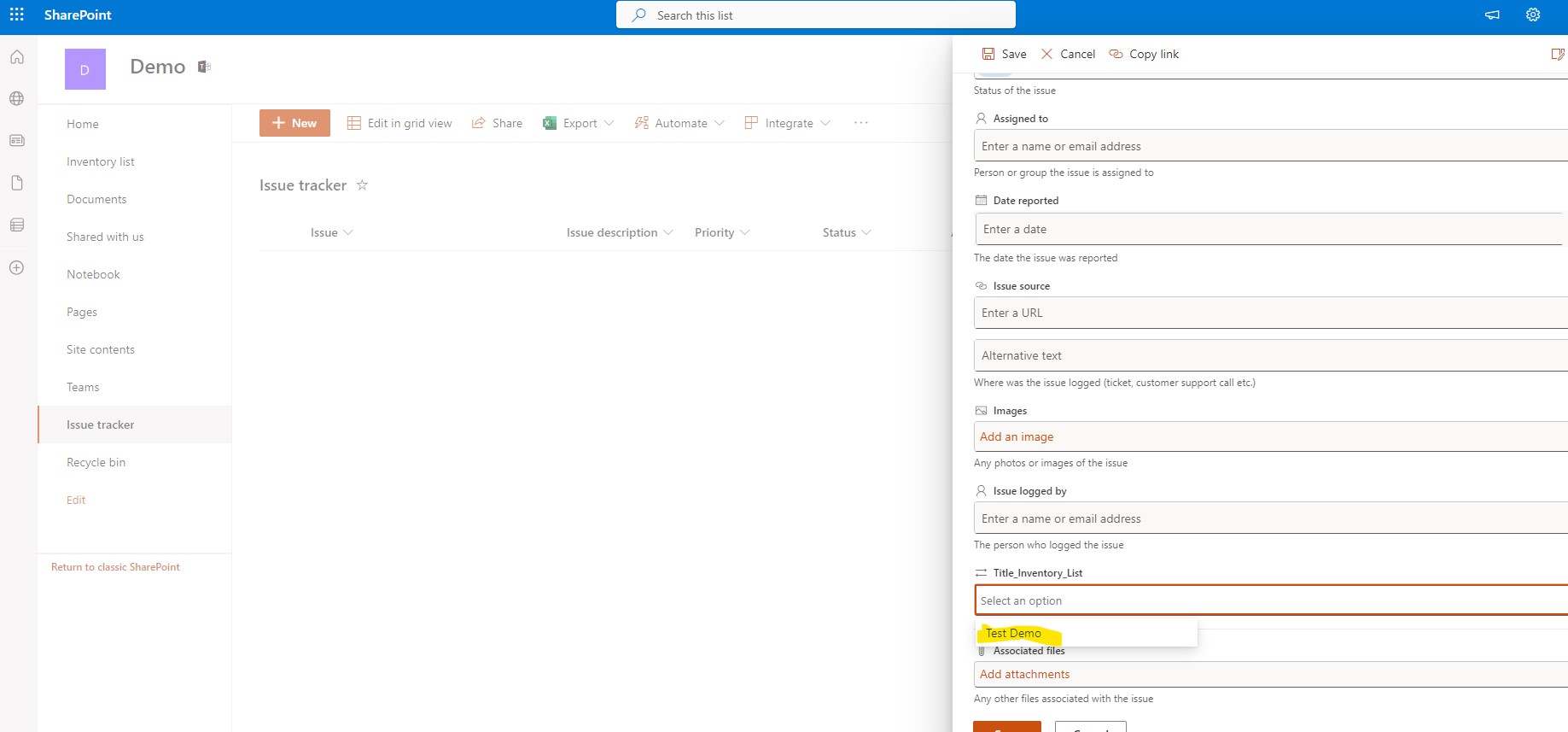
I am now given the option to pull from the lookup field the item I created in the other list
And as you can finally see all the fields of the item in the second list have been passed to the item in my original list.
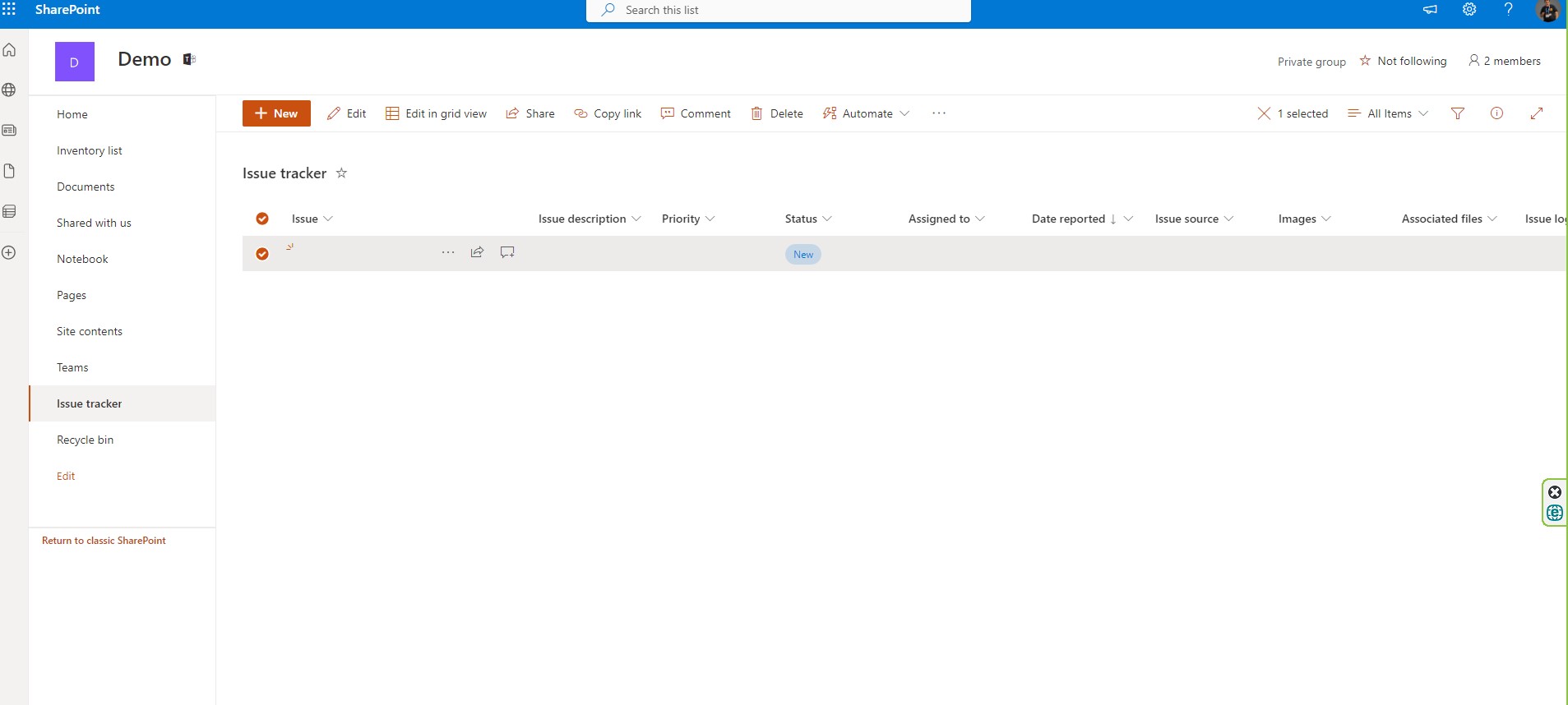
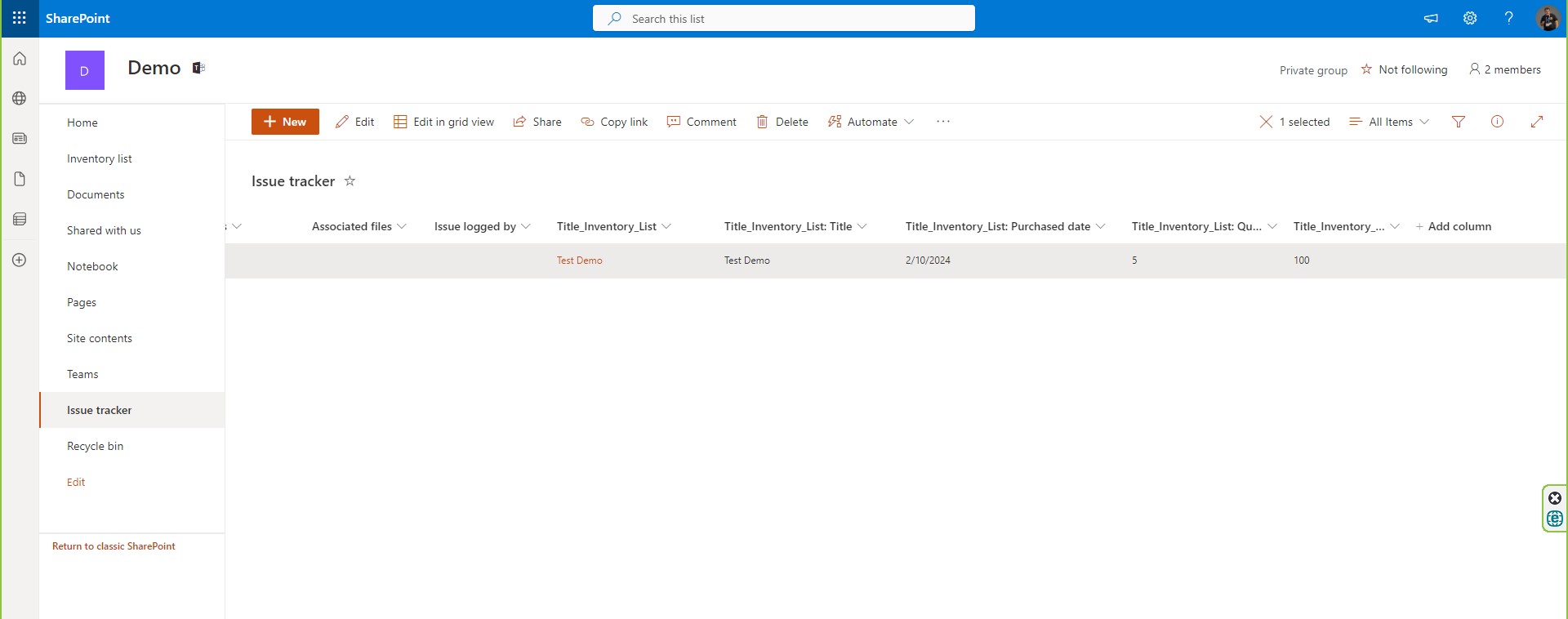
As you can see with this easy way I have created a relationship between two lists just like I would do in a relational database.
#Copilot #Teams #SharePoint #technology #microsoft #digitaltransformation #cloud #mvpbuzz #m365Visit Archives below to find more articles about Microsoft technologies on Modern Workplace