
Free Material
Find hereMore than 150 Articles about Microsoft Technologies on Modern Workplace
Official Site
Microsoft Most Valuable Professional M365 Apps & Services
Microsoft Most Valuable Professional Business Applications
Consultant & Sr Cloud Solution Architect Modern Wokrplace
Find hereMore than 150 Articles about Microsoft Technologies on Modern Workplace
03 January 2024
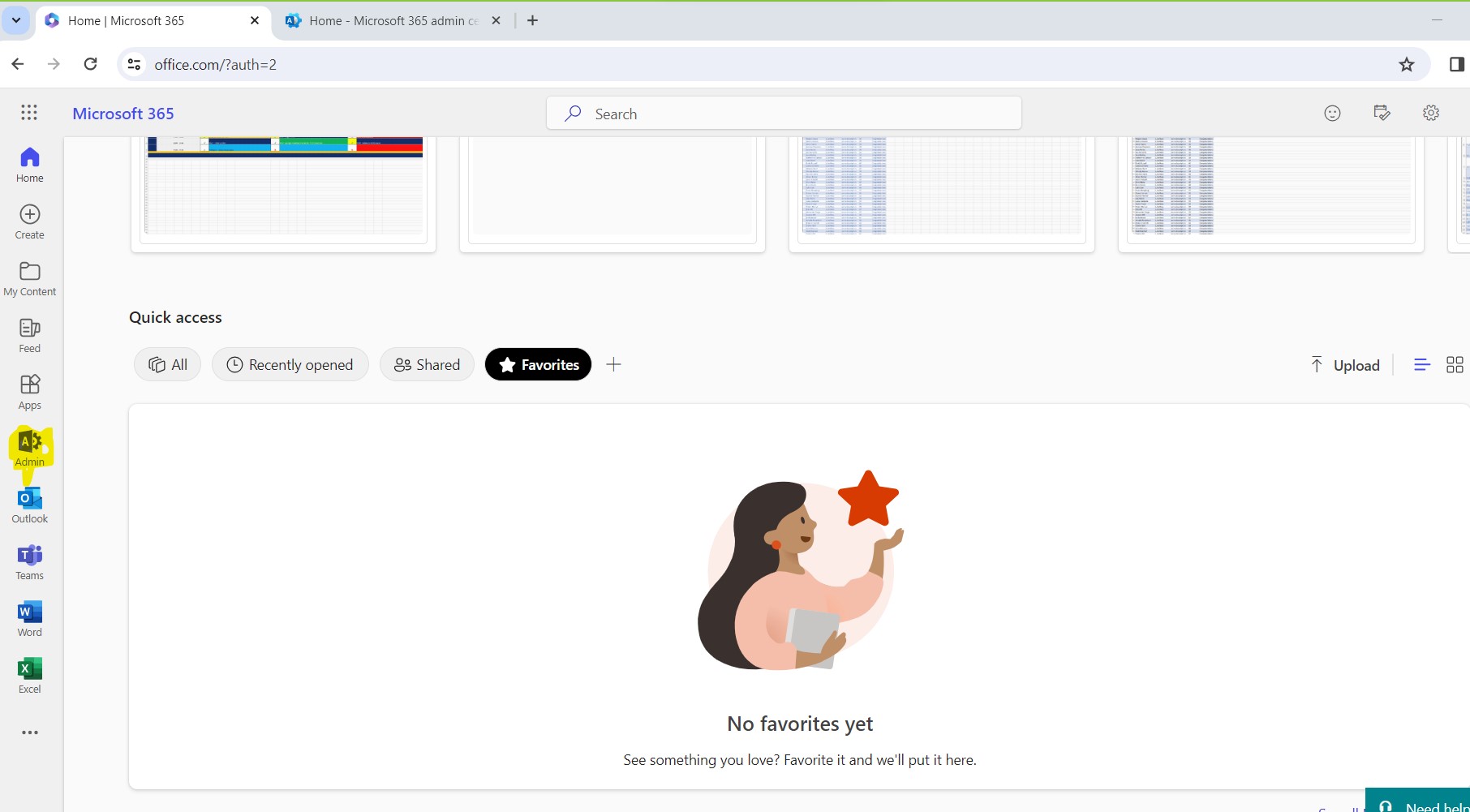
In today's article we will see how we can create a new site from the SharePoint admin center This is a relatively easy process that I have shown in the past. But this time you will see all the changes that have been made by Microsoft and now how easy it is for someone to create a site by simply filling in simple elements in successive forms So let me start the description of this process. First of all, as always, there must be an active M365 subscription where when we login to the main M365 page we select from the left pop-up column Admin
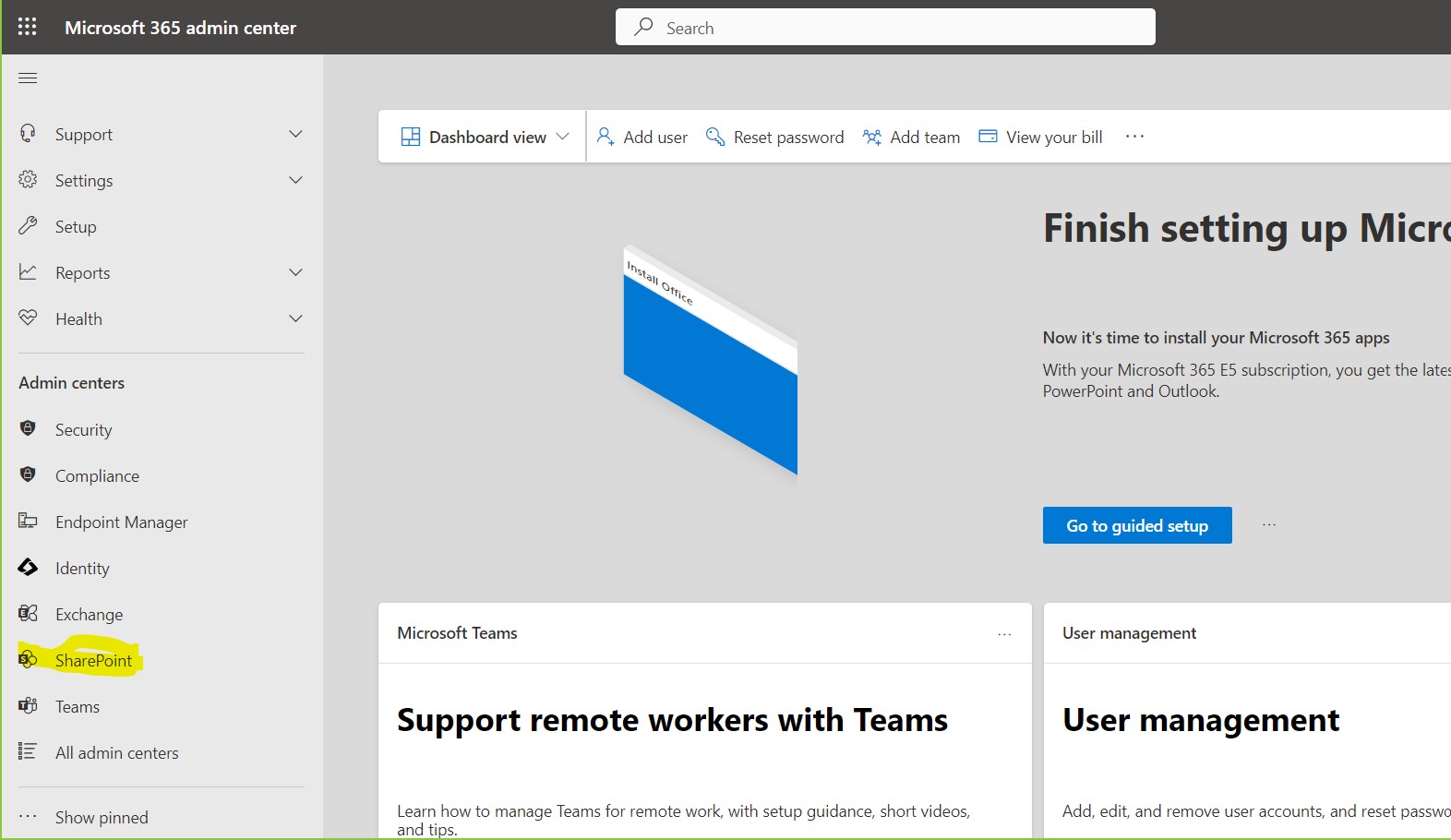
In the next step and again from the left column we select SharePoint
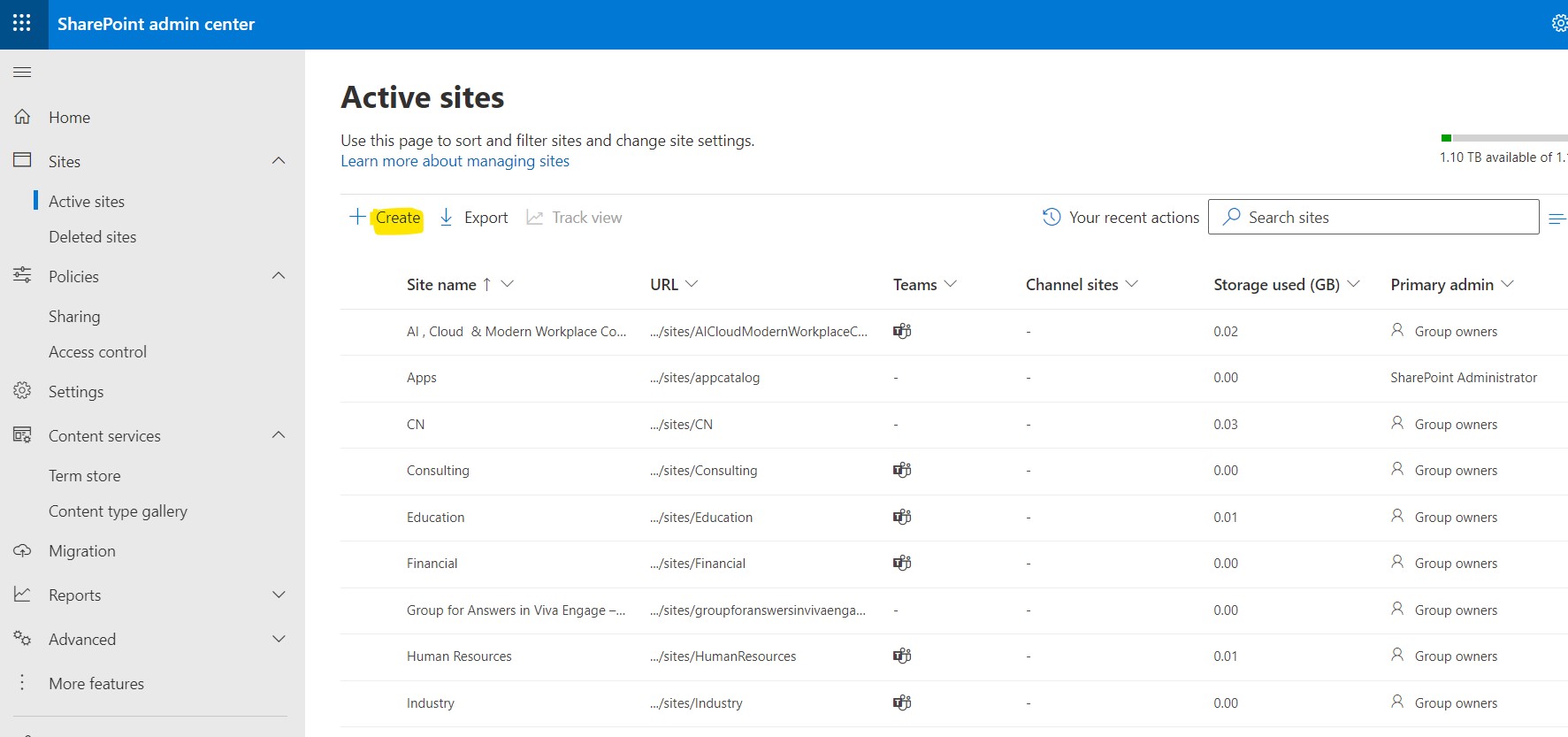
And if we have gone to the main admin page of SharePoint we select active sites and again from the left column .At the top left we select create
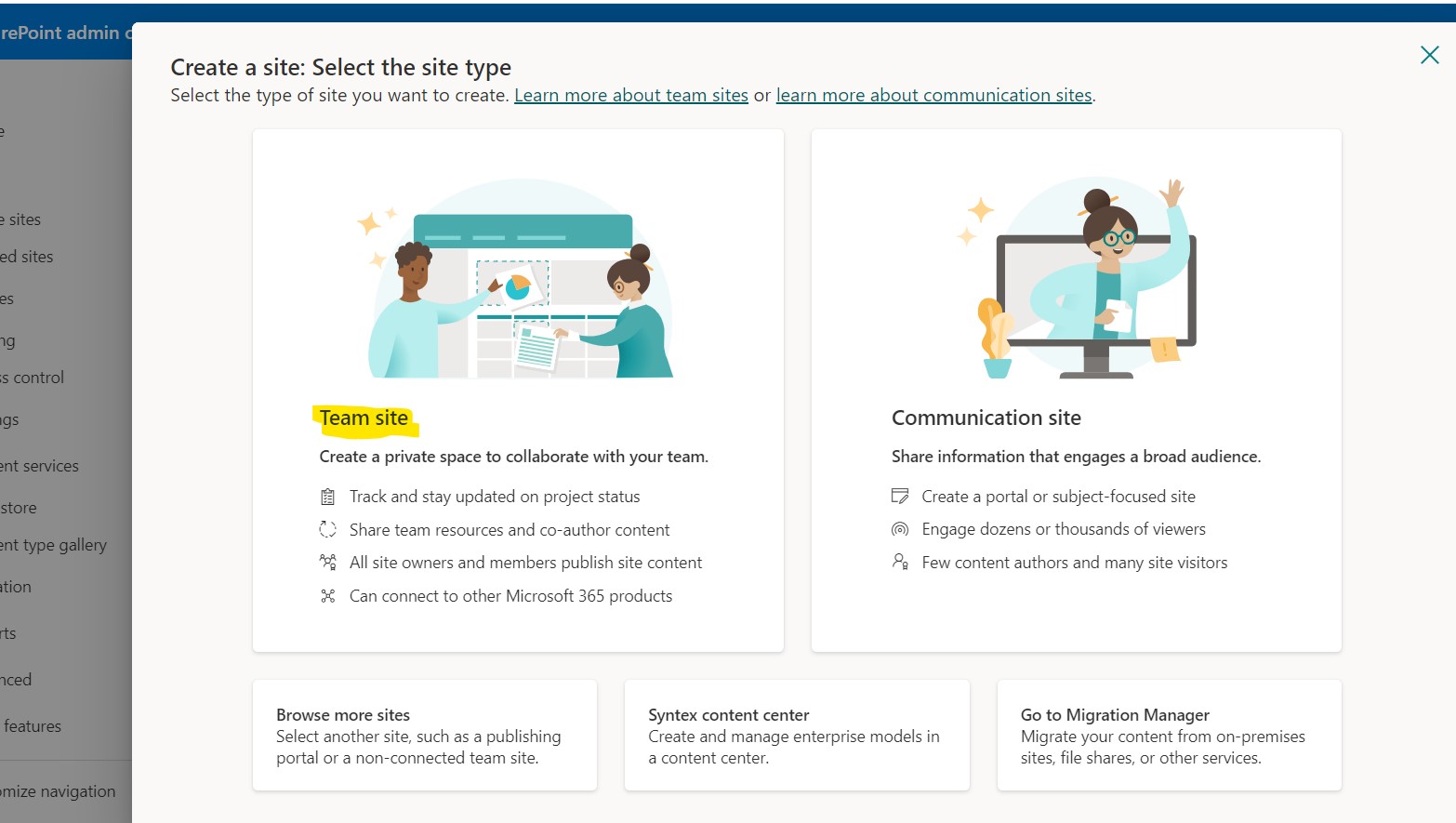
In the next step in the form that opens we select the type of site we want to create . I chose team site.
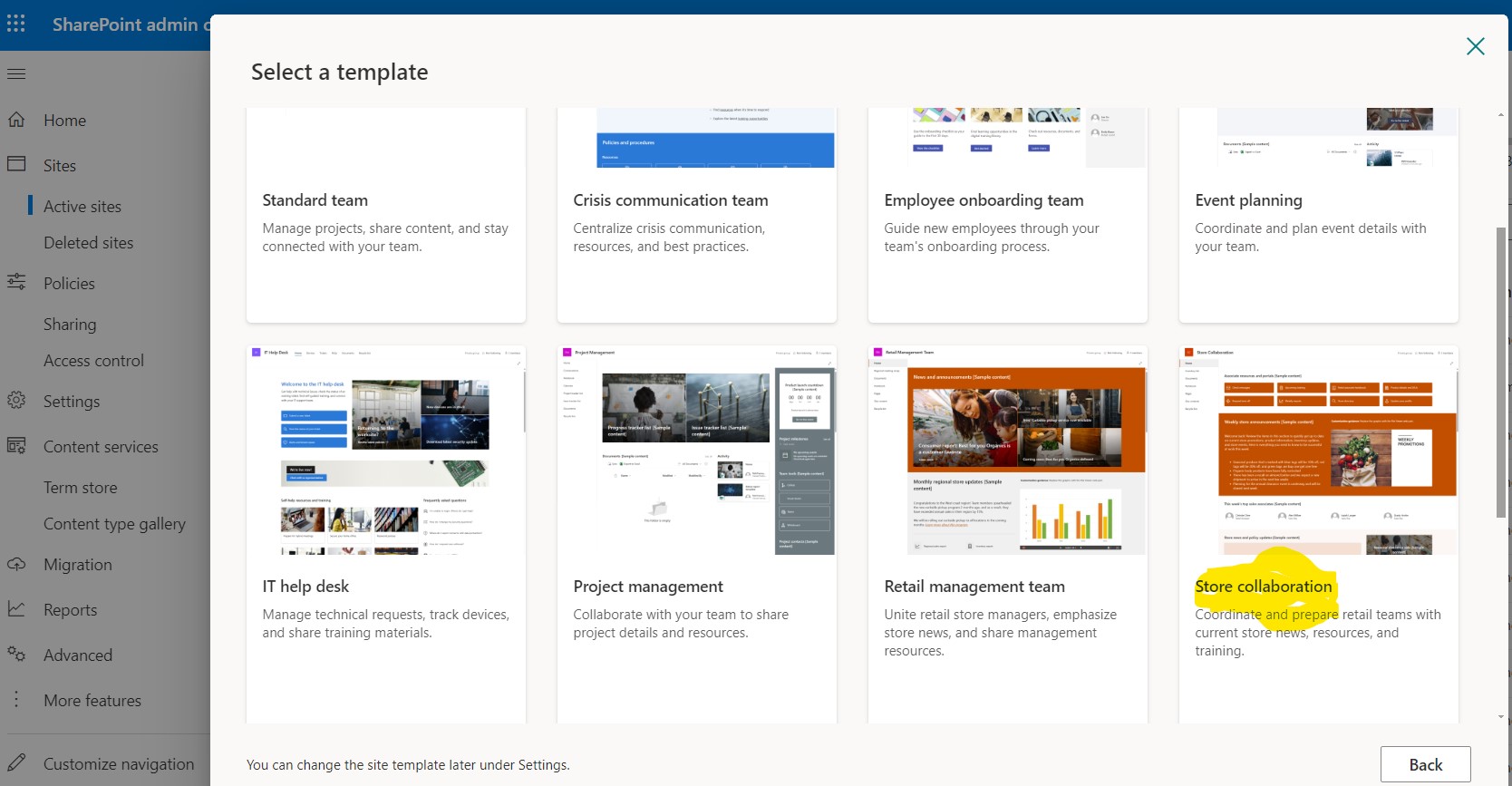
In the next step the available templates provided by Microsoft or the templates we have created in the past are displayed .I choose store collaboration
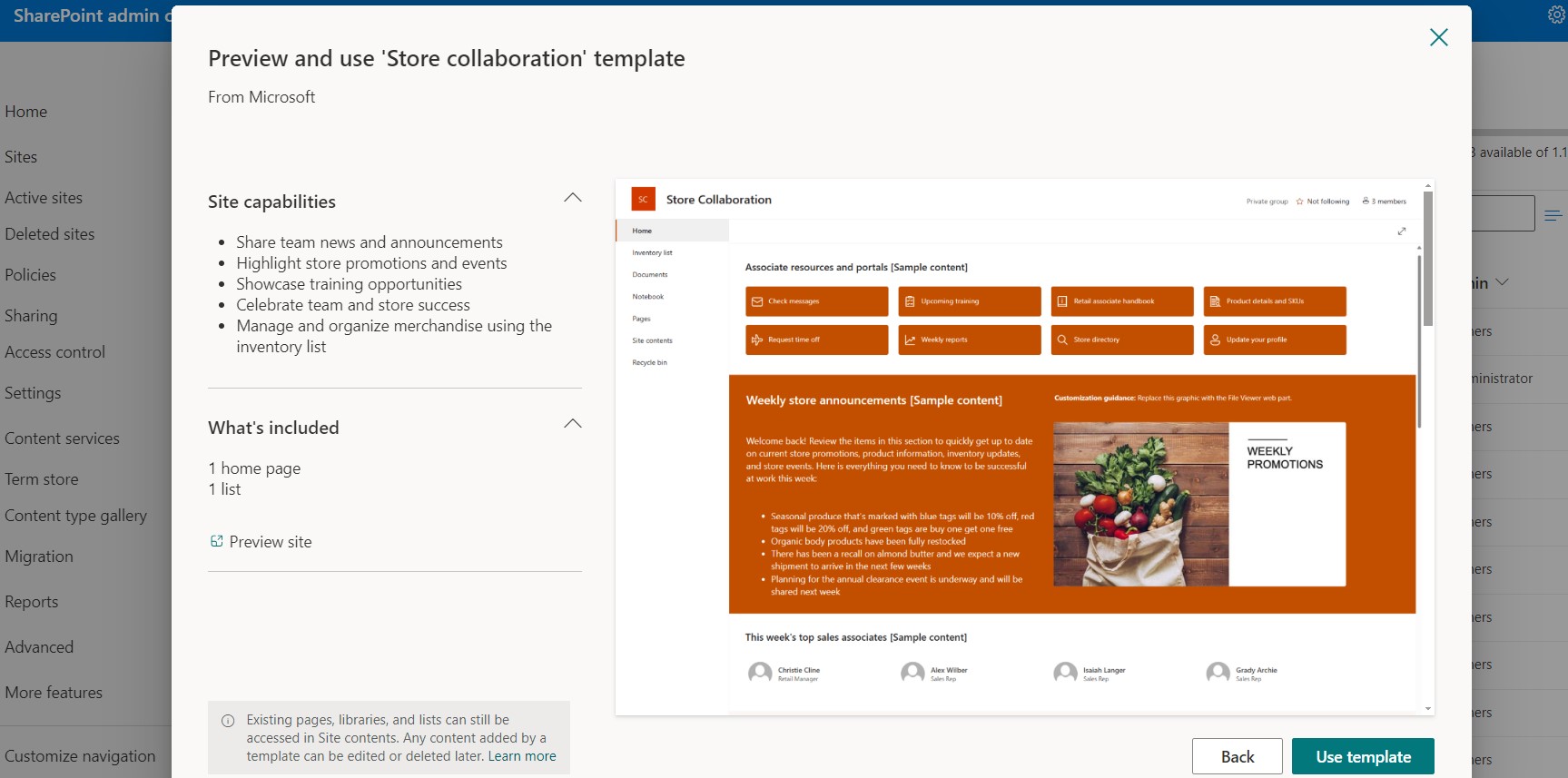
In the next step there is an explanation of the capabilities of the site and what it contains .There is also the preview feature .If it finally meets my needs I choose use template
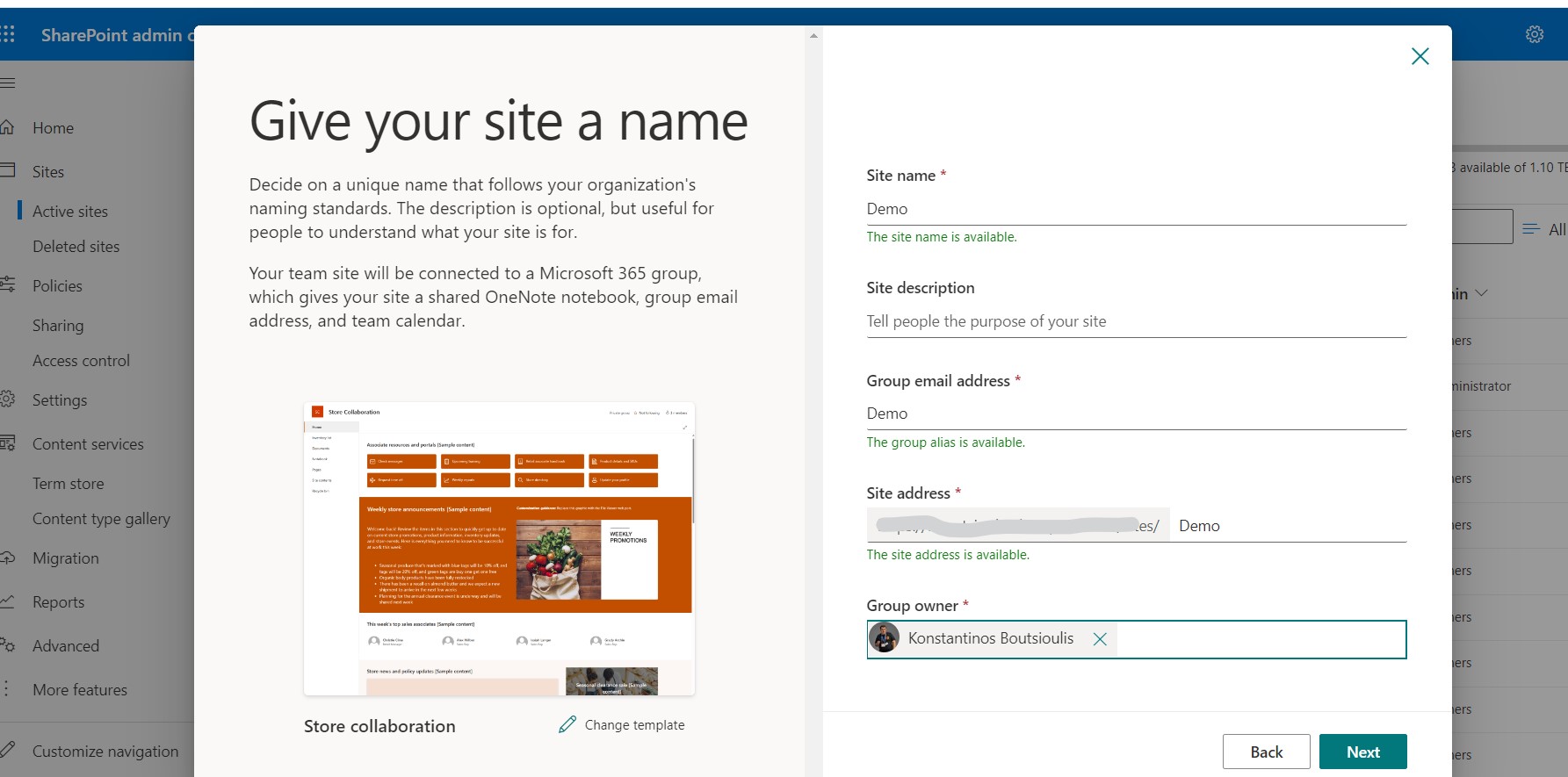
In the next step I have to enter the name , description and the group owner . As you will see it creates a group which will be linked to the site as well as the address of the site .Attention when entering the name , it is not allowed to enter a name that already exists and consequently the same address as an existing one
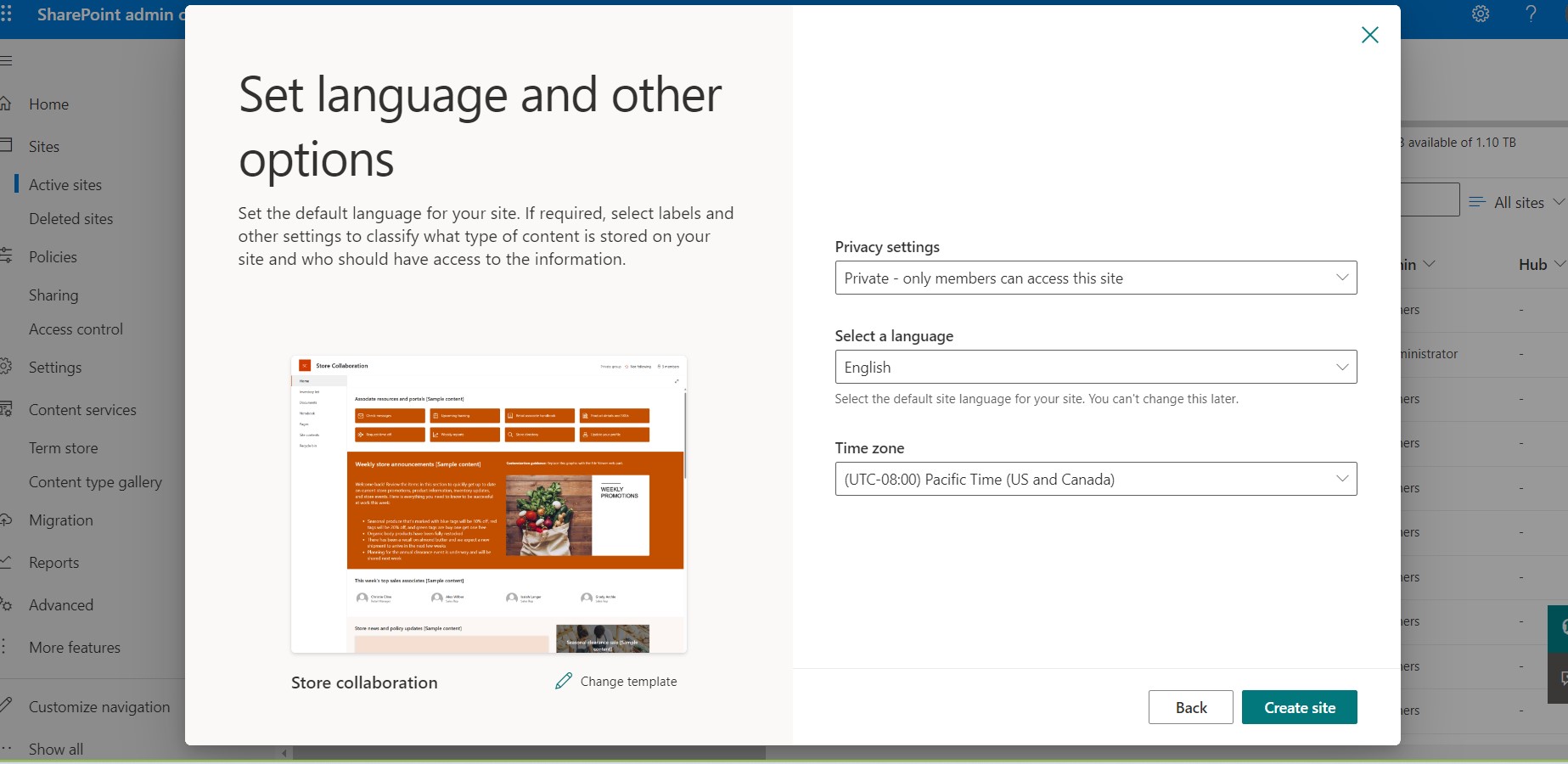
In the next step we choose if we want the site to be private or public as well as the language and timezone.
In the next step we select the members who will have access to the site
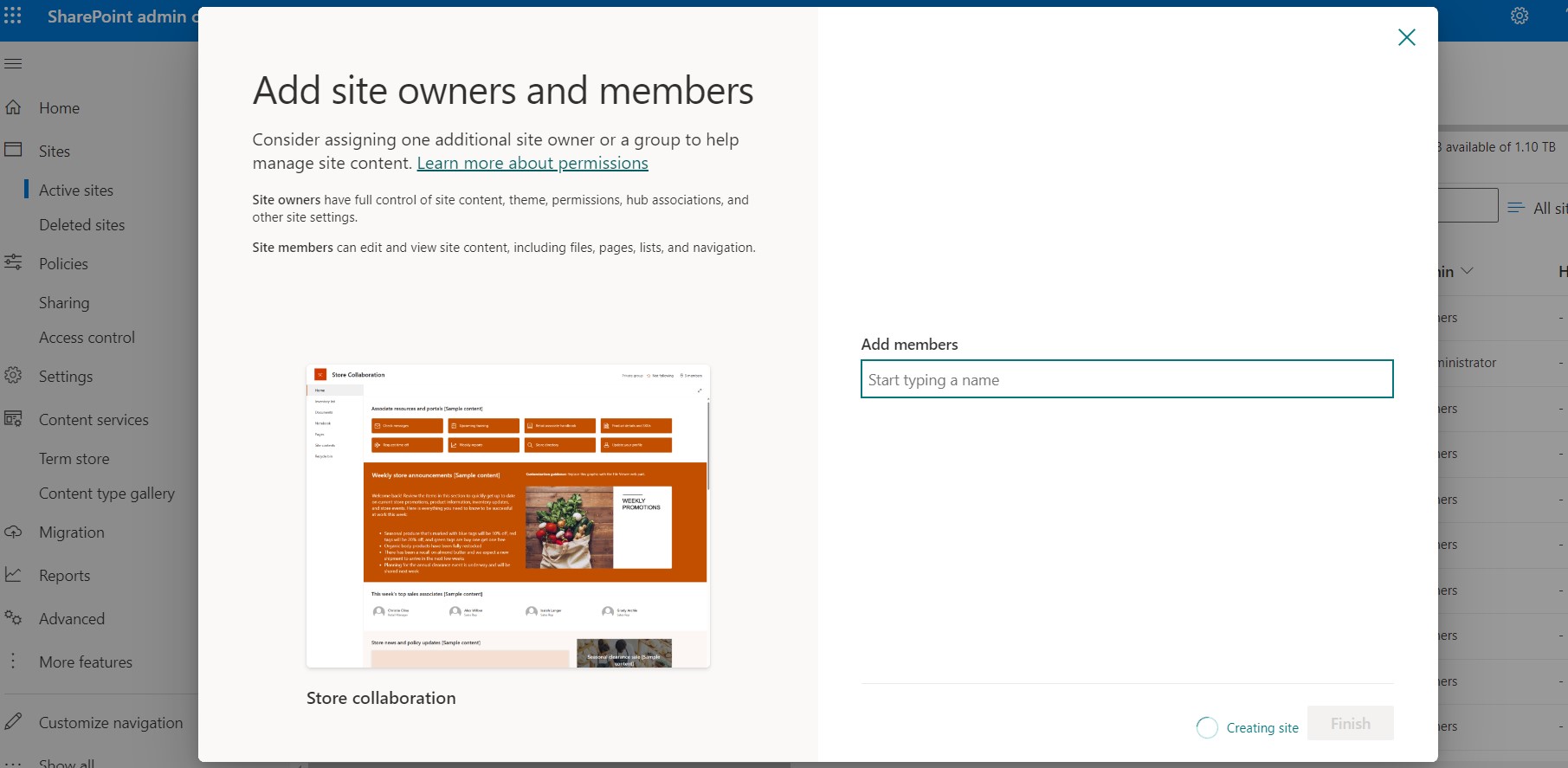
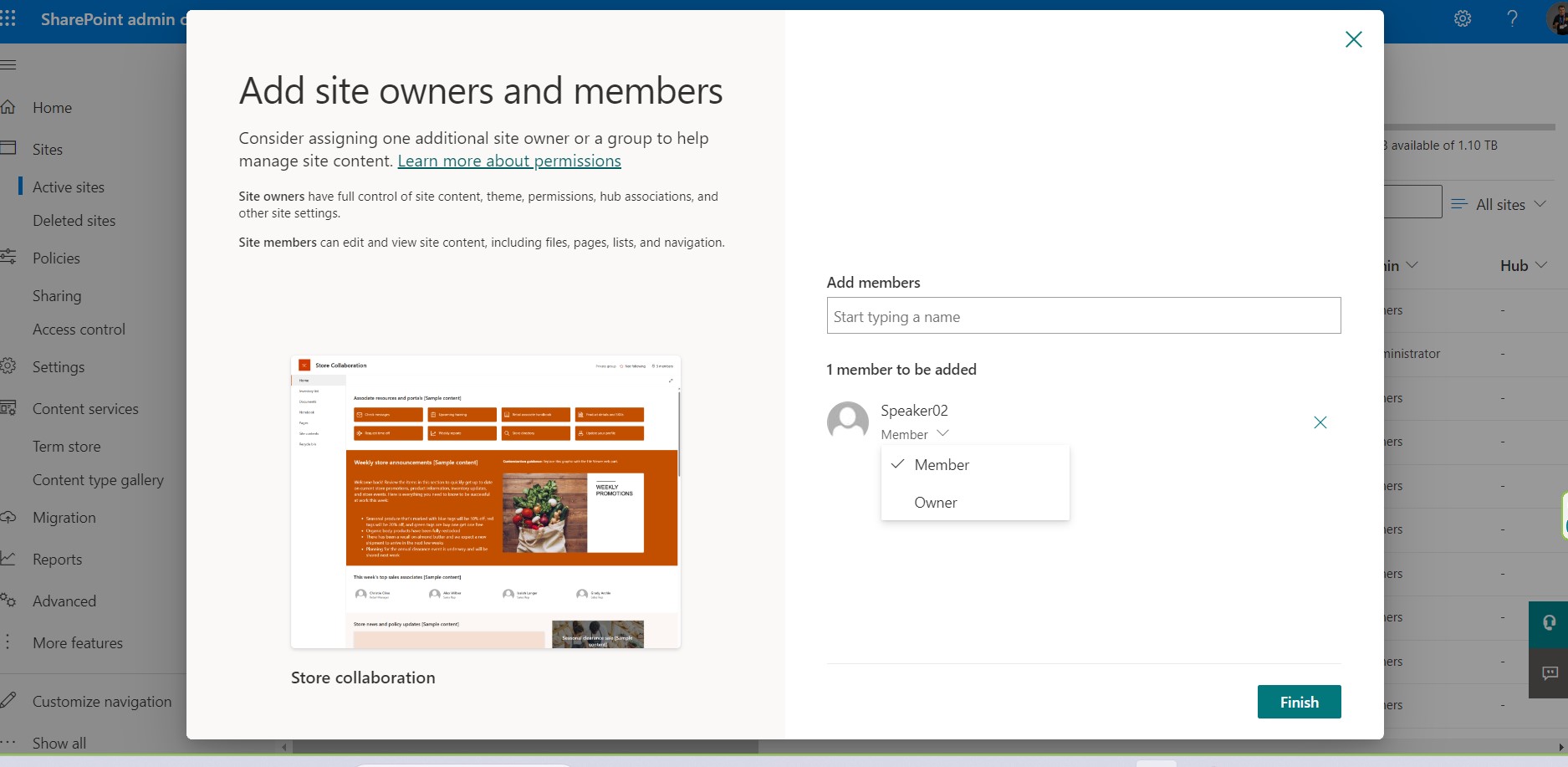
And also during the selection we can specify the role of the members in the site (whether they will be a member or owner)
And with this easy way we have created our new site with a few clicks
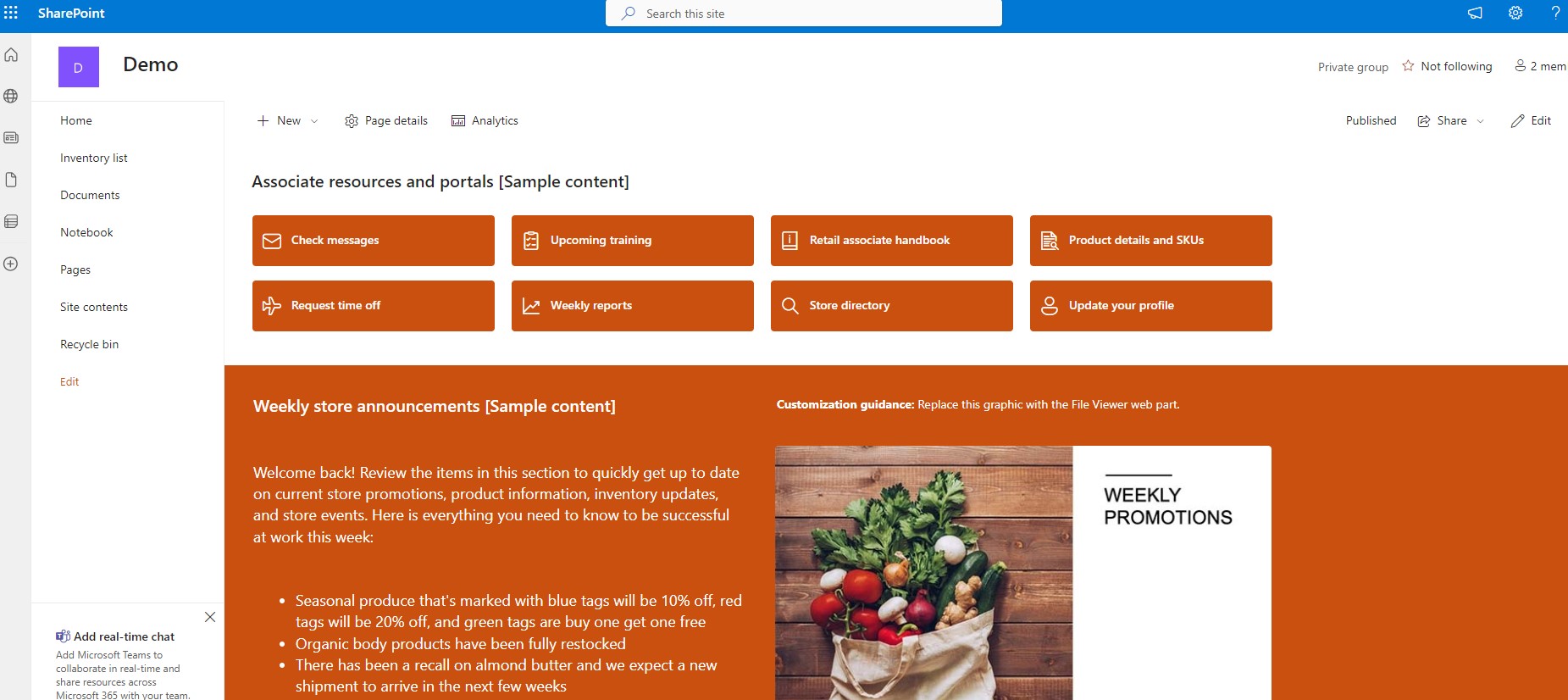
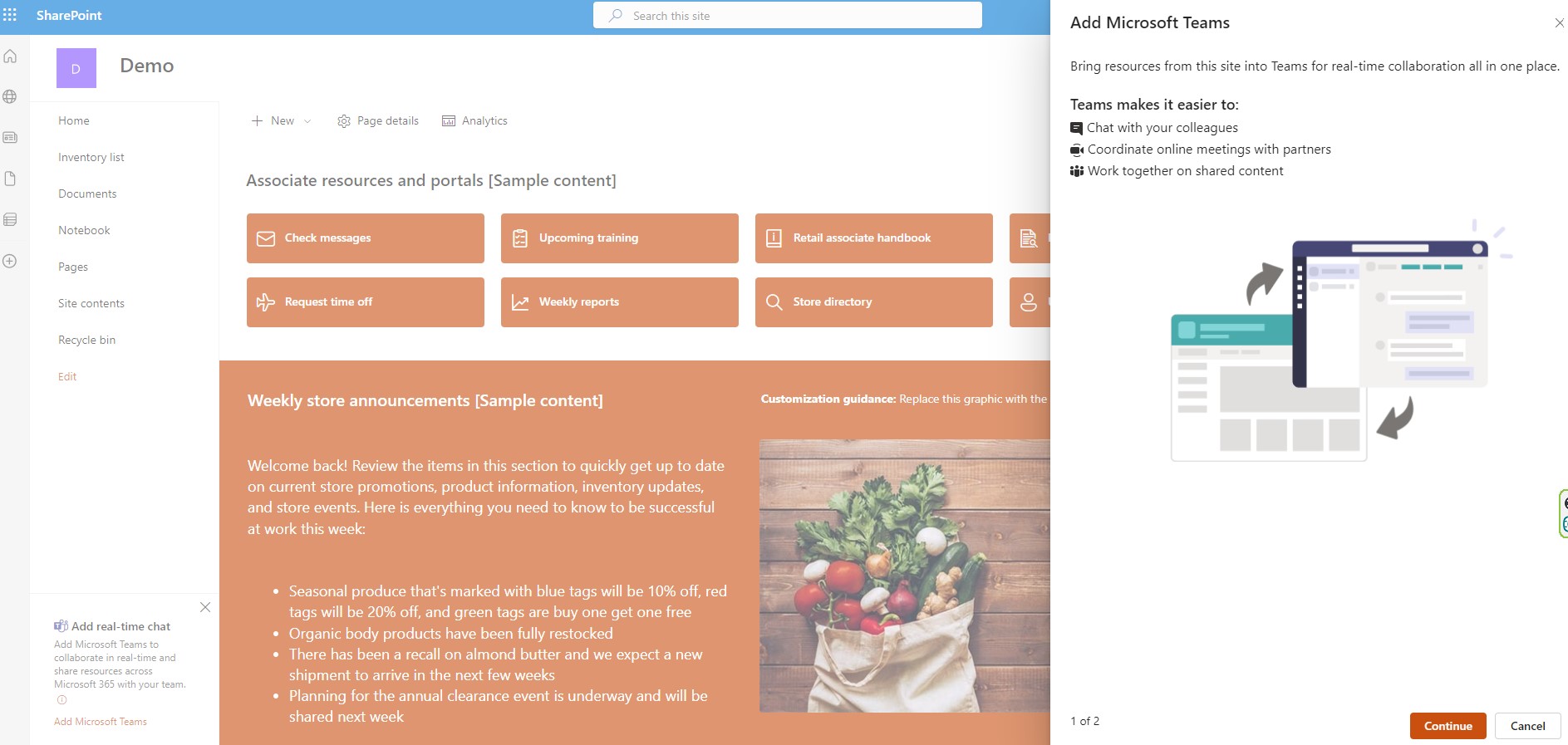
At the bottom left a notification reminds us that there is no connection to a team and since we want to create a team that is connected to the site we choose add Microsoft Team
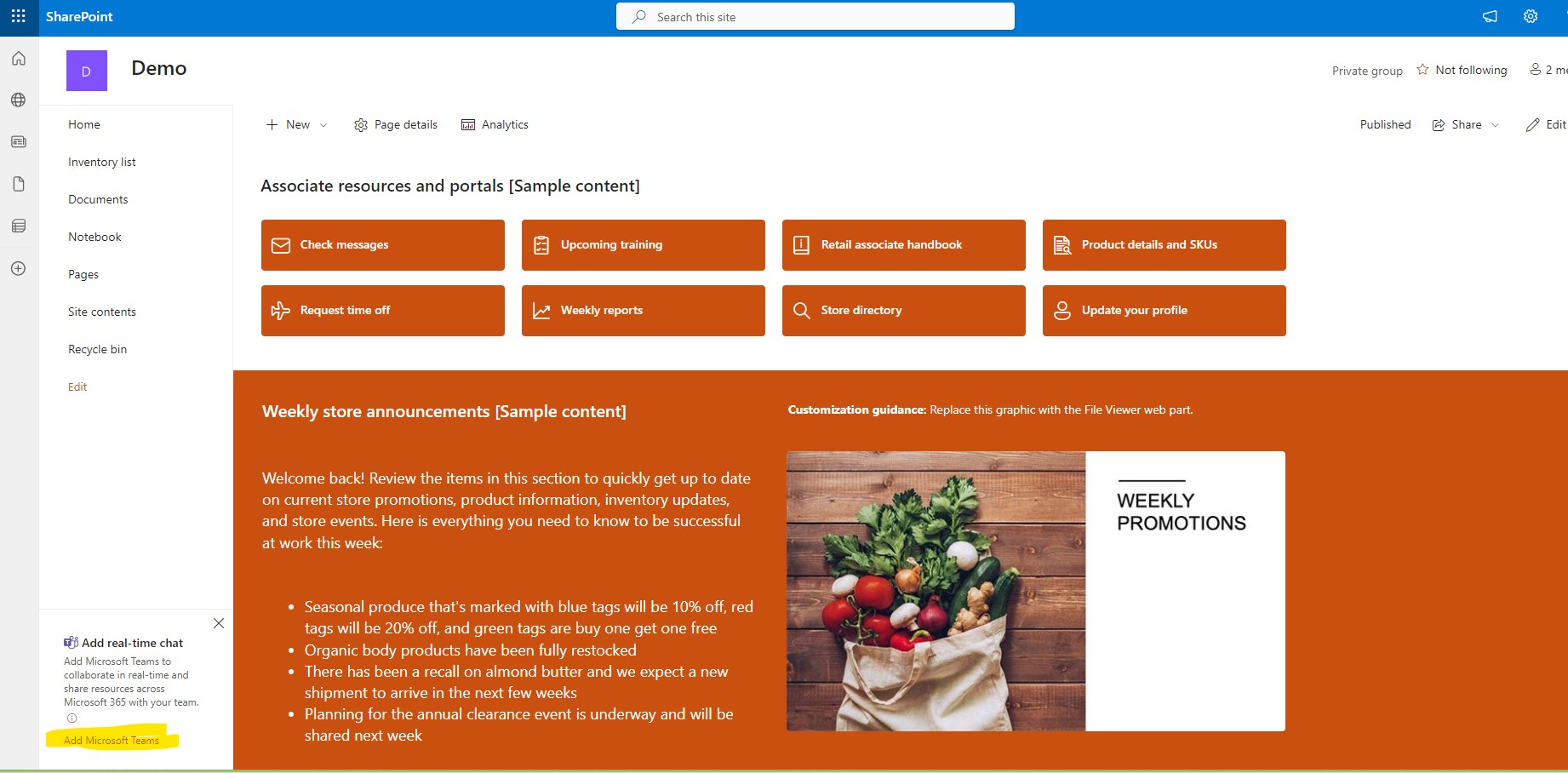
In the next step on the right side menu select continue to create the team
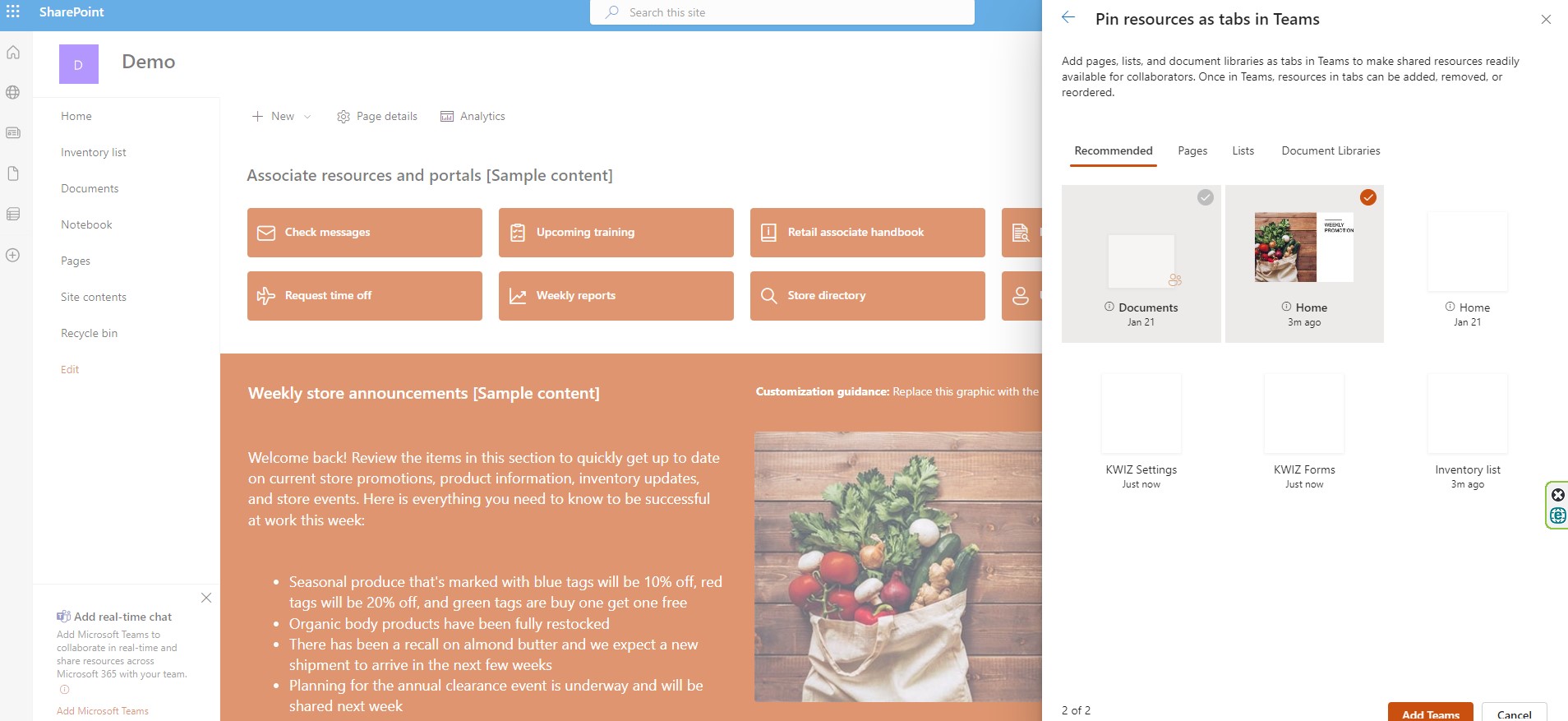
We then need to select which resources on the page will be pinned to our new team
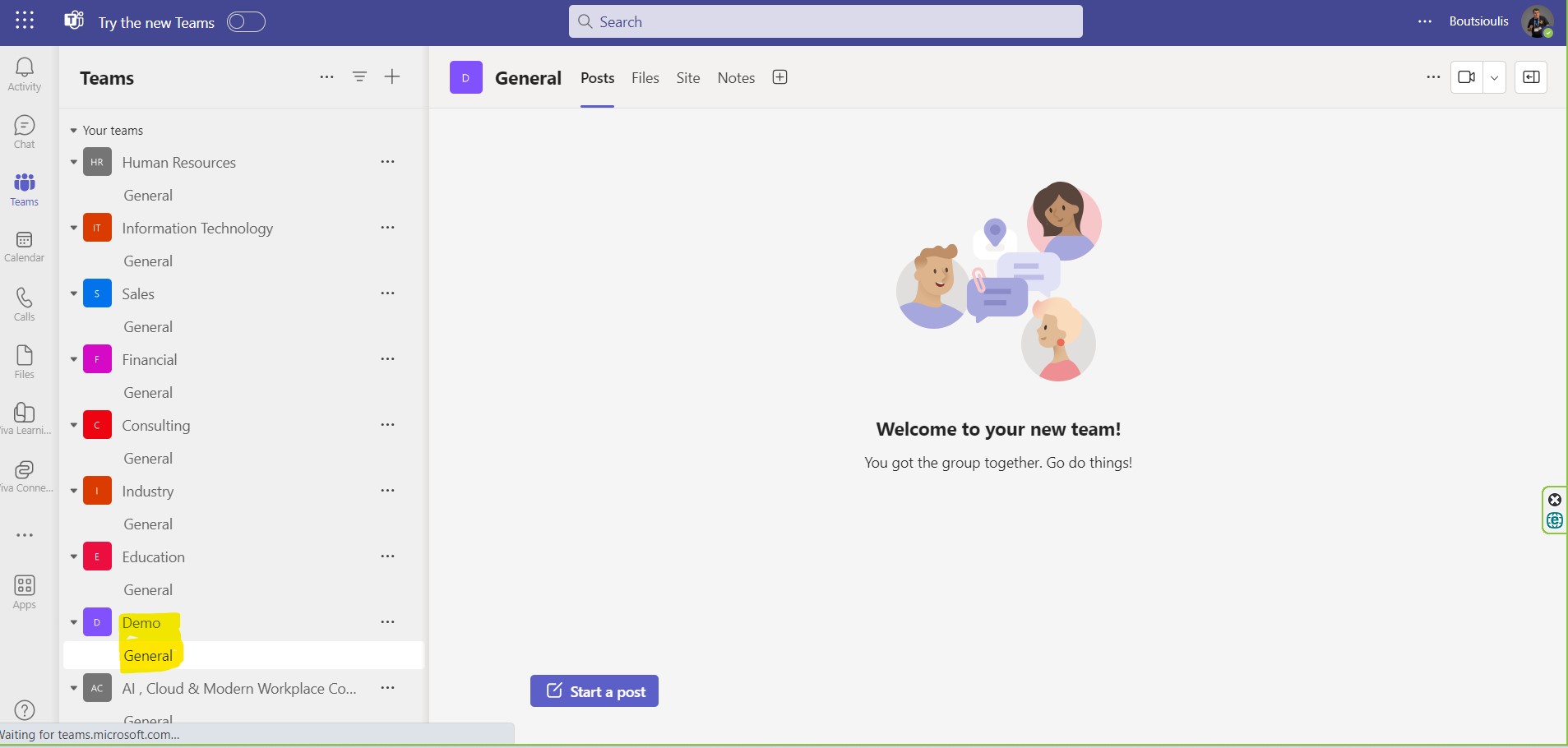
And finally as you can see we have created a new group called demo which is linked to the sharepoint site we created
 #Copilot
#Teams
#SharePoint
#technology
#microsoft
#digitaltransformation
#cloud
#mvpbuzz
#m365
#Copilot
#Teams
#SharePoint
#technology
#microsoft
#digitaltransformation
#cloud
#mvpbuzz
#m365
Visit Archives below to find more articles about Microsoft technologies on Modern Workplace