
Free Material
Find hereMore than 150 Articles about Microsoft Technologies on Modern Workplace
Official Site
Microsoft Most Valuable Professional M365 Apps & Services
Microsoft Most Valuable Professional Business Applications
Consultant & Sr Cloud Solution Architect Modern Wokrplace
Find hereMore than 150 Articles about Microsoft Technologies on Modern Workplace
24 January 2024
In today's article I will show you how we can take a site as a template and create a site similar to the one we took as a template. First of all, you must already have a site that has a structure (e.g. different libraries and lists) so that you can understand the difference of this activity. If there is no differentiation from a site that has been created directly from a template e.g. team site, communication site then there is simply no reason to do this procedure just choose to create a new site with template The templates This procedure is used to have a unique branding on our pages as long as we have custom libraries and lists. To perform this action we need to have administrator privileges in the SharePoint Online Management Shell. We run the following PowerShell and we have

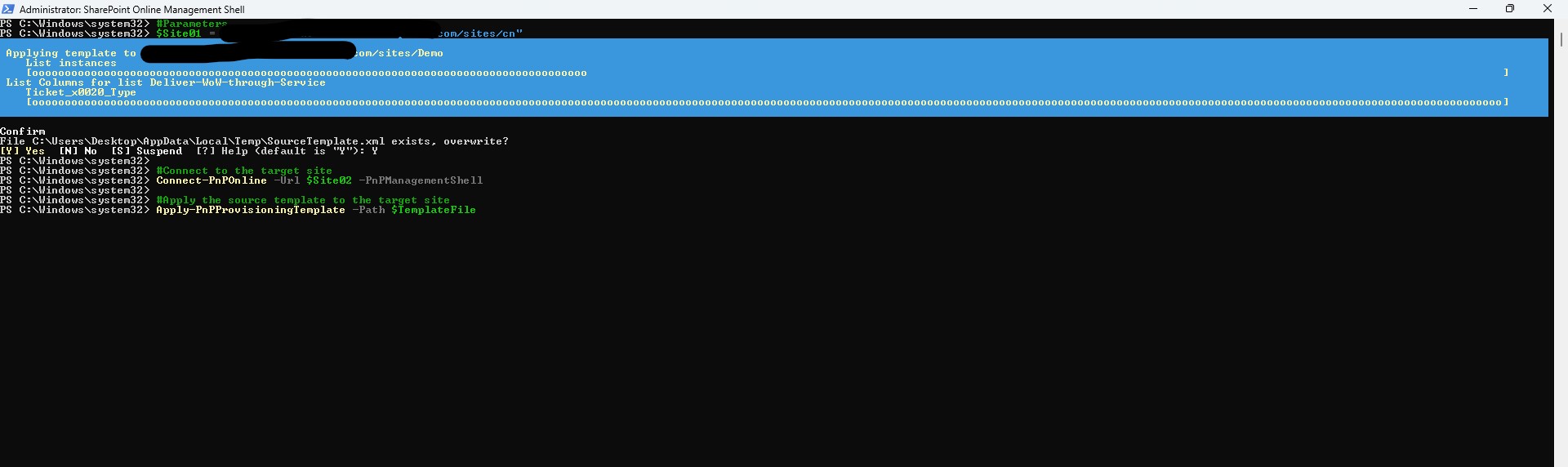
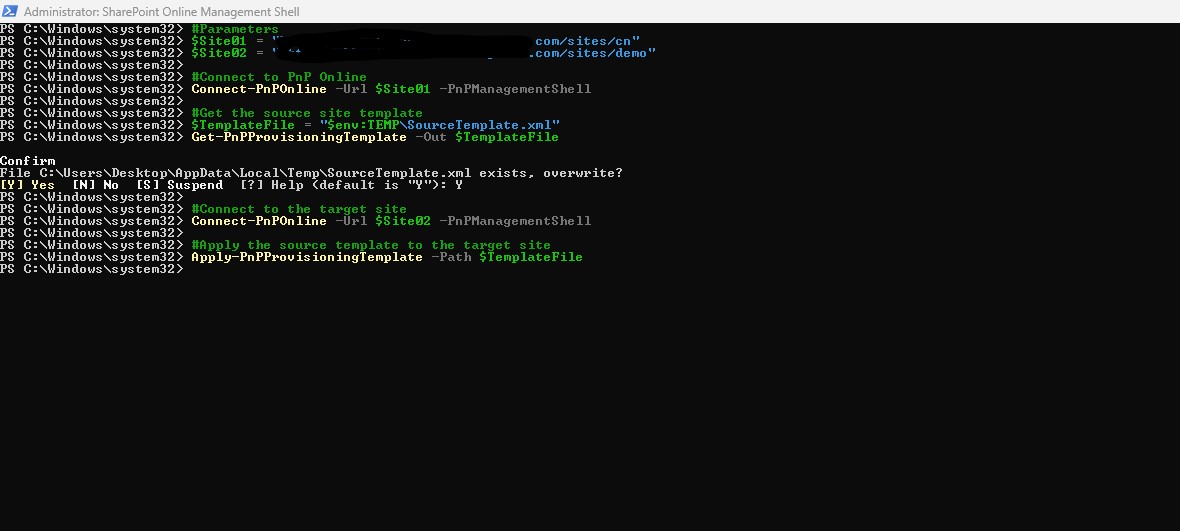
#Declare variable of site url
$Site01 "https://mytenant.sharepoint.com/sites/cn"
$Site02 "https://mytenant.sharepoint.com/sites/demo"
#Connect with SharePoint Online
Connect-PnPOnline -Url $site -PnPManagementShell
#Get the source site template
$TemplateFile = "$env:TEMP\SourceTemplate.xml"
Get-PnPProvisioningTemplate -Out $TemplateFile
#Connect to the target site
Connect-PnPOnline -Url $Site02-PnPManagementShell
#Apply the source template to the target site
Apply-PnPProvisioningTemplate -Path $TemplateFile
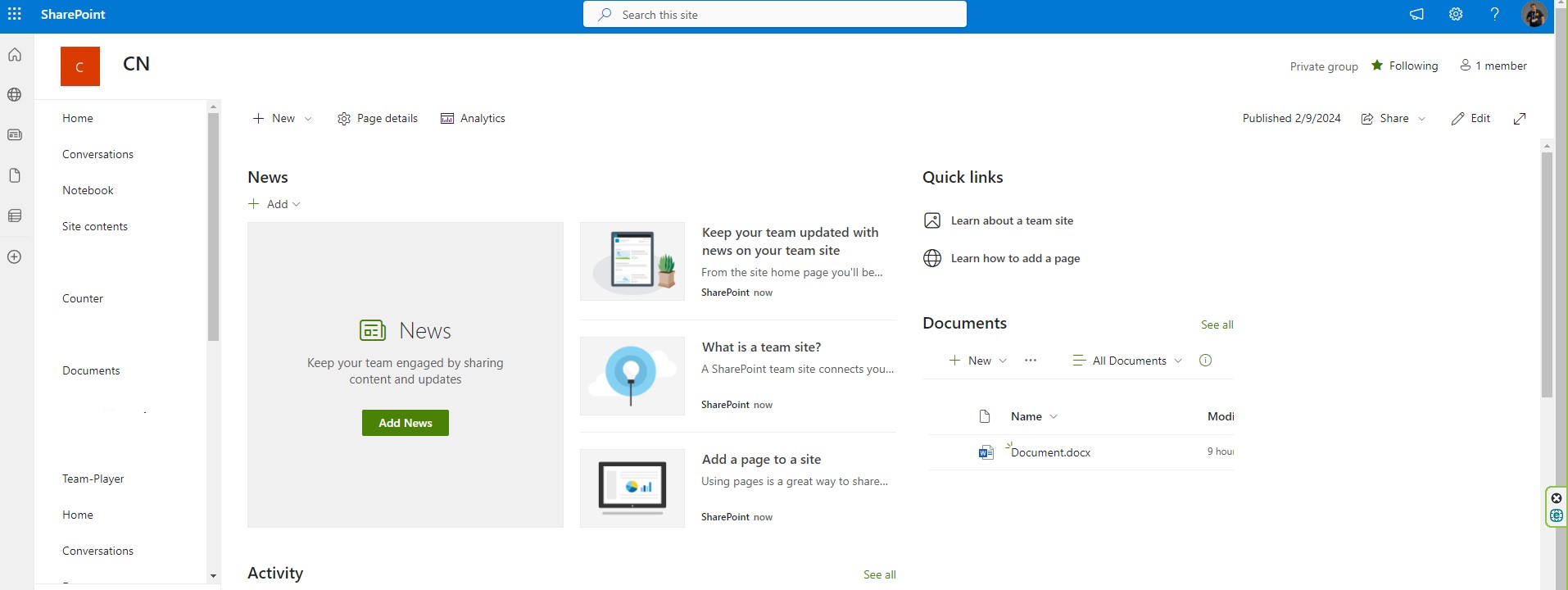
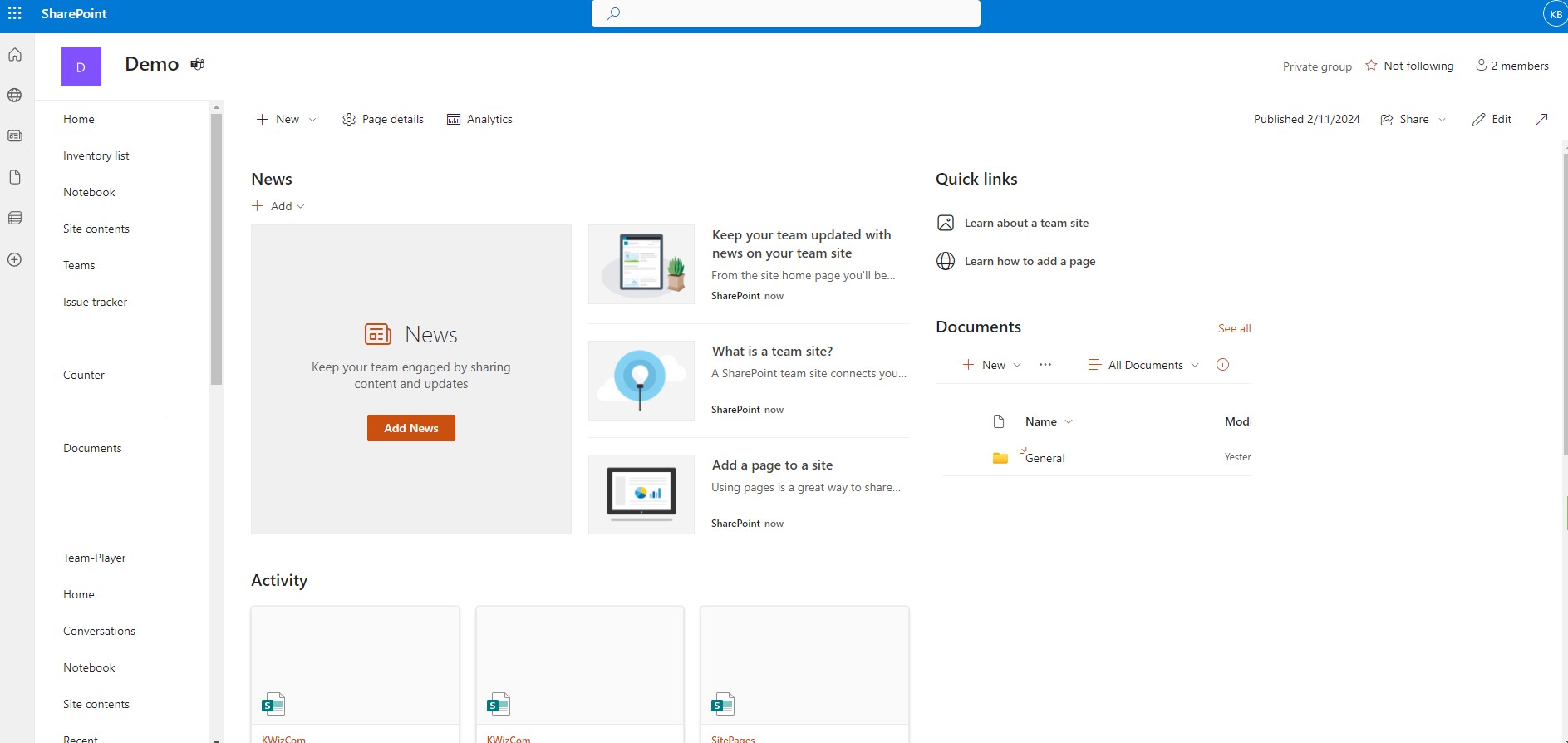 #SharePoint
#technology
#microsoft
#PowerShell
#PnP
#digitaltransformation
#cloud
#mvpbuzz
#m365
#SharePoint
#technology
#microsoft
#PowerShell
#PnP
#digitaltransformation
#cloud
#mvpbuzz
#m365
Visit Archives below to find more articles about Microsoft technologies on Modern Workplace