
Free Material
Find hereMore than 150 Articles about Microsoft Technologies on Modern Workplace
Official Site
Microsoft Most Valuable Professional M365 Apps & Services
Microsoft Most Valuable Professional Business Applications
Consultant & Sr Cloud Solution Architect Modern Wokrplace
Find hereMore than 150 Articles about Microsoft Technologies on Modern Workplace
25 December 2024
In today's article, I will show you how to Copy the file to SharePoint when it is modified in OneDrive (Business) using Power Automate.
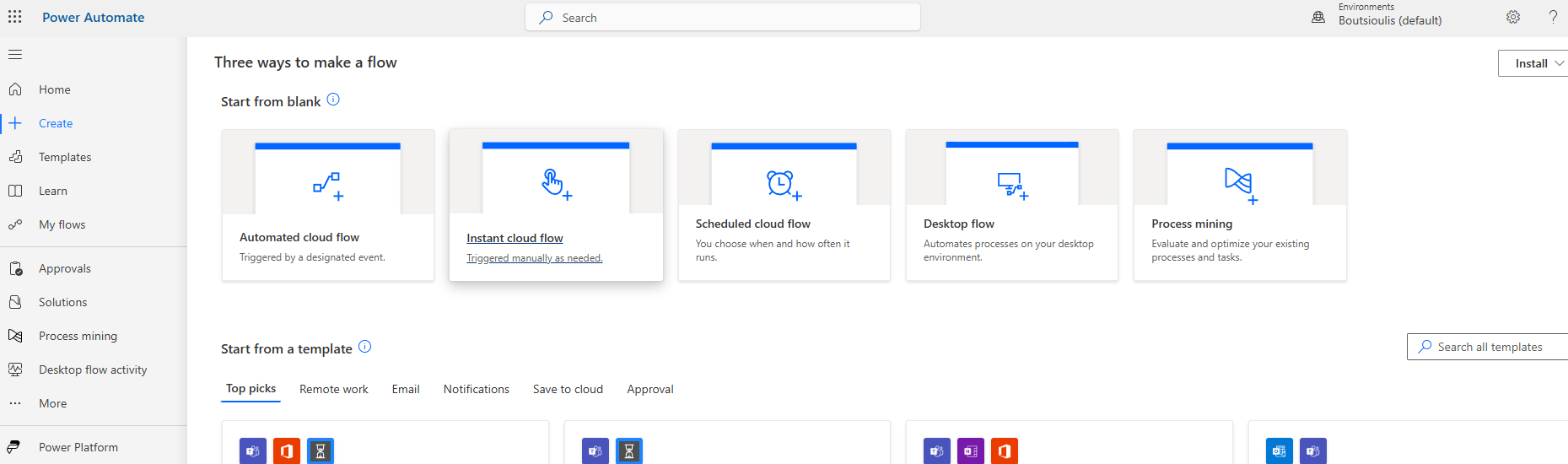
First, we need to have an active M365 subscription and from the home page, we select Power Automate from the apps. On the Power Automate home page, we select Templates from the left menu.
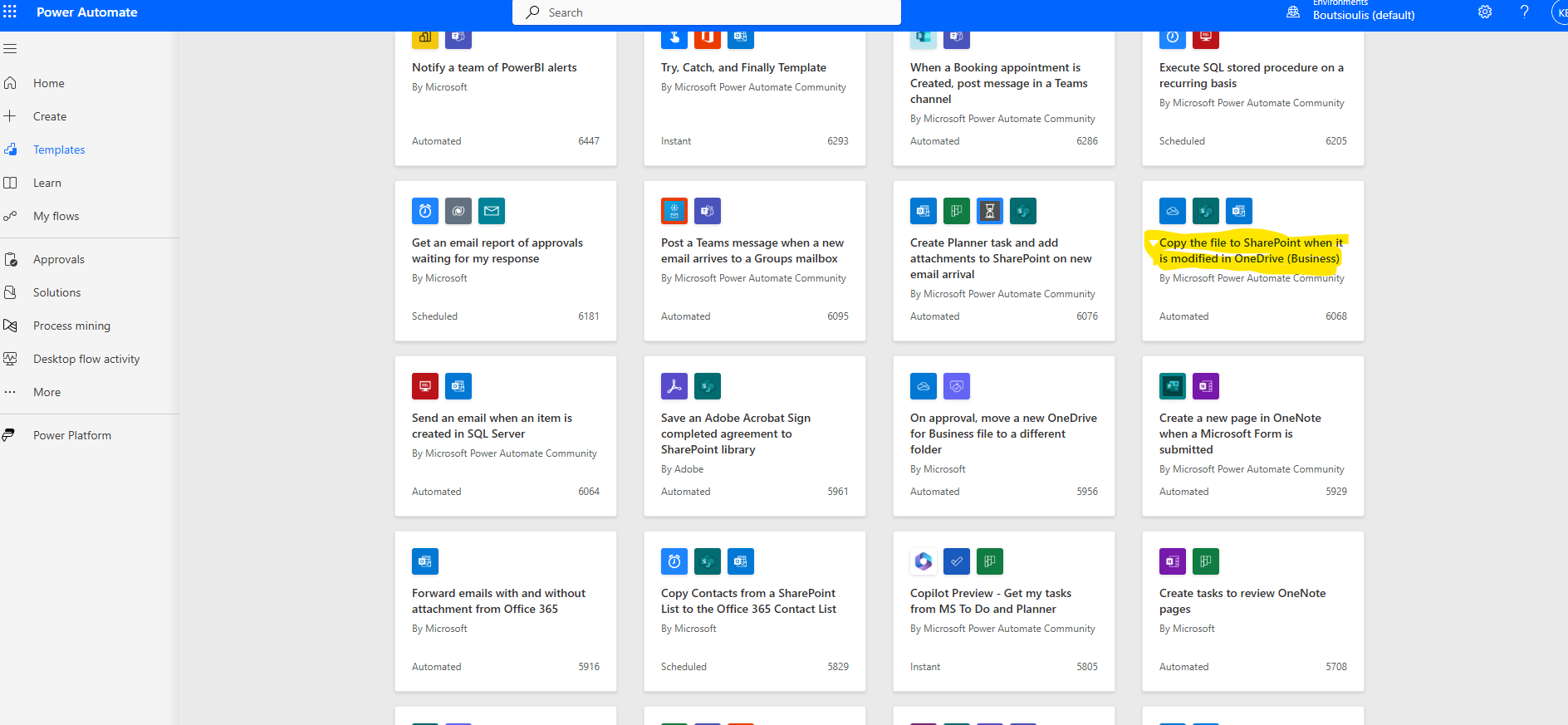
We locate the available template named "Copy the file to SharePoint when it is modified in OneDrive (Business)."
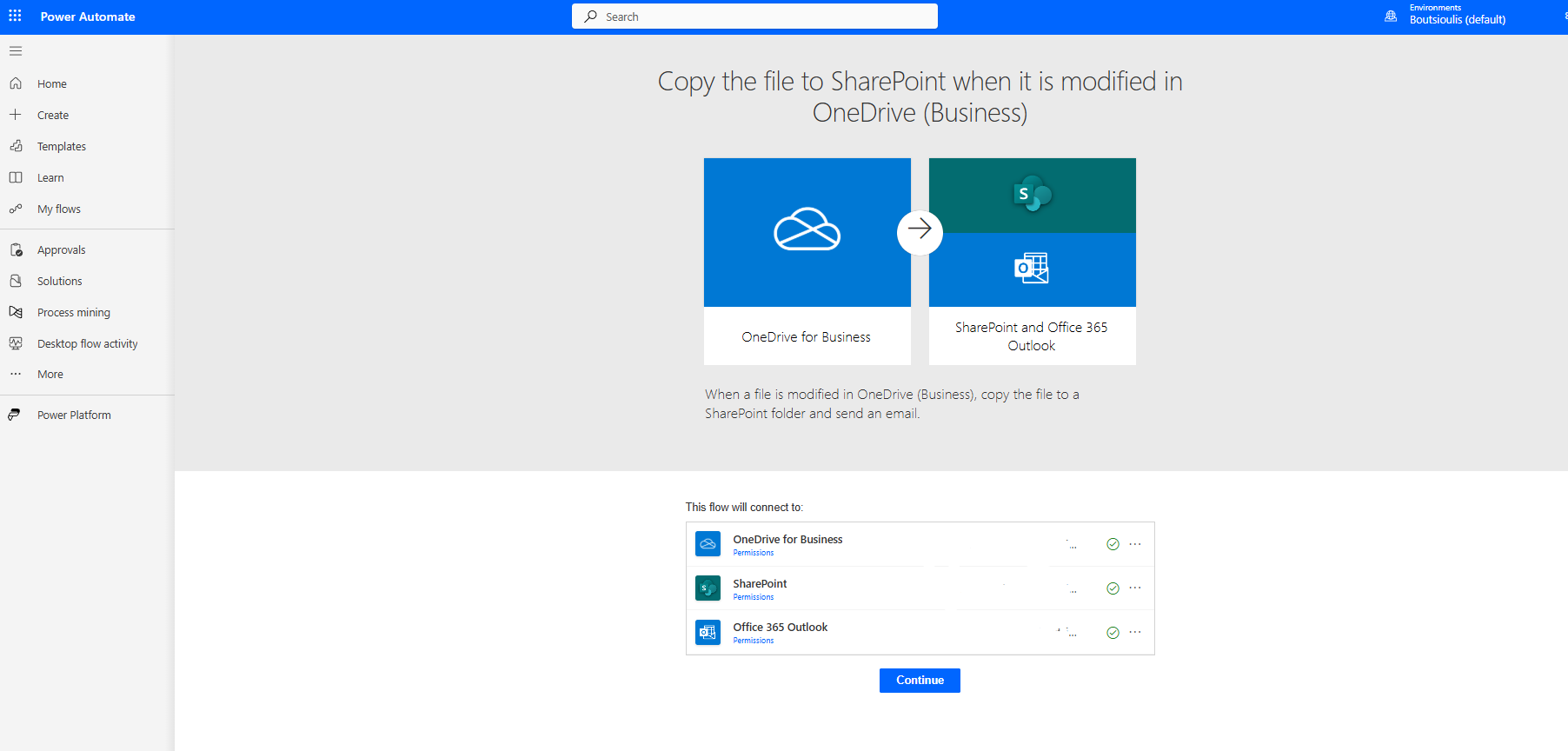
In the next screen, we allow all necessary connections and select continue.
On the automate management page, we encounter the first trigger action of type "when a file is modified" in OneDrive, where we need to specify the folder that we want the automate to affect. We also need to specify whether we want to include subfolders.
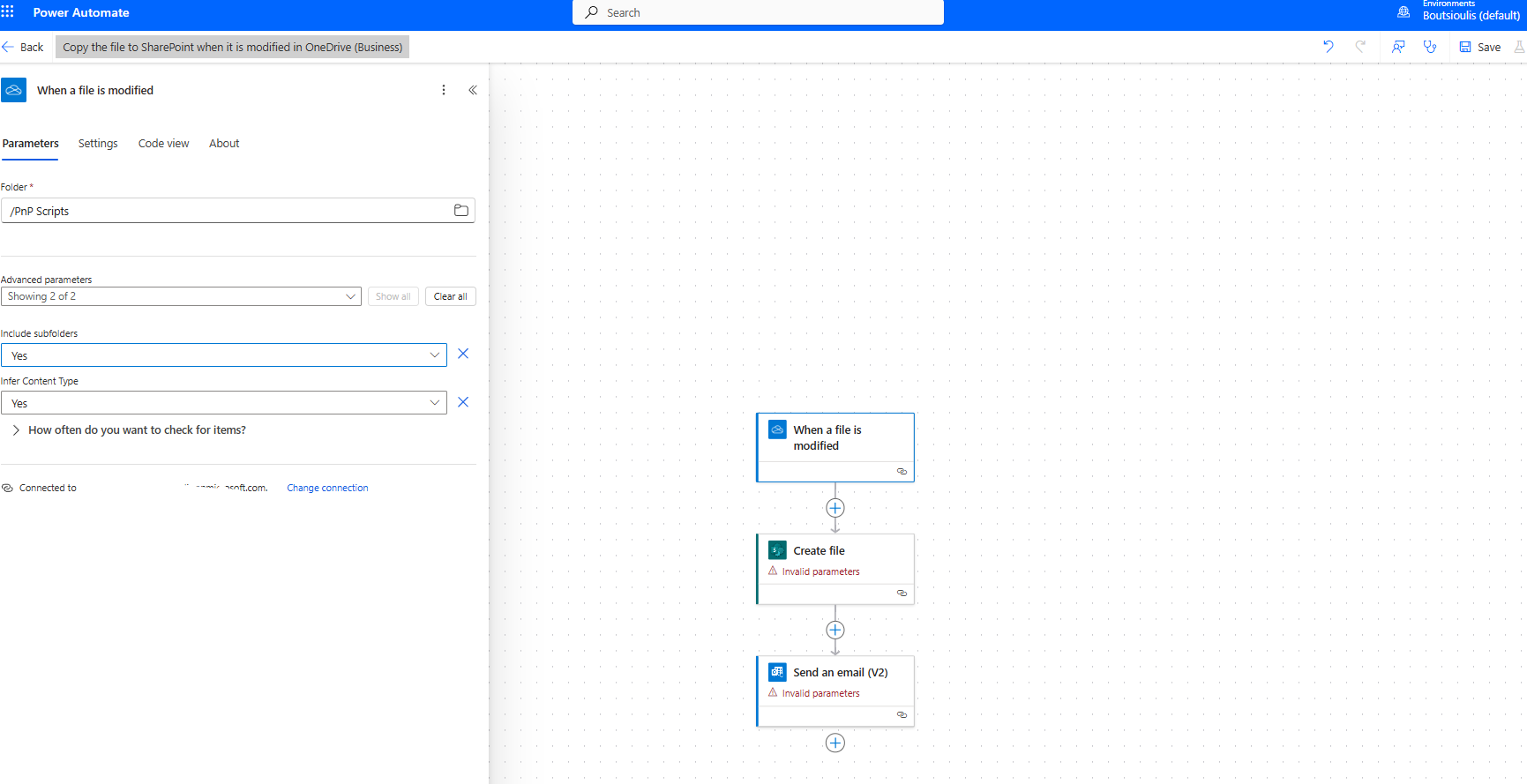
The next action is of type "create file on SharePoint," where we need to specify the site of our choice as well as the library or folder where we want the file to be saved. We also need to set the file name and file content from the properties of the initial action. If we do not specify the file type in the file name, we will end up with a file that we cannot open. In this case, I have not specified the type, so I expect it to transfer a file that I will not be able to open.
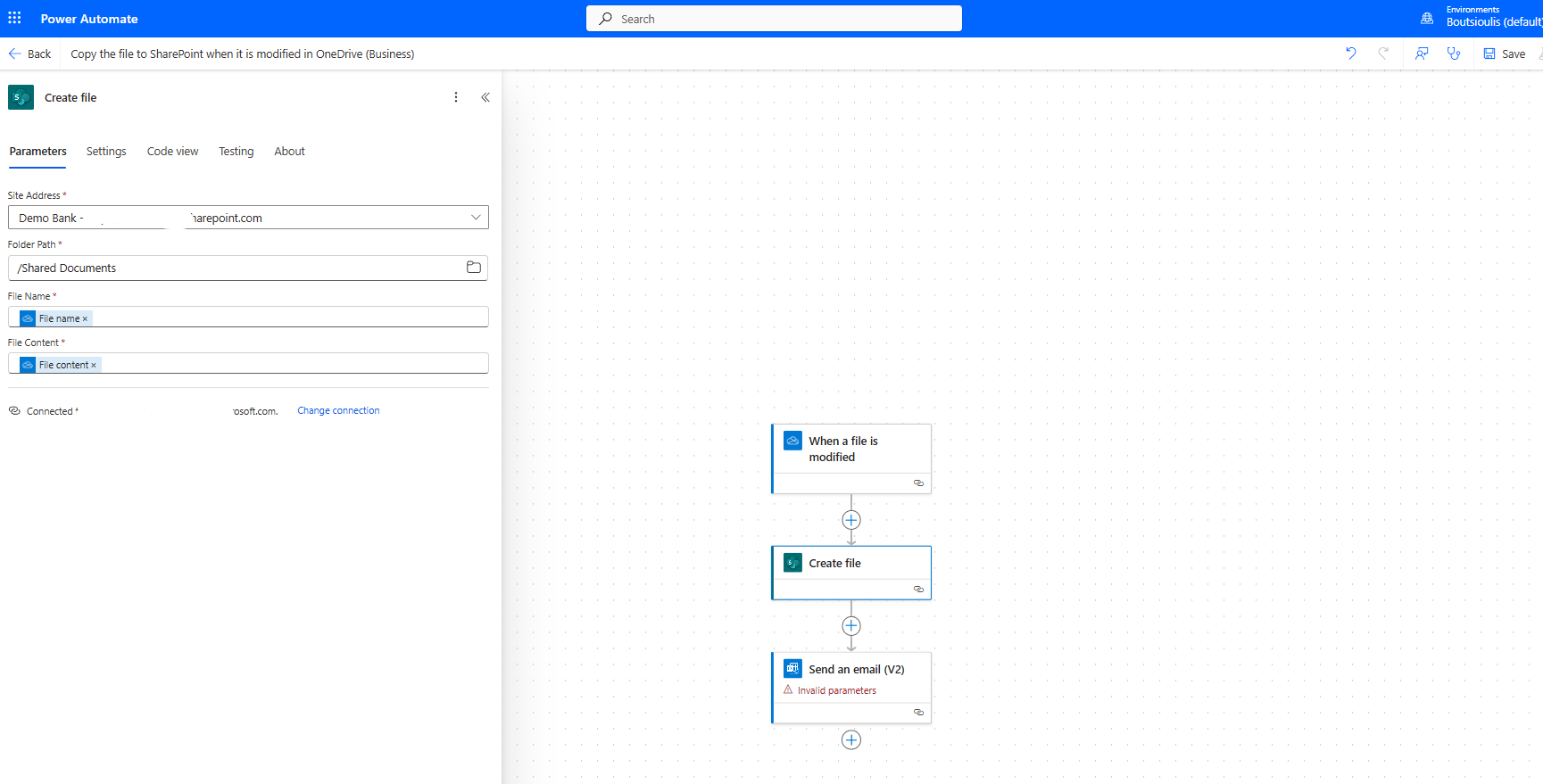
In the next step, we have an action of type "send email," where we will add the recipient as well as the file name as the subject. In the body of the email, we need to enter the path in SharePoint.
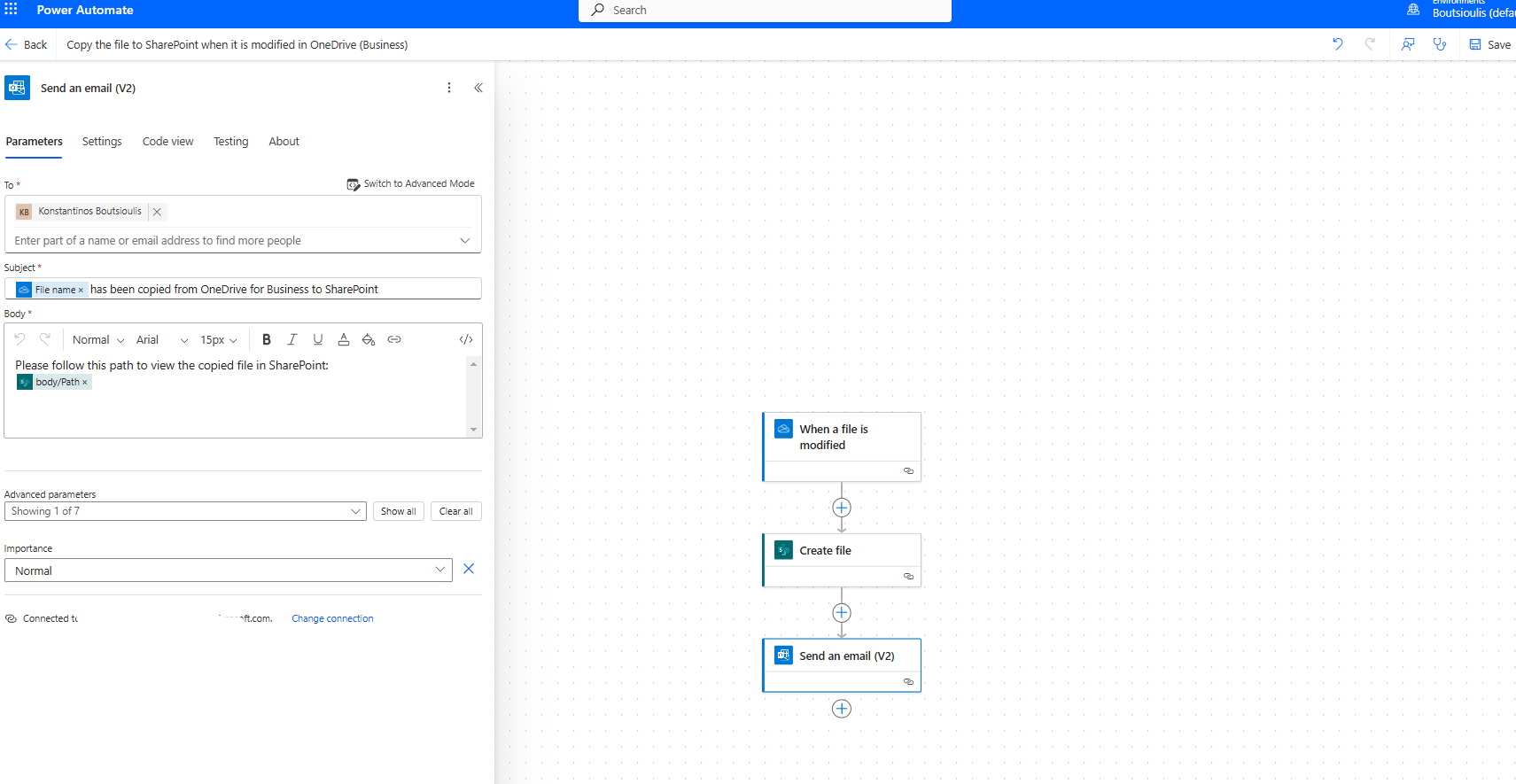
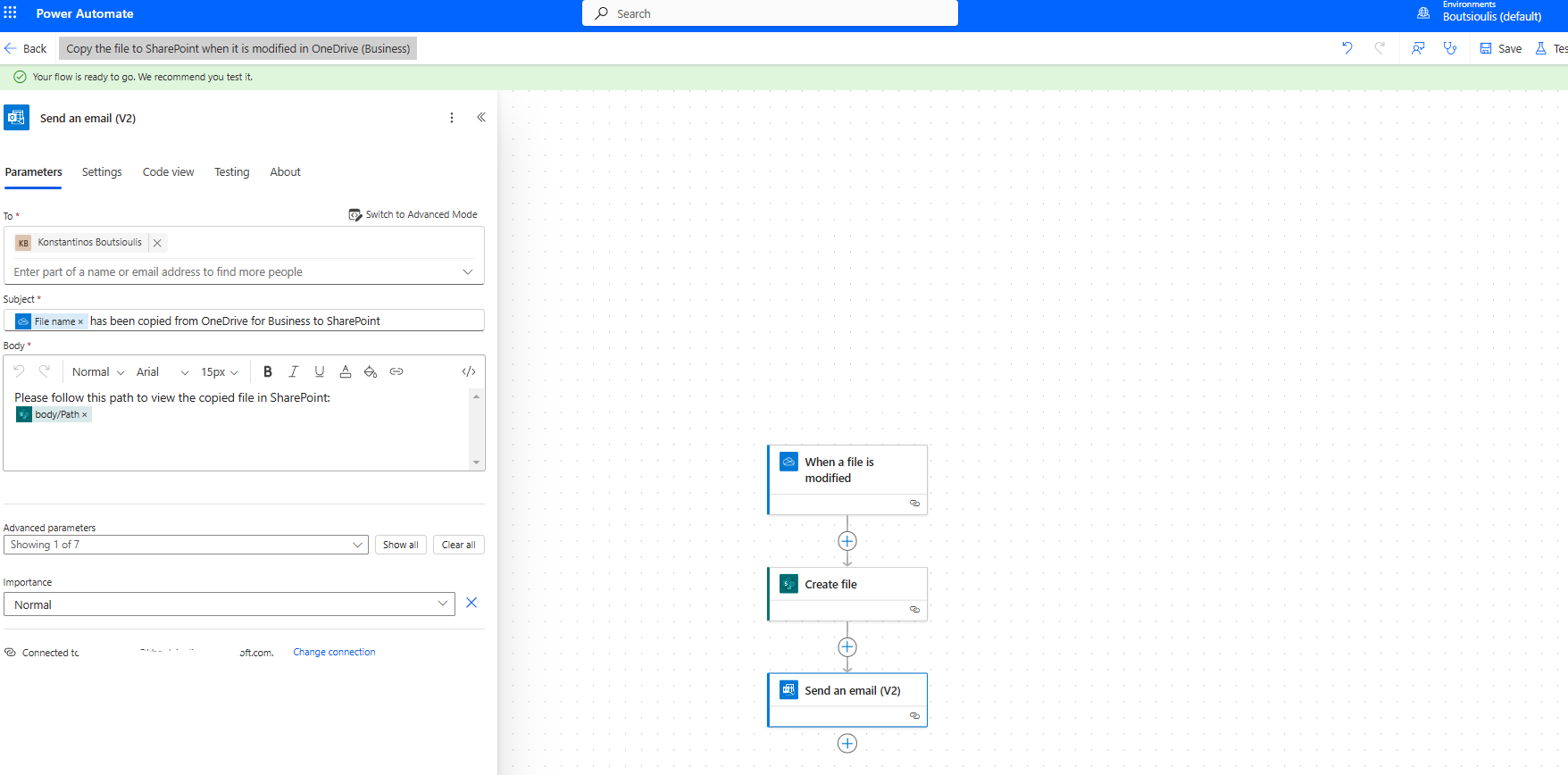
The next step is to save our automate.
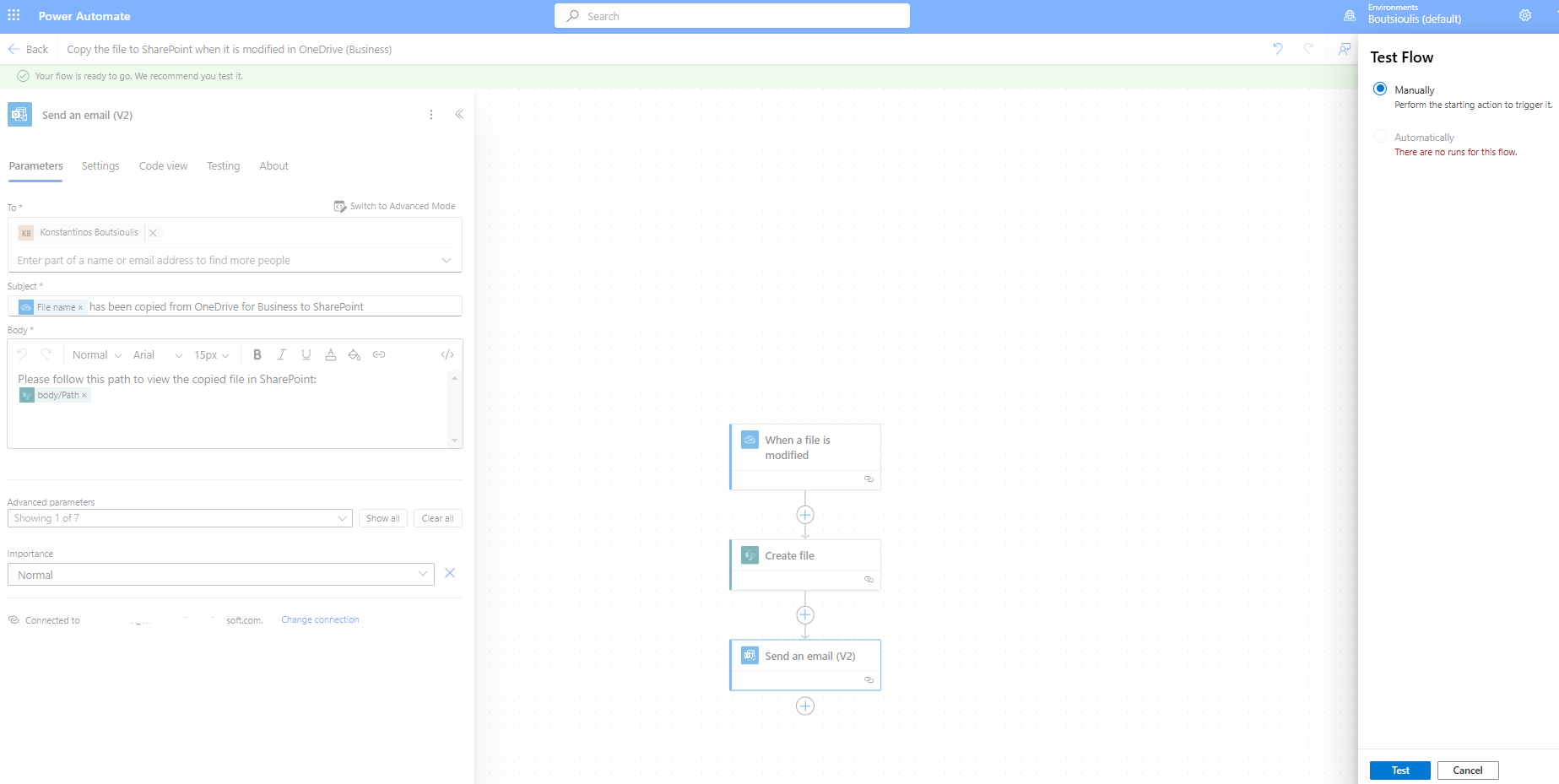
We will continue with a manually test flow.
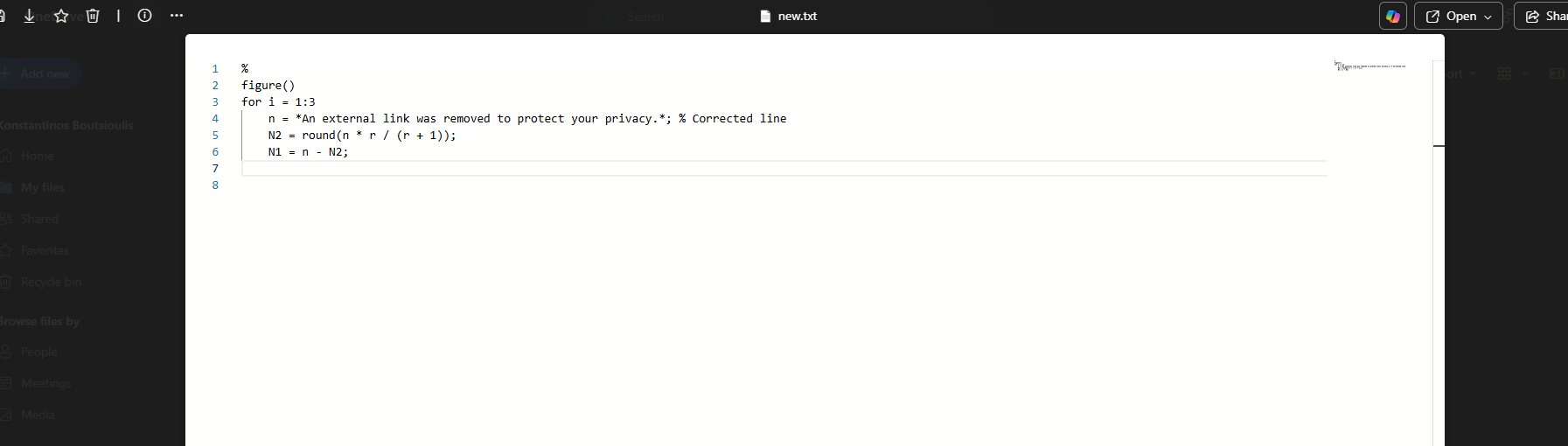
We will go to OneDrive, find our file, and make a change to the code in our file.
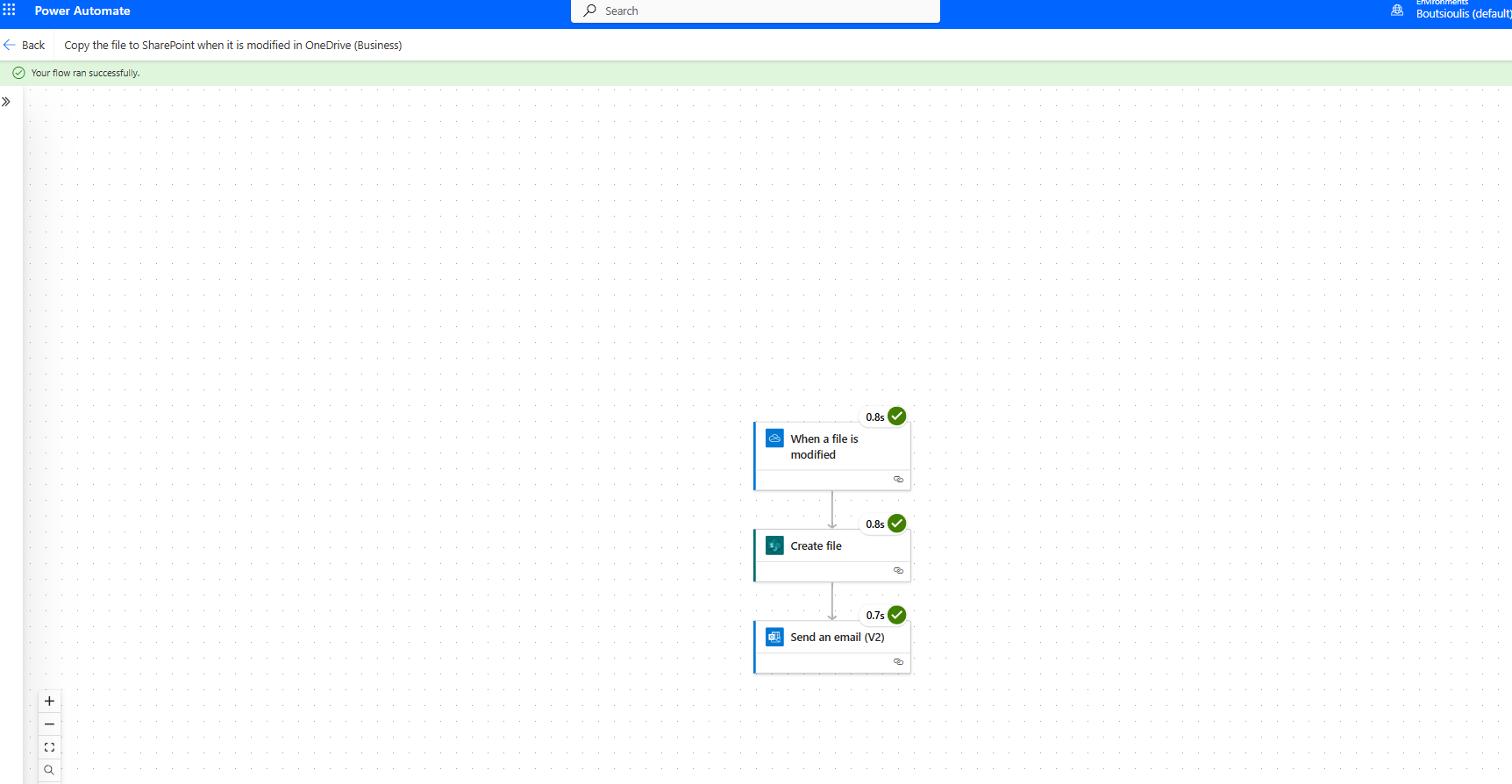
Our automate executes successfully.
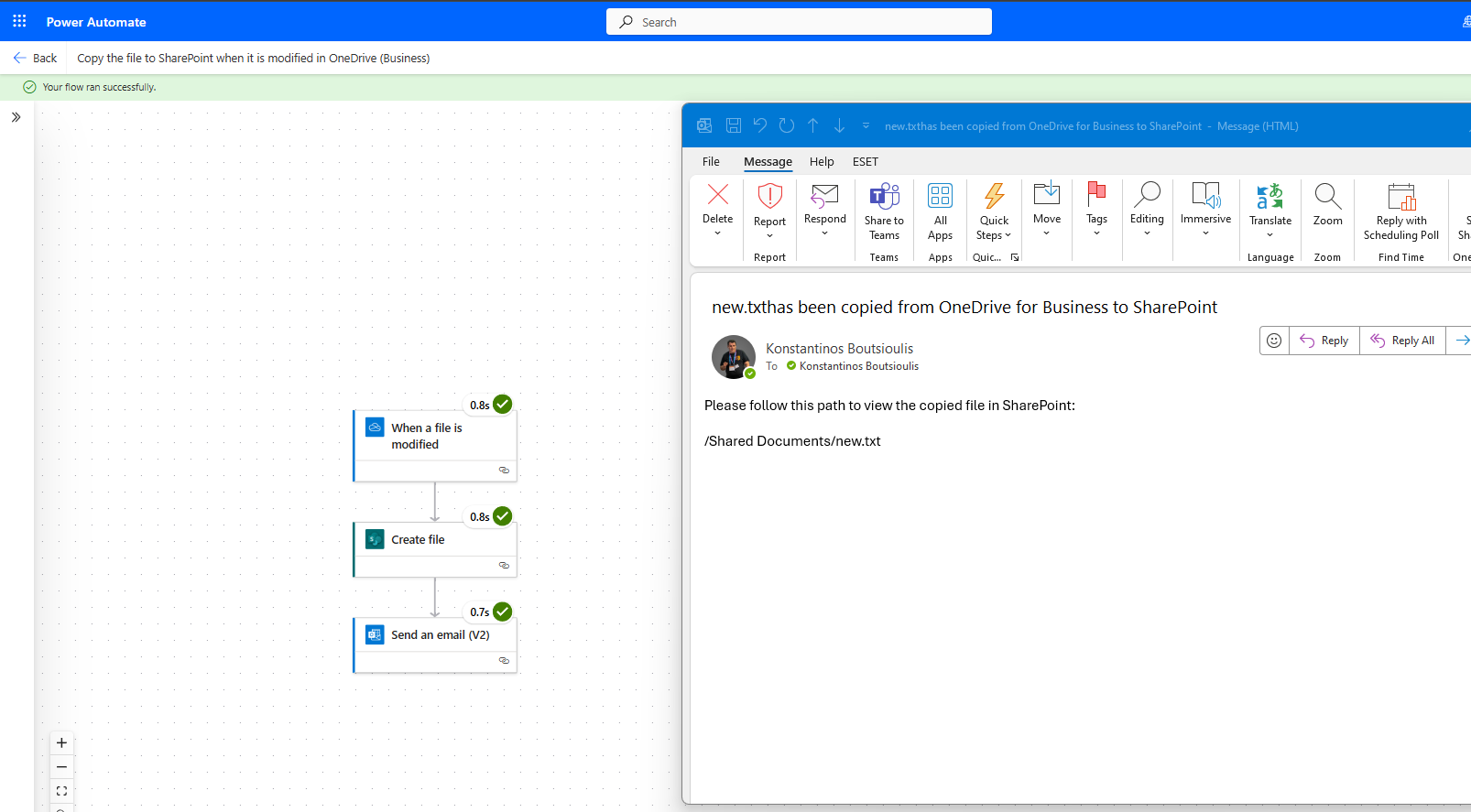
As you can see, it has sent the email informing me about the change.
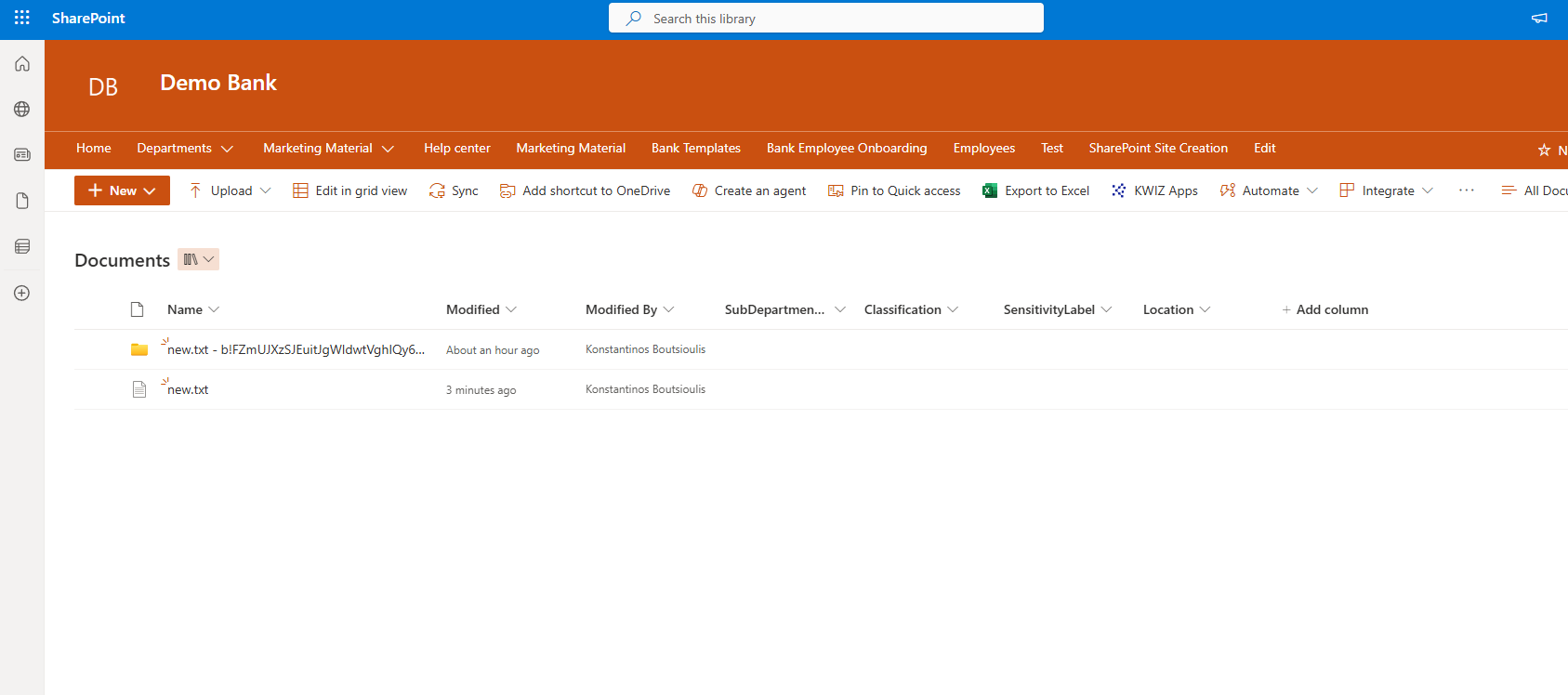
And it has also created the item in SharePoint as you can see below.
 #ModerWork
#M365_Apps_Services
#BusinessApps
#SharePoint
#PowerAutomate
#technology
#microsoft
#digitaltransformation
#cloud
#mvpbuzz
#m365
#ModerWork
#M365_Apps_Services
#BusinessApps
#SharePoint
#PowerAutomate
#technology
#microsoft
#digitaltransformation
#cloud
#mvpbuzz
#m365
Visit Archives below to find more articles about Microsoft technologies on Modern Workplace