
Free Material
Find hereMore than 150 Articles about Microsoft Technologies on Modern Workplace
Official Site
Microsoft Most Valuable Professional M365 Apps & Services
Microsoft Most Valuable Professional Business Applications
Consultant & Sr Cloud Solution Architect Modern Wokrplace
Find hereMore than 150 Articles about Microsoft Technologies on Modern Workplace
09 December 2024
In today's article, we will provide a brief introduction to the Copilot agent in SharePoint. In October 2024, the Copilot agent was integrated into SharePoint pages. Today, we will see how we can interact with the agent on SharePoint content.
I have created a page for a virtual bank environment that includes departments, company news, and an Educational Portal. I open this page, and at the top right, there is the Copilot icon, which I select.
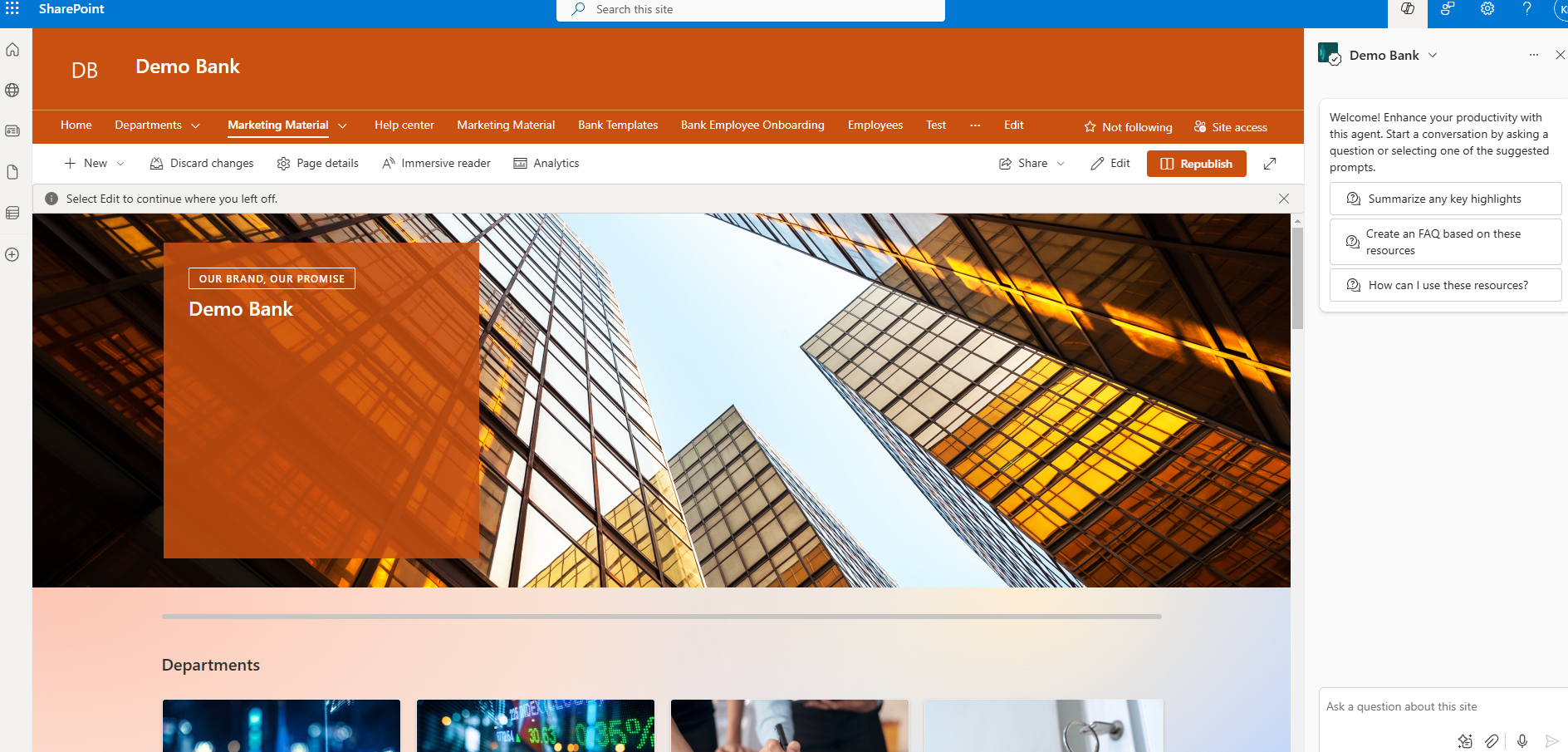
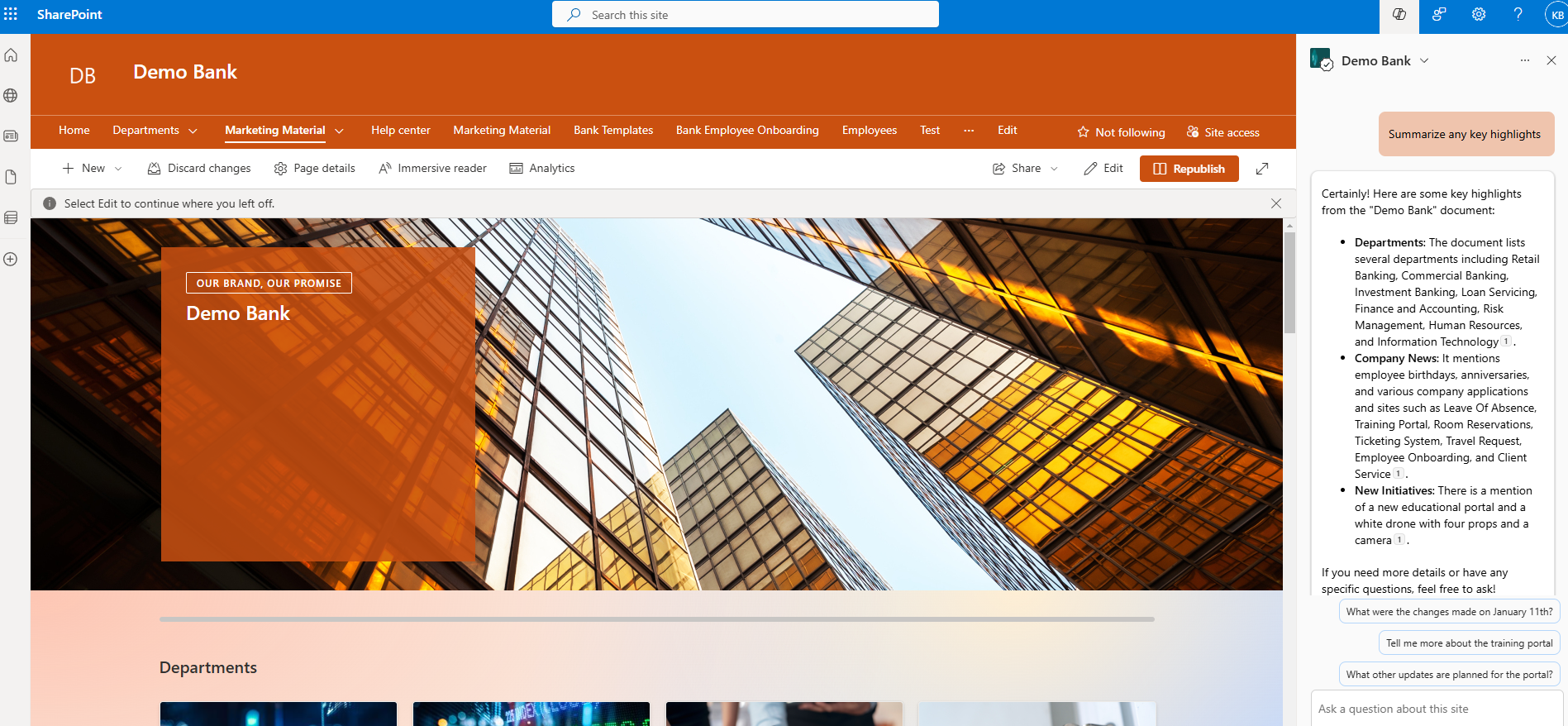
First, I enter a prompt: "Summarize any key highlights" for my page. As you can see, Copilot has identified the key highlights of my page and starts responding about the content of each section.
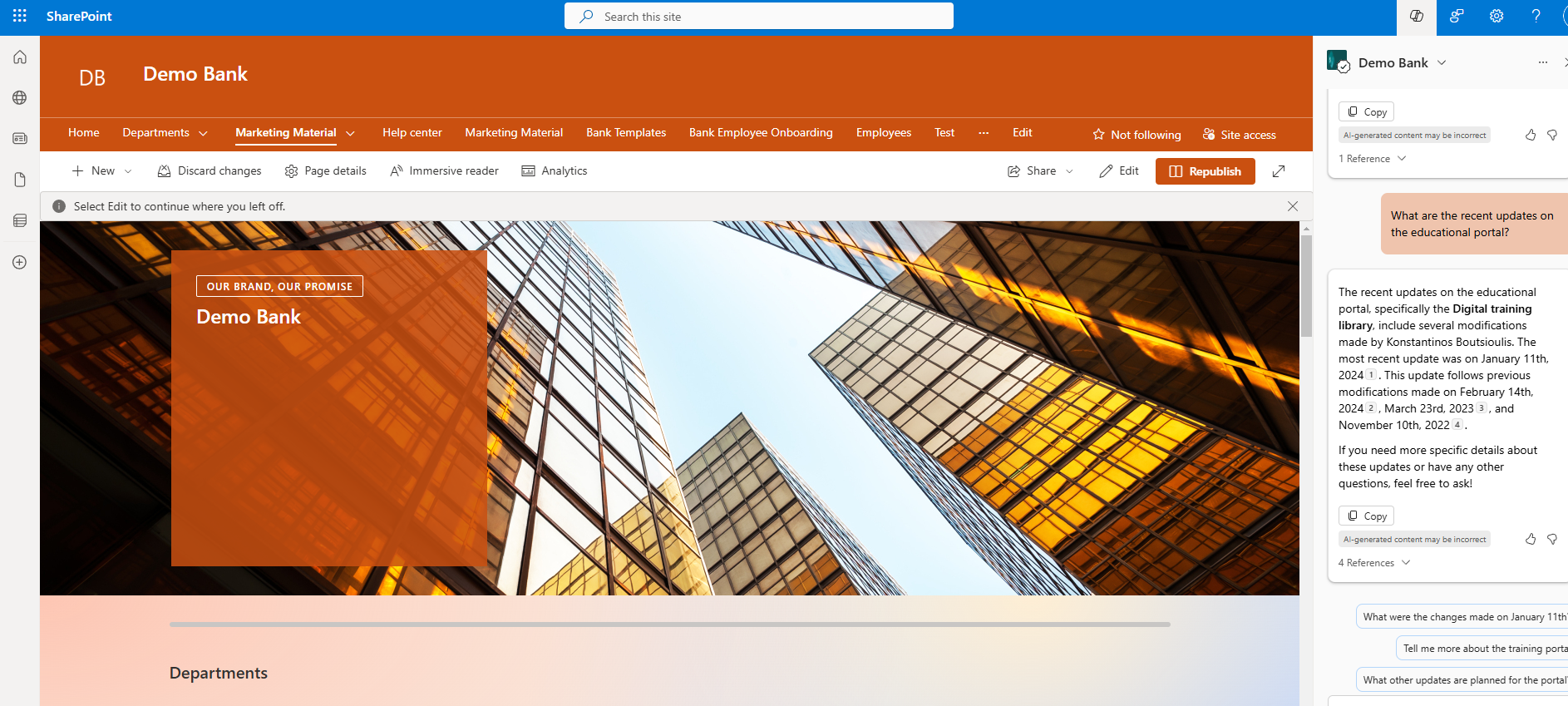
Let's assume I am a user unfamiliar with the environment and I find something interesting, like the educational portal, and I want more information. I enter another prompt: "What are the recent updates on the educational portal?" and Copilot identifies all the changes that have been made and responds to me.
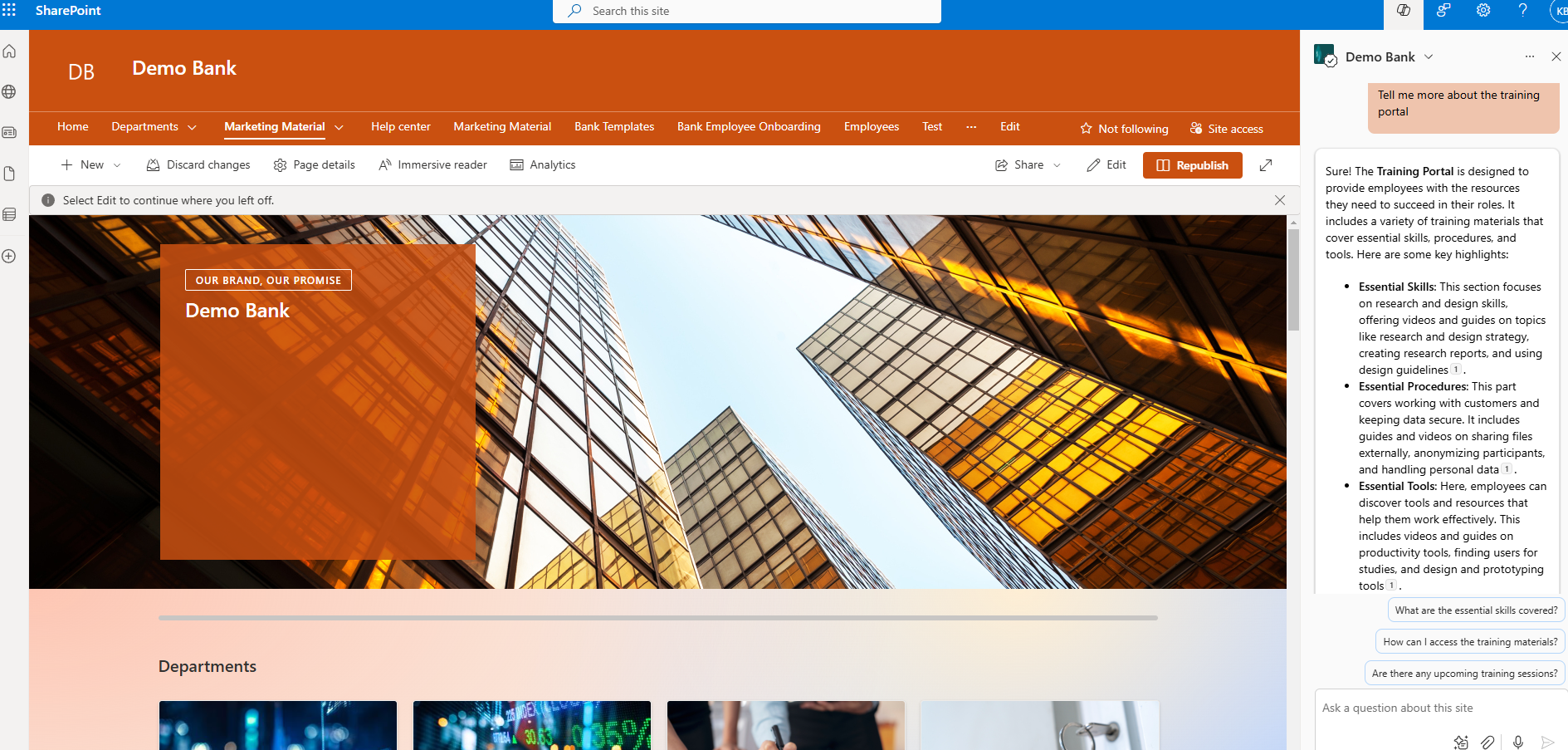
I want to learn more about the educational portal, so I continue with a new prompt: "Tell me more about the training portal." Copilot identifies the page, reads the content, and analyzes what is included.
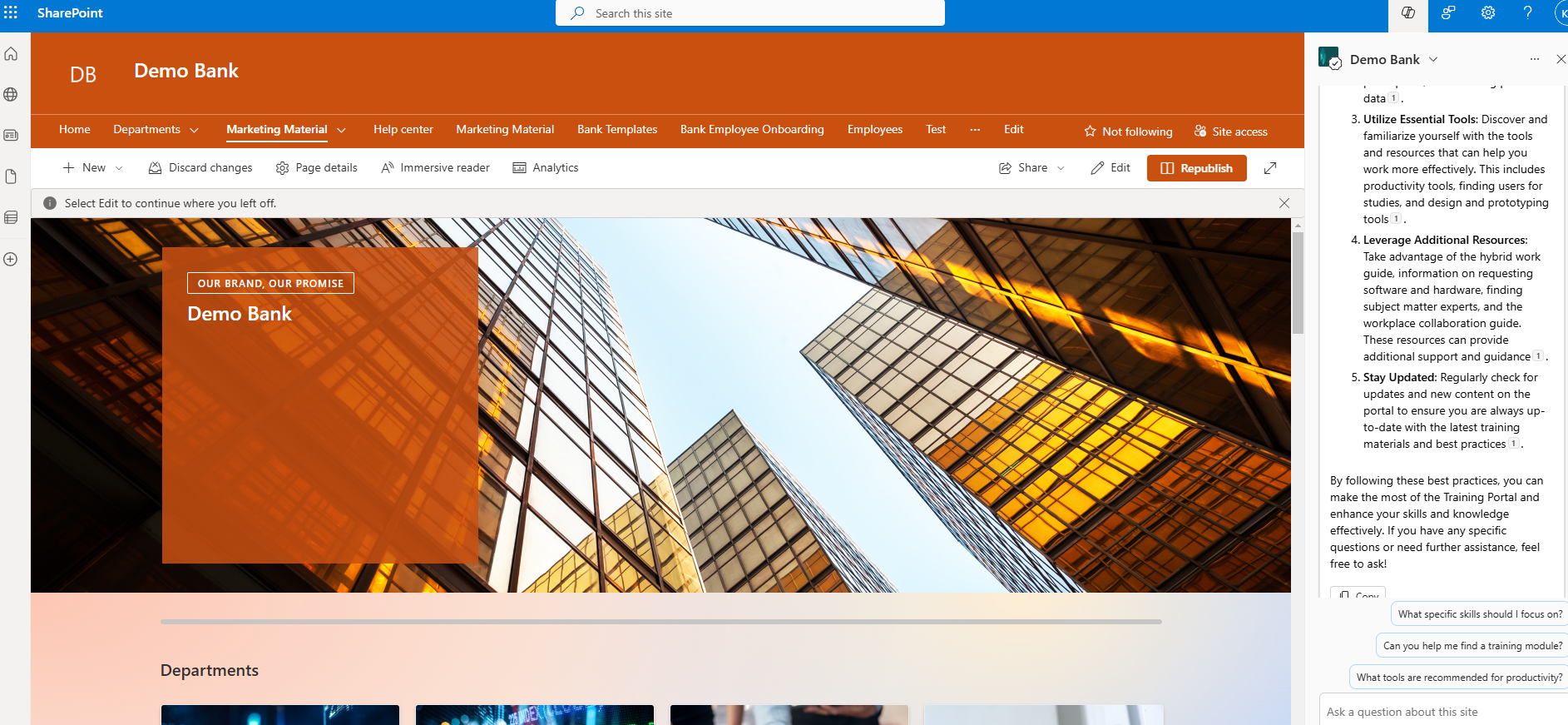
I will continue to send prompts to the agent about the training portal, such as "What are the best practices for using the training portal?" After composing the answer from the existing content, it responds to me.
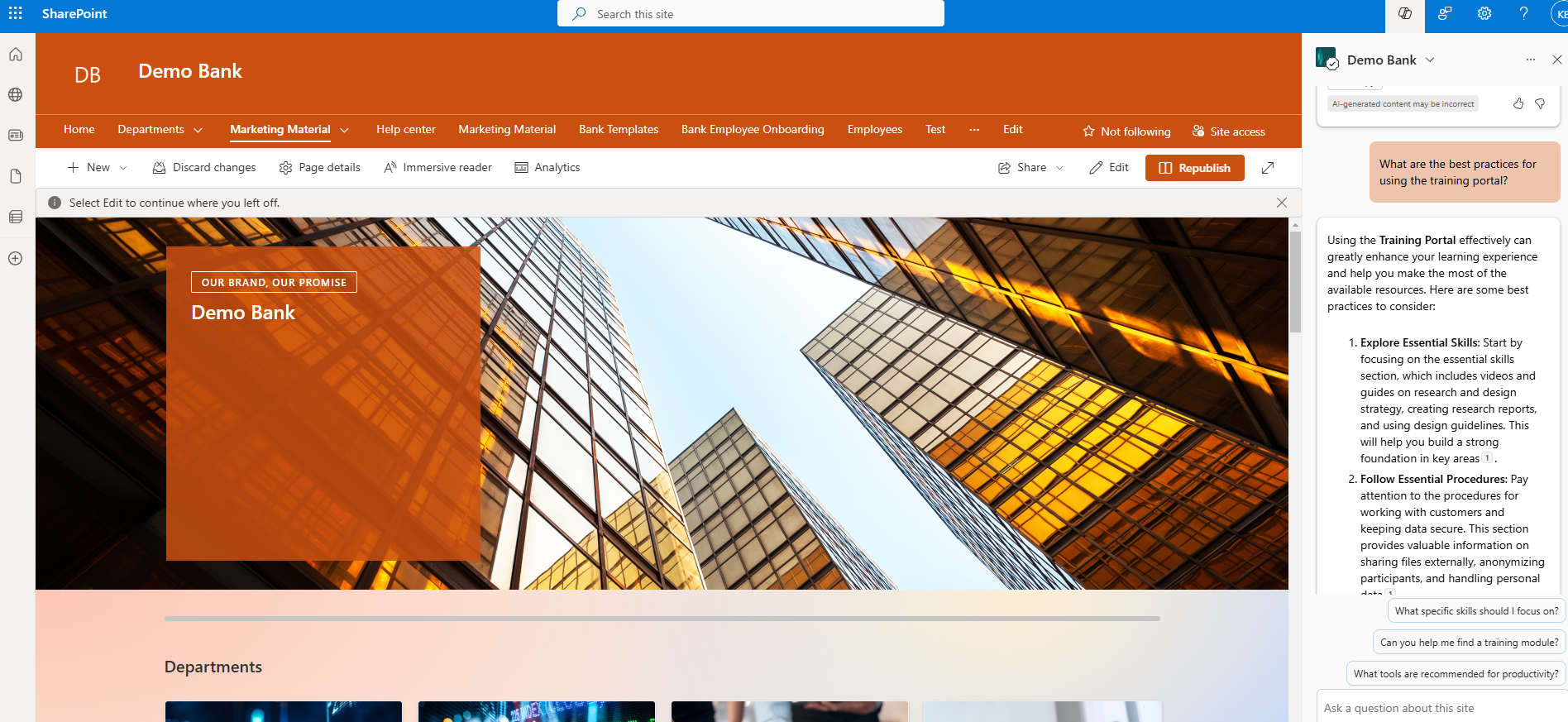
I should note here that if I have created a page that contains detailed information, the response will be significantly better for my end user and will guide them correctly on how to use the portal. Therefore, the responsibility of the design is enhanced if we want our users to understand the functionality and content of the portal we created.
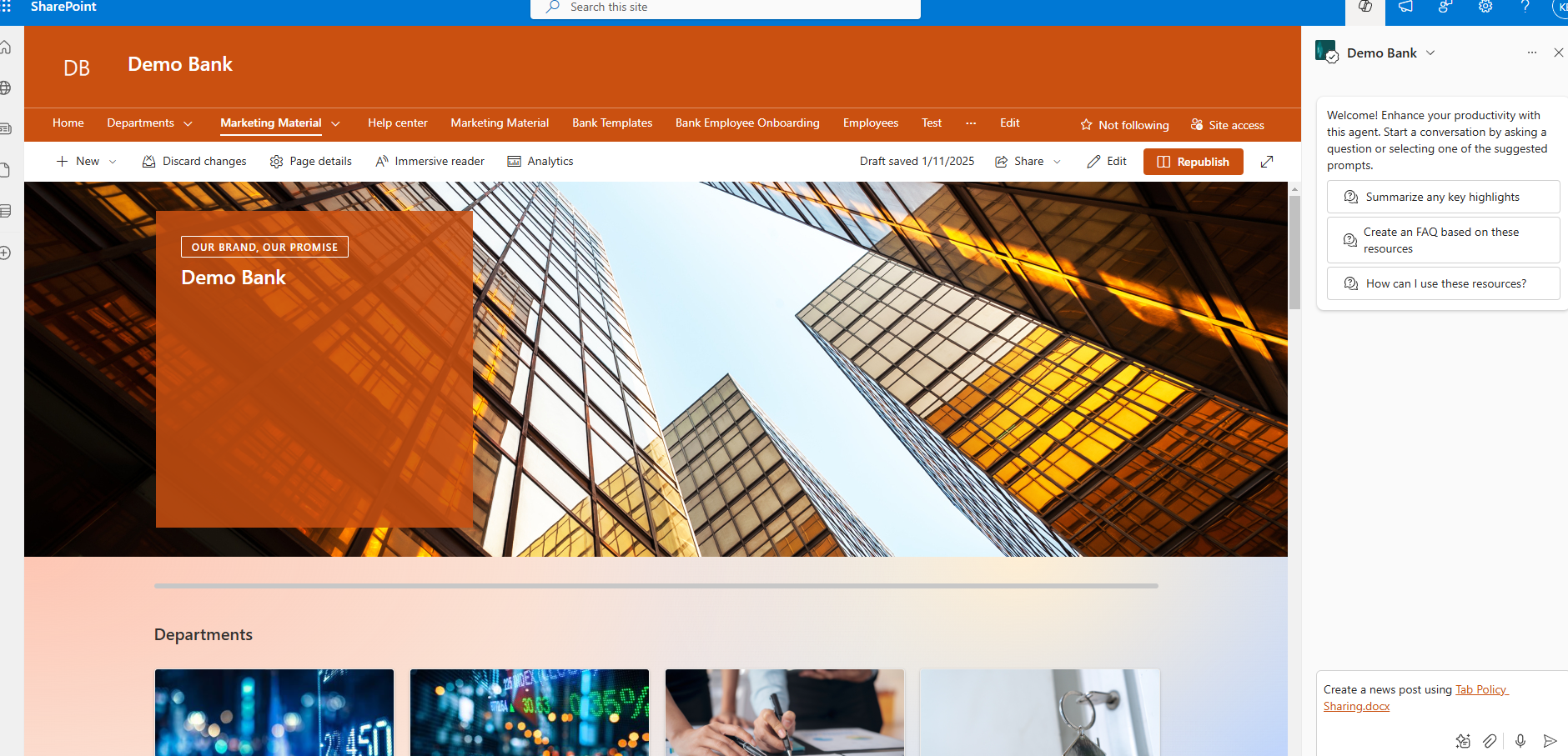
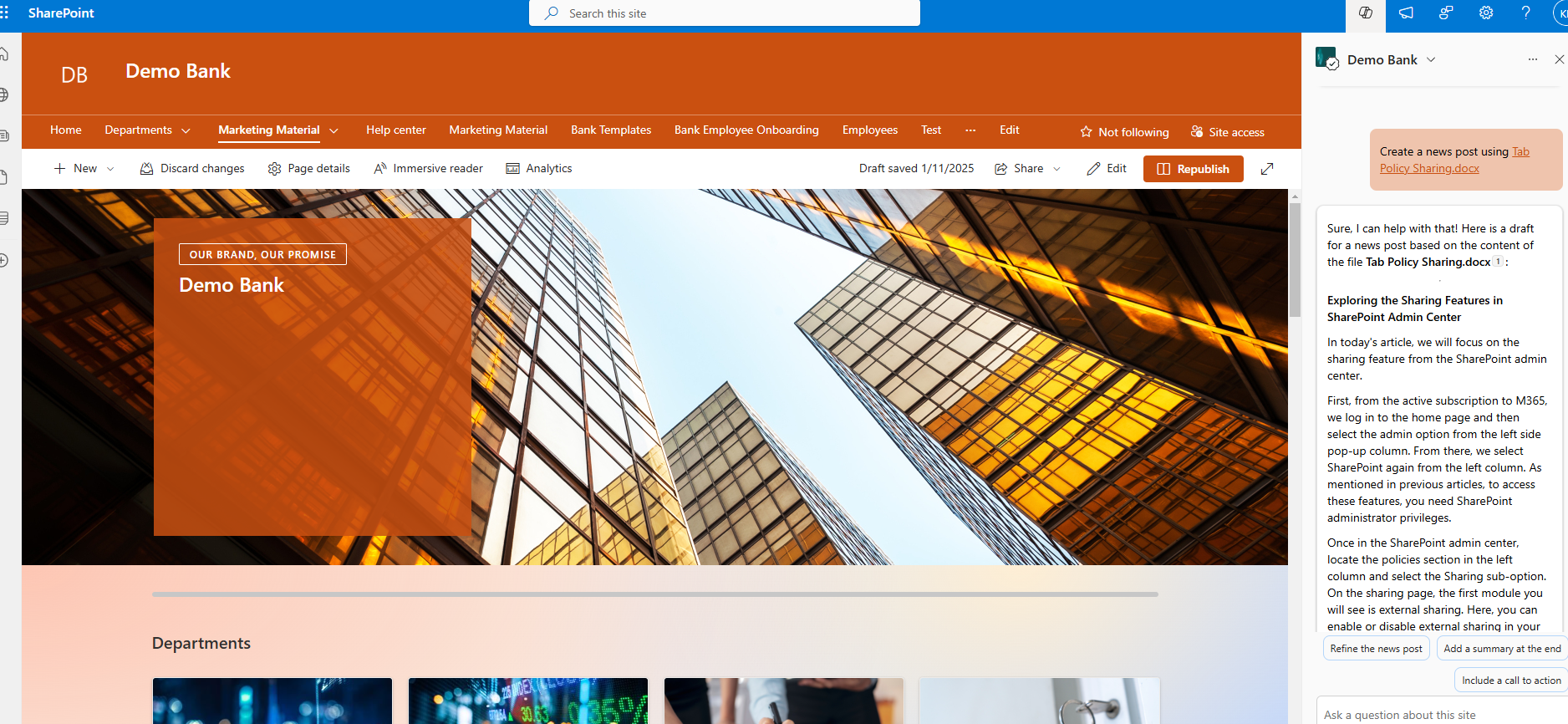
I will move on to another function I have with Copilot. I will locate a file within my portal and want to create a new post about this file to inform my users about the new file in a SharePoint library and what it contains. I send a new prompt: "Create a news post using TabPolicySharing.docx."
Copilot identified the file, read it, and created a new news post based on its content.
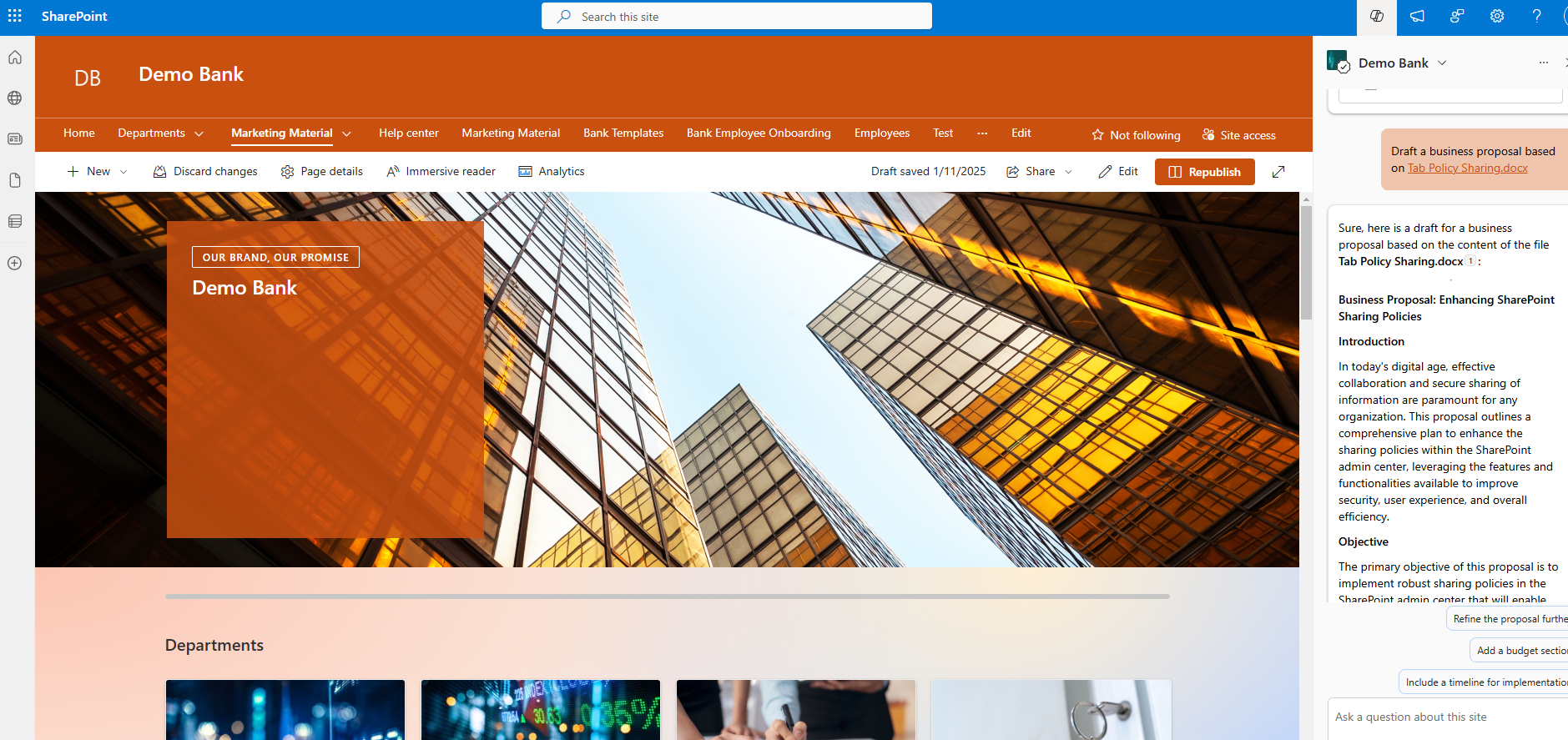
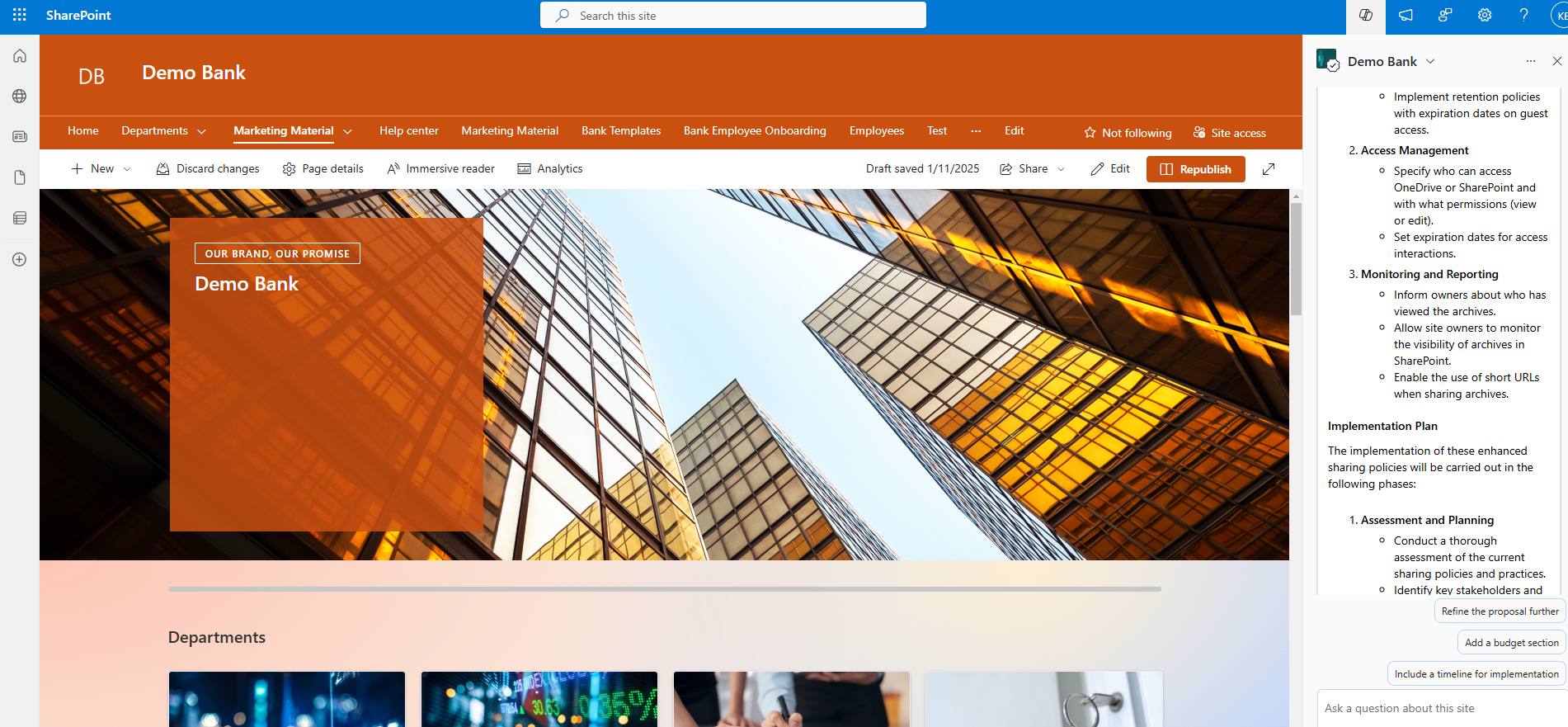
The next step is to draft a proposal for a new project based on the same file. I send a prompt: "Draft a business proposal based on Using TabPolicySharing.docx."
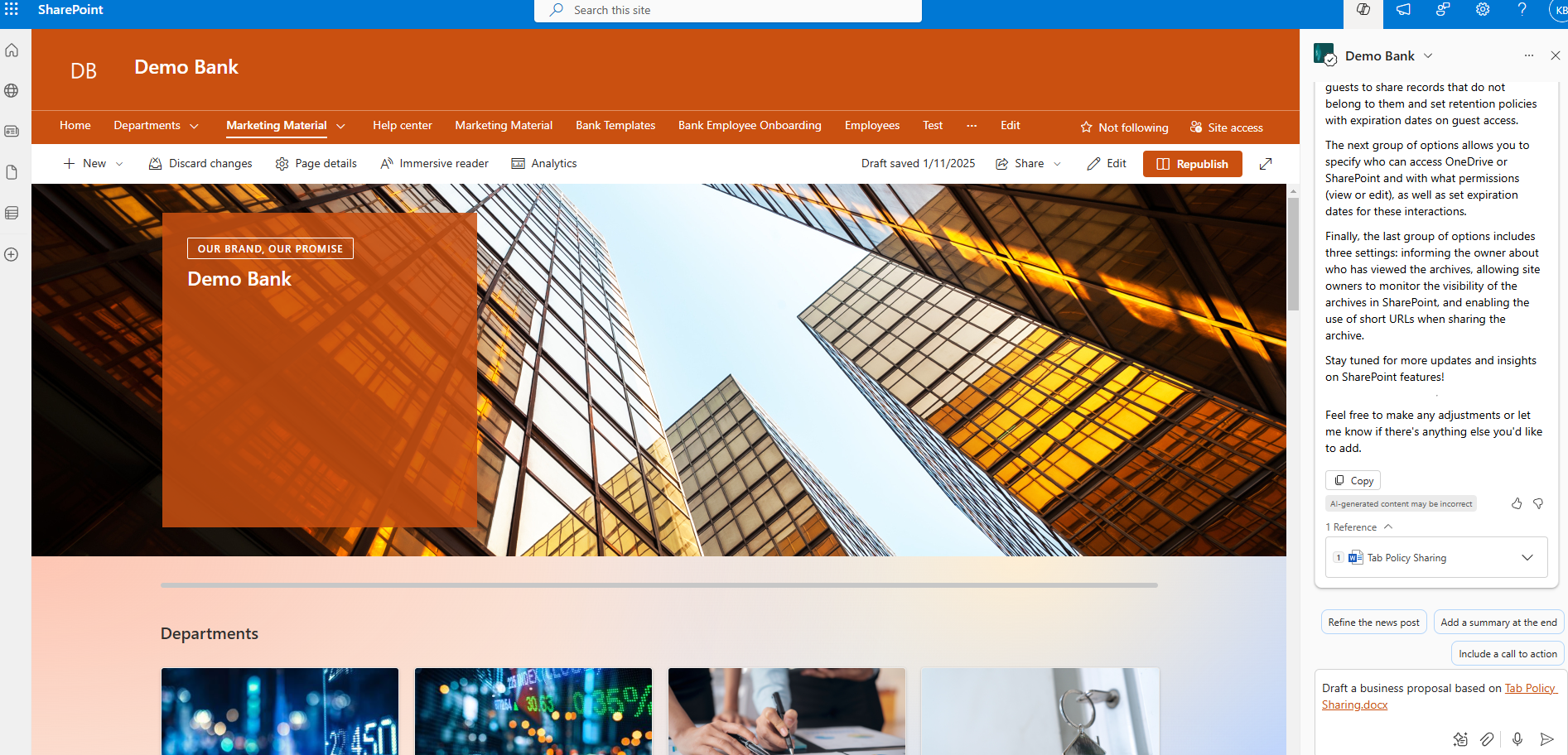
Copilot read the content again and composed a new business proposal for me based on this file.
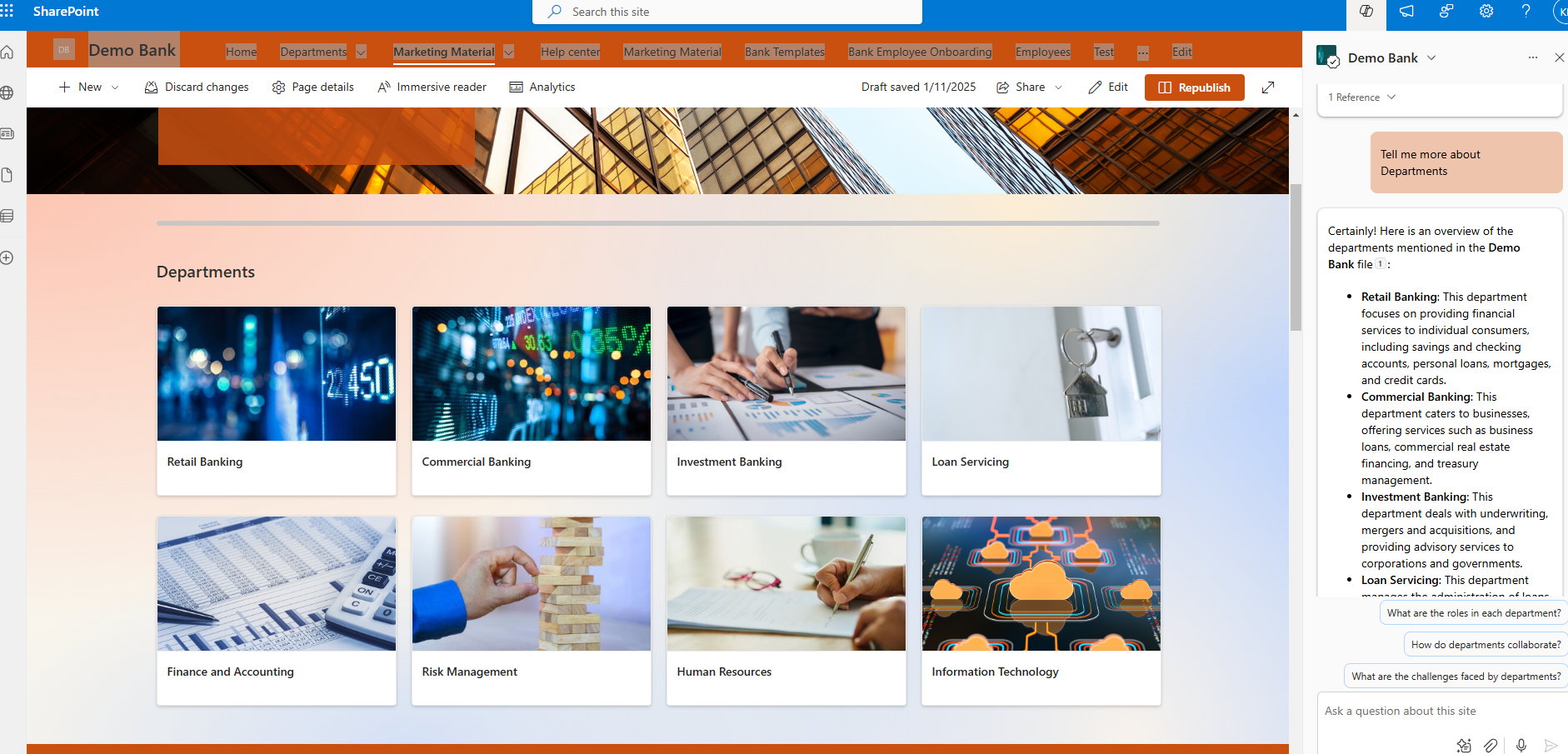
Finally, I can retrieve any information related to the content of the page, such as information about the various departments of the virtual bank. I send a new prompt: "Tell me more about departments." Copilot reads the content of the page and the subpages of the departments and provides me with a comprehensive answer with all the information for each department.
This was a first look at the Copilot agent in SharePoint. I will return with new articles that will analyze more features and options.
#ModerWork #M365_Apps_Services #BusinessApps #SharePoint #PowerAutomate #technology #microsoft #digitaltransformation #cloud #mvpbuzz #m365Visit Archives below to find more articles about Microsoft technologies on Modern Workplace