
Free Material
Find hereMore than 150 Articles about Microsoft Technologies on Modern Workplace
Official Site
Microsoft Most Valuable Professional M365 Apps & Services
Microsoft Most Valuable Professional Business Applications
Consultant & Sr Cloud Solution Architect Modern Wokrplace
Find hereMore than 150 Articles about Microsoft Technologies on Modern Workplace
05 December 2023
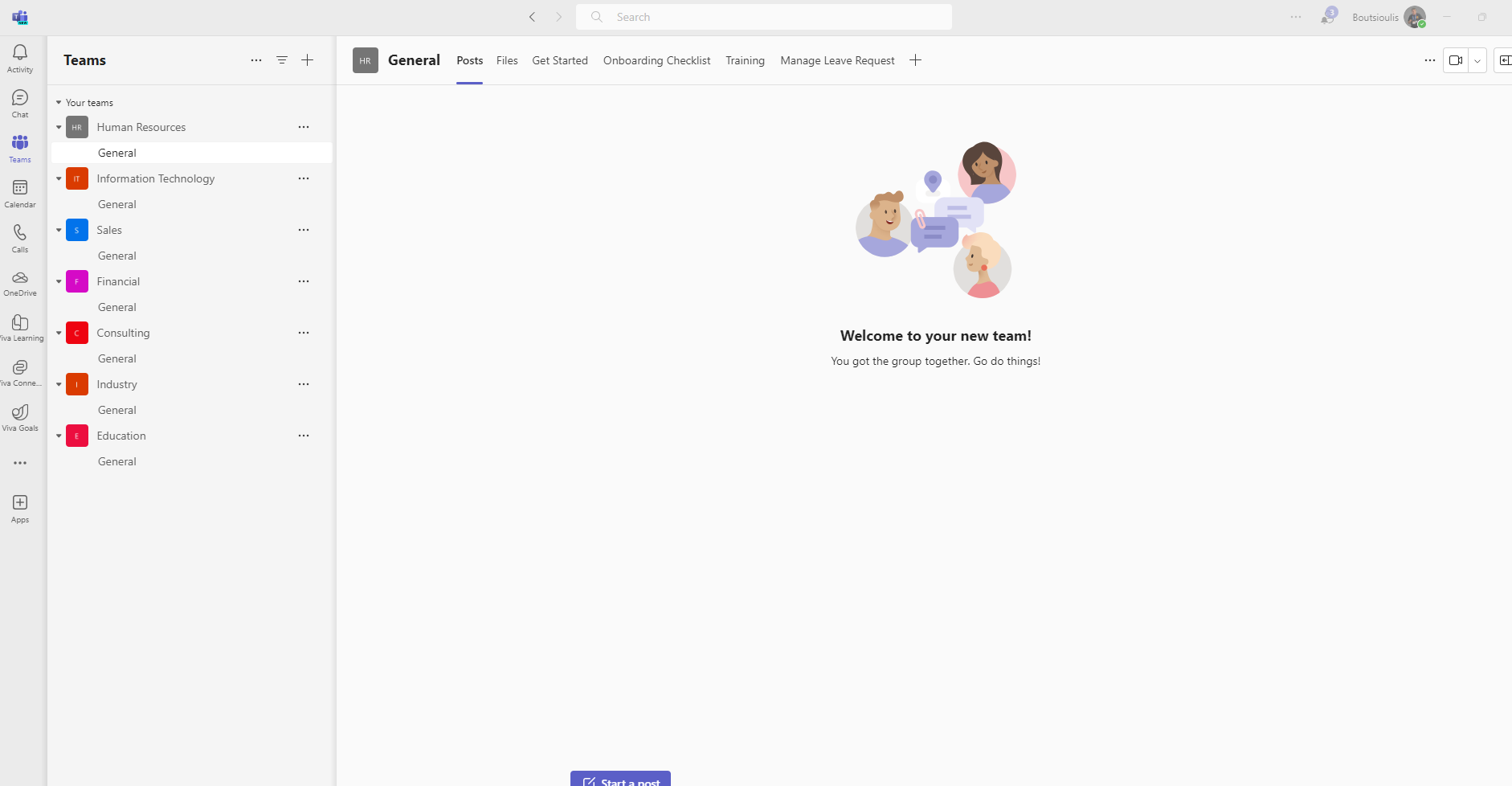
In today's article as well as last time we will deal again with Teams Premium and show you how we can use the Town Hall template, a process that is recommended for events that will have a large number of participants in the call First of all, as always, there must be an active M365 subscription and also an active Teams Premium subscription. We will enter the main M365 page and select Microsoft Teams .
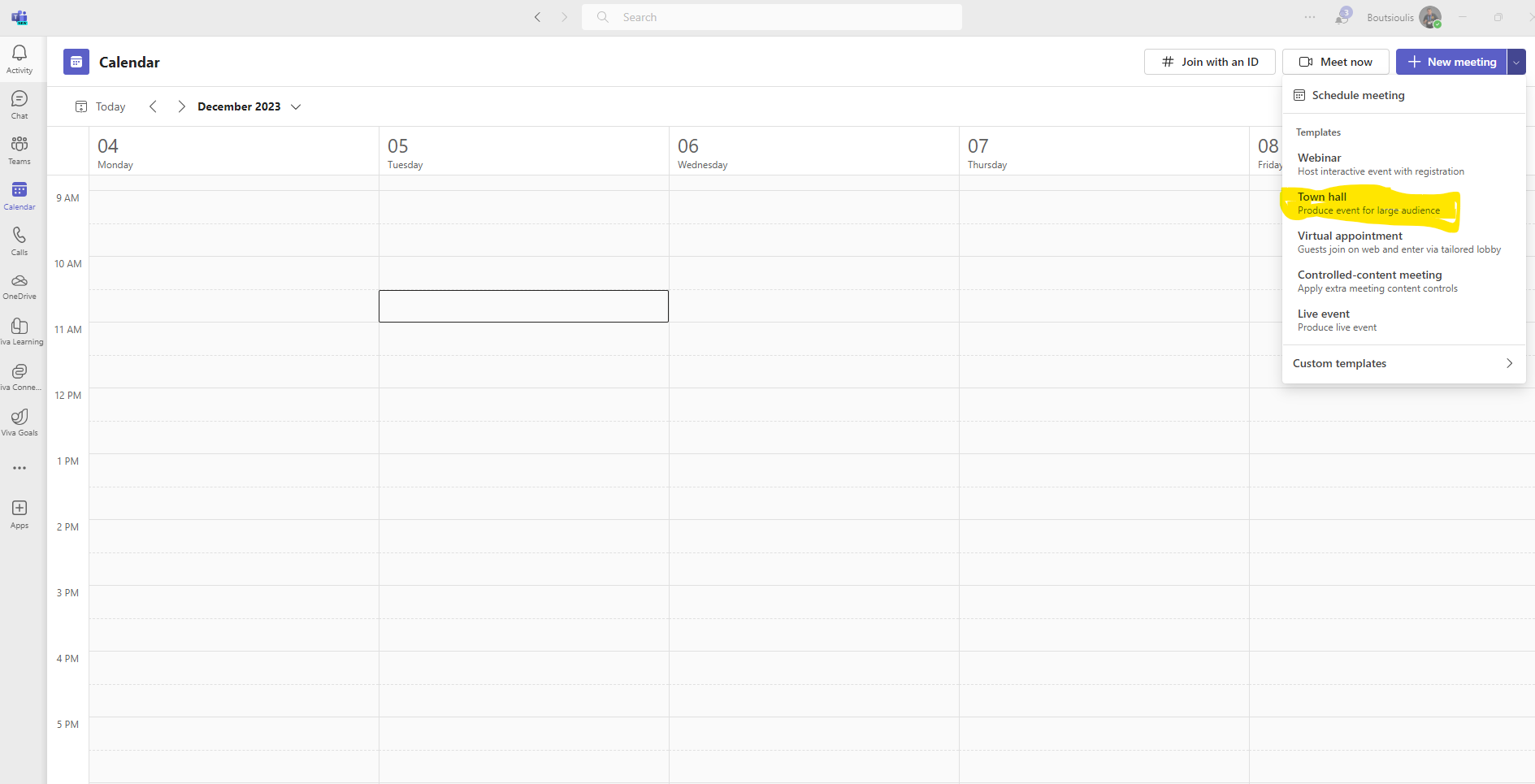
Alternatively from the Microsoft Teams application then select calendar and again up and right on the arrow next to New Meeting in the pop-up menu select Town Hall
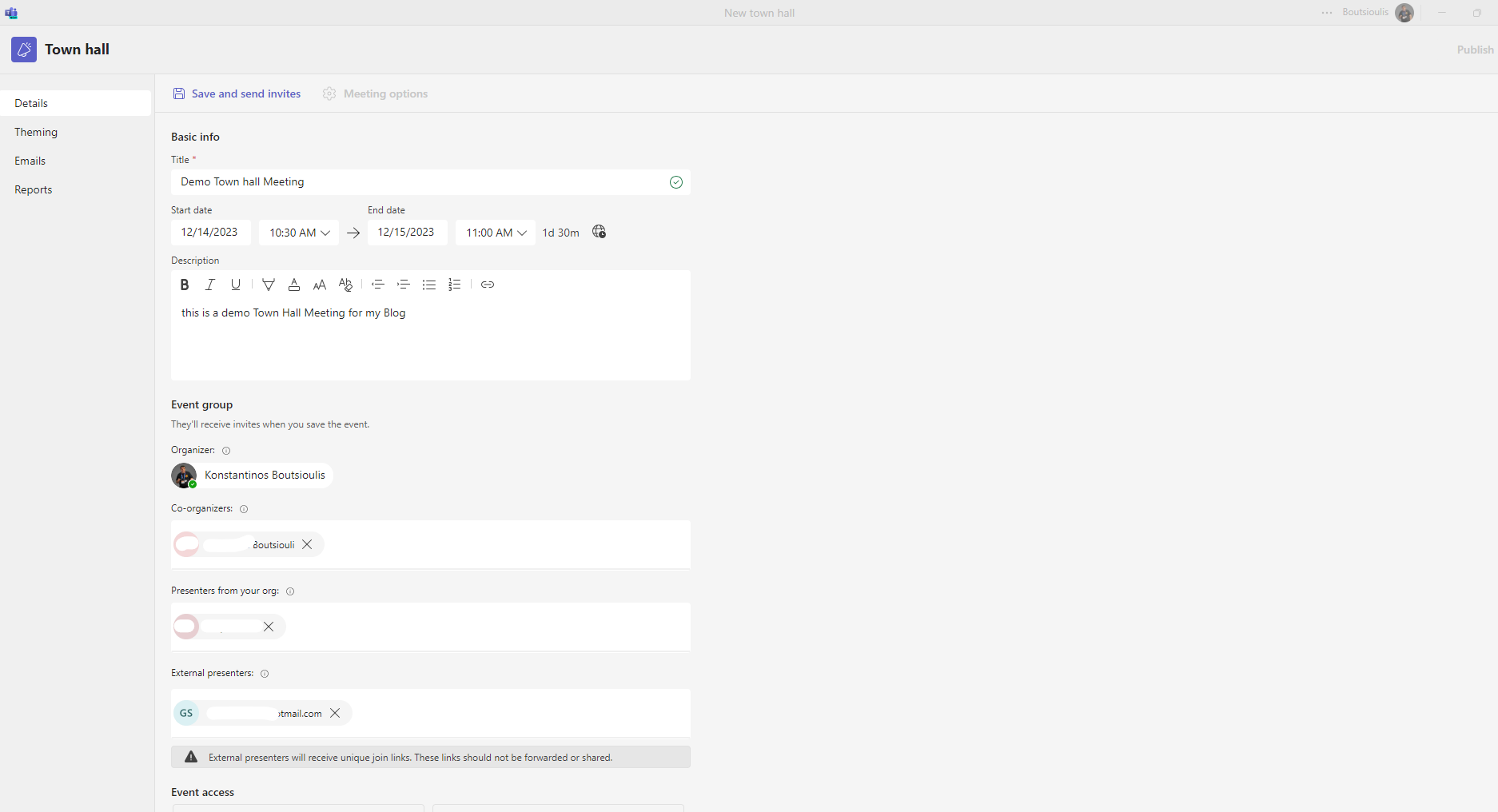
This will take you to the event creation and configuration page First we notice on the left a column with different tabs and in each of them there are different options . To see all these options together one by one In the first tab Details is pretty much our familiar tab that we create an event where at the top we are asked for a title of the event and immediately below we have to enter the date and time of opening as well as date and time of end of the event There is the context in which we should enter a description for our event There is the field of organizer as well as field with co-organizer as well as another field where we can enter Presenters from our organization. If we wish to import presenters from outside our organization we select the next field to import external presenters As you can see in the message the external presenters will receive an email with a unique join link . And he suggests that we do not share these links with the community.
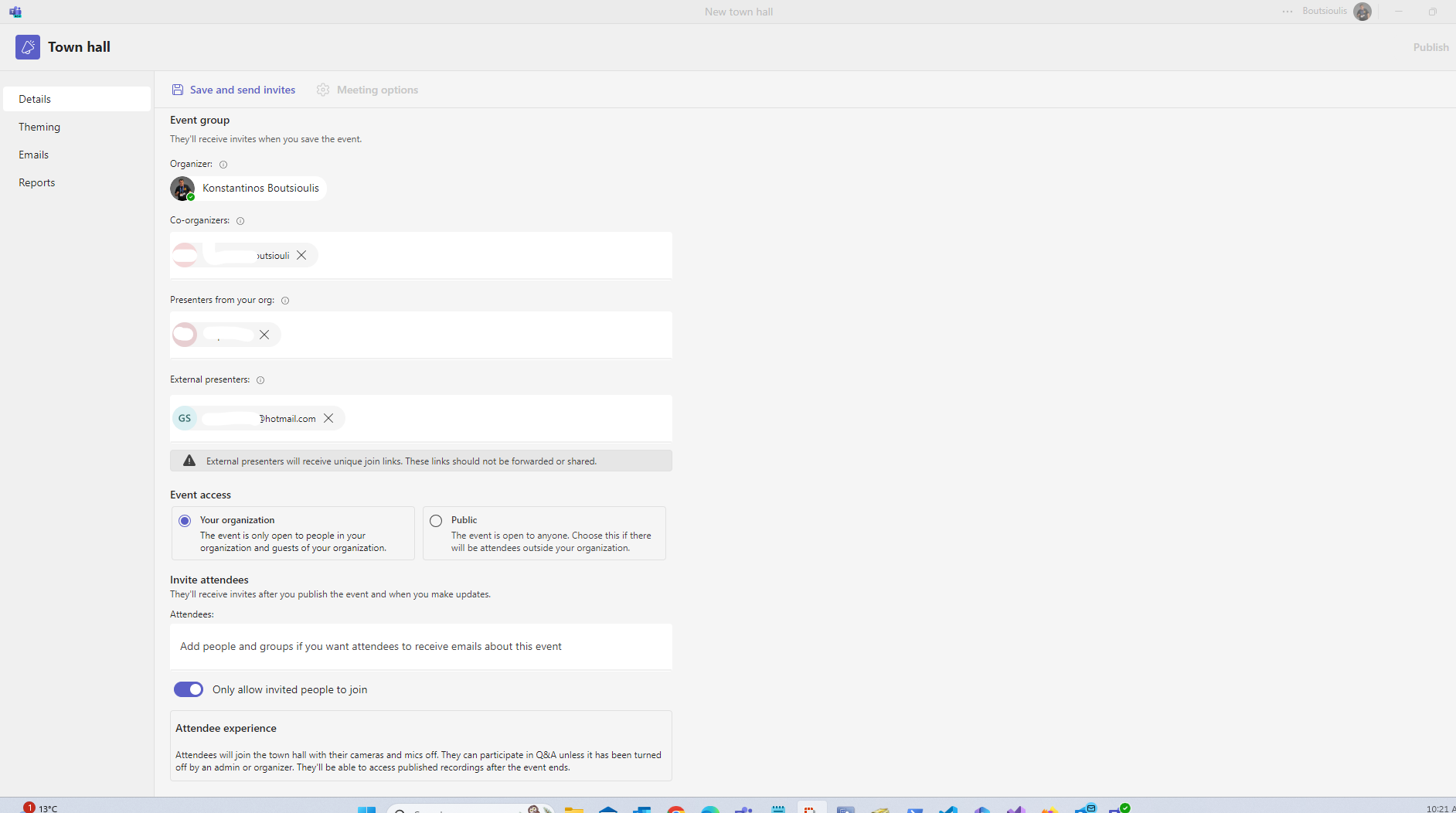
We then have the option to choose whether we want the event to be targeted only to our organization members or we want it to be a Public event There is also a field where we can enter attendees or group of attendees who will receive emails about this event And finally for the first tab we have the option to only allow entry to people who have been invited to the event in question
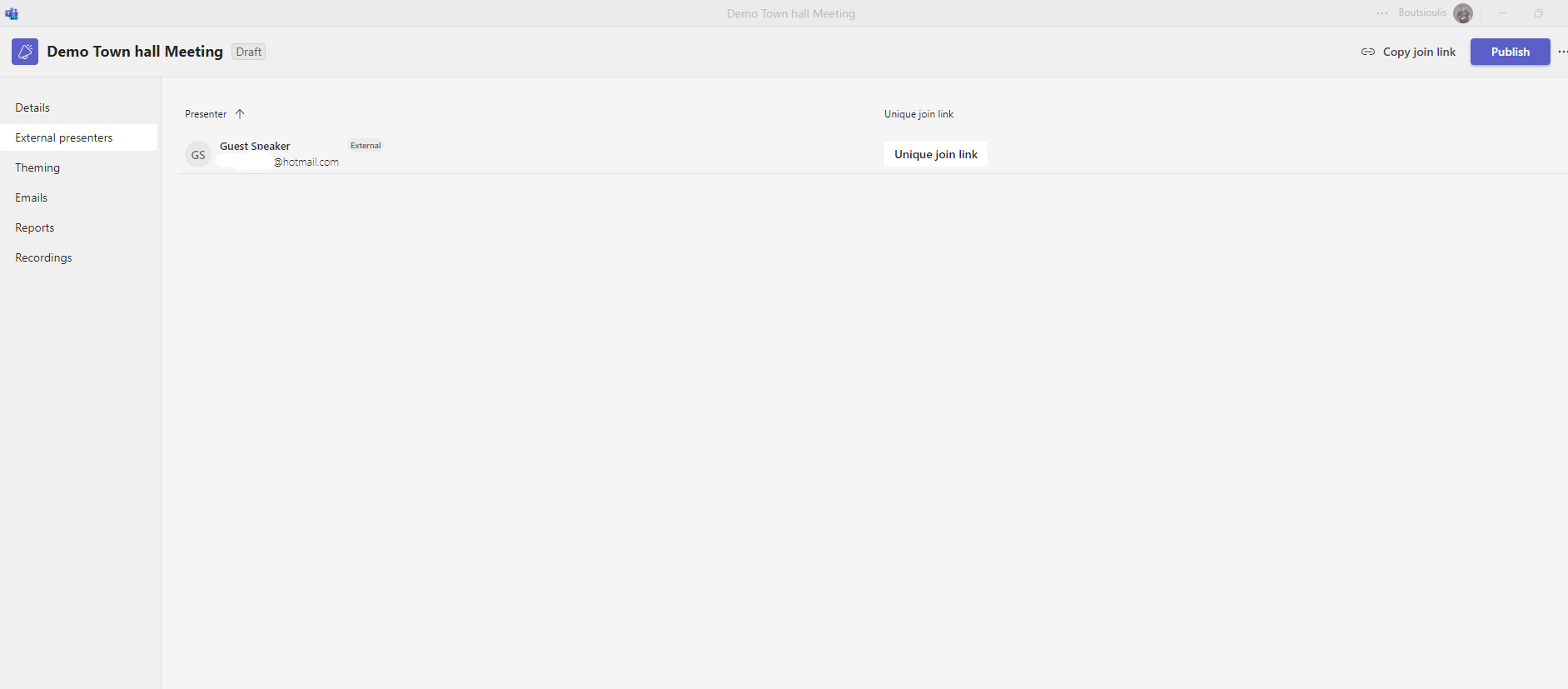
In the second tab called external presenters you can see the external presenters as well as their mail and the Unique Link that the event created for them
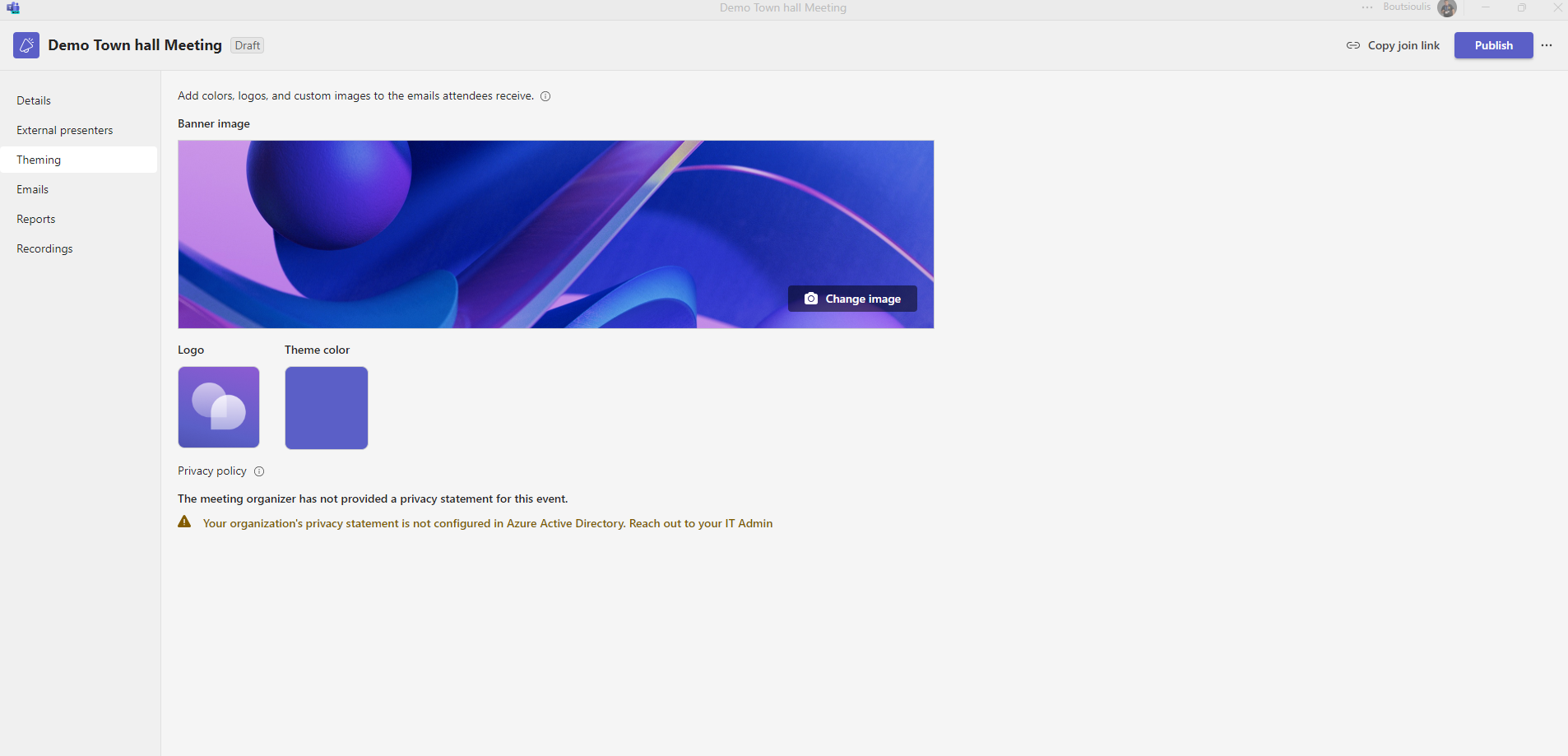
In the next tab called theming as you can see we can enter a banner image as well as a logo of our organization.These options will be saved in the emails that will be sent to users for their entry to the meeting
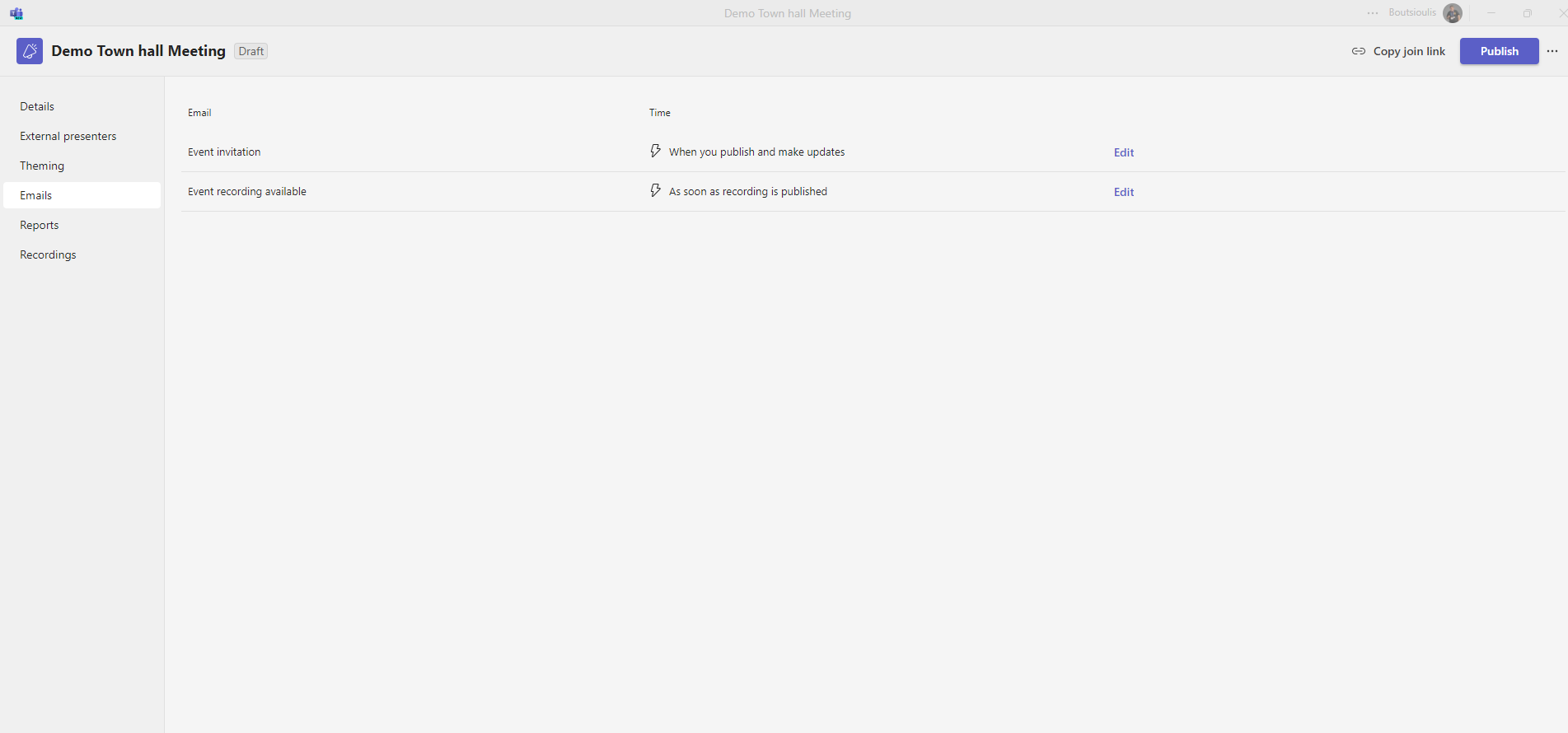
The next category we come across is the Email tab where we will find 2 options firstly Event Invitation and Event recording available
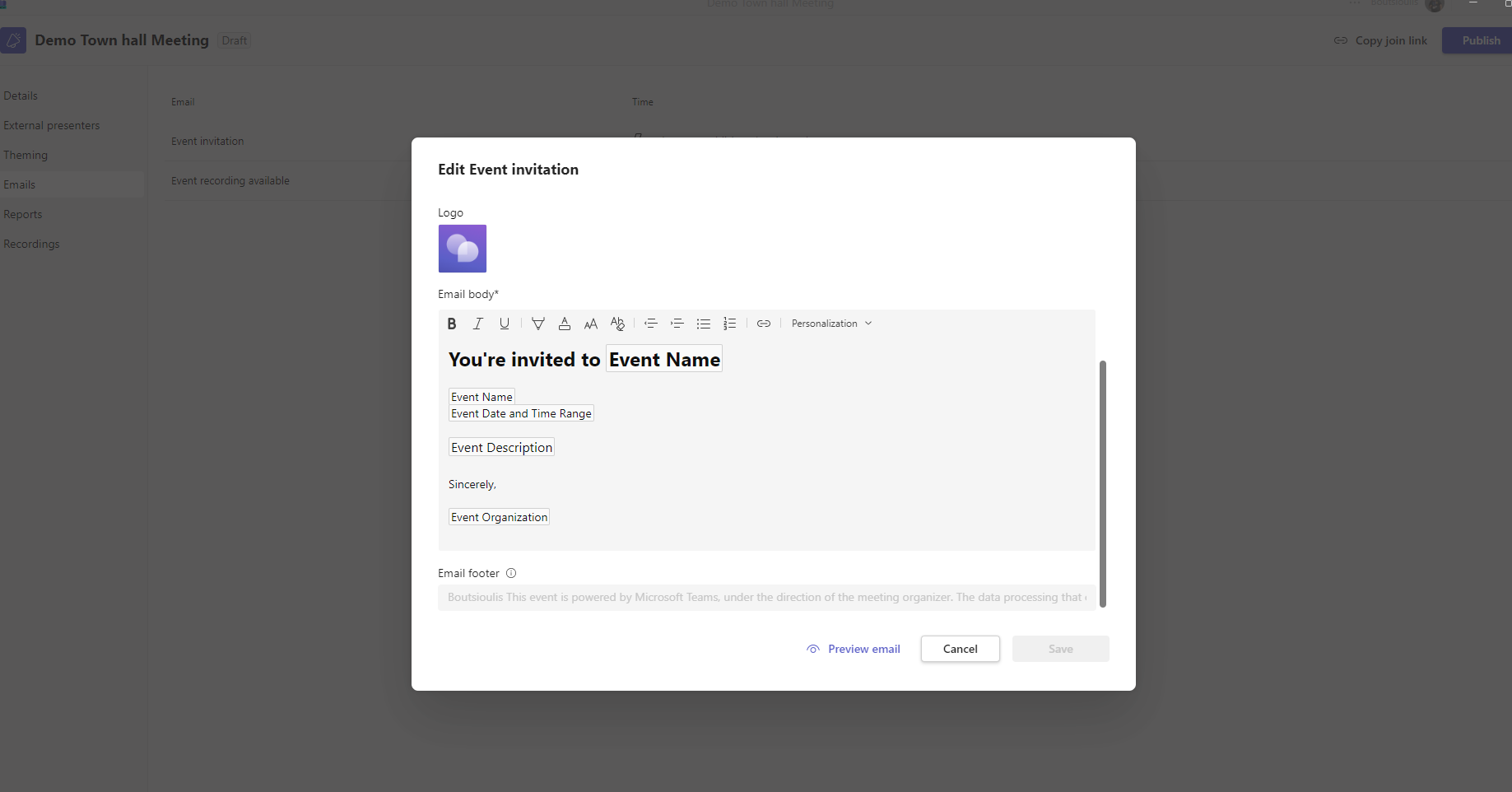
If we click on the event invitation and then edit on the right opens a new window in which as you can see I have the ability to insert and enter Email Subject as well as Email body . The image and logo have been applied from a previous tab
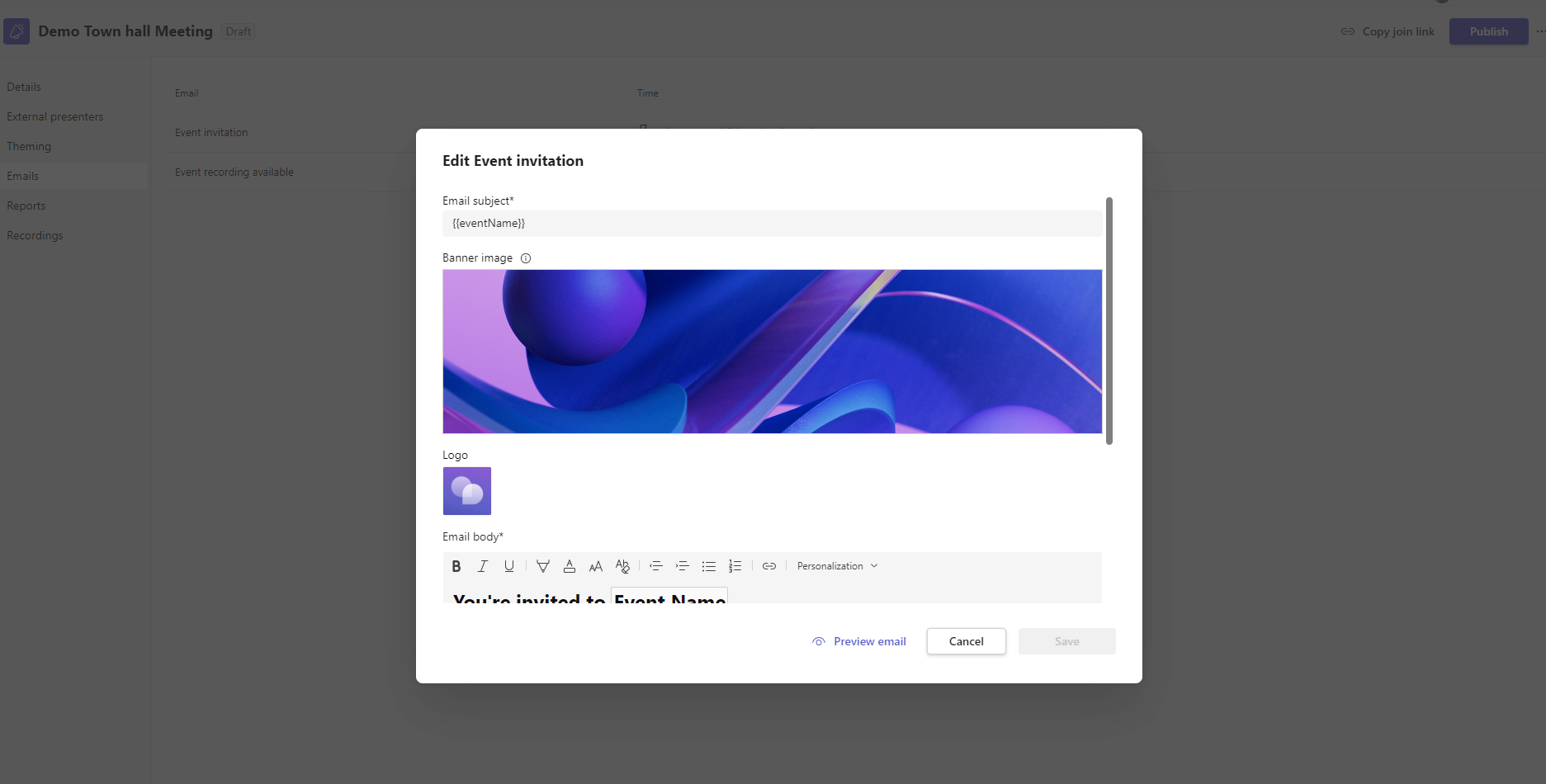
I can also insert the email body as it also creates a footer in the email
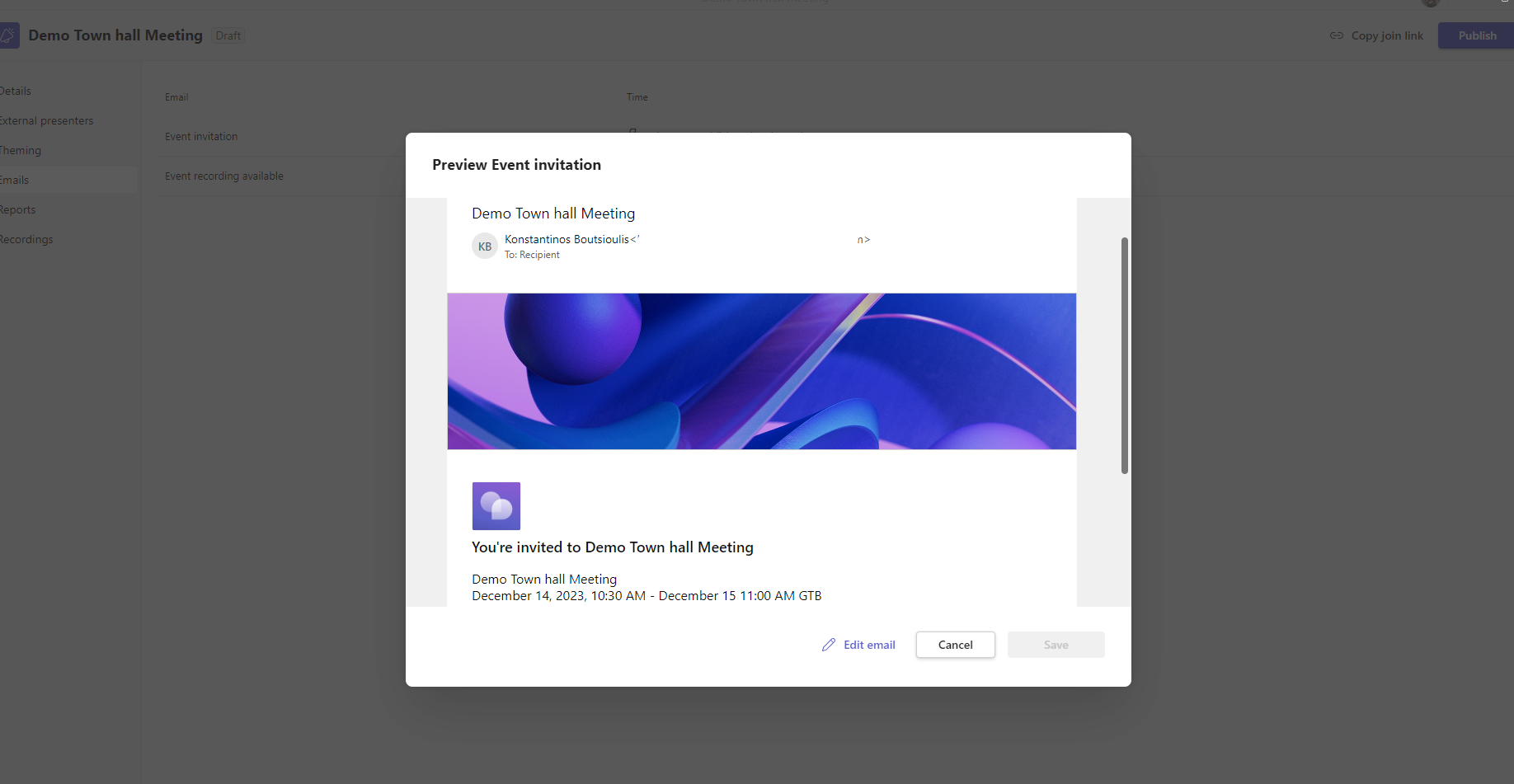
While if I click view email it opens a new window that previews the email that will be sent to the attendees
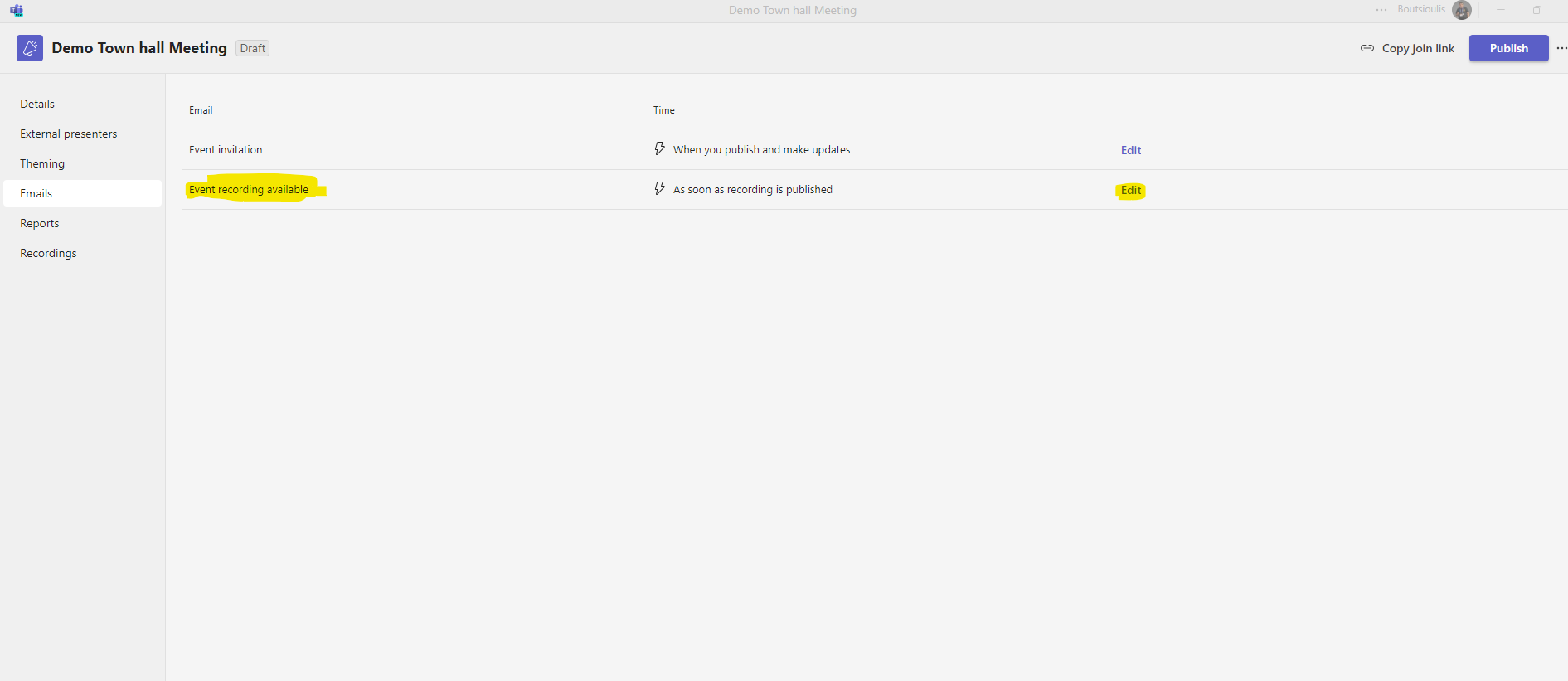
In the next initial option we have event recording available and if we press edit we have
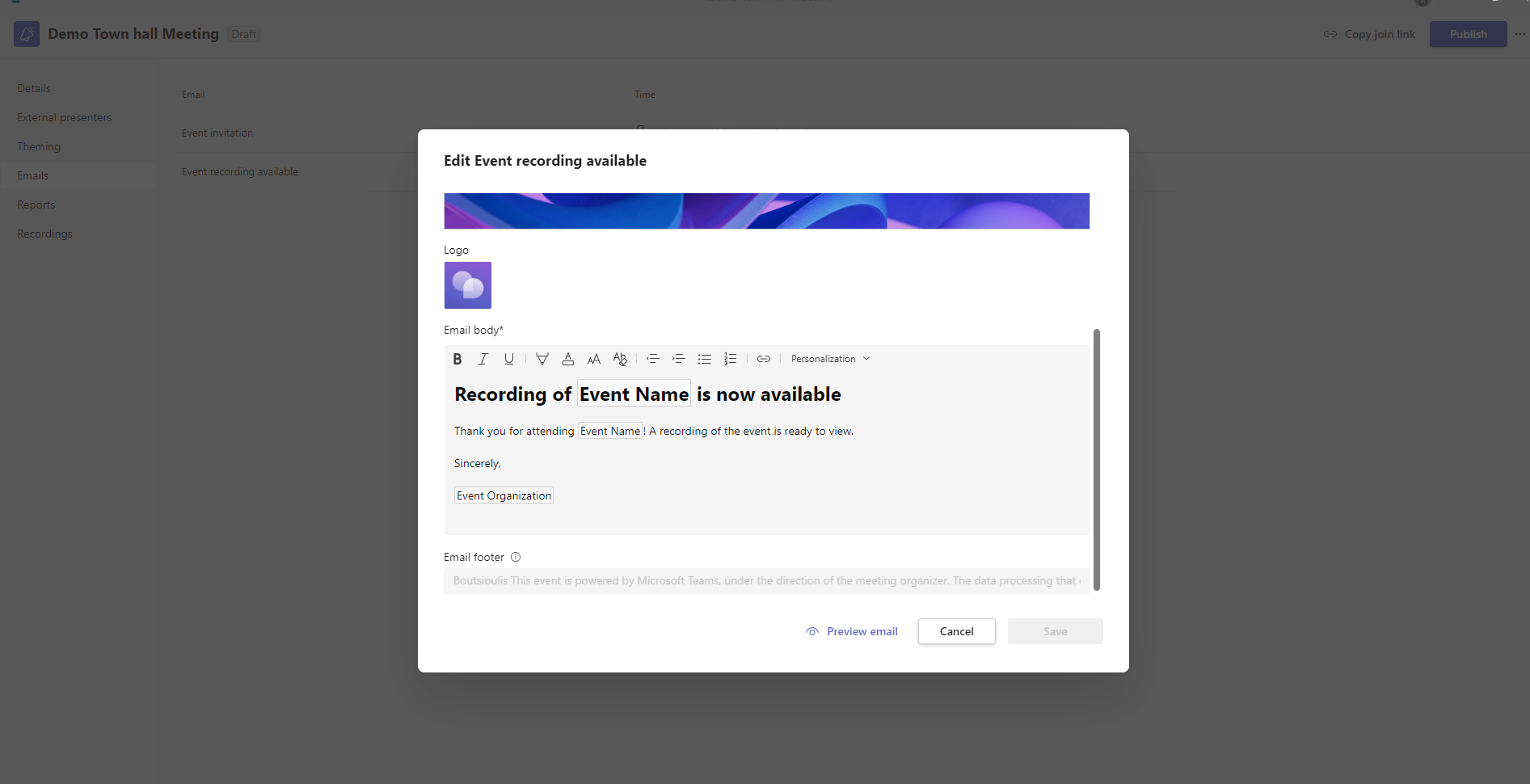
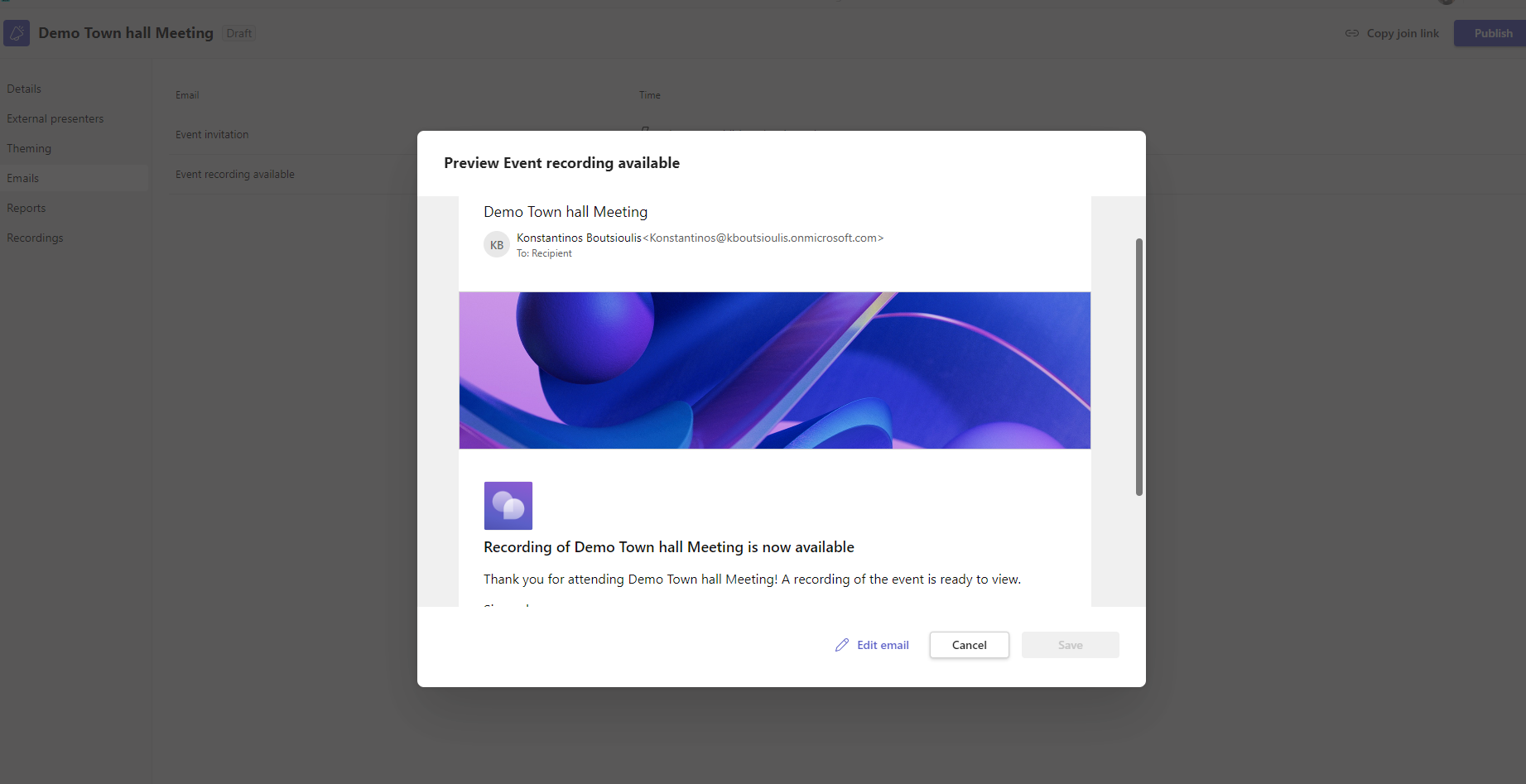
So it opens a new window in which the image and the logo have been passed from a new tab and again I have the possibility to insert the mail subject and the email body and personalize it according to my own preference
If I select preview mail again I see the final format of the email that will be sent to the users to inform them about the recording of the meeting
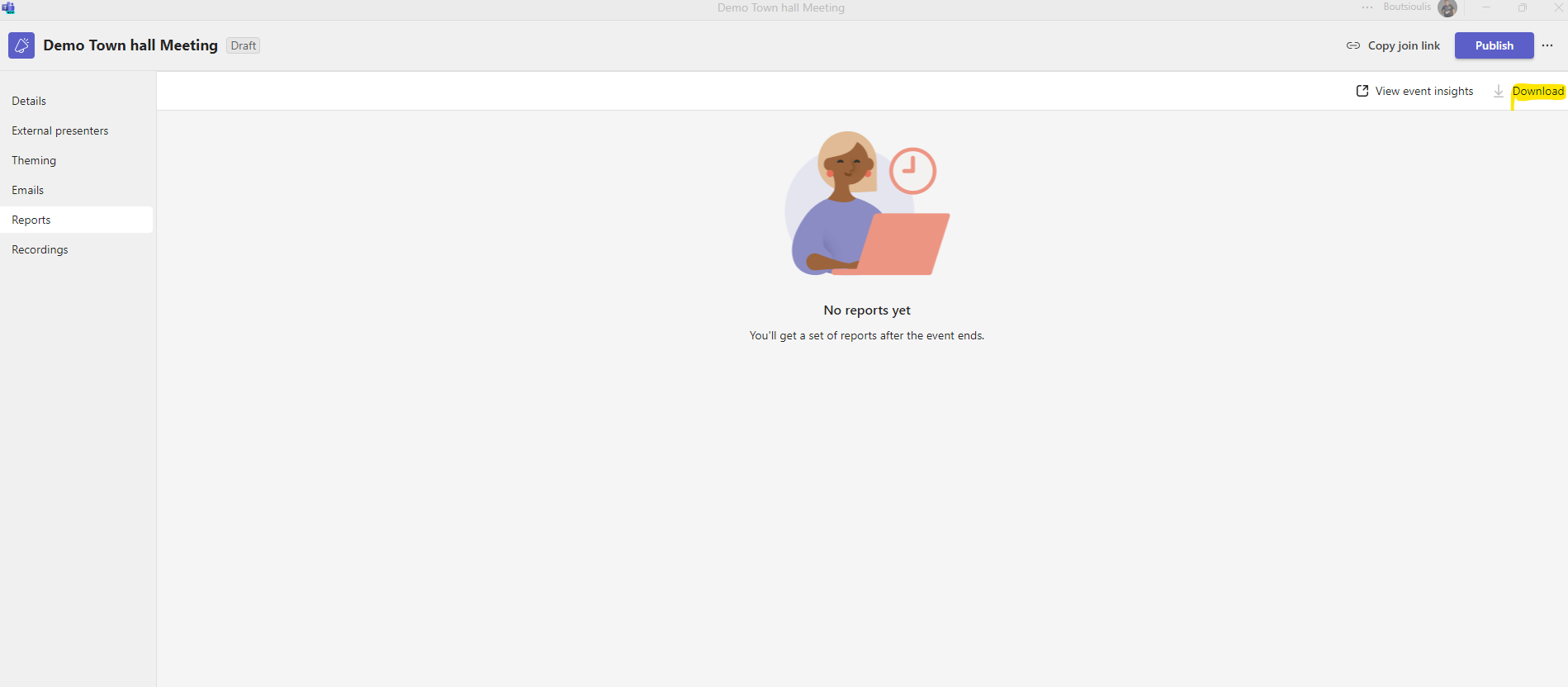
If I select preview mail again I see the final formaIn the next tab called Reports I have an overall report about the meeting and the participation of the users . Also by using the download I can download the reportt of the email that will be sent to the users to inform them about the recording of the meeting
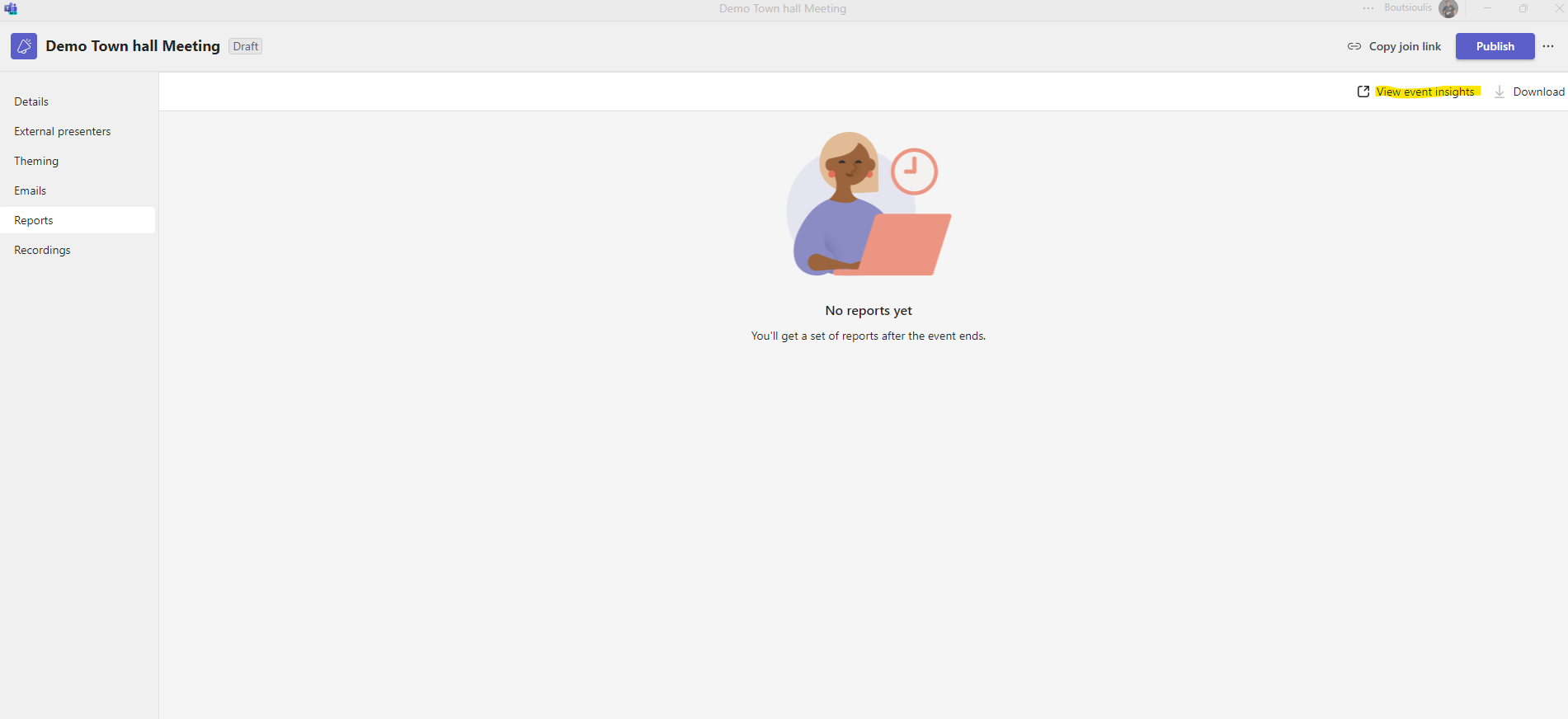
as well as using view events insights to get a series of information about the event
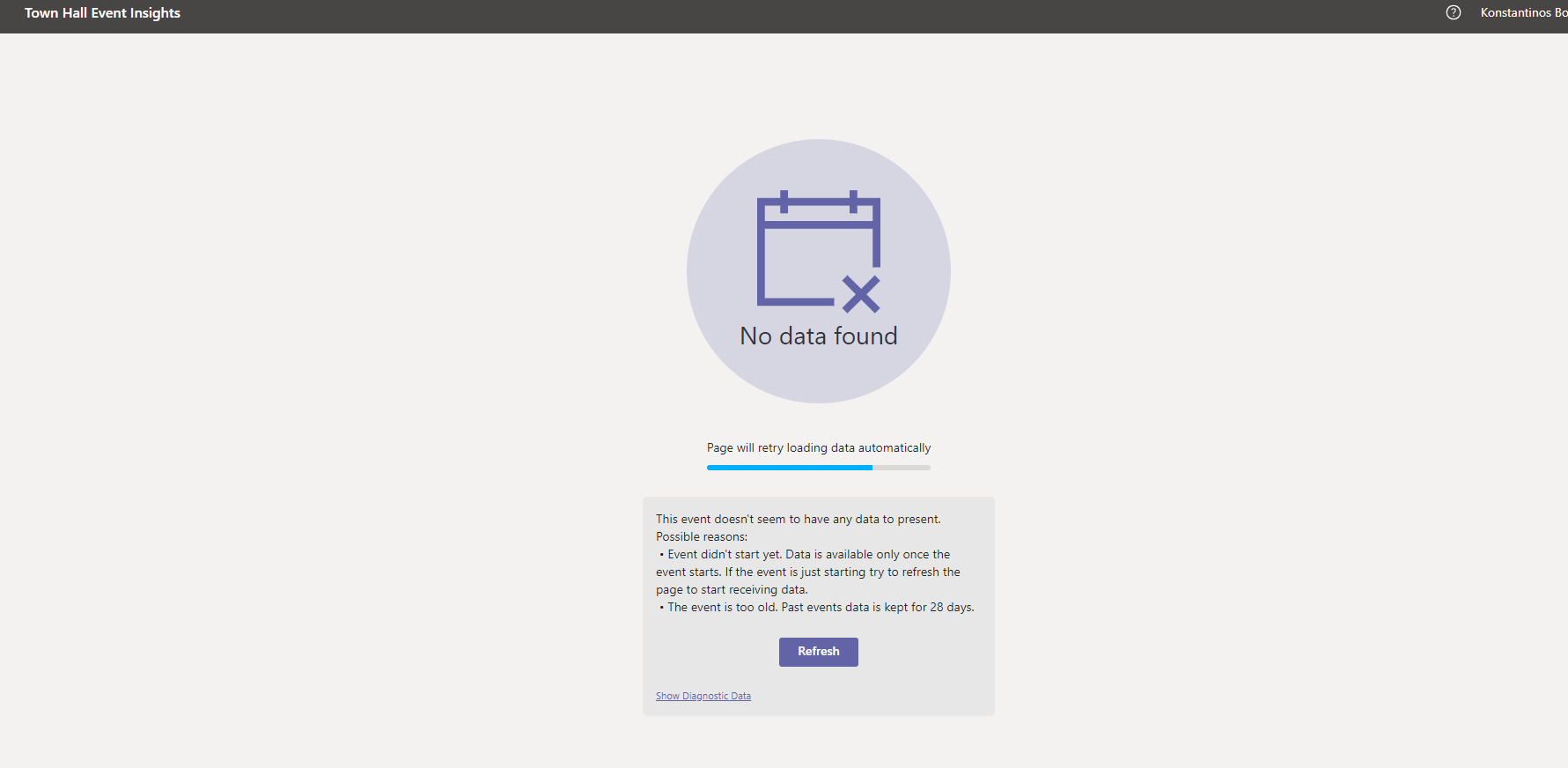
In this particular case I have no information because the event has not started and has not completed
Finally we have another tab called recordings where I can find information about the recording of the event As you can see there is also the possibility to Publish from OneDrive
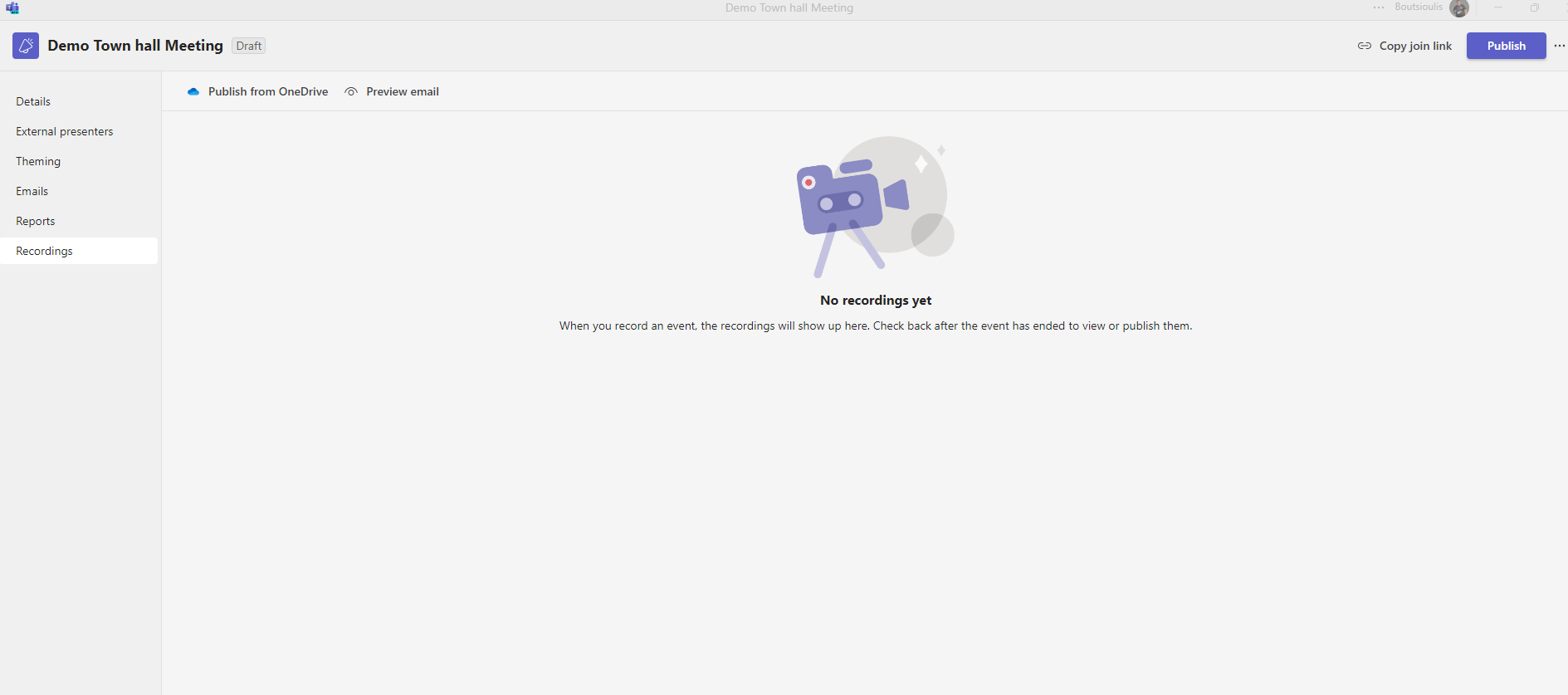
as well as a preview of the email as it will be sent to the participants to inform them about the registration
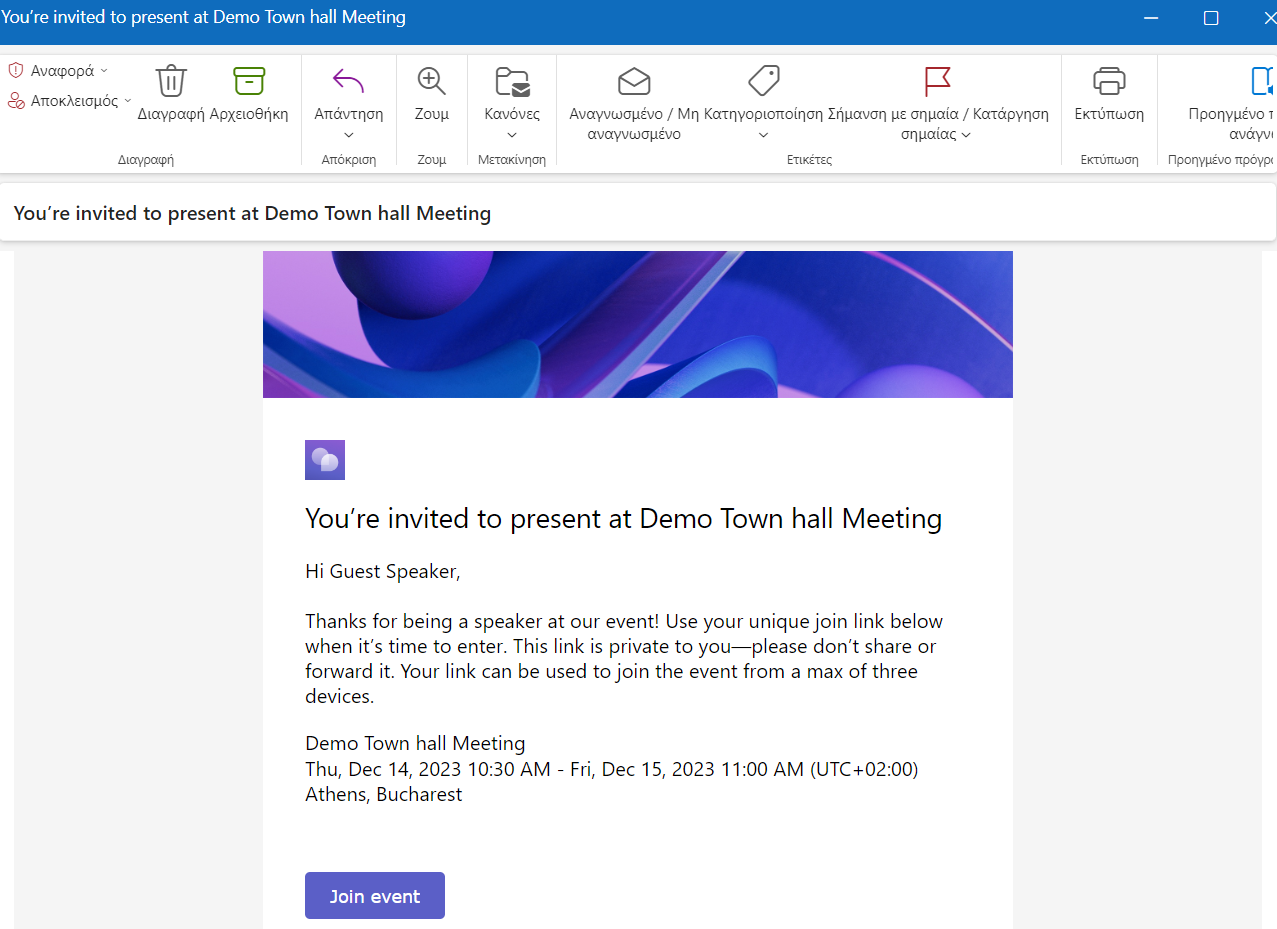
Overall in the settings of the Town Hall we can see all our options and from there we can enable or disable any of the functions we want Please note that in the photos below there are options that are only available in the Teams Premium subscription so if you don't have any of them it is because this license has not been assigned
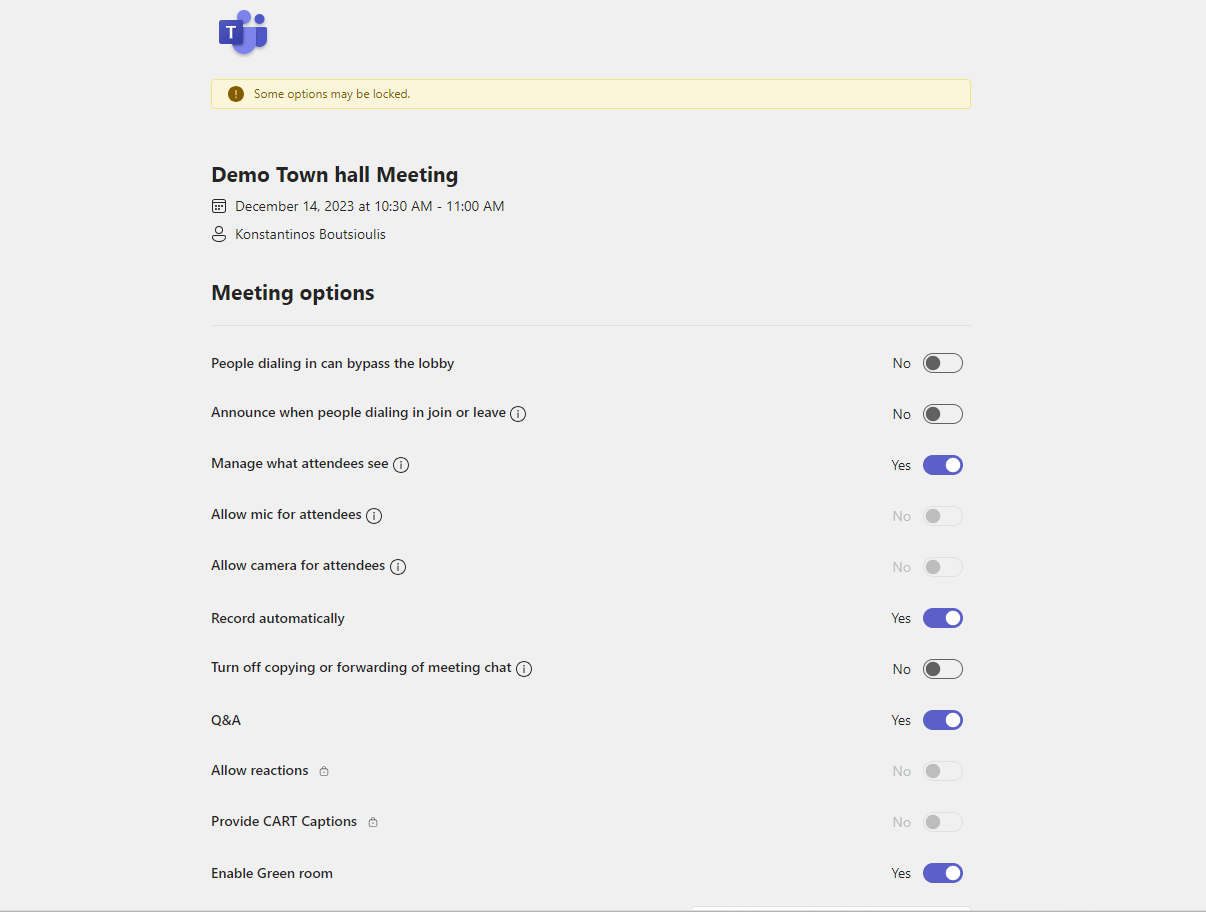
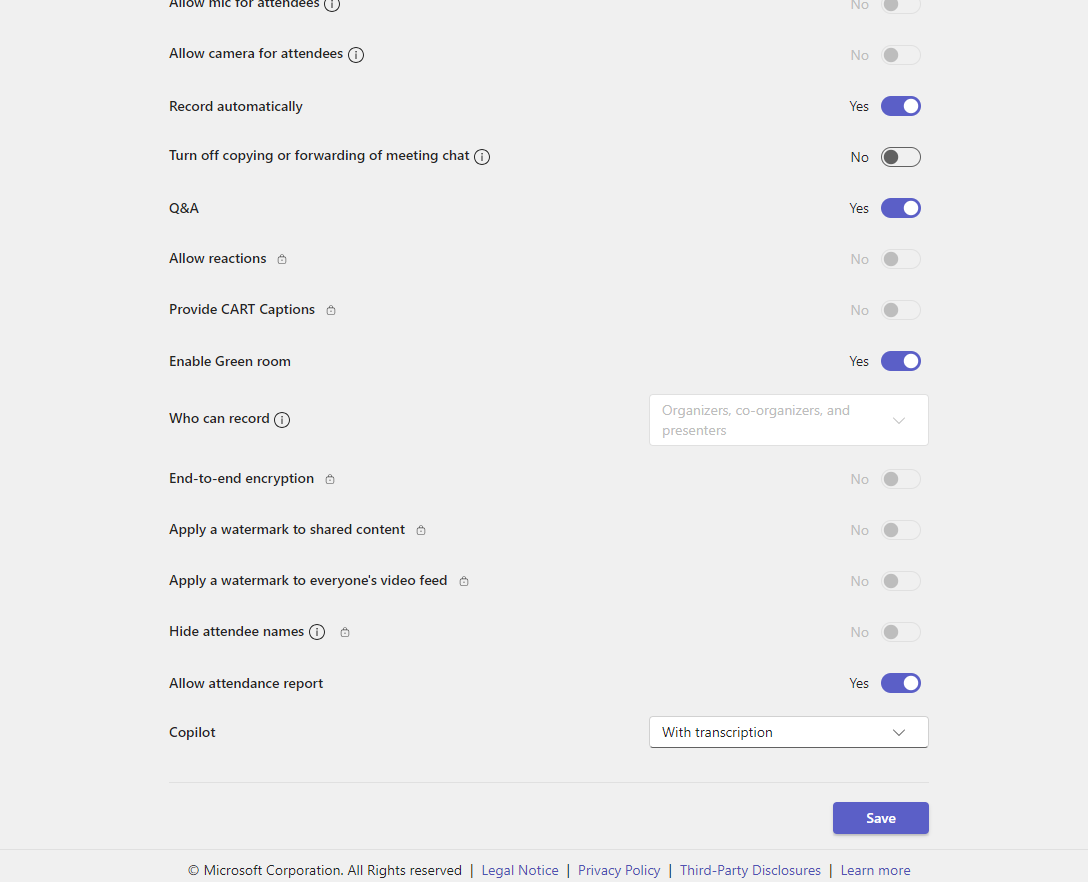
As I mentioned above the use of Teams Premium helps us with more options in organizing some events that in the first version of Teams required the presence of a manager during the call. Plus, you see, one can devote time to the creation of such events and not have his mind on complex settings during the race.
#Teams #TeamsPremium #technology #microsoft #digitaltransformation #cloud #mvpbuzz #m365Visit Archives below to find more articles about Microsoft technologies on Modern Workplace