
Free Material
Find hereMore than 150 Articles about Microsoft Technologies on Modern Workplace
Official Site
Microsoft Most Valuable Professional M365 Apps & Services
Microsoft Most Valuable Professional Business Applications
Consultant & Sr Cloud Solution Architect Modern Wokrplace
Find hereMore than 150 Articles about Microsoft Technologies on Modern Workplace
10 December 2023
In today's article we will see how we can create a virtual appointment in Microsoft Teams with Premium Subscription First we need to log in to the new Microsoft Teams application and then select calendar on the right
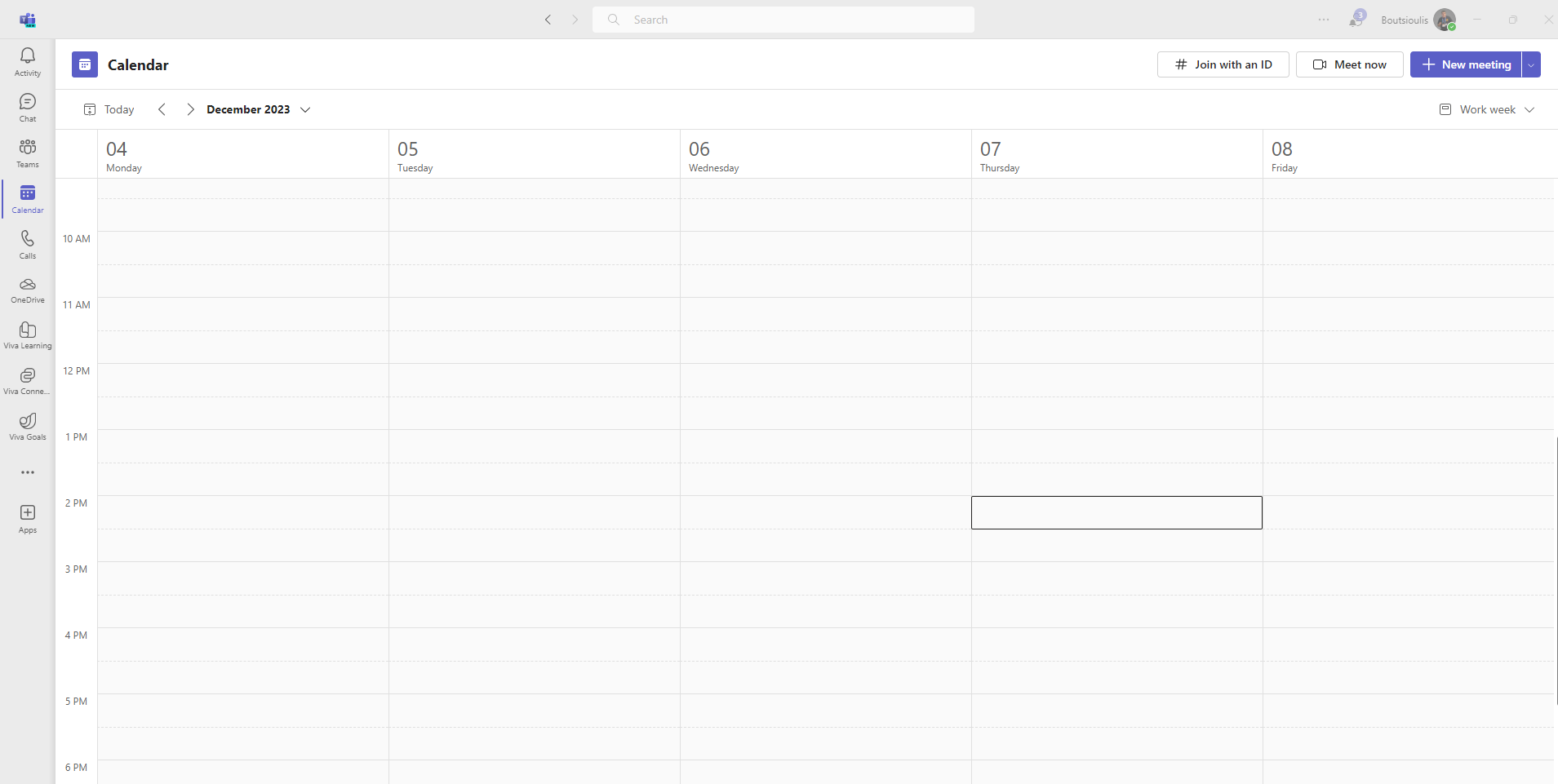
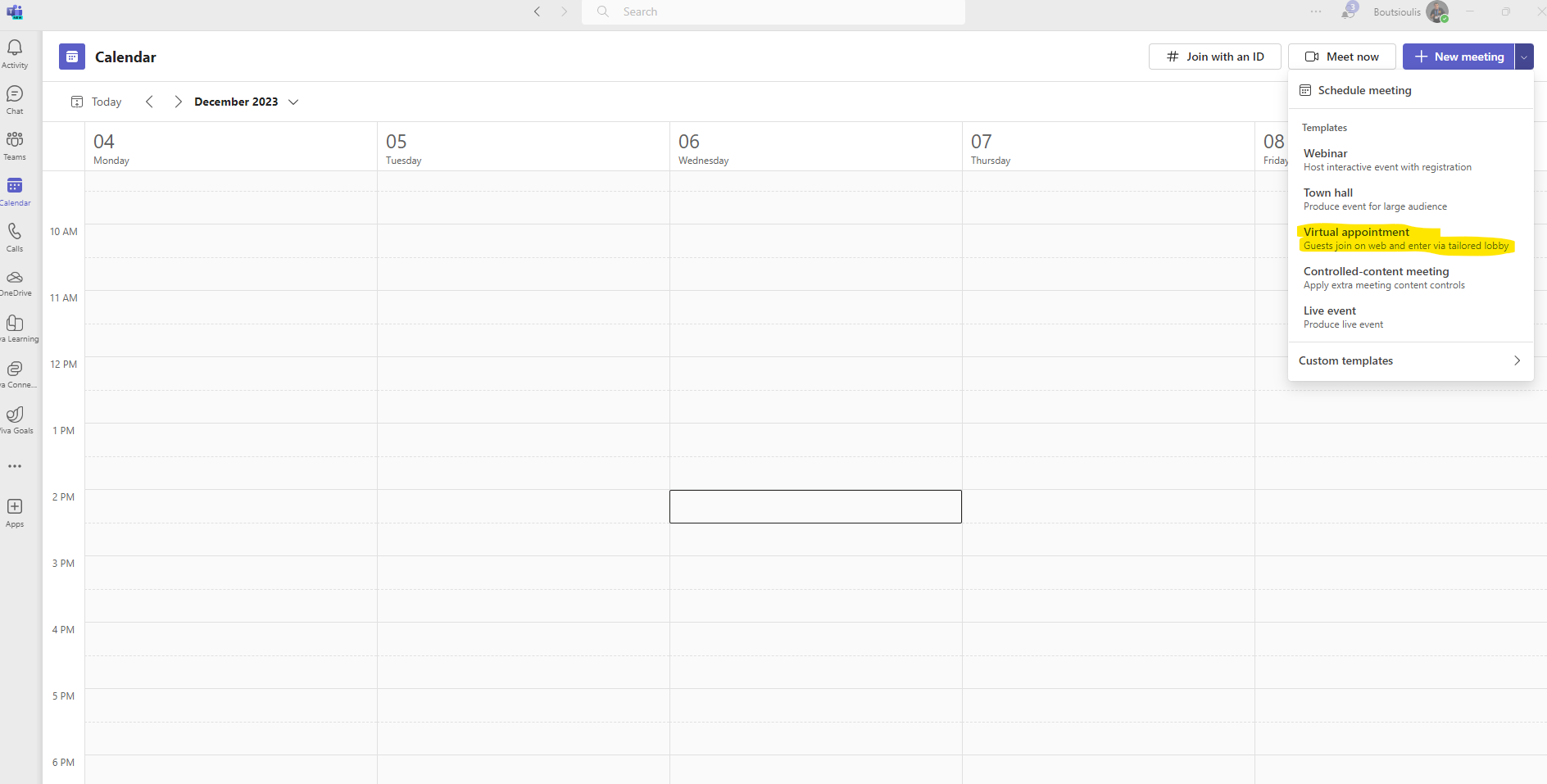
Just go to the calendar on the top right of the arrow next to New Metting and press and select Virtual Appointment Virtual appointment, as you can see, allows guests to enter from the web who are reserved before starting in a custom lobby
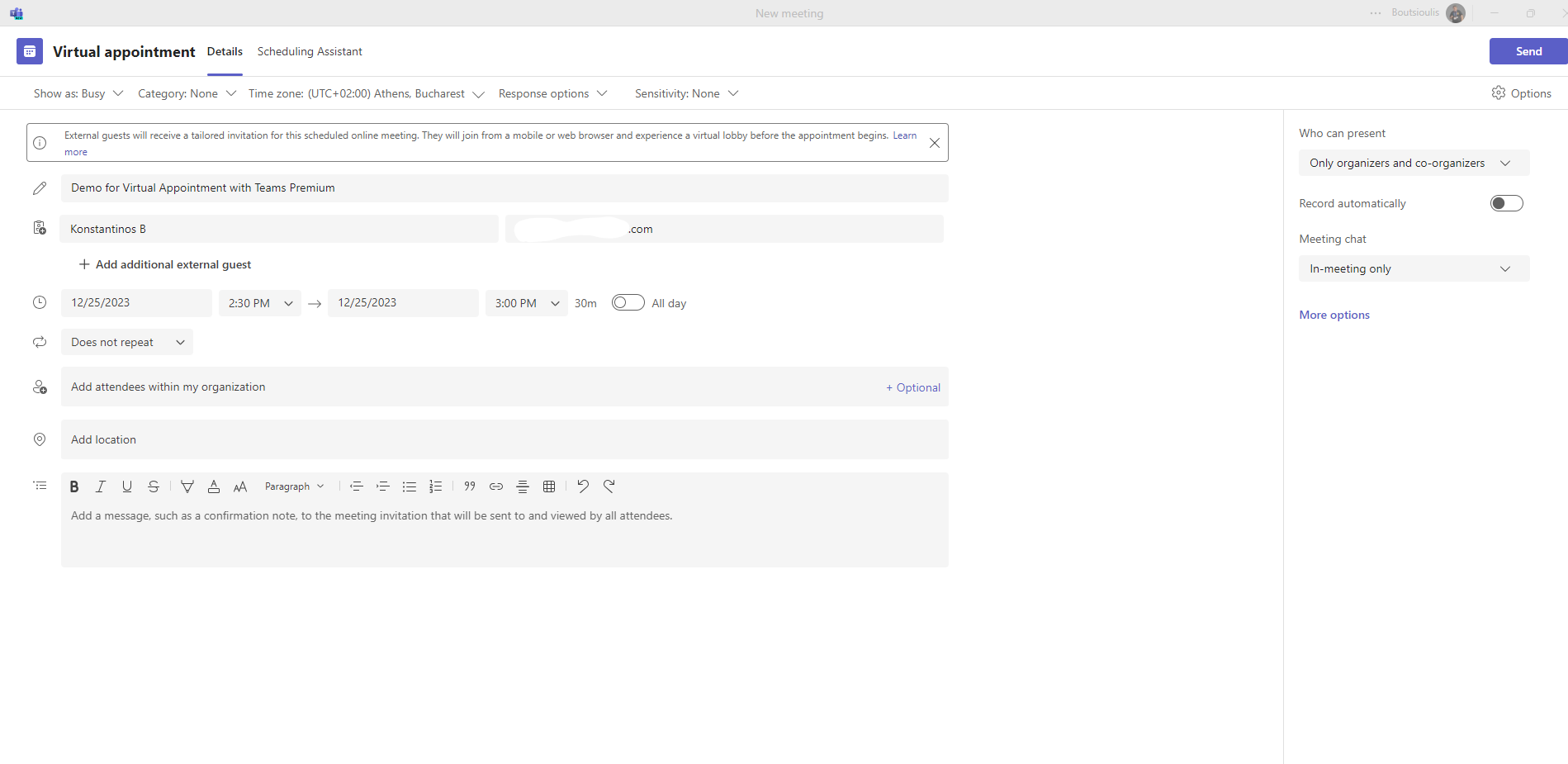
As you can see we have a similar picture to the one of our well known meeting and as I mentioned before there is a message informing the organizer about the process of sending an email to the participants who will be able to access from the web and will be in a custom lobby before the start of the meeting On this page we will of course have to give a title to our meeting as well as the external partners we are inviting In the following fields we will have to specify the date, time and duration of the meeting. As we know from the past we can have an all day event or even a recurring event. Then we identify the partners through our organization and finally we can write some text in the body of the meeting In the right column we find the presentation options who we want i.e. who can present and if we allow chat between participants and where (only in chat or only in the lobby)
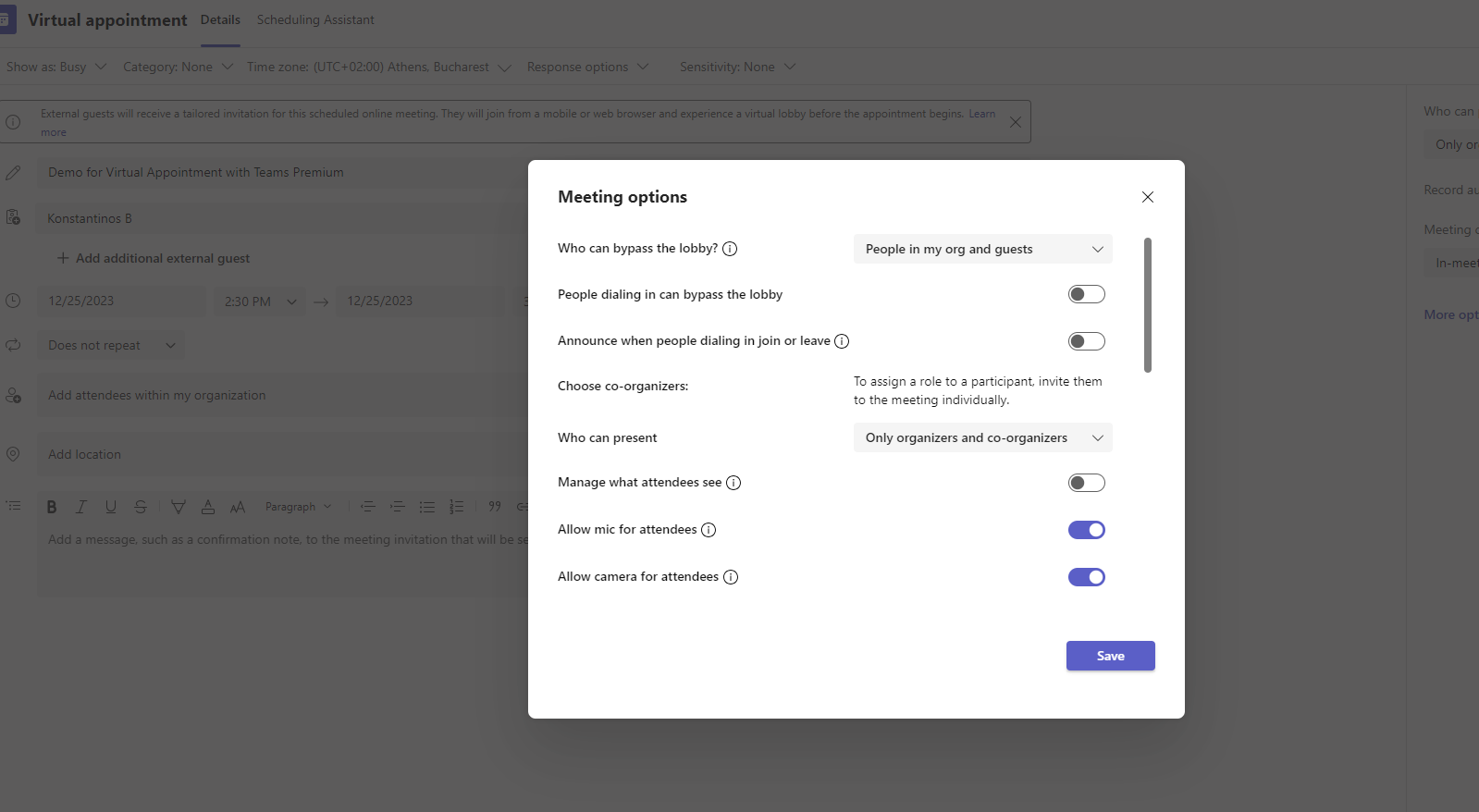
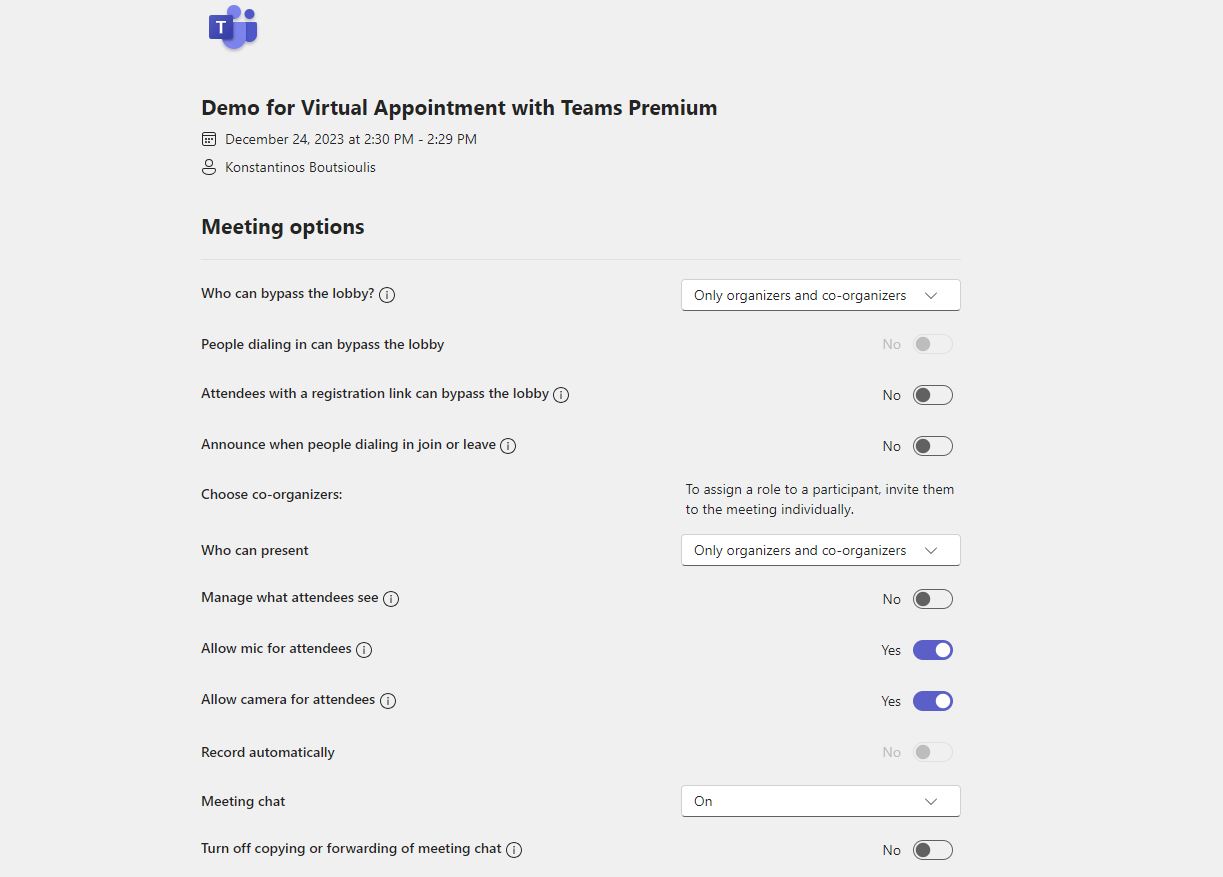
If we select the meeting options we will see a variety of the familiar meeting options Where from the following stand out the use of microphone or camera and the management of what the participants will see , as well as who can present .
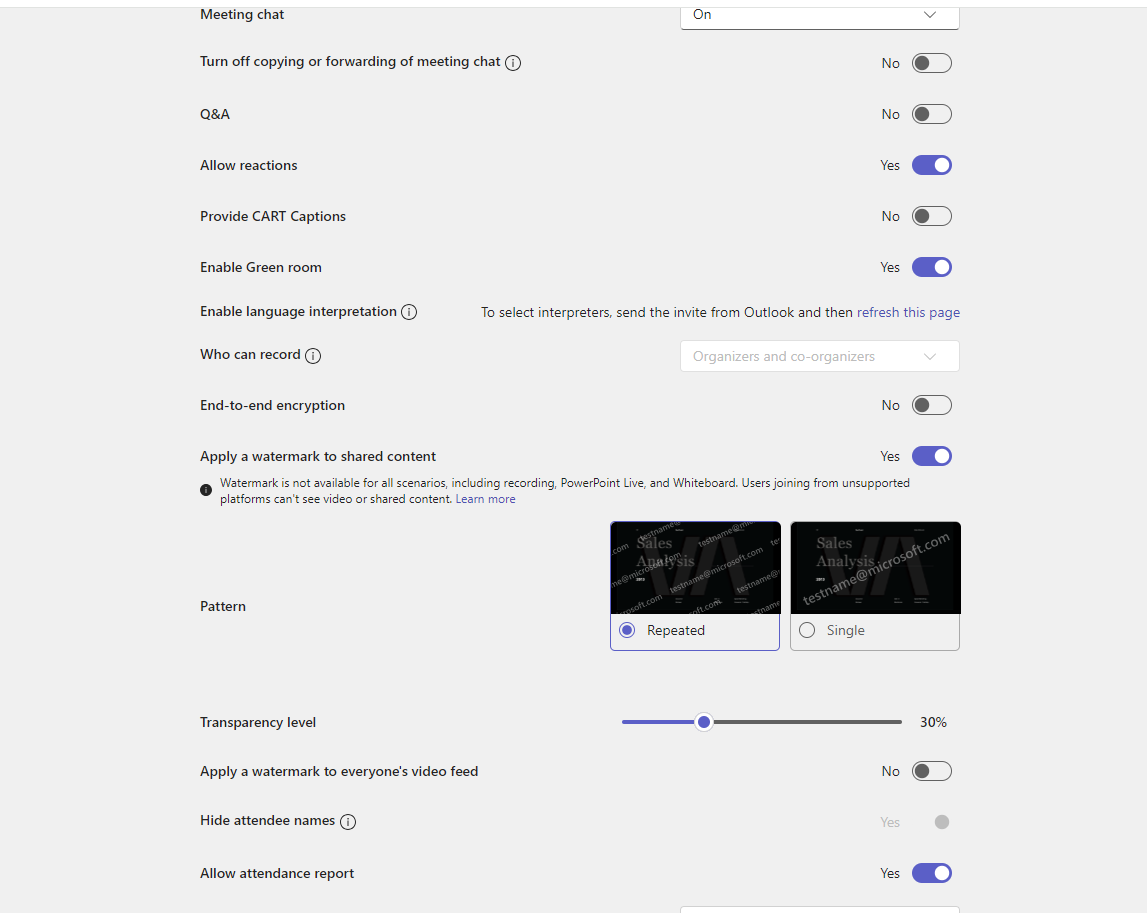
The range of options includes activating the Q&A , activating the reactions , activating the green room and activating the interpreter. Important properties such as who can record the call as well as Teams Premium properties such as end to end encryption and of course the activation of watermarks video and images
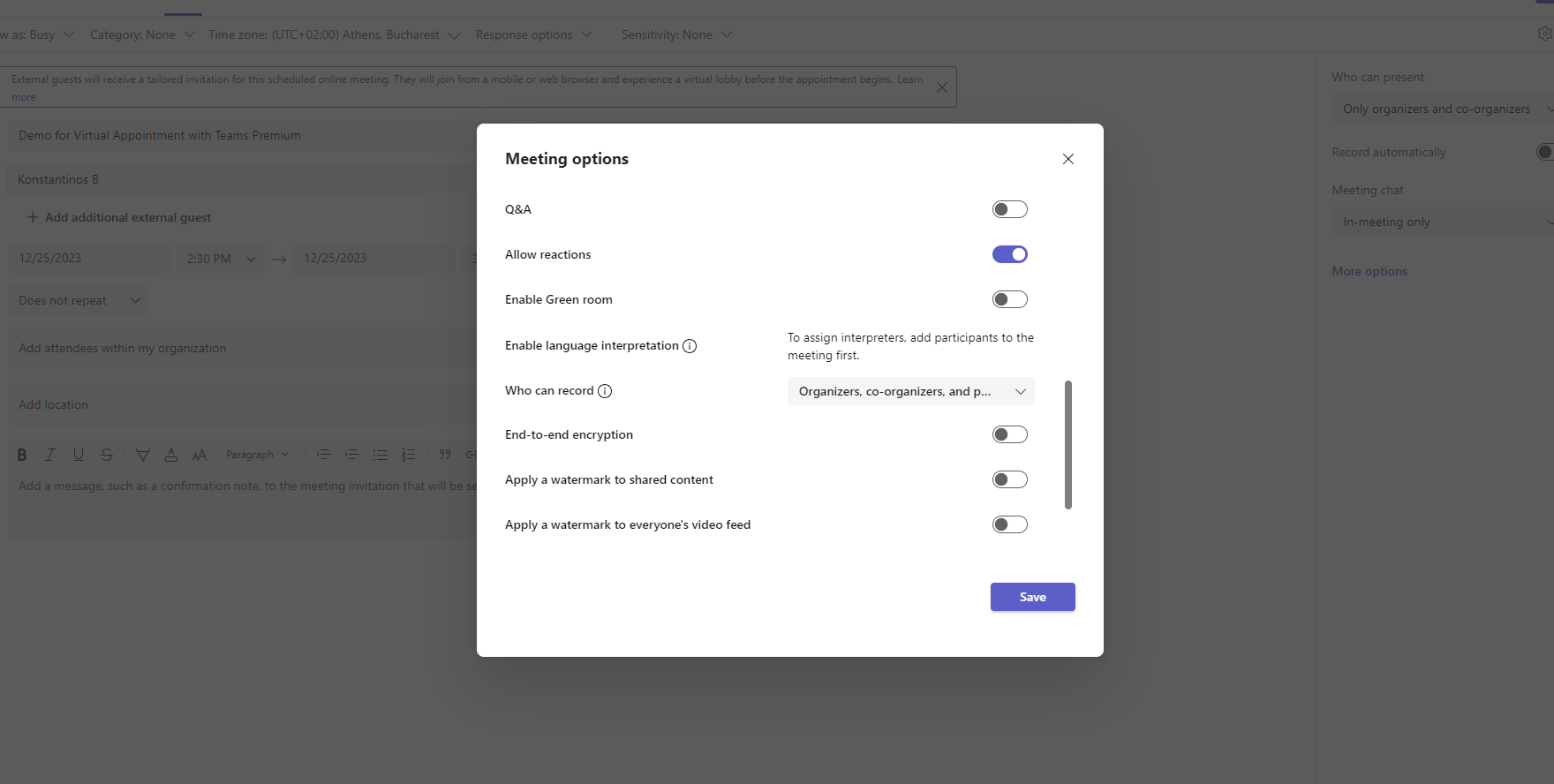
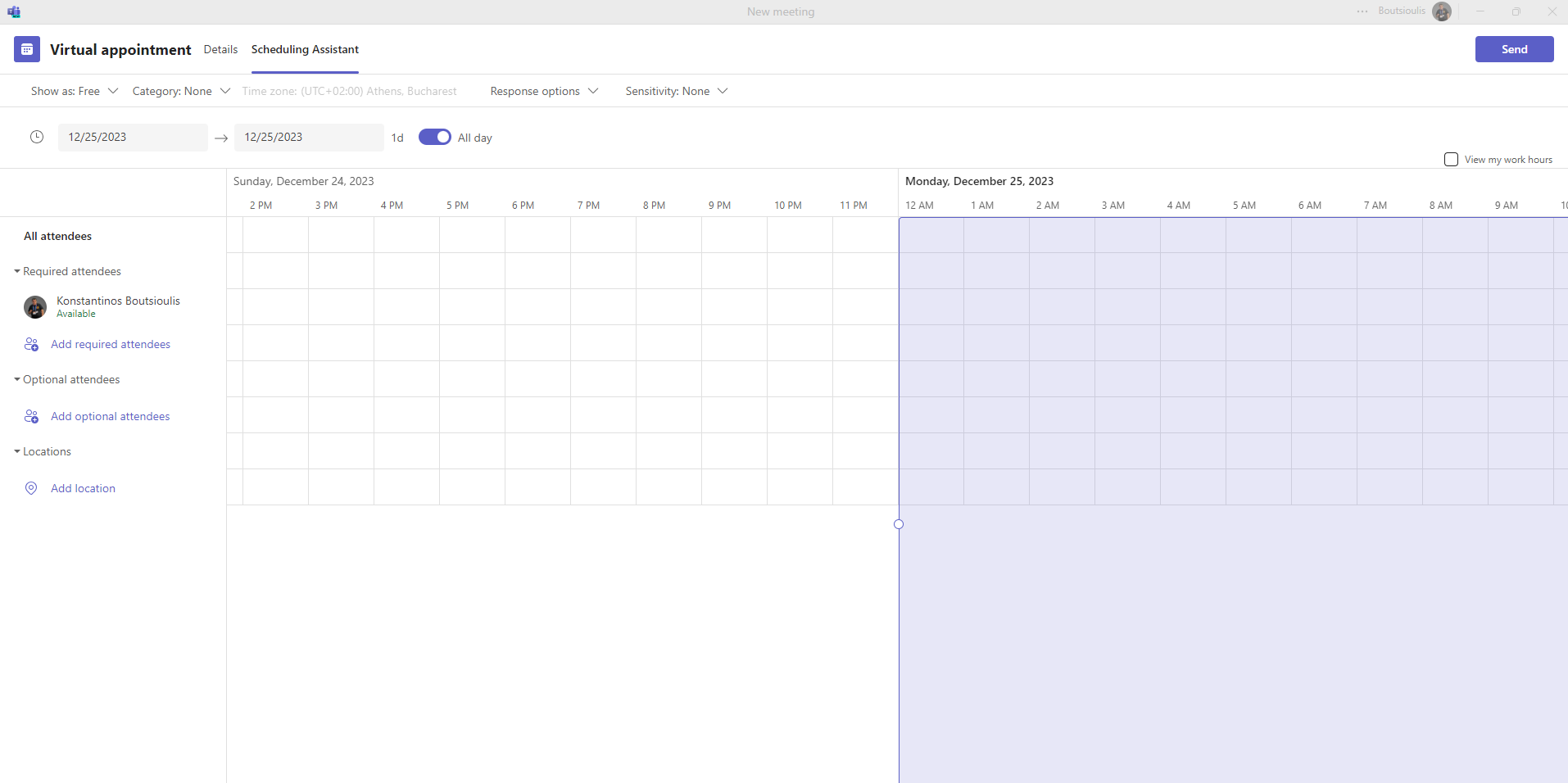
All these are found in the details category while under the Scheduling Assistant we can see our availabilities before creating the call to avoid double booking
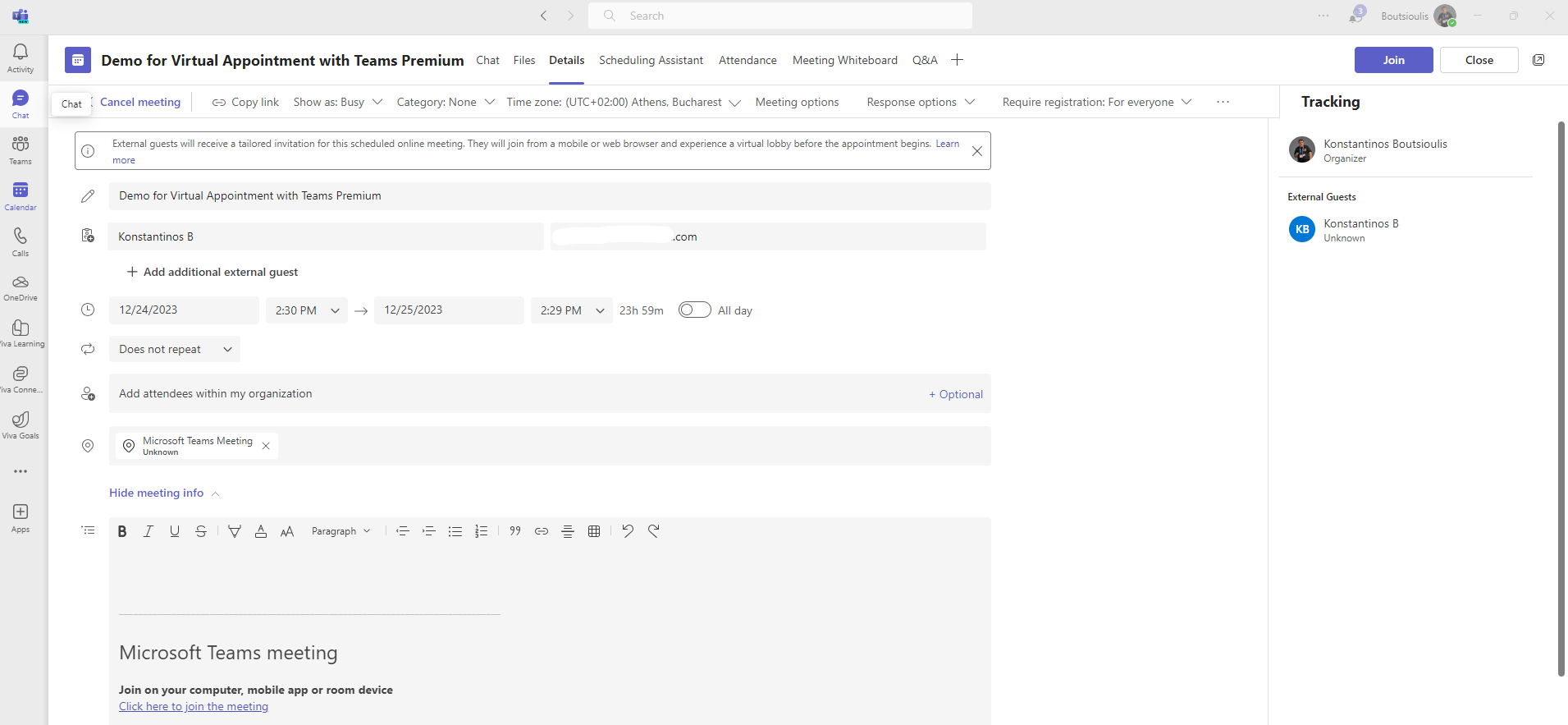
Once we create it you will see that I have other additional features if registration is required
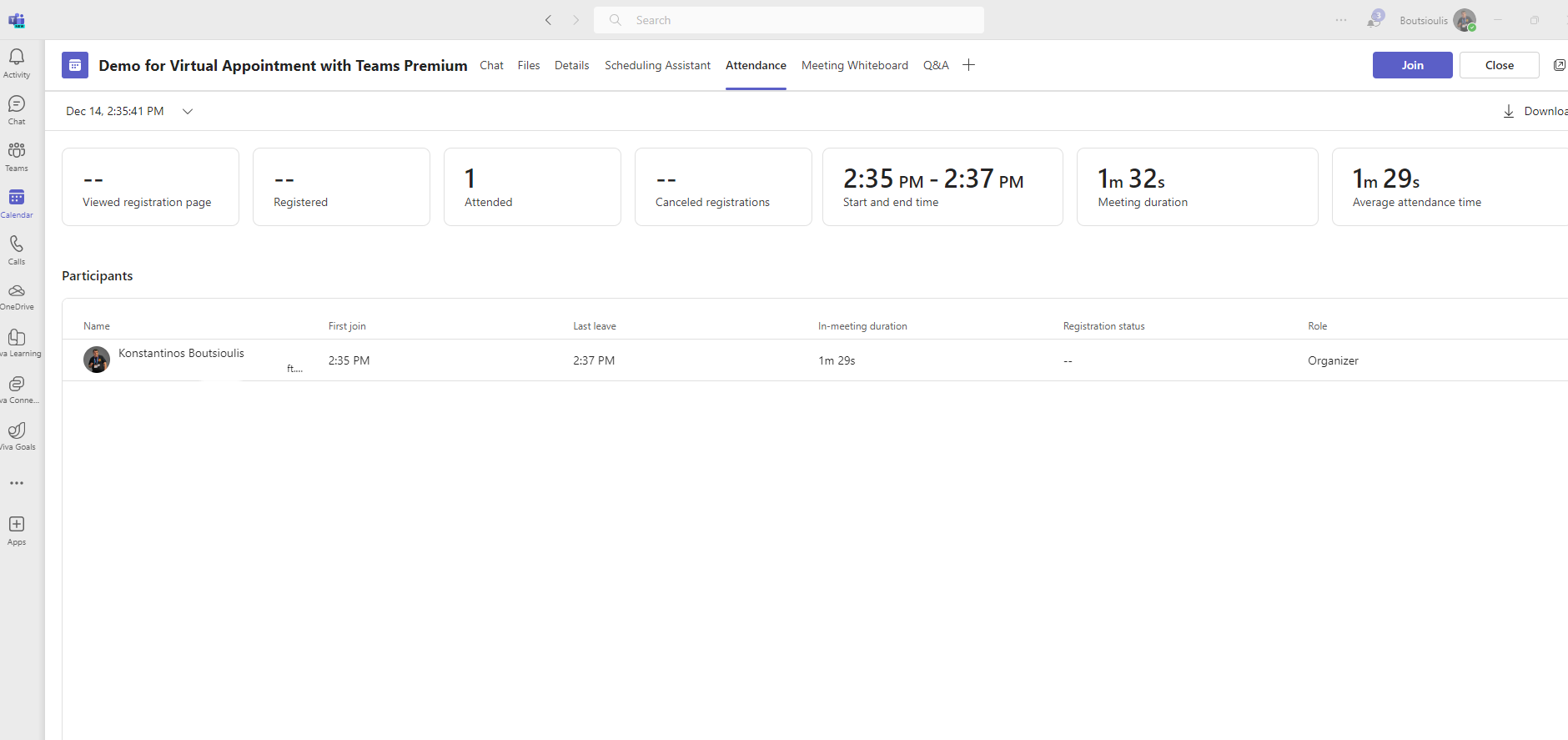
Please note that in the attendance tab I can get information about the attendance of the participants e.g. the time of arrival, the time of departure, the duration of the call and some general statistics about the average time of attendance at the call, how many people attended and more.
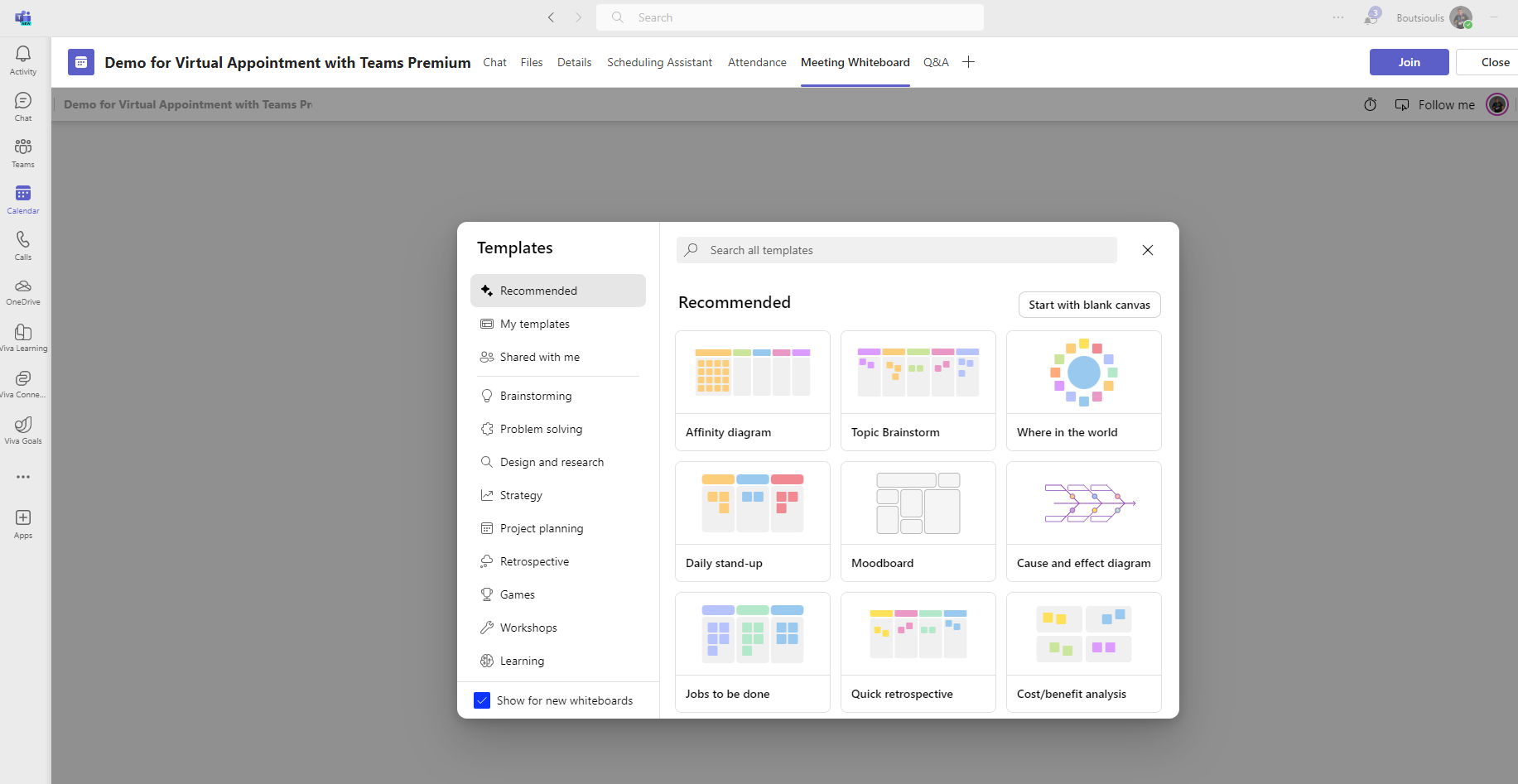
Here we have the meeting whiteboard where the organizer can choose a draft that will be used as a whiteboard during the presentation
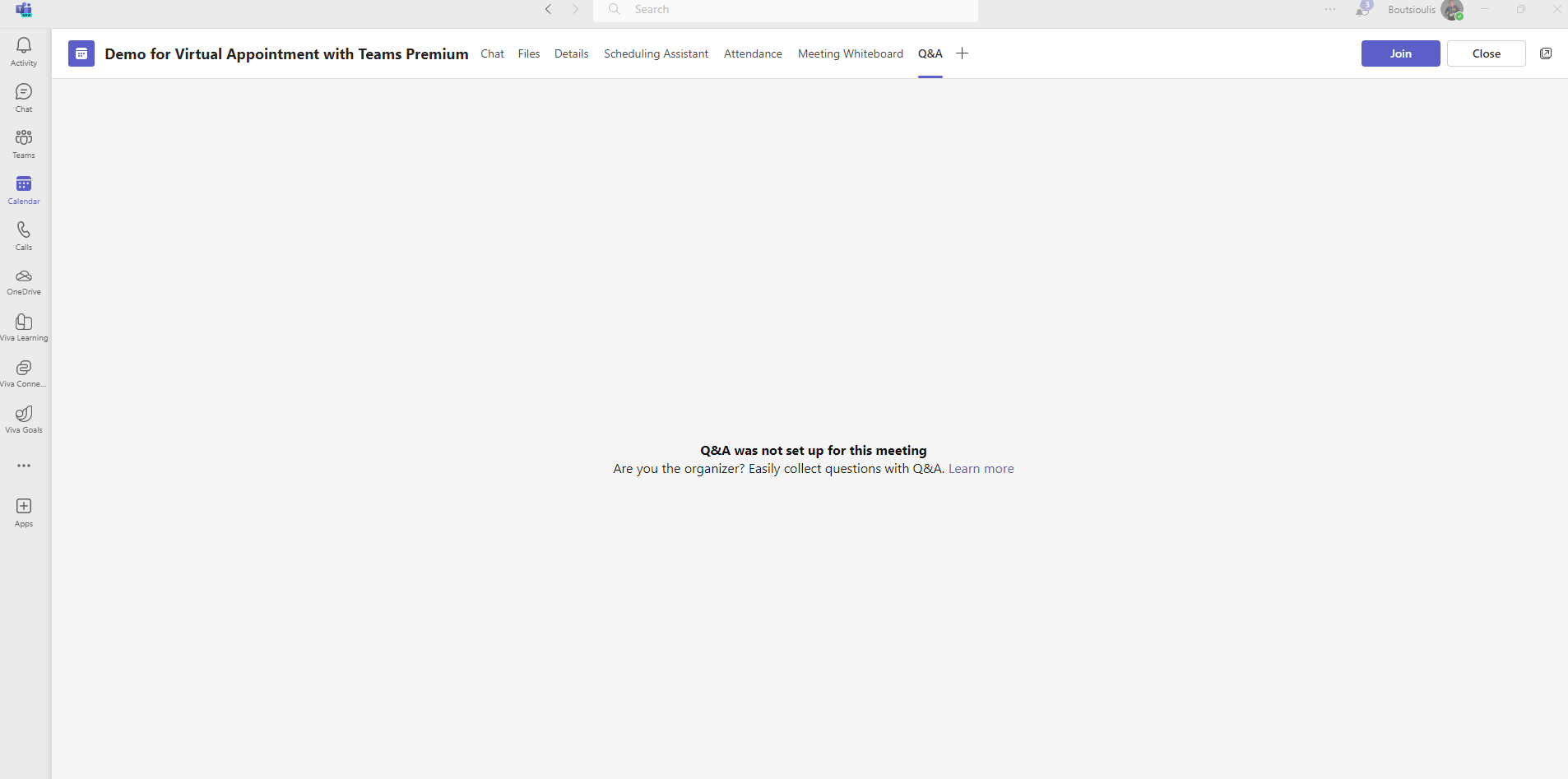
And of course there is the Q&A I mentioned before so that we can have questions during the call that will be answered either live or at the end of the meeting
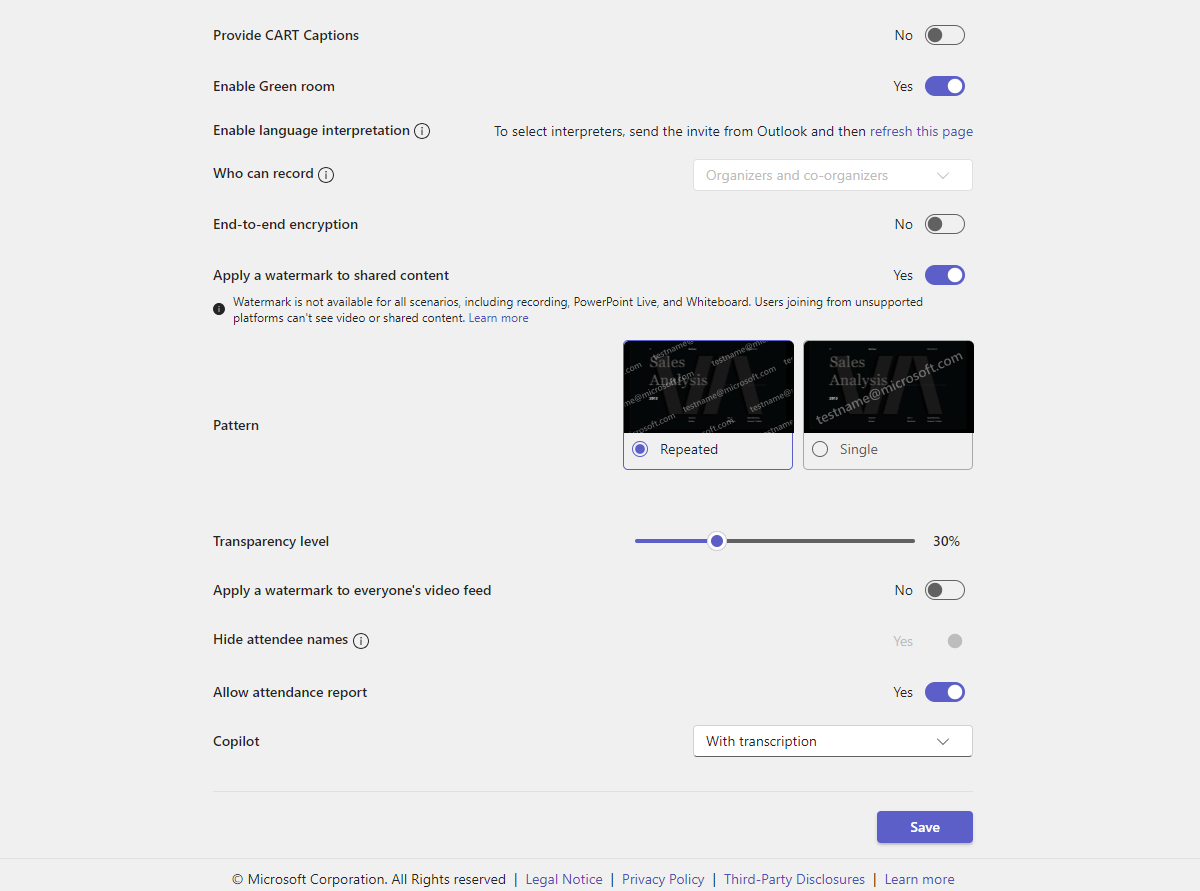
As we said in a previous post from the options I can see all the settings of this meeting in total
Including options for Teams premium end to end encryption as well as hide attendee names. I can also see the patterns for the watermarks
And of course at the end the copilot option which we will see in more detail in later articles about using copilot in all M365 applications
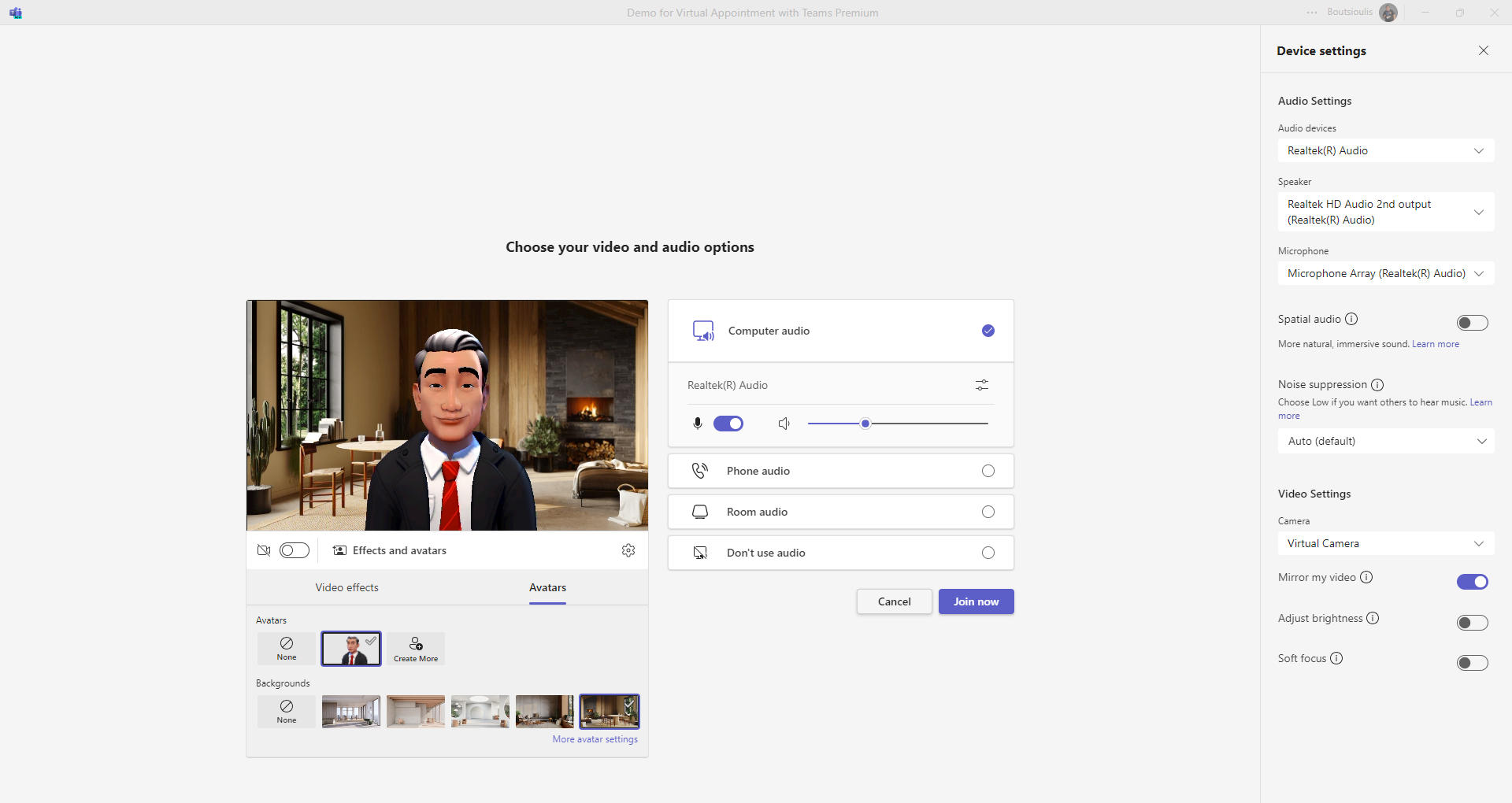
At the same time, the Teams Premium subscription gives me the opportunity to create my own Avatar which I can use during the race Note that there are many different options for creating an avatar as well as a series of animations that you want to include in your available to animate your avatar, as well as a series of available icons and videos as background for the avatar
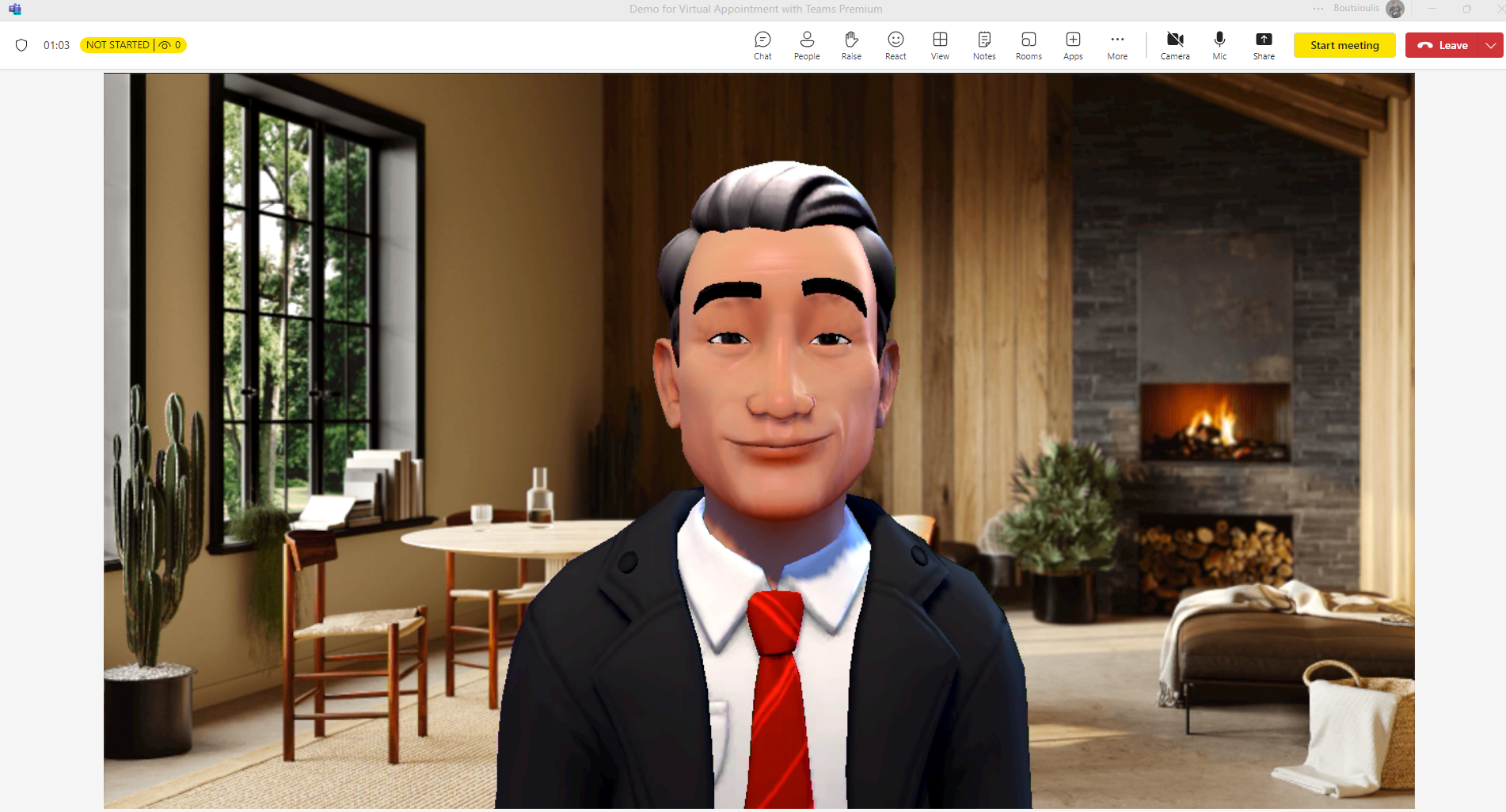
Finally as you can see I can switch to virtual appointment only with my avatar and have normally all the functions available depending on the choices I have made when creating the virtual Appointment
Before I close I would like to point out that virtual appointments can also exist through bookings but we will see this process in more detail in a future article
#Teams #TeamsPremium #technology #microsoft #digitaltransformation #cloud #mvpbuzz #m365Visit Archives below to find more articles about Microsoft technologies on Modern Workplace