
Free Material
Find hereMore than 150 Articles about Microsoft Technologies on Modern Workplace
Official Site
Microsoft Most Valuable Professional M365 Apps & Services
Microsoft Most Valuable Professional Business Applications
Consultant & Sr Cloud Solution Architect Modern Wokrplace
Find hereMore than 150 Articles about Microsoft Technologies on Modern Workplace
12 December 2023
In today's article we will see how we can make an edit form from the Power app to interact with our SharePoint list I will show you how we can add 2 buttons with which we will have the ability to edit with the first one on a specific item in the list and another button that will submit the changes within the list item Initially we will need to have an active M365 subscription and login to the home page From the side left column select Power Apps
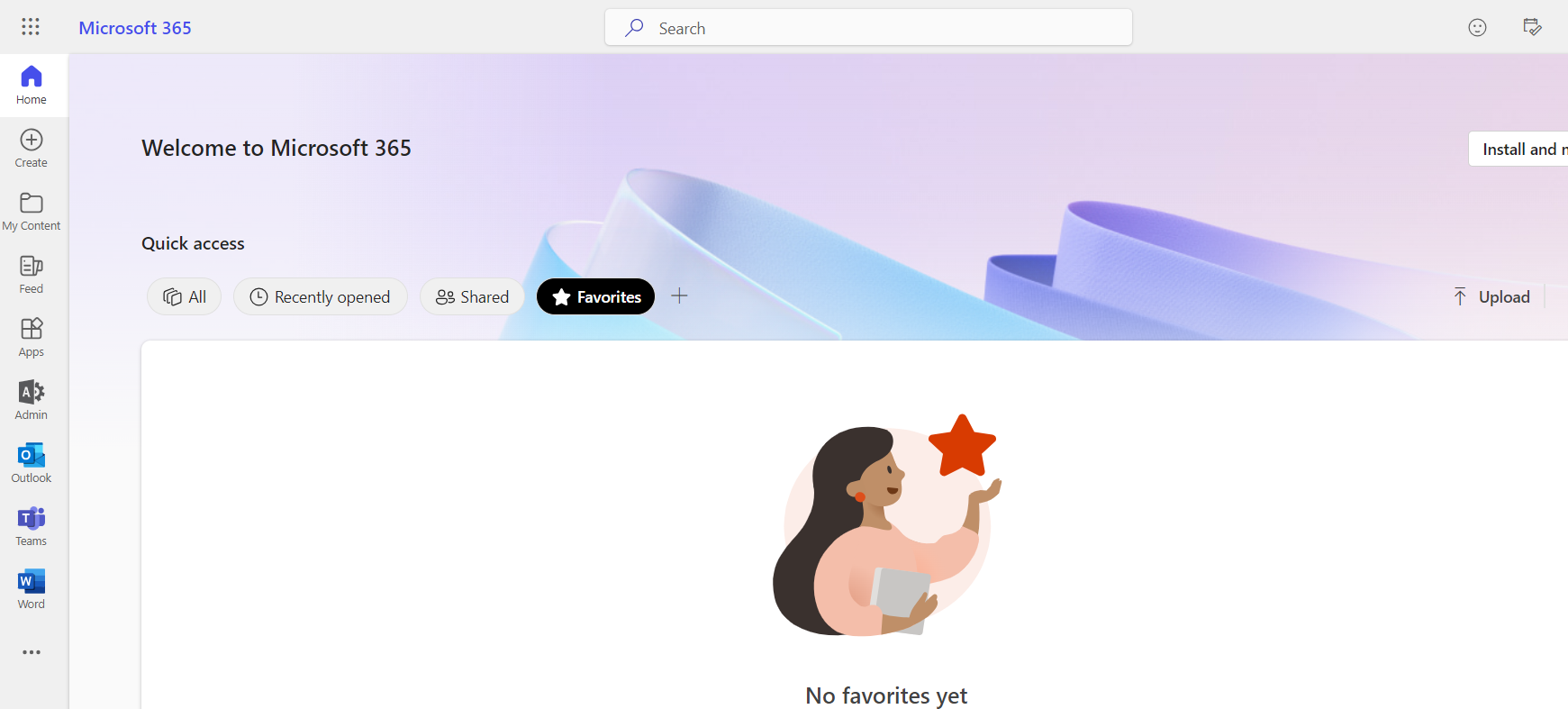
And so we go to the main page of Power Apps
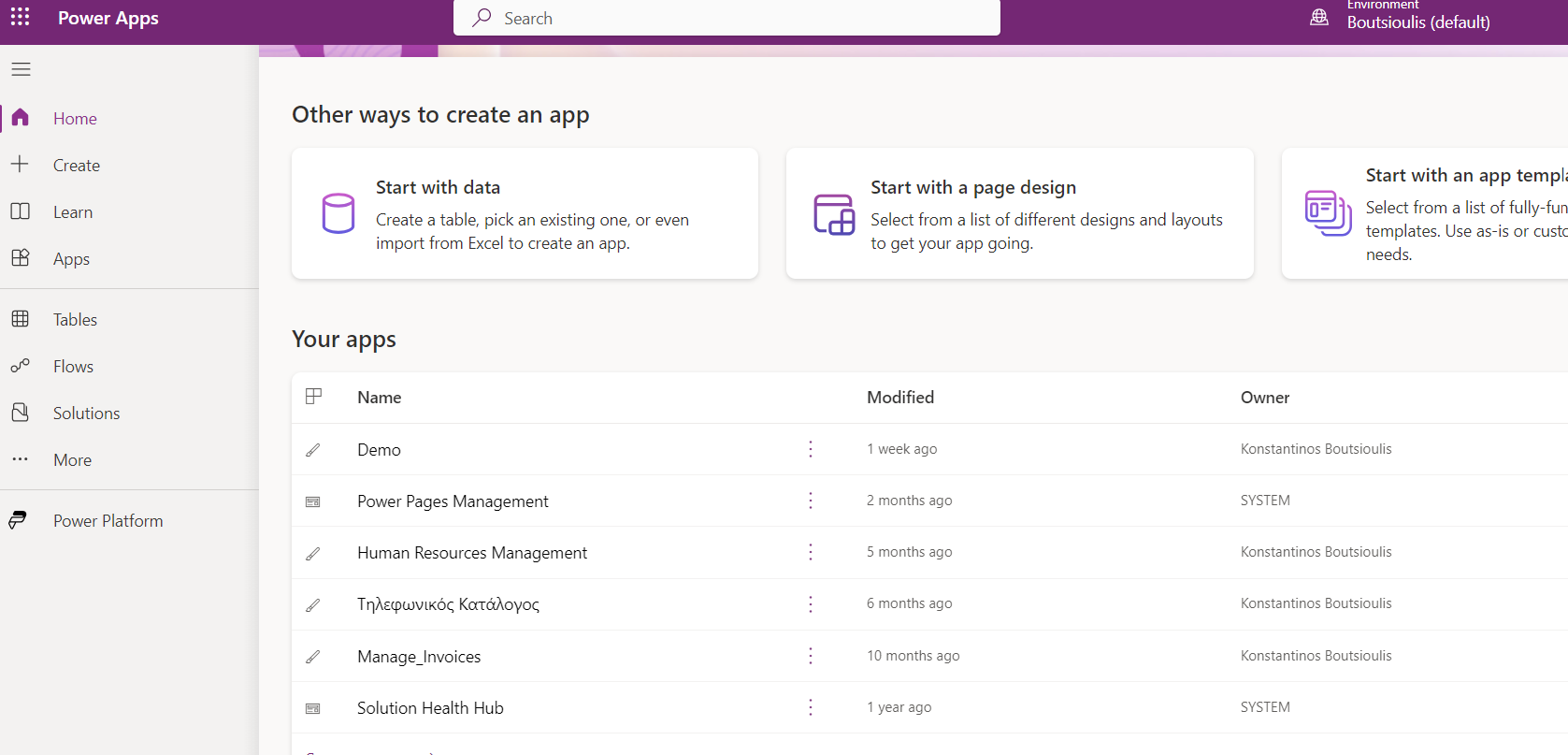
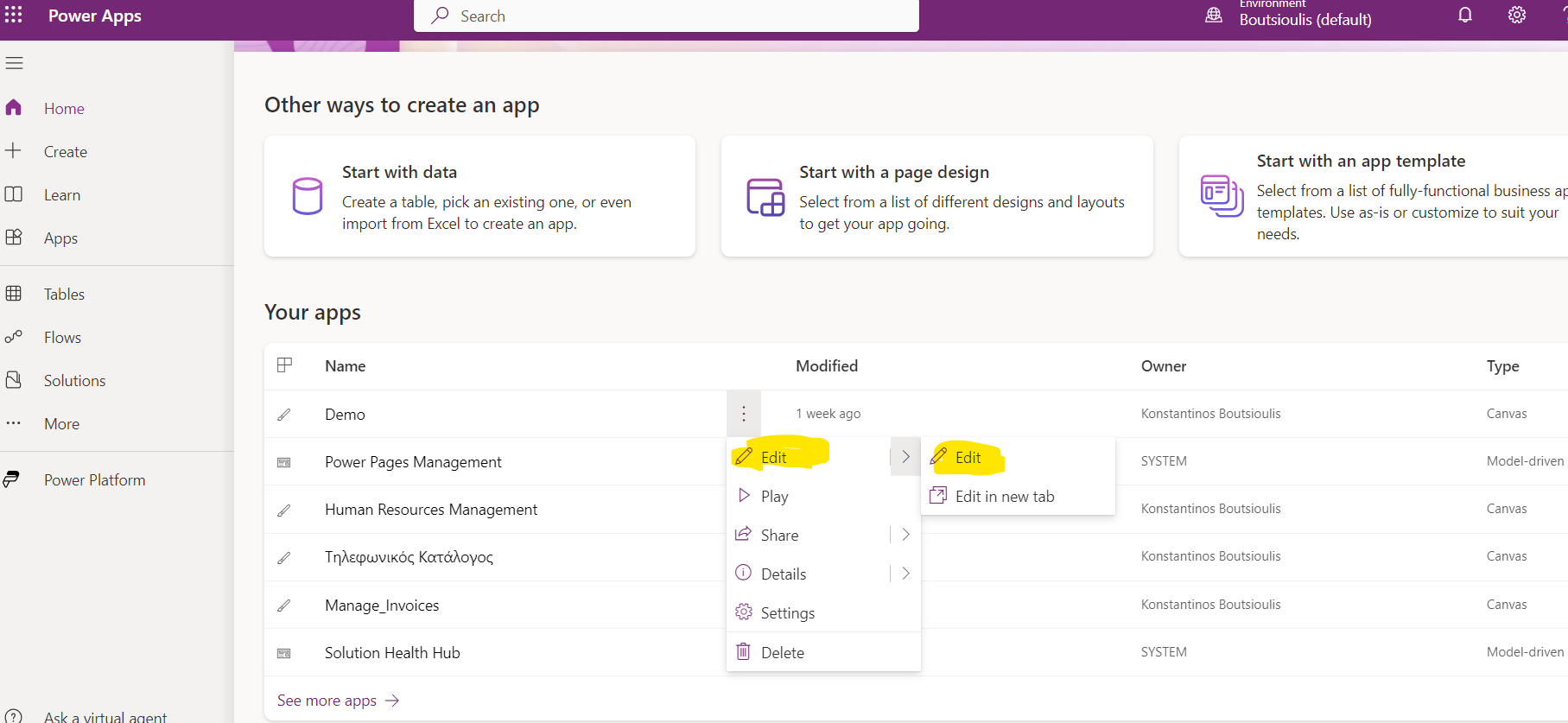
Then we select the app we have created and on the 3 dots on the right we select from the drop down menu edit and click edit
This way we have entered the main screen of our app .As you can see we have a gallery on the left to show the items and on the right an edit form where we can see the other items of the item .
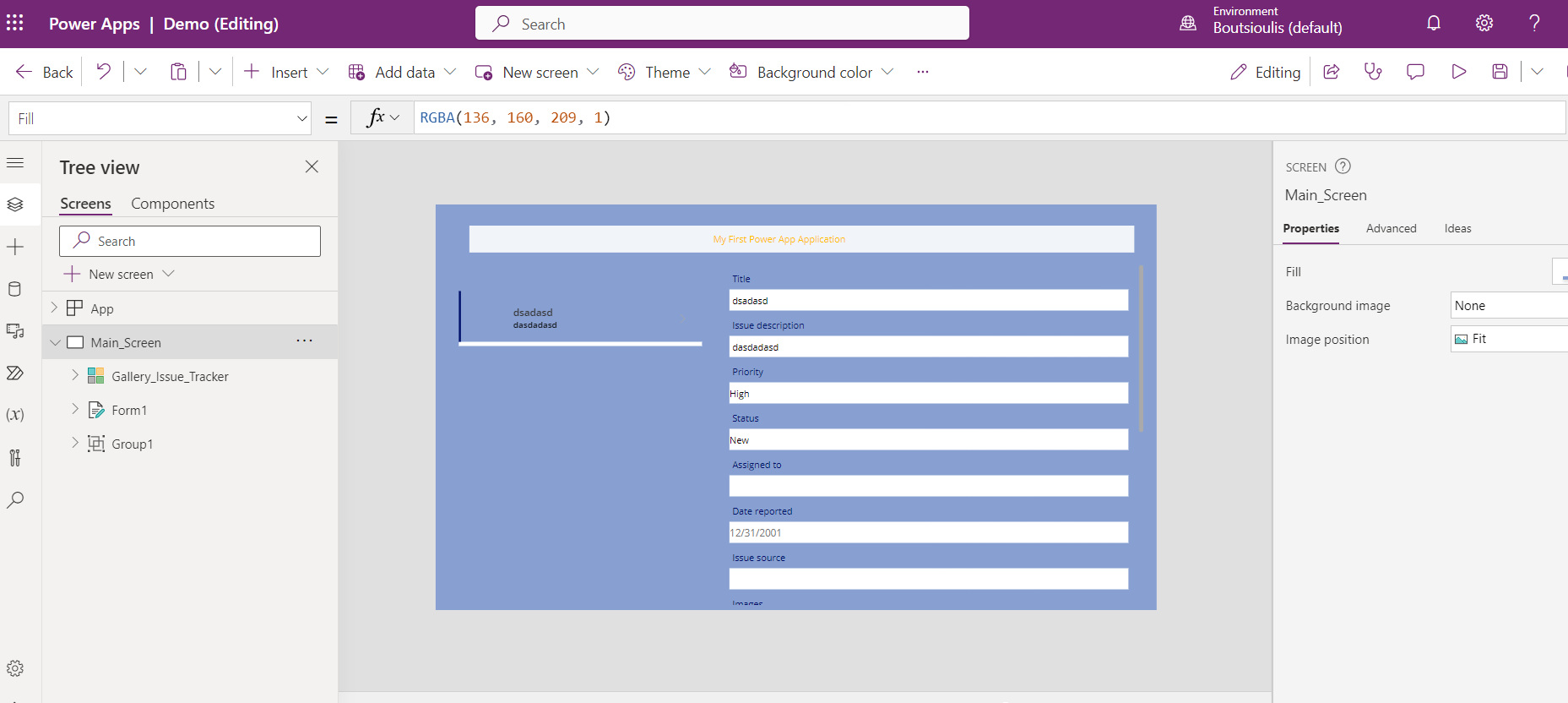
Note that the form has a property view so that it simply shows the items and there is no possibility of user intervention
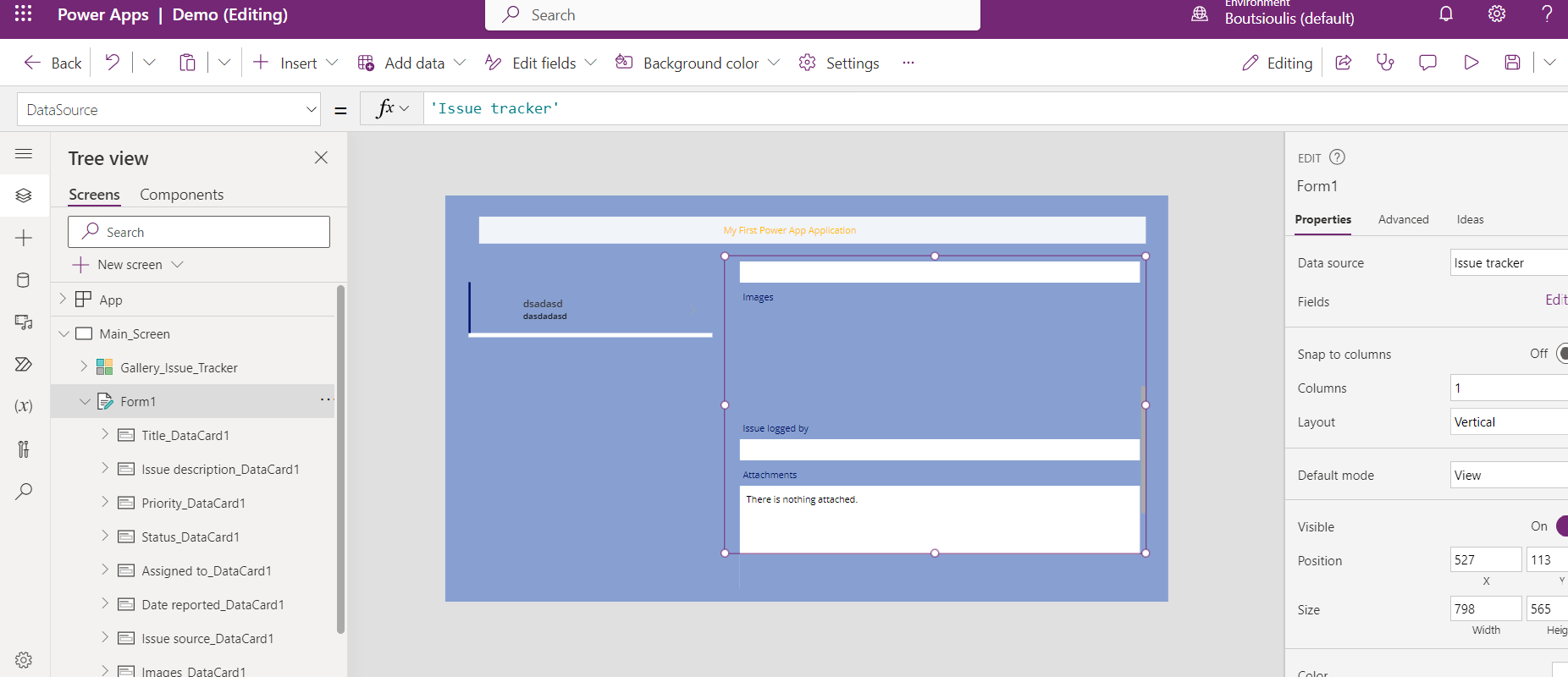
In the next step from the main menu at the top of the power app studio we select insert and then a button
In the right column below the name of the item button we enter the name we want to appear on the button
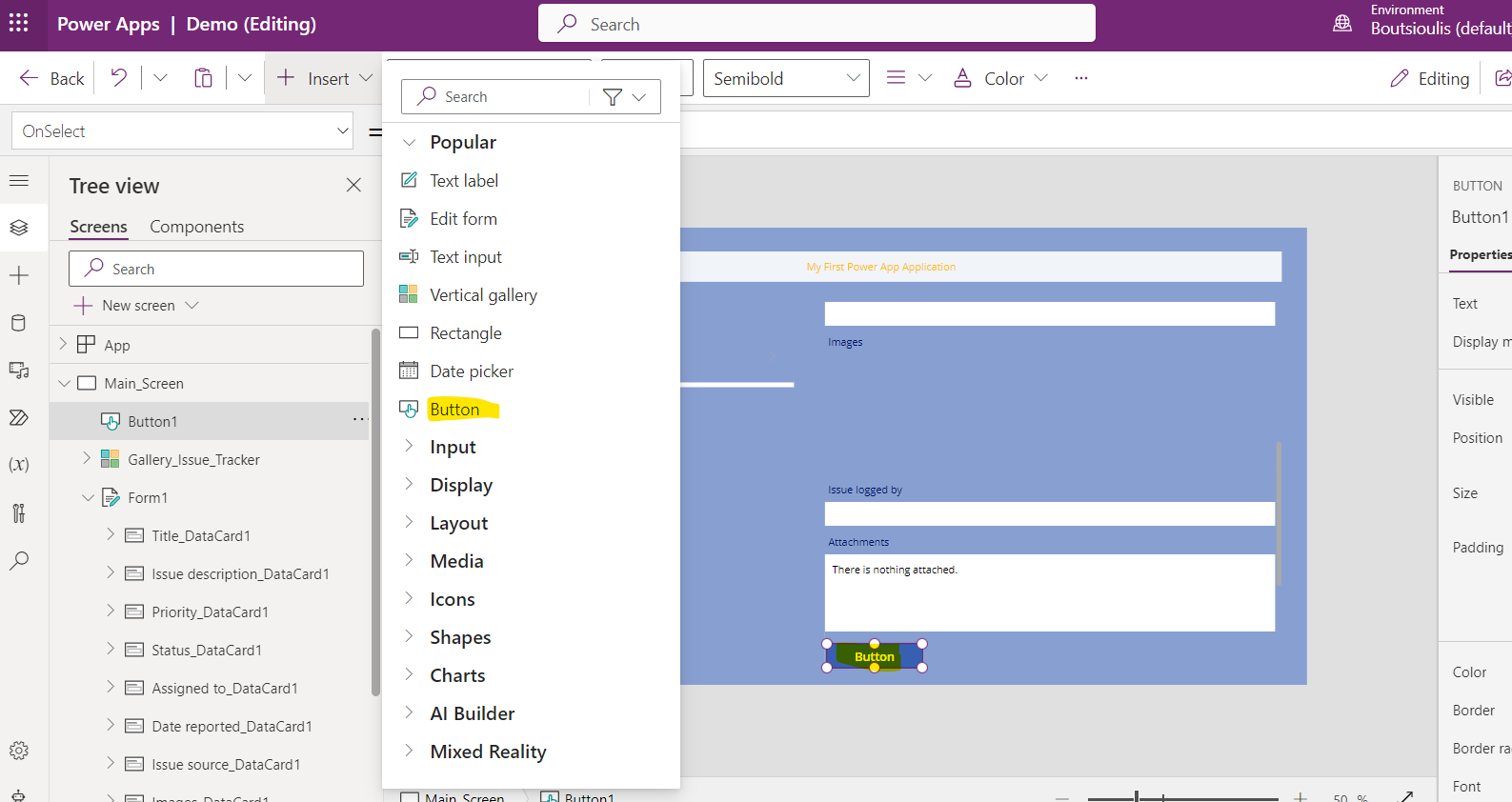
We follow the same procedure and insert another button called save so that it will submit the changes to the item . These two buttons can be placed below the form so that our application has some aesthetics
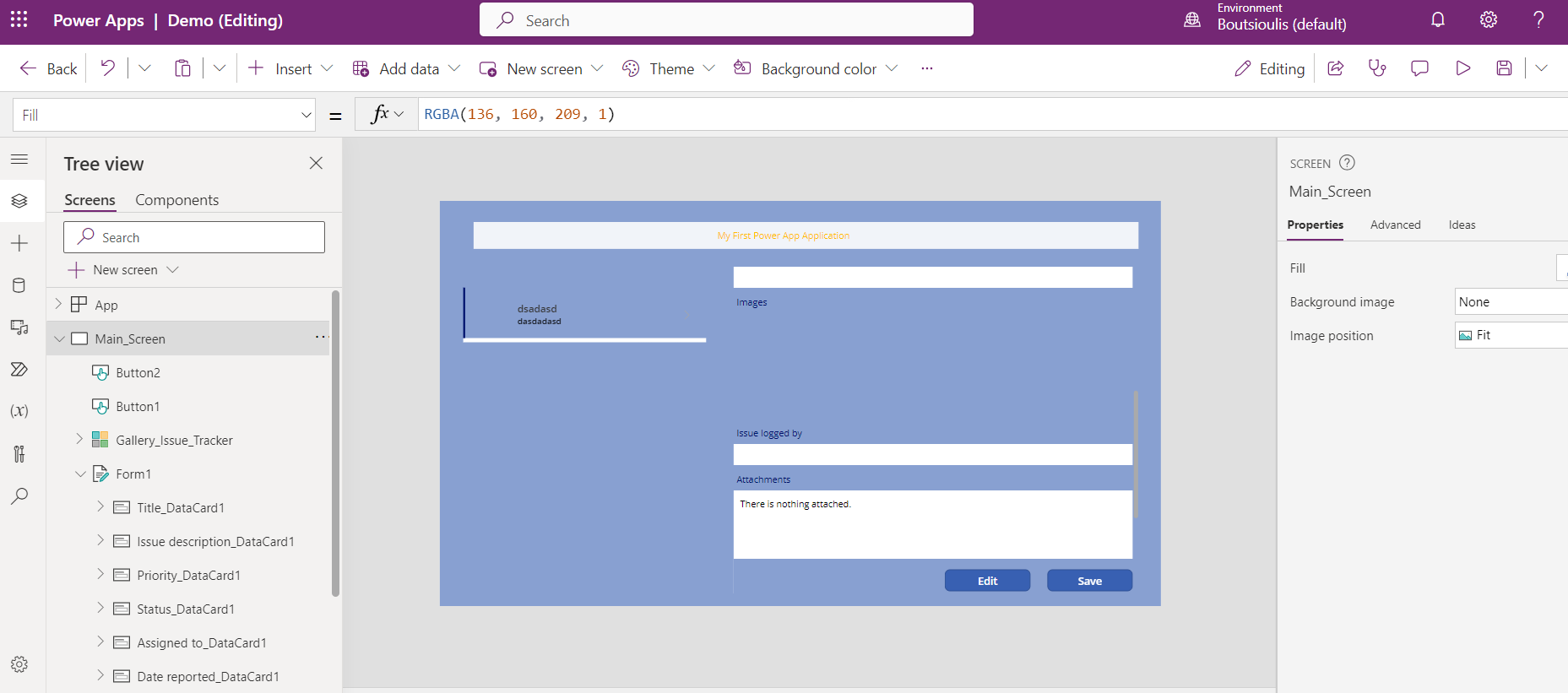
As I have mentioned above the form is in view mode and so every time we want to edit the details of a specific item we have to give some actions to the edit button so that every time we click on it it changes the form to edit mode To do this we select the button and on the left side above the actions we select the property onselect .We enter in the main textbox the value of the property which in this case is EditForm(Form1) where form1 is the name of our form
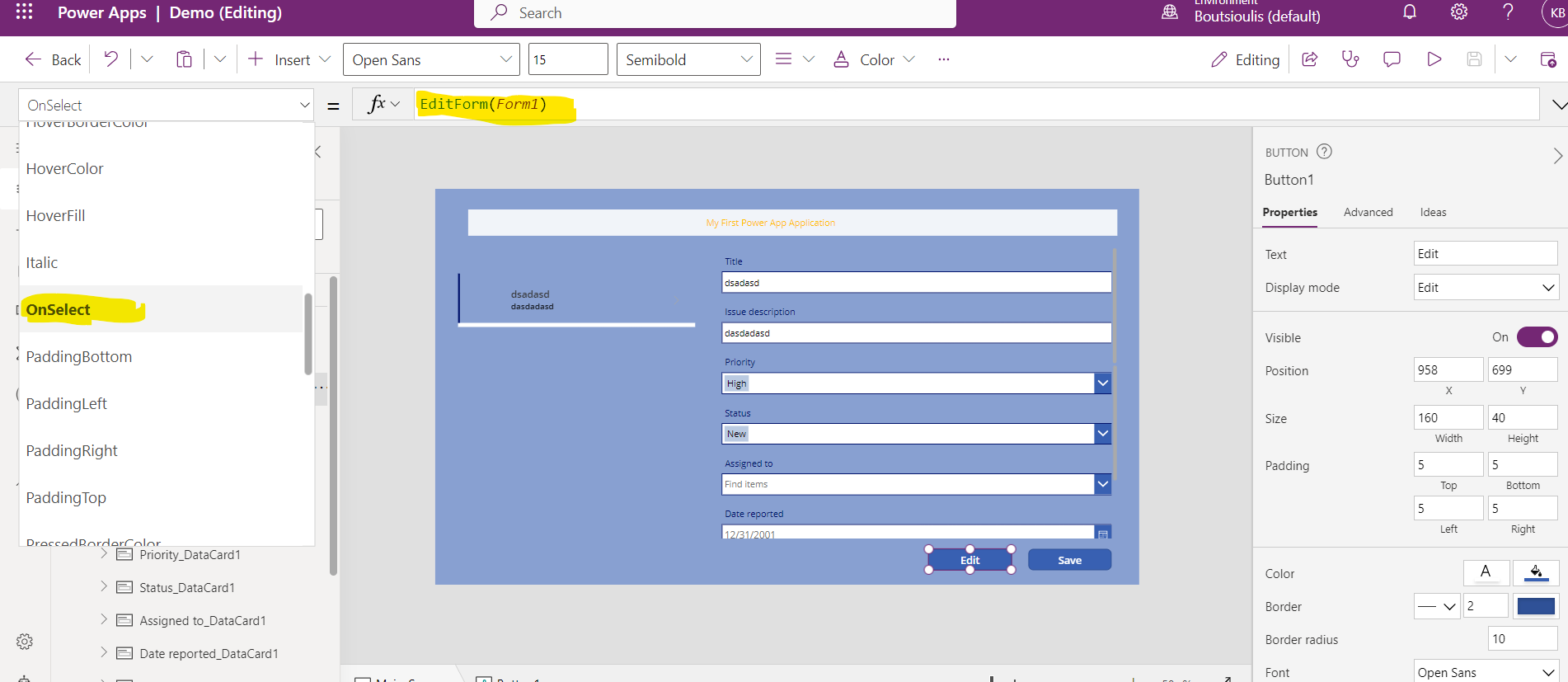
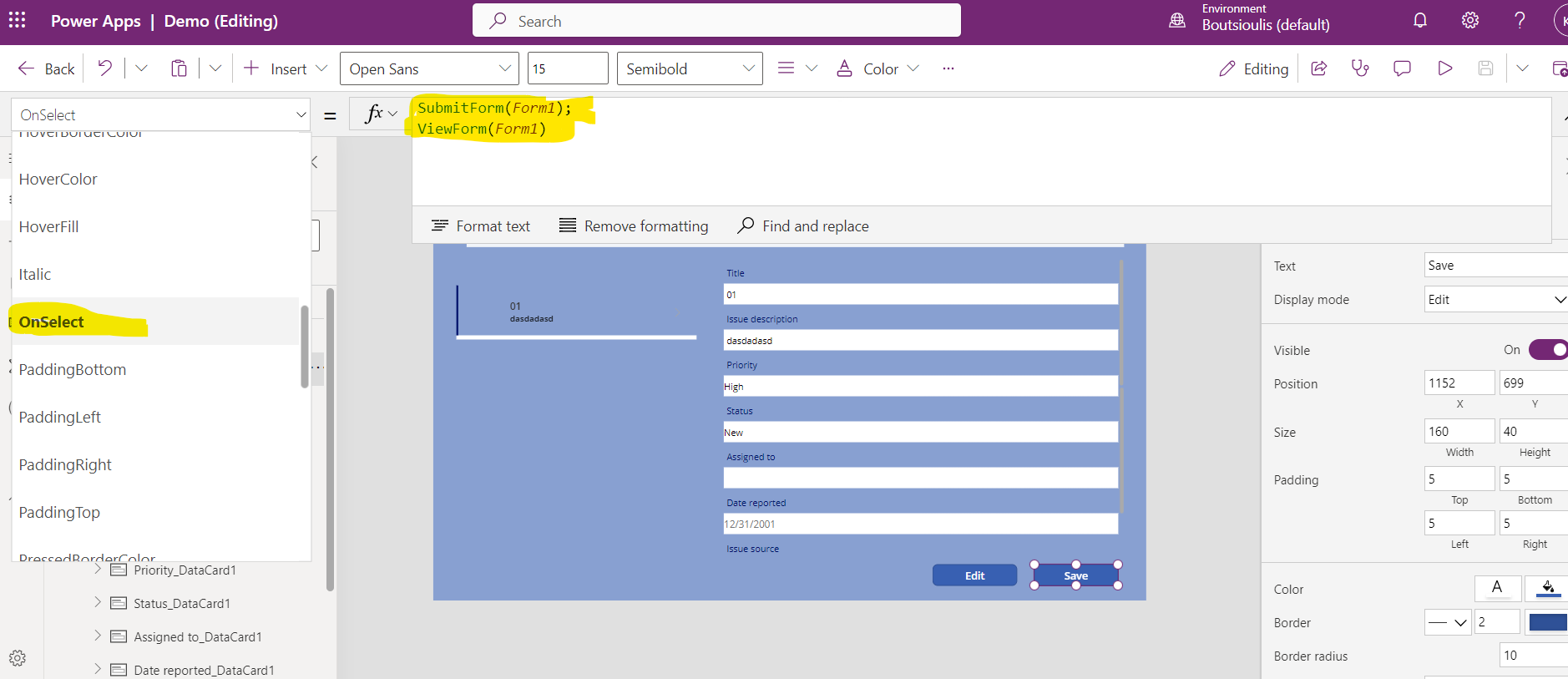
As we make our changes we have to change the properties of save to submit the changes to our list .In a similar way we open the properties and in OnSelect we give value SubmitForm(Form1);ViewForm(Form1) . The view form is to restore the form to view form after submission
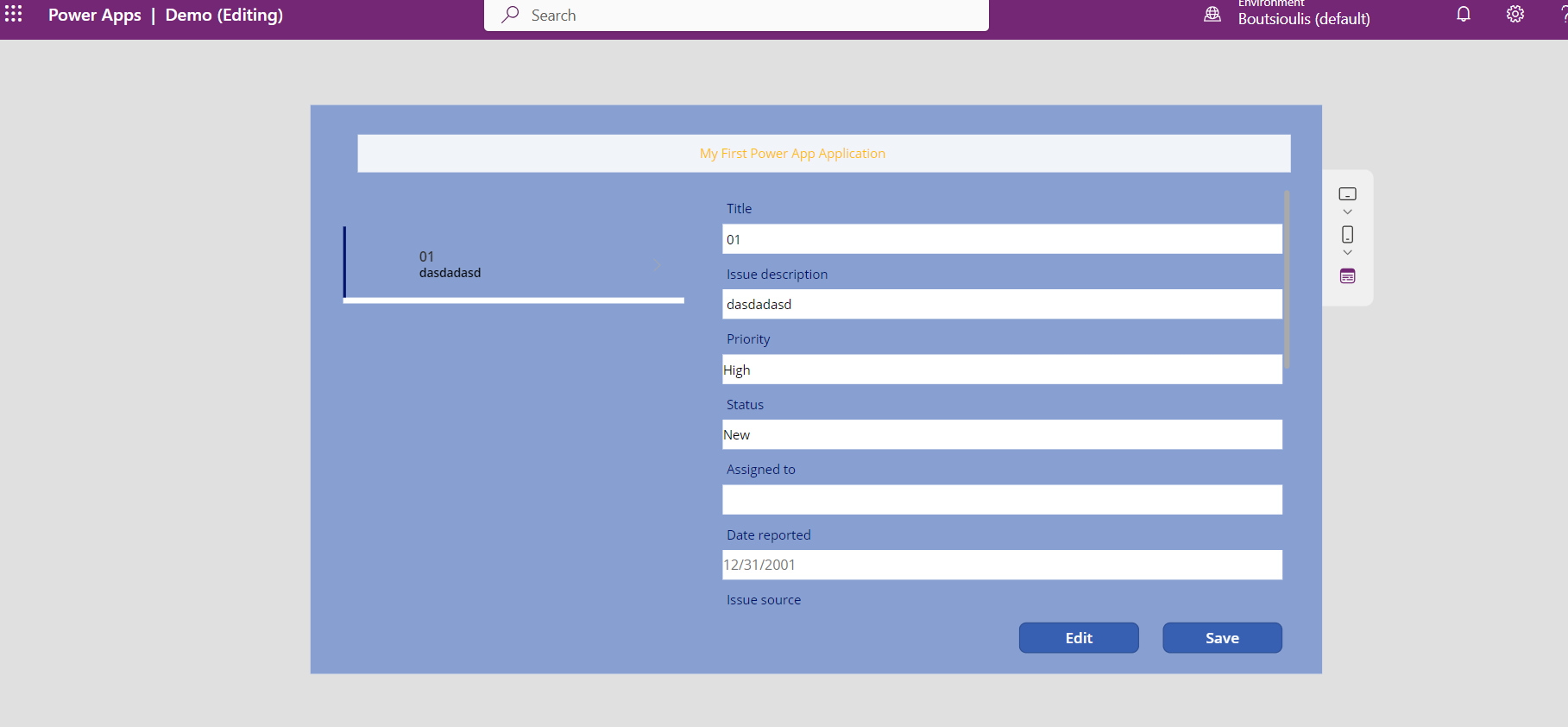
Press save to save the changes and press the Play button to see how our form has become
As you can see, once I hit edit, I can now edit the item's data.
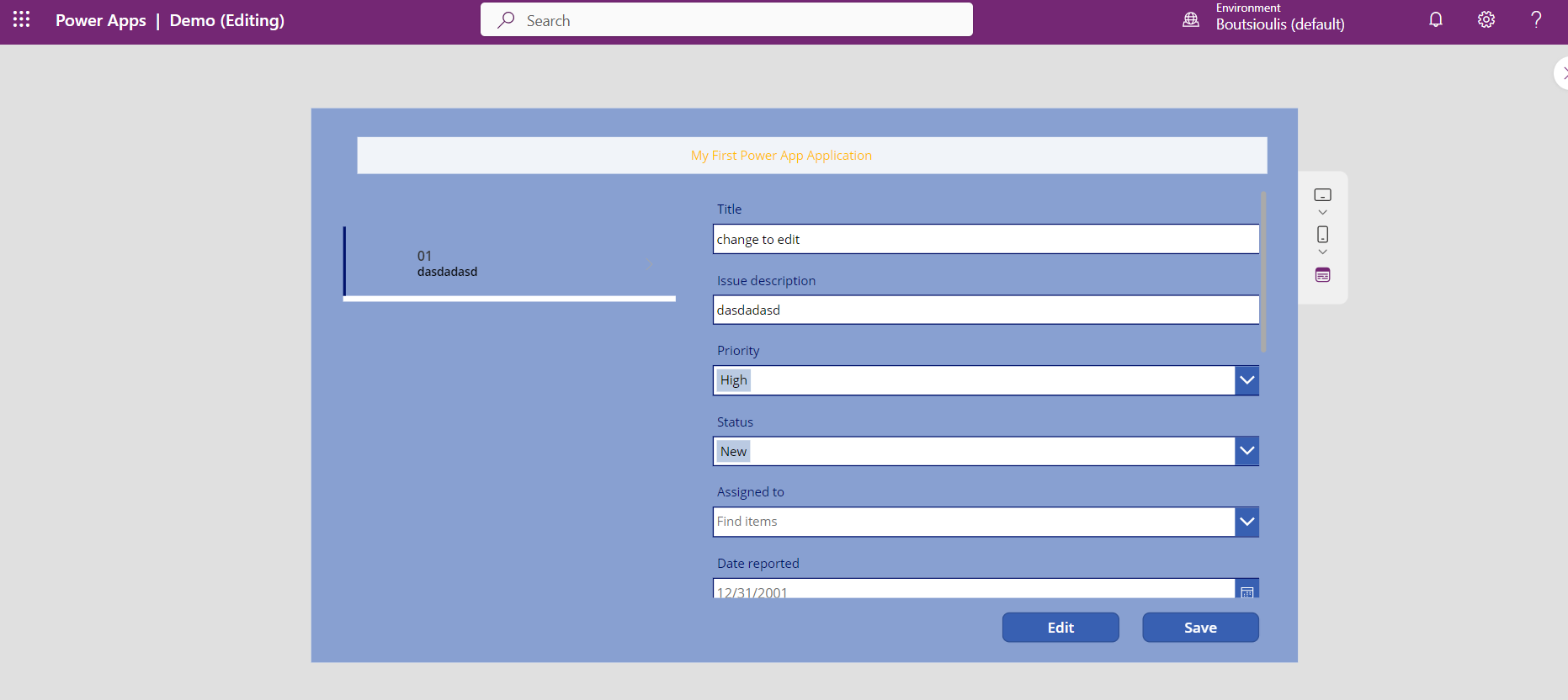
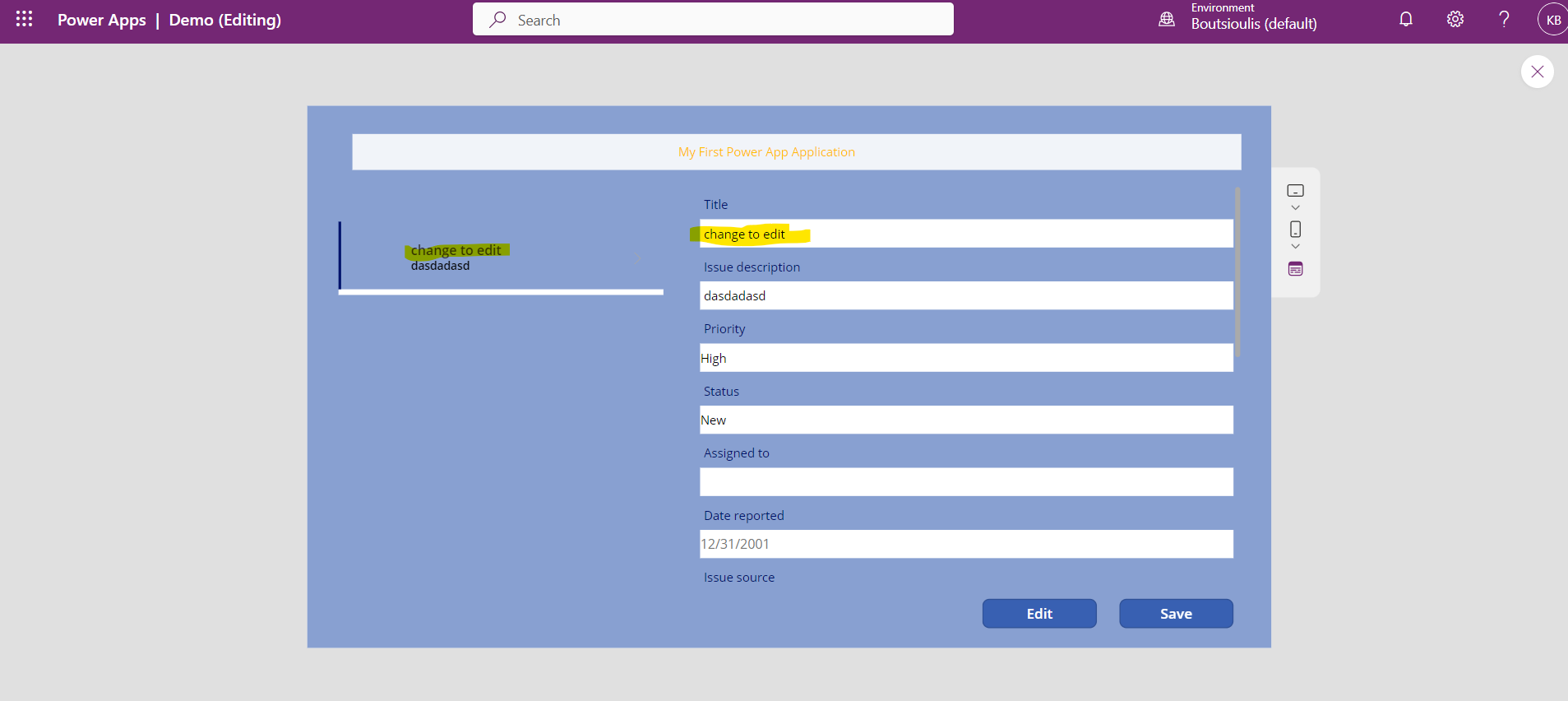
I make a change to the title and press save
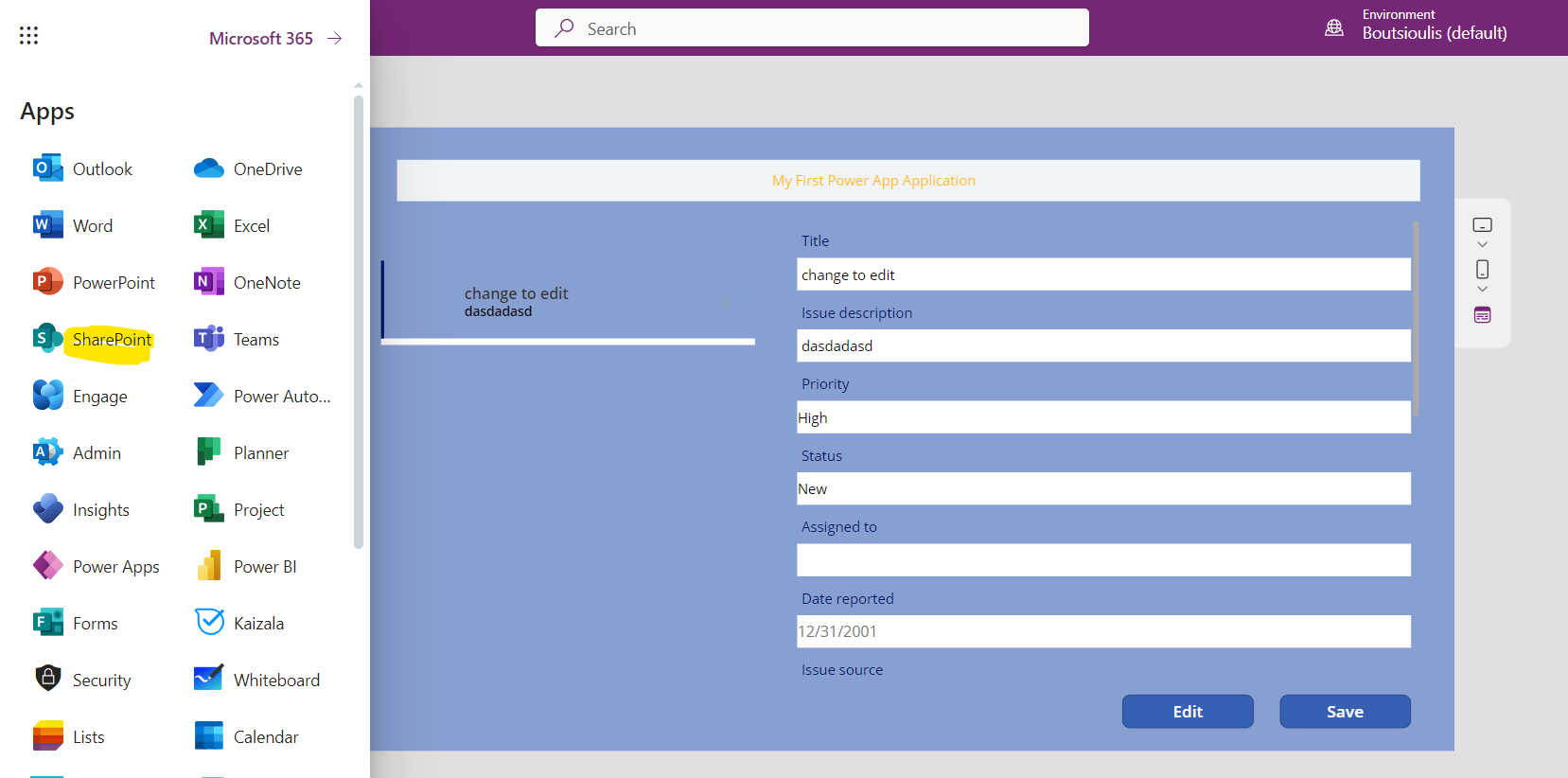
From the main M365 page select SharePoint from the left side column
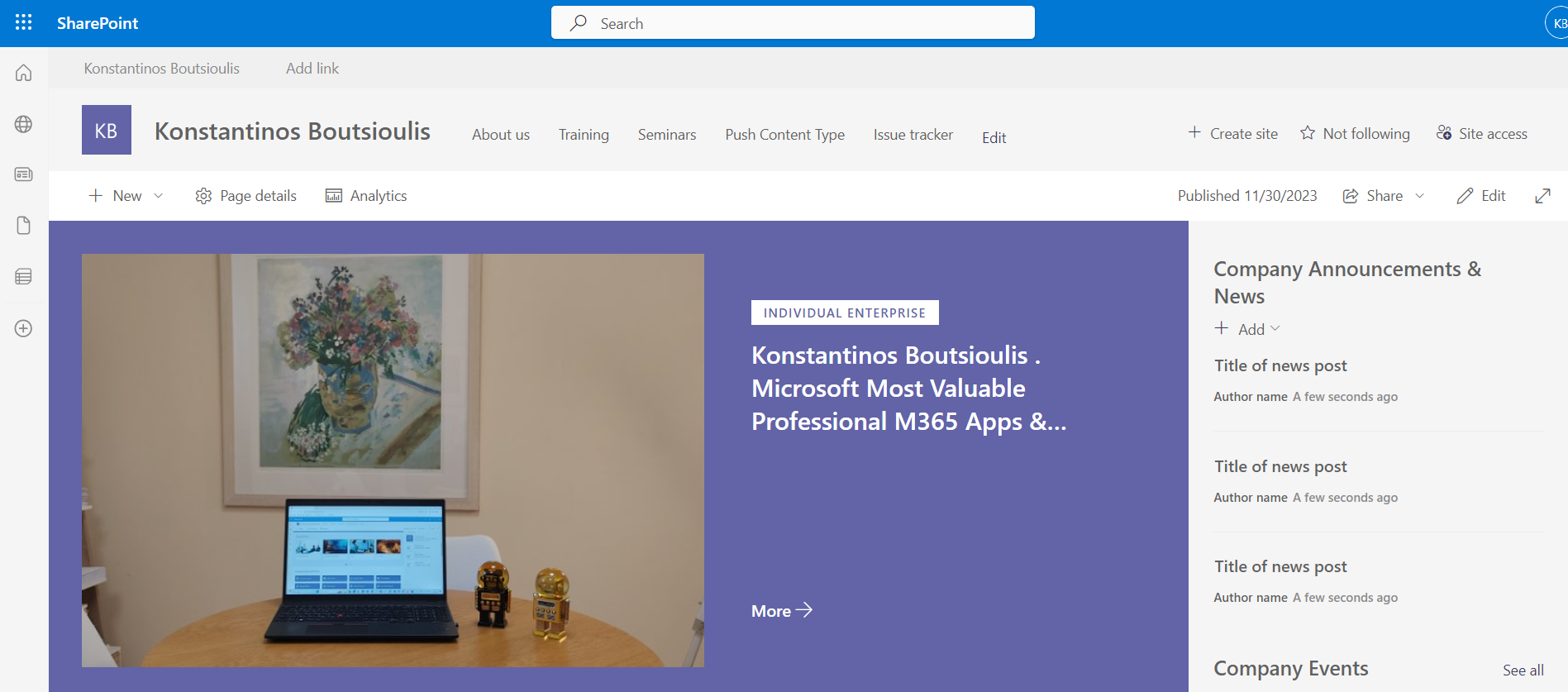
We go to the page containing the library that is integrate with our application
And finally we see that the link to Item has been made from our integrated power app
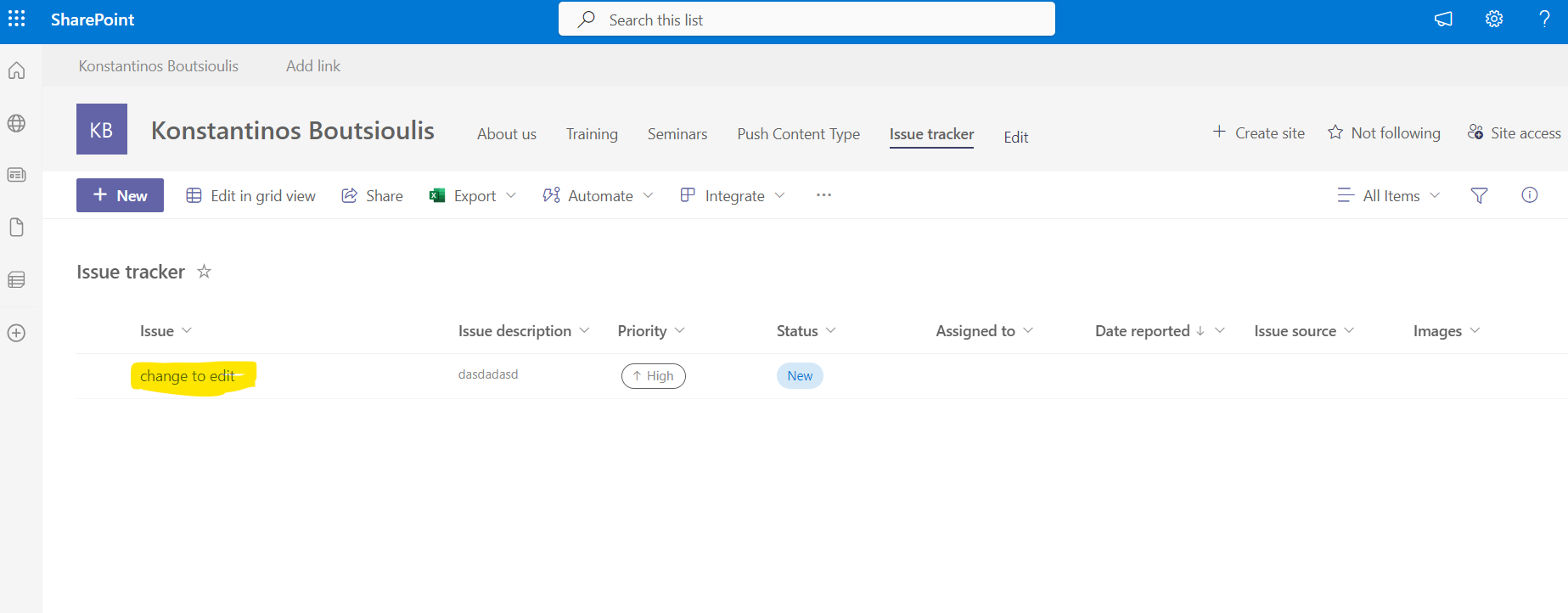
In this easy way we can have interaction between the application and our list and so there is no reason to give the address of the library so that we can manage the items we can then have management through the application In the next post I will show how we can add new items
#PowerPlatform #PowerApps #technology #microsoft #digitaltransformation #cloud #mvpbuzz #m365Visit Archives below to find more articles about Microsoft technologies on Modern Workplace