
Free Material
Find hereMore than 150 Articles about Microsoft Technologies on Modern Workplace
Official Site
Microsoft Most Valuable Professional M365 Apps & Services
Microsoft Most Valuable Professional Business Applications
Consultant & Sr Cloud Solution Architect Modern Wokrplace
Find hereMore than 150 Articles about Microsoft Technologies on Modern Workplace
24 December 2023
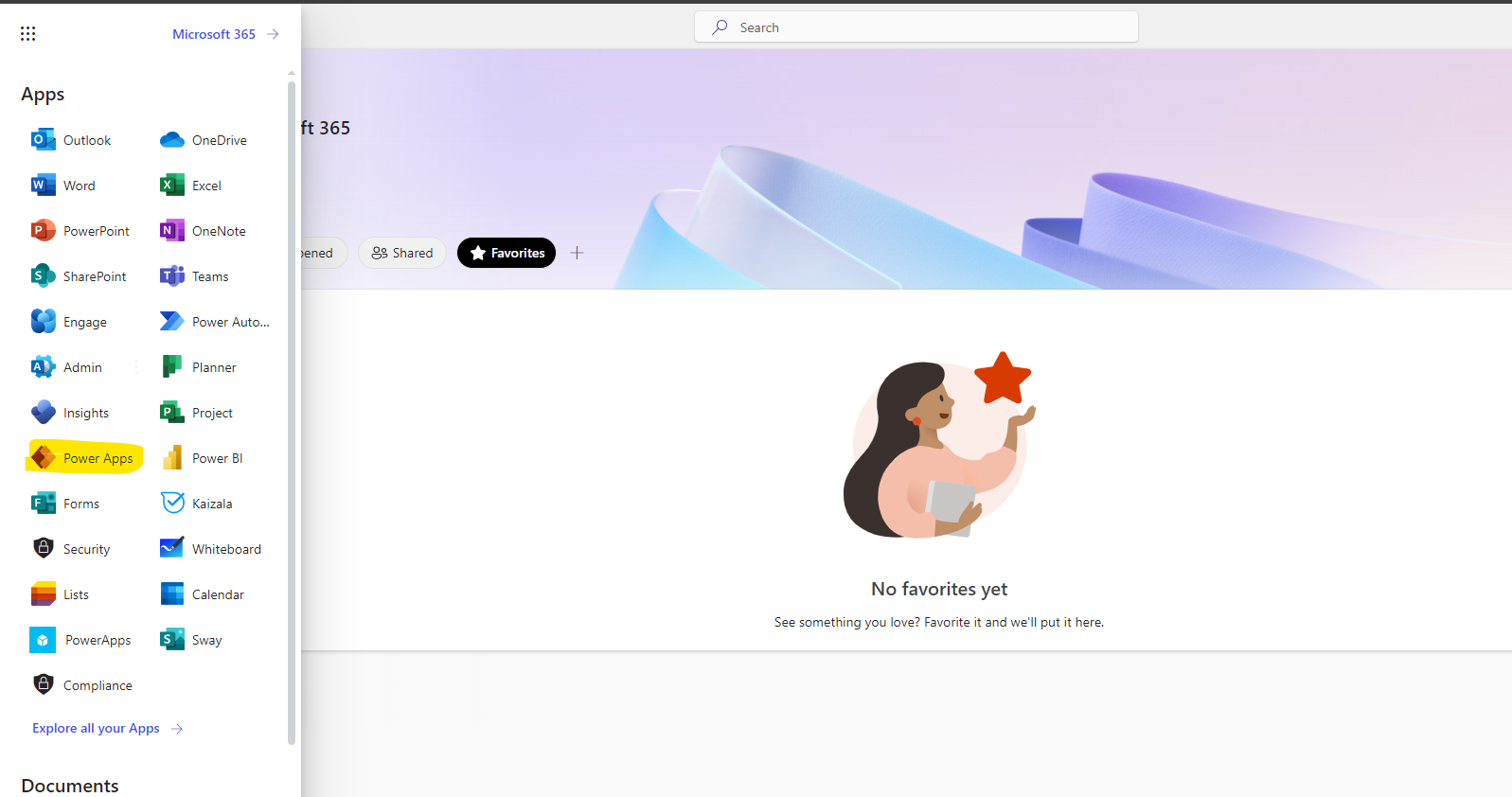
In today's article we will see how to export a Power App using PowerShell First, let me inform you that this is a process that you can also perform using the front-end environment by just clicking a few clicks. But if you wish it can be done using PowerShell or added to an automated process and run every time we select First, we go to the main M365 page from our active subscription and from the left sidebar select Power Apps
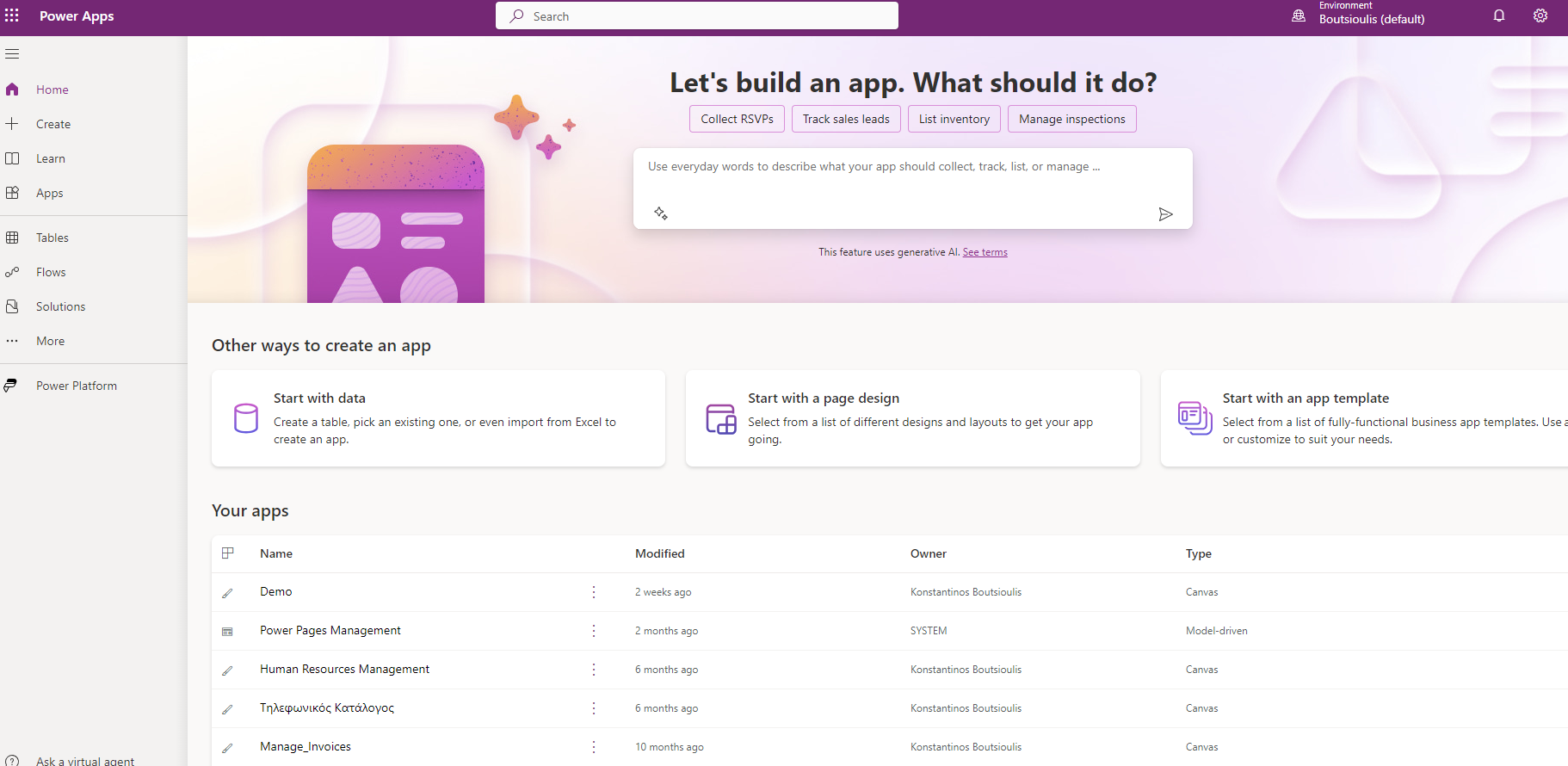
Then we go to the main page of Power Apps and from there we locate the app we want to export
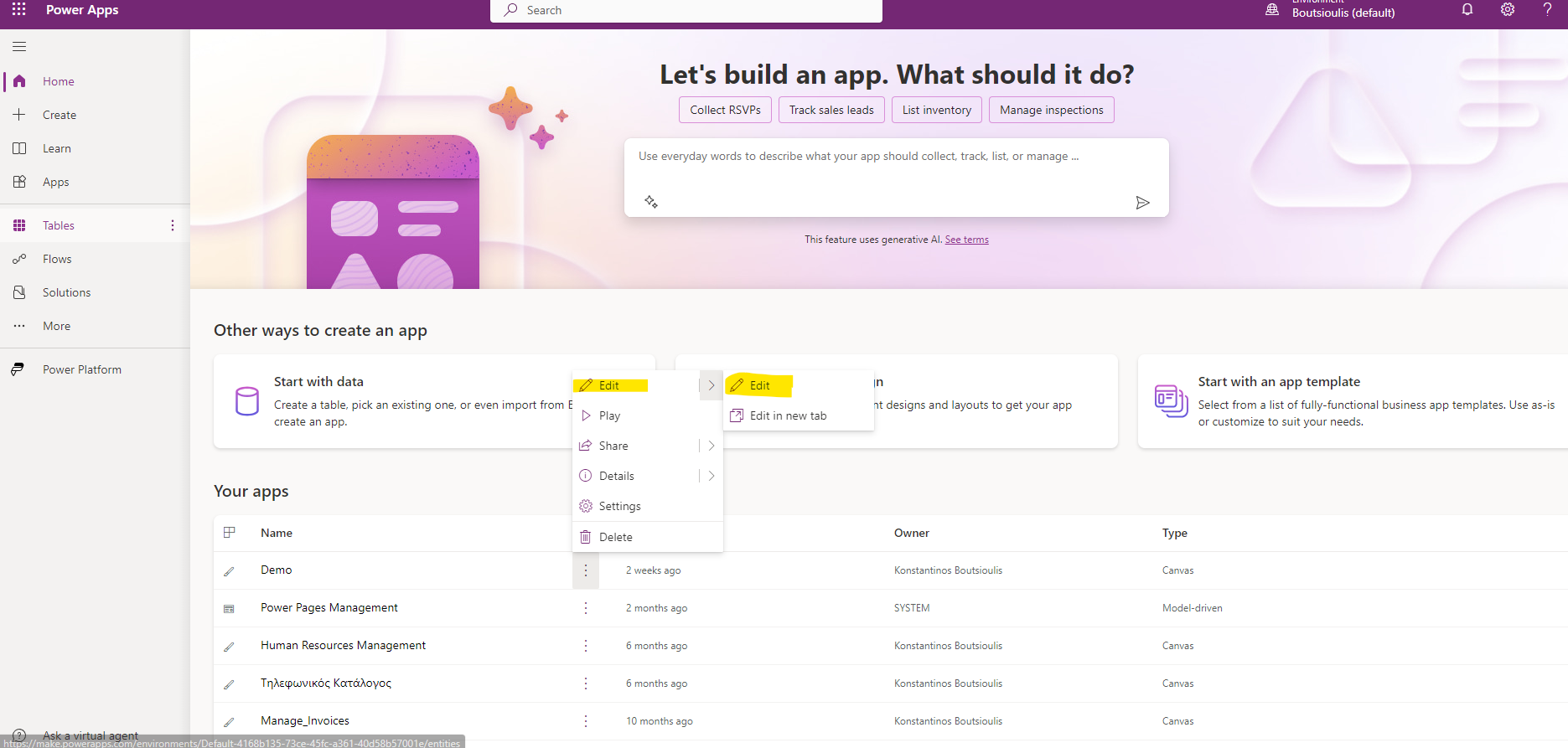
We click on edit on the app and we are on the power app information page. On setting button then press Support and Then press session details .There you can see the app id
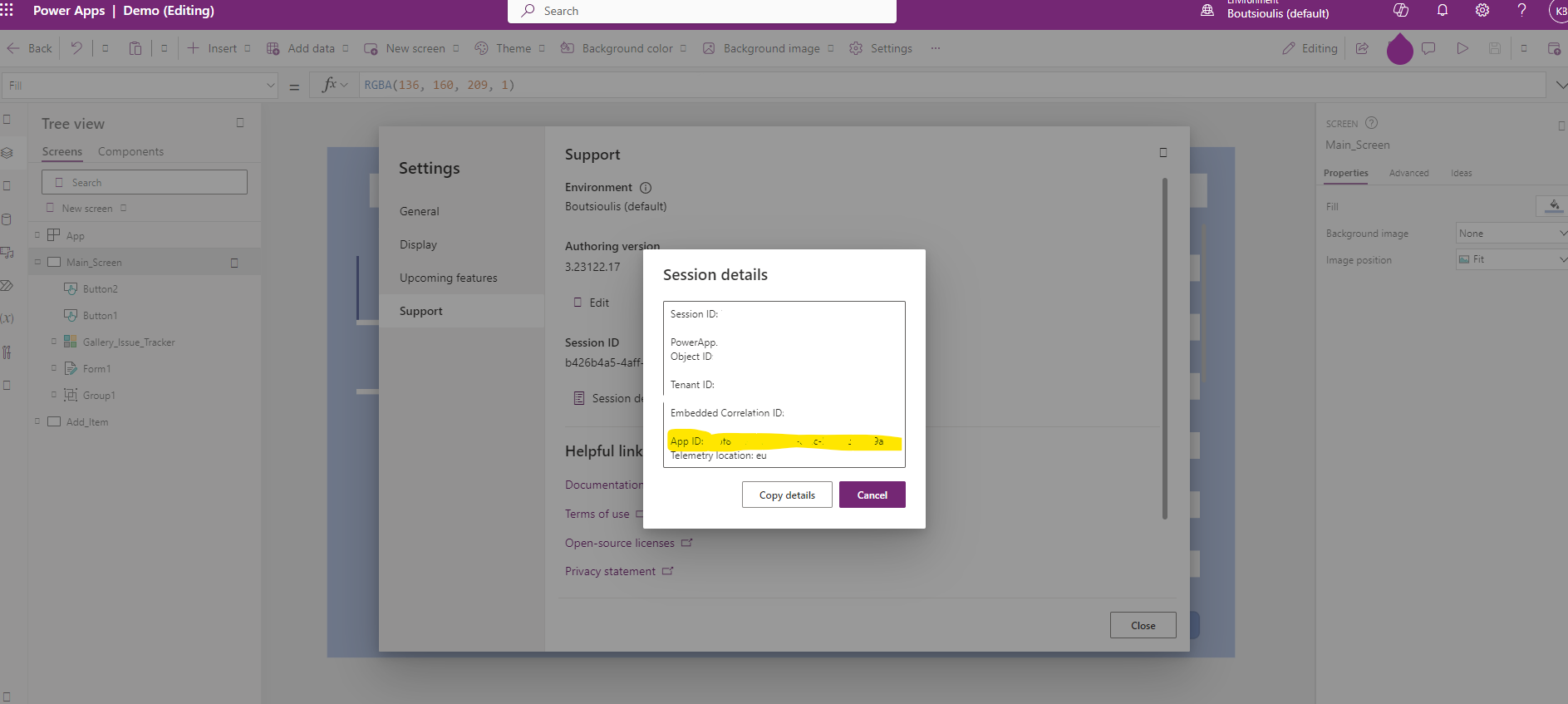
alternative you can find the app id from URL after Microsoft.PowerApps%2Fapps%2F
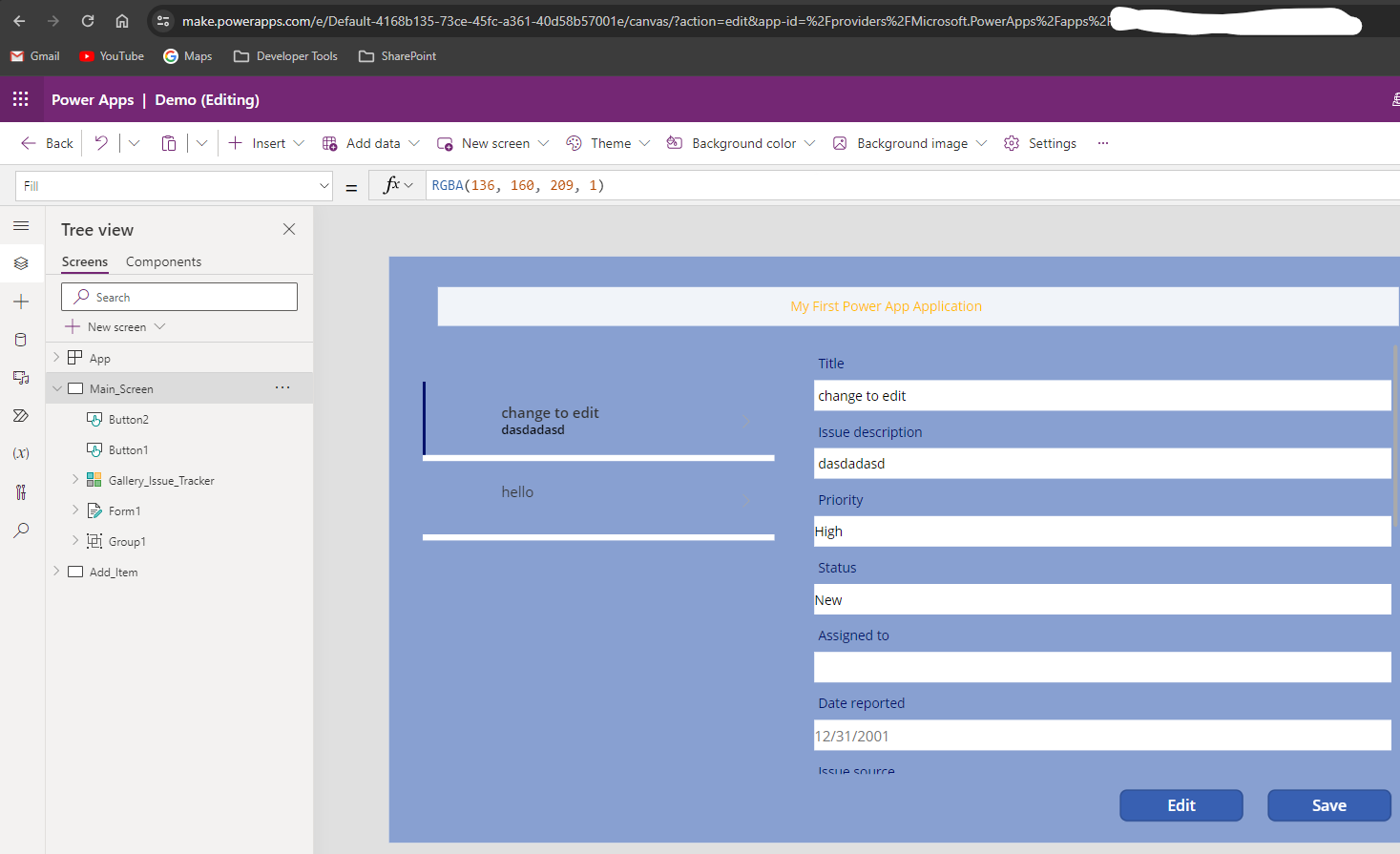
We return to the SharePoint Online Management Shell with administrator privileges and run the following PowerShell.
#Declare variable of site url
$spsiteurl = "https://mytenant.sharepoint.com"
#Connect with SharePoint Online
Connect-PnPOnline -Url $spsiteurl -Interactive
#Export Power App
$environment = Get-PnPPowerPlatformEnvironment -IsDefault $true
Export-PnPFlow -Environment $environment -Identity 76bf871c-99d1-4f86-8fac-5d5f3c37219a -OutPath "C:\exportpowerapp.zip"
You can find more information and alternative methods of exporting all Power apps in the PnP PowerShell documentation at the URL
PnP Official Documentation #PowerAutomate #technology #microsoft #PowerShell #PnP #digitaltransformation #cloud #mvpbuzz #m365Visit Archives below to find more articles about Microsoft technologies on Modern Workplace