
Free Material
Find hereMore than 150 Articles about Microsoft Technologies on Modern Workplace
Official Site
Microsoft Most Valuable Professional M365 Apps & Services
Microsoft Most Valuable Professional Business Applications
Consultant & Sr Cloud Solution Architect Modern Wokrplace
Find hereMore than 150 Articles about Microsoft Technologies on Modern Workplace
18 December 2023
In today's post we will see how using power automate and through a SharePoint list and an http post we can create a new site in SharePoint This is a very important process because by automating this process we save valuable time during our work First we need to have an active M365 subscription and we need to login to the main M365 page
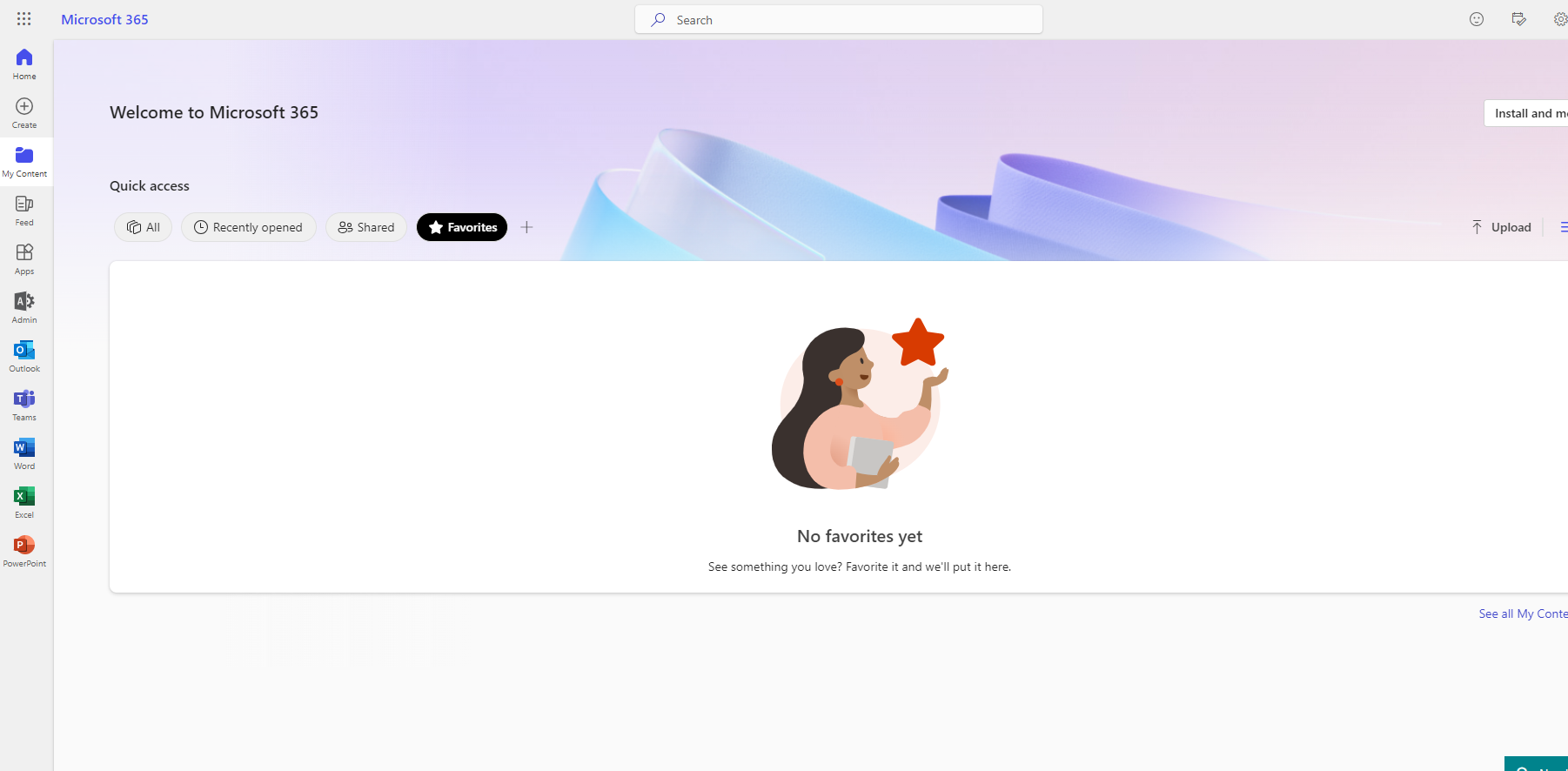
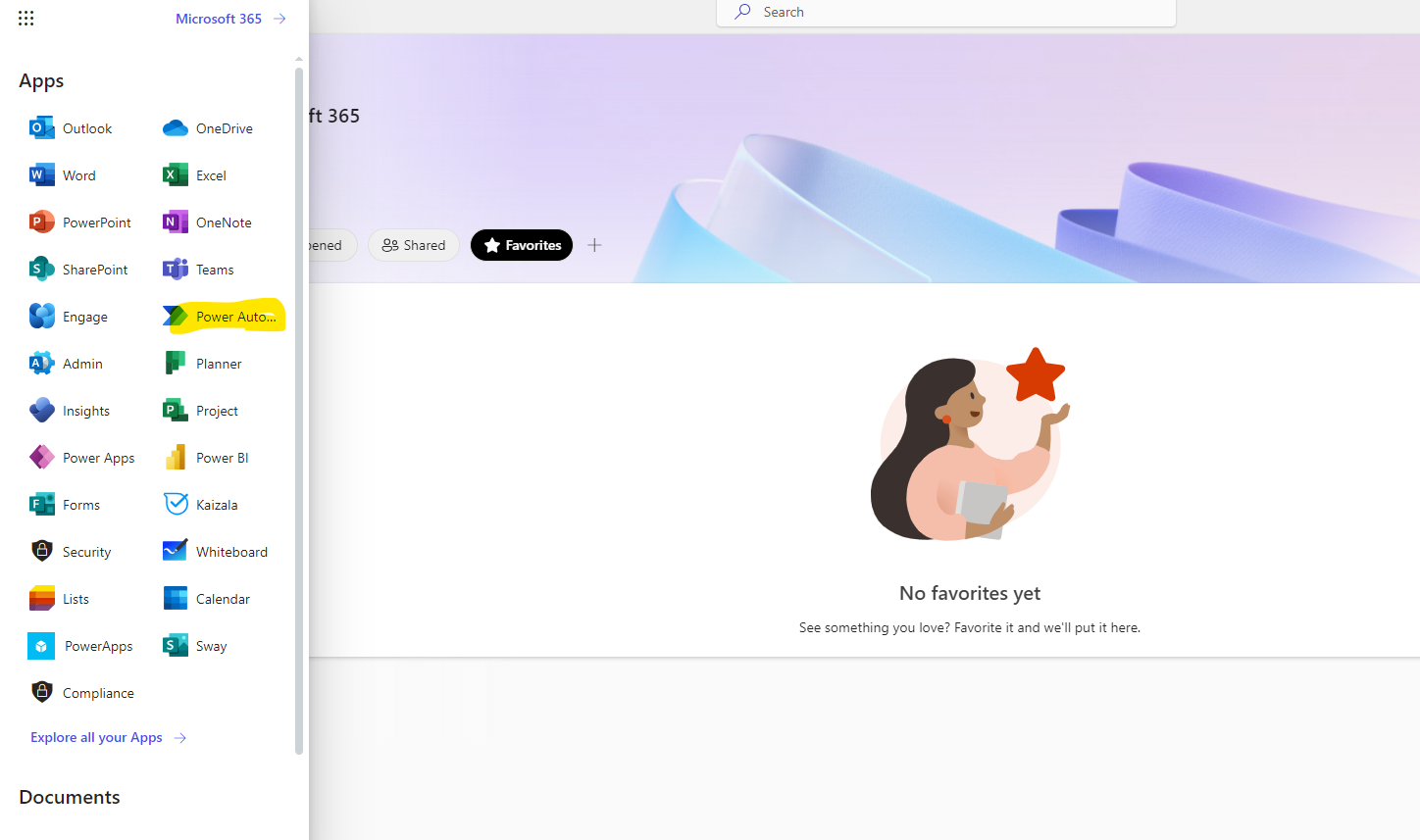
From the left drop down column select Power Automate
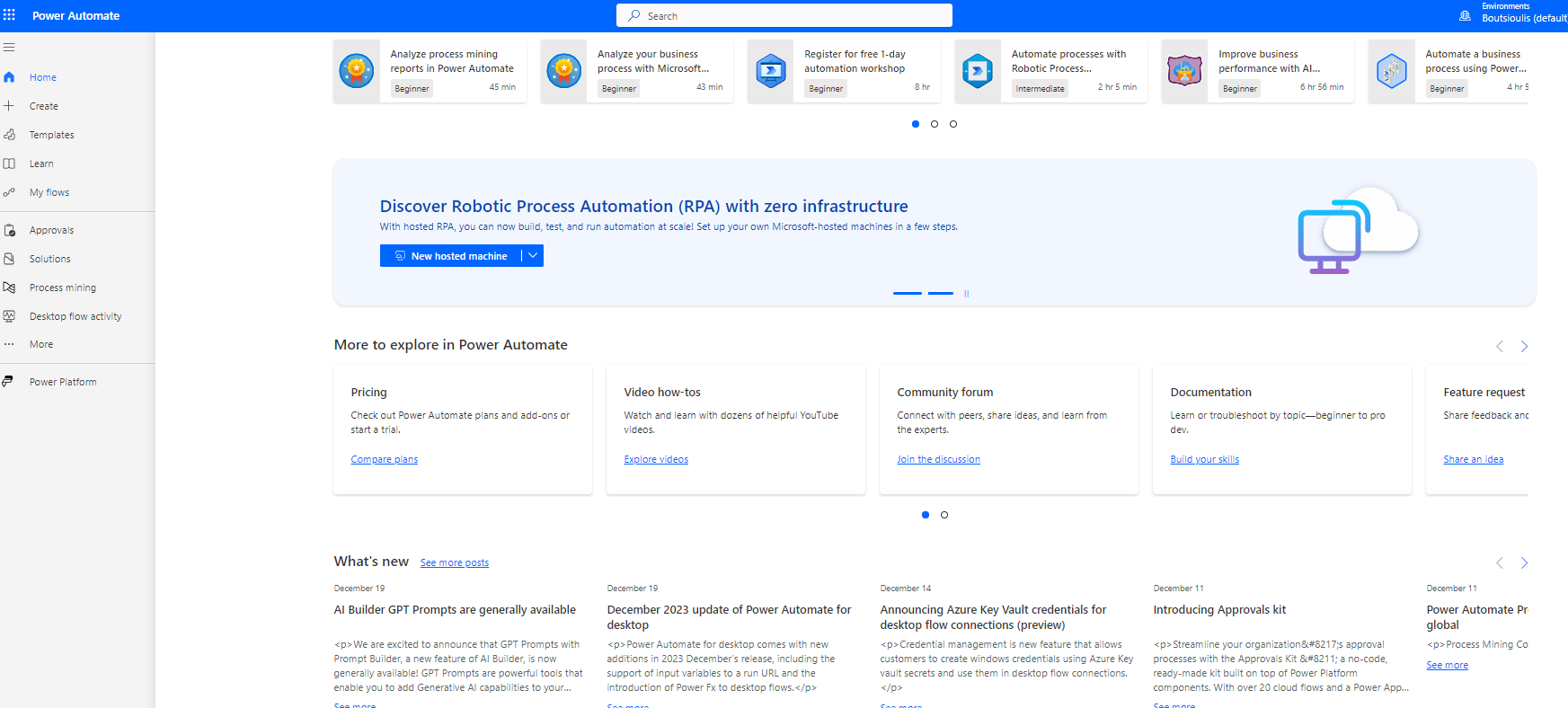
And this will take us to the main automates page
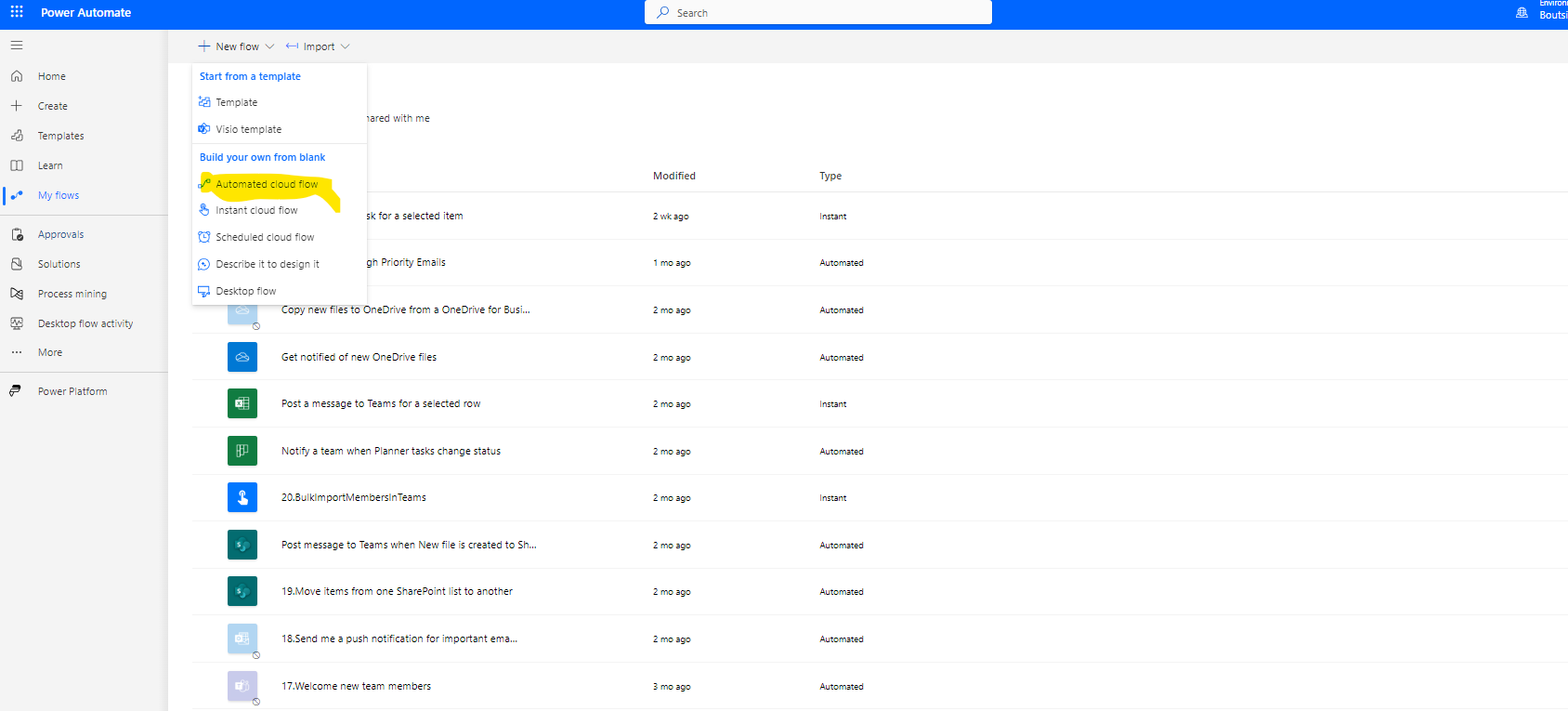
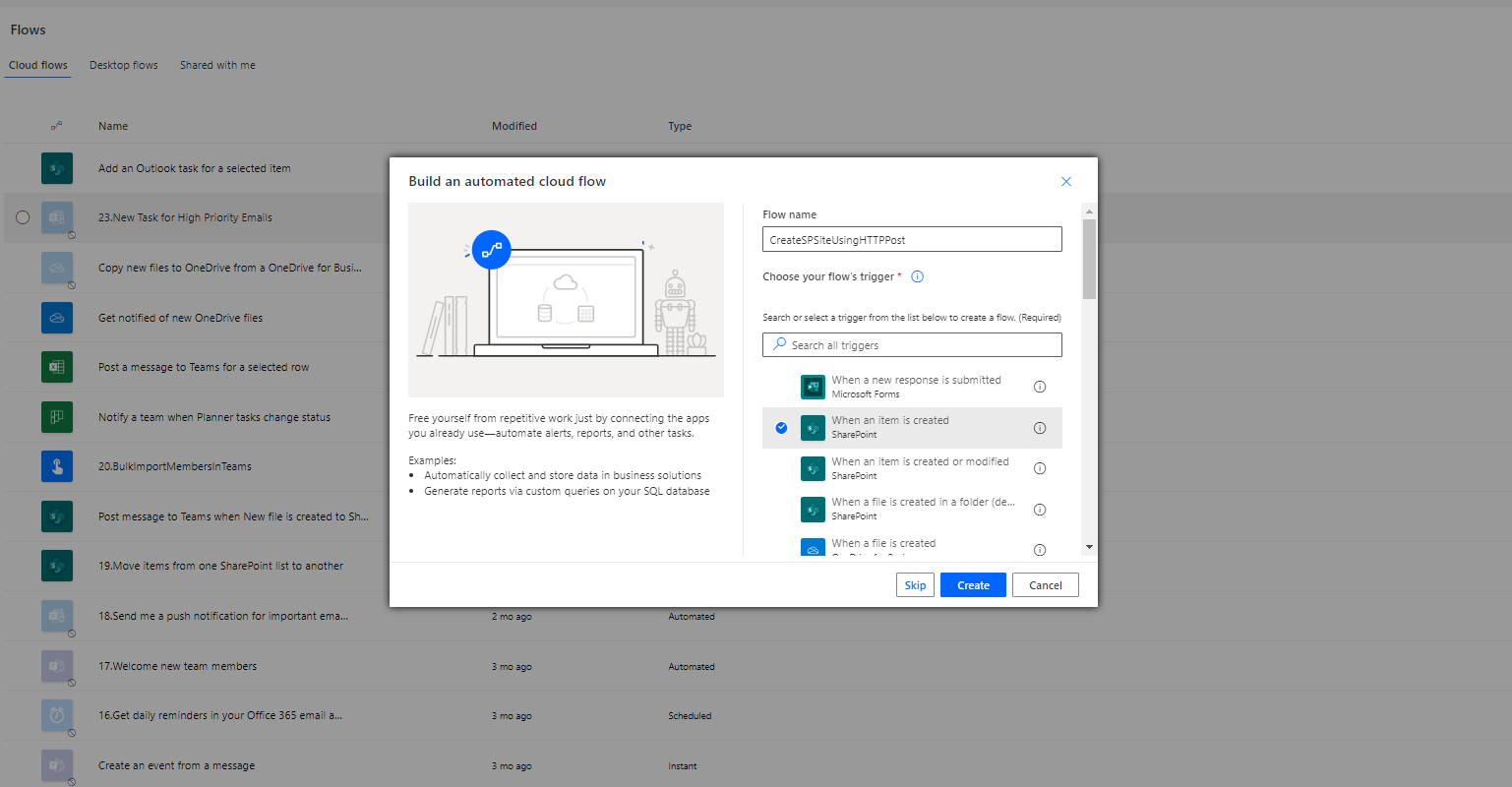
Here we have to select New flow and then Automated Cloud Flow
In the next step we will have to enter a name and the first action .We will choose when an item is created This choice is made because we said that we will create a list and by adding an item a new site will be created with values from the fields of the item. Also note that we select http post in sharepoint list because http post is a premium service in power automate
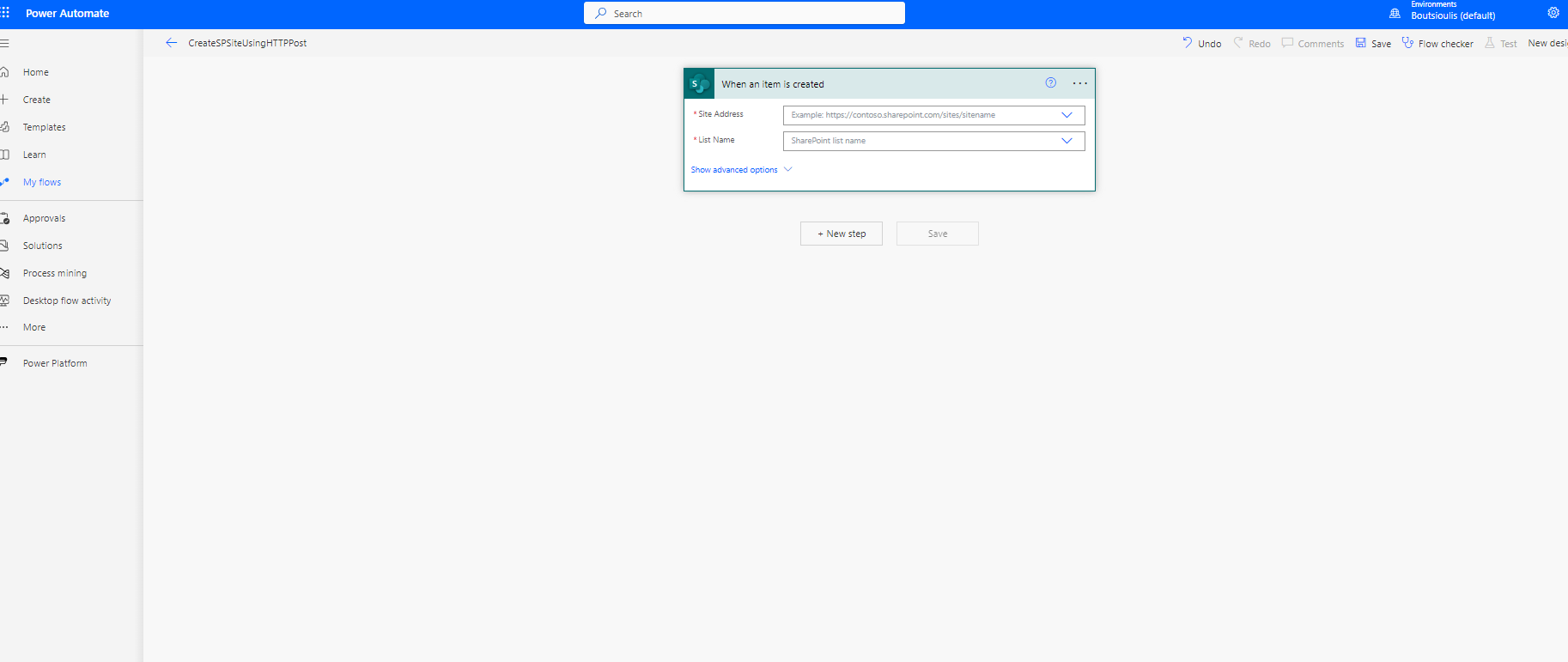
As you can see the automate is created but we need to import list
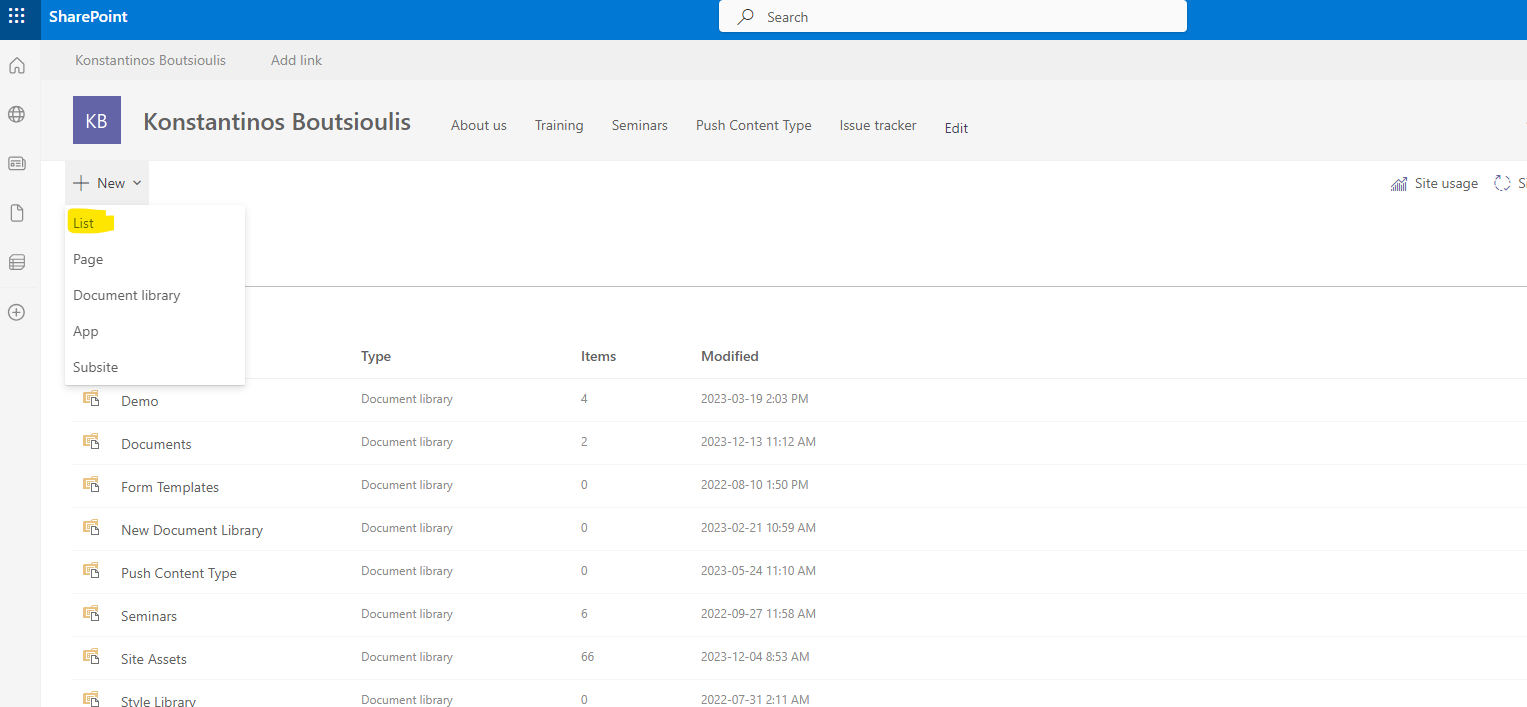
We go to SharePoint to the page we want and from the site contents we select new list
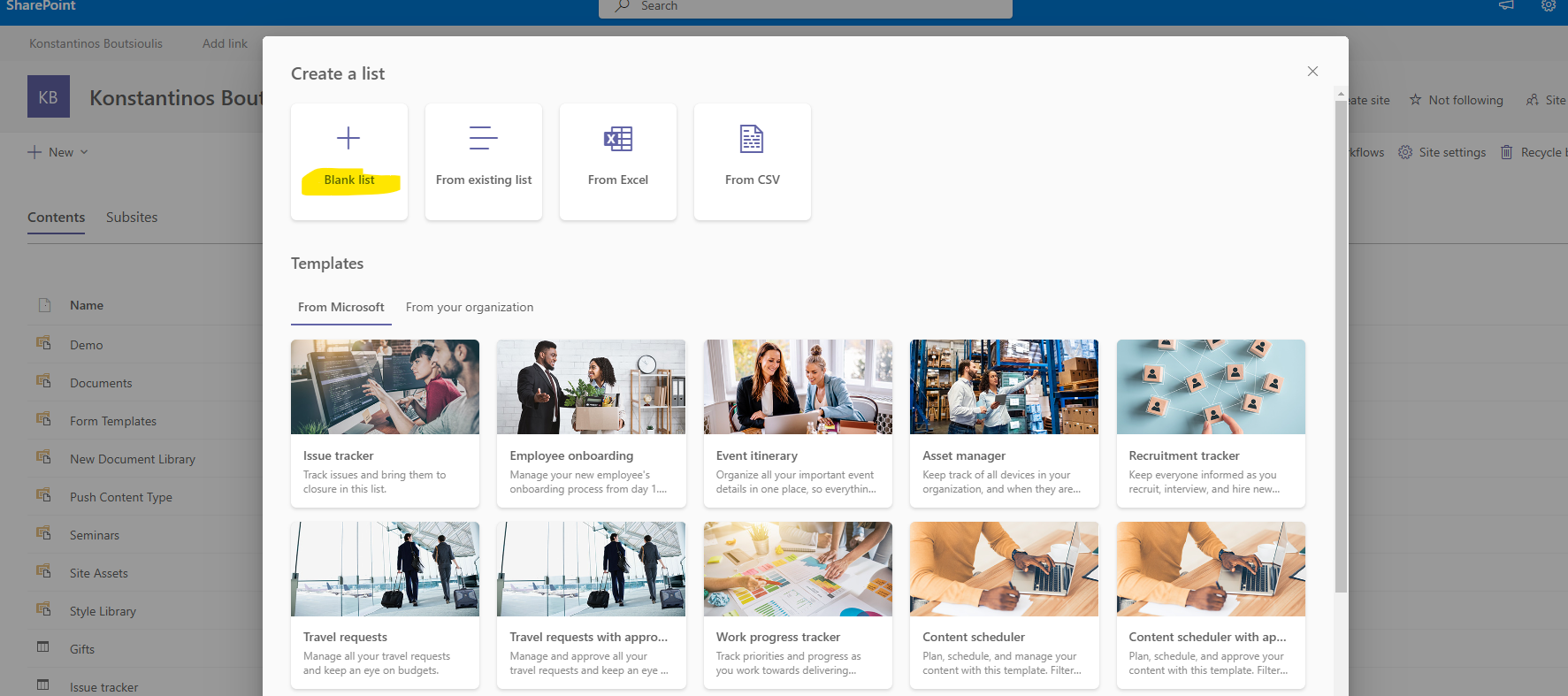
Select blank list
And we have to enter a name for our list and a description
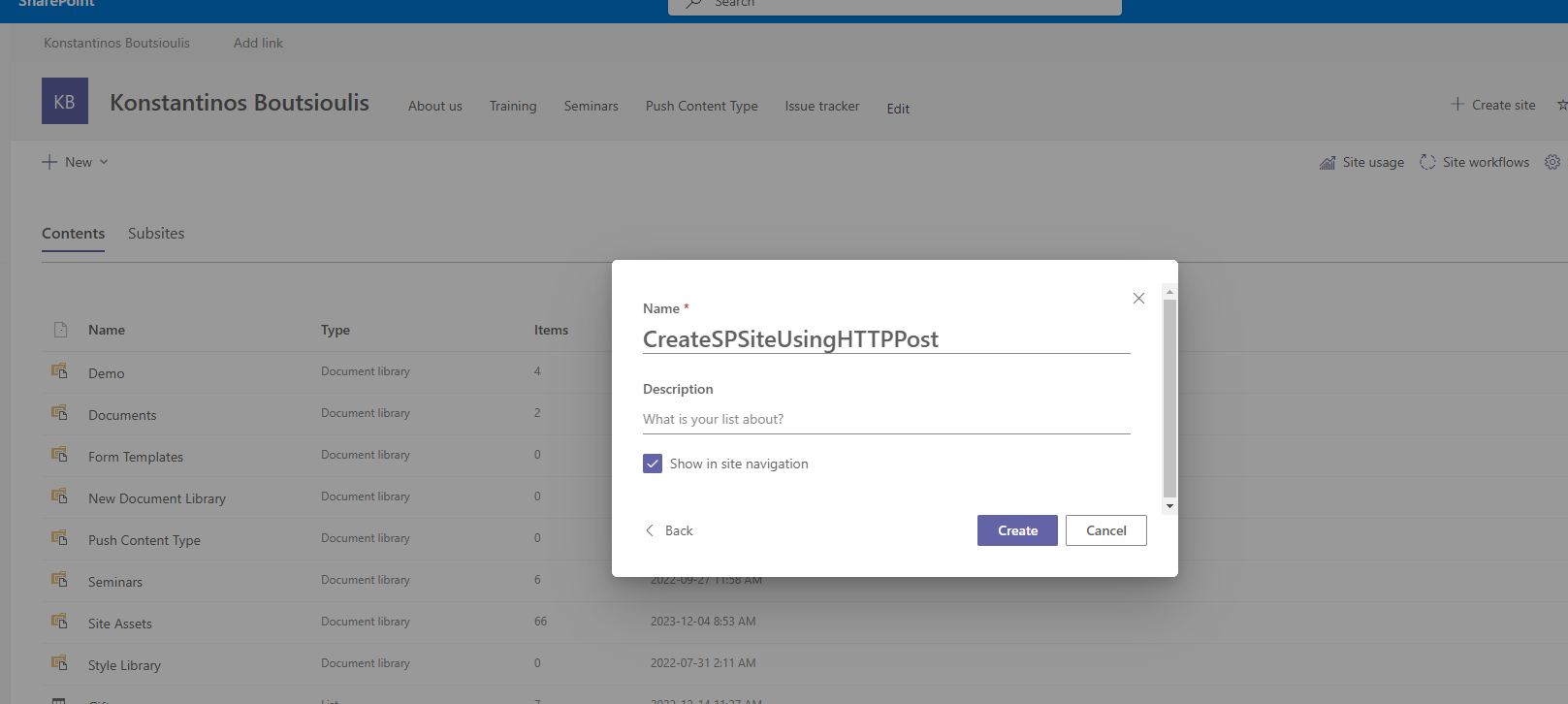
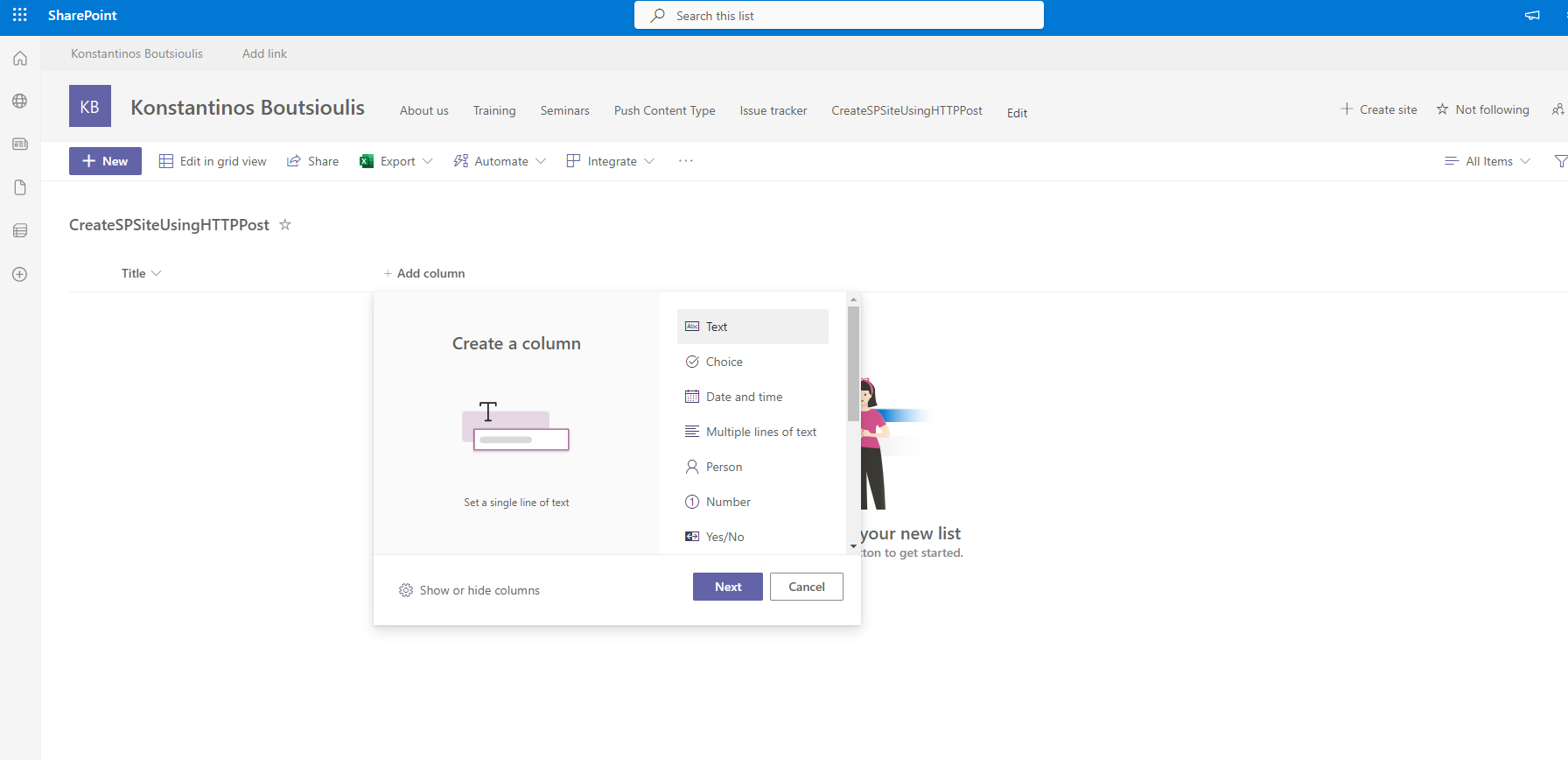
Once we have created our list the next step is to create the corresponding fields that will be the new columns in our list We select a new text column
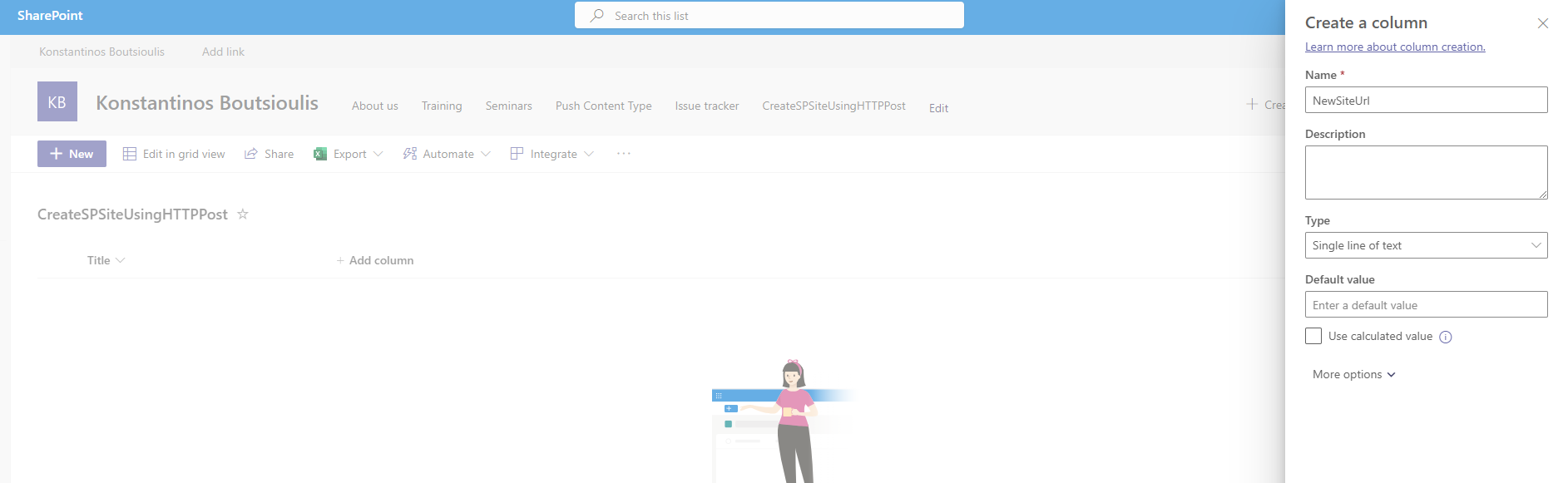
And we name it newsiteurl which will take the quote and add it to the url of our new site under /sites/newsiteurl
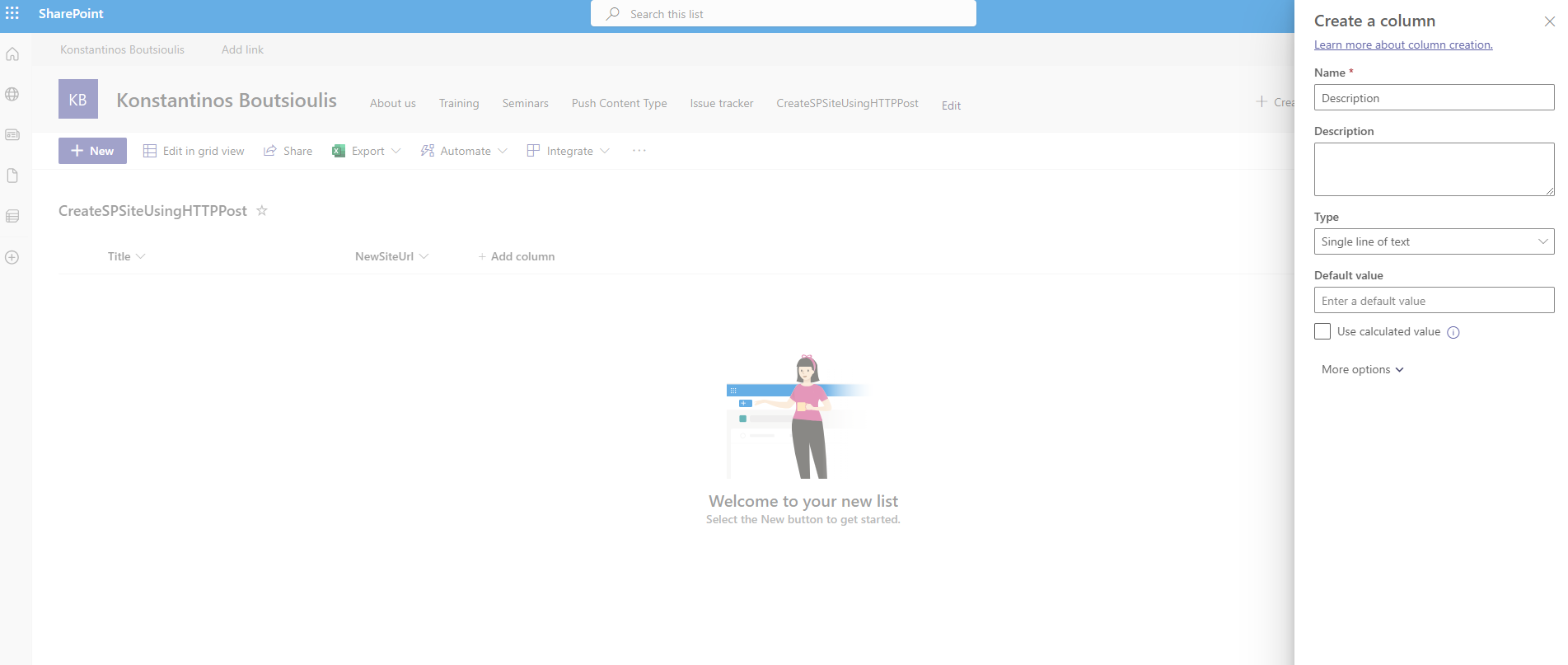
We also need to make a new text type column to have the description of our site
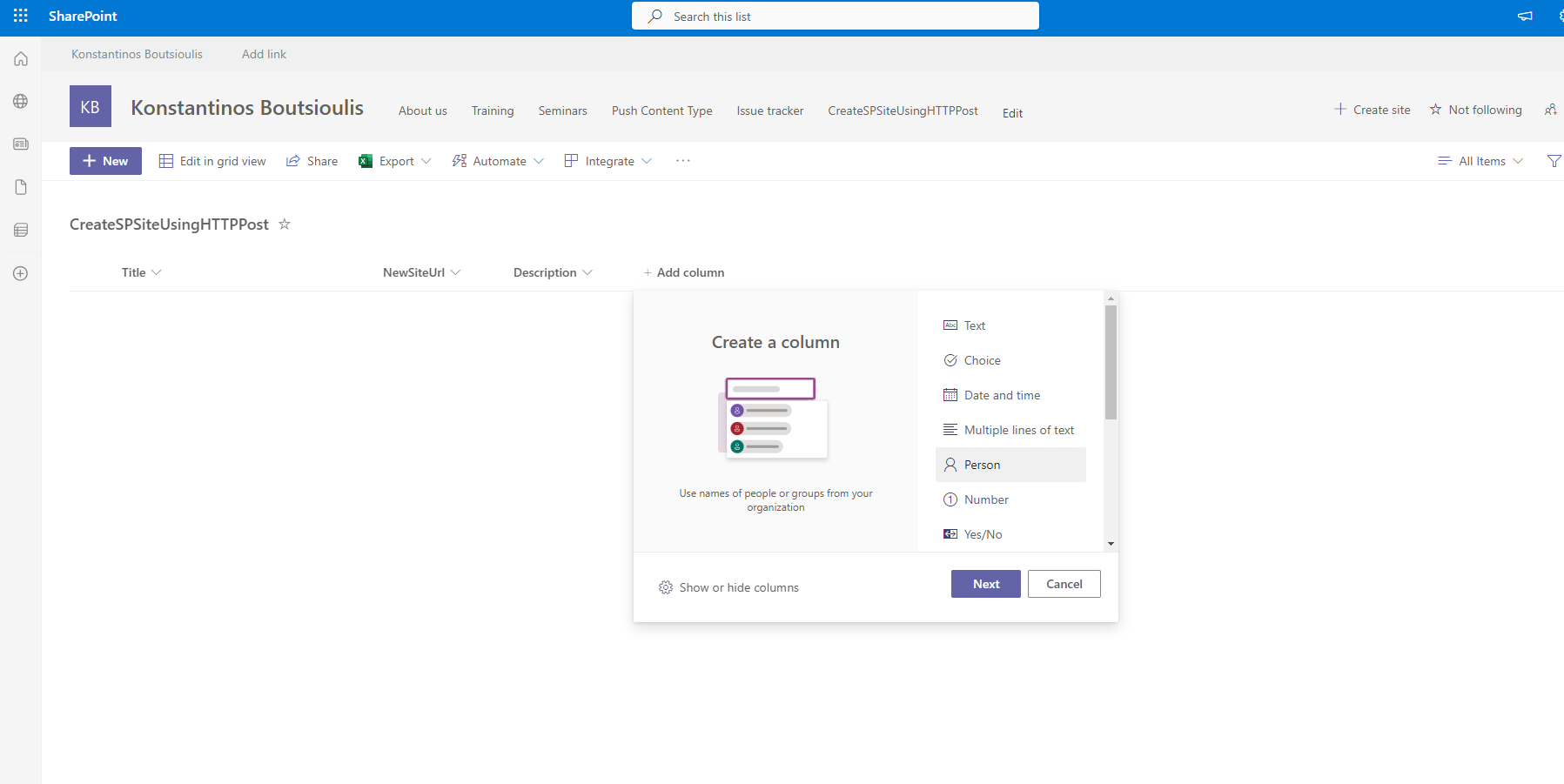
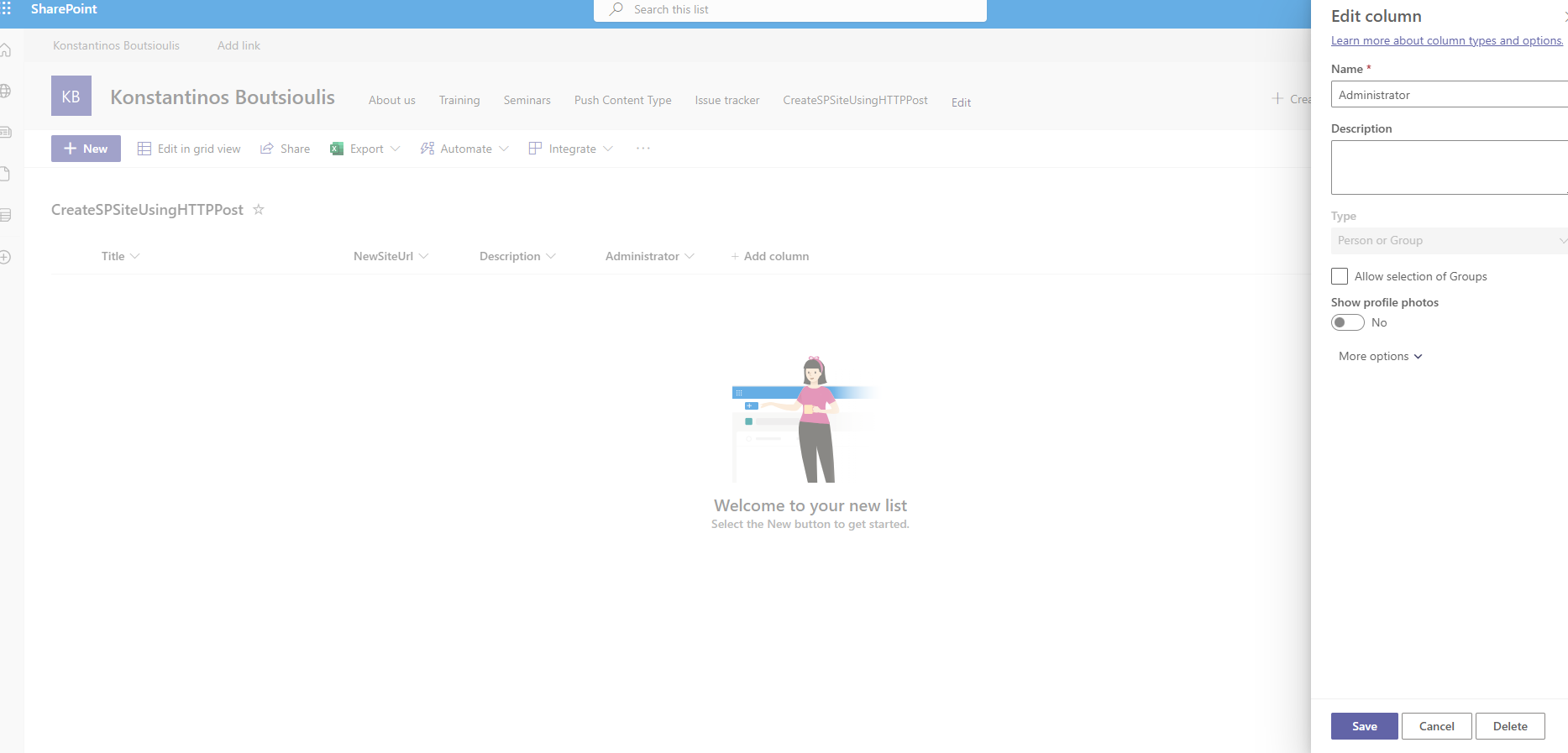
We will also make a new person type column to insert the administrator for the new site
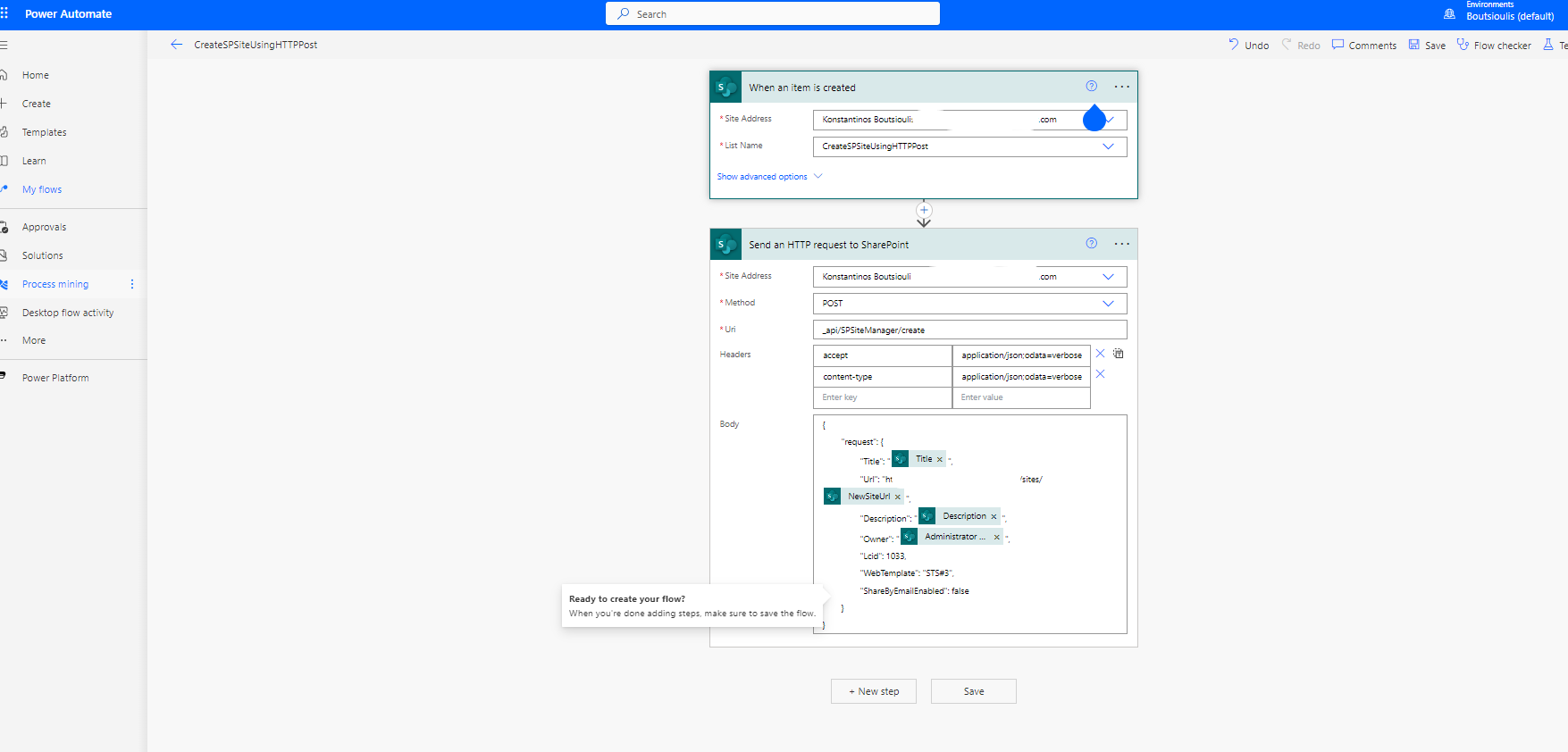
Return to power automate and enter the list in the first action of power automate And in the next action select send http post request to sharepoint The method will be POST the Uri _api/SPSiteManager/create In the headers we will enter accept = application/json;odata=verbose and content-type = application/json;odata=verbose In the body of the request we should enter the following
{
"request": {
"Title": "at{triggerOutputs()?['body/Title']}",
"Url": "https://mytenant.sharepoint.com/sites/at{triggerOutputs()?['body/NewSiteUrl']}",
"Description": "at{triggerOutputs()?['body/Description']}",
"Owner": "at{triggerOutputs()?['body/Administrator/Email']}",
"Lcid": 1033,
"WebTemplate": "STS#3",
"ShareByEmailEnabled": false
}
}
The title will be selected from the title column, the url is the sharepoint address with extension /sites and then the url we have entered when creating the item in the sharepoint library. In the description we will put the quote from the description column while your owner will be the user we have chosen in the quote in the sharepoint list .The Lcid is 1033 for the default language while the WebTemplate has chosen STS#3 which is the Team site
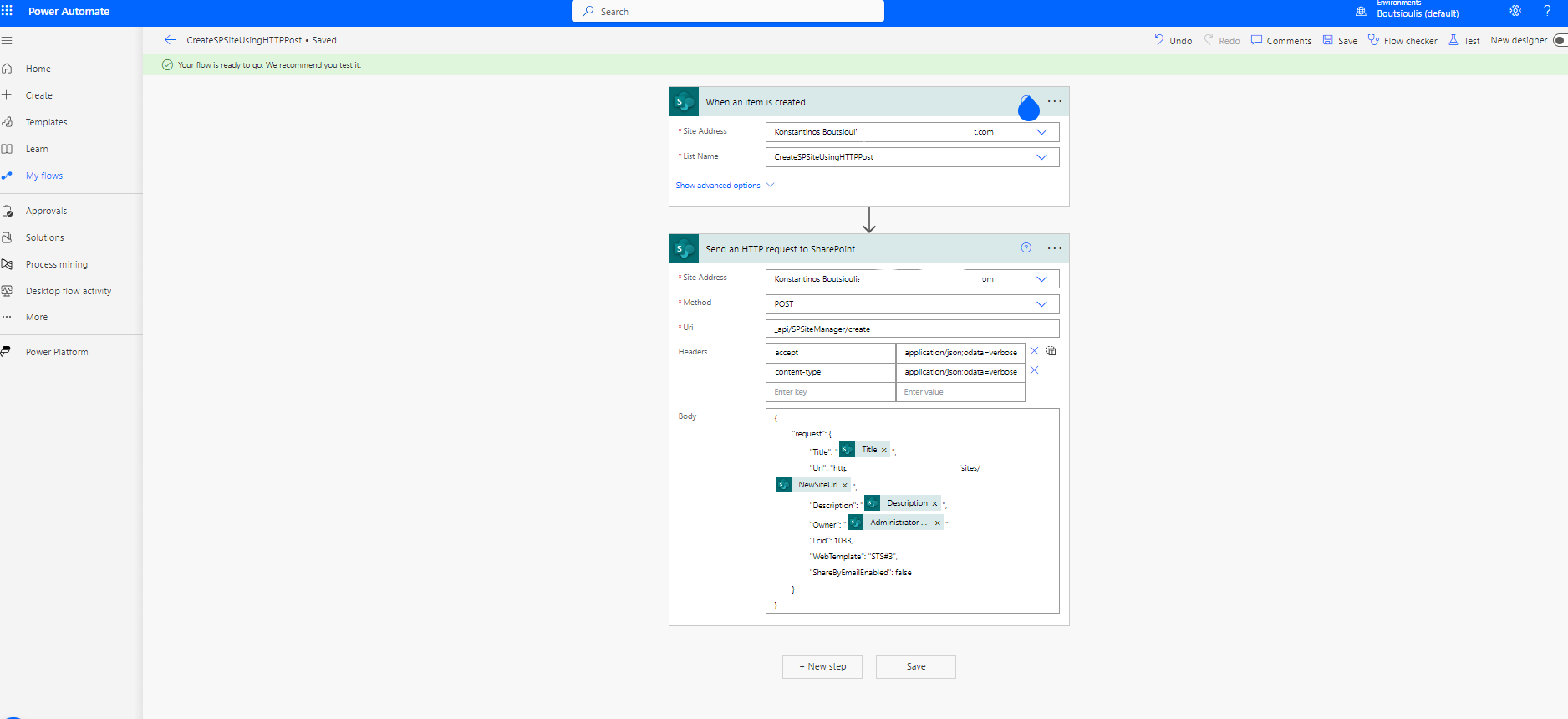
Next step is to save the automate and select manually test
And in the next step we need to go to the sharepoint list and make an introduction to our list
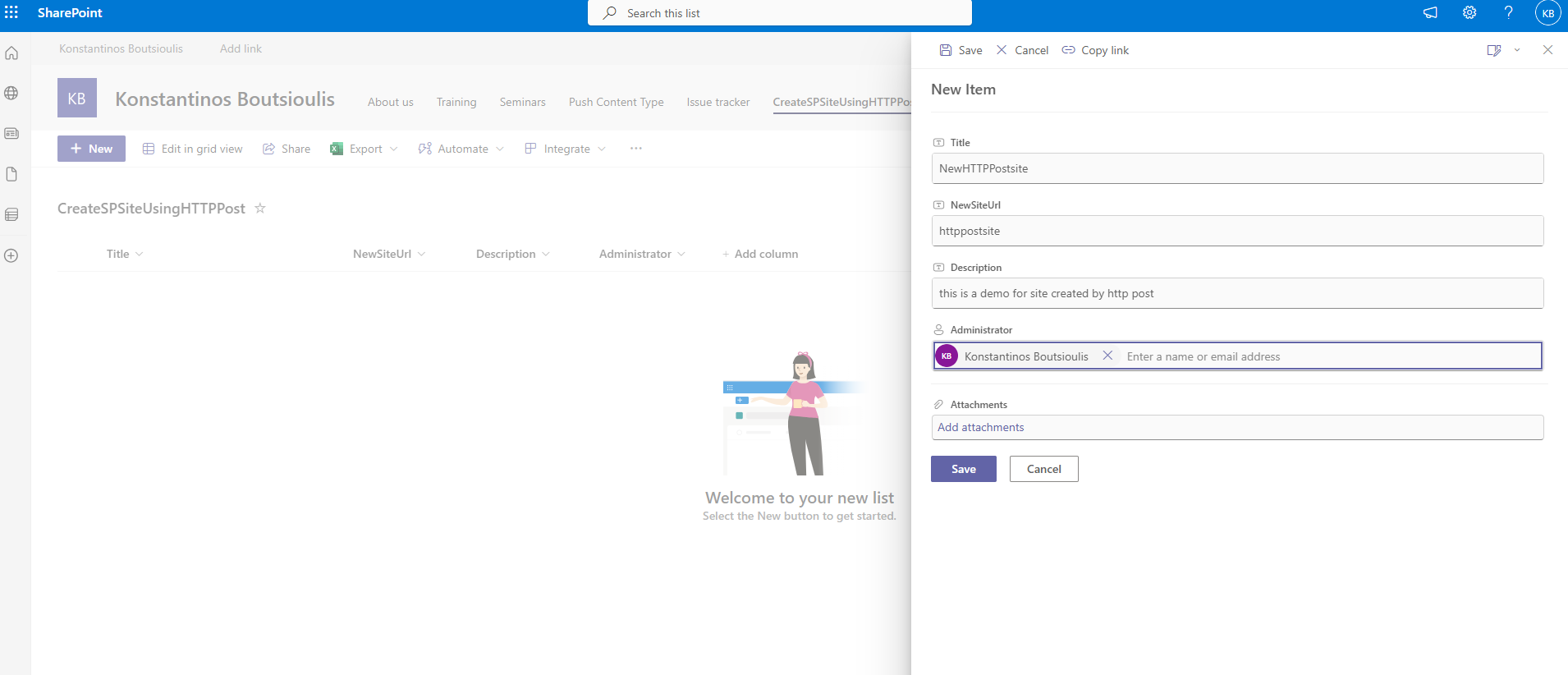
As you can see, we've imported a new item
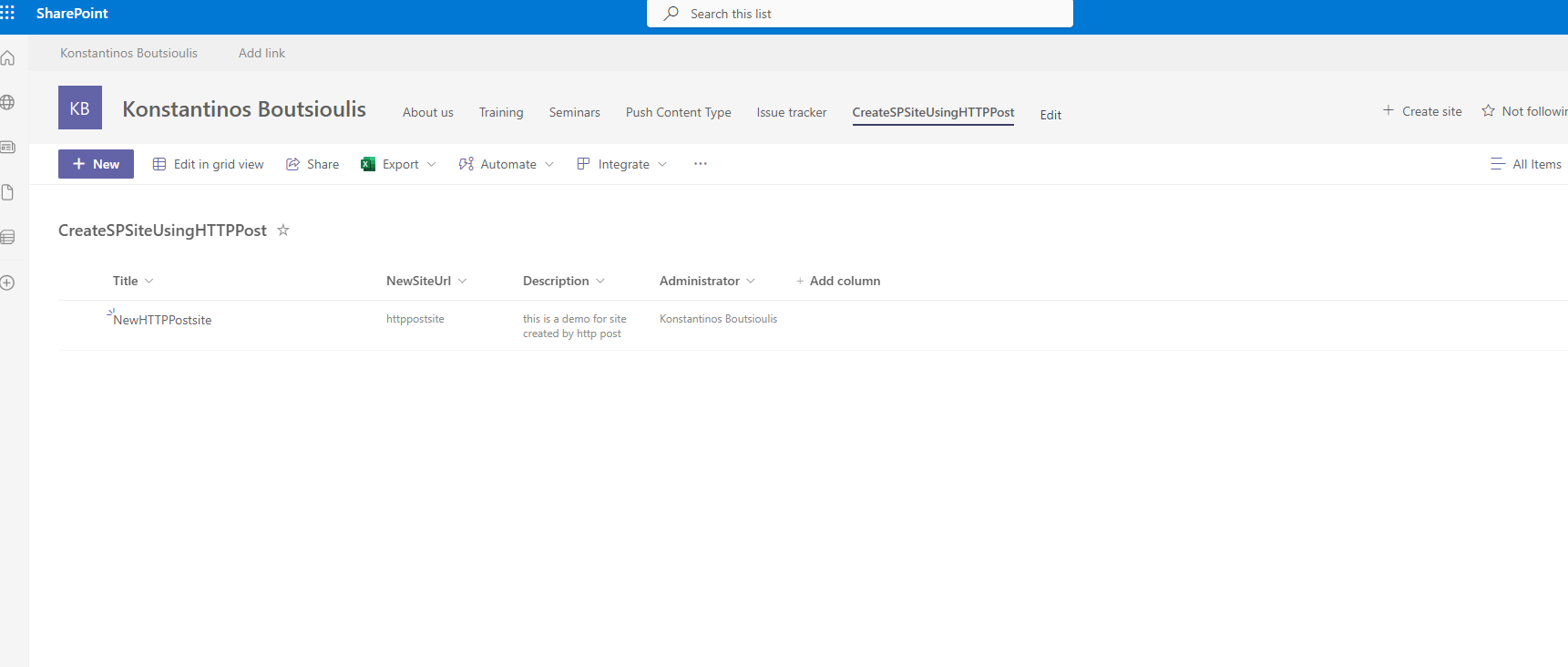
The automate as you can see has been executed without any problems
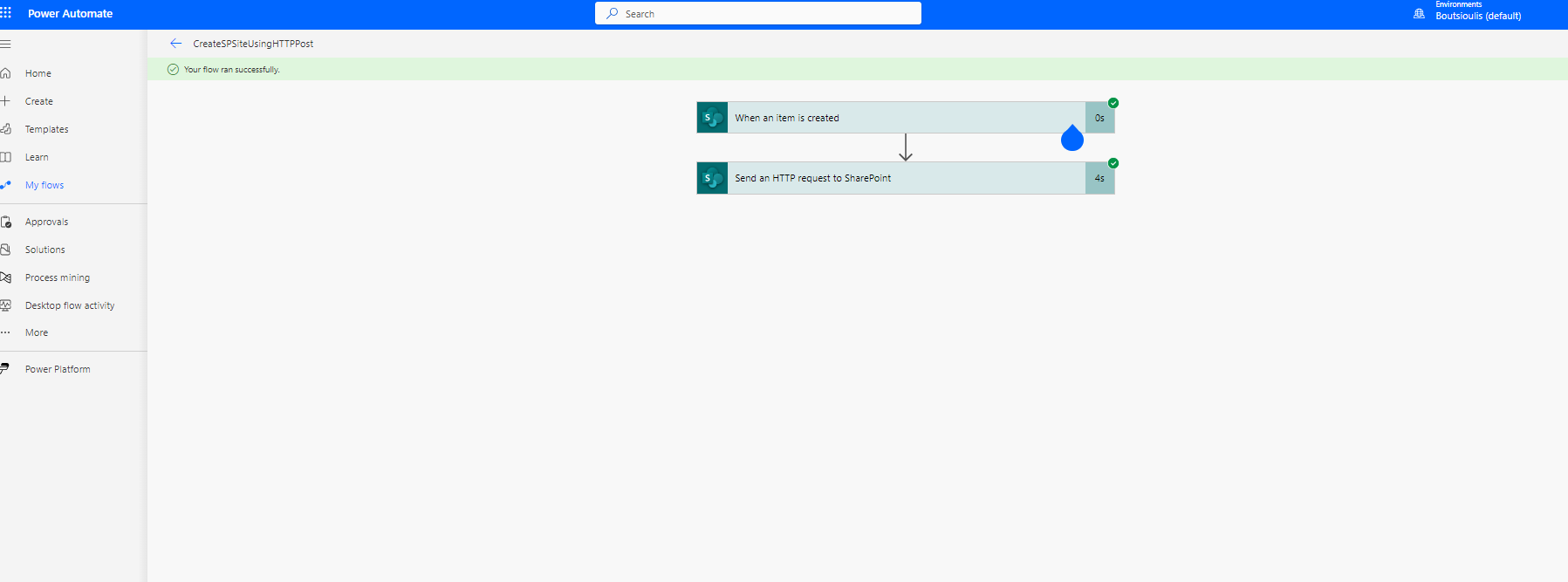
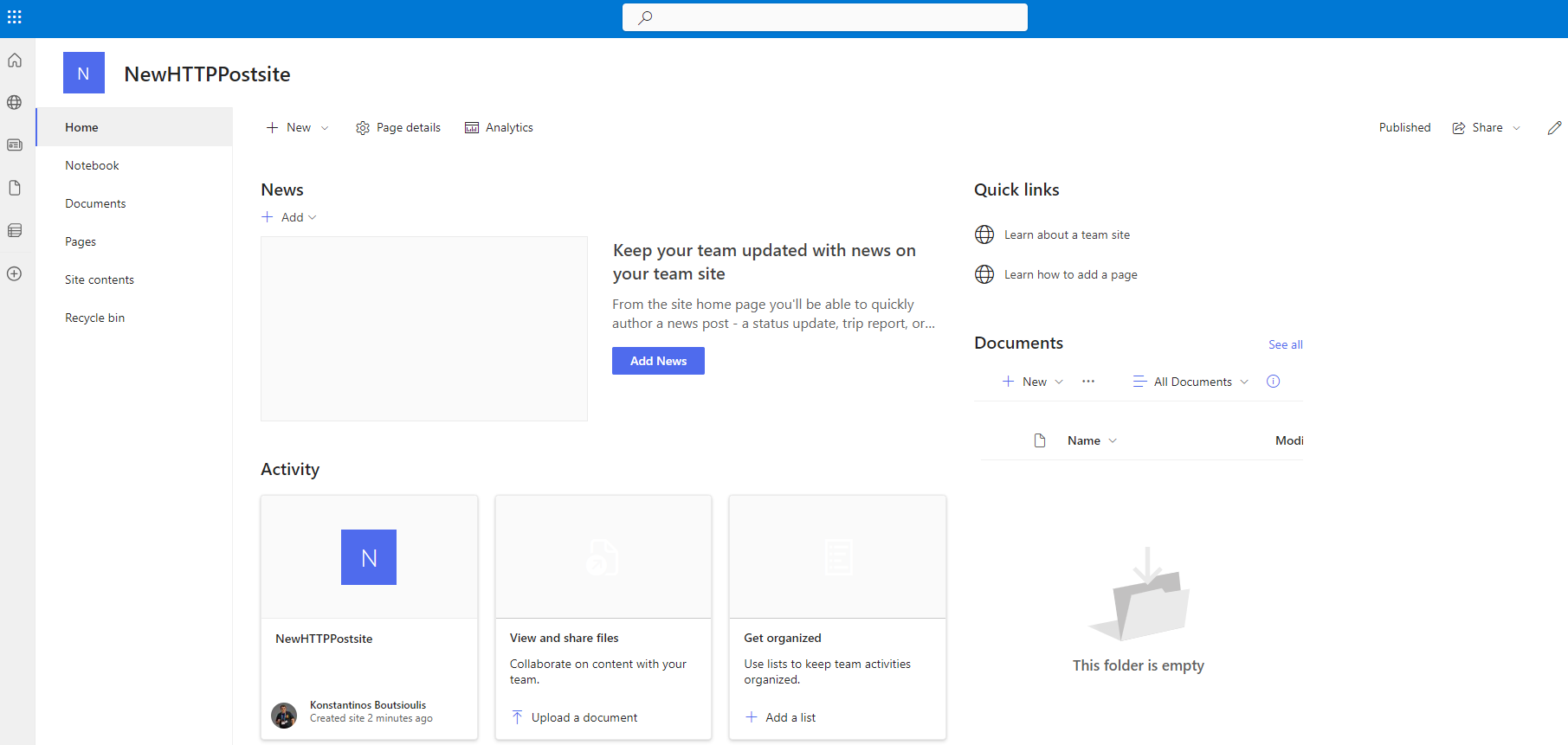
And as you can see from the active sites of sharepoint admin our new site has been created
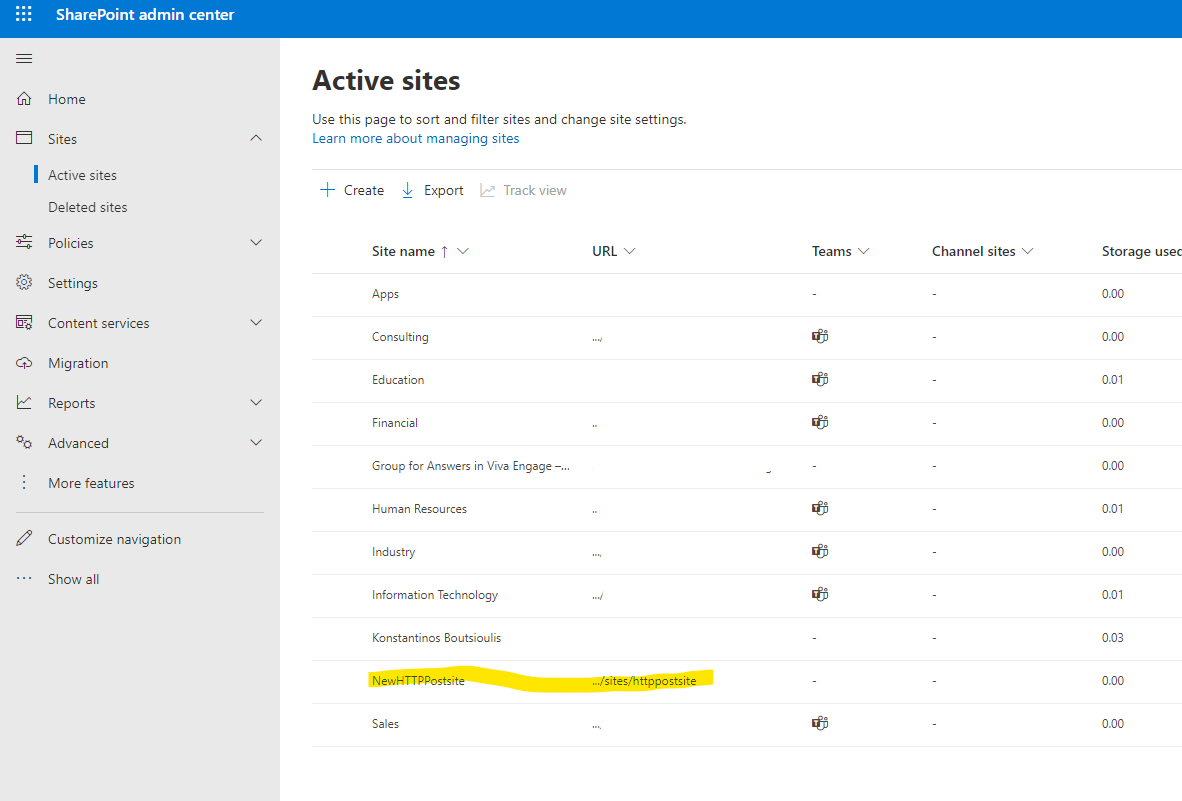
Where if you navigate to the site address you will go to our new page
 #PowerPlatform
#PowerAutomate
#SharePoint
#technology
#microsoft
#digitaltransformation
#cloud
#mvpbuzz
#m365
#PowerPlatform
#PowerAutomate
#SharePoint
#technology
#microsoft
#digitaltransformation
#cloud
#mvpbuzz
#m365
Visit Archives below to find more articles about Microsoft technologies on Modern Workplace