
Free Material
Find hereMore than 150 Articles about Microsoft Technologies on Modern Workplace
Official Site
Microsoft Most Valuable Professional M365 Apps & Services
Microsoft Most Valuable Professional Business Applications
Consultant & Sr Cloud Solution Architect Modern Wokrplace
Find hereMore than 150 Articles about Microsoft Technologies on Modern Workplace
15 December 2023
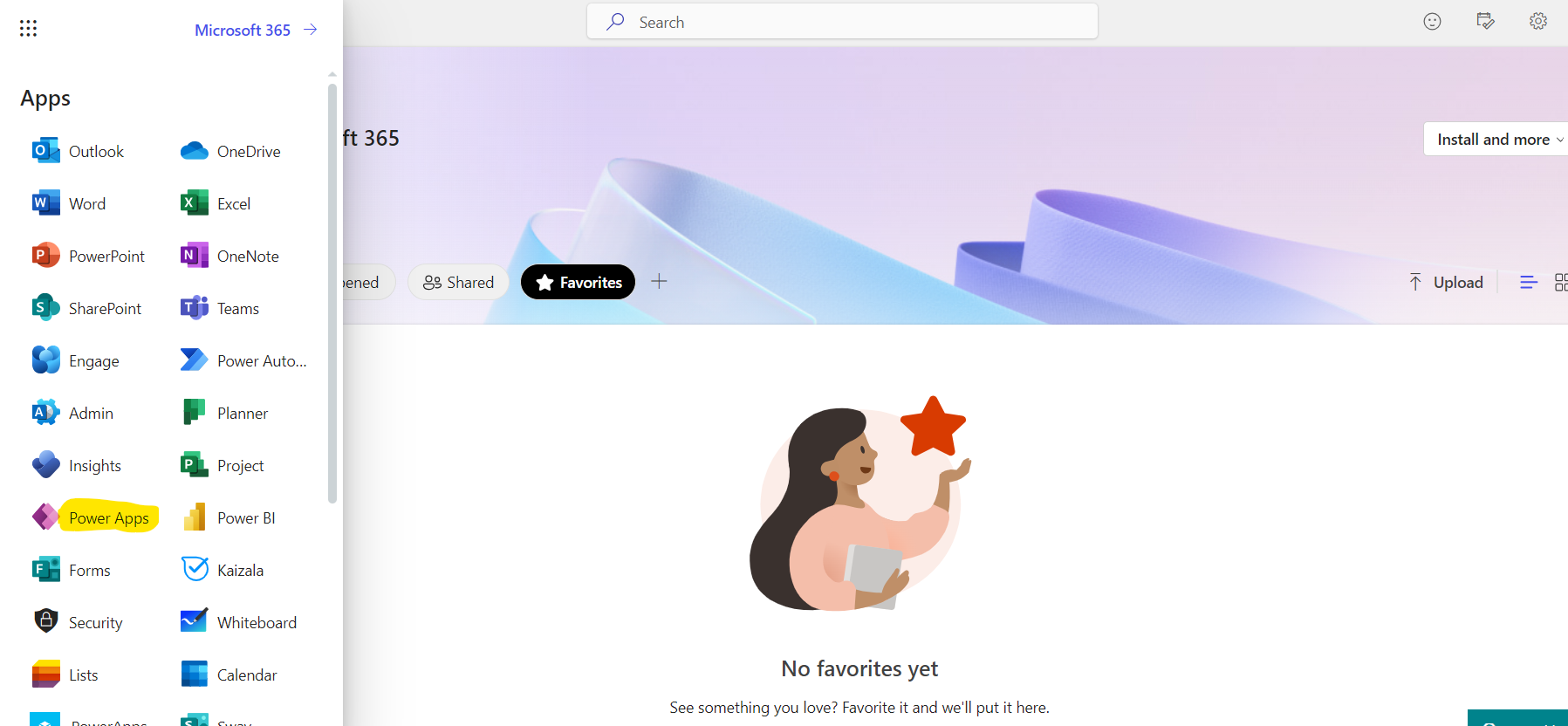
In today's article I will show you how we can create a new screen in our power app that will have a form to add a new item to our list in SharePoint First we need to have an active M365 subscription through which we can login to the main M365 page From there from the left drop down column select Power Apps
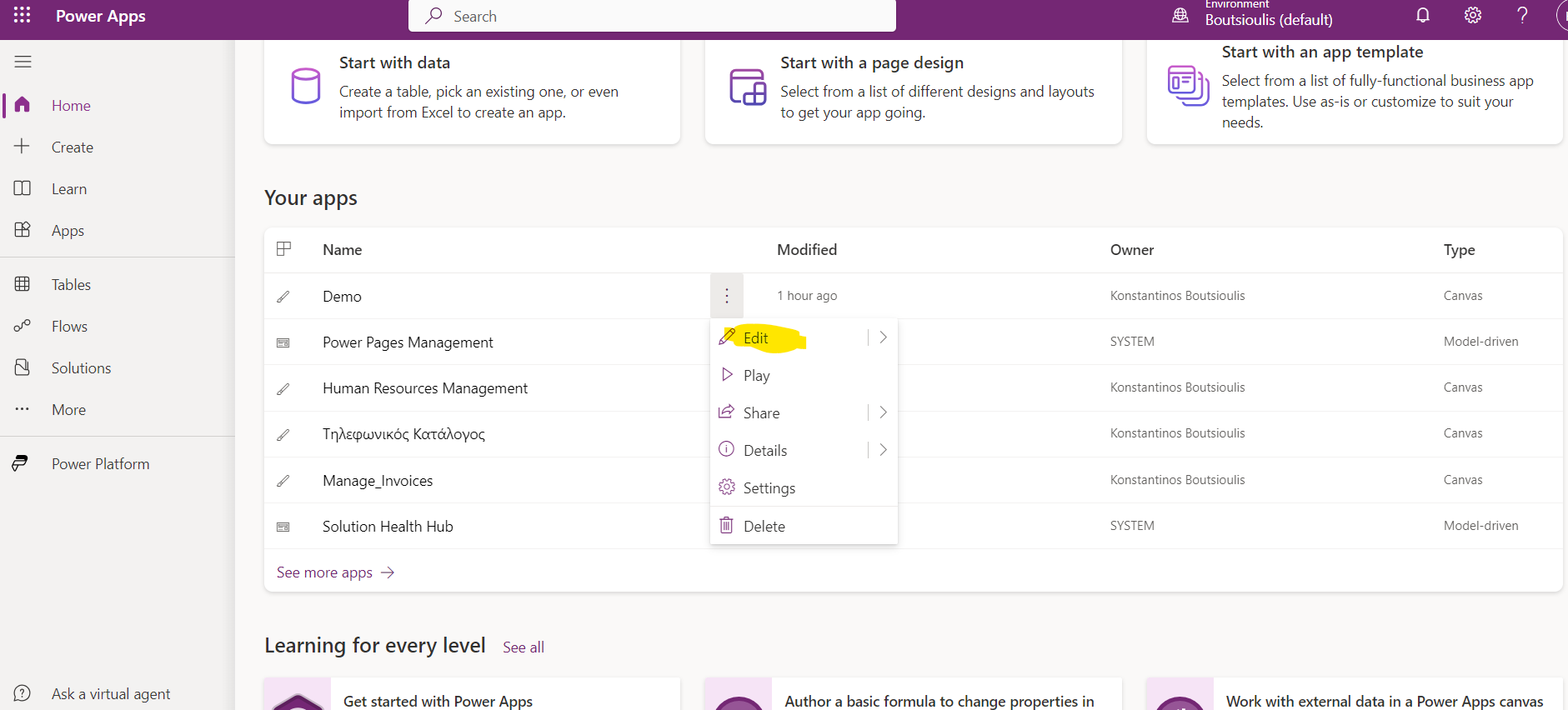
Then from my main app management page in Power Apps I select my app and then on the 3 dots on the right select edit in the drop down menu
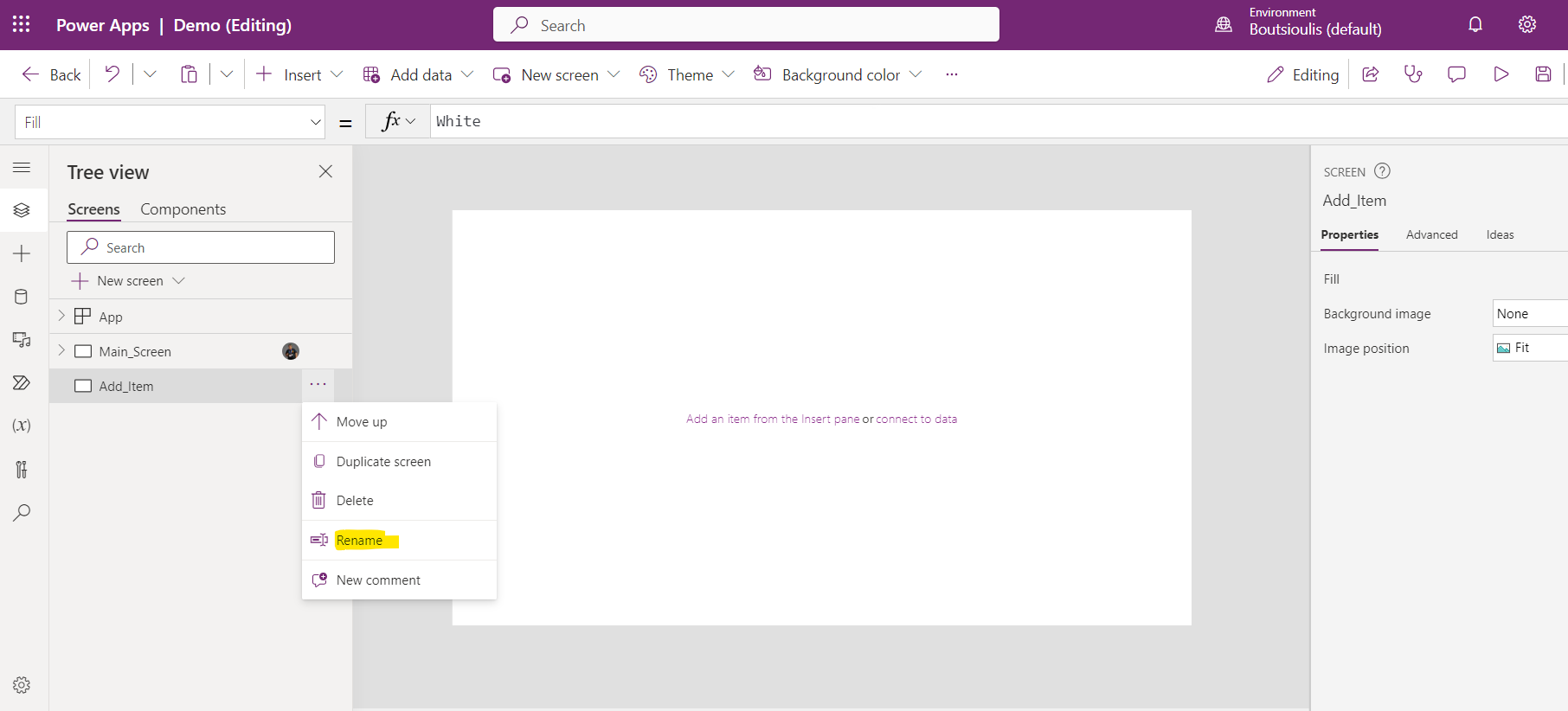
On the left I select new screen and then from the 3 dots on the right I select rename so that I can name my new screen .
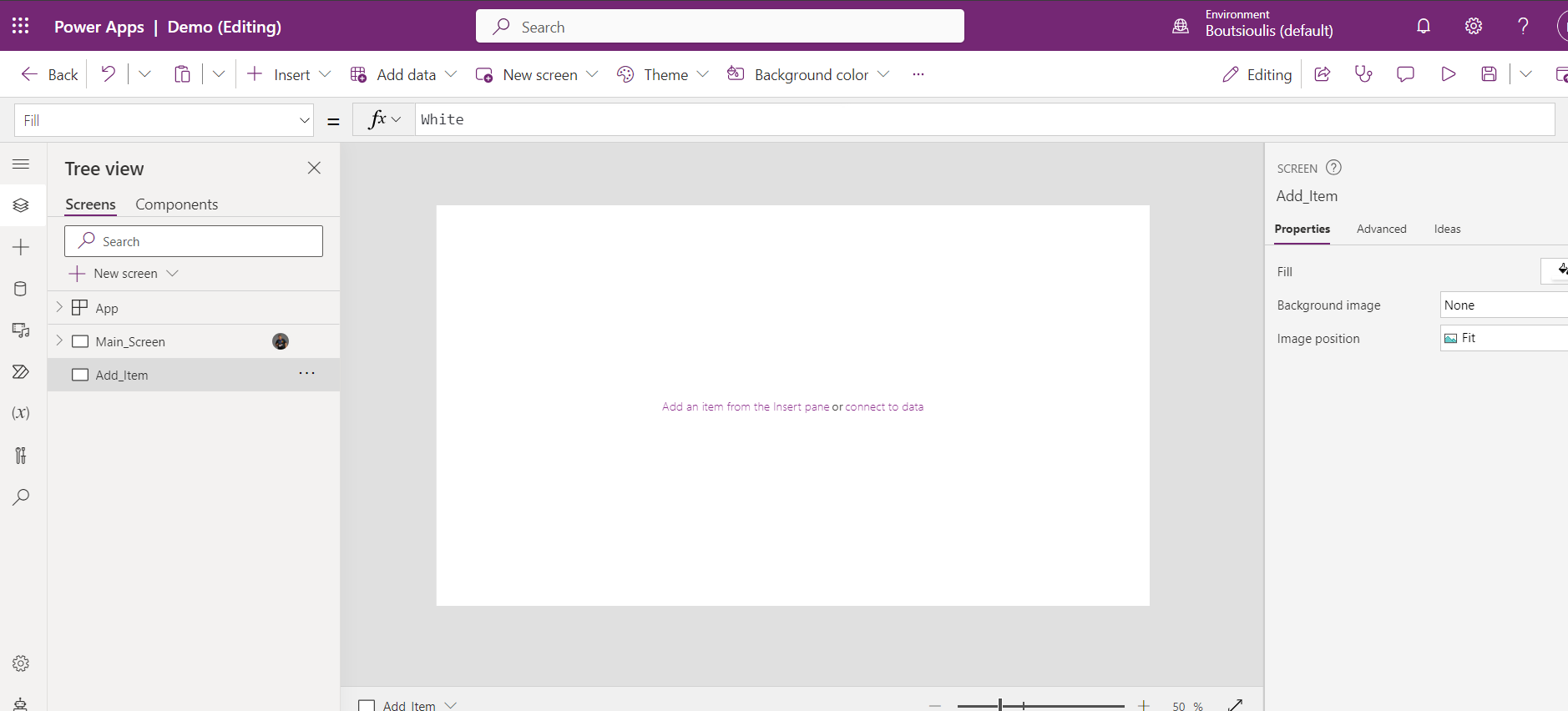
I name it Add item
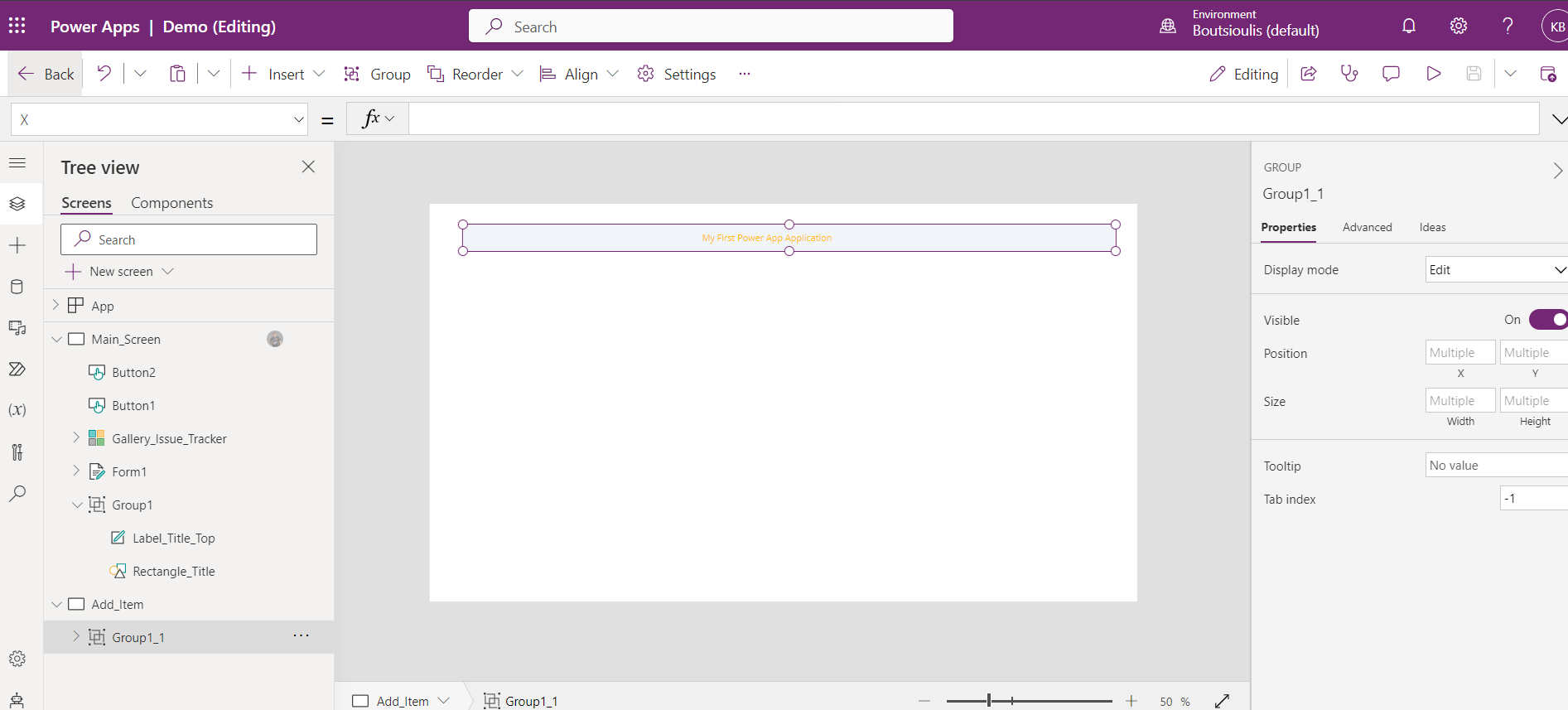
I select from screen 1 the group of Items that I want to exist in all the screens of my application and copy paste the group
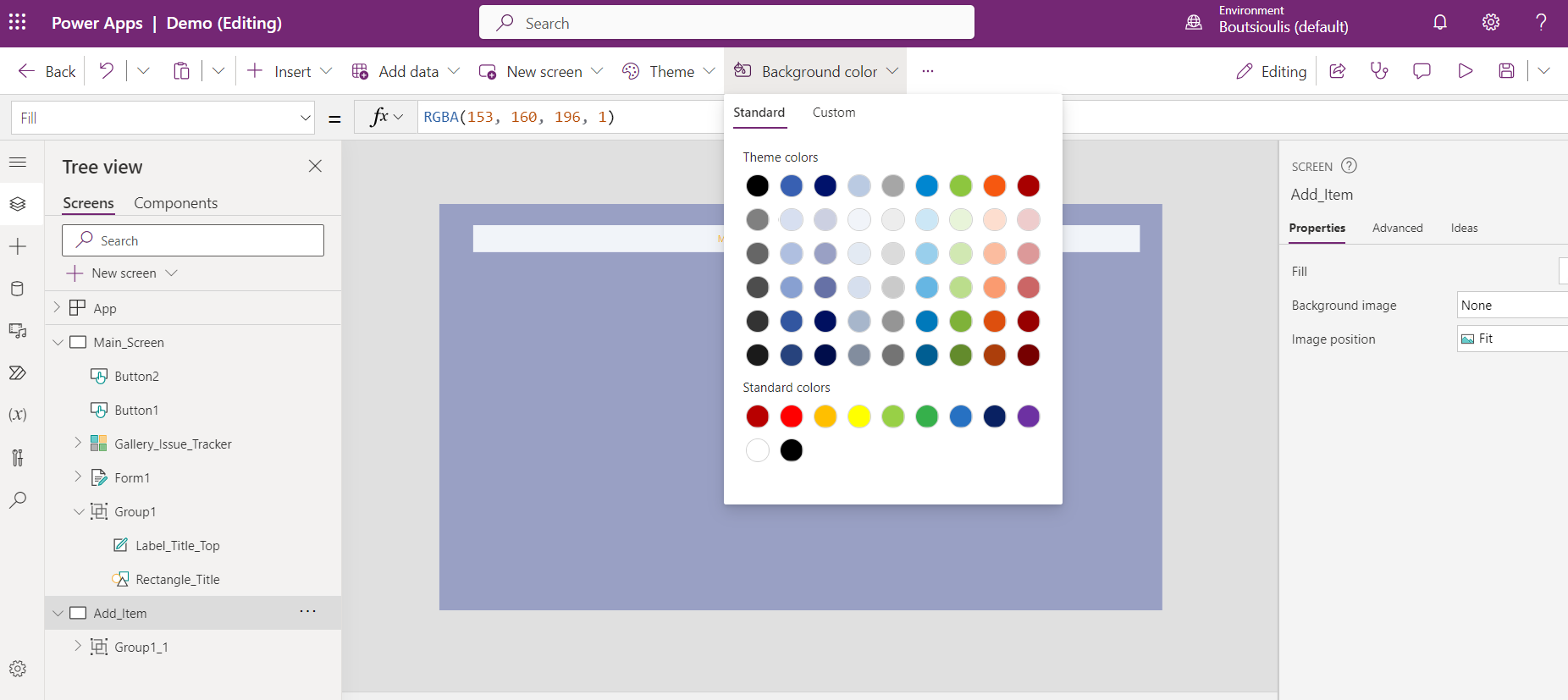
In the next step from the top I select background color and choose the color of my choice
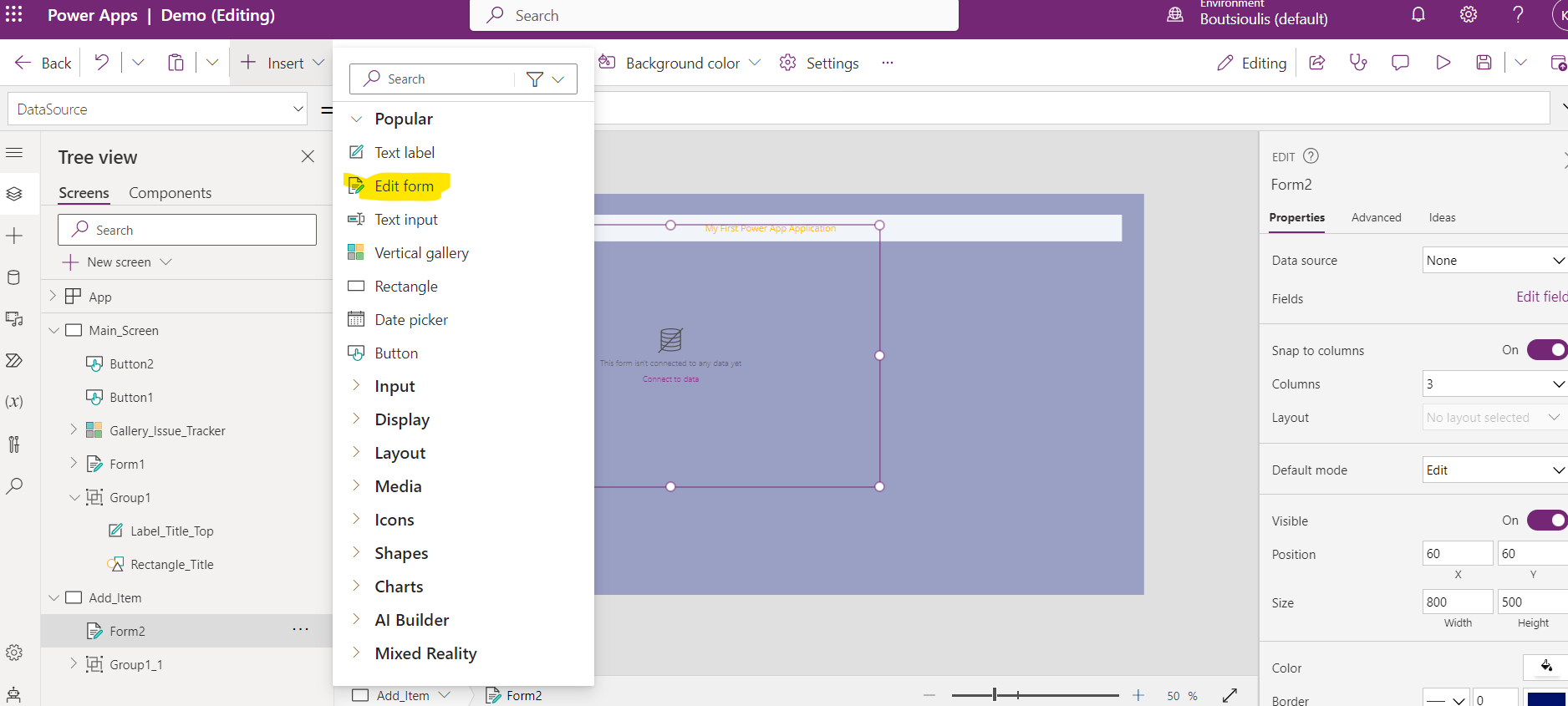
In the next step I select a new edit form from Insert .
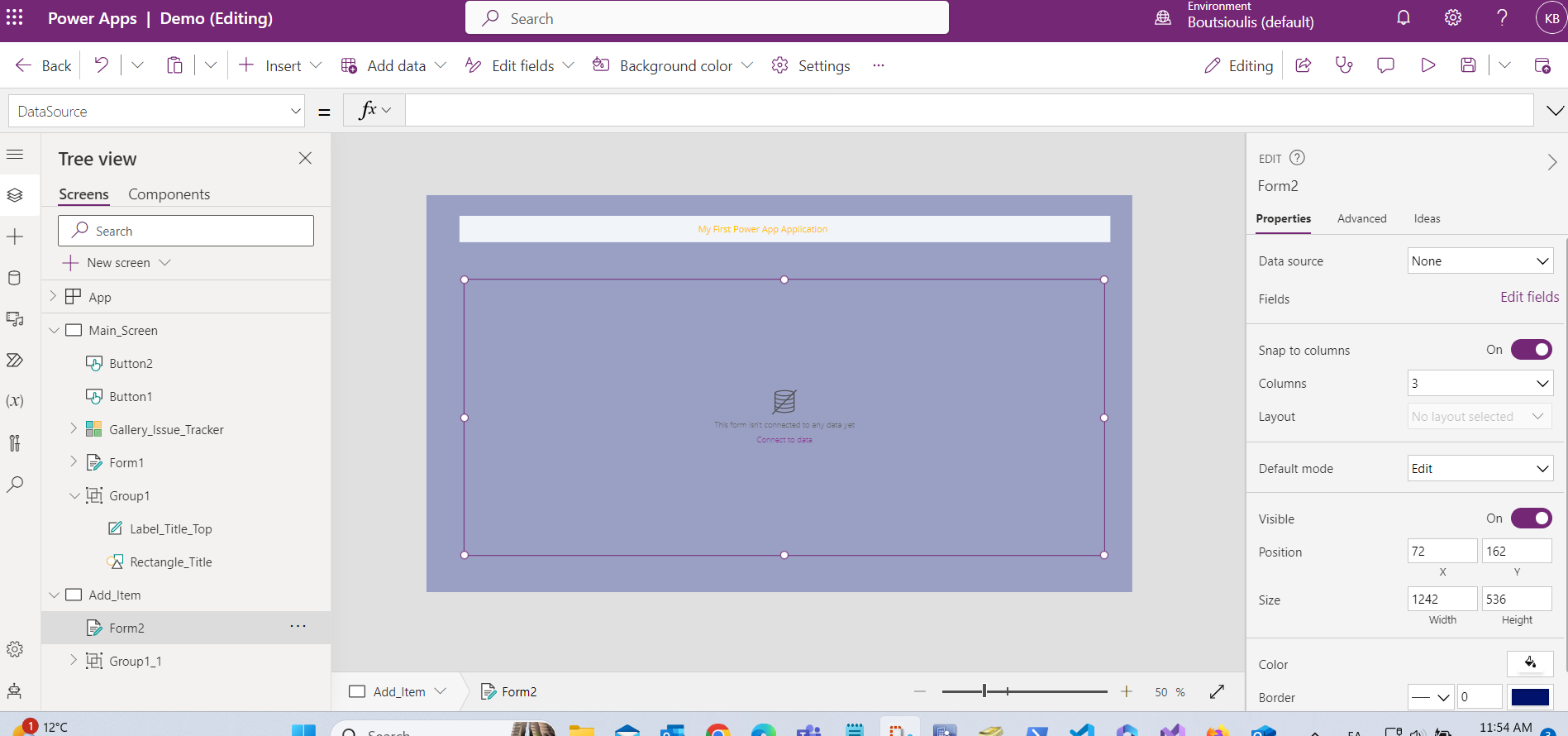
As soon as I insert it I have to resize it and place it in the position I want
In the next step I have to connect the edit form to the SharePoint list via the connector
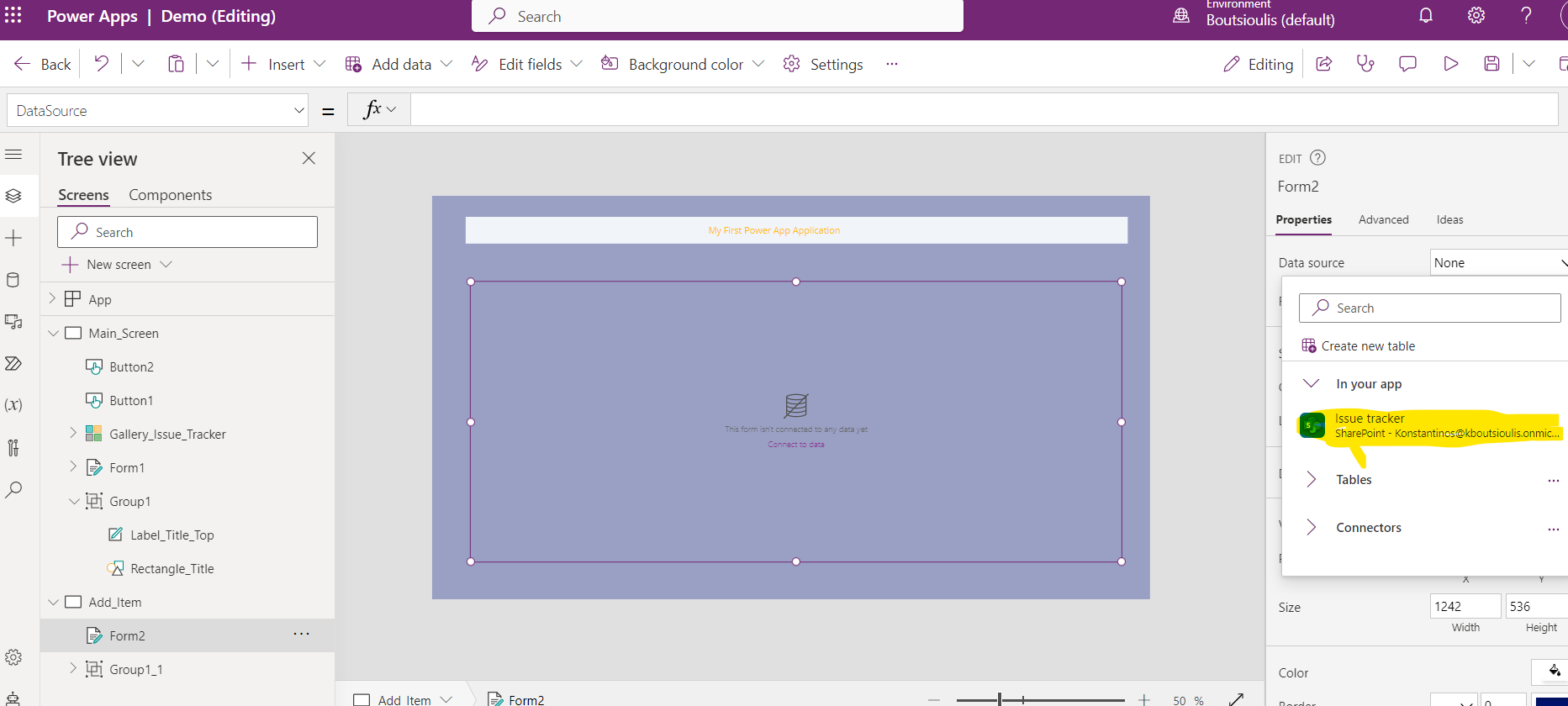
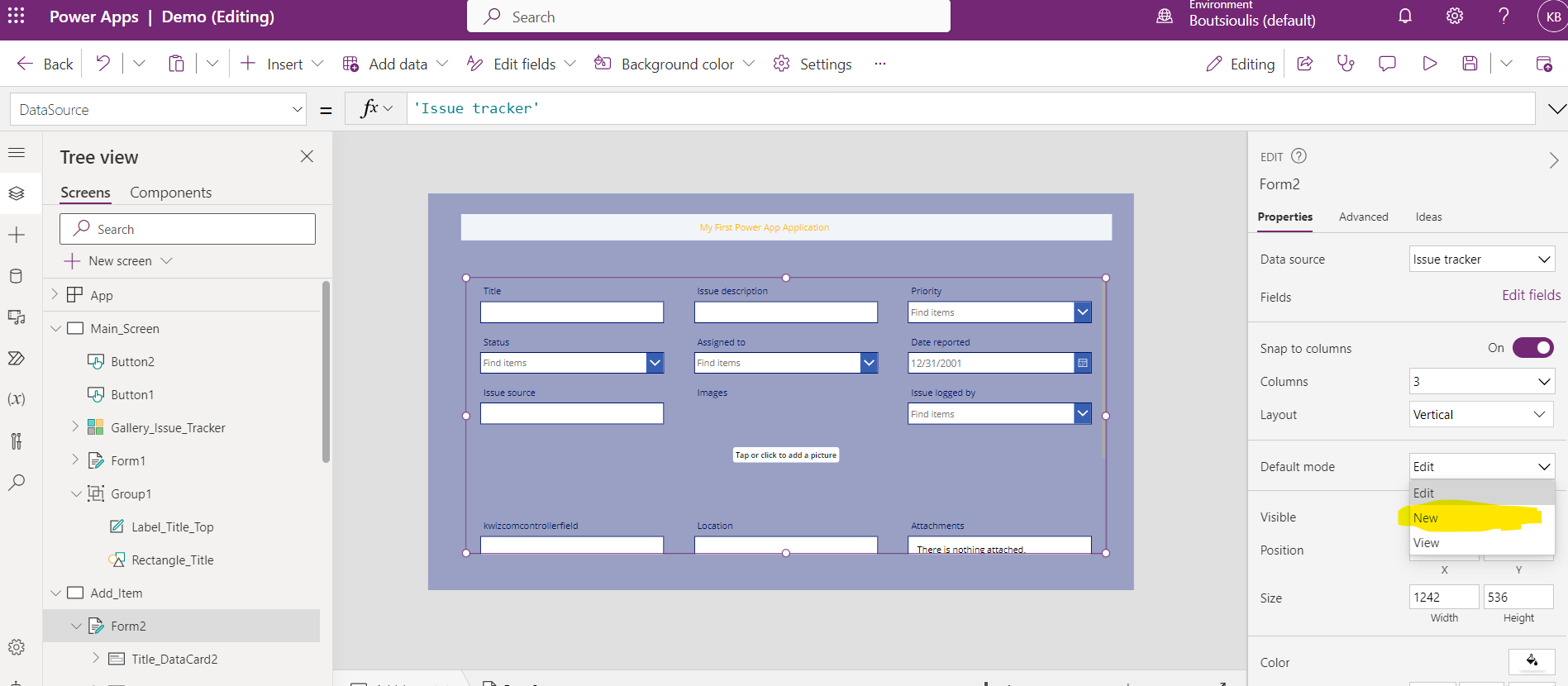
As you can see all the list fields have been imported and from the right column as I have shown in the past in another article I will choose which fields to keep in my form . But what I need to change in this case is in the default mode to change it from edit to new
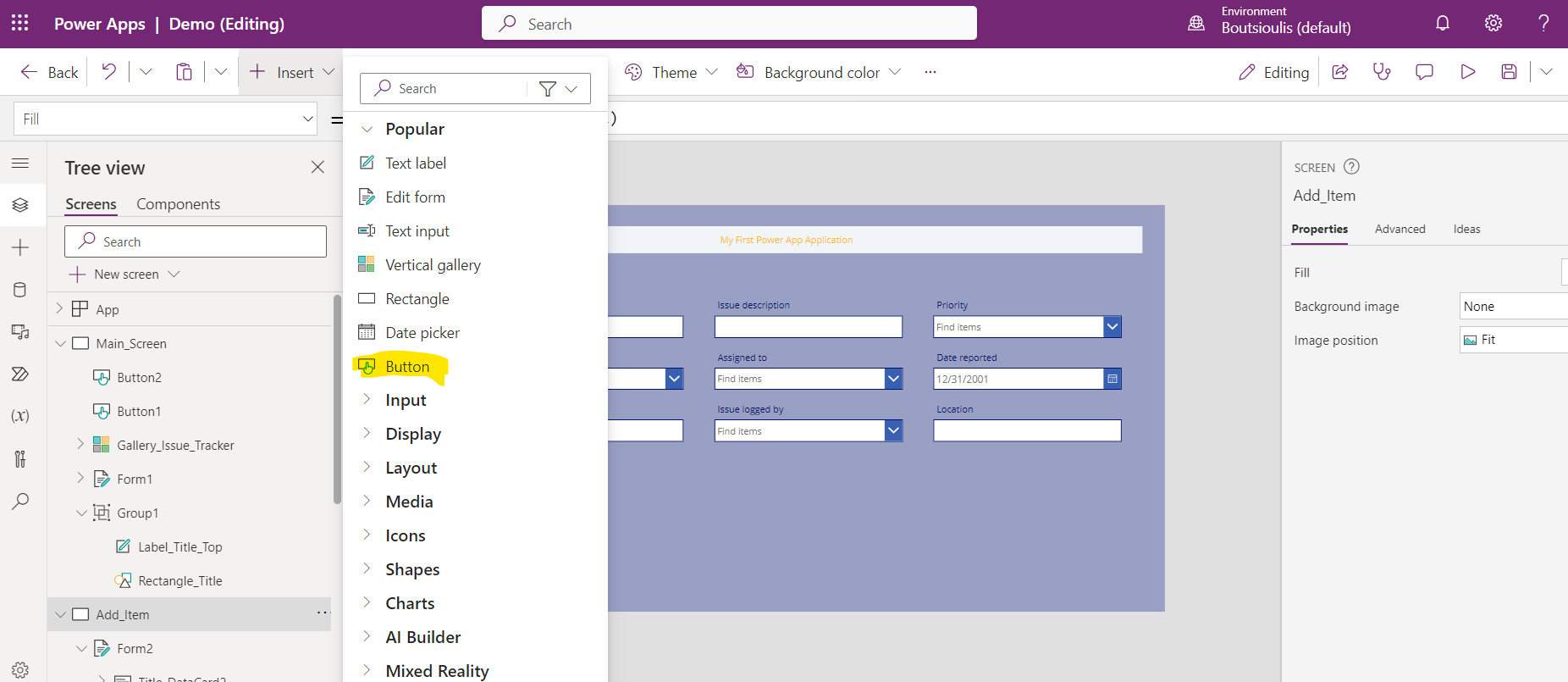
But in order to be able to insert the items in my list I need to have a button that has an action to insert the items in the list I select insert button
I need to select the button and then change its name to add
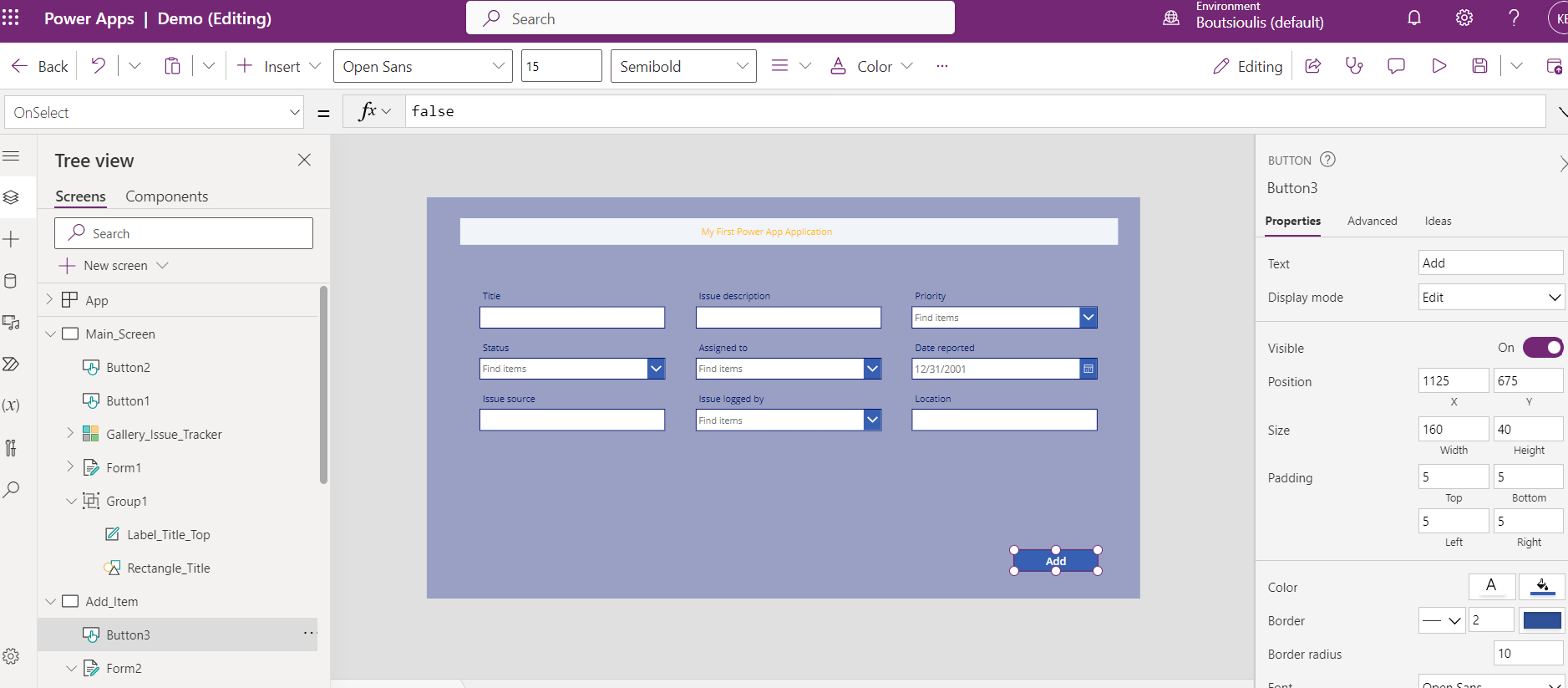
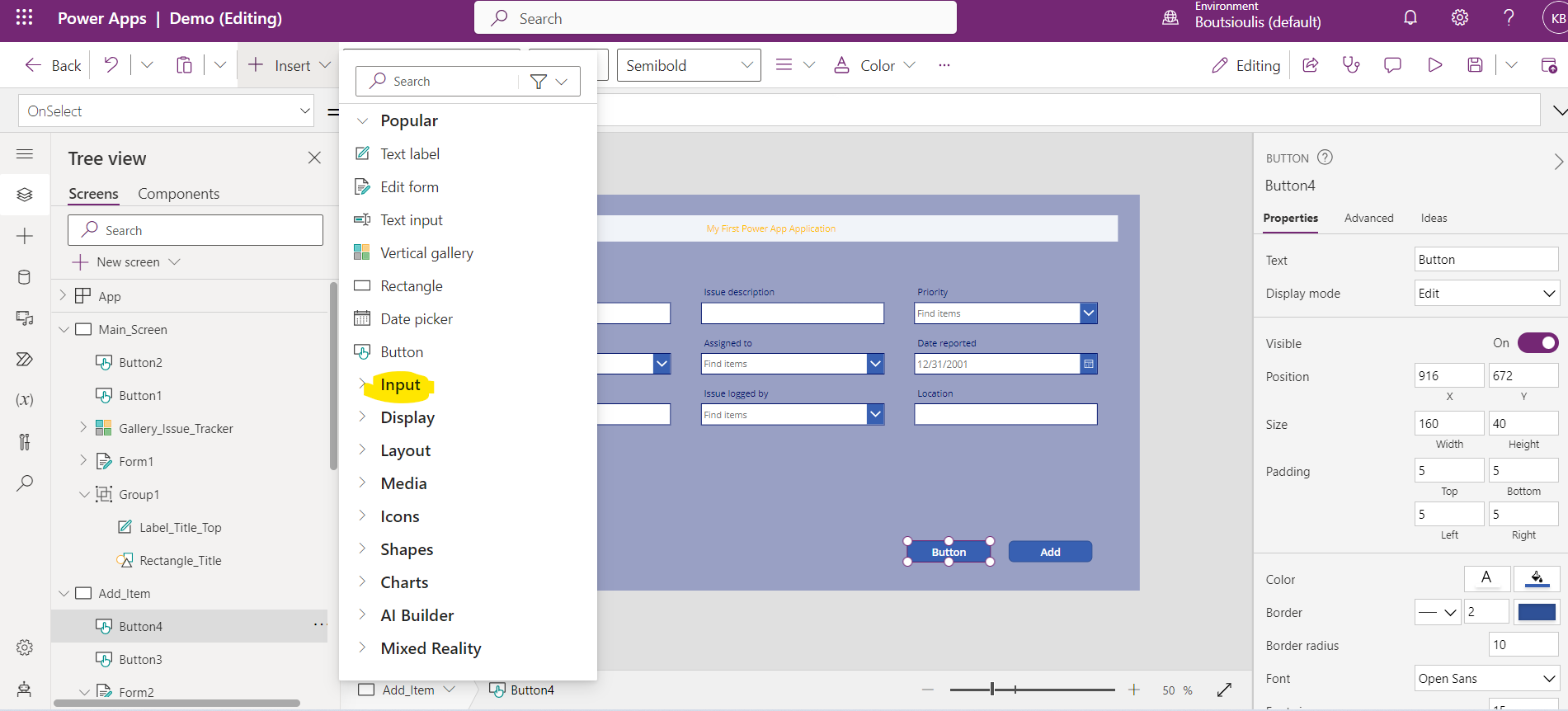
I will select the insert again and again and again a new button so that I can create a clear button that clears the form from the quotes in case of error
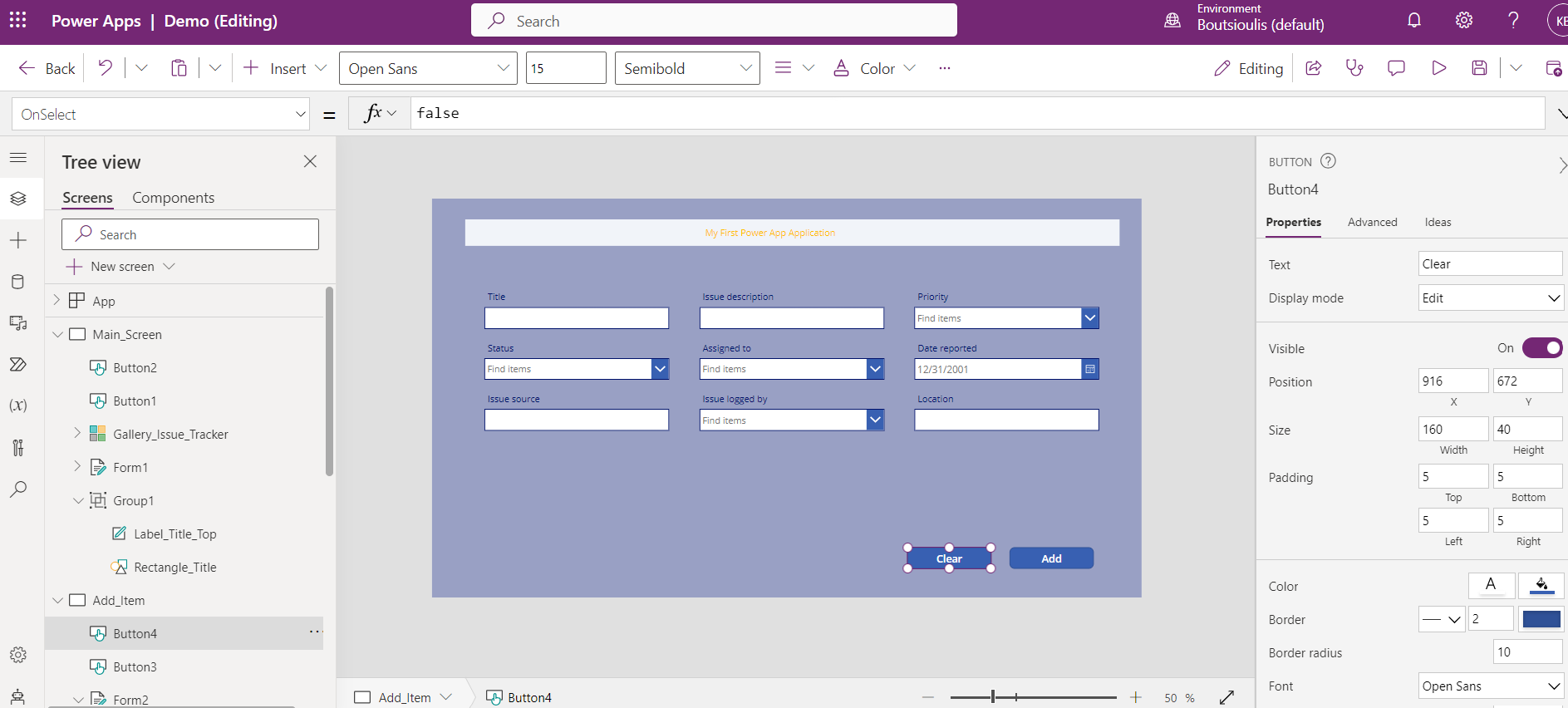
I need to change the name of the new button to clear
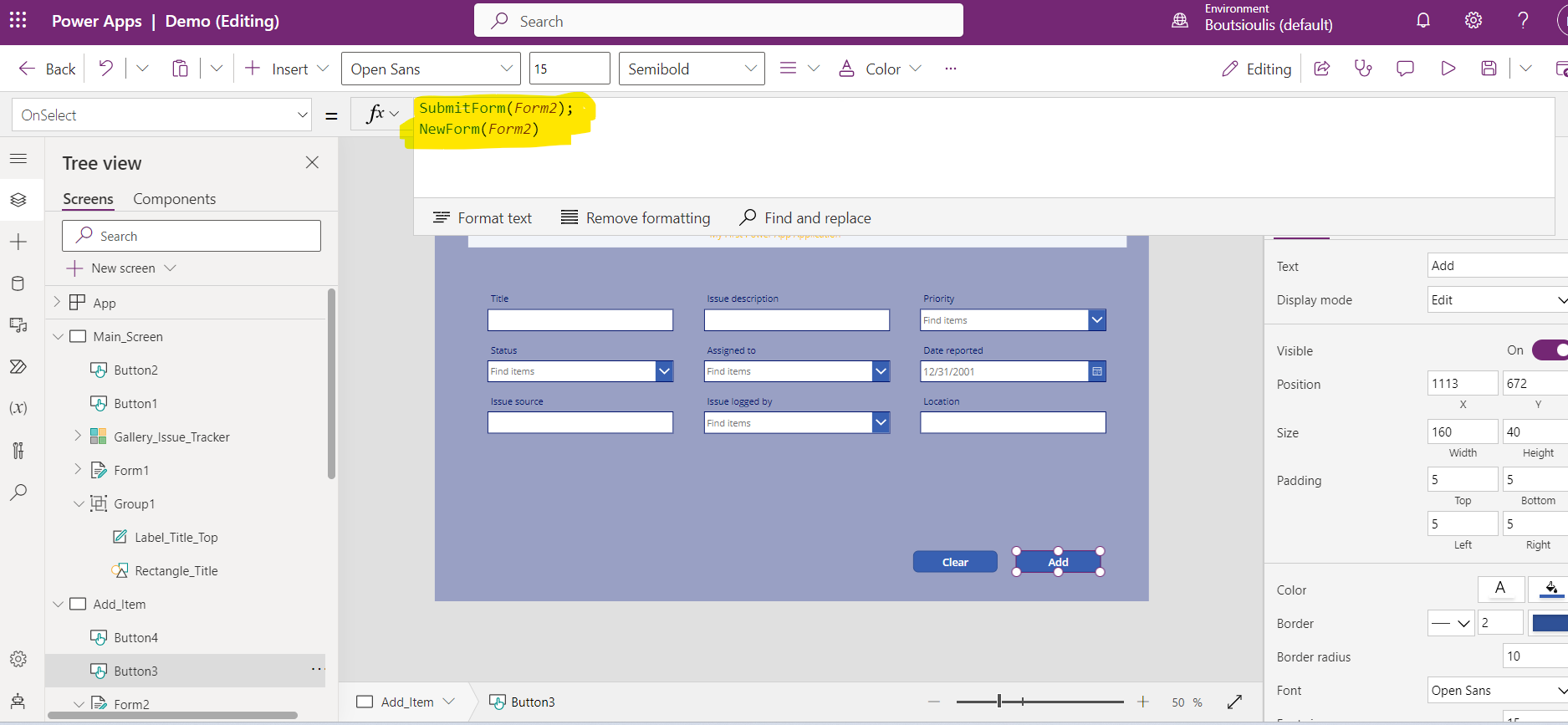
I select the first add button and from the properties I select onselect and there I have to enter as value the following SubmitForm(Form2) ;NewForm(Form2) .The submit will save the item in the list and the new form will create a new form
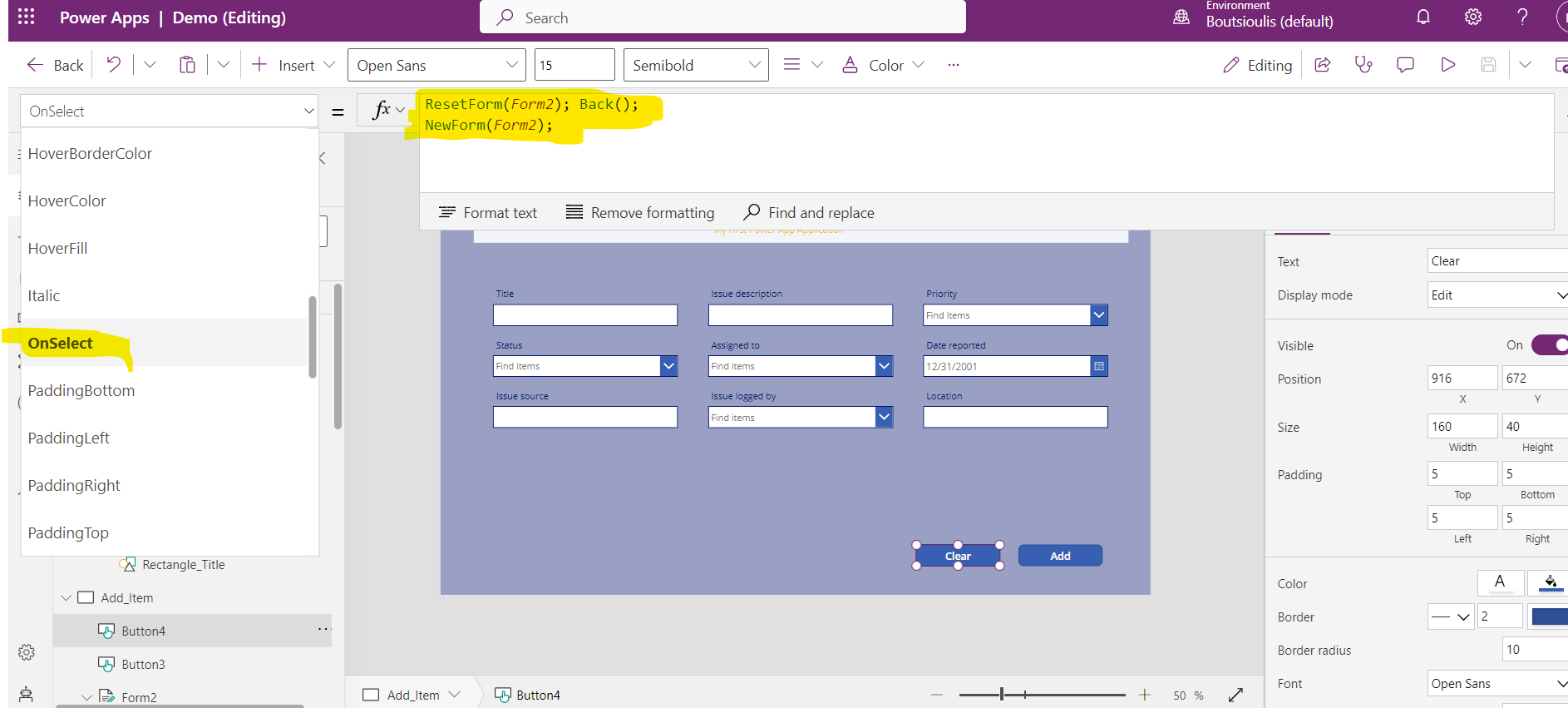
In the clear or reset button we have to enter the following value in the property on select ResetForm(Form2) ;Back();NewForm(Form2); With this way we can reset the fields of our form.
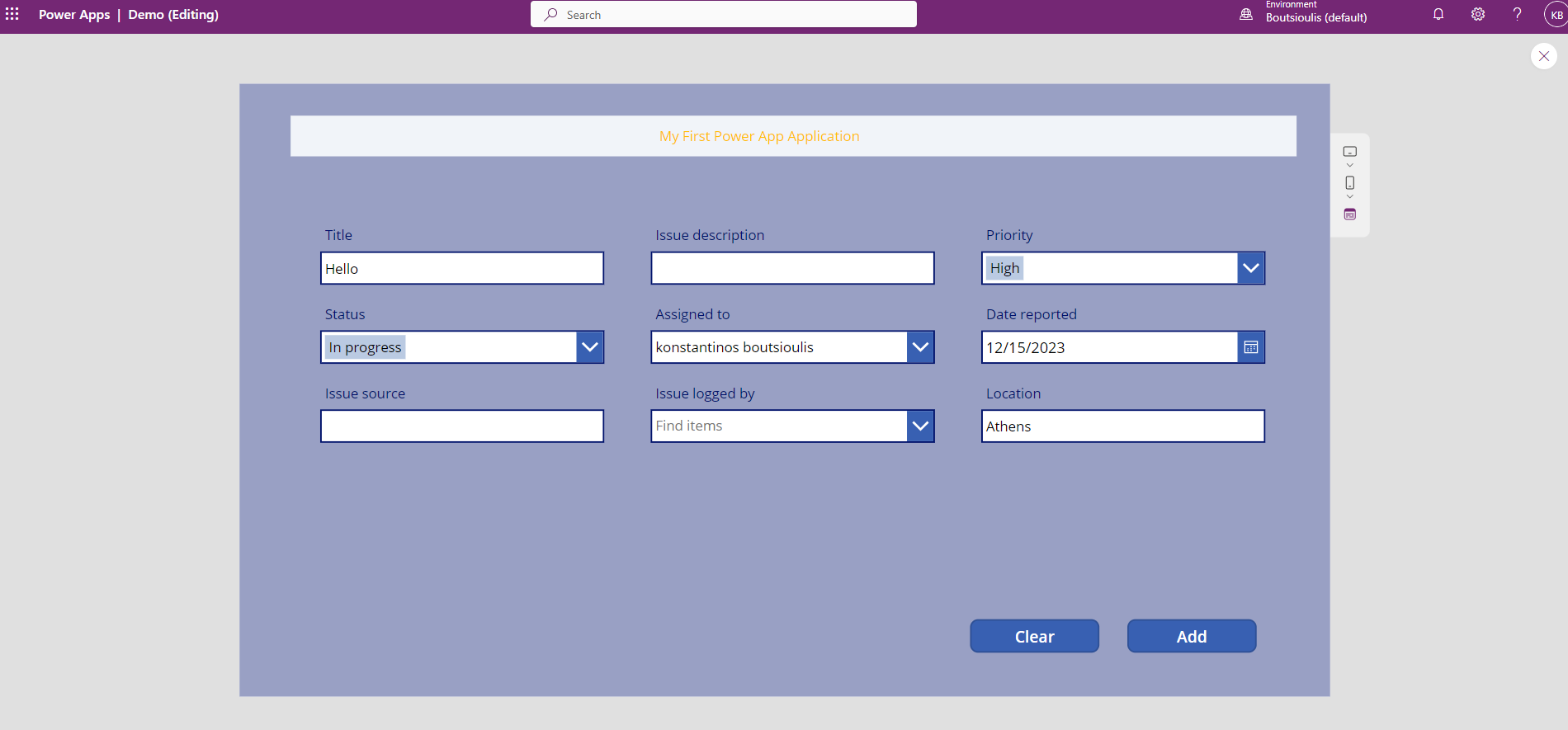
So if we save everything and press play we will see that we can make a new import through the form by using add and at the same time we can clear our fields by using the clear button
 #PowerPlatform
#PowerApps
#technology
#microsoft
#digitaltransformation
#cloud
#mvpbuzz
#m365
#PowerPlatform
#PowerApps
#technology
#microsoft
#digitaltransformation
#cloud
#mvpbuzz
#m365
Visit Archives below to find more articles about Microsoft technologies on Modern Workplace