
Free Material
Find hereMore than 150 Articles about Microsoft Technologies on Modern Workplace
Official Site
Microsoft Most Valuable Professional M365 Apps & Services
Microsoft Most Valuable Professional Business Applications
Consultant & Sr Cloud Solution Architect Modern Wokrplace
Find hereMore than 150 Articles about Microsoft Technologies on Modern Workplace
28 August 2024
In today's article, we will see how to send an email and move file after approval on file updation in SharePoint using Power Automate.
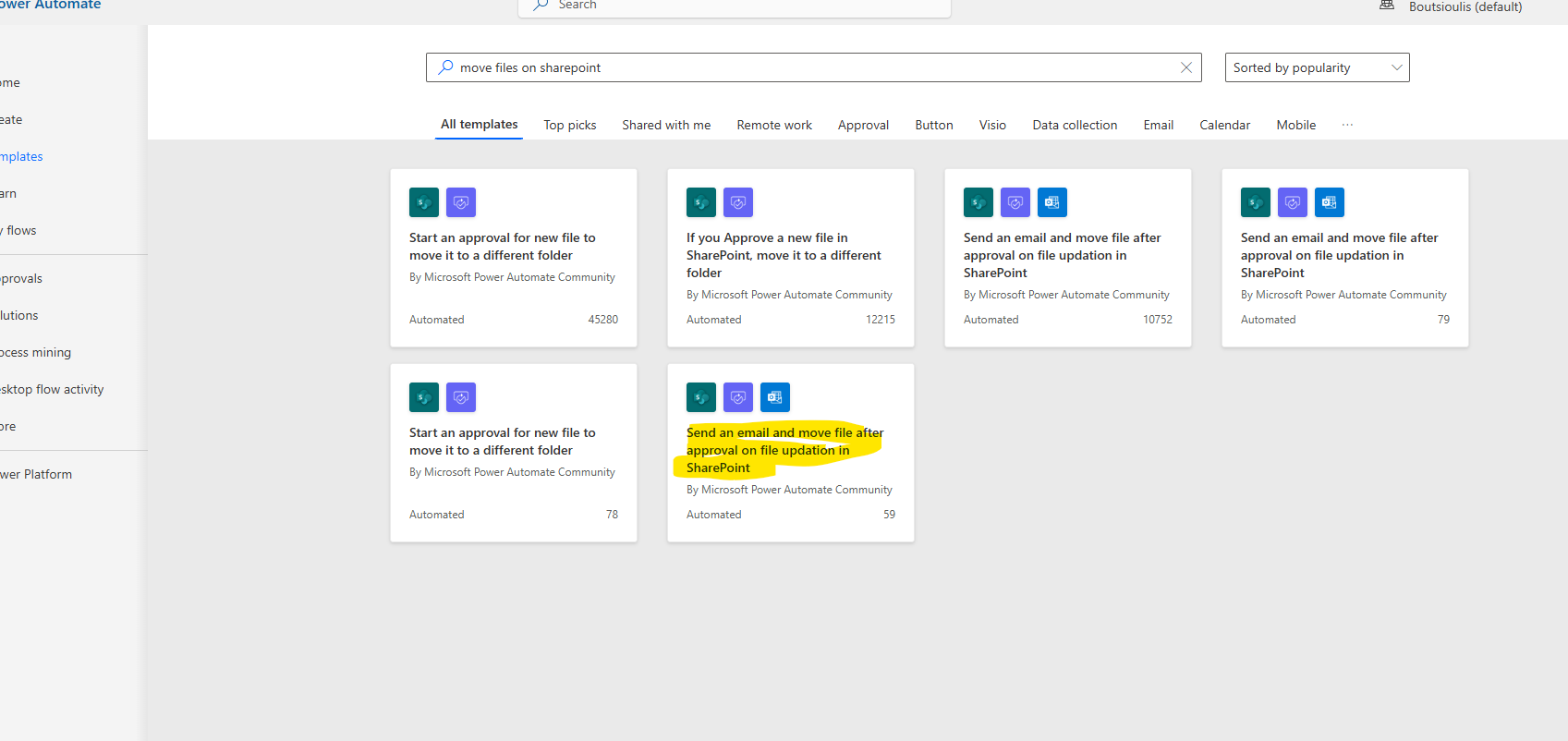
First, we need an active M365 subscription. We need to log in to the service and then select Power Automate from the available apps. On the Power Automate homepage, we select templates and then we need to find the automate named send an email and move file after approval on file updation in SharePoint.
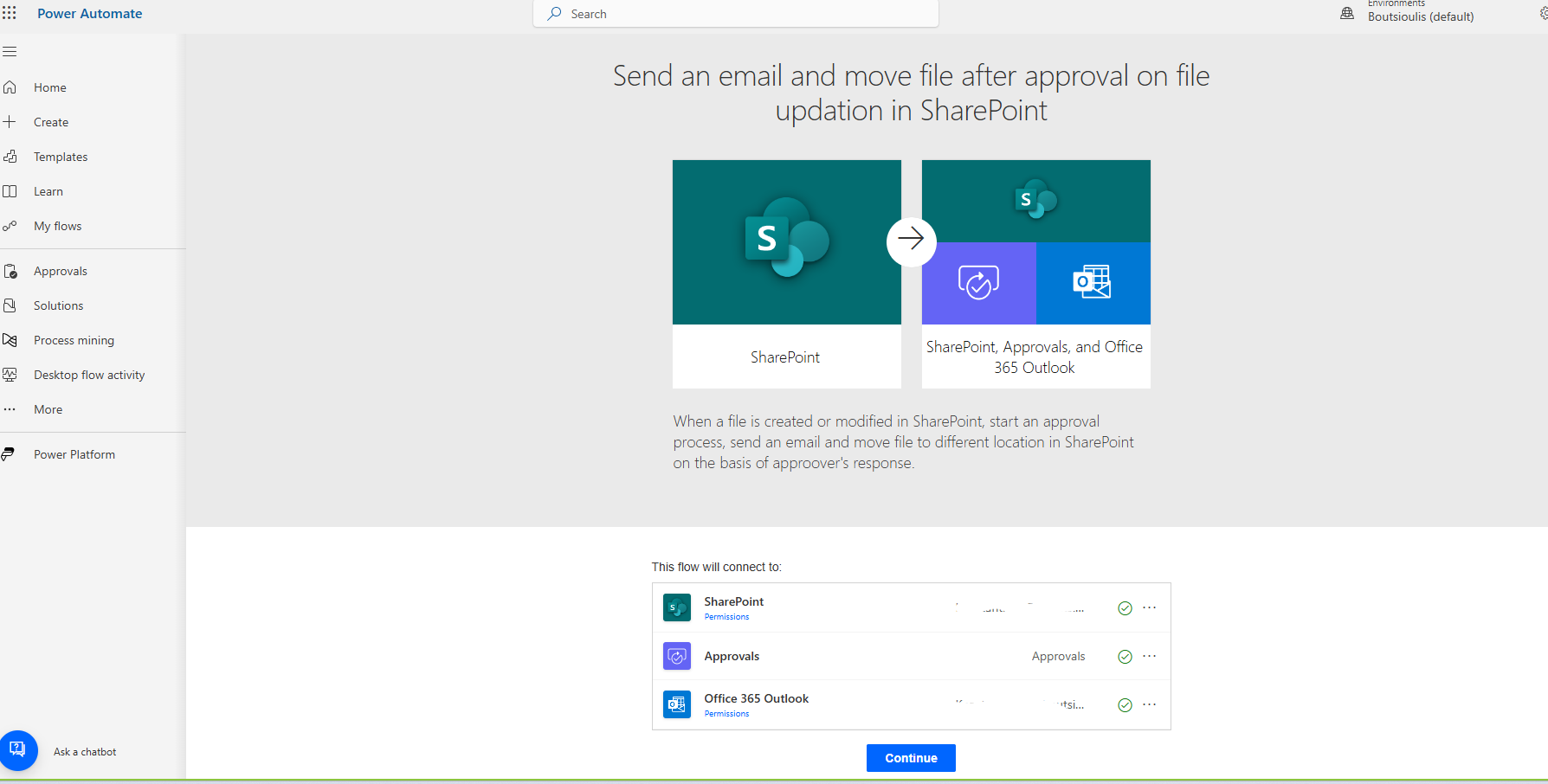
In the next step, we need to allow all the necessary connections and press continue.
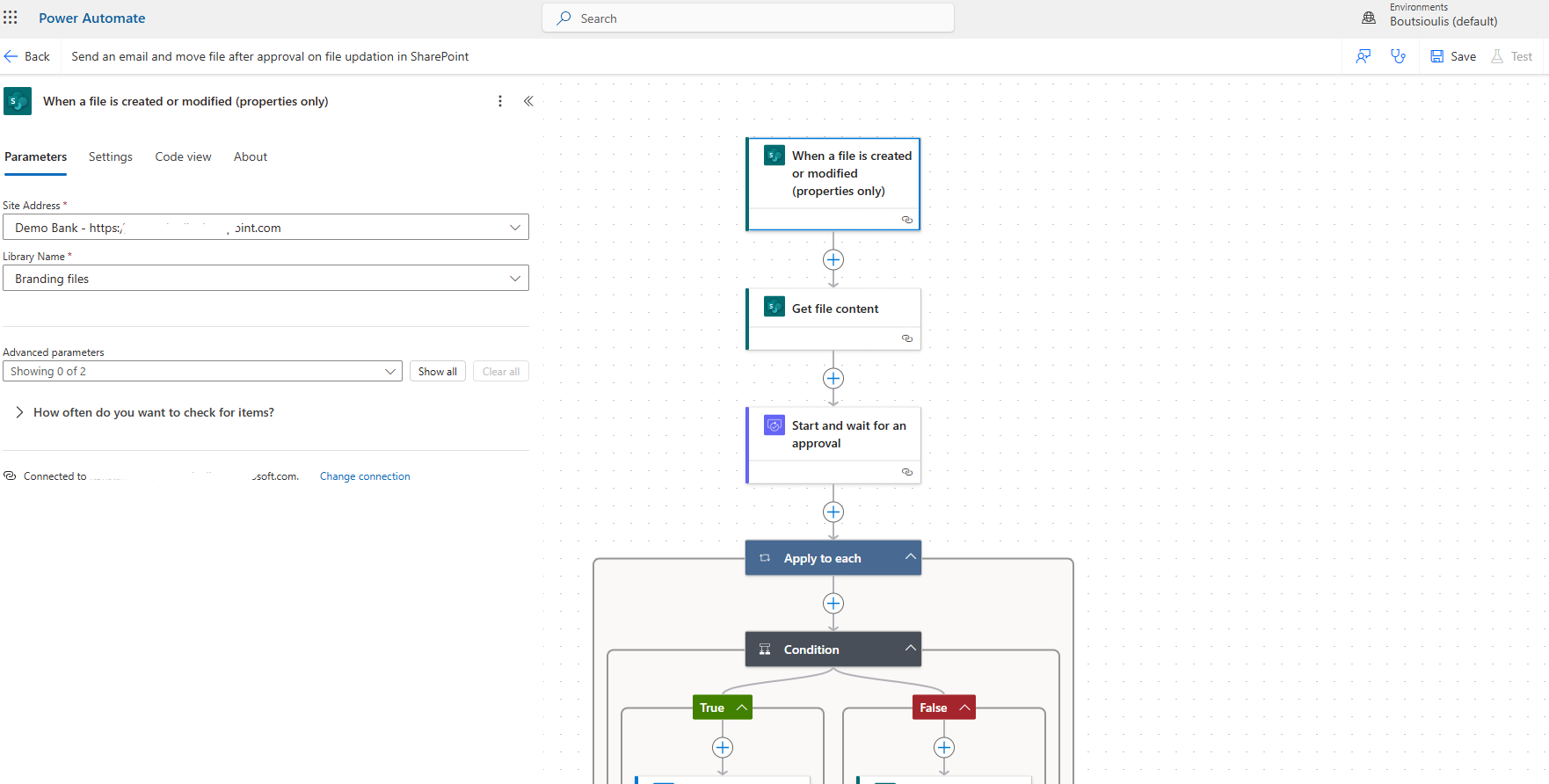
In the first trigger action, we need to set the site that hosts our library and the library itself in the site address and Library name respectively.
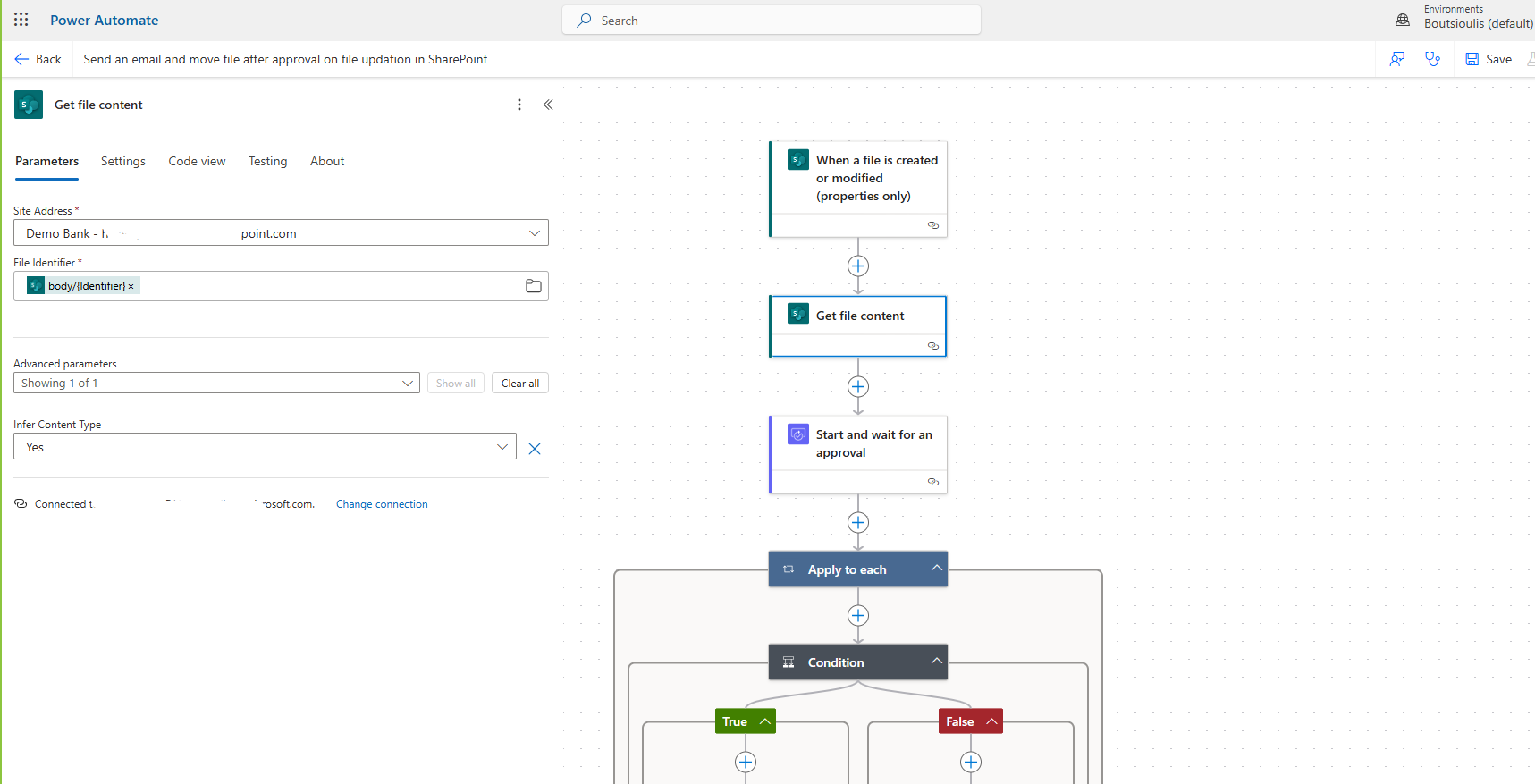
The next action is of the type get file content, where we specify the site address and the file with the unique identifier.
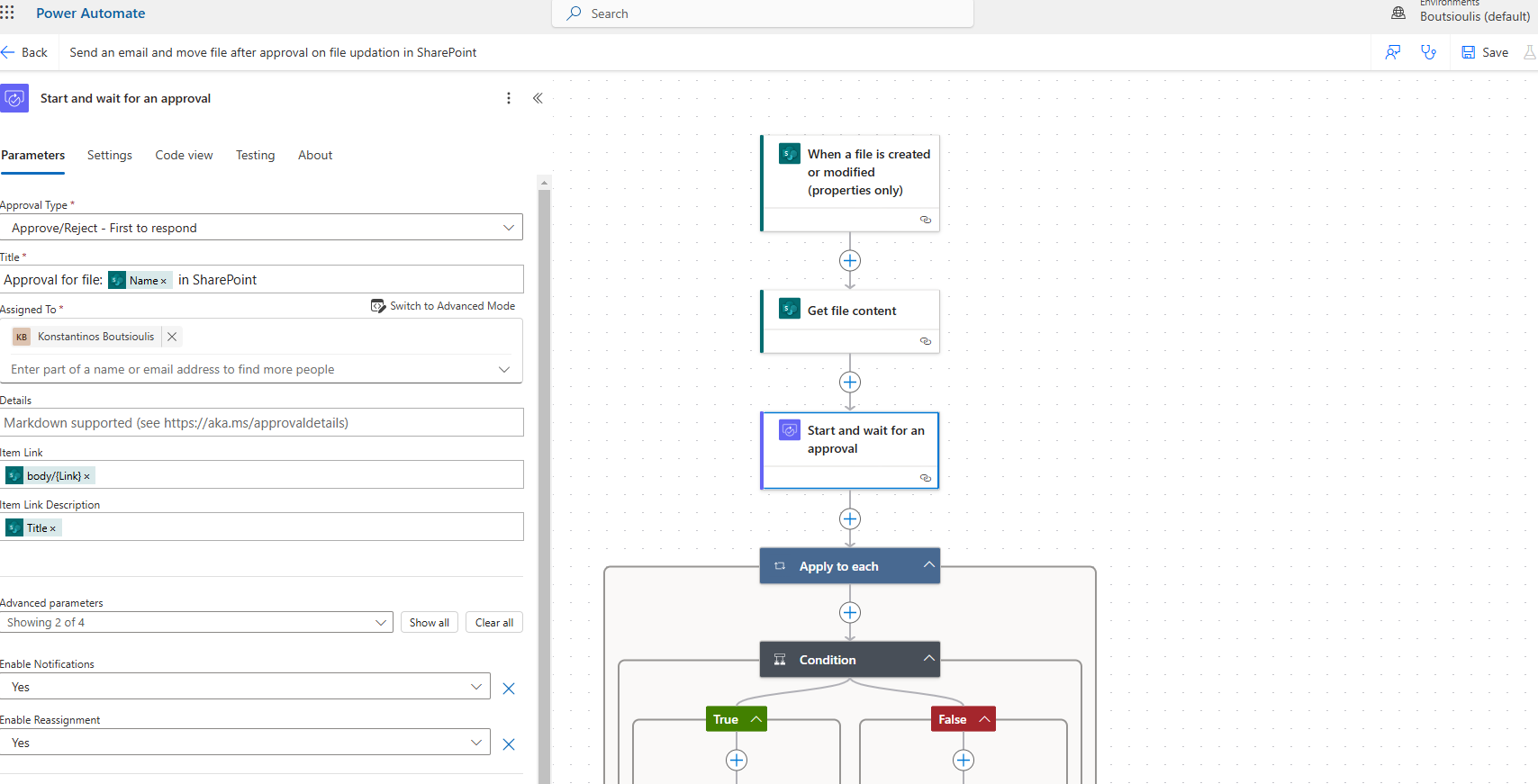
Then, we need to create an approval action with first to respond as the type of approval. We also need to specify who the approver will be, as well as the link of the item and the link description, which are properties dynamically inserted from the get file contents and the initial trigger action.
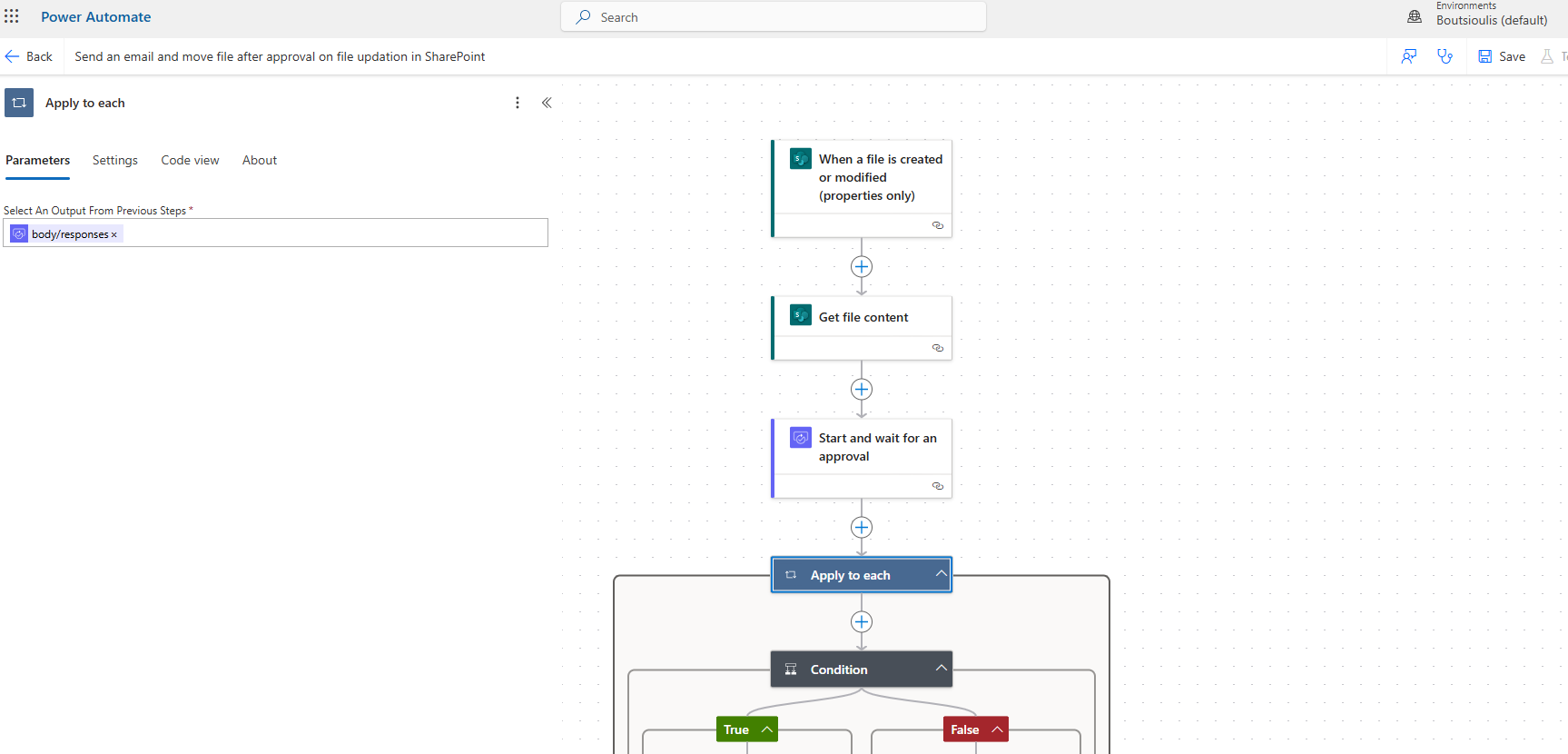
In the next step, we set a condition apply to each for all the responses from the start and wait for approval.
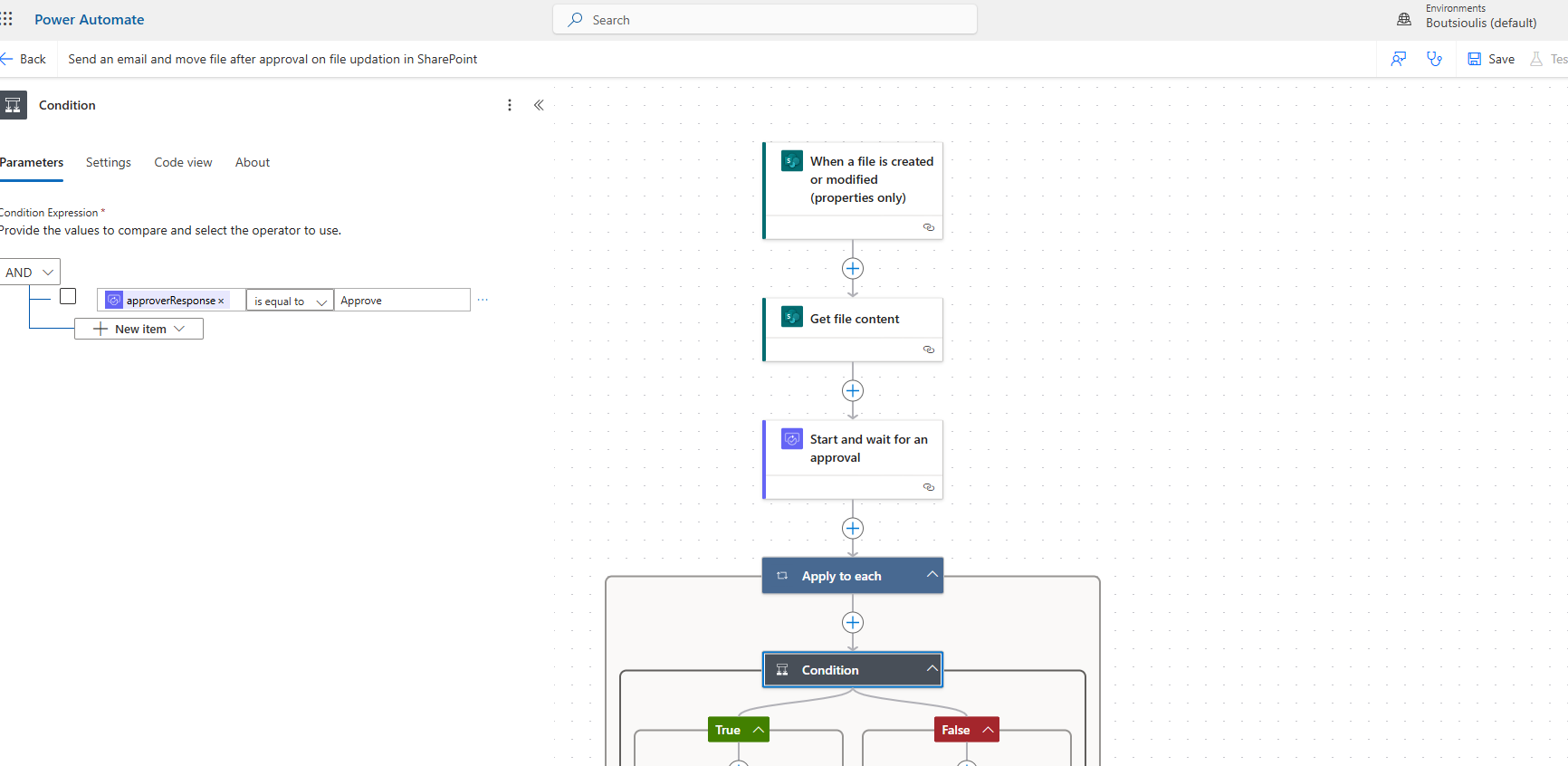
The next step is a condition where we check if it is approved or rejected.
If it is approved by the approver, then we have a new action of the type send email approved, which informs the user that it has been approved.
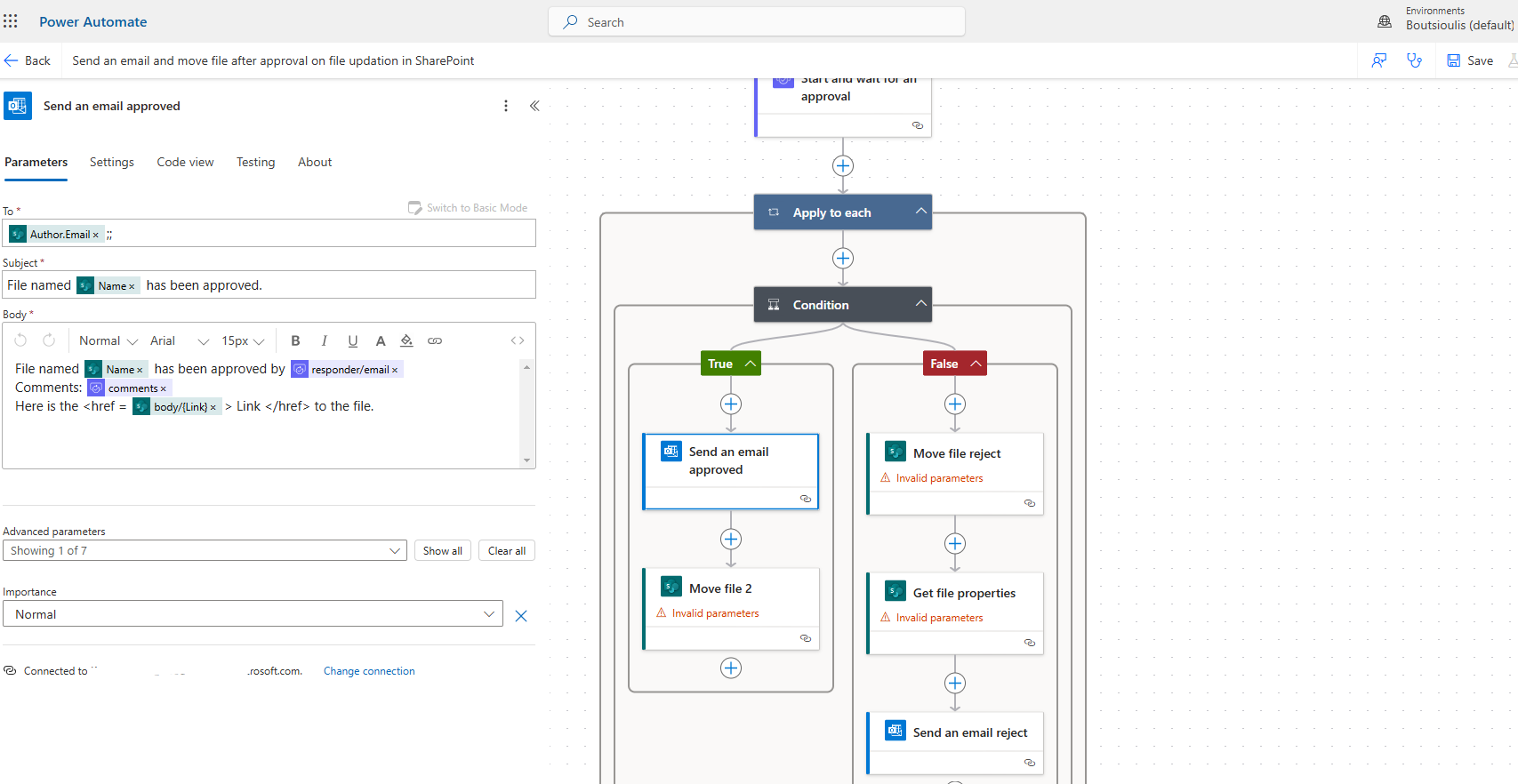
In the next step, the file is moved with an action of the type move file, where we need to specify the initial site and the unique identifier of the file, as well as the destination folder and whether to replace an item with the same name if it exists.
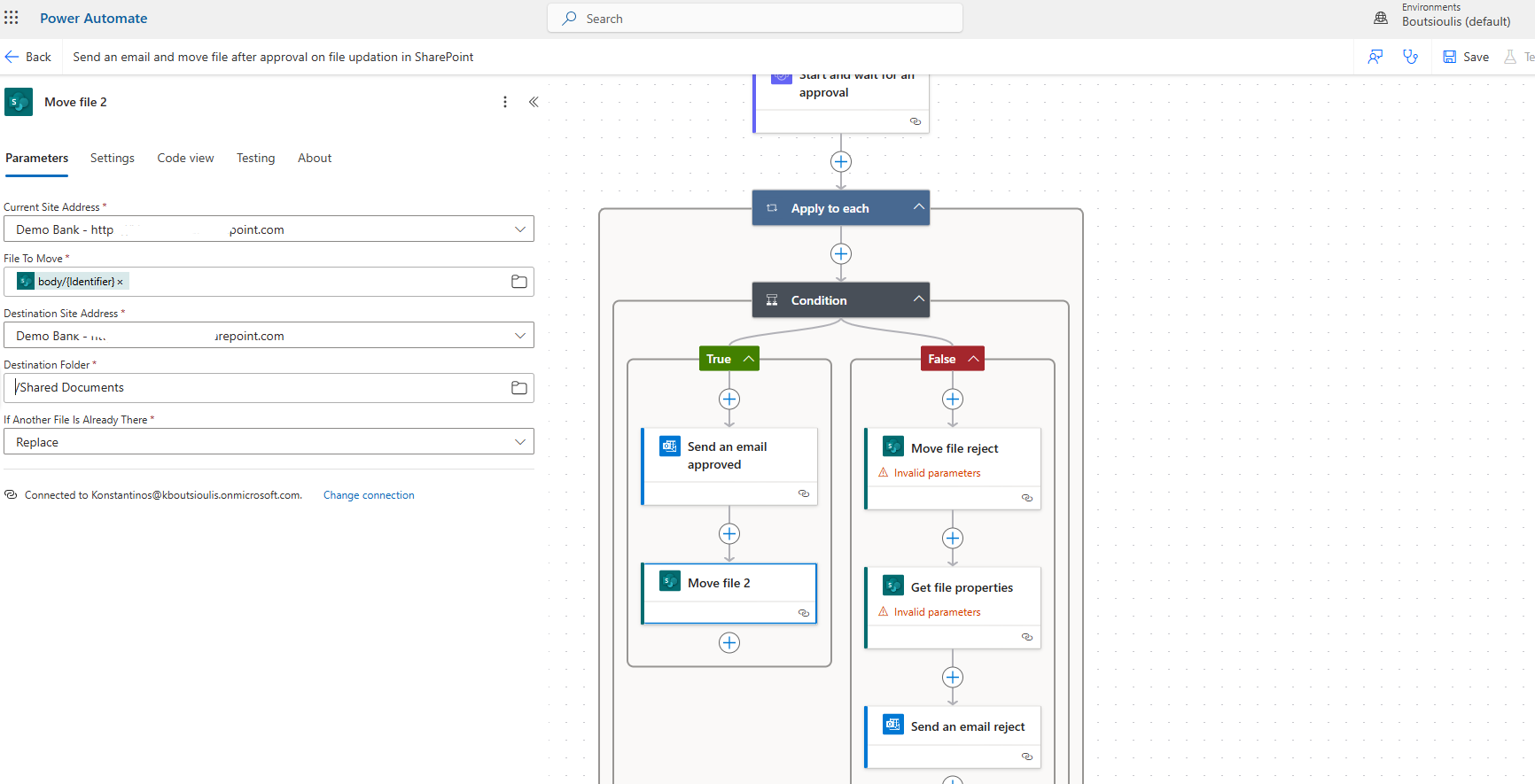
However, if the condition is false, meaning it has been rejected, then we have a new action of the type move file, where we specify the initial site and the unique identifier of the file, as well as the new site and the new destination folder where it will be moved, and whether to replace an item with the same name if it exists.
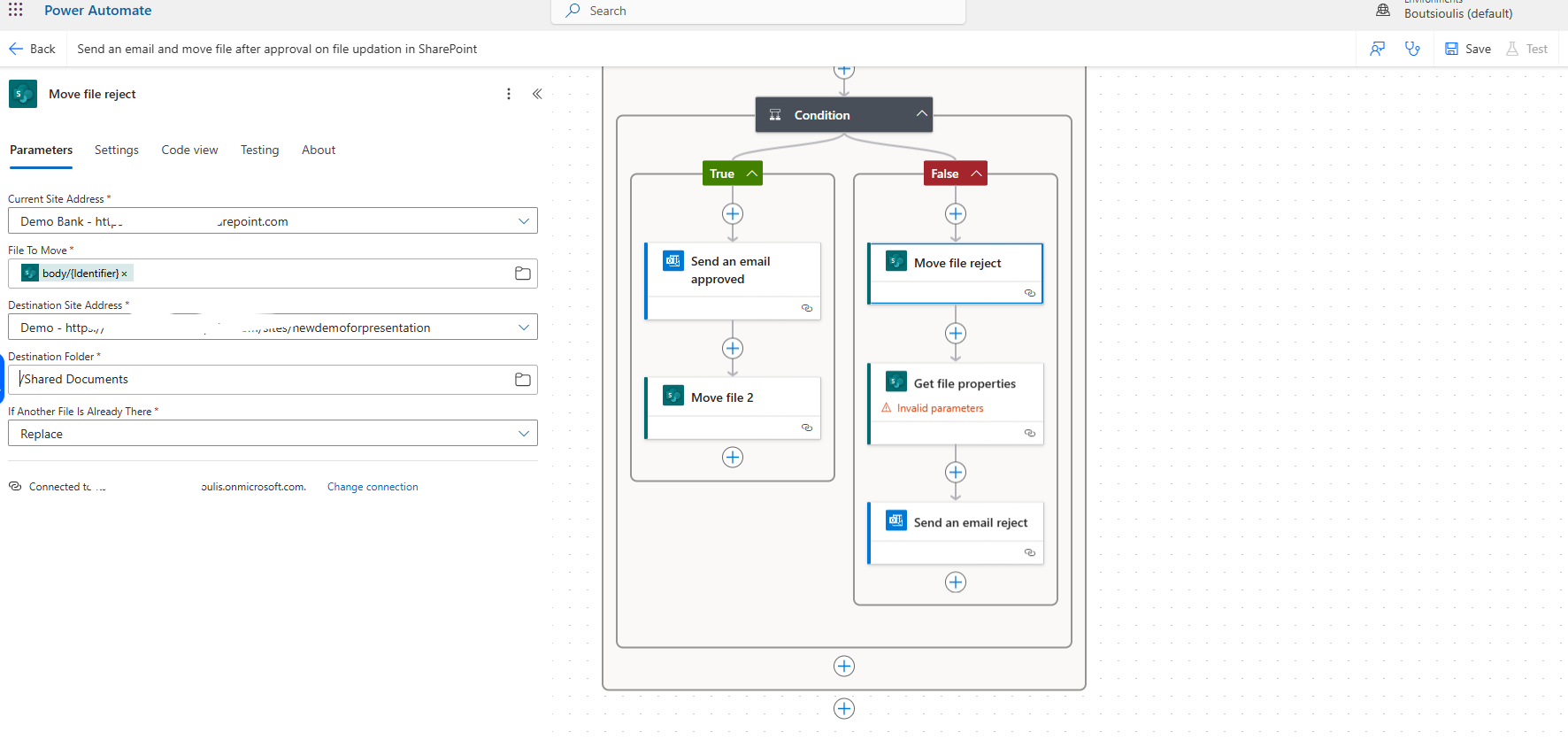
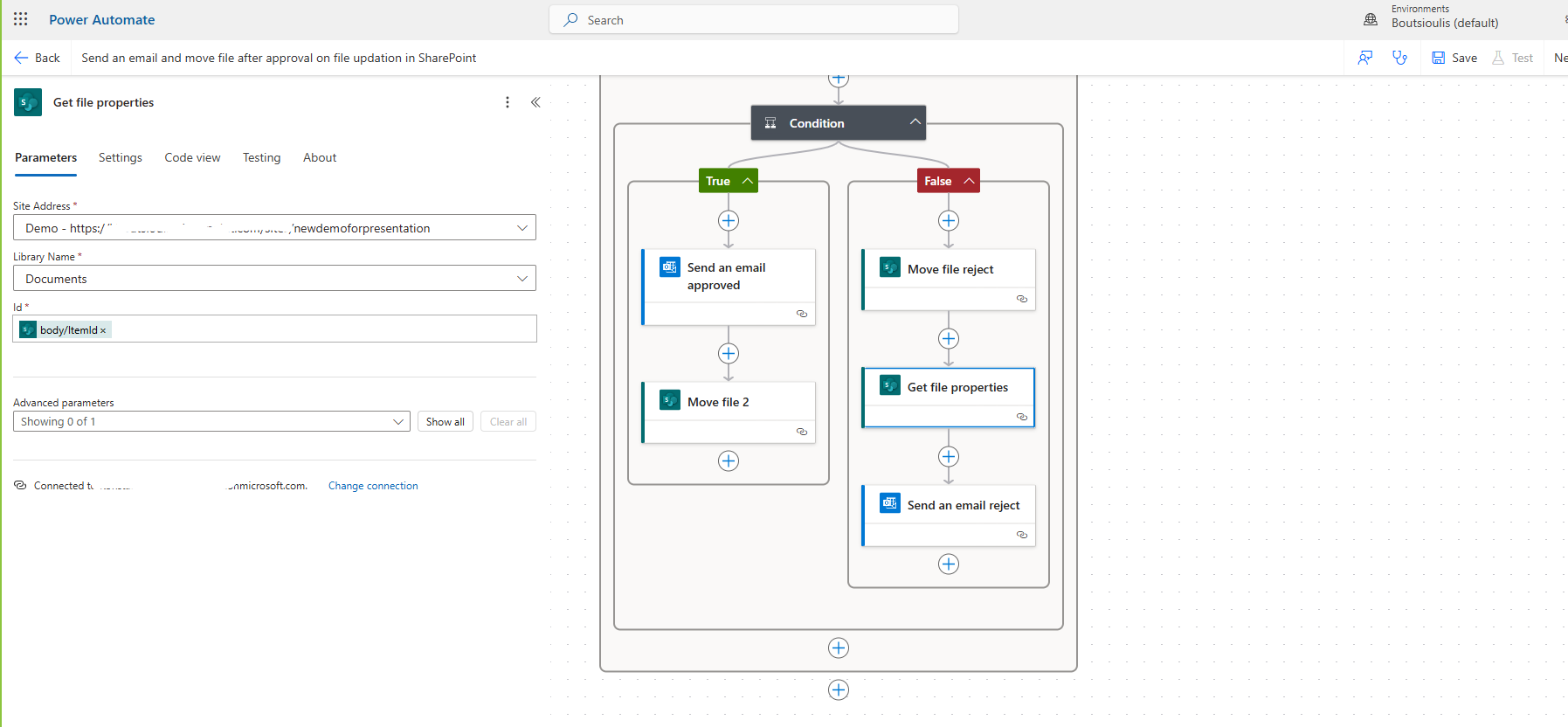
In the next action, we will have an action of the type get file properties, where we now have the site address as the new site to which we moved it, as well as the new Library name and the item ID.
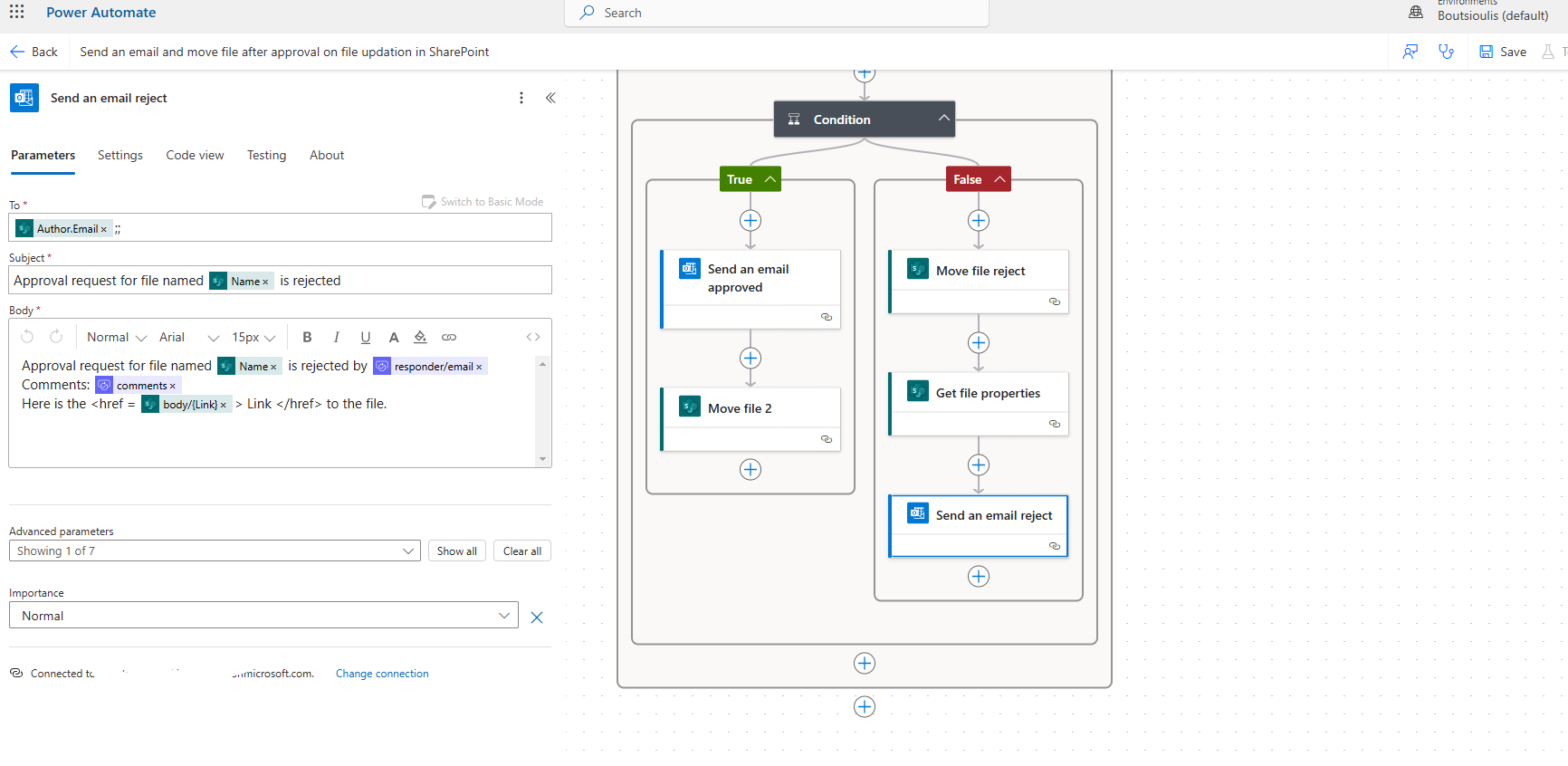
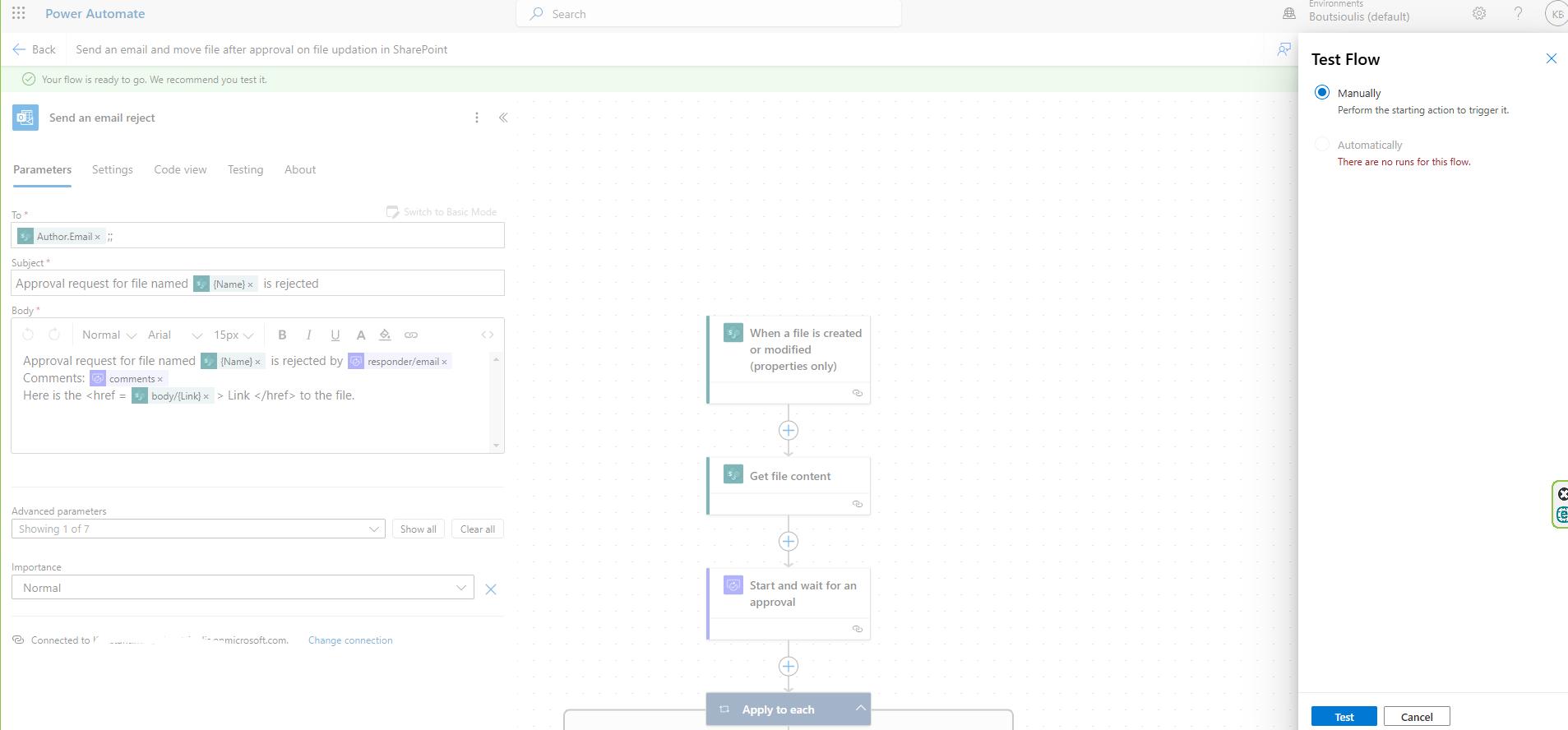
Finally, a rejection message needs to be sent to the user, and we do this with a new action of the type send email, which goes to the author and informs them that it has been rejected, including the comments and the link from the new location of the file.
We need to save our file and then perform a manual test flow, and finally, we find that our automate has executed successfully.
 #ModerWork
#M365_Apps_Services
#BusinessApps
#SharePoint
#PowerAutomate
#technology
#microsoft
#digitaltransformation
#cloud
#mvpbuzz
#m365
#ModerWork
#M365_Apps_Services
#BusinessApps
#SharePoint
#PowerAutomate
#technology
#microsoft
#digitaltransformation
#cloud
#mvpbuzz
#m365
Visit Archives below to find more articles about Microsoft technologies on Modern Workplace