
Free Material
Find hereMore than 150 Articles about Microsoft Technologies on Modern Workplace
Official Site
Microsoft Most Valuable Professional M365 Apps & Services
Microsoft Most Valuable Professional Business Applications
Consultant & Sr Cloud Solution Architect Modern Wokrplace
Find hereMore than 150 Articles about Microsoft Technologies on Modern Workplace
11 August 2024
In today's article, we will see how we can get statistics about the visibility of our site in SharePoint.
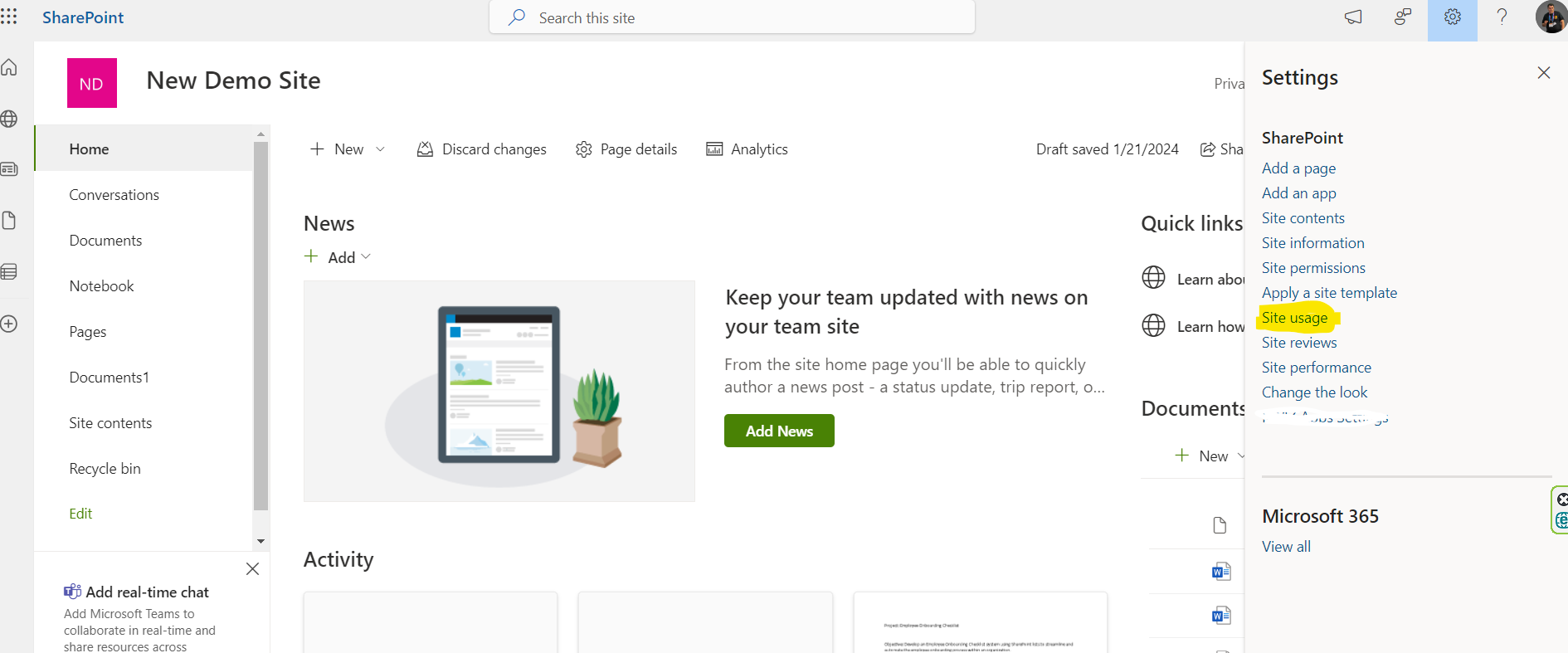
First, we select the site for which we want to extract visibility data. Then, at the top right of the graph, select site usage.
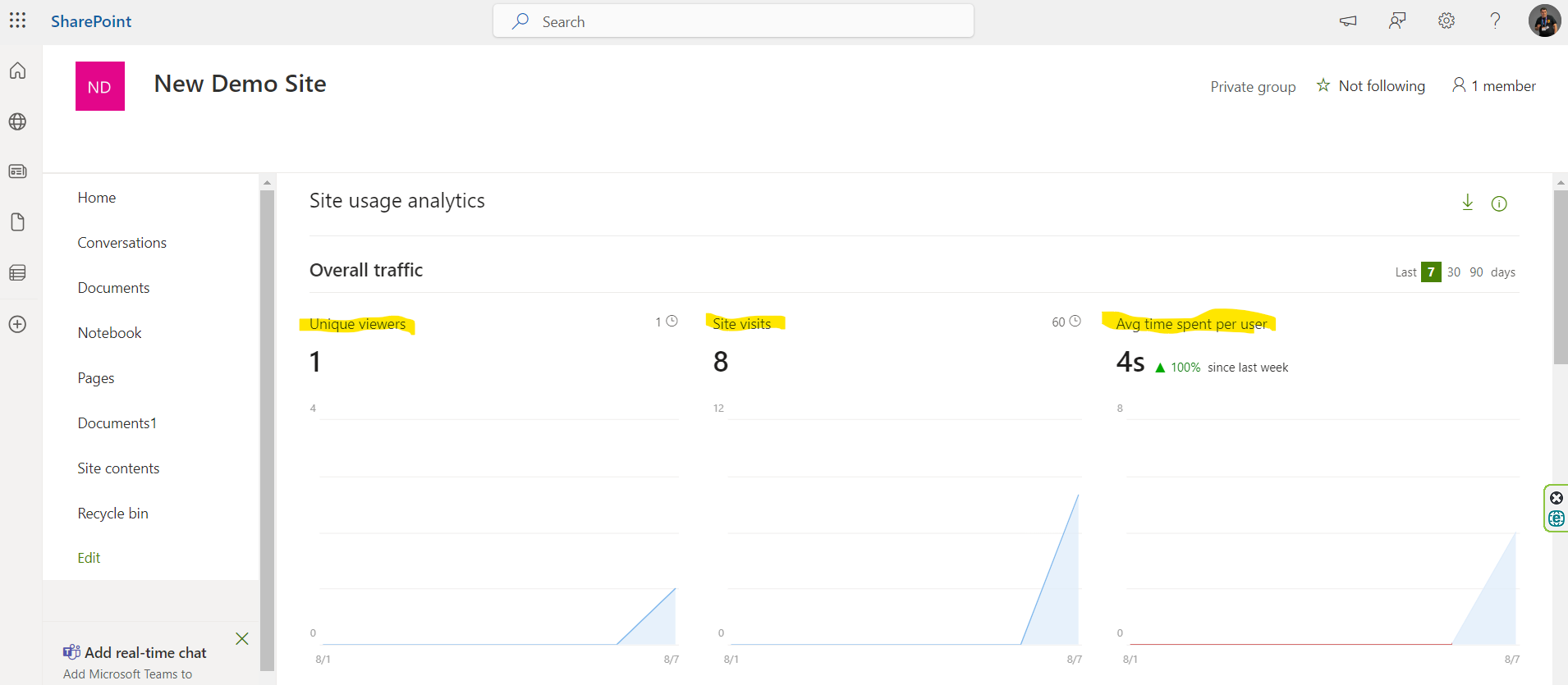
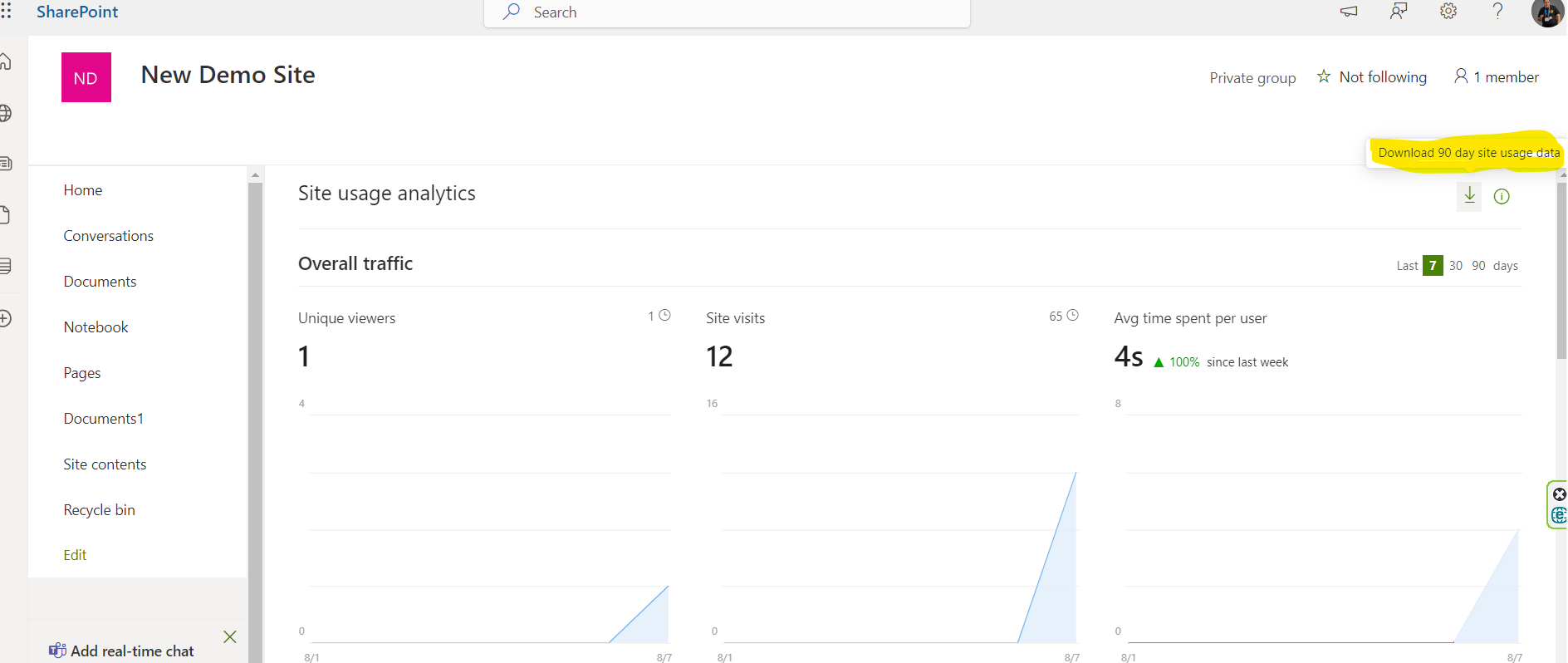
On the page that appears, we have 6 graphs which you can see below. In the first line of graphs, we have the unique users who have visited our site as well as the total number of visits to our site. Also, as a third option, we have the average time spent on the page by a user who visited our site.
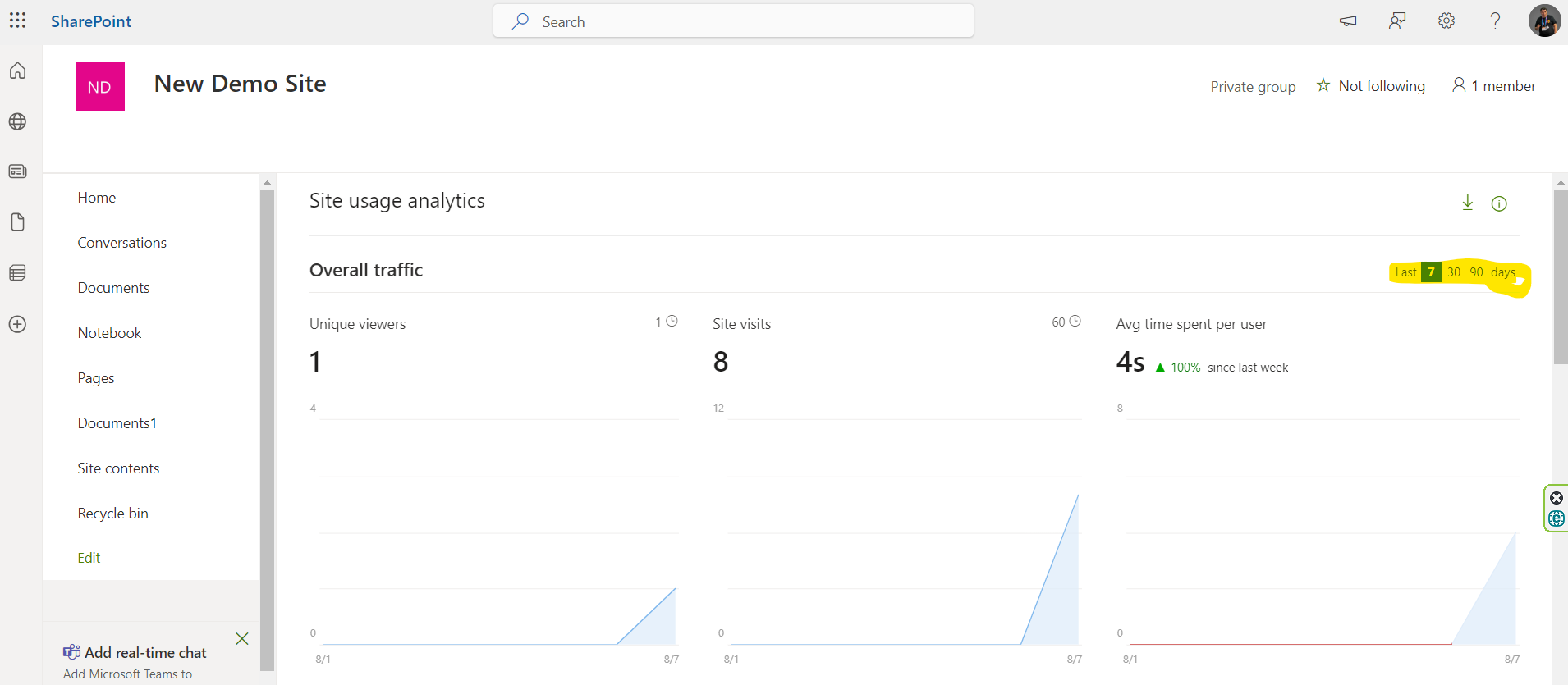
Note that on the top right, I have the option to set a time period for the report, and Microsoft by default gives us the opportunity to draw data for 7 days, 30 days, and 90 days.
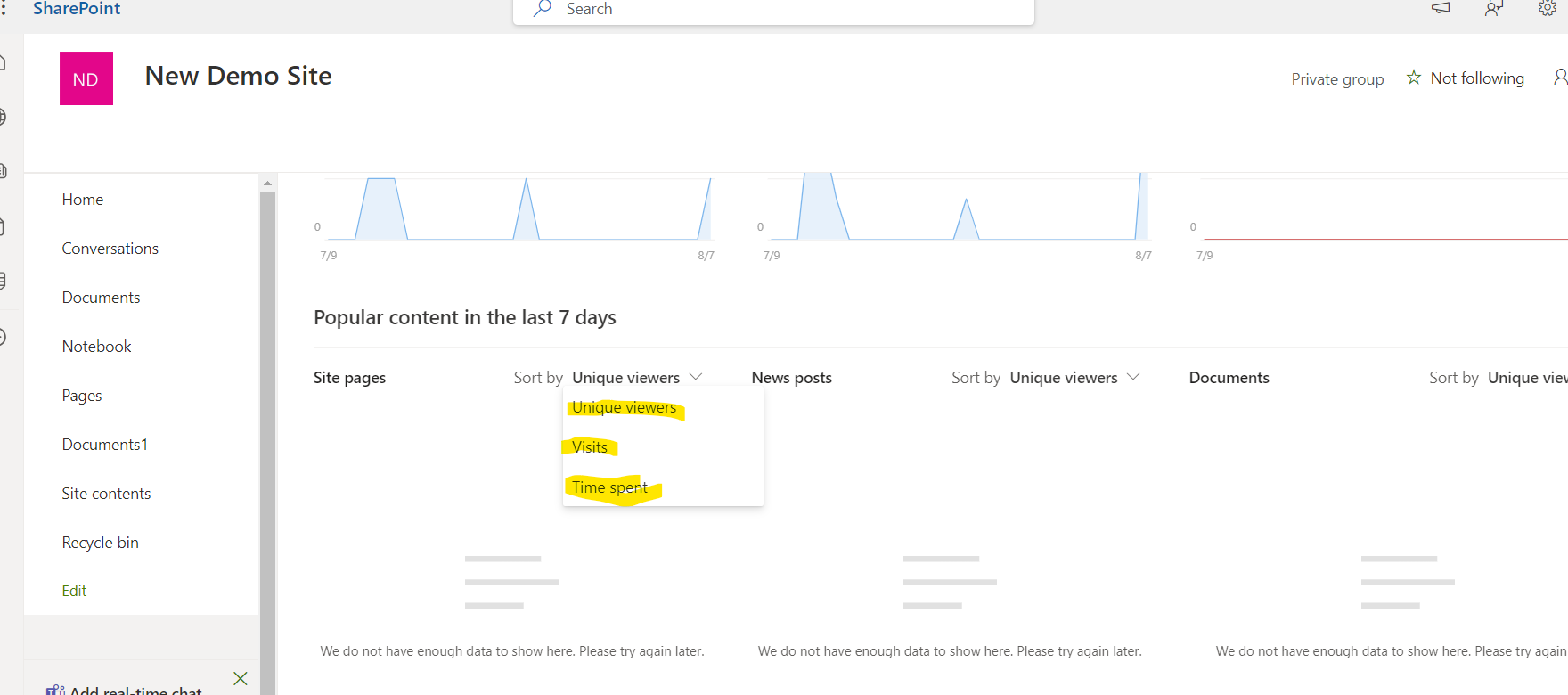
In the second row, we have the possibility to see the visibility for the content, and so we can identify which is the most popular content for the pages of the site, as well as for the posts, and for the documents we have in the libraries for the last 7 days.
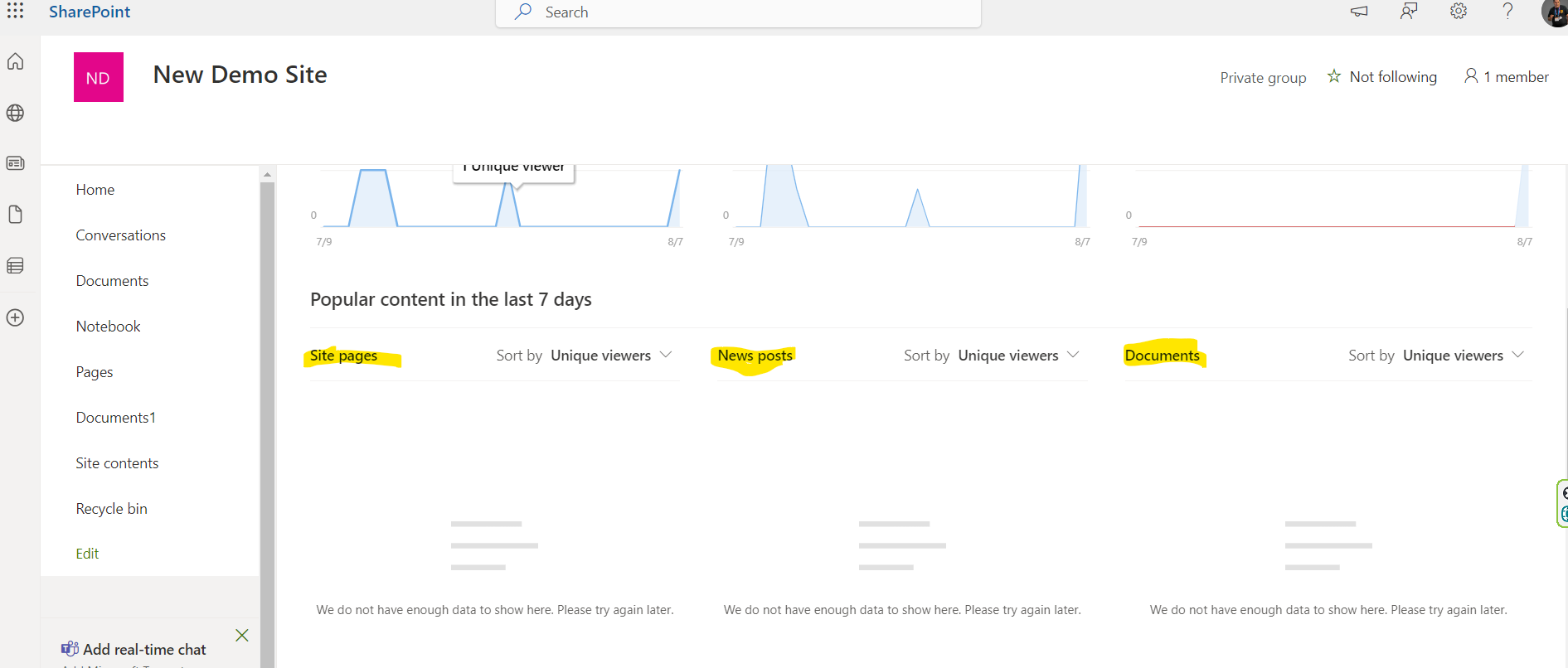
We can also set filters when displaying content either by unique users, by visits, or by spent time.
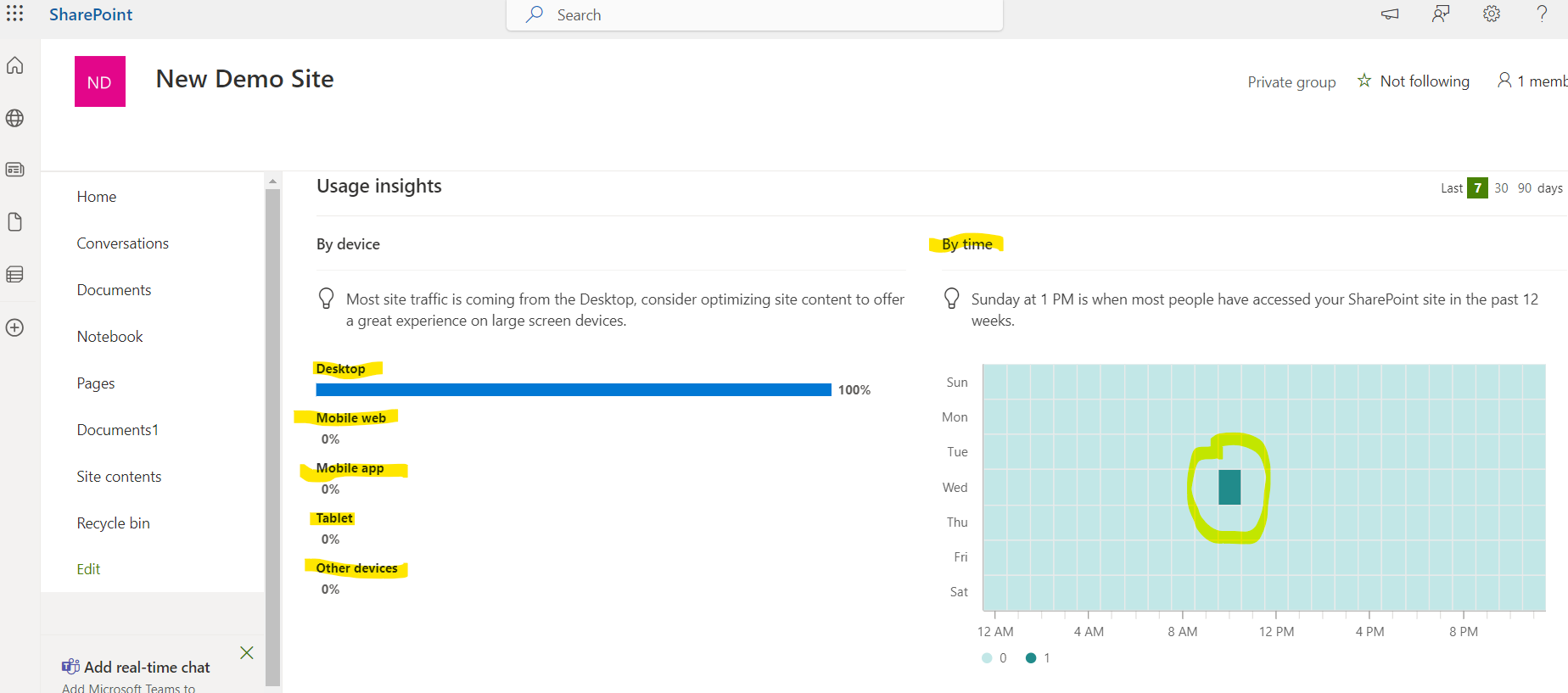
In the next row, we can extract information about the devices used by users to access the content and the time point at which the highest traffic occurred.
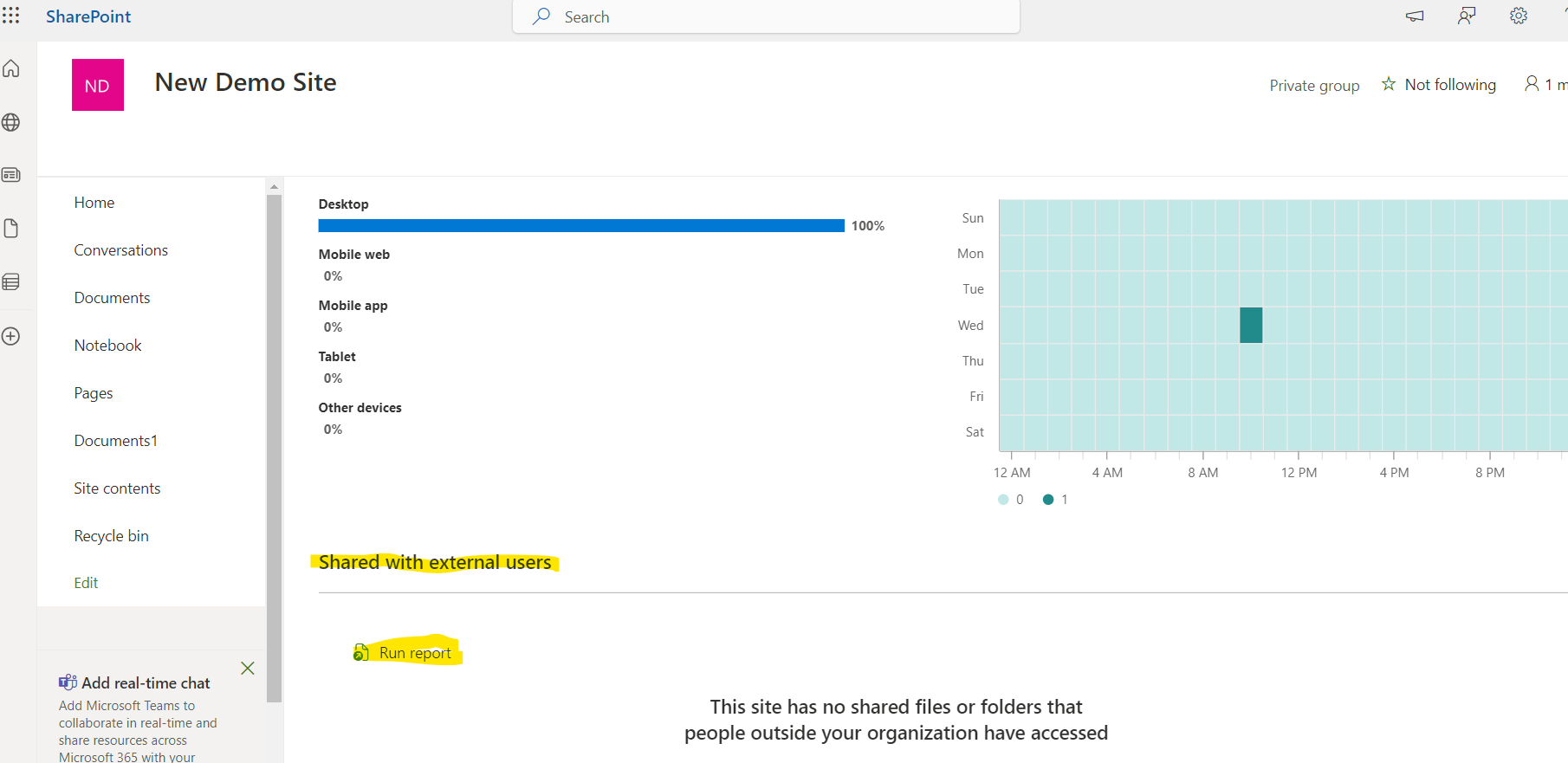
The last row shows information about whether the content has been shared with external users and even gives us the option to run the report from the run report option.
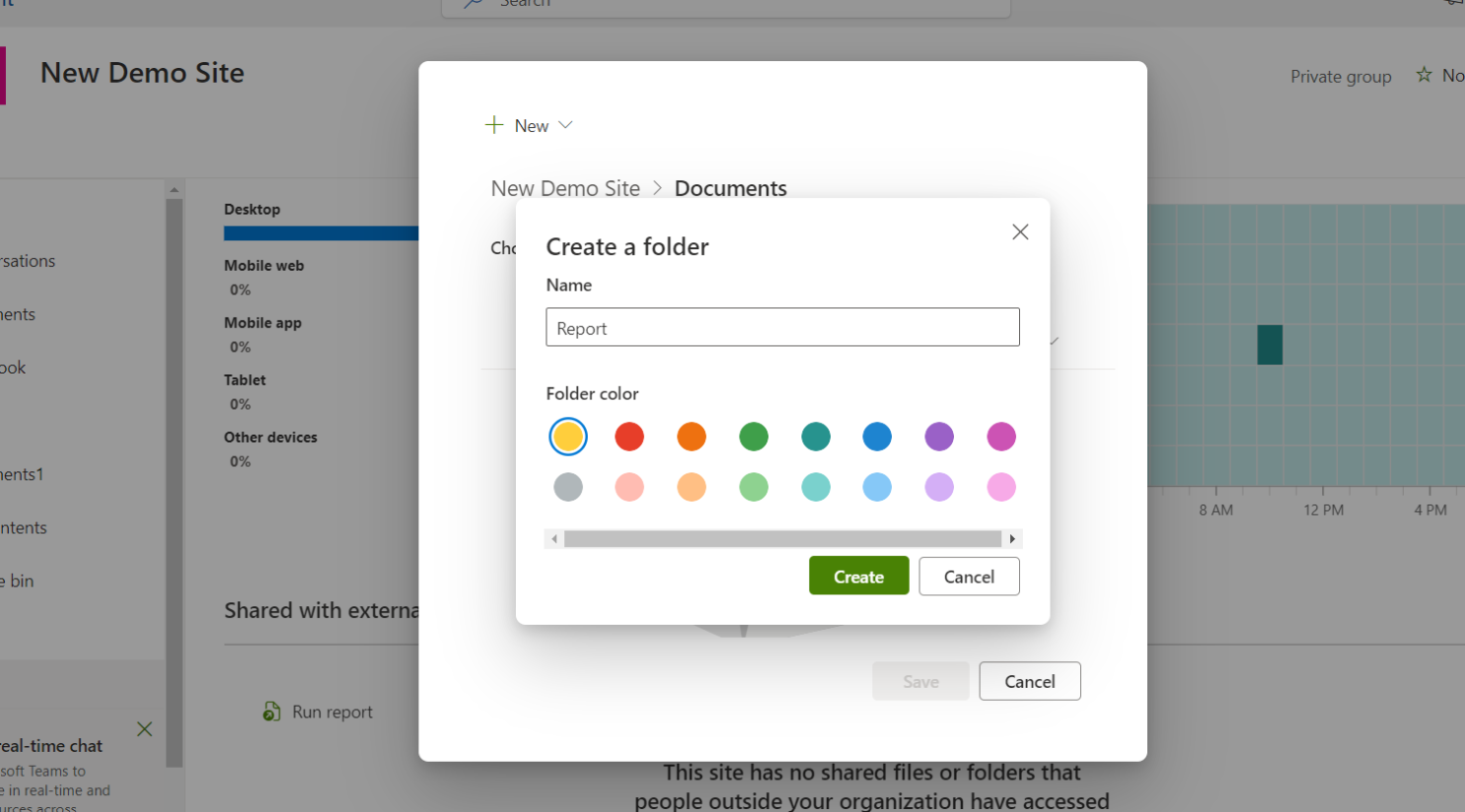
If we select run report, in the popup window, we have to specify the library where we want to save the report.
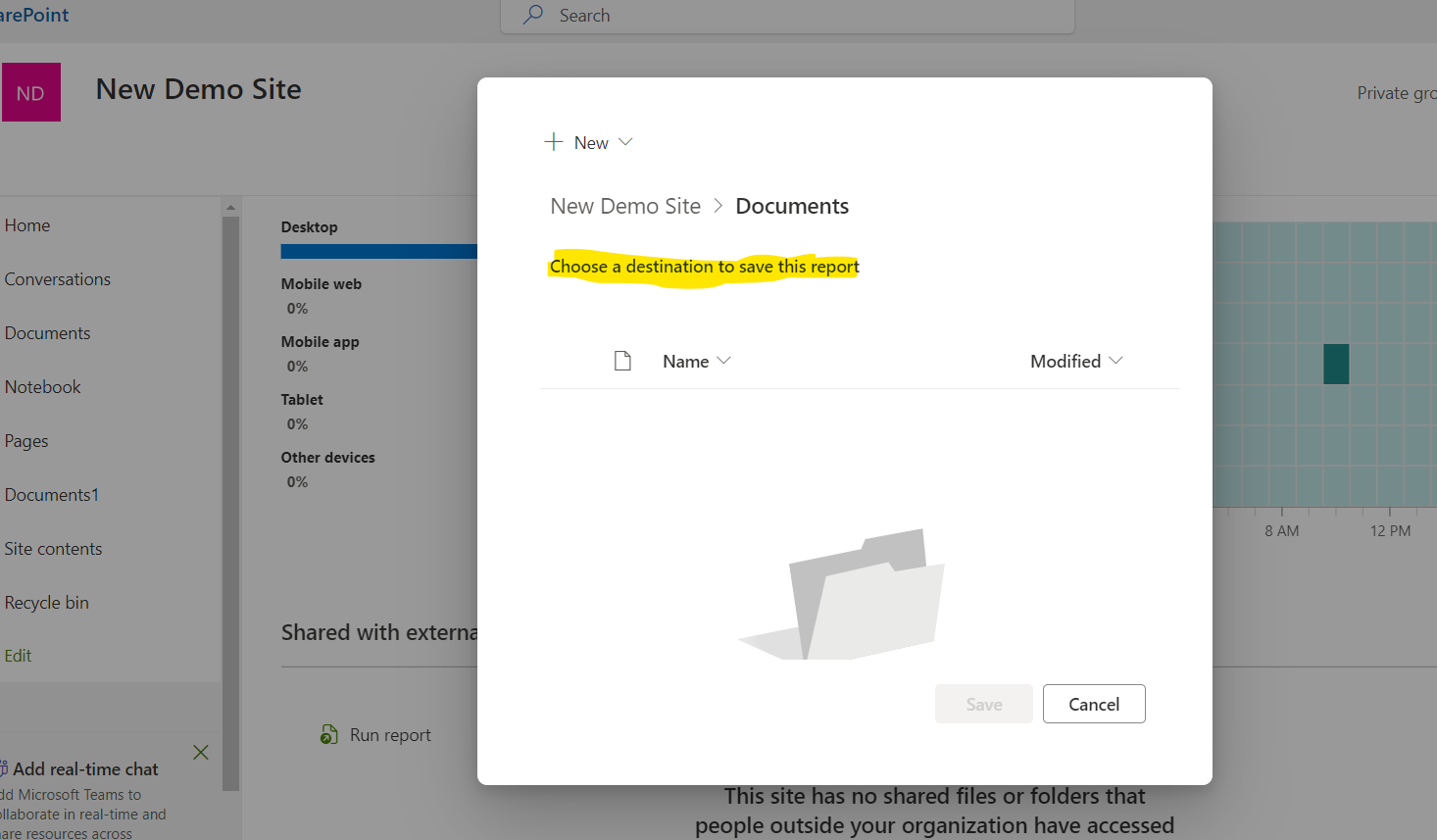
And there, we can create our folder that will contain the reports.
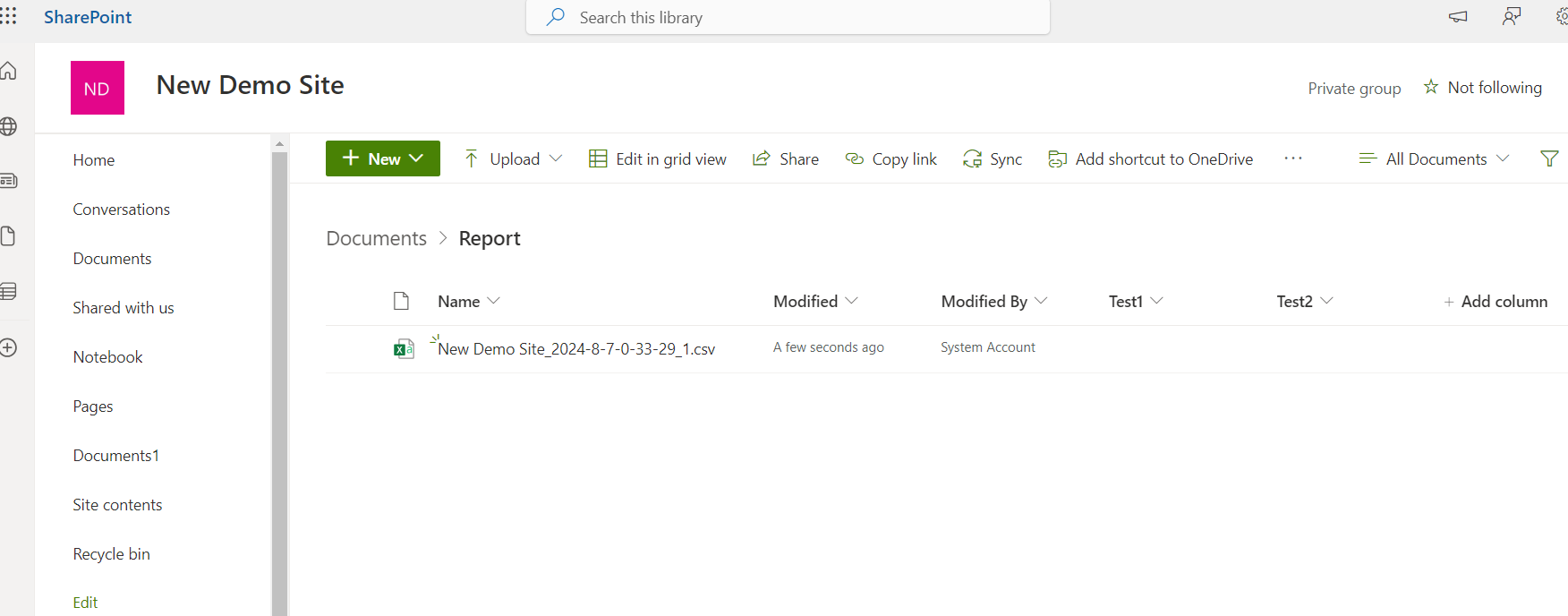
Once the process is complete, you will be able to view your report in the library.
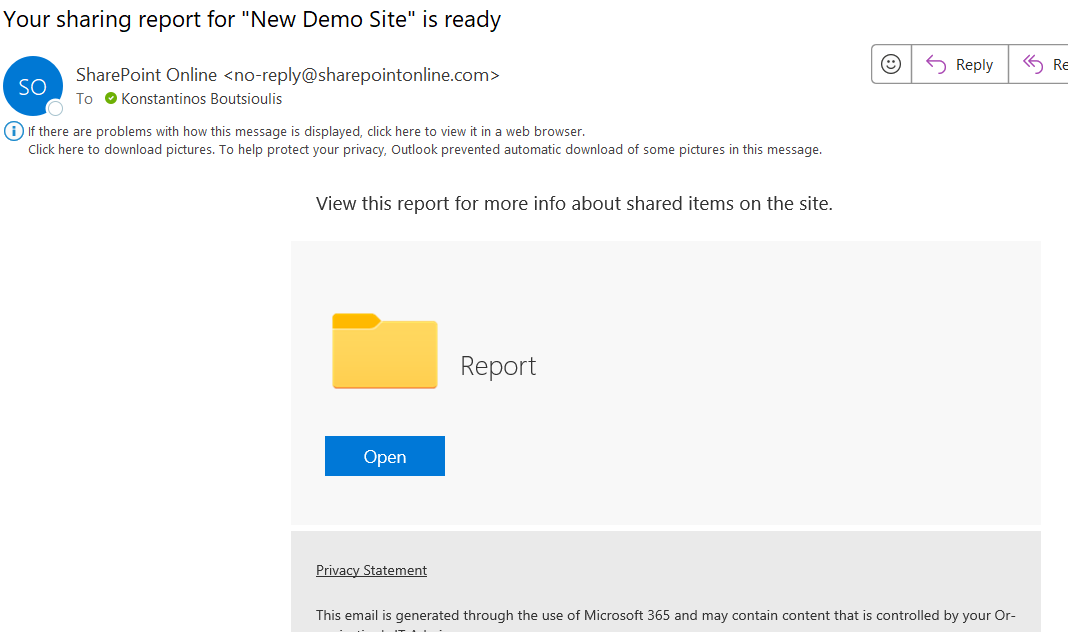
You will also receive a mail informing you of the successful completion.
Finally, by clicking on the button on the top right of the download, you can export an excel file with information about the attendance for the last 90 days.
 #ModerWork
#M365_Apps_Services
#BusinessApps
#SharePoint
#PowerAutomate
#technology
#microsoft
#digitaltransformation
#cloud
#mvpbuzz
#m365
#ModerWork
#M365_Apps_Services
#BusinessApps
#SharePoint
#PowerAutomate
#technology
#microsoft
#digitaltransformation
#cloud
#mvpbuzz
#m365
Visit Archives below to find more articles about Microsoft technologies on Modern Workplace