
Free Material
Find hereMore than 150 Articles about Microsoft Technologies on Modern Workplace
Official Site
Microsoft Most Valuable Professional M365 Apps & Services
Microsoft Most Valuable Professional Business Applications
Consultant & Sr Cloud Solution Architect Modern Wokrplace
Find hereMore than 150 Articles about Microsoft Technologies on Modern Workplace
24 August 2024
In today's article, we will see how we forward emails to a channel using Power Automate.
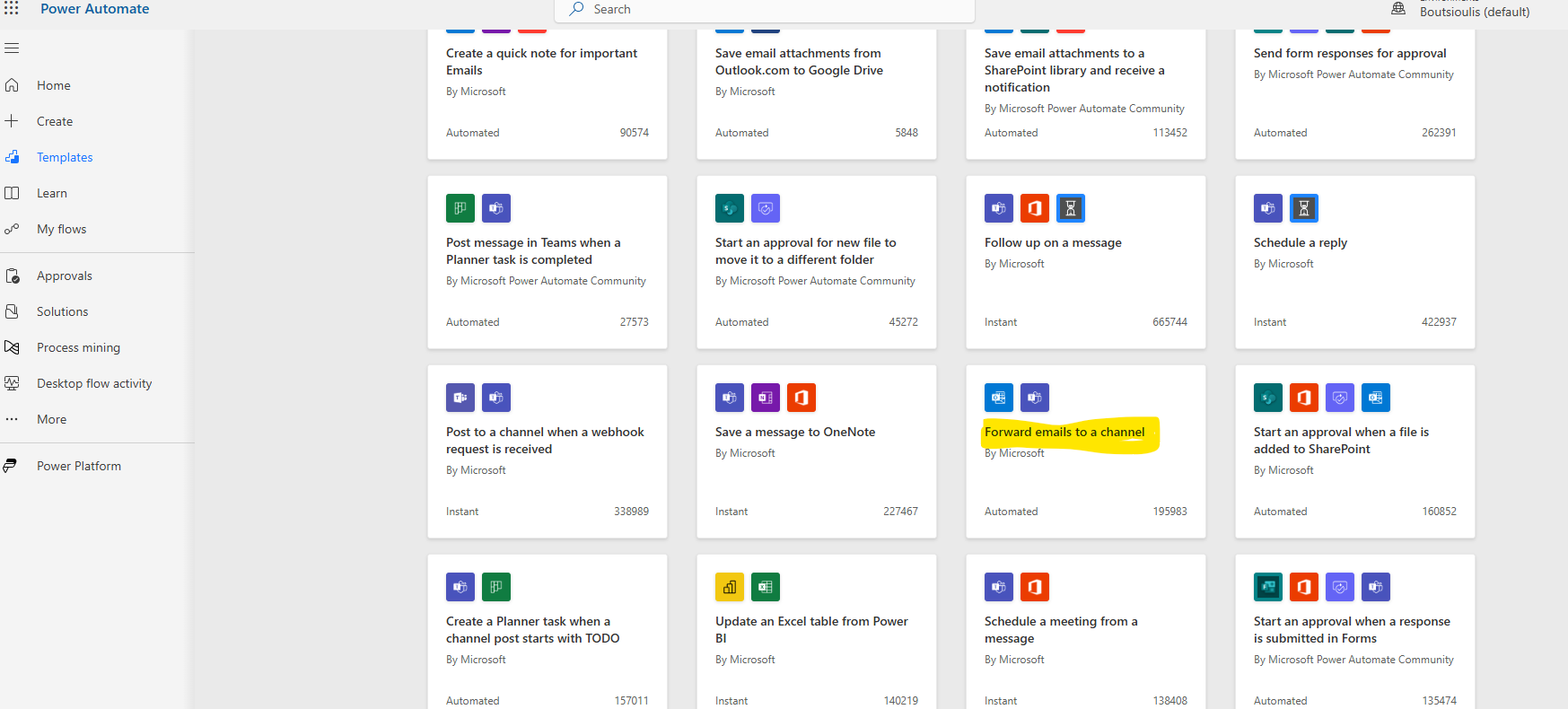
First, we need an active M365 subscription. We need to log in to the service and then select Power Automate from the available apps. On the Power Automate homepage, we select templates and then we need to find the automate named Forward emails to a channel.
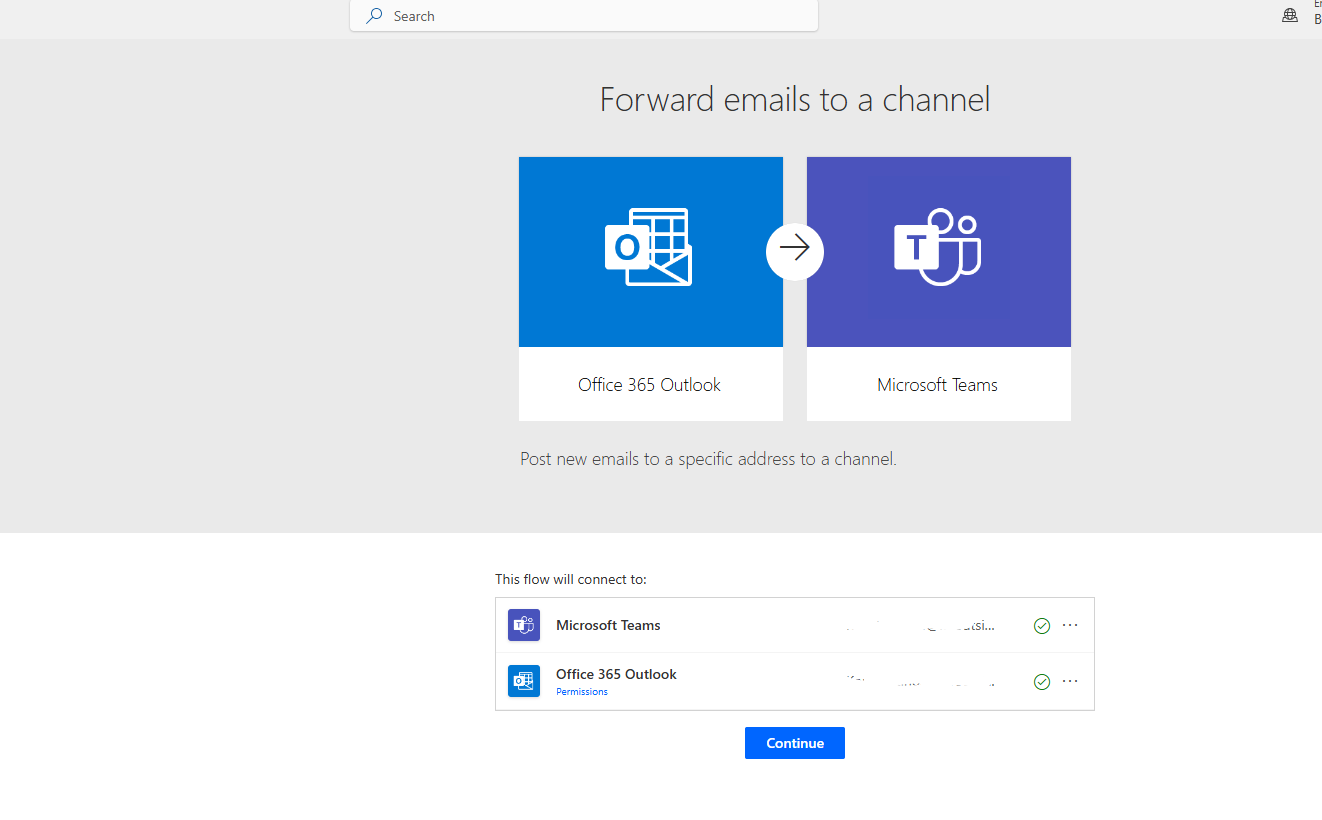
In the next step, we need to allow all the necessary connections and press continue.
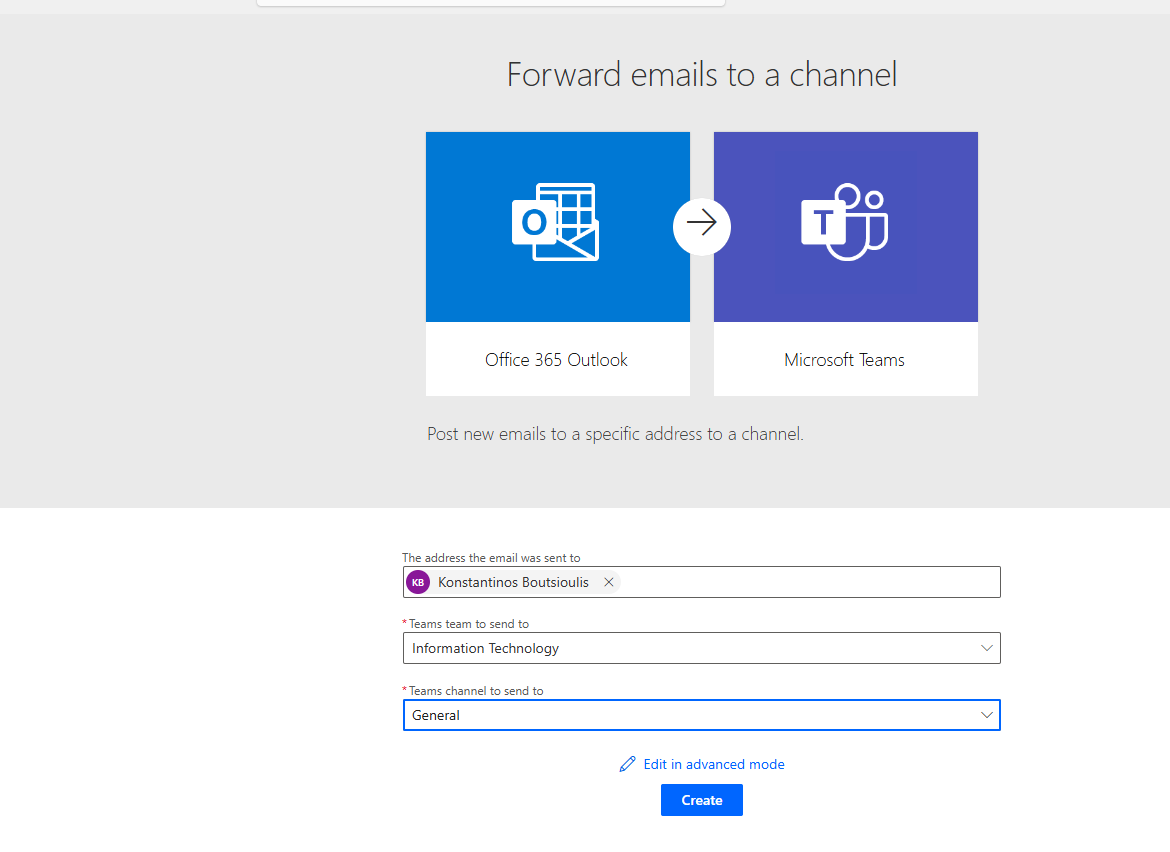
On the next screen, we need to specify which team in Teams and which channel the emails will be forwarded to, and then click create.
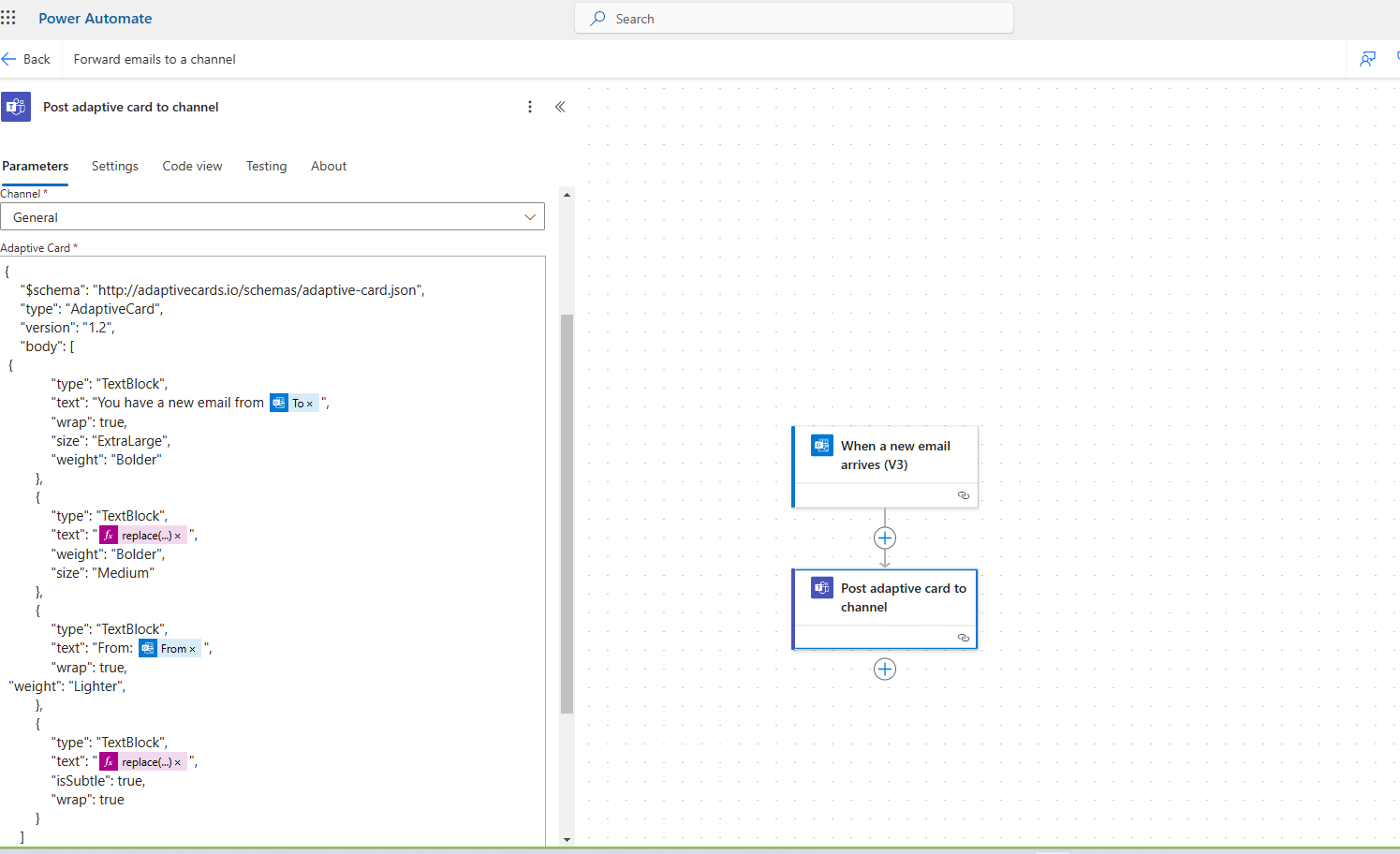
As you can see, this is an automate with two actions. The first is the trigger action type "when a new email arrives," where we need to specify the recipient and whether we want to include attachments, as well as other information such as importance.
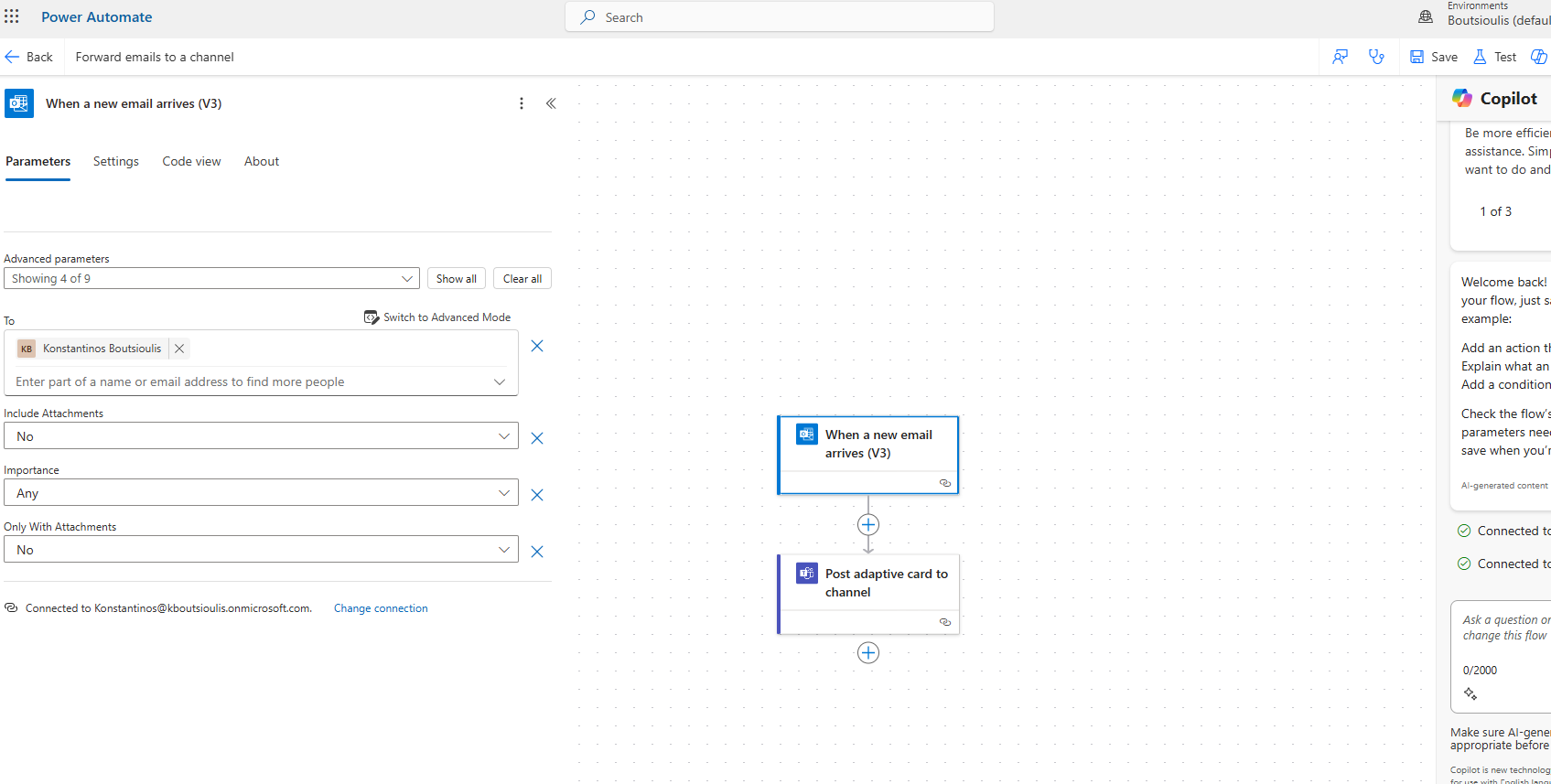
The next action is of the type "post adaptive card to channel," where we first need to specify the channel where we want the forwarding to occur. The body of the adaptive card was created from the adaptivecards.io page, and some values in the JSON were replaced with information we retrieved from the "when a new email arrives" action.
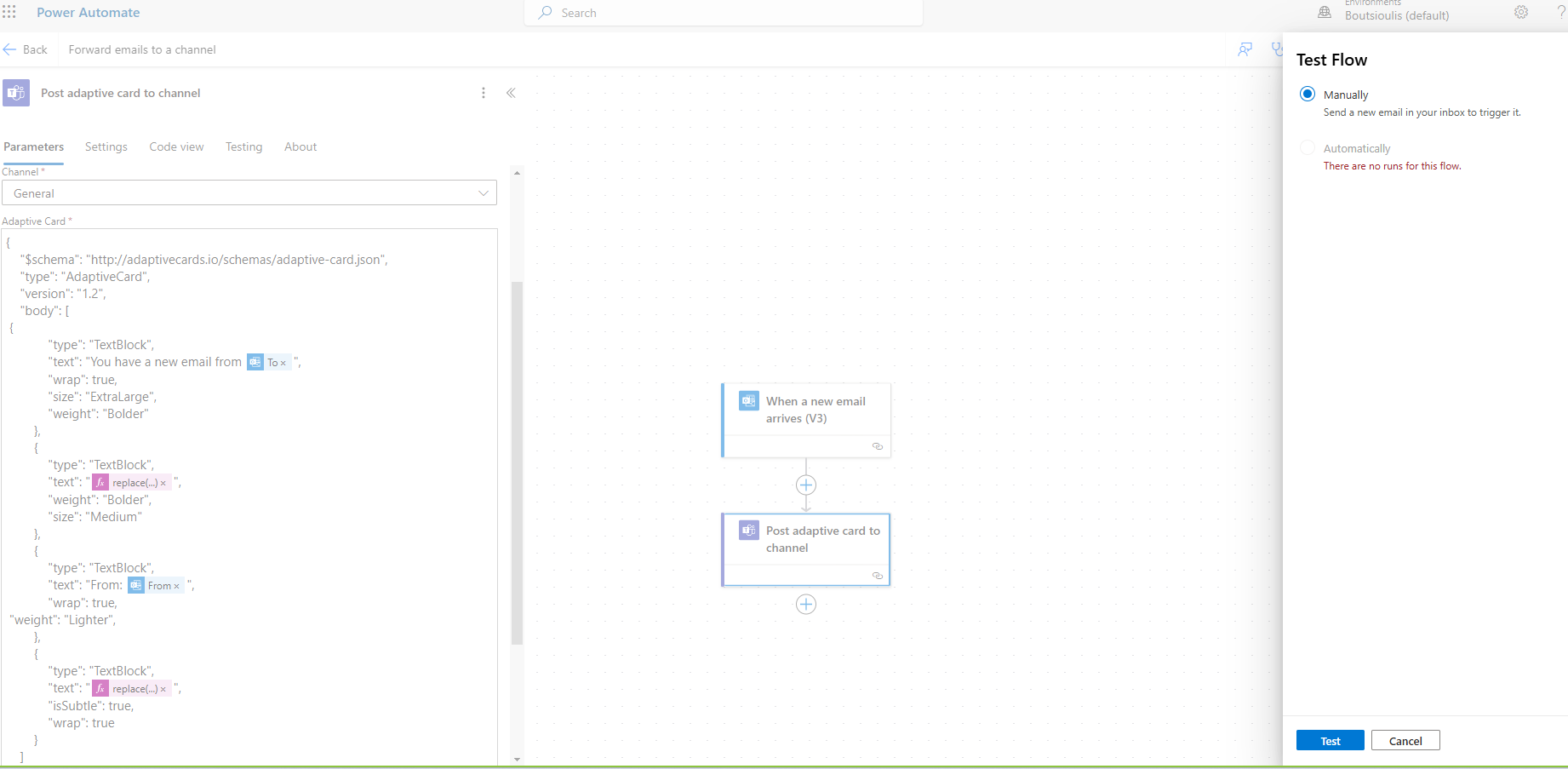
In the next step, we will save our automate and perform a manual test flow.
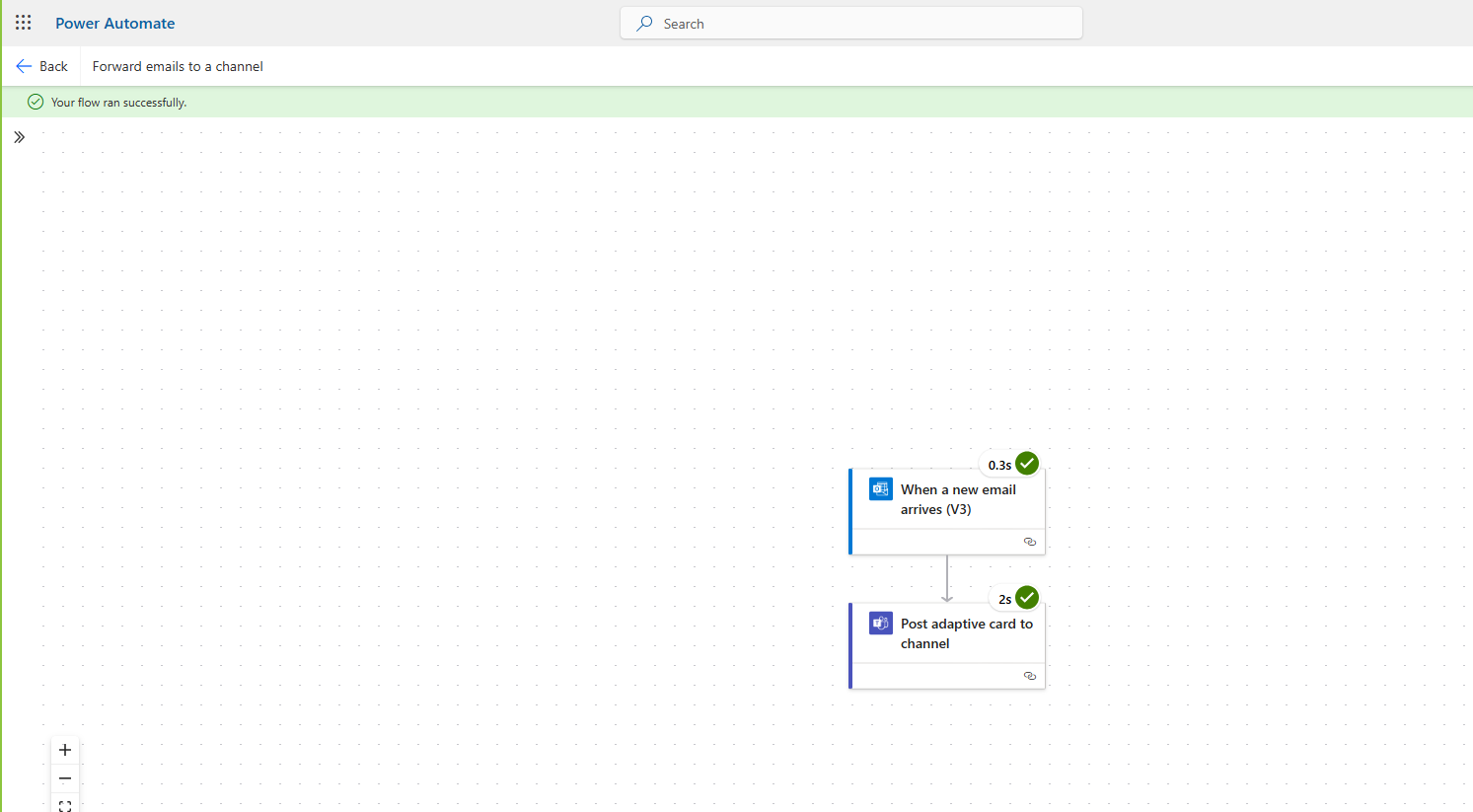
The automate executed successfully, as you can see.
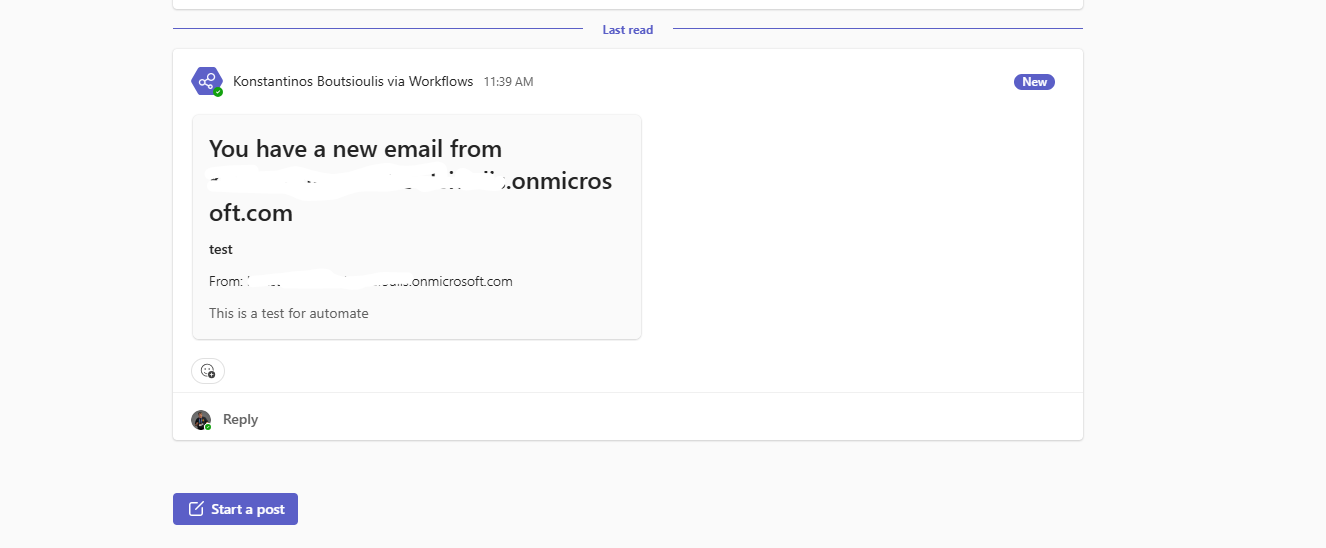
And as you can see, an adaptive card is immediately created in the specified channel in the team we selected.
 #ModerWork
#M365_Apps_Services
#BusinessApps
#SharePoint
#PowerAutomate
#technology
#microsoft
#digitaltransformation
#cloud
#mvpbuzz
#m365
#ModerWork
#M365_Apps_Services
#BusinessApps
#SharePoint
#PowerAutomate
#technology
#microsoft
#digitaltransformation
#cloud
#mvpbuzz
#m365
Visit Archives below to find more articles about Microsoft technologies on Modern Workplace