
Free Material
Find hereMore than 150 Articles about Microsoft Technologies on Modern Workplace
Official Site
Microsoft Most Valuable Professional M365 Apps & Services
Microsoft Most Valuable Professional Business Applications
Consultant & Sr Cloud Solution Architect Modern Wokrplace
Find hereMore than 150 Articles about Microsoft Technologies on Modern Workplace
15 August 2024
In today's article, we will see how we can create a web part Tasks on a classic experience site in SharePoint. Firstly, it should be noted that the analysis of articles for classic experience sites is because many organizations, during the digital transition, choose to maintain the same environment as their on-premise implementations, as well as keep a familiar stable working environment while transitioning to cloud services.
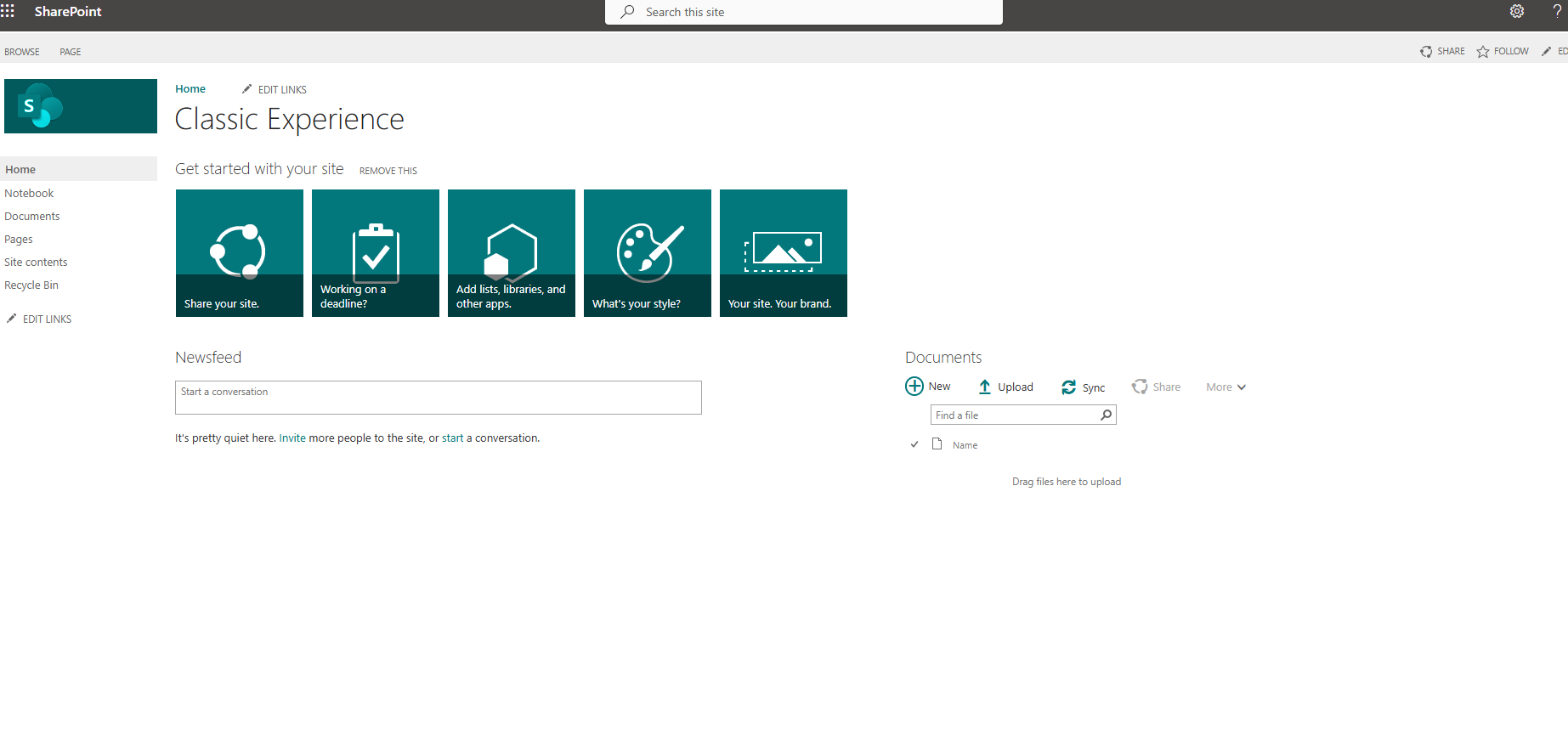
Just like in the on-premise versions of SharePoint up to version 2016, the web part Tasks was a very easy solution that met the needs of organizations in their internal portal. Initially, from the classic experience page, we select the gear icon at the top right and then site contents.
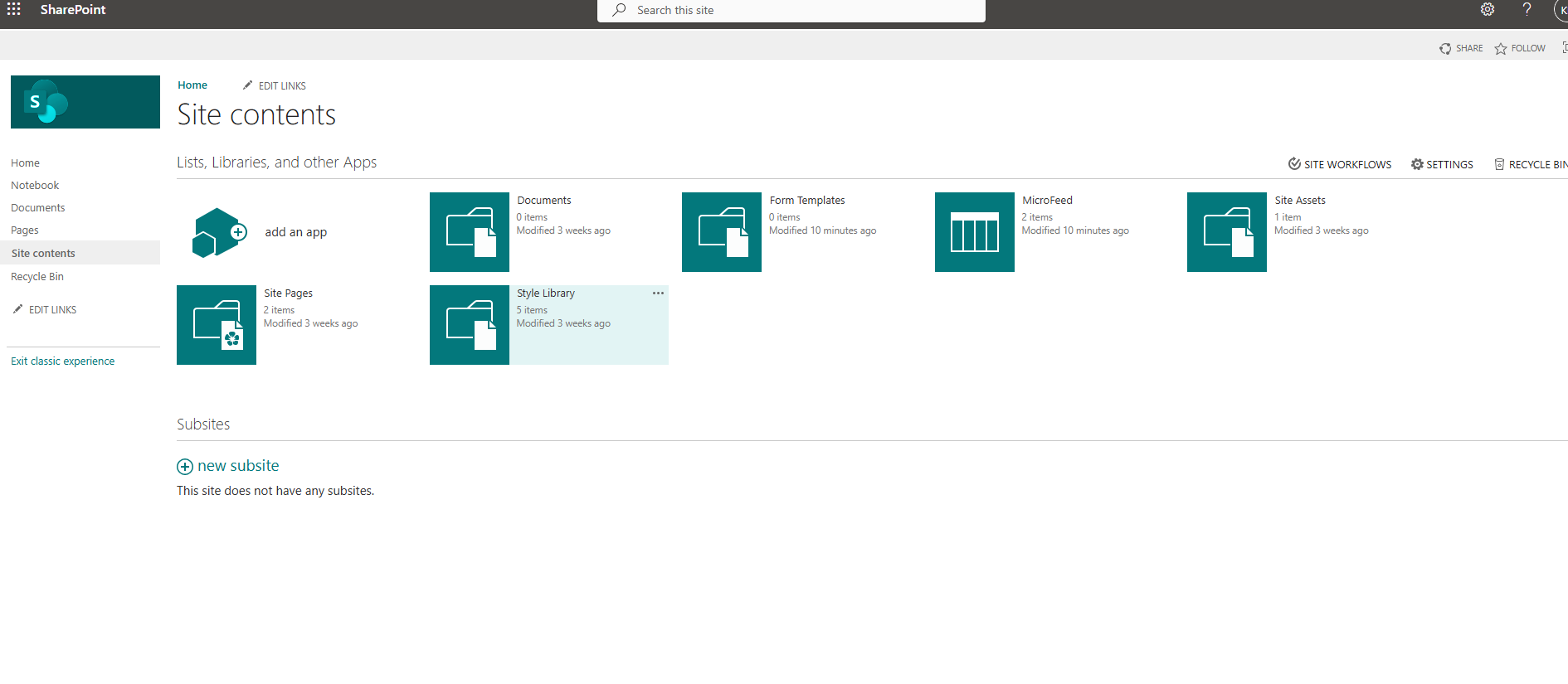
From the new page, we select add an app to add a new web part.
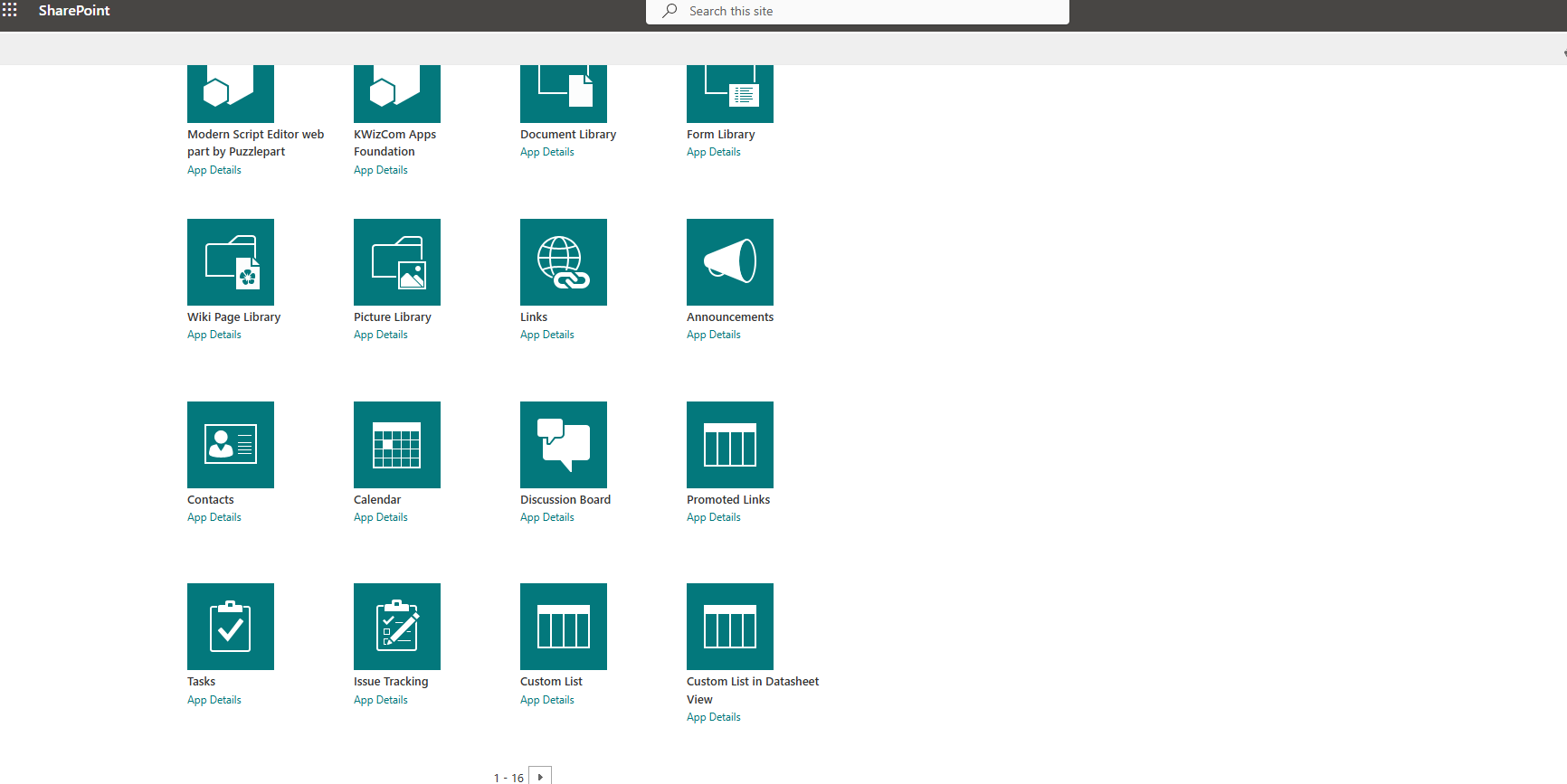
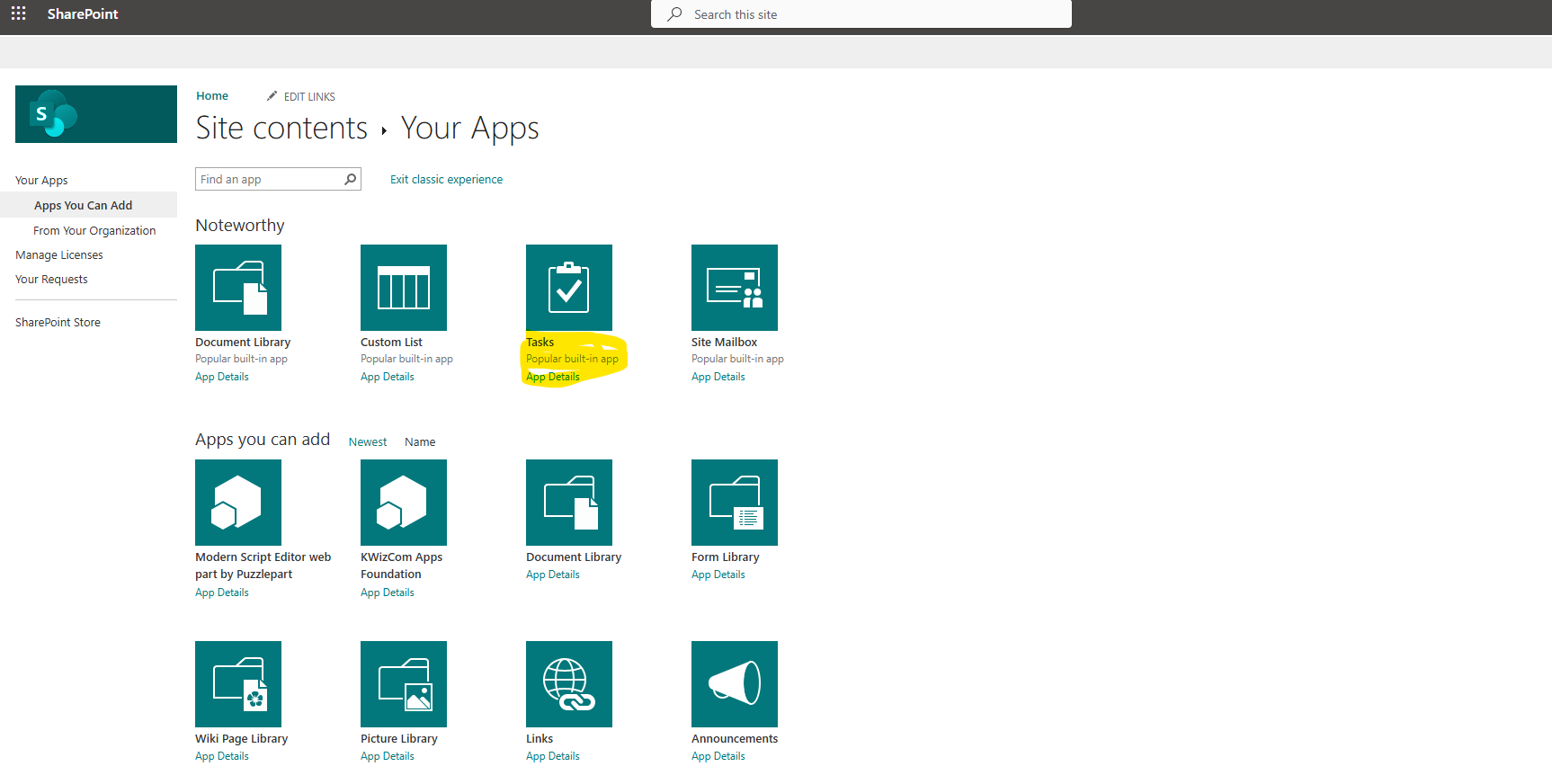
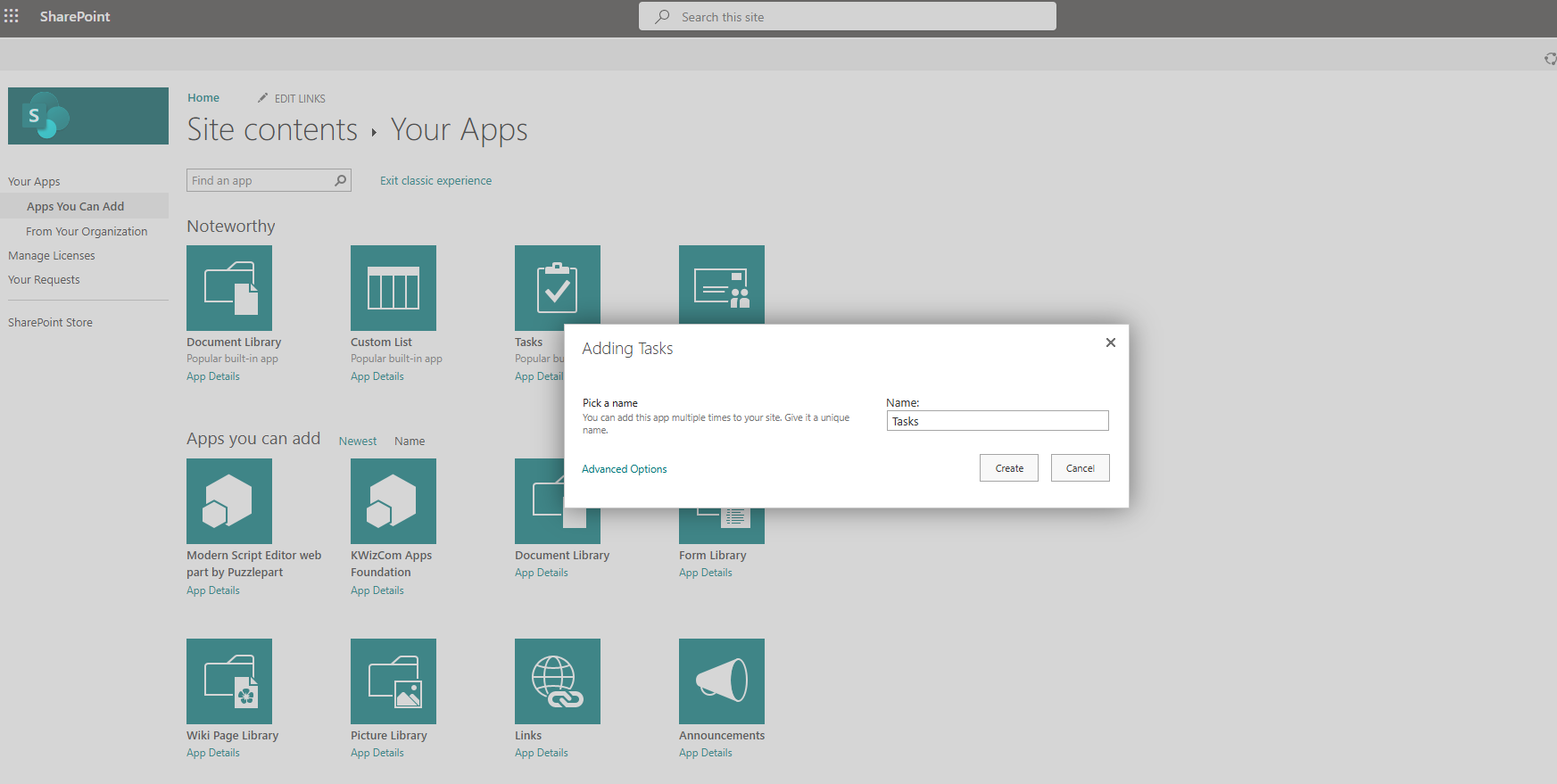
On the next page, we select the web part Tasks from the available options.
In the next step, we need to enter a name for our new web part.
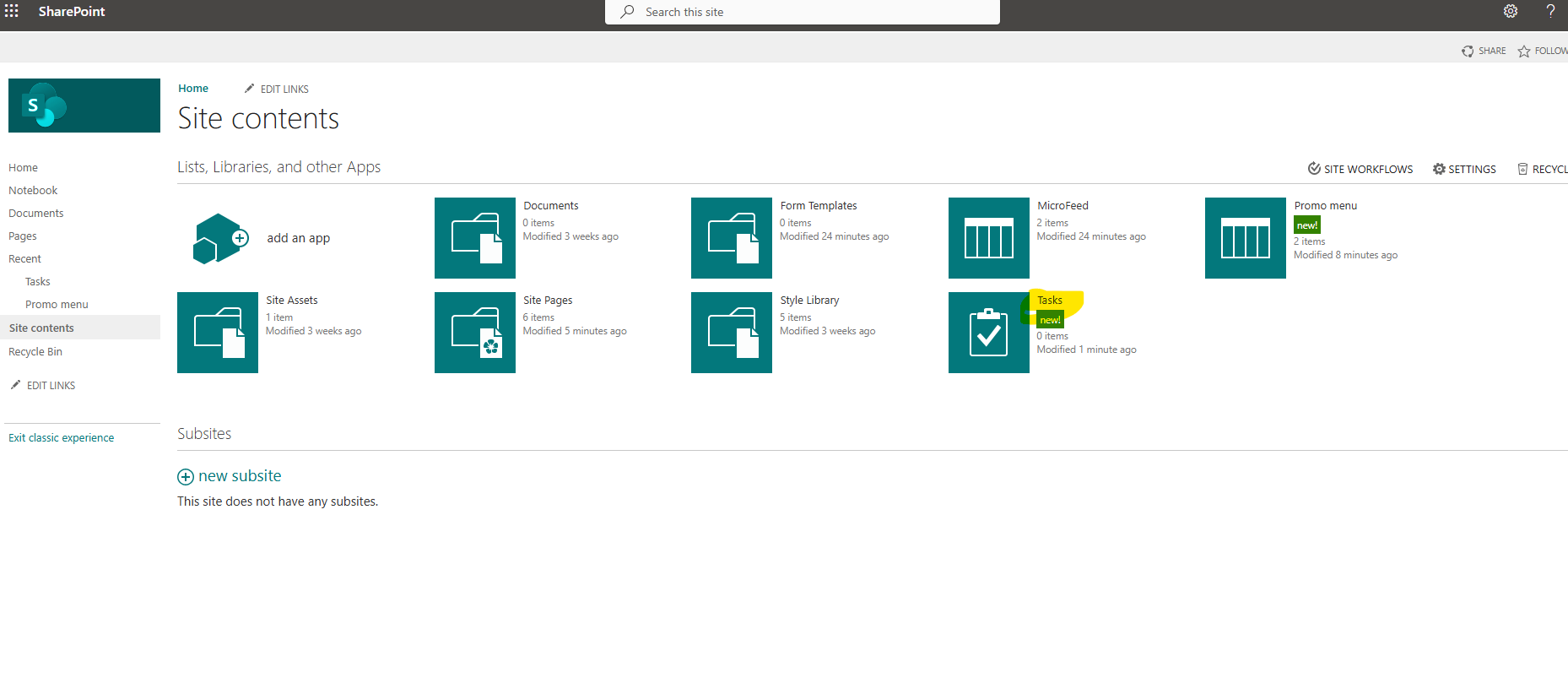
As you can see, the web part has been successfully created.
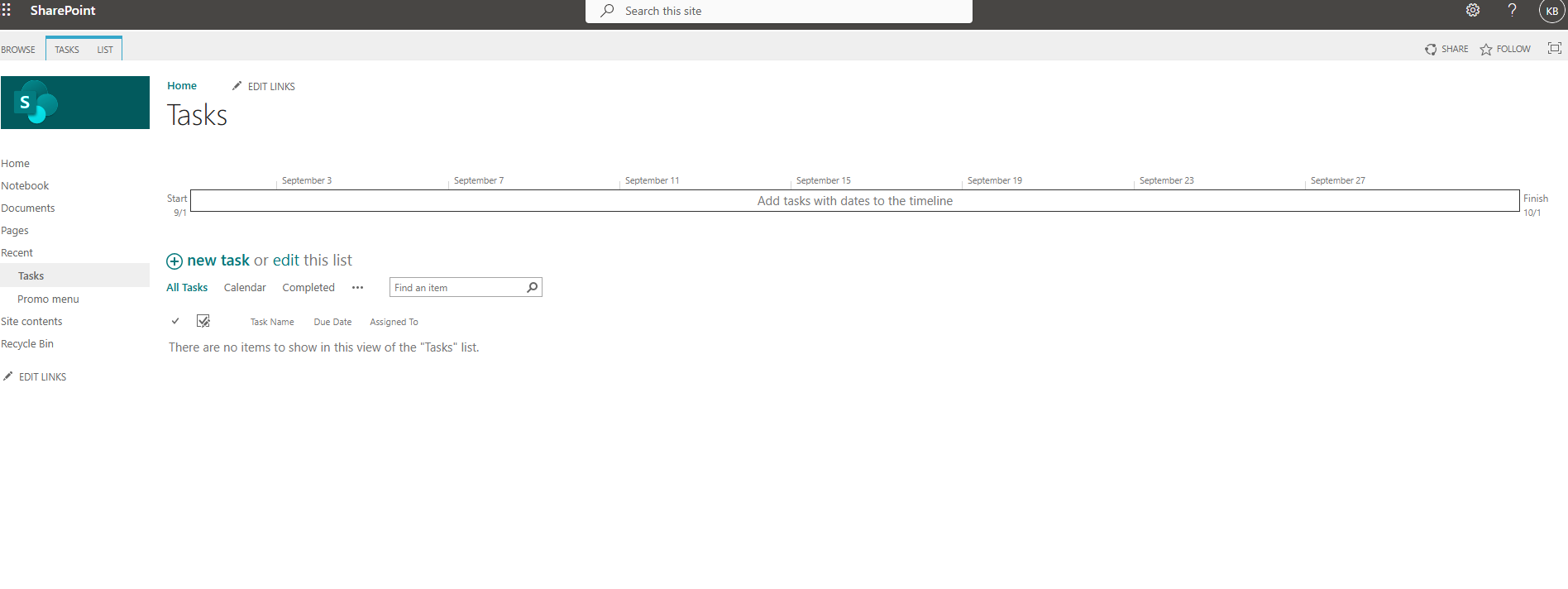
By clicking on the new web part, we go to the page with the tasks, which, as you can see, is still a list. At the top of the page, there is a timeline that shows the tasks and the current date, providing a visual representation of the tasks.
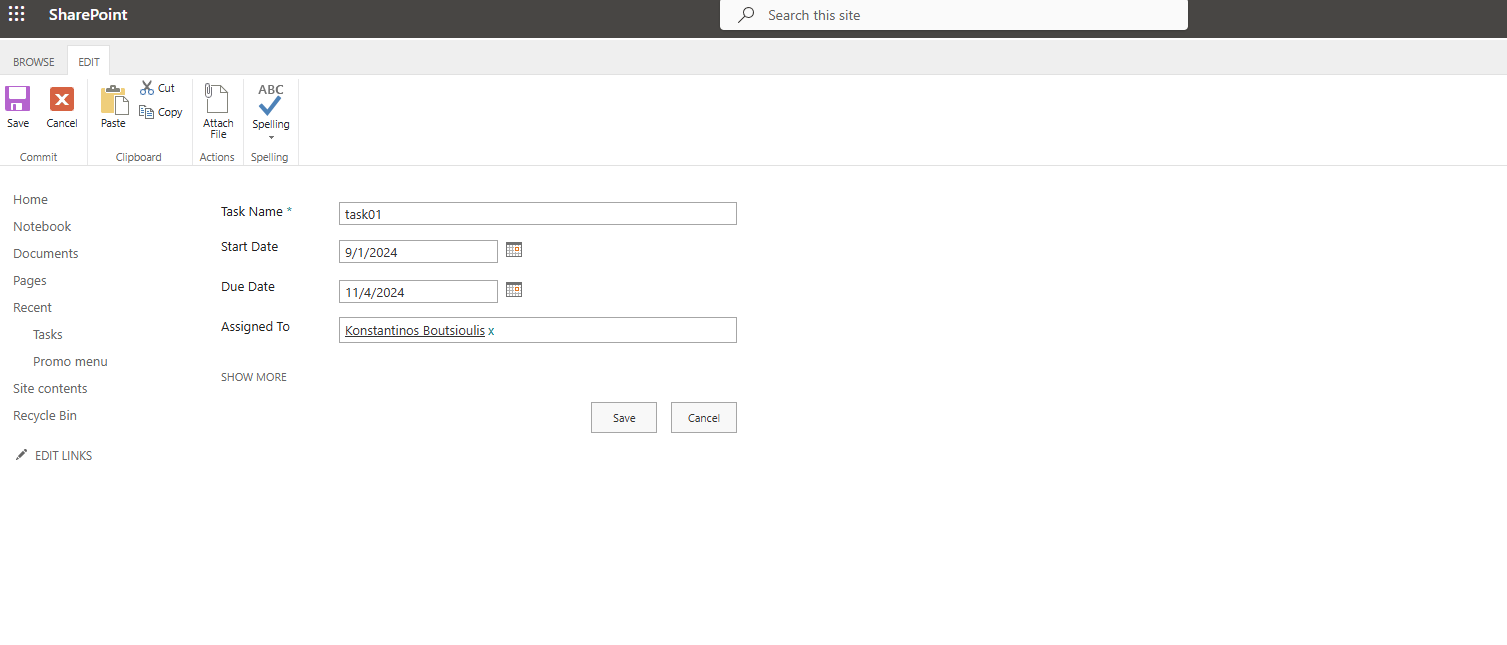
If we select new task, we will go to the page that contains the form for entering a new task. We need to give a name to our new task, as well as the start and end dates of the task, and to whom the task has been assigned. As you can see, it is very similar to the planner where we can create a new task and assign it to an employee.
If we click save, we save the task, and from the management page, if we select the checkbox, the task is considered completed and is deleted.
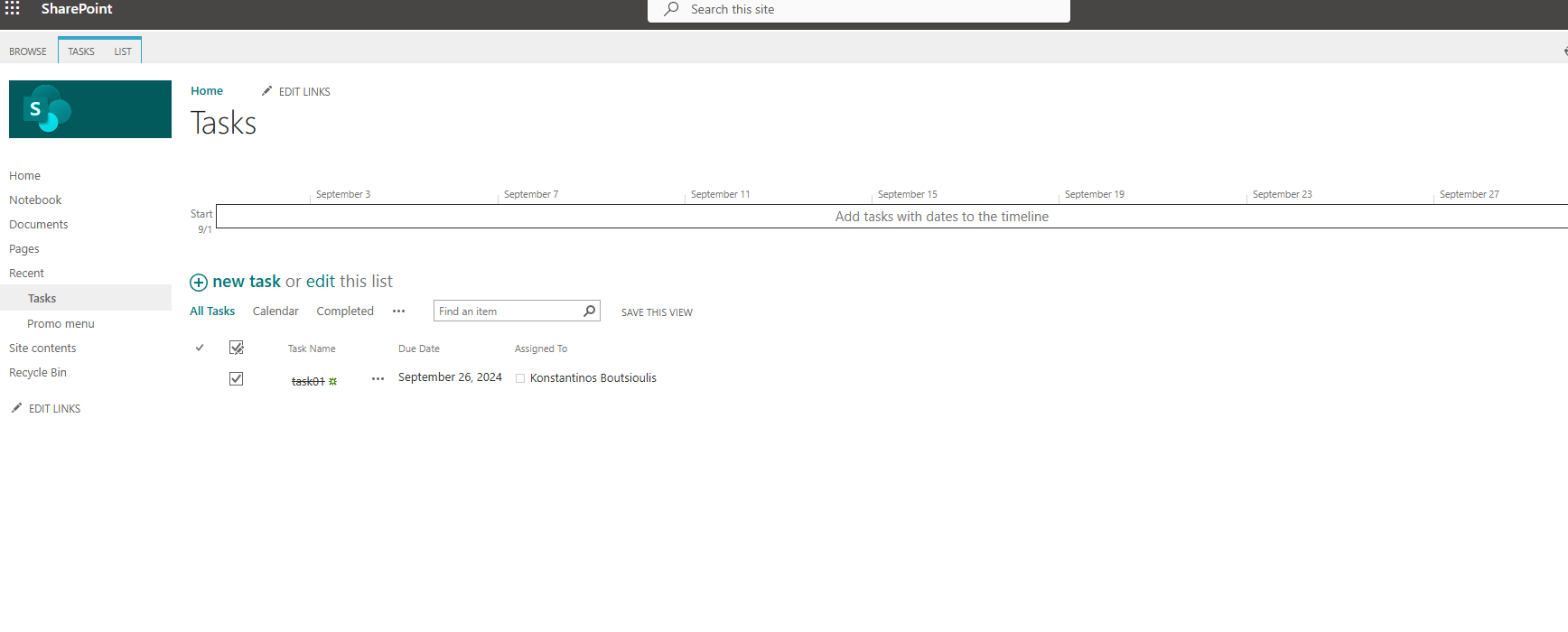
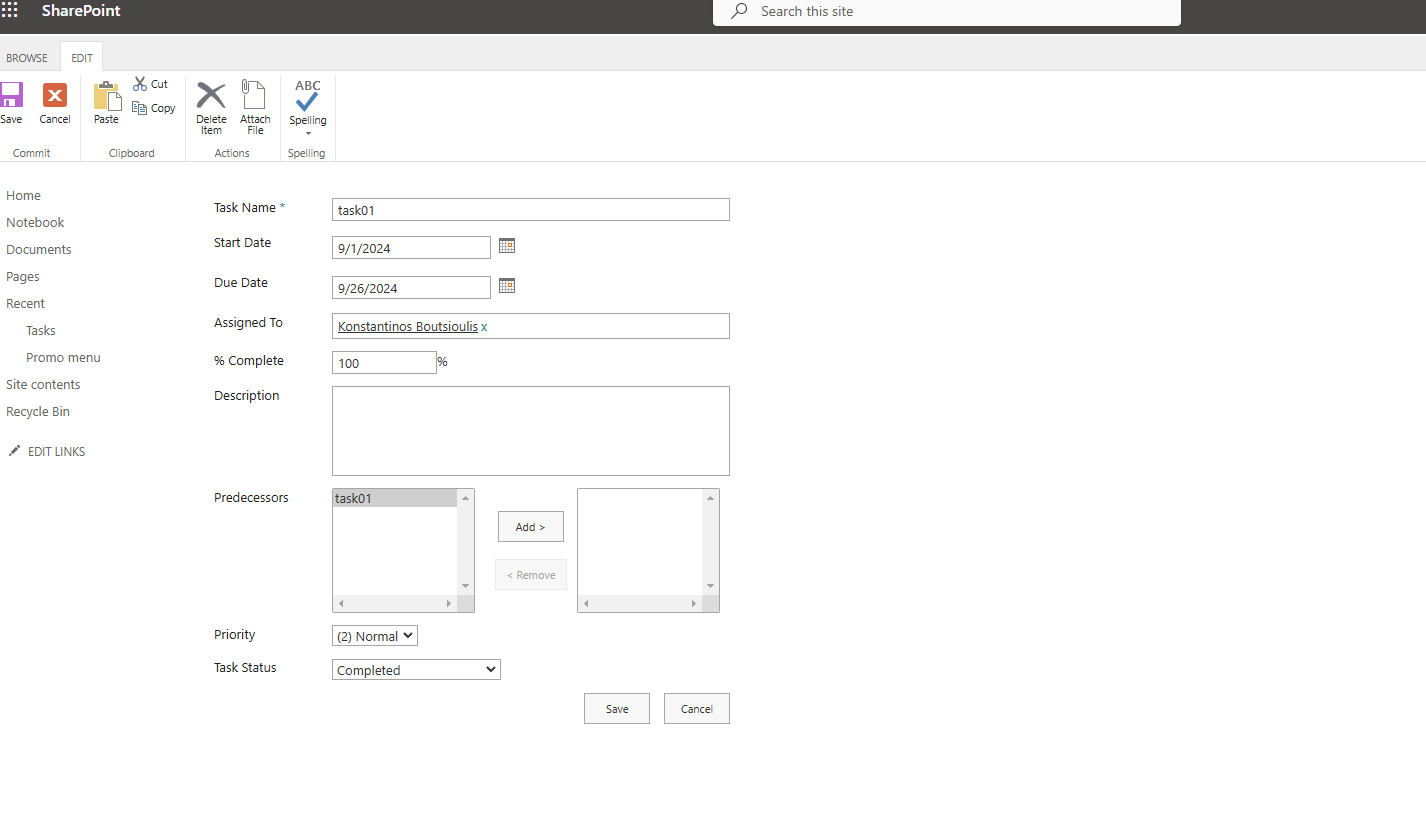
It should also be noted that there are more options in the task creation form if you select show more. The form appears with all possible options, such as the percentage of task completion, a description, and other fields like predecessors that can be added, as well as the task priority and status. In our case, because I selected the checkbox on the previous page, it has passed to Completed and 100% in the %complete field.
In this way, we can very simply create a task manager. It should be noted that in SharePoint Online, there are new, much more improved versions of task management that are more aesthetically pleasing.
#ModerWork #M365_Apps_Services #BusinessApps #SharePoint #PowerAutomate #technology #microsoft #digitaltransformation #cloud #mvpbuzz #m365Visit Archives below to find more articles about Microsoft technologies on Modern Workplace